
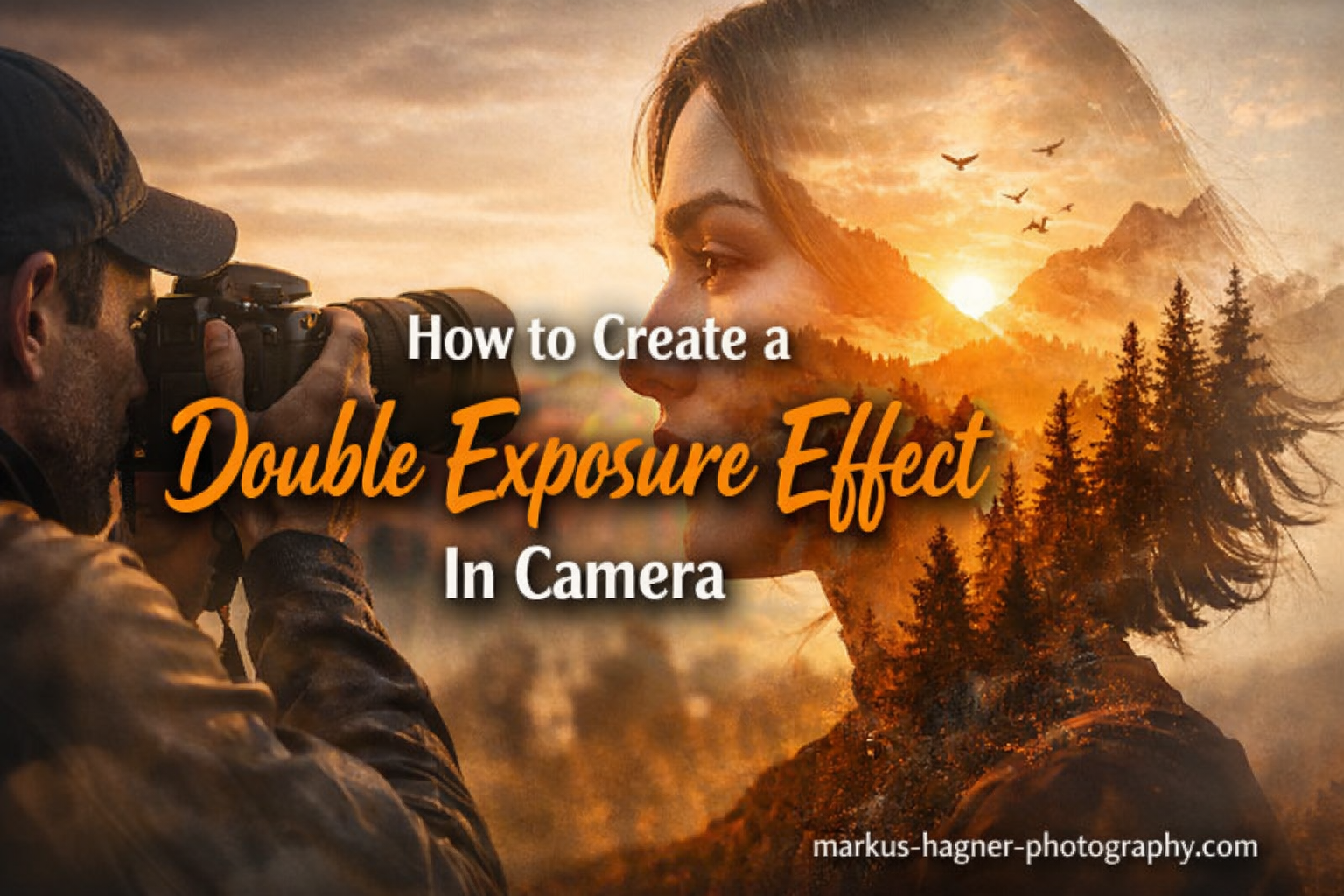
Learning how to create a double exposure effect in camera transformed my photography. I spent months experimenting with this technique, and the results speak for themselves. This guide teaches you everything I learned about creating stunning double exposures directly in your camera without post-processing software.
You’ll discover the exact settings, exposure techniques, and creative approaches that produce professional-quality results. Whether you shoot Nikon, Canon, Sony, or another brand, I’ll show you how to master this artistic technique.
What Is Double Exposure Photography?
Double exposure photography combines two separate images into a single frame. You expose the same piece of film or digital sensor twice, creating a layered effect where both images remain visible. The technique dates back to early film photography when photographers discovered they could create ghostly, surreal images by not advancing the film between shots.
Modern digital cameras make this process much easier. Most mid-range to professional cameras include a multiple exposure mode that combines shots automatically. This eliminates the guesswork and gives you immediate feedback on your results.
The digital age brought new possibilities. You can now preview your double exposure before taking the second shot, adjust blend modes for different effects, and experiment freely without wasting film. Yet the fundamental principle remains unchanged: two images become one artistic expression.
How to Create a Double Exposure Effect In Camera In 2026?
Creating double exposures in-camera requires understanding the relationship between your two shots. The technique works by combining a dark, silhouette image with a bright, detailed subject or texture. This contrast creates clear definition between elements.
Step 1: Enable Multiple Exposure Mode
First, you need to find and activate the multiple exposure function on your camera. Menu locations vary by brand:
Canon: Look under the shooting menu (camera icon) for “Multiple Exposure”. On most Canon DSLRs and mirrorless cameras, you’ll find it in the 4th or 5th tab of the red camera menu.
Nikon: Access the shooting menu and select “Multiple Exposure”. Nikon typically places this in the middle of their menu system. On Nikon DSLRs, it’s often in the shooting menu under “Multiple Exposure” with options for mode, number of shots, and overlay mode.
Sony: Sony’s implementation varies more between models. On many Sony cameras, look in the camera settings (gear icon) under “Shooting” or “Exposure”. Some Sony models require you to assign multiple exposure to a custom button.
Check your camera’s manual if you can’t locate the setting. Not all cameras support in-camera multiple exposure, especially entry-level models.
Step 2: Choose Your Blend Mode
Your camera offers several blending options that control how the two images combine. Understanding these modes transforms your results:
| Blend Mode | How It Works | Best For |
|---|---|---|
| Additive | Adds brightness values together (more light) | Bright, ethereal effects; requires underexposing each shot |
| Average | Averages brightness values between exposures | Balanced, natural-looking blends; most forgiving mode |
| Lighten | Uses the brightest parts of each image | Creating ghostly overlays; preserving highlight details |
| Darken | Uses the darkest parts of each image | Silhouette work; building up shadow areas |
I recommend starting with Average mode. It provides the most predictable results and requires less precise exposure compensation. Once you understand the technique, experiment with Additive mode for more dramatic, bright effects.
Step 3: Take Your Silhouette Shot
The first image in your double exposure should be a dark silhouette against a bright background. This creates the “frame” that your second image fills.
Position your subject between your camera and a bright light source. The sky works perfectly, especially on overcast days. Expose for the bright background, not your subject. This renders your subject as a dark shape while properly exposing the background.
Fill most of the frame with the bright background. The silhouette should occupy roughly 30-40% of the image area. Too large and you lose the double exposure effect; too small and the overlay becomes insignificant.
Use exposure compensation to darken your subject further if needed. Most cameras allow +/- 2 to 3 stops of compensation. For silhouettes, underexpose by 1-2 stops from the meter reading to ensure your subject appears truly black.
Step 4: Take Your Subject/Texture Shot
Your second shot fills the dark silhouette areas with interesting details. This image should contain bright areas, interesting textures, patterns, or scenes.
Popular choices include:
- Landscapes with interesting skies
- Architectural details or patterns
- Floral subjects with backlighting
- Urban scenes with lights
- Natural textures (leaves, water, clouds)
Ensure your texture shot contains bright elements that will show up against the dark silhouette areas. The camera will only record the bright portions where your first shot was dark.
Shoot your texture at normal exposure or slightly overexposed by half to one stop. This ensures enough brightness transmits through the silhouette areas. Watch your histogram to avoid clipping highlights completely.
Step 5: Review and Adjust
After taking your double exposure, review the result on your camera’s LCD. Most cameras show you the combined image immediately, allowing you to assess the effect.
Check these critical elements:
Is the silhouette clearly defined? You should see crisp outlines where your subject ends and background begins. If edges are fuzzy, increase the contrast in your silhouette shot by finding a brighter background or darkening your subject further.
Does the overlay look natural? The second image should fill the silhouette areas without spilling into the background. If it does, your silhouette wasn’t dark enough, or your texture shot was too bright in those areas.
Is the overall exposure correct? Double exposures easily become too bright because you’re combining two exposures. If the image looks washed out, darken both shots by one stop and try again.
Don’t hesitate to experiment. The beauty of digital photography lies in immediate feedback. Try different subjects, adjust your exposure, and test various blend modes until you achieve your desired look.
Mastering the Silhouette and Subject Shot Technique
The key to successful double exposures in camera involves understanding the relationship between your two shots. Think of it as a sandwich: your silhouette provides the bread, while your subject shot provides the filling.
Why Contrast Matters
Contrast makes double exposures work. Without sufficient difference between light and dark areas, your images blend into an indistinct mess. When I first started, my attempts looked muddy and confusing because I didn’t create enough separation.
Your silhouette shot needs maximum contrast. The subject should appear as close to pure black as possible while the background approaches pure white. This gives your second shot clear boundaries to work within. A bright blue sky with a well-defined black silhouette works perfectly.
Your subject shot needs different contrast. It should contain bright areas that register against the dark silhouette, but also mid-tones and darker areas that don’t compete with the bright background from your first shot.
Creating Effective Silhouettes
Position your subject so their shape reads clearly. Profile views work exceptionally well because they create recognizable outlines. Avoid poses where limbs overlap or the subject appears as an indistinct blob.
Look for strong, simple shapes. Trees with interesting branching patterns, buildings with distinctive silhouettes, or people in recognizable poses all work beautifully. The simpler and more iconic the shape, the stronger your double exposure becomes.
Distance matters too. Move back far enough that your subject becomes a clear shape rather than detailed features. You want viewers to recognize what it is, not see individual details that might confuse the overlay.
Choosing Complementary Subject Shots
The second shot should complement, not compete with, your silhouette. If your silhouette is complex and detailed (like a tree with many branches), choose a simpler texture that won’t create visual chaos.
For portraits, consider filling the silhouette with natural scenes like forests, oceans, or skyscapes. For architectural silhouettes, try organic textures like tree bark, flowing water, or cloud patterns. The juxtaposition creates compelling visual interest.
Color matters as well. Bright, warm colors (sunsets, autumn leaves) transmit through silhouette areas beautifully. Cool colors (blue skies, water) create more subtle, ethereal effects. Think about the mood you want to convey.
Exposure Settings and Camera Configuration
Proper exposure separates amateur attempts from professional results. Double exposures require different thinking than regular photography because you’re layering light on top of light.
Understanding Exposure Compensation
Each shot in your double exposure contributes light to the final image. Without compensation, your results become overexposed because you’re adding two exposures together. This is the main reason beginners fail at double exposure photography.
Think of it this way: If one properly exposed image looks correct at f/8, 1/125s, then two images combined at those same settings will be one stop overexposed. Your camera’s meter reads each shot individually, not the cumulative effect.
This is why you must deliberately underexpose. You’re not making a mistake; you’re compensating for the fact that you’re adding light from two separate captures.
Recommended Exposure Values
These guidelines come from testing cameras from multiple manufacturers and consulting with film photographers who’ve used double exposure for decades:
Digital cameras (Average blend mode): Underexpose each shot by 0.5 to 1 stop. This creates balanced results without significant correction. If your double exposure looks slightly dark, increase to 1.5 stops.
Digital cameras (Additive blend mode): Underexpose each shot by 1 to 2 stops. Additive mode stacks brightness values, so you need more compensation. Start at 1.5 stops and adjust based on results.
Film photography: Set your ISO to double the box speed (e.g., shoot ISO 400 film at ISO 800). This effectively underexposes each frame by one stop when the lab processes normally. For more dramatic effects, shoot at 2.5x or 3x box speed.
Use your camera’s exposure compensation feature (usually +/- button) to dial in these values. Check your camera manual if you’re unsure how to access this control.
Camera-Specific Settings Reference
| Camera Brand | Menu Location | Common Settings |
|---|---|---|
| Canon EOS (DSLR) | Shooting Menu 4 (red camera) > Multiple Exposure | On:Func/Cnt, Multi-expos ctrl: Additive/Average, No. of exposures: 2-9 |
| Canon EOS R (Mirrorless) | Shooting Menu 6 > Multiple Exposure | Same options as DSLR, plus live preview in some models |
| Nikon D Series | Shooting Menu > Multiple Exposure | Multiple exposure mode: On, Number of shots: 2-10, Auto gain: On/Off |
| Nikon Z Series | Photo Shooting Menu > Multiple Exposure | Overlay mode: Add/Average/Darken/Lighten, Number of shots: 2-10 |
| Sony Alpha | Camera Settings 1 > Application List > Multiple Exposure | Select images to combine or shoot new, blend modes vary by model |
Nikon users should note: “Auto gain” set to “On” automatically reduces exposure for multiple shots. This is helpful for beginners. Canon’s “Average” blend mode does something similar.
If your camera doesn’t appear here, search your manual for “multiple exposure” or “overlay shooting.” Many Olympus, Panasonic, and Fujifilm cameras also include this feature with similar menu structures.
Pro Tips for Successful Double Exposures and Common Mistakes to Avoid
After creating hundreds of double exposures, I’ve learned what works and what doesn’t. These insights save you time and frustration.
Essential Tips for Better Results
Plan your shots in advance. The best double exposures happen when you visualize the final result before pressing the shutter. Sketch ideas or make notes about which subjects and textures might work together. Random experimentation rarely produces compelling results.
Shoot in RAW format. RAW files contain more exposure latitude, which proves invaluable when combining images. If your double exposure needs minor exposure adjustments, RAW files give you flexibility without quality loss.
Use a tripod for the second shot. While your silhouette shot often works handheld, mounting your camera for the texture/subject shot ensures sharpness. This is especially important when shooting intricate details or when light levels drop.
Bracket your exposures. Take several versions of each shot at different exposure compensations (-1 stop, -1.5 stops, -2 stops). This gives you options if your first attempt doesn’t work perfectly. Digital film is free, so experiment liberally.
Start simple. Begin with basic silhouettes against bright skies and simple textures like clouds or foliage. Master the fundamentals before attempting complex multi-element compositions. Simple subjects often create the strongest double exposures.
Consider orientation. Match horizontal silhouettes with horizontal textures, vertical with vertical. Mixing orientations creates visual tension that rarely works. Pay attention to the direction of lines and shapes in both images.
Use manual focus. Autofocus can hunt or misfocus when shooting silhouettes against bright backgrounds. Switch to manual focus and set your focal point intentionally. This ensures your subject’s outline remains sharp.
Common Mistakes That Ruin Double Exposures
Overexposure from combining too much light. This is the most common error. If your double exposure looks washed out with no detail, you didn’t underexpose enough. Darken both shots by one stop and try again.
Insufficient contrast in the silhouette. When your silhouette shot contains mid-tones instead of pure black, your overlay shows through unwanted areas. Expose properly for the background and underexpose your subject further.
Choosing busy, complicated subjects for both shots. Double exposures become chaotic when both images contain intricate details. Use simple silhouettes with detailed textures, or detailed silhouettes with simple textures. Never use detailed subjects for both shots.
Forgetting to reset camera settings. After finishing double exposures, remember to turn off multiple exposure mode. Otherwise, your next shots will continue combining images unexpectedly. I’ve ruined several good shots this way.
Shooting in inconsistent lighting. Combining images shot in dramatically different lighting conditions (one in harsh midday sun, another in golden hour) rarely works. The color temperatures and contrast ranges clash. Shoot both elements under similar lighting conditions.
Not checking camera compatibility. Some cameras don’t offer multiple exposure mode. Check your camera’s specifications before planning an entire shoot around this technique. Notable cameras lacking this feature include many entry-level DSLRs and some older mirrorless models.
Rushing the process. Double exposure requires patience and thought. Take time to consider how elements will interact. The best results come from deliberate composition, not rapid-fire shooting. Slow down and think through each element.
Frequently Asked Questions
How to create double exposure in camera?
Enable multiple exposure mode in your camera settings. Take a dark silhouette shot against a bright background as your first image. Then capture a bright, detailed texture or scene as your second image. The camera combines these automatically. Underexpose each shot by 1-2 stops to prevent overexposure.
How to edit photos to look like double exposure?
Use photo editing software like Photoshop. Place one image as the base layer, then add the second image as a layer above. Change the blend mode to Screen, Overlay, or Lighten to combine them. Adjust opacity and use layer masks to control which areas show through. This mimics the in-camera effect with more control.
How to create a double exposure on iPhone?
Use apps like Superimpose, Enlight, or even Instagram’s layout features. Take two photos, then use the app’s blending tools to combine them. The iPhone’s built-in camera doesn’t support true in-camera double exposure, but apps simulate the effect digitally with similar blend modes and controls.
Which cameras support in-camera multiple exposure?
Most mid-range to professional cameras include multiple exposure modes. This includes Nikon D7000 series and above, Canon EOS models (60D and newer), Sony Alpha series (most models), Fujifilm X series, and Olympus OM-D cameras. Check your camera’s specifications or manual to confirm this feature.
What blend mode should I use for double exposure?
Start with Average mode for balanced, predictable results. Average mode automatically compensates for exposure and creates natural-looking blends. Use Additive mode for brighter, more ethereal effects (underexpose more). Lighten and Darken modes work well for specific creative effects but require more precision and experience.
Conclusion
Learning how to create a double exposure effect in camera opens new creative possibilities for your photography. The technique combines technical precision with artistic vision, allowing you to create surreal, compelling images that stand out from ordinary photographs.
Start simple. Enable multiple exposure mode on your camera, create a strong silhouette against a bright sky, then fill that shape with an interesting texture or landscape. Underexpose each shot by one to two stops, review your results, and adjust accordingly.
Your first attempts might not be perfect, but each try teaches you something new about exposure, contrast, and composition. The photographers who master double exposure are those who experiment freely and learn from both successes and failures.
Now grab your camera, find an interesting subject, and start creating. The best way to learn this technique is by doing. Happy shooting, and I look forward to seeing the amazing double exposures you create 2026!