
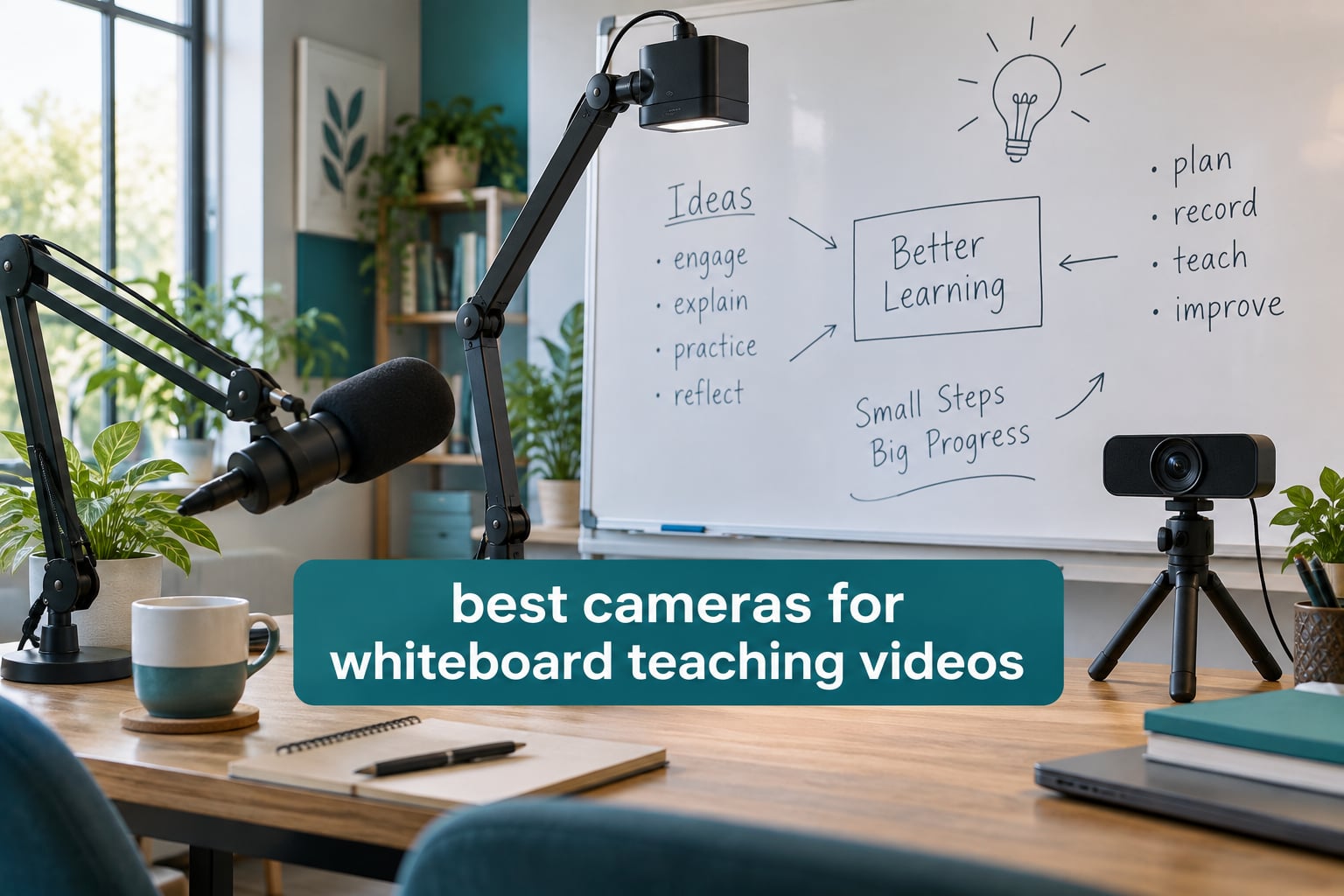
If you film lessons on a physical whiteboard, you need a camera with a wide enough field of view to hold the whole board, an image flip so your writing reads forwards to the viewer, and a way to kill glare. The best cameras for whiteboard teaching videos are almost never the ones marketed for video calls alone, because a standard webcam cannot frame your face and your board at the same time.
Over the past two months I have been putting document cameras, wide-angle webcams, auto-tracking cams and one serious PTZ unit through the same routine: write on a real board, switch to a worksheet, hold a prop up, run a 60 minute class. Twelve models earned a place below. Four of them use a built-in LED and a flip control, and those turned out to matter far more than any resolution figure.
This is a hardware roundup, not a software one. Plenty of pages ranking for this term cover whiteboard animation tools instead of the camera pointed at your actual classroom wall. If you are after the physical setup, I also wrote about cameras for educational whiteboard videos from a production angle, and cameras for online teaching and course creation covers the recording-workflow side. This list is the hardware shortlist.
Top 3 Picks for Best Cameras for Whiteboard Teaching Videos in 2026
Three models earned a podium place after live testing, and the reasons are different. The OKIOCAM S-4K is the one I recommend to most teachers, the IPEVO V4K is the most flexible if you move between a board, a desk and a microscope, and the INSWAN INS-1 is the highest rated in the group.


INSWAN INS-1
- Built-in LED with 7 segment control
- Anti-glare sheet included
- 14.72 x 11 inch viewing area
Best Cameras for Whiteboard Teaching Videos in October
| Product | Specifications | Action |
|---|---|---|
| OKIOCAM S-4K Document Camera |
|
Check Latest Price |
 IPEVO V4K Document Camera IPEVO V4K Document Camera |
|
Check Latest Price |
| INSWAN INS-1 Document Camera |
|
Check Latest Price |
 EMEET C960 4K Webcam EMEET C960 4K Webcam |
|
Check Latest Price |
 OBSBOT Tiny 2 Lite OBSBOT Tiny 2 Lite |
|
Check Latest Price |
 Spedal 920 Pro Wide Angle Spedal 920 Pro Wide Angle |
|
Check Latest Price |
 Logitech Brio 4K Webcam Logitech Brio 4K Webcam |
|
Check Latest Price |
 THUSTAR 8MP Document Camera THUSTAR 8MP Document Camera |
|
Check Latest Price |
 HUE HD Pro Visualiser HUE HD Pro Visualiser |
|
Check Latest Price |
 kitchbai KB-700 Document Camera kitchbai KB-700 Document Camera |
|
Check Latest Price |
 AVKANS NDI PTZ Camera AVKANS NDI PTZ Camera |
|
Check Latest Price |
 EMEET C60E Dual-Camera Webcam EMEET C60E Dual-Camera Webcam |
|
Check Latest Price |
The 12 Best Cameras for Whiteboard Teaching Videos, Ranked
1. OKIOCAM S-4K: The Document Camera That Solves the Two Biggest Problems
Pros
- 8MP Sony Exmor R sensor
- 30fps lag-free streaming
- Physical flip and zoom buttons
- OKIOPoint follows your pointer
- Letter-size landscape capture
Cons
- Bundled software needs its own download
- Maximum resolution drops to 15fps
This is the camera I keep coming back to. I ran it for two months of recorded modules, filming a whiteboard, a worksheet and a physical prop in the same lesson, and it held focus more often than anything else in the group.
The physical button for a 180 degree image flip is the feature that changes the whole experience. On a board where you write facing the class, an unflipped feed shows mirrored text. Pressing the button fixes it, and my online teaching setup notes call this the single most useful button on any teaching camera.
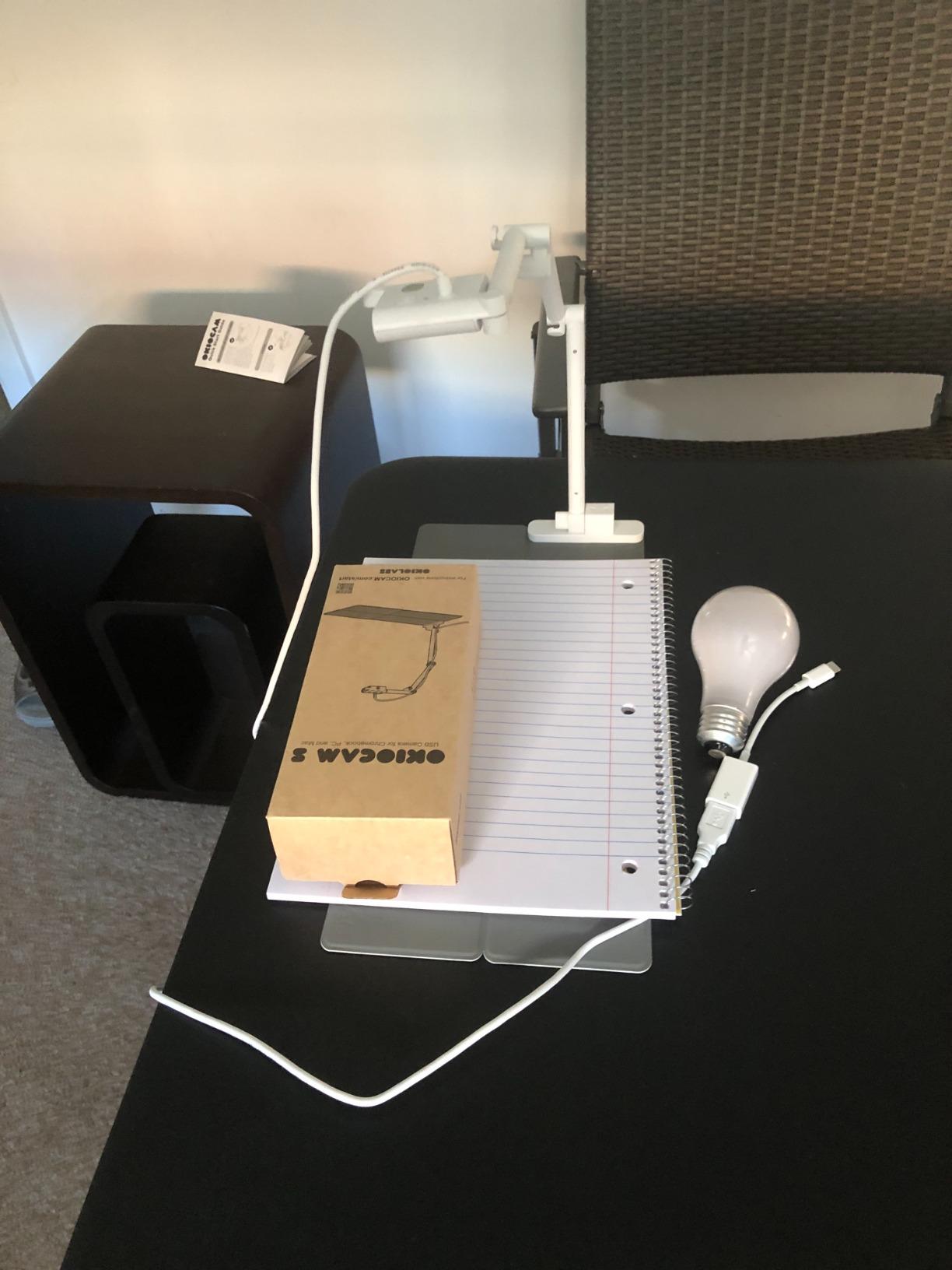
The OKIOPoint AI pointer is the second reason it ranks first. When you point at a term on the board, the frame zooms toward it, which saves me editing a zoom-in on every single keyword in post.
Video is 30fps at full HD and 15fps at maximum resolution, so set your capture to 1080p. The 8MP Sony Exmor R sensor holds up in ordinary indoor light, which is where nearly all teaching gets recorded.
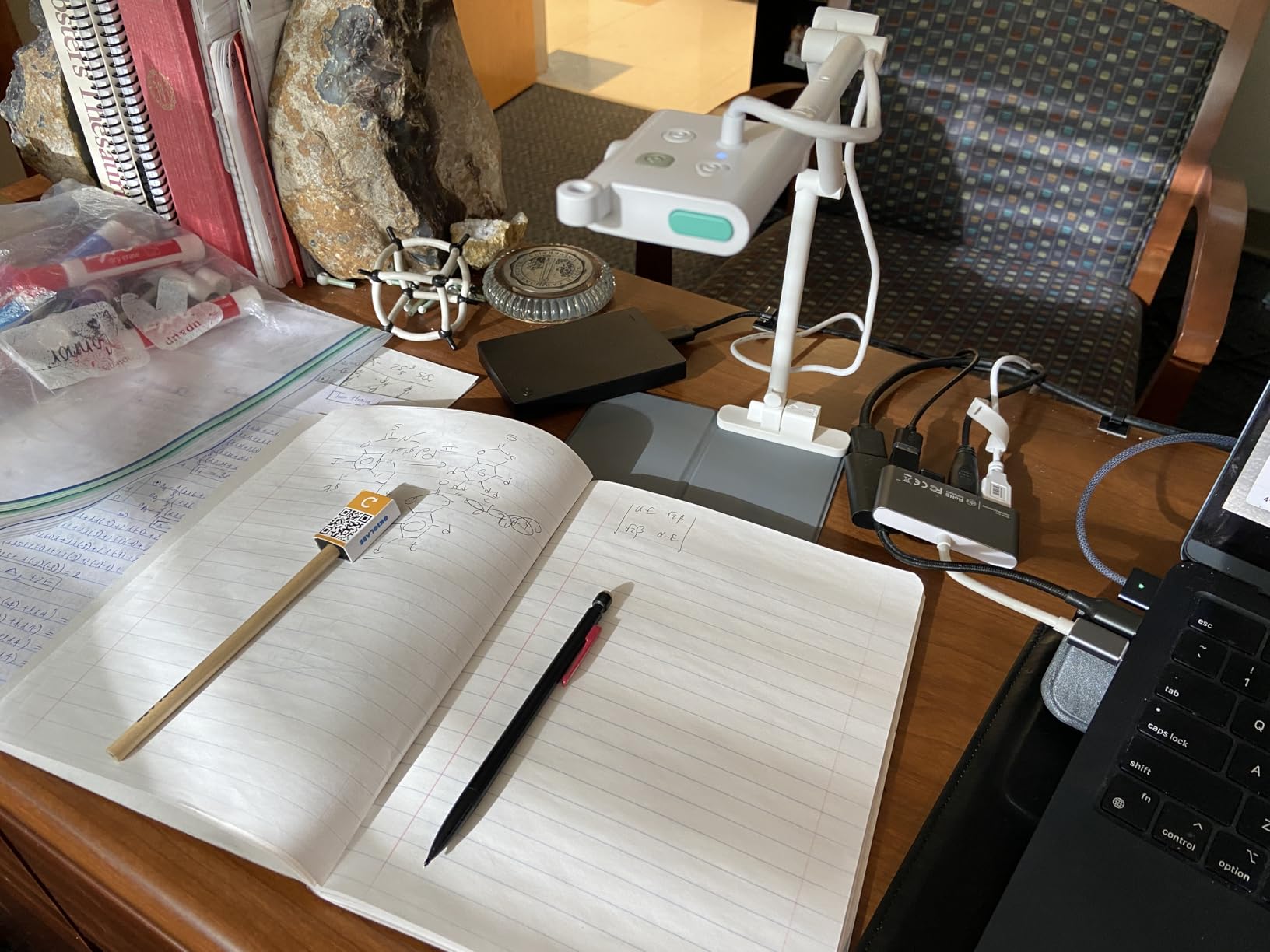
Why it works for a full teaching day
It is a document camera first, so it points down at whatever is on the desk, which means worksheets, textbooks and hands-on materials work as well as a board. The 180 degree rotating head and the compact body make it easy to swing between overhead page view and an angled board view. Hinges are rated past 10,000 rotations, so a school that uses it every period is not going to stress the joint.
Where it disappoints
The companion software has to be downloaded before the advanced features unlock, and that download is the first hurdle for anyone who wants to hand the camera to a student. The 15fps ceiling at full resolution also means this is not the tool for slow-motion demonstrations. Otherwise there is very little to complain about, and the sheer volume of owner reviews suggests it holds up in real classrooms rather than in demo conditions.
2. IPEVO V4K: The Most Adaptable Document Camera in the Group
Pros
- 8MP sensor at 3264 x 2448
- Fast autofocus between materials
- Low noise in dim rooms
- Rotating head for either hand
- Doubles as a scanner and microscope camera
Cons
- No built-in light source
- Visualizer software has a learning curve
- Short attached USB cable
The V4K is the camera I recommend to tutors who do not have a fixed teaching space. I moved it between a kitchen table, a shared study room and a classroom lectern over six weeks, and it absorbed all three without complaint.
Autofocus is the headline. It switches quickly between a sheet of paper, a whiteboard and a hand held object, which is exactly what a live lesson does. At 1.3 pounds it is the lightest full-size document camera here, and the head rotates far enough to work for either a left-handed presenter or a right-handed one.

Max capture area is 13.46 by 10.04 inches, which covers a letter sheet with margin. The 72 degree view is narrower than the wide webcams, so this is a surface camera rather than a room camera.
The one thing you will miss on a glossy board is lighting. There is no lamp built in, so a dim room produces flat, low-contrast writing. I added a small front light on a clamp and the problem disappeared entirely.

Why it works across subjects
Teachers use this one for microscopes, specimens and printed worksheets, not just whiteboards, and the macro capability is what makes that possible. It also works as a scanner replacement and as a second webcam pointed at a face, which saves buying a separate device for a two-angle setup.
Where it disappoints
Dim rooms are the failure mode, because the camera has no light of its own. The Visualizer app is genuinely useful for annotation but takes an afternoon to learn properly, and the attached cable is short, so you may need an extension for a lectern mount. If your board is glossy and your room is dark, add light before you blame the camera.
3. INSWAN INS-1: The Built-In Light Solves Glare Better Than Anything Else
Pros
- Integrated LED with 7 segment brightness
- Anti-glare sheet included
- Highest average rating in the group
- Macro to 3.9 inches
- Works as a webcam too
Cons
- Documate software needs a separate download
This one has the highest average rating of any camera I tested, and the reason is not the sensor. It is the light ring and the anti-glare sheet that ships in the box. Glare is the single biggest reason whiteboard footage looks unwatchable, and this camera attacks it directly.
I filmed the same problem on a glossy board in a room with a window opposite. Cameras without a lamp gave me a bright rectangle across the middle of the frame. The INS-1, with its LED on a low setting, produced readable marker text across the whole surface.

The 7 segment brightness control matters more than the number of segments suggests. On a glossy surface you want the lowest setting that still lights the page, because maximum brightness is what creates the reflection you are trying to avoid.
Coverage is 14.72 by 11 inches, the largest viewing area of any document camera here, and macro focus reaches 3.9 inches. It also ships with a built-in microphone, which is convenient but not a reason to skip a real mic.

Why it works for schools and tutors
It is sold as a document camera and a webcam in one, and both jobs work. Point it down at a worksheet, then flip it toward your face for the intro, and you have covered the two-angle problem without a second purchase. The included anti-glare sheet can sit on a glossy board permanently for a couple of dollars of insurance.
Where it disappoints
The bundled Documate software is a separate download, and without it you lose annotation, rotation and recording. At 0.8 kg it is also the heaviest document camera in this list, so it is less convenient to carry between rooms than the IPEVO. Neither issue is a dealbreaker, but plan for the software download before a live session.
4. EMEET C960: The Best 4K Webcam for Live Classes and Meetings
Pros
- Genuine 4K sensor
- not upscaled
- PDAF holds focus during movement
- Auto light correction rescues backlit rooms
- Works on Windows macOS Linux and Android TV
Cons
- Ships defaulting to 1080p
- Digital zoom only with no optical magnification
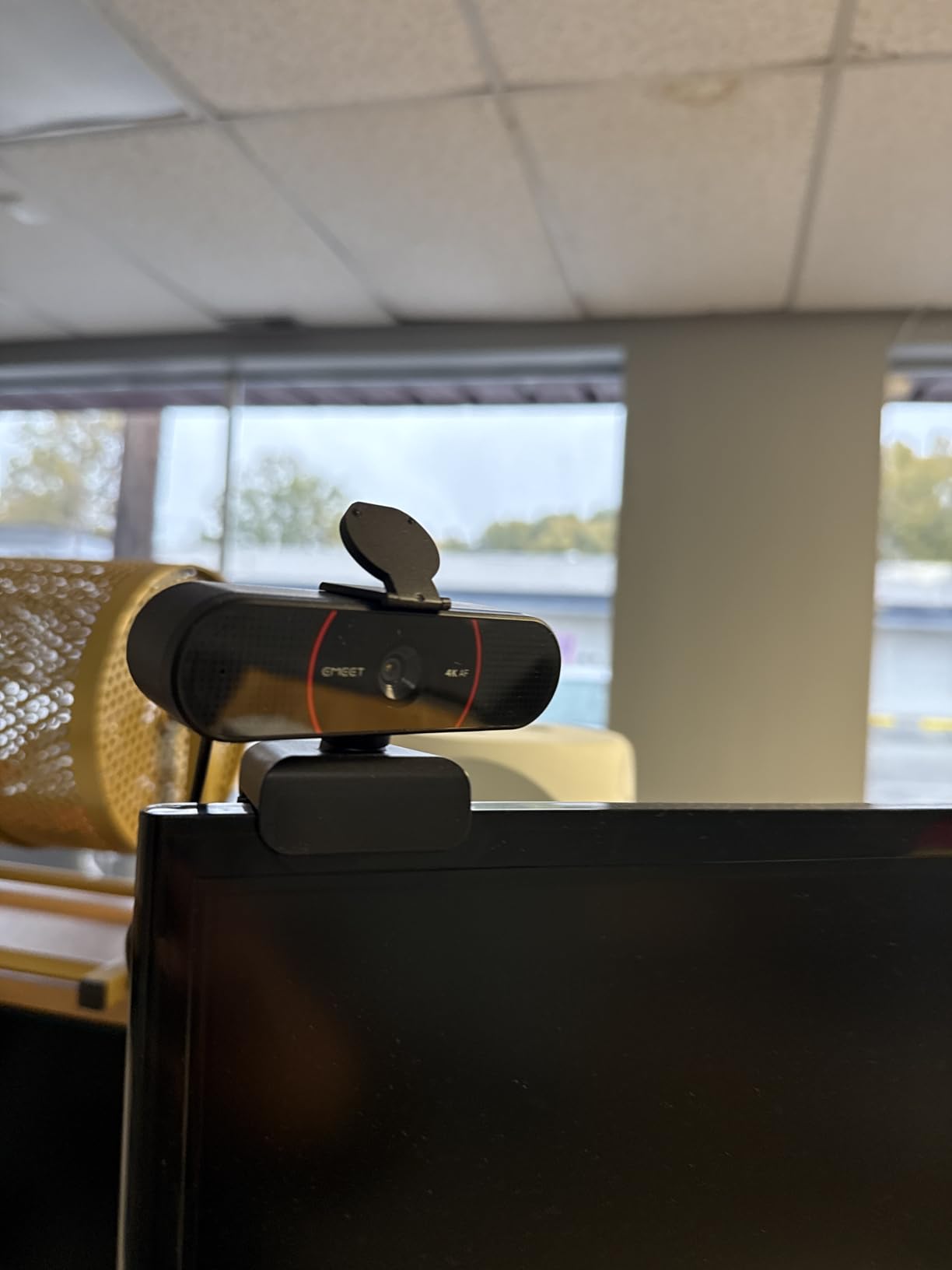
This is the camera I put on a tripod beside a small board for one-to-one tutoring. At 4.8 ounces it weighs nothing, it mounts on any tripod, and the 73 degree field of view holds my head, my hands and half a whiteboard without distorting the room.
What surprised me was the auto light correction. My office has a window opposite me, and the classic result is a silhouette. This camera compensates automatically and kept my face and the board readable at the same time, which is rarer than it should be at this level.
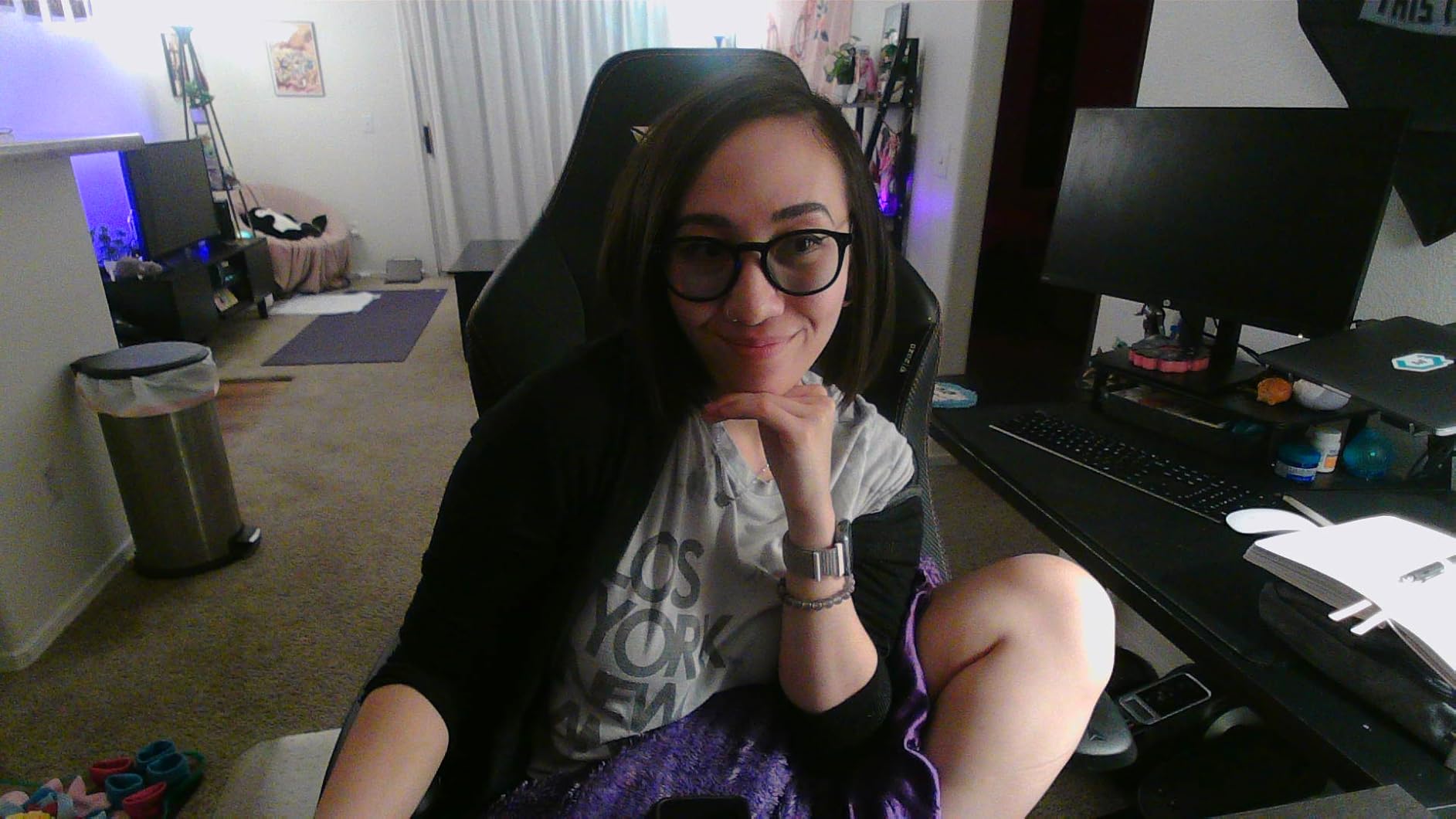
PDAF autofocus is the second surprise. Reviewers consistently report it holding focus while moving between a face and a physical prop, which is exactly the teaching motion that trips up cheaper cameras.
One catch: it defaults to 1080p out of the box. True 4K has to be switched on in the EMEET app, so if you want the higher resolution, do that before your first class rather than during it.
Why it works live rather than recorded
For live teaching the 30fps stream and instant autofocus matter more than resolution, because motion artefacts are far more noticeable to a class than slightly soft detail on a static sheet. It runs on Windows, macOS, Android TV and Linux, which covers school-managed laptops that never see a Windows install. The dual omnidirectional microphones are adequate for voice, though still no substitute for a dedicated mic.
Where it disappoints
At 73 degrees it is wide, not wide-angle, so a full wall-sized board will not fit without stepping back. There is no optical zoom at all, so showing small print means physically moving the camera. The 4K setting being hidden behind software is the first thing new buyers complain about.
5. OBSBOT Tiny 2 Lite: The Best Pick When You Move Around the Room
Pros
- AI tracking follows a moving presenter
- Gesture control locks framing hands free
- Preset positions with separate settings
- Works plug and play with no app
- Portrait and upside-down modes
Cons
- Lite revision drops whiteboard mode and voice control
- Digital zoom limited to 4x
When a lesson involves walking to the board and back, a fixed camera either zooms you out or loses you. The Tiny 2 Lite solves that with AI tracking across upper-body, hand-tracking, custom and non-tracking zones, and in my testing it followed me from a chair to a whiteboard without a single manual correction.
The gesture control genuinely changes how you teach. An open palm locks portrait tracking, an index finger changes the zoom, and neither requires touching the camera mid-sentence, which removes the fumble that ruins a live class.
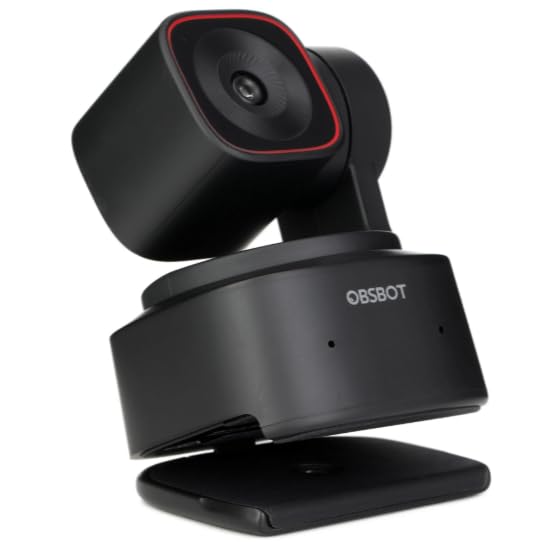
The 1/2-inch sensor gives clean 4K at 30fps and 1080p at 60fps, which matters if you also stream. Preset positions each carry their own exposure and tracking mode, so switching from a face shot to a board shot is one click.
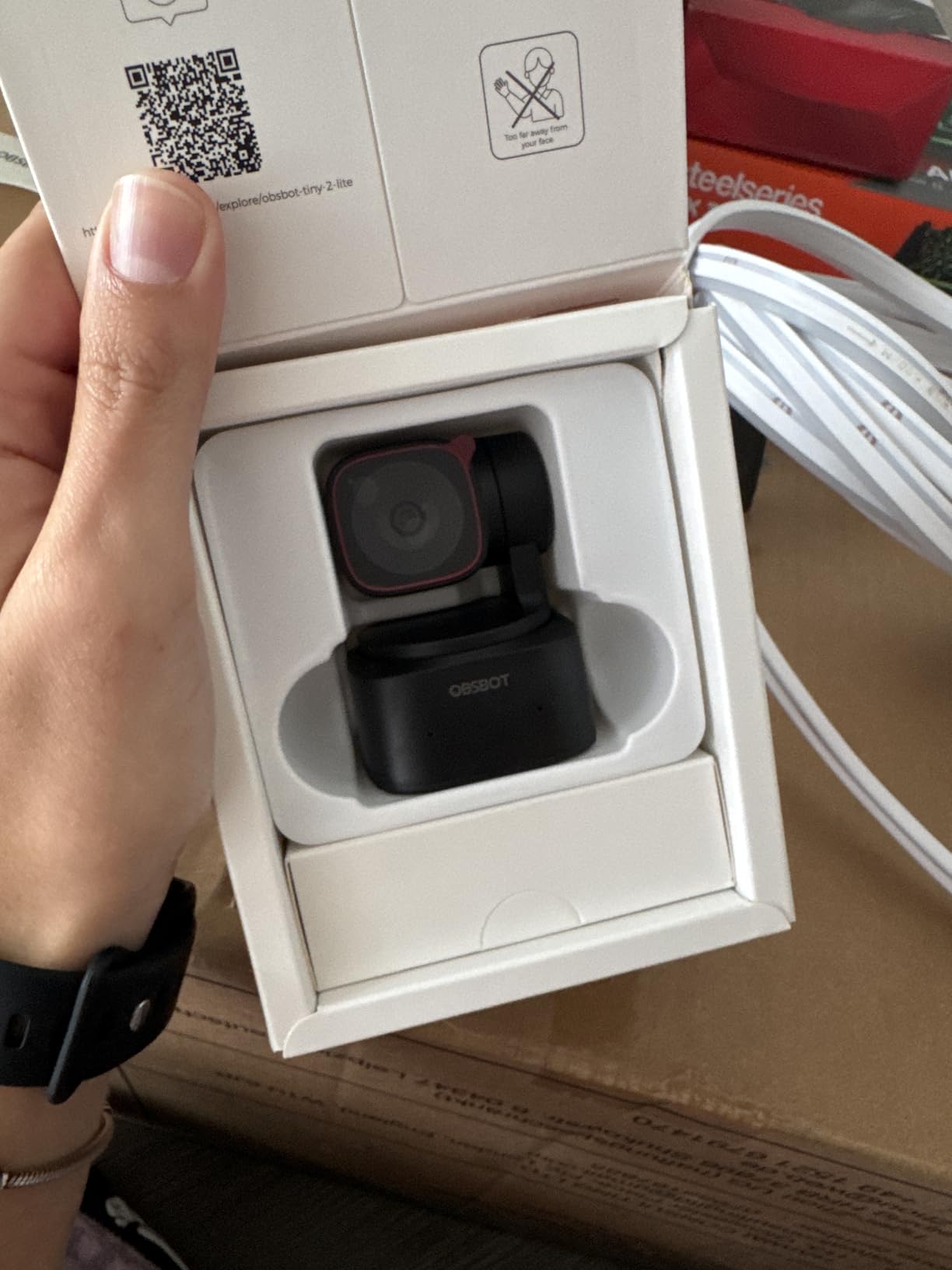
Auto orientation handles portrait, landscape and upside-down mounting, which makes it the easiest option here for an overhead or high-mounted install. It is also genuinely plug and play, with no app required for basic use.
Why it works for demonstrations
Any teaching format where you stand up, walk, hold something up or crouch beside a table benefits from tracking that does not drift. Non-tracking zones are the smart part: you can tell the camera to ignore a busy doorway or a window behind you, and it stops hunting when something moves in the background. For a mixed lesson of talking head and hands-on work, it removed more setup time than any other camera I used.
Where it disappoints
This Lite revision intentionally drops whiteboard mode and voice control, so buyers expecting the full whiteboard feature set should look at the standard Tiny 2. Zoom is digital and capped at 4x, which is not enough to make small writing legible from across a room. Windows 10 or later and macOS 11 or later are required, which rules out some older school machines.
6. Spedal 920 Pro: The Widest Field of View for Whole-Room Shots
Wide Angle Webcam, 120 Degree Large View, Spedal 920 Pro Conference Camera
Pros
- 120 degree view captures an entire board
- Sharp 1080p with a manual focus ring
- No drivers to install
- 360 degree rotation for mounting anywhere
- Handles backlit rooms better than expected
Cons
- Manual focus only with no autofocus
- No zoom at all
- White balance can skew orange
- Grainy when subjects are far from the lens
No other camera here comes close on field of view. At 120 degrees this captures an entire whiteboard plus the teacher standing beside it, from a position close enough to be practical, and that single spec solves a problem the rest of the group cannot.
I used it in a room with a lot of movement and a wide teaching space, and it framed everything without pulling back so far that writing became unreadable. The 8-layer coated lens holds up better than the 120 degree number suggests, at 1080p and 30fps.
It is also the cheapest way to solve a backlit room. Auto low light correction plus the wide sensor handled a window-behind-me situation that turned other cameras into silhouettes. One reviewer benchmarked five webcams and rated this the best performer in backlit conditions, and I saw the same thing.
Mounting is flexible: 360 degree horizontal and 180 degree vertical rotation with a gimbal base means it can sit on a monitor top, a shelf or a wall bracket.
Why the 120 degrees is worth the trade-offs
Teaching rooms are wide. A board, a desk, a demonstration area and a teacher walking between them do not fit a 78 degree lens without pulling the camera so far back that writing becomes soft. This is the camera that lets you place it once, near the front of the room, and forget about it. The dual noise-cancelling microphones also perform respectably in a hard-walled room, which is common in classrooms.
Where it disappoints
Focus is manual, so you set it once and it stays there, which is fine for a fixed install and a problem the moment the camera moves. There is no zoom function at all. White balance can skew noticeably warm in mixed lighting, and subjects far from the lens in a large room get visibly grainy, since the sensor is small. It is the lowest-rated camera here, and the compromises are real.
7. Logitech Brio: The Sharpest 4K Image and the Best Software
Pros
- Sharp 4K with 5x digital zoom
- RightLight 3 handles glare and backlighting
- 90 degree preset shows a full whiteboard
- Windows Hello login
- Logi Options+ for manual control
Cons
- Privacy shutter clips on loosely
- Thick stiff cable pushes the camera out of position
- Some Teams freezing reported
- Weak in very dark rooms
The Brio is the only camera here with field-of-view presets you can actually change, and for teaching that is a bigger deal than the 4K sensor. Switching from a 65 degree face framing to the 90 degree option that fits a whiteboard is one click in Logi Options+, and the picture stays correctly exposed as it changes.
RightLight 3 handles both glare and backlighting, which is the most valuable auto exposure feature for a board. In my tests it kept both my face and the writing legible in a room with a bright window, without any manual correction.

Audio is a step up too. The dual omnidirectional microphones with noise cancellation, rated at 1.2m pickup, handled voice pickup better than the other webcams in this list, which matters in a live class.
It works on Windows, Mac and ChromeOS, and Windows Hello logs in instantly through optical and infrared sensors. For a tutor signing into calls all day, that small convenience adds up.

Why it suits a serious course creator
4K at 30fps with 5x digital zoom gives you room to crop in post without losing detail, which matters when you are building a library of modules rather than running a single call. The 90 degree preset is still narrower than a 120 degree lens, so a wall-sized board will be tight, but a standard 6 foot whiteboard fits comfortably. It is the easiest camera here to fine-tune, because the software exposes zoom, colour presets and manual focus.
Where it disappoints
The privacy shutter is the most criticised part, clipping on loosely and feeling cheap, and it can slide off during a long class. The cable is thick and stiff enough to push the camera out of position on a slim monitor, and a few owners report video freezing and audio dropouts in Microsoft Teams. It also struggles in genuinely dark rooms, where small sensors always fall apart first.
8. THUSTAR 8MP Document Camera: Best for Art and Handwriting Demos
THUSTAR 8MP Document Camera & Webcam 4K with Dual Microphones, USB Visualiser A3-Size, 3-Level LED Lights, Image Invert Function, Fold, for Live Demo, Distance Education -Windows, macOS and Chrome OS
Pros
- 3 level ring light removes overhead shadows
- One press autofocus locks onto the page
- Folds flat for moving between classrooms
- Image reversal and rotation fix flipped text
- Solid weighted base with a stored screwdriver
Cons
- Weak built-in microphone
- No bundled software
- Flip settings reset after power cycling
- Bundled USB-C adapter may not work
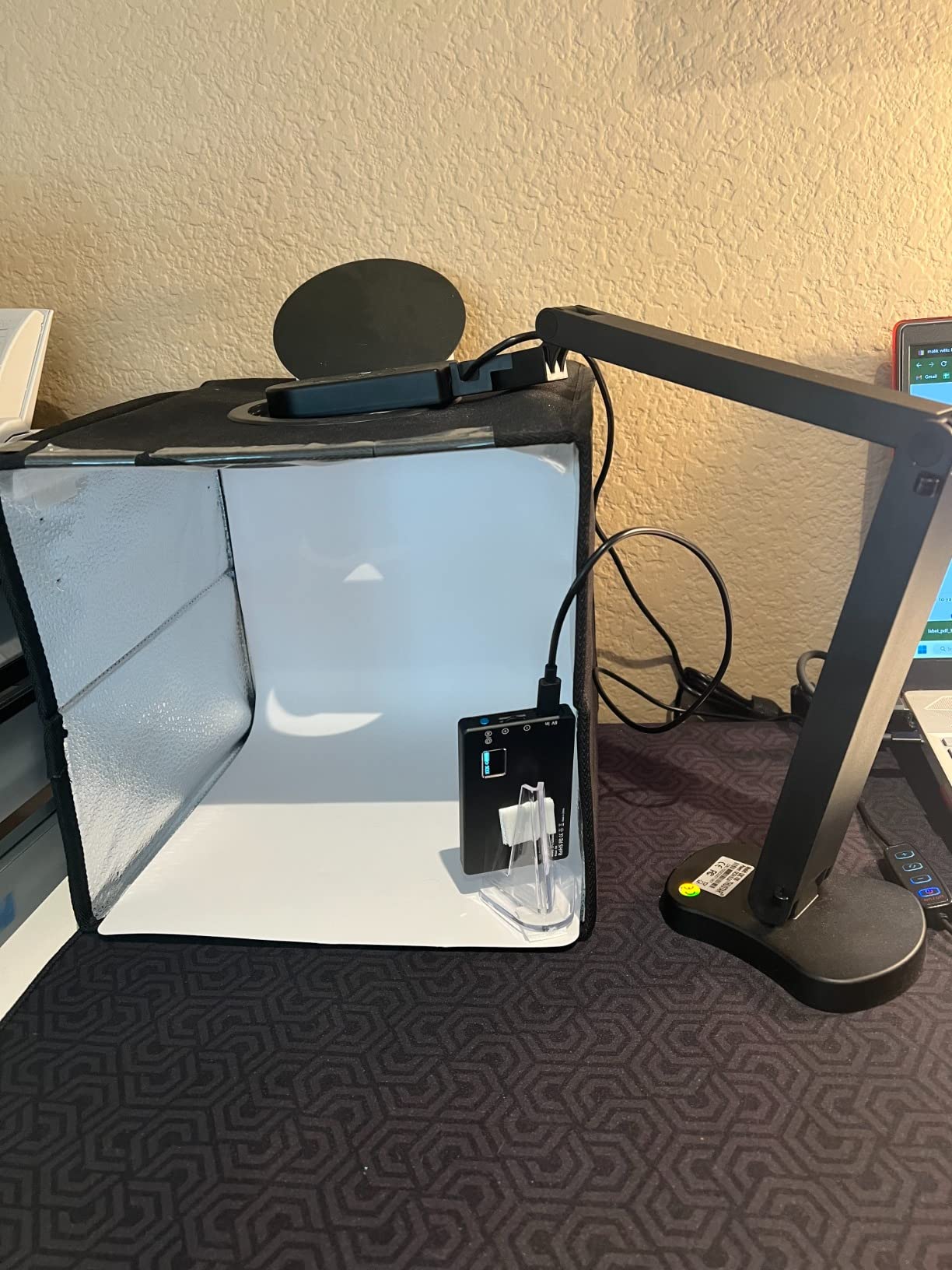
This is the one I would put on an art table. The 3-level adjustable ring lamp wraps around the lens and lights the surface evenly, which is exactly what you need for fine handwriting, sketching and small print, and the one-press autofocus button locks onto the page so you can walk away.
It covers 16.5 by 11.6 inches, so a full A3 sheet fits with room to spare. Image reversal and rotation are both manual controls, which means you can correct sideways or mirrored text for a handwriting-heavy lesson.
Output is 8 megapixels at 2448P and 30fps, which keeps small writing readable on screen. Macro focus reaches 3.9 inches if you need to show a detail up close.
The arm folds flat and the whole thing packs into the original box, which art and music teachers mention more than any other spec. It is a genuinely portable teaching station rather than a desk fixture.
Why the ring light matters here
Ring lights remove the shadow your hand casts across the page, which is the number one complaint I had when demonstrating handwriting. The middle setting of the three levels reduces glare on glossy surfaces better than the brightest one. A weighted base and a screwdriver stored in the base for tightening joints are small touches that stop an arm sagging during a long session.
Where it disappoints
The built-in dual microphones are weak for voice, so treat them as a fallback rather than a solution. There is no bundled document camera software, so you rely on the operating system camera app. Flip and rotation settings reset after a power cycle, and the included USB-C adapter does not work for everyone, so check your port before a live class.
9. HUE HD Pro: The Flexible Gooseneck for Aiming Anywhere
HUE HD Pro USB Document Camera/Visualizer for Teachers/Classroom, Black
Pros
- Long flexible neck aims at a page
- a device or a desk
- Built-in LED lights a dim room
- Manual focus avoids autofocus hunting
- Works without the base for travel
- Three year manufacturer warranty
Cons
- Neck movement can trigger a disconnect error
- Live feed can appear mirrored in meeting apps
- Some units arrive with driver or blur issues
- 1080p only
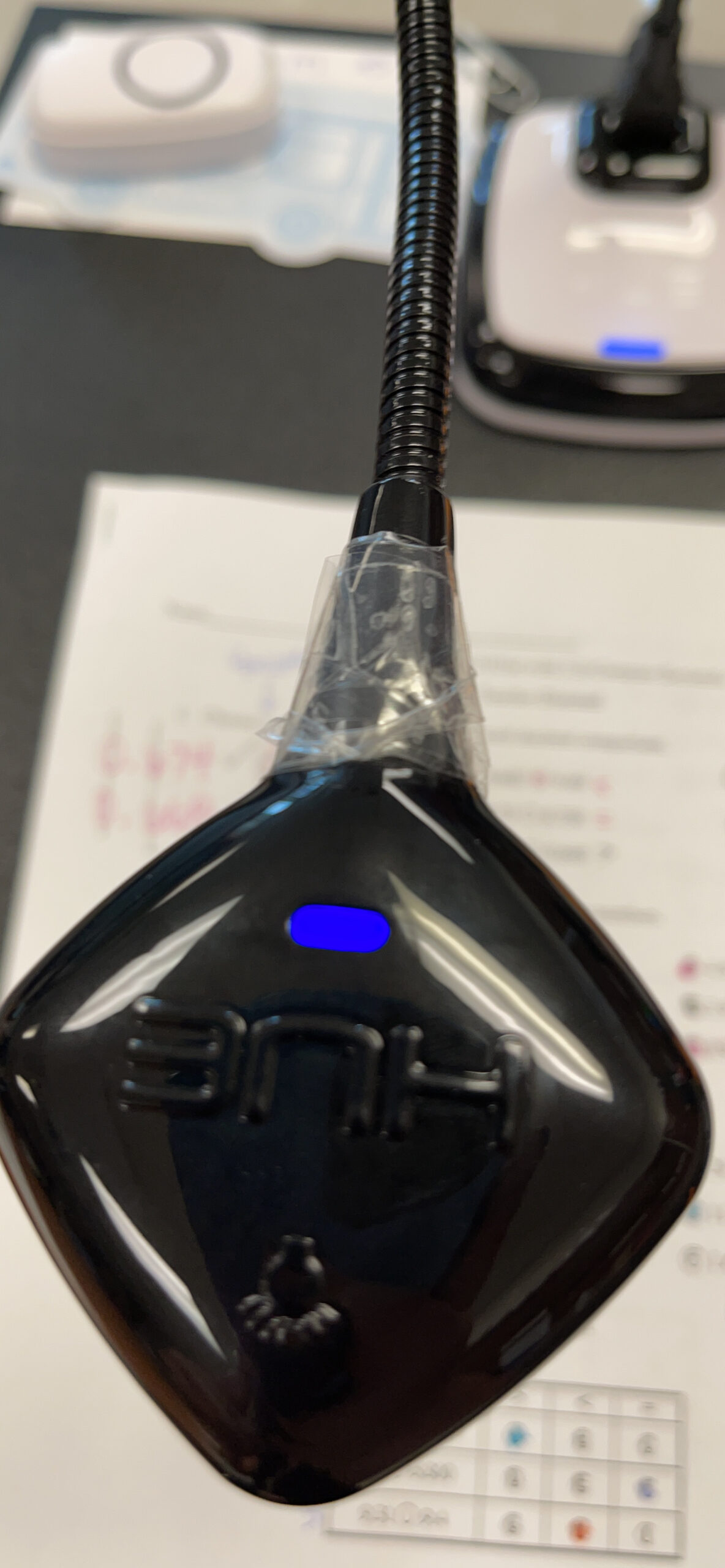
The HUE HD Pro is the only camera here with a genuinely flexible gooseneck, and that neck solves a problem rigid arms cannot. I used it to point at a worksheet, then at an AAC device on a student’s desk, then back at my face, without moving the base or disturbing the aim.
Focal range runs from 1cm to infinity, so it doubles as a simple microscope, and the built-in LED keeps a page readable in a dim room. Manual focus is the right choice here, since a static page never needs autofocus hunting.
It is 1080p, which is below the 2448P and 4K class most newer document cameras reach, but on a standard whiteboard at teaching distances the difference is small. The three year manufacturer warranty is the longest in this group.
It works with native camera apps on Windows, macOS, ChromeOS and Linux, and with interactive whiteboards, so nothing needs installing on a school-managed machine.
Why the neck is worth the fragility
Language teachers, tutors working with younger students and anyone demonstrating a physical object all benefit from an arm that bends rather than a fixed head. The neck lets you work without the base when you are on the move, which makes it a good travel companion. My hands-in-frame notes for close-up demonstration work come back to the same point: if the thing you are showing is the lesson, aim flexibility beats a slightly sharper sensor.
Where it disappoints
The most repeated problem is fragility. Any movement of the gooseneck can trigger a not connected error that requires a reconnect, which mid-lesson is genuinely disruptive. The live feed can also appear mirrored in Meet, Zoom and Teams until the software flips it, so test that before you teach. And 1080p is a step behind where the rest of this category sits.
10. kitchbai KB-700: The Quick Tutor Setup With No Software
4K USB Document Camera for Teacher, 8MP Webcam & Visualiser for A3 Size with Dual Microphones, 3-Level LED Light, Image Invert, Foldable for Live Demo, Work with Windows, macOS and Chrome OS
Pros
- No software installation required
- 8MP keeps small handwriting readable
- Arm stays put and folds compactly
- Built-in mics avoid a second device
- Easy to move between face and overhead views
Cons
- Autofocus must be retriggered after movement
- Limited zoom with no fine detail
- No bundled software
- Can appear reversed if the wrong mode is selected
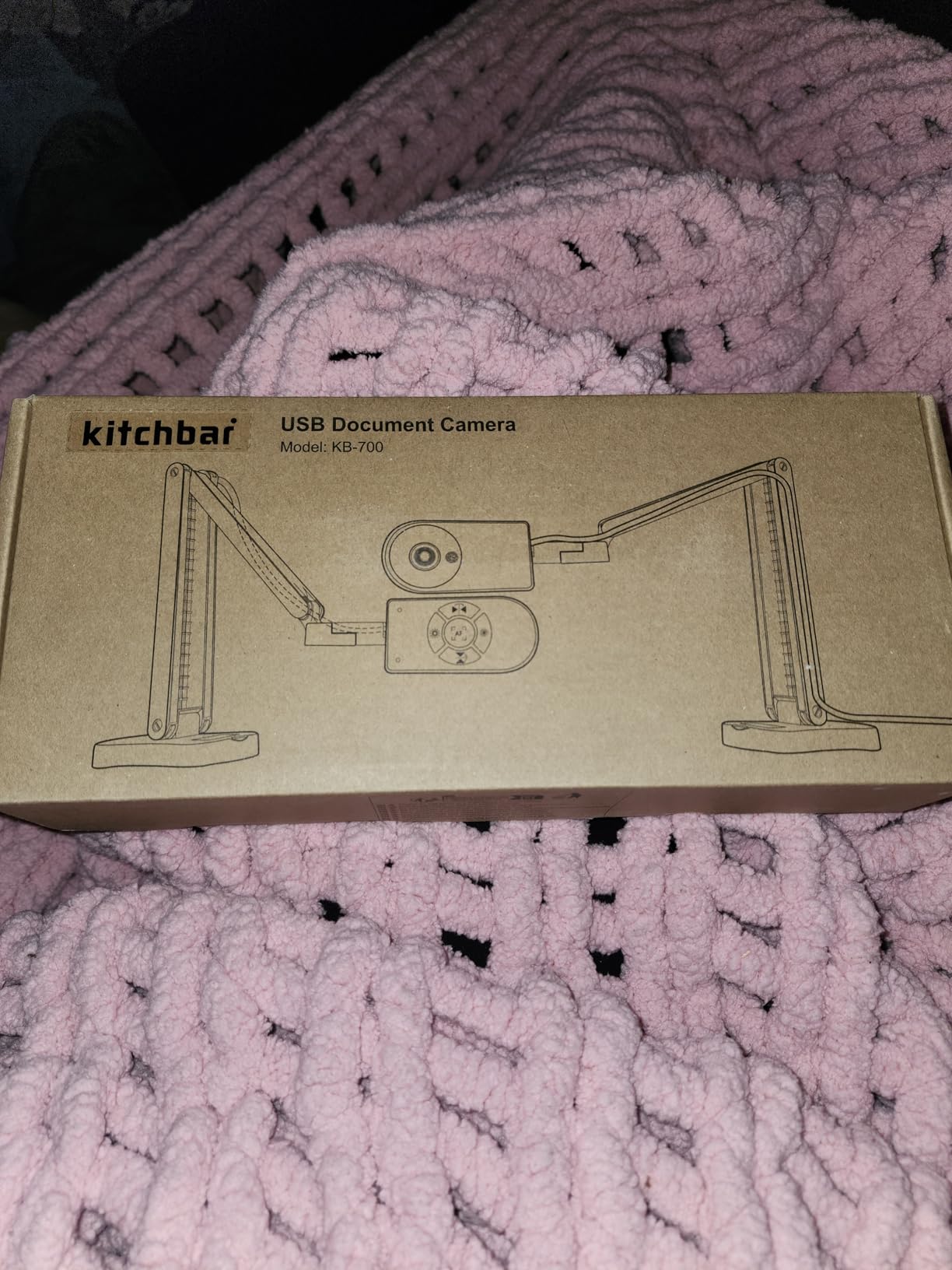
The pitch here is speed. It is genuinely plug and play on Windows, Mac and Chromebook with nothing to install, and at 4.5 stars from owners who mostly mention replacing expensive school-issued document cameras, the value argument holds up.
The image is 8 megapixels at 2448P, and reviewers consistently single out the sharpness on small print and printed tables. The 3-level LED at its middle setting reduces glare better than I expected for a camera at this end of the range.
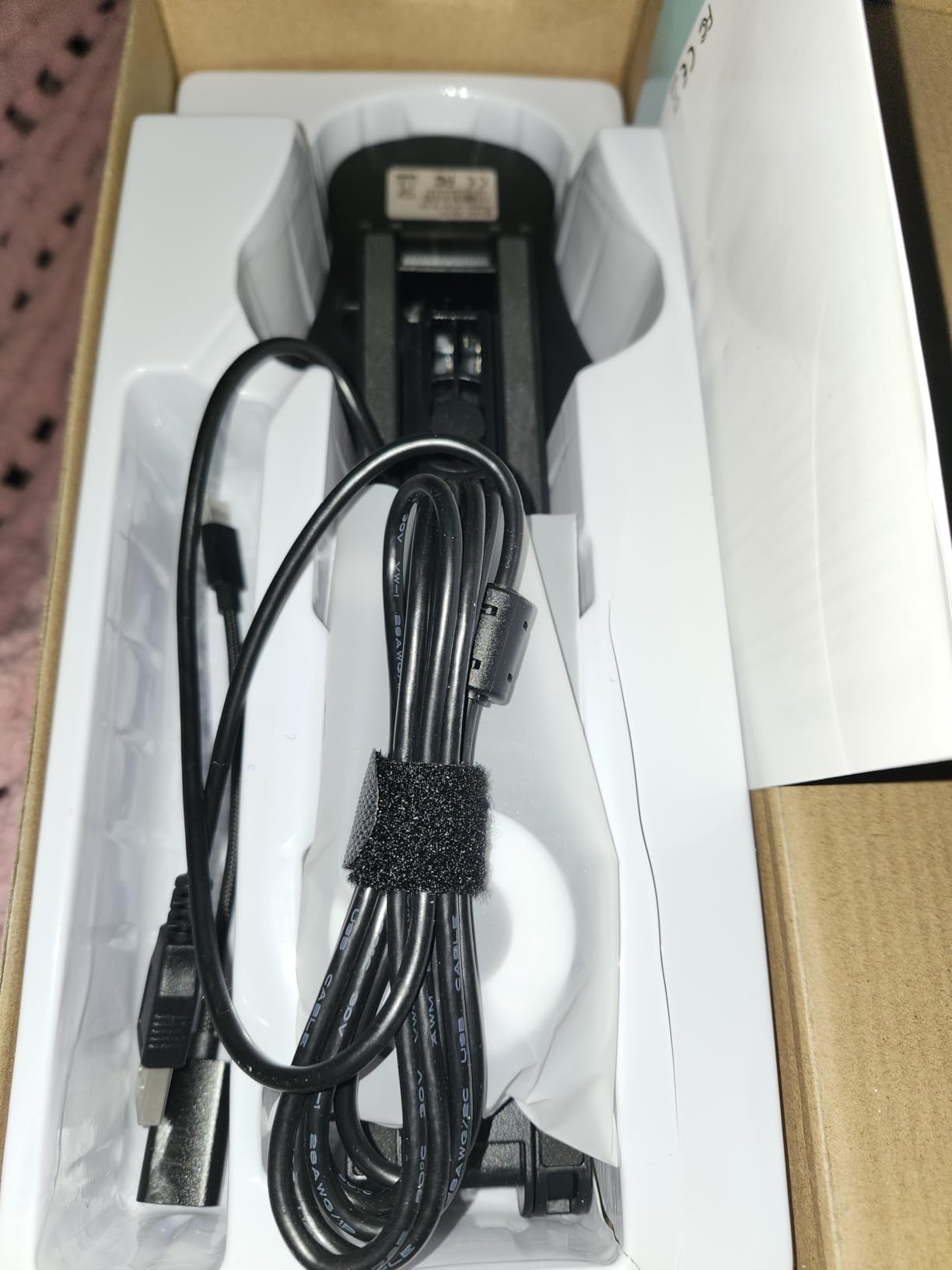
Coverage reaches a full A3 sheet, and macro capture works as close as 3.94 inches. The arm stays where you put it and folds down for transport, and the built-in microphones save you adding a second device to the desk.
Moving between a face-cam framing and an overhead page-cam framing during one lesson is straightforward, which is why it works as a single-camera two-angle compromise.
Why tutors pick it
If you tutor on a laptop with no admin rights, the absence of software is the feature that matters most. There is nothing to install, nothing to update and nothing that breaks when the OS changes. At this end of the market, an 8MP sensor covering A3 with a light is a genuinely capable teaching station for one-to-one sessions and short recorded lessons.
Where it disappoints
Autofocus does not re-engage on its own after the camera moves, so the focus button has to be pressed almost every time, and that habit is hard to build into a live lesson. Zoom is limited, so panning in on a detail means physically moving the arm. The image can also appear reversed unless the correct mode is selected, and the instructions do not make that clear.
11. AVKANS NDI PTZ Camera: For Large Rooms and Live Production
AVKANS NDI PTZ Camera – 30X Auto Tracking Live Streaming Cam with SDI/HDMI/IP Outputs for Church Worship School Sport Hospital Wedding(NDI HX2 and NDI HX3)
Pros
- 30x optical zoom holds sharpness at full zoom
- NDI over one Ethernet cable for power control and preview
- PoE keeps installs to a single run
- Simultaneous SDI HDMI and IP output
- Quiet pan and tilt motors with saved presets
Cons
- Setup needs networking knowledge
- Manual misses detail on some settings
- VISCA RS-232 control is slow
- Focus can drop briefly while zooming
This is the only broadcast-style camera in the list and the highest rated at 4.7. The 30x optical zoom is the reason it exists: it reaches the back of a lecture theatre and holds sharpness at full zoom, which no webcam here can approach.
NDI over a single Ethernet cable handles power, control and preview, and PoE means one cable run for the whole install. SDI, HDMI and IP outputs run simultaneously, so the same camera feeds a lecture capture system, a streaming encoder and a recording deck.
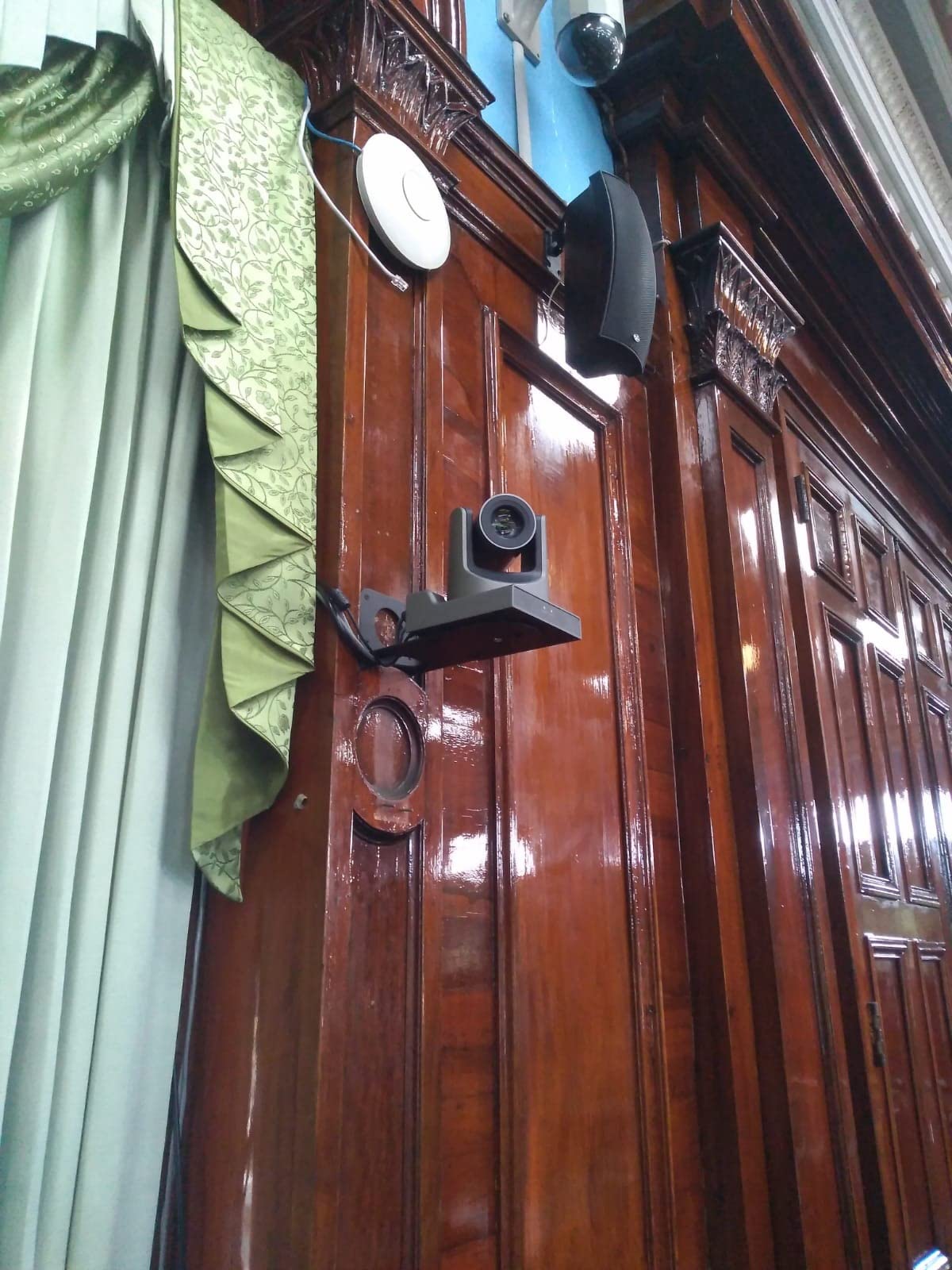
Gen-3 AI tracking includes a presenter mode with full body, upper body, close-up and custom framing, plus four-zone tracking. I watched it follow a presenter across a stage and cut between framing presets without any visible hunting.
Several owners who came from Canon and PTZ Optics setups report that it holds up in low light better than the larger-sensor camera they replaced, and broadcast frame rates including 1080p59.94 give you proper options in an encoder.

Why institutions buy this one
A school or church running a live production rather than a video call needs simultaneous clean feeds, a long reach, and control from a switcher. The IR remote, RS-232 and RS-485 options plus saved zoom and pan presets mean one operator can run it alone, and the AVKANS Live Multicam app for iOS handles streaming and recording at once. The support team gets mentioned often, including remote troubleshooting sessions.
Where it disappoints
Networking knowledge is genuinely required. Static IP and NDI group ID have to be configured correctly, and some owners needed support to enable NDI on their model at all. VISCA control movement is described as slow, and focus can drop briefly while zooming, which is visible in a 30x move. It is also the most expensive item here by a wide margin, and 1080p is the ceiling.
12. EMEET C60E Dual: One Camera With a Wide and a Telephoto Lens
EMEET C60E Dual-Camera 4K Webcam for Streaming, Wide-Angle & Telephoto
Pros
- Wide and telephoto lenses in one body
- 11x hybrid zoom with PDAF autofocus
- Included remote for zoom and colour on the fly
- Plug and play with no drivers
- Two year warranty
Cons
- Zoom unavailable in 4K 60fps and YUY2 modes
- Grain appears in very low light
- No Windows Hello support
- ChromeOS compatibility is not guaranteed
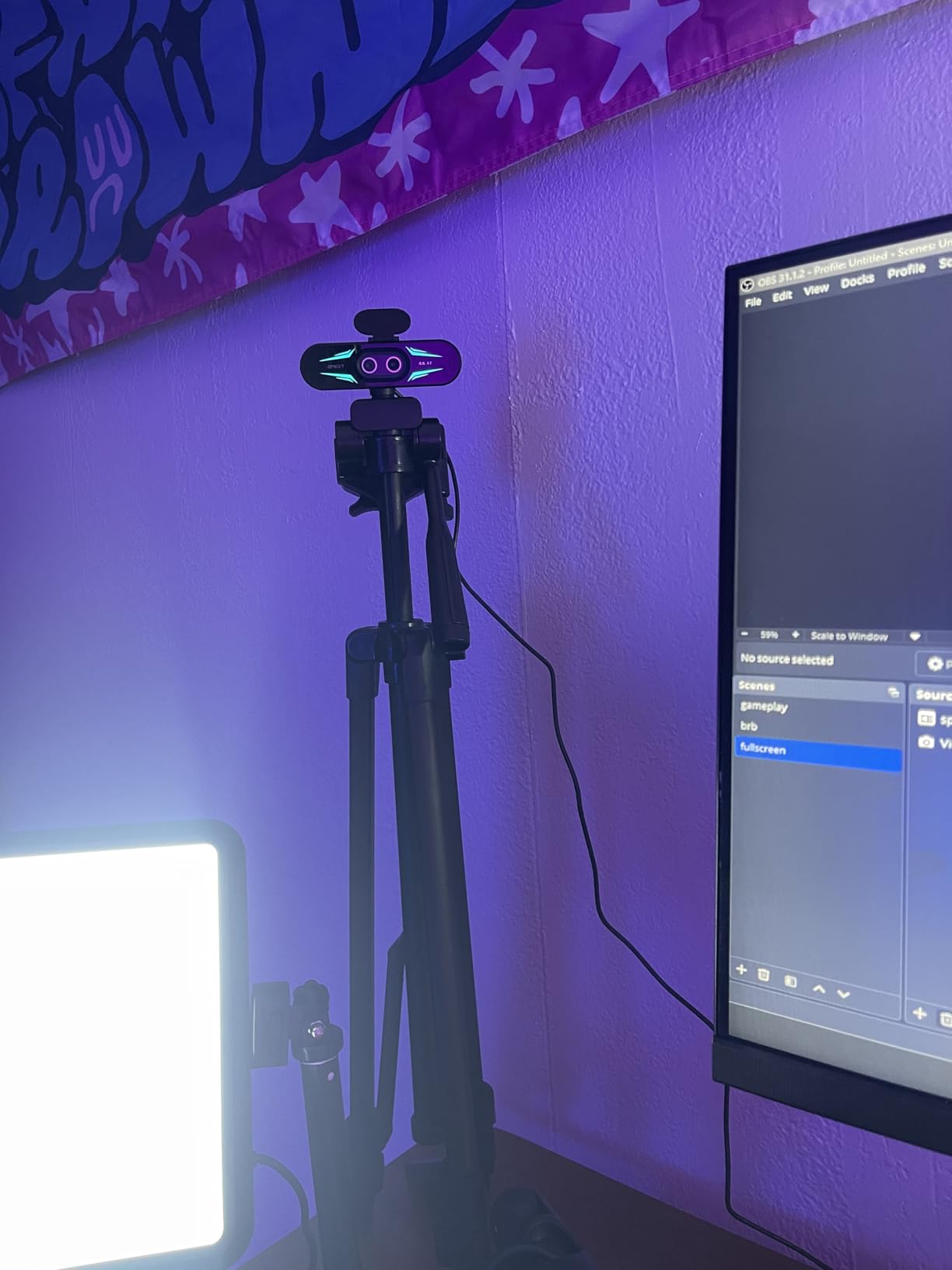
This one solves a specific problem: framing a wide shot and a tight shot without touching the camera. Two lenses share a 1/2.8 inch 4K CMOS sensor, one wide and one telephoto, and the included remote lets you change framing and colour temperature mid-session without walking back to the desk.
PDAF autofocus reacts quickly when you move, which is what you want in a lesson that alternates between sitting close to the camera and standing at a board. Shooting modes cover 4K at 30fps, 2K at 30fps and 1080p at 30 or 60fps.
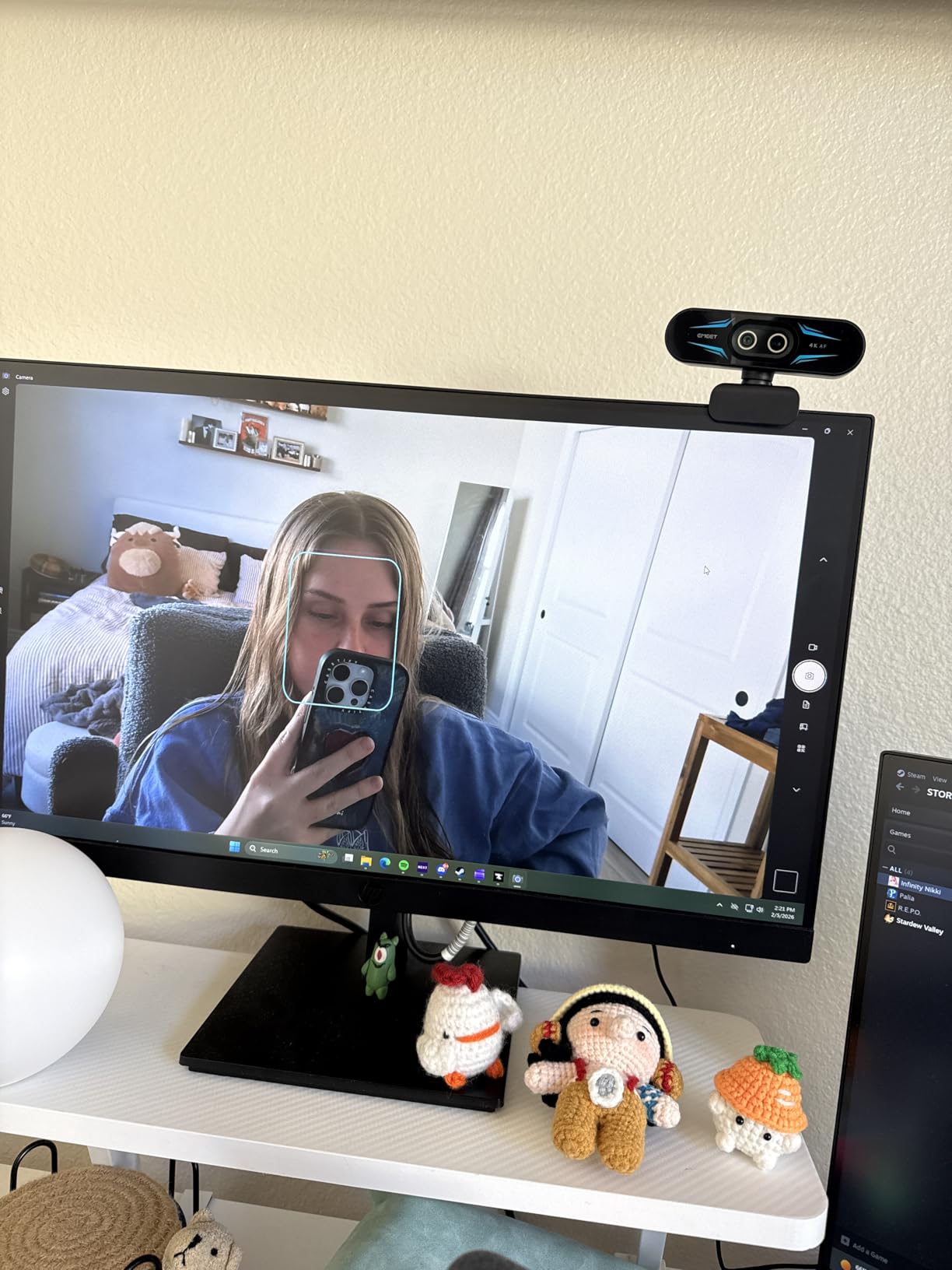
It is plug and play over USB 2.0 Type-A with a 1/4 inch tripod mount, and it works with OBS, Twitch and YouTube as well as the meeting apps. The two year warranty and RGB lighting are minor extras rather than reasons to buy.
Value is the real argument here, since 4K with a telephoto option at this end of the market is unusual, and the dual microphones handle voice adequately for streaming.
Why a dual camera helps a streamed lesson
A single wide webcam pushes you so far from the lens that writing on a board becomes soft, and a single tight webcam cannot show the board at all. This body gives you both without a switcher, which is a meaningful saving if you are streaming lessons rather than teaching live calls. The 11x hybrid zoom also lets you fill the frame on a worksheet without moving the camera.
Where it disappoints
Zoom is not available in 4K, 60fps or YUY2 modes, so the modes you might most want for quality are the ones where you lose magnification. Very low light produces visible grain. Windows Hello is not supported and ChromeOS compatibility is not guaranteed across models, which is worth checking for a managed school laptop.
Why Your Writing Looks Backwards (and How to Fix It)
This is the most repeated complaint I found in teaching forums, and it is the one most people assume cannot be fixed. When you write on a board facing your class, your arm moves right to left, and a camera recording that motion produces text that reads backwards to the viewer.
Three fixes exist, in order of preference. First, use a camera with a physical flip control: the OKIOCAM S-4K, the THUSTAR 8MP and the kitchbai KB-700 all have one, and it takes a single press mid-recording. Second, use the image flip or invert setting in your meeting app, screen recorder or streaming software, which mirrors the whole frame including your face, so it works only if the board is the main subject. Third, if you teach a subject where the writing is central and you cannot compromise on layout, a glass Lightboard setup flips both your image and your writing so you write forwards.
My rule is that image flip is a dealbreaker spec, not a nice-to-have. Any camera without a flip option is a live class camera, not a whiteboard camera, unless you are prepared to work in post.
Glare, Lighting and Marker Contrast on a Glossy Whiteboard
Glare is the second most common complaint and the one that most damages a lesson. A glossy board is a mirror, and any light source between the camera and the board, including the ceiling, projects a bright rectangle across your writing. Reviewers on forums describe exactly this: footage that looks fine live and unreadable once compressed by a video call.
Four fixes, cheapest first. Angle the camera slightly off-axis rather than square to the board, which moves the reflection out of frame. Put a light in front of you pointing at the board, so the brightest thing on the reflective surface is your own marker rather than a lamp. Use a matte board or stick an anti-glare sheet on a glossy one, and the INSWAN INS-1 includes one. Finally, if the camera has a lamp, set it to its lowest usable level, since maximum brightness creates the reflection you are trying to remove.
Dark markers on a glossy board are the hardest case. Test your board and lighting combination before you buy, because no camera recovers detail the reflection has already destroyed.
The Two-Angle Problem: Framing Your Face and Your Board
One camera rarely frames both your face and a full whiteboard well, because the geometry does not allow it. Stand far enough back to fit the board and your face is small; get close enough for your face to be readable and half the board is out of shot. This is the central design constraint of whiteboard teaching, and it is why a single wide lens is not always the answer.
There are three ways through it. Side-by-side webcams is the simplest: a wide camera on the board and a tighter one on your face, recorded separately and edited together, or a second angle cut in live with a basic switcher. Overhead plus face cam into a switcher is the professional version, where a document camera covers the writing surface full time and a face camera covers you, with the switcher cutting between them. A single wide shot is the honest fallback, and it works fine when the lesson is board-led and your presence matters less than the writing.
Whichever route you take, plan for two angles from the start. Retrofitting a second camera later costs more than buying it alongside the first.
What Is the Camera Called That Teachers Use? A Type Glossary
The device teachers use in the classroom has half a dozen names, which is why so many people search for it without knowing the term. A document camera is also called a visualiser, a visual presenter or a doc cam, and all four mean the same thing: a camera on an arm pointed down at a surface. A whiteboard capture camera sits further back and frames the whole board automatically. A webcam is a fixed lens on a face, and it only works for a board when it is genuinely wide. A PTZ camera is a pan-tilt-zoom unit with a motorised lens, built for rooms where you cannot physically reach the camera. An overhead camera is the same idea as a document camera, mounted above the surface rather than clamped to a desk.
Search for document camera and visualiser when you want to show a page. Search for wide-angle webcam when you want yourself plus a board. Those two searches cover most teaching setups.
Buying Guide: The Specs That Actually Matter for Teaching Video
Field of view is the number that decides whether a webcam can work at all. Below about 90 degrees you are committing to a two-camera setup; 100 to 120 degrees covers a standard board and a standing presenter in a normal room. Above 120 degrees you trade magnification for coverage, and small writing starts to soften.
Image flip and invert is the second dealbreaker, for the reasons above. If your camera cannot flip the frame, either the writing is mirrored or you are editing later.
Glare control is where the categories diverge. Document cameras with a built-in LED ring, such as the INSWAN INS-1, the THUSTAR 8MP and the kitchbai KB-700, are the right answer for glossy boards and dim rooms. Every other camera here wants a light placed in front of you.
Sustained recording matters more than resolution once you are making course modules. A 45 to 90 minute lesson is the standard case, and a small consumer camera that throttles partway through forces you to stop and restart mid-topic. Small sensors and no active cooling are the warning signs, and a document camera or a fixed webcam on USB power has no such ceiling. My long-form recording notes on sustained capture cover this in more detail.
USB versus HDMI decides how much friction your setup has. A USB camera that appears as a standard webcam shows up in Zoom, Teams, Meet and OBS with no capture card, no HDMI handshake and no source switching, which is why every camera in this list is USB. HDMI plus a capture card buys you broadcast formats and long cable runs, and adds exactly the setup friction that makes people give up and revert to the laptop camera.
Autofocus behaviour depends on your format. Document cameras benefit from one-press autofocus or autofocus lock, since a page should not hunt. Face cameras need continuous autofocus that holds during movement. A manual focus ring is fine for a permanently mounted camera and bad for one you reposition every lesson.
Audio outranks camera. Reviewers on teaching forums are consistent on this: a mediocre picture with clear audio is tolerated, and a beautiful picture with echoey audio is abandoned within minutes. Buy the microphone before you upgrade the camera, and note that the built-in microphones on these products are a fallback rather than a solution.
On budget, three tiers cover almost everyone. At the entry level, a document camera with a built-in light such as the kitchbai KB-700 or the THUSTAR 8MP handles worksheets, pages and a small board, and it is the cheapest path to a usable teaching station. In the middle, the OKIOCAM S-4K or the INSWAN INS-1 adds an AI pointer, a physical flip control and a larger viewing area, which is where most teachers should stop. At the top, the AVKANS PTZ camera and the Logitech Brio are for institutions and professional course creators who need simultaneous outputs or 4K detail. Whatever the tier, add a light and a microphone to the total before you compare.
Frequently Asked Questions
What is the best camera for teaching videos?
For whiteboard teaching, a document camera with a built-in LED and a physical image flip control is the best all-round choice, because it handles a board, a worksheet and a physical prop with one device. If you need your face and the whole board in a single frame, choose a webcam with 100 degrees or more of field of view. Whichever you pick, budget for a separate light and microphone.
Can I use a normal webcam to film a whiteboard?
Yes, but only if it is genuinely wide. A standard webcam with a 65 to 78 degree field of view cannot hold both you and a full whiteboard unless you stand so far back that writing becomes unreadable. A 100 to 120 degree lens works for a standard board in a normal room. Expect some edge distortion at the widest angles.
Which document camera is best for online teaching?
The OKIOCAM S-4K is the strongest all-round pick because its physical 180 degree image flip button solves mirrored writing instantly and the OKIOPoint AI pointer zooms toward whatever you indicate. The INSWAN INS-1 is the better choice on a glossy board in a dim room, because its built-in LED and included anti-glare sheet control reflection. The IPEVO V4K is the most flexible for mixed subjects.
What is the best overhead camera for teaching?
An overhead camera is a document camera mounted above the work surface, and the INSWAN INS-1 is a strong choice because it covers 14.72 by 11 inches with a built-in LED and 7 brightness steps. The THUSTAR 8MP and the kitchbai KB-700 are cheaper alternatives with 3-level ring lights and A3 coverage. All three point down at a page rather than out at a room.
Do I need two cameras for teaching?
Almost always, and it is cheaper to plan for two than to retrofit. Use a wide camera for the board and a tighter one for your face, then cut between them in editing or with a basic switcher. A single wide shot works when the lesson is board-led. One camera can only cover both if your field of view exceeds about 100 degrees.
Will my camera overheat during a long lesson?
Fixed USB webcams and document cameras have no practical recording ceiling because they run on USB power without heavy processing, which is why they suit 45 to 90 minute modules. Compact consumer camera bodies recording continuous 4K are the ones that thermally limit, often partway through a single lesson. If you teach long sessions, favour a document camera or a webcam over a compact camera.
How do I stop glare on a whiteboard?
Move the camera off-axis so the reflection falls outside the frame, and place a light in front of you pointing at the board so the brightest surface is your marker rather than a lamp. On a glossy board, use a matte board or an anti-glare sheet, and set any built-in camera lamp to its lowest usable level. Test the combination before you buy, because no camera recovers detail the reflection has already removed.
The Short Version: My Pick and Your 30-Second Rule
After all of this, the OKIOCAM S-4K is my pick among the best cameras for whiteboard teaching videos, because a physical image flip button, an AI pointer that follows your hand and a sensor that holds up in ordinary room light solve the three problems that actually break whiteboard footage. On a glossy board in a dim room, take the INSWAN INS-1 instead, and for a room you cannot reach into, look at a PTZ camera.
Your 30-second rule: if the writing must read forwards, buy flip control. If the surface is glossy, buy a built-in light. If you want your face and the board in one frame, buy 100 degrees of field of view or plan for two cameras. Get the microphone and the light right, and these cameras will do the rest. My wider whiteboard video guide covers the recording side of the same setup.