
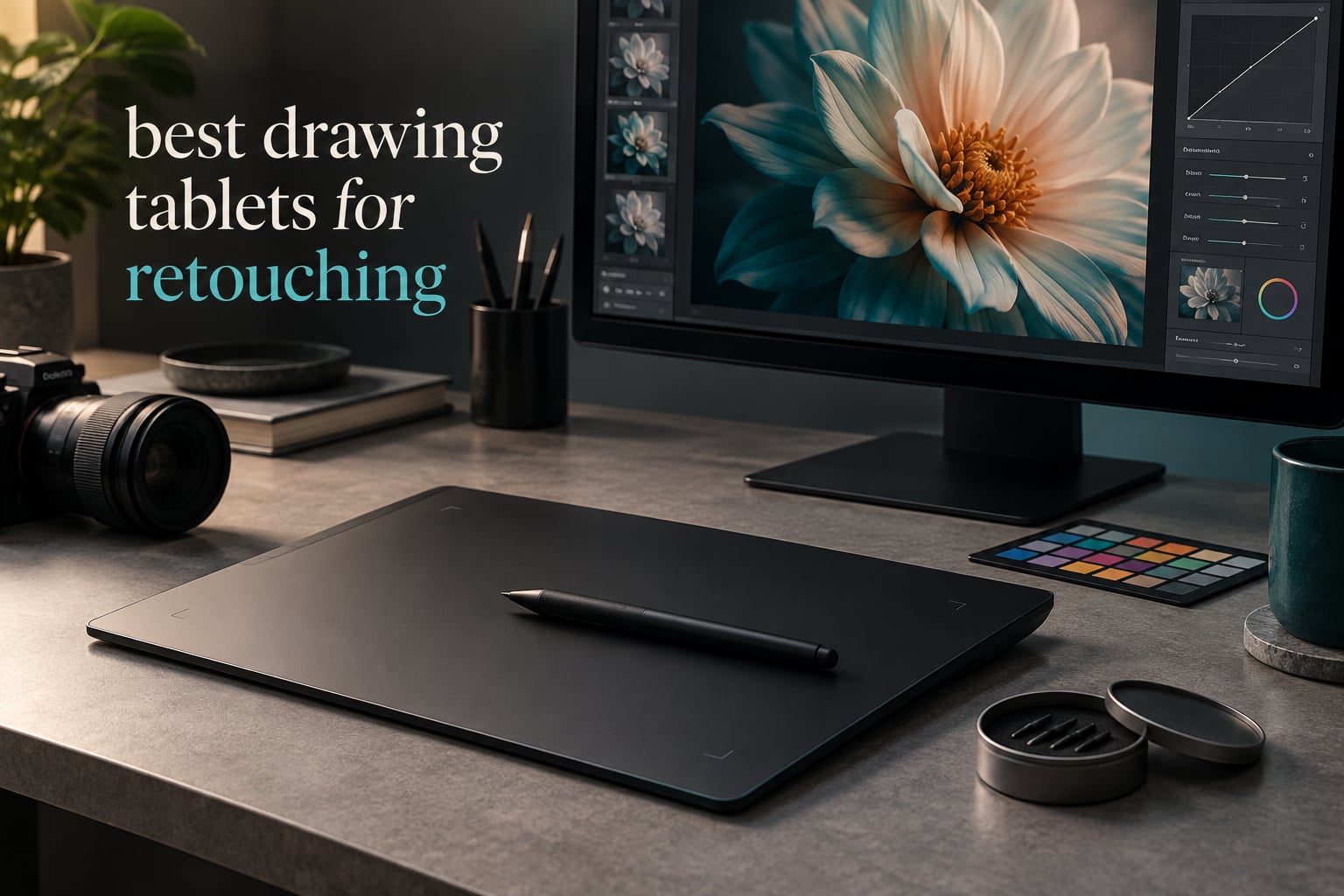
Retouching is a control problem, not a resolution problem. When you are healing a blemish, tightening a mask edge, or building a dodge and burn pass, what matters is that your cursor lands exactly where you expect and that pressure changes brush flow in a predictable way. A mouse gives you neither. A pen tablet gives you both, and the right one turns a three-hour cleanup into an hour.
Here is the short answer: the best drawing tablets for retouching are usually screenless pen tablets, not pen displays. Retouching happens on a large, color-accurate monitor that you already own, and the tablet is simply the input surface. Drawing on a built-in screen forces your eye to shift, shrinks your working color reference, and introduces parallax between nib and cursor. The exception is color-critical work, where a wide-gamut laminated display is genuinely useful, and travel setups, where a tethered display is the only way to see your work at all.
We put twelve of the most popular drawing tablets through the retouching lens: screenless pads, pen displays, and a few borderline picks that we think most photographers overlook. Below, each one gets a verdict, the specs that actually matter for retouching, and an honest note on who should skip it.
If you are still mapping out the basics, our guides to drawing tablets for Photoshop retouching and pen displays built for photo retouching cover the software side in more detail.
Top 3 Best Drawing Tablets for Retouching in 2026



All 12 Retouching Tablets at a Glance in October
Every tablet below is listed in the order we recommend them. Type is the first thing to check, because it dictates everything else about your workflow.
| Product | Specifications | Action |
|---|---|---|
| Wacom Intuos Small |
|
Check Latest Price |
 XP-PEN Artist12 XP-PEN Artist12 |
|
Check Latest Price |
 Huion Inspiroy H1060P Huion Inspiroy H1060P |
|
Check Latest Price |
 GAOMON PD1161 GAOMON PD1161 |
|
Check Latest Price |
| Huion Kamvas Pro 16 |
|
Check Latest Price |
| XP-Pen Artist 13.3 Pro V2 |
|
Check Latest Price |
 VEIKK VK1060PRO VEIKK VK1060PRO |
|
Check Latest Price |
 VEIKK VK1200 V3 VEIKK VK1200 V3 |
|
Check Latest Price |
 Huion Inspiroy 2 Medium Huion Inspiroy 2 Medium |
|
Check Latest Price |
 Wacom Intuos Pro Small Wacom Intuos Pro Small |
|
Check Latest Price |
 XP-Pen Deco 01 V3 XP-Pen Deco 01 V3 |
|
Check Latest Price |
 UGEE M708 UGEE M708 |
|
Check Latest Price |
How We Tested and What Actually Matters for Retouching
We spent several weeks moving between these twelve pads on real retouching jobs: skin cleanup on 45MP RAW files, frequency separation portrait work, product shots with hard edges, and Lightroom catalog passes. What follows is our own observation, kept separate from manufacturer specification wherever the two disagree.
Five things actually decide whether a tablet suits retouching. Active area size determines whether you can hold a whole image in one stroke or spend half the job repositioning. Pressure curve stability decides whether a soft dodge brush stays soft at low pressure. Shortcut controls decide whether you switch brushes constantly or map once and forget. Driver reliability decides whether ExpressKey mappings survive a reboot. And pen tracking consistency decides whether your healing strokes land where you aimed them.
Pressure level counts get oversold. Moving from 4096 to 8192 to 16384 levels is a marketing number more than a workflow improvement, because Photoshop’s brush engine interpolates between samples anyway. What you can feel is the low-end behavior: whether a featherlight touch registers at all, and whether the curve stays linear through the middle of the range. Two of the tablets here document that exact problem, and we call it out below.
Real user experience broadly matches ours. Across r/drawingtablet the consensus is that Huion is the value pick and has caught up considerably in recent years, Wacom remains the reference for pen feel and accessories, and XP-Pen often wins on specifications per dollar. Contributors on DPReview consistently argue that inexpensive tablets are fine for photo work and that a monitor upgrade moves your images further than a tablet upgrade does. We agree with that second point, and it is worth saying plainly before you spend.
1. Wacom Intuos Small: The One Most Retouchers Should Own
Pros
- EMR battery-free pen that works in any software
- 4 fully remappable ExpressKeys and pen button
- Plug-and-play with no driver complexity
- Works on Windows Mac Linux and Chromebook
- Surface resists scratching
Cons
- Small 6 x 3.7 inch area is cramped for detailed work
- Included nibs dull quickly under pressure
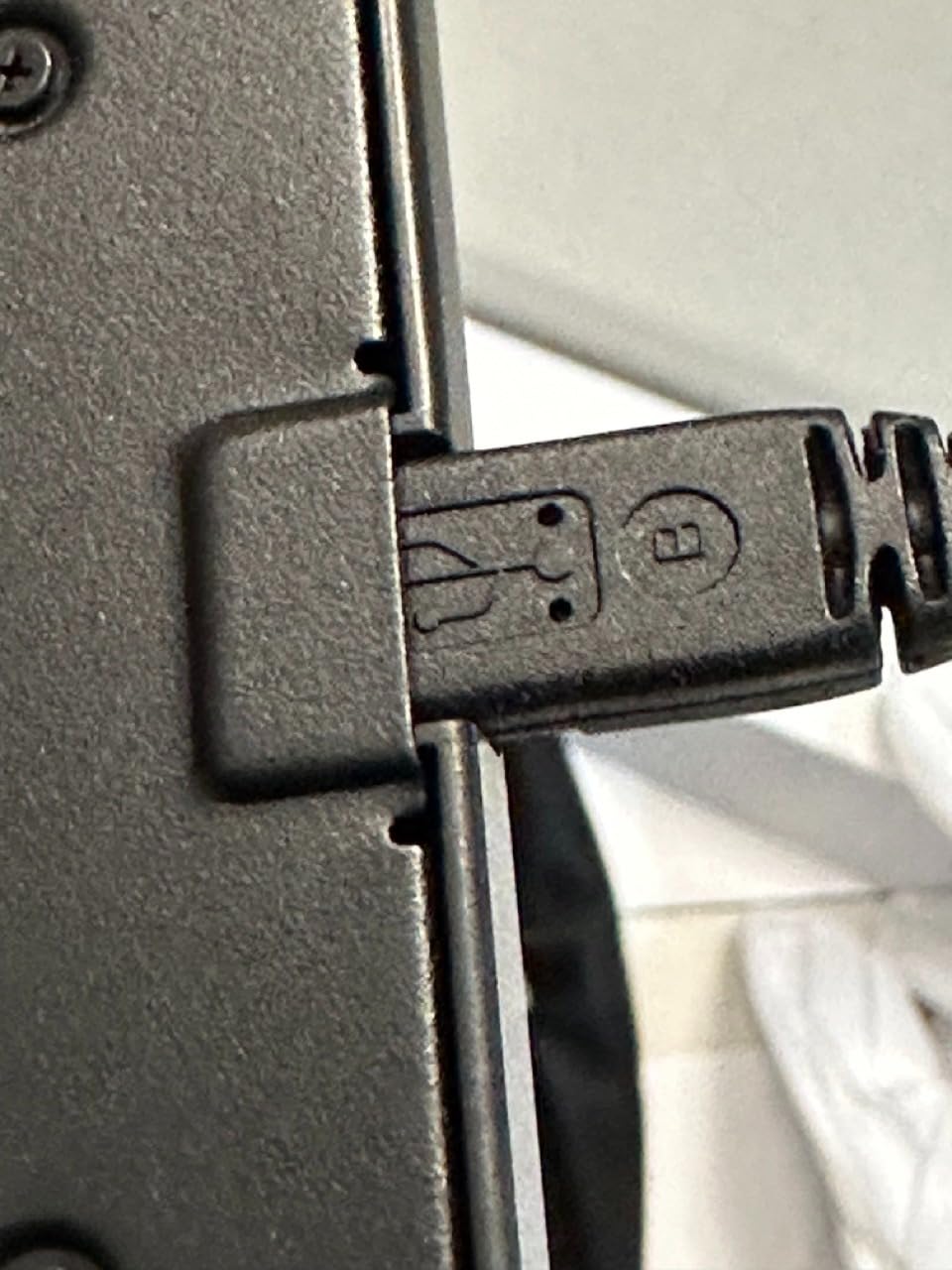
- Micro-USB cable placement is dated
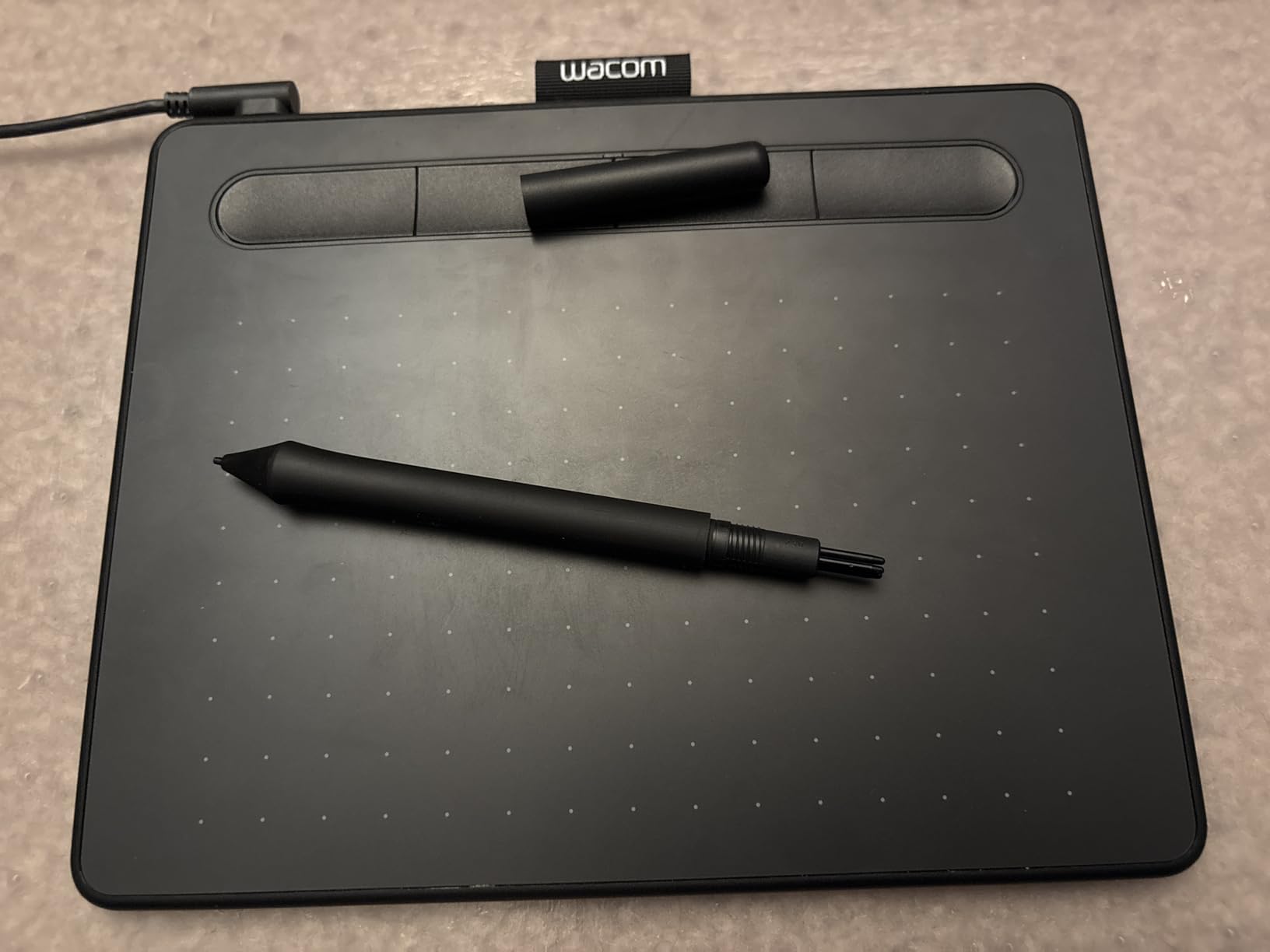
This is the tablet we end up recommending to working retouchers more than any other. The EMR pen is battery-free, so it weighs almost nothing and there is no charging routine to forget. It also behaves identically across Windows, macOS and Linux, which matters if you move between machines.
The 6 x 3.7 inch active area is genuinely small, and we want to be straight about that. For spot healing, dodge and burn, and mask cleanup on individual areas, it is enough. For full-frame frequency separation, you will be repositioning more often than you would like.
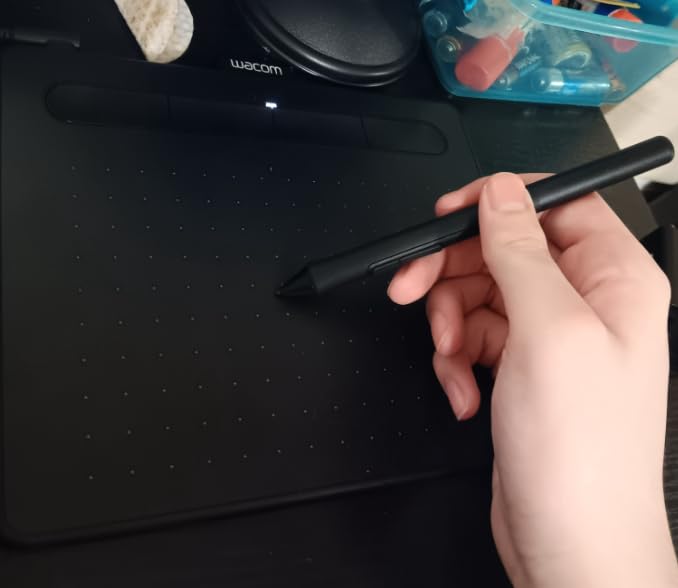
What compensates for the size is predictability. The 4096-level ceiling sounds dated next to competitors claiming 16384, but the response curve is stable and the cursor does not wander at low pressure. On a healing brush that is worth more than extra resolution you cannot feel.
There is also a pen button on the barrel that maps to the eraser or right-click with one driver setting. That single shortcut removes a huge amount of friction in a masking workflow, where switching between brush and eraser is a constant action.
Drivers are the quiet strength. ExpressKey assignments survive reboots and updates, and the tablet does not add lag to the system the way some heavier driver stacks can. For a machine you use every day, that reliability compounds quickly.
Who this tablet is for
This suits photographers doing portrait cleanup, product retouching, and general Photoshop work who want a tool that never gets in the way. It is also the safest first pen tablet, because there is essentially no setup to get wrong.
If your retouching is mostly full-frame portrait work and you have desk space to spare, a larger screenless pad will serve you better. Everything from brush selection to layer switching gets easier with room to move.
Where it falls short
The active area is the honest limitation here, and reviewers mention it more than anything else. Nib wear is the second: keep spares on hand, because the included nibs soften quickly under consistent pressure in dodge and burn work.
The fixed Micro-USB cable and its offset position are small annoyances rather than dealbreakers. If you need a pen display or wireless work, this is not the model to buy.
2. XP-PEN Artist12: Big Screen, Small Footprint
Pros
- Screen size closely matches a main monitor
- PN06 battery-free pen with rear eraser
- 6 programmable keys and a touch strip for zoom and scroll
- Light enough to move between setups
- Pen case glove cloth and spare nibs included
Cons
- Not laminated so parallax is visible between nib and cursor
- Setup can be fiddly with cabling and calibration
- Some reports of early display panel failure
- No stand included
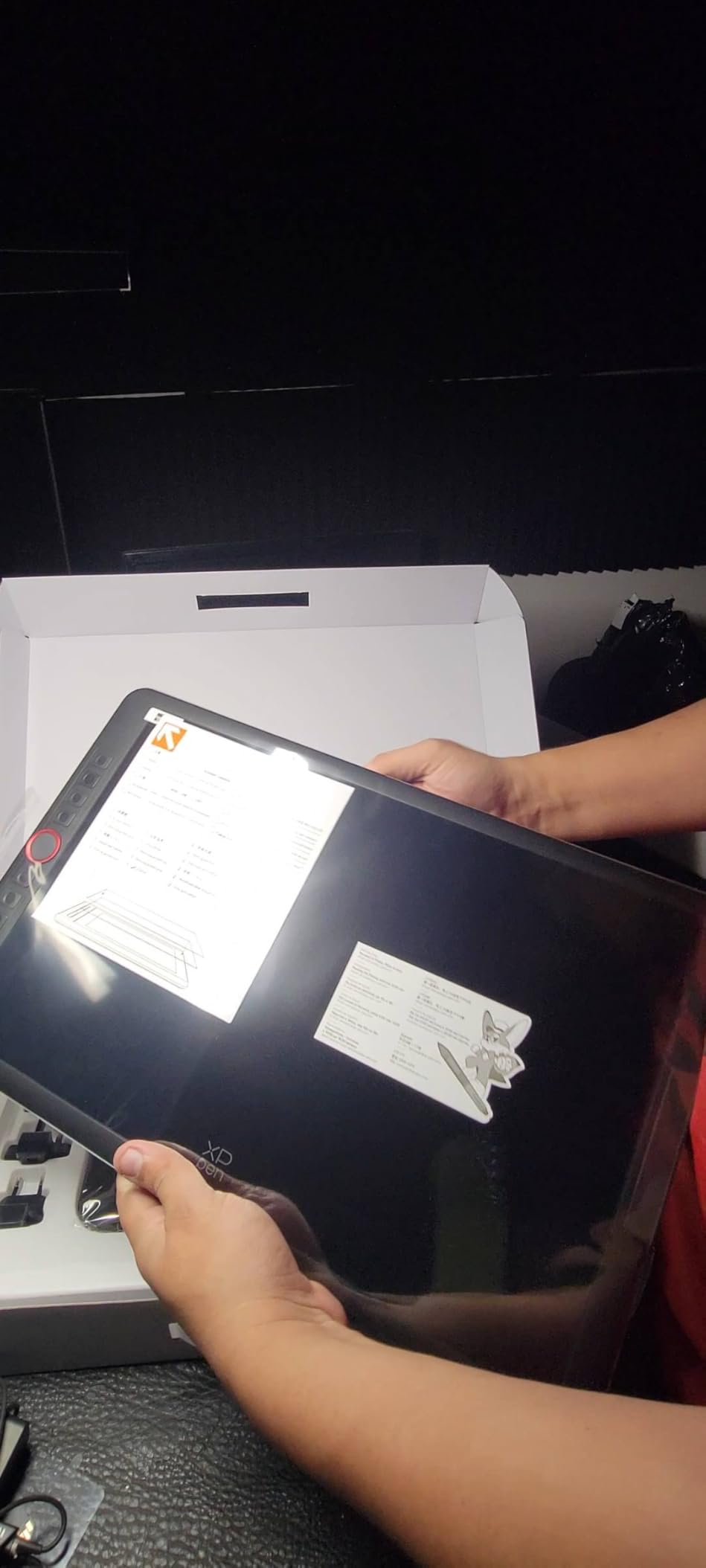
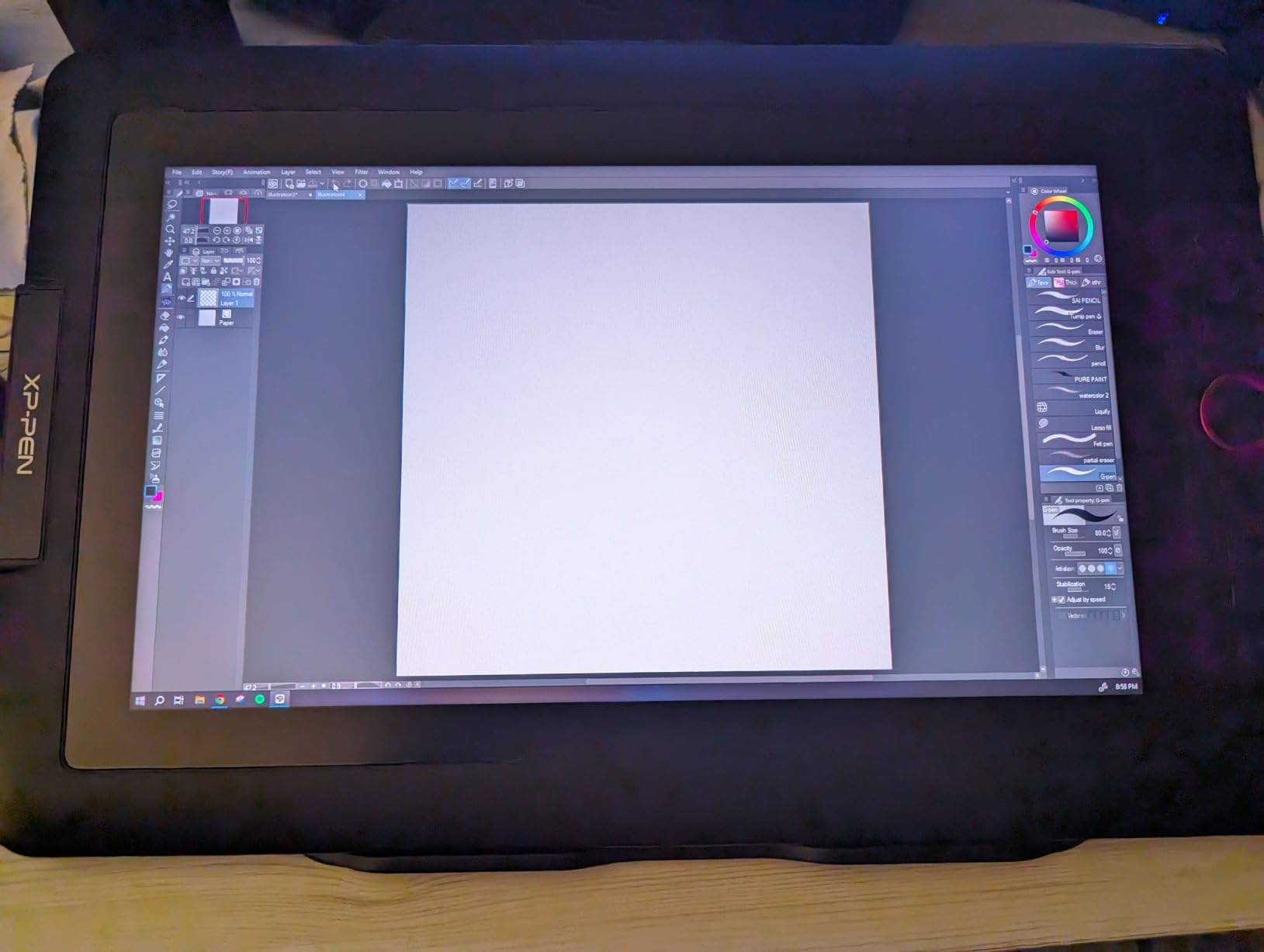
This is the pen display we would pair with a laptop-based retouching setup. At 11.6 inches the panel is close enough in size to a laptop display that the visual transition is minimal, and it works as an extended or mirrored display.
The PN06 pen is a highlight in its own right. It is battery-free, hexagonal in cross-section, and has a rear eraser, which is a genuinely useful feature when you are toggling between brush and eraser mid-mask.
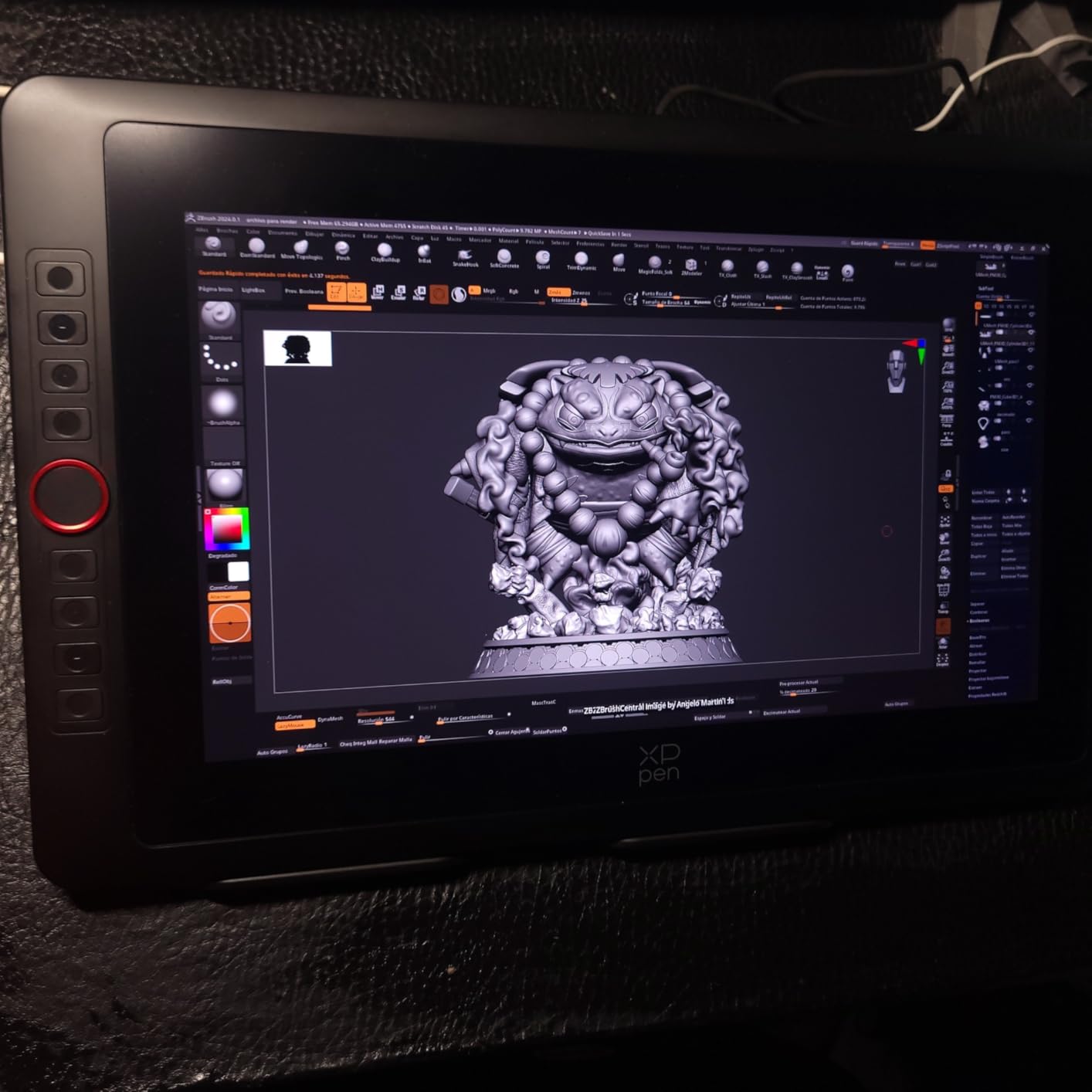
Six programmable keys plus a touch strip give you room to map brush size, opacity, zoom, and view toggle. That is enough control to run a retouching session without touching the keyboard.
The panel is not laminated, so there is a visible air gap between nib and cursor. On a diagonal stroke you will see the cursor offset, and precision work at low zoom needs a little compensation for that.
Setup is the other friction point. Cabling, display mirroring, and calibration take longer than they should, and you will want to run the calibration routine again after moving the machine.
Who this tablet is for
This works for retouchers who want to draw directly on the image without carrying a separate monitor, particularly on a laptop. Teachers doing live demonstrations get the same benefit.
For precision masking at high magnification, the parallax will slow you down. If your work is heavy on clean edges, a laminated panel is a better investment.
Where it falls short
No stand is included, which is a real ergonomic issue over a long session. A minority of owners also report early display panel failures, so check the warranty terms before committing to it as your only input device.
The pen side button sits where a natural grip rests, which causes accidental clicks. It is remappable, but you need to change the default early.
3. Huion Inspiroy H1060P: The Area You Get for the Money
Pros
- Very large 10 x 6.25 inch area in a slim 10mm body
- Deep shortcut map with 12 press keys and 16 soft keys
- Battery-free PW100 pen with 60 degree tilt
- Drivers install quickly across Windows Mac and Linux
- Symmetrical body that rotates for either hand
Cons
- Precision is a step below Wacom
- Micro-USB port is exposed and can bend
- Left-hand driver mode rotates the tablet but not the key layout
- Occasional line skips when the pen is rotated mid-stroke
The H1060P wins on one measurable thing: area. A 10 x 6.25 inch active surface in a 10mm slim body is a lot of room to move a cursor, and it is the reason we recommend it to retouchers working on large canvases.
Twelve hard press keys plus sixteen soft keys is an unusually deep shortcut map for this class of tablet. You can map layer and channel switching without a keyboard, which is exactly what a mask-heavy workflow needs.
Where the rubber meets the road is precision. It is a step below a Wacom, and reviewers who already own professional tablets describe the cursor placement as softer rather than pixel-exact. On a healing brush you will get used to it, but you will notice it early.
Drivers install quickly and cover Windows, macOS, and Linux. On Linux, Wayland is not supported, so X11 sessions are required. That is a narrow limitation, but it catches people out.
The body rotates 180 degrees in the driver for opposite-hand use, which is a nice touch, though the key mapping layout does not rotate with the body. You end up relearning where the buttons are.
Who this tablet is for
This suits hobbyists and working photographers who need a large working area without a large expense, and anyone upgrading from a tiny first tablet. The key count makes it a genuine shortcut console.
If your retouching is fine detail work judged on edge quality, test it first. The area advantage does not fully compensate for softer precision.
Where it falls short
The exposed Micro-USB connector is the component most likely to fail over years of daily use. Take care with the cable strain, and do not yank it out by the plug.
Some owners report occasional line skips when the pen is rotated during a stroke. If you use tilt heavily, keep the pen more upright.
4. GAOMON PD1161: The Matte Surface Enthusiast’s Display
Pros
- Pre-installed anti-reflective matte film gives a paper-like feel
- 8 programmable side keys plus 2 pen buttons
- 72% NTSC / 100% sRGB coverage
- Battery-free AP50 stylus with tilt
- Broad app support including Photoshop and Krita
Cons
- Not standalone so needs HDMI and USB from a host
- 72% NTSC gamut is below wide-gamut displays
- Non-laminated panel means some parallax
- Matte film scratches with a heavy hand
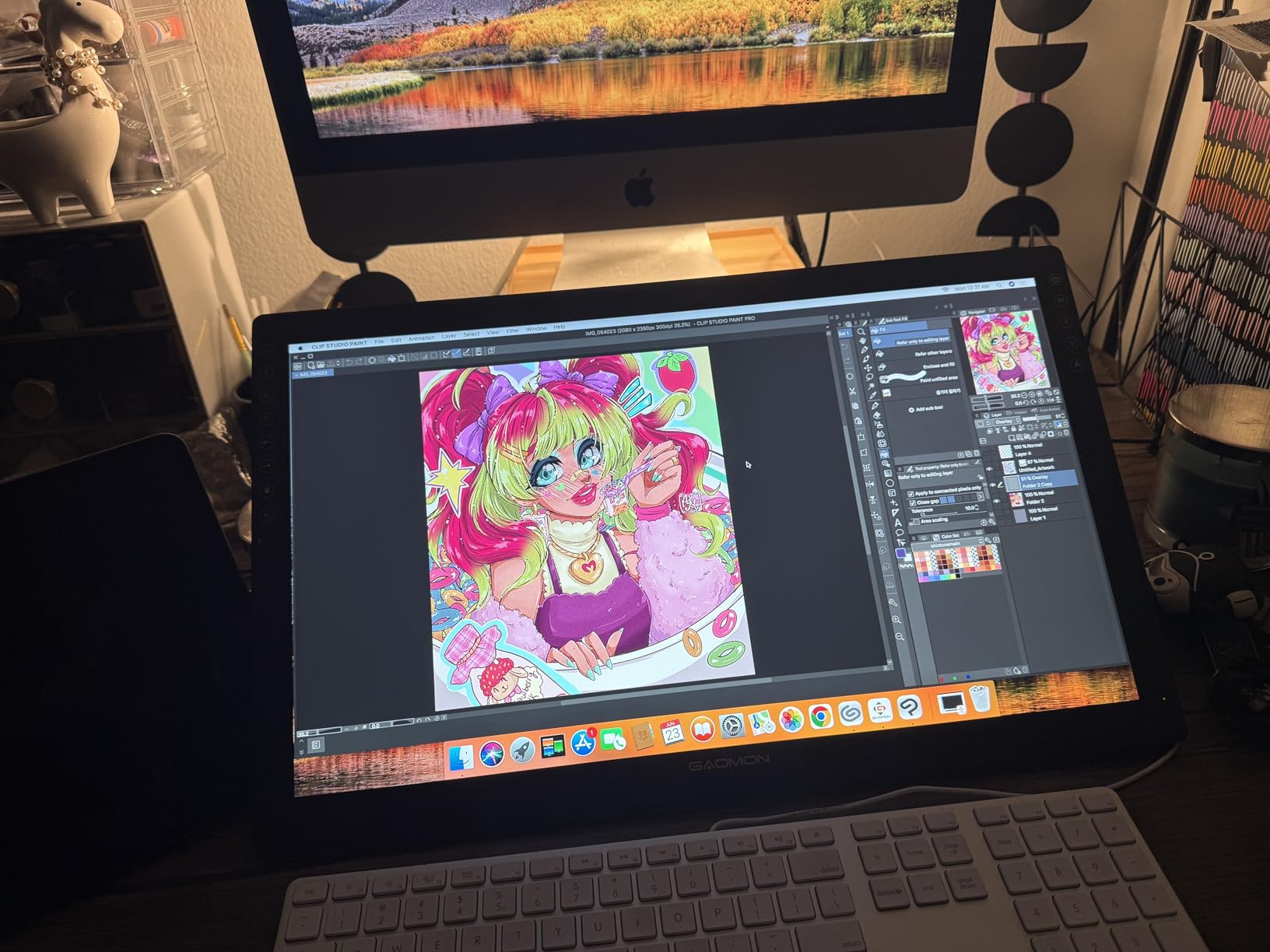
The PD1161 arrives with a matte anti-reflective film already applied, and that is the whole point. If you dislike the slick, plasticky feel of glossy pen displays, this surface changes how long you can work before your hand complains.
Eight programmable side keys plus two pen buttons give you a good amount of control. The AP50 stylus is battery-free and handles tilt without fuss, which is useful when you are painting at an angle to keep the cursor from clipping at the edge.
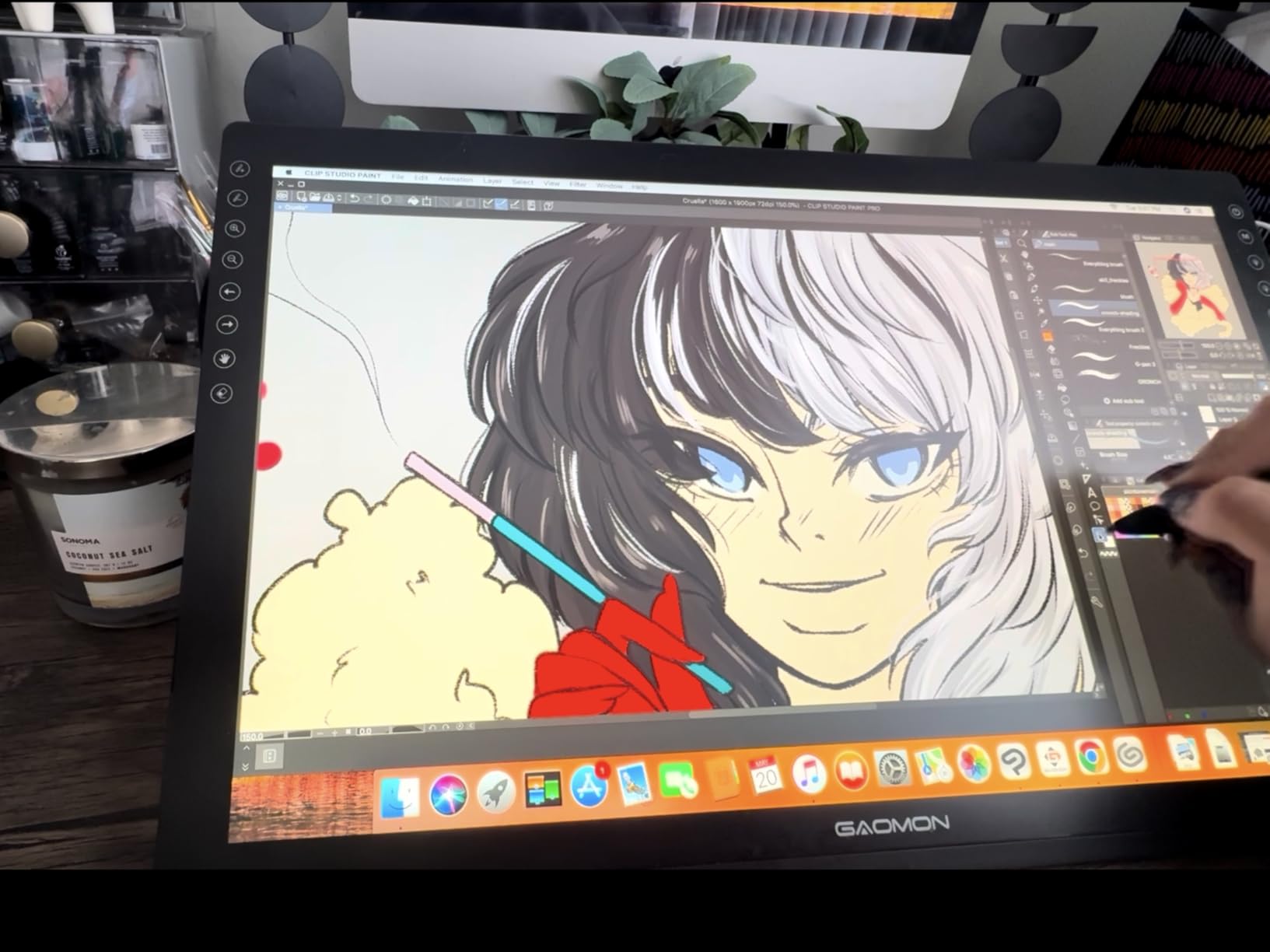
It is a tethered device, not a standalone one. It needs HDMI for video and USB for data plus power from a host computer, so plan your desk layout before you start.
The color specification is where caution is needed. At 72% NTSC, the panel covers sRGB but does not extend beyond it, so it will not show you saturated AdobeRGB or DCI-P3 colors. For skin retouching that is workable. For color grading it is not.
Non-laminated construction means the same parallax gap you get on any budget display, so plan for a small offset on diagonal strokes.
Who this tablet is for
This is for retouchers who do long sessions and find glossy surfaces uncomfortable, and for anyone working in an environment with overhead lighting where a matte surface beats a reflective one.
It is also a good teaching display. Software support covers Photoshop, Krita, Blender, and SAI out of the box.
Where it falls short
Color-critical work is the limit. If you deliver images for print or work in a wide-gamut workflow, look at a wider-gamut panel or, better, keep your calibrated monitor as the reference.
Some users report needing to recalibrate after reconnecting, and the pre-applied film scratches easily. Handle it more gently than a mousepad.
5. Huion Kamvas Pro 16: The Wide-Gamut Choice
Pros
- Widest color specification in this group at 120% sRGB and 92% AdobeRGB
- Fully laminated anti-glare glass with virtually zero parallax
- Adjustable ST200 stand spanning 20 to 60 degrees
- Touch bar plus 6 express keys
- Single 3-in-1 USB-C cable for power data and video
Cons
- 15.6 inch footprint is large for a laptop-first workspace
- Must be connected to a computer
- Screen brightness is low for bright-room grading
- Pen is thin and light for long sessions
This is the retouching tablet to buy if your work is judged on color. The panel covers 120% sRGB and 92% AdobeRGB with a 1000:1 contrast ratio, which is the widest color specification of anything in this roundup by a clear margin.
Fully laminated anti-glare glass means the nib sits effectively on the image. There is no air gap, so precision masking and edge cleanup behave the way you expect them to.
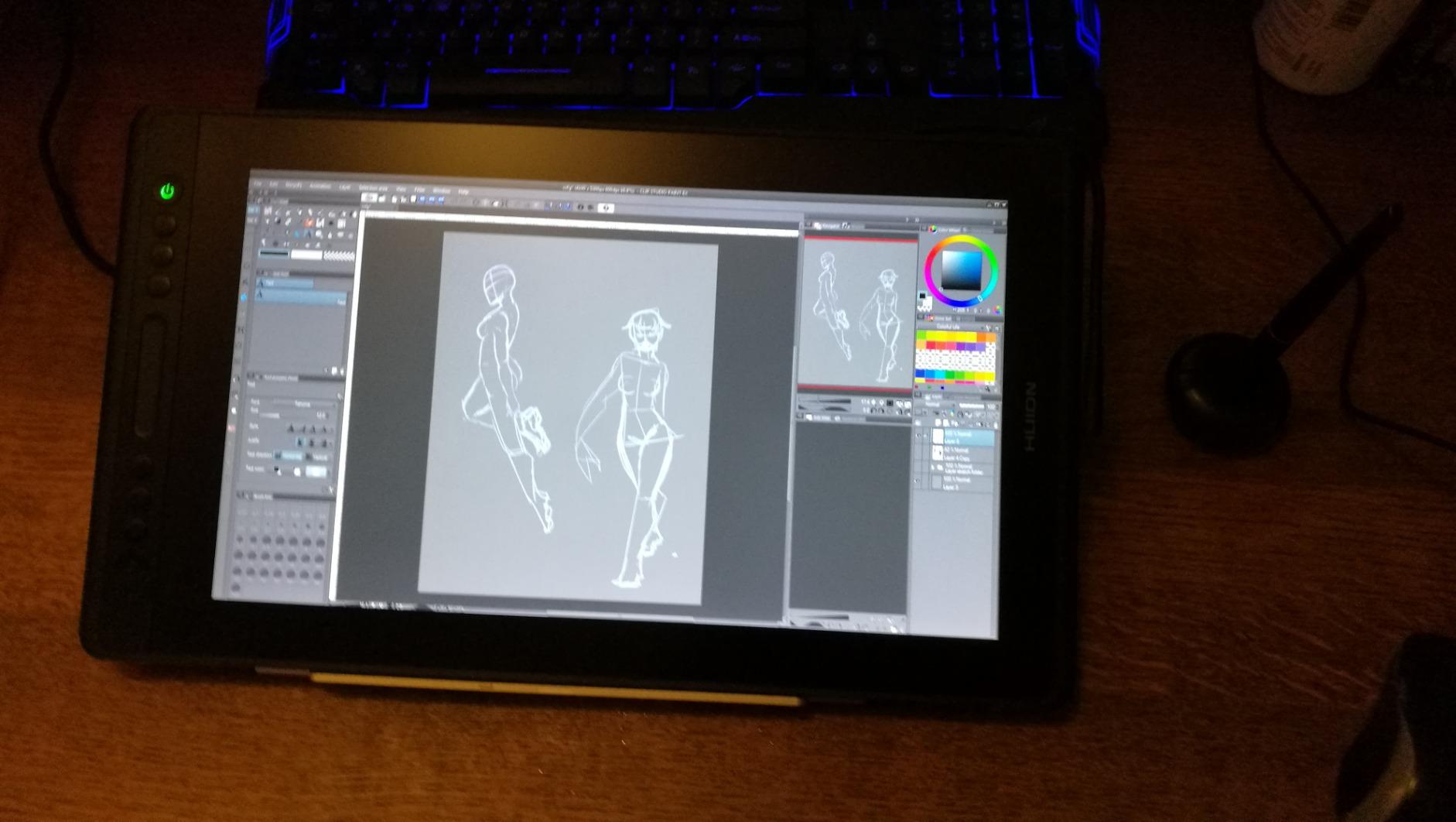
The ST200 stand adjusts from 20 to 60 degrees, and that range is not a marketing detail. Retouching sessions run long, and a fixed low angle will have you hunching within the hour.
A touch bar plus six express keys cover the standard retouching shortcuts, and a single 3-in-1 USB-C cable handles power, data, and video, so your desk stays reasonably clean.
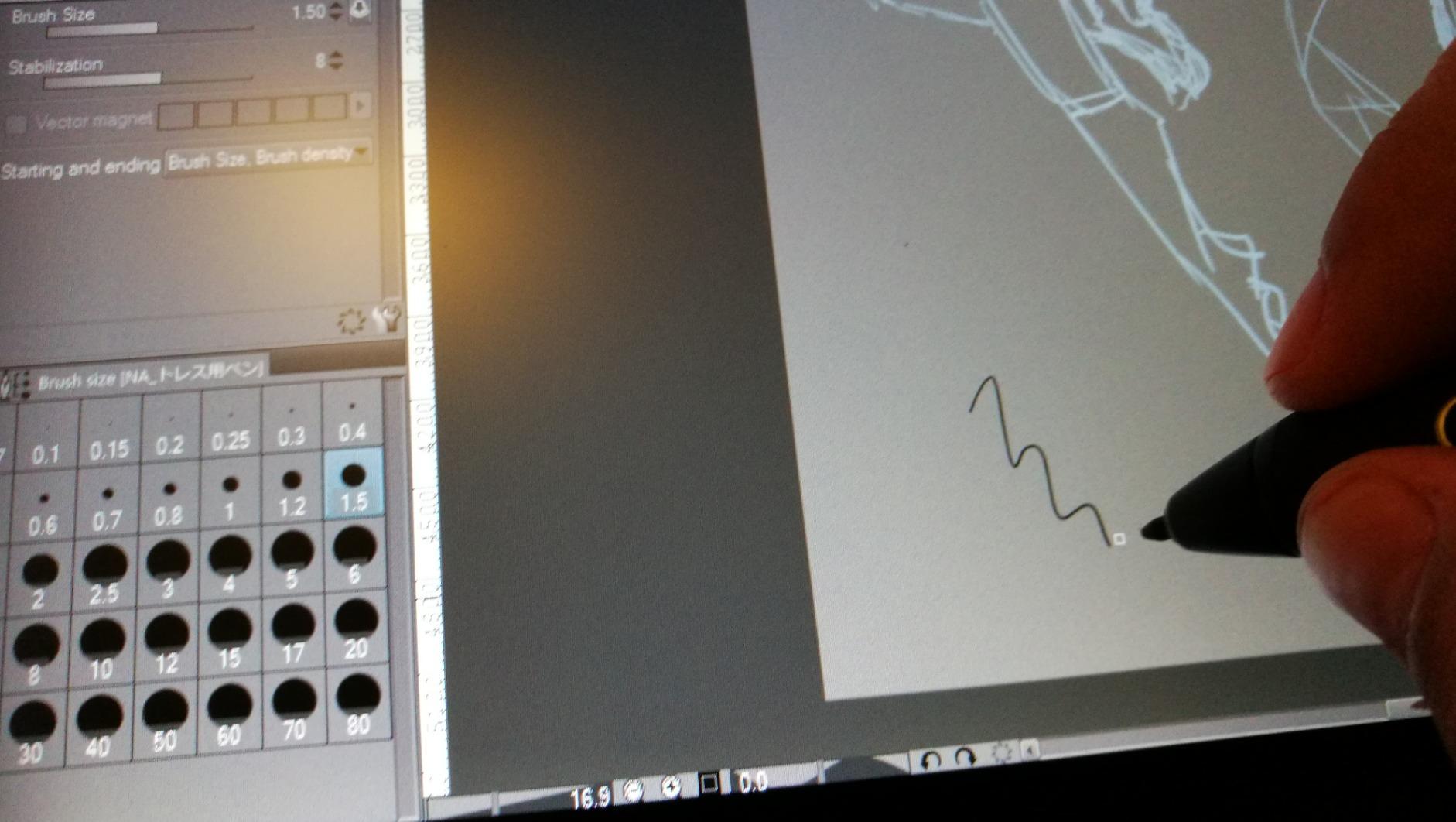
The PW507 pen provides 8192 levels with 60-degree tilt and two programmable side buttons. That is plenty for retouching, and the low activation force helps with soft dodge passes.
Who this tablet is for
This suits commercial and studio retouchers working in AdobeRGB, product photographers checking saturation, and anyone who wants their drawing surface and their color reference to be the same object.
It is also a strong choice for hobbyists who paint and retouch, because the lamination and tilt handling serve both.
Where it falls short
The 15.6 inch footprint is substantial. If your setup is laptop-first or your desk is small, this is physically the hardest model here to place comfortably.
Brightness is not enough for grading in a bright room. Keep a dimmable environment for color decisions, and remember that no pen display is a substitute for a calibrated reference monitor.
6. XP-Pen Artist 13.3 Pro V2: The Laminated Value Display
Pros
- Fully laminated screen removes essentially all parallax
- 16384 pressure levels with low initial activation force
- Red Dial controls zoom brush size and canvas flip
- 8 shortcut keys plus 2 pen buttons remappable per application
- Single full-featured USB-C connection
Cons
- Included foldable stand is weak and has only one angle
- Pen side buttons are easy to hit with larger hands
- Needs an HDMI-capable port and adapters can cause calibration drift
- Calibration may need redoing after unplugging
The Artist 13.3 Pro V2 is the most interesting pick here on a spec-per-feature basis. A fully laminated 13.3-inch panel, 16384 pressure levels, and a hardware Red Dial for under what a midrange Wacom display costs.
The Red Dial is the feature that changes a workflow. Map it to zoom and you get one-handed zoom control while the pen stays on the surface, which is exactly what retouching needs when you are checking a mask edge at high magnification.
Color coverage of 88% NTSC, 123% sRGB, and 91% AdobeRGB is wider than the budget displays here, though not as wide as the Kamvas Pro 16. For AdobeRGB print work it is serviceable, and reviewers report the color is noticeably truer than a laptop panel.
Eight shortcut keys and two pen buttons are fully remappable per application, so you can keep separate profiles for Photoshop and Lightroom. That is a real workflow feature, not a spec sheet line.
Tracking runs at 220 RPS with a battery-free stylus on the X3 Pro Smart Chip, and the reported behavior is consistent under fast strokes.
Who this tablet is for
This suits retouchers who want a laminated screen for accurate edge work without paying the premium for a larger brand-name display. It works well for illustrators who also retouch.
If you mostly work on a laptop, the single full-featured USB-C connection keeps the setup simple compared with a multi-cable display.
Where it falls short
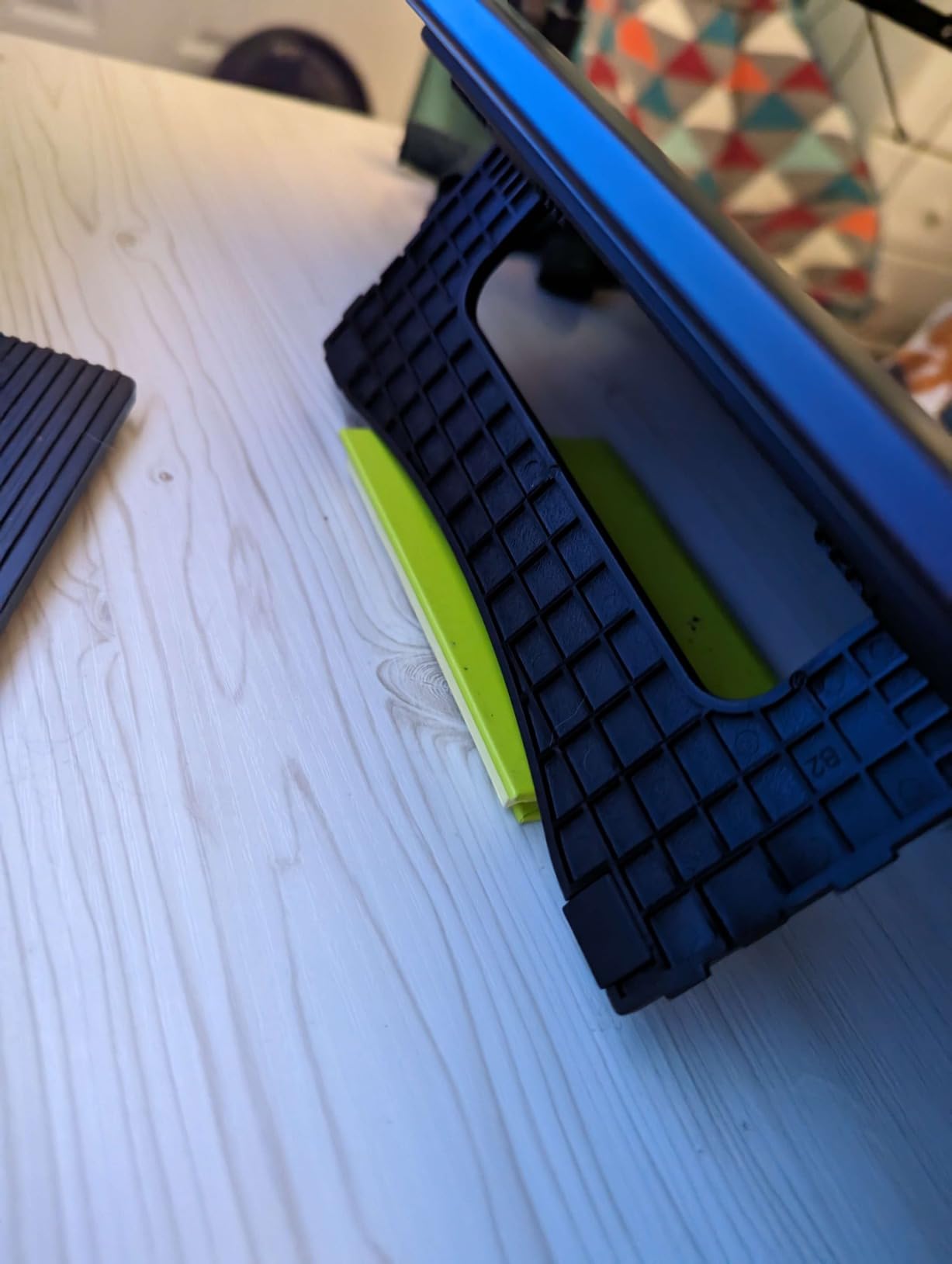
The included foldable stand is the most criticized component. It is weak and locked to a single shallow angle, so plan to buy a proper adjustable stand if you work long sessions.
If your machine lacks an HDMI-capable port, DisplayPort adapters can introduce calibration drift. Check your ports first and calibrate after any change.
7. VEIKK VK1060PRO: Dials on a Screenless Pad
Pros
- Two Quick Dials plus 6 shortcut keys on a screenless pad
- 16384 pressure levels with tilt recognition
- 9mm slim body that helps with wrist comfort
- Large accessory bundle with 20 spare nibs pen holder glove and OTG-C connector
- Symmetrical body for either hand
Cons
- Some stylus units have unreliable side buttons
- Cable is fixed and cannot be swapped
- Setup instructions are confusing about driver install order
- Documentation is thin for the feature set
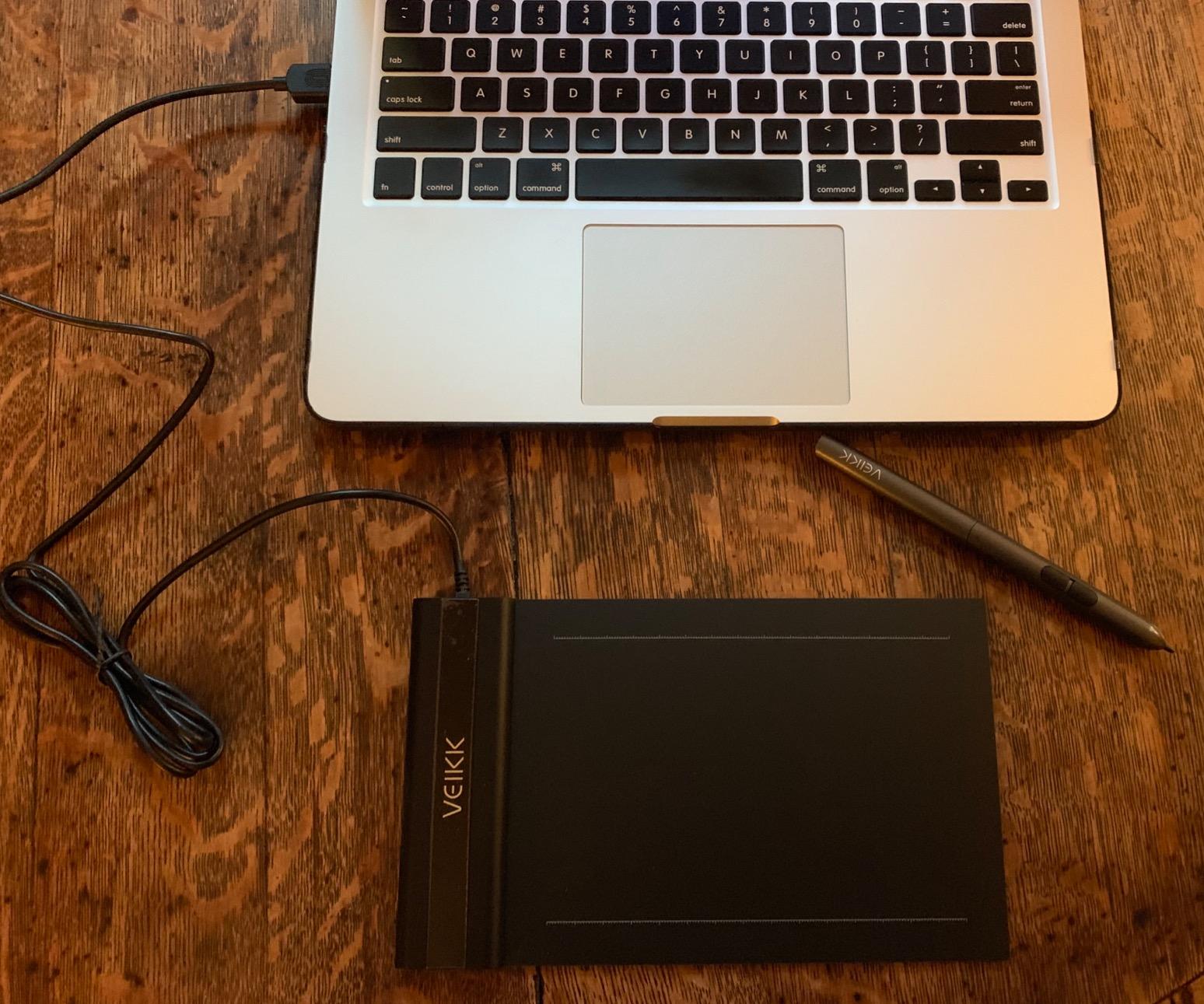
Dials on a screenless tablet are unusual, and that is why this one is worth knowing. Two Quick Dials can be mapped to brush size and opacity, which is a workflow shortcut most screenless pads at this level do not offer.
The 10 x 6 inch active area is a good retouching size, and the 9mm slim body keeps your wrist at a comfortable angle through a long session.
Pressure specification is 16384 levels with 60-degree tilt recognition at 5080 LPI, which is more than the retouching task requires. As with the other 16K pads, the useful metric is the low-end response rather than the headline number.
The accessory bundle is generous: 20 spare nibs, a pen holder, a glove, an OTG-C connector, and a protective film. Not everything in the box is useful, but the nib count genuinely matters for daily retouching.
Setup is quick for most people, though the printed instructions leave the driver install order ambiguous. Install the driver first, connect second, and you will avoid the key error message some owners hit.
Who this tablet is for
This suits retouchers who want dial-based control without giving up a color-accurate monitor. The symmetrical body also works well for anyone who switches hands during long sessions.
It is a reasonable step up for students moving beyond a starter pad and wanting more control options.
Where it falls short
Build quality is the weak point. Some stylus units have side buttons that stop responding early, and the attached cable cannot be replaced if it fails.
Documentation does not match the feature list, so budget time for the driver app rather than assuming a five-minute setup.
8. VEIKK VK1200 V3: Two Pens and a Laminated Panel
Pros
- Fully laminated anti-glare glass with very little parallax
- Two battery-free pens included at 16384 levels and 60 degree tilt
- Matte surface with enough tooth to feel like paper
- 28 spare nibs pen holder glove and cloth in the box
- Compact metal body that travels well
Cons
- 72% NTSC gamut is too narrow for color-critical work
- Pen pressure can fail to register until drivers are reinstalled
- Rough quarter-inch dead zone at screen edges breaks Photoshop full-screen mode
- No carrying case included
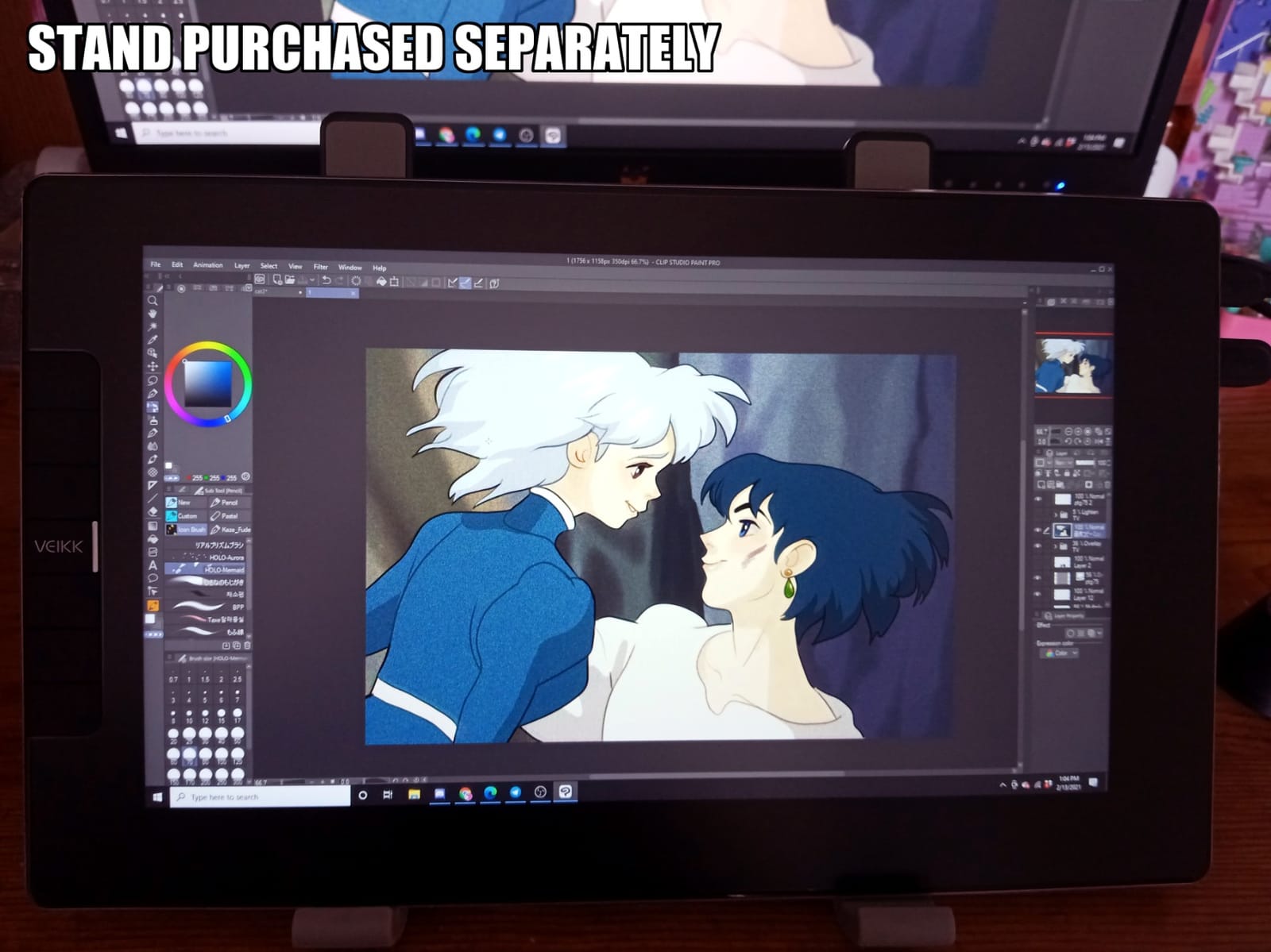
The V3 is a competent laminated pen display that fixes most of the complaints people had with the earlier version. Full lamination means the cursor sits under the nib, and the matte surface has real tooth rather than a slick coating.
Two pens in the box is a quiet advantage for retouching. Keeping one pen per nib type, or one per hand, removes a small but constant friction from a full day of work.
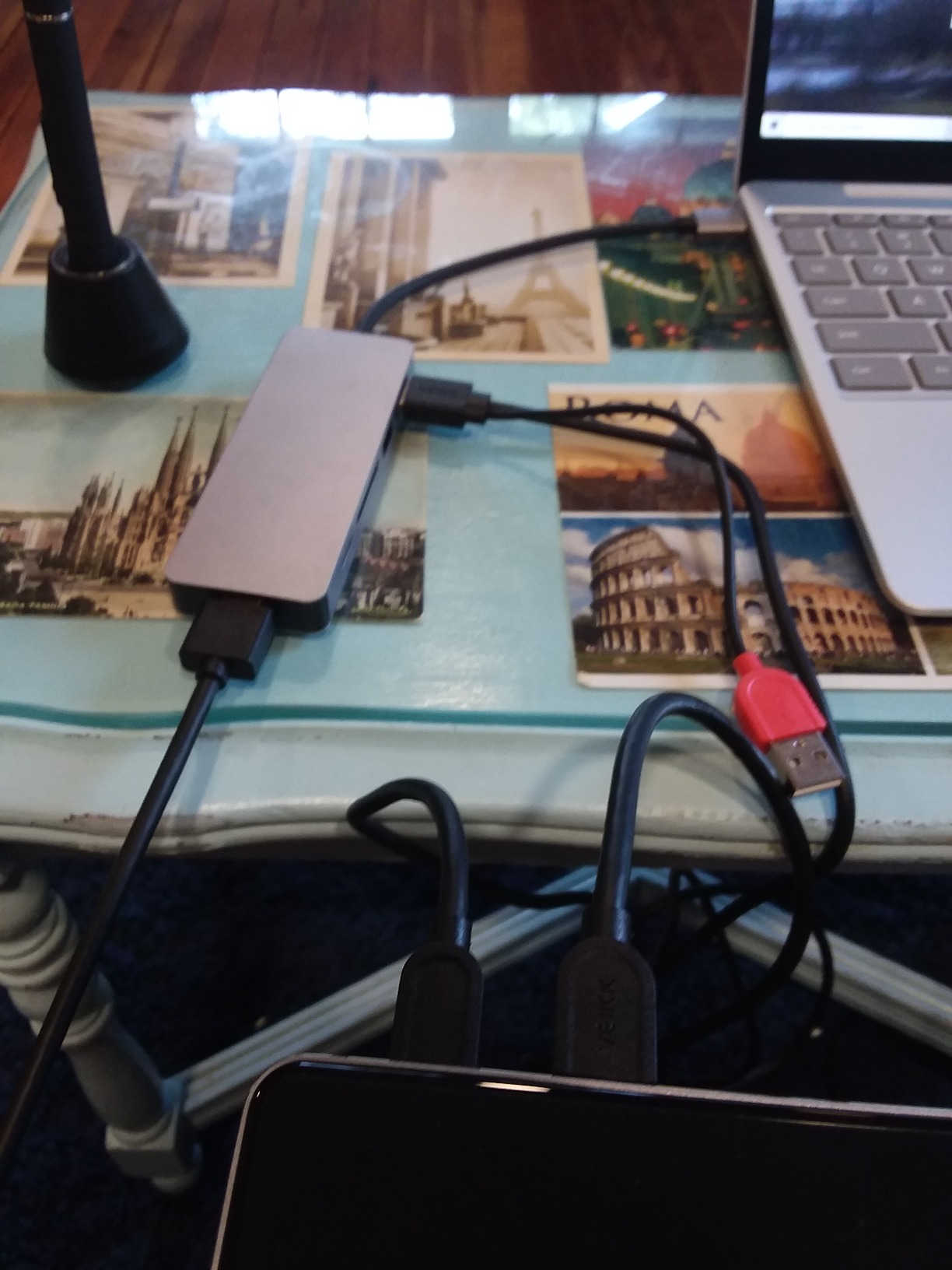
A single full-featured USB-C cable handles power, data, and video, with HDMI and USB-A adapters included. That is tidier than a two-cable display, and it travels in a bag without a dongle.
The 72% NTSC color gamut is the real limitation. It covers sRGB and no more, so it is a working surface rather than a color reference for anything beyond standard delivery.
There is a rough quarter-inch dead zone at the screen edges, and that is worth knowing about specifically: it interferes with Photoshop full-screen mode, where the menu bar needs every inch of display.
Who this tablet is for
This suits retouchers who work in sRGB, travel with their setup, and want a laminated screen without a large footprint. The two included pens make it good for shared or family machines.
It is also a straightforward choice for students who need a display rather than a screenless pad and want minimal cabling.
Where it falls short
The edge dead zone is the one that will actually stop you, and only if you rely on full-screen Photoshop. If you do, test it before committing.
Some owners have had pen pressure stop registering in Photoshop until the driver was reinstalled. Keep the installer handy, and avoid running two driver packages at once.
9. Huion Inspiroy 2 Medium: Built for Culling Shortcuts
Pros
- Scroll wheel plus 8 press keys and 3 group keys give 24+ shortcuts
- PenTech 3.0 tracking is smooth with no visible wobble
- Light at 420g and thin enough to carry
- USB-C cable also works for phone and tablet hookups
- Three preset configurations for art 3D and general use
Cons
- No Bluetooth so wired only
- No eraser on the reverse of the pen and no touch input
- Scroll wheel needs firm pushes to actuate
- Button remapping does not reach UWP apps immediately
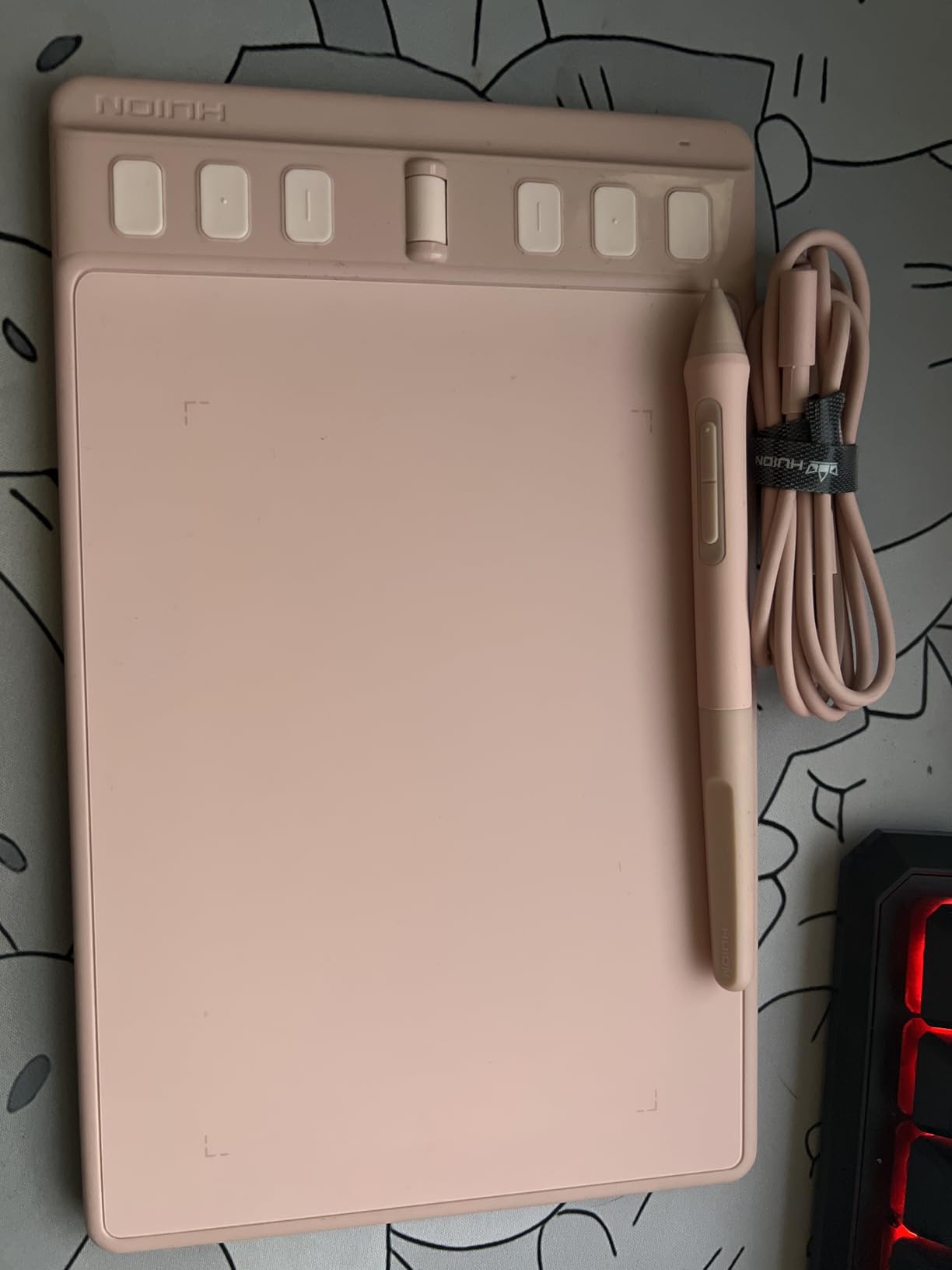
This is the most interesting pick if your retouching workflow includes a serious Lightroom culling pass. A scroll wheel plus eight press keys and three group keys gives you 24 or more mapped actions, which is more shortcut capacity than any other screenless pad here.
Photo editors using it for culling report real gains from the mapped keys, because flag, reject, and rating can be driven entirely from the tablet without touching the keyboard.
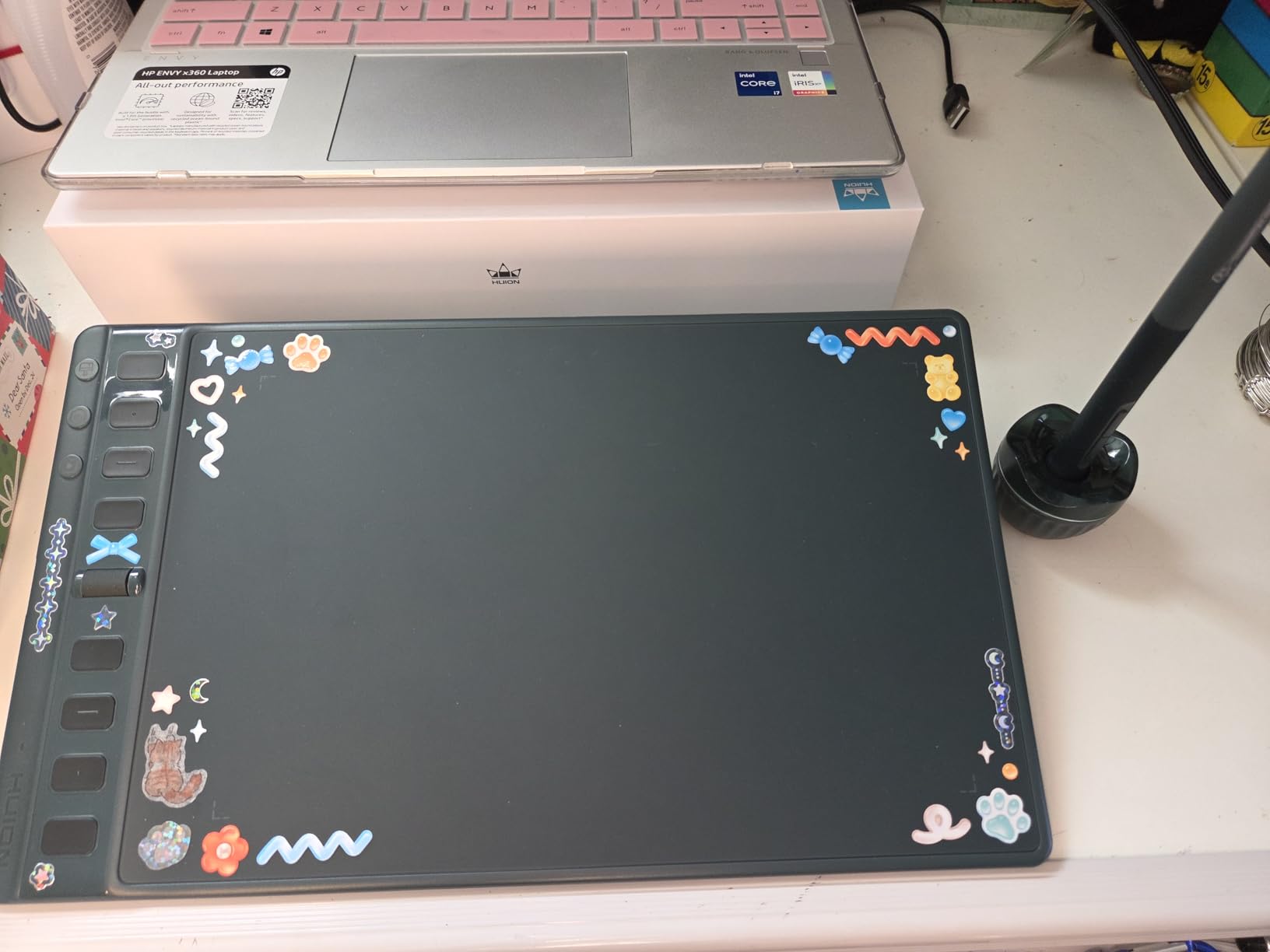
PenTech 3.0 tracking is smooth with no visible wobble, and the PW110 stylus has a soft silicone grip that stays comfortable over long sessions. The 420g body is light enough to move between a desk and a lap.
Three preset configurations cover art, 3D modeling, and general use, and the 60-degree tilt support is smooth for painting-style retouching work.
There is no Bluetooth, so this is a wired tablet. The USB-C cable is a plus, since it also handles phone and tablet hookups for on-the-go review.
Who this tablet is for
This suits catalog-driven retouchers who spend hours rating, flagging, and developing, and painters who want a dense shortcut map on a small footprint. At 8.7 x 5.4 inches it also travels better than a full-size pad.
It is a good compact choice for someone who already knows their way around Photoshop and wants fewer, better shortcuts rather than a big surface.
Where it falls short
There is no eraser on the reverse of the pen and no touch input, so pinch-zoom has to come from a key mapping or a gesture on the trackpad. The pen has two side buttons, but no tail eraser.
Software polish is the recurring complaint. The Huion app shows the tablet image in the wrong orientation in opposite-hand mode, and remapped buttons do not immediately reach modern UWP apps.
10. Wacom Intuos Pro Small: Wireless With a Mechanical Dial
Pros
- Pro Pen 3 with near-zero lag and adjustable grip weight and balance
- Mechanical dial is far more usable than the old encoder
- Bluetooth 5.3 pairs reliably and lasts about 16 hours on a charge
- 4mm magnesium body is sturdy and portable
- 2-year manufacturer warranty
Cons
- Pro Pen 3 is fragile and is not covered by the warranty
- Replacement pens are expensive
- ExpressKeys and dial moved to the top edge which is awkward
- Touch input was removed compared with the earlier generation
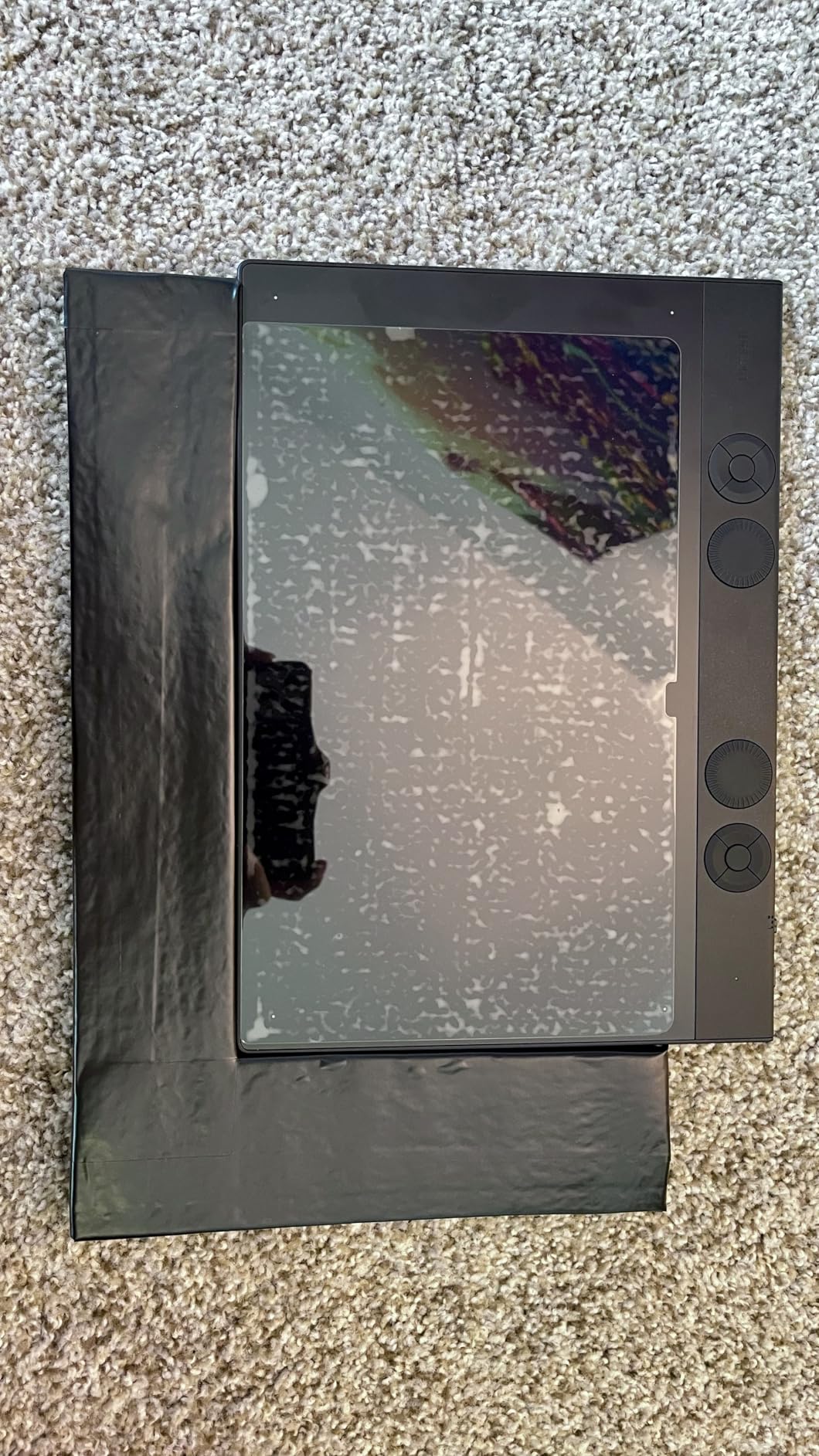
Wireless is the headline here. Bluetooth 5.3 pairs reliably and holds roughly 16 hours on a charge, so you can move the tablet to a couch, a client meeting, or a second desk without replugging anything.
The Pro Pen 3 is the best pen in this group. Grip, balance, and button layout are all adjustable, and the tracking is reported as near-zero-lag with excellent pressure response. Owners switching from Huion describe the line quality difference as immediate.
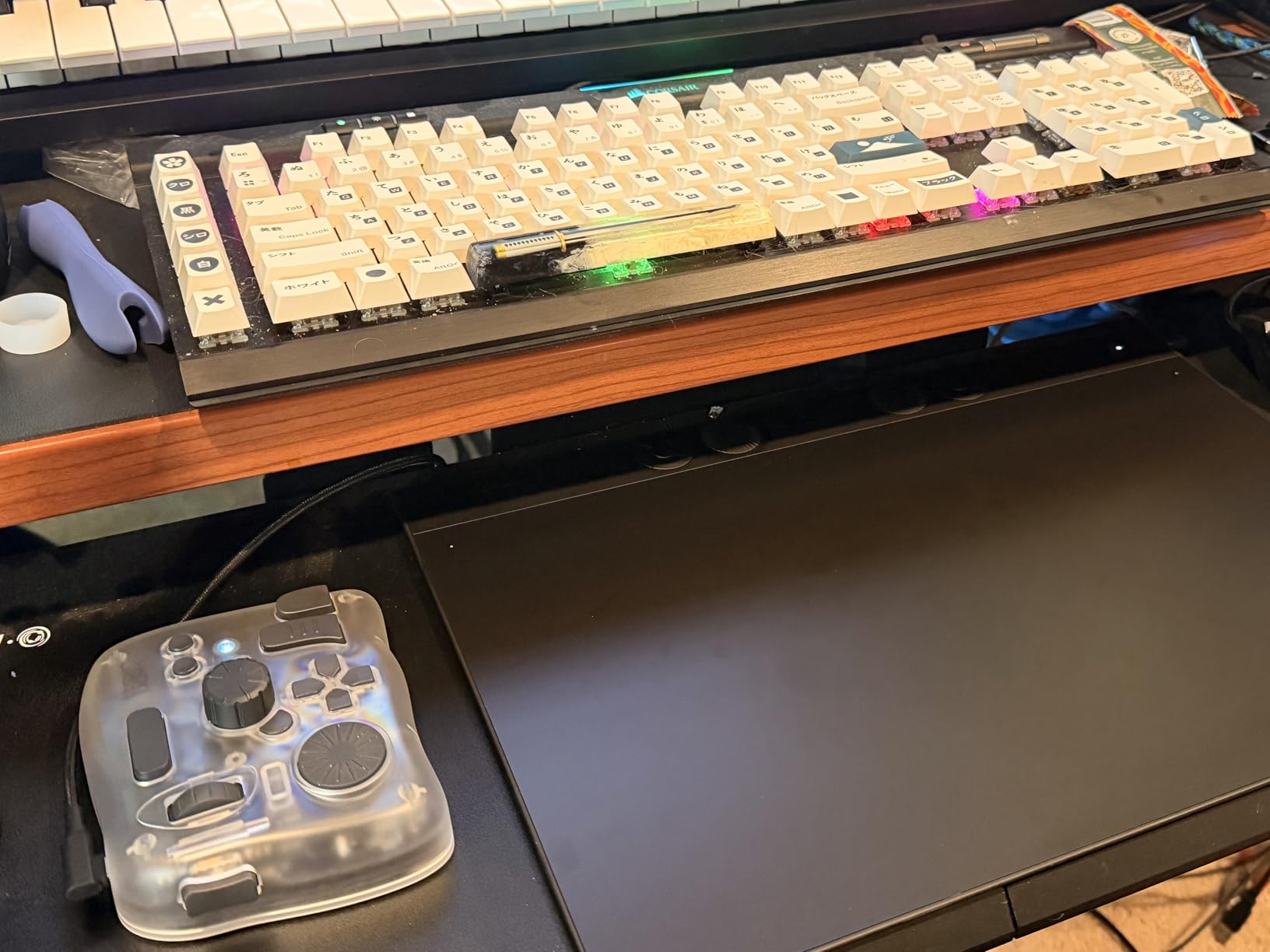
The mechanical dial is a genuine improvement over the old digital encoder. It has real detents and enough travel to make brush size and opacity control precise rather than approximate.
At 8.4 x 6.4 inches in a 16:9 format, the active area is proportioned for wide monitors, and five ExpressKeys give you a solid shortcut row for a compact body.
The 4mm magnesium body is thin, sturdy, and easy to carry, and the 2-year warranty is the longest in this roundup.
Who this tablet is for
This suits retouchers who work across multiple rooms or machines, and anyone who wants a premium pen without a built-in screen. The 16:9 shape maps cleanly to a wide single monitor or a multi-monitor setup.
It is also a strong choice for illustrators who retouch on the side, since the pen handling carries over to painting.
Where it falls short
The Pro Pen 3 is fragile. A short drop can kill it, and the pen is not covered by the warranty. Replacement pens are pricey, so treat the pen as the most valuable part of the kit and buy a case.
ExpressKeys and the dial moved to the top edge, which is awkward without an external keypad, and touch input was removed compared with the earlier generation.
11. XP-Pen Deco 01 V3: The Best Value Entry Pad
Pros
- 16384 pressure levels with 60 degree tilt
- 8 programmable express keys supporting either hand
- 8mm thin and light so it travels easily
- Strong Linux support with drivers across major distributions
- Works with Photoshop Illustrator Krita Blender and Affinity
Cons
- Stylus tip feels squishy with lateral wobble
- Very light pressure at the low end is not always detected
- Driver options are shallower than Wacom for mapping and distance control
- Nibs wear quickly against the surface
With the second-largest review base in this roundup, the Deco 01 V3 is the most battle-tested value entry tablet here, and it is the one we suggest to anyone moving off a mouse for the first time.
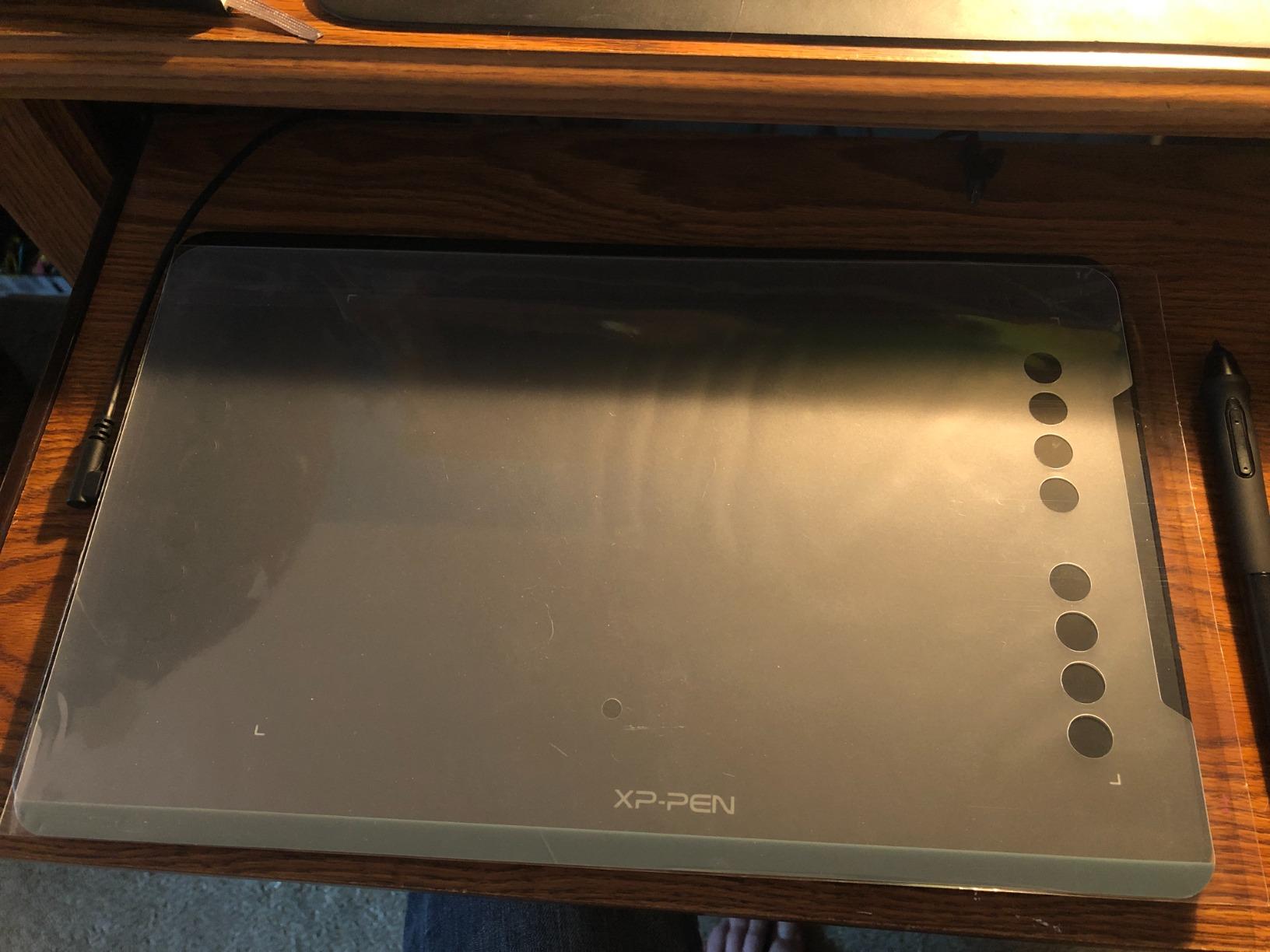
Ten by 6.25 inches of active area is a genuinely usable retouching surface, and eight programmable express keys are more shortcut capacity than most competitors offer at this level.

The illuminated ends of the drawing area are a small touch that matters in a dim retouching room. You are not squinting at your nib in a dark studio at midnight.
Linux support is the standout. Reviewers confirm working drivers across major distributions, which is rarer than manufacturers admit and matters if you keep an older machine alive for photo work.
USB-C connectivity with an adapter for older ports keeps the desk simple, and the 8mm body is light and easy to carry in a laptop bag.
Who this tablet is for
This suits students, hobbyists, and working photographers who want a capable retouching surface at the lowest sensible outlay. It also suits Linux users who have been disappointed by manufacturer driver support elsewhere.
It is a safe first upgrade, and a fine second tablet for a laptop bag.
Where it falls short
The low end of the pressure range is the real issue for detail work. Very light touches are not always detected, which makes fine retouching strokes harder to place than the headline pressure number suggests.
The stylus tip feels soft with lateral wobble, and the driver offers less control over pen-to-screen distance and monitor mapping than Wacom software. Plan to use a separate utility if you need precise mapping.
12. UGEE M708: Light, Textured, and Surprisingly Capable
Pros
- Large 10 x 6 inch surface with a papery texture that reduces glare
- 16384 pressure levels with 60 degree tilt
- 8 customizable express keys plus a pen button
- Very light build that is easy to move between setups
- Minimal driver software that does not add lag
Cons
- Micro USB connection to the tablet is dated
- Cord plugs in on the side and forces a desk layout
- Hot key assignments sometimes revert between sessions
- Stylus buttons are very sensitive and trigger accidental presses
The M708 is the lightest option here, and reviewers compare it to a thin keyboard. If you retouch on a laptop, on a couch, or anywhere without a dedicated desk, that weight matters more than any specification.
The papery texture surface is pleasant in practice. It grips the nib, reduces the slick feeling of glossy pads, and is easier on your hand over a long session.
The pressure curve is the standout. Reviewers repeatedly single out that the lightest touch yields a fine line without bottoming out, which is precisely what dodge and burn and soft masking need.
Eight customizable express keys plus a stylus button give you a workable shortcut map, and the driver supports per-application customization for Photoshop and Lightroom.
The driver is minimal, which cuts both ways. It does not add lag to the system, but it also exposes fewer tuning options than the larger vendor utilities.
Who this tablet is for
This suits retouchers who work away from a fixed desk, and anyone who prefers a textured surface. It is a strong first pen tablet and a capable travel companion.
If you do long dodge and burn passes where soft pressure control is the whole job, the pressure curve here is worth testing even against more expensive pads.
Where it falls short
The Micro-USB connector on the tablet body is dated, and the cord plugs into the side, which locks you into a particular desk layout. Adapters are included, but a fixed cable is a fixed cable.
Hot key assignments sometimes revert to factory defaults between sessions, and the stylus buttons are so sensitive that accidental presses are common. Remap them early and check your settings after driver updates.
Screenless vs Pen Display vs Standalone for Retouching
A drawing tablet and a graphic tablet are the same thing: a pressure-sensitive input device that turns pen position and pressure into cursor and brush input for your computer. EMR, or electromagnetic resonance, technology detects the pen through the surface without a battery in the stylus.
That base definition splits into three form factors, and for retouching they are not close to equal.
Screenless pen tablets are the safest choice for retouching. You draw on a matte surface while working on your own monitor, which means the color reference is the same one you calibrated. No parallax, no second screen to bias your eye, and a much smaller desk footprint. The cost is the hand-eye coordination adjustment, which users describe as counter-intuitive for the first few weeks. In retouching terms the cost is lowest during long precision passes and highest during short spot-healing bursts where you are constantly reaching for different parts of the image.
Pen displays put a screen under the pen. That removes the hand-eye gap entirely and is why illustrators gravitate to them, and it genuinely helps when you are working on a laptop with a mediocre panel. The trade-offs are parallax on non-laminated glass, a second color reference that is not calibrated, a much larger desk footprint, and a panel that needs video input and power from a host computer.
Standalone tablets run their own operating system and software. Forum complaints about them cluster around one expectation: buyers expecting desktop-class Photoshop on an Android-class machine. For a photography workflow with layered masks and large RAW files, we would not build a retouching setup around one.
Our rule: screenless for anything color-critical, pen display for portability or hand-eye relief, standalone only for sketching and rough review away from a desk.
Wacom vs Huion vs XP-Pen for Retouching
Wacom, Huion, and XP-Pen dominate this market, and the honest answer is that the gap has narrowed a lot. Wacom still leads on pen feel, driver completeness, and accessory support. Huion leads on specification per pound, and XP-Pen sits between them, frequently winning on features per pound.
Community consensus across r/drawingtablet matches that assessment closely. Huion is the value pick and has caught up considerably, Wacom remains the reference point for pen feel, and XP-Pen is often the one recommended on raw specifications.
Two brand-level differences matter more than the rest for retouching. The first is driver depth: Wacom’s driver exposes per-application profiles, pen-to-screen distance, and detailed monitor mapping, while Huion and XP-Pen drivers are shallower and occasionally conflict when switching brands mid-workflow. The second is key mapping reach: remapped buttons generally propagate faster on Wacom, and one Huion model here does not reach modern UWP apps immediately.
For most retouchers, none of that matters enough to justify the brand-name premium alone. It starts to matter when you work in multiple applications, run a multi-monitor setup, or retouch eight hours a day. For full pen displays, our picks are the Huion Kamvas Pro 16 and the XP-Pen Artist 13.3 Pro V2, and the two cover the same ground with different color specifications and stand quality.
How to Choose a Drawing Tablet for Retouching
Most buying guides lead with pressure level counts, and that is the wrong place to start. Work down this list instead.
1. Active area size. Aim for 10 x 6 inches or larger if you do full-frame work. Anything under 6 x 4 inches, which is the classic small format, forces constant repositioning during frequency separation and large dodge passes. A 9 x 5 inch medium pad is the compromise most working retouchers settle on.
2. Pressure behavior, not pressure count. Test the low end. Can you place a fine line at near-zero pressure? Does the curve stay linear through the middle? Two tablets in this roundup document unreliable low-end detection, and that is more damaging than a lower headline number with a stable curve.
3. Shortcut controls. Eight or more express keys plus a wheel or dial lets you run a retouching session without the keyboard. Match the count to your workflow: if you cull in Lightroom, wheel and key density matters more than a beautiful pen.
4. Screen or no screen. Decide based on whether you already own a good color-accurate monitor. If you do, screenless. If your only display is a laptop panel and you cannot afford a monitor, a pen display is the cheaper route to seeing your work properly.
5. Lamination and surface. Fully laminated glass removes parallax. A matte or textured surface reduces glare and hand fatigue. Both are real quality-of-life gains over a glossy, non-laminated panel.
6. Driver and mapping options. Check that the driver supports your operating system, per-application profiles, and multi-monitor mapping. If you work across Windows and macOS, verify support for both before buying.
7. Handedness and ergonomics. Symmetrical bodies can be rotated in the driver, but key layouts rarely rotate with them. If you are not centered, check that the physical key positions still land under your fingers.
8. Total cost. A stand, spare nibs, a pen case, and the right cable add up. Displays sold without a stand need a proper adjustable one for long sessions, and that is where a lot of the real money goes.
One honest note: if you are still on a poor monitor, upgrading that changes your results more than any tablet will. A pen display helps, but it is not a substitute for a calibrated reference display.
Configuring Your Tablet for Photoshop and Lightroom
Out of the box, no tablet is configured for retouching. Ten minutes of setup pays for itself immediately.
Install the driver first, then connect. Running the installer in the wrong order is the most common cause of hot keys not appearing. One of the tablets in this roundup throws a key error message during first-run for exactly this reason.
Set the active area explicitly. Match the tablet mapping to your monitor rather than leaving it on full-screen default, especially on a multi-monitor setup. Otherwise your cursor lands slightly off from where you expect on the second display.
Map ExpressKeys to layers and channels. A practical Photoshop layout: one key for the foreground/background color swap, one for Quick Mask, one for a selection inverse, one for a layer visibility toggle. On tablets with a dial, map the dial to brush size and hold the modifier for opacity.
Build a separate Lightroom profile. The Develop module is a different keyboard map. Map flag, reject, rating stars, and the before/after view to keys, and use the scroll wheel for image advance. Reviewers using one of the picks here specifically credit the mapped keys for culling speed.
Tune the pressure curve, not the level count. Start with a linear curve and a soft initial activation force, then adjust only where your brush engine needs help. If your dodge brush lightens too fast, soften the low end rather than changing pressure levels.
Set the eraser end or barrel button. Mapping the rear of the pen to eraser is the single biggest quality-of-life change in a masking workflow, and it is available on the tablets that include a rear eraser.
For a wider look at tablet-driven editing workflows, see our guide to drawing tablets for photo editing and our picks for budget drawing tablets for photographers.
Frequently Asked Questions
What is the best tablet for drawing and photo editing?
For most retouchers, a screenless pen tablet is the best tool for drawing and photo editing, because you keep working on a large, color-accurate monitor you already own. Our top pick is the Wacom Intuos Small for its predictable EMR pen and remappable ExpressKeys, while the Huion Kamvas Pro 16 wins if your work is color-critical.
Is Wacom or Huion better for retouching?
Wacom still leads on pen feel, driver depth, and per-application key mapping. Huion leads on specification and active area for the money, and community consensus on r/drawingtablet treats Huion as the value pick that has largely caught up. If you work long sessions in several applications, Wacom is worth the premium; otherwise Huion rarely disappoints.
Which drawing tablets are compatible with Photoshop?
All twelve tablets in this roundup work with Photoshop on Windows and macOS, and the Wacom, Huion, and XP-Pen models also list Linux support. If you use Linux, check the driver situation first, since Wayland is not supported by every model, and note that remapped keys do not always propagate to modern UWP apps.
Do pressure levels matter for photo retouching?
Far less than manufacturers suggest. Moving from 4096 to 16384 levels is mostly a marketing number, because Photoshop interpolates between samples anyway. What actually affects retouching is whether light pressure registers at all and whether the curve stays stable through the middle of the range, so test the low end before buying.
Should I buy a screenless tablet or a pen display for retouching?
Buy screenless if you already own a good color-accurate monitor, because the tablet is then only an input device and your color reference stays correct. Buy a pen display if you work mainly on a laptop or you find the hand-eye coordination adjustment too slow. A pen display screen is not a calibrated reference, so avoid grading on one.
Is a drawing tablet necessary for photo editing?
A drawing tablet is not strictly necessary, but retouching is a control problem and a mouse makes precise cursor placement and pressure-varying brush strokes much harder. If you are deciding whether to spend on a tablet or a monitor, contributors on DPReview consistently argue the monitor changes your images more, especially for color-critical work.
Bottom Line
The best drawing tablets for retouching split cleanly by workflow. Buy the Wacom Intuos Small if you want the most dependable pen and the least setup. Buy the Huion Kamvas Pro 16 if your decisions are judged on color, since its 120% sRGB lamination is the strongest specification here. Buy the XP-Pen Artist 13.3 Pro V2 if you want a laminated screen with a dial at a sane outlay.
For everyone else, the H1060P, the Deco 01 V3, and the M708 cover the entry level well, and the Huion Inspiroy 2 Medium is the pick if your hours go into culling. Whatever you choose, configure the keys and the pressure curve before your first real job, and if you are still working on a poor display, fix that first. For the wider picture, our picks for drawing tablets for photographers go deeper on how these pair with a full editing setup.