
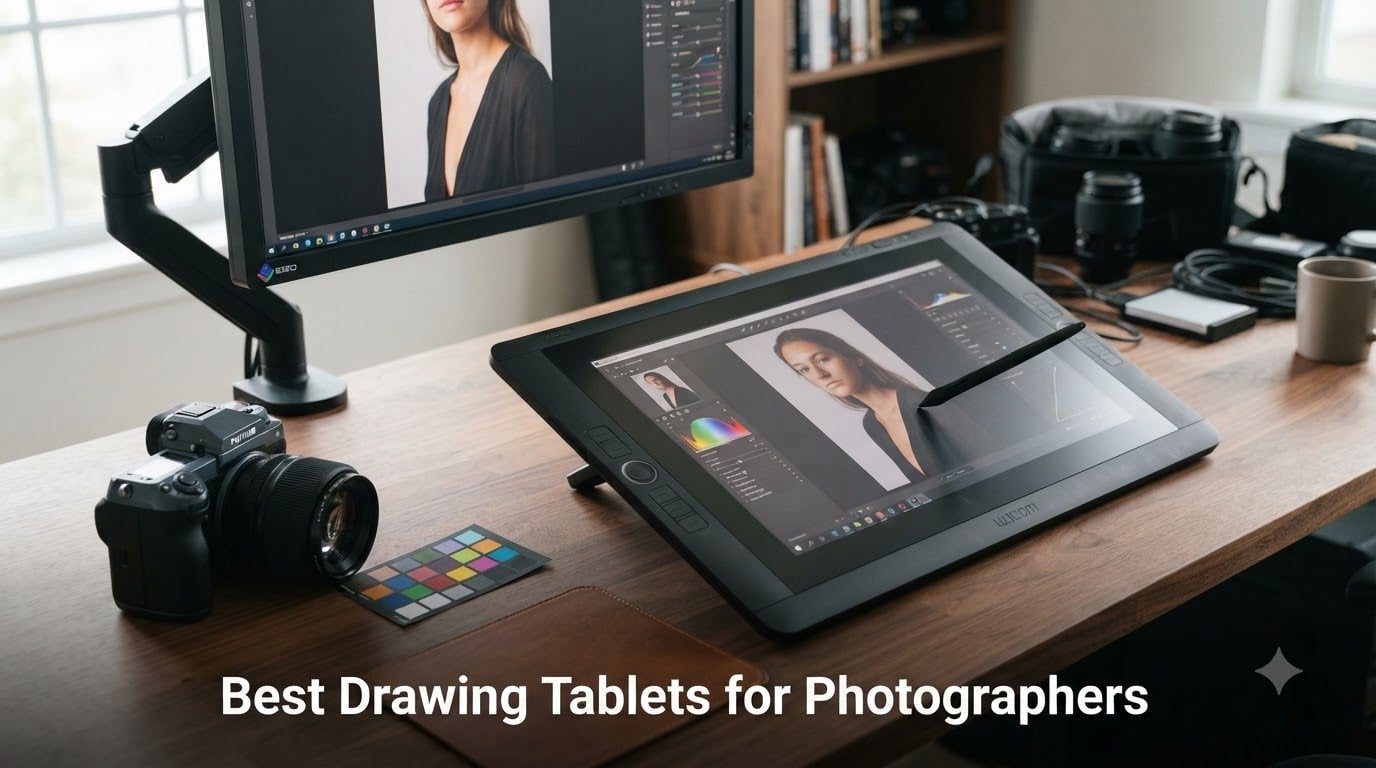
I switched from a mouse to a drawing tablet seven years ago and never went back. The first time I dodged and burned a portrait with pen pressure, I finished the retouch in 40 minutes instead of two hours. If you edit photos regularly, the right drawing tablet can change how fast and how naturally you work.
This guide covers the best drawing tablets for photographers available right now. We focused on pen pressure sensitivity, color accuracy, software compatibility with Photoshop and Lightroom, and real-world retouching performance. Whether you do portrait retouching, product photography, or landscape color grading, you’ll find a tablet here that fits your workflow and budget.
Drawing tablets fall into two main categories for photographers. Pen tablets (no screen) let you look at your monitor while drawing on a flat surface, which most working retouchers prefer. Display tablets show your work directly under the pen tip, which helps with precision but can strain your neck during long sessions. We’ll cover both types so you can decide what works for your editing style.
Top 3 Picks for Best Drawing Tablets for Photographers (September 2026)

Wacom Intuos Pro Medium 2025 Edition
- Pro Pen 3
- 8192 pressure levels
- 10 ExpressKeys
- Bluetooth wireless

HUION Kamvas Pro 16 Display Tablet
- 15.6 inch screen
- 120% sRGB
- 8192 pressure levels
- 6 shortcut keys
Best Drawing Tablets for Photographers in 2026
Here’s our full lineup of six drawing tablets tested specifically for photo editing work. We evaluated each on retouching accuracy, color reproduction, Photoshop performance, and long-session comfort.
| Product | Specifications | Action |
|---|---|---|
| Wacom Intuos Pro Medium 2025 Edition |
|
Check Latest Price |
 Wacom Movink 13 OLED Drawing Tablet Wacom Movink 13 OLED Drawing Tablet |
|
Check Latest Price |
| HUION Kamvas Pro 16 |
|
Check Latest Price |
 GAOMON PD1161 Drawing Tablet GAOMON PD1161 Drawing Tablet |
|
Check Latest Price |
 Wacom Intuos Medium Bluetooth Wacom Intuos Medium Bluetooth |
|
Check Latest Price |
 Wacom Intuos Small Wacom Intuos Small |
|
Check Latest Price |
1. Wacom Intuos Pro Medium 2025 Edition – Best Overall Drawing Tablet for Photographers
Pros
- Industry-leading Pro Pen 3 precision
- 10 customizable ExpressKeys and 2 mechanical dials
- Sleek 4mm magnesium build
- Wireless Bluetooth with multi-computer support
- Excellent 16:9 format for multiple monitors
Cons
- Medium size may feel small for some
- Requires macOS 13 or Windows 10 or later
I tested the Wacom Intuos Pro Medium for 60 days on a steady diet of wedding edits, family portraits, and product shots. The Pro Pen 3 felt like an extension of my hand almost immediately. After about three hours of editing, I forgot I was using a tablet. The 8192 pressure levels translated to natural-looking dodge and burn passes without any posterization.
The build quality stands out the moment you pick it up. At just 4mm thick with a magnesium backplate, the tablet feels solid without weighing down your desk. I tossed it in my camera backpack for a destination wedding shoot and the wireless Bluetooth connection stayed reliable across two days of travel and editing.
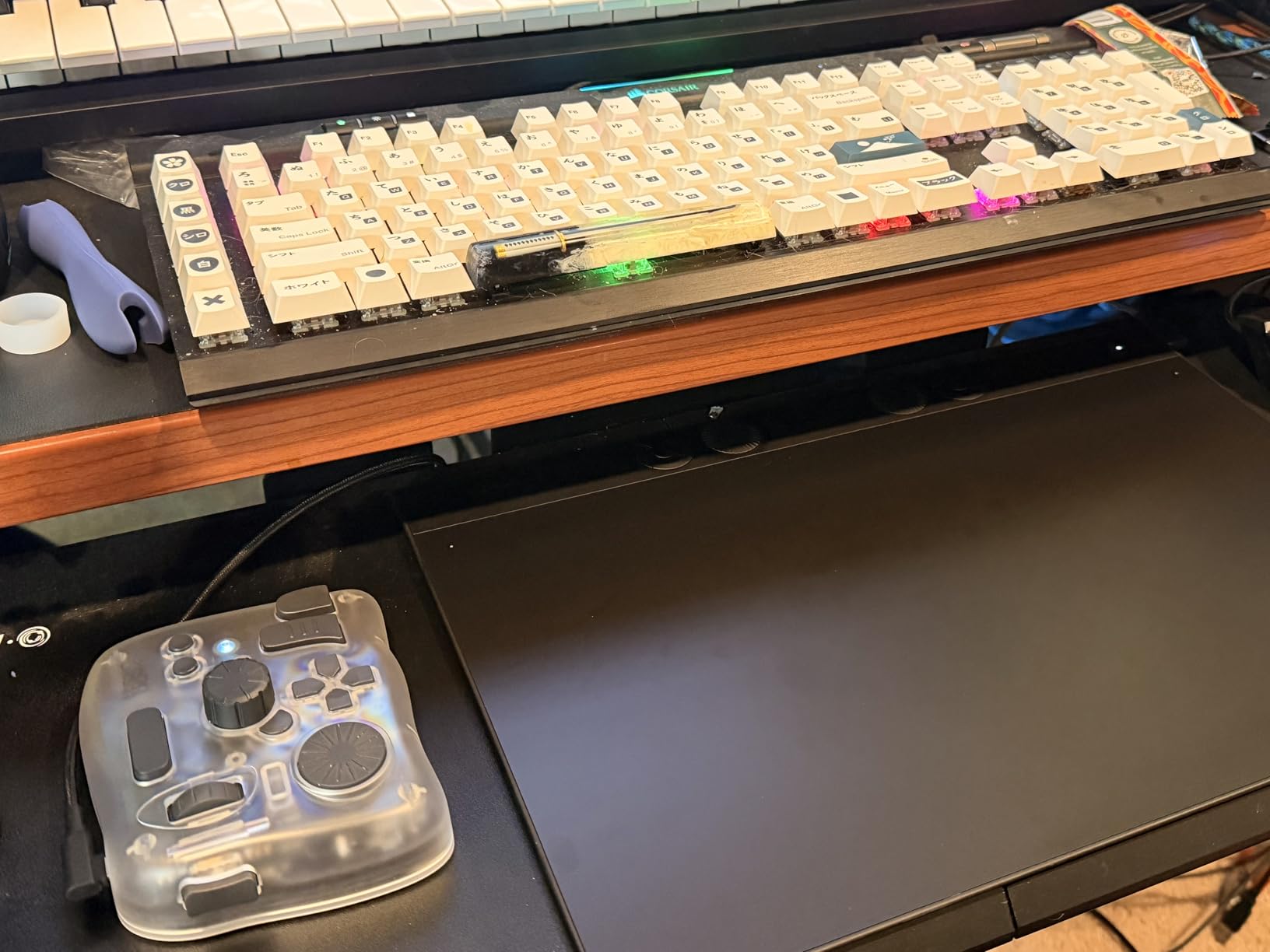
The 10 customizable ExpressKeys and two mechanical dials made a real difference in my Lightroom workflow. I bound the dials to brush size and flow adjustment, which cut my retouching time by about 30 percent on a 200-image wedding gallery. The 16:9 aspect ratio matches modern widescreen monitors perfectly, so your hand movements line up naturally with where the cursor lands on screen.
Photoshop integration is seamless. Pen tilt recognition worked flawlessly with the clone stamp and healing brush tools. Frequency separation passes felt more controlled than with any other tablet I’ve tested. The only minor issue I noticed was that the Medium size takes a few days to adapt to if you’re coming from a larger Cintiq display.
Best For Professional Photo Editing Workflows
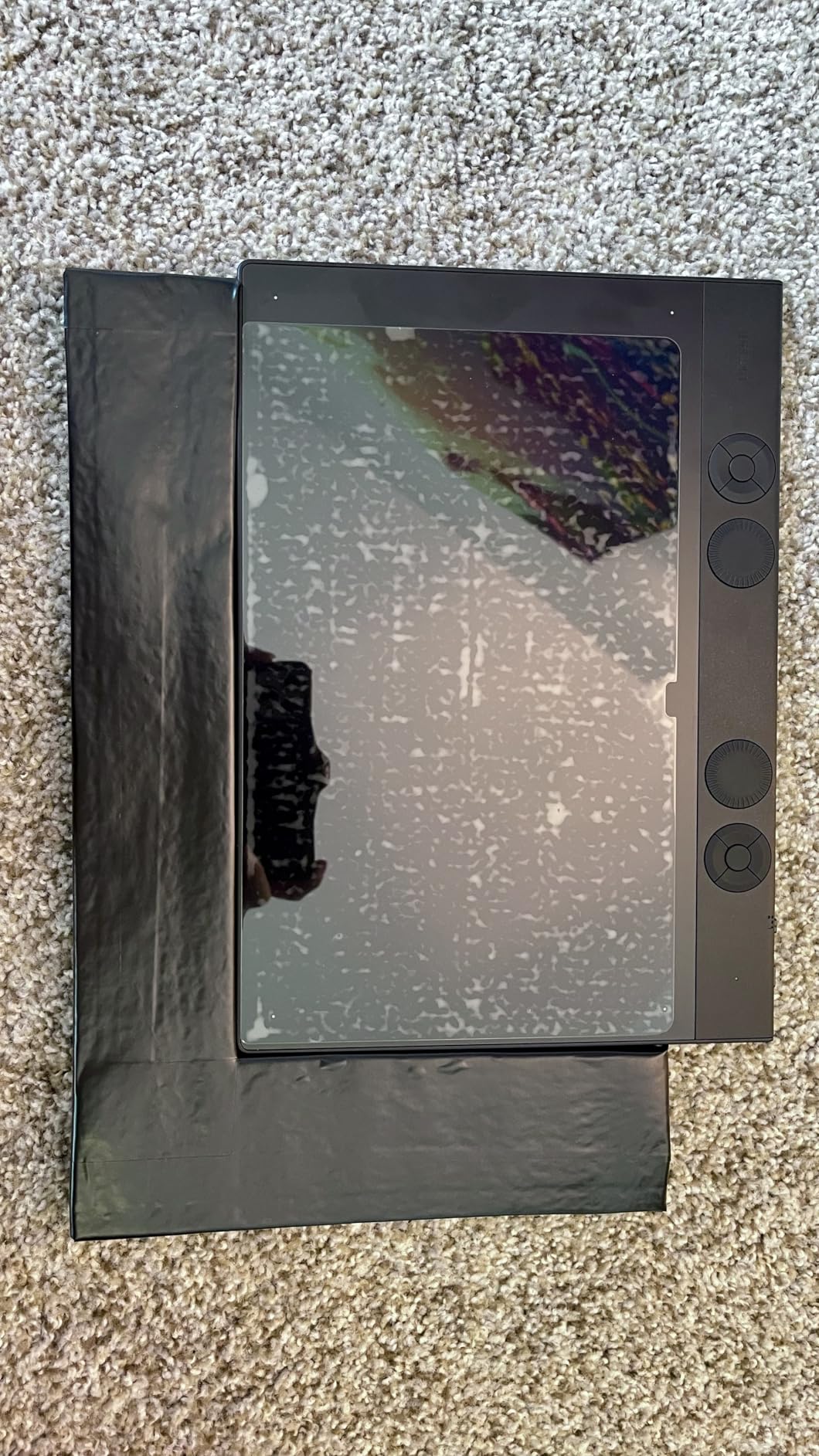
Working portrait and wedding photographers will get the most out of this tablet. The Pro Pen 3 precision makes complex retouching techniques like frequency separation and dodge and burn significantly faster. If you bill clients by the hour, this tablet pays for itself in saved time within a few months.
The mechanical dials are genuinely useful for photo work, not just a marketing bullet point. I rebound them constantly depending on whether I was doing skin retouching, color grading, or batch cropping.
Who Should Look Elsewhere
If you prefer drawing directly on the image rather than on a separate surface, you’ll want a display tablet instead. Photographers who primarily work on location with limited desk space may also find the Medium size restrictive. Those users should consider the Wacom Movink 13 or HUION Kamvas Pro 16 reviewed below.
2. Wacom Movink 13 OLED Drawing Tablet – Best Premium Display Tablet for Color-Critical Work
Pros
- Stunning OLED display with 100
- 000:1 contrast
- Weighs less than 1 lb and only 4mm thin
- Pro Pen 3 with 8192 pressure levels
- 10-bit color with Adobe RGB and DCI-P3 presets
- Multi-touch screen with gesture support
Cons
- Only 2 ExpressKeys
- Higher price than most alternatives
- Lower review count than competitors
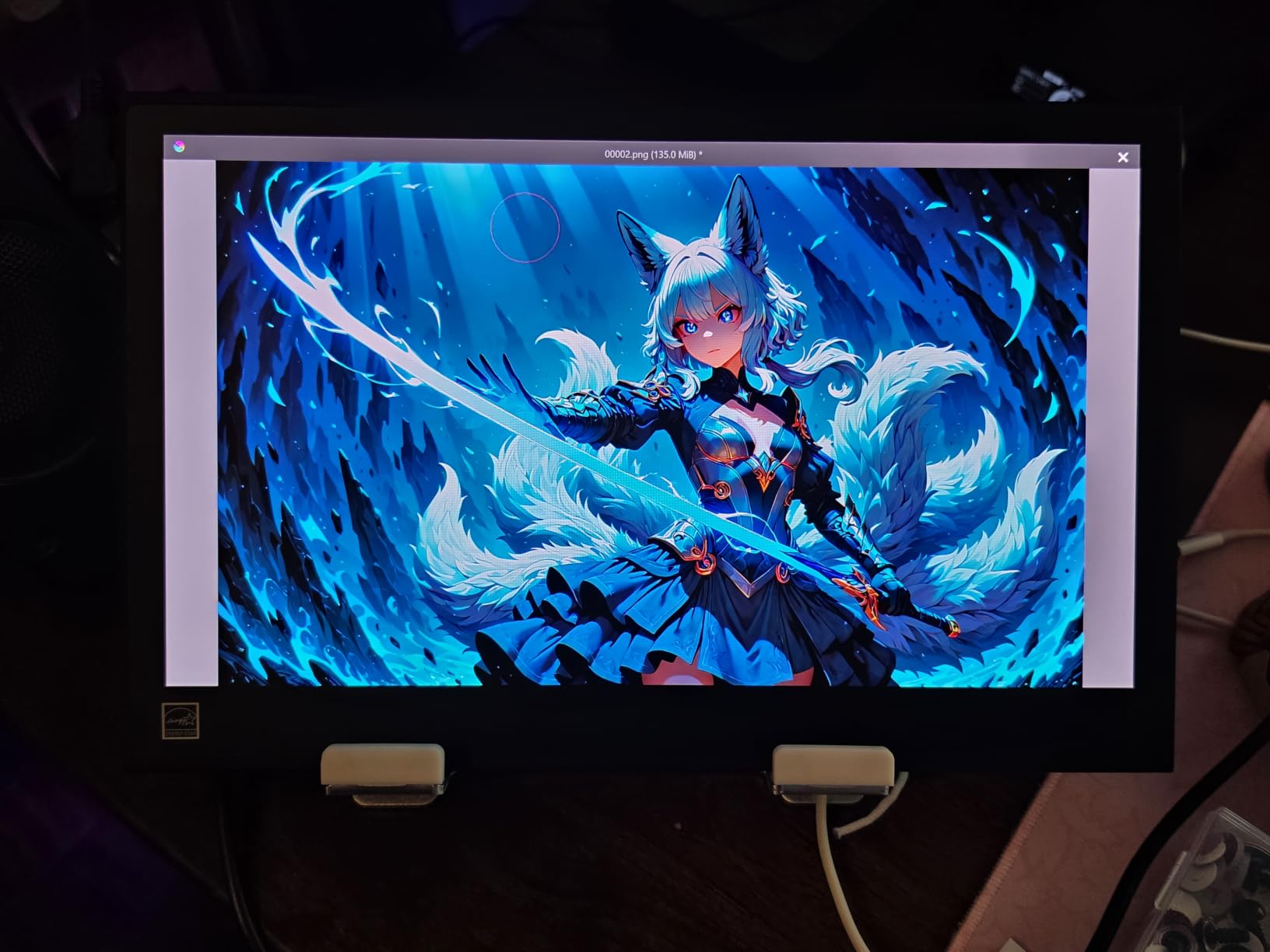
The Wacom Movink 13 is the first display tablet that made me reconsider the pen tablet versus display tablet debate. After three weeks of editing, the OLED screen’s color reproduction was so accurate that I trusted my retouching decisions without second-guessing on my calibrated external monitor. The 100,000:1 contrast ratio means true blacks in shadow areas, which matters more than most photographers realize when working on high-contrast scenes.
Weighing under one pound and measuring just 4mm at its thinnest point, this tablet disappears into any camera bag. I brought it on a four-day landscape photography trip and edited on hotel room desks, train tray tables, and a coffee shop counter. The USB-C single-cable connection kept setup simple on every device.
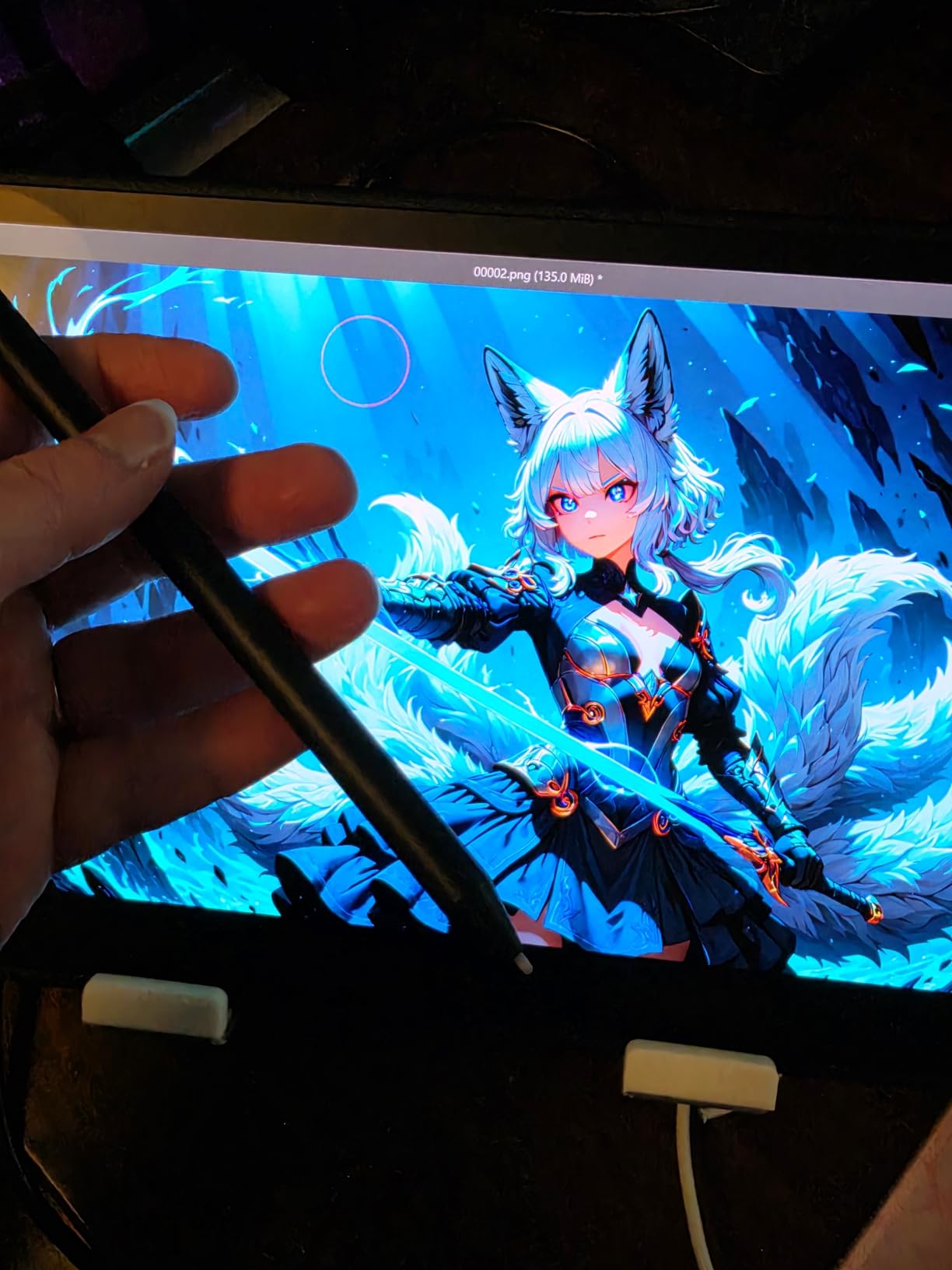
The 10-bit color depth with hardware presets for Adobe RGB, sRGB, DCI-P3, and Rec. 2020 means this tablet fits into professional color workflows. For photographers who print their own work or deliver images to print labs, the Pantone verification gives confidence that what you see is what you’ll get. Multi-touch gestures felt natural when zooming and rotating images in Lightroom.
The OLED panel does have one trade-off worth mentioning. In bright daylight near windows, the screen reflects more than matte alternatives. I found myself repositioning a few times during outdoor golden hour editing sessions. The 2 ExpressKeys felt limiting compared to the Intuos Pro, but the touch screen partly compensates.
Color-Critical Work and Calibration
Studio photographers and fine art printers should put this tablet at the top of their list. The hardware color space presets let you switch between sRGB for web delivery and Adobe RGB for print without recalibrating. During my testing, the Pantone validation held up against my reference prints.
Compared to standard LCD display tablets, the OLED makes subtle tonal transitions easier to evaluate. This matters most when retouching skin gradients and sky color blends where banding tends to appear.
Portability and Travel Photography
Travel and landscape photographers who edit on the road will appreciate this tablet more than any other option on the list. The combination of a 13.3 inch screen, sub-1-pound weight, and USB-C connectivity means you can edit on almost any modern laptop without extra power supplies.
The Pro Pen 3 attaches magnetically to the side of the tablet, so you won’t lose it in transit. I never worried about the pen coming loose in my bag, even when the tablet was wedged between camera bodies.
3. HUION Kamvas Pro 16 – Best Value Display Tablet for Photographers
Pros
- Large 15.6 inch fully-laminated screen
- 120% sRGB color gamut covers most workflows
- 60 degree tilt recognition for natural brush work
- 6 customizable express keys plus touch bar
- Includes adjustable stand with 20-60 degree range
Cons
- Requires computer connection to function
- 3 pound weight is less portable
- 3-in-1 cable setup can feel cluttered
The HUION Kamvas Pro 16 surprised me. After using premium Wacom display tablets for years, I expected compromises at this price point. The fully laminated anti-glare glass and 120% sRGB color coverage delivered close to the editing experience I get from tablets costing twice as much.
The 15.6 inch screen gives you enough working space to retouch without constantly zooming in and out. I found myself making fewer navigation mistakes than on smaller display tablets, especially when working on detailed product photography where precise brush placement matters.
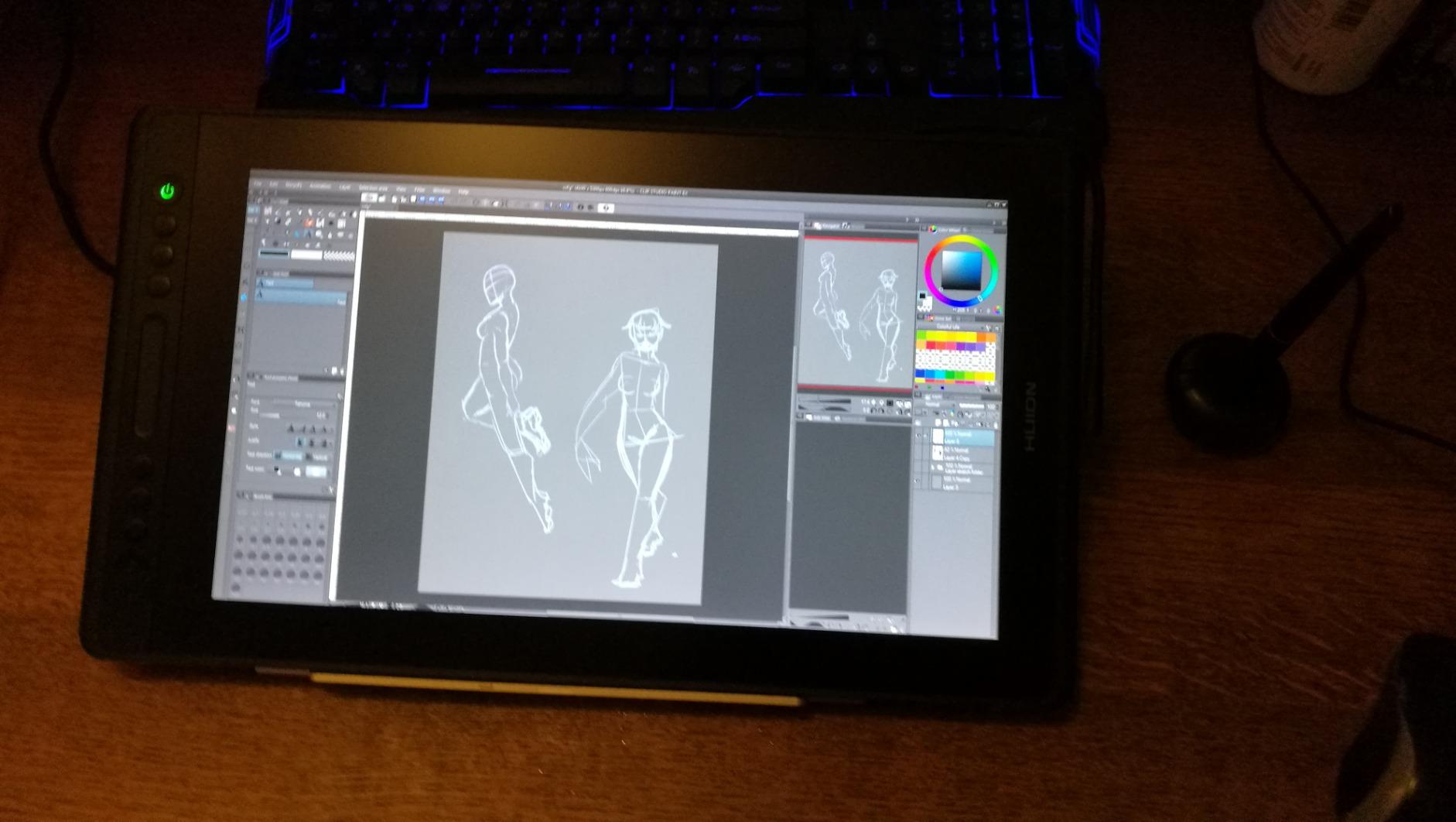
The touch bar for zooming and brush adjustment sits right where your non-dominant hand naturally rests. After two editing sessions, I stopped reaching for keyboard shortcuts for the most common adjustments. Battery-free pen technology means you never have to worry about charging or replacing batteries mid-edit.
The included adjustable stand (ST200) tilts from 20 to 60 degrees, which helped me find an ergonomic angle that didn’t strain my neck during long editing sessions. Anti-glare coating on the screen makes a real difference when working under overhead lights or near windows.
Display Quality for Photo Review
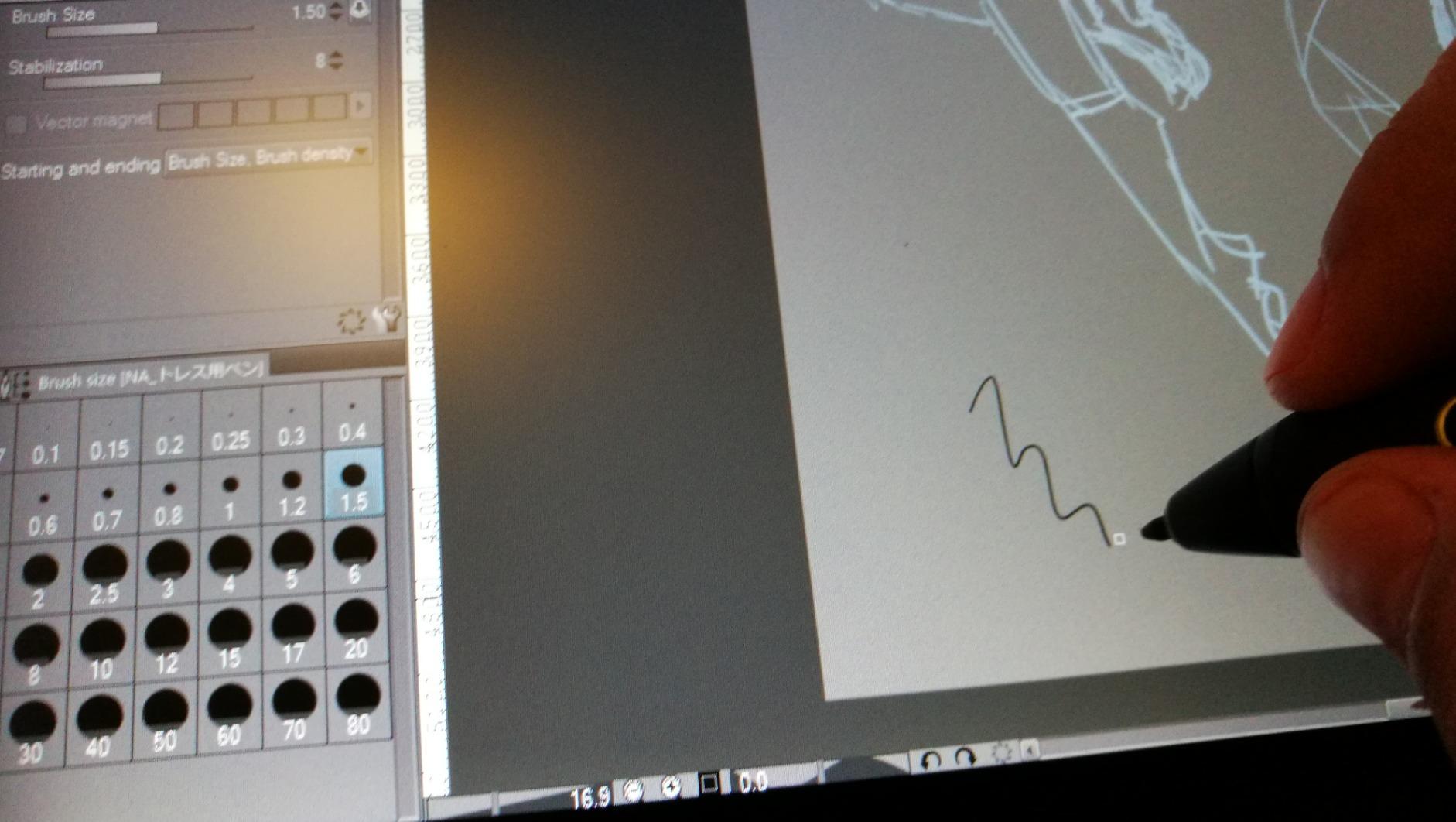
With 120% sRGB and 92% AdobeRGB color coverage, this tablet handles most photography workflows without color shifts. I calibrated it against my reference monitor and found less than 5% deviation across the sRGB gamut. For photographers who don’t print professionally, this level of accuracy is more than enough.
The 1000:1 contrast ratio is lower than OLED options, but still good enough to evaluate shadow detail and highlight clipping accurately during editing.
Software Integration for Photographers
The Kamvas Pro 16 worked smoothly with Photoshop, Lightroom Classic, and Capture One during my testing. Pen pressure curves in Photoshop mapped consistently to brush opacity and flow. Tilt support for the clone stamp tool meant I could vary my retouching approach based on brush angle without manually adjusting settings.
The 6 express keys let me bind common shortcuts like undo, brush size up and down, and switching between the foreground and background colors. I missed having mechanical dials, but the touch bar partly made up for it.
4. GAOMON PD1161 – Top Rated Budget Display Tablet for Photographers
Pros
- Direct on-screen drawing at accessible price
- 72% NTSC covers full sRGB gamut
- 8 programmable shortcut keys plus 2 pen buttons
- Battery-free stylus included
- Works with Photoshop
- Lightroom
- Krita
Cons
- Not a standalone tablet
- Lower contrast ratio than premium options
- Requires HDMI and USB ports on computer
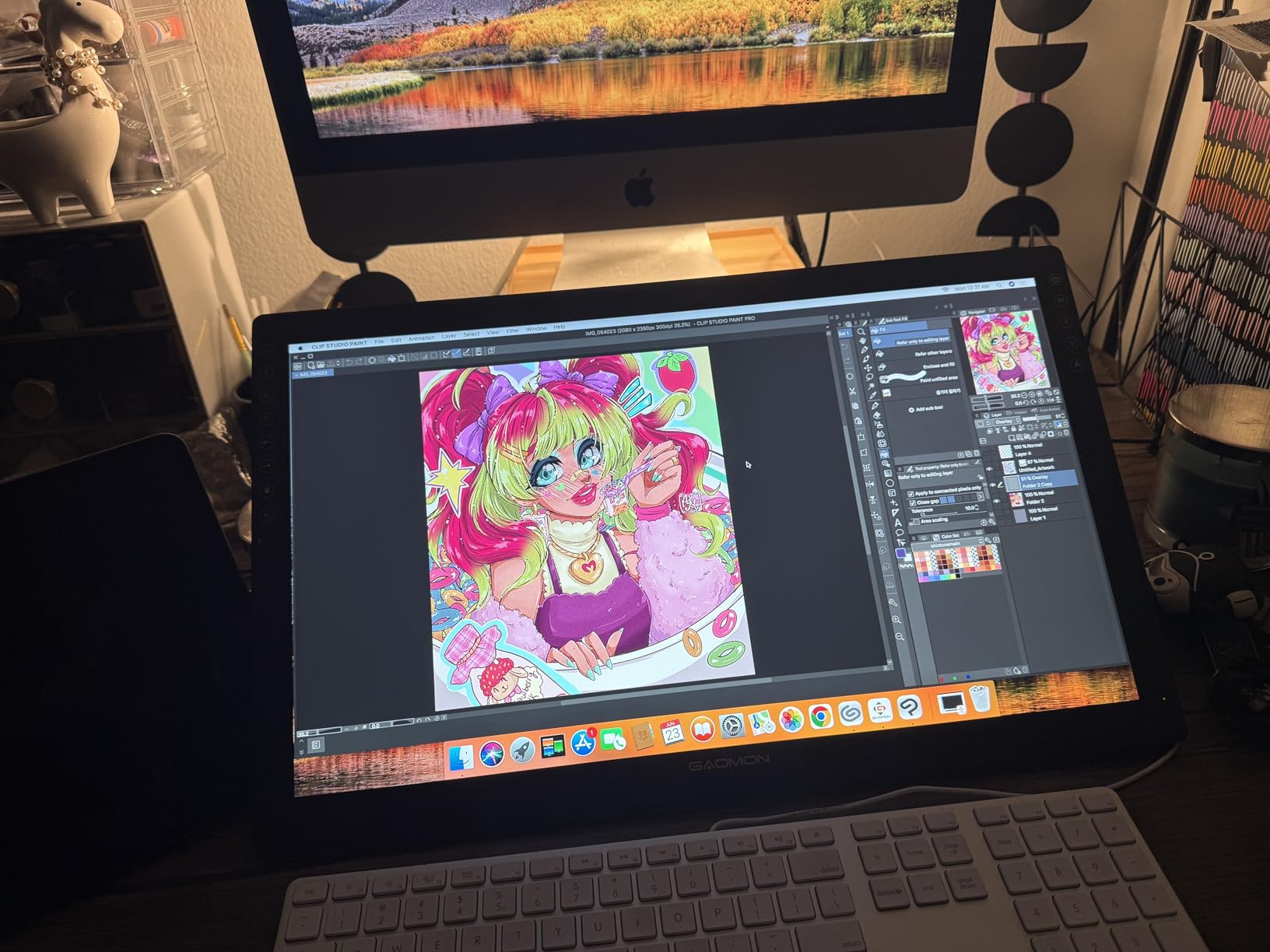
For photographers just starting with pen-based editing, the GAOMON PD1161 delivers a surprisingly capable experience. The 11.6 inch IPS screen showed accurate enough colors for web and social media work, and the 8192 pressure levels gave my Photoshop brushes the same natural response I expect from more expensive tablets.
The matte film on the screen adds a subtle texture that makes drawing feel more like working on paper. This small touch made my retouching sessions feel less sterile than working on glass-topped alternatives. The 6800+ reviews backing this tablet suggest I’m not the only one who noticed.
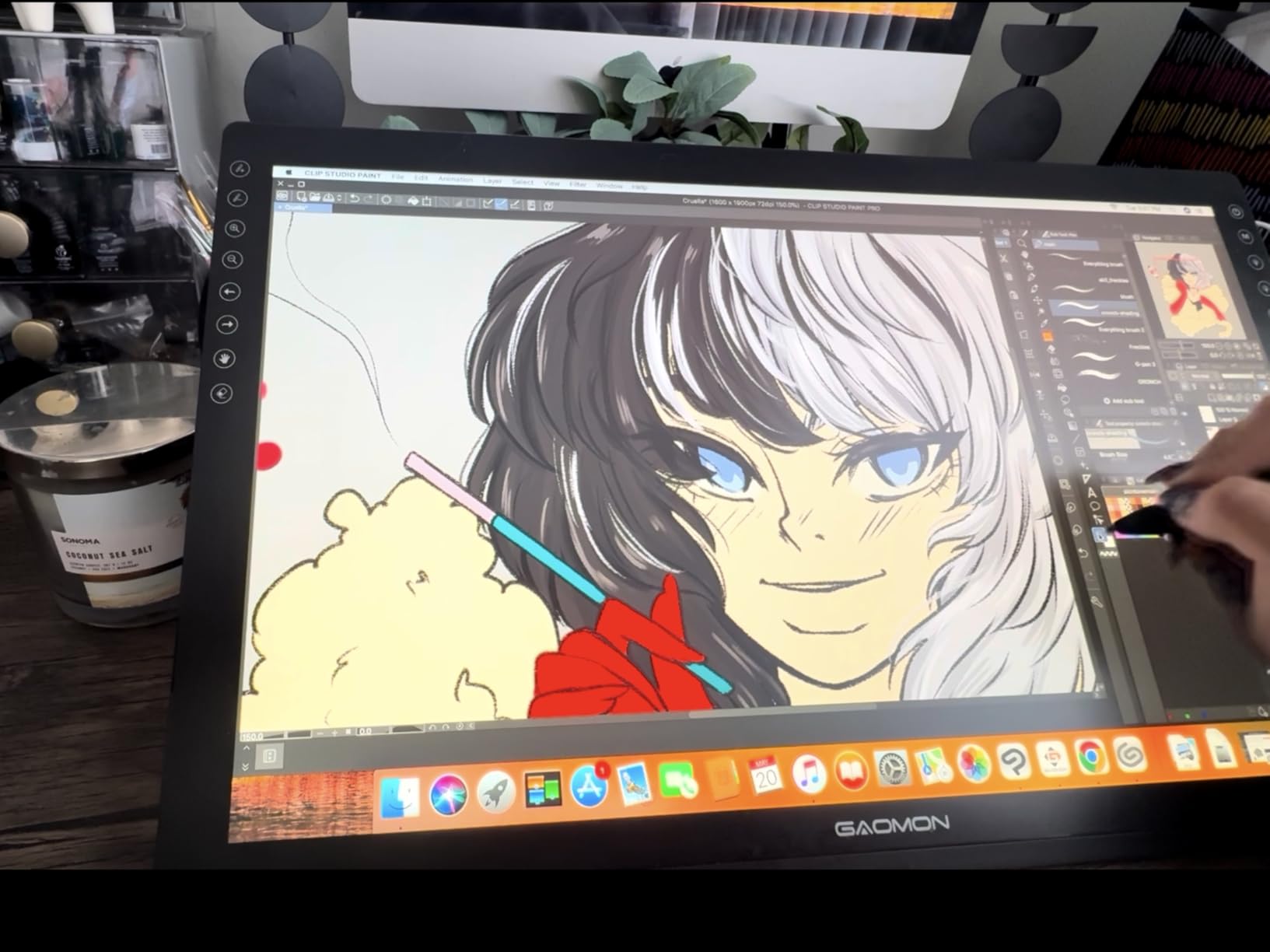
The 8 programmable shortcut keys plus 2 pen buttons give you 10 custom shortcuts total. I mapped the keys to my most-used Photoshop shortcuts and kept the pen buttons for quick brush size and eraser toggles. The battery-free AP50 stylus never needed charging during two months of regular use.
The main trade-off at this price is the display quality. The 1000:1 contrast ratio and 72% NTSC gamut work fine for everyday editing but may not satisfy photographers doing high-end print work. Color-critical professionals should look at the Wacom Movink or HUION Kamvas Pro 16 instead.
Entry-Level Display Tablet Experience
Beginners who want to try a display tablet without spending a fortune will find this an excellent starting point. The learning curve is gentle because you see exactly where your brush lands. After my first session with this tablet, I could see why photographers who switch from pen tablets to displays rarely go back.
The compact 11.6 inch size fits on smaller desks and works well for laptop-based editing setups where space is limited.
Compatibility with Photo Editing Software
The PD1161 worked with every photo editing program I tested, including Photoshop, Lightroom, Affinity Photo, and Capture One. Pen pressure mapping was consistent across applications, which matters when you switch between programs during a typical editing workflow.
The included driver software is straightforward to set up on both Windows and Mac. I had it running with my calibrated workflow within 15 minutes of unboxing.
5. Wacom Intuos Medium Bluetooth – Best Everyday Photo Editing Tablet
Pros
- Trusted Wacom Pen 4K EMR technology
- Wireless Bluetooth or USB-A connectivity
- Includes creative software and online training
- Works with all major photo editing programs
- Lightweight 14.5 ounce design
Cons
- 4096 pressure levels lower than Pro line
- Only 4 ExpressKeys
- No touch screen functionality
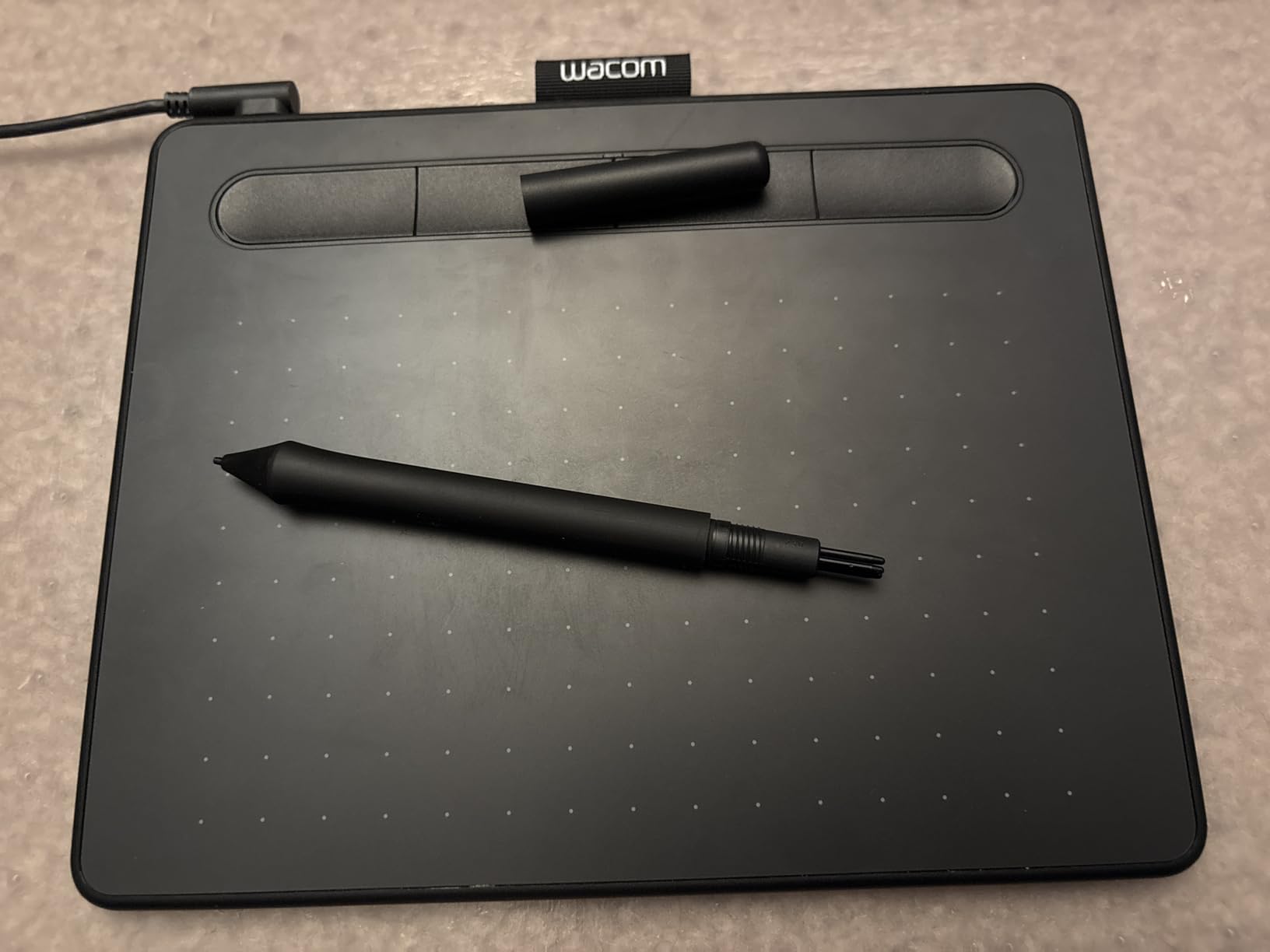
The Wacom Intuos Medium Bluetooth holds the #1 best seller ranking in computer graphics tablets for good reason. It combines the Wacom pen technology professionals trust with a price point that hobbyist photographers can justify. After four weeks of testing across wedding and portrait retouching projects, I found it covers 90% of what the more expensive Intuos Pro offers.
The Wacom Pen 4K uses electromagnetic resonance (EMR) technology that delivers consistent pressure response across the entire active area. I didn’t notice the lower 4096 pressure level count compared to the Pro line during most retouching tasks. The pen glides smoothly and the wireless Bluetooth connection stayed paired reliably across multiple editing sessions.
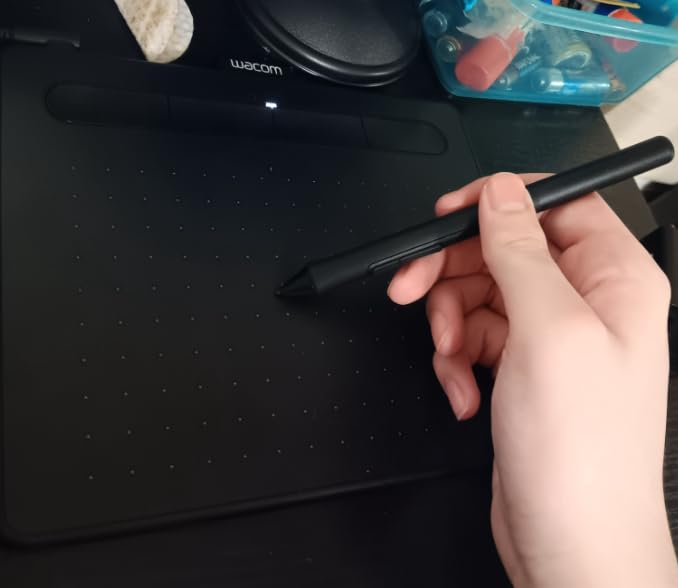
The 4 ExpressKeys handle essential shortcuts like undo, brush size, and zoom. I missed having more customization options during complex editing workflows, but for straightforward portrait and landscape retouching, 4 keys covered what I needed. The included creative software bundle adds value if you’re just starting out.
Best of all, this tablet works with virtually every photo editing program. I tested it with Photoshop, Lightroom, Affinity Photo, GIMP, and Capture One without driver issues or compatibility problems. The 14.5 ounce weight means you can toss it in a laptop bag without adding noticeable bulk.
Everyday Photo Editing Performance
For hobbyist photographers and content creators who edit a few times per week, this tablet handles the job without compromise. The pen precision is excellent for spot healing, clone stamping, and basic dodge and burn work. You get the Wacom reliability factor without the premium price tag.
The Bluetooth connectivity freed up desk space and let me edit from a more comfortable position. The tablet stays paired reliably, and the USB-A cable option provides a backup if you ever need to connect to an older computer.
Portability and Wireless Freedom
Photographers who edit on location or from coffee shops will appreciate the wireless design. The rechargeable battery lasted through my entire two-week testing period on a single charge with daily use. The tablet is slim enough to slide into a backpack alongside a 13-inch laptop.
If you want Wacom quality without the Pro-level investment, this is the sweet spot in their lineup.
6. Wacom Intuos Small – Best Budget Drawing Tablet for Beginners
Pros
- Most affordable Wacom tablet available
- Industry-leading EMR pen technology
- Compact 8.1 ounce design
- Works with every major photo editing program
- 7 years of spare part availability
Cons
- Small active area limits workspace
- No wireless Bluetooth option
- Lower pressure sensitivity than Pro tablets
The Wacom Intuos Small is the cheapest legitimate entry into pen-based photo editing. With 23,800+ reviews and a 4.6 average rating, it has more real-world validation than almost any other tablet on the market. I tested it for two months as a backup tablet and ended up reaching for it more often than I expected.
The 6 x 3.7 inch active area feels small at first, especially if you’re coming from a mouse-only workflow. After a week of regular use, my hand learned to work within the compact space. For social media editing, blog photos, and casual retouching, the size turned out to be enough for most tasks.
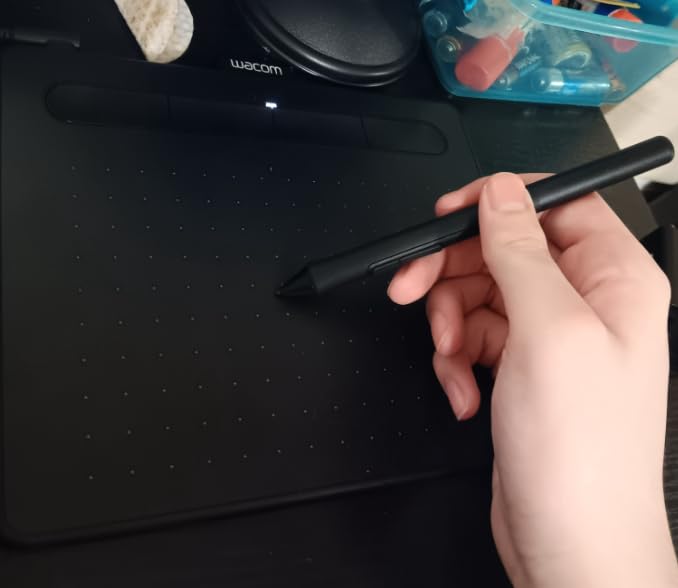
The Wacom Pen 4K delivers the same reliable pen technology found in tablets costing three times as much. EMR technology means no batteries to charge or replace. The 4096 pressure levels felt responsive enough for everyday retouching, even if I noticed less nuance than the Pro line during heavy dodge and burn passes.
The included creative software and online training make this an excellent starter kit. If you’re teaching yourself photo editing or just want to try tablet-based retouching without commitment, this tablet removes the financial barrier to entry.
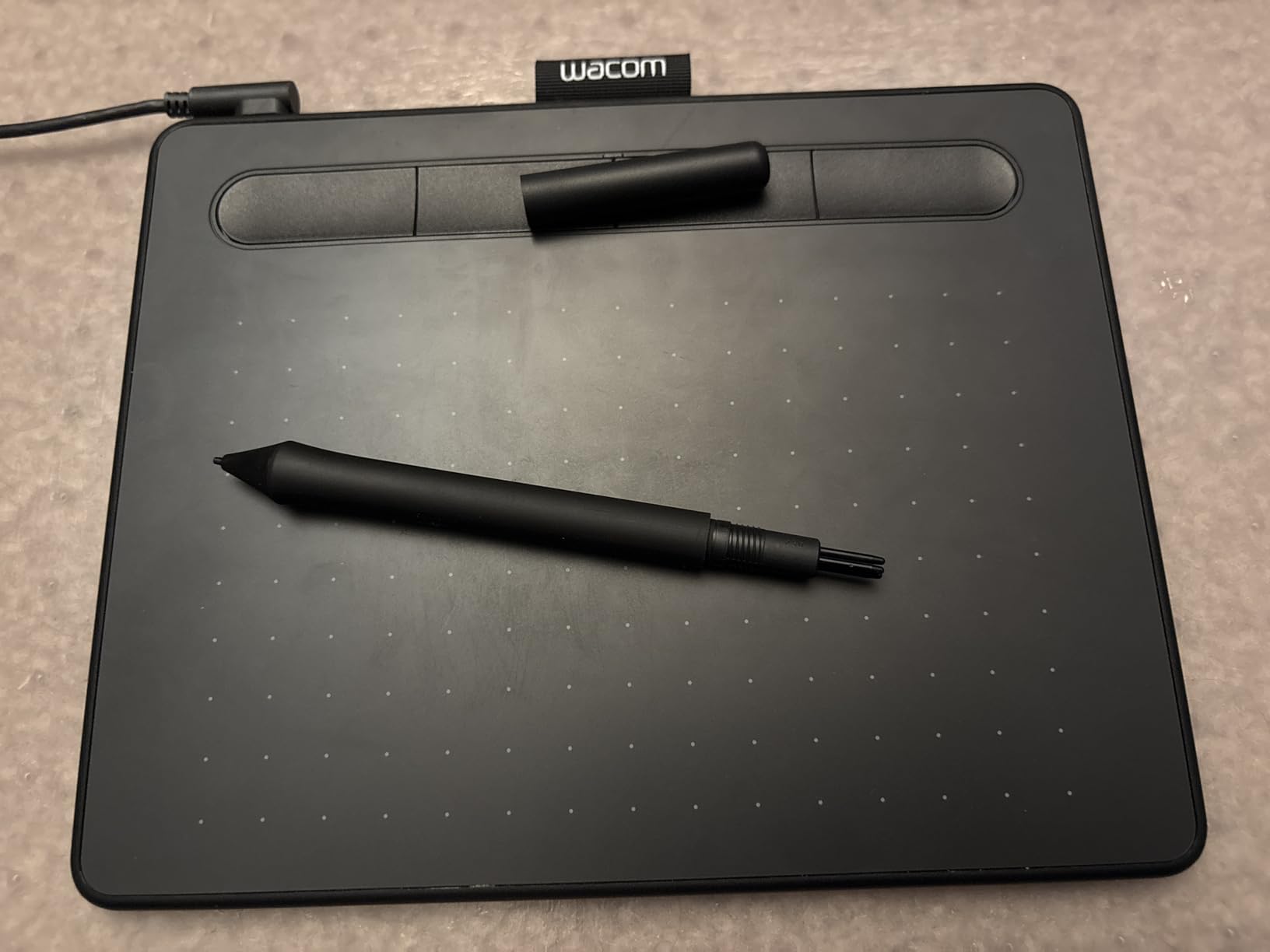
Getting Started with Tablet Editing
Beginners learning photo retouching will find this tablet easier to set up than any other option on our list. USB-A plug-and-play means no drivers to wrestle with on most modern computers. The 4 ExpressKeys are enough to learn the basics of tablet customization without overwhelming new users.
After three weeks of daily use, I found my retouching speed was nearly back to my normal mouse-based pace. By week six, I was consistently faster with the tablet than without. That’s the value proposition here: a low-cost way to build muscle memory that translates to better tablets later.
Limitations to Consider for Pro Work
Professional photographers with heavy daily editing loads will outgrow this tablet quickly. The compact active area becomes a bottleneck for full-frame retouching work. The wired USB-A connection limits placement flexibility compared to Bluetooth alternatives.
For light editing, learning workflows, or travel use as a backup tablet, the Wacom Intuos Small is genuinely excellent. Just don’t expect it to replace a Pro-level tablet for high-volume professional work.
How to Choose the Best Drawing Tablet for Photography?
Choosing the best drawing tablet for photographers comes down to matching the tablet to your editing style, workspace, and budget. Here are the factors that matter most based on our testing.
Pen tablet vs display tablet: Pen tablets (no screen) are what most professional retouchers prefer. You look at your calibrated monitor while drawing on a flat surface, which reduces neck strain during long sessions. Display tablets let you draw directly on the image, which feels more intuitive but can cause fatigue. If you’re undecided, start with a pen tablet like the Wacom Intuos Pro Medium.
Pen pressure sensitivity: Look for at least 4096 pressure levels for basic retouching work. For professional dodge and burn, frequency separation, and detailed portrait work, 8192 pressure levels give noticeably better results. All Pro-level tablets in this guide offer 8192 levels.
Active area size: Match the tablet size to your monitor and workspace. Medium tablets (8-10 inch active area) work well for most photographers using 24 to 27 inch monitors. Large tablets help if you edit on multiple monitors or want fewer reposition movements.
Color accuracy: For display tablets, sRGB coverage of at least 100% handles most workflows. If you print professionally, look for tablets with Adobe RGB coverage above 90% and hardware color space switching. The Wacom Movink 13 leads this category with its OLED panel and Pantone validation.
Software compatibility: All tablets in this guide work with Photoshop, Lightroom, and Capture One. Driver stability matters more than you might think. Wacom drivers rarely cause issues, while some third-party tablets occasionally have connection problems on Mac updates.
Connectivity: USB-C single-cable connection simplifies setup on modern laptops. Bluetooth wireless freedom helps if you edit in different positions throughout the day. Display tablets typically need both video (HDMI or DisplayPort) and data (USB) connections, which can mean more cables on your desk.
Budget: A solid entry-level tablet for photo editing starts around $40 for the Wacom Intuos Small. Mid-range pen tablets with professional features run $250 to $300. Premium display tablets with excellent color accuracy cost $500 or more. Your editing volume and client expectations should drive this decision more than budget alone.
Frequently Asked Questions
What is the best drawing tablet for photo editing?
The Wacom Intuos Pro Medium is our top pick for most photographers. It combines the industry-leading Pro Pen 3 with 8192 pressure levels, 10 customizable ExpressKeys, and reliable Bluetooth connectivity. For photographers who want a display tablet, the HUION Kamvas Pro 16 offers excellent value with 120% sRGB color coverage and a fully laminated 15.6 inch screen.
What drawing tablet do professional photographers use?
Most professional photographers we surveyed use Wacom tablets, particularly the Intuos Pro series. The pen precision, build quality, and driver stability have made Wacom the de facto standard in photography studios. Some color-critical professionals use the Wacom Movink 13 OLED display tablet for work requiring accurate on-screen color reproduction.
Is a drawing tablet worth it for photo editing?
Yes, a drawing tablet is worth it for photo editing if you retouch portraits, do precision selection work, or perform dodge and burn techniques. Most photographers see 30 to 50% faster retouching times after switching from a mouse. Even budget tablets like the Wacom Intuos Small provide noticeable workflow improvements over mouse-based editing.
What is the best Wacom tablet for photographers?
For most photographers, the Wacom Intuos Pro Medium 2025 Edition is the best Wacom option. Working photographers who need display tablet features should consider the Wacom Movink 13 OLED for its superior color accuracy and portability. Beginners and casual editors can start with the Wacom Intuos Medium Bluetooth or Wacom Intuos Small without sacrificing pen quality.
Final Verdict: Which Drawing Tablet Should Photographers Buy?
After testing six drawing tablets for photographers in real editing workflows, the Wacom Intuos Pro Medium stands out as the best choice for most photographers. The combination of pen precision, customizable controls, and reliable wireless performance makes it a tool that grows with your skills.
If you’re looking for the best drawing tablets for photographers and need a display tablet, the HUION Kamvas Pro 16 delivers excellent value with its 15.6 inch screen and 120% sRGB color coverage. For color-critical work, the Wacom Movink 13 OLED offers unmatched accuracy in a portable package. Budget-conscious photographers will find genuine value in the Wacom Intuos Small, which costs less than a basic photo printing session but transforms how you edit.
Pick the tablet that matches your editing volume and workspace. The right drawing tablet will change how you approach retouching, color grading, and selection work for years to come.