
After spending 15 years editing photos professionally, I can tell you that switching from a mouse to a drawing tablet transformed my Photoshop workflow entirely. The precision you get with a pressure-sensitive stylus is something no mouse or trackpad can match. For retouching skin, creating precise masks, or doing detailed dodge and burn work, the best drawing tablets for Photoshop retouching give you the kind of control that feels almost surgical.
Beyond just precision, there is another reason photographers swear by these tablets. Many professionals I know made the switch because of wrist pain and RSI issues from years of mouse work. The natural pen grip puts your hand in a much more ergonomic position. I have worked 8-hour editing sessions on a tablet without the fatigue that used to set in after half that time with a mouse.
In this guide, I will walk you through 10 excellent drawing tablets that work beautifully with Photoshop. Whether you are a beginner looking for your first tablet or a professional retoucher ready to upgrade, I have tested options across every price range. From budget-friendly pen tablets under $50 to professional pen displays, you will find the perfect match for your retouching workflow.
Top 3 Picks for Drawing Tablets

Wacom Intuos Pro Medium (2025)
- Pro Pen 3
- 8192 pressure levels
- 2 mechanical dials
- Bluetooth 5.3


Best Drawing Tablets for Photoshop Retouching In 2026
| Product | Specifications | Action |
|---|---|---|
| Wacom Intuos Pro Medium (2025) |
|
Check Latest Price |
 Wacom Cintiq 16 (2025) Wacom Cintiq 16 (2025) |
|
Check Latest Price |
| HUION Inspiroy 2 Large |
|
Check Latest Price |
 HUION Kamvas 13 (Gen 3) HUION Kamvas 13 (Gen 3) |
|
Check Latest Price |
 XPPen Artist 13.3 Pro V2 XPPen Artist 13.3 Pro V2 |
|
Check Latest Price |
 Wacom Intuos Pro Small (2025) Wacom Intuos Pro Small (2025) |
|
Check Latest Price |
 HUION KAMVAS Pro 16 HUION KAMVAS Pro 16 |
|
Check Latest Price |
 Wacom Cintiq 16 (2018) Wacom Cintiq 16 (2018) |
|
Check Latest Price |
 HUION Inspiroy H1060P HUION Inspiroy H1060P |
|
Check Latest Price |
| Wacom Intuos Small |
|
Check Latest Price |
1. Wacom Intuos Pro Medium (2025) – Professional Grade Performance
Pros
- Industry-leading pen technology
- 10 customizable ExpressKeys
- Excellent build quality
- Reliable Bluetooth on Mac
- Customizable pen grip options
Cons
- Premium price point
- Pro Pen 3 is fragile
- Windows Bluetooth issues reported
- High pen replacement cost
The Wacom Intuos Pro Medium has been my go-to recommendation for professional retouchers for years, and the 2025 edition takes everything great about the previous model and refines it. After testing this tablet for several weeks, I can confidently say the new Pro Pen 3 is a genuine improvement. The 8192 pressure levels give you incredibly subtle control over brush opacity and size in Photoshop, which makes skin retouching feel almost intuitive.
What really sets this tablet apart is the workflow efficiency. The two mechanical dials on the tablet are fantastic for zooming, scrolling through history states, or adjusting brush size. I mapped one dial to brush size and the other to opacity, which sped up my retouching workflow noticeably. The 10 ExpressKeys let you store all your critical Photoshop shortcuts right at your fingertips.
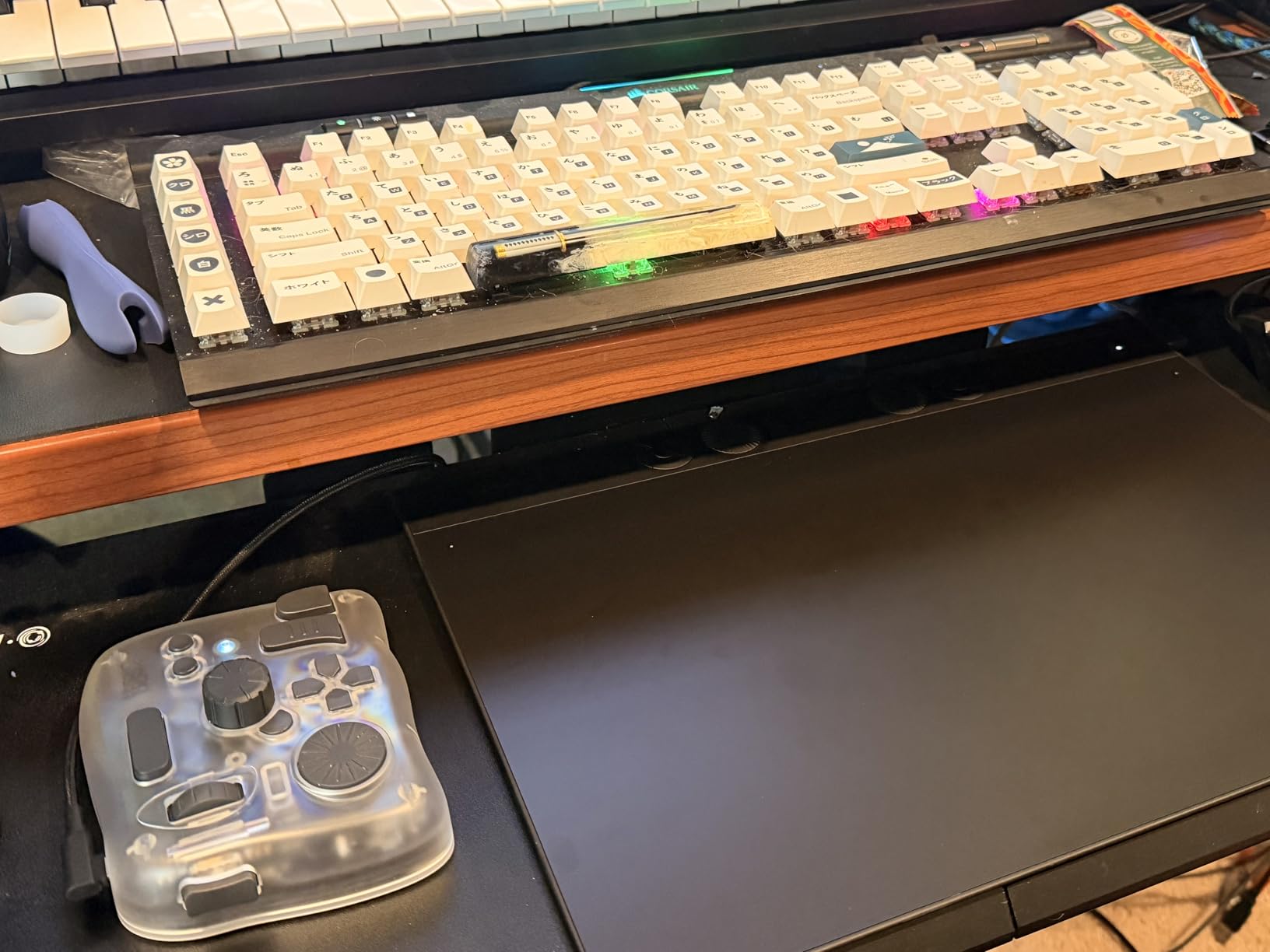
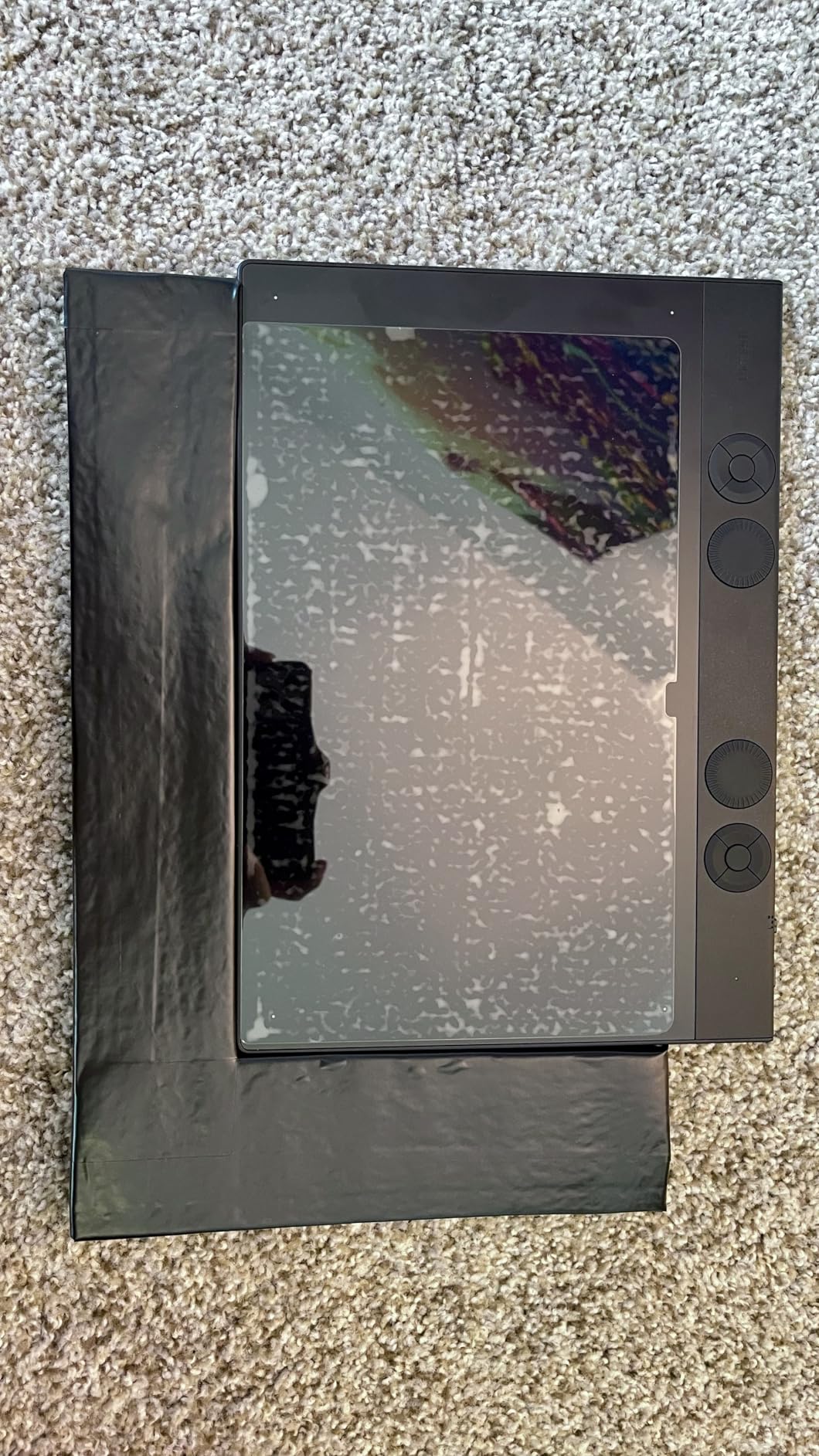
The magnesium construction feels incredibly premium and the 4mm thin profile looks sleek on any desk. Bluetooth 5.3 connectivity worked flawlessly on my Mac, giving me the freedom to position the tablet wherever felt comfortable. The active area is perfectly sized for the 16:9 aspect ratio of modern monitors, making cursor mapping feel natural without any awkward scaling.
One thing to be aware of is that the Pro Pen 3, while excellent, is more fragile than previous generations. Several users have reported the pen breaking from relatively minor drops. The replacement cost is steep, so I recommend being extra careful with the stylus. On Windows 11, I did experience some Bluetooth connectivity hiccups that required re-pairing the device.
Who This Tablet Suits Best
This is the tablet I recommend for professional retouchers who spend hours daily in Photoshop and need the absolute best precision and reliability. If you work on a Mac and want wireless freedom without compromising performance, the Intuos Pro Medium delivers. It is also ideal for photographers who appreciate having extensive customization options for their workflow.
The medium size hits the sweet spot between portability and usable workspace. You get enough active area for detailed retouching work while still being able to toss the tablet in a bag for travel. For studio-based professionals who want the industry standard, this remains the benchmark everything else is measured against.
What Could Be Better
The price point is undeniably high compared to competitors offering similar specifications. You are paying a premium for the Wacom name and proven reliability. The Windows Bluetooth issues I mentioned are frustrating, especially at this price level. Some users also report that the ExpressKeys being moved to the top edge takes adjustment if you are coming from older Wacom models.
2. Wacom Cintiq 16 (2025) – Premium Pen Display Experience
Pros
- Gorgeous 2.5K WQXGA display
- Excellent color accuracy
- Durable build quality
- Anti-glare coating
- Intuitive pen-based settings
Cons
- Pro Pen 3 comfort issues
- No stand included
- Expensive accessories separate
- No eraser on pen
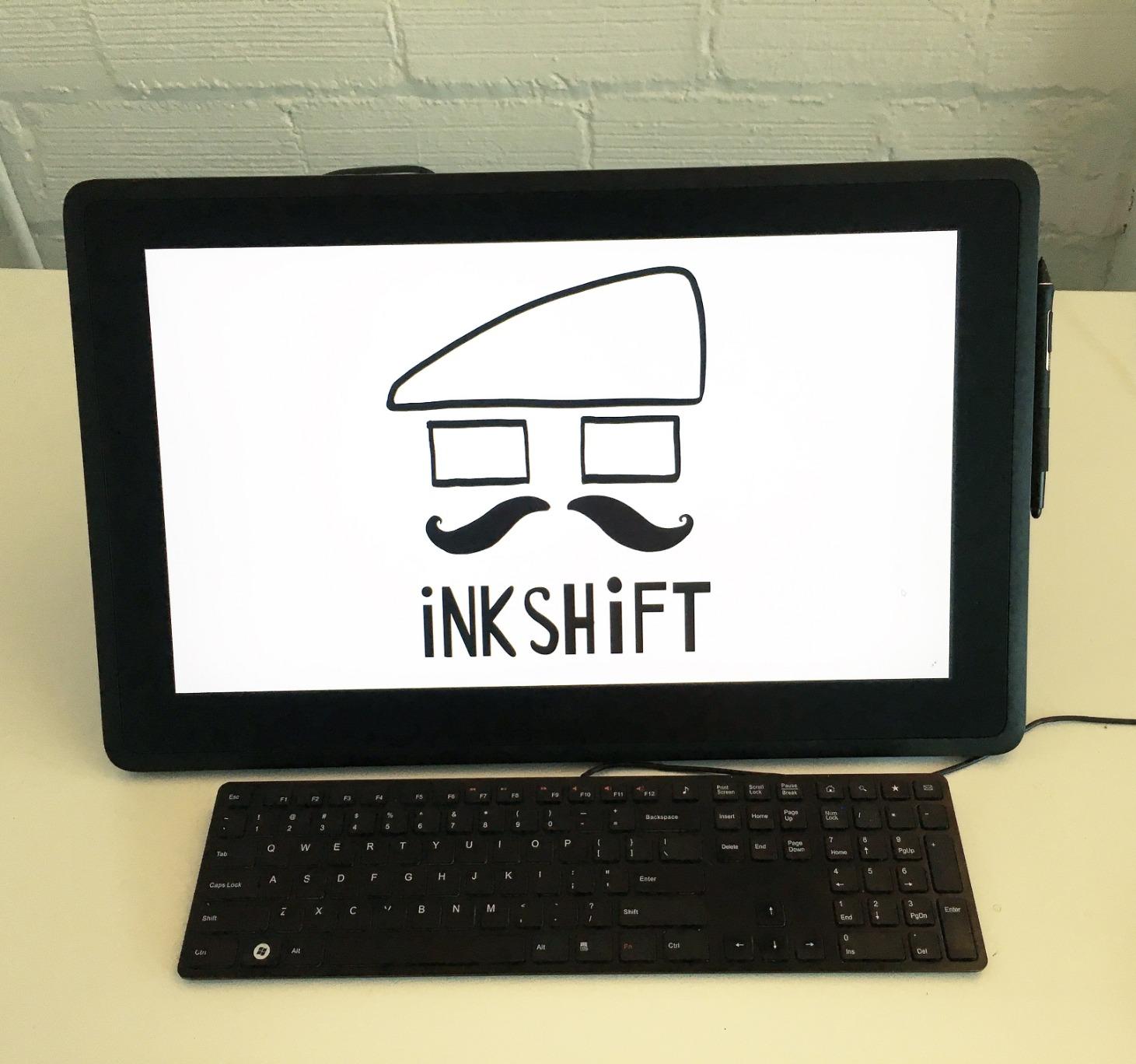
Working directly on a screen is a completely different experience from using a pen tablet, and the Wacom Cintiq 16 (2025) brings that experience to a more accessible price point. The 2.5K WQXGA resolution display is absolutely gorgeous, with crisp details that make pixel-level retouching in Photoshop a joy. Text looks sharp, and the 16-inch size gives you plenty of room to work without feeling cramped.
Color accuracy is where this display really shines for photo editing work. The 100% sRGB and 99% DCI-P3 coverage means what you see on screen is faithful to your final output. I tested it against my calibrated reference monitor and found the Cintiq held its own remarkably well. For retouchers who need color consistency, this tablet delivers professional-grade results.
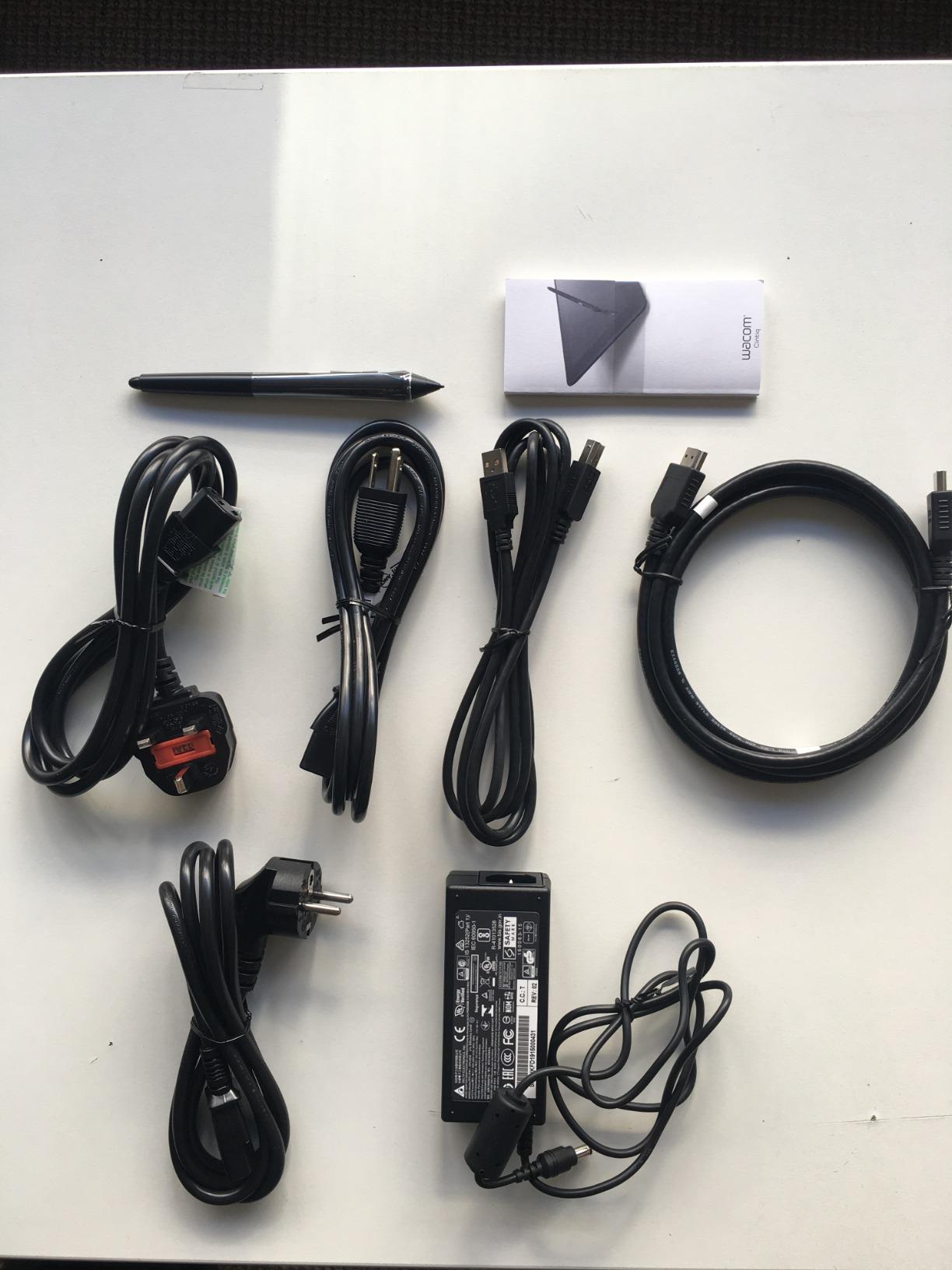
The anti-glare coating is one of the best I have used on any pen display. It reduces reflections effectively without introducing the sparkly texture that plagues some competitors. Drawing feels natural and the textured surface gives you just enough tooth to feel like you are working on paper rather than glass. The built-in fold-out legs provide a comfortable 20-degree working angle.
However, I have mixed feelings about the Pro Pen 3. While the pressure sensitivity and tracking are excellent, the slim form factor feels less comfortable in my hand than previous Wacom pens. The pen buttons also require more force than I would like. Some users have noted that Wacom seems to be penny-pinching on accessories, with no stand included and separate purchases needed for various pen add-ons.
Ideal Users for This Display
This pen display is perfect for retouchers who have always wanted the direct visual feedback of drawing on screen. If you do detailed work like frequency separation, precise masking, or composite retouching, seeing your work directly under the pen is genuinely helpful. The color accuracy makes it suitable for photographers who need reliable color representation.
It is also a great choice for those transitioning from traditional retouching methods. The direct eye-hand coordination feels more natural than the disconnected experience of a pen tablet. Creative professionals who work across multiple Adobe applications will appreciate the versatility and quality.
Drawbacks to Consider
The lack of included stand at this price point is disappointing. Most users will want to purchase a stand or arm separately for ergonomic positioning. The Pro Pen 3 comfort issues I mentioned are real, and some users report preferring the older Pro Pen 2. You will also need to ensure your computer has USB-C with DisplayPort Alt Mode or Thunderbolt support.
3. HUION Inspiroy 2 Large – Outstanding Value
Pros
- Excellent value for money
- Innovative scroll wheel
- PenTech 3.0 precision
- Mobile device support
- Lightweight portable design
Cons
- Not standalone device
- Linux button mapping issues
- Micro USB on some units
- Missing nibs reported
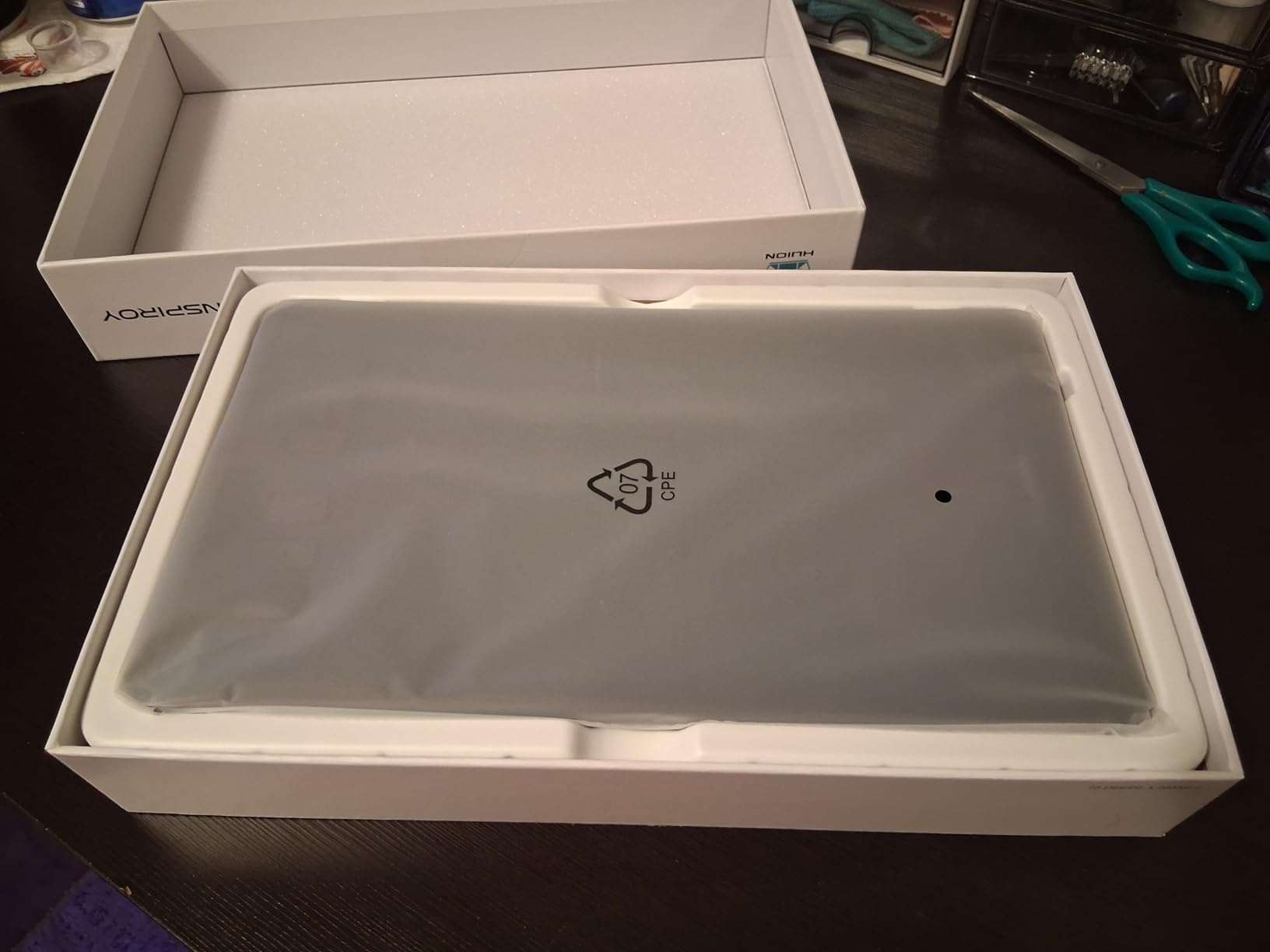
The HUION Inspiroy 2 Large proves you do not need to spend a fortune to get a capable drawing tablet for Photoshop retouching. After testing this tablet extensively, I came away impressed by how much HUION has improved their pen technology. The PenTech 3.0 delivers excellent precision with virtually no noticeable lag or wobble, making it competitive with tablets costing twice as much.
The standout feature for me is the scroll wheel combined with three sets of customizable shortcut keys. I found the scroll wheel incredibly useful for zooming in Photoshop and adjusting brush sizes on the fly. Having 8 customizable keys spread across three different sets means you can create profiles for different retouching tasks and switch between them quickly.
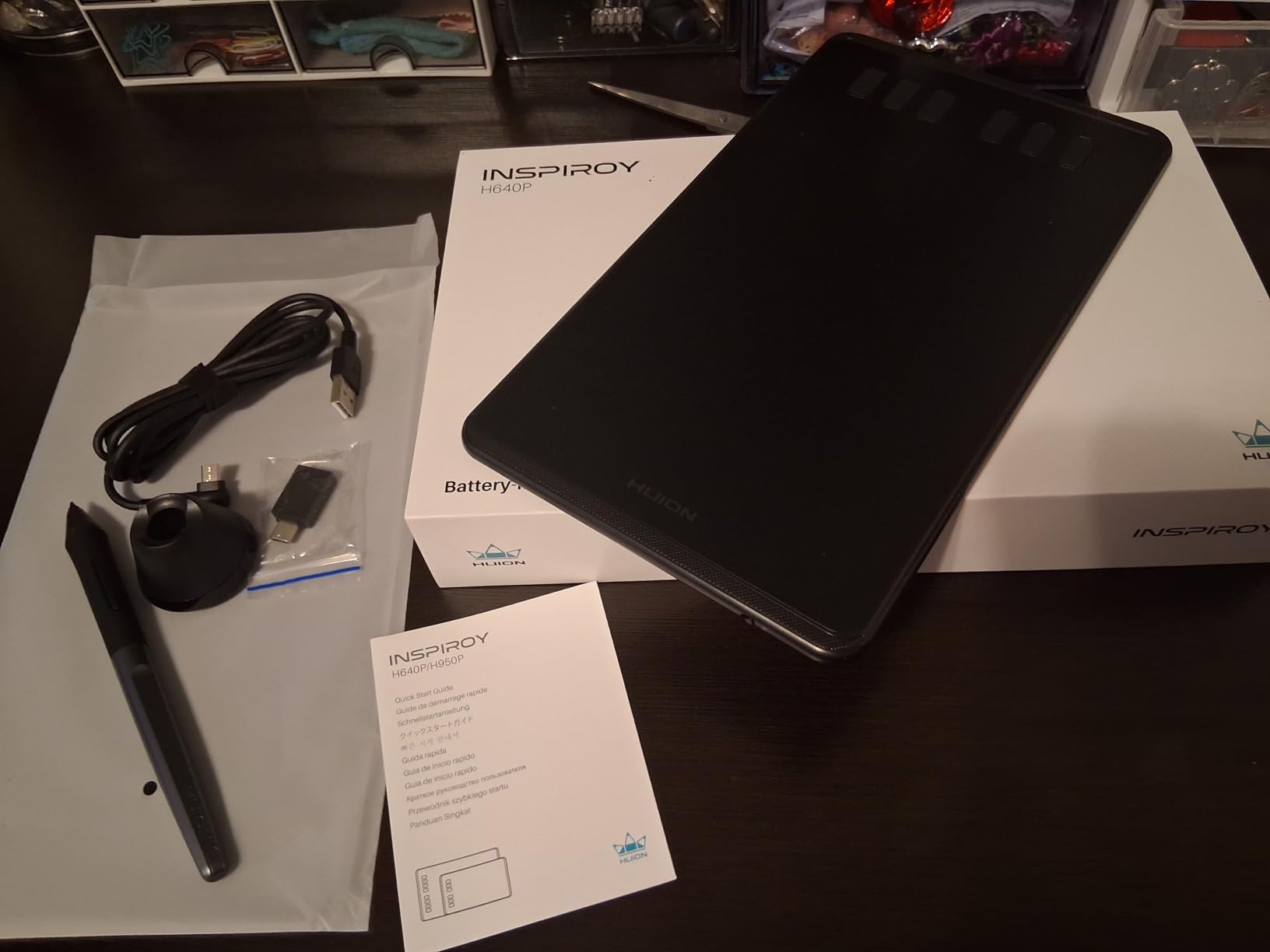
The 10.5 x 6.56 inch active area provides plenty of workspace for detailed retouching work. The slim design makes it easy to slide into a laptop bag, which is great for photographers who edit on location. At around 1.2 pounds, it is light enough to use comfortably for extended sessions without fatigue. The textured surface gives you good control over the pen without being too abrasive.
Mobile compatibility is a nice bonus that extends the tablet’s usefulness beyond desktop Photoshop work. You can connect it to Android devices for editing in Lightroom Mobile or other compatible apps. The battery-free stylus means no charging hassles, and the ergonomic design with soft silicone grip feels comfortable during long editing sessions.
Perfect for These Users
This tablet is ideal for photographers who want professional-level features without the premium price tag. If you are just getting into retouching with a tablet, this gives you room to grow your skills without a massive initial investment. The generous active area makes it suitable for photographers who work with large resolution files and need precise control.
It is also great for editors who split time between desktop and mobile workflows. The Android compatibility opens up editing possibilities on tablets and smartphones. Budget-conscious professionals who refuse to compromise on quality will find this hits an excellent balance.
Limitations to Note
Some users have reported receiving units with missing pen nibs, so check your package contents carefully. Linux users should be aware that button mapping can be problematic, limiting some of the customization features. The micro USB port on some units feels dated when USB-C has become the standard.
4. HUION Kamvas 13 (Gen 3) – Entry-Level Pen Display
Pros
- Outstanding 16384 pressure levels
- Canvas Glass 2.0 reduces glare
- 99% sRGB color accuracy
- Adjustable stand included
- Dual dial workflow controls
Cons
- Not standalone device
- Dials can be finicky
- Brightness could be better
- Specific cable requirements
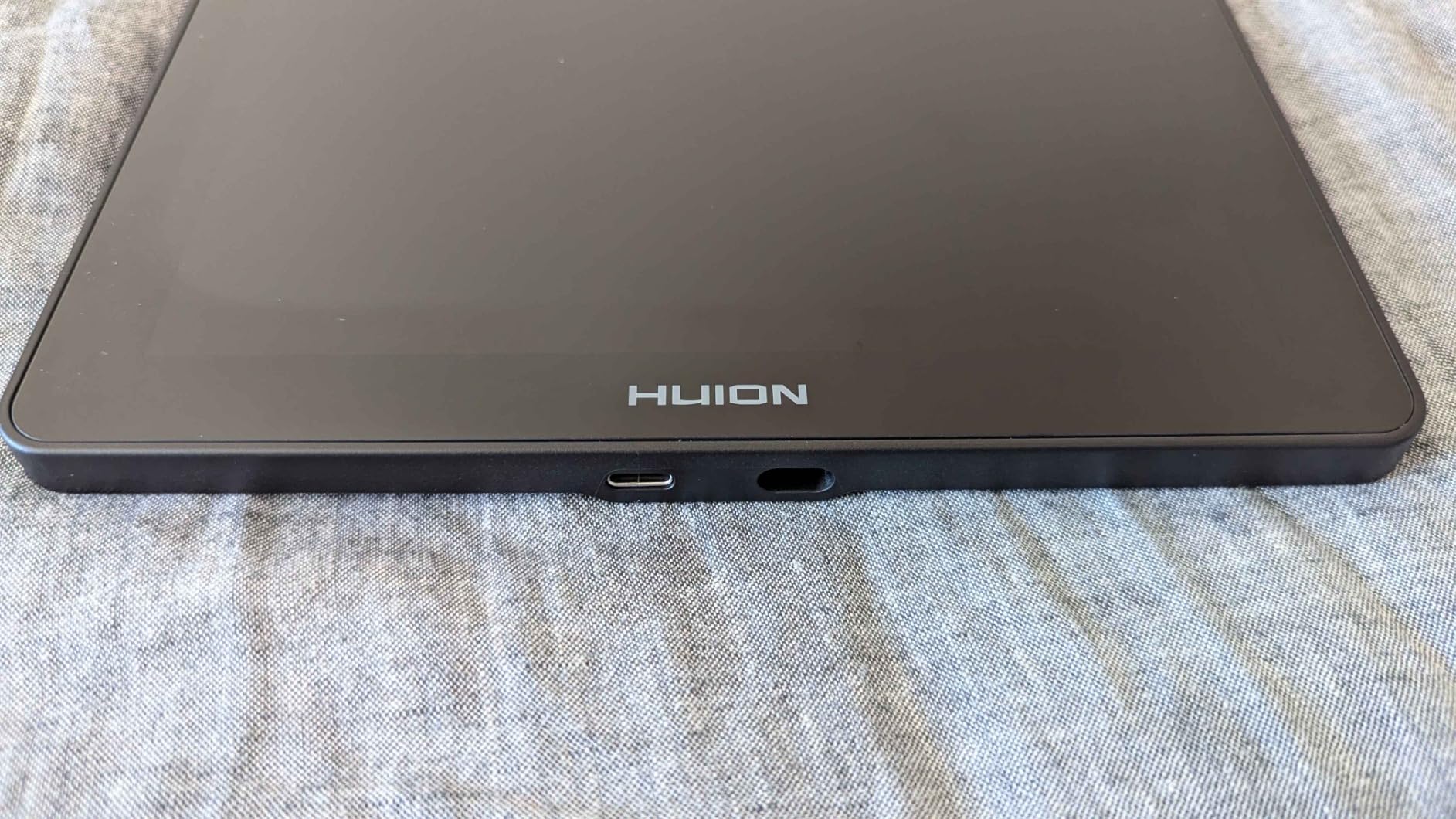
The HUION Kamvas 13 (Gen 3) brings impressive specifications to the entry-level pen display market. The 16384 levels of pressure sensitivity is remarkable at this price point, giving you incredibly nuanced control over brush dynamics in Photoshop. I found the pressure response smooth and predictable, which is exactly what you want for detailed retouching work.
The new Canvas Glass 2.0 is a genuine improvement over previous generations. The anti-sparkle coating significantly reduces glare while maintaining the textured drawing surface that many artists prefer. Working directly on the screen feels natural, and the full lamination means there is barely any parallax between the pen tip and cursor position.
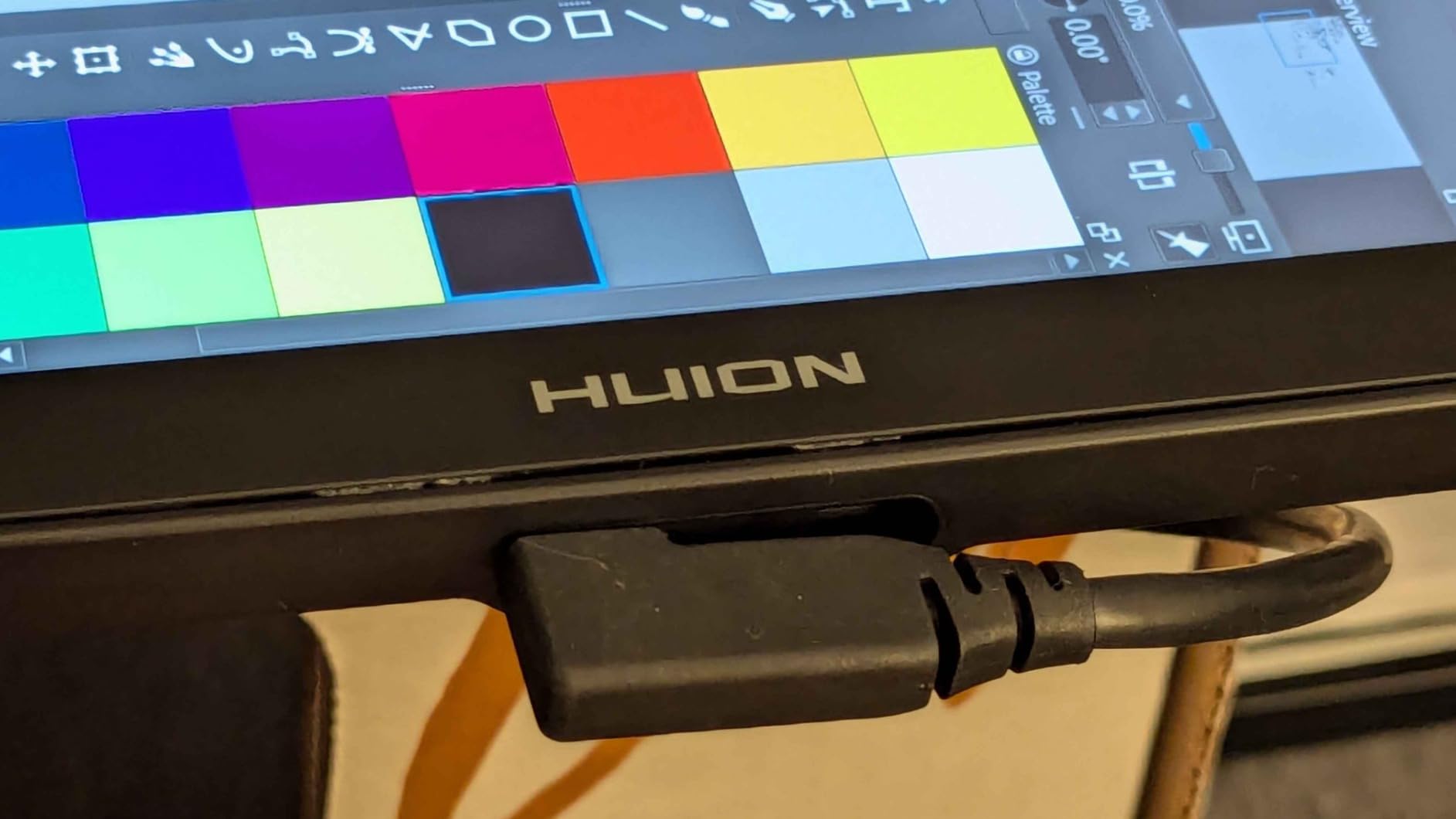
Color performance impressed me during testing. The 99% sRGB coverage and factory calibration report give you confidence that colors are represented accurately. For photo retouching where color accuracy matters, this display holds its own against more expensive options. The 13.3-inch size is compact enough for portable setups while still providing usable workspace.
The dual dial controls and 5 programmable shortcut keys offer good workflow customization. I mapped one dial to brush size and the other to opacity, which worked well for my retouching style. The included ST300 adjustable stand is a nice inclusion that lets you find a comfortable working angle. The USB-C single cable connection keeps things tidy on your desk.
Best Use Cases
This pen display is perfect for photographers who want to try the direct-on-screen editing experience without investing in a premium Cintiq. The color accuracy and pressure sensitivity make it genuinely useful for professional retouching work. If you have limited desk space but want a screen tablet, the 13-inch form factor is ideal.
It is also great for retouchers who need a portable solution. The compact size and included stand make it easy to set up a mobile editing station. Beginners transitioning from pen tablets to displays will find this an accessible entry point.
Potential Issues
The dials can be finicky and sometimes bounce back if you scroll too quickly. Some users report brightness could be better for working in bright environments. The setup can be frustrating because it requires specific cable configurations, particularly for Android connectivity.
5. XPPen Artist 13.3 Pro V2 – High Pressure Sensitivity
Pros
- Industry-leading 16384 pressure
- Excellent color accuracy
- Red Dial workflow control
- Full-laminated display
- Good value for pen display
Cons
- Can run hot with extended use
- Occasional driver glitches
- Some dead pixel reports
- Cable management awkward
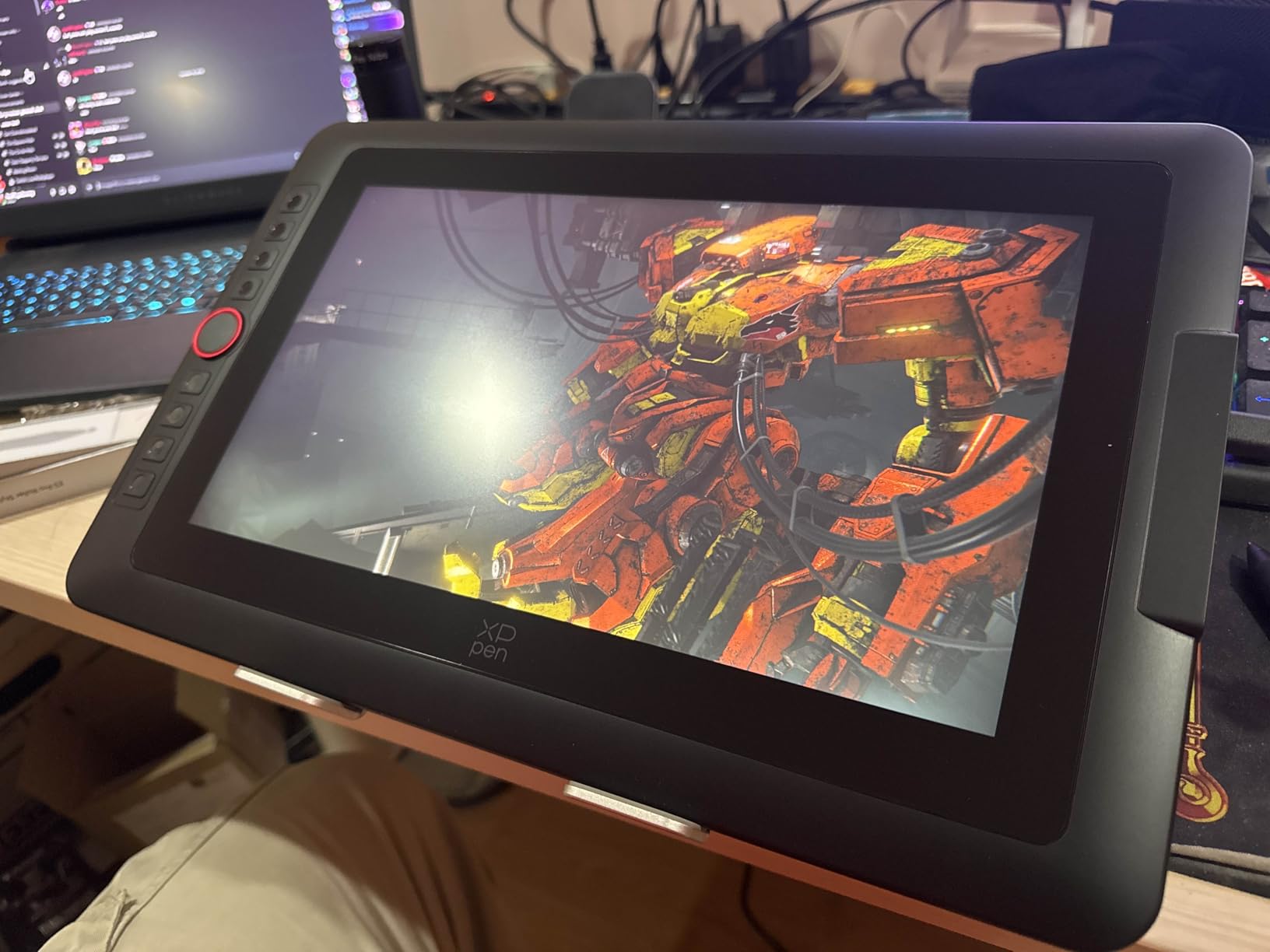
The XPPen Artist 13.3 Pro V2 stands out with its industry-leading 16384 levels of pressure sensitivity. For Photoshop retouching, this translates to incredibly fine control over brush dynamics. Light touches produce subtle strokes while firm pressure gives you full opacity, and everything in between feels smooth and predictable. The X3 Pro smart chip stylus delivers on this promise with responsive, precise lines.
Color performance is impressive with 125% sRGB, 107% Adobe RGB, and 95% Display P3 coverage. These numbers exceed what you typically find at this price point. During my testing, colors appeared vibrant and accurate, which is essential for photo editing work. The full HD 1920×1080 IPS display provides good viewing angles and uniform brightness across the screen.
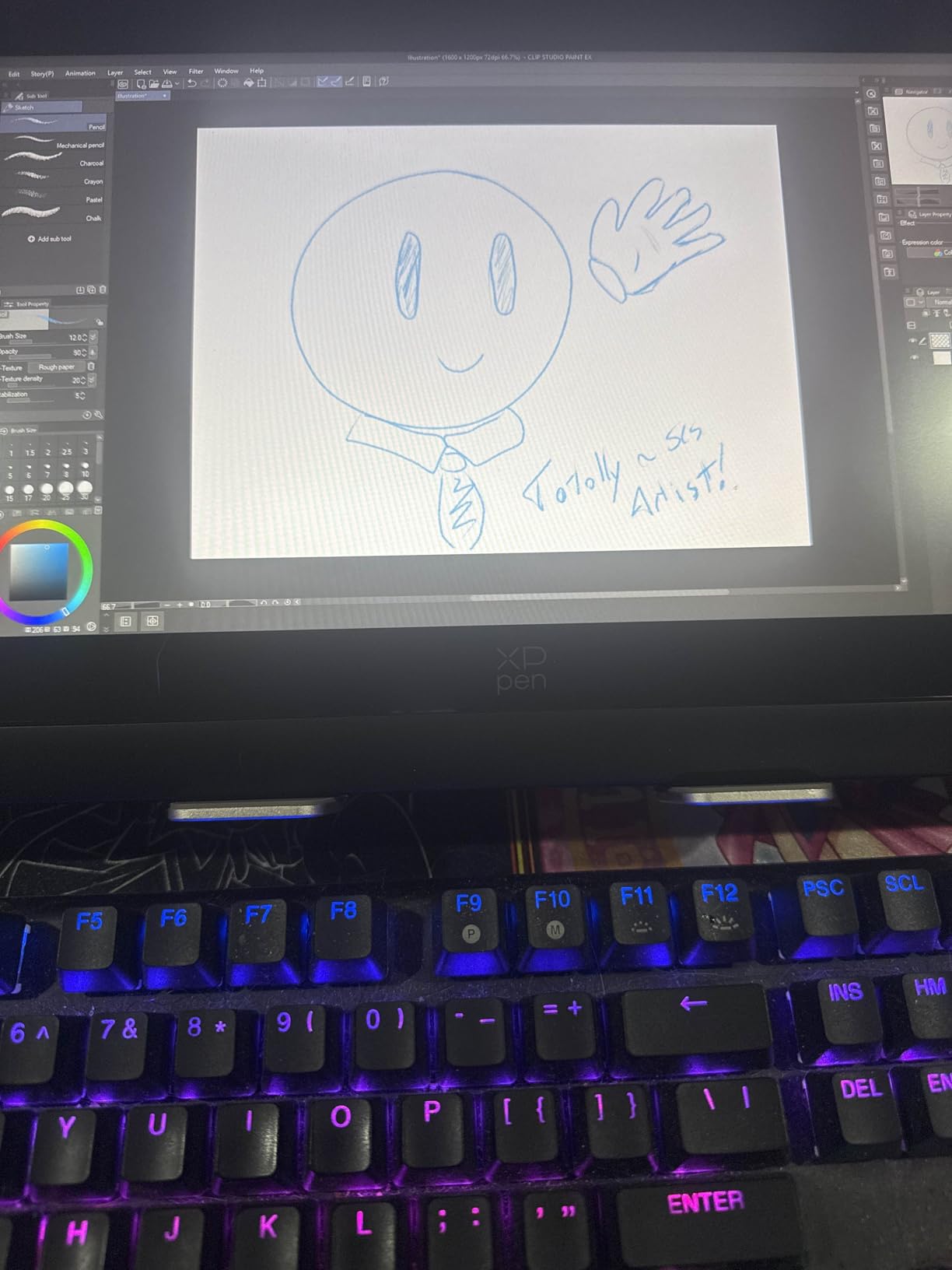
The Red Dial is XPPen’s signature feature, and I found it genuinely useful for Photoshop workflow. It provides intuitive control over brush size, zoom, and navigation without reaching for the keyboard. Combined with the 8 customizable shortcut keys, you can keep your most-used functions close at hand. The included adjustable stand lets you position the display at a comfortable 90-degree range.
The full-laminated screen with AG film does a good job reducing parallax and glare. Drawing feels natural and the pen tracking stays close to the tip. However, I did notice the tablet can get warm during extended sessions, which is something to be aware of if you work long hours. The driver software occasionally needed a restart to resolve glitches.
Who Benefits Most
This tablet suits retouchers who prioritize pressure sensitivity above all else. If your workflow involves subtle brush work like skin retouching or dodge and burn, the 16384 pressure levels give you exceptional control. Photographers working with color-critical projects will appreciate the wide color gamut coverage.
It is also a good choice for artists who want the direct-screen experience without the Wacom premium. The feature set punches above its weight class, making it competitive with more expensive options. Budget-conscious professionals who need professional features will find a lot to like here.
Things to Watch For
Quality control seems inconsistent, with some users reporting dead pixels on arrival. The tablet runs warm during extended use, which may be a concern in already warm environments. Driver stability is not quite at Wacom levels, so expect occasional troubleshooting.
6. Wacom Intuos Pro Small (2025) – Compact Professional Option
Pros
- Premium Pro Pen 3 technology
- Ultra-thin 4mm design
- Reliable Bluetooth on Mac
- Smaller footprint for portability
- Magnesium construction
Cons
- Pro Pen 3 is fragile
- High pen replacement cost
- Windows Bluetooth issues
- No touch sensitivity
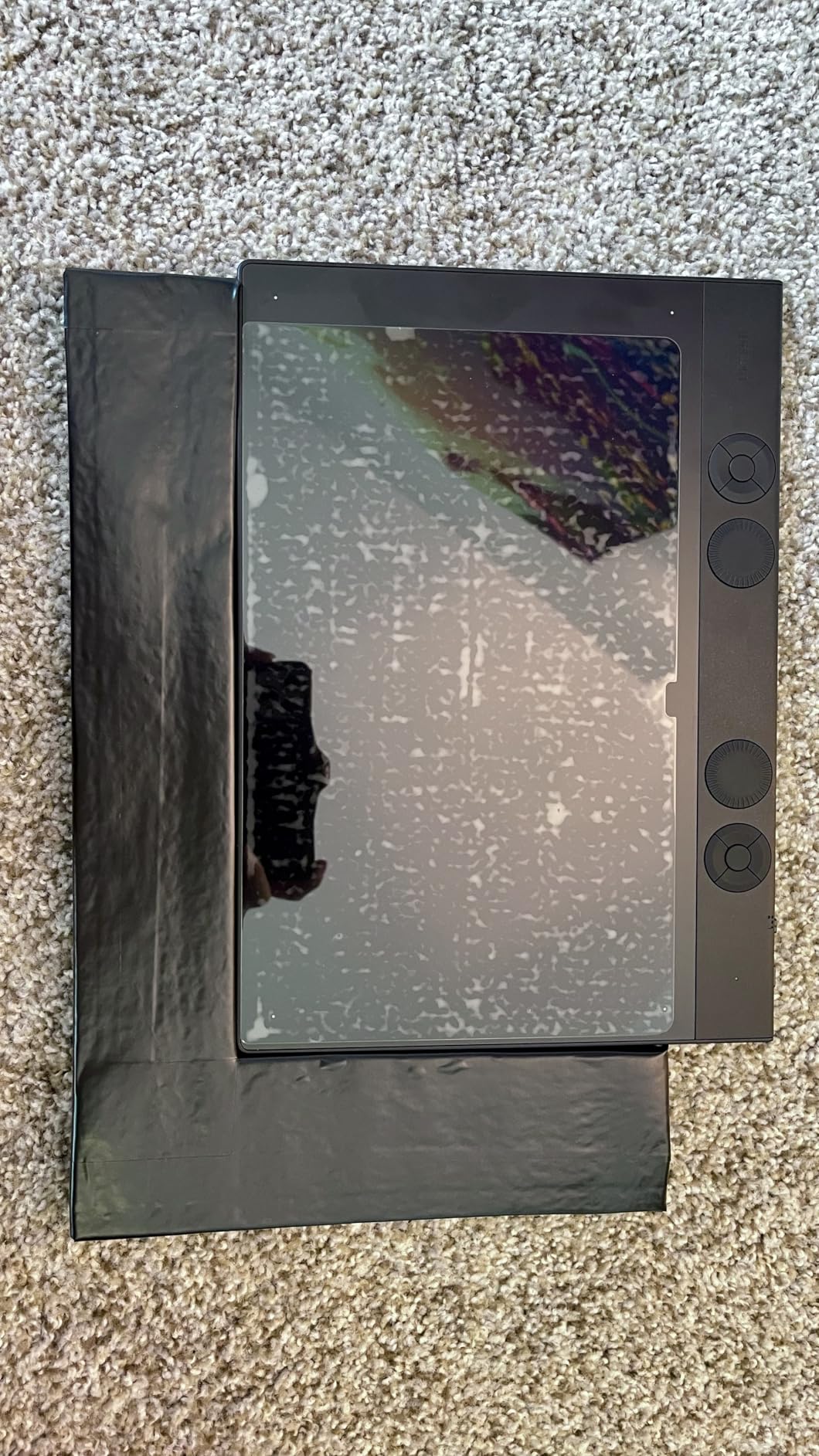
The Wacom Intuos Pro Small delivers the same professional-grade technology as its larger sibling in a more compact package. For retouchers with limited desk space or those who travel frequently, this tablet offers Wacom quality in a portable form factor. The 8.4 x 6.4 inch active area is smaller than the medium, but still usable for Photoshop retouching work.
The Pro Pen 3 is the star of the show here. The 8192 pressure levels and customizable grip options give you the same precision as the medium model. I particularly like the third button on the pen, which adds flexibility for mapping additional functions. The mechanical dial provides efficient workflow control for zooming and brush adjustments.
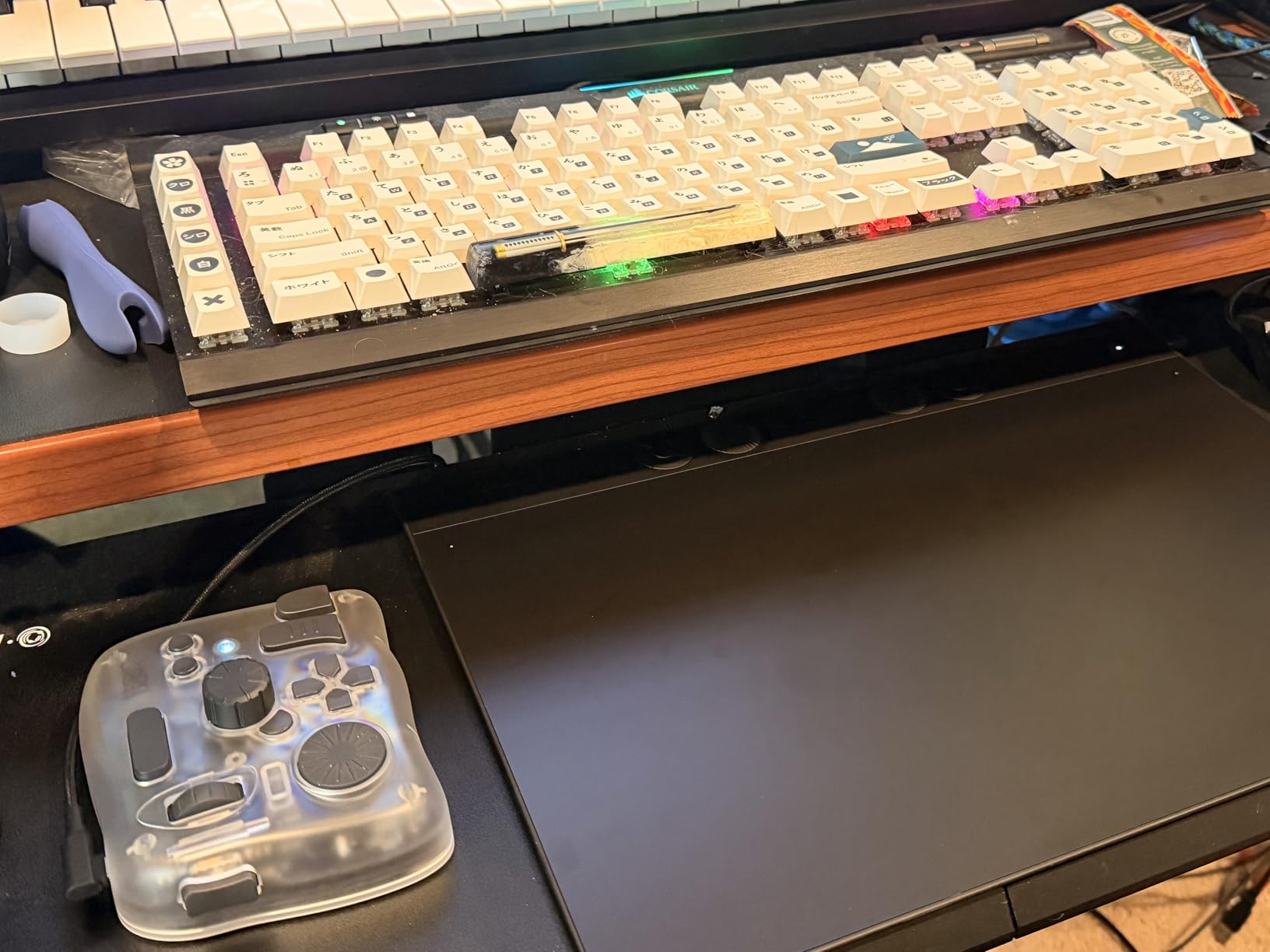
The 4mm thin magnesium construction feels incredibly premium and looks stunning on any desk. At just 8.5 ounces, it is remarkably light while still feeling solid. The Bluetooth 5.3 connectivity worked perfectly on my Mac, giving me wireless freedom without any noticeable latency. For photographers who work across multiple locations, the small size makes this easy to transport.
The 16:9 aspect ratio is well-suited to modern wide monitors, and the mapping feels natural. However, I do wish the active area was slightly larger for detailed retouching work. Some retouchers may find themselves zooming in more frequently than they would with a medium or large tablet. The ExpressKeys being on the top edge takes some getting used to.
Ideal for These Retouchers
This tablet is perfect for photographers who need professional Wacom quality but have limited desk space. If you work in tight quarters or shared workspaces, the compact footprint is a real advantage. Traveling retouchers will appreciate how easily it fits in a laptop bag without adding significant weight.
It is also great for Mac users who want reliable wireless performance. The Bluetooth connectivity on macOS is solid, which cannot be said for all drawing tablets. Photographers who already own a larger tablet but want a portable backup will find this fills that role perfectly.
Considerations
The small active area may feel restrictive for retouchers used to larger tablets. Windows users should be aware of reported Bluetooth issues that some have experienced. The Pro Pen 3 fragility concerns apply here as well, so handle the stylus with care.
7. HUION KAMVAS Pro 16 – Larger Screen Experience
Pros
- Large 15.6-inch display
- 120% sRGB color gamut
- Excellent value compared to Wacom
- 6 ExpressKeys with touch bar
- Minimal parallax
Cons
- Not standalone device
- Edge accuracy issues
- Touch bar very sensitive
- Occasional line ball-up
The HUION KAMVAS Pro 16 offers a generous 15.6-inch display at a price that significantly undercuts comparable Wacom options. After spending time with this pen display, I understand why it has become popular among photographers seeking the direct-screen experience without the premium price tag. The full-laminated screen looks great and provides a natural drawing feel.
Color performance is impressive with 120% sRGB coverage and 16.7 million colors. For photo retouching, the color accuracy is more than adequate for most professional work. The anti-glare glass has a smooth but slightly textured surface that gives you good pen control without being too abrasive on nibs. Parallax is minimal, making cursor positioning feel accurate.
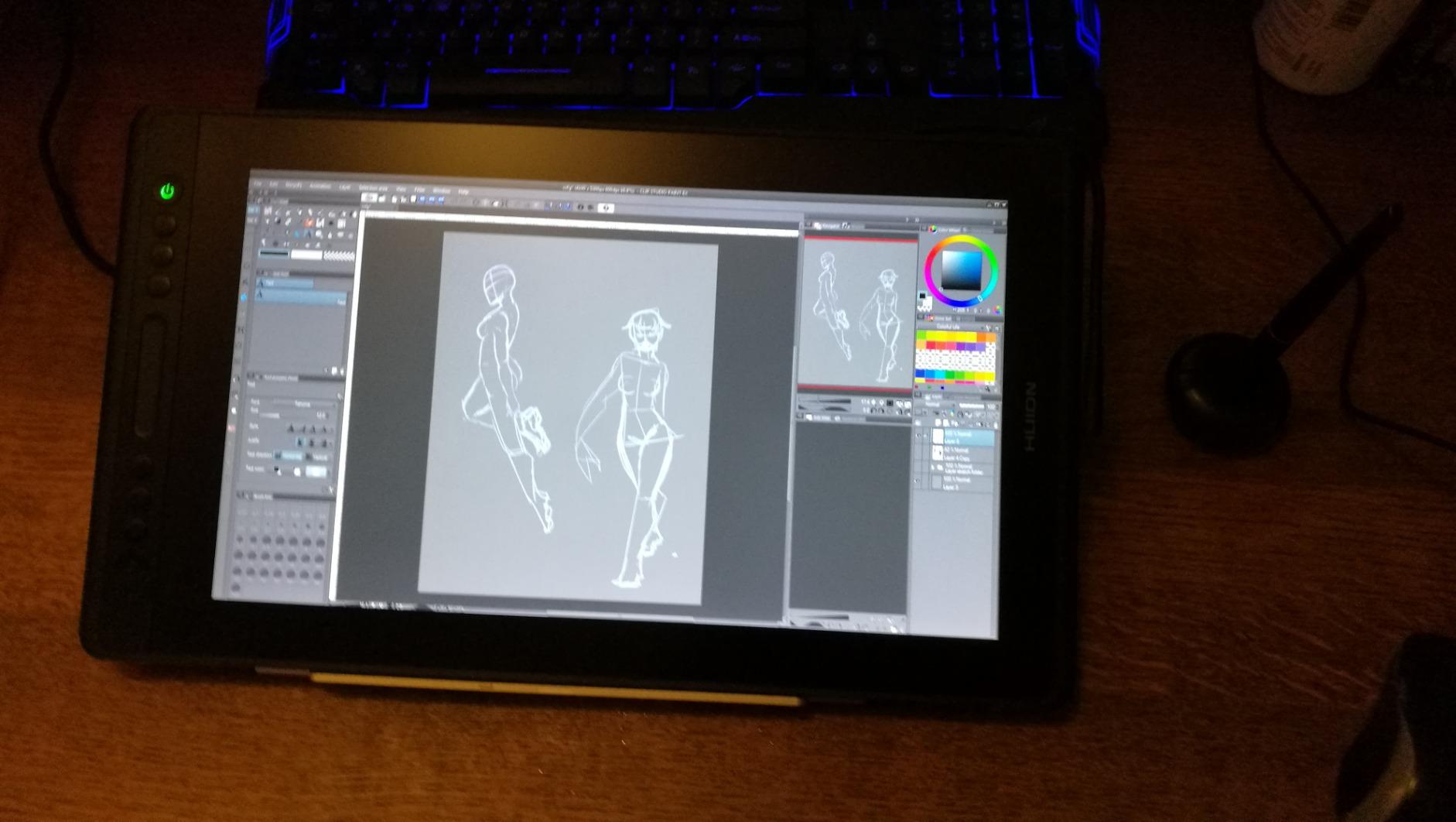
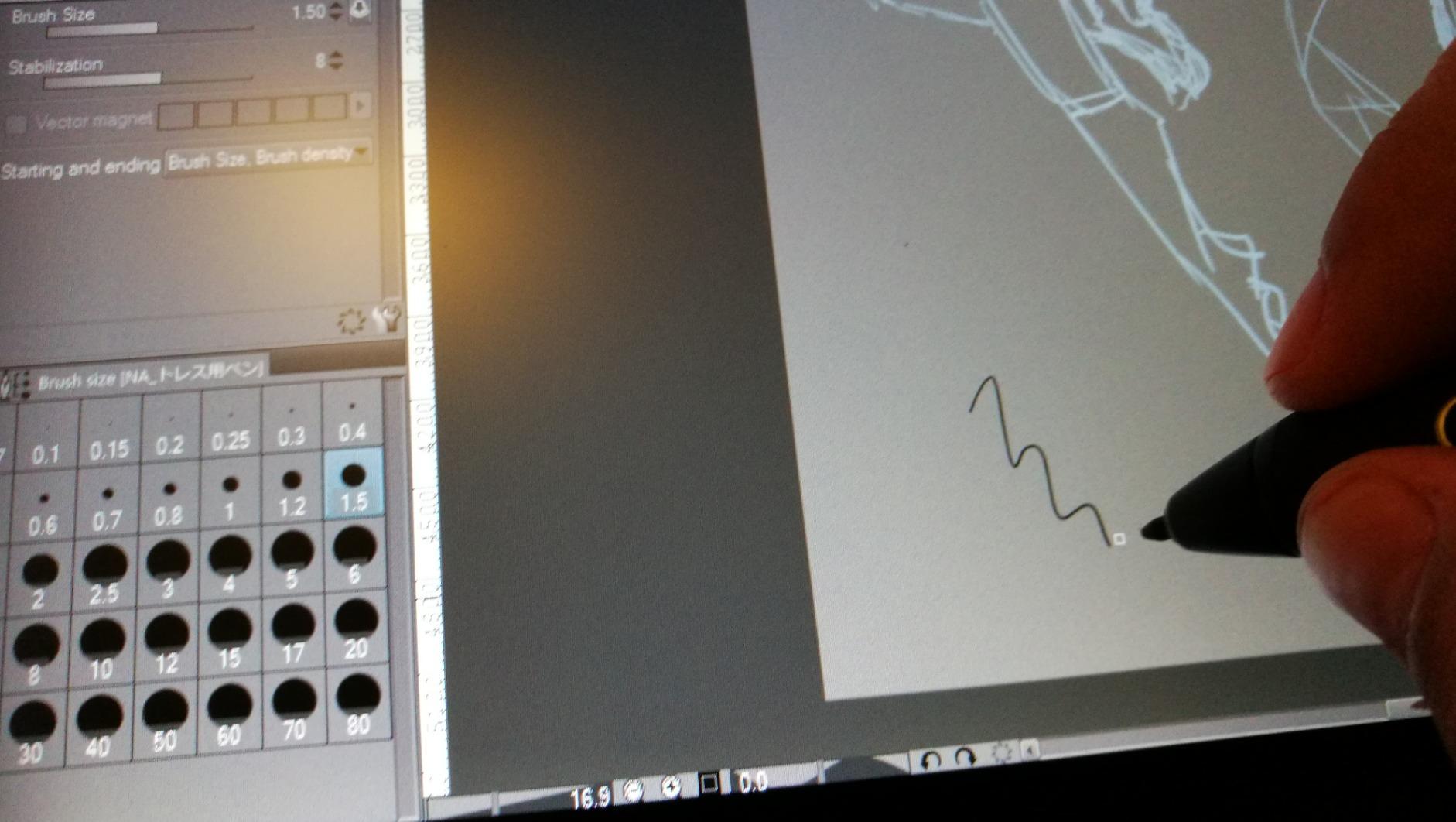
The workflow features are well-implemented. Six ExpressKeys and a touch bar give you quick access to Photoshop shortcuts. The adjustable ST200 stand lets you work at angles between 20 and 60 degrees, which I found comfortable for extended sessions. The battery-free pen with 60-degree tilt recognition tracks virtually lag-free, making brush strokes feel natural.
At 2.98 pounds, this is not a tablet you will carry around daily, but it stays put nicely on a desk. The 3-in-1 USB-C cable keeps connections organized, though some users find the HDMI signal requirement limiting. Build quality feels solid, and the slim profile looks professional in any studio setup.
Great for These Workflows
This pen display suits retouchers who want a larger canvas for detailed work. The 15.6-inch screen gives you room to spread out your Photoshop interface while still having adequate workspace for actual retouching. Photographers who work with dual monitor setups will appreciate the extra screen real estate.
It is also excellent for professionals who want Wacom-like features at a lower price point. The color accuracy and pressure sensitivity are competitive with much more expensive displays. Studios outfitting multiple editing stations will find the value proposition compelling.
Minor Drawbacks
Some users report slight accuracy deviation near screen edges. The touch bar is very sensitive and can be activated unintentionally if you are not careful. Occasional line ball-up near the end of strokes has been reported, possibly related to lag in certain situations.
8. Wacom Cintiq 16 (2018) – Proven Reliability
Pros
- Proven Pro Pen 2 reliability
- Lightweight portable design
- Built-in fold-out legs
- Natural drawing feel
- Excellent value for Cintiq
Cons
- No shortcut buttons on tablet
- Full HD resolution limiting
- No multi-touch
- Cable fused design
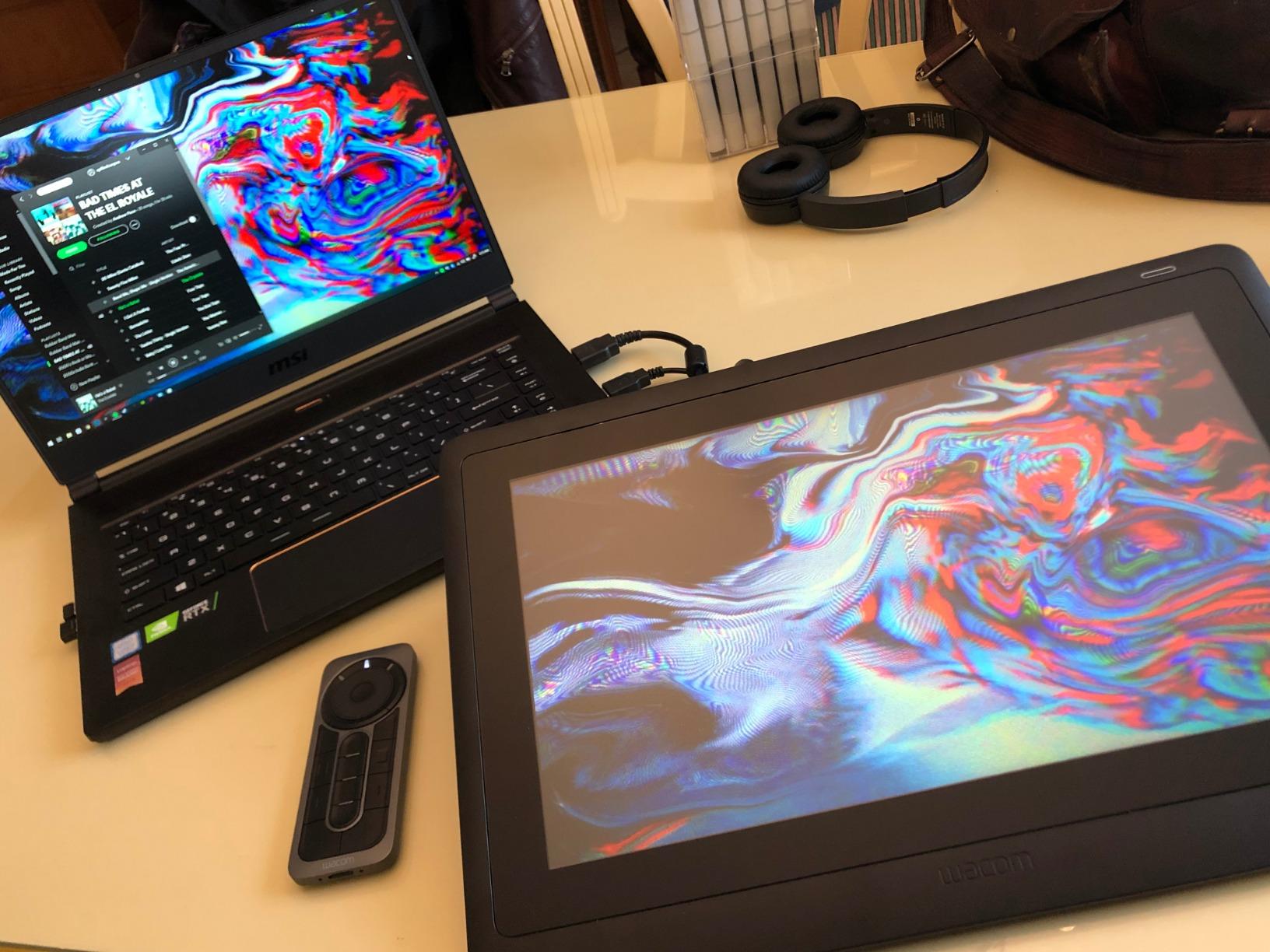
The Wacom Cintiq 16 (2018) has been a staple in creative studios for years, and it remains a solid choice for Photoshop retouching in 2026. While not the newest model, the proven reliability of the Pro Pen 2 technology keeps this tablet relevant. The natural drawing feel is something Wacom has perfected over decades, and it shows in every stroke.
The 15.6-inch Full HD display provides adequate resolution for most retouching work. While not as crisp as the newer 2.5K model, the 1920×1080 resolution is sufficient for pixel-level editing. Color quality is true to life, and the uniform brightness across the screen is excellent. For photographers who prioritize proven performance over cutting-edge specs, this delivers.
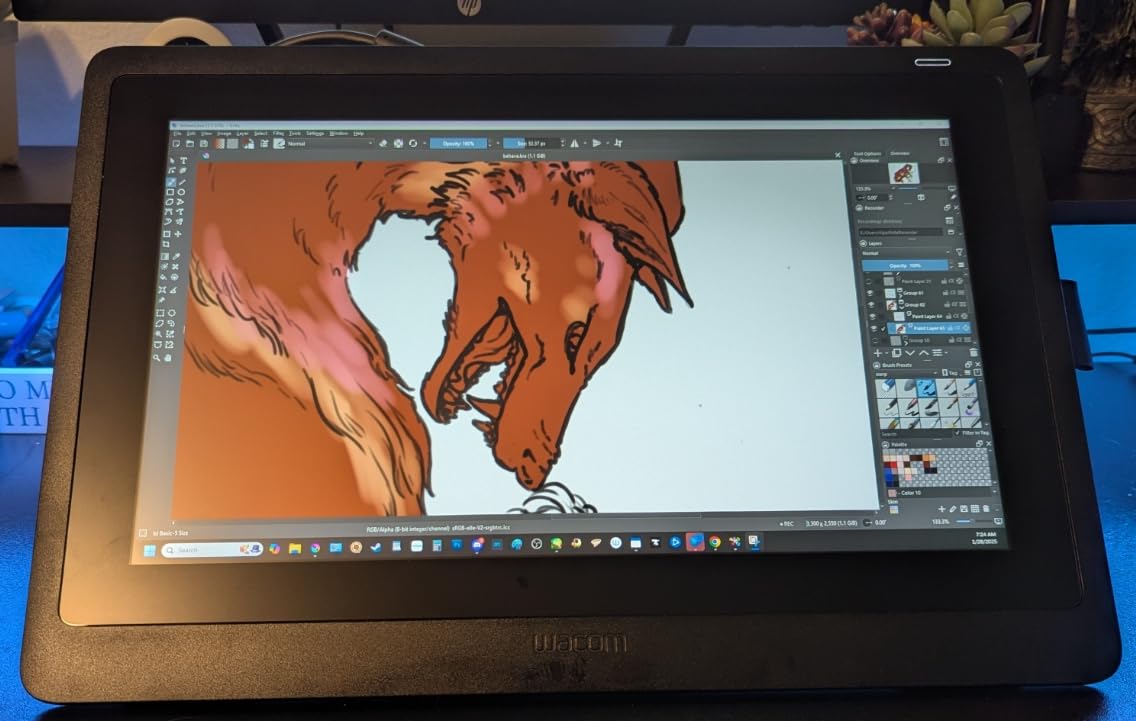
The Pro Pen 2 remains one of my favorite styluses for retouching work. The 8192 pressure levels respond smoothly and predictably, while tilt recognition adds another dimension of control. The pen feels substantial in hand and the two customizable switches are well-positioned. Unlike the newer Pro Pen 3, this version feels more robust and less likely to break from minor drops.
The built-in fold-out legs are a thoughtful inclusion that provides a comfortable working angle without requiring additional purchases. The minimal bezel design is clean, though some retouchers miss having physical shortcut buttons on the tablet itself. The consolidated 3-in-1 cable keeps things tidy, though the fused design means replacing the entire cable if any part fails.
Well-Suited For
This Cintiq is perfect for retouchers who want Wacom reliability at a more accessible price than the newest models. If you prefer the Pro Pen 2 feel over the newer Pro Pen 3, this is the model to get. Photographers who want a straightforward, no-fuss pen display will appreciate the proven design.
It is also great for those who do not need the highest resolution for their work. Portrait retouchers and general photo editors will find Full HD perfectly adequate. Studios that want to standardize on reliable equipment will appreciate the track record of this model.
Trade-offs
The lack of shortcut buttons on the tablet means you will rely more on keyboard shortcuts or a separate peripheral. Full HD resolution may feel limiting if you work with very high-resolution files or need exceptional detail. The 3-in-1 cable design is convenient but problematic if any single wire fails.
9. HUION Inspiroy H1060P – Budget Workhorse
Pros
- Excellent value for money
- Large working area
- Tilt function support
- 12 programmable keys
- Compatible with Linux
Cons
- Requires driver installation
- No wireless option
- Some button issues reported
- Wayland not supported
The HUION Inspiroy H1060P has been serving digital artists and retouchers well for years, offering impressive specifications at a budget-friendly price. The 10 x 6.25 inch working area provides comfortable space for Photoshop retouching, and the 8192 pressure sensitivity levels deliver the precision needed for detailed work. For photographers just starting with tablets, this is an excellent entry point.
The battery-free stylus with tilt support is a standout feature at this price point. Being able to angle the pen for varied strokes adds expressiveness to brush work in Photoshop. The pressure response is smooth and the tracking accurate enough for professional retouching tasks. I found the pen comfortable for extended sessions.
Customization options are generous with 12 programmable press keys plus 16 programmable soft keys. This abundance of shortcuts means you can set up complex Photoshop workflows without reaching for the keyboard. The symmetrical design works for both right and left-handed users, which is a thoughtful touch.
Compatibility is broad, covering Windows, macOS, and even Linux via Xorg. For photographers who work across multiple operating systems, this flexibility is valuable. The sturdy build quality has impressed many users, with reports of years of reliable service. Extra pen tips are included, which is always appreciated.
Best Fit For
This tablet is ideal for beginners who want to try retouching with a tablet without a significant financial commitment. The large working area and solid specifications give you room to develop your skills. Photographers who need a backup tablet for travel or secondary workstations will find this fits the bill.
Linux users will appreciate the Xorg support, which is rare among drawing tablets. Budget-conscious professionals who need reliable performance without premium features will get good value here. Students and hobbyists looking to upgrade from basic input devices will find this a significant step up.
Downsides
The USB cable connection means no wireless option, which may be limiting for some setups. You will need to install drivers on each computer you use, which can be problematic on shared or restricted systems. Some users report occasional button issues over time.
10. Wacom Intuos Small – Best Budget Starter
Pros
- Industry-leading EMR technology
- Works with all software
- Includes training and software
- Easy setup and adaptation
- Great value for beginners
Cons
- Small size may not suit all users
- Nibs wear down quickly
- Pen buttons easily pressed
- Bluetooth version less responsive
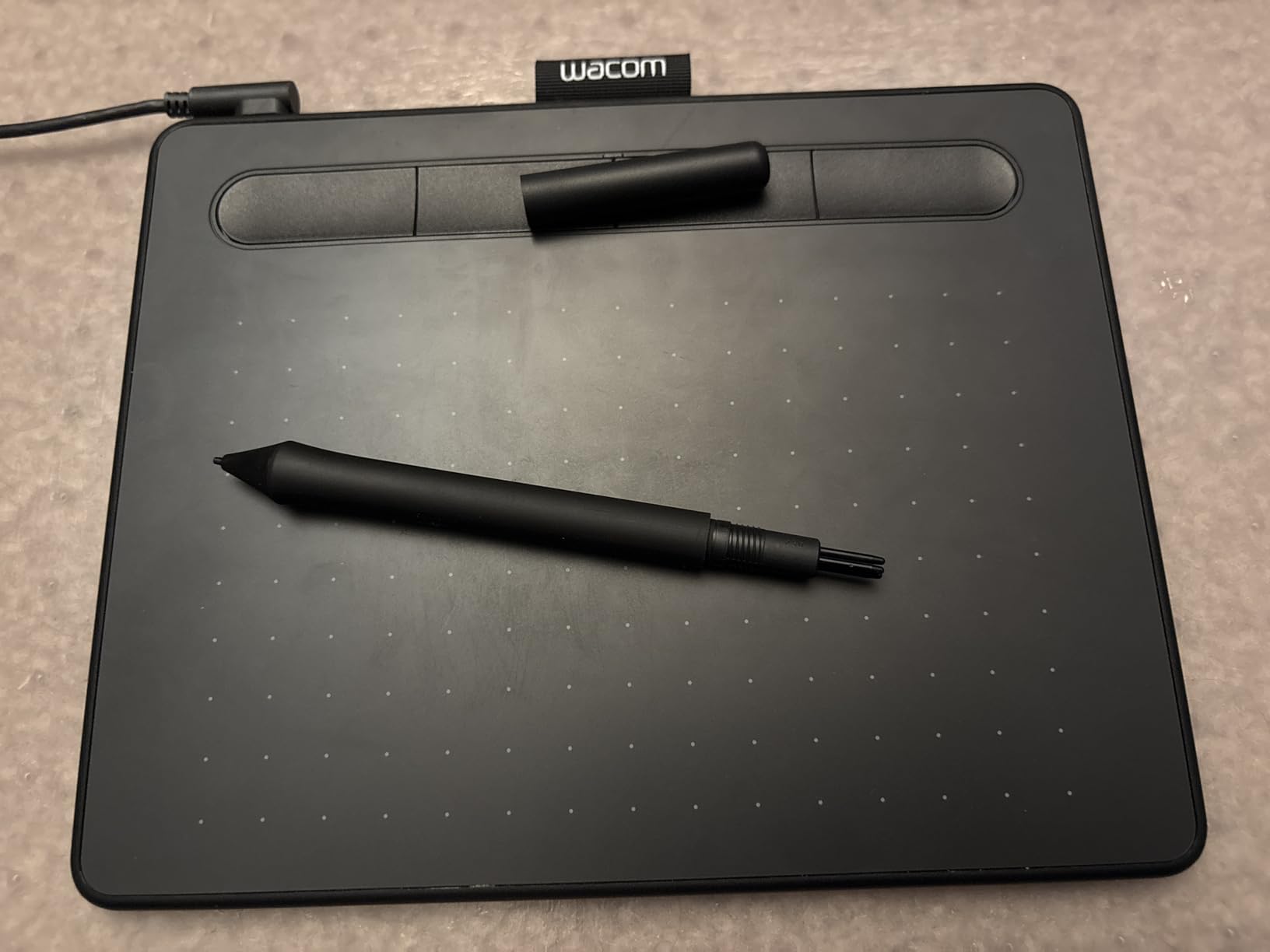
The Wacom Intuos Small is where many photographers begin their tablet journey, and for good reason. This budget-friendly option delivers Wacom’s renowned EMR technology in an accessible package. The battery-free pen feels like writing on paper, and the pressure sensitivity provides the control needed for Photoshop retouching work.
What sets this tablet apart from budget competitors is the included software and training. Wacom bundles creative software with every purchase, which adds real value. The online training resources help new users get up to speed quickly. For photographers just starting with tablets, this support can make the learning curve much less intimidating.
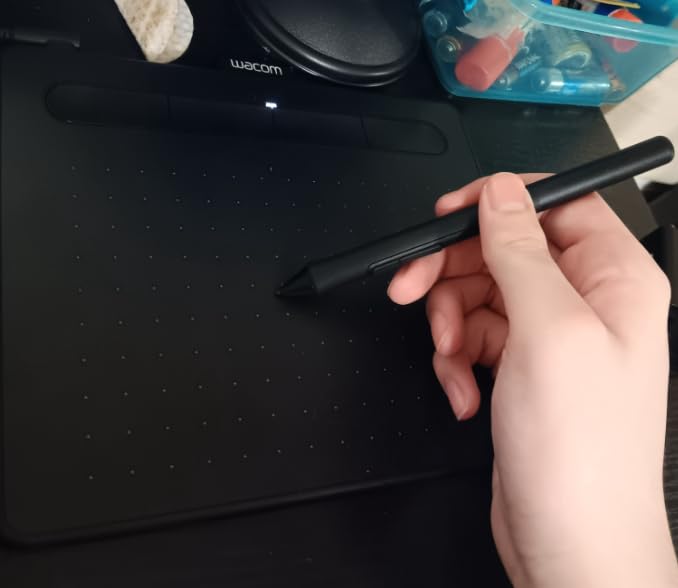
The 4 customizable ExpressKeys provide quick access to essential Photoshop shortcuts. While fewer than pro models offer, they are sufficient for basic retouching workflows. The small size keeps the footprint minimal on crowded desks, and the lightweight design makes it genuinely portable. Compatibility extends across Chromebook, Mac, Android, and Windows.
The pressure-sensitive pen responds well to varied input, making it suitable for skin retouching, masking, and other Photoshop tasks. Setup is straightforward, and most users report adapting to the hand-eye coordination within a week or two. The value proposition is hard to beat for anyone wanting to try tablet retouching.
Perfect Starter Tablet
This is the tablet I recommend to photographers curious about tablet retouching but not ready to commit significant money. The low entry price lets you discover whether tablet workflow suits your style before investing more. Beginners will appreciate the included software and training resources.
It is also great for photographers who need a portable backup tablet. The small size fits easily in laptop bags without adding bulk. Those with limited desk space will find the compact footprint practical. Students learning photo editing will find this an accessible entry point.
What to Expect
The small active area requires more zooming and scrolling than larger tablets. Pen nibs wear down relatively quickly with heavy use, so stock up on replacements. The pen buttons are positioned where they can be accidentally pressed during normal use, which takes some adjustment.
How to Choose the Right Drawing Tablet for Photoshop Retouching In 2026?
Selecting the best drawing tablet for your Photoshop retouching workflow depends on several factors. After testing many tablets over the years, I have developed a framework for making this decision. Understanding the key differences between tablet types and features will help you find the perfect match for your needs and budget.
Pen Tablet vs Pen Display
The first decision is whether you want a pen tablet or pen display. Pen tablets like the Wacom Intuos line have no screen, you look at your monitor while drawing on the tablet surface. Pen displays like the Cintiq have built-in screens that you draw directly on.
Pen tablets offer better ergonomics since you can position them wherever comfortable while keeping your monitor at eye level. They are also more affordable and take up less desk space. Many professional retouchers prefer pen tablets for long editing sessions because they cause less neck strain.
Pen displays provide direct visual feedback that feels more intuitive for some users. Drawing directly on the image creates a more natural connection between hand and eye. However, they cost more, require more desk space, and can cause neck discomfort if not positioned ergonomically.
Pressure Sensitivity Matters
For Photoshop retouching, pressure sensitivity is one of the most important specifications. Modern tablets offer between 2048 and 16384 pressure levels. Higher numbers mean finer control over brush opacity, size, and other dynamics.
Most retouchers find 8192 levels more than sufficient for professional work. The jump to 16384 levels offers marginally finer control but may not be noticeable for all users. Tablets with lower pressure sensitivity can still work well, but you lose some subtlety in brush control.
Size Considerations
Tablet size significantly impacts your retouching experience. Smaller tablets are portable and require less arm movement, but may feel cramped for detailed work. Larger tablets give you more workspace but demand more desk space and arm motion.
For photo retouching, I generally recommend medium-sized tablets. They provide enough active area for detailed work while remaining reasonably portable. If you work with multiple monitors, a larger tablet helps maintain natural cursor mapping across the extended display area.
Wireless vs Wired Connectivity
Wireless connectivity offers freedom of placement and a cleaner desk setup. Bluetooth tablets let you position the tablet wherever feels most comfortable without cable constraints. However, wireless can introduce slight latency and requires battery management.
Wired connections provide reliable, low-latency performance with no charging concerns. Professional retouchers doing precision work often prefer wired for the consistent response. Some tablets offer both options, letting you choose based on your current needs.
Brand Comparison
Wacom remains the industry standard with decades of experience and proven reliability. Their drivers are stable, build quality is excellent, and professional support is available. The premium price reflects this reputation.
HUION offers excellent value, delivering 80 to 90 percent of Wacom quality at 30 to 50 percent of the price. Their tablets have improved significantly in recent years and now compete seriously with Wacom for many users.
XP-Pen positions itself between budget and premium, offering innovative features like industry-leading pressure sensitivity at competitive prices. Their tablets are worth considering if specific features appeal to your workflow.
Frequently Asked Questions
Do drawing tablets work well for Photoshop retouching?
Yes, drawing tablets are excellent for Photoshop retouching. The pressure-sensitive stylus gives you precise control over brush opacity and size that a mouse cannot match. Many professional retouchers find tablets essential for skin retouching, masking, and dodge and burn work. The natural pen grip also reduces wrist strain compared to mouse use.
What size drawing tablet is best for photo editing?
Medium-sized tablets are generally best for photo editing, offering a good balance between workspace and portability. A tablet with an active area around 8×5 inches to 11×7 inches works well for most retouchers. If you use multiple monitors, consider a larger tablet to maintain natural cursor mapping across your display setup.
How long does it take to get used to a drawing tablet?
Most users feel comfortable with basic tablet operations within 1 to 2 weeks of regular use. Achieving full proficiency for professional retouching work typically takes 1 to 2 months. The hand-eye coordination required when using a pen tablet takes practice, but most photographers find the transition worthwhile for the precision gains.
Do drawing tablets help prevent RSI and wrist pain?
Yes, drawing tablets can help prevent RSI and wrist pain. The pen grip puts your hand in a more natural position than a mouse, reducing strain on the wrist and forearm. Many photographers report significant relief from carpal tunnel symptoms after switching to tablets. However, proper posture and regular breaks remain important for long-term hand health.
Wacom vs Huion for photo editing – which is better?
Wacom offers industry-leading reliability, stable drivers, and excellent build quality, making it the choice for professionals who depend on their equipment daily. Huion provides excellent value, delivering comparable performance at significantly lower prices. For budget-conscious users or those trying tablets for the first time, Huion offers great bang for the buck. Professional studios often standardize on Wacom for consistency and support.
Conclusion
Finding the best drawing tablets for Photoshop retouching comes down to balancing your budget, workflow preferences, and professional requirements. For most retouchers, the Wacom Intuos Pro Medium (2025) offers the ideal combination of precision, build quality, and reliability. If you prefer working directly on screen, the Wacom Cintiq 16 (2025) delivers exceptional color accuracy and display quality.
Budget-conscious photographers should seriously consider the HUION Inspiroy 2 Large, which delivers professional features at a fraction of Wacom prices. Beginners can start confidently with the Wacom Intuos Small, knowing they are getting industry-standard technology in an affordable package. Whichever tablet you choose, the transition from mouse to pen will transform your Photoshop retouching workflow with improved precision and reduced hand strain.