
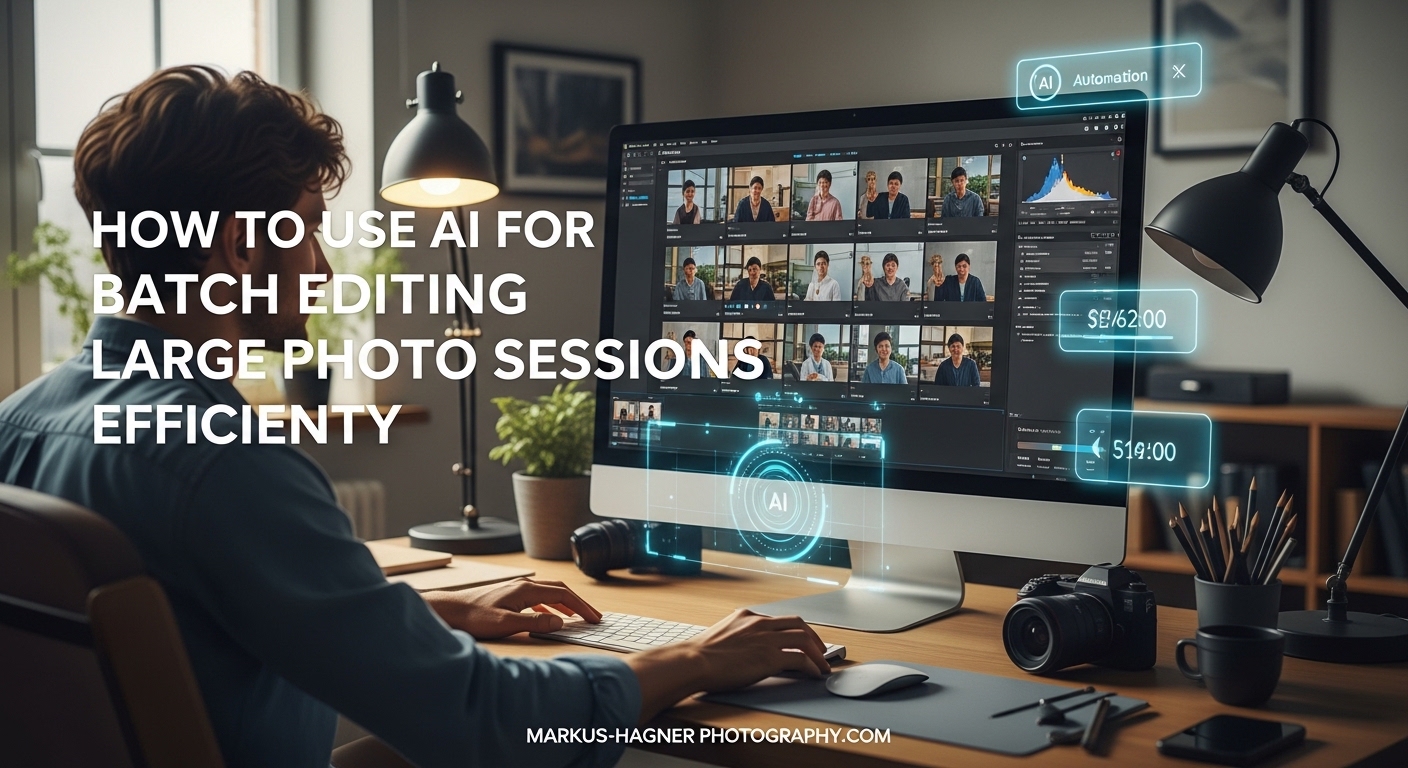
Professional photographers handling large photo sessions—whether weddings, events, portraits, or commercial shoots—often face one of the most time-consuming aspects of the job: post-production editing. What used to take hours of repetitive manual adjustments can now be streamlined significantly through AI batch photo editing. Understanding how to use AI for batch editing large photo sessions efficiently can reduce your post-production time by up to 96%, allowing you to focus on what truly matters: capturing amazing shots and building your business.
In this comprehensive guide, you’ll discover the step-by-step workflow for leveraging artificial intelligence to edit hundreds of photos simultaneously while maintaining consistent quality and style. We’ll cover everything from understanding what AI batch editing actually does to selecting the right tools, implementing best practices, and avoiding common pitfalls that could compromise your final results.
What Is AI Batch Photo Editing?
AI batch photo editing uses artificial intelligence to automatically apply consistent edits to multiple photos simultaneously, analyzing each image individually rather than applying static presets. Unlike traditional batch editing where the same settings get copy-pasted across all images, AI-powered tools examine every photograph’s unique characteristics—including lighting conditions, exposure levels, white balance, color temperature, and subject matter—and make intelligent adjustments tailored to each shot.
This represents a fundamental shift in how photographers approach post-production. Traditional presets and batch copy-paste methods treat all images identically, which works reasonably well when lighting remains consistent throughout a session. However, real-world photography rarely offers such uniformity. A wedding reception might have bright outdoor ceremony shots alongside dimly lit reception dances, or a portrait session might transition from shaded areas to direct sunlight. AI handles these variations automatically, learning from your editing style and applying adjustments that would otherwise require hours of manual attention.
The technology behind AI batch editing draws on machine learning models trained on millions of professionally edited photographs. These AI systems recognize patterns in color grading, contrast curves, exposure corrections, and creative stylistic choices, then apply similar logic to new images. Some advanced tools like Imagen AI even allow you to train a personal AI profile based on 2,000 or more of your previously edited photos, essentially teaching the system your unique editing voice.
How to Use AI for Batch Editing Large Photo Sessions Efficiently In 2026?
Step 1: Import and Organize Your Photos
Before applying any AI batch editing, you’ll want to ensure your photos are properly imported and organized within your editing software. Create a dedicated folder for the session, import all RAW files or high-resolution JPEGs, and apply basic metadata organization if your software supports it. This organizational step might seem basic, but it sets the foundation for efficient workflow.
Many photographers find it helpful to use a two-stage approach: import everything first, then use AI-powered culling tools to identify your best shots before applying batch edits. This prevents wasting AI processing time on images you’ll ultimately discard. Tools like Photo Mechanic and Aftershoot excel at this initial culling phase, using AI to flag potentially excellent shots based on focus, exposure, and facial recognition.
Step 2: Select an AI Batch Editing Tool
Choosing the right AI batch editing tool depends on your specific needs, workflow preferences, and budget. Here are the primary options available:
Adobe Lightroom with Adobe Sensei offers native AI integration that can auto-edit during import, applying intelligent adjustments based on scene recognition. It’s the most widely adopted option and integrates seamlessly with most photographers’ existing workflows.
Imagen AI specializes specifically in AI-powered batch editing with personal profile learning capabilities. It analyzes your previous edits to understand your style, then applies that style to new batches. This tool has gained significant popularity among professional wedding and event photographers.
Aftershoot focuses on AI culling and editing, offering a streamlined interface specifically designed for handling large sessions efficiently. It’s particularly strong at identifying your best images quickly.
Pixlr’s AI Batch Photo Editor provides a free online option for basic batch editing needs, supporting edits to brightness, contrast, and color correction for up to 100 photos at once.
DxO PhotoLab features DeepPRIME technology for advanced noise reduction and intelligent corrections, making it excellent for low-light event photography.
Step 3: Choose or Train Your AI Profile
Once you’ve selected your tool, the next step involves setting up your AI profile or selecting an appropriate preset. Most AI editing platforms offer three approaches:
Personal AI profiles learn from your previous work. You upload 2,000+ photos you’ve already edited, and the AI analyzes your color grading choices, contrast preferences, and stylistic tendencies. Over time, the profile becomes remarkably accurate at mimicking your specific editing voice. This option provides the most personalized results but requires an initial investment of time and a representative sample of your work.
General AI presets use algorithms trained on millions of professional images. These work immediately without training and produce excellent results for standard lighting scenarios. Most tools include dozens of preset styles ranging from cinematic looks to vibrant travel photography aesthetics.
Industry-specific profiles target particular niches. Some tools offer profiles specifically trained on wedding photography, portrait work, real estate, or commercial product photography, understanding the unique demands of each field.
Step 4: Apply AI Batch Edits
With your profile selected, you’re ready to apply the AI batch edits. Select all photos in your session (typically using Ctrl+A or Cmd+A), choose your AI profile or preset, and initiate the batch process. The AI will analyze each image individually—this is the crucial difference from traditional batch editing.
Processing time varies depending on your computer’s specifications and the number of photos. A session of 500 photos might take 15-30 minutes on a modern system. Most software allows you to continue working on other tasks while processing runs in the background.
During this phase, the AI examines each photograph’s unique characteristics: detecting the light source direction, analyzing color temperature, identifying overexposed or underexposed areas, recognizing skin tones, and applying corrections that maintain natural-looking results. Unlike simple preset application, this process produces individually tailored adjustments for every image.
Step 5: Review and Fine-Tune
AI batch editing dramatically reduces manual work but rarely eliminates it entirely. After processing completes, set aside time to review your edited images systematically. Look for edge cases the AI might have struggled with: extreme backlighting, unusual color casts, or shots with significant motion blur.
Most professional photographers find that AI handles 80-90% of their editing needs perfectly, leaving 10-20% requiring manual intervention. This represents an enormous time savings compared to traditional methods where every image needed significant attention.
Use star ratings or color labels within your software to flag images needing additional work. You can apply targeted adjustments to problem areas while leaving the AI-corrected portions intact—non-destructive editing ensures your original files remain unaltered.
Step 6: Export with Consistent Settings
The final step involves exporting your finished images with consistent output settings. Define your export presets based on delivery requirements: web-optimized JPEGs for online galleries, full-resolution files for print, or specific sizes for client delivery platforms.
Most AI batch editing tools allow you to save export presets, ensuring every batch follows identical output specifications. This consistency matters for professional delivery—clients expect uniform quality and file types across their entire gallery.
Consider creating separate export presets for different use cases: high-resolution masters for archival storage, medium-resolution versions for online viewing, and social media crops for promotional purposes.
Popular AI Batch Editing Tools
Understanding the landscape of available tools helps you make informed decisions for your specific needs. Here’s a comparison of leading options:
| Tool | Key Feature | Best For | Processing |
|---|---|---|---|
| Adobe Lightroom + Sensei | Native AI integration | Existing Lightroom users | Local |
| Imagen AI | Personal profile learning | Wedding/event photographers | Cloud + Local |
| Aftershoot | AI culling + editing | Fast turnaround sessions | Cloud |
| DxO PhotoLab | DeepPRIME noise reduction | Low-light photography | Local |
| Pixlr | Free online option | Basic needs, beginners | Cloud |
Each tool offers distinct advantages. Adobe Lightroom remains the industry standard with extensive plugin support and familiar interface. Imagen AI has pioneered personal profile technology that’s particularly valued by photographers with consistent client types. Aftershoot excels at the culling phase that precedes editing. DxO PhotoLab provides superior noise handling for challenging lighting conditions.
Benefits of Using AI for Batch Photo Editing
The advantages of implementing AI batch editing extend far beyond simple time savings, though that benefit alone justifies adoption for most professionals.
Dramatic Time Reduction: AI batch editing can reduce post-production time by up to 96% compared to manual editing. A wedding gallery that previously required 20+ hours of editing time can often be completed in 2-4 hours with AI assistance.
Consistent Style Application: Maintaining a cohesive look across hundreds of images challenges even experienced editors. AI applies your chosen style uniformly while accounting for individual image variations, ensuring gallery-wide consistency.
Handling Mixed Lighting: AI excels at managing variable lighting conditions within a single session. The same event might include outdoor daylight, indoor tungsten lighting, and flash photography—AI adjusts for each scenario automatically.
Reduced Fatigue: Manual batch editing leads to decision fatigue, where editing quality degrades as sessions extend. AI handles the repetitive analysis, preserving your mental energy for creative decisions that truly require human judgment.
Scalable Workflow: As your business grows and session sizes increase, AI enables handling larger volumes without proportionally increasing editing time. This scalability supports business growth without sacrificing quality or sanity.
Learning Improvement: Personal AI profiles actually improve over time. As you edit more images and provide feedback, the AI becomes increasingly accurate at matching your preferences.
Best Practices for Large Photo Sessions
Maximizing efficiency with AI batch editing requires thoughtful workflow design. These best practices help you get the most from your AI tools:
Implement the 20/60/20 Workflow: Many professional photographers adopt this approach: AI handles the first 20% (fully automated), the middle 60% receives AI editing with light human review, and the final 20% (typically the most challenging images) gets manual attention. This ensures quality control while maximizing efficiency.
Pre-Session Culling: Use AI culling tools before batch editing to eliminate obviously unusable images. Processing only your best 300 shots rather than 500 raw images saves significant time.
Create Session-Specific Profiles: For specialized niches, consider creating profiles specific to common scenarios. A wedding photographer might maintain separate profiles for outdoor ceremonies, indoor receptions, and portrait sessions.
Maintain Non-Destructive Workflows: Always use non-destructive editing that preserves original files. AI processing should create adjustment layers or virtual copies, never modify your source images.
Back Up Before Processing: While AI tools rarely cause issues, always maintain current backups before applying batch processing to important client sessions.
Review Systematically: Establish a review routine that works for your workflow. Some photographers review every fifth image in detail, others spot-check for common issues, and some review full sessions systematically.
Common Mistakes to Avoid In 2026
Even experienced photographers sometimes stumble when implementing AI batch editing. Here are pitfalls to avoid:
Over-Relying on AI Without Review: AI produces excellent results but isn’t perfect. Always review your edited images rather than assuming all corrections are optimal. The 20/60/20 workflow ensures quality control.
Ignoring Mixed Lighting: Some photographers assume AI automatically handles dramatic lighting variations. While AI performs admirably, challenging mixed-light scenarios often require manual intervention.
Using Generic Profiles Without Customization: Generic AI presets work well for standard scenarios but may not match your specific style. Investing time in personal profile training yields far superior long-term results.
Neglecting Original Backups: Always maintain unedited originals. While non-destructive editing protects your source files, backup systems fail occasionally—protect against data loss.
Expecting Perfection Immediately: AI profiles improve with use. Initial results might require more manual tweaking until the system learns your preferences through repeated use.
Frequently Asked Questions
How does AI handle batch photo editing tasks?
How do I edit multiple photos with AI?
How do I edit 100 photos at once?
How can AI make me more efficient for image editing?
What is the best AI batch photo editor?
Conclusion
Learning how to use AI for batch editing large photo sessions efficiently has become essential for modern photographers seeking to balance quality output with sustainable business practices. The technology has evolved from experimental novelty to production-ready solution, offering genuine time savings without sacrificing the consistency and quality that clients expect.
Start by selecting an AI tool that matches your workflow, invest time in creating a personal editing profile, and implement the step-by-step process outlined in this guide. Remember that AI augments your expertise rather than replacing it entirely—the most successful photographers use AI to handle repetitive tasks while focusing their human judgment on creative decisions that truly matter.
Whether you’re editing a 500-image wedding gallery, processing event coverage, or handling regular portrait sessions, AI batch editing can transform your post-production workflow. The initial learning curve pays dividends quickly, and as the technology continues advancing, early adopters position themselves at the forefront of professional photography efficiency.