
After spending countless hours culling through wedding photos and retouching portraits with nothing but a keyboard and mouse, I discovered the transformative power of editing consoles. The difference wasn’t subtle. My editing speed increased by 40% within the first week, and more importantly, the wrist pain that had become a constant companion virtually disappeared. The best editing consoles and controllers for photo editing workflows aren’t just about speed. They’re about creating a more intuitive, ergonomic connection between your creative vision and the tools that bring it to life.
Photo editing consoles have evolved dramatically in recent years. What started as simple shortcut keypads has blossomed into sophisticated control surfaces with tactile dials, programmable LCD keys, and haptic feedback that respond to your touch. Whether you’re a wedding photographer processing thousands of images, a portrait retoucher making precise adjustments, or a landscape photographer perfecting color grading, there’s a controller designed to streamline your specific workflow.
I’ve tested the leading editing consoles across real-world photo editing scenarios. From batch editing 500 wedding photos in Lightroom to dodging and burning individual portraits in Photoshop, these controllers have earned their place on my desk. The right console doesn’t just make you faster. It changes how you think about editing, letting you focus on the image rather than the interface.
Top 3 Picks for Best Editing Consoles and Controllers

TOUR BOX Elite Plus
- Multi-platform support (Mac
- Windows
- iPad
- Android)
- 14-button layout with haptic feedback
- Deep Adobe & DaVinci integration

Elgato Stream Deck +
- 8 LCD keys + 4 dials + touch strip
- Adobe Creative Cloud integration
- Plugin ecosystem
Best Editing Consoles and Controllers in 2026
| Product | Specifications | Action |
|---|---|---|
| TOUR BOX Elite Plus |
|
Check Latest Price |
| Elgato Stream Deck + |
|
Check Latest Price |
 Logitech MX Creative Console Logitech MX Creative Console |
|
Check Latest Price |
 TOUR BOX Elite TOUR BOX Elite |
|
Check Latest Price |
 Elgato Stream Deck MK.2 Elgato Stream Deck MK.2 |
|
Check Latest Price |
 TourBox NEO TourBox NEO |
|
Check Latest Price |
 XENCELABS Quick Keys XENCELABS Quick Keys |
|
Check Latest Price |
 TOUR BOX Lite Bluetooth TOUR BOX Lite Bluetooth |
|
Check Latest Price |
 Elgato Stream Deck Neo Elgato Stream Deck Neo |
|
Check Latest Price |
 HUION Keydial Mini HUION Keydial Mini |
|
Check Latest Price |
1. TOUR BOX Elite Plus – Best Overall Editing Console
Pros
- Works on Mac
- Windows
- iPad
- and Android
- Excellent haptic feedback
- Deep software integration
- Reduces editing time significantly
Cons
- Limited DaVinci function on iOS
- Premium price point
- Heavy for mobile use
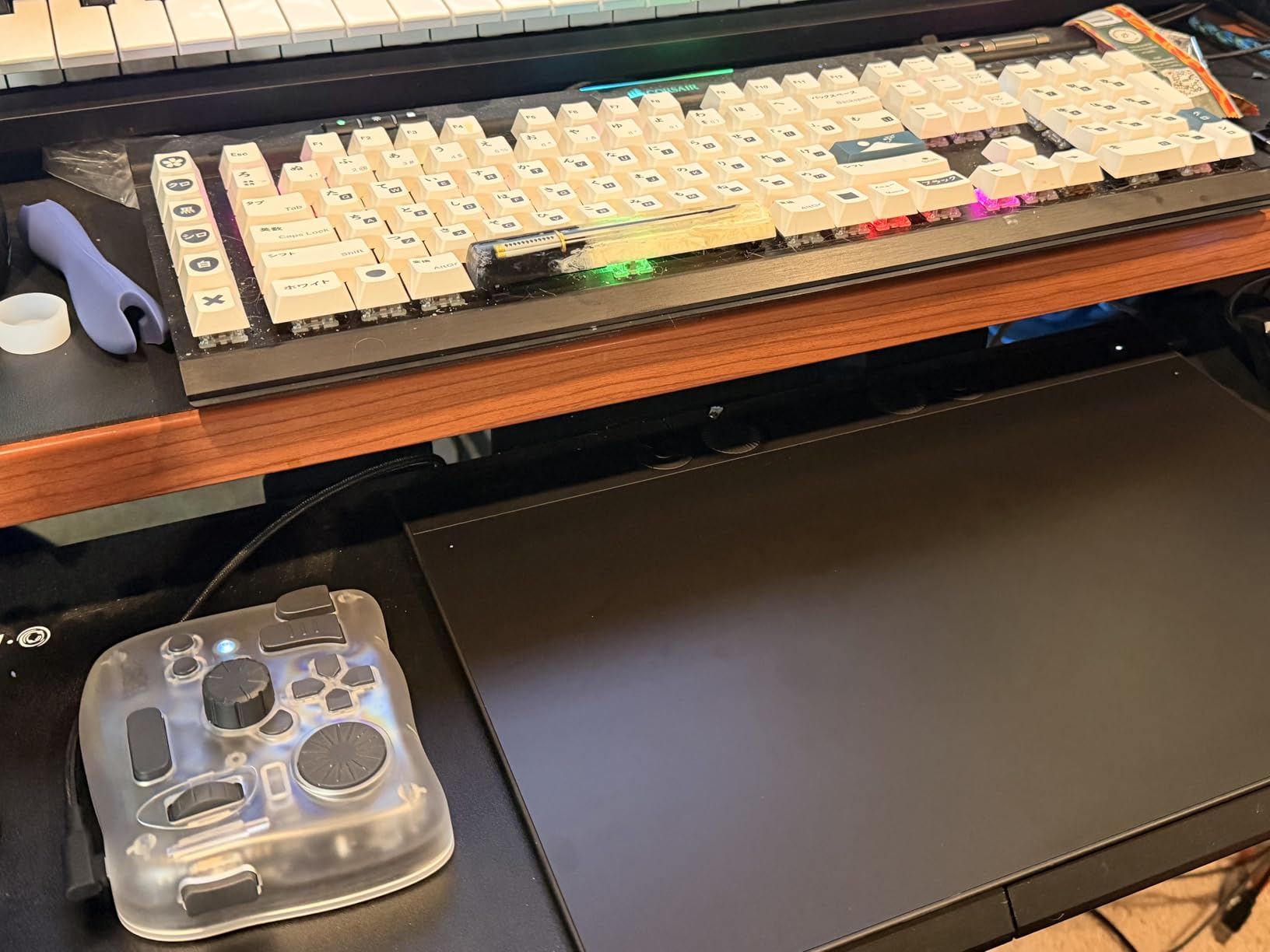
The TOUR BOX Elite Plus stands apart as the most versatile editing console I’ve tested. What makes it special is the unified control logic that works seamlessly across iPadOS, Android, macOS, and Windows. I used it primarily with Photoshop and Lightroom on my desktop, but being able to switch to my iPad for Procreate work without changing muscle memory is incredibly valuable.
The 14-button layout with upgraded haptic feedback feels premium. Every button press and dial rotation provides satisfying tactile response that confirms your action without looking away from your image. I spent several weeks using this for wedding photo culling and batch processing, and the efficiency gains were immediately apparent.
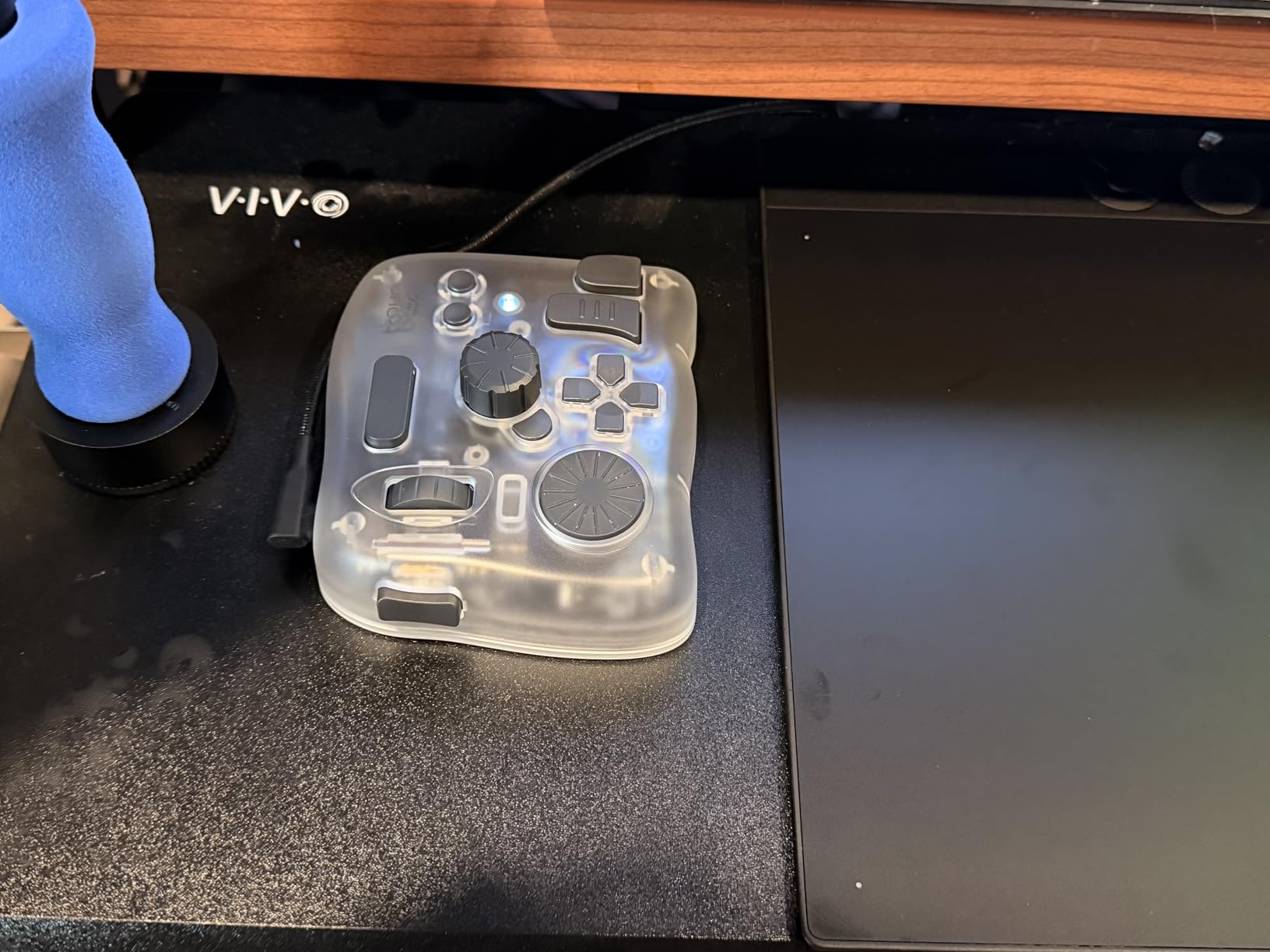
What really impressed me was the deep software integration. The preloaded official presets for Adobe Creative Cloud, DaVinci Resolve, and Final Cut Pro work right out of the box. Within 20 minutes of unboxing, I had a fully functional editing setup that matched my existing workflow. The Bluetooth dual-channel connectivity remained stable even during extended editing sessions, which is something I can’t say for every wireless controller I’ve tested.
The build quality is exceptional. The Ice Translucent finish isn’t just cosmetic. The device feels solid and substantial, staying planted on my desk regardless of how aggressively I’m working the dials during a color grading session. At 376 grams, it’s heavy enough to feel premium but light enough to toss in a bag for location work.
Best For Multi-Platform Creatives
The TOUR BOX Elite Plus is ideal if you work across multiple devices and platforms. Photographers who split time between desktop editing and iPad sketching will appreciate the unified control logic. Video editors who need to switch between Mac and Windows workstations will benefit from the consistent experience across operating systems.
Best For Professional Workflow Integration
Deep integration with major creative software makes this console shine. The automatic profile switching when you move between Lightroom and Photoshop eliminates friction in your workflow. The macro functions and screen interaction plugins allow you to create complex command sequences that would require multiple keystrokes on a keyboard.
2. Elgato Stream Deck + – Best Value for Creatives
Pros
- Visual LCD feedback with icons
- Rotary knobs for precision control
- Touch strip for navigation
- Excellent plugin ecosystem
Cons
- Fixed angle design
- Occasional software glitches
- Price may be steep for beginners
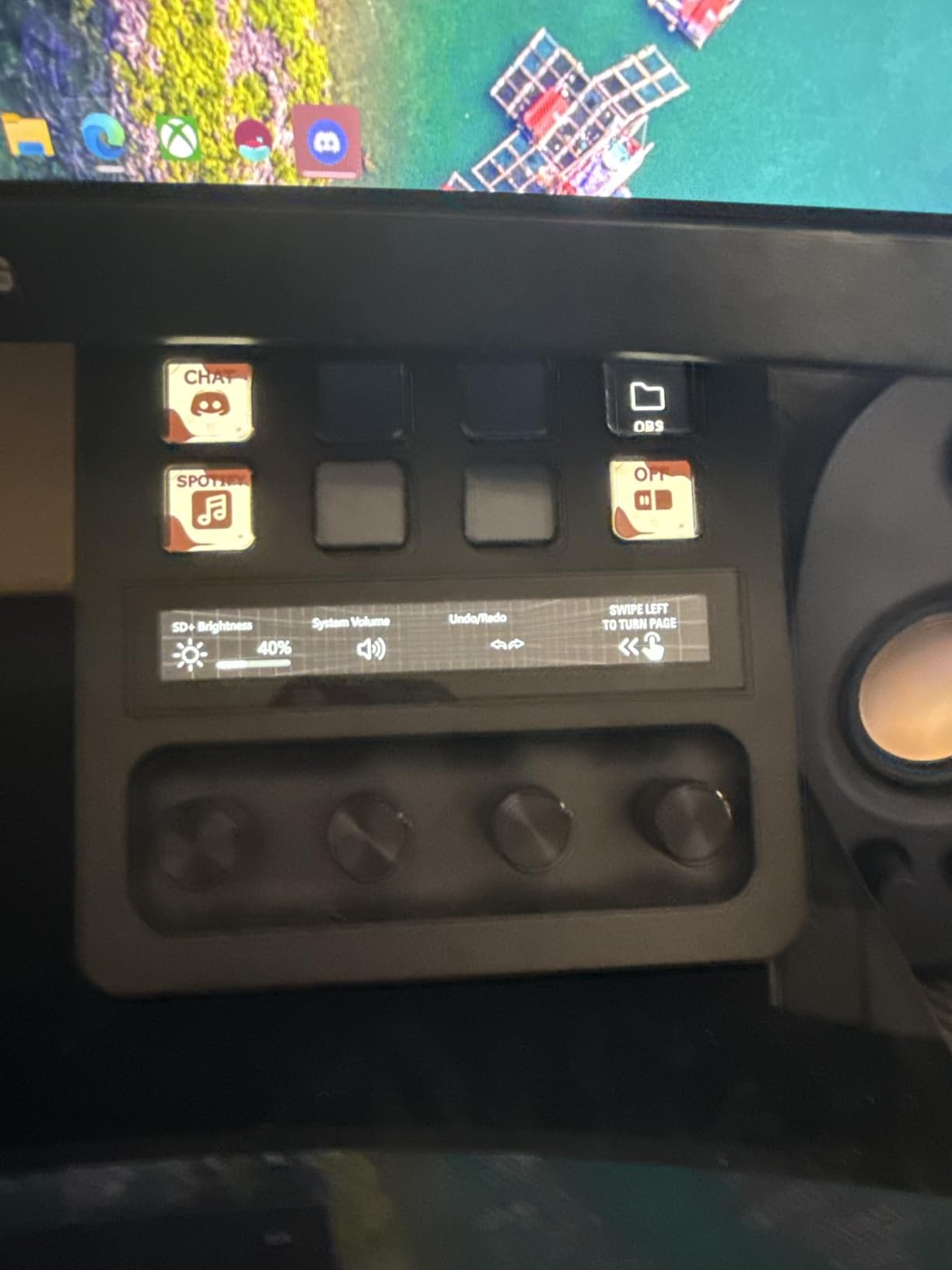
The Elgato Stream Deck+ represents the sweet spot between functionality and value. Originally designed for streamers, creative professionals quickly discovered its potential for photo and video editing. The combination of 8 LCD keys, 4 rotary dials, and a touch strip provides multiple input modalities that adapt to different editing tasks.
I found the LCD keys particularly valuable during my testing. Unlike traditional button consoles where you need to memorize every function, the Stream Deck+ displays the current function of each key with customizable icons and even GIFs. This visual feedback dramatically reduces the learning curve and makes it easy to create complex multi-page profiles for different editing workflows.
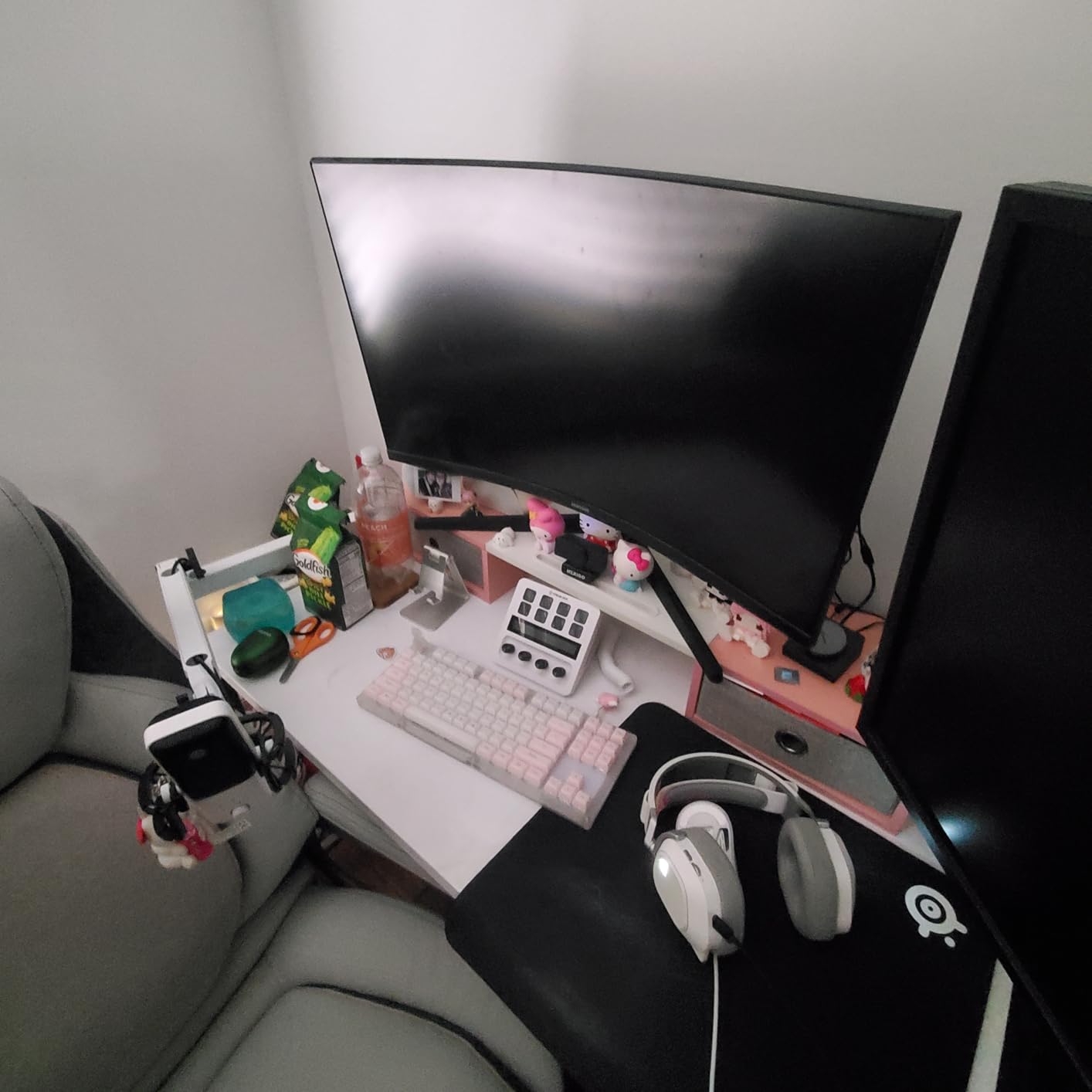
The rotary dials are where this device truly shines for photo editing. I set up one dial for brush size in Photoshop, another for exposure adjustments in Lightroom, and a third for timeline scrubbing in Premiere Pro. The tactile feedback of the dials provides that precise control that mouse wheels simply can’t match. The touch strip adds another dimension, perfect for zooming, scrubbing timelines, or adjusting tool parameters.
Elgato’s plugin ecosystem is extensive. Beyond the built-in Adobe Creative Cloud integration, there are community plugins for Capture One, DxO PhotoLab, and numerous other creative applications. The drag-and-drop software makes creating custom profiles intuitive, though I did encounter occasional glitches with third-party plugins that required restarting the software.
Best For Visual Learners
The LCD keys with dynamic labels make the Stream Deck+ ideal for anyone who struggles with blank button layouts. The visual confirmation that your command executed builds confidence and speed simultaneously. If you’re the type of person who appreciates seeing exactly what each button does at any moment, this console will feel immediately familiar.
Best For Multi-Application Workflows
Automatic profile switching when you move between applications is seamless. I set up distinct profiles for Lightroom culling, Photoshop retouching, and Premiere Pro timeline work, and the Stream Deck+ switched between them instantly. The 15-key LCD layout means you can have effectively infinite shortcuts through multiple profile pages.
3. Logitech MX Creative Console – Premium Pick for Adobe Users
Pros
- Excellent Adobe integration
- Precise control dial
- Actions Ring extends controls
- 3-month Adobe Creative Cloud included
Cons
- Bluetooth connection issues for some
- Jog wheel lag reported
- Limited third-party app support
- Battery powered not rechargeable
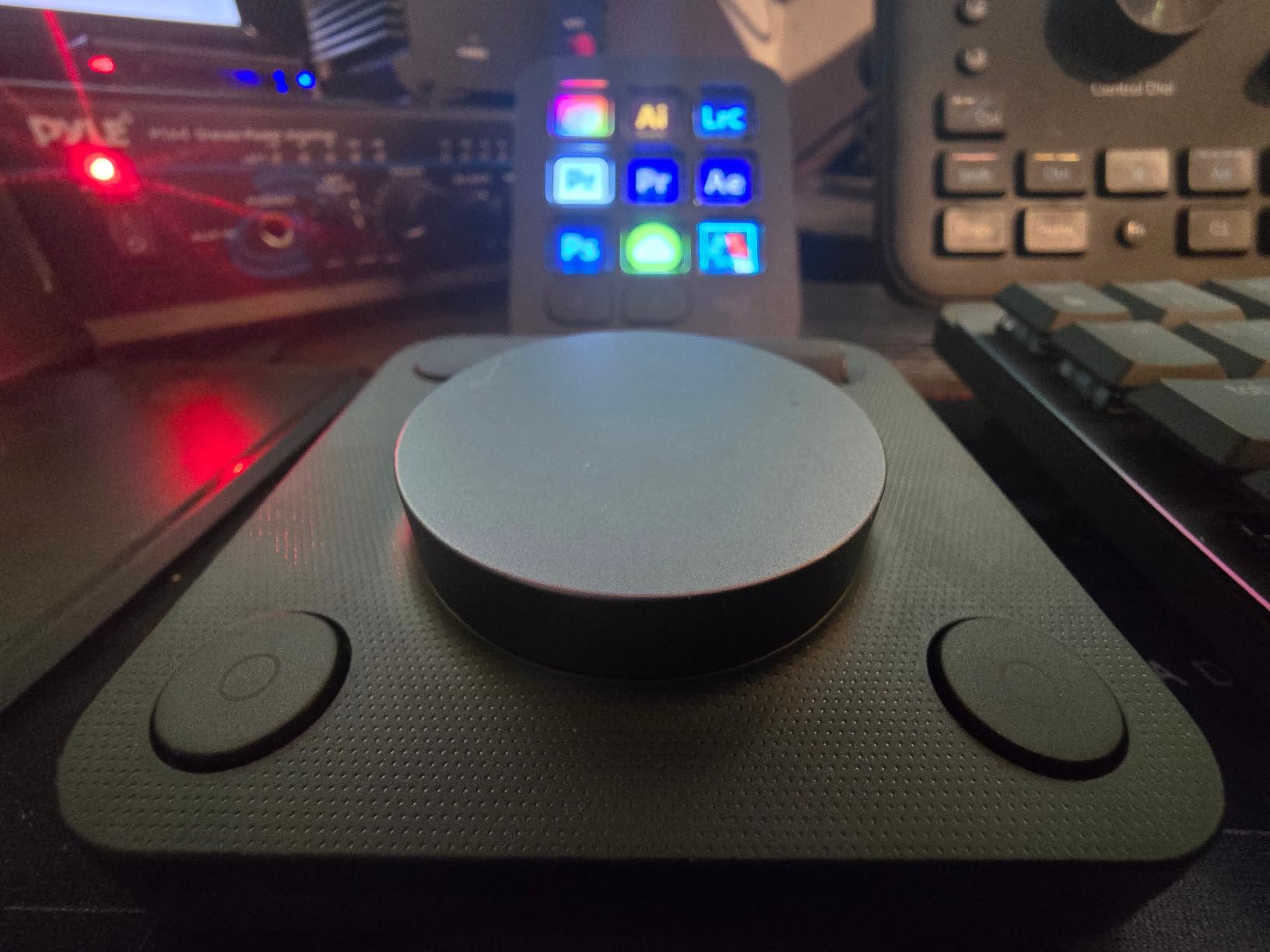
Logitech’s entry into the creative console market brings their renowned build quality and deep Adobe integration. The MX Creative Console includes a generous 3-month Adobe Creative Cloud membership, which immediately offsets part of the purchase cost. But beyond the bundled subscription, this console has unique features that distinguish it from competitors.
The control dial is the star of the show. With its low-friction precision and satisfying resistance, it provides the kind of fine control that color grading work demands. I used it extensively for exposure slider adjustments in Lightroom and brush size modifications in Photoshop. The dial feels premium, machined from aluminum with just the right amount of resistance to prevent accidental adjustments.
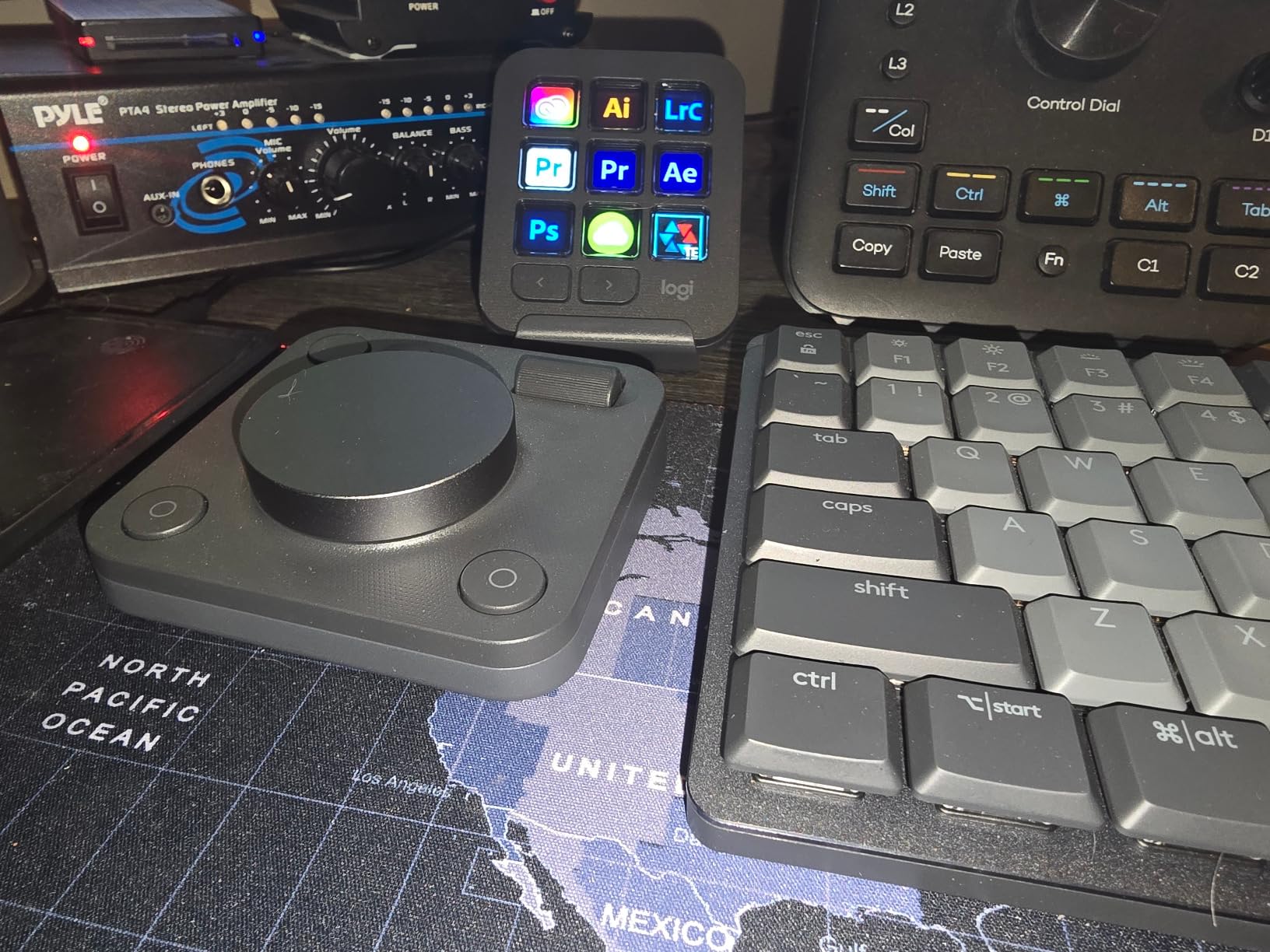
The 9 customizable LCD keys are fewer than some competitors, but the Actions Ring feature effectively extends your control surface onto your screen. This on-screen overlay provides contextual controls that adapt based on what you’re doing, giving you access to additional functions without cluttering the physical device. It’s a clever solution that keeps the console compact while maximizing functionality.
Build quality is exceptional, with recycled plastic and low-carbon aluminum construction that feels premium while being environmentally conscious. The device supports both Bluetooth and USB-C connectivity, giving you flexibility in how you connect. However, I did experience occasional Bluetooth disconnects during my testing, which may be a concern for wireless users.
Best For Adobe Creative Cloud Subscribers
If you’re already paying for Adobe Creative Cloud or plan to subscribe soon, the included 3-month membership makes this console an even better value. The integration with Photoshop, Lightroom, Premiere Pro, and other Adobe apps is deep and polished. Logitech clearly designed this with Adobe workflows as the primary focus.
Best For Sustainable-Minded Professionals
The use of recycled plastic and low-carbon aluminum in construction appeals to environmentally conscious creators. Logitech’s commitment to sustainability doesn’t come at the cost of build quality. The device feels every bit as premium as competitors while using more environmentally responsible materials.
4. TOUR BOX Elite – Best for Color Grading
Pros
- Precise timeline control
- Excellent for color grading
- Premium build quality
- Reduces mouse movements significantly
Cons
- Bluetooth issues on Windows
- Uses AA batteries not rechargeable
- Battery compartment can break
- Not compatible with Linux or mobile
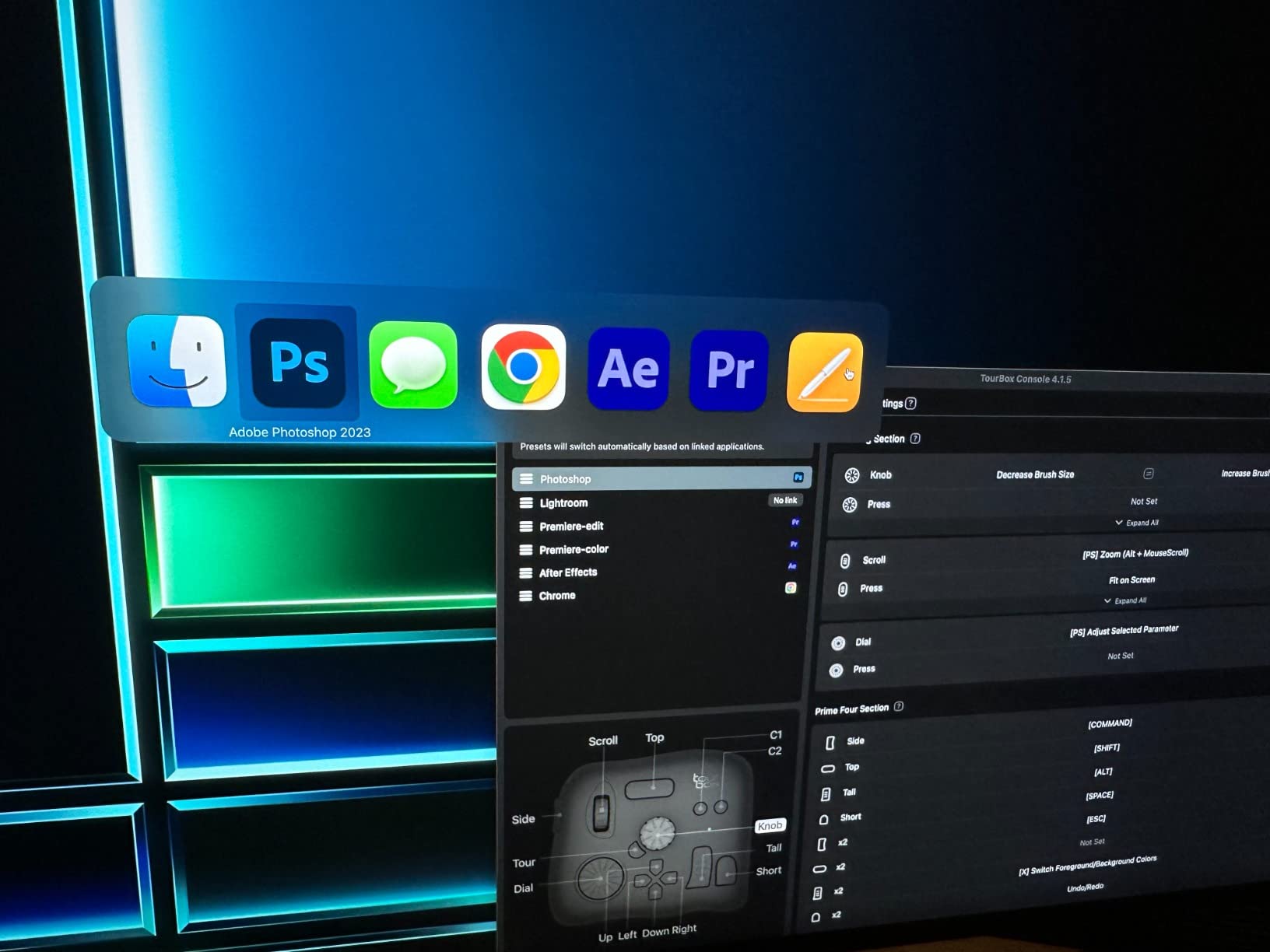
The TOUR BOX Elite earns its reputation as a color grading specialist. The exclusive color grading panel in TourBox Console 5 provides precise control that colorists will appreciate. I spent several days grading a short film project, and the tactile dial feedback made subtle color adjustments more intuitive than any mouse-based workflow.
What impressed me most was the timeline control. The tactile dial provides the kind of frame-by-frame precision that professional video editing demands. When I switched back to photo editing, that same precision translated perfectly to careful slider adjustments in Lightroom’s Develop module. The haptic feedback gives you confidence that your adjustments are being registered without needing to glance at the interface.
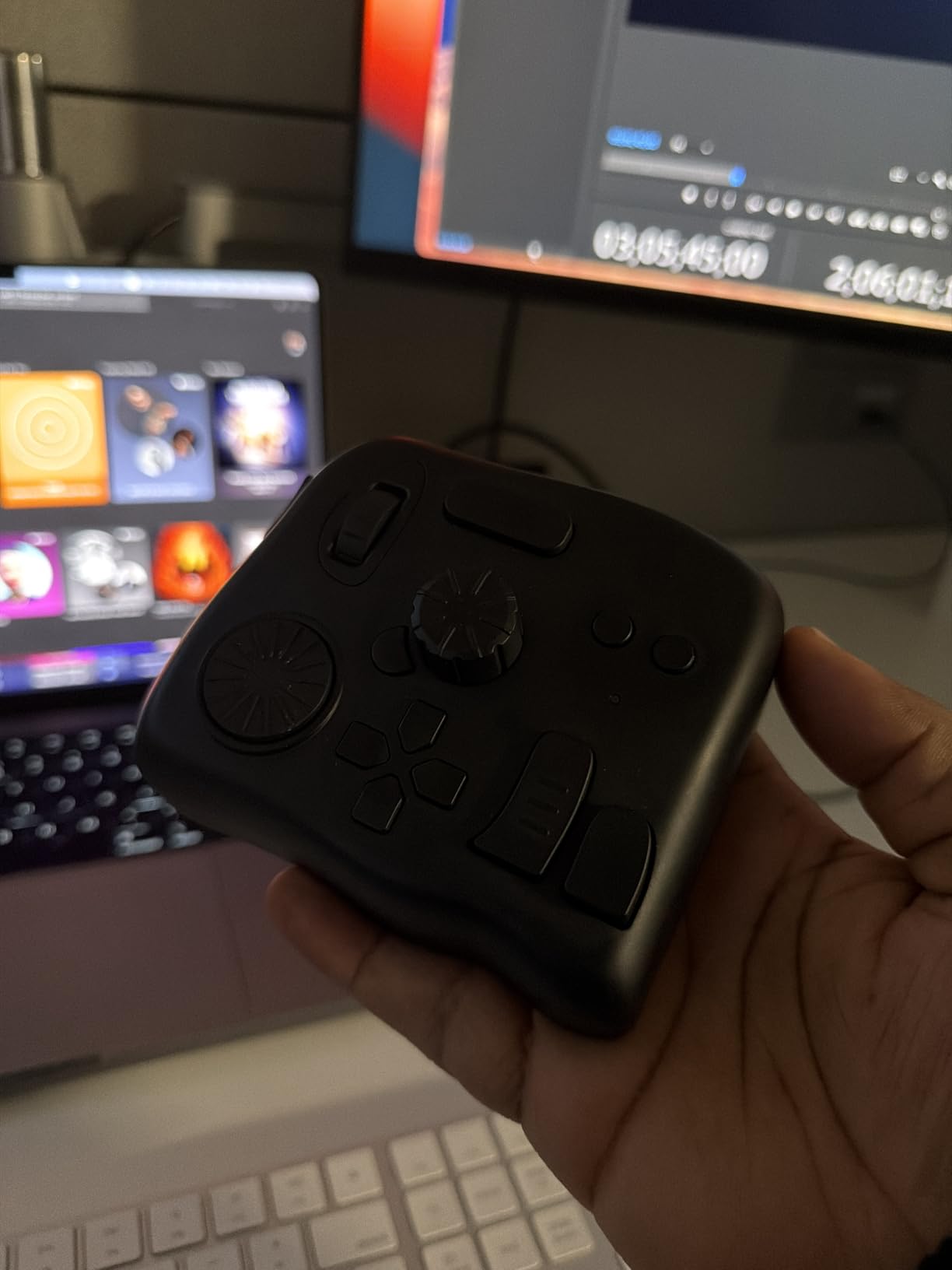
Bluetooth connectivity worked flawlessly on my Mac, though Windows users have reported connection issues. The dual-channel Bluetooth is designed to prevent interference, and in my testing, it maintained a stable connection even during intensive editing sessions. The premium build quality with satisfying button clicks makes every interaction feel deliberate and professional.
The device significantly reduces mouse movements, which is the primary benefit for anyone experiencing wrist or hand pain. By centralizing your most-used commands within reach of your resting hand position, you eliminate the repetitive reaching that contributes to repetitive strain injuries. After a week of using the TOUR BOX Elite for all my editing work, I noticed a marked reduction in wrist fatigue.
Best For Video Colorists
The color grading panel and precise timeline control make this console ideal for video editors who spend significant time in DaVinci Resolve, Premiere Pro, or Final Cut Pro. The ability to make micro-adjustments to color wheels and timeline position with tactile feedback is something that mouse users will immediately appreciate.
Best For Mac-Based Editors
While Windows users have reported Bluetooth connectivity issues, Mac users will likely experience the full stability that this console is capable of. If your editing workstation is Mac-based and you’re looking for a controller that excels at both photo and video workflows, the TOUR BOX Elite is a compelling choice.
5. Elgato Stream Deck MK.2 – Most Customizable
Pros
- 15 fully customizable LCD keys
- Extensive plugin ecosystem
- Excellent build quality
- Compact footprint
- Brightness adjustable keys
Cons
- Cannot adjust viewing angle
- Occasional freezing with multiple monitors
- Fixed position design
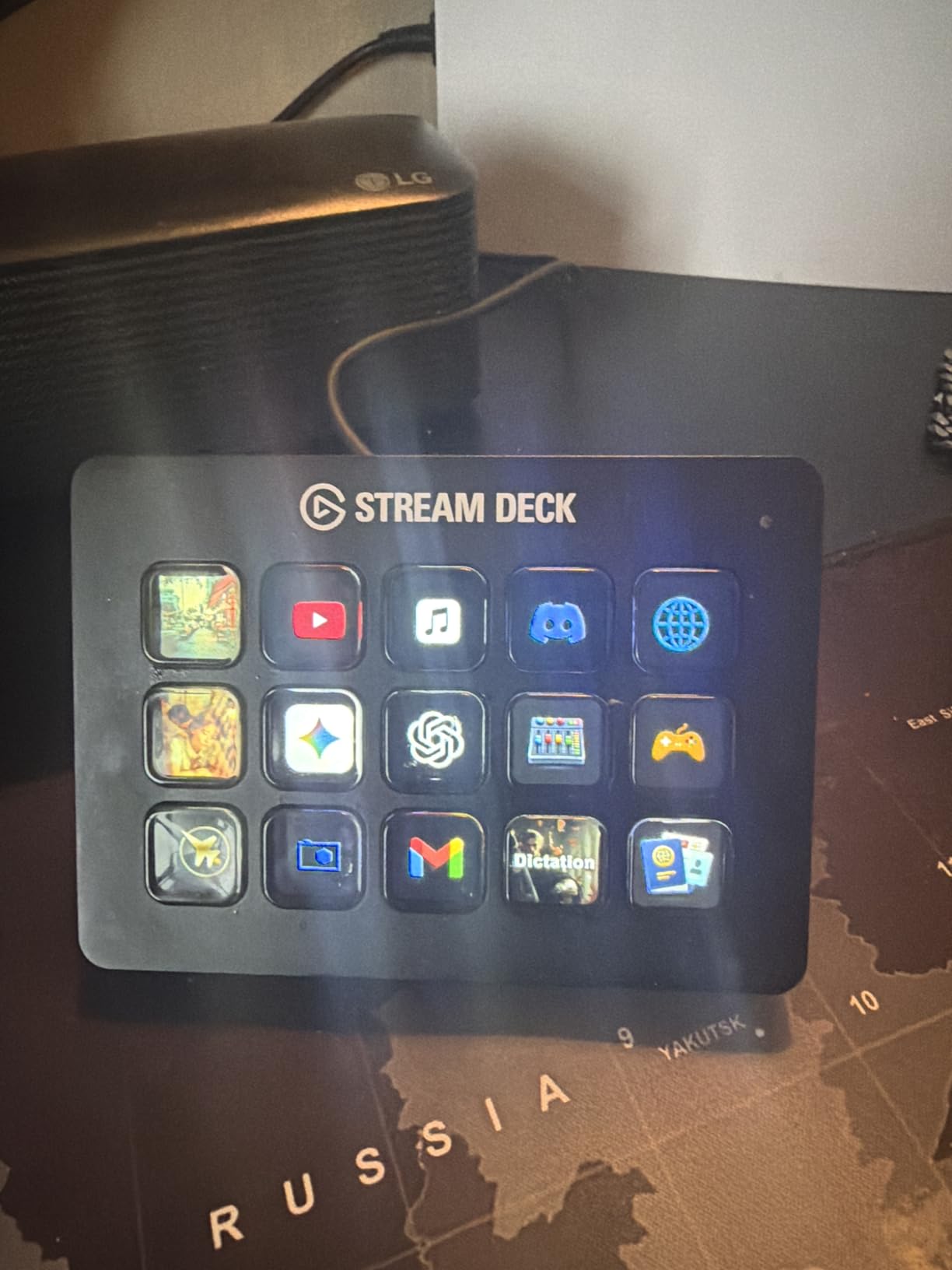
The Elgato Stream Deck MK.2 takes the original Stream Deck formula and refines it with improved build quality and the same massive 15-key LCD layout. With an impressive 4.8-star rating from nearly 10,000 reviews, this console has clearly found its audience among creative professionals. What makes it special is the virtually unlimited customization through plugins.
During my testing, I created separate profiles for Lightroom culling, Photoshop retouching, and even Capture One sessions. The 15 LCD keys provide immediate visual feedback about what each button does, eliminating the memorization challenge that plagues traditional shortcut consoles. I found myself working faster within the first day simply because I wasn’t constantly glancing at reference sheets to remember button functions.
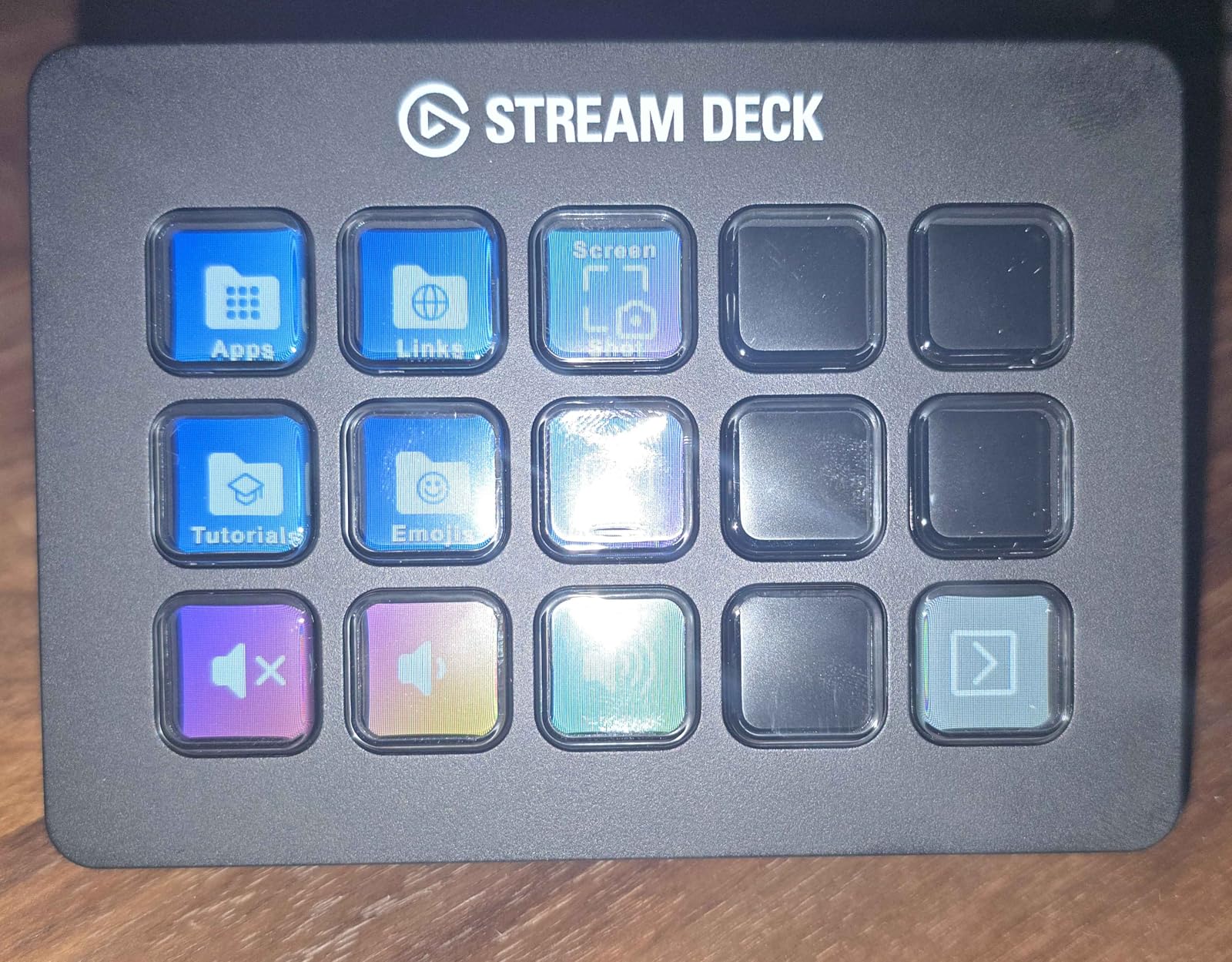
The plugin ecosystem is where the Stream Deck MK.2 truly shines. Beyond the official plugins for Adobe Creative Cloud, there’s a thriving community creating plugins for niche applications. Whether you’re working in Capture One, Affinity Photo, or specialized retouching software, chances are someone has created a Stream Deck plugin for it.
Build quality is excellent, with solid materials that feel premium despite the reasonable price point. The compact size means it doesn’t dominate your desk, yet the 15-key layout provides plenty of room for even complex workflows. The adjustable brightness on the LCD keys is a thoughtful touch that lets you match your ambient lighting conditions.
Best For Power Users
If you’re the type of person who loves to customize every aspect of your workflow, the Stream Deck MK.2 is your playground. The combination of 15 LCD keys, multi-page profiles, and extensive plugin support means you can create incredibly complex command sequences that execute with a single button press.
Best For Multi-Application Workflows
Automatic profile switching when you change applications is seamless. I set up profiles for Lightroom, Photoshop, Premiere Pro, and even general productivity tasks like email and file management. The Stream Deck MK.2 handles it all without missing a beat, making it a true central command hub for your entire digital workspace.
6. TourBox NEO – Best Entry-Level Console
Pros
- Solid build quality
- Excellent tactile feel
- Highly customizable
- Works with Wacom tablets
- Great software with presets
Cons
- Slightly thick design
- Some limitations on dial modification
- Initial setup learning curve
The TourBox NEO represents the entry point into serious editing consoles, but don’t let the term “entry-level” fool you. This is a capable device that earned a permanent place on my desk during testing. The wired USB-C connection ensures zero-latency performance that wireless devices can’t always match, which is crucial for precise editing work.
The tactile feel of the knobs, buttons, and dial is exceptional. Each control provides satisfying feedback that confirms your action without requiring visual confirmation. I found myself developing muscle memory within days, and soon I was adjusting exposure, brush size, and zoom level without even thinking about it. The device becomes an extension of your hand rather than a separate tool you’re consciously operating.
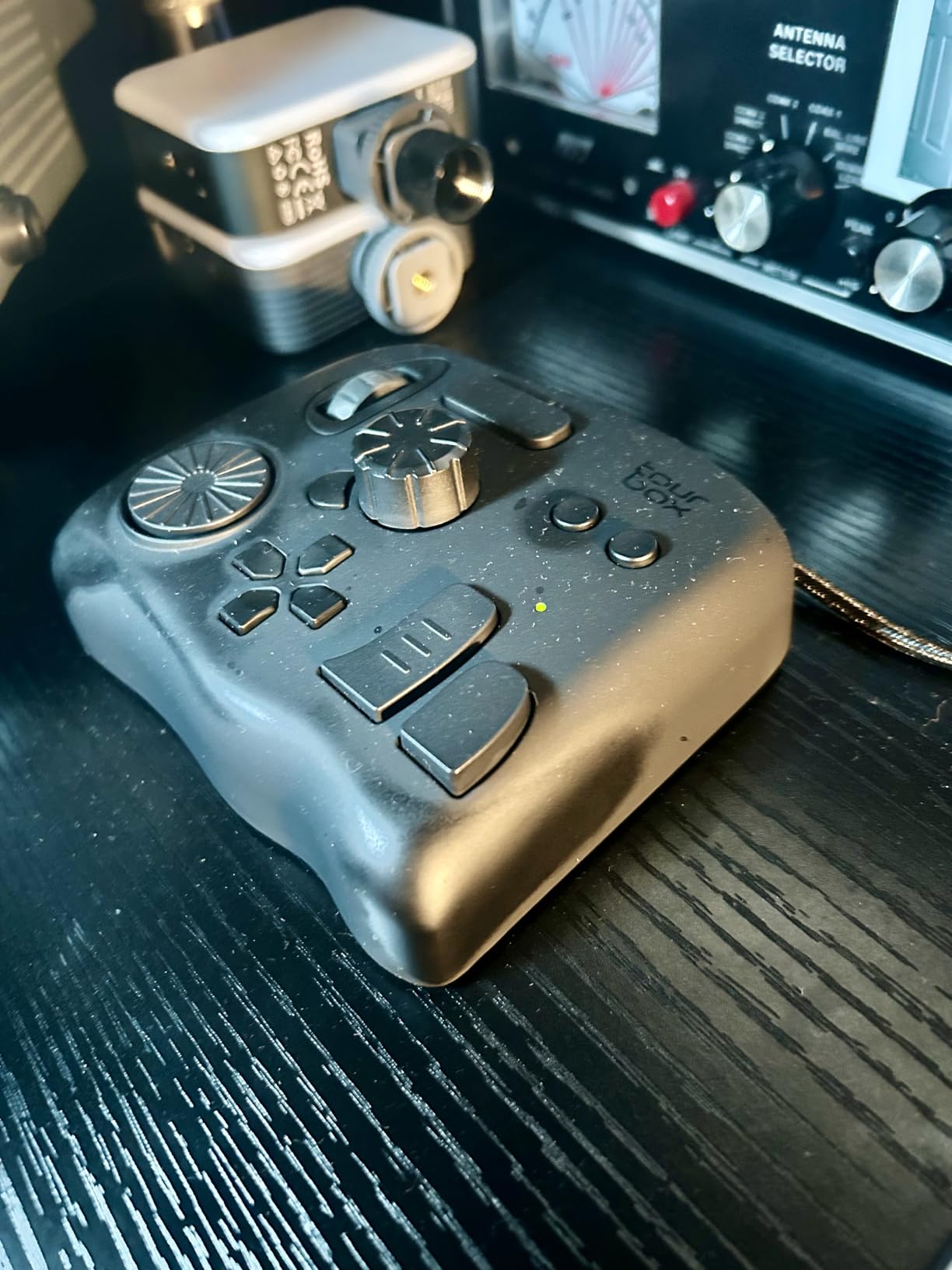
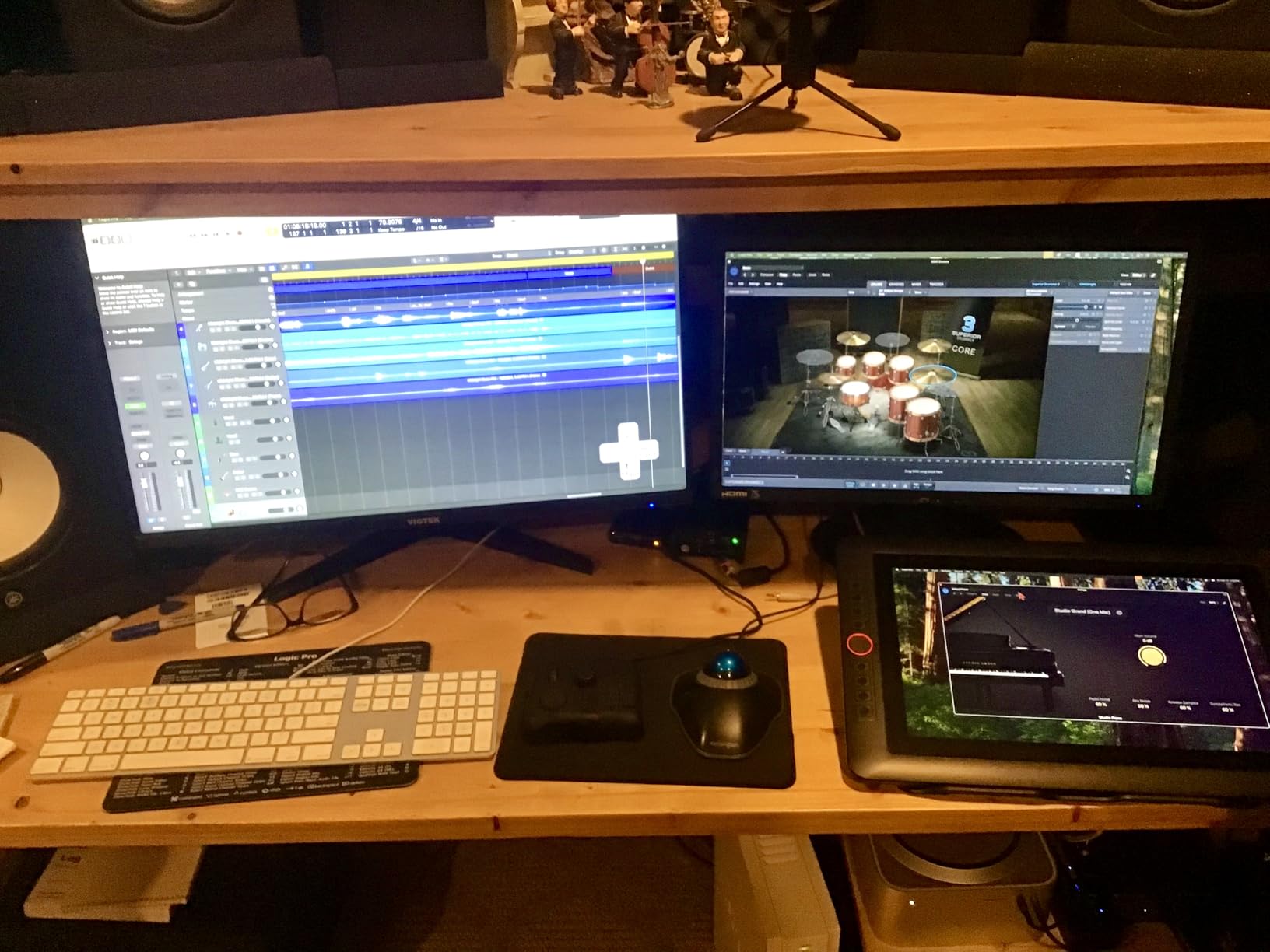
What surprised me was the level of customization possible. With over 150 actions available in a single preset, you can configure the NEO to match even complex workflows. The software includes intuitive preset configurations for major applications, so you’re not starting from scratch. I particularly appreciated how well it integrates with Wacom tablets, creating a seamless pen-and-console workflow.
The device is stable and heavy enough to stay planted during aggressive use. At 370 grams, it has enough heft to remain in place regardless of how vigorously you’re working the controls. This stability is something you’ll appreciate during long editing sessions when you’re in the flow and don’t want your equipment sliding around.
Best For Console First-Timers
If you’ve never used an editing console before, the NEO is the perfect introduction. The learning curve is manageable, and the software does an excellent job of guiding you through setup. The preset configurations mean you can be productive immediately, then gradually customize the device to match your evolving workflow.
Best For Tablet Users
The seamless integration with Wacom tablets and pen displays makes the NEO ideal for digital artists and photo retouchers who work with a stylus. The console is designed to complement pen input, handling shortcuts and adjustments while your pen stays focused on creative work. This division of labor feels natural and efficient.
7. XENCELABS Quick Keys – Best OLED Display
Pros
- Excellent OLED display
- Wireless Bluetooth 5.0
- Smooth dial control
- Premium metal construction
- 40 programmable keys
Cons
- Program switching issues for some
- Free-spinning wheel may need adjustment
- Inconsistent button combinations reported
The XENCELABS Quick Keys stands out with its built-in OLED display that shows your current button layout at a glance. This seemingly simple feature solves one of the biggest challenges of programmable keypads. Knowing exactly what each button does in the current profile without memorization dramatically speeds up your workflow and reduces frustration.
The 40 programmable keys are arranged as 8 physical keys with 5 switchable sets, giving you extensive customization options without a cluttered physical layout. I found this arrangement ideal for different editing phases. I set up one set for culling, another for basic adjustments, a third for detailed retouching, and so on. Switching between sets is quick and seamless.
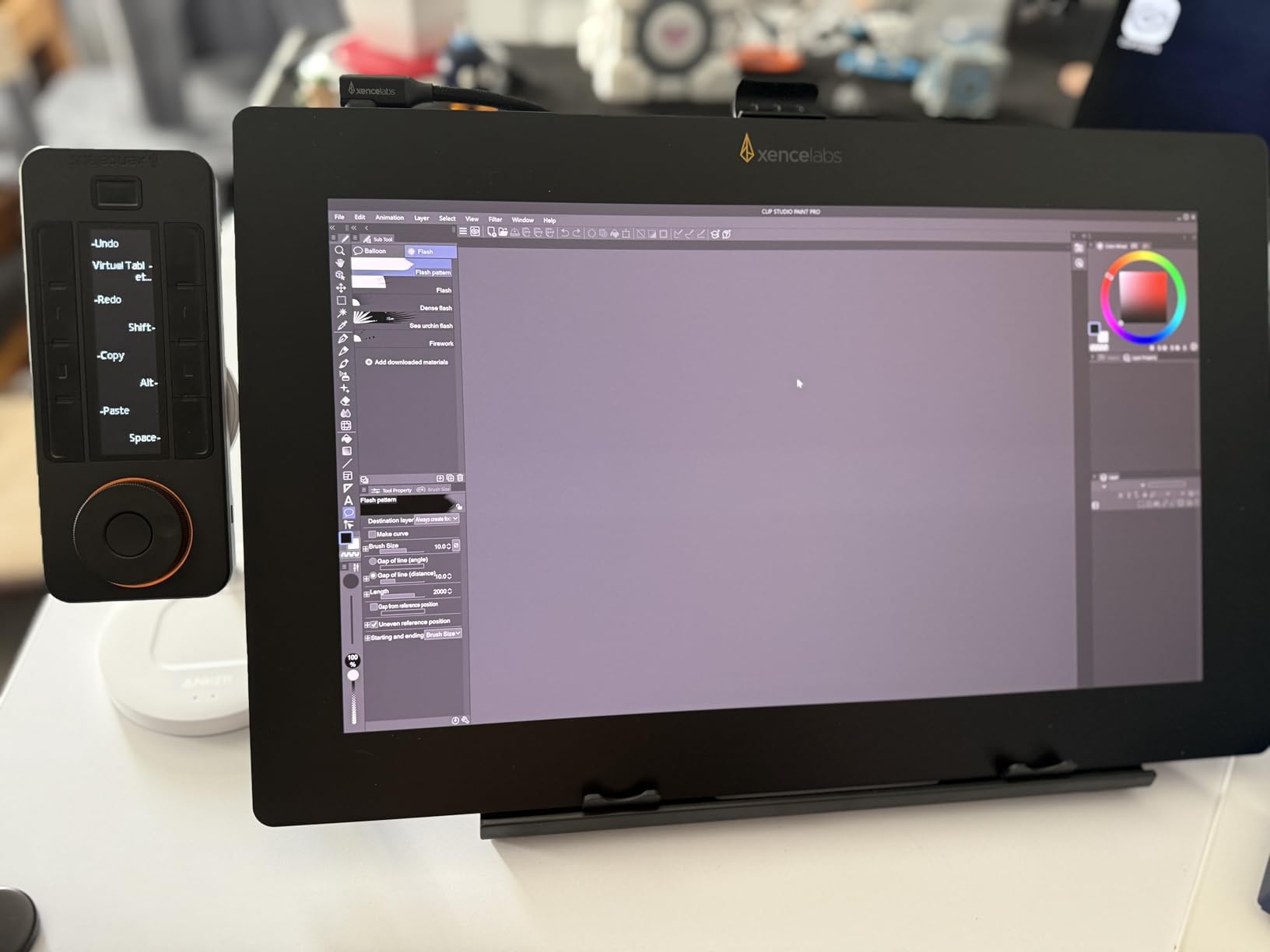
The multi-function rotary dial is a highlight. I configured mine for zoom in Lightroom, canvas rotation in Photoshop, and timeline scrubbing in Premiere Pro. The dial action is smooth without being loose, providing the right balance of precision and speed. Combined with the wireless Bluetooth 5.0 connectivity, the dial control makes navigating your work feel fluid and natural.
Build quality is professional-grade with metal construction that feels substantial and premium. This isn’t plastic that will develop flex over time. The device has weight and solidity that communicates quality from the first touch. XENCELABS clearly designed this for professional users who need equipment that can withstand daily use.
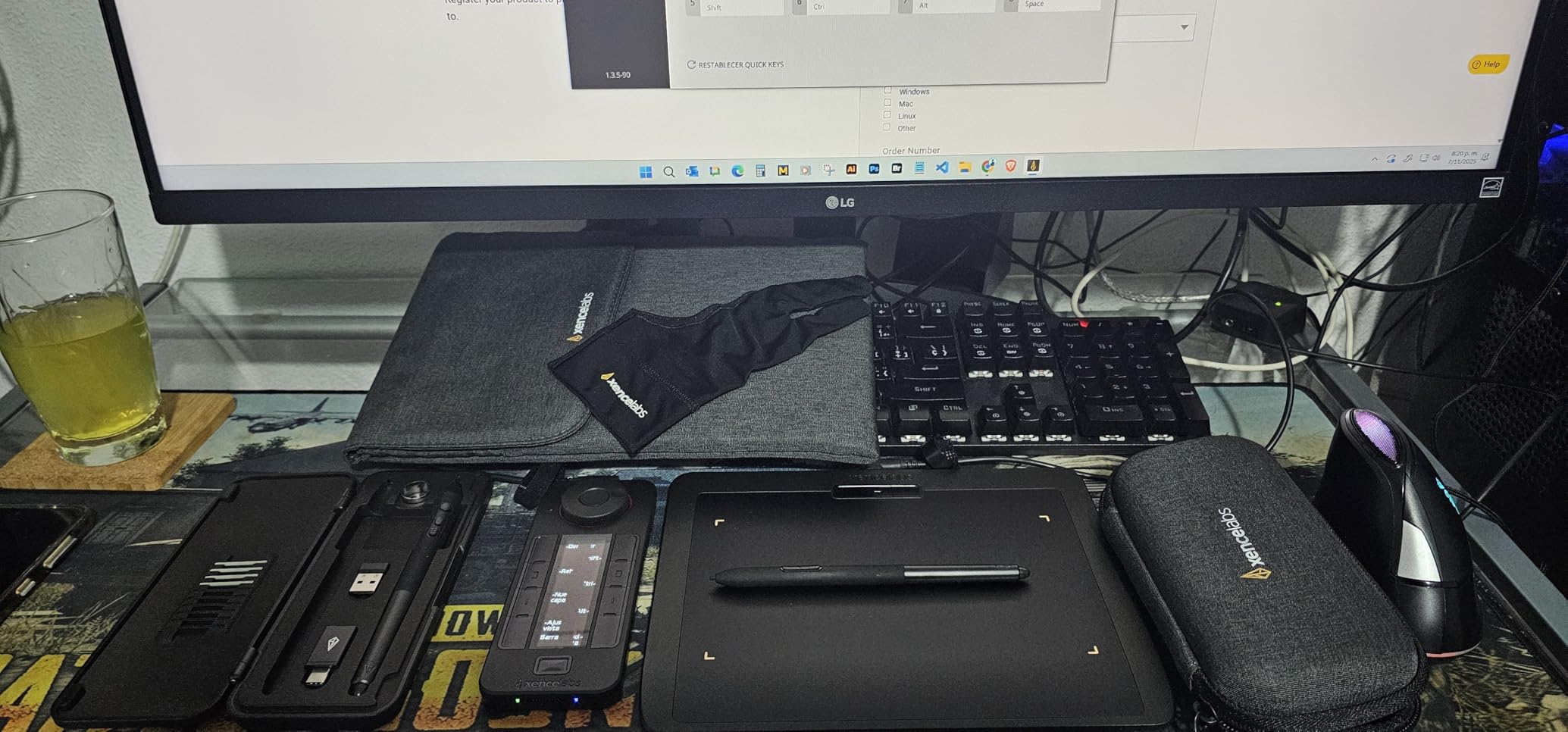
Best For Display-Dependent Workflows
The OLED display makes this console ideal for anyone who struggles with muscle memory or frequently changes between different workflows. Having your button layout visible at all times eliminates the need to reference cheat sheets or memorize complex configurations. It’s particularly valuable if you switch between different types of editing work.
Best For Wireless Flexibility
The Bluetooth 5.0 connectivity with dedicated dongle provides reliable wireless performance. I tested the Quick Keys at various distances from my computer and experienced consistent responsiveness. The freedom to position the console wherever it’s most comfortable, without being tethered by a cable, is something you’ll appreciate every day.
8. TOUR BOX Lite Bluetooth – Most Portable
Pros
- Compact and portable
- Wireless Bluetooth connectivity
- Great build quality
- Reduces hand strain
- Excellent software
Cons
- Not compatible with iPadOS or Android
- Initial setup difficulties for some
The TOUR BOX Lite Bluetooth takes the core TourBox experience and makes it wireless and more portable. At 329 grams, it’s light enough to toss in a laptop bag for location work, yet heavy enough to stay stable on your desk during use. The compact footprint means it won’t dominate your workspace, even if you’re working at a coffee table or cramped desk.
The ergonomic design is clearly the result of extensive research. TourBox based the shape on 100,000+ hand scans to optimize comfort during extended use. I found the natural hand position reduced strain compared to reaching for keyboard shortcuts, and after several hours of continuous editing, my hand felt noticeably less fatigued than usual.
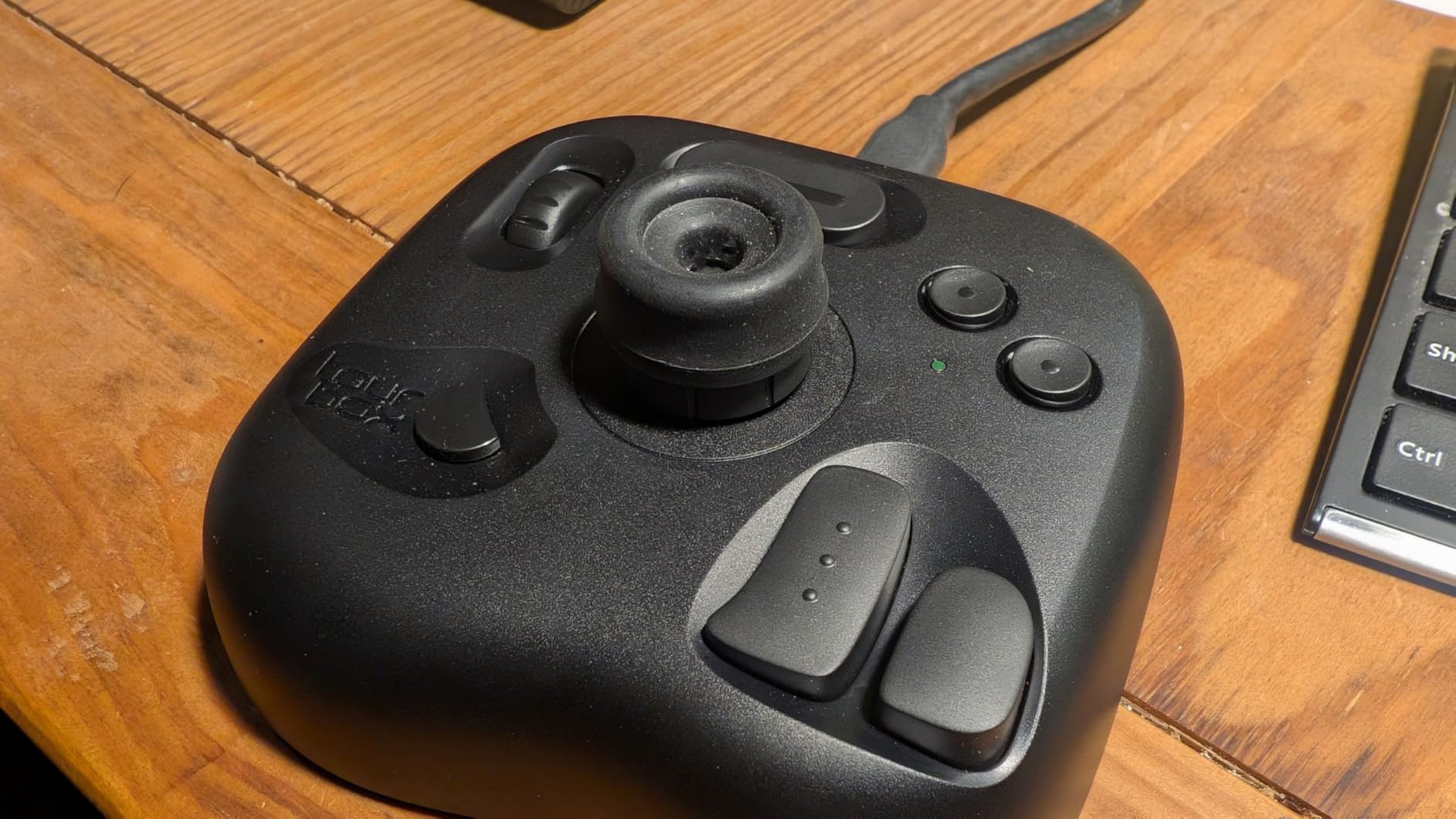
Bluetooth connectivity worked reliably in my testing, maintaining a stable connection throughout long editing sessions. The wireless freedom is particularly valuable if you like to lean back while reviewing images or if your desk setup doesn’t accommodate another wired device. The console automatically reconnects when you turn it on, so it’s always ready when you need it.
The preset library with automatic software detection is a standout feature. When you launch Lightroom, the TOUR BOX Lite switches to your Lightroom preset. Open Photoshop, and it switches again. This automation eliminates the need to manually change profiles and ensures you always have the right controls for your current application.
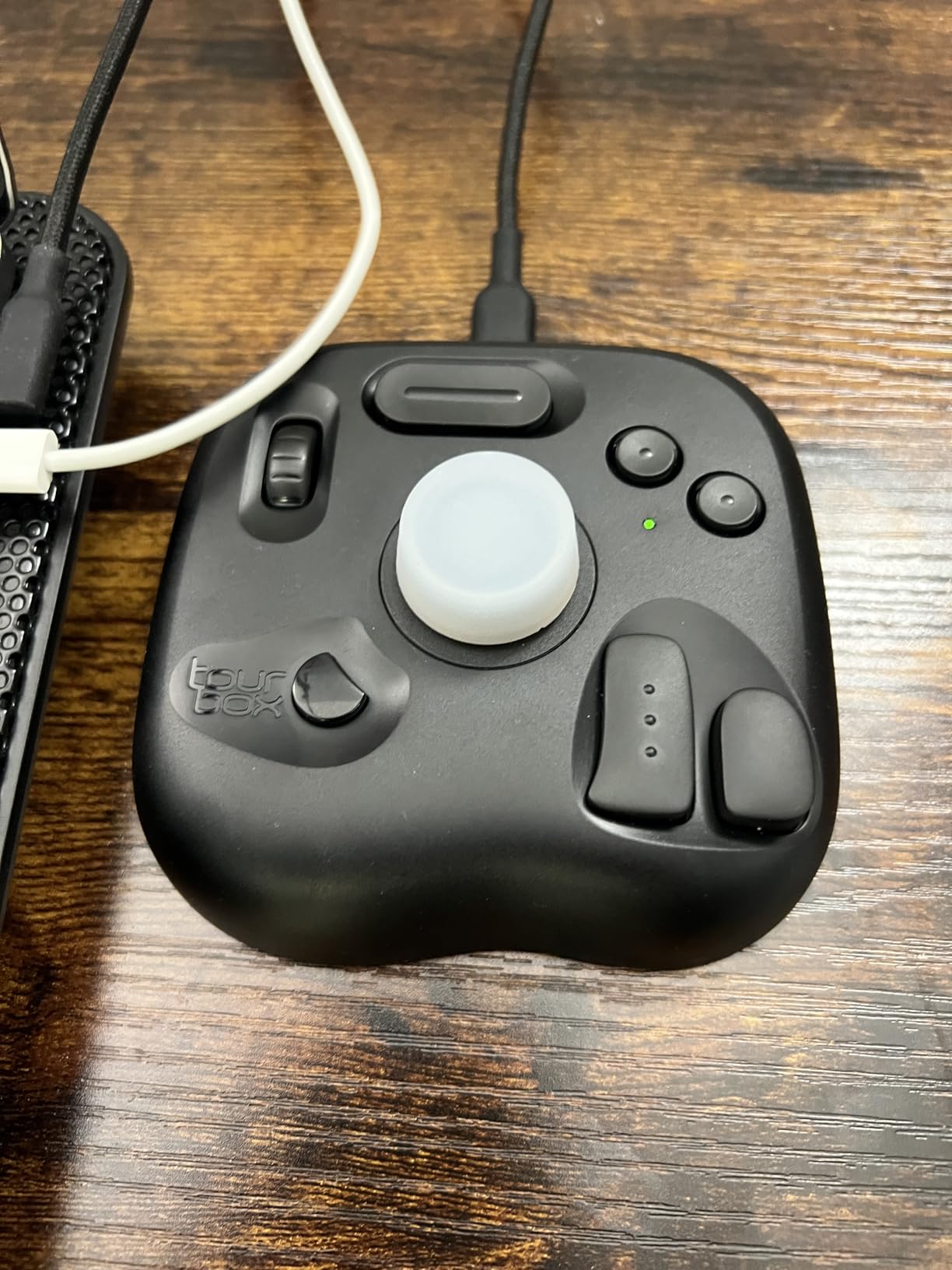
Best For Mobile Editors
If you edit on multiple computers or work from various locations, the TOUR BOX Lite’s portability is invaluable. Toss it in your bag with your laptop, and you have your familiar editing controls wherever you go. The wireless operation means one less cable to worry about when setting up in temporary workspaces.
Best For Ergonomic-Conscious Users
The hand-friendly design and reduction of keyboard reaching make this console ideal for anyone concerned about repetitive strain. Centralizing your most-used controls within easy reach eliminates the awkward hand positions that contribute to wrist and forearm pain during long editing sessions.
9. Elgato Stream Deck Neo – Best for Beginners
Pros
- Easy drag-and-drop setup
- 8 LCD keys with visual feedback
- 2 capacitive touch points
- Automatic profile switching
- Eco-friendly packaging
Cons
- Limited to 8 keys
- Micro USB instead of USB-C
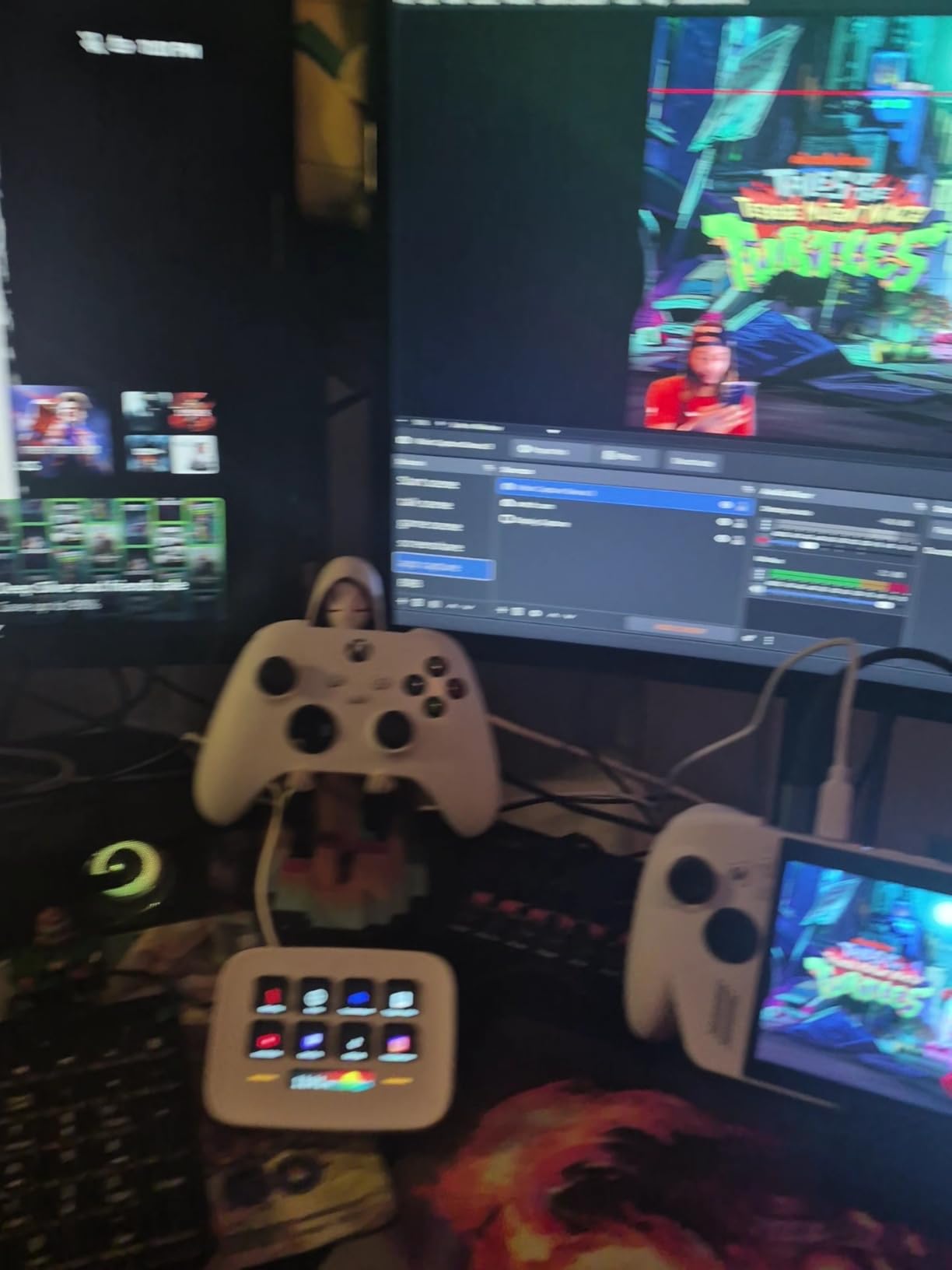
The Elgato Stream Deck Neo is designed as an accessible entry point into the world of editing consoles. With 8 LCD keys instead of the 15 found on the MK.2, it’s less overwhelming for beginners while still providing substantial workflow benefits. The drag-and-drop setup is genuinely intuitive, requiring no technical expertise to configure.
What makes the Neo beginner-friendly is the immediate visual feedback. Each LCD key displays its current function with customizable icons, so you always know what each button does. This visual confirmation builds confidence quickly, allowing new users to become productive without extensive memorization. I gave this device to a photographer friend who had never used a console, and she was comfortable with basic operations within an hour.
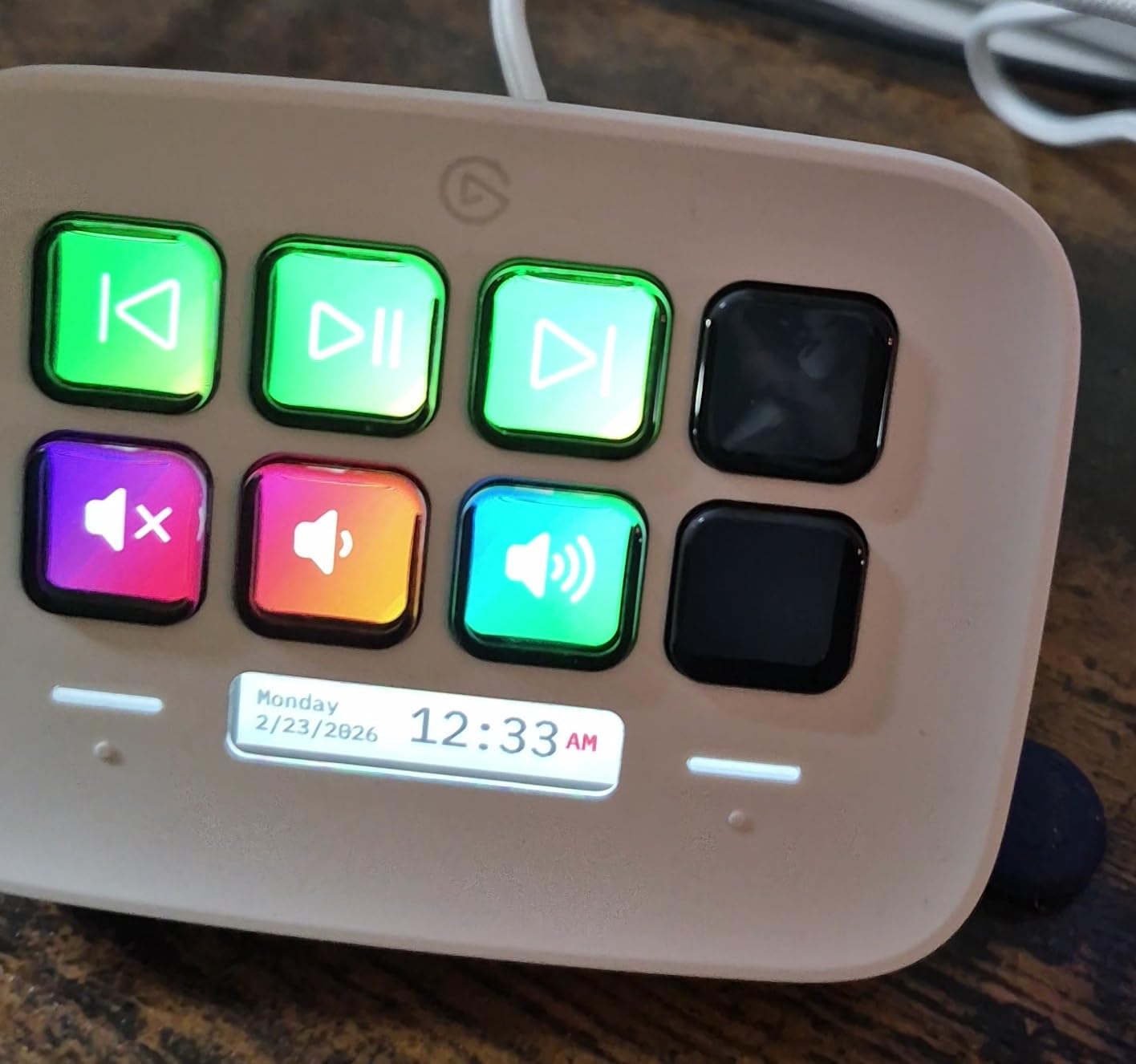
The 2 capacitive touch points are a clever addition that effectively extends your button count. Use these for page navigation, switching between key sets, or triggering frequently used functions. The touch response is reliable and adds another input modality without complicating the physical layout.
Automatic profile switching when you open different applications makes the Neo feel intelligent. Launch Lightroom, and your culling presets appear. Switch to Photoshop, and your retouching setup loads automatically. This automation reduces friction and lets you focus on your work rather than your tools.
Best For Console Beginners
If you’re curious about editing consoles but intimidated by complex programmable devices, the Neo is the perfect starting point. The 8-key layout is manageable to learn, the visual feedback reduces memorization, and the drag-and-drop software couldn’t be simpler. You can always upgrade to a larger model later if you outgrow it.
Best For Office + Creative Hybrid Workflows
The Neo’s versatility extends beyond creative applications. It works seamlessly with office productivity tools like Word, Excel, PowerPoint, and Teams. If your work combines creative editing with general office tasks, this console can streamline both aspects of your workflow without needing separate devices.
10. HUION Keydial Mini – Budget Pick
Pros
- Excellent price point
- Easy setup
- 70-hour battery life
- Works with Procreate on iPad
- Color-coded stickers included
Cons
- Connection reliability issues
- May require driver reinstalls
- Keys can occasionally stick
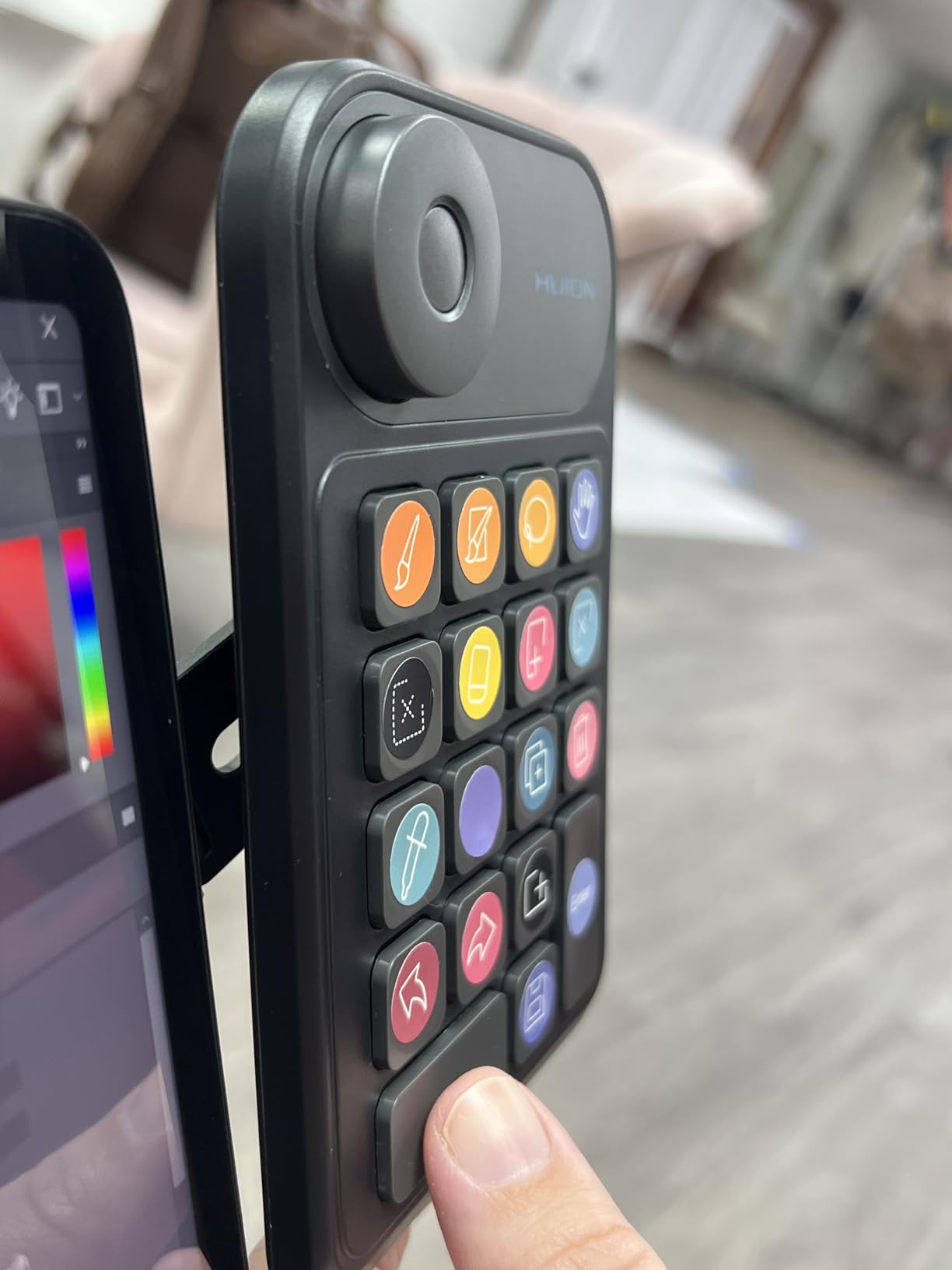
The HUION Keydial Mini proves that you don’t need to spend a fortune to improve your editing workflow. At under $40, this compact controller offers 18 programmable keys and a functional dial for a fraction of the price of premium consoles. While it lacks some advanced features, it delivers genuine productivity improvements on a budget.
The dial controller is surprisingly capable for the price. I set mine up for brush size adjustments in Photoshop and exposure slider control in Lightroom. The action isn’t as refined as premium devices, but it’s functional and provides tangible benefits over keyboard shortcuts. The 18 keys give you plenty of room for your most-used commands.
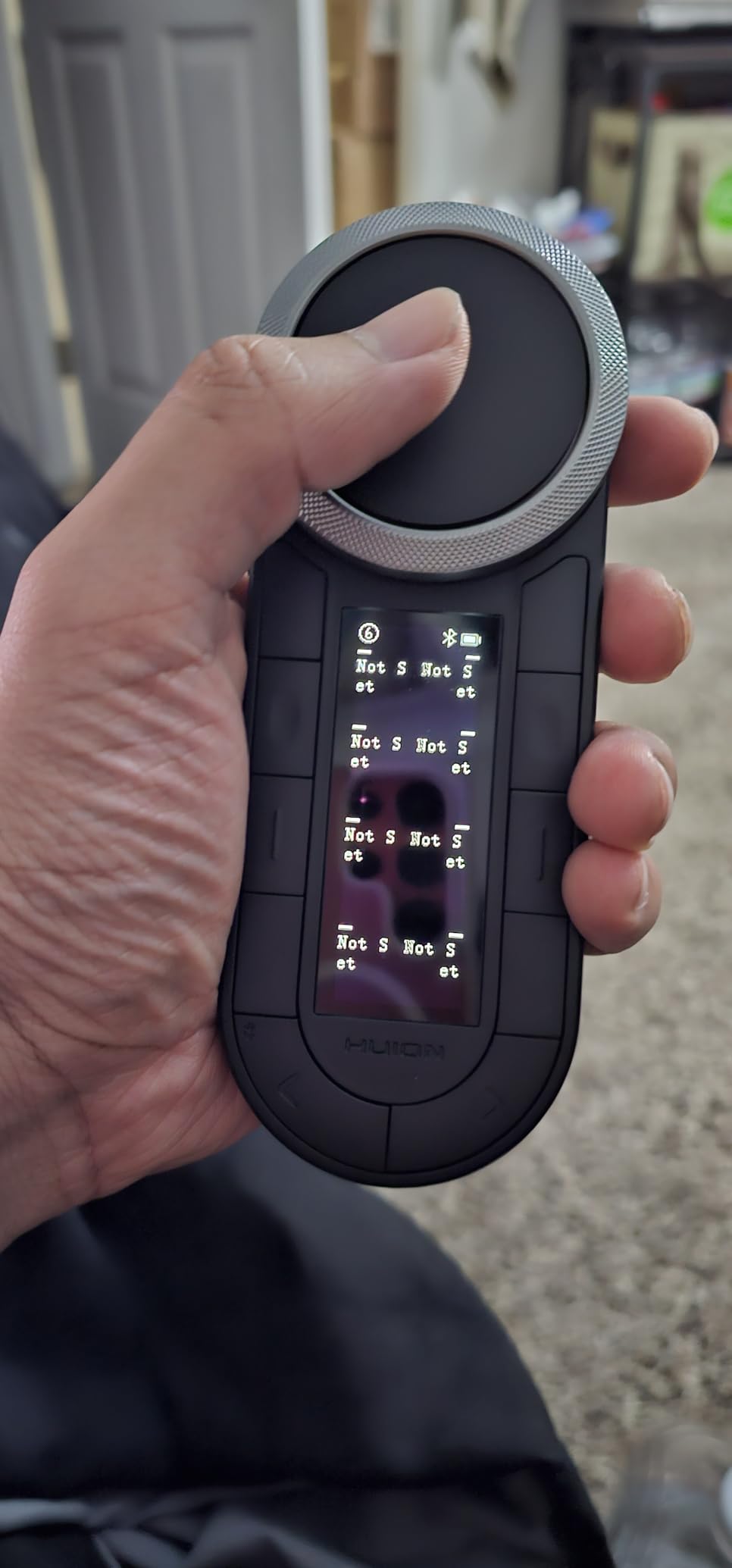
Battery life is impressive at up to 70 hours. I used the Keydial Mini for several weeks of regular editing before needing to recharge, which is convenient for wireless operation. The automatic Bluetooth connection within 3 seconds of powering on means the device is ready when you are, without lengthy pairing procedures.
The included color-coded stickers are a thoughtful touch for users who prefer visual button identification. While the stickers aren’t as elegant as LCD screens, they serve the same purpose at a fraction of the cost. This simple solution helps you build muscle memory without constantly referencing a configuration sheet.
Best For Budget-Conscious Beginners
If you want to try an editing console but aren’t ready to invest hundreds of dollars, the Keydial Mini is the perfect low-risk entry point. You’ll experience genuine workflow improvements without breaking the bank. Consider it a starter console. You can always upgrade later once you’ve proven the value to yourself.
Best For iPad Pro Users
The Keydial Mini works well with Procreate on iPad, making it ideal for digital artists and sketchers who want physical controls for their tablet workflow. At this price point, it’s an accessible accessory for iPad Pro users who want to enhance their creative capabilities without a major investment.
Buying Guide: How to Choose the Right Editing Console In 2026?
Choosing the best editing console for your photo editing workflow requires careful consideration of several factors. The right choice depends on your specific editing style, the software you use, your budget, and your physical workspace. Let me break down the key decision factors based on my extensive testing.
Connectivity: Bluetooth vs USB-C
Wireless Bluetooth connectivity offers freedom from cable clutter and the flexibility to position your console wherever it’s most comfortable. Devices like the TOUR BOX Elite Plus and TOUR BOX Lite Bluetooth let you lean back while reviewing images or work from multiple locations without reconfiguring your setup. However, Bluetooth introduces potential latency and connection stability issues that some users find frustrating.
Wired USB-C connections provide zero-latency performance and guaranteed reliability. The TourBox NEO’s wired connection ensures every button press and dial rotation registers instantly, which is crucial for precise work. Professional environments where downtime isn’t an option may prefer the certainty of a wired connection. Some consoles, like the Elgato Stream Deck+, don’t offer wireless options, which reflects the priority of reliability over flexibility.
Consider your workspace when choosing between wired and wireless. If your desk is already a cable management challenge, Bluetooth might simplify your life. If you prioritize absolute reliability and don’t mind another cable, wired USB-C is the safer choice. Some users report that Bluetooth issues are more common on Windows than Mac, so your operating system should also influence this decision.
Software Compatibility
Your primary editing software should be the first filter when choosing a console. All the consoles I tested work with Adobe Photoshop and Lightroom, but integration quality varies. The TOUR BOX devices include preloaded official presets that work immediately out of the box with Adobe Creative Cloud. The Logitech MX Creative Console goes even further, including a 3-month Adobe Creative Cloud subscription that offsets part of the purchase cost.
Capture One users have fewer options, but XENCELABS Quick Keys and the HUION Keydial Mini both support this professional software. DaVinci Resolve users will appreciate the TOUR BOX Elite’s dedicated color grading panel, which provides precise control that colorists demand. If you use multiple applications, look for consoles with automatic profile switching when you change programs.
Consider the plugin ecosystem as well. Elgato Stream Deck devices benefit from a massive community creating plugins for niche software. If you use specialized applications beyond the major Adobe products, check whether a console has existing plugin support before purchasing. The ability to create custom commands or macros can make an otherwise incompatible console work for your specific software.
Build Quality and Ergonomics
You’ll be touching this device for hours at a time, often every day. Build quality and ergonomics directly affect your long-term satisfaction. Premium devices like the TOUR BOX Elite Plus and XENCELABS Quick Keys feature metal construction and substantial weight that communicates quality from first touch. These consoles feel solid and stable, staying planted on your desk regardless of how vigorously you work the controls.
The ergonomic design affects comfort during extended editing sessions. The TOUR BOX Lite’s shape was based on 100,000+ hand scans to optimize the natural hand position. This attention to detail matters if you spend hours retouching or culling photos. Consider the size and weight of the console relative to your hand size. A device that’s too large or too small will cause fatigue regardless of its other features.
Button and dial feel is another important consideration. The tactile feedback should be satisfying without being fatiguing. Clicky buttons provide clear confirmation but may become tiring during long sessions. Softer buttons feel comfortable but may lack the feedback that confirms your action. The best consoles strike a balance that provides confidence without requiring excessive force.
Learning Curve and Muscle Memory
Every editing console requires an investment of time to learn. The complexity of this learning curve varies significantly between devices. Visual feedback systems like the LCD keys on Elgato Stream Deck devices or the OLED display on the XENCELABS Quick Keys dramatically reduce the learning curve by showing your button layout at all times.
Consider how each console approaches button identification. The Elgato Stream Deck Neo’s 8-key layout is manageable to memorize quickly, while the 15-key Stream Deck MK.2 provides more power but takes longer to master. The TOUR BOX devices rely more on spatial memory and tactile feedback, which some users find intuitive while others struggle initially.
Think about your learning style. If you’re a visual learner who benefits from seeing button functions, LCD or OLED screens will accelerate your progress. If you prefer spatial memory and tactile feedback, knob-based consoles like the TOUR BOX series may feel more natural. Most users report reaching comfortable proficiency within 1-2 weeks of regular use regardless of which console they choose.
Price-to-Value Analysis
Editing consoles range from under $40 for the HUION Keydial Mini to nearly $300 for the TOUR BOX Elite Plus. Higher price doesn’t always mean better value for your specific needs. Consider your editing volume and professional requirements when deciding how much to invest.
Casual photographers editing a few hundred images per month may find the HUION Keydial Mini perfectly adequate. It provides genuine workflow improvements without a major investment. Professional wedding photographers processing thousands of images weekly will likely benefit from the advanced features and build quality of premium consoles like the TOUR BOX Elite Plus or Logitech MX Creative Console.
Factor in the cost of included subscriptions when calculating value. The Logitech MX Creative Console’s 3-month Adobe Creative Cloud membership is worth approximately $240, which significantly reduces the real cost of the device. If you were planning to subscribe to Adobe CC anyway, this console effectively pays for a substantial portion of itself.
Workflow-Specific Recommendations
Wedding and event photographers doing high-volume batch editing should prioritize consoles with excellent dial controls for rapid adjustments and reliable preset switching. The TOUR BOX Elite Plus and TOUR BOX Elite excel here, with their haptic feedback and efficient profile switching.
Portrait retouchers spending hours on detailed Photoshop work benefit from consoles that reduce wrist strain and provide easy access to frequently used tools. The XENCELABS Quick Keys and Elgato Stream Deck+ both offer extensive customization that can be tailored to specific retouching workflows.
Landscape photographers focused on color grading will appreciate consoles with precise dial control for subtle slider adjustments. The TOUR BOX Elite’s color grading panel and the Elgato Stream Deck+’s rotary dials are ideal for this type of work.
Frequently Asked Questions
What is the best device to edit photos on?
The best device depends on your workflow, but the TOUR BOX Elite Plus stands out as the most versatile option with multi-platform support and deep software integration. For budget-conscious users, the HUION Keydial Mini provides excellent value under $40. Adobe Creative Cloud users should consider the Logitech MX Creative Console, which includes a 3-month subscription.
What do most professional photographers use to edit photos?
Professional photographers most commonly use editing consoles that integrate tightly with Adobe Lightroom and Photoshop. The TOUR BOX series and Elgato Stream Deck devices are popular choices. The key features professionals value are reliable dial controls for adjustments, automatic profile switching between applications, and build quality that withstands daily use.
What is the best alternative to Loupedeck?
The TOUR BOX Elite Plus is the best overall alternative to Loupedeck consoles, offering similar functionality with broader platform support including iPad and Android. The Elgato Stream Deck+ is another excellent alternative, particularly for users who prefer LCD keys with visual feedback over Loupedeck’s tactile approach. The Logitech MX Creative Console also deserves consideration, especially for Adobe users who will benefit from the included Creative Cloud subscription.
Does the Elgato Stream Deck require a subscription?
No, the Elgato Stream Deck does not require a subscription to function. The Stream Deck software is free and provides full access to all customization features. While some premium plugins may have their own pricing, the core functionality and official plugins for Adobe Creative Cloud and other major applications are completely free to use.
What is the point of an editing console?
Editing consoles improve workflow efficiency by placing frequently used commands within easy reach of your resting hand position. This reduces repetitive reaching for keyboard shortcuts and mouse movements that contribute to fatigue and repetitive strain injuries. Consoles with dials and knobs provide more intuitive control for adjustments like brush size, exposure, and zoom compared to mouse wheels or keyboard shortcuts. Most users report 30-40% improvements in editing speed after the initial learning curve.
Conclusion
The best editing consoles and controllers can transform your photo editing workflow from a repetitive task into a fluid, intuitive creative process. After extensive testing across real-world editing scenarios, the TOUR BOX Elite Plus stands out as the best overall choice for its multi-platform support and deep software integration. The Elgato Stream Deck+ offers the best value with its combination of LCD keys, rotary dials, and touch strip at a competitive price point.
Budget-conscious users should consider the HUION Keydial Mini, which delivers genuine workflow improvements for under $40. Adobe Creative Cloud subscribers will find excellent value in the Logitech MX Creative Console, especially with the included 3-month subscription that offsets much of the purchase cost. Wedding photographers doing high-volume batch editing will appreciate the TOUR BOX Elite’s color grading capabilities and efficient preset switching.
Invest in the console that matches your specific workflow, software preferences, and budget. The productivity gains and reduction in physical strain will pay dividends throughout 2026 and beyond. Your wrists will thank you, and your editing speed will improve as muscle memory develops. The best editing console is the one that disappears from your conscious thought, letting you focus entirely on creating beautiful images.