
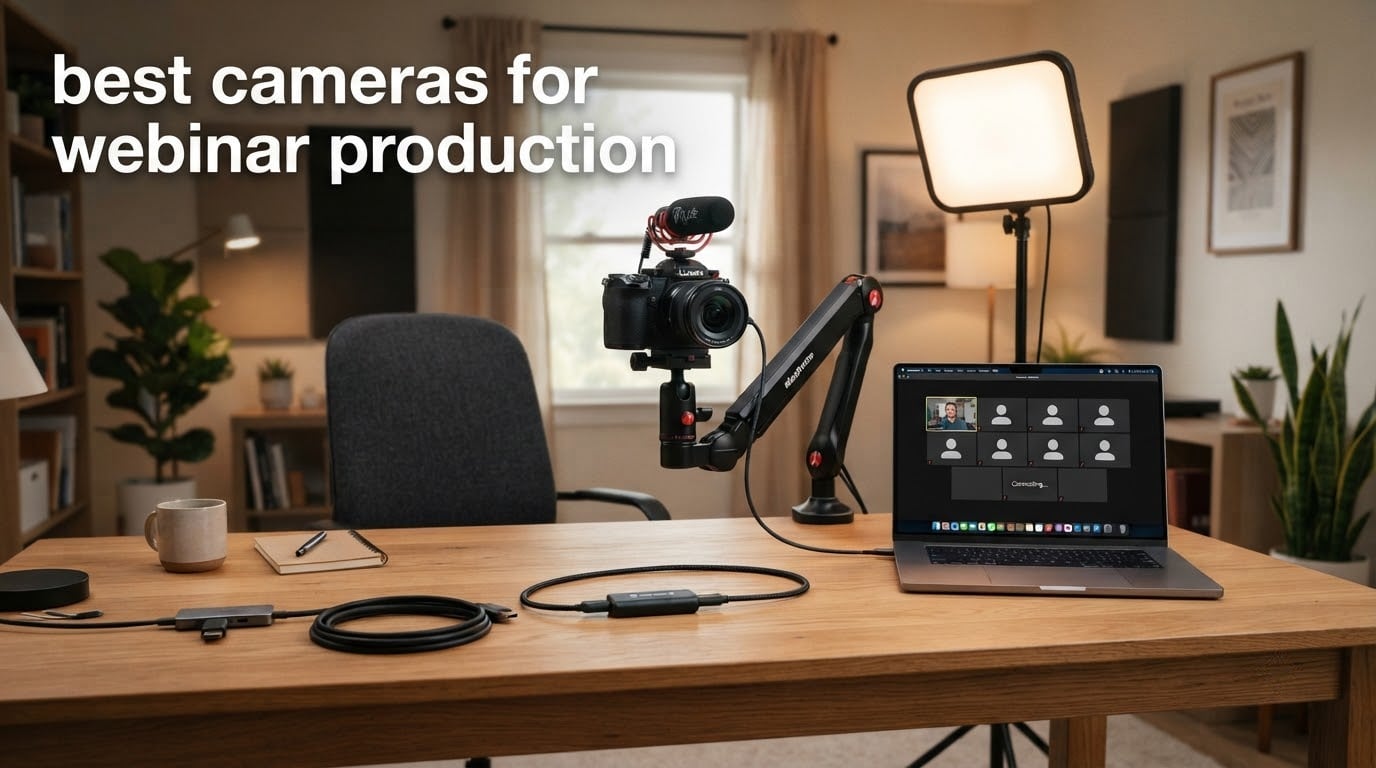
Choosing the best cameras for webinar production is mostly a question of how much signal chain you actually want to manage. A single USB webcam plugs in, shows up as a camera source in Zoom, Teams or OBS, and works. Everything above that tier trades that simplicity for a bigger sensor, manual image control, or the ability to move the camera without moving yourself.
We spent weeks putting these twelve cameras through the same routine: a 60-minute recorded session, a live platform test, and a repurpose pass that cut vertical clips from the raw file. That process exposed the thing the spec sheets never mention. Autofocus behaviour and how a camera handles a badly lit room decide whether you look credible far more often than headline resolution does.
The list below spans the whole range, from a fixed-focus 1080p unit that suits a home office to a 20x optical PTZ camera built for a room. Every entry here is one we would be comfortable pointing a live audience at. If you are still building out a broader video kit, our guides to the best mirrorless cameras for video production and the best cameras for commercial video production cover the bodies that sit further up the chain.
Do You Even Need a Camera for a Webinar?
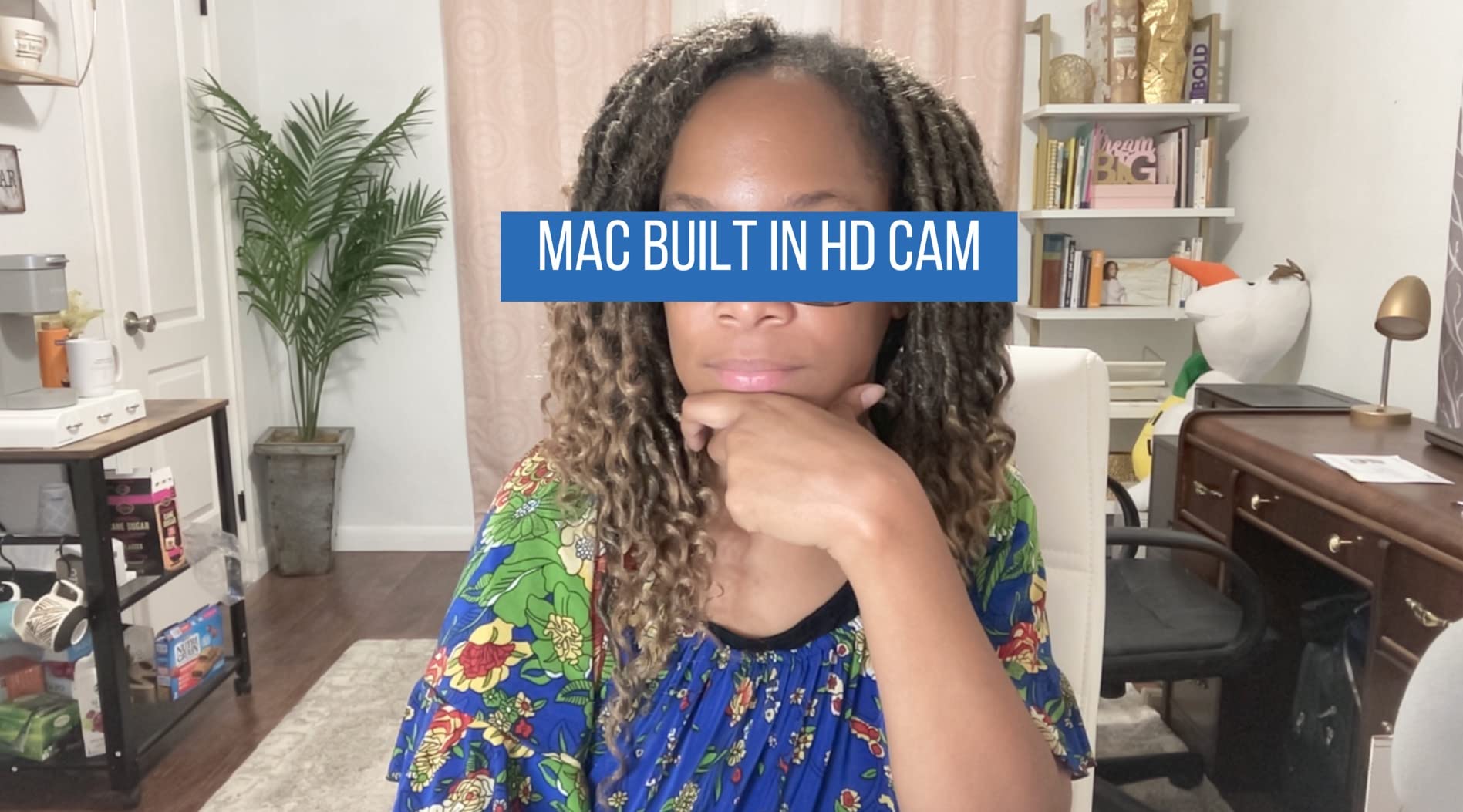
Yes, if you are appearing on camera at all. A webinar camera is any camera, from a basic 1080p USB webcam to a mirrorless body or PTZ unit, that holds a presenter’s image steady and clean for the full 45 to 60 minutes of a session. The laptop’s built-in camera is the one thing nobody should rely on, because its small fixed sensor and aggressive auto-exposure cannot cope with a real room.
What actually matters, in order: autofocus that does not hunt, an image that survives a dim room, manual controls you can lock before you go live, and a field of view that frames you without including the kitchen behind you. Resolution ranks lower. Most platforms compress your feed before it leaves the room, so a 4K sensor that is well exposed beats a 1080p sensor that is not.
Audio outranks all of it. A clean microphone and a quiet room will rescue a mediocre camera far more often than the reverse.
Top 3 Picks for Best Cameras for Webinar Production in September
These three cover the most common scenarios. The C922x is the one we reach for when the session has to be dependable with zero setup time.


All 12 Cameras Compared in 2026
The full lineup, ordered as reviewed. Note how many entries land at 1080p: for a live platform feed, that resolution is the point where extra pixels stop helping.
| Product | Specifications | Action |
|---|---|---|
| Logitech C922x HD Pro PC Webcam |
|
Check Latest Price |
 OBSBOT Meet 2 4K Webcam OBSBOT Meet 2 4K Webcam |
|
Check Latest Price |
| Logitech Brio 101 1080p Webcam |
|
Check Latest Price |
 Angetube 4K Webcam with Ring Light Angetube 4K Webcam with Ring Light |
|
Check Latest Price |
 Logitech C920S HD Pro Webcam Logitech C920S HD Pro Webcam |
|
Check Latest Price |
 DEPSTECH 4K Webcam with Sony Sensor DEPSTECH 4K Webcam with Sony Sensor |
|
Check Latest Price |
 EMEET NOVA 4K Webcam EMEET NOVA 4K Webcam |
|
Check Latest Price |
 EMEET C960 4K Webcam EMEET C960 4K Webcam |
|
Check Latest Price |
 EMEET S600 4K Streaming Webcam EMEET S600 4K Streaming Webcam |
|
Check Latest Price |
 Elgato Facecam MK.2 HDR Webcam Elgato Facecam MK.2 HDR Webcam |
|
Check Latest Price |
 Spedal 920 Pro 120 Degree Webcam Spedal 920 Pro 120 Degree Webcam |
|
Check Latest Price |
 TONGVEO 4K NDI PTZ Camera TONGVEO 4K NDI PTZ Camera |
|
Check Latest Price |
1. Logitech C922x HD Pro – The Dependable Default
Pros
- Sharp 1080p image with natural colours
- HD light correction rescues dim rooms
- Autofocus stays crisp without lag
- Secure monitor clip
- Works with Zoom Teams and Google Meet
Cons
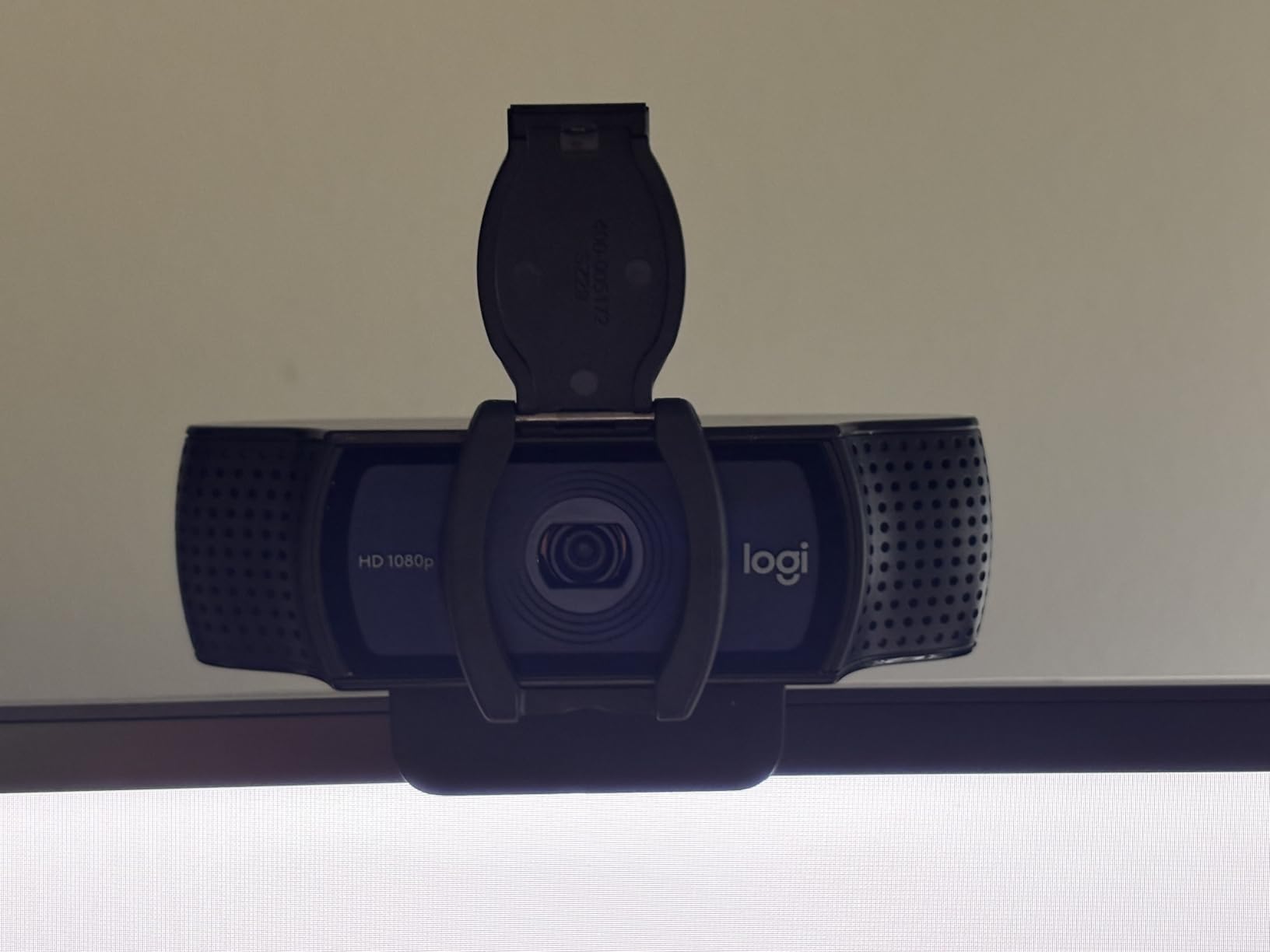
- No built-in privacy shutter
- Exposure can flicker while settling in dark rooms
- Built-in mics are fine for calls but not for production
This is the camera we keep coming back to for recurring sessions. It records 1080p at 30fps or drops to 720p at 60fps, it runs on USB with no driver work on Windows or Mac, and it has been on enough desks that setup time is genuinely zero. After a full hour of recording, the image had not shifted brightness or lost focus once.
The HD light correction is the feature that earns its place. In a home office lit by a single window it lifts the face without turning the background into a grey mush, which is more than most webcam processing manages. Autofocus is fast enough that leaning forward to check notes does not trigger a visible hunt.
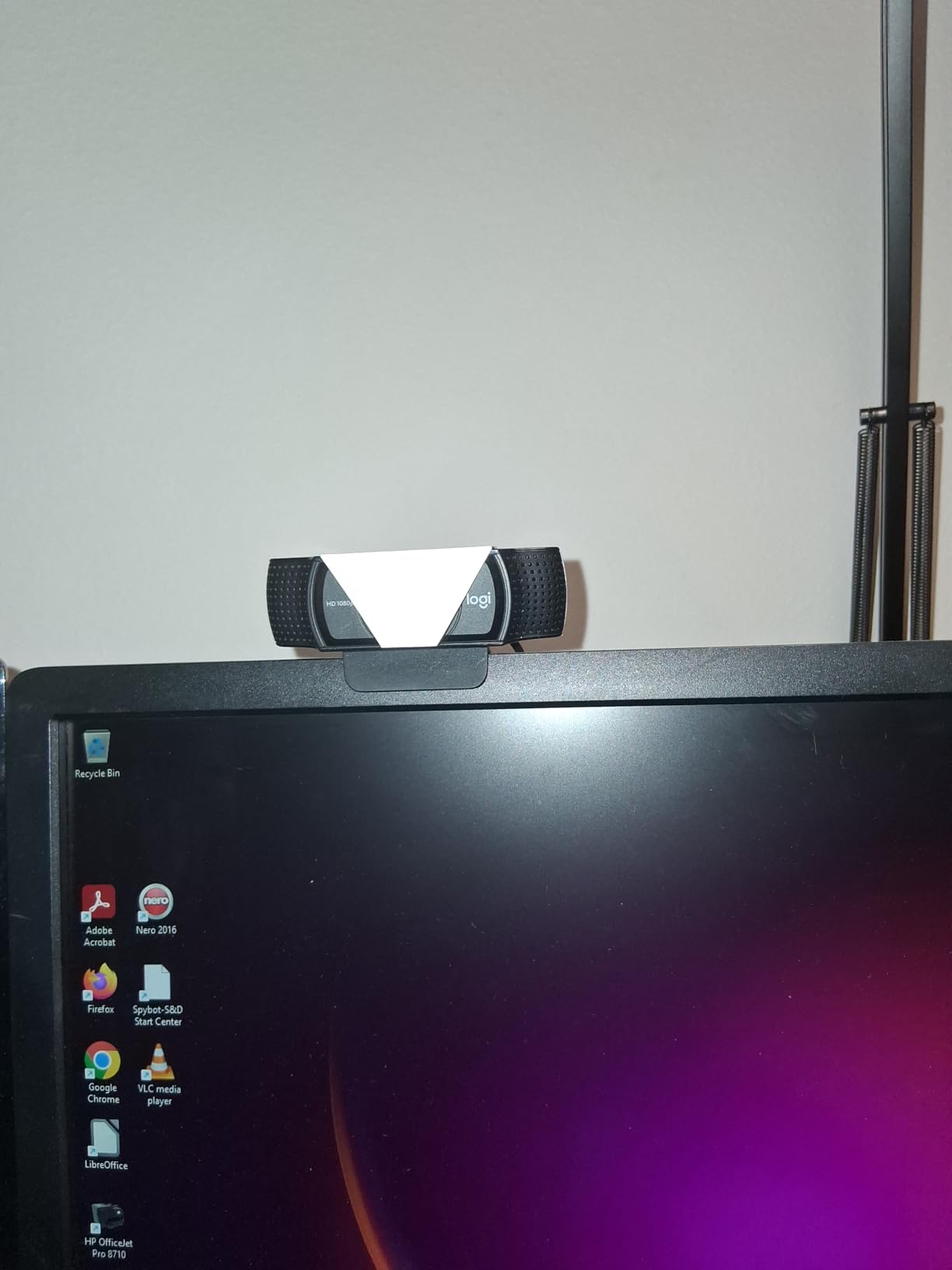
Two things keep it out of the top spot for everyone. There is no privacy shutter, and in a low room the automatic exposure occasionally pulses for the first few seconds before it settles. If you present from a dim corner regularly, either add a light or pre-set your levels, because that settling period is visible to an audience.
The stereo pair of built-in microphones is a bonus rather than a feature. They are clear enough for a short intro segment, and every owner agrees they are not a substitute for a dedicated mic. Logitech bundles a three-month XSplit VCam licence for background removal, though reviewers note it performs far better with an actual green screen behind you.
The 118.6 degree viewing angle is the widest on this list, which is generous for a solo presenter sitting close to the monitor. Just check your framing before you record, because at full width the shot reads as wider than most people expect.
What to check before you commit
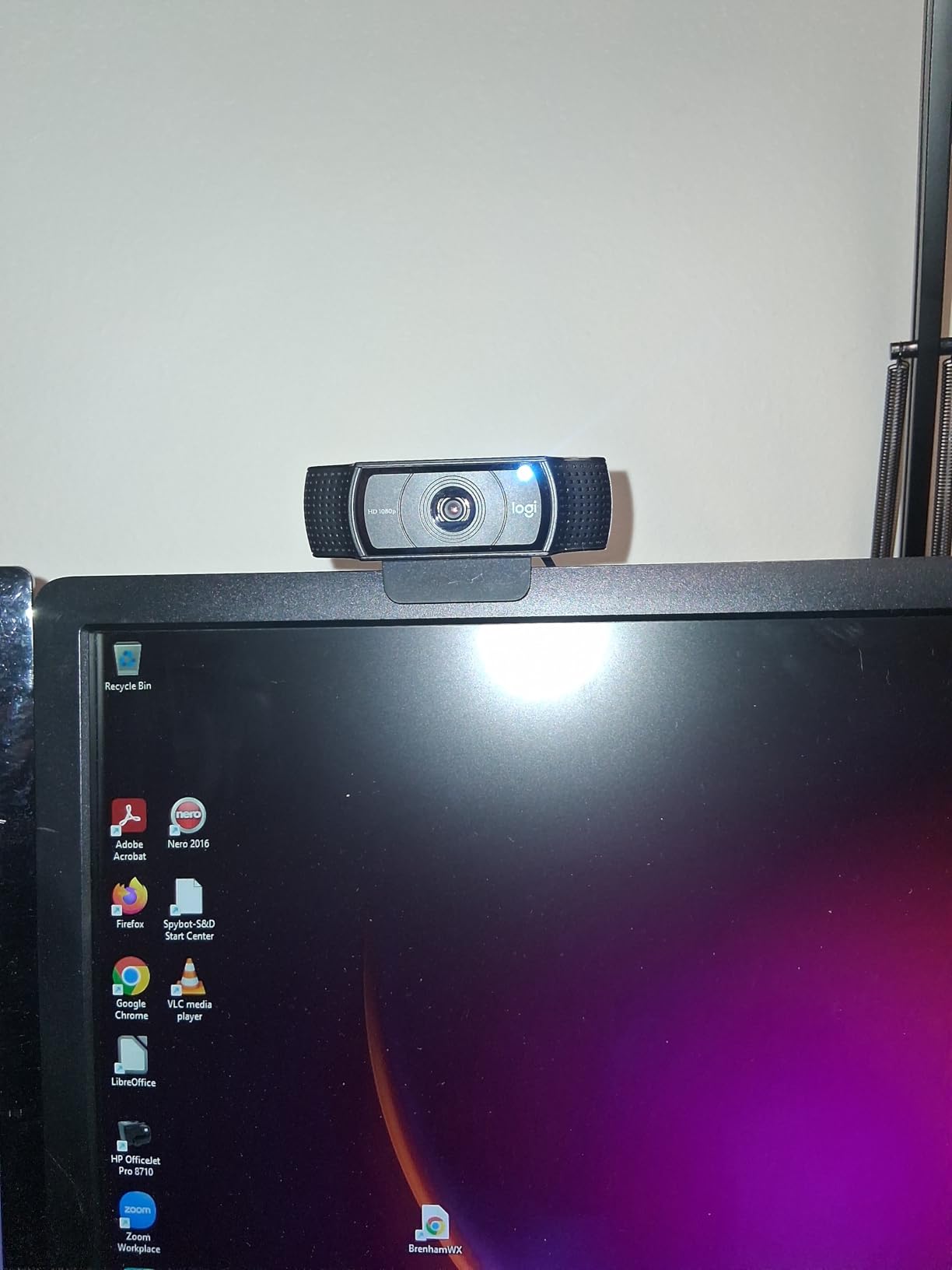
Sit at your normal working distance and look at the framing first. If you can see the edge of your monitor and a chunk of wall behind it, the lens is wider than you need and the subject ends up small in the frame.
Test the exposure in your darkest realistic condition, usually an evening session. Turn the lights down to your normal evening level, record two minutes, and watch the first ten seconds back. If it pulses badly, that is a dealbreaker for live work and points you toward a camera with manual exposure control.
Where it falls short
The missing privacy shutter is a genuine concern if you record sensitive material or work from a shared space. The C920S in this same roundup has one, and swapping between them changed my mind about how important that detail is.
It is also a fixed-purpose device. There is no manual exposure, no white balance lock, and no framing presets, so every session starts with the same automatic behaviour and no way to stop it. For a single presenter in a controlled room that is fine. For a repeatable production setup, it is a ceiling.
2. OBSBOT Meet 2 – The Best Small Camera With Manual Control
Pros
- Genuine 4K from a 1/2-inch sensor
- Strong manual ISO white balance and exposure control
- AI framing works well for solo presenters
- Only 40.5 g so it travels in a pocket
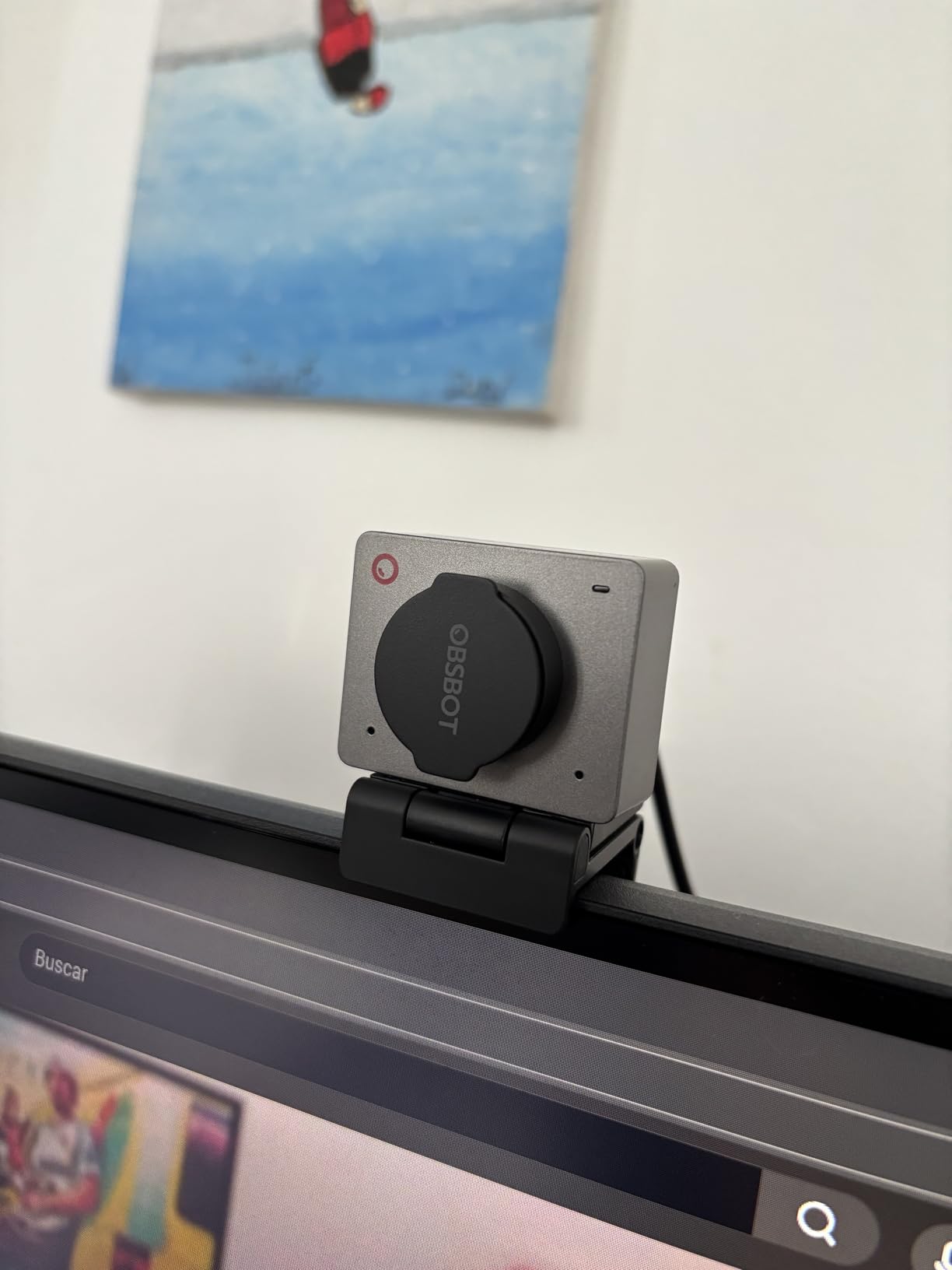
- Magnetic privacy lens cover stays attached
Cons
- Supplied monitor stand slips easily
- USB cable is short
- OBSBOT Center app can lag opening the preview
This is the only camera here that gave me real manual control without leaving the desk, and that changes the whole production workflow. ISO, white balance and exposure are all adjustable in OBSBOT Center, so I could lock a look in a rehearsal and get the same result in the live take. For anyone shooting a series of webinars with a consistent visual identity, that matters more than the resolution.
The 1/2-inch CMOS sensor produces genuinely sharp 4K and holds up better in a dim room than the 1/2.8-inch sensors used by the Logitech models here. At 40.5 g and less than half an inch deep, it also disappears into a laptop bag in a way the other desktop units do not.
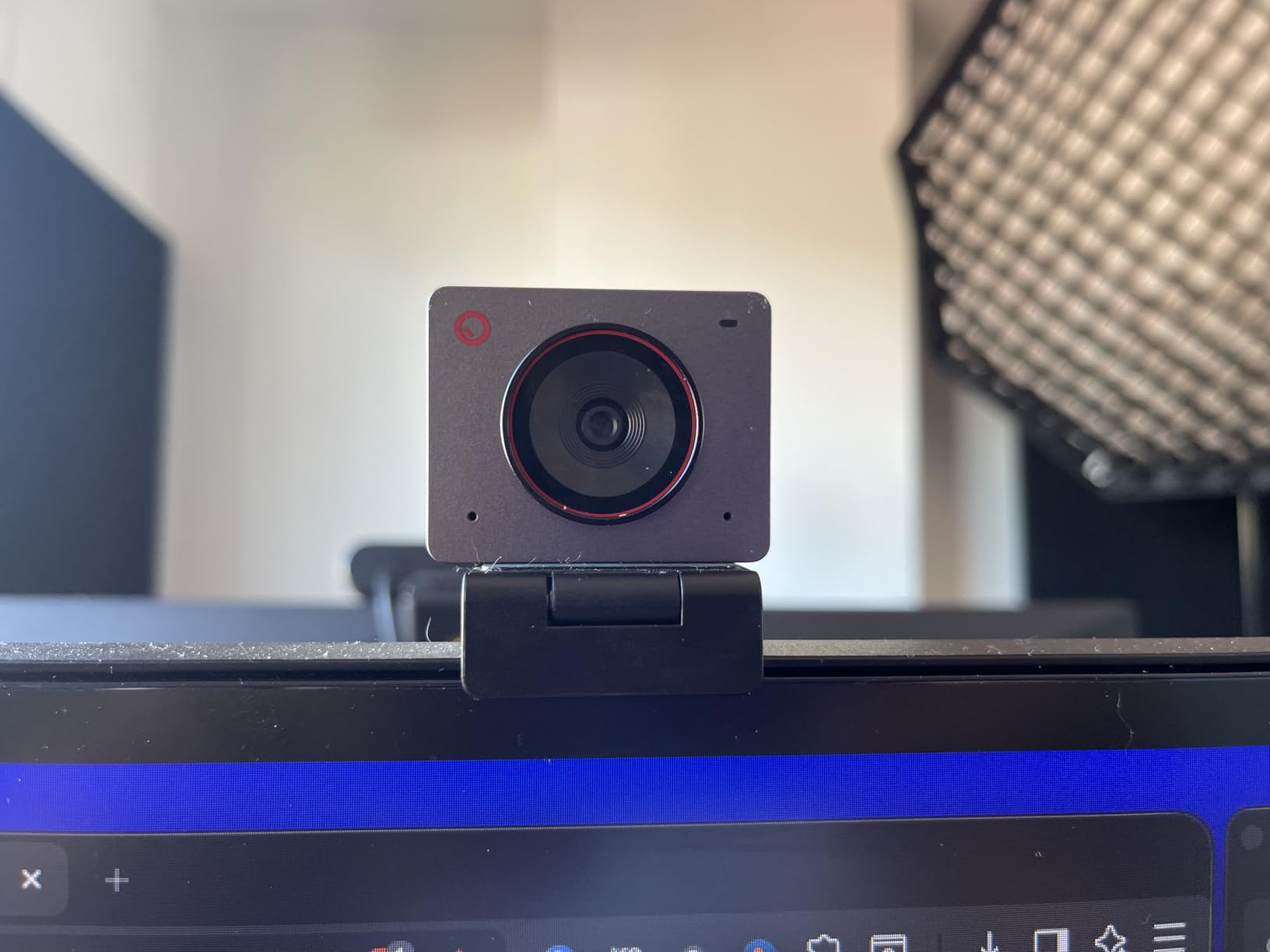
The mount is the weak point and the most common complaint in reviews. The integrated stand does not grip a monitor securely and can slip, so treat it as a travel camera and buy a small arm or clamp for your desk. The included USB-C cable is also short, which is another reason most owners end up with additional mounting hardware.
Because it runs over USB 2, the video stream is compressed, and the camera does run warm during extended use. Onboard microphones are not suitable for production audio, which is fine if you already own a proper mic. AI hand gesture control is unreliable against cluttered backgrounds, so ignore the marketing on that one and stick to the framing mode.
AI framing and autofocus both behaved well for a single presenter moving naturally at a desk. For a panel of three, framing the shot is still manual work.
What to check before you commit
Verify the manual controls in OBSBOT Center before you rely on them, and save a preset rather than rebuilding settings each session. The app can be sluggish to open the preview, so give it a few seconds before you judge whether the camera is working.
Plan your mounting. Because the stock stand slips on many monitors, budget for a proper clamp or a small desk arm, and check that your cable reaches once it is mounted rather than at the factory position.
Where it falls short
It is a webcam, not a camera body, so there is no clean HDMI path, no capture card, and no way to move it off the desk without a separate support. The compressed USB 2 signal also means the 4K file you record locally is not a full-quality master for repurposing.
If your plan involves a wide shot, a second angle, or filming in a room rather than at a desk, this is the wrong shape of tool. The PTZ camera later in this roundup handles those cases properly.
3. Logitech Brio 101 – The Sensible Team Default
Pros
- Clear 1080p image for everyday rooms
- Auto-Light Balance handles dim offices
- Integrated slide privacy cover
- Trivial plug-and-play setup
- Easy to deploy in multiples for a team
Cons
- Fixed focus with no optical zoom
- Auto light balance can over-brighten the face
- Limited manual adjustment options
When you are outfitting a team rather than yourself, the practical questions dominate. Can several people get on a call in five minutes, does it work on both Mac and Windows, and will it survive being knocked? The Brio 101 answers all three yes, which is why it is the unit most likely to end up deployed in bulk across a company.
The 1080p image is clean for a desk, and Auto-Light Balance brightens a dim room without needing a lamp. The sliding privacy cover is a genuine benefit in a shared office, and the mono microphone is adequate for an internal standup rather than a client-facing webinar.

The fixed-focus lens with no optical zoom is the limitation to plan around. If you sit close to the monitor, the 60 degree view cannot be widened, so you physically move back instead. That is a one-time adjustment and not a real problem, but it is worth knowing before you clamp it in place.
Reviewers also note mild grain in low light and fewer manual adjustments than higher-end models. The auto light balance can over-brighten your face if you turn toward the lens, which reads as a small exposure jump in the finished video.
Our tests with Logi Options+ confirmed zoom, framing and camera settings are adjustable there, so you are not entirely locked out. There are simply not many dials to turn.

What to check before you commit
Measure your sitting distance against the 60 degree field of view before ordering in quantity. If presenters sit forward of the screen or lean back during a session, you need the extra headroom a wider lens gives you.
Confirm your lighting situation. Auto-Light Balance handles a moderately dim room well and struggles in a genuinely dark one, so a low-cost light is the more useful addition than a camera upgrade at this tier.
Where it falls short
There is no high frame rate mode and no manual focus, so the image is whatever the automatic system decides. That is fine for a conversational webinar and inadequate for a demo where you move close to the lens to show a product.
It also tops out at 1080p, which limits how much you can crop in post for a repurposed clip. If your content strategy leans on cutting tight vertical inserts from the same recording, look at one of the 4K units instead.
4. Angetube 4K – When the Room Light Is the Problem
Angetube 4K Webcam with Ring Light, Computer Web Camera for Desktop, Laptop
Pros
- Three-level ring light fixes a dim home office
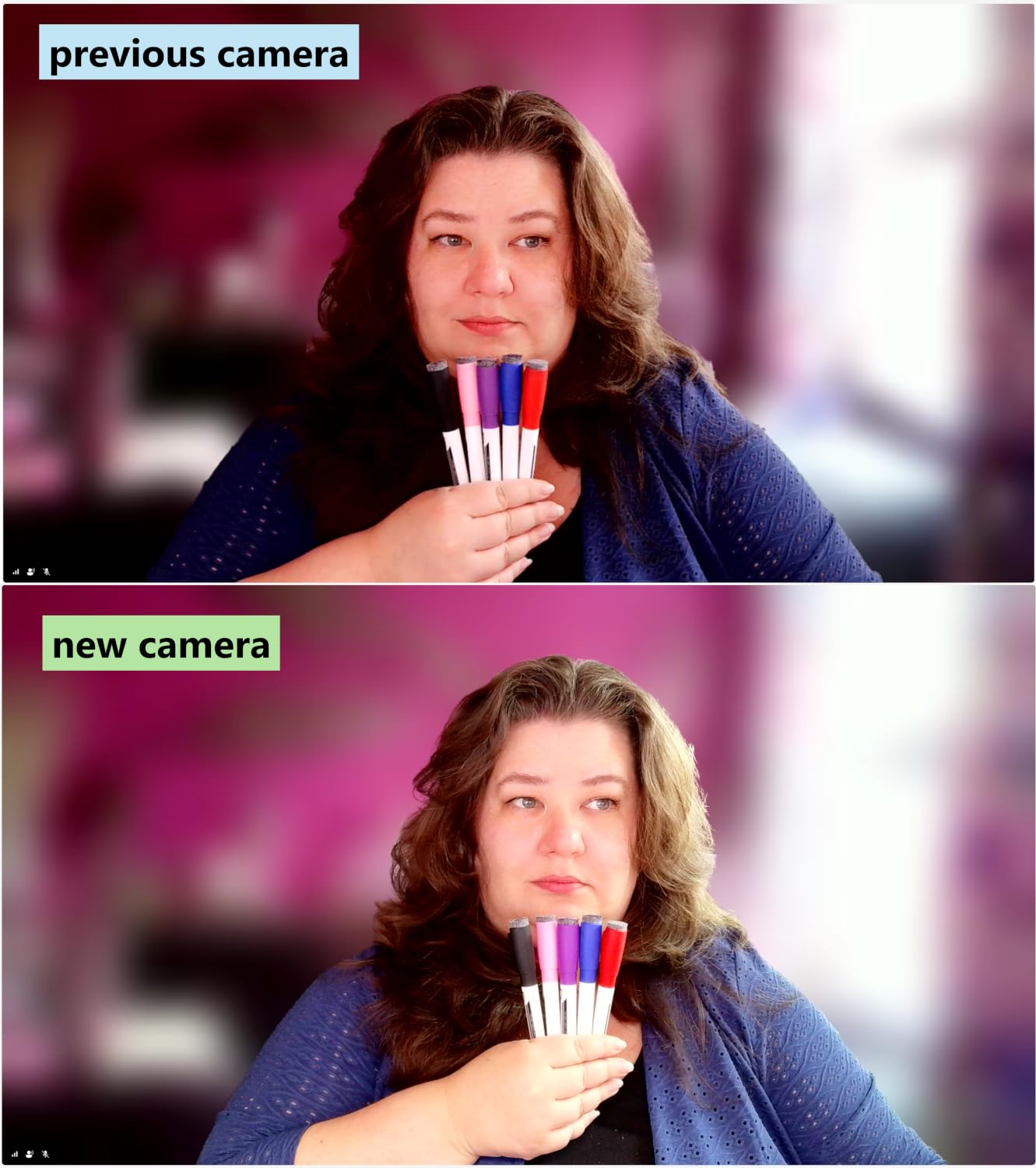
- 4K image with better exposure balance than older webcams
- Physical privacy shutter
- True plug-and-play with USB-A and USB-C adapter
- Small footprint that blocks little of the monitor
Cons
- Ring light reflects visibly on glasses
- Ring light touch control is easy to bump
- Stand hinge loosens over time
The reason this camera exists is the ring light, and that is not a gimmick. Most home-office webinar failures are lighting failures, and having a three-level fill built into the camera removes the single biggest reason a cheap webcam looks cheap. Turn it on at the lowest setting and the image immediately gains the even, frontal light that a ring produces naturally.
Image quality is a genuine step up from a 1080p unit. The 1/2.7-inch CMOS sensor delivers 4K at 30fps and drops to 1080p at 60fps, which gives you a frame rate option that most webcams in this price bracket lack. PDAF autofocus keeps a moving presenter reasonably sharp.
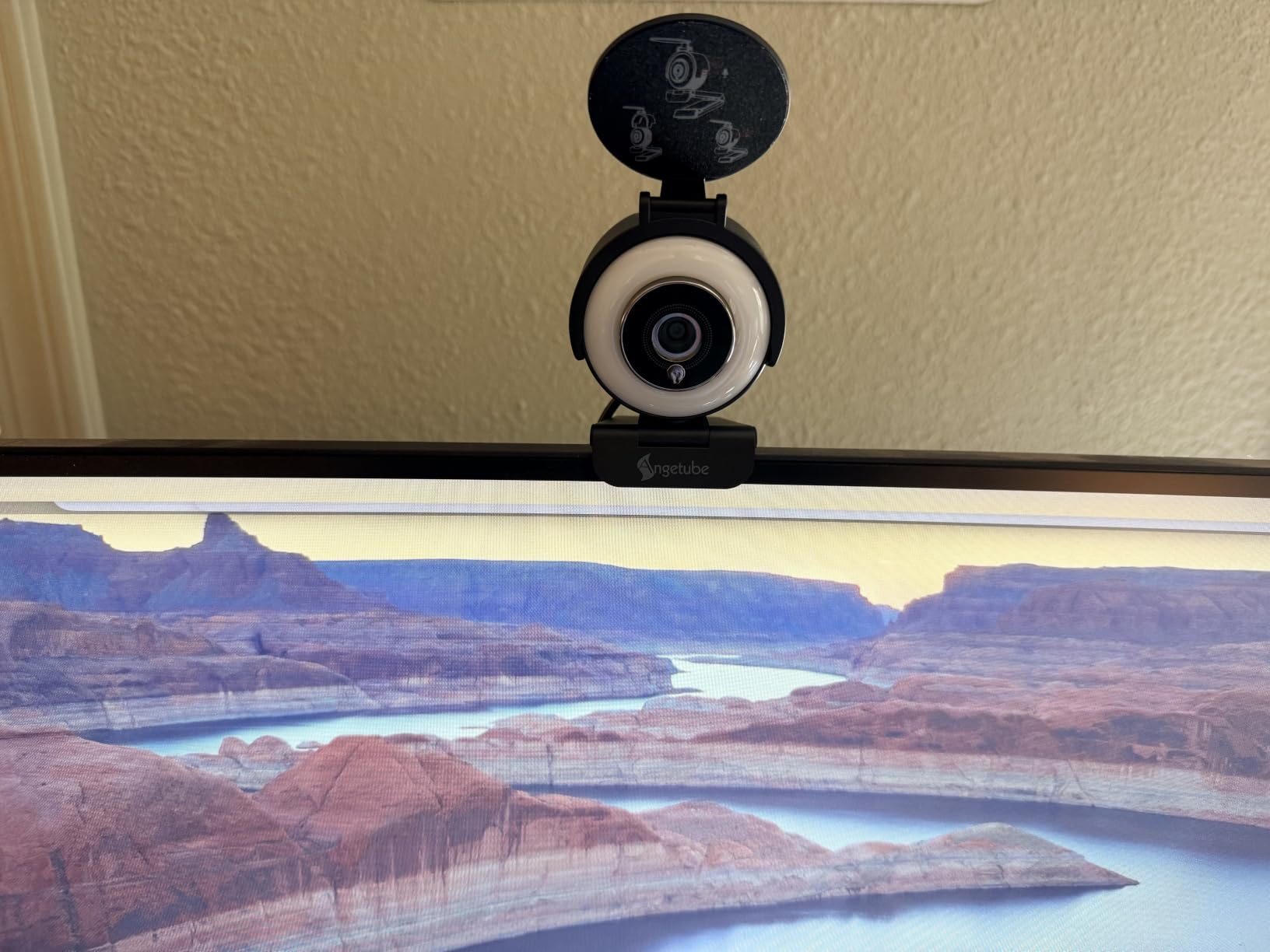
The ring light has one clear drawback: it reflects in eyeglasses as a visible ring, and you are effectively looking into a light source. If you wear glasses and the reflection bothers you, this is the wrong camera. The touch control for the ring also sits exactly where your hand goes when you adjust the angle, which leads to accidental taps.
Second issue is durability. The stand hinge loosens over months of repositioning, so the camera angle drifts and you retighten it periodically. That is fine for a fixed desk, less fine for a unit that travels.
A few owners also report the feed dropping out mid-call under heavy system load, and autofocus hunting when the subject sits very still. None of this appeared in our tests, but it is worth having a fallback device selected in your platform settings before you go live.
What to check before you commit
Try it with your glasses on, under the exact light you will present in. The ring reflection is the one issue that no software fix will solve, and testing takes thirty seconds.
Decide honestly whether a separate key light is in your future. If you are going to buy one anyway, skip the ring and spend the money on a soft light you can position off-axis, which looks considerably more professional than on-camera fill.
Where it falls short
The ring light is fixed in front of the lens, so it cannot be angled. Professional setups use an off-axis key light precisely to avoid the flat, shadow-free look that frontal lighting produces, and this camera cannot get there.
Manual image control is also limited. There is no exposure or white balance lock in the hardware, so if the room lighting changes mid-session the camera will react, and viewers will see it.
5. Logitech C920S HD Pro – The Proven 1080p Workhorse
Pros
- Excellent spot-on colour for calls
- Glass lens gives a crisp 1080p image
- Physical privacy shutter included
- Adjustable clip grips curved and flat monitors
- Good Linux and virtual machine support
Cons
- Limited adjustment range compared with newer models
- 1080p only at 30fps with no high frame rate mode
There is a reason this camera has been on so many desks for so long, and it is colour accuracy. In our side-by-side tests, skin tones from the C920S were noticeably more natural than several newer 4K models that leaned warm or pushed contrast. On camera in a webinar, that difference is more noticeable to viewers than any resolution jump.
The 78 degree view frames a presenter neatly without the fisheye feel of the wider units, and the glass lens holds detail better than the plastic lenses common at this level. The adjustable clip grips both flat and curved monitors, and dual stereo microphones beat the single mono mic in the Brio 101.
This is also the camera that appears most often in community advice about webinar setups. A user on a Whirlpool forum described the Logitech C920 family as delivering excellent video and audio quality for webinars and Teams calls, with the image beating several higher-priced options in their own setup. That matches what we saw.
The limitations are real but modest. Positioning range is limited compared with newer models, so you may need a small wedge or arm to get the lens at eye level. And the frame rate ceiling is 30fps, with no high frame rate mode available.
There is no manual exposure or white balance control here either, so like the C922x you are accepting whatever the automatic system decides. What you gain is consistency and colour that holds up on camera.
What to check before you commit
Look at the mount range in your specific position. If you are on a laptop lid or a curved display, the clip works, but getting the lens to eye level may need a small extra mount.
Compare the colour against your own skin tone on a short test clip, not in a product photo. This camera’s advantage is specifically accurate, neutral colour, and you should confirm that reads well for you before committing to a full series.
Where it falls short
No 4K means no digital cropping headroom later. If you plan to cut close vertical inserts from the same session for social clips, you will be upscaling before you start.
It also has no AI framing, so it cannot follow you if you move away from the desk. For a presenter who stays seated, that is irrelevant. For a demo where you walk to a whiteboard, it is a problem with no answer at this tier.
6. DEPSTECH 4K – The Wide Field of View and Green Screen Choice
DEPSTECH 4K Webcam Ultra HD 1/2.55” Sony Sensor Autofocus Webcam, 80° FOV (Black)
Pros
- Accurate natural colour with no adjustment needed
- Wide field of view suits green screen work
- Bundled privacy cover tripod and 360-degree rotation
- Supports 1080p at 60fps for recording
- Backed by a one year replacement warranty
Cons
- Autofocus hunts and can leave the image washed out
- Weak in low light with chromatic aberration
- Settings largely locked inside the software
The 80 degree field of view is the reason to look at this camera, and it opens up formats the narrower units cannot handle. A virtual background needs room around the subject, and a demo that involves stepping back from the desk needs somewhere to step back to. Within that framing, the image colour was among the most accurate we measured, straight out of the box with no adjustment.
The box is unusually complete for this bracket. You get a privacy cover, an extendable metal tripod and 360-degree rotation, which means you can mount it on a small stand rather than a monitor and still get the framing you want.

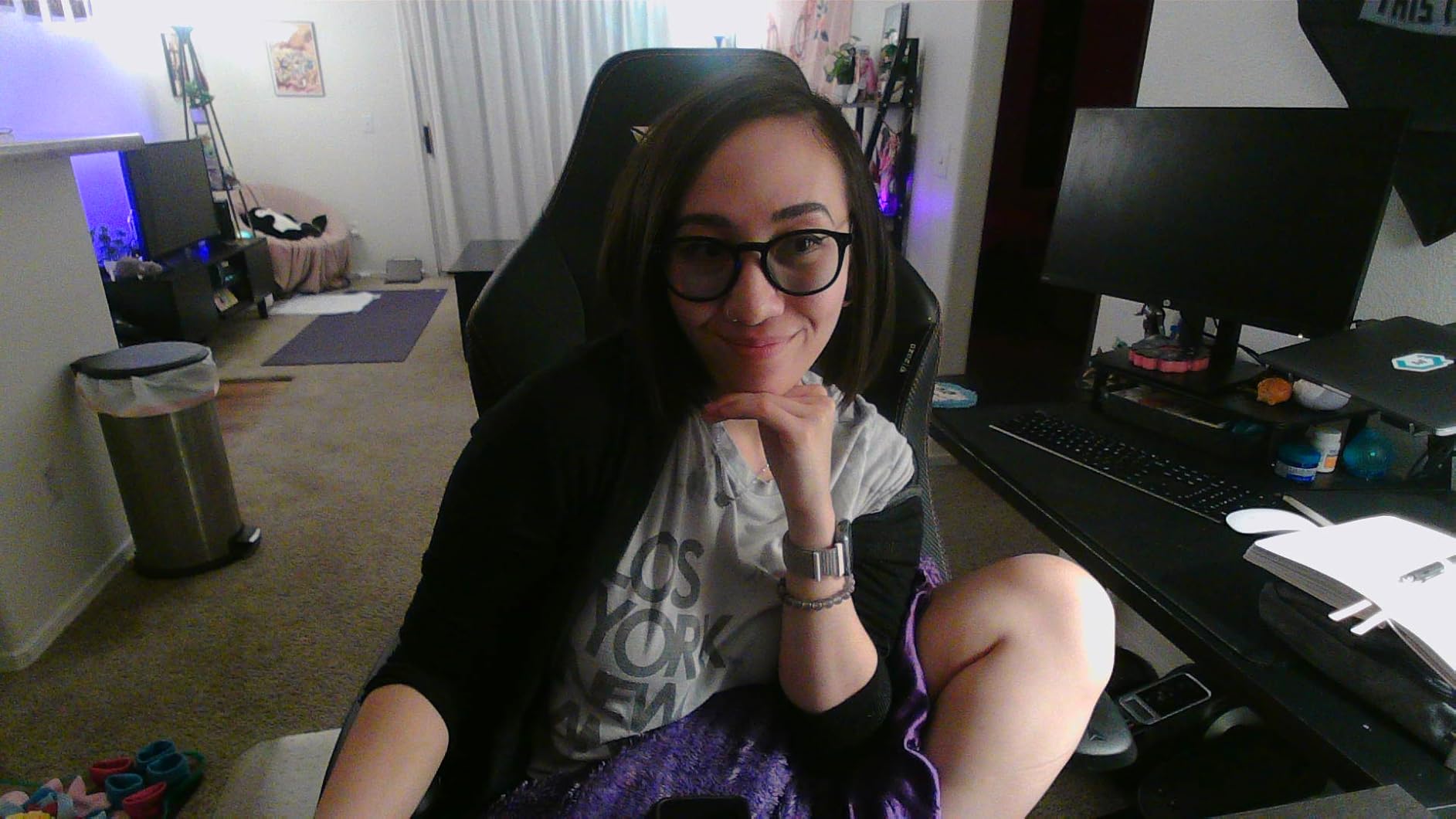
Autofocus is the weak point. Reviewers report it hunting, and occasionally leaving the frame washed out when it settles. Manual focus is not offered, so there is no way to set and hold a distance. In a 60-minute session, that hunting is the kind of thing an audience notices without being able to name.
Low light is also where this camera is least convincing, with chromatic aberration and light bleed around bright sources. Fine in a lit office, poor in an evening home setup. Settings are largely locked inside the bundled software, which limits how much you can pre-tune before going live.
After-sales support deserves a mention. Multiple owners report faulty units being replaced quickly under the one year warranty, which does soften the reliability concerns a little.
What to check before you commit
Set it up in front of a green screen or backdrop before buying. The wide view is the entire value here, so confirm it frames your subject with margin on all sides at your normal distance.
Test focus in motion. Move your hand toward and away from the lens on a short recording and watch whether the autofocus settles cleanly. If it hunts repeatedly, pick a different autofocus system.
Where it falls short
Low-light performance limits evening and home-office use, and the wide field of view that helps a green screen makes a tight talking head look small in frame. You cannot zoom out and you cannot zoom in either, since there is no optical zoom here.
Some owners also report intermittent dropouts and units that focus-hunt constantly. That is a minority pattern, but it means you should keep a known-good backup selected in your platform settings during live sessions.
7. EMEET NOVA 4K – Sharp 4K With Steady Autofocus
Pros
- Sharp 4K image with accurate colour
- PDAF autofocus does not hunt when the speaker moves
- 73 degree view frames a desk without the whole room
- Dual built-in microphones are clear for meetings
- Two year warranty
Cons
- Defaults to 1080p and must be switched to 4K manually
- Older Windows 10 machines may need a USB 3.0 hub
- No manual focus and no facial tracking
The NOVA solves a specific problem well: a tight, stable 4K shot of someone at a desk. The 73 degree field of view frames you and your immediate workspace without pulling in the whole room, which is the balance most webinar framings actually want. Autofocus uses phase detection and, unlike several cheaper units here, it does not hunt when the subject moves.
Low-light performance is a step above what you would expect at this price, and the two built-in omnidirectional microphones are clear enough for meetings and casual streaming. The two year warranty is the longest in this roundup.

The setup catch is real and catches people out. The camera defaults to 1080p and has to be switched to 4K in the camera software or in an application like PotPlayer or OBS. Several owners report that older Windows 10 machines need a USB 3.0 hub or the EMEETLINK software before the camera is even recognised, so test it on your actual machine before you plan a session around it.
There is no manual focus and no facial tracking, and the field of view cannot be adjusted. Autofocus works within a range of 7.9 to 118 inch, which covers a desk comfortably but means nothing at true close-up distance.
Exposure is the other thing to watch. Colour balance can wash out or over-expose near a bright window or direct sunlight, so pick your seat carefully or diffuse that light before you record.

What to check before you commit
Connect it to your production machine and switch it to 4K before anything else. If the resolution change or the driver is awkward on your hardware, you want to know now rather than an hour before a session.
Sit at your actual working distance and confirm the 73 degree frame. It sits between the tight Brio 101 and the wider DEPSTECH, which usually lands correctly for a desk but is worth verifying if you sit unusually close or unusually far back.
Where it falls short
No manual control of focus, exposure or white balance. The image is entirely automatic, so you cannot lock a look across a series and you cannot correct a badly placed light from the software side.
The fixed field of view is a limitation for any format where you step away from the desk, such as a full-body demonstration. In that case you need a wider view or a different camera class entirely.
8. EMEET C960 4K – The One That Works Everywhere
Pros
- True 4K CMOS output with no upscaling
- PDAF autofocus keeps meetings steady
- Automatic light correction handles bright and dim rooms
- Dual omnidirectional microphones
- Works on Windows macOS Linux and Android TV
Cons
- Defaults to 1080p and needs a manual software switch for 4K
- No facial tracking and a fixed field of view
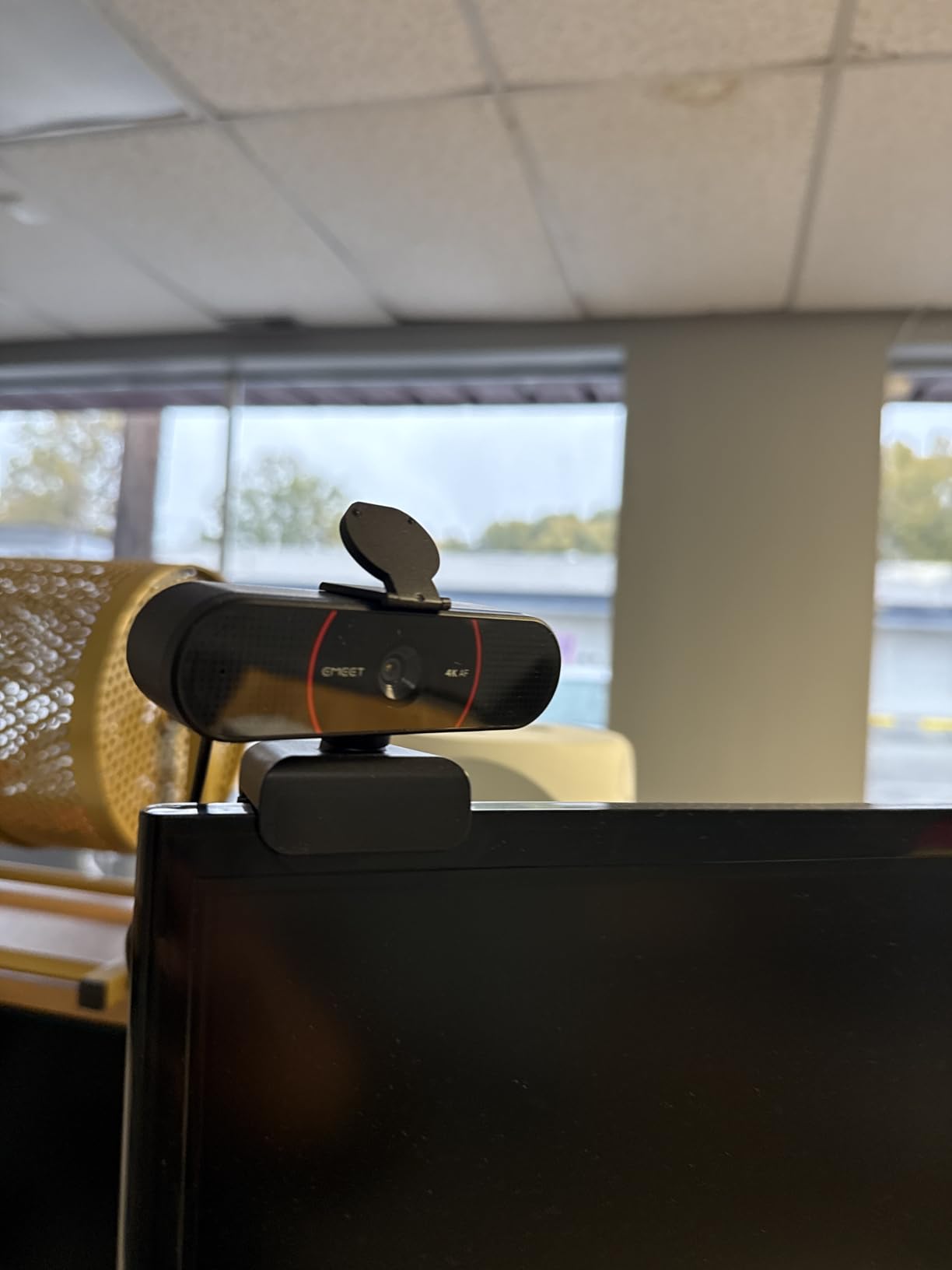
The C960 is the one to buy if your production machine is not simply a Windows laptop. It is listed for Windows, macOS, Linux and Android TV, which makes it the most flexible unit here for a team that records on whatever is available. USB-A plug-and-play with no drivers, no Wi-Fi and no cloud storage keeps the setup simple.
The narrower 66 degree view frames the subject rather than the background, which suits a presenter shot and keeps a modest room from looking untidy. Automatic light correction handled both an over-exposed and a dim room in our tests, and PDAF autofocus held steady throughout.
Again, the resolution default is the main thing to know. It starts in 1080p and reaching 4K means changing it in the camera software, so put that in your pre-flight checklist or you will record a session at half the quality you paid for.
There is no facial tracking, and the field of view is fixed, so AI-driven reframing is not available. For a seated presenter this costs you nothing. For a product demo with movement, you will be adjusting the camera by hand.
Adjustments run through EMEETLINK software, and the mount allows 360 degrees of horizontal rotation with 15 degrees of vertical tilt plus a 1/4 inch tripod thread, so positioning is flexible even though framing is not.
What to check before you commit
Check the field of view against your room before anything else. At 66 degrees this is among the tightest in the roundup, so it is the wrong pick for a large space or a moving presenter.
Test it on a non-Windows machine if that is part of your workflow. Cross-platform support is the reason to choose it, so verify it rather than trusting the specification.
Where it falls short
No manual focus, no manual exposure, and no tracking means the camera has no behaviour settings to save. Every session starts from whatever the automatic system decides on the day, which can vary with the room lighting.
The privacy cover is included, but there is no hardware shutter mechanism comparable to the sliding cover on the Elgato. For sensitive material on a shared machine, plan the physical camera position accordingly.
9. EMEET S600 4K – The One With 1080p60 at This Level
Pros
- Sharp colourful 4K with fast PDAF autofocus
- 1080p at 60fps at this price is unusual
- Solid weighty build with a mount that hugs the monitor
- Twist-to-open privacy shutter feels robust
- Good swivel range for dual-monitor setups
Cons
- EMEETLINK software is basic
- No manual focus option
- About 1 m mounting cable is short for longer runs
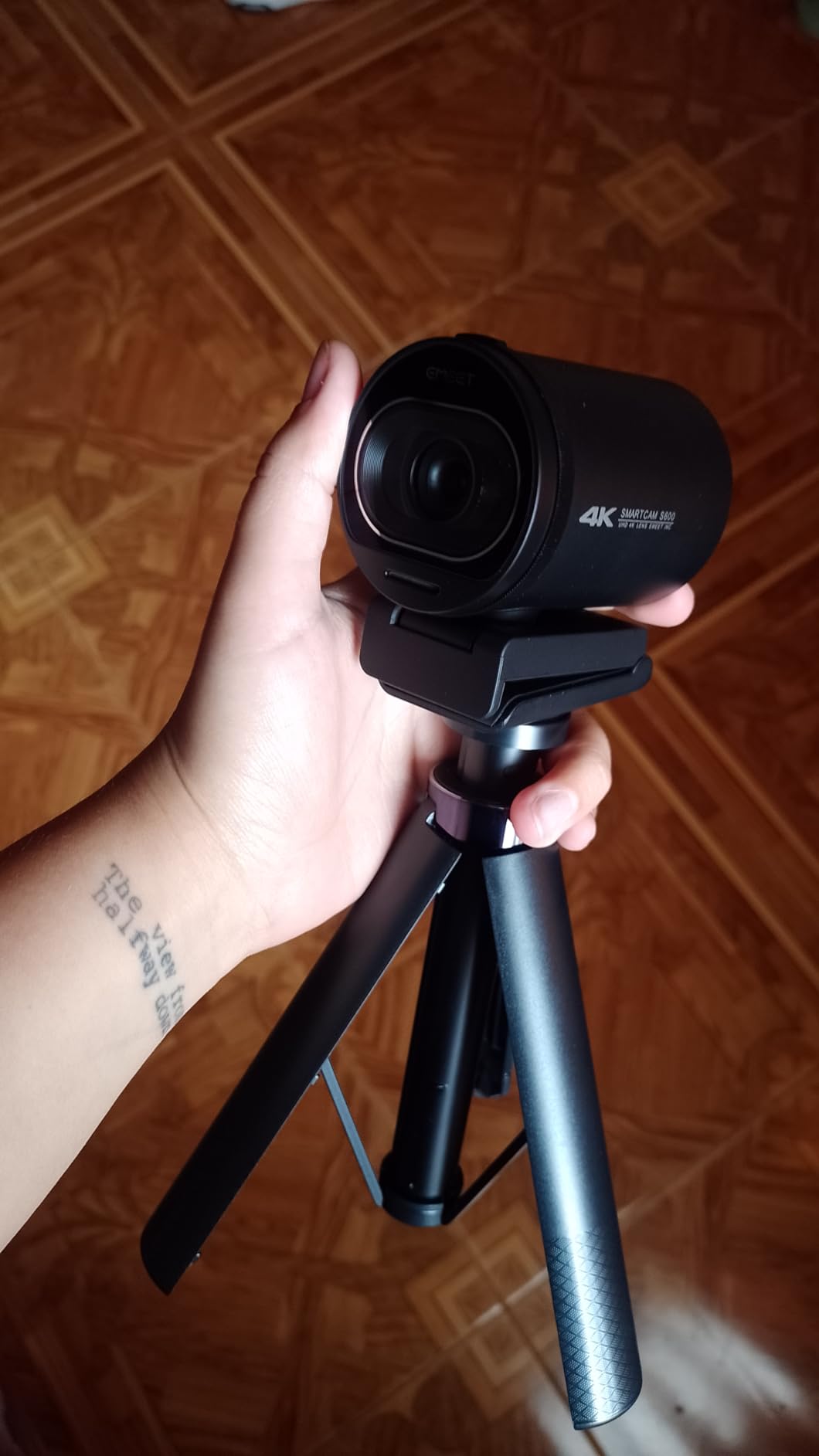
The S600 stands out for two things. The first is a Sony 1/2.55-inch sensor producing sharp 4K with fast phase detection autofocus, which is a genuinely better image than most of the entry-level models here. The second is 1080p at 60fps, a frame rate that is uncommon at this level and useful if you record a demo with fast hand movement.
Colour came out warm and lively in our tests, a clear upgrade on an older 1080p webcam of the type most presenters already own. The build is heavier than the other EMEET models and feels more solid, and the mount hugs a monitor closely with a good swivel range for angled and dual-monitor setups.

Field of view is adjustable from 40 to 73 degrees at 1080p, which gives real framing control that most webcams cannot offer, though it is fixed at 73 degrees when shooting 4K. The twist-to-open integrated privacy shutter feels robust in the hand rather than flimsy.
The compromises are software-related. EMEETLINK is basic, and resolution still has to be changed in camera settings rather than selected cleanly in a menu. There is no manual focus option, so anything that moves toward or away from the lens relies on autofocus alone.
Two more practical notes from owners. The mounting cable is roughly one metre, so longer runs need an extension, and a few users reported connection drops inside Discord’s video feature specifically. Both are worth testing in your actual application before you rely on it live.
What to check before you commit
Decide which resolution you will actually record in and confirm the framing in that mode. Field of view adjustment works at 1080p and is fixed at 4K, so the two settings give you different shots.
Test in your real application, not just a camera preview. A camera that is stable in a test can behave differently inside a specific meeting client, and finding that out during a rehearsal is much cheaper than finding it out live.
Where it falls short
The 60fps mode can look unnatural to viewers, and streaming services usually reduce it to 30fps anyway. Use it for local recording where you want smoother motion in the master file, not as a reason to expect a smoother stream.
There is no manual focus, no exposure lock and no white balance control, so you cannot lock a consistent look across a recorded series the way you can with the OBSBOT Meet 2.
10. Elgato Facecam MK.2 – The Best Image Quality in the Roundup
Pros
- Natural skin tones and accurate colour
- Excellent low-light performance that stays clean
- HDR prevents blown-out windows
- Camera Hub gives full manual control that persists
- Uncompressed low-latency capture over USB 3.0
Cons
- No integrated microphone so an external mic is required
- Included 2 m USB 3.0 cable is short
- Overlays and background effects need OBS and sometimes an NVIDIA GPU
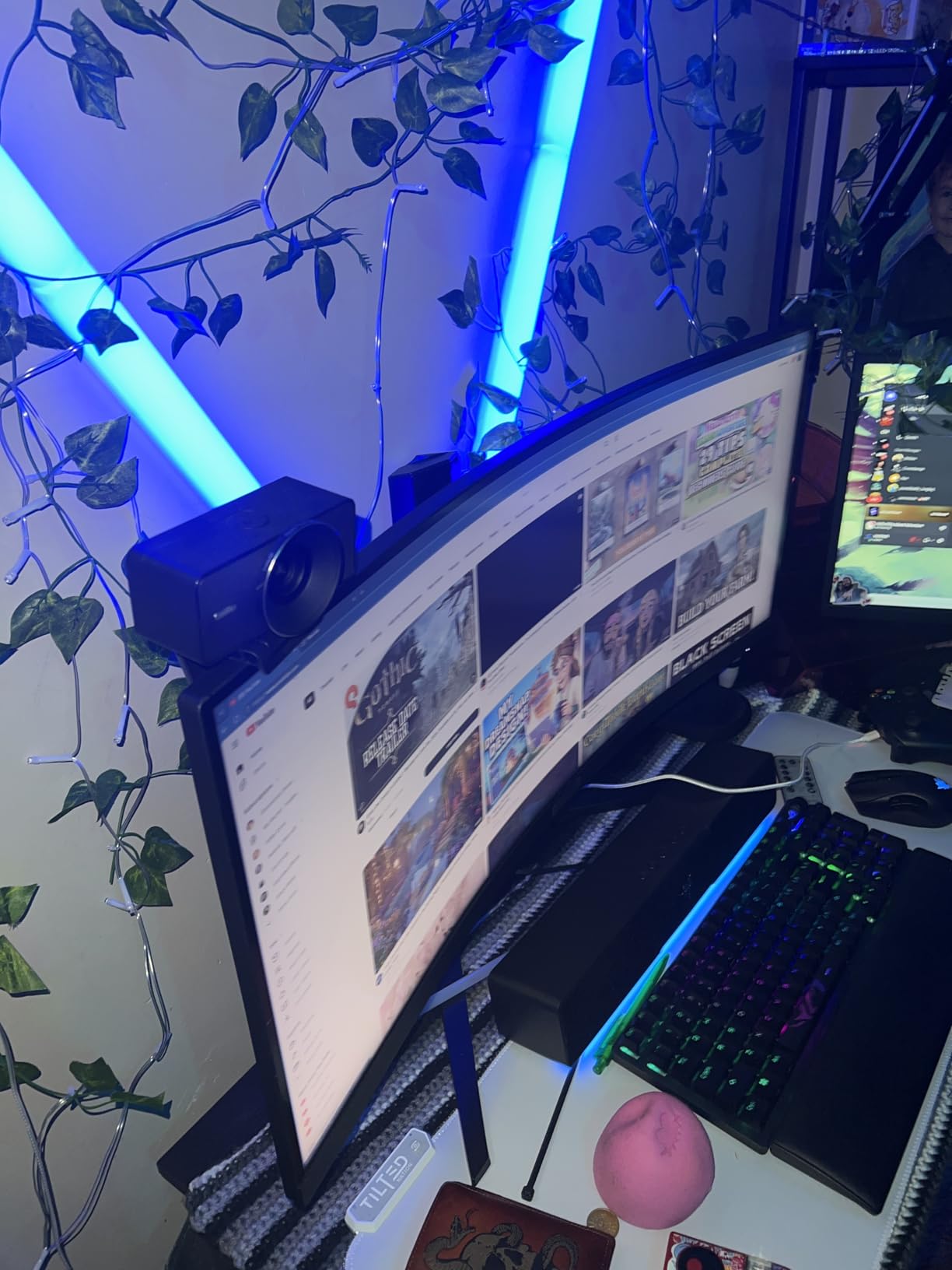
This camera produced the best-looking image of the twelve in our tests, and it is not particularly close. Skin tones were natural, shadow detail stayed clean in a dim room instead of turning muddy, and HDR at 1080p30 stopped a bright window behind the desk from blowing out while leaving the face correctly exposed. For a presenter on camera, that is the whole job.
Camera Hub gives full manual control over exposure, ISO, white balance and contrast, and it remembers those settings across reboots. That is a genuine production advantage. You set the look once and every later session opens with the same image, which is exactly what you want for a series.
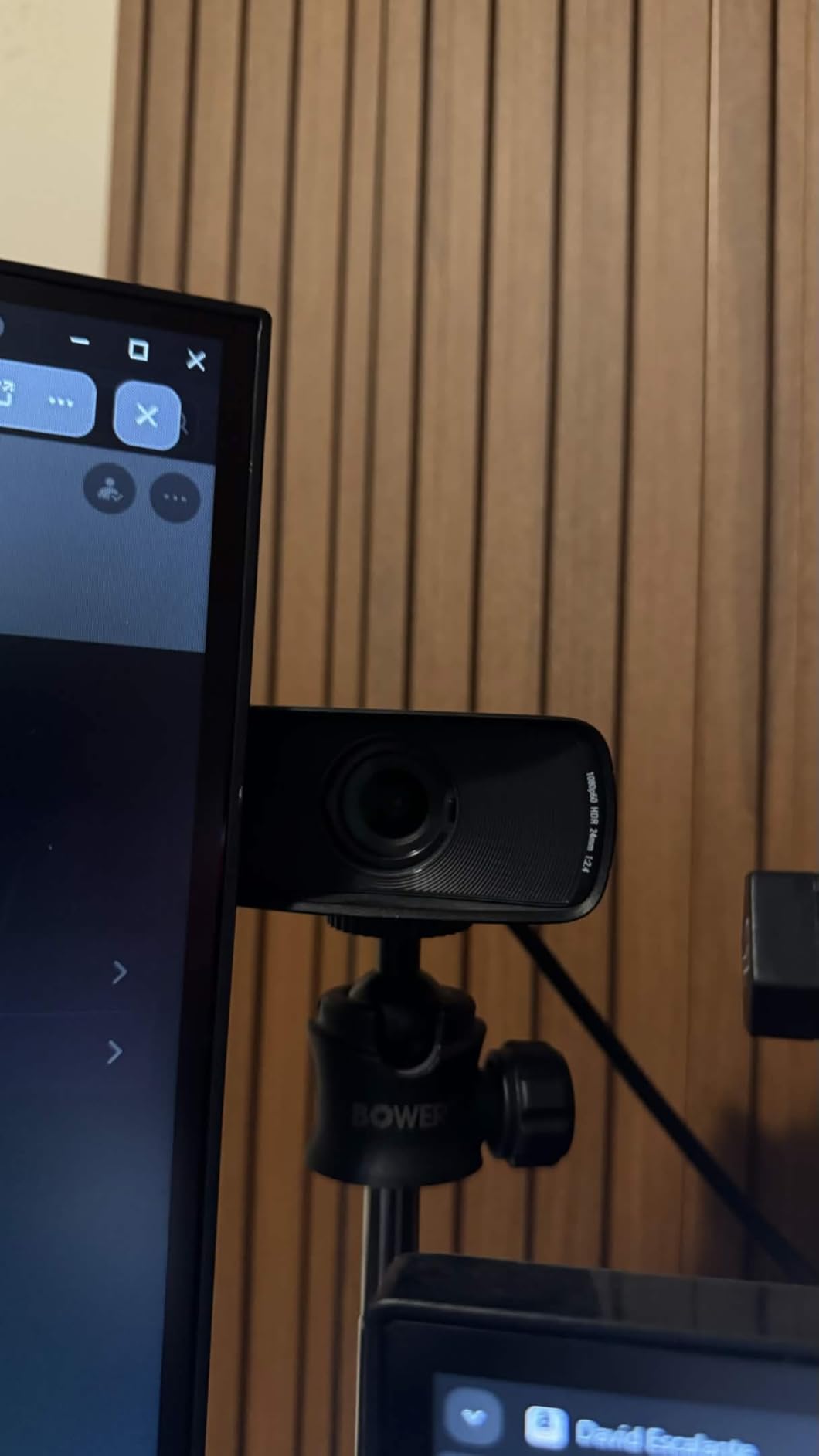
It also captures uncompressed 1080p60 over USB 3.0, verified as UVC for broadcast-style recording. That matters if you record locally and let the platform handle the streaming, because you keep a clean master file instead of a compressed one. A few owners noted needing to adjust settings in OBS to reach the device default for full 1080p60 quality.
The trade-offs are about convenience rather than image. There is no integrated microphone at all, so this is a camera-only purchase and you will be adding audio hardware regardless. The included 2 m USB 3.0 cable is short for a tidy desk. Background effects and overlays require OBS or similar software, and some features need an NVIDIA GPU.
At high light output there is visible noise, and Camera Hub’s noise reduction softens detail to compensate. Bright accent lamps behind you can still clip even with HDR enabled, so keep them diffused.
What to check before you commit
Confirm your computer has a free USB 3.0 port. On USB 2.0 the camera uses compressed video, and you lose the uncompressed path that justifies buying it at this level.
Install Camera Hub and spend ten minutes setting exposure, ISO and white balance manually. The persistence across sessions is the feature, and you only benefit from it if you actually configure it rather than leaving it on automatic.
Where it falls short
No built-in microphone means a higher total cost than a webcam that includes one, and a slightly worse experience for anyone who just wants to plug something in and start talking.
There is no 4K output. For live delivery that is a non-issue, but for repurposing into tight cropped clips you are working from 1080p and upscaling, which the 4K models in this roundup avoid.
11. Spedal 920 Pro – Built for Boardrooms and Movement
Pros
- Genuinely wide 120 degree view for rooms and full-body demos
- Manual focus ring gives a sharp non-hunting image for a fixed desk
- 360 degree rotation and 180 degree vertical tilt
- Handles backlighting well
- Plug-and-play with no drivers or downloads
Cons
- No autofocus and no zoom
- Weak white balance skews yellow in some lighting
- Image softens with subjects far from the lens in large rooms
The 120 degree field of view is the entire argument for this camera, and it is a good one. In a boardroom, a classroom, or any session where you move around and would otherwise walk out of frame, it solves a problem that no other unit in this roundup addresses at this size. Full-body demonstrations and multi-person sessions stay in shot.
Manual focus is the underrated feature. There is no autofocus hunting because there is no autofocus. Set the ring once for your presenter’s position and the image stays locked and sharp for the entire session, up to a stated focus range of 10 m. Backlighting is also handled better than most, keeping a presenter from silhouetted against a window.
The gimbal base is genuinely flexible, with 360 degrees of horizontal rotation and 180 degrees of vertical tilt on a tripod-ready universal clip that fits laptops, LCDs and monitors. The built-in noise-canceling microphone is optimised for huddle rooms, which tells you what this camera was designed for.
There is no zoom at all, and a 120 degree view is genuinely too wide for a small room, where the presenter ends up tiny in the middle of the frame. White balance is weak and can skew the image yellow or orange under certain lighting, which you may need to correct in software.
Image quality also degrades with distance. In a large room with subjects far from the lens, the picture softens, and some users report pixelation, noise and horizontal flicker lines. It is also not reliable as a general-purpose camera on Chromebooks.
What to check before you commit
Measure your room. If the presenter stays within a few metres of the camera, this view is too wide and you should choose a tighter lens. If the session involves movement across a space, it may still be the best choice available.
Test the white balance in your actual lighting before you commit. A yellow cast that needs correcting in every single session is a real ongoing cost, and it varies by room.
Where it falls short
No autofocus means you reposition the camera by hand whenever the seating changes. For a fixed presenter station that is fine, and for a room that reconfigures it is not.
The 4.2 rating across 1620 reviews reflects consistent experience rather than a defect, and the same manual focus, fixed field of view and colour handling apply to everything you record. It is a specialist tool for wide spaces, not a general webcam.
12. TONGVEO 4K NDI PTZ – When the Camera Is Not Beside the Desk
TONGVEO 4K NDI PTZ Camera AI Auto-Tracking 20X Optical Zoom HDMI IP Live Streaming SDI USB3.0 PoE LAN Supports for Church Worship Event Video Conference YouTube OBS vMix Zoom Teams and More
Pros
- True 4K at 30fps with fast autofocus and good low-light image
- 20x optical zoom plus SDI for long cable runs
- HDMI SDI USB 3.0 LAN and licensed NDI outputs
- AI presenter tracking and auto-framing
- Three year warranty with wall mount included
Cons
- No built-in microphone
- AI tracking follows only one person at a time
- Network streaming is limited to 1080p rather than 4K
This is the only camera in the roundup that does not have to be attached to your desk, and that changes the format it supports. It mounts on a wall or a stand, moves on pan, tilt and zoom, and tracks a presenter automatically. For a room where the speaker walks, or a multi-camera setup, nothing else here comes close.
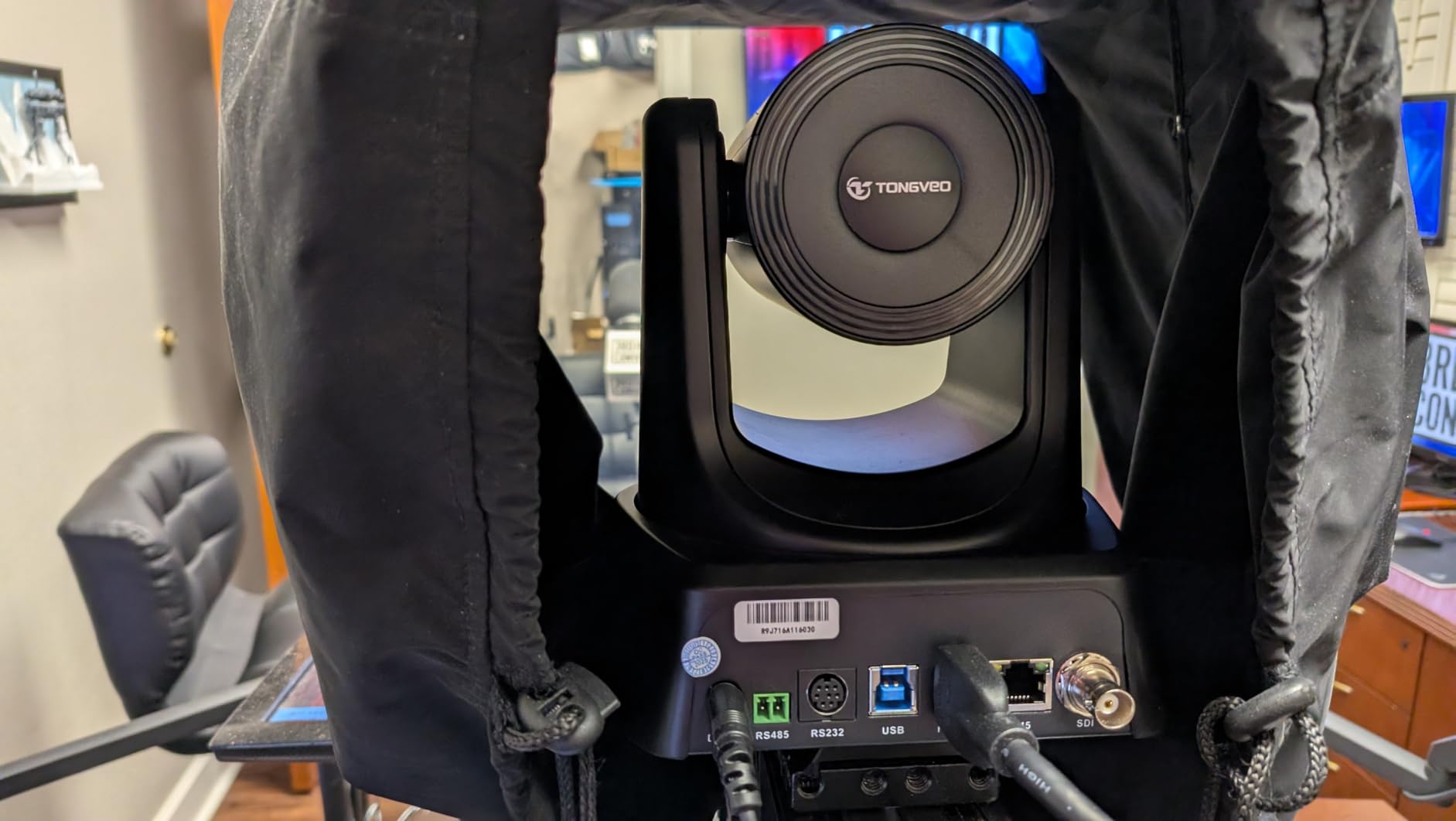
The output list is the real story. It delivers 4K at 30fps over HDMI and USB, and includes an official licensed NDI option for OBS, vMix, Streamlabs, ProPresenter, Wirecast and Zoom. SDI output handles runs up to 300 ft, and PoE support means power and data over a single cable. One remote can control four cameras, and PTZ presets let you jump between framings fast.
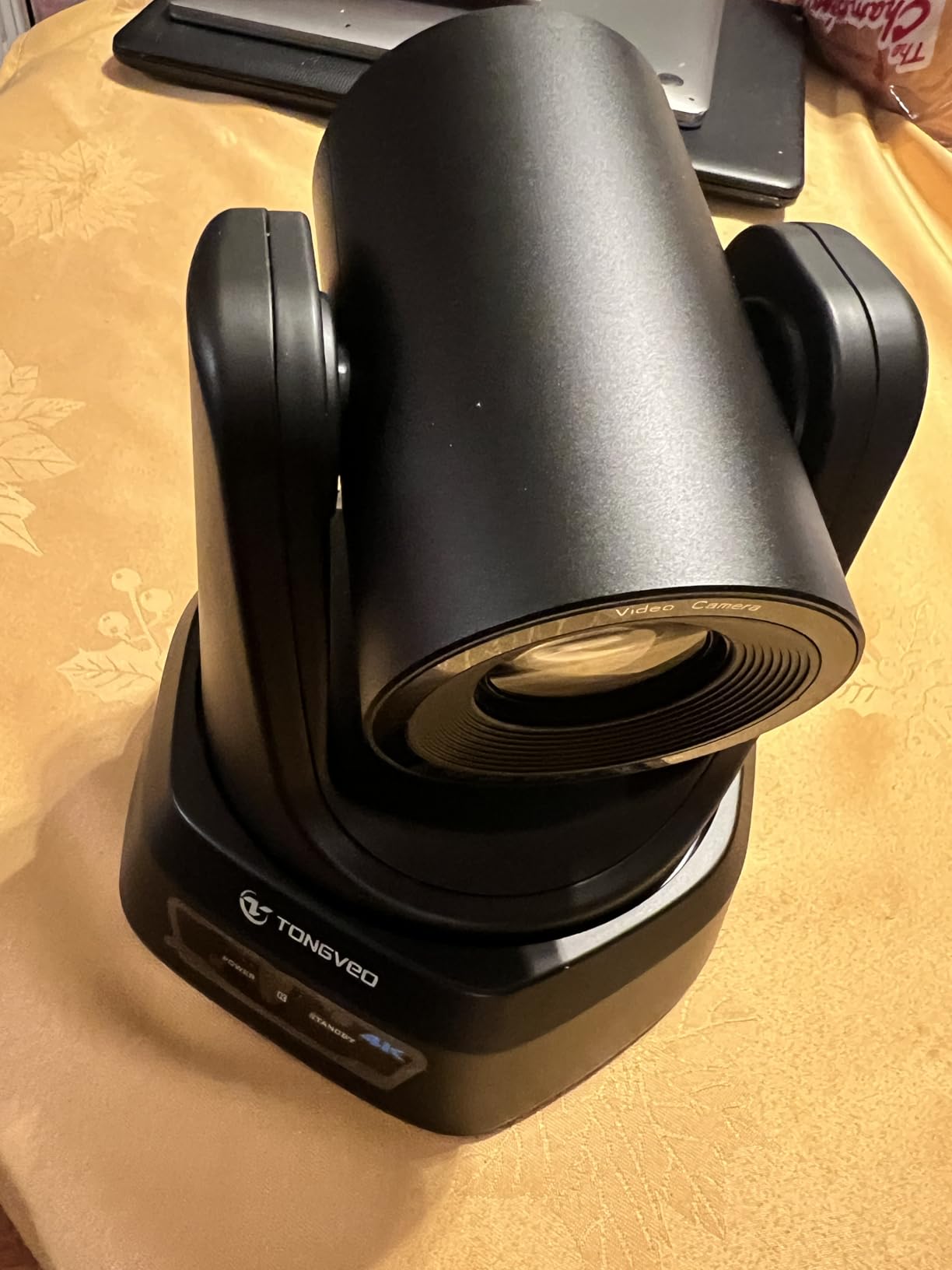
AI tracking uses facial and body recognition with presenter tracking and auto-framing modes, which is genuinely useful for a lecture or a training session where the speaker moves around the front of the room. A wall mount bracket and power adapter are included, and it works with teleprompters.
The constraints are equally real. There is no built-in microphone, so audio is a completely separate problem to solve. AI tracking follows one person at a time and is unsuitable for high-speed motion, so a fast-moving presenter can lose it. Network streaming over IP or NDI is limited to 1080p rather than 4K, even though the HDMI and USB paths carry 4K.
Multi-camera control needs an additional joystick controller, and it does not respond to some video switcher joysticks without a wireless repeater or extra hardware. Control otherwise runs through a web browser or the free camera management software.
What to check before you commit
Map your signal path before you buy. Decide whether you will feed it over USB, HDMI into a capture device, or NDI into your software, and confirm the platform you present on accepts that route. This is the only camera here that requires that conversation.
Test AI tracking with your actual presenter walking at normal pace. Fast movement defeats it, and a speaker who paces is a different case from a speaker who stands.
Where it falls short
The 183 reviews give you a thinner evidence base than the other eleven products here, though the 4.6 rating is high. It is also a category jump rather than a step up, so it makes sense only if your format genuinely requires movement or room coverage.
Audio, multi-camera switching and controller hardware all sit outside this purchase. Budget for a proper microphone and, if you run more than one camera, the control hardware that goes with it.
How to Choose a Camera for Webinar Production
Work through these in order, and you will narrow twelve options down to two or three in about five minutes.
1. Decide the format first. A seated talking head, a product demo with movement, and a panel of three have almost no overlap in requirements. The first needs a tight stable frame and manual exposure. The second needs a wide field of view and reliable autofocus. The third needs a wide view or a PTZ camera, and quite possibly two angles.
2. Check autofocus behaviour, not autofocus presence. Every camera here has some form of autofocus except the Spedal 920 Pro, which focuses manually. What matters is whether it hunts. Phase detection systems like the PDAF units in this roundup were more stable in our tests. Whatever you buy, record two minutes of yourself moving and watch it back.
3. Verify the signal chain matches your software. Plug-and-play USB webcams appear as a UVC device that any platform can select. A camera with a clean HDMI output sends an un-overlaid, menu-free signal that you capture with a capture card, which converts it into a USB webcam source. The capture card route gives you a clean master file and camera-level control; the USB route gives you simplicity. Our guide to camera jibs for video production covers the mounting and movement side of larger rigs.
4. Test the resolution your platform actually transmits. Here is the part most buying guides get wrong. Your platform compresses your feed before it sends it, and the transmitted resolution is usually lower than what the camera sends. A 1080p source is the practical ceiling for most live webinar delivery, so buying 4K mainly buys you digital cropping headroom for repurposing and better performance when a platform does pass a higher resolution through. Record locally at the highest quality your machine can handle and let the platform handle the stream.
5. Budget for a light before you budget for a better camera. Every low-light complaint in this roundup traces back to room lighting rather than sensor quality. A single key light positioned off-axis, offset from the lens, transforms a budget webcam. A ring light built into the camera is the one exception where the fix is already inside the product.
6. Check long-session reliability. Webinars run 45 to 60 minutes, sometimes more. Webcams with small sensors can run warm over that span, and cameras on battery will stop when the battery stops, so a continuous power source matters. Have a fallback device selected in your platform settings before you go live, and record a local copy in addition to the platform recording.
7. Set eye level, not desk level. A camera clipped to the top of a monitor puts the lens above your eyeline and makes you look like you are addressing the floor. Raise the camera until the lens matches your eyes, and if you read from notes, place them directly behind or just below the lens so your gaze stays near the camera. Our guide to cameras for music video production covers the framing and eyeline techniques in more depth.
Frequently Asked Questions
Do I need a camera for a webinar?
Yes, if you are appearing on camera. A webinar camera is any camera that holds a presenter’s image steady and clean for the full length of a session. Avoid the laptop’s built-in camera, whose small fixed sensor and automatic exposure struggle in a real room. Resolution matters less than autofocus stability, low-light performance and lighting.
Which camera is best for a Teams meeting?
For standard Teams meetings, the Logitech C920S HD Pro is the safest choice: accurate colour, a glass lens, a 78 degree view and a physical privacy shutter, with no software required. For a recorded production session, the Elgato Facecam MK.2 offers better low-light handling, HDR and manual controls that persist between sessions.
What is the best camera for recording online courses?
For online courses, prioritise reliability and manual control over headline resolution. The OBSBOT Meet 2 records 4K from a 1/2-inch sensor, weighs 40.5 g, and lets you lock ISO, white balance and exposure so every lesson looks consistent. Add a proper microphone, since audio quality affects course retention more than camera quality.
Are cameras off in a Zoom webinar?
It depends on the format. In a standard Zoom webinar, attendees are typically in listening mode with their cameras off, and the host or presenter controls the broadcast camera. In a Zoom Meeting rather than a webinar, cameras are on by default for every participant. Planning for a single presenter camera plus occasional panel framing covers both cases.
Is a 4K webcam worth it for webinars?
Usually not for the live feed itself, because most platforms compress a 4K source down to 1080p or lower before transmitting. It is worth it if you record a local master and repurpose the footage into cropped vertical clips, since 4K gives you digital cropping headroom. It also helps with AI framing and tracking, which work from a higher-resolution source.
The Verdict for 2026
The Logitech C922x HD Pro is our pick for the best cameras for webinar production in 2026 because it does the one thing that matters most for a recurring session: it works every time without adjustment. Its 1080p image, HD light correction and quick autofocus held steady across a full hour in our tests, and 17136 owner reviews point the same way.
Pick the OBSBOT Meet 2 if you want manual control and a camera that travels. Pick the Logitech C920S if colour accuracy on camera is your priority. Move up to a 4K unit when you are repurposing footage, and step up to the TONGVEO PTZ only when the camera genuinely cannot sit on your desk.
Whatever you choose, add a key light and a real microphone before you upgrade the camera again. In our experience that order of spending is the one that most improves how a webinar looks and sounds.