
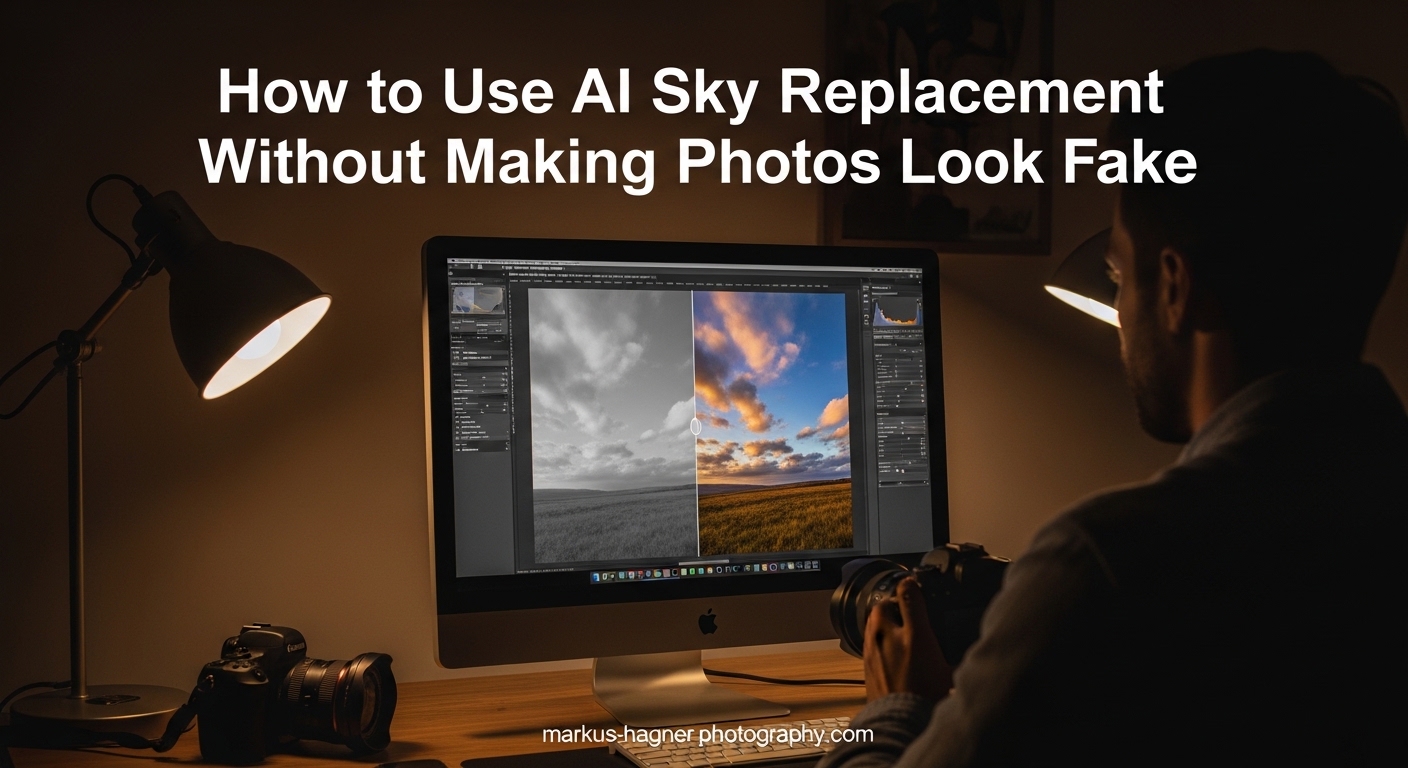
We’ve all been there. You spend hours perfecting a landscape shot, only to realize the sky is bland, blown out, or just plain boring. So you turn to AI sky replacement, hit the button, and suddenly your image looks like a bad collage from 2005. The lighting doesn’t match, the colors scream “fake,” and the horizon looks like someone drew a line with a ruler.
In this guide, I’ll show you exactly how to use AI sky replacement without making photos look fake. After years of experimenting with these tools and making every mistake in the book, I’ve developed a workflow that produces natural-looking results consistently. The secret isn’t just about picking the right tool. It’s about understanding what makes our brains recognize something as “off” and addressing those specific issues.
Most tutorials skip the why and jump straight to the how. That approach fails because you need to understand the underlying problems before you can fix them. By the end of this article, you’ll know exactly what to look for and how to correct each issue that makes sky replacements look artificial.
Why Most AI Sky Replacements Look Obviously Fake?
Before diving into solutions, let’s understand why sky replacement looks fake in the first place. I’ve analyzed hundreds of poorly executed replacements, and they almost always fail for the same five reasons.
Lighting Direction Mismatch
This is the number one giveaway. Your subject has light coming from the left, but your new sky has clouds lit from the right. Our brains are remarkably good at detecting inconsistent lighting, even when we can’t consciously articulate what’s wrong. I once replaced a sky in an eagle photo where the bird was lit from the lower left, but my dramatic sunset sky had light coming from the upper right. The result looked like two different photos pasted together because, technically, it was.
Color Temperature Problems
A warm golden hour sky on a cool blue-toned landscape creates instant visual dissonance. Color temperature isn’t just about warm versus cool. It’s about the entire color cast of your scene. If your foreground has blue shadows from an overcast day and you drop in a sunset sky with orange tones everywhere, the mismatch screams artificial.
Harsh Horizon Lines
Nothing says “bad Photoshop” faster than a visible edge where the sky meets the land. Real atmospheric conditions create soft transitions. Light scatters, haze blurs boundaries, and distant objects lose contrast. A sharp, clean horizon line is physically impossible in nature, yet many AI tools produce exactly that.
Missing Atmospheric Perspective
Objects further away appear lighter, less saturated, and lower in contrast due to atmospheric haze. If your new sky has deep, saturated blues right up to the horizon while your distant mountains are faded and hazy, the disconnect is obvious. Atmospheric perspective must be consistent throughout the image.
Over-Saturation and Unrealistic Colors
AI tools often boost saturation to make skies “pop,” but this frequently pushes colors into unnatural territory. Clouds that are too orange, blues that are too vivid, or gradients that are too dramatic all trigger our fake detection instincts. Subtle is almost always better than spectacular.
Key Elements for Realistic AI Sky Replacement
Now that we understand the problems, let’s build the foundation for solutions. These elements form the checklist I run through every time I do a sky replacement.
Understanding Lighting Direction
Before selecting any replacement sky, study your original image. Where is the light coming from? Look at shadows on the ground, the direction of light on your subject, and any highlights that indicate the sun’s position. This analysis takes thirty seconds but saves hours of frustration.
Once you know your lighting direction, choose a sky where the light matches. If your subject is backlit, pick a sky with the sun behind the clouds. If you have side lighting from the right, find a sky where clouds are illuminated from the same angle. Most photographers build sky libraries organized by lighting direction for exactly this reason.
Matching Color Temperature
Color temperature is measured in Kelvin, but you don’t need a meter to assess it. Look at the overall color cast of your foreground. Is it warm (yellow/orange tones) or cool (blue tones)? Are the shadows neutral, warm, or cool?
When selecting a replacement sky, match this temperature profile. A common mistake is choosing a dramatic warm sky for a scene shot on an overcast day. Even if the lighting direction matches, the color temperature mismatch makes the result look fake. Either warm up the foreground to match the new sky, or choose a cooler sky that fits the existing color palette.
Atmospheric Perspective Explained
Atmospheric perspective, also called aerial perspective, describes how distance affects appearance. As objects get further away, atmospheric particles scatter light, creating several effects: colors become less saturated, contrast decreases, and distant objects take on a bluish or hazy appearance.
Your sky replacement needs to respect this principle. If your horizon features distant mountains that are faded and blue-tinted, your sky should transition toward similar tones near the horizon. Many photographers add a slight haze or gradient to the lower portion of their replacement sky to create this continuity.
Geographic and Seasonal Consistency
This one catches many photographers off guard. A tropical sky with towering cumulus clouds looks wrong in a temperate forest scene. A winter sky with bare trees shouldn’t feature a summer sunset with vibrant colors. Our brains encode expectations about what skies “should” look like in different contexts.
I learned this lesson when I used a dramatic monsoon sky from Arizona in a photo taken in England. The cloud formations were wrong for the location, and viewers could sense it even if they couldn’t identify the specific problem. Now I organize my sky library by both lighting direction and geographic region.
How to Use AI Sky Replacement Without Making Photos Look Fake: Step-by-Step Workflow
Here’s the exact process I use for every sky replacement. Follow these steps, and you’ll avoid the most common pitfalls that create fake-looking results.
Step 1: Analyze Your Original Image
Before touching any tools, spend two minutes analyzing your photo. Answer these questions: Where is the light coming from? What is the overall color temperature? What time of day does the scene suggest? What season and geographic region are implied? How much atmospheric haze is present?
Write down your answers if it helps. This analysis forms the criteria for selecting an appropriate sky. Skip this step, and you’ll waste time trying to fix mismatched elements later.
Step 2: Select an Appropriate Sky
Using your analysis from Step 1, choose a sky that matches on all criteria. The lighting direction must align. The color temperature should be compatible. The mood and drama level should fit the scene. The geographic and seasonal character should match.
If you don’t have a suitable sky in your library, consider shooting your own. Skies photographed from the same location at different times often blend more naturally than stock skies from entirely different contexts.
Step 3: Apply the Sky Replacement
Use your preferred tool to apply the replacement. In Photoshop, go to Edit > Sky Replacement. In Luminar Neo, use the Sky AI tool. Most modern AI tools handle the basic masking automatically, but don’t accept the default results without inspection.
Check the automatic mask at the horizon. Look for halos around trees, buildings, or other protruding elements. Examine how the tool handled semi-transparent areas like foliage or distant details. The AI does most of the work, but rarely produces a perfect result without adjustment.
Step 4: Match Lighting and Color Temperature
This is where most photographers stop too early. After the initial replacement, use adjustment layers to harmonize the image. Create a curves or levels adjustment that affects both the sky and foreground together. This helps unify the tonal range.
Use color balance or photo filter adjustments to shift the foreground color temperature toward the new sky. If you added a warm sunset sky, warm up the foreground slightly. The goal isn’t to make everything the same color, but to create consistent color relationships throughout the image.
Step 5: Refine the Horizon Blend
The horizon transition is critical for realism. Apply a slight Gaussian blur to the lower edge of the sky layer. Use a soft brush to manually blend any remaining hard edges. Add atmospheric haze by lightening and desaturating the sky near the horizon.
For complex horizons with trees or buildings, you may need to manually paint the mask. Zoom in to 100% and carefully refine the boundary. Time spent here pays off in credibility.
Step 6: Add Atmospheric Haze and Final Adjustments
Create consistency by adding subtle atmospheric effects. A light haze layer over distant elements helps them recede naturally. Slightly reduce contrast in areas far from the camera. Ensure the saturation levels in the sky don’t exceed what’s present in the foreground.
Finally, step back and view the image at thumbnail size. Our eyes detect inconsistencies more easily at small scales. If something looks wrong, it’s usually a lighting or color temperature mismatch. Return to Step 4 and continue adjusting until the image reads as a single, cohesive photograph.
Tools Comparison: Which Software Produces the Most Realistic Results?
Not all sky replacement tools are created equal. Here’s how the main options compare for producing natural-looking results.
Adobe Photoshop Sky Replacement
Photoshop’s built-in Sky Replacement feature, introduced in 2021, offers solid automatic masking with decent edge detection. The tool provides good control over blending and color adjustment, but the default settings often produce over-saturated results.
Strengths include integration with Photoshop’s full adjustment toolkit, the ability to use any image as a replacement sky, and precise manual refinement options. The main weakness is that default output requires significant tweaking to avoid the fake look.
Luminar Neo
Luminar Neo’s Sky AI feature produces some of the most natural automatic results I’ve seen. The tool automatically relights the foreground to match the new sky, addressing the lighting direction problem that plagues other tools.
The sky library included with Luminar is well-organized and high-quality. However, the automatic relighting can go too far, creating unnatural results. Less control over manual refinement compared to Photoshop may frustrate advanced users.
Free Alternatives: Photopea and GIMP
Photopea offers a free online editor with a sky replacement feature similar to Photoshop’s. Results are adequate but require more manual work. GIMP with third-party plugins can achieve good results, but the workflow is more labor-intensive.
These options work for occasional use or budget-conscious photographers, but the time investment for realistic results is significantly higher than with paid tools.
Common Mistakes That Create Fake-Looking Results and How to Fix Them
Even with a good workflow, specific problems crop up regularly. Here are the most common issues I see and how to address each one.
Problem: Clouds Look Too Sharp for the Distance
Distant objects appear softer due to atmospheric scattering. If your replacement clouds are razor-sharp right to the horizon, they’ll look like they’re pasted on top of the scene rather than part of it.
Fix: Apply a progressive blur to the lower portion of the sky layer. The blur should be subtle at first, increasing toward the horizon. This mimics natural atmospheric softening and helps the sky integrate with the scene.
Problem: Shadows Point in the Wrong Direction
This fundamental lighting error immediately signals manipulation. If shadows on the ground point left but the sky shows light from the right, viewers will sense something is wrong even if they can’t identify the specific issue.
Fix: This problem requires selecting a different sky with matching lighting direction. You cannot convincingly fix mismatched shadow direction through editing. Return to Step 2 of the workflow and choose more carefully.
Problem: Obvious Cutout at the Horizon
A visible line where the sky meets the foreground is the hallmark of amateur sky replacement. This typically results from AI masking that’s too precise, creating an unnaturally sharp boundary.
Fix: Soften the mask edge at the horizon using a Gaussian blur on the mask itself. For complex horizons with trees or buildings, manually paint the transition using a soft brush at low opacity. Build up the blend gradually rather than trying to do it in one pass.
Problem: Sky Mood Doesn’t Match the Scene
A dramatic storm sky on a peaceful pastoral scene creates emotional dissonance. Our brains expect the mood of the sky to match the mood of the landscape.
Fix: Consider the emotional tone of your foreground before selecting a sky. Peaceful scenes need gentle skies. Dramatic landscapes can support more intense skies. When in doubt, err on the side of subtlety.
Problem: Reflections in Water Don’t Update
Water surfaces reflect the sky. If you replace the sky but leave the original reflection, the mismatch is obvious. Many AI tools don’t automatically update water reflections.
Fix: Manually update water reflections by flipping the new sky vertically, reducing its opacity, and applying a ripple distortion. Some tools like Luminar Neo handle this automatically, but manual refinement is often still needed.
When to Use Sky Replacement: Ethical Considerations
Sky replacement is a tool, not a moral issue in itself. However, context matters enormously. In fine art photography, creative editing including sky replacement is generally accepted. In real estate photography, sky replacement is common and expected when the actual weather didn’t cooperate. In photojournalism or documentary work, sky replacement crosses an ethical line.
The photography community remains divided on this topic. Some argue any sky replacement is dishonest. Others see it as no different from any other editing technique. My position falls in the middle: sky replacement is acceptable when it enhances the image without deceiving viewers about what they’re seeing.
If you enter competitions or submit to publications, check their specific rules about sky replacement. Many have explicit policies. When in doubt, disclose your editing. Transparency builds trust with your audience.
FAQ: Common Questions About AI Sky Replacement
How to make AI photos look less fake?
To make AI sky replacement photos look less fake, focus on three key elements: match the lighting direction between your subject and new sky, harmonize color temperature throughout the image, and soften the horizon line with atmospheric blur. The most common mistake is accepting default AI output without manual refinement. Always adjust saturation levels, add atmospheric haze near the horizon, and ensure shadows in your foreground align with the light source in your new sky.
What app replaces the sky in photos?
Several apps can replace skies in photos. Adobe Photoshop offers a built-in Sky Replacement feature with good manual controls. Luminar Neo provides Sky AI with automatic foreground relighting. Free options include Photopea’s online editor and GIMP with plugins. For mobile editing, apps like PicSky and SkyView offer basic sky replacement. Professional photographers typically prefer Photoshop or Luminar Neo for their superior masking and refinement capabilities.
How do you replace the sky in a picture?
To replace the sky in a picture, follow these steps: First, analyze your original image for lighting direction and color temperature. Second, select a replacement sky that matches these characteristics. Third, use your editing software’s sky replacement tool to apply the new sky. Fourth, adjust color temperature and lighting to harmonize foreground and sky. Fifth, refine the horizon blend with soft edges and atmospheric haze. Finally, check the result at thumbnail size to catch any remaining inconsistencies.
What app makes AI photos look real?
No app automatically makes AI photos look real. Realistic results require manual refinement regardless of which tool you use. Luminar Neo produces the most natural automatic output with its foreground relighting feature, but Photoshop offers more control for detailed adjustments. The key to realistic results isn’t the app itself but understanding how to match lighting direction, color temperature, and atmospheric perspective. Any tool can produce fake-looking results if you skip these fundamentals.
Conclusion
Learning how to use AI sky replacement without making photos look fake comes down to understanding what our eyes expect to see. Lighting direction must match. Color temperature needs to be consistent. Atmospheric perspective should carry through the entire image. The horizon must blend naturally rather than looking like a cutout.
The six-step workflow I’ve shared here has transformed my own sky replacement results from obviously fake to convincingly natural. Analyze your original first. Choose your sky carefully. Refine the AI output with manual adjustments. And always, always check your work at thumbnail size before calling it done.
Start practicing with images where the lighting is straightforward and the horizon is simple. As you develop your eye for these details, you’ll tackle more complex scenes with confidence. The goal isn’t to replace every sky in your portfolio. It’s to have the skill to do it convincingly when the situation calls for it.