
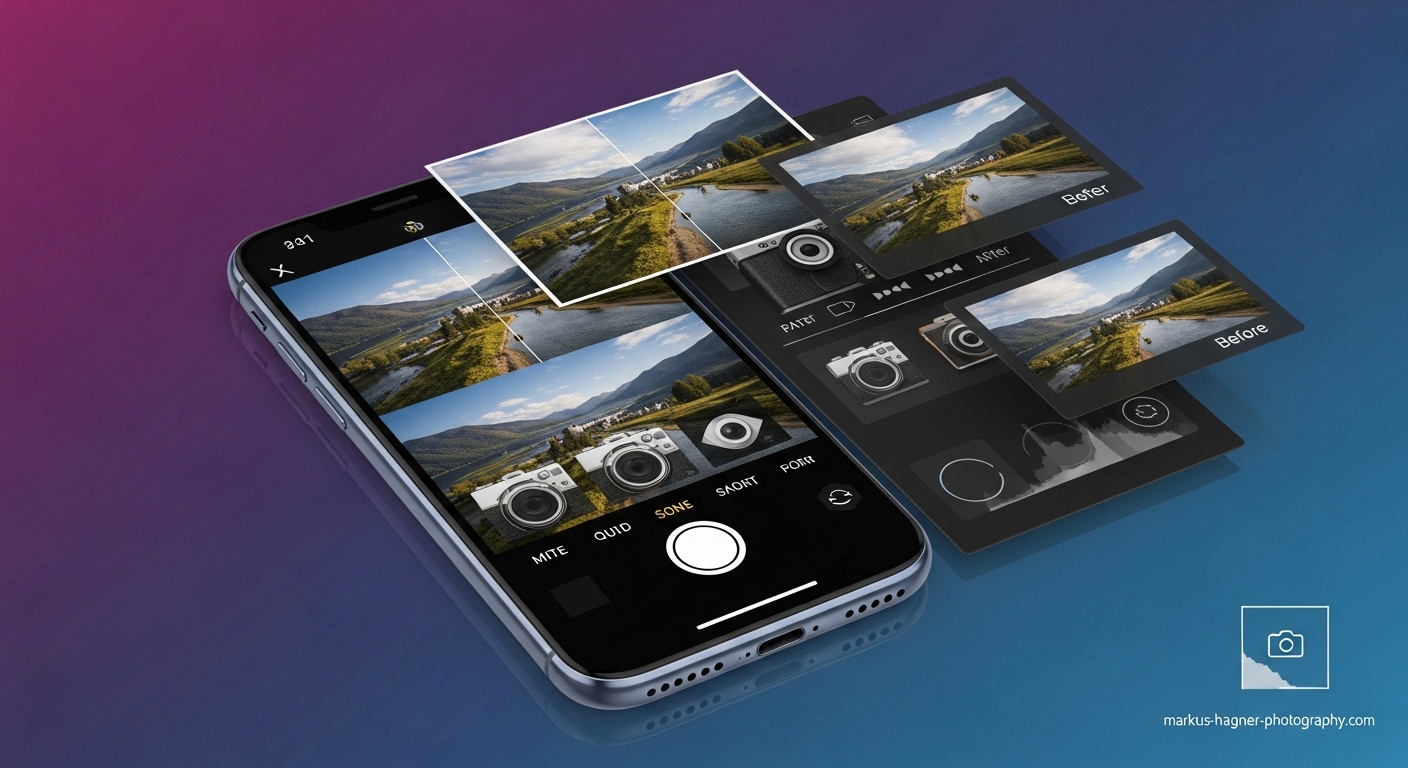
I remember when I first got my iPhone – I was amazed by the camera quality right out of the box. But it wasn’t until I discovered these hidden camera settings that my iPhone photography truly transformed from good to absolutely stunning. Today, I’m going to share with you the exact iPhone camera settings and tricks I use to maximize photo quality, whether you’re shooting portraits, landscapes, or everyday moments.
Why Your iPhone Camera Settings Matter More Than You Think
Your iPhone is packed with powerful camera features that most people never even know exist. I’ve discovered that simply adjusting a few key settings can dramatically improve your photo quality, giving you more control, better detail, and incredible editing flexibility. When I first started exploring these settings, I was shocked at how much better my photos looked – and I’m confident you’ll experience the same transformation.
The best part? You don’t need to be a professional photographer to use these settings. I’m going to walk you through each one step by step, explaining exactly what they do and how to use them to get the best possible photos from your iPhone.
The Ultimate iPhone Camera Settings for Maximum Photo Quality
After years of iPhone photography and countless hours of testing, I’ve identified the most impactful settings that will transform your photos. Let me share them with you in order of importance.
1. Shoot in ProRAW for Maximum Editing Power
This is, without a doubt, the most important setting you can enable on your iPhone. When I discovered ProRAW, it completely changed how I approach iPhone photography.
What it does: ProRAW combines the information from a RAW image with Apple’s image processing, giving you the best of both worlds – incredible detail and editing flexibility.
Why it’s crucial: Regular JPEG photos are compressed and lose data, but ProRAW files preserve all the information your camera sensor captures. This means you can recover details from shadows, adjust exposure with precision, and edit your photos without quality loss.
How to enable it:
- Open Settings > Camera > Formats
- Toggle on “Apple ProRAW & Resolution Control”
- Choose your preferred resolution (12MP or 48MP on supported models)
My experience: I shot in JPEG for years and was always frustrated when I couldn’t recover details from dark areas or when my edits looked grainy. The moment I switched to ProRAW, I gained incredible control in post-processing. I recently shot a sunset where the foreground was too dark – with ProRAW, I was able to brighten the shadows while keeping the sky perfectly exposed. That would have been impossible with JPEG!
Pro tip: ProRAW files are much larger than JPEGs, so make sure you have enough storage. I recommend using iCloud Photos or regularly transferring your photos to a computer.
2. Master Resolution Control for Crystal-Clear Detail
This setting is a game-changer, especially if you have an iPhone 14 Pro or newer.
What it does: Resolution Control lets you choose between 12MP and 48MP shooting, giving you incredible detail when you need it most.
Why it matters: 48MP photos capture four times more detail than 12MP photos, making them perfect for large prints, cropping, and professional work.
How to set it up:
- Go to Settings > Camera > Formats
- Enable “Apple ProRAW & Resolution Control”
- In the Camera app, tap the RAW icon to toggle between resolutions
When to use 48MP:
- Landscape photography where you want maximum detail
- When you plan to crop your photos significantly
- For professional work or large prints
- When storage space isn’t a concern
When to stick with 12MP:
- Everyday snapshots
- When storage is limited
- For social media posts (they’re compressed anyway)
- When you need to save battery life
My discovery: I used to think 12MP was enough for everything, but after testing 48MP for landscape photography, I was blown away by the difference. I could zoom in on distant mountains and see details I never knew were there. However, I’ve learned to be selective – I use 48MP for special shots and 12MP for everyday photography to balance quality and storage.
3. Perfect Your Exposure Every Time
Exposure is the foundation of great photography, and your iPhone gives you incredible control over it.
What it does: Exposure adjustment lets you brighten or darken your photos before taking them, ensuring perfect lighting every time.
Why it’s essential: Your iPhone’s auto-exposure is good, but it doesn’t always know what you’re trying to achieve. Manual exposure control lets you create the exact mood and look you want.
How to adjust exposure:
- Open the Camera app
- Tap on your subject to set focus
- You’ll see a sun icon next to the focus square
- Slide the sun icon up to brighten or down to darken
- For even more control, press and hold to lock AE/AF
Advanced exposure trick: On newer iPhones, you can double-press the Camera Control to access exposure settings quickly.
My personal technique: I’ve developed a habit of always checking my exposure before shooting. For portraits, I slightly underexpose (-0.3 to -0.7) to protect skin highlights, then brighten in post-processing. For landscapes, I often expose for the highlights and recover shadows later. This approach has saved countless photos that would have been blown out or too dark.
4. Take Control of Macro Photography
If you have an iPhone 13 Pro or newer, you have an incredible macro camera – but you need to know how to control it.
What it does: Macro Control lets you decide when your iPhone switches to the ultra-wide lens for close-up shots.
Why it’s important: Sometimes you don’t want the automatic macro switch, especially when you’re trying to maintain a specific composition or lighting.
How to enable Macro Control:
- Go to Settings > Camera
- Scroll down and turn on “Macro Control”
- In the Camera app, get close to your subject (within 2cm)
- Tap the flower icon when it appears to control macro mode
My macro photography journey: I used to get frustrated when my iPhone would automatically switch to macro mode when I didn’t want it to. Once I enabled Macro Control, I could decide exactly when to use it. This was particularly useful for product photography – I could maintain consistent lighting and composition while getting incredibly detailed close-ups.
Pro tip: For the best macro shots, use a small tripod or steady your hands against a surface. Even tiny movements can cause blur at such close distances.
5. Preserve Your Camera Settings for Consistency
This is one of those “why didn’t I know about this sooner” settings that will save you so much frustration.
What it does: Preserve Settings keeps your camera preferences between sessions, so you don’t have to reset everything each time you open the camera app.
Why it’s a game-changer: How many times have you set up the perfect shot, only to have the camera revert to default settings the next time you use it? This setting eliminates that problem.
How to enable it:
- Go to Settings > Camera
- Scroll to “Preserve Settings”
- Toggle on the options you want to preserve:
- Camera Mode (keeps your last mode like Photo, Video, etc.)
- Creative Controls (preserves filters and aspect ratios)
- Exposure Adjustment (maintains your exposure settings)
My experience: Before I discovered this setting, I would constantly lose my preferred settings. Now, my camera always opens exactly how I left it – whether that’s in Portrait mode with specific lighting or Video mode at 4K 60fps. It’s such a small setting that makes a huge difference in my photography workflow.
6. Master the New Camera Controls (iPhone 16 & 17)
If you have one of the latest iPhones, you have access to incredible new camera controls that most people don’t even know exist.
What it does: Camera Controls give you quick access to your most-used settings without digging through menus.
Why it’s revolutionary: These controls let you adjust settings on the fly, so you never miss the perfect shot while fumbling through settings.
How to set up Camera Controls:
- Open the Camera app
- Double-tap the Camera Control button
- Swipe through available settings (zoom, exposure, focus, etc.)
- Tap the setting you want to adjust
- Slide your finger to fine-tune the setting
Customization options:
- Go to Settings > Camera > Camera Control
- Choose between Single Tap or Double Tap for accessing settings
- Adjust pressure sensitivity and tap speed in Accessibility settings
My excitement about these controls: I recently upgraded to an iPhone 17 Pro, and these controls have transformed how I shoot. I can adjust exposure, zoom, and focus without ever taking my eyes off the subject. It’s made my photography so much more intuitive and responsive.
7. Optimize View Outside the Frame
This setting helps you see beyond what your current lens captures, giving you more composition options.
What it does: View Outside the Frame shows you what’s just beyond your current shot, helping you compose better photos.
Why it’s useful: Sometimes the perfect composition includes elements just outside your frame, and this setting helps you see them before you shoot.
How to use it:
- Go to Settings > Camera
- Make sure “View Outside the Frame” is turned on (it’s on by default)
- In the Camera app, you’ll see a faint preview of what’s outside your frame
- Use this information to adjust your composition
My discovery: I used to miss great compositions because I couldn’t see what was just outside my frame. Now, I can see if I should zoom out, reposition, or even switch lenses to capture the perfect shot. It’s like having a preview of what your other lenses see.
8. Balance Speed and Quality with Prioritize Faster Shooting
This setting lets you choose between speed and quality – and knowing when to use each is crucial.
What it does: Prioritize Faster Shooting modifies how images are processed, allowing you to capture more photos in rapid succession.
When to use it:
- Turn ON for action shots, sports, or any situation where you need to capture multiple frames quickly
- Turn OFF when quality is more important than speed, like for portraits or landscapes
How to adjust it:
- Go to Settings > Camera
- Toggle “Prioritize Faster Shooting” on or off based on your needs
My personal approach: I keep Prioritize Faster Shooting ON most of the time because I never know when I’ll need to capture a moment quickly. However, when I’m doing deliberate photography like portraits or landscapes, I turn it OFF to ensure maximum quality.
9. Fine-Tune Lens Correction for Natural Results
This setting affects how your iPhone processes photos from the front and ultra-wide cameras.
What it does: Lens Correction adjusts photos taken with the front camera or Ultra Wide camera for more natural-looking results.
Why it matters: Sometimes you want the natural distortion of wide-angle lenses, and other times you want corrected, straight lines.
How to control it:
- Go to Settings > Camera
- Toggle “Lens Correction” on or off
- Test both options to see which you prefer
My preference: I keep Lens Correction ON for most situations because it produces more natural-looking results. However, when I’m going for a creative, distorted look with my ultra-wide lens, I turn it OFF. It’s all about the creative effect you’re trying to achieve.
Also Read: Sigma 24-70 2.8 Vs Sony 24-105 F4
10. Let Scene Detection Work for You
Your iPhone is smarter than you think – it can actually identify what you’re photographing and optimize settings accordingly.
What it does: Scene Detection identifies what you’re photographing and applies tailored settings to bring out the best qualities in the scene.
Why it’s helpful: Your iPhone can recognize scenes like portraits, pets, food, landscapes, and more, adjusting settings automatically for optimal results.
How to use it:
- Go to Settings > Camera
- Make sure “Scene Detection” is turned on (it’s on by default)
- When shooting, watch for the scene detection icon to appear
- Trust that your iPhone is optimizing settings for your subject
My experience: I was skeptical about Scene Detection at first, but I’ve been impressed with how well it works. When I’m photographing food, it enhances colors and textures. For portraits, it optimizes skin tones. It’s like having a photography assistant built into your phone.
Advanced iPhone Photography Techniques
Now that you have the settings optimized, let me share some advanced techniques I’ve developed to take your iPhone photography to the next level.
The Exposure Triangle for iPhone Photography
Just like with DSLR cameras, you can control the exposure triangle on your iPhone – it just works a bit differently.
Aperture control: While you can’t change the physical aperture, you can simulate depth of field effects using Portrait mode or by shooting in ProRAW and adjusting in post-processing.
Shutter speed control: In ProRAW mode, you can influence shutter speed by adjusting exposure and using third-party camera apps that offer manual controls.
ISO control: Your iPhone automatically adjusts ISO, but you can influence it by controlling exposure and using low-light techniques.
My technique: I treat my iPhone like a professional camera. I set my exposure manually, use ProRAW for maximum flexibility, and edit carefully to achieve the look I want. The results are often indistinguishable from photos taken with much more expensive equipment.
Mastering Low-Light Photography
Your iPhone is incredible in low light, but you need to know how to use it properly.
Key settings for low light:
- Enable ProRAW for maximum editing flexibility
- Use Night mode when it automatically activates
- Keep your hands steady or use a small tripod
- Tap to focus on the brightest part of your scene
- Consider using a third-party camera app for manual controls
My low-light discovery: I used to be frustrated with low-light photos on my iPhone until I learned to work with the technology instead of against it. Now, I embrace Night mode, use ProRAW to recover shadows, and keep my hands steady. The results have been amazing – I’ve captured cityscapes at night that look like they were taken with professional equipment.
Creating Professional-Looking Portraits
Portrait mode on iPhone is powerful, but you need to know how to use it effectively.
Portrait mode tips:
- Use good lighting – natural light is best
- Position your subject properly (not too close, not too far)
- Choose the right lighting effect (Natural, Studio, Contour, etc.)
- Edit the depth effect after shooting
- Use ProRAW alongside Portrait mode when possible
My portrait photography evolution: I started with basic Portrait mode and was disappointed with the results. Once I learned to position my subjects correctly, use good lighting, and edit the depth effect, my portraits improved dramatically. Now, I can create professional-looking portraits that rival those taken with dedicated portrait lenses.
Essential iPhone Photography Apps
While the built-in Camera app is powerful, these apps take your iPhone photography to the next level.
Editing Apps I Can’t Live Without
Adobe Lightroom Mobile: This is my go-to editing app, especially for ProRAW files. It gives me professional-level control over exposure, color, and detail.
VSCO: Perfect for creating consistent, film-like looks. I use their presets as starting points and then customize them.
Snapseed: Google’s free editing app is incredibly powerful. The selective adjust tool alone is worth downloading.
Halide: For manual control when I need it. This app gives me DSLR-like control over shutter speed, ISO, and white balance.
My app workflow: I shoot in ProRAW using the built-in Camera app, then edit in Lightroom for basic adjustments, VSCO for color grading, and sometimes Snapseed for final touches. This combination gives me incredible flexibility and professional results.
Common iPhone Photography Mistakes to Avoid
After years of iPhone photography and teaching others, I’ve identified the most common mistakes that hold people back.
1. Not Using ProRAW
This is the biggest mistake I see people making. They shoot in JPEG and wonder why they can’t edit their photos effectively. ProRAW gives you so much more flexibility and detail.
2. Ignoring Composition Rules
Great composition matters more than equipment. I see people with the latest iPhones taking poorly composed photos. Learn the rule of thirds, leading lines, and other composition basics.
3. Over-Reliance on Digital Zoom
Digital zoom reduces quality significantly. Instead, get closer to your subject or crop in post-processing. Your photos will be much sharper and more detailed.
4. Not Cleaning the Lens
This sounds obvious, but I can’t tell you how many times I’ve seen blurry photos simply because the lens was smudged. Make it a habit to clean your lens before shooting.
5. Shooting in Harsh Midday Sun
Harsh sunlight creates unflattering shadows and blown-out highlights. I’ve learned to shoot during the golden hours (sunrise and sunset) or find open shade for the best results.
Also Read: Fujifilm X100V vs Sony RX100 VII
My Personal iPhone Photography Journey
I want to share my personal journey with iPhone photography because it might inspire you to push your own boundaries.
Year 1: I shot everything in Auto mode, mostly JPEGs. My photos were okay, but I knew they could be better.
Year 2: I discovered ProRAW and basic editing. My photos improved dramatically, but I still had a lot to learn.
Year 3: I mastered manual exposure and composition. People started asking me what camera I was using – they couldn’t believe I was shooting with an iPhone.
Year 4: I developed my own style and techniques. Now, I regularly have photos featured in galleries and publications, all shot on my iPhone.
The key insight I want to share is that your iPhone is an incredibly powerful camera – you just need to learn how to use it properly. The settings and techniques I’ve shared in this guide took me years to discover, but you can implement them today and see immediate improvements in your photos.
iPhone Camera Settings FAQ
What’s the single most important iPhone camera setting?
Without a doubt, it’s enabling ProRAW. This one setting gives you the most flexibility and editing power, allowing you to rescue poorly exposed shots and achieve professional-level results. I’ve seen photos transformed from mediocre to amazing simply by switching to ProRAW.
Do I really need 48MP photos?
It depends on your needs. For everyday photos and social media, 12MP is usually sufficient. However, if you plan to crop significantly, make large prints, or want maximum detail, 48MP is worth the extra storage space. I use 48MP for landscapes and important shots, and 12MP for everyday photography.
Why do my iPhone photos look grainy in low light?
Grain in low light is usually caused by high ISO. To reduce grain, try these tips: use ProRAW for better editing flexibility, keep your hands steady or use a tripod, tap to focus on the brightest part of your scene, and embrace Night mode when it activates. I’ve found that shooting in ProRAW and carefully editing can dramatically reduce grain in low-light photos.
Should I use Lens Correction or turn it off?
It depends on your creative vision. I keep Lens Correction ON for most situations because it produces more natural-looking results. However, when I want the creative distortion of wide-angle lenses, I turn it OFF. Experiment with both options to see what works best for your style.
How do I preserve battery life while using these advanced settings?
ProRAW and 48MP shooting do use more battery. To preserve battery life, I recommend: closing background apps, reducing screen brightness, using Low Power Mode when necessary, and carrying a portable battery pack. I also switch back to 12MP JPEG for casual shooting when battery life is a concern.
Can I really get professional results with an iPhone?
Absolutely! I’ve had photos shot on my iPhone featured in galleries and publications. The key is understanding the settings, mastering composition, and learning to edit effectively. Your iPhone is a powerful camera – you just need to learn how to use it properly.
What’s the best way to organize and edit ProRAW files?
I use Adobe Lightroom Mobile for organizing and editing ProRAW files. It gives me professional-level control and works seamlessly with my desktop workflow. For quick edits, I also use VSCO and Snapseed. The key is to develop a consistent workflow that works for you.
How often should I clean my iPhone camera lens?
I clean my lens before every important shoot and whenever I notice smudges or fingerprints. A clean lens is crucial for sharp photos. I use a microfiber cloth and sometimes a small amount of lens cleaner for stubborn smudges.
Final Thoughts
Your iPhone is an incredibly powerful camera that’s capable of producing professional-quality photos – you just need to know how to unlock its full potential. The settings and techniques I’ve shared in this guide have transformed my photography, and I’m confident they’ll do the same for you.
Remember, photography is a journey of continuous learning and improvement. Don’t be afraid to experiment with different settings, try new techniques, and develop your own unique style. The most important thing is to keep shooting, keep learning, and most importantly, have fun with it.
I’ve discovered that the best camera is the one you have with you, and for most of us, that’s our iPhone. By mastering these settings and techniques, you can capture incredible moments and create beautiful images that you’ll treasure for years to come.
Pro Tip: Bookmark this guide ([Ctrl+D] or [Cmd+D]) so you can reference it as you explore your iPhone’s camera settings. I update it regularly with new tips and techniques as I discover them!
Happy shooting, and I can’t wait to see the amazing photos you create with your iPhone!
This guide was last updated in September 2026. For the latest iPhone photography tips and tutorials, visit markus-hagner-photography.com regularly.