
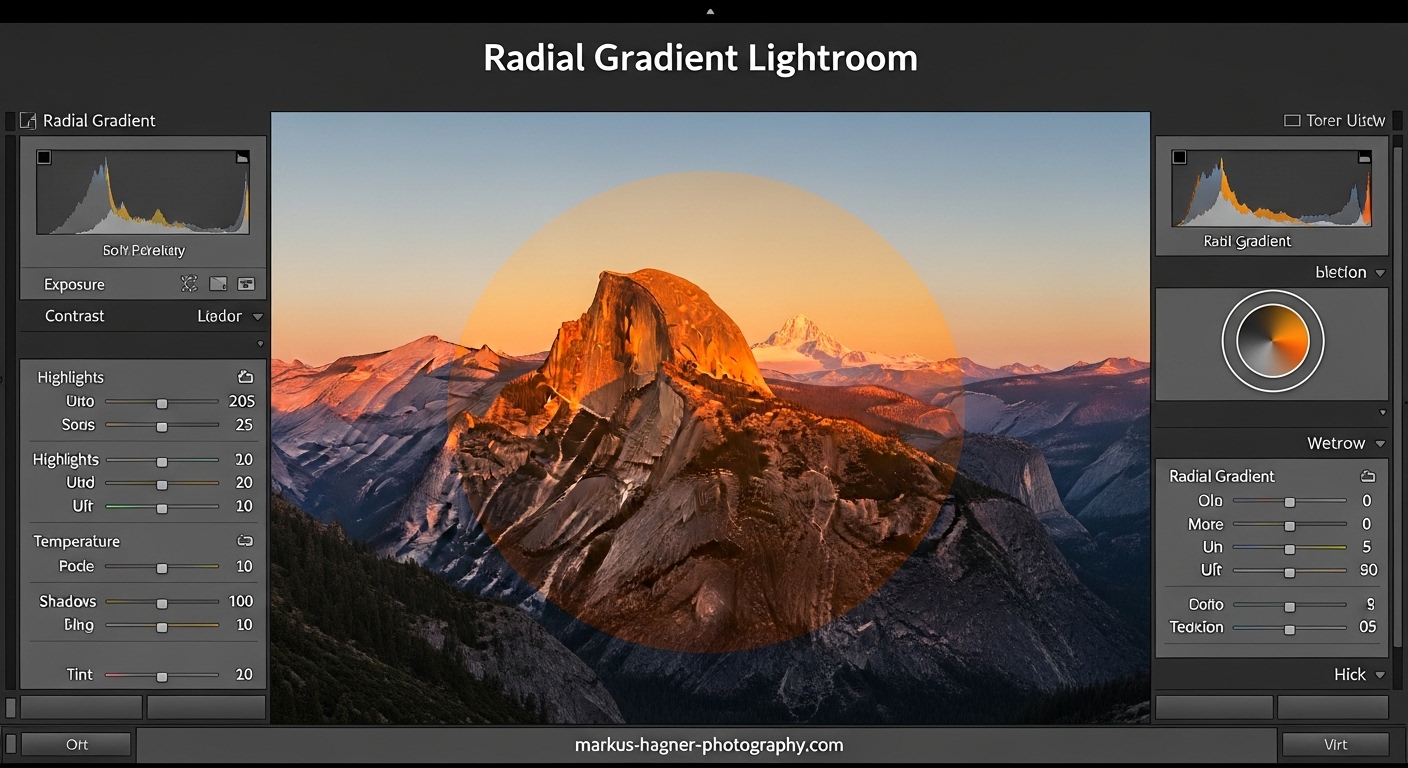
Every photographer wants their subject to stand out. The radial gradient in Lightroom is one of the most effective tools for achieving this goal. It lets you create targeted adjustments in an elliptical shape, drawing the viewer’s eye exactly where you want it. Whether you’re editing portraits, landscapes, or product shots, mastering this tool will transform your workflow and help you create more impactful images.
In this guide, I’ll walk you through everything you need to know about using the radial gradient tool in Lightroom. You’ll learn the step-by-step process, practical techniques for different photography styles, and pro tips that will save you time and frustration. By the end, you’ll be able to confidently use radial gradients to make your subjects pop.
What Is the Radial Gradient Tool in Lightroom?
The radial gradient tool in Lightroom applies local adjustments within an elliptical shape. Think of it as a customizable spotlight that you can place anywhere on your image. You control the size, position, and softness of the transition, then apply any combination of Lightroom’s adjustment sliders to the selected area.
Unlike global adjustments that affect your entire photo, the radial gradient lets you be surgical with your edits. You can brighten your subject’s face without affecting the background, darken edges to create a vignette, or add clarity to specific areas. The elliptical shape makes it particularly useful for subjects that fit naturally within circular or oval areas.
The tool works by creating a mask that determines which parts of your image receive the adjustments. By default, the area inside the ellipse gets edited while the outside remains unchanged. However, you can easily invert this to affect everything except your selected area. This flexibility makes the radial gradient perfect for both brightening subjects and darkening surroundings.
Photographers commonly use this tool for creating vignettes that are more flexible than the standard post-crop vignette option. Since you can position the ellipse anywhere, you can create off-center vignettes that draw attention to subjects that aren’t in the middle of the frame. This alone makes it an essential tool in my editing toolkit.
How to Use the Radial Gradient in Lightroom to Draw Attention to Your Subject
Creating a radial gradient in Lightroom is straightforward once you understand the process. I’ll break it down into clear steps that you can follow along with in Lightroom Classic.
Step 1: Open Your Image in the Develop Module
Start by opening Lightroom Classic and selecting the image you want to edit. Navigate to the Develop module by clicking “Develop” at the top right of the screen or pressing the “D” key on your keyboard. This gives you access to all the editing tools including the masking panel.
Before adding a radial gradient, I recommend making your basic global adjustments first. Adjust exposure, white balance, contrast, and other overall settings. This establishes a solid foundation for your image. Local adjustments like the radial gradient work best when applied as finishing touches to refine your edit.
Step 2: Access the Masks Panel
Look for the Masks icon in the toolbar below the histogram at the top of the right panel. It looks like a dotted circle. Click this icon to open the masks panel, which shows all your current masks and gives you options to create new ones.
Alternatively, you can use the keyboard shortcut Shift+M to jump directly to creating a new radial gradient. This shortcut is a massive time-saver once you memorize it. I use it constantly in my editing workflow.
Step 3: Select the Radial Gradient Tool
In the masks panel, click “Create New Mask” and select “Radial Gradient” from the dropdown menu. The icon shows an ellipse with a gradient inside it. Once selected, your cursor will change to a crosshair, indicating you’re ready to draw on your image.
If you used the Shift+M shortcut, Lightroom automatically opens the radial gradient tool and you can skip this step entirely. This is why I prefer using the keyboard shortcut for efficiency.
Step 4: Draw the Elliptical Selection
Click and drag on your image to create the elliptical selection. Position your cursor where you want the center of the gradient to be, then drag outward to define the size. The ellipse has inner and outer boundaries that control the transition area.
For a perfectly centered radial gradient, hold Ctrl (Windows) or Cmd (Mac) and double-click anywhere on your image. Lightroom creates a gradient centered on your photo that extends to the edges. This technique is incredibly useful when your subject is in the middle of the frame.
If you want a perfect circle instead of an ellipse, hold Shift while dragging. This constrains the shape to a circle, which works well for round subjects or when you want symmetry.
Step 5: Position and Resize the Gradient
After drawing the gradient, you can adjust its position and size. Click and drag the center pin to move the entire gradient to a new location. Drag any of the four handles on the edges to resize the ellipse. Drag a corner handle while holding Shift to maintain the aspect ratio.
To rotate the ellipse, move your cursor just outside a corner handle until it changes to a curved arrow, then drag. This is useful when your subject isn’t aligned horizontally or vertically. I use rotation frequently for portraits where faces are at slight angles.
If you need to zoom out while adjusting, press Ctrl/Cmd + minus key. This gives you more room to work with the handles, especially when the gradient extends beyond the visible image area.
Step 6: Adjust the Feather for Natural Transitions
The feather slider controls how gradually your adjustments transition from fully applied to not applied. A high feather value creates a soft, gradual transition that looks natural. A low feather value creates a harder edge with more visible transition lines.
For most portrait work, I use a feather value between 80 and 100. This creates such a gradual transition that viewers won’t notice where the adjustment begins and ends. For more dramatic effects or creative looks, lower feather values work well.
You can visually see the feather area by pressing the “O” key to toggle the overlay. The red overlay shows which parts of your image are affected by the mask. Adjust the feather while watching this overlay to understand exactly how your changes impact the gradient.
Step 7: Use the Invert Checkbox Correctly
By default, your adjustments apply to the area inside the ellipse. But sometimes you want the opposite effect. The Invert checkbox flips the mask so adjustments affect everything outside the ellipse instead.
This is particularly useful for vignettes. Create a radial gradient around your subject, check Invert, then lower the exposure to darken everything except your subject. The viewer’s eye naturally goes to the brighter area, making your subject stand out.
You can find the Invert checkbox in the masks panel when your radial gradient is selected. Toggle it on and off to see which version works better for your image. There’s no right or wrong answer; it depends entirely on the effect you’re trying to achieve.
Step 8: Apply Your Adjustment Sliders
Now comes the creative part. With your radial gradient positioned and sized, use the adjustment sliders to make your changes. The most common adjustments for drawing attention to subjects include:
Exposure: Increase to brighten your subject or decrease to darken the background.
Clarity and Texture: Increase to add detail and sharpness to your subject.
Saturation: Increase to make colors more vivid in the selected area.
Highlights and Shadows: Fine-tune tonal range in specific areas.
Start with subtle adjustments. Small changes often make the biggest impact. I typically start with exposure changes of 0.2 to 0.5 stops and clarity increases of 10 to 20 points. You can always increase if needed, but it’s harder to recover from over-editing.
Practical Techniques for Drawing Attention to Your Subject
Now that you understand the basics, let’s explore specific techniques for using radial gradients effectively. These approaches work across different photography styles and will help you get professional results.
Creating Vignettes to Spotlight Your Subject
Vignettes are one of the most popular uses for radial gradients. They darken the edges of your image while keeping the center bright, naturally guiding the viewer’s eye to your subject. This technique has been used by photographers for decades because it simply works.
To create a vignette, draw a radial gradient that encompasses your subject with some room to spare. Check the Invert checkbox so your adjustments affect the edges rather than the center. Lower the exposure slider, typically by 0.3 to 1 stop depending on how dramatic you want the effect.
For more natural vignettes, also lower the blacks or shadows slider slightly. This darkens the edges without making them look artificially dimmed. The combination creates a subtle but effective spotlight effect on your subject.
The advantage of using radial gradient for vignettes over the post-crop vignette tool is flexibility. You can position the vignette off-center, resize it precisely, and control the feather independently. For portraits where subjects aren’t perfectly centered, this makes all the difference.
Brightening Your Subject While Darkening Background
This technique combines two radial gradients for maximum impact. First, create a gradient around your subject without inverting. Increase exposure slightly to brighten your subject. Then create a second gradient, invert it, and lower exposure to darken the surroundings.
The contrast between the brighter subject and darker background creates visual separation that makes your subject pop. This works exceptionally well for portraits, product photography, and wildlife shots where you want to isolate your subject from a busy background.
Keep both gradients subtle. If the difference between subject and background is too extreme, the image will look unnatural. Aim for a difference that enhances without screaming “I edited this.”
Adding Clarity and Texture for Subject Pop
Clarity and texture sliders add local contrast and detail enhancement. When applied through a radial gradient, they can make your subject appear sharper and more defined without affecting the rest of the image.
Draw a radial gradient around your subject, then increase clarity by 10 to 25 points. Add texture if you want even more detail enhancement. This works particularly well for portraits where you want to emphasize facial features, or for product photography where you want to highlight textures.
Be careful not to overdo these adjustments. Too much clarity can create halos around edges and make skin look unnatural. Start conservative and increase gradually while watching the effect on your subject.
Creative Lighting Effects with Radial Gradient
You can simulate lighting effects using radial gradients in creative ways. One popular technique involves creating the appearance of a sun flare or warm light source hitting your subject.
Place a radial gradient where you want the “light source” to be. Increase exposure and warmth (using the temperature slider in the color mixer) to create a glowing effect. Use a soft feather to blend the effect naturally. This works beautifully for outdoor portraits and landscape images.
Another creative approach is using multiple radial gradients with different settings. Stack them to build complex lighting effects that would be difficult to achieve with a single adjustment. Experiment with different combinations to find looks that match your creative vision.
Pro Tips for Better Radial Gradient Results
These tips come from years of using radial gradients in my photography workflow. They’ll help you work faster and achieve better results.
Essential Keyboard Shortcuts
Keyboard shortcuts dramatically speed up your editing workflow. Here are the ones I use most frequently:
Shift+M: Activates the radial gradient tool immediately.
O key: Toggles the red overlay visibility so you can see your mask.
Ctrl/Cmd + double-click: Creates a perfectly centered radial gradient.
Shift while dragging: Creates a perfect circle instead of an ellipse.
Ctrl/Cmd + minus: Zooms out for easier gradient adjustment.
Memorize these shortcuts and your editing speed will increase significantly. I can now create and adjust radial gradients in seconds without taking my eyes off the image.
Creating Perfectly Centered Gradients
When your subject is in the center of the frame, you want your radial gradient to be perfectly centered too. The manual approach of clicking and dragging can leave you with slightly off-center results that bother you later.
Instead, hold Ctrl (Windows) or Cmd (Mac) and double-click anywhere on your image. Lightroom automatically creates a radial gradient centered on your image that extends to the edges. From there, you can resize it smaller if needed while maintaining the center point.
This technique saves time and ensures precision. I use it for probably 80% of the radial gradients I create, especially for portraits and product shots where the subject is typically centered.
Achieving Natural-Looking Results
The biggest mistake photographers make with radial gradients is creating effects that look obvious and artificial. Here’s how to keep your edits subtle and professional:
Use high feather values, typically 80 or above. This creates gradual transitions that blend seamlessly with the rest of your image. Low feather values create visible edges that immediately reveal the edit.
Keep adjustment values moderate. Exposure changes of more than one stop usually look unnatural. Clarity increases above 30 points often create halos and artifacts. Less is genuinely more with these adjustments.
Check your image at different zoom levels. Sometimes an edit looks fine when zoomed in but becomes obviously artificial when viewing the full image. Zoom out periodically to evaluate the overall effect.
Combining Radial Gradient with Other Masks
Lightroom’s masking system allows you to combine different mask types for complex selections. You might use a radial gradient as the base, then subtract areas with a brush, or add areas with a linear gradient.
To subtract from a radial gradient, select the gradient in the masks panel, then click “Subtract” and choose another tool like the Brush. Paint over areas you want to remove from the selection. This is useful when part of the radial gradient covers something you don’t want affected.
To add to a radial gradient, you’ll need to create a new mask with a different tool. Each mask shows up separately in the masks panel, so you can have multiple overlapping selections with different adjustments. This flexibility is powerful for complex edits.
Common Mistakes to Avoid When Using Radial Gradient
Even experienced photographers make these mistakes. Being aware of them will save you frustration and improve your results.
Over-Editing and Unnatural Effects
Heavy-handed adjustments are the most common problem. When you first discover radial gradients, the temptation is to crank up the effects dramatically. This creates images that look obviously edited and amateurish.
Start with subtle adjustments and build up gradually. If you think you need a 50-point clarity increase, try 15 first. You might find that’s enough. The goal is enhancement, not transformation.
Incorrect Feather Settings
Low feather values create hard edges that look artificial. Unless you’re going for a specific creative effect, avoid feather values below 50. For most portrait and landscape work, values between 75 and 100 produce the most natural results.
Forgetting About Overlay Visibility
Many photographers panic when they can’t see their gradient’s adjustment lines anymore. The overlay might have been turned off accidentally. Press the O key to toggle it back on. This simple fix solves what seems like a major problem.
Using Radial Gradient When Another Tool Would Work Better
The radial gradient isn’t always the right choice. For linear transitions, the linear gradient works better. For irregular shapes, the adjustment brush gives you more control. Consider whether an elliptical selection truly matches your subject before committing to this tool.
Frequently Asked Questions
How to use radial gradient in Lightroom?
To use radial gradient in Lightroom, open the Develop module and press Shift+M or click the Masks icon and select Radial Gradient. Click and drag on your image to create an elliptical selection, position it around your subject, adjust the feather for smooth transitions, and apply adjustment sliders like exposure or clarity to enhance the selected area.
What does radial gradient do in Lightroom?
The radial gradient tool in Lightroom applies local adjustments within an elliptical shape. It allows you to selectively edit specific areas of your image, such as brightening a subject or darkening edges to create a vignette effect. The adjustments can affect either the inside or outside of the ellipse using the Invert option.
How to make a subject clearer in Lightroom?
To make a subject clearer in Lightroom, create a radial gradient around your subject and increase the Clarity slider by 10-25 points for detail enhancement. You can also increase Texture for more micro-contrast, slightly raise Exposure to brighten the subject, and use the Invert option with negative exposure to darken the background for contrast.
How do I create a perfectly centered radial gradient?
To create a perfectly centered radial gradient in Lightroom, hold Ctrl on Windows or Cmd on Mac and double-click anywhere on your image. Lightroom automatically creates a radial gradient centered on your photo that extends to the edges. You can then resize it smaller while maintaining the center point.
Conclusion
The radial gradient in Lightroom is a powerful tool for drawing attention to your subject. By creating targeted adjustments in an elliptical shape, you can brighten subjects, darken backgrounds, add vignettes, and enhance details exactly where needed. The key is subtlety and proper technique.
Remember to use high feather values for natural transitions, start with moderate adjustments, and combine radial gradients with other masking tools when needed. Practice the keyboard shortcuts to speed up your workflow, and don’t forget that you can create perfectly centered gradients with a simple Ctrl/Cmd double-click.
Now it’s your turn. Open Lightroom and experiment with radial gradients on your own images. Try different techniques, see what works for your style, and develop your own workflow. The more you practice, the more natural this tool will become in your editing process.