
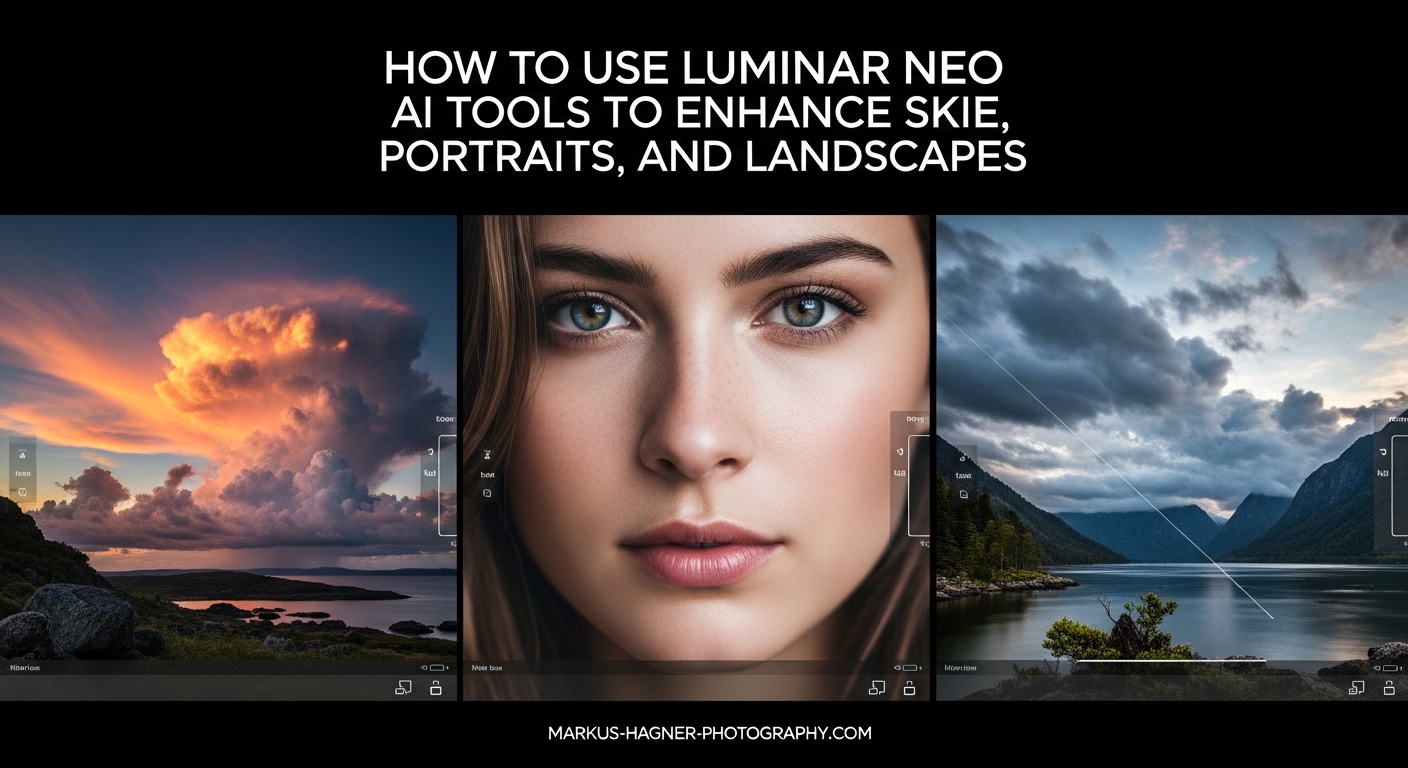
Photo editing used to mean spending hours tweaking sliders and masking selections by hand. Luminar Neo AI tools changed that equation for photographers at every skill level. This software uses artificial intelligence to handle complex editing tasks that once required advanced Photoshop skills. In this guide, I will walk you through exactly how to use Luminar Neo AI tools to enhance skies, portraits, and landscapes with professional results in minutes instead of hours.
After testing these tools on hundreds of images over the past year, I have discovered which features deliver consistent results and which ones need manual refinement. The key is understanding what each AI tool does best and when to combine them for natural-looking edits. Whether you shoot landscapes, portraits, or travel photography, this guide will help you get the most from Luminar Neo AI tools.
Table of Contents
- Getting Started with Luminar Neo AI Tools
- How to Use Luminar Neo AI Tools: Sky AI for Sky Replacement
- Portrait AI Tools: Face, Skin, and Body Enhancement
- Landscape Enhancement with Water and Atmosphere AI
- Enhance AI: The Foundation Tool
- Advanced Techniques: Masking and Layers
- Troubleshooting Common Issues
- Frequently Asked Questions
- Conclusion: Making the Most of Luminar Neo AI Tools
Getting Started with Luminar Neo AI Tools
Luminar Neo organizes its AI tools into logical categories within the Edit tab. When you open an image, you will see panels for Essentials, Creative, Portrait, and Landscape tools. Each category contains AI-powered features designed for specific editing tasks.
Where is Enhance AI in Luminar Neo? You will find Enhance AI at the top of the Essentials panel. This tool serves as the foundation for most edits because it automatically analyzes your image and applies intelligent adjustments to exposure, contrast, and color. Many photographers start here before moving to specialized tools like Sky AI or Face AI.
The interface follows a straightforward design philosophy. Click on any tool name to expand its controls. Most AI tools feature a single main slider that controls the effect intensity, plus additional options for fine-tuning. This approach keeps the learning curve manageable while still providing creative control.
How to Use Luminar Neo AI Tools: Sky AI for Sky Replacement
Sky AI represents one of the most powerful features in Luminar Neo. This tool detects the sky in your image and replaces it with a new sky from the built-in collection or your own library. The AI handles the complex masking work that would take hours manually.
Step-by-Step Sky AI Instructions
Step 1: Open Sky AI – Navigate to the Creative section in the Edit tab and click on Sky AI. The tool will automatically analyze your image and attempt to detect the sky region.
Step 2: Choose a Sky – Click the sky thumbnail to browse the built-in sky library organized by categories like Sunset, Blue Sky, Stormy, and Night. You can also import your own sky images for unlimited options.
Step 3: Adjust the Blend – Use the Horizon Position slider to align the new sky with your original horizon. The Blend with Sky slider controls how the new sky integrates with foreground elements.
Step 4: Enable Scene Relighting – This crucial option adjusts the foreground colors and tones to match the new sky lighting. Without it, your image may look like two separate photos combined unnaturally.
Step 5: Refine the Mask – If the AI missed areas around trees or buildings, use the Close Gaps slider to fill these regions. The Sky Defocus option adds realistic blur to distant sky areas.
Tips for Natural Sky Replacements
The biggest mistake photographers make with Sky AI is pushing the effect too far. Start with subtle adjustments and increase intensity gradually. Match the new sky to your original lighting conditions for believable results. A sunset sky works best with images shot during golden hour, while overcast skies suit flat lighting conditions.
Water reflections deserve special attention. Enable the Reflections option when editing images with lakes, rivers, or ocean foregrounds. This feature creates a convincing reflection of your new sky in water surfaces.
Troubleshooting Sky Detection Issues
Sky AI sometimes struggles with complex scenes containing many trees, buildings, or other foreground elements. When the tool fails to detect the sky properly, try these solutions:
First, check if your image has a clear horizon line. Sky AI works best when it can identify where the sky begins. Images shot from low angles or through windows often need manual refinement.
Second, use the Close Gaps slider to fix areas where the AI left thin strips of original sky showing through. Increase this value slowly until gaps disappear without affecting foreground details.
Third, consider using GenExpand if your original image has very limited sky area. This generative AI tool can extend the canvas and add sky content where none existed before.
Portrait AI Tools: Face, Skin, and Body Enhancement
Is Luminar Neo good for portraits? After testing it on dozens of portrait sessions, I can confirm it offers excellent tools for portrait retouching. The Portrait section contains four AI-powered features: Face AI, Skin AI, Body AI, and Portrait Bokeh AI.
Face AI for Natural Facial Enhancement
Face AI automatically detects facial features and provides targeted adjustments for eyes, lips, and facial structure. The tool identifies faces in your image and applies intelligent corrections without requiring manual selections.
The Eye Enhancer section deserves special attention. It includes separate controls for improving iris visibility, brightening eye whites, and enhancing eyelashes. I recommend using these at 30-50% intensity for natural results. Higher values create that over-processed look common in amateur portrait editing.
Face Slimming and Eye Enlargement tools exist but use them sparingly. These adjustments can easily cross into unrealistic territory. Keep values below 20% for subtle enhancements that viewers will not consciously notice.
Skin AI for Realistic Skin Smoothing
Skin AI analyzes skin texture and applies smoothing while preserving natural detail. Unlike traditional blur-based skin smoothing, this tool maintains pores and subtle texture that make skin look real rather than plastic.
The Amount slider controls overall smoothing intensity. Start at 25-35% for most portraits. The Shine Removal option helps with oily skin reflections without affecting highlights elsewhere in the image.
For blemish removal, use the Remove Skin Defects checkbox. This feature targets acne, scars, and temporary marks while leaving permanent facial features like moles intact. You can adjust sensitivity to catch more or fewer imperfections.
Body AI and Portrait Bokeh
Body AI provides subtle reshaping tools for waist, arms, and other body areas. These work through simple sliders that adjust proportions. Use extreme caution with these tools, as even small changes can alter body proportions noticeably. Values under 15% usually suffice for gentle refinement.
Portrait Bokeh AI creates artificial background blur that mimics the shallow depth of field from fast lenses. The tool detects your subject and applies progressive blur to the background. You can adjust blur intensity and brush to refine the subject mask if the AI misses edges.
Landscape Enhancement with Water and Atmosphere AI
Landscape photographers will find several AI tools specifically designed for outdoor scenes. Water Enhancer AI, Atmosphere AI, and Sky Enhancer AI work together to transform ordinary landscape shots into dramatic images.
Water Enhancer AI
This tool targets water surfaces in your images, bringing out reflections, adding clarity to water textures, and enhancing the overall appearance of lakes, rivers, and oceans. It works particularly well on images with calm water that should show strong reflections.
The Water Color slider adjusts the hue and saturation of water surfaces. Use this carefully, as oversaturated water looks unnatural. The Reflection Enhancement slider boosts visibility of reflected elements without affecting the rest of your image.
Atmosphere AI for Fog and Haze
Atmosphere AI adds realistic fog, mist, and haze effects to landscape images. Unlike simple overlay techniques, this tool analyzes depth information in your scene and applies atmospheric effects that respect the three-dimensional nature of your photograph.
Select from Fog, Mist, or Haze presets, then adjust the amount and position of the effect. The Depth slider controls how the atmosphere interacts with foreground versus background elements. Higher values create more separation between near and distant subjects.
Sky Enhancer AI for Subtle Improvements
Unlike Sky AI which replaces skies entirely, Sky Enhancer AI improves your existing sky without replacement. Use this when your sky has good composition but needs more drama or color saturation.
The tool automatically detects sky regions and applies targeted adjustments. It increases contrast in clouds, enhances blue tones, and brings out sunset colors. Because it works on your original sky, results stay grounded in the actual conditions when you captured the image.
Enhance AI: The Foundation Tool
Enhance AI sits at the core of the Luminar Neo editing workflow. This tool uses artificial intelligence to analyze your entire image and apply intelligent corrections to exposure, color, and contrast simultaneously.
The main Enhance AI slider works as a master control. Drag it to the right, and the AI determines what adjustments your specific image needs. A dark, underexposed photo receives exposure boost and shadow recovery. A flat, low-contrast image gets contrast enhancement and clarity improvements.
Accent AI functions as a companion to Enhance AI, focusing on local contrast and color vividness. Think of Accent AI as adding pop and vibrancy while Enhance AI handles overall tonal corrections. Most images benefit from combining both at moderate levels.
When should you use Enhance AI versus manual adjustments? Start with Enhance AI for your base corrections, then use individual tools like Exposure, Contrast, and Saturation for fine-tuning. This approach saves time while maintaining control over your final result.
Advanced Techniques: Masking and Layers
Luminar Neo supports layers and masking, allowing you to combine multiple AI tools and control where each effect applies. These features transform the software from a simple editor into a powerful creative tool.
Working with Layers
Each adjustment in Luminar Neo can exist on its own layer. Click the plus icon in the Layers panel to add a new adjustment layer. This workflow lets you apply Sky AI on one layer, Face AI on another, and adjust each independently.
Layer opacity controls allow you to reduce the intensity of any effect after the fact. If your sky replacement looks too strong, lower the layer opacity instead of re-editing from scratch.
Masking AI Effects
Every AI tool generates an automatic mask that determines where the effect applies. Click the mask icon on any tool to view and refine this mask. The brush tools let you add or subtract areas from the AI-generated selection.
For sky replacements with complex foreground elements like trees with fine branches, use the Refine Mask brush to clean up edges. Zoom in to 100% and paint along the horizon where the AI may have struggled with detection.
GenExpand for Image Extension
GenExpand uses generative AI to extend your image beyond its original boundaries. This proves invaluable when you want to add more sky area for a dramatic composition or when your framing cut off important elements.
Select the GenExpand tool, choose a direction to extend, and specify how many pixels to add. The AI generates content that matches your original image in style and lighting. Use this before Sky AI when working with images that have minimal sky area to replace.
Troubleshooting Common Issues
Even the best AI tools encounter problems. Here are solutions to the most common issues photographers face when using Luminar Neo AI tools.
Jagged Edges Around Trees and Mountains
This represents the most frequent complaint about Sky AI. The AI sometimes struggles with fine details like tree branches, creating obvious halos or jagged transitions between sky and foreground.
The solution involves multiple steps. First, increase the Close Gaps slider to fill small holes in the mask. Second, use the Defocus Sky option to soften the sky behind complex foreground elements, mimicking natural atmospheric blur. Third, manually refine the mask using the brush tools for stubborn areas.
Sky AI Not Detecting the Sky
When Sky AI fails to detect any sky region, the issue usually stems from image content. Images without clear horizons, photos shot through windows, or scenes with unusual lighting can confuse the detection algorithm.
Try rotating the image first to ensure the horizon is level. For window scenes, use the sky replacement workflow designed specifically for reflections in glass. If detection still fails, consider using layers to manually mask the sky region before applying replacement.
Unnatural Looking Results
Over-processed images typically result from pushing sliders too far. The AI tools in Luminar Neo work best at moderate intensity levels. As a rule, if an adjustment looks obvious, reduce it by 30%.
Scene relighting often causes unnatural color shifts. When replacing a bright blue sky with a golden sunset, the relighting feature may make your foreground too warm. Reduce relighting intensity or use layers to blend the effect more subtly.
Performance Optimization
Luminar Neo benefits significantly from GPU acceleration. Ensure your graphics drivers are current and that Luminar Neo is configured to use your dedicated GPU rather than integrated graphics.
For large batch editing, consider applying Enhance AI and other global adjustments first, then selectively using computationally intensive tools like Sky AI on images that need them. This workflow reduces processing time without sacrificing quality.
Frequently Asked Questions
Where is Enhance AI in Luminar Neo?
Enhance AI is located in the Essentials panel within the Edit tab. Open any image, click Edit in the top navigation, then look for Enhance AI at the top of the Essentials section. This tool analyzes your image and applies intelligent corrections to exposure, contrast, and color.
How do I use AI in Luminar Neo?
To use AI tools in Luminar Neo, open your image and navigate to the Edit tab. AI tools are organized into categories: Essentials contains Enhance AI and Accent AI, Creative includes Sky AI and Atmosphere AI, Portrait has Face AI and Skin AI, and Landscape offers Water Enhancer AI and Sky Enhancer AI. Click any tool to expand its controls, then adjust the main slider to apply the AI effect.
Is Luminar Neo good for portraits?
Yes, Luminar Neo works well for portrait editing. The Portrait section includes Face AI for facial feature enhancement, Skin AI for realistic skin smoothing, Body AI for subtle reshaping, and Portrait Bokeh AI for background blur. These tools produce professional results without requiring advanced masking skills. Many portrait photographers use Luminar Neo alongside Lightroom for a complete workflow.
How do I make the sky look better in photos?
Use Sky Enhancer AI for subtle improvements to your existing sky, or Sky AI for complete sky replacement. Sky Enhancer AI boosts contrast in clouds and enhances colors without changing the sky itself. Sky AI replaces your sky entirely with options from the built-in library or your own collection. Enable Scene Relighting to match foreground colors to your new sky for natural results.
What are the best AI tools in Luminar Neo?
The most useful AI tools depend on your photography style. For landscapes, Sky AI, Water Enhancer AI, and Atmosphere AI deliver dramatic results. Portrait photographers benefit most from Face AI, Skin AI, and Portrait Bokeh AI. Enhance AI and Supersharp AI work well for all image types. Users consistently praise these tools for producing professional results with minimal effort.
Conclusion: Making the Most of Luminar Neo AI Tools
Luminar Neo AI tools give photographers powerful capabilities that once required extensive Photoshop knowledge. Sky AI handles complex sky replacements in seconds. Portrait tools smooth skin and enhance features without looking artificial. Landscape tools add drama to outdoor scenes with minimal effort.
The key to success with these tools lies in moderation. AI features work best when they enhance your vision rather than dominate it. Start with Enhance AI for global corrections, then selectively apply specialized tools where your image needs them most. Always enable scene relighting when replacing skies, and keep portrait adjustments subtle enough that viewers notice the subject, not the editing.
I recommend developing a consistent workflow. Open with Enhance AI, address major issues like sky or skin problems, then fine-tune with individual adjustments. Use layers to keep effects separate and adjustable. Save presets for styles you use frequently to speed up future editing sessions.
These AI tools continue improving with each software update. What required manual work in previous versions now happens automatically. As you become comfortable with the basics, experiment with combining tools in creative ways. The best results come from photographers who understand both what the AI can do and when to override its decisions with manual refinement.