
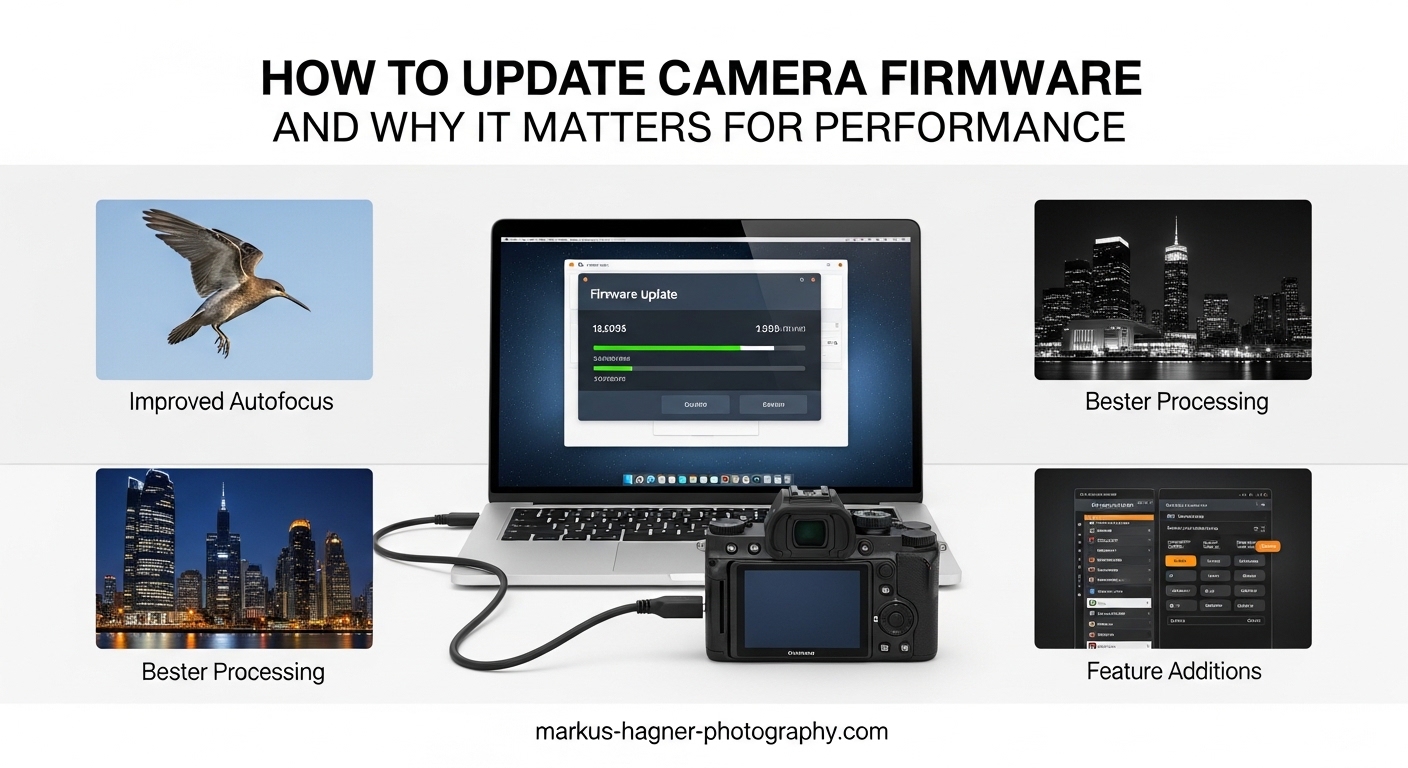
Have you ever felt like your camera could perform better, but you’re not sure how to unlock its full potential? The answer might be simpler than you think. A camera firmware update can significantly improve autofocus speed, fix annoying bugs, and even add new features you didn’t have when you bought your camera. In this guide, I’ll walk you through everything you need to know about updating your camera’s firmware and why it matters for performance.
Over the years, I’ve updated firmware on dozens of cameras from Canon, Nikon, Sony, and Fujifilm. Some updates brought game-changing autofocus improvements, while others quietly fixed stability issues I didn’t even know existed. The difference between an updated camera and one running outdated firmware can be substantial, especially for demanding photography situations like wildlife, sports, or wedding work.
Here’s what you’ll learn in this comprehensive guide: what camera firmware actually is, why keeping it current matters for your photography, the exact step-by-step process to safely update any camera, brand-specific guidance for major manufacturers, and when you should update versus when it’s smarter to wait.
Table of Contents
- What Is Camera Firmware?
- Why Camera Firmware Updates Matter for Performance
- Types of Camera Firmware Updates
- How to Check Your Current Camera Firmware Version
- How to Update Camera Firmware: Step-by-Step Guide
- Brand-Specific Firmware Update Guidance
- When to Update (and When to Wait)
- Risks, Warnings, and Best Practices
- Frequently Asked Questions
- Conclusion
What Is Camera Firmware?
Camera firmware is the embedded software that lives on a microchip inside your camera and controls virtually everything it does. Think of it as your camera’s operating system, similar to how Windows runs on a PC or iOS runs on an iPhone. This low-level software tells your camera’s hardware components how to work together, from the image sensor and autofocus system to the lens communication and menu displays.
When you press the shutter button, firmware coordinates a complex dance of operations. It activates the autofocus system, meters the light, controls the shutter mechanism, processes the raw sensor data, and writes the final image to your memory card. All of this happens in milliseconds, guided by the instructions stored in firmware.
Firmware differs from regular software in important ways. Unlike apps you install on your phone, firmware is deeply integrated with your camera’s hardware. It’s stored in non-volatile memory, meaning it persists even when you remove the battery. This tight hardware integration is why firmware updates can improve things like autofocus speed and image quality, capabilities that regular software updates typically cannot touch.
What does firmware control in your camera? The list is extensive: autofocus algorithms and subject tracking, image processing and noise reduction, white balance and color science, buffer depth and shooting speed, video recording capabilities, lens communication and compatibility, menu systems and custom functions, Wi-Fi and Bluetooth connectivity, and power management.
Understanding this helps explain why a firmware update can genuinely improve your camera’s performance. When manufacturers refine these underlying instructions, your hardware literally operates differently and often more efficiently.
Why Camera Firmware Updates Matter for Performance
Firmware updates are important because they can transform how your camera performs without requiring you to spend money on new equipment. I’ve seen updates add subject recognition that wasn’t there before, dramatically improve low-light autofocus, and fix issues that were causing real frustration in the field.
Here’s how important firmware updates are for camera performance: manufacturers release them specifically to improve your camera’s capabilities and fix known issues. Skipping updates means missing out on performance gains and potentially living with bugs that have already been solved.
Autofocus Performance Improvements
Autofocus improvements are often the most noticeable benefit of firmware updates. Manufacturers constantly refine their autofocus algorithms, improving speed, accuracy, and subject tracking capabilities. I remember when Nikon released a firmware update for the Z9 that added sophisticated bird and vehicle recognition autofocus, essentially giving photographers a major new feature for free.
These improvements can be substantial. Eye detection autofocus has gotten significantly better across all brands through firmware updates. Subject tracking algorithms have become more reliable at holding focus on moving targets. Low-light autofocus sensitivity has improved, letting cameras lock focus in situations where they previously struggled.
Bug Fixes and Stability
Bug fixes might sound mundane, but they address real problems that can ruin shots. Common bugs that firmware updates resolve include random freezes or shutdowns, memory card recognition issues, incorrect exposure metering, Wi-Fi connectivity problems, and video recording glitches. If your camera has ever exhibited strange behavior, there’s a good chance a firmware update exists to fix it.
New Features Without Buying New Gear
Perhaps the most exciting aspect of firmware updates is when they add genuinely new features. Camera companies sometimes hold back features at launch and release them later, or they develop new capabilities after a camera has been on the market. The Sony a7 III received significant video features through firmware updates years after its release. Canon has added animal eye detection to cameras through updates. These additions can extend your camera’s useful life considerably.
Lens and Accessory Compatibility
New lenses often require firmware updates to work properly with existing camera bodies. When manufacturers release new glass, they sometimes update camera firmware to ensure proper autofocus performance, correct aperture control, and accurate image stabilization. If you’ve purchased a new lens and something feels off, checking for a camera firmware update should be your first step.
Security and Connectivity
Modern cameras connect to networks and devices, creating potential security vulnerabilities. Firmware updates patch these security holes and fix connectivity bugs. If you use your camera’s Wi-Fi or Bluetooth features, staying current with firmware helps ensure reliable connections and protects your data.
Types of Camera Firmware Updates
Not all firmware updates are created equal. Understanding the different types helps you decide which updates are worth installing immediately versus which can wait.
Bug fix updates address specific problems identified after a camera’s release. These might fix minor annoyances like menu glitches or serious issues like crashes during video recording. Bug fixes are generally safe to install since they solve known problems without changing how your camera operates.
Performance updates optimize existing features without adding new ones. These might improve autofocus speed, reduce buffer clearing times, enhance image processing, or extend battery life. Performance updates are usually worth installing since they make your existing camera work better.
Feature updates add new capabilities to your camera. These are the updates photographers get excited about: new autofocus modes, additional video features, expanded custom function options, or enhanced connectivity. Feature updates carry slightly more risk since they add new code, but they also deliver the most value.
Compatibility updates ensure your camera works with new lenses, batteries, memory cards, or accessories. These are essential if you’re adding new gear to your kit. Skipping compatibility updates can result in erratic behavior with new equipment.
Security updates patch vulnerabilities in your camera’s network connectivity and data handling. If you connect your camera to public Wi-Fi networks or transfer images wirelessly, security updates should be a priority.
You can identify update types by reading the release notes on manufacturer websites. They typically categorize changes and explain what each update addresses. Always read these notes before updating.
How to Check Your Current Camera Firmware Version
Before updating, you need to know what firmware version your camera is currently running. Here’s how to find this information on most cameras:
Step 1: Turn on your camera and press the Menu button.
Step 2: Navigate to the Setup menu (usually indicated by a wrench or tools icon).
Step 3: Look for an option labeled Firmware Version, Camera Firmware, or simply Version. On Canon cameras, this is often near the bottom of the yellow Setup tabs. On Nikon cameras, check the Setup menu under Firmware Version. Sony cameras typically place this in the Setup menu under Version. Fujifilm cameras have it in the Setup menu under User Setting, then Firmware Version.
Step 4: Select this option to display your current firmware version number.
Step 5: Write down this version number and compare it to the latest version available on your manufacturer’s support website.
If your camera shows a version number lower than what’s available for download, an update is available. If the numbers match, you’re already running the latest firmware.
How to Update Camera Firmware: Step-by-Step Guide
Now let’s get to the main event: actually updating your camera firmware. Follow these steps carefully, and your update should go smoothly.
Pre-Update Checklist
Before starting any firmware update, complete this checklist to ensure a safe update process:
Charge your battery to 100%. This is non-negotiable. A camera that loses power during a firmware update can become permanently damaged, a situation photographers call bricking. Some cameras won’t even start an update with a partially charged battery, but don’t rely on this safeguard.
Format a memory card in your camera. Use a card you trust, preferably one you’ve used successfully before. Format it in-camera rather than on your computer to ensure proper file system compatibility.
Backup your custom settings. Some firmware updates reset camera settings to defaults. If you’ve spent time configuring custom buttons, picture profiles, or autofocus settings, save these configurations before updating.
Read the release notes. Understand what the update changes and any special instructions from the manufacturer.
Step 1: Download the Correct Firmware
Go to your camera manufacturer’s official support website. Navigate to the firmware section and find your specific camera model. Be absolutely certain you’re downloading firmware for your exact model, not a similar model with a different name.
Download the firmware file to your computer. It will typically be a .bin, .dat, or .fir file. Some manufacturers package firmware in ZIP files that need to be extracted first.
Verify you’ve downloaded the correct file by checking that the version number matches what you found on the website.
Step 2: Prepare Your Memory Card
Insert your formatted memory card into your computer using a card reader. Your camera’s USB connection may work, but a card reader is more reliable for firmware transfers.
Copy the firmware file to the root directory of your memory card. Do not place it in a folder. The camera looks for firmware files in the card’s root directory and won’t find them if they’re nested in folders.
If the firmware downloaded as a ZIP file, extract it first. The camera needs the actual firmware file, not the compressed archive.
Step 3: Start the Update Process
Safely eject the memory card from your computer and insert it into your camera. Turn the camera on and navigate to the firmware update option in the menu. This is typically found in the same location where you checked your current version.
Select the firmware update option and confirm that you want to update. The camera will display the new version number and may show release notes or warnings.
Step 4: Wait for Completion
This is critical: do not interrupt the update process for any reason. Do not turn off the camera. Do not remove the battery. Do not remove the memory card. Do not press any buttons. The update may take several minutes, and the screen may go dark or display progress indicators.
Your camera might appear frozen during the update. This is normal. Some cameras display a progress bar, while others show only a blinking light. Resist any urge to intervene. Just wait.
Step 5: Verify the Update
Once the update completes, your camera will typically restart automatically. Navigate back to the firmware version display and confirm the new version number matches what you downloaded.
Delete the firmware file from your memory card after verification. Leaving it on the card won’t cause problems, but it’s good practice to remove it.
What NOT to Do During a Firmware Update
Never update firmware with a partially charged battery. Never remove power during an update. Never open the battery door or memory card slot during an update. Never update firmware right before an important shoot. Never update firmware using a card with errors. Never interrupt an update that appears frozen. Never skip reading the release notes.
Brand-Specific Firmware Update Guidance
While the general process is similar across manufacturers, each brand has its own quirks and specific procedures.
Canon Firmware Updates
Canon provides firmware updates through their official support site at usa.canon.com/support. Navigate to your camera model and select the Drivers and Downloads tab. Canon firmware files use the .FIR extension.
Canon cameras typically require the firmware file to be on a memory card inserted directly into the camera. Some newer Canon models support firmware updates via Wi-Fi through the Canon Connect app, but the memory card method remains more reliable.
Canon firmware updates tend to be conservative, focusing on bug fixes and compatibility rather than dramatic feature additions. However, they’ve added significant features like animal eye detection through firmware in recent years.
Nikon Firmware Updates
Nikon firmware is available at downloadcenter.nikonimglib.com. Select your camera from the product list and download the appropriate firmware file. Nikon firmware typically comes as a .BIN file.
Nikon is known for substantial firmware updates that add major features. The Nikon Z9 has received multiple significant updates adding features like 8K video, improved autofocus, and new shooting modes. If you shoot Nikon, firmware updates are especially worth watching.
Nikon cameras sometimes require you to update lens firmware separately. Check the Nikon support site for lens firmware updates if you’ve experienced autofocus issues with specific lenses.
Sony Firmware Updates
Sony firmware downloads are available at electronics.sony.com/support. Find your camera model and navigate to the Downloads section. Sony firmware files may be .BIN or .DAT files depending on the model.
Sony has occasionally released firmware updates that caused issues and had to be withdrawn. The a7 IV firmware version 6.00 was pulled after users reported problems. This is why many Sony shooters wait a week or two after a firmware release before updating, watching forum reports for any issues.
Some Sony cameras support firmware updates via Sony’s Imaging Edge software connected via USB. This can be more convenient than the memory card method for compatible models.
Fujifilm Firmware Updates
Fujifilm firmware is available at fujifilm-x.com/support. Fujifilm was once famous for extensive firmware updates that added significant features to older cameras. While their update pace has slowed somewhat, Fujifilm still supports cameras with meaningful updates.
Fujifilm firmware files use the .DAT extension. The update process is straightforward via memory card. Fujifilm also updates lens firmware, which you can find on the same support page.
OM System and Olympus Updates
OM System, which acquired Olympus’s camera division, continues support for both OM System and legacy Olympus cameras. Visit asia.omds.com/support for firmware downloads.
OM System cameras have a unique feature: some firmware updates can be performed via the OM Workspace software connected to your computer. This USB-based update can be more convenient than the memory card method.
When to Update (and When to Wait)
Knowing when to update your firmware is almost as important as knowing how. The decision isn’t always straightforward.
When You Should Update Immediately
Update right away if you’re experiencing bugs that the firmware specifically addresses. If your camera freezes during video recording and an update claims to fix this, installing it makes sense.
Update promptly when you need compatibility with new equipment. If you’ve purchased a new lens and it’s not working correctly, check for a firmware update designed to support it.
Update when security vulnerabilities are patched and you use your camera’s network features regularly.
When You Should Wait
Wait before updating if an important shoot is coming up. Never update firmware the day before a wedding, paid gig, or once-in-a-lifetime trip. If something goes wrong, you need time to resolve it.
Wait if the update was just released. Many experienced photographers follow what’s sometimes called the guinea pig principle: let early adopters find the bugs. Wait one to two weeks after a firmware release and check forums for reports of problems before updating yourself.
Wait if your camera is working perfectly and the update only adds features you won’t use. There’s no urgency if everything works and the new features don’t apply to your photography.
The Firmware Update Decision Checklist
Before updating, ask yourself: Is my battery fully charged? Have I read the release notes? Do I understand what this update changes? Is this update fixing a problem I actually have? Do I have time to deal with potential issues? Is an important shoot coming up in the next few days?
If you answer no to any of these, consider waiting until conditions are more favorable.
Risks, Warnings, and Best Practices
Firmware updates are generally safe when performed correctly, but risks exist. Understanding these risks helps you avoid problems.
The Risk of Bricking
Bricking refers to rendering your camera unusable, turning it into about as useful as a brick. This almost always happens when power is lost during a firmware update. The camera’s firmware gets partially written, leaving it in an unrecoverable state.
This is why a fully charged battery is absolutely critical. Some photographers even use battery grips with two batteries for firmware updates, providing extra insurance against power loss.
What to Do If an Update Fails
If your firmware update fails but the camera still turns on, try the update again with a freshly charged battery and different memory card. Sometimes a corrupted file or bad card causes failures.
If your camera won’t turn on after a failed update, you’ll likely need manufacturer service. Contact your camera’s support line. In some cases, they can guide you through recovery procedures. In other cases, the camera will need to be sent in for repair.
Common Problems After Updates
Some photographers report issues after firmware updates that weren’t present before. Common complaints include autofocus behaving differently, Wi-Fi connectivity problems, battery drain issues, and menu setting resets. Most of these can be resolved by performing a camera reset to factory defaults.
Occasionally, manufacturers release updates that inadvertently introduce bugs. This is why checking forums after a new release before updating is wise. If early reports indicate problems, wait for a follow-up update.
Best Practices Summary
Always use a fully charged battery. Always format the memory card in-camera before use. Always read the release notes completely. Always backup custom settings before updating. Always verify the firmware version after updating. Never update before important shoots. Never interrupt an update in progress. Never use memory cards showing errors. Always wait for early adopter feedback on brand new releases. Keep records of firmware versions that work well for your shooting style.
Frequently Asked Questions
How important is it to update camera firmware?
Updating camera firmware is very important because it improves autofocus performance, fixes bugs that can affect reliability, adds new features without requiring new hardware, ensures compatibility with new lenses and accessories, and patches security vulnerabilities. While not every update is essential, staying current generally means your camera performs at its best.
Does updating firmware increase performance?
Yes, firmware updates often increase performance by optimizing autofocus algorithms for faster and more accurate focus, improving image processing for better quality, reducing buffer clearing times, extending battery life through better power management, and fixing bugs that may slow down operation. Performance gains vary by update, but autofocus improvements are particularly common.
Does camera quality increase after an update?
Camera quality can increase after firmware updates through improved image processing algorithms that reduce noise, better color accuracy through refined white balance, enhanced dynamic range from optimized sensor readout, and improved JPEG processing. However, firmware cannot change physical hardware limitations. The improvements are in how your camera processes and handles images.
What does firmware do for a camera?
Firmware is the embedded software that controls your camera’s hardware. It manages autofocus systems and subject tracking, controls image processing and quality, handles lens communication, runs menu systems and controls, manages power and battery usage, controls video recording features, and enables wireless connectivity. Essentially, firmware tells every component how to work together.
Can firmware updates damage my camera?
Firmware updates themselves cannot damage your camera when performed correctly. However, if power is lost during an update, the camera can become bricked and require professional repair. Always ensure your battery is fully charged before updating, never interrupt the update process, and follow manufacturer instructions exactly to avoid problems.
How long does a firmware update take?
Firmware updates typically take 2 to 10 minutes depending on your camera model and the size of the update. The camera may appear frozen during this time with a blank screen or progress indicator. Never interrupt this process regardless of how long it seems to take. Some updates on advanced cameras with large firmware files may take up to 15 minutes.
Conclusion
Understanding how to update camera firmware and why it matters for performance is essential knowledge for any serious photographer. Firmware updates deliver real improvements: faster autofocus, better image quality, bug fixes, new features, and improved compatibility with lenses and accessories. Best of all, these improvements come free.
The key is approaching updates thoughtfully. Always use a fully charged battery, read release notes, backup your settings, and never update right before important shoots. Consider waiting a week or two after a new release to let early adopters identify any problems.
Your camera contains sophisticated technology controlled by firmware. Keeping that firmware current ensures you’re getting the performance you paid for. Take a moment today to check your current firmware version and see if an update is waiting. Your photography might benefit more than you expect.