
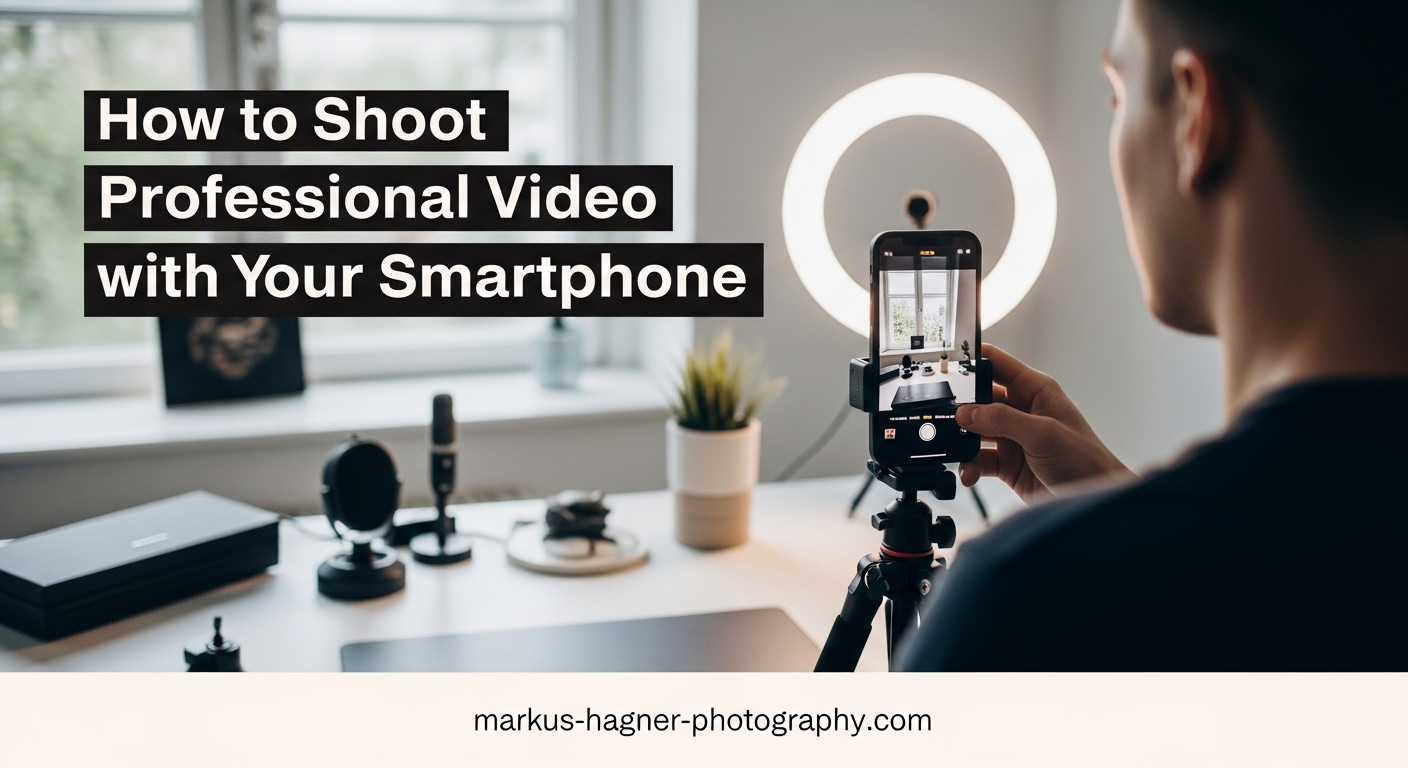
Learning how to shoot professional video with your smartphone has never been more relevant. Modern phones pack incredible camera technology that rivals dedicated video equipment from just a few years ago. The gap between smartphone footage and professional camera output has narrowed dramatically, making mobile videography accessible to everyone.
I have spent years testing smartphone cameras for various video projects, from YouTube content to documentary work. The truth is that professional-looking footage depends far more on technique than on expensive equipment. Your phone already has the hardware you need. What separates amateur clips from polished videos comes down to understanding fundamental videography principles and applying them consistently.
This guide walks you through every step of the process, from planning your shots to exporting your final edit. Whether you are creating content for YouTube, social media, or business purposes, these techniques will transform your smartphone footage into professional-quality video.
How to Shoot Professional Video with Your Smartphone Step by Step In 2026
The complete process for shooting professional smartphone video involves eight key stages: planning your content, configuring camera settings, setting up lighting, stabilizing your phone, capturing quality audio, framing your shots, recording your footage, and editing the final product. Each step builds on the previous one, creating a workflow that consistently produces professional results.
Many beginners skip steps or focus only on recording, which leads to disappointing footage despite having capable equipment. By following this structured approach, you will avoid common pitfalls and develop habits that improve every video you create.
Step 1: Plan Your Video (Pre-Production)
Professional videos start long before you hit record. Pre-production planning saves time, reduces frustration, and results in more polished final content. Even a simple five-minute video benefits from basic preparation.
Start by writing a simple script or outline. This does not need to be word-for-word unless you prefer that approach. List your main talking points, the order of topics, and any key messages you want viewers to remember. A clear structure keeps your video focused and prevents rambling.
Create a shot list that details every clip you need to capture. Include wide establishing shots, medium shots of your subject, close-ups for emphasis, and any B-roll footage that will illustrate your points. Having this list prevents the common problem of realizing you missed crucial shots during editing.
Storyboarding helps visualize your shots before filming. Sketch simple frames showing camera angles and subject placement. This technique borrowed from professional filmmaking catches potential problems early and ensures variety in your footage.
Prepare your equipment the day before shooting. Charge your phone, clear storage space, test your microphone, and confirm your tripod or stabilizer works properly. This simple habit eliminates last-minute scrambles that compromise video quality.
Step 2: Configure Your Smartphone Camera Settings
Your smartphone camera settings dramatically impact video quality. Taking control of these settings instead of relying on automatic mode separates professional footage from amateur recordings.
Set your resolution to 4K if your phone supports it. The extra detail provides flexibility for cropping and reframing during editing. If storage is limited, 1080p at 60fps offers a good balance of quality and file size. Most modern phones default to high-quality settings, but verify this before important shoots.
Choose your frame rate based on your intended use. Shoot at 24fps for a cinematic film look, 30fps for standard video content like tutorials and interviews, or 60fps if you plan to slow down footage later. Higher frame rates create smoother motion but use more storage space.
Enable gridlines in your camera settings. These overlay lines help you apply the rule of thirds for better composition and keep horizons level. The grid becomes invisible in your final video but provides crucial guidance while filming.
Lock exposure and focus before recording important shots. Tap and hold on your subject to lock these settings, preventing the camera from adjusting mid-shot when lighting changes or subjects move. This technique eliminates the distracting brightness shifts common in automatic mode.
Consider using a third-party camera app for manual control. Apps like Filmic Pro or Blackmagic Camera provide professional-level adjustments for ISO, shutter speed, and white balance. These controls allow precise adjustments that native camera apps often hide or simplify.
Disable HDR video for more control over your image. While HDR can improve dynamic range in high-contrast scenes, it also makes color grading more difficult and can produce unnatural-looking footage. Standard video with proper lighting typically looks more professional.
Step 3: Master Lighting for Mobile Video
Lighting makes or breaks smartphone video quality. Phone cameras have smaller sensors than professional cameras, making them more sensitive to lighting conditions. Good lighting compensates for hardware limitations and creates professional-looking footage.
Natural light offers the easiest and most flattering option for beginners. Position your subject facing a window or open door, with the light source in front of them rather than behind. This front lighting illuminates faces evenly and avoids the silhouette effect caused by backlighting.
Avoid direct sunlight, which creates harsh shadows and causes squinting. Overcast days or shaded areas provide soft, even lighting that flatters subjects and looks professional. If shooting indoors, move your subject close to windows during midday when light is most consistent.
The golden hour, shortly after sunrise and before sunset, provides exceptionally flattering light for outdoor videos. The warm, low-angle sunlight creates gentle shadows and adds dimension to your footage without harsh contrast.
When natural light is unavailable or inconsistent, LED panel lights offer an affordable solution. Small, portable LED panels designed for smartphone videography provide consistent illumination that you can position anywhere. Even a single LED panel dramatically improves indoor video quality.
Watch for mixed lighting sources that can cause color casts. Indoor lighting often has a warm orange tint while window light appears blue. These competing colors confuse your camera’s white balance and create unnatural-looking skin tones. Choose one primary light source when possible.
Step 4: Stabilize Your Footage
Shaky footage instantly signals amateur video. Stability ranks among the most noticeable differences between professional and casual recordings. Fortunately, multiple stabilization options exist at every budget level.
A tripod provides the most reliable stability for static shots. Small smartphone tripods cost under twenty dollars and work for tabletop setups, while taller models support standing shots. Look for a tripod with a phone mount or purchase an adapter separately.
Gimbals offer stabilized footage while moving. These motorized devices counteract hand movements, allowing smooth walking shots and dynamic camera movements. While more expensive than tripods, gimbals unlock creative possibilities impossible with static setups.
Handheld stabilization techniques help when equipment is unavailable. Hold your phone with both hands, keep your elbows tucked against your body, and move deliberately rather than quickly. This body positioning reduces natural hand tremors and creates steadier footage.
Enable optical image stabilization if your phone includes this feature. This hardware-based stabilization physically adjusts the camera sensor to compensate for movement. Electronic image stabilization, which crops and processes footage digitally, reduces quality but helps when optical stabilization is unavailable.
Lean against walls, rest your elbows on surfaces, or use your body as a human tripod when shooting handheld. These simple techniques cost nothing but significantly improve stability compared to freehand recording.
Step 5: Capture Quality Audio
Poor audio ruins otherwise excellent video faster than any other factor. Viewers tolerate mediocre visuals more readily than they accept difficult-to-hear sound. Investing attention in audio quality pays enormous dividends in perceived professionalism.
Built-in smartphone microphones work adequately for close-range recording but struggle with distance, background noise, and echo. For serious video work, an external microphone dramatically improves audio clarity and reduces unwanted ambient sounds.
Lavalier microphones clip to your subject’s clothing near their mouth, capturing clear voice audio while minimizing background noise. These small microphones cost between fifteen and fifty dollars and connect directly to your phone’s headphone jack or charging port.
Shotgun microphones attach to your phone and capture directional audio from whatever you point them toward. These work well for interviews, tutorials, and situations where lavalier microphones would be visible or impractical.
Position your phone close to your audio source whenever possible. Distance degrades audio quality more than any microphone upgrade can fix. If you cannot get physically closer, consider using a second phone as a dedicated audio recorder placed near your subject.
Record in quiet environments and minimize background noise before shooting. Close windows, turn off fans and air conditioning, and silence phones and notifications. What sounds like minor background noise during recording becomes distracting and unprofessional in the final video.
Monitor your audio while recording using headphones. This practice catches audio problems immediately rather than discovering them during editing when reshooting may be impossible.
Step 6: Frame and Compose Your Shots
Composition guides how viewers experience your video. Well-framed shots look intentional and professional, while poor composition suggests carelessness and amateur production values.
The rule of thirds divides your frame into a three-by-three grid. Place your subject along these gridlines or at their intersections rather than dead center. This technique creates visual interest and feels more natural than centered compositions. Enable gridlines in your camera settings to apply this principle consistently.
Shoot in landscape orientation for all professional video content. Vertical video works only for TikTok, Instagram Reels, and YouTube Shorts. Horizontal footage works across all platforms, provides more compositional flexibility, and looks inherently more professional.
Avoid digital zoom entirely. Digital zoom crops your sensor and reduces resolution, creating pixelated, low-quality footage. Instead, move physically closer to your subject or crop during editing when you have resolution to spare.
Position your camera at eye level with your subject for interviews and talking-head videos. This angle creates natural eye contact and feels engaging to viewers. Shooting from above or below your subject creates psychological distance and looks less professional.
Leave headroom above your subject but not too much. Position their eyes along the upper third gridline with a small amount of space between the top of their head and the frame edge. Too much headroom makes subjects appear small and distant.
The 180-degree rule in videography states that cameras should stay on one side of an imaginary line connecting two subjects. Crossing this line during a scene disorients viewers and breaks spatial continuity. Maintain consistent screen direction throughout your video.
Step 7: Record Your Footage
Recording technique determines what footage you have available for editing. Smart recording practices provide options during post-production and prevent the frustration of missing crucial shots.
Shoot multiple takes of important moments. Even experienced presenters make mistakes, and having alternatives gives you choices during editing. Record at least three takes of any critical segment, more if you are unsure about your delivery.
Capture B-roll footage that illustrates your main content. These supplementary shots add visual interest, cover edit points, and prevent your video from becoming a single static shot. Film relevant objects, actions, environments, and details that support your narrative.
Record longer clips than you think you need. Start recording a few seconds before your action begins and continue a few seconds after it ends. This padding provides flexibility during editing and prevents awkward cuts at the beginning or end of clips.
Monitor your frame while recording rather than focusing solely on your subject. Watch for changes in lighting, unexpected elements entering the frame, and any technical issues that require immediate attention.
Lock focus on stationary subjects and track focus carefully for moving subjects. Automatic focus hunting, where the camera searches for focus during recording, creates distracting shifts that look unprofessional.
Step 8: Edit and Export Your Video
Editing transforms raw footage into a polished final product. This stage shapes your narrative, fixes minor problems, and adds professional touches that elevate your video.
Start by organizing your footage into folders by scene or topic. This organization speeds up the editing process and ensures you use your best takes. Delete obviously unusable clips to reduce clutter, but keep alternatives until your final edit is complete.
Trim each clip to remove dead air, false starts, and mistakes. Tight editing maintains viewer attention and creates professional pacing. Most successful videos cut more aggressively than beginners expect, removing every unnecessary second.
Add simple transitions between clips rather than flashy effects. Straight cuts work for most situations, while subtle cross-dissolves smooth transitions between related shots. Elaborate transitions distract viewers and look dated quickly.
Apply basic color correction to even out exposure and white balance differences between clips. Most editing apps include automatic correction that improves footage with minimal effort. For more control, manually adjust brightness, contrast, and saturation.
Export your final video using appropriate settings for your intended platform. YouTube recommends 1080p or 4K resolution with the H.264 codec. Instagram and TikTok have different requirements optimized for mobile viewing. Match your export settings to your distribution platform.
Popular editing apps for smartphones include Adobe Premiere Rush, iMovie for iOS, KineMaster for Android, and CapCut for both platforms. These apps provide professional features without the complexity of desktop software.
Common Smartphone Video Mistakes to Avoid
Understanding common mistakes helps you avoid them. These errors appear frequently in amateur smartphone videos and immediately signal low production value.
Vertical video syndrome ranks among the most obvious mistakes. Unless creating content specifically for vertical platforms, always shoot horizontally. Vertical footage cannot fill standard video frames without black bars or aggressive cropping.
Digital zoom destroys video quality. Phone cameras crop the sensor rather than using optical magnification, reducing resolution and introducing artifacts. Move closer to your subject or accept wider framing.
Ignoring audio quality undermines otherwise excellent footage. Built-in microphones capture adequate sound only in optimal conditions. Background noise, echo, and distance from the microphone create audio that viewers find difficult to tolerate.
Shaky handheld footage appears amateur regardless of content quality. Use stabilization equipment or proper handheld technique. Even small movements become obvious and distracting in recorded video.
Backlighting creates silhouettes rather than properly exposed subjects. Position lighting in front of your subject, not behind them. This fundamental lighting error appears constantly in amateur videos.
Overlooking storage and battery constraints halts productions unexpectedly. Video recording drains batteries quickly and fills storage space rapidly. Start every shoot with a full charge and available storage.
Recommended Apps for Smartphone Videography
Third-party apps unlock professional features that native camera apps hide or omit. These applications provide manual controls, advanced monitoring, and enhanced recording options.
Filmic Pro offers comprehensive manual controls for iOS and Android. Adjust focus, exposure, white balance, and frame rate independently. The app supports log recording for maximum dynamic range and includes professional monitoring tools like focus peaking and zebra stripes.
Blackmagic Camera, free for iOS, provides cinema-quality features developed by professional camera manufacturer Blackmagic Design. The app offers extensive manual controls, professional codecs, and integration with Blackmagic’s desktop editing software.
Open Camera gives Android users manual controls without cost. This open-source application provides granular adjustment of camera settings that many manufacturer apps restrict.
For editing, Adobe Premiere Rush combines powerful features with smartphone-friendly interface. The app syncs projects across devices, includes built-in templates, and exports directly to social platforms.
CapCut has become popular for social media video creation. This free app includes templates, effects, and features specifically designed for short-form content.
Frequently Asked Questions
Can I really shoot professional video with just a smartphone?
Yes, modern smartphones capture professional-quality video when paired with proper technique, lighting, audio, and composition. Many professional filmmakers use smartphones for specific shots or entire projects. The camera technology in current phones rivals dedicated video equipment from just a few years ago.
What are the most important camera settings for smartphone video?
Key settings include shooting in 4K at 24fps or 30fps for cinematic footage, enabling gridlines for composition, locking exposure and focus to prevent mid-shot adjustments, and using the highest quality setting available. Consider disabling HDR video for more control during color grading.
How do I avoid shaky phone video?
Stabilize your phone using a tripod or gimbal, hold with both hands while tucking elbows against your body, enable image stabilization in settings, move smoothly during handheld shots, and avoid walking while recording. Lean against walls or rest elbows on surfaces when equipment is unavailable.
What is the best lighting for smartphone video?
Natural light from windows or outdoor shade works best for beginners. Position your subject facing the light source to avoid backlighting. Overcast days provide soft, even lighting. For indoor shoots, affordable LED panels deliver consistent illumination. Avoid direct sunlight which creates harsh shadows.
How can I improve audio quality on smartphone videos?
Use an external microphone like a lavalier or shotgun mic, position your phone close to the audio source, record in quiet environments, monitor audio with headphones while recording, and consider using a second phone as a dedicated audio recorder placed near your subject.
Should I shoot vertical or horizontal video?
For professional video content, always shoot in horizontal (landscape) orientation. Vertical video works only for TikTok, Instagram Reels, and YouTube Shorts. Horizontal footage works across all platforms, provides more compositional flexibility, and looks inherently more professional.
What frame rate should I use for smartphone video?
Use 24fps for a cinematic film look, 30fps for standard video content like tutorials and interviews, or 60fps for smooth motion and slow-motion effects. Choose your frame rate based on your intended distribution platform and desired aesthetic.
What is the 180-degree rule in videography?
The 180-degree rule states that cameras should stay on one side of an imaginary line connecting two subjects in a scene. Crossing this line during recording disorients viewers by reversing screen direction. Maintaining consistent spatial orientation throughout your video preserves continuity and professionalism.
Start Creating Professional Smartphone Videos Today
You now have everything needed to shoot professional video with your smartphone. The techniques covered in this guide, from pre-production planning through final export, form a complete workflow that consistently produces quality results. Your phone already has the hardware capabilities. What transforms casual footage into professional content is applying these principles deliberately.
Start with the fundamentals before investing in equipment. Master lighting using available natural light. Practice stabilization techniques using your body and basic supports. Focus on audio quality by getting closer to your microphone and recording in quiet spaces. These cost-free improvements often make more difference than expensive gear purchases.
Progress happens through practice. Your first videos will not match your vision, and that is completely normal. Each project teaches lessons that improve your next attempt. Pay attention to what works and what does not, then adjust your approach accordingly.
Learning how to shoot professional video with your smartphone opens creative and professional possibilities that were previously available only to those with significant equipment budgets. Content creation, business marketing, educational materials, and personal projects all become accessible when you understand these fundamental techniques.
The best time to start is now. Pick up your phone, find an interesting subject, and begin experimenting with the settings and techniques from this guide. Every professional videographer started exactly where you are, learning through trial, error, and persistent practice. Your smartphone gives you the tool. This guide provides the knowledge. The rest is up to you.