
After photographing weddings for over a decade, I learned about file naming the hard way. I was importing photos from a two-camera shoot when my computer asked if I wanted to replace existing files. My heart nearly stopped. Those duplicate filenames could have wiped out irreplaceable moments from someone’s wedding day. That close call sent me down a path to build a proper photography file naming convention, and it changed everything about how I work.
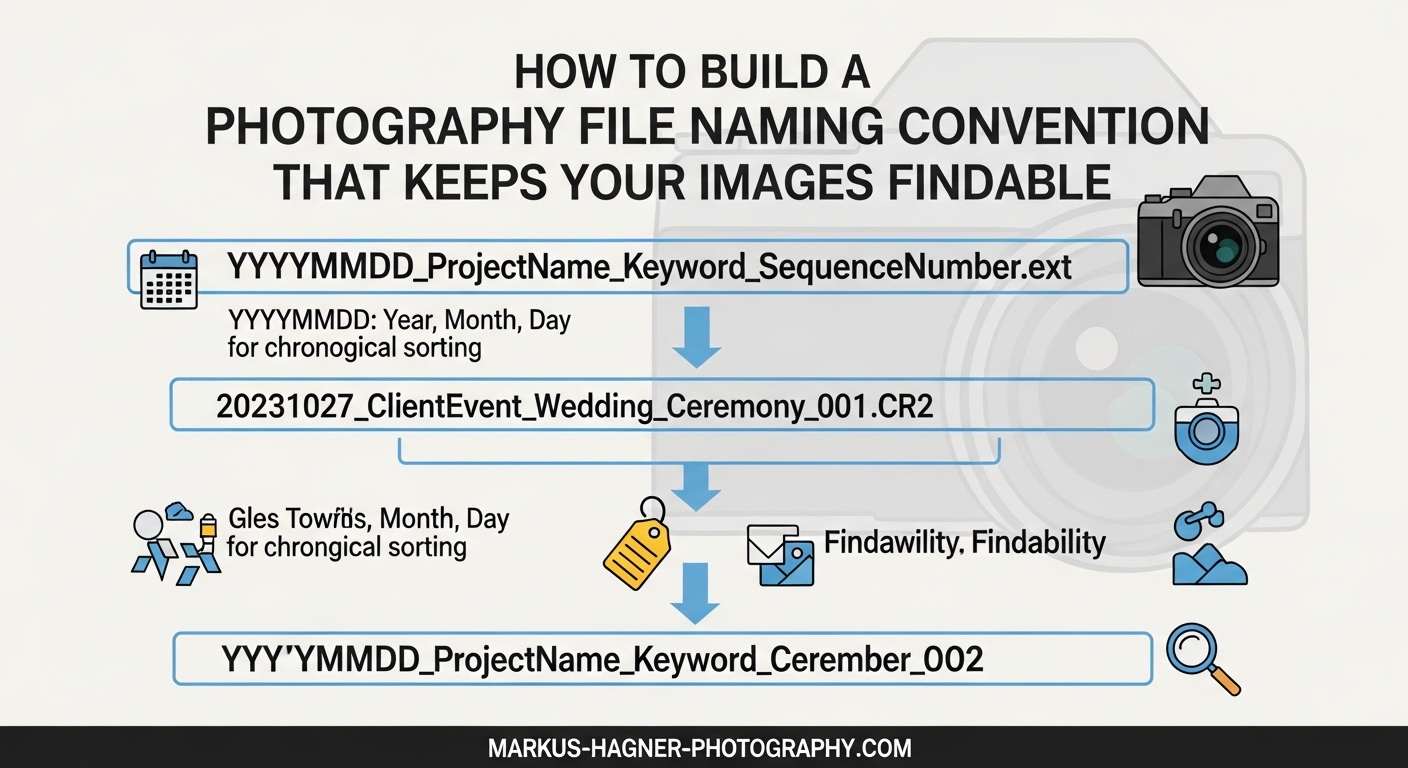
A photography file naming convention is a standardized system for naming digital image files using a consistent structure of dates, client identifiers, event descriptions, and sequence numbers. This system makes photos easily searchable, prevents duplicate filename conflicts, and keeps your growing photo library manageable whether you have thousands or hundreds of thousands of images.
In this guide, I will walk you through exactly how to build a photography file naming convention that works for your specific workflow. You will learn the essential elements every filename needs, step-by-step setup instructions, practical examples for different photography types, and the folder structure that ties everything together. By the end, you will have a complete system that keeps your images findable for years to come.
Why a Photography File Naming Convention Matters
Before diving into the how-to, let me share why this matters so much. I hear from photographers regularly who struggle with the same issues I once faced.
The most common pain point is simply finding photos. When a client calls asking for an image from a shoot three years ago, can you locate it in under a minute? Without a consistent naming system, this becomes a needle-in-a-haystack situation. Many photographers spend hours searching through folders named with vague terms or random dates.
Multi-camera shoots create another major problem. Most cameras reset their file numbering at 9999. If you shoot with two bodies at the same event, you will eventually have two files named IMG_0001.NEF or similar. Importing both to the same folder triggers overwrite warnings, and one wrong click means lost images.
Client delivery also suffers from poor naming. Sending files named DSC_2847.ARW looks unprofessional compared to something like 2026-03-13_Smith-Wedding_Ceremony_0124.jpg. The latter tells the client exactly what they are looking at and reflects well on your business.
Perhaps most importantly, a good photo file naming system protects your memories. One photographer shared how after losing a parent, every photo became precious. The panic of thinking those images were lost, only to find them buried in a disorganized mess, drove home why organization matters beyond just business efficiency.
Photography File Naming Convention: The Essential Elements
Every solid filename contains specific components arranged in a predictable order. Let me break down each element and explain why it matters.
Date Format: Always Start with YYYY-MM-DD
The date should always come first in your filename, and it should always use the ISO 8601 format: YYYY-MM-DD. This is not arbitrary. When your computer sorts files alphabetically, this format keeps everything in perfect chronological order.
Consider the difference. Files named 03-13-2026 sort before 12-01-2025 because zero comes before one alphabetically. But 2026-03-13 correctly sorts after 2025-12-01. This matters enormously when you have years of photos to manage.
Some photographers prefer YYYYMMDD without hyphens. Both work for sorting. I use the hyphenated version because it is easier to read at a glance and matches how I name folders.
Client or Subject Identifier
After the date, add a brief identifier for who or what the photos are about. For client work, use their name or a project code. For personal work, use a descriptive term.
Keep this short and readable. Smith-Wedding works better than Jonathan-and-Emily-Smith-Wedding-at-the-Grand-Hotel. You want enough detail to identify the shoot without creating filenames that stretch across the screen.
Event or Shoot Type
The third element describes what kind of shoot this was. This could be Ceremony, Reception, Portraits, Headshots, Product, Landscape, or any category that fits your work.
This element helps when you need to find all ceremony shots across multiple weddings, or all portrait sessions from a particular year. It adds another searchable layer to your file organization.
Sequence Numbers
End your filename with a sequence number, typically four digits. This ensures every file has a unique identifier even when shooting bursts of similar images.
Start your sequence at 0001 for each shoot, or use a continuous sequence across your entire career if you prefer. I reset per shoot because it is simpler, and the date and client information already make each filename unique.
Characters to Avoid in Photo Filenames
Not all characters work well in filenames. Some cause problems across different operating systems, cloud services, or backup systems. Here is what to avoid:
Spaces cause issues with some web systems and command-line tools. Use hyphens or underscores instead. I prefer hyphens for readability.
Special characters like / : * ? ” | are forbidden in filenames on most operating systems. Even if your system allows them, they will cause problems when you transfer files elsewhere.
Avoid accented characters and non-ASCII symbols if you share files internationally or use multiple operating systems. Stick to basic letters, numbers, hyphens, and underscores for maximum compatibility.
Filename Length Considerations
Modern operating systems handle long filenames, but keeping things reasonable still matters. Aim for filenames under 60 characters total. This keeps your filenames readable and avoids truncation in various interfaces.
Remember that the file extension (.jpg, .nef, .arw) counts toward this limit. A filename like 2026-03-13_Smith-Wedding_Ceremony_0124.arw is 43 characters including the extension, which is perfect.
How to Build a Photography File Naming Convention: Step-by-Step
Now let me walk you through creating your own system. I will break this into clear steps you can follow.
Step 1: Choose Your Date Format
Decide whether you will use YYYY-MM-DD or YYYYMMDD. Both work well. The hyphenated version is more readable, while the compact version saves a couple of characters. I recommend YYYY-MM-DD because the readability is worth those two extra characters.
Write down your chosen format somewhere you can reference it. Consistency depends on always using the same pattern.
Step 2: Define Your Identifiers
Create rules for how you will format client names and event types. For client names, decide on Last-Name or Last-FirstName format. For events, list the standard terms you will use: Wedding, Engagement, Portrait, Commercial, Event, Personal.
Having these standards written down prevents variation over time. Without them, you might use Wedding for one client and Wed for another, which breaks searchability.
Step 3: Add Descriptive Elements
Determine what descriptive information belongs in your filenames. This might include location, specific products for commercial work, or session types for portraits.
Keep descriptions brief. One or two words maximum. Details belong in your catalog software keywords, not in filenames. Filenames should identify, not describe.
Step 4: Set Up Sequence Numbers
Decide on your sequence number format. Four digits (0001-9999) work for most situations and match what cameras produce natively. If you occasionally exceed 9999 images per shoot, consider five digits.
Determine whether sequences reset per shoot or continue continuously. Resetting per shoot is simpler and more common.
Step 5: Configure In-Camera File Naming
Many cameras allow you to customize the filename prefix. Setting this up in-camera gives your files meaningful names from the moment of capture.
On Canon cameras, look for File Name in the setup menu. You can often set a custom prefix. On Nikon, check the File Naming option. Sony cameras offer similar customization in the Setup menu.
For multi-camera shoots, give each body a unique prefix. Camera A might use A_ while Camera B uses B_. This prevents any possibility of filename conflicts during import.
Step 6: Set Up Software Renaming Rules
Configure your editing software to apply your full naming convention on import or export. Lightroom, Capture One, and other tools all support custom filename templates.
In Lightroom Classic, go to the Library module, open the Template Editor under Filename Templates, and build your pattern using the available tokens. Save this template so you can apply it consistently.
Capture One offers similar functionality through its Batch Queue and Output Recipes. Create a recipe that applies your naming convention automatically.
Step 7: Document Your Convention
Write down your complete naming convention in a document you can reference. Include examples for each type of photography you do. This documentation ensures you maintain consistency and helps if you ever work with assistants or other photographers.
Review this document occasionally to ensure you are still following your own rules. Small variations creep in over time, and catching them early keeps your system clean.
Building Your Photo Folder Structure
Filenames work hand-in-hand with folder organization. A good folder hierarchy makes browsing intuitive and supports your naming convention.
Year-Based Top-Level Folders
Start with year folders at the top level: 2024, 2025, 2026, and so on. This immediately narrows any search to a manageable timeframe.
Within each year, create subfolders. How you organize these depends on your photography type.
Date-Based Subfolders for Event Photography
For weddings and events, create folders using the date and client name: 2026-03-13_Smith-Wedding. This matches your filename structure and keeps everything for that event together.
Some photographers add subfolders within each event for different phases: Ceremony, Reception, Portraits, Details. This works well when you want to separate deliverables or when shoots have distinct segments.
Client-Based Organization for Commercial Work
Commercial photographers often prefer organizing by client first, then by project date. This keeps all work for a client together, which makes sense when clients return for multiple projects.
Under each client folder, use date-based project folders: ClientName/2026-03-13_Product-Launch. This combines the benefits of both approaches.
Category-Based Folders for Personal Work
Personal photography benefits from category-based organization: Family, Travel, Landscapes, Street. Within each category, use date folders or keep files flat if your naming convention already includes dates.
The key is choosing a system that matches how you think about and search for your personal images.
Backup Folder Mirroring
Whatever folder structure you choose, maintain identical organization on your backup drives. This makes recovery straightforward if your primary drive fails.
Use backup software that mirrors your folder structure rather than proprietary backup formats. Direct file copying means you can plug in a backup drive and immediately find what you need.
Photography File Naming Convention Examples for Every Scenario
Let me show you how this looks in practice with real examples for different photography situations.
Wedding Photography Example
For a wedding, your files might look like this:
2026-06-15_Johnson-Wedding_Ceremony_0001.arw
2026-06-15_Johnson-Wedding_Ceremony_0002.arw
2026-06-15_Johnson-Wedding_Reception_0001.arw
2026-06-15_Johnson-Wedding_Portraits_0001.arw
The folder structure would be: 2026/2026-06-15_Johnson-Wedding/ with subfolders for each phase if desired.
Portrait Session Example
Portrait sessions stay simpler:
2026-03-10_Williams-Portrait_Studio_0001.cr3
2026-03-10_Williams-Portrait_Outdoor_0001.cr3
Here the location or style (Studio vs Outdoor) serves as the descriptive element.
Commercial Photography Example
Commercial work often includes product or campaign identifiers:
2026-04-20_AcmeCorp_ProductA-Lifestyle_0001.nef
2026-04-20_AcmeCorp_ProductA-Studio_0001.nef
2026-04-20_AcmeCorp_ProductB-WhiteBG_0001.nef
This format clearly identifies the client, product, and shooting style for each image.
Personal Photo Organization Example
Personal photos can follow the same pattern:
2026-07-04_Family_BBQ_0001.jpg
2026-07-04_Family_Fireworks_0001.jpg
2026-08-15_Travel_Yosemite_0001.arw
The difference is simpler identifiers focused on what matters to you personally.
Multi-Camera Shoot Handling
When using multiple cameras, include a camera identifier in your sequence:
2026-05-20_Smith-Wedding_Ceremony_A001.nef (from Camera A)
2026-05-20_Smith-Wedding_Ceremony_B001.nef (from Camera B)
Set this up in-camera using different file prefixes, or add the camera identifier during import renaming.
Version Control for Edited Files
Managing edited versions requires a clear system. Here is my approach:
Original: 2026-03-13_Jones-Portrait_Studio_0001.cr3
Edit: 2026-03-13_Jones-Portrait_Studio_0001_EDIT.jpg
Web: 2026-03-13_Jones-Portrait_Studio_0001_WEB.jpg
Print: 2026-03-13_Jones-Portrait_Studio_0001_PRINT.jpg
The suffix indicates the purpose while keeping the original filename visible. This makes it easy to match edits back to originals.
Tools and Automation for Photo File Naming
Manual renaming works for small batches, but automation saves tremendous time when processing hundreds or thousands of images.
Lightroom Renaming Templates
Lightroom Classic offers powerful renaming through its Filename Template Editor. Create templates combining date, custom text, and sequence numbers using tokens like {Date (YYYY-MM-DD)}, {Custom Text}, and {Sequence # (0001)}.
Apply these templates during import for immediate organization, or use them during export to create client-friendly filenames while preserving your originals.
Capture One Naming Presets
Capture One handles renaming through Output Recipes. Create recipes for different purposes, each with its own naming pattern. Apply the appropriate recipe when exporting images.
The Next Capture Naming tool also lets you set up naming conventions that apply as you import from cards or tethered sessions.
Batch Rename Utilities
Standalone batch rename tools offer flexibility for photographers who work outside catalog software. Applications like Bulk Rename Utility (Windows), Automator (Mac), or specialized photo renaming apps can process thousands of files quickly.
These tools work well for cleaning up legacy photo collections before importing them into your main catalog.
In-Camera Setup Tips
Setting meaningful file prefixes in-camera starts your organization at capture time. On Canon bodies, use the custom file prefix to include your initials or a shoot code. On Nikon, set the file naming to something memorable.
This early organization means less work later and provides meaningful filenames even if you forget to rename during import.
Frequently Asked Questions
How do I name photography files?
Name photography files starting with the date in YYYY-MM-DD format, followed by a client or subject identifier, then the event or shoot type, and ending with a sequence number. For example: 2026-03-13_Smith-Wedding_Ceremony_0001.jpg. This format keeps files sorted chronologically, makes them searchable, and prevents duplicate filename conflicts.
How do I label photo files?
Label photo files using a consistent structure that includes the date, a descriptive identifier, and a sequence number. Use hyphens or underscores instead of spaces, avoid special characters like slashes and colons, and keep filenames under 60 characters total. The key is consistency: once you establish your pattern, use it for every single file.
What is a good naming convention for files?
A good file naming convention is descriptive, consistent, and sortable. Start with the date in YYYY-MM-DD format for automatic chronological sorting. Include relevant identifiers like client names or project codes. Use only letters, numbers, hyphens, and underscores. Keep names concise but meaningful. Most importantly, choose a system you will actually use consistently over time.
What is the ISO standard for file naming convention?
The ISO 8601 standard defines the date format YYYY-MM-DD, which is why this format appears in file naming recommendations. For general file naming, there is no single ISO standard that governs the entire filename structure. Modern best practices prioritize cross-platform compatibility, readability, and consistency over strict ISO compliance. Focus on avoiding special characters, using consistent formatting, and keeping names reasonably short.
Conclusion
Building a photography file naming convention takes some upfront thought, but the payoff is immense. When you can find any image in seconds, when client deliveries look professional, and when you never worry about overwritten files, the effort pays for itself many times over.
Start simple if this feels overwhelming. Even adopting just the date-first format and a client identifier will dramatically improve your organization. You can refine and expand your system as you go.
The most important thing is consistency. A simple system you follow religiously beats a complex system you abandon after a month. Write down your convention, set up your software templates, and commit to using them for every shoot.
Your future self will thank you. When you need to find a photo from five years ago, or when a client asks for additional images from an old project, your photography file naming convention will make it effortless. That peace of mind is worth every minute spent setting up the system.