
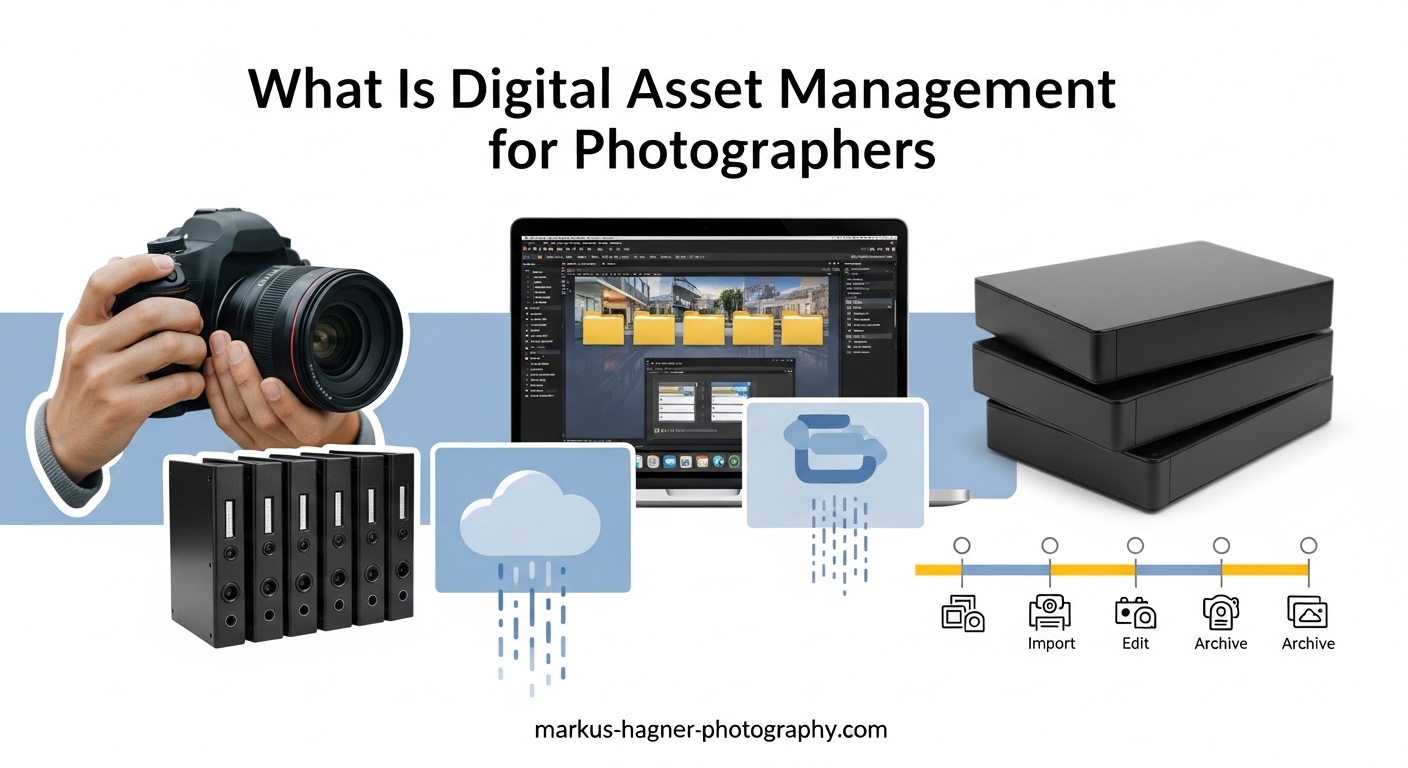
Digital asset management for photographers is the practice of systematically organizing, storing, retrieving, and distributing digital image files using specialized software and consistent workflows. If you have ever spent 20 minutes hunting for a single RAW file, or delivered the wrong version of an image to a client, you already understand why this matters.
I have been shooting professionally for years, and the single biggest shift in my efficiency did not come from a new camera body or a faster lens. It came from actually building a proper DAM workflow. Once I stopped dumping files into loosely named folders and started treating my photo library like the business asset it is, everything changed — turnaround times got shorter, client revisions became manageable, and I stopped losing sleep over whether my backup was current.
In this guide I will walk you through what digital asset management actually means, why it is especially important for photographers, and how to build a workflow that grows with your business whether you shoot 100 images a month or 100,000.
What Is Digital Asset Management for Photographers?
Digital asset management (DAM) is a system for organizing, storing, and retrieving digital files — in this case, your photographs — using a combination of specialized software, metadata, and repeatable processes. Think of it as a searchable, structured library for every image you have ever captured.
At its core, a DAM system does three things: it keeps your files in a consistent location, it attaches descriptive information (metadata) to each file so you can find it later, and it gives you tools to search, filter, and share your work without digging through folders manually.
For photographers specifically, DAM goes beyond just “where do I save my files.” A proper system handles the entire lifecycle of an image — from the moment you ingest files off your memory card through culling, editing, delivery, archiving, and long-term storage. Popular tools that photographers use as DAM systems include Adobe Lightroom Classic, Capture One Pro, and Photo Mechanic Plus, though dedicated enterprise-level DAM platforms also exist for larger studios or agencies.
The key difference between a DAM system and simply having a folder on your hard drive is intelligence. A DAM system indexes your images, extracts and writes metadata, creates a searchable catalog, and often provides version control so you never overwrite an original file. Your folder is just storage. A DAM system is a working database.
The Problem DAM Solves: Life Without a System
If you are reading this article, there is a good chance you have already hit one of these walls. These are the most common pain points photographers report on forums like Reddit’s r/photography and r/AskPhotography when they describe why they finally switched to a proper DAM setup.
The most frequently cited problem is simply not being able to find a specific image. You remember shooting a portrait session at the park in spring two years ago, but your folder is labeled something like “Shoot_042” and you have 800 folders exactly like it. Without metadata and a searchable catalog, finding that image could take an hour.
The second major problem is inconsistent file naming. Different projects get named differently, cameras add their own default names (IMG_3047.CR3), and after a few years you have a chaotic mess that makes batch processing nearly impossible.
The third pain point is slow client delivery. When you cannot find the right selects quickly, or when you have to hunt through multiple drives to assemble a client gallery, turnaround time suffers. Clients notice. In a referral-driven business, that matters.
The fourth — and the one that keeps photographers up at night — is backup anxiety. Without a system that enforces a backup protocol, images live in one place. When a drive fails (and it will), those images are gone. Many photographers discover their backup situation is worse than they thought only after a drive failure.
All of these problems are solved by a well-designed digital asset management workflow. The good news is that you do not need enterprise software or a huge budget to fix them. You need a system and the discipline to follow it.
Core Features Every DAM System Should Have
Not all DAM tools are created equal, and what works for a hobbyist with 10,000 images may not work for a wedding photographer with 500,000. That said, any serious DAM system for photographers should cover these six core capabilities.
1. Centralized Storage and Catalog Management
Your DAM should act as a single source of truth for your entire photo library. Rather than images scattered across multiple drives and devices, a DAM system tracks where every file lives and gives you a unified interface to browse and manage them. Catalog-based systems like Lightroom Classic store a database (catalog) of image previews and metadata separately from the original files, meaning you can browse your entire library even when an external drive is disconnected.
2. Metadata Reading, Writing, and Editing
This is the backbone of any DAM system. Your camera automatically writes EXIF data to every file — shutter speed, aperture, ISO, GPS coordinates, timestamp, and camera model. A DAM system reads all of this automatically and makes it searchable. Beyond EXIF, you can add your own IPTC metadata (copyright, creator, description, keywords) and custom XMP tags. This metadata is what lets you find “all images from March 2024, shot with a 50mm lens at golden hour in Amsterdam” in about three seconds.
3. Powerful Search and Filtering
A DAM system turns your library into a database you can query. Search by date, camera, lens, location, keyword, star rating, color label, or any custom metadata field you have added. Good filtering tools let you combine multiple criteria — for example, finding all five-star portraits tagged with a specific client’s name, shot between a specific date range, that have not yet been exported.
4. Non-Destructive Editing and Version Control
A core principle of photography workflows is that you never modify your original RAW files. DAM systems that include editing tools (like Lightroom or Capture One) store all your adjustments as metadata instructions, leaving the original file untouched. This means you can always revert to the original, create multiple edited versions, or apply different processing styles without duplicating file storage.
5. Batch Processing and Automation
Professional photographers often ingest hundreds or thousands of images from a single shoot. DAM systems allow you to apply metadata, keywords, copyright information, and even basic develop settings to hundreds of images at once. Automated ingest workflows can rename files on import, apply metadata presets, and sort images into predefined folder structures — saving significant time on every shoot.
6. Cloud Sync and Multi-Device Access
Modern DAM solutions increasingly offer cloud synchronization, meaning your catalog and selects are accessible from any device. This is especially useful for photographers who work between a desktop editing station at home and a laptop on location, or who need to share work-in-progress images with second shooters, assistants, or clients in real time.
Why Every Photographer Needs a DAM Workflow
Even if you are a hobbyist who only shoots on weekends, your photo library is growing every time you press the shutter. The longer you go without a DAM system, the bigger the problem becomes and the harder it is to retroactively organize. Here is why building a DAM workflow now, at whatever stage you are at, is one of the best investments you can make in your photography.
Centralized Storage and Organization
When everything lives in one place with a consistent structure, your brain’s cognitive load drops significantly. You stop asking “where did I put that?” and start spending that mental energy on creative decisions. A proper folder hierarchy — organized by year, then month, then client or project — combined with a catalog-based DAM means you can find any image in seconds rather than minutes.
Photographers who shoot weddings, events, or high-volume portrait work particularly benefit here. After 5 years of shooting, a wedding photographer might have 300+ client folders. Without a DAM system, that is 300 places to look. With one, it is a single search.
Faster Search and File Retrieval
Time is the most valuable resource in any photography business. DAM software’s search capabilities turn hours of hunting into seconds. Once your images are tagged with keywords and assigned ratings, you can build smart collections that automatically update — so your “5-star landscape images” folder always shows your best landscape work without you ever having to manually move a file.
Real estate photographers, for instance, can quickly pull all images from a specific property or neighborhood. Sports photographers can find all images of a specific athlete across multiple events. This kind of searchability is simply impossible with a basic folder system.
Metadata Management and Keyword Tagging
Keyword tagging is one of the highest-leverage actions you can take for long-term photo management. When you tag images with descriptive keywords — subject, location, mood, technical settings, client name — you are essentially building a card catalog for your entire creative output. Ten years from now, you will be able to search “blue hour, coastal, wide angle, commercial use cleared” and find exactly the stock images you need for a pitch.
Adding copyright and creator information via IPTC metadata also provides a layer of protection. Even if an image is separated from its filename, the copyright information embedded in the file travels with it. This matters enormously if you ever pursue licensing or usage rights cases.
Client Delivery and Collaboration
A DAM workflow directly speeds up client delivery. When your selects are rated and sorted during culling, exporting a specific set of images for a client becomes a simple filtered export rather than a manual hunt-and-gather process. Many DAM tools integrate directly with client gallery platforms, making the path from hard drive to client hands much shorter.
For studios with multiple shooters or editors, DAM systems enable collaboration without the chaos. Everyone works from the same catalog or shared storage, so no one is working on outdated versions of files or hunting for assets that “someone has on their laptop.”
Copyright Protection and Rights Management
Your images are intellectual property. A DAM system helps you protect that property in two ways. First, by embedding copyright metadata (your name, year, and usage rights) into every file, you create a clear record of ownership that is recognized across most professional platforms. Second, version control and access management features in more advanced DAM tools let you control exactly who can access, download, or modify your original files.
For photographers who license images — whether to editorial clients, ad agencies, or stock libraries — rights management tracking is not optional. A DAM system that tracks usage rights, expiration dates, and model release status can save you from costly licensing disputes.
DAM vs Folder Organization: Which Is Better?
Many photographers start with a folder-based system, and there is nothing wrong with that as a starting point. The real question is whether your folder system can scale with your business. Let’s look honestly at the three main approaches.
Basic folder organization works well when you have a small library and your images fall into simple, easily remembered categories. The problem is that folders are static and single-dimensional — an image can only live in one folder, and you can only find it if you remember exactly which folder it is in. As your library grows past a few thousand images, folders alone become inadequate.
Catalog-based DAM software (like Lightroom Classic or Capture One Pro) solves the single-dimension problem by adding a metadata layer. Your files still live in folders on your drive, but the catalog lets you find them using any combination of metadata — date, keyword, rating, camera, lens, location. This is the right approach for the vast majority of photographers.
Cloud-based DAM platforms (like Photo Mechanic Plus with cloud sync, or dedicated platforms like Photoshelter or Bynder) add accessibility and collaboration on top of catalog-based organization. These are especially relevant for photographers who need to share assets with clients, agencies, or team members regularly.
The short answer: folders are a component of any good DAM system, but they are not a DAM system on their own. The metadata layer is what turns a collection of folders into a searchable, manageable, scalable library.
How to Build Your DAM Workflow as a Photographer
Building a DAM workflow does not need to happen overnight. The following steps outline how to create a system that works for your shooting volume and business model. Even implementing two or three of these steps will produce a noticeable improvement in your efficiency.
Step 1: Define Your Folder Structure
Before you move a single file, decide on a consistent folder hierarchy and commit to it. A simple structure that works well for most photographers is: Year / Month / Project Name (e.g., 2026 / 03-March / Harrison-Wedding). The key is consistency — every shoot should follow the same pattern without exception.
Step 2: Set Up Automatic File Renaming on Ingest
Camera-default filenames like IMG_3047.CR3 are useless for identification. Configure your DAM software to automatically rename files on import using a logical pattern — for example, Date_ClientName_Sequence (20260315_Harrison_0001.CR3). This makes every filename self-describing and sortable.
Step 3: Apply Metadata Presets Automatically
Create a metadata preset in your DAM software that includes your copyright information, creator name, and website. Apply this preset automatically to every imported image. This takes about 5 minutes to set up once and provides permanent copyright embedding on every file thereafter.
Step 4: Cull and Rate Before Editing
Never skip the culling phase. Before any editing begins, go through your imports and assign star ratings or flags — tools like Photo Mechanic are built specifically for fast culling of large batches. Rate your selects, mark your rejects for deletion, and move to editing only the images that make the cut. This alone can cut your editing time significantly.
Step 5: Tag with Keywords During or After Culling
Apply keywords to your selects as you cull. Keep a consistent keyword library — subject matter, location, style, technical tags, client name — and apply them using hierarchical keyword sets. Good keywording pays dividends for years, as it is the primary mechanism for finding images in a large library.
Step 6: Follow the 3-2-1 Backup Rule
Every photographer should know this rule and follow it: 3 copies of your data, on 2 different media types, with 1 copy offsite. Practically, this means your working drive, a local backup drive, and a cloud or offsite backup. Your DAM workflow should include a backup check as a standard step after every import — not a weekly task you remember to do occasionally.
Step 7: Maintain and Audit Your Catalog Regularly
A DAM catalog requires occasional maintenance. Optimize your catalog, remove deleted files from the catalog, and ensure your folder structure has not drifted from your standard. Set a calendar reminder for a quarterly catalog audit — it takes less than an hour and keeps your system clean.
Understanding Photography Metadata: EXIF, IPTC, and XMP
Metadata is the invisible infrastructure of digital asset management. Understanding the three main metadata standards helps you use your DAM software more effectively and ensures your image data is structured, portable, and durable.
EXIF (Exchangeable Image File Format) is the metadata your camera writes automatically to every image. It includes the date and time, camera make and model, lens used, shutter speed, aperture, ISO, white balance, focal length, flash status, and — if your camera or phone has GPS — latitude and longitude. You cannot edit most EXIF data after capture, but your DAM software can read and display all of it, making it the foundation of date-based and technical filtering.
IPTC (International Press Telecommunications Council) metadata is the layer designed for human-added descriptive information. This is where you add the image title, caption, keywords, creator name, copyright notice, credit line, location details (city, country), and usage rights. IPTC fields are standardized across the industry, meaning this information transfers correctly between different software platforms and survives file format conversions.
XMP (Extensible Metadata Platform) was developed by Adobe as a more flexible, XML-based metadata framework. XMP can carry both EXIF and IPTC data plus additional custom fields. In Lightroom and Capture One, all your editing adjustments, ratings, color labels, and flags are stored as XMP instructions — either inside the catalog or in XMP sidecar files alongside your RAW files. Writing XMP sidecar files ensures that your editing data is not locked inside a single catalog and can be read by other compatible software.
For practical purposes: make sure your DAM software is configured to write metadata to files or XMP sidecars, not just to its internal catalog. This protects your metadata if you ever need to switch software or rebuild a catalog from scratch.
DAM Workflow Tips and Best Practices
After working with DAM systems for years and reading through hundreds of forum discussions about what works and what fails, here are the practices that consistently separate photographers with excellent systems from those who are still fighting their libraries.
Build your keyword hierarchy before you start tagging. It is tempting to add keywords as you go, but this creates inconsistency. Before you start a keywording project, build a structured keyword list with parent and child terms — for example, People > Portraits > Wedding > Bride. Consistent hierarchy makes smart collections more powerful and auto-suggest more useful.
Never import files directly from your memory card to a final destination. Always ingest to a working drive first, verify the import is complete, then — and only then — format your card. Using your DAM software’s import dialog (rather than Finder or Explorer) ensures renaming, metadata presets, and catalog additions all happen in one step.
Use smart collections to create automatic sorting. Most catalog-based DAM tools support smart collections: virtual albums that automatically contain images matching criteria you define. Set up a smart collection for “5-star images added in the last 30 days” or “all images with client name containing [client] rated 4 stars or higher.” These collections update automatically and become your go-to resource for client proofing and portfolio building.
Keep your originals in lossless format. Never delete your RAW files unless you are certain you will never need them again. Storage is cheap relative to a reshoot. Keep originals as RAW files (or lossless DNG if you convert), and export JPEGs only for delivery. Your DAM system’s non-destructive editing model protects this for you automatically.
Automate what you can, but do not skip what cannot be automated. DAM software can handle renaming, metadata stamping, and folder routing automatically. But keyword tagging and rating still require human judgment. The photographers with the best systems are the ones who complete every non-automated step immediately after import, not eventually.
Test your backup recovery process once a year. Backups mean nothing if the restoration process does not work. Once a year, attempt to restore a set of files from your backup system. This confirms your backup is actually working and that you know how to use it under pressure.
Is DAM the Same as a CMS?
No — a DAM (Digital Asset Management) system and a CMS (Content Management System) are different tools designed for different purposes, though there is some overlap in their broader definitions.
A CMS manages content for publication — website pages, blog posts, video, and other content that gets published to an audience. It handles the presentation layer, usually through a web interface. WordPress is a CMS. Squarespace is a CMS.
A DAM system manages the underlying digital assets themselves — the source files, original images, raw video, and other media — with a focus on organization, findability, rights management, and distribution. It is asset storage and retrieval infrastructure, not a publishing tool.
In practice, many enterprise platforms blend DAM and CMS features. A studio might store original images in a DAM and publish selected images to a client-facing website through a CMS that pulls from the same asset library. For photographers, the relevant question is whether a tool helps you find, organize, and protect your source files — and that is DAM territory.
What Is Digital Asset Management and Why Every Photographer Needs a DAM Workflow
We have covered a lot of ground here, so let me bring it back to the core answer.
Digital asset management for photographers is a system — combining software, metadata standards, and consistent processes — that lets you store, find, protect, and deliver your images efficiently as your library grows. Without it, your photo library becomes a liability: a place where images get lost, time gets wasted, and client deadlines get missed.
The good news is that building a solid DAM workflow does not require an enterprise budget or a dedicated IT team. It requires choosing a tool that fits your volume (Lightroom Classic and Capture One are the most common starting points), establishing a folder structure and naming convention you will actually stick to, setting up metadata presets, and following the 3-2-1 backup rule every single time.
Start small if you need to. Apply metadata presets on your next import. Create a smart collection of your best work. Set up one more backup destination. Each improvement compounds over time, and the photographers who build these systems early are the ones who spend their time shooting and editing — not searching for files.
Frequently Asked Questions
What is digital asset management photography?
Digital asset management photography refers to the systematic practice of organizing, storing, and retrieving digital photos using specialized software and metadata. A DAM system for photographers creates a searchable catalog of all your images, allowing you to find any photo by date, keyword, location, or camera settings rather than manually browsing through folders.
What is DAM in digital asset management?
DAM stands for Digital Asset Management. In the context of photography, it is a combination of software, metadata standards, and workflow processes that help photographers organize, store, and retrieve their image files efficiently. DAM goes beyond simple folder storage by indexing files, attaching descriptive metadata, and providing search and filtering tools that scale with a growing photo library.
What are digital asset management workflows?
A DAM workflow for photographers typically follows these steps: (1) Ingest files from your memory card using your DAM software, (2) Rename files automatically using a consistent naming convention, (3) Apply metadata presets including copyright information, (4) Cull and rate images, (5) Tag selects with keywords, (6) Edit using non-destructive tools, (7) Export and deliver to clients, (8) Archive originals following the 3-2-1 backup rule. Following this process consistently on every shoot is what turns a DAM tool into a genuine DAM workflow.
Is DAM the same as CMS?
No. A DAM (Digital Asset Management) system and a CMS (Content Management System) serve different purposes. A CMS manages published content — website pages, blog posts, and media displayed to an audience. A DAM system manages the underlying source files, focusing on organization, searchability, rights management, and distribution of original assets. For photographers, DAM is the system that manages original image files, while a CMS might be the website or gallery platform used to present work to clients.