
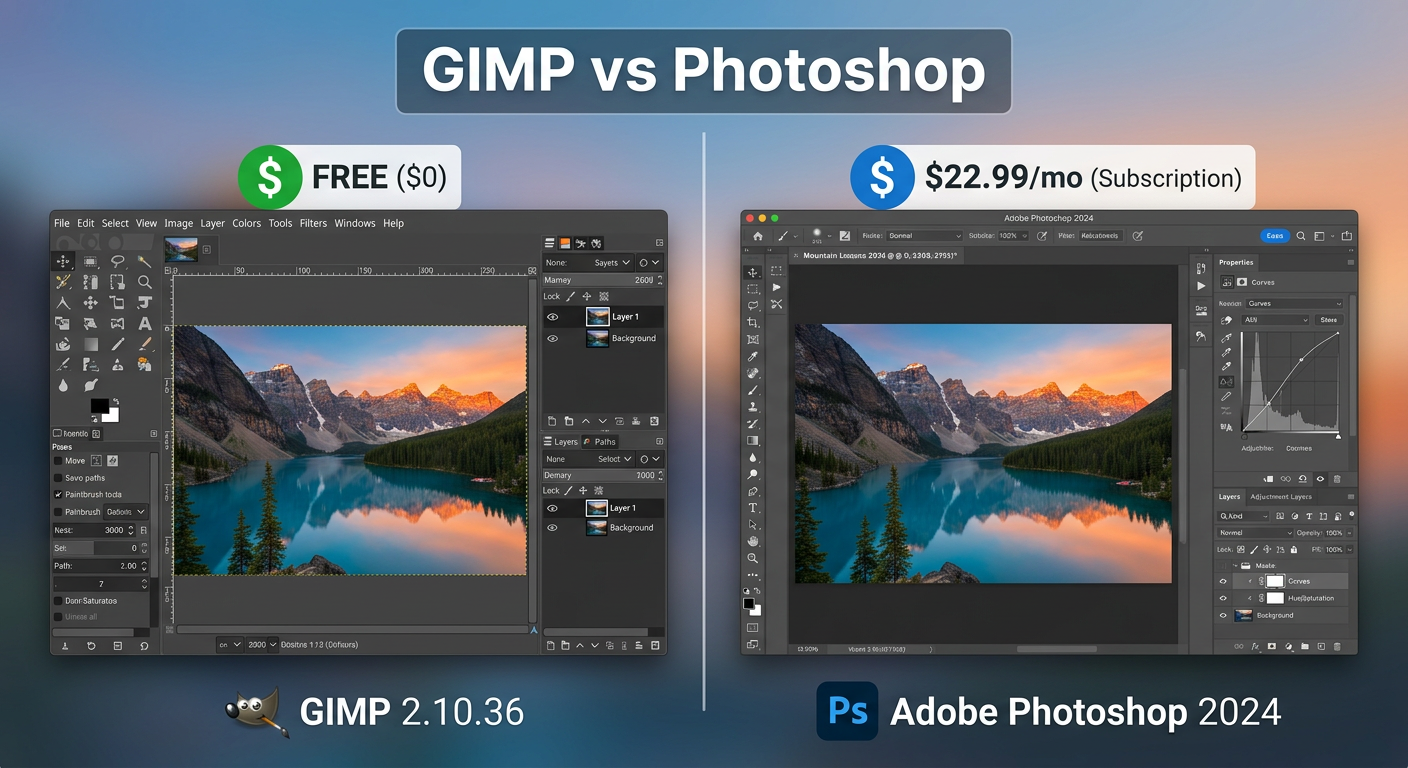
Choosing between GIMP and Photoshop can save you hundreds of dollars annually or unlock professional-grade editing capabilities. As someone who has spent years testing both programs across countless photo editing projects, I understand the frustration of balancing budget constraints against feature needs.
The GIMP vs Photoshop for photo editing on a budget debate really comes down to one question: do you need industry-standard tools for professional work, or will a capable free alternative meet your creative needs?
After testing both extensively, I can tell you that GIMP has improved dramatically with version 3.0, while Photoshop continues to dominate professional workflows. Let me break down exactly what you get with each option.
Quick Comparison
Here’s how these two photo editing solutions stack up at a glance:
| Product | Specifications | Action |
|---|---|---|
 The Book of GIMP: Complete Guide The Book of GIMP: Complete Guide |
|
Check Latest Price |
 Adobe Photoshop Classroom in a Book 2025 Adobe Photoshop Classroom in a Book 2025 |
|
Check Latest Price |
These learning resources will help you master either software. But first, let me dive into what makes each program unique.
GIMP: The Free Powerhouse
Pros
- Completely free software
- Open-source community
- 676-page learning guide
- Covers all GIMP tools
- Step-by-step tutorials
Cons
- Written for GIMP 2.8
- Steeper learning curve
- Fewer learning resources available
- Some menus changed in 3.0
GIMP (GNU Image Manipulation Program) is a free, open-source image editor that has been the go-to budget alternative to Photoshop for over two decades. I have used GIMP for everything from quick photo touch-ups to complex compositing work, and it continues to surprise me with its capabilities.
The 2024 release of GIMP 3.0 marked a significant milestone. The updated interface feels more modern, and the improved layer effects system now rivals Photoshop in some aspects. For budget-conscious photographers, this free software offers layers, masks, curves adjustments, and professional-grade color correction tools.
One forum user put it perfectly: “GIMP is perfect to use as training wheels to get into photo editing, but Photoshop is where it’s at when it comes to settings and complexity.” This captures the essence of GIMP – it teaches you the fundamentals without costing a cent.
What GIMP Does Well
The layer management in GIMP has improved substantially. You get adjustment layers, layer masks, and blending modes that work similarly to Photoshop. For most hobbyist photo editing tasks, these tools are more than sufficient.
GIMP handles RAW photos through plugins like Darktable or UFRaw integration. While not as seamless as Adobe Camera RAW, budget photographers can absolutely process their RAW files without paying subscription fees.
The selection tools include free select, fuzzy select, and intelligent scissors. GIMP’s healing brush and clone stamp work well for basic retouching, though I will admit they lack the refinement of Photoshop’s equivalents.
GIMP Limitations
I need to be honest about the downsides. One Reddit user described GIMP’s interface as “absolutely horrifying” compared to Photoshop, and I understand that frustration. The UI can feel dated and unintuitive, especially for beginners.
The healing and cloning tools are where GIMP shows its age most. As one professional noted, these features are “15 years behind” Photoshop. For simple tasks, GIMP works fine, but complex retouching requires significantly more effort.
Learning resources for GIMP are limited compared to Photoshop. Most photo editing tutorials assume you are using Adobe software, which means translating techniques to GIMP requires extra mental effort.
Photoshop: The Industry Standard
Pros
- Industry standard software
- Official Adobe training
- Covers AI features
- Online version included
- 81 percent 5-star reviews
Cons
- Subscription cost required
- Can be overwhelming
- Some instructions unclear
- Focuses on CMYK printing
Adobe Photoshop remains the undisputed industry standard for photo editing. Every professional photographer I know uses it, and for good reason. The combination of powerful tools, AI features, and seamless workflow integration makes it indispensable for serious work.
The 2025 release includes impressive neural filters powered by Adobe Sensei AI. These tools can automatically enhance photos, remove dust spots, and even change facial expressions. For professionals working under tight deadlines, these features are game-changers.
What sets Photoshop apart is the ecosystem. Adobe Creative Cloud integration means your edits sync across devices, and the companion apps like Lightroom create a complete photography workflow.
What Photoshop Does Exceptionally
The content-aware fill feature alone justifies the subscription for many users. Select an unwanted object, press a few keys, and Photoshop intelligently removes it while filling in the background. This kind of automated editing saves hours of manual work.
Non-destructive editing through adjustment layers and smart objects means you never permanently alter your original image. This flexibility is essential for professional workflows where clients may request changes.
Photoshop’s healing brush and spot healing tools are unmatched. The AI-powered algorithms understand skin texture, lighting, and color in ways that make retouching almost magical. What takes minutes in GIMP takes seconds in Photoshop.
Photoshop Drawbacks
The subscription model is the elephant in the room. Photoshop costs roughly $22.99 per month for the photography plan, which adds up to over $275 annually. For hobbyists and casual users, this recurring expense can be hard to justify.
The learning curve is steep. Photoshop packs so many features that beginners often feel overwhelmed. Even with the excellent Classroom in a Book training, mastering Photoshop takes months of dedicated practice.
GIMP vs Photoshop: Head-to-Head Comparison
Let me break down how these two programs compare across the categories that matter most for budget-conscious photo editors.
Cost Comparison
GIMP costs exactly zero dollars. Forever. No subscription, no hidden fees, no upgrade costs. This makes it the clear winner for anyone watching their budget.
Photoshop requires an Adobe Creative Cloud subscription. The Photography Plan (Photoshop + Lightroom) runs about $22.99 monthly, while the full Creative Cloud suite costs significantly more. Over five years, you are looking at over $1,300 in subscription fees.
For students and educators, Adobe offers significant discounts. The education pricing can reduce costs by over 60 percent, making Photoshop more accessible for academic users.
Feature Comparison
Both programs offer layers, masks, adjustment layers, and comprehensive color correction tools. The core functionality for basic photo editing is remarkably similar.
Photoshop pulls ahead with AI-powered features. Neural filters, content-aware fill, and automated selections use machine learning to accomplish tasks that would take much longer manually in GIMP.
GIMP 3.0 has closed the gap considerably. The new layer effects system and improved UI make it more competitive than ever. For 80 percent of photo editing tasks, GIMP provides everything you need.
User Interface Comparison
Photoshop’s interface is polished and intuitive. Adobe has spent decades refining the user experience, and it shows. Tools are logically organized, and the customizable workspace adapts to different workflows.
GIMP’s interface has improved with version 3.0 but still feels less refined. The dark theme is easier on the eyes than previous versions, but the tool organization can feel arbitrary. New users often struggle to find specific functions.
Learning Curve
Here is where things get interesting. While Photoshop is more powerful, its abundance of resources actually makes it easier to learn. YouTube tutorials, online courses, and community forums overwhelmingly focus on Photoshop.
GIMP has a steeper effective learning curve not because it is harder, but because fewer resources exist. The Book of GIMP helps bridge this gap, but you will spend more time searching for answers to basic questions.
One forum insight worth noting: “It’s easier to learn Photoshop after knowing some GIMP. The basics work the same.” Starting with GIMP can actually prepare you for Photoshop later.
RAW Editing Capabilities
Photoshop includes Adobe Camera RAW, which provides industry-leading RAW processing. The controls are intuitive, the results are excellent, and the integration with Photoshop is seamless.
GIMP requires external tools like Darktable or RawTherapee for RAW editing. While these programs are capable, the workflow is less integrated. You process RAW files externally, then import them into GIMP for further editing.
Plugin Ecosystem
Photoshop’s plugin ecosystem is massive. Third-party developers create filters, effects, and automation tools that extend functionality. Popular plugins like Nik Collection and Topaz Labs integrate seamlessly.
GIMP has a smaller but dedicated plugin community. Most plugins are free and open-source, though the quality varies. The GIMP Plugin Registry contains useful additions, but do not expect the same breadth as Photoshop’s ecosystem.
Professional Use Cases
For professional photographers and graphic designers, Photoshop remains essential. Employers expect proficiency in Adobe software, and client files often arrive in PSD format. The collaboration benefits alone justify the subscription cost.
GIMP works well for personal projects, hobbyist photography, and situations where budget constraints prevent Adobe subscriptions. Some professionals use GIMP for specific tasks, but it rarely replaces Photoshop entirely in commercial workflows.
Verdict: Which Should You Choose?
After extensively testing both programs, my recommendation depends entirely on your situation:
Choose GIMP If:
You are a hobbyist or casual photo editor who wants capable tools without recurring costs. GIMP handles most photo editing tasks admirably, and the price cannot be beat. Students on tight budgets, casual photographers, and anyone exploring photo editing as a hobby will find GIMP more than sufficient.
You want to learn photo editing fundamentals before committing to expensive software. GIMP teaches you the core concepts – layers, masks, color correction – that transfer directly to Photoshop later.
Choose Photoshop If:
You are pursuing professional photography or graphic design as a career. Employers require Adobe proficiency, and the industry-standard tools give you a competitive advantage. The subscription cost becomes an investment in your career.
You need AI-powered editing tools that save time on complex tasks. Content-aware fill, neural filters, and automated selections can dramatically reduce editing time on professional projects.
Frequently Asked Questions
Is GIMP really as good as Photoshop?
GIMP is capable but not equivalent to Photoshop. For basic photo editing, layers, masks, and color correction, GIMP performs well. However, Photoshop excels with AI-powered features like content-aware fill, neural filters, and superior healing tools. Professionals generally find Photoshop worth the cost, while hobbyists often find GIMP sufficient.
Do professional photographers use GIMP?
Most professional photographers use Photoshop as the industry standard. Some professionals use GIMP for specific tasks or personal projects, but commercial workflows typically require Adobe software for client collaboration and employer requirements.
What are the downsides of GIMP?
GIMP’s main downsides include a less intuitive interface, healing tools that lag behind Photoshop, fewer learning resources, and limited plugin ecosystem. The interface can feel dated, and finding tutorials specific to GIMP requires more effort than Photoshop resources.
How much does GIMP photo editor cost?
GIMP is completely free. It is open-source software developed by a community of volunteers, available for download at no cost with no subscription fees or upgrade costs ever.
Is GIMP still free in 2026?
Yes, GIMP remains completely free in 2026 and will continue to be free indefinitely. As open-source software under the GPL license, it will never require payment.
Which is the number one free photo editing app?
GIMP is widely considered the most capable free photo editor, offering professional-grade features like layers, masks, and advanced color correction. Other strong free alternatives include Photopea (browser-based) and Darktable (RAW-focused).
My Final Recommendation
For the GIMP vs Photoshop for photo editing on a budget question, GIMP wins on pure value. If your budget is zero, GIMP gives you professional-grade editing capabilities at no cost. The software has improved dramatically with version 3.0, and for most hobbyist needs, it performs admirably.
However, if you can afford the subscription and are serious about photography, Photoshop provides a superior experience. The time savings from AI features alone often justify the cost for professionals and dedicated enthusiasts.
My advice? Start with GIMP using The Book of GIMP as your guide. Learn the fundamentals, discover what features matter most to your workflow, and upgrade to Photoshop when you hit GIMP’s limitations or need professional credentials.