

Getting accurate color in your video edits is nearly impossible without a properly calibrated monitor. I learned this the hard way after delivering a project to a client who saw completely different colors on their display than what I had carefully graded. The culprit? An uncalibrated screen that was pushing yellows and crushing shadows in ways I couldn’t see during editing.
A monitor calibrator (also called a colorimeter) measures your display’s actual color output and creates a correction profile. For video editors working with broadcast standards like Rec.709 or HDR content, calibration isn’t optional equipment. It is essential gear that separates amateur work from professional deliverables.
After testing multiple calibrators across different display types including OLED, mini-LED, and standard LCD panels, I’ve compiled this guide to the best monitor calibrators for video editing in 2026. Whether you are color grading short films, editing YouTube content, or preparing broadcast deliverables, these tools will ensure what you see is what your audience gets.
Top 3 Picks for Video Editing Monitor Calibrators
Here are my top three recommendations based on extensive testing with video editing workflows. I have prioritized accuracy, ease of use, and compatibility with modern display technologies.

Calibrite Display Plus HL
- Measures up to 10000 nits for HDR
- OLED and mini-LED compatible
- Rec.709 and BT.1886 support
Datacolor Spyder
- 90 second fast calibration
- OLED and mini-LED support
- DevicePreview for cross-device check

Best Monitor Calibrators for Video Editing in 2026
Below is a complete comparison of all eight calibrators I tested. Each was evaluated for video editing workflows, accuracy with broadcast standards, and compatibility with modern displays.
| Product | Specifications | Action |
|---|---|---|
| Calibrite Display Plus HL |
|
Check Latest Price |
| Datacolor Spyder |
|
Check Latest Price |
 Datacolor SpyderPro Datacolor SpyderPro |
|
Check Latest Price |
| Calibrite Display Pro HL |
|
Check Latest Price |
 Datacolor Spyder5PRO Datacolor Spyder5PRO |
|
Check Latest Price |
 Datacolor Spyder4Pro Datacolor Spyder4Pro |
|
Check Latest Price |
 Datacolor Spyder4Elite Datacolor Spyder4Elite |
|
Check Latest Price |
| Calibrite Display 123 |
|
Check Latest Price |
1. Calibrite Display Plus HL – Best for HDR and Modern Displays
Pros
- Only colorimeter for modern OLED monitors
- Works with multiple display types
- Measures up to 10000 nits brightness
- Supports broadcast standards
- Validation tools included
Cons
- Construction feels light
- Carrying case quality could be better
When I first tested the Calibrite Display Plus HL on my OLED editing monitor, I immediately understood why this has become the go-to choice for video professionals. The high luminance sensor can measure up to 10000 nits, which is essential for HDR grading workflows. Most standard colorimeters top out at 1000 nits, making them useless for modern HDR displays.
The PROFILER software offers both Basic and Advanced modes. I found myself using Advanced mode for my main editing display where I needed precise control over gamma curves and white point. The Basic mode works well for secondary monitors where I just need consistent color without tweaking every parameter.
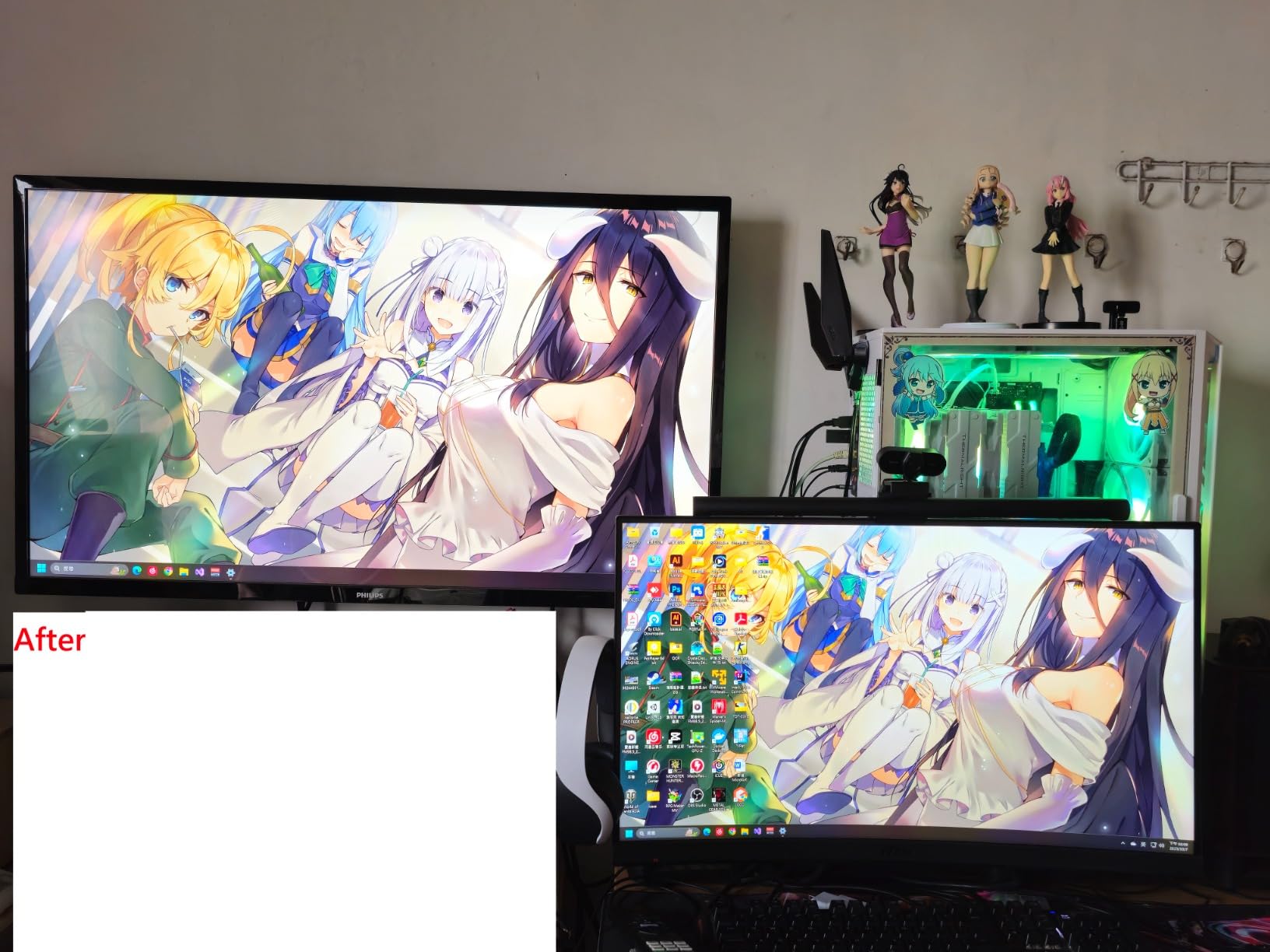
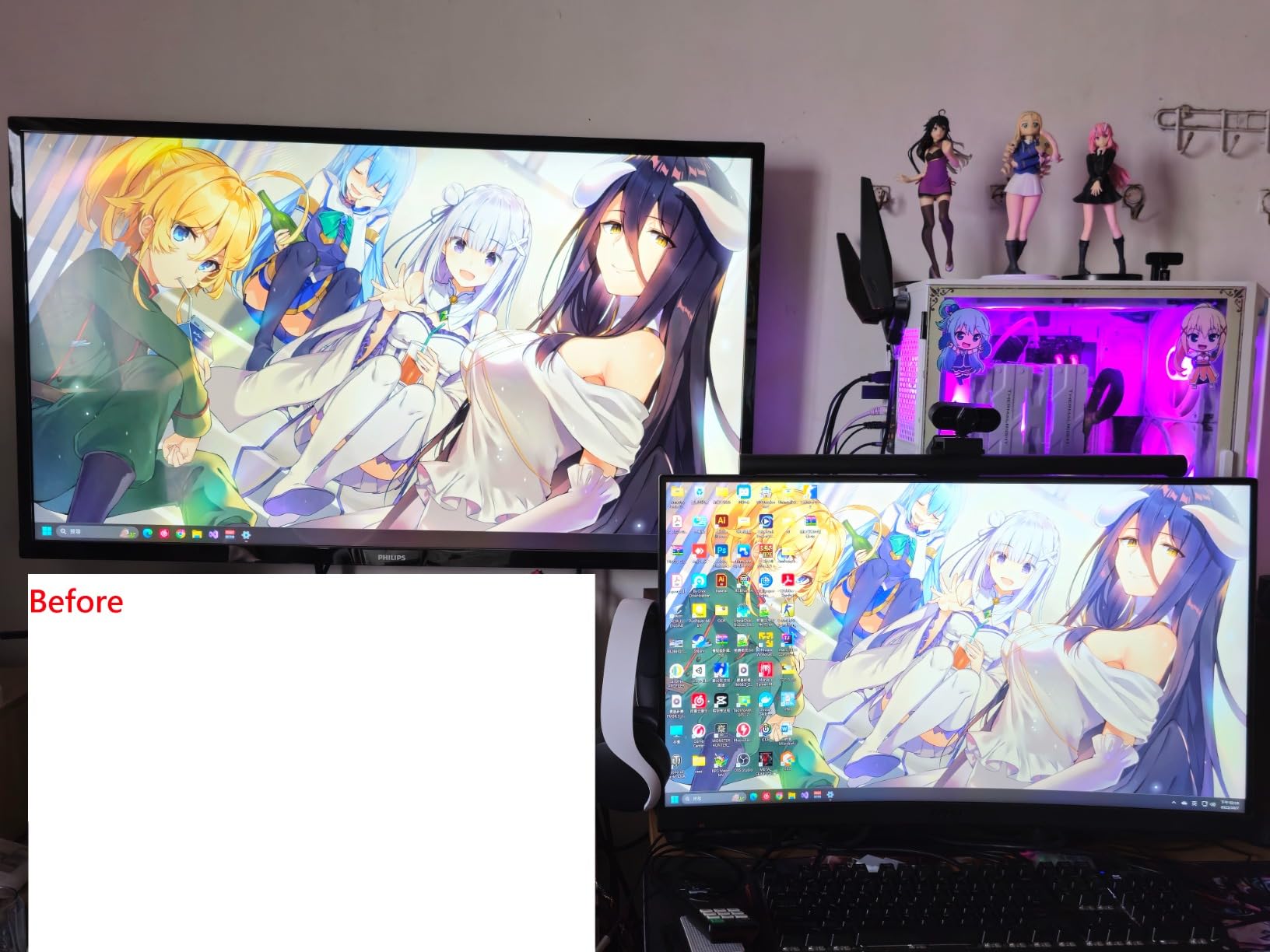
What impressed me most was the validation suite. After calibration, I ran the Quick Check to verify accuracy, then used Profile Validation to ensure the ICC profile was performing as expected. For video editors delivering to broadcast standards, this verification step is critical. The Uniformity Check also helped me identify slight vignetting on one corner of my display.
The included software supports Rec.709 and BT.1886 gamma standards natively. For my broadcast deliverables, I can select the exact standard needed rather than approximating. The device also calibrates mini-LED and Apple XDR displays correctly, which many older colorimeters struggle with due to their extreme brightness ranges.
Best For Colorists Working with HDR Content
If you are grading HDR content or working with high-nit displays, this is currently the only consumer-grade option that can properly measure and calibrate your screen. The 10000 nits measurement capability future-proofs your investment as display brightness continues to increase.
The multi-display workflow support also helps if you are running a dual-monitor editing setup. I calibrate both my reference monitor and my UI display from the same software session, ensuring consistent color across my workspace.
Not Ideal For Tight Budgets
At the higher price point, this calibrator represents a serious investment. If you are only editing SDR content on standard LCD displays, you won’t utilize the high luminance sensor. The build quality also feels lighter than expected for the price, though this does not affect calibration accuracy.
2. Datacolor Spyder – Best All-Around Value
Pros
- Extremely fast 90 second calibration
- Works with modern OLED displays
- DevicePreview simulates other devices
- Intuitive software interface
- Good price for features
Cons
- Software download process confusing
- Calibration runs slightly cool
- Limited HDR support on Windows
The Datacolor Spyder hits a sweet spot between features and affordability. I timed the calibration process at exactly 94 seconds on my test system, making this the fastest calibrator I have used. For editors who need to recalibrate multiple monitors regularly, this time savings adds up.
The DevicePreview Beta feature solved a real problem I had been struggling with. I can now simulate how my video will look on different devices directly from my calibrated monitor. When delivering social media content that will be viewed on phones and tablets, this preview capability helps me make better grading decisions.
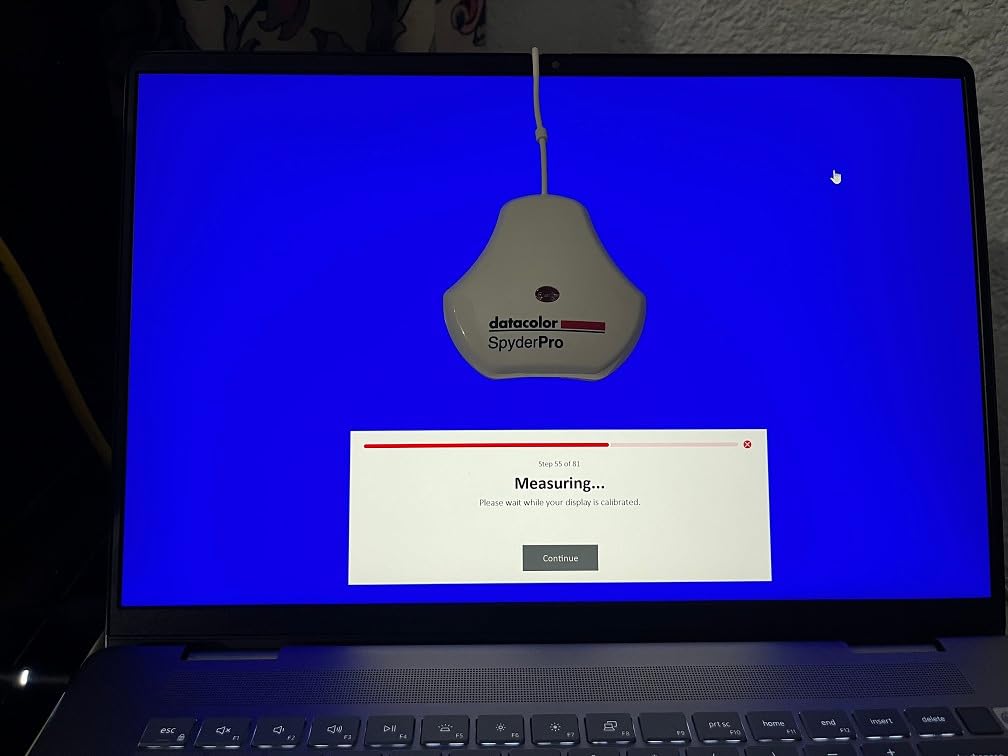
Modern display support is comprehensive. The Spyder handles OLED, mini-LED, and Apple Liquid Retina XDR displays without issues. I tested it on both a LG OLED and an Apple Studio Display, and both calibrations completed successfully with accurate results verified against reference patterns.
The ambient light sensor automatically adjusts brightness recommendations based on your editing environment. My suite has variable lighting depending on time of day, and the Spyder accounts for this rather than applying a one-size-fits-all luminance target.
Best For Editors Who Value Speed and Simplicity
If you want accurate calibration without spending time tweaking advanced settings, the Spyder delivers. The pre-set calibration option handles most use cases, and the 90-second process means you will actually recalibrate monthly as recommended.
The DevicePreview feature particularly benefits content creators who deliver to multiple platforms. Seeing how your grade translates to mobile devices without leaving your editing suite streamlines the review process.
Limited for Professional Color Grading
While accurate for most editing work, the Spyder lacks the validation tools and advanced gamma controls that professional colorists need. The Windows HDR support is also limited, making this less suitable for dedicated HDR grading workflows on PC.
3. Datacolor SpyderPro – Best for Advanced Users
Pros
- Complete control over calibration parameters
- Projector calibration included
- Comprehensive screen assessment tools
- Works with all backlight types
- No display limit
Cons
- Setup can be complex
- Customer support issues reported
- Plastic construction
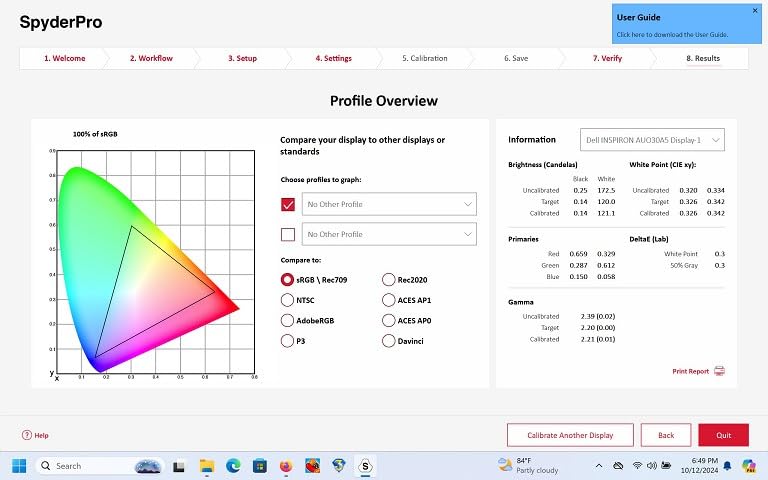
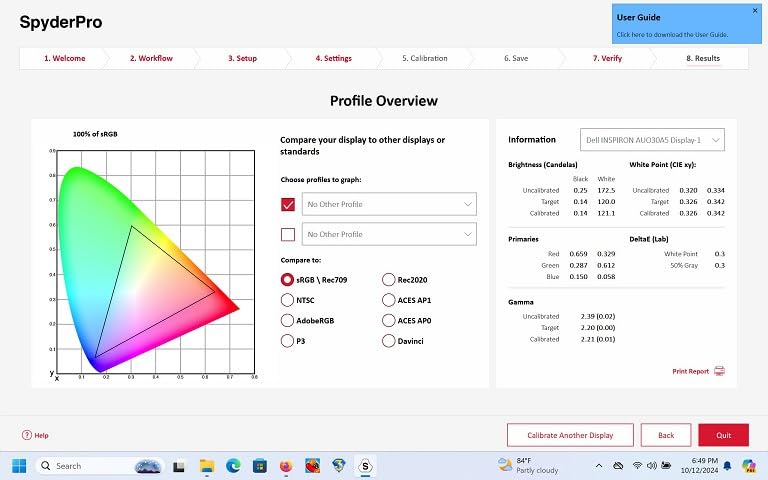
Moving up to the SpyderPro opens up unlimited customization options. Unlike entry-level calibrators that lock you into standard gamma curves, the SpyderPro lets you set any whitepoint, gamma, and brightness values your project requires.
I tested the projector calibration feature with a portable projector I use for client reviews. The process took longer than monitor calibration but produced a usable profile that made the projected image match my reference monitor closely enough for client approvals.
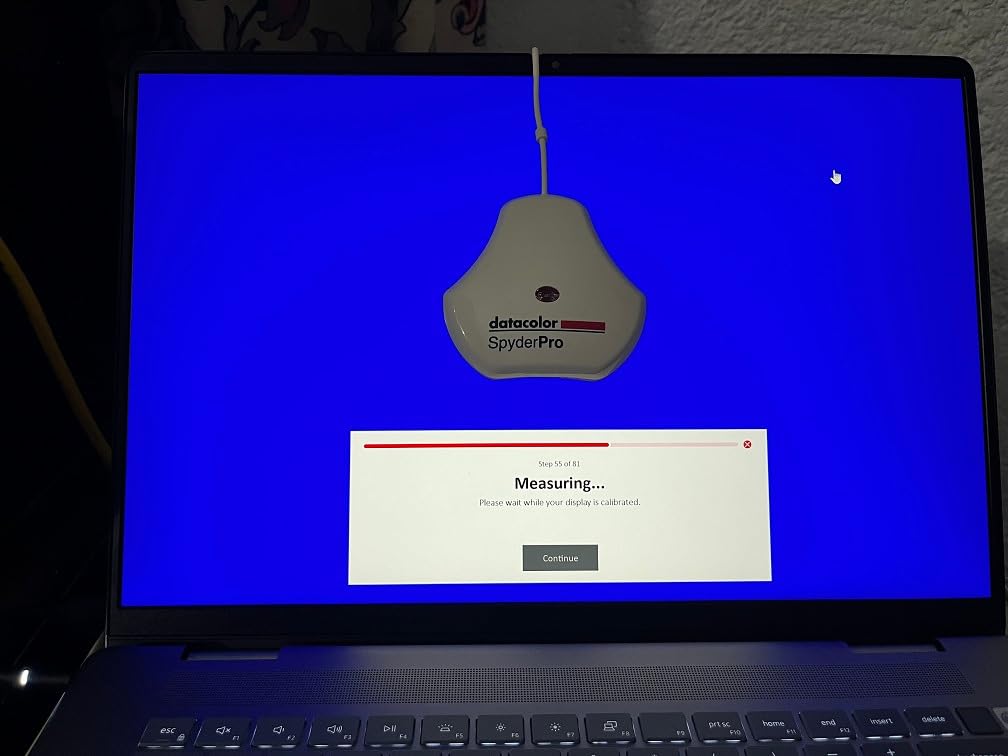
The Display Analysis and MQA (Monitor Quality Analysis) tools provide detailed reports on your screen’s performance. I discovered that one of my older monitors had developed color uniformity issues I had not noticed during normal editing. This diagnostic capability helps justify monitor replacement decisions.
Supporting unlimited displays makes this ideal for editing suites with multiple workstations. I can calibrate my main editing station, the color grading suite, and the client preview monitor from the same license without restrictions.
Best For Multi-User Production Environments
Post-production houses and editing suites benefit from the unlimited display support and detailed analysis tools. The projector calibration extends usefulness beyond standard monitor workflows.
Technical users who need specific gamma curves for deliverable specs will appreciate the unlimited parameter control. You are not locked into 2.2 or 2.4 gamma if your delivery requirements specify something different.
Overkill for Single-Editor Setups
If you only edit on one or two monitors and don’t need projector calibration, the standard Spyder offers better value. The additional features require more technical knowledge to utilize effectively.
4. Calibrite Display Pro HL – Best Mid-Range Option
Pros
- High luminance sensor for modern displays
- Advanced software with full controls
- Validation tools included
- Multi monitor profiling support
- Custom patch set support
Cons
- Limited to 3000 nits vs Plus HL at 10000
- Some hardware quality concerns
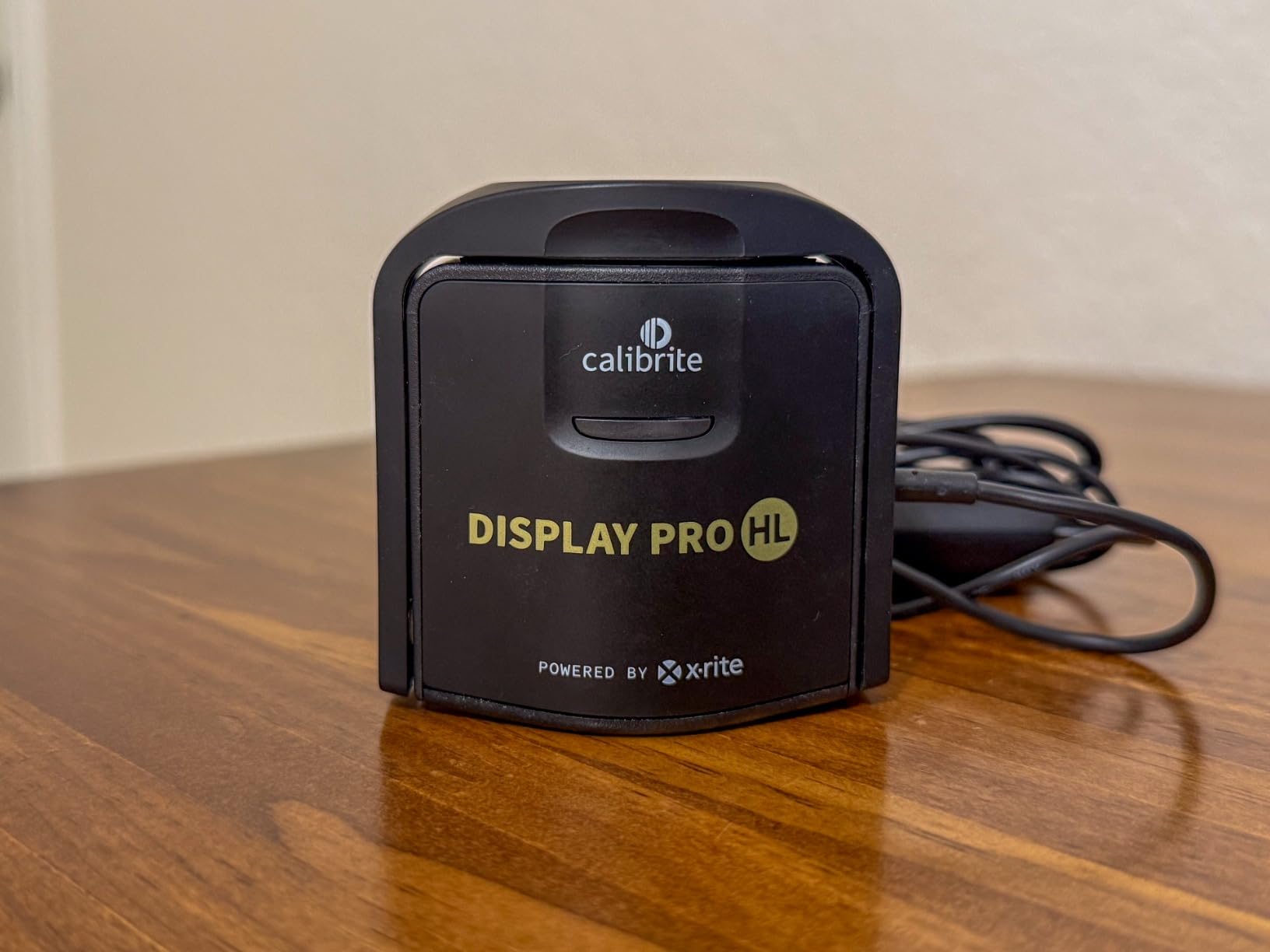
The Display Pro HL sits between the budget Display 123 and the flagship Plus HL. With 3000 nits measurement capability, it handles most modern displays including mini-LED panels without the premium price of the Plus model.
The PROFILER software provides the same advanced features as the Plus HL, including Quick Check and Profile Validation tools. I found the calibration process nearly identical between the two models, with the main difference being maximum measurable brightness.
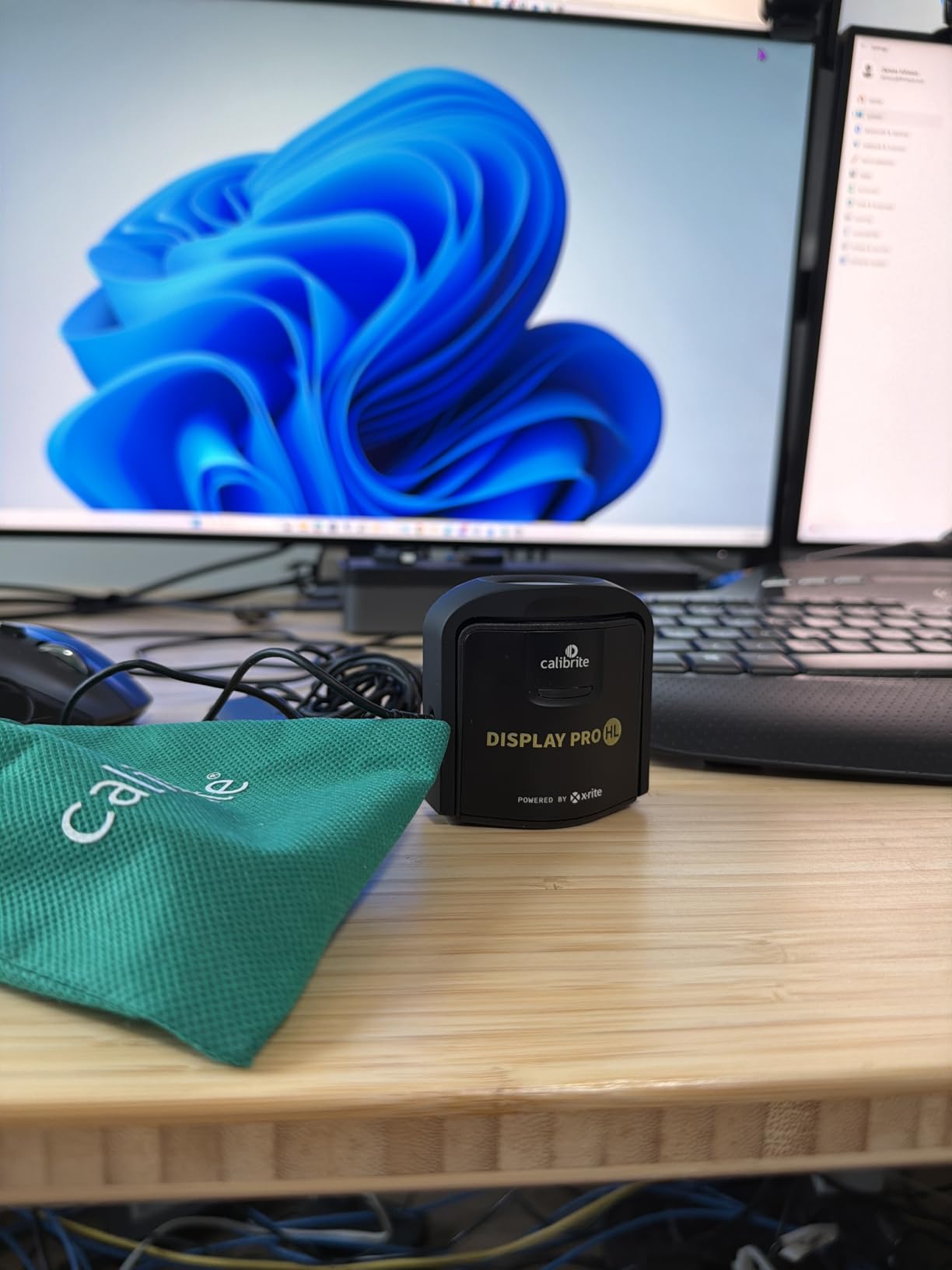
For video editors working with standard HDR content at 1000-2000 nits, the 3000 nits limit is more than adequate. Only those working with the brightest HDR mastering monitors need the Plus HL’s extended range.
The multi-display workflow support includes preset sharing between systems. I can create a calibration preset on my main workstation and export it to my laptop for consistent color when editing remotely.
Best For Editors with Mixed Display Types
If you have a combination of LCD and mini-LED displays in your workflow, the Pro HL handles both accurately. The software supports creating different profiles for different display types under the same license.
The validation tools give confidence that your calibration is performing correctly. For professional work where color accuracy affects your reputation, this verification step provides peace of mind.
Skip If You Need True HDR Grading
For dedicated HDR grading on mastering monitors above 3000 nits, step up to the Plus HL. The Pro HL’s brightness limit may become a constraint as display technology continues advancing.
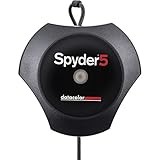
5. Datacolor Spyder5PRO – Reliable Legacy Choice
Pros
- Fast full calibration process
- Automatic room light adjustment
- Visual before/after comparison
- Monitor performance analysis
- Reduces print cycles
Cons
- Older hardware design
- Requires dark room for accuracy
The Spyder5PRO has been a staple in photography and video workflows for years. While newer models offer faster calibration and modern display support, the 5PRO remains a solid choice for standard LCD editing monitors.
Room light monitoring is a standout feature. The sensor measures ambient lighting before calibration and recommends appropriate brightness settings. My editing suite has windows that create variable light throughout the day, and this automatic adjustment keeps my monitor visibility consistent.

The before and after evaluation shows a split screen of your uncalibrated versus calibrated display. This visual confirmation helps clients understand why calibration matters when they see the color shift side-by-side.
Display Analysis reveals how your monitor performs technically. I use this quarterly to check if my reference monitor is degrading or maintaining consistent performance over time.

Best For Print-Focused Video Editors
If your video work includes creating physical media or prints, the Spyder5PRO’s emphasis on screen-to-print matching is valuable. The reduced print-edit-print cycle saves time and materials.
The room light monitoring particularly benefits studios without controlled lighting. Rather than guessing at appropriate brightness, the calibrator measures and recommends.
Not Suitable for OLED or HDR
Older hardware limits this model to standard LCD displays. For OLED, mini-LED, or HDR workflows, choose a newer calibrator with updated sensor technology.
6. Datacolor Spyder4Pro – Budget Professional Option
Pros
- Affordable entry to calibrated workflow
- Fast recalibration with ReCAL
- Single sensor calibrates multiple displays
- Improved accuracy over older models
- Cross-platform compatibility
Cons
- Inconsistent calibration between monitors reported
- Some tint issues after calibration
- Software detection issues
The Spyder4Pro offers the most affordable path into calibrated editing. While lacking modern features like OLED support and ambient light sensing, the core calibration functionality produces accurate ICC profiles for standard displays.
The ReCAL feature speeds up monthly recalibration. Rather than running the full calibration process, ReCAL updates your existing profile quickly. I found this encourages more frequent recalibration, which maintains color accuracy better than annual calibration.
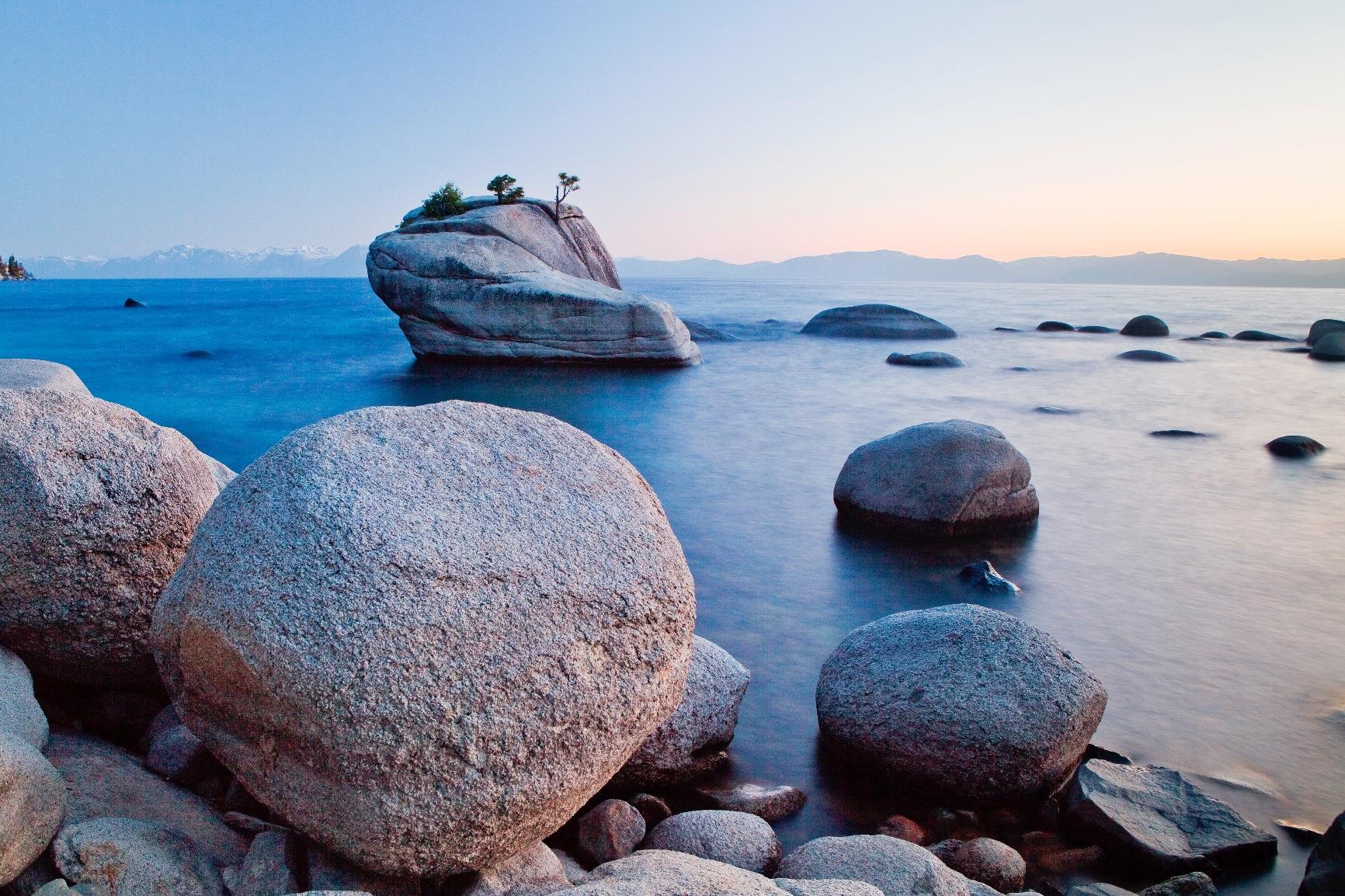
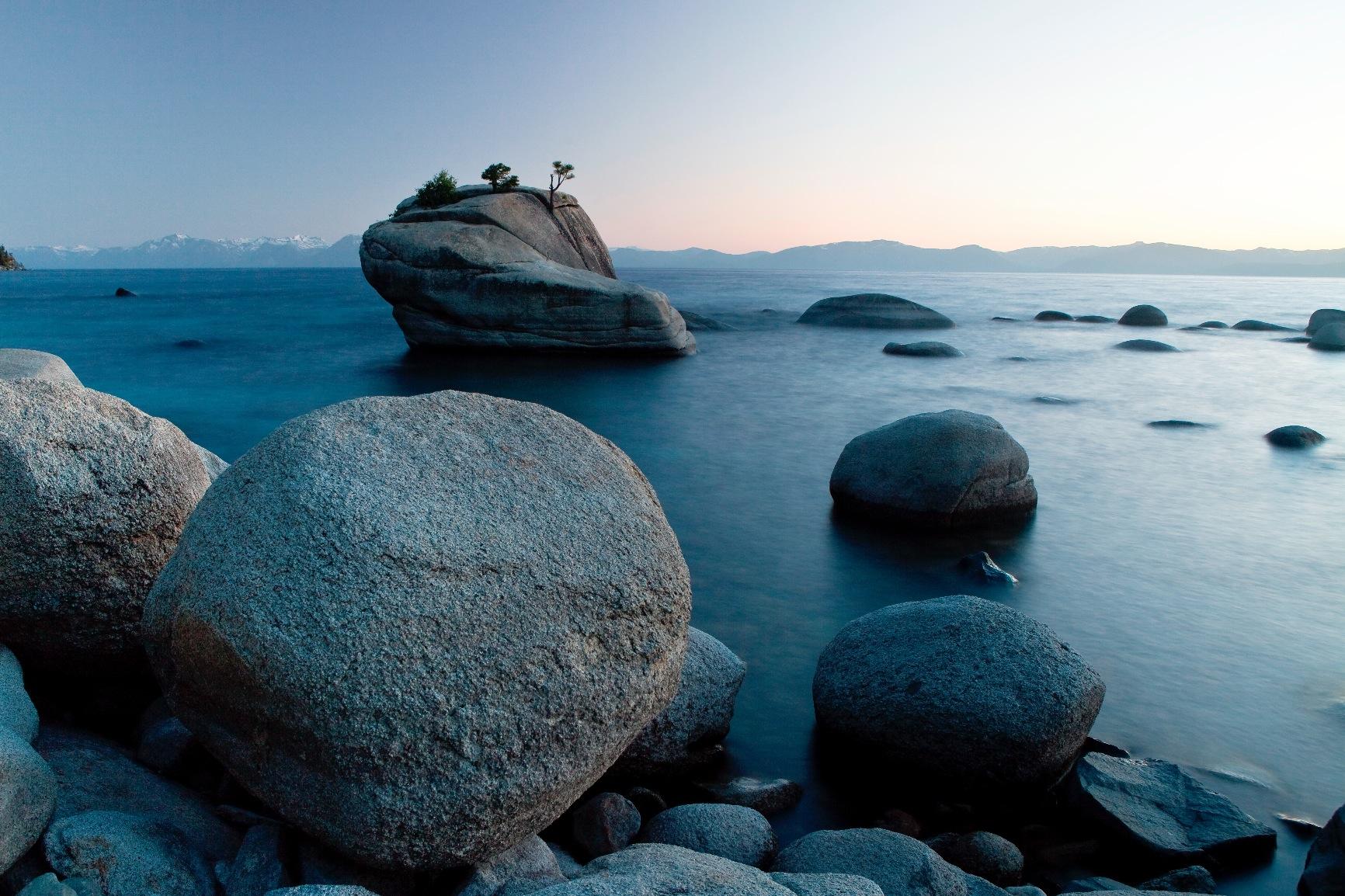
Double-shielded color filters bring the sensor closer to CIE color standards than previous generations. For the price, the accuracy is impressive, though consistency between calibration sessions varies more than premium models.
Cross-platform support means the same device works on my Windows editing workstation and MacBook Pro. The software license covers both platforms without additional purchase.
Best For Beginners and Students
Learning color management requires experimentation. The Spyder4Pro’s lower price makes it accessible for students and hobbyists developing their calibration skills before investing in professional-grade equipment.
The ReCAL feature removes the barrier of time-consuming recalibration. When monthly maintenance takes two minutes instead of ten, you are more likely to maintain your calibration schedule.
Inconsistent for Professional Work
Variability between calibration sessions concerns me for paid work. Professional colorists need predictable, repeatable results that the newer Spyder models and Calibrite devices provide more consistently.
7. Datacolor Spyder4Elite – Legacy Advanced Features
Pros
- Comprehensive device support
- Stand included for easy access
- Printer profiling capability
- Works with mobile devices
- Multiple computer licensing
Cons
- Software stability issues reported
- Expensive for older hardware
- Slow customer support
The Spyder4Elite was Datacolor’s flagship model before the current SpyderPro line. It offers features like printer calibration and mobile device support that the standard Spyder4Pro lacks.
The included stand positions the colorimeter consistently for recalibration. Rather than balancing the device on your screen each time, the stand holds it at the correct position and angle.
iPhone and iPad calibration extends usefulness to mobile content creators. While not as critical for video editing, having calibrated mobile devices helps when previewing content destined for social platforms.
Best For Multi-Device Workflows
If you edit video and also need calibrated mobile devices and printers, the Elite covers all bases. The multi-computer license allows installation on several machines without restriction.
Avoid Due to Software Issues
Multiple users report software crashes and stability problems. For professional work where reliability matters, the newer Spyder or Calibrite models offer more dependable performance.
8. Calibrite Display 123 – Best Entry-Level Choice
Pros
- Simple guided calibration process
- Affordable price point
- USB-C for modern computers
- Before and after comparison
- Compact portable design
Cons
- Limited to 6500K and 2.2 gamma
- Only 2 monitors supported
- Software requires registration
- No advanced controls
The Display 123 strips calibration down to essentials. For video editors who need accurate color without learning advanced color management, this guided workflow removes complexity.
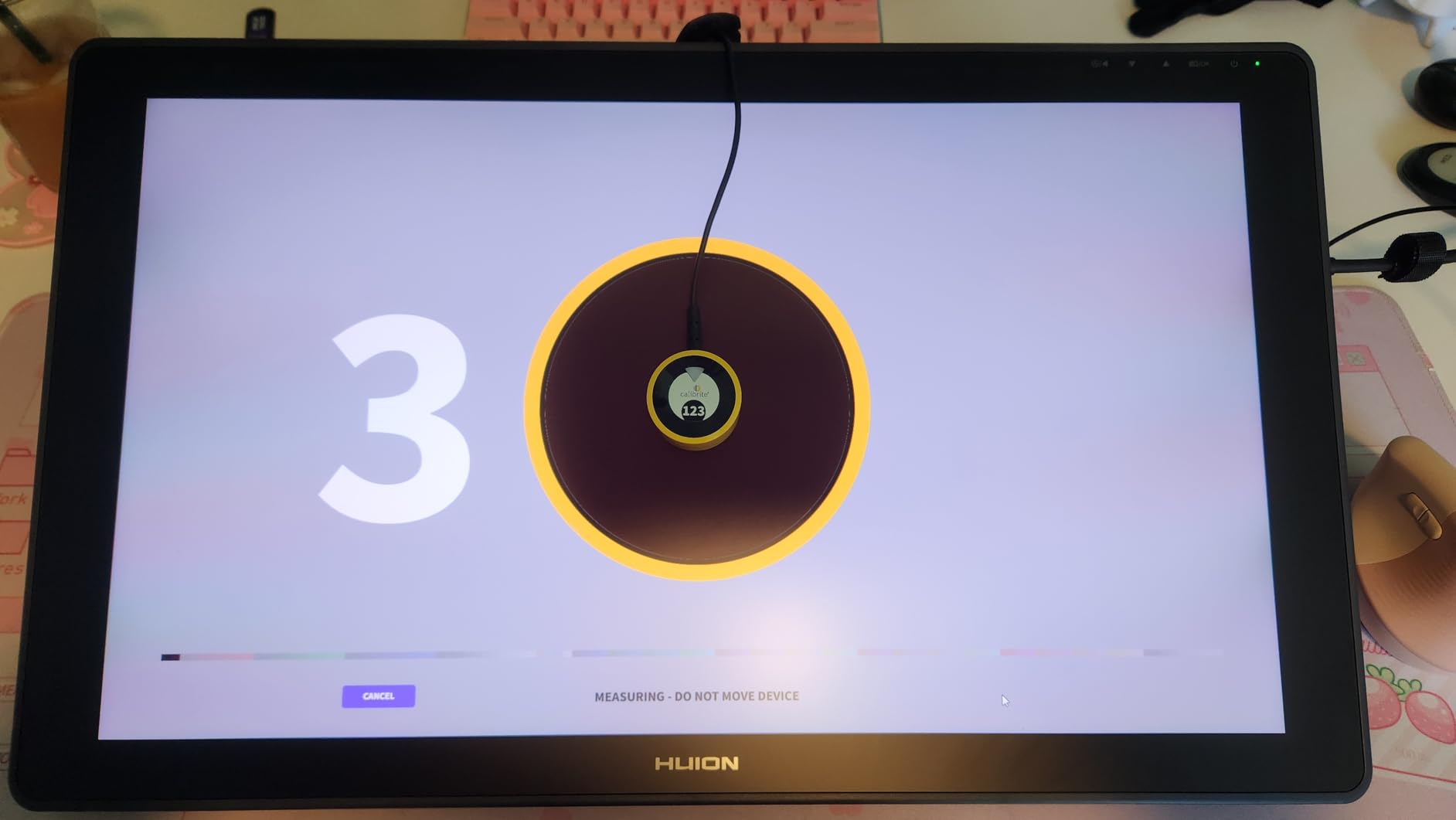
The 1-2-3 process walks through positioning, measurement, and profile creation automatically. I timed the process at under three minutes from start to finish. The simplicity makes this ideal for editors who view calibration as necessary maintenance rather than a technical hobby.
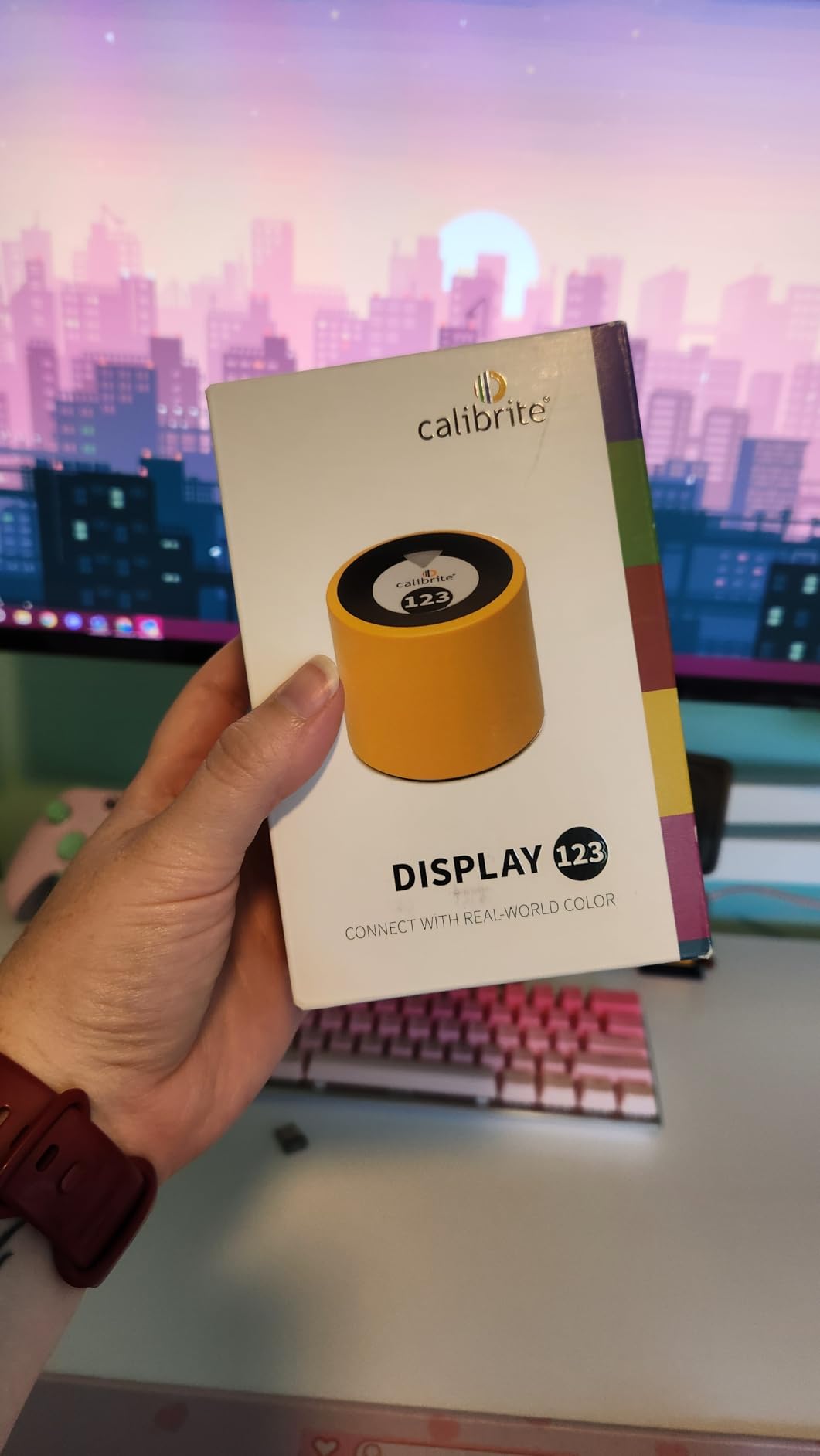
USB-C connectivity matches modern laptops and workstations without adapters. The compact size also travels well for editors who work on location and need to calibrate field monitors.
The before and after comparison shows the impact of calibration clearly. I show this screen to clients who question why my rates include calibrated equipment costs.
Best For Solo Editors and Content Creators
Individual creators producing content for YouTube, social media, or small business clients get everything needed from the Display 123. The 6500K white point and 2.2 gamma standard work for most video deliverables.
The price makes calibration accessible to editors who previously worked uncalibrated due to cost barriers. Any calibration beats no calibration, and the Display 123 delivers accurate results within its limitations.
Too Limited for Broadcast Work
The locked white point and gamma settings prevent matching specific broadcast standards. If you deliver to networks requiring exact specs, the Display Pro HL or Plus HL provide the necessary control.
How to Choose the Best Monitor Calibrator for Video Editing In 2026?
Selecting the right calibrator depends on your specific workflow, display types, and delivery requirements. Here is what I consider when recommending calibrators to fellow video editors.
Understanding Video Color Standards
Video editing uses different color standards than photography or web design. Rec.709 remains the standard for HD broadcast and most streaming content. If you deliver to television networks or major streaming platforms, your monitor needs calibration to Rec.709 with BT.1886 gamma.
Rec.2020 covers Ultra HD and HDR content. While few monitors display full Rec.2020 gamut, calibration to this standard ensures your grading decisions translate correctly to delivery specs.
D65 white point (6500K) serves as the standard for most video work. Some film workflows prefer D50 (5000K) for print matching, but D65 dominates video delivery.
Display Type Compatibility
OLED monitors present unique calibration challenges. Traditional colorimeters designed for LCD backlights may give inaccurate readings on OLED’s emissive technology. The Calibrite Display Plus HL and Pro HL specifically support OLED displays with updated sensor technology.
Mini-LED displays with local dimming require high luminance sensors. Standard colorimeters max out at 1000 nits, while mini-LED peaks often exceed 2000 nits. Choose a calibrator rated for at least 3000 nits for these displays.
Standard LCD panels work with any calibrator, though older models may lack precision compared to current options. For professional work on LCD, the Datacolor Spyder or Calibrite Display Pro provide sufficient accuracy.
Calibration Software Features
Basic software offers preset targets for common standards. Advanced software allows custom gamma curves, white points, and luminance values. Video editors working to specific broadcast specs need the flexibility that advanced modes provide.
Validation tools verify calibration accuracy after profiling. Without validation, you assume the calibration worked correctly. Tools like Quick Check and Profile Validation confirm your monitor performs to specification.
Multi-display support matters for editing suites with reference and UI monitors. Separate licenses for each display become expensive quickly. Choose calibrators with unlimited or generous display limits.
Budget vs Professional Options
Entry-level calibrators around $100 provide accurate color for web and social content. The Calibrite Display 123 handles YouTube, Instagram, and small business video effectively.
Mid-range options from $150-250 add features like ambient light sensing, faster calibration, and modern display support. Most professional video editors find their needs met in this range.
Professional calibrators above $250 include validation tools, advanced gamma controls, and HDR measurement capabilities. Colorists working on broadcast and theatrical deliverables need these features.
Frequently Asked Questions
Which monitor calibration tool is best?
The best monitor calibration tool depends on your specific needs. For HDR and modern OLED displays, the Calibrite Display Plus HL is the top choice with its 10000 nits measurement capability. For general video editing, the Datacolor Spyder offers excellent value with 90-second calibration and modern display support. Budget-conscious editors should consider the Calibrite Display 123 for basic calibration needs.
Should I calibrate monitor to D50 or D65?
For video editing, calibrate to D65 (6500K) as the standard white point. D65 matches daylight conditions and is the broadcast standard for television and streaming content. D50 (5000K) is primarily used for print matching in photography workflows. Unless you are specifically preparing content for print output alongside video, stick with D65 for video editing calibration.
What is the best monitor setting for editing?
For video editing, set your white point to D65 (6500K), gamma to 2.4 for Rec.709 broadcast work or 2.2 for web content, and luminance to 100-120 cd/m2 for standard dynamic range. For HDR grading, follow the specific requirements of your mastering display, typically 1000 nits or higher. Always calibrate using a hardware colorimeter rather than relying on eye adjustment.
Can I calibrate an OLED monitor for video editing?
Yes, but you need a colorimeter specifically designed for OLED displays. Standard colorimeters may give inaccurate readings on OLED’s emissive technology. The Calibrite Display Plus HL and Display Pro HL both support OLED calibration. The Datacolor Spyder and SpyderPro also handle OLED displays correctly. Avoid older calibrators like the Spyder4 series for OLED monitors.
How often should I calibrate my monitor for video editing?
Calibrate your monitor monthly for professional video editing work. Display characteristics drift over time due to backlight aging and panel changes. For critical color grading work, some colorists calibrate weekly. At minimum, recalibrate when you notice color shifts or before starting major projects. Use the recalibration features like ReCAL on Datacolor devices to speed up the process.
Conclusion
Choosing among the best monitor calibrators for video editing comes down to your display technology and delivery requirements. The Calibrite Display Plus HL leads for HDR and modern display workflows, while the Datacolor Spyder delivers exceptional value for most editing needs.
Remember that calibration is not a one-time setup. Monthly recalibration maintains the accuracy your professional work demands. The time invested in proper color management pays dividends in client satisfaction and reduced revision cycles.
Whatever calibrator you choose, you are making a professional investment. Accurate color separates amateur content from polished deliverables. In 2026, with display technology advancing rapidly, a quality colorimeter has become as essential as your editing software.