
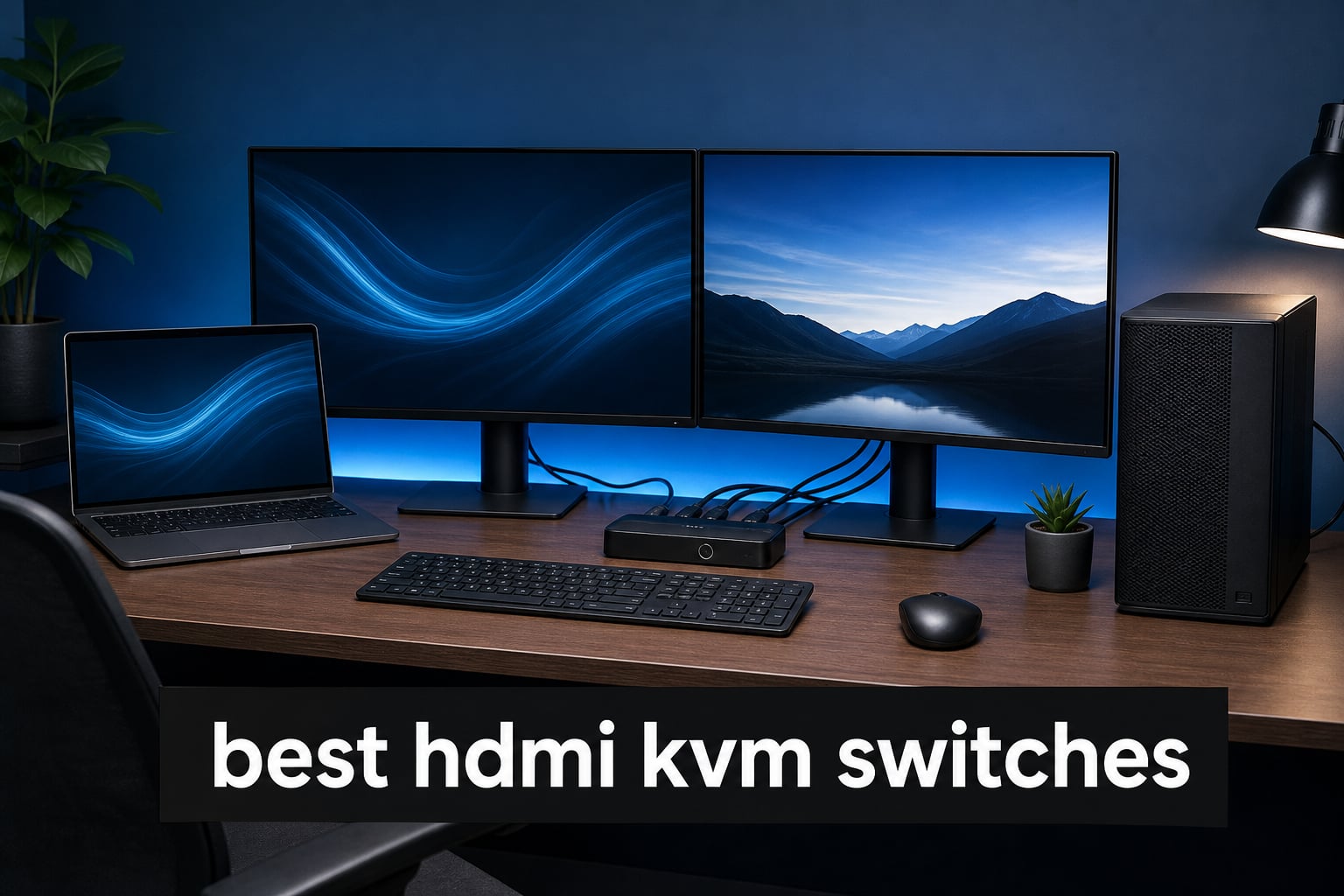
The best HDMI KVM switches let one keyboard, mouse, and display serve two or more computers without turning a desk into a cable pile. A good unit must match the number of computers and monitors you own, preserve the resolution and refresh rate your screen needs, and have enough USB ports for the peripherals you actually use.
An HDMI KVM switch routes video and USB control to the computer you select. In plain terms, it is a keyboard video mouse switch: connect each computer by HDMI and USB, connect the monitor and peripherals to the switch, then change the active system with a panel button, remote, or another supported control method.
I would start with the monitor layout rather than a brand name. A one-monitor KVM cannot turn into a dual monitor KVM switch, and a dual-display model needs the required video output from each computer; a laptop may need a suitable video adapter or dock before it can participate.
For this guide, we compared the verified specifications and buyer feedback for eight HDMI KVM switches. The short list covers two- and four-computer desks, one- and two-monitor layouts, 4K work screens, and documented higher-refresh options, while calling out limits such as missing hotkeys, cable restrictions, and docking-station caveats.
Community discussions repeatedly point to the same frustrations: display detection after a swap, confusing mixed HDMI and DisplayPort setups, and budget hardware that cannot keep up with a gaming screen. That is why EDID behavior, switching control, and the exact video connection matter as much as the number printed on the box.
The top 3 picks match three common desk setups (September 2026)
Choose the TIGKTING for a two-computer, two-HDMI-monitor workstation with four USB 3.0 ports. Choose the DXchip when one monitor must serve four computers and its documented 8K@60Hz or 4K@144Hz capability fits the display.
The BINZET is the more focused single-monitor pick for a gaming desk because its listing specifies 4K@165Hz, HDR10, HDCP 2.2, and IR remote control. Confirm your computer, monitor, HDMI cables, and the whole signal path support the mode you plan to run.

The best HDMI KVM switches in 2026 cover eight distinct needs
The overview below is a capability check, not a promise that every device combination will work at every listed mode. Read the product section that matches your monitor count, then verify the ports on each computer before ordering cables.
| Product | Specifications | Action |
|---|---|---|
| TIGKTING Dual Monitor KVM |
|
Check Latest Price |
 DXchip 4-Port HDMI 2.1 KVM DXchip 4-Port HDMI 2.1 KVM |
|
Check Latest Price |
 Buerlaseul HDMI DP Dual KVM Buerlaseul HDMI DP Dual KVM |
|
Check Latest Price |
 ATLAHET Dual Monitor KVM ATLAHET Dual Monitor KVM |
|
Check Latest Price |
 BINZET Single-Monitor KVM BINZET Single-Monitor KVM |
|
Check Latest Price |
 GREATHTEK 4-Port KVM GREATHTEK 4-Port KVM |
|
Check Latest Price |
 Hearvo S7232H KVM Hearvo S7232H KVM |
|
Check Latest Price |
 MLEEDA Dual Monitor 4-Port MLEEDA Dual Monitor 4-Port |
|
Check Latest Price |
The first four models are strongest where display capability or dual-monitor coverage is the deciding factor. The remaining four cover focused one-monitor gaming, practical four-PC control, a simpler two-PC work desk, and a larger four-PC dual-monitor arrangement.
The TIGKTING HKXY-US-SW220 is the clear two-computer dual-monitor choice
Pros
- Dual extended or duplicate displays
- Four 5Gbps USB ports
- Button and wired remote
- Metal case
Cons
- No keyboard hotkeys
- Requires two video outputs per computer
The TIGKTING is built for the common work-from-home arrangement: two computers, two screens, and one keyboard-and-mouse set. Its documented extended and duplicate display modes matter because each computer needs to provide the two HDMI video feeds that a true dual-monitor layout requires.
I like the straightforward control choice here. The on-unit button works when the box is within reach, while the wired desktop controller can sit where a hand naturally lands during a workday.
Its four USB 3.0 ports are rated for 5Gbps transfer, which is a better match for a printer, storage drive, or other data peripheral than a USB 2.0-only design. The metal enclosure and supplied 12V adapter round out a practical desk-focused package.
The published feedback shows a 4.8 rating from 31 reviews, but that is still a modest review pool. Do not expect keyboard hotkey switching, and plan the HDMI connections carefully before treating it as the best HDMI KVM switch for dual monitors in your own setup.
The display layout is right for two HDMI-equipped computers
This model makes sense when both source machines have two HDMI-capable video paths and both monitors use HDMI. Extended mode gives each computer a wider work area; duplicate mode is for mirroring the same image across the displays.
It is not a solution for a mixed HDMI-plus-DisplayPort monitor pair without conversion hardware. Adapters add another point to check for resolution, refresh-rate, and handshake support.
The switching controls favor a tidy working desk
A wired controller reduces the need to reach behind monitors, which is useful when the KVM is mounted out of sight. The physical switching design is also easy to understand for a shared desk.
If your workflow depends on changing computers solely from the keyboard, this is not the model to choose because hotkey switching is not supported.
The DXchip KVM8401B is the best fit for four computers and one fast display
Pros
- Four-computer control
- EDID window retention
- Four 5Gbps USB ports
- Wired controller
Cons
- One monitor only
- Input cables should stay under 1.5 m
The DXchip KVM8401B solves a different problem: keeping four PCs attached to a single monitor. Its published video ceiling of 8K@60Hz or 4K@144Hz gives it a useful place on a desk with a high-resolution productivity screen or a 144Hz display.
EDID emulation is the feature I would focus on. EDID is the display information a monitor reports to a computer; an emulator can help the inactive computer retain the monitor profile and reduce the chance that windows pile onto one screen after a switch.
The unit also provides four USB 3.0 ports rated at 5Gbps and offers both a front panel button and wired controller. That can keep a keyboard, mouse, and a few shared accessories in one place across four machines.
DXchip specifies that input cable length should not exceed 1.5 meters for best performance. Treat that as a layout rule, especially at the documented high-bandwidth modes, and measure the route around monitor arms before committing.
The high-refresh support suits a one-monitor gaming or creator desk
4K@144Hz is the stated mode most gaming buyers will notice. It does not by itself confirm VRR, G-Sync, FreeSync, HDR, or console feature support, so those needs require confirmation from the complete hardware chain.
For non-gaming work, 8K@60Hz can be relevant to a compatible high-resolution display. Every source device must still offer the needed HDMI output and video signal.
The four-input format suits multi-system administration
A four-port KVM is convenient for a main PC, work system, test machine, and small server on one screen. The front button and desktop remote provide predictable manual selection without relying on software.
It is not a dual-monitor KVM switch. Anyone who needs two independent screens for each source should use a model designed for that output count.
The Buerlaseul KVM USB HDMI DP-4K answers mixed HDMI and DisplayPort desks
Pros
- Mixed HDMI and DisplayPort design
- Four USB 3.0 ports
- Metal housing
- Wired remote
Cons
- No dock support
- Many macOS laptops lack DisplayPort
- No hotkeys
The Buerlaseul is the specialized option when your two-monitor desk uses one HDMI display and one DisplayPort display. That connection mix is a frequent source of confusion in community threads, so a purpose-built HDMI DisplayPort KVM is cleaner than assuming a pair of HDMI-only ports will cover it.
It supports two computers and two monitors at a documented 4K@60Hz, with extended or mirrored work depending on the sources. Four USB 3.0 ports supply 5Gbps sharing for the usual keyboard, mouse, printer, and drive mix.
The metal casing, physical button, and wired controller are sensible basics. Its 4.7 rating comes from 26 reviews, so I would give more weight to verifying your ports than to treating that score as a broad reliability verdict.
There are meaningful compatibility limits: the listing says docking stations are not supported and says many macOS laptops are not compatible because they lack DisplayPort. That is a direct reason to inspect your laptop’s native video output rather than buy on monitor count alone.
The port mix fits a genuinely mixed-monitor workstation
This is useful if replacing either monitor is not practical and your desktop already has the matching HDMI and DisplayPort outputs. It can preserve a mixed-screen desk without forcing the monitors to share a single connector standard.
Each computer still needs the required HDMI and DisplayPort paths. A passive cable cannot create a missing video output or guarantee an active conversion will behave like a native connection.
The laptop limits demand a careful compatibility check
USB-C and Thunderbolt labels do not automatically mean a laptop can feed this KVM. The computer must deliver the necessary display signals through appropriate hardware, and the KVM listing’s dock restriction is especially relevant here.
Buy this for a known-compatible mixed desktop setup, not as a universal answer for every Mac, USB-C laptop, or docking-station arrangement.
The ATLAHET SW221-0 is the dual-monitor option for 8K or 4K at 120Hz
Pros
- Higher documented video modes
- Extended and duplicate displays
- Four USB 3.0 ports
- External controller
Cons
- No hotkeys
- Not for docks or adapters
- USB receiver limitation
The ATLAHET SW221-0 is aimed at a two-computer, two-screen layout where refresh rate matters more than it does on a basic office monitor. It lists 8K@60Hz and 4K@120Hz support, alongside duplicate and extended display modes and four USB 3.0 ports.
For a gaming and work combination, 4K at 120Hz is the figure to consider. It is a documented maximum video mode, not a blanket confirmation of 165Hz, 240Hz, VRR, G-Sync, or FreeSync, so do not substitute one claim for another.
Selection happens through the panel button or an external cable controller, and the included 12V adapter supplies the unit. The listing reports cross-platform support for Windows, Linux, and macOS, provided the necessary video connections are in place.
The compromises are unusually clear: there are no keyboard hotkeys, docking stations or adapters are not recommended, and it does not support mouse and keyboard switching without a USB receiver. Those details should shape the peripheral plan before this goes on the desk.
The stated video modes suit a bandwidth-conscious dual-display setup
Pick this when both computers and both displays can be wired as a compatible two-monitor HDMI system and 4K@120Hz is a target. Use certified cabling appropriate to the video mode rather than reusing unknown old leads.
A KVM passes only what the complete connection supports. One weak cable, adapter, monitor setting, or source port can lower the attainable resolution or refresh rate.
The peripheral setup should include standard wired USB devices
The USB 3.0 ports offer shared connections for conventional keyboard, mouse, and storage devices. A normal wired keyboard and mouse make the limitations easier to avoid.
If you use a wireless combo that relies on a receiver, account for that receiver in the USB plan. If you need keyboard-command switching, choose a KVM that explicitly documents hotkeys.
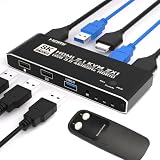
The BINZET OZK1-2 is the focused one-monitor KVM switch for gaming
Pros
- 4K at 165Hz listing
- HDR10 and HDCP 2.2
- IR remote
- Aluminum housing
Cons
- Single monitor only
- No external power for high-draw USB gear
The BINZET OZK1-2 is the clearest kvm switch for gaming in this group when one monitor serves two computers. Its listed 8K@60Hz and 4K@165Hz modes, plus HDR10 and HDCP 2.2 support, address the display specifications that matter on a high-refresh HDMI desk.
I also like the control flexibility. You can switch by the device button or use the included IR remote, which is convenient when the compact aluminum unit sits behind a monitor or on a shelf.
The USB 3.0 hub shares keyboard, mouse, and accessories between the two sources. It is plug and play across the listed Windows, macOS, Linux, Chrome OS, PlayStation, and Xbox device categories, although compatibility with a specific console feature still needs independent confirmation.
This model does not need an external power supply according to its product information. That simplifies cable management, but it may be less suitable for high-power USB peripherals that need more power than the switch can provide.
The single HDMI monitor format keeps a gaming desk simple
This is a strong match for a desktop gaming PC and a second computer sharing one capable monitor. Check that both source devices have HDMI outputs able to provide the desired mode and that the monitor’s HDMI input supports it too.
A 4K@165Hz claim does not establish 240Hz capability. Readers targeting 240Hz should select hardware that explicitly states support at their intended resolution.
The remote control offers a different switching experience
An IR remote can be more convenient than a wired controller when the KVM is not on the desktop. It also avoids relying on keyboard hotkeys, which many products in this roundup do not document.
IR needs a clear path to the receiver, while the panel button remains available as the direct fallback. Neither method changes the fact that it is a one-monitor model.
The GREATHTEK S7415H-A is the practical four-computer 4K work switch
Pros
- Four computer control
- Adaptive EDID
- USB-C peripheral port
- LED source indicators
Cons
- No hotkeys
- Extra cable sets may be needed
- One monitor only
The GREATHTEK S7415H-A is a sensible four-computer KVM switch for a standard 4K@60Hz office display. It gives four systems one monitor, keyboard, and mouse, while its LED indicators identify the active computer at a glance.
It has three USB 3.0 ports plus one USB-C port for shared peripherals. That USB-C port is for a peripheral connection; it should not be read as a promise of USB-C laptop video input, charging, Thunderbolt support, or a built-in KVM docking station.
Adaptive EDID is included to support multiple display devices, and switching can happen through the front buttons or a wired remote. Its 4.2 rating is based on 648 reviews, the largest review count among the listed products, with buyer feedback highlighting 4K output, simple switching, and USB ports.
This is plug and play, but its included cable set is limited to one USB and HDMI set according to the product information. A four-PC installation requires planning for all the remaining source cables.
The four-port layout suits an office or lab bench
Four inputs can cover a primary desktop, work computer, test system, and another machine without dedicating a monitor to each one. That makes this format attractive for IT administration or a crowded home office.
Its 4K@60Hz limit is appropriate for many productivity displays. It is not the natural choice for someone whose main goal is the documented 4K@144Hz or 4K@165Hz modes available elsewhere in this guide.
The USB arrangement supports diverse everyday peripherals
The combination of USB-A and USB-C peripheral ports can be useful for modern accessories alongside conventional wired input devices. USB 3.0 is also more practical than older USB standards for external storage transfers.
Keyboard hotkeys are not supported. Use the front controls or wired remote, and supply any extra HDMI and USB cables needed for the four source computers.
The Hearvo S7232H is the straightforward two-computer 4K desk KVM
Pros
- Four USB 3.0 ports
- Adaptive EDID
- Included cables and controller
- No drivers
Cons
- One monitor only
- Additional HDMI cables may be needed
The Hearvo S7232H is the uncomplicated choice for two computers sharing one 4K@60Hz monitor. Its stated feature set covers the essentials: one display, keyboard and mouse sharing, four USB 3.0 ports, adaptive EDID, and a wired desktop controller.
Three of its USB ports are USB-A and one is USB-C, with a listed 5Gbps transfer rate. As with any USB peripheral port, that is different from accepting USB-C video from a laptop, so connect each source computer through the required HDMI and USB links.
Adaptive EDID and HDCP 2.2 support are useful on paper for maintaining stable video output across switches. The product is driver-free and lists Windows, Mac, and Linux compatibility, which makes it approachable for a laptop-and-desktop work setup with matching connections.
The 4.2 rating is based on 624 reviews, and the feedback summary credits plug-and-play setup, 4K image quality, and USB functionality. The package includes USB cables and a controller, though some setups will still need additional HDMI cables.
The simple one-monitor arrangement reduces setup decisions
This is a logical kvm switch for work from home when one monitor is enough and you alternate between a work laptop or desktop and a personal computer. The wired controller means the KVM itself does not have to remain front and center.
It will not provide independent dual screens. If your work requires two active monitors per computer, select a genuine two-monitor KVM instead.
The EDID feature can reduce display rearrangement hassles
Adaptive EDID is intended to give the source systems stable information about the connected display. That can help with monitor detection behavior, a frequent concern in KVM discussions.
It cannot fix every operating-system or adapter issue. Keep display drivers current and test the full cable path if a computer still changes window positions after switching.
The MLEEDA dual-monitor 4-port KVM is made for four computers and two displays
Pros
- Four PCs across two monitors
- EDID simulation
- RS232 switching
- Four USB 3.0 ports
Cons
- External power required
- HDMI cables not included
- 4K at 60Hz ceiling
The MLEEDA is the most expansive work-oriented layout here: four computers share two monitors, four USB peripherals, and audio support at a documented 4K@60Hz. It is the right category when a two-screen desk needs to serve several computers rather than only two.
Its EDID simulation is intended to keep windows in position when the active computer changes. That directly addresses the lost-window problem that can make a multi-PC desk frustrating, particularly when each source uses extended mode across both screens.
There are three documented switching methods: panel buttons, a wired remote, and RS232. RS232 is notable for professional or managed environments that need serial control, while the other two methods suit an ordinary desk.
The 4.1 rating is drawn from 838 reviews, the largest feedback pool in this roundup. The listing also says a 12V/2A adapter is required and included, while HDMI cables are not included, so cable count and power placement belong in the setup plan.
The dual-monitor four-computer design fits demanding workflows
This KVM can suit an editor, administrator, or analyst who needs a primary desktop, work system, test machine, and another PC on the same two displays. It supports extended and mirror modes according to the product details.
Each source must have two appropriate HDMI video outputs to drive a dual-monitor arrangement. It is not enough that the KVM has two monitor outputs; the computers must supply the signals too.
The RS232 option distinguishes it from basic desktop KVMs
RS232 permits serial control in installations that use external control hardware. That is a useful documented option for a rack-mounted or managed setup, while a home user can simply use the panel button or wired remote.
The unit supports Windows, macOS, Linux, and Chrome OS in its listing, but operating-system support does not override physical port, cable, and monitor requirements.
The right HDMI KVM switch starts with monitor count and signal requirements
Choose a KVM by working through the following checks in order. This prevents the most expensive mistake: buying a capable-looking box that does not have enough video paths for the computers and monitors already on your desk.
Match monitors and computers first. A 2-by-2 model connects two computers to two monitors, while a 4-by-1 model connects four computers to one monitor. For extended dual displays, each computer needs two compatible video outputs.
Match the video standard and desired mode. A basic 4K@60Hz office monitor needs less from a KVM than 4K@120Hz, 4K@144Hz, or 4K@165Hz gaming display. Confirm the KVM, every HDMI cable, source output, monitor input, and monitor menu all support the target signal.
Decide whether EDID matters. EDID emulation or adaptive EDID can help a computer continue to recognize its monitor while it is inactive. This can reduce window reshuffling, but results also depend on the operating system, graphics hardware, adapters, and display.
Count USB devices and their power needs. Keyboard and mouse use little power, whereas external drives and capture gear may need more. USB 3.0 ports are useful for 5Gbps-class data peripherals; a USB-C port may be only a peripheral port, not laptop video or charging.
Choose a switching method you will actually use. Panel buttons are simple, wired remotes keep the box out of reach, IR remotes work at a distance, and RS232 supports certain managed installations. None of the eight reviewed listings documents keyboard hotkeys as a feature.
A useful rule for high refresh rates is to follow the lowest common capability. If a switch lists 4K@165Hz but your monitor’s HDMI input, GPU output, or cable only handles a lower mode, the whole system runs at the lower supported setting.
VRR, G-Sync, FreeSync, HDR, HDCP, ALLM, and console modes deserve their own checks. The BINZET documentation calls out HDR10 and HDCP 2.2, while other products have different stated video details; do not infer those features where the product data does not list them.
The cable plan determines whether an HDMI KVM setup works cleanly
Before installation, write down each source computer’s video outputs and USB ports, then each monitor’s available inputs. A dual-monitor KVM normally needs two HDMI paths plus one USB upstream connection from every computer, so the number of cables grows faster than it first appears.
Keep video cables within the manufacturer’s guidance where one exists. DXchip specifically advises input cables no longer than 1.5 meters for best performance, and short, suitable cables make troubleshooting high-resolution links much easier.
Connect basic wired keyboard and mouse hardware first, then add storage, printers, webcams, or wireless receivers one at a time. If video works but an accessory does not, that staged method reveals whether the issue is the peripheral’s power demand, a cable, or the selected USB port.
For USB-C laptops and Thunderbolt devices, first confirm that the laptop can output the required display signal and has a path to the HDMI inputs. A USB-C label alone does not prove HDMI video compatibility, dual-screen support, dock compatibility, or charging through a particular KVM.
The difference between HDMI and DisplayPort KVMs is the connector and signal path
An HDMI KVM is designed around HDMI display connections, while a DisplayPort KVM uses DisplayPort connections. Choose the version that matches the native ports on both computers and monitors whenever possible, because native cabling reduces assumptions about adapters.
The Buerlaseul is relevant to a mixed-monitor desk because it expressly combines HDMI and DisplayPort support. Its own listing also warns that docking stations are unsupported and many macOS laptops lack DisplayPort, which shows why connector type must be checked at both ends.
Do not buy an HDMI model just because the monitor has an HDMI port if the computer’s only practical output is DisplayPort or USB-C. Build the connection map first, and use a documented converter only when you understand its limits.
The FAQ answers the HDMI KVM questions buyers ask most
What should I look for when buying a KVM switch?
Start with the number of computers and monitors, then match resolution and refresh rate. Check every source output, monitor input, cable, USB port, EDID feature, and switching method. For dual monitors, each computer generally needs two compatible video outputs.
What are the best KVM switches for dual monitors?
The TIGKTING supports two computers and two HDMI monitors at 4K@60Hz. The ATLAHET also supports two computers and two monitors with listed 8K@60Hz and 4K@120Hz modes. The MLEEDA is the four-computer, two-monitor choice at 4K@60Hz, while the Buerlaseul suits a mixed HDMI and DisplayPort monitor pair.
How many computers and monitors can a KVM switch support?
The number depends on the model. This guide includes 2-computer and 4-computer KVMs, plus models for one or two monitors. A KVM’s monitor outputs must match the number of displays you want, and every connected computer needs enough compatible video outputs to feed them.
Do KVM switches support high refresh rates like 165Hz and 240Hz?
Some do, but support is model- and resolution-specific. The BINZET lists 4K@165Hz, DXchip lists 4K@144Hz, and ATLAHET lists 4K@120Hz. None of the reviewed product data states 240Hz support, and the KVM, source, monitor, and HDMI cables must all support the desired mode.
Can a KVM switch work with USB-C laptops and Thunderbolt devices?
It can when the laptop provides the required display output through compatible hardware and the KVM supports the resulting connection path. Do not assume a USB-C peripheral port accepts laptop video or charging. Check video-output capability, adapters or docks, and any stated KVM restrictions before buying.
The best HDMI KVM switch is the one that matches your exact desk
For two computers and two HDMI screens, start with the TIGKTING; for four computers sharing one fast monitor, consider the DXchip; and for a four-PC, two-monitor workstation, the MLEEDA has the needed layout. The best HDMI KVM switches in 2026 are not interchangeable, so confirm every output, display, cable, and USB requirement before choosing.