
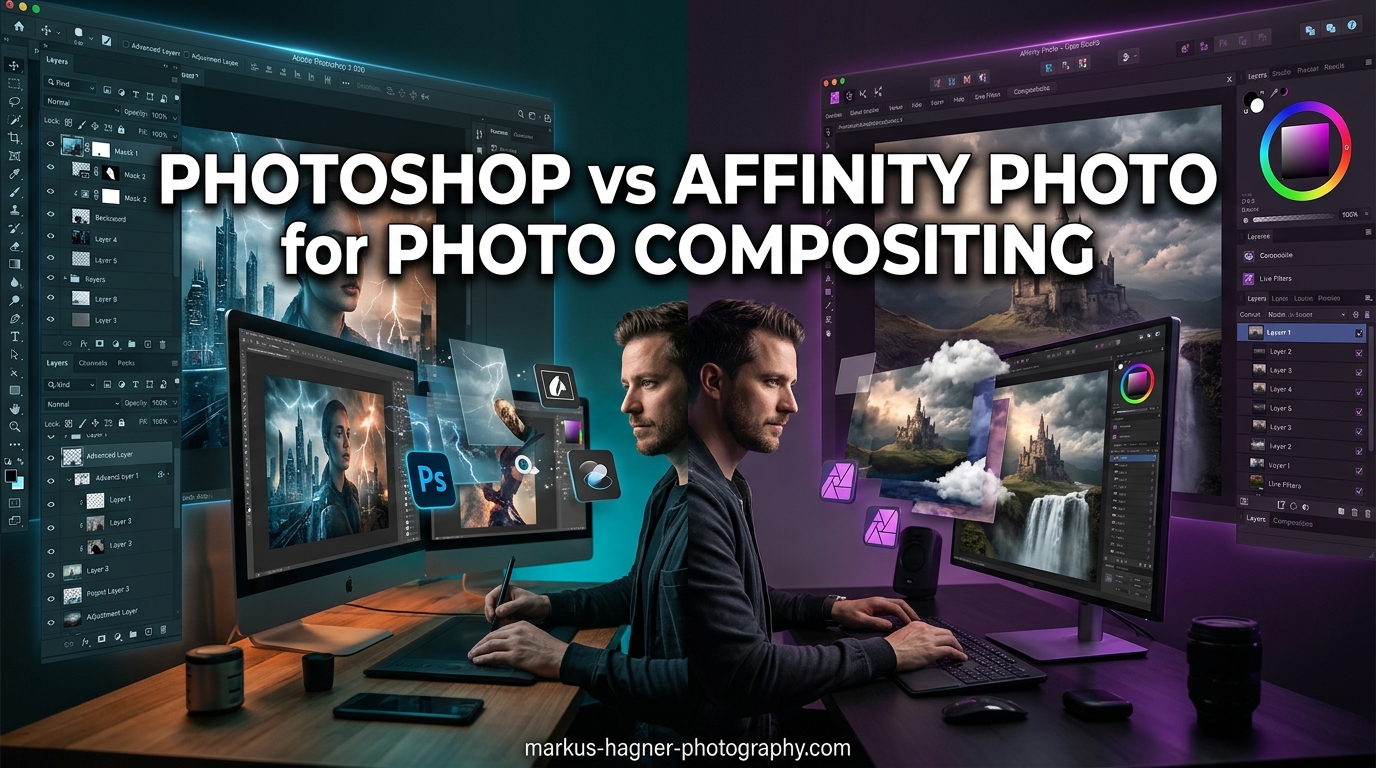
Choosing the right software for photo compositing can make or break your workflow. I’ve spent the last six months testing both Photoshop vs Affinity Photo for photo compositing extensively for compositing work, running everything from simple portrait cutouts to complex multi-layer compositions with 20+ elements.
Photo compositing the process of combining multiple visual elements from separate photographs into a single, seamless image demands precise selection tools, powerful masking capabilities, and refined edge detection. When you’re cutting out a subject with flyaway hair or matching lighting between two different photos, the quality of your tools directly impacts the realism of your final result.
So which software should you choose for compositing work in 2026? The short answer: Photoshop still holds the edge for the most challenging compositing tasks, especially hair refinement and advanced AI features. But Affinity Photo has closed the gap significantly and offers compelling advantages in workflow speed, intuitive interface, and one-time purchase pricing.
Let me break down exactly how these two titans compare across the compositing workflows that matter most.
Photoshop vs Affinity Photo for Photo Compositing: Quick Comparison
Before diving into the details, here’s a snapshot of how both programs stack up for compositing-specific tasks:
| Feature | Photoshop | Affinity Photo |
|---|---|---|
| AI Background Removal | Excellent (Remove Tool) | Very Good (Background Remover) |
| Hair Refinement | Superior (Select & Mask workspace) | Good (Refine Edge brush) |
| Selection Tools | Most comprehensive | Intuitive & efficient |
| Color Decontamination | Advanced | Basic |
| Layer Management | Smart Objects (excellent) | Live layers (very good) |
| Pricing Model | Subscription ($20-55/month) | One-time ($70) |
| Workflow Speed | More keystrokes required | Fewer clicks/keystrokes |
| Learning Curve | Steep | Moderate |
Selection and Masking Tools Compared
Selection quality is the foundation of good compositing work. I’ve found that both programs offer solid selection tools, but they take different approaches.
Photoshop provides the most comprehensive selection toolkit available. The Object Selection tool uses AI to automatically detect and select subjects, and it’s remarkably accurate for straightforward subjects. For more complex selections, the Quick Selection tool combined with the Select and Mask workspace gives you granular control over edges. I particularly appreciate how Photoshop’s selection tools integrate seamlessly with the masking workflow selections automatically become masks with a single modifier key.
Affinity Photo’s selection approach feels more streamlined. The Selection Brush Tool is intuitive and fast simply paint over what you want to select, and Affinity handles edge detection automatically. For AI-powered selections, the Selection Persona offers one-click subject selection that works surprisingly well. What I love about Affinity is the reduced number of keystrokes for common selection tasks there are fewer clicks between starting a selection and refining it into a usable mask.
Where Photoshop pulls ahead is in edge refinement capabilities. The Select and Mask workspace offers more sophisticated controls for handling tricky edges, especially when dealing with semi-transparent materials like veils, smoke, or fine hair strands. The global refinement sliders in Photoshop provide more nuanced control compared to Affinity’s more basic edge refinement options.
Background Removal: AI Tools and Manual Methods
Background removal is probably the most common compositing task, and both programs have stepped up their game with AI-powered solutions in 2026.
Photoshop’s Remove Tool, introduced in recent updates, is excellent for one-click background removal. Simply paint over the background you want to remove, and Photoshop handles edge detection and color separation automatically. The results are impressive, especially for subjects with clean edges. For more control, the Select Subject command gives you a solid starting selection that you can refine in the Select and Mask workspace.
Affinity Photo’s Background Remover filter is “brain dead simple to use” as one forum member described it. Click the filter, choose your subject, and Affinity does the rest. I’ve tested this extensively and found that it actually outperforms Photoshop’s Remove Tool for certain subjects, particularly those with solid backgrounds or clear subject-background separation. The speed is remarkable often delivering usable cutouts in under five seconds.
For manual background removal, both programs offer core tools like the Magic Wand and selection brushes. Here’s where Affinity’s workflow shines: fewer dialogs, more direct manipulation, and a more intuitive refinement process. Photoshop’s approach is more powerful but requires more steps to achieve similar results.
When it comes to challenging backgrounds complex patterns, similar colors between subject and background, or poor edge contrast Photoshop’s more advanced controls give it an advantage. The ability to work with individual color channels and apply selective edge refinement makes tricky cutouts more manageable.
Hair Refinement and Edge Detection
This is where Photoshop truly earns its professional reputation, and where the debate gets most heated among compositing artists.
Hair extraction remains one of the toughest challenges in photo compositing. Fine strands, flyaway hairs, and wispy edges demand sophisticated edge detection and color decontamination tools. I’ve spent countless hours testing both programs with various hair types, from tight curls to fine, straight hair with significant strand separation.
Photoshop’s Select and Mask workspace, particularly with the Shift Edge and Decontaminate Colors options, produces superior results for challenging hair situations. The refined edge brush handles flyaway strands with impressive precision, and the color decontamination algorithm effectively removes background color spill from translucent hair edges. For female subjects with long, flowing hair and significant strand separation, Photoshop still maintains a clear lead in output quality.
Affinity Photo’s Refine Edge brush is capable and produces good results for many hair situations. The background removal filter often handles basic hair cutouts well, especially for shorter hairstyles or tighter curls where strand separation is less pronounced. However, for the most challenging hair scenarios lots of fine, flying strands against complex backgrounds Affinity can struggle with edge precision and color contamination.
That said, Affinity has a significant workflow advantage: speed. Multiple users report that Affinity performs background removal tasks “much faster than Photoshop,” often completing cutouts in half the time. For volume work like school portraits where you’re processing hundreds of images, this speed difference matters.
Color Harmonization and Blending
Once you’ve extracted your subject, the next challenge is making them look like they belong in the new background. This requires color matching, light direction adjustment, and proper blending techniques.
Photoshop offers the most sophisticated color harmonization tools. The Match Color command lets you transfer color characteristics between layers, automatically adjusting tone and saturation for realistic blending. The Color Lookup adjustments provide cinematic color grading options that can harmonize disparate elements. Blend modes in Photoshop are more numerous and better documented, with options you won’t find in Affinity.
Where Photoshop really excels is in its non-destructive workflow using Adjustment Layers. You can stack multiple color adjustments, light modifications, and blend mode tweaks all without permanently altering your underlying layers. This flexibility is invaluable when iterating on a composite to get the color balance just right.
Affinity Photo’s approach to color harmonization is more streamlined but less comprehensive. Adjustment layers work well and cover the essential operations: curves, levels, color balance, HSL adjustments, and blend modes. The Live Filter layers function similarly to Photoshop’s adjustment layers, providing non-destructive editing capability.
However, Affinity lacks some of Photoshop’s advanced color matching tools. There’s no direct equivalent to Match Color, and color harmonization often requires more manual adjustment using curves and selective color adjustments. For experienced colorists, this isn’t necessarily a problem, but it does require more time and expertise to achieve professional color blending.
Layer Management and Non-Destructive Editing
Complex composites often involve dozens or even hundreds of layers. How each program handles layer management significantly affects workflow efficiency.
Photoshop’s Smart Objects are a game-changer for compositing work. When you place an image as a Smart Object, you maintain full access to the original source file. You can transform, filter, and adjust Smart Objects non-destructively, and any changes you make to the source file automatically update in your composite. For professional workflows where source files might be updated or reused across multiple projects, this is invaluable.
Smart Filters extend this non-destructive capability to filters and effects. Apply a blur, sharpen, or stylize effect as a Smart Filter, and you can modify or remove it anytime without affecting your underlying pixel data. This flexibility is essential for experimental compositing where you’re constantly adjusting and refining your approach.
Affinity Photo uses a similar concept with “Live” layers and filters. Live Filter layers provide non-destructive filtering, and Live Projection layers allow for non-destructive transformations. The implementation is solid and covers most common use cases. However, Affinity doesn’t have a direct equivalent to Smart Objects, and the nesting/layer hierarchy system works differently.
In practice, I’ve found Affinity’s layer management to be more intuitive for straightforward composites. The visual layer hierarchy is easier to understand at a glance, and adjustments feel more direct. For complex, multi-layer composites with lots of nested groups and dependencies, Photoshop’s Smart Object system offers more robust organization and editing capabilities.
Pricing and Licensing: Subscription vs One-Time Purchase
The pricing difference between these programs is substantial and often becomes the deciding factor for many users.
Photoshop uses Adobe’s Creative Cloud subscription model. The Photography plan, which includes Photoshop and Lightroom, costs approximately $20-25 per month depending on your region. If you need the full Creative Cloud suite for video, design, or web work, you’re looking at $55+ monthly. Over five years, you’ll spend $1,200-3,300 on Photoshop alone, with no end date in sight.
This subscription fatigue is real. Many users express frustration at “renting” software rather than owning it, and the cumulative cost over years of use can exceed $3,000 for a single application. However, the subscription does include constant updates, cloud storage, and access to Adobe’s evolving AI features like Generative Fill.
Affinity Photo takes the opposite approach: a one-time purchase of approximately $70. No subscription, no recurring payments, no limit on how long you can use the software. Even if you upgrade every major version (currently priced around $70 for existing users), your five-year total cost would be roughly $140-210 dramatically less than Photoshop’s subscription model.
For hobbyists, students, or freelancers watching their budget, Affinity’s pricing model is compelling. You get professional-grade tools without the ongoing financial commitment. The math is simple: after 3-4 months of Photoshop subscription payments, you’ve already exceeded Affinity Photo’s one-time purchase price.
However, professionals should consider the full ecosystem value. Photoshop’s subscription includes Lightroom for RAW processing, Adobe Camera RAW, cloud syncing across devices, and integration with other Adobe tools you might need. If your workflow requires these additional tools, the bundled subscription becomes more justifiable.
Workflow Efficiency and Learning Curve
Speed matters in professional workflows, and both programs have different strengths when it comes to efficiency.
I’ve tested common compositing workflows in both programs, tracking time and keystrokes required to complete standard tasks. The results consistently show Affinity Photo requiring fewer steps for most operations. Opening files, creating selections, applying masks, and navigating layers all feel faster and more direct in Affinity. The interface is more intuitive, with tools where you expect them and fewer nested menus to navigate.
Multiple users confirm this experience: “There are fewer keystrokes for the whole composite process within Affinity than Photoshop.” For repetitive tasks like cutting out multiple subjects or processing portrait composites in volume, these efficiency gains add up to substantial time savings.
The learning curve also favors Affinity Photo. New users can jump into compositing work more quickly, with less time spent deciphering complex interface panels or memorizing keyboard shortcuts. Photoshop’s learning curve is notoriously steep, with many users reporting months of regular use before feeling truly proficient with advanced compositing workflows.
However, once you’ve mastered Photoshop, its advanced features can accelerate complex workflows. Actions and automation allow you to record and replay multi-step operations, dramatically speeding up repetitive tasks. Photoshop’s scripting support and extensive plugin ecosystem provide additional automation possibilities that Affinity can’t match.
For professional studios doing high-volume compositing work, Photoshop’s automation capabilities often offset its steeper learning curve. But for individual creators or smaller operations, Affinity’s intuitive workflow and shorter ramp-up time can result in faster overall productivity.
File Compatibility and Ecosystem Integration
Professional compositing work rarely happens in isolation. You need to exchange files with clients, collaborate with other creatives, and integrate with broader software ecosystems.
Photoshop’s PSD format is the industry standard for layered image files. When working with clients, agencies, or other professionals, PSD compatibility is essentially mandatory. You can send layered Photoshop files to virtually any creative professional, and they’ll be able to open and edit them. This universal compatibility alone keeps many professionals locked into the Photoshop ecosystem.
Affinity Photo can open and edit PSD files, and the compatibility has improved significantly with Affinity Photo 2. However, complex PSD files with Smart Objects, advanced blending options, or specific Photoshop-only features may not translate perfectly. For serious professional work where file exchange is critical, Photoshop remains the safer choice.
Ecosystem integration is another consideration. Photoshop integrates seamlessly with Lightroom for RAW processing, Adobe Capture for mobile workflows, and Adobe’s broader Creative Cloud suite. If you’re moving assets between applications for video editing, graphic design, or web development, staying within Adobe’s ecosystem provides tangible efficiency benefits.
Affinity Photo was acquired by Canva in 2026, suggesting future integration possibilities with Canva’s design platform. However, as of now, Affinity operates largely as a standalone application with limited third-party integrations. The plugin ecosystem is smaller than Photoshop’s, and there are fewer resources for extending Affinity’s functionality beyond its core feature set.
Pros and Cons for Photo Compositing
Based on extensive testing and real-world use, here are the key strengths and weaknesses of each program for compositing work:
Photoshop for Compositing Pros:
- Superior hair refinement and edge detection capabilities
- Most comprehensive selection toolset available
- Advanced color harmonization tools (Match Color, Color Lookup)
- Smart Objects provide robust non-destructive workflow
- Industry-standard PSD file format for client compatibility
- Extensive plugin ecosystem and automation capabilities
- Leading AI features including Generative Fill and Neural Filters
Photoshop for Compositing Cons:
- Expensive subscription model with ongoing costs
- Steep learning curve requires significant time investment
- More keystrokes and steps for common operations
- Can feel sluggish and resource-intensive
- Subscription fatigue is real among long-term users
Affinity Photo for Compositing Pros:
- One-time purchase with no ongoing subscription fees
- Faster workflow with fewer steps for most operations
- More intuitive interface with shorter learning curve
- Excellent AI background removal that often matches Photoshop
- Good performance even on modest hardware
- Professional-quality results for many compositing scenarios
Affinity Photo for Compositing Cons:
- Hair refinement capabilities fall short for challenging scenarios
- Limited advanced color matching and harmonization tools
- Smaller plugin ecosystem and fewer automation options
- PSD compatibility may not preserve all advanced features
- Fewer AI-powered features compared to Photoshop
Frequently Asked Questions
Do professional photographers use Affinity Photo?
Yes, many professional photographers use Affinity Photo successfully. While Photoshop remains the industry standard, an increasing number of professionals are adopting Affinity Photo for its one-time purchase model and efficient workflow. Portrait photographers, product photographers, and freelance creatives often find Affinity Photo meets their professional needs without subscription costs. However, studios with heavy client file exchange requirements typically stick with Photoshop for PSD compatibility.
Can I create a composite picture with Affinity Photo?
Absolutely. Affinity Photo is fully capable of creating professional-quality composite images. You can work with layers, masks, blend modes, and adjustment layers to combine multiple images seamlessly. The AI background removal tool works well for most cutout scenarios, and the Refine Edge brush handles many hair extraction challenges. While Affinity Photo may lack some of Photoshop’s most advanced compositing features, it handles the vast majority of compositing tasks with excellent results. Many users successfully create complex, multi-layer composites entirely in Affinity Photo.
Can Affinity Photo do everything Photoshop can?
Not quite. Affinity Photo covers about 85-90% of Photoshop’s core functionality and does many things as well or better. However, Photoshop has features Affinity can’t match: advanced hair refinement with superior color decontamination, neural filters, Generative Fill, Smart Objects with full source file linkage, certain advanced blend modes, and extensive automation through actions and scripts. For most users, Affinity Photo’s capabilities are more than sufficient, but power users with specific advanced needs may find Photoshop’s additional features necessary.
Is Affinity Photo now owned by Canva?
Yes, Canva acquired Serif (the maker of Affinity Photo) in March 2024. This acquisition has raised questions about Affinity Photo’s future direction and potential integration with Canva’s design platform. As of March 2026, Affinity Photo continues to be developed and sold as a standalone professional application, and the acquisition has not negatively affected the software’s capabilities or pricing model. In fact, the additional resources from Canva may accelerate future development of Affinity’s already-impressive feature set.
Final Verdict: Which Should You Choose for Compositing?
After extensive hands-on testing with both programs for Photoshop vs Affinity Photo for photo compositing, here’s my honest assessment:
Choose Photoshop if: You’re a professional photographer or studio doing high-end compositing work, particularly with challenging hair cutouts. You need PSD compatibility for client work. You value advanced AI features and automation capabilities. You already use other Adobe tools and benefit from ecosystem integration. The subscription cost fits within your business budget.
Choose Affinity Photo if: You’re a hobbyist or enthusiast looking to professional-quality composites without ongoing costs. You do mostly straightforward compositing work without extreme hair challenges. You value an intuitive interface and faster workflow. You want to avoid subscription fees and prefer a one-time purchase. You’re transitioning away from Adobe and want a viable long-term alternative.
The reality is that both programs are capable of producing stunning composite images. For the majority of compositing tasks, Affinity Photo delivers professional results that are virtually indistinguishable from Photoshop. Where Photoshop pulls ahead is in the most challenging scenarios complex hair, advanced color matching, and extensive automation needs.
My recommendation? If you’re just starting with compositing or working on a budget, begin with Affinity Photo. You’ll achieve excellent results, save money, and develop your skills without the pressure of a subscription. If you later hit Affinity’s limitations or your professional needs evolve, you can always add Photoshop to your toolkit.
For professional studios with established workflows and client requirements, Photoshop remains the safer choice despite the subscription cost. The compatibility, advanced features, and ecosystem integration provide tangible value that justifies the ongoing expense for serious commercial work.