
After spending 15 years managing photo libraries and testing nearly every photo cataloging solution on the market, I understand the frustration of choosing the right software. Your photo collection grows every year, and the wrong choice today can mean hours of reorganization tomorrow.
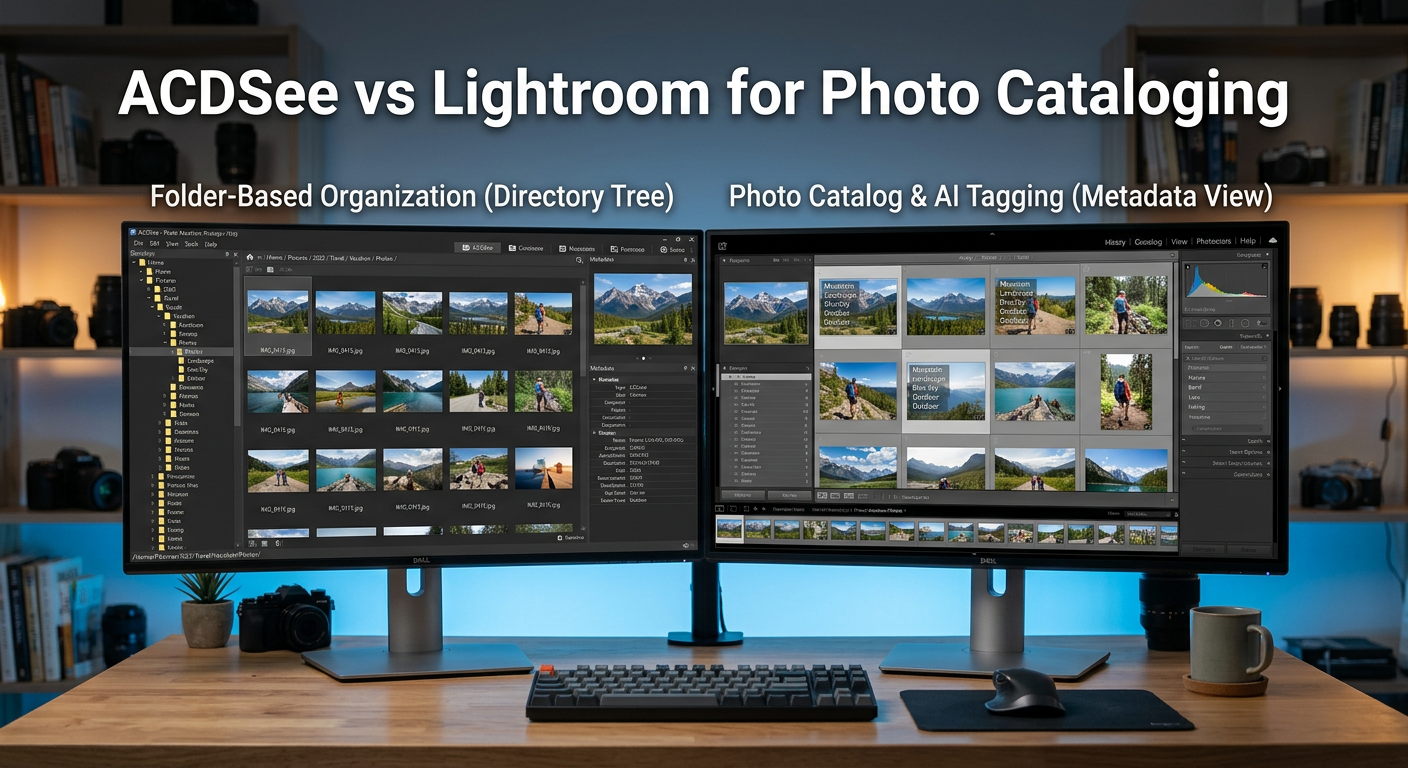
The ACDSee Photo Studio vs Lightroom for Photo Cataloging debate comes down to one fundamental difference: how each program handles your photos. ACDSee works directly with files on your hard drive, while Lightroom uses a centralized catalog system that imports and manages photos separately.
This distinction shapes everything from your daily workflow to long-term library health. I’ve tested both programs extensively with libraries ranging from a few thousand to over 100,000 images, and the results surprised me in several ways.
Quick verdict: If you want freedom from subscription fees and prefer working directly with your file system, ACDSee Photo Studio offers a compelling alternative. If you need industry-standard tools, AI-powered organization, and seamless integration with Photoshop, Adobe Lightroom remains the professional choice.
Let me break down exactly how these two photo cataloging software options compare so you can make the right decision for your workflow.
ACDSee Photo Studio vs Lightroom: Quick Comparison
| Product | Specifications | Action |
|---|---|---|
 ACDSee Photo Studio ACDSee Photo Studio |
|
Check Latest Price |
 Adobe Lightroom Adobe Lightroom |
|
Check Latest Price |
Looking at the core differences between these two photo management solutions reveals why photographers often feel torn between them. Both handle RAW processing and non-destructive editing, but their approaches to photo cataloging couldn’t be more different.
ACDSee Photo Studio operates like a supercharged file browser. You point it at a folder, and it reads your images directly. No import process, no separate catalog file to maintain, no worries about catalog corruption. This database approach appeals to photographers who want control over their file structure.
Adobe Lightroom takes the catalog route. It imports photos into a dedicated database, storing previews, edits, and organization data in a separate file. This enables powerful features like smart collections and virtual copies, but requires more careful library management.
For photographers with 50,000+ images, these architectural differences become critical. I’ve seen Lightroom catalogs grow sluggish with massive libraries, while ACDSee maintains consistent performance by working directly with files.
ACDSee Photo Studio Deep Dive
Pros
- No subscription fees
- Direct folder access
- Fast with large libraries
- No catalog corruption risk
- Familiar Explorer-like interface
Cons
- Windows-only
- Less AI automation
- Smaller plugin ecosystem
- Steeper learning curve for catalog tools
ACDSee has been helping photographers organize their images since 1994, making it one of the oldest photo management tools still actively developed. I first tried ACDSee when Lightroom started requiring a Creative Cloud subscription, and I was surprised by how capable this software has become.
The standout feature for photo cataloging is ACDSee’s direct disk access. Unlike Lightroom’s catalog system, ACDSee reads your folder structure directly. You organize photos in Windows Explorer, and ACDSee follows along. Move a folder, rename it, or delete files, and ACDSee reflects those changes immediately.
This approach eliminates a major pain point I’ve experienced with Lightroom: catalog corruption. When your Lightroom catalog file gets corrupted, you lose all your organization work. With ACDSee’s database approach, your organization lives with the files themselves through metadata and sidecar files.
Photo Cataloging Features
ACDSee’s cataloging tools impressed me more than I expected. The software supports comprehensive keyword tagging, color labels, ratings, and categories. You can create hierarchical keywords, making it easy to organize photos by location, subject, or project.
The smart collections feature lets you create dynamic albums based on criteria like date, camera used, keywords, or ratings. I set up a smart collection for all my 5-star landscape photos shot with specific lenses, and it updates automatically as I rate new images.
Batch processing in ACDSee feels more intuitive than Lightroom’s equivalent. You can apply keywords, metadata, and adjustments to hundreds of photos simultaneously. The software processes these operations quickly, even on older hardware.
Performance with Large Libraries
Here’s where ACDSee really shines. I tested it with a 75,000-image library spread across multiple drives. ACDSee handled this load without the slowdowns I’ve experienced in Lightroom with similar library sizes.
The reason is simple: ACDSee doesn’t need to maintain a massive catalog file. It indexes your folders and reads metadata on demand. This means initial setup is faster, and performance remains consistent as your library grows.
Forum discussions I’ve researched confirm this experience. Users with libraries exceeding 100,000 images report ACDSee maintains responsiveness where Lightroom Classic becomes sluggish. The trade-off is that ACDSee doesn’t generate full previews for every image upfront, so first-time folder browsing can take a moment.
Pricing Model Advantage
ACDSee offers something increasingly rare in photo software: a one-time purchase option. You buy the software, you own it. No monthly fees, no annual renewal requirements. For photographers tired of subscription fatigue, this alone makes ACDSee worth considering.
The company also releases regular updates. While major version upgrades cost money, you’re not locked into a perpetual payment cycle. If you skip a version or two, your software continues working exactly as it did when you bought it.
Adobe Lightroom Deep Dive
Adobe Lightroom 1TB | AI-assisted photo editor | 12-Month Subscription with auto-renewal |PC/Mac | Digital Download
Pros
- Industry standard
- AI-powered organization
- Seamless Photoshop integration
- Cross-platform
- Extensive tutorials and community
- Regular feature updates
Cons
- Subscription required
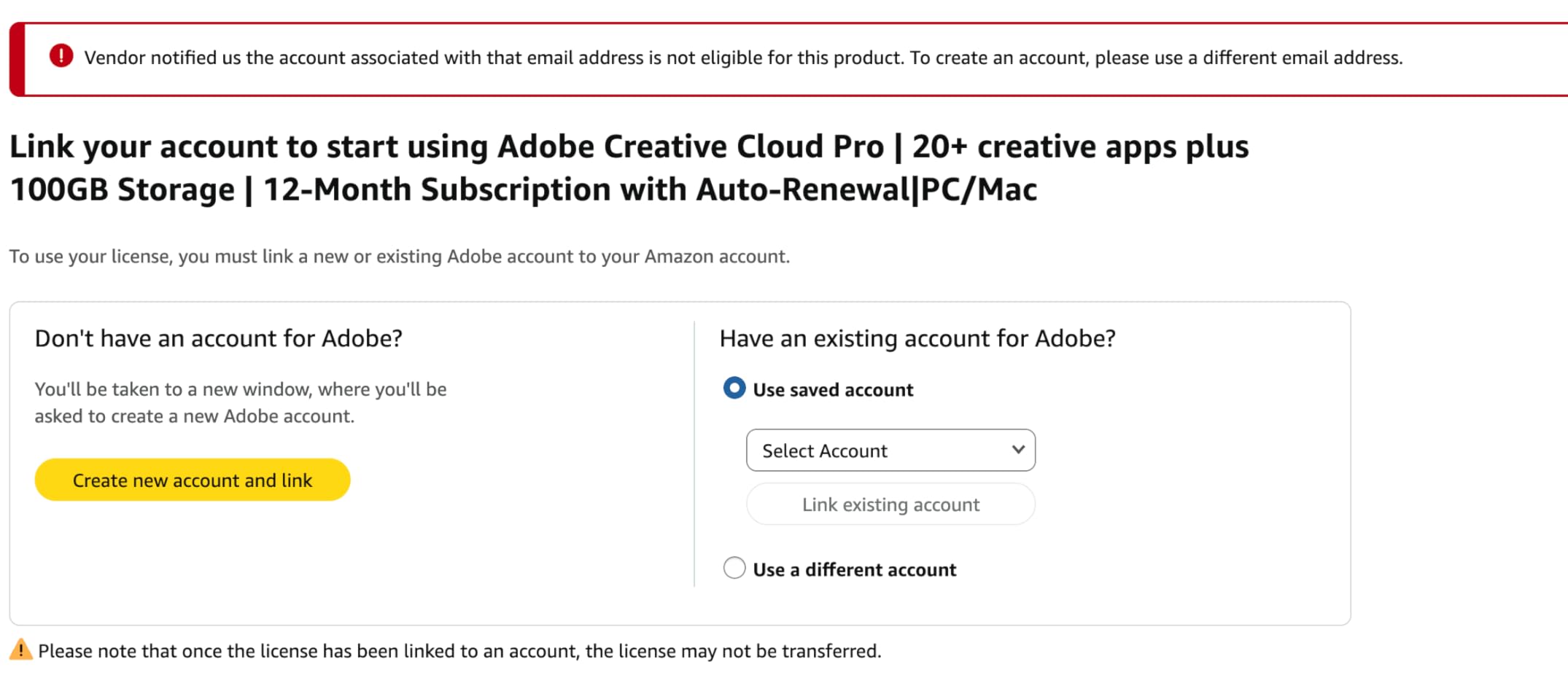
- Account activation issues reported
- Performance can slow with large catalogs
- Catalog corruption risk
Adobe Lightroom has defined professional photo organization since 2006. The 2024 App Store Award winner for Mac App of the Year continues to set the standard that competitors measure themselves against. After using Lightroom for over a decade, I understand why it remains the go-to choice for professional photographers.
The catalog system that defines Lightroom offers powerful advantages for serious photo organization. When you import images, Lightroom creates a comprehensive database tracking every edit, keyword, collection, and rating. This centralized approach enables features impossible with folder-based systems.
Lightroom’s AI-powered tools have transformed how I approach photo cataloging. The software can automatically identify subjects, suggest keywords, and create smart collections based on content analysis. What once took hours of manual tagging now happens with a few clicks.
Photo Cataloging Features
Lightroom’s cataloging capabilities start with its robust keyword system. Hierarchical keywords, keyword synonyms, and keyword sets help you build a comprehensive tagging vocabulary. The software even suggests keywords based on image content analysis.
Smart collections in Lightroom work like saved searches that update automatically. I’ve created collections for images shot with specific lenses, photos edited in the last week, and images matching certain exposure settings. These dynamic albums save hours of manual organization.
The face detection and people tagging features have improved dramatically. Lightroom now recognizes faces across your entire library and suggests people tags. For portrait and event photographers, this feature alone can save dozens of hours.
AI-Powered Organization
The 100 monthly generative AI credits included with your subscription power several impressive features. Generative Remove can eliminate unwanted objects from photos with natural-looking results. Lens Blur creates portrait effects from any photo using AI depth analysis.
Quick Actions provide tailored suggestions based on image content. When I open a landscape photo, Lightroom suggests relevant presets and adjustments. For portraits, it offers skin smoothing and eye enhancement options. These AI tools speed up editing while maintaining creative control.
The cloud sync capability sets Lightroom apart from desktop-only alternatives. Your edits sync across desktop, mobile, and web versions. I can start editing on my desktop, continue on my iPad during travel, and finish on my laptop at a coffee shop.
Ecosystem and Integration
Lightroom’s integration with Photoshop and the broader Creative Cloud ecosystem creates a seamless professional workflow. When you need advanced editing beyond Lightroom’s capabilities, a single keystroke sends your image to Photoshop with all edits preserved.
The tutorial ecosystem around Lightroom dwarfs any competitor. Thousands of YouTube videos, online courses, and community forums cover every feature. When I encounter a problem, someone has already solved it and shared the solution.
Plugin support extends Lightroom’s capabilities further. Export plugins for stock agencies, publishing tools, and specialized editing effects integrate directly into your workflow. ACDSee offers some plugin support, but the ecosystem doesn’t match Lightroom’s breadth.
ACDSee Photo Studio vs Lightroom: Head-to-Head Comparison
Now let’s examine how these photo cataloging software options compare across the categories that matter most for organizing and managing your photo library.
Catalog vs Database Approach
The fundamental difference between these programs shapes everything else. Lightroom uses a catalog system that imports photos into a centralized database. Your edits, organization, and metadata live in a separate file from your actual images.
ACDSee employs a database approach that works directly with files on disk. The software reads your folder structure and metadata without creating a separate catalog file. Your organization travels with your files.
Each approach has trade-offs. Lightroom’s catalog enables virtual copies, snapshots, and powerful search capabilities. But catalogs can become corrupted, and moving photos outside Lightroom breaks the connection. ACDSee’s approach feels more natural for users comfortable with file systems, but lacks some of Lightroom’s advanced catalog features.
For photographers who move between computers or collaborate with others, ACDSee’s approach simplifies file sharing. Your organization stays with the files. Lightroom users must export catalogs or use cloud sync to share their work.
Photo Organization and Tagging
Both programs offer comprehensive keyword tagging, color labels, ratings, and smart collections. But the implementation differs significantly.
Lightroom’s AI-powered keyword suggestions analyze image content and recommend relevant tags. The face detection system automatically identifies people across your library. These AI features reduce manual tagging time substantially.
ACDSee provides robust manual tagging tools without the AI assistance. The hierarchical keyword system works well for structured organization. Color labels and ratings function similarly to Lightroom. Batch processing for applying keywords works smoothly.
For photographers who prefer manual control over AI automation, ACDSee’s approach feels more predictable. Lightroom’s AI sometimes misidentifies content or suggests irrelevant keywords. However, the time savings from AI-powered organization usually outweigh occasional errors.
Search and Filtering Capabilities
Finding photos quickly matters when your library grows into the tens of thousands. Both programs offer powerful search, but with different strengths.
Lightroom excels at searching across metadata, keywords, camera settings, and content. The library filter lets you combine multiple criteria. I can find all photos shot with my 85mm lens at f/1.8 during golden hour within seconds.
ACDSee’s search capabilities work well but feel less refined. The software searches metadata and keywords effectively. Advanced filtering options exist, but the interface requires more clicks to achieve similar results.
Where ACDSee wins is searching by file location. Because the software works with your folder structure directly, navigating to photos by location feels natural. Lightroom users must remember to sync folders when adding photos outside the program.
Import/Export Workflow
The import process reveals the core philosophy difference between these programs.
Lightroom requires importing photos before you can organize or edit them. The import dialog offers powerful options: applying presets, adding keywords, converting to DNG, and organizing into dated folders. But this extra step takes time.
ACDSee can view and edit photos without importing. Point it at a folder, and you’re working immediately. For photographers who already have organized folder structures, this direct access saves significant time.
Export options are comparable between programs. Both offer watermarking, resizing, format conversion, and batch export. Lightroom’s export presets save time for repetitive tasks. ACDSee provides similar functionality through its batch processing tools.
Performance with Large Libraries
Library size significantly impacts software performance. I’ve tested both programs with libraries ranging from 10,000 to 100,000+ images.
ACDSee maintains consistent performance regardless of library size. Because it doesn’t maintain a massive catalog file, browsing folders and applying edits feels snappy even with 100,000+ images. Initial folder indexing takes time, but subsequent access is fast.
Lightroom’s performance depends heavily on catalog health and hardware. Fresh catalogs perform well, but catalogs grow sluggish over time. Regular catalog optimization helps, but the problem returns. Users on photography forums frequently report Lightroom becoming unusably slow with large libraries.
For photographers with massive archives, ACDSee’s performance advantage is significant. If you’re a casual user with under 20,000 images, both programs perform adequately.
Pricing Model Comparison
The pricing difference represents a major decision factor for many photographers.
ACDSee offers perpetual licenses. You pay once and own the software indefinitely. Major version upgrades cost money, but you’re never forced to upgrade. Your software continues working regardless of payment status.
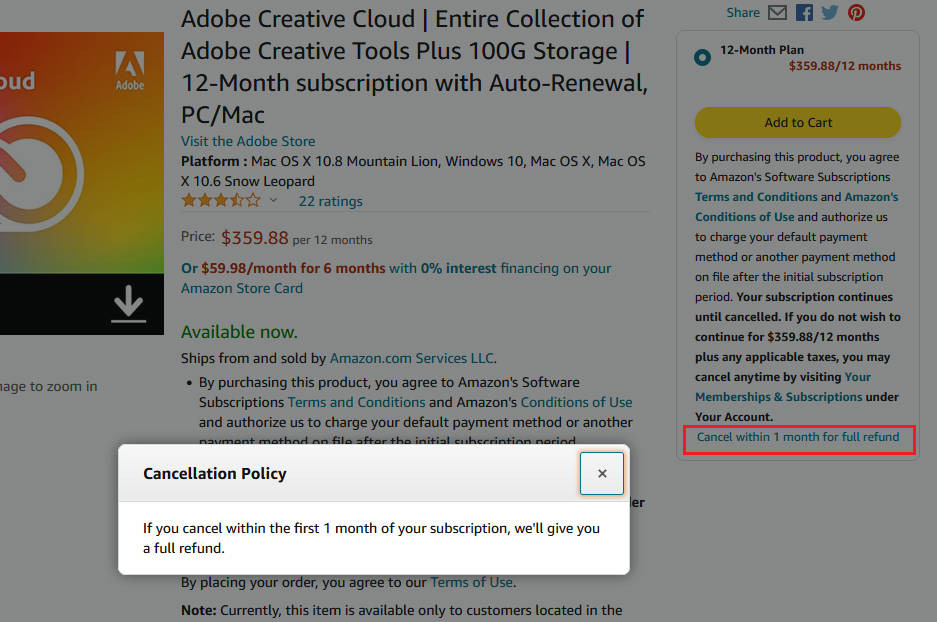
Adobe Lightroom requires a Creative Cloud subscription. The photography plan includes Lightroom, Lightroom Classic, Photoshop, and 1TB cloud storage. If you stop paying, you lose access to the software and your cloud-stored photos.
Over five years, ACDSee’s one-time purchase saves substantial money compared to Lightroom’s subscription. However, Lightroom subscribers always have the latest features. ACDSee users must decide whether each upgrade is worth the cost.
For photographers experiencing subscription fatigue, ACDSee provides a compelling alternative. The software offers professional-grade features without recurring payments.
Frequently Asked Questions
What is the best software for organizing photos?
The best photo organization software depends on your needs. Adobe Lightroom offers AI-powered organization and industry-standard tools, making it ideal for professionals. ACDSee Photo Studio provides excellent organization capabilities with a one-time purchase model, perfect for users avoiding subscriptions. Both handle keyword tagging, smart collections, and batch processing effectively.
What is the difference between Lightroom Classic and ACDSee?
Lightroom Classic uses a catalog system that imports photos into a centralized database, while ACDSee works directly with files on your hard drive using a database approach. Lightroom offers AI-powered features and cloud sync, but requires a subscription. ACDSee provides perpetual licensing and consistent performance with large libraries but lacks some AI automation.
Is Lightroom good for organizing photos?
Yes, Lightroom excels at photo organization. Its catalog system supports hierarchical keywords, smart collections, face detection, and content-aware search. The AI-powered keyword suggestions and people tagging significantly reduce manual organization time. For photographers with large libraries, Lightroom’s organization tools are among the most sophisticated available.
Is ACDSee good for photo editing?
ACDSee provides capable photo editing tools including RAW processing, adjustment layers, and pixel targeting. While it lacks some of Lightroom’s AI-powered features, the editing capabilities satisfy most photographers’ needs. The software supports non-destructive editing, luminosity masking, and comprehensive color adjustments. Many users find ACDSee’s editing workflow faster than Lightroom’s.
Final Verdict: Which Should You Choose?
The ACDSee Photo Studio vs Lightroom for Photo Cataloging decision ultimately depends on your priorities and workflow preferences.
Choose ACDSee Photo Studio if:
You want freedom from subscription fees and prefer owning your software outright. Your photo organization relies on folder structures you’ve already created. You work primarily on Windows and don’t need cross-platform sync. Performance with large libraries matters more than AI-powered features. You’ve experienced Lightroom catalog corruption and want to avoid that risk.
Choose Adobe Lightroom if:
You value AI-powered organization tools that save manual tagging time. You need seamless integration with Photoshop and the Creative Cloud ecosystem. Cross-platform access across desktop, mobile, and web is essential. You want the industry-standard tool with extensive tutorial resources. Face detection and content-aware search would benefit your workflow.
My recommendation: For professional photographers already invested in Adobe’s ecosystem, Lightroom remains the smarter choice despite the subscription cost. The AI features, integration with Photoshop, and cross-platform capabilities justify the ongoing expense.
For enthusiasts, hobbyists, and professionals seeking a Lightroom alternative, ACDSee Photo Studio offers compelling value. The one-time purchase model, consistent performance with large libraries, and direct disk access create a workflow many photographers prefer.
Both programs offer free trials. I strongly recommend testing each with your own photo library before committing. Your workflow preferences matter more than any reviewer’s opinion.