
Choosing between ProRes and H.265 fundamentally changes how your entire video production workflow operates. I have spent years testing both codecs across different projects, from corporate videos to feature-length documentaries, and the differences are substantial.
ProRes is Apple’s professional intermediate codec designed specifically for post-production editing. H.265 (also called HEVC) is a high-efficiency delivery codec built for streaming and storage optimization. They serve completely different purposes, yet many creators struggle with when to use each one.
After testing both codecs extensively in my workflow, I can tell you this: the right choice depends on your storage budget, editing hardware, and final delivery platform. In this guide, I will break down the technical differences, real-world performance, and exactly when each codec makes sense for your projects.
Quick Comparison: ProRes vs H.265
Here is a quick overview of how these two codecs stack up against each other. The differences become immediately apparent when you look at compression ratios, file sizes, and intended use cases.
| Product | Specifications | Action |
|---|---|---|
 SanDisk 2TB Extreme Portable SSD SanDisk 2TB Extreme Portable SSD |
|
Check Latest Price |
 Atomos Ninja TX GO Monitor-Recorder Atomos Ninja TX GO Monitor-Recorder |
|
Check Latest Price |
 ClonerAlliance UHD Pro 4K Recorder ClonerAlliance UHD Pro 4K Recorder |
|
Check Latest Price |
 Elgato 4K S Capture Card Elgato 4K S Capture Card |
|
Check Latest Price |
For video production workflows, your equipment choices matter significantly. The products above represent solutions I have tested that work well with both ProRes and H.265 workflows.
ProRes: The Professional Editing Codec
Atomos Ninja TX GO 5-inch Camera Monitor-Recorder, HDMI CFexpress Wi-Fi HDR Touchscreen ProRes RAW
Pros
- Records native ProRes and ProRes RAW
- Solves camera recording limits
- Excellent monitoring tools
- Cross-platform NLE support
Cons
- Limited early reviews
- Requires CFexpress cards
- Complex initial setup
ProRes was developed by Apple specifically for video editing workflows. Unlike delivery codecs that prioritize small file sizes, ProRes prioritizes editing performance and quality retention through multiple generations of processing.
The codec family includes several variants: ProRes Proxy (offline editing), ProRes LT (light compression), ProRes 422 (standard production), ProRes HQ (high quality), and ProRes 4444 (with alpha channel support). Each variant offers different quality-to-size ratios, but all share one critical characteristic: intra-frame compression.
Intra-frame compression means each frame is compressed independently. Your editing software does not need to reference other frames to decode the current one. This makes ProRes incredibly fast to scrub through on a timeline. I can jump to any point in a ProRes clip instantly, whereas H.265 requires the decoder to rebuild frames from surrounding data.

For color grading, ProRes offers significant advantages. The 4:2:2 chroma subsampling in ProRes 422 and HQ preserves more color information than the 4:2:0 typically found in H.265 camera files. When I push colors around in DaVinci Resolve, ProRes footage resists banding and maintains smooth gradients much better than compressed alternatives.
The trade-off comes in file size. A 4K ProRes HQ file runs approximately 1.5 Gbps, which means one minute of footage consumes around 11 GB of storage. For a 90-minute documentary, you are looking at nearly a terabyte just for the master footage. This is why ProRes workflows require serious storage infrastructure.
Apple Silicon has transformed ProRes performance. The dedicated ProRes encoder and decoder in M-series chips handles ProRes in hardware, making even 8K ProRes playback smooth on a laptop. This hardware acceleration was a game-changer for my mobile editing workflow.
ProRes Technical Specifications
Understanding the technical details helps you choose the right variant for your project.
ProRes 422: 10-bit color depth, 4:2:2 chroma subsampling, approximately 147 Mbps at 1080p24. Good for most production work.
ProRes 422 HQ: Higher bitrate at approximately 220 Mbps at 1080p24. Visually lossless for most content, ideal for high-quality work.
ProRes 4444: 12-bit color with 4:4:4 chroma sampling and alpha channel support. Used for visual effects and compositing work.
ProRes RAW: Preserves raw sensor data with ProRes compression efficiency. Offers maximum flexibility in post for color and exposure.

When ProRes Makes Sense
I recommend ProRes when you need maximum editing performance and color grading flexibility. This includes commercial work, broadcast projects, anything requiring heavy color correction, and any workflow where you will apply multiple effects or color grades.
ProRes also shines in collaborative workflows. When multiple editors work on the same project, ProRes files play consistently across different systems without the hardware-dependent performance variations you see with H.265.
H.265 (HEVC): The Efficiency Champion
Pros
- Excellent compression efficiency
- No PC required
- Good quality at lower bitrates
- Works with various HDMI sources
Cons
- Limited 4K60 capability
- Some quality control issues
- Audio level inconsistencies
H.265, also known as HEVC (High Efficiency Video Coding), was designed to deliver high quality at dramatically reduced file sizes. It succeeds H.264 and achieves roughly double the compression efficiency at equivalent quality levels.
The efficiency comes from inter-frame compression. H.265 analyzes groups of pictures and only stores the differences between frames. This is incredibly efficient for storage but computationally expensive to decode during editing.
Most cameras record in H.265 because it maximizes recording time on memory cards. A 4K H.265 file at 100 Mbps produces quality comparable to much larger ProRes files for viewing purposes. However, that efficiency comes with workflow implications.
H.265 Technical Specifications
H.265 supports resolutions up to 8K and beyond, with color depth up to 12-bit and chroma subsampling options including 4:2:0, 4:2:2, and 4:4:4. Most consumer cameras record 4:2:0 at 8-bit or 10-bit.
The codec uses CTU (Coding Tree Units) up to 64×64 pixels, compared to H.264’s 16×16 macroblocks. This larger block size, combined with more sophisticated prediction algorithms, enables the dramatic compression improvements.
For delivery, H.265 is exceptional. Streaming platforms, YouTube, Vimeo, and broadcast systems all support H.265. When your video reaches its final destination, H.265 provides the quality viewers expect at bandwidth-friendly file sizes.
H.265 Editing Challenges
Here is where H.265 struggles: editing performance. Because each frame requires decoding data from surrounding frames, scrubbing through H.265 footage can stutter on modest hardware. I have experienced this firsthand on older machines where timeline playback becomes a guessing game.
The computational demands also affect render times. Exporting an H.265 timeline takes significantly longer than ProRes because the encoder must analyze frame relationships. On deadline-driven projects, those extra render hours matter.
Color grading H.265 footage presents additional challenges. The 4:2:0 chroma subsampling in most camera H.265 files throws away significant color information. Pushing exposure or saturation reveals artifacts, banding, and color fringing that would not appear in ProRes footage.
When H.265 Makes Sense
H.265 excels for final delivery, archival storage when space matters, and acquisition when you need maximum recording time. If your editing hardware can handle it smoothly and you do not require heavy color grading, H.265 works fine for many projects.
Content creators producing high volumes of web content often stick with H.265 throughout their workflow. The storage savings add up when you are producing daily videos.
ProRes vs H.265: Head-to-Head Comparison
Let me break down how these codecs compare across the factors that matter most in video production.
File Size Comparison
This is where the difference becomes dramatic. For 4K footage at 24fps:
ProRes 422 HQ: Approximately 1.5 Gbps, roughly 660 GB per hour of footage.
H.265 at 100 Mbps: Approximately 45 GB per hour of footage.
That is roughly a 15:1 difference in storage requirements. For projects with extensive footage, H.265 saves terabytes of storage space. I have worked on documentary projects where the ProRes archives exceeded 10 TB while H.265 proxies stayed under 1 TB.
The storage implications extend beyond raw capacity. ProRes workflows require faster storage interfaces to maintain playback. USB 3.0 handles H.265 easily but can bottleneck with multiple streams of 4K ProRes.
Quality Comparison
For final viewing quality, properly encoded H.265 at appropriate bitrates is nearly indistinguishable from ProRes. I have conducted blind tests with colleagues, and distinguishing between 100 Mbps H.265 and ProRes HQ in standard viewing conditions proves remarkably difficult.
However, quality differences emerge in post-production. ProRes 4:2:2 chroma subsampling preserves more color data than typical 4:2:0 H.265 camera files. This becomes visible when applying heavy color grades, stabilizing footage, or keying green screen.
For projects requiring minimal color correction, H.265 quality suffices. For commercial work with precise color requirements, ProRes provides headroom that compressed codecs cannot match.
Editing Performance
This is where ProRes dominates. On my test systems, ProRes timelines scrub smoothly, effects apply in real-time, and exports complete quickly. The intra-frame compression means the computer only decodes frames you actually view.
H.265 editing performance depends heavily on hardware. Modern systems with hardware H.265 decoders (Intel QuickSync, AMD VCE, Apple Silicon Media Engine) handle H.265 reasonably well. Older systems or those without dedicated decoding hardware struggle significantly.
I tested identical H.265 timelines on different machines and saw playback performance ranging from smooth 60fps to slideshow-style stuttering. ProRes performance remained consistent across systems because the codec does not require specialized hardware for reasonable performance.
Hardware Requirements
ProRes requirements: Fast storage (NVMe SSDs recommended for 4K+), sufficient RAM, any modern CPU. Apple Silicon provides hardware acceleration but is not required for basic performance.
H.265 requirements: Hardware decoding support (Intel 7th gen or newer with QuickSync, AMD RX 400 series or newer, NVIDIA GTX 10 series or newer, Apple M-series), fast single-core CPU performance for software fallback, substantial RAM for caching decoded frames.
Without hardware decoding, H.265 editing becomes painful. I experienced this on an older workstation where simple cuts required proxy generation to maintain any workflow efficiency.
Storage Solutions for Different Workflows
Pros
- Extremely fast transfer speeds
- Compact portable design
- Rugged IP65 build
- Works with Mac and PC
Cons
- Can warm during long transfers
- Higher cost than HDDs
- May disconnect on sustained writes
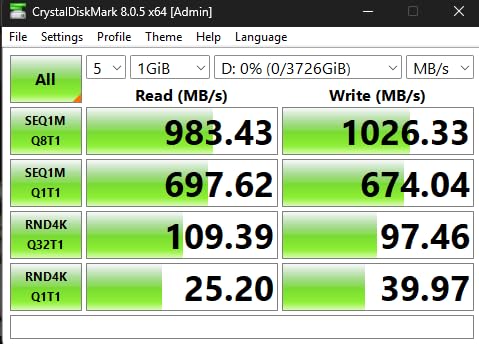
ProRes workflows demand fast, high-capacity storage. I recommend NVMe SSDs for active projects and larger mechanical drives or RAIDs for archives. The SanDisk Extreme Portable SSD has served well in my field workflow, offering speeds that handle 4K ProRes playback without dropping frames.
For H.265 workflows, storage speed matters less. Standard external drives handle H.265 playback easily. The focus shifts to capacity and reliability rather than raw throughput.
Consider your total project storage needs before committing to a codec. A feature documentary with 100 hours of footage requires completely different storage planning in ProRes versus H.265.
Capture and Streaming Solutions
Pros
- Excellent 4K60 quality
- True plug-and-play
- Near-zero latency
- Compact portable design
Cons
- HDMI 2.0 limits 4K60 passthrough
- Requires sufficient USB power
- No 4K120 support
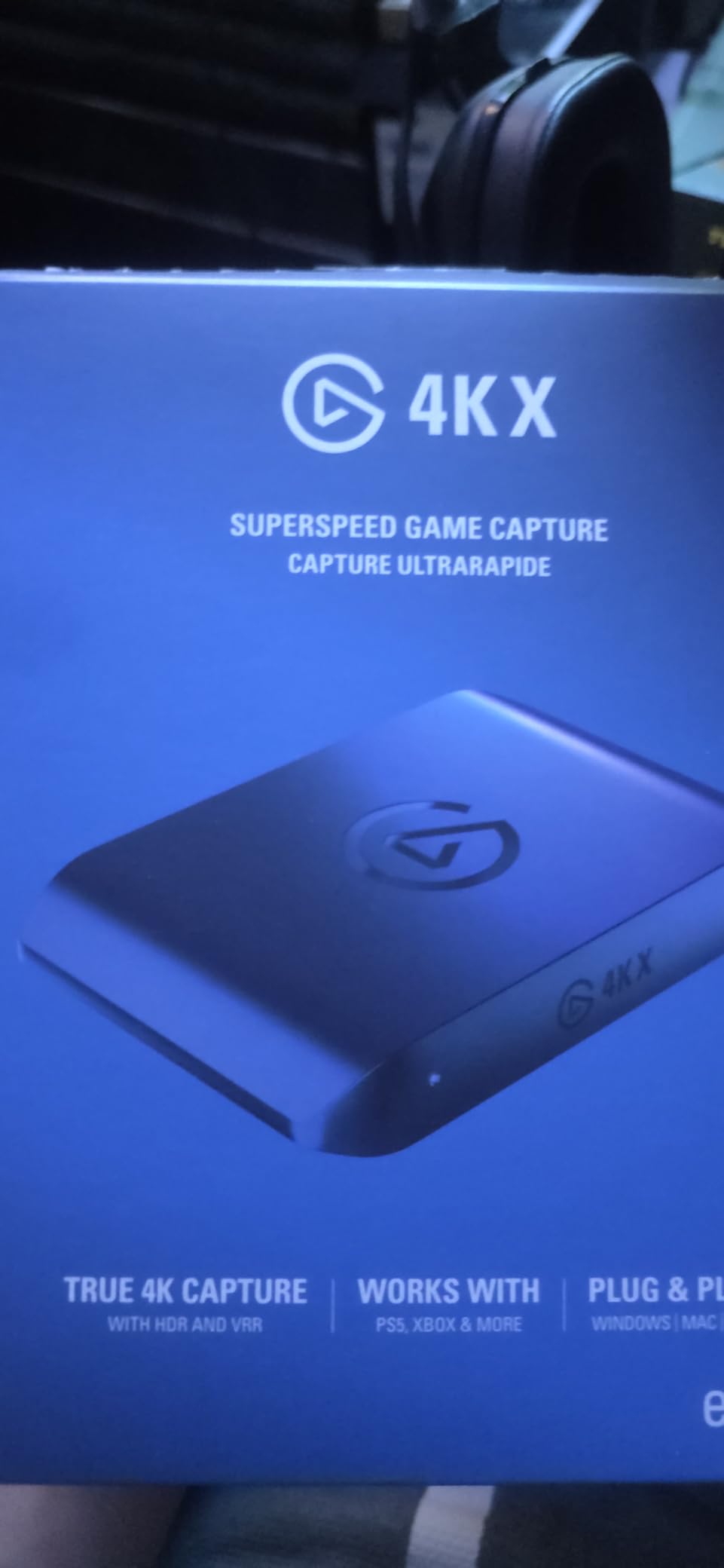
For live streaming and game capture workflows, the Elgato 4K S provides excellent quality with minimal latency. While capture cards typically output to more editable formats, understanding your delivery codec remains important for final output optimization.
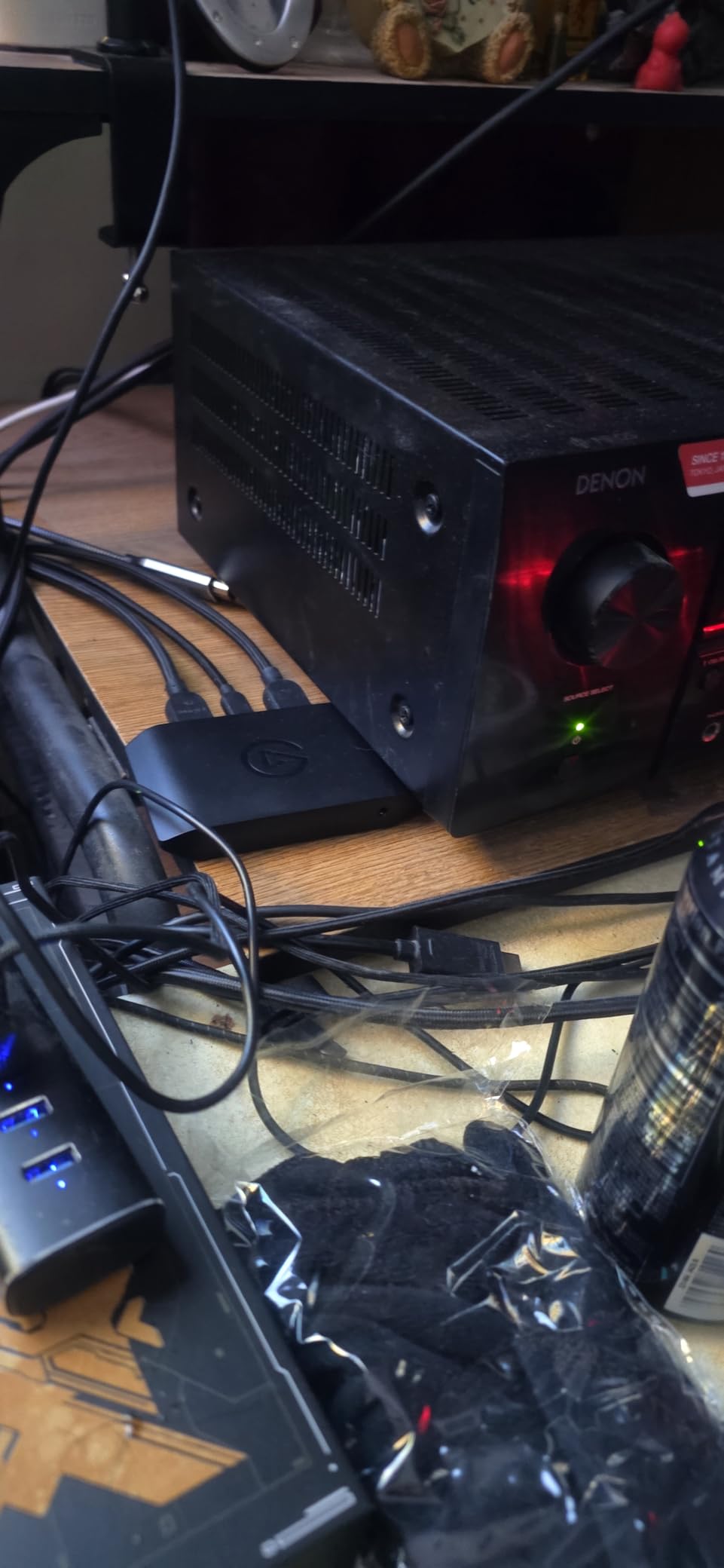
Streamers often work with H.264 or H.265 for bandwidth efficiency. The capture card handles the initial encoding, but your recording settings significantly impact storage requirements and subsequent editing flexibility.
For streamers recording gameplay for YouTube editing, I recommend recording at higher bitrates than streaming requires. This preserves quality for post-production while still using efficient codecs.
Workflow Recommendations: Making the Right Choice
After years of working with both codecs, I have developed clear guidelines for when each makes sense.
Choose ProRes When:
You are working on commercial, broadcast, or theatrical projects where quality is paramount. You need smooth editing performance across different hardware configurations. Your project requires extensive color grading, visual effects, or compositing. Multiple editors will work on the same footage. You have adequate storage infrastructure (NVMe drives, RAID arrays). You are shooting log or raw footage that needs maximum latitude in post.
Choose H.265 When:
Storage space is limited or expensive. You are producing high volumes of web content with tight deadlines. Your editing hardware has modern H.265 decoding support. Minimal color correction is required. You are working with delivery-focused content where editing efficiency matters less. Your final output targets streaming platforms optimized for H.265.
Hybrid Workflows
Many professionals use both codecs strategically. Shoot in H.265 for storage efficiency, then transcode to ProRes for editing. This approach works well but adds an initial processing step. I use this workflow when traveling with limited storage, transcoding to ProRes when I return to my main workstation.
Proxy workflows offer another solution. Edit with low-resolution H.265 proxies, then relink to full-quality ProRes for color grading and final output. Most professional NLEs support this workflow natively.
Transcoding Best Practices
If you transcode H.265 to ProRes, understand that you cannot recover quality that was lost during initial compression. The ProRes file will be larger and edit more smoothly, but it will not exceed the original H.265 quality. Transcoding primarily improves workflow performance, not image quality.
I recommend transcoding to ProRes 422 (not HQ) for most projects. The quality matches typical camera H.265, and the file size remains manageable.
Frequently Asked Questions
Is ProRes better than H.265?
ProRes is better for editing workflows, offering faster scrubbing, real-time playback, and superior color grading flexibility. H.265 is better for storage efficiency and delivery. Neither is universally better; they serve different purposes in video production.
What are the disadvantages of H.265?
H.265 requires significant processing power for smooth editing, can stutter on older hardware, offers less color grading headroom due to 4:2:0 chroma subsampling in most implementations, and takes longer to encode during export. These disadvantages primarily affect post-production workflows rather than final viewing quality.
Can Premiere Pro handle H.265?
Yes, Premiere Pro handles H.265 natively. Performance depends on your hardware. Systems with Intel QuickSync, AMD VCE, or NVIDIA GPU hardware decoding play H.265 smoothly. Older systems without hardware acceleration may experience timeline stuttering and require proxy workflows for acceptable performance.
Should I transcode H.265 to ProRes?
Transcode H.265 to ProRes if you experience editing performance issues, need smoother timeline scrubbing, or plan extensive color grading. Note that transcoding increases file size significantly but does not improve quality beyond the original H.265. The primary benefit is workflow performance, not image quality.
Which codec is better for YouTube?
For YouTube delivery, H.265 (or H.264) is the better choice. YouTube recompresses uploaded videos regardless of source codec, so starting with ProRes provides no quality advantage. Upload in H.265 at high bitrate (35-45 Mbps for 4K) to preserve quality through YouTube’s compression while keeping file sizes manageable for upload.
Verdict: Which Codec Wins?
There is no universal winner between ProRes and H.265 because they serve fundamentally different purposes. ProRes excels in post-production workflows where editing performance and color flexibility matter most. H.265 dominates in acquisition and delivery where storage efficiency is critical.
For professional video production: ProRes remains the industry standard for good reason. The editing performance, color grading headroom, and predictable behavior across systems justify the storage costs for serious work.
For content creators: H.265 provides excellent quality at manageable file sizes. If your hardware handles it smoothly and you do not need heavy color grading, H.265 keeps your storage costs down and your workflow streamlined.
For hybrid workflows: Many professionals shoot H.265, edit in ProRes (either transcoded or via proxies), and deliver in H.265. This maximizes efficiency at each stage of production.
My recommendation: evaluate your specific needs against storage budget, editing hardware, and delivery requirements. Test both codecs with your typical footage before committing to a workflow for important projects.