
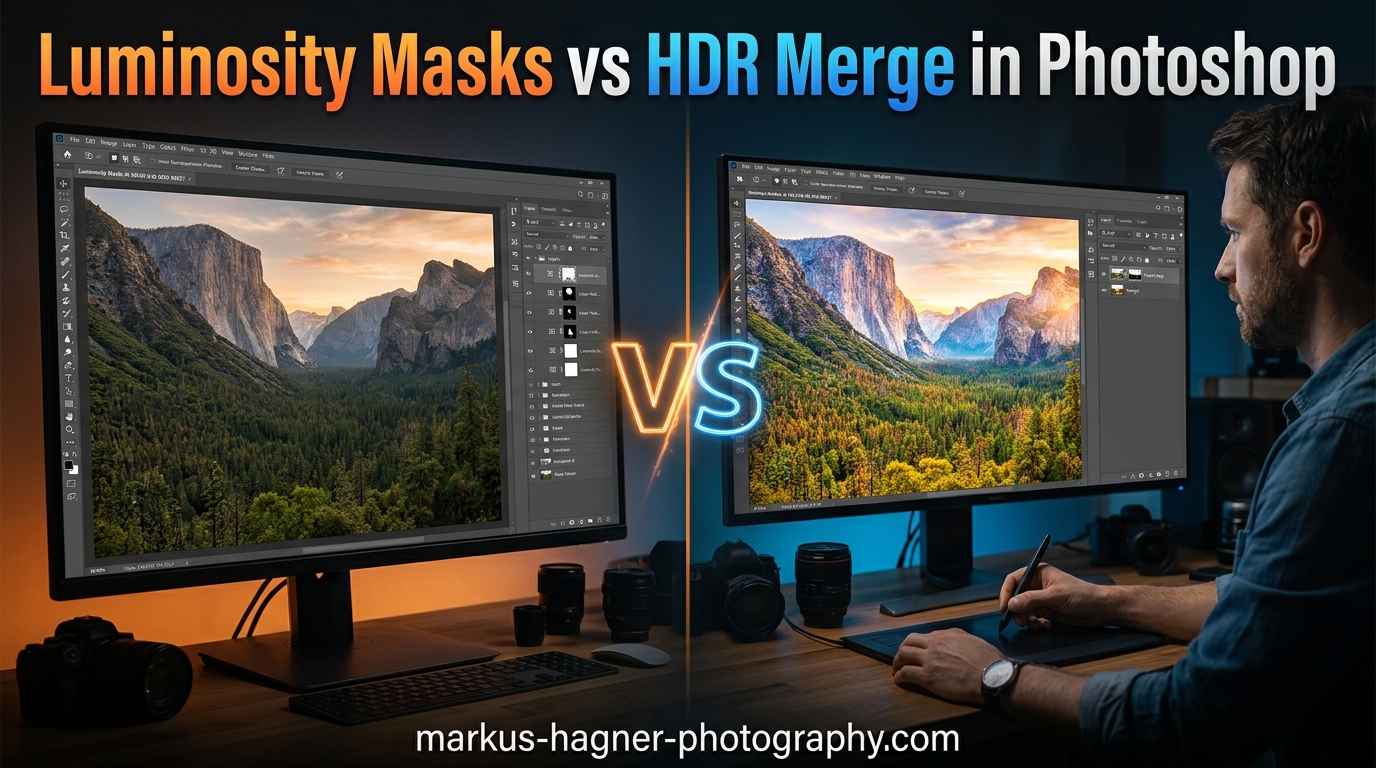
If you have ever merged bracketed exposures only to end up with halos around your subject or colors that look like a bad Instagram filter, you are not alone. The debate over Luminosity Masks vs HDR Merge in Photoshop has divided photographers for years, and for good reason. Both techniques tackle the same problem but approach it from completely different angles.
HDR Merge automates exposure blending through tone mapping algorithms, while luminosity masks give you manual control over which parts of each exposure appear in your final image. One takes seconds but can produce unnatural results. The other requires patience but delivers the kind of natural look that wins competitions.
After testing both techniques on hundreds of landscape and real estate images, our team found that the answer is not about which is better overall. It is about knowing when speed matters more than perfection, and when you need that extra level of control that only manual blending can provide.
Luminosity Masks vs HDR Merge in Photoshop: Quick Comparison
Before diving into the technical details, let me break down the fundamental differences between these two approaches. I have spent countless hours using both methods, and each has distinct advantages depending on your workflow and goals.
| Feature | HDR Merge | Luminosity Masks |
|---|---|---|
| Speed | Fast (seconds) | Slow (10-30+ minutes) |
| Learning Curve | Easy | Steep |
| Natural Results | Hit or miss | Consistently natural |
| Control | Limited | Complete |
| Halo Artifacts | Common | Minimal to none |
| Ghosting Issues | Automated removal | Manual control |
| Best For | Quick processing, beginners | Professional work, critical images |
| Software | Built into Photoshop/LR | Requires panels or actions |
The quick verdict: Use HDR Merge when you need fast results or are processing many images. Choose luminosity masks when quality matters more than speed, especially for gallery prints, competition entries, or client work where natural appearance is essential.
What is HDR Merge in Photoshop?
HDR Merge combines multiple exposures of the same scene into a single 32-bit image that captures a wider dynamic range than any single exposure could. Photoshop analyzes your bracketed shots and automatically blends them using tone mapping algorithms that compress the extended dynamic range into a viewable image.
The process is straightforward. You select your bracketed RAW files, choose Merge to HDR Pro from the File menu, and let Photoshop handle the alignment, deghosting, and blending. The software creates luminosity values for each pixel based on the brightest non-clipped value across all exposures.
How HDR Merge Works: Step-by-Step
Here is the workflow I use when processing images with HDR Merge in Photoshop:
Step 1: Open Photoshop and navigate to File > Automate > Merge to HDR Pro. Select your bracketed RAW files (typically 3, 5, or 7 shots taken at different exposure values).
Step 2: Check “Attempt to Automatically Align Source Images” if you shot handheld. This feature works well for minor camera movement but struggles with significant shifts.
Step 3: Enable deghosting if your scene had moving elements like clouds, water, or people. Choose between 10%, 20%, 30%, or 40% strength based on how much movement occurred between frames.
Step 4: After merging, you will have a 32-bit HDR image. Most photographers convert this to 16-bit (Image > Mode > 16 Bits/Channel) using local adaptation or exposure/gamma methods for further editing.
Step 5: Apply your final adjustments in Camera Raw or using adjustment layers. The tone mapping happens during the 32-bit to 16-bit conversion.
Benefits of HDR Merge
Speed is the obvious advantage. I can merge and tone map a five-image bracket in under a minute, making HDR Merge ideal for high-volume workflows like real estate photography where you might process 20+ images per property.
The automated deghosting feature handles moving subjects reasonably well. When I photographed a cityscape with moving traffic, the deghosting algorithm successfully removed most ghosting artifacts from cars and pedestrians.
Built-in alignment corrects minor camera shake, which is helpful when shooting brackets handheld. This saves the frustration of manually aligning layers that have shifted by just a few pixels.
Common Problems with HDR Merge
The elephant in the room is the unnatural look that HDR often produces. Tone mapping algorithms tend to compress shadows and highlights in ways that create flat, cartoonish images with that distinctive “HDR look” many photographers try to avoid.
Halos appear around high-contrast edges because the tone mapping applies different adjustments to bright and dark areas. When the algorithm transitions between these zones, it creates bright outlines around buildings, trees, and mountain ridges that scream “processed.”
Ghosting can still occur even with deghosting enabled. Fast-moving subjects like birds or waves often leave behind partial transparency artifacts that require manual cleanup.
Color shifts happen during the merge process. I have noticed that saturated colors often become muddy or take on an unnatural cast that requires significant correction in post.
What are Luminosity Masks in Photoshop?
Luminosity masks are selection tools based on the brightness values in your image. Unlike standard selections that define areas by shape or color, luminosity masks create selections where bright pixels are fully selected, dark pixels are unselected, and mid-tones are partially selected. This creates smooth, feathered transitions that blend exposures seamlessly.
Think of luminosity masks as a way to target specific tonal ranges. A “brights” mask selects only the highlights, letting you darken an overexposed sky without affecting shadows. A “darks” mask does the opposite, letting you lift shadows while leaving highlights untouched.
How Luminosity Masks Work
The magic happens in the Channels panel. Photoshop creates selections based on luminosity values stored in the Red, Green, and Blue channels. By loading these channels as selections and intersecting them with themselves, you generate increasingly narrow masks that target specific brightness ranges.
Here is the process I use to create basic luminosity masks from scratch:
Step 1: Open your base exposure (usually the correctly exposed shot from your bracket). Go to the Channels panel.
Step 2: Ctrl/Cmd + click on the RGB channel at the top. This loads the luminosity as a selection where bright areas are selected and dark areas are not.
Step 3: Return to the Layers panel and click the “Add Layer Mask” button. You now have a basic “Lights” mask.
Step 4: To create a “Darks” mask, invert the selection (Ctrl/Cmd + Shift + I) before adding the layer mask.
Step 5: For more targeted masks, Ctrl/Cmd + click on an existing mask channel, then Ctrl/Cmd + Alt + Shift + click on the same channel to intersect. This creates narrower selections like “Lights 2” or “Darks 3.”
Step 6: Load your darker or brighter exposure as a new layer. Add a luminosity mask to control which parts of this exposure blend through.
Step 7: Paint with a soft brush on the mask to refine the blend, revealing or hiding specific areas of each exposure.
Benefits of Luminosity Masks
Control is the primary advantage. I decide exactly which parts of each exposure appear in the final image. No algorithm guesses what I want. If I need to darken just the brightest highlights in a sunset sky while keeping mid-tone clouds unchanged, a luminosity mask makes this possible.
Natural results come from the smooth feathering inherent in luminosity-based selections. The transitions between exposures happen gradually based on tonal values, eliminating the harsh edges and halos that plague automated HDR.
Versatility extends beyond exposure blending. I use luminosity masks for dodging and burning, color grading, noise reduction, sharpening, and any adjustment that needs to target specific tonal ranges. Once you understand the concept, it transforms your entire editing workflow.
No artifacts means no embarrassing halos around trees or buildings. The masks blend smoothly because they are based on actual pixel brightness, not arbitrary shapes or edges detected by software.
Challenges with Luminosity Masks
The learning curve is real. I spent weeks practicing before luminosity masks became intuitive. Understanding how channels, selections, and masks interact requires a fundamental shift in how you think about Photoshop. Many photographers give up before reaching that “aha” moment.
Time investment is substantial. Blending three exposures with luminosity masks takes me 15-30 minutes per image when I am working carefully. For complex scenes with intricate details like bare branches against a bright sky, that time can double.
Manual work means more effort. Every blend requires decisions about which mask to use, how to refine it, and where to paint on the mask for adjustments. There is no “auto” button that produces acceptable results.
The process works best with a tripod. Handheld brackets require manual alignment, which adds another layer of complexity to the workflow.
Luminosity Masks vs HDR Merge in Photoshop: Head-to-Head Comparison
Let me break down how these techniques compare across the factors that matter most to working photographers.
Image Quality
HDR Merge can produce excellent results when the tone mapping is subtle and the scene does not have extreme contrast. However, pushing the dynamic range compression too far reveals the limitations of automated processing.
Luminosity masks consistently produce cleaner results because you control every transition. The blended image looks like it could have been captured in a single exposure, which is often the goal for natural-looking landscape photography.
Winner: Luminosity Masks
Natural Appearance
This is where HDR gets its bad reputation. Even careful tone mapping can leave images looking processed or artificial. The telltale flat shadows and micro-contrast halos identify HDR immediately to experienced eyes.
Luminosity masks avoid this problem entirely because you are not compressing dynamic range through algorithms. You are simply choosing which exposure to use for each tonal range, preserving the natural relationship between light and shadow.
Winner: Luminosity Masks
Speed and Workflow
HDR Merge wins hands down. Merge, tone map, export. Done in under a minute for most images. This speed makes HDR practical for high-volume work.
Luminosity masks require patience. Setting up the masks, blending exposures, and refining edges takes 10-30 minutes minimum. For photographers processing hundreds of images from a single shoot, this time adds up quickly.
Winner: HDR Merge
Learning Curve
HDR Merge is accessible to anyone who can navigate a menu. The interface is straightforward, and results appear immediately.
Luminosity masks require understanding channels, selections, and how to manipulate them. Most photographers need dedicated practice and possibly paid tutorials or panels to reach proficiency.
Winner: HDR Merge
Flexibility and Control
HDR Merge offers limited control. You can adjust tone mapping parameters, but the algorithm makes most decisions. If you disagree with how it handled a specific area, your options are limited.
Luminosity masks provide complete control. Every pixel can be adjusted. If the sky blend looks wrong, paint on the mask. If a building edge shows a transition artifact, refine it manually. This precision is why professionals prefer manual blending.
Winner: Luminosity Masks
Handling Moving Subjects
HDR Merge includes automated deghosting that works well for moderate movement. The algorithm identifies and removes ghosts from walking people, drifting clouds, and gentle water motion.
Luminosity masks require manual handling of moving subjects. You must identify ghosts and paint them out, which takes time but gives you precise control over the result.
Winner: Tie (depends on priorities)
When to Use HDR Merge
HDR Merge makes sense in these scenarios:
High-volume work: Real estate photographers processing 30+ images per property benefit from the speed. The slight quality trade-off is acceptable when clients need fast turnaround and images are viewed on small screens.
Beginners learning exposure blending: If you are new to working with bracketed exposures, HDR Merge provides a gentle introduction. You can always graduate to luminosity masks later.
Images with moderate dynamic range: When the scene does not have extreme contrast, HDR Merge produces good results without obvious artifacts. Interior shots with window views often fall into this category.
Quick social media content: Images destined for Instagram or web use at small sizes can tolerate minor HDR artifacts that would be unacceptable in large prints.
Working with moving subjects: The automated deghosting in HDR Merge handles motion more efficiently than manual masking, especially for water, clouds, and traffic.
When to Use Luminosity Masks
Reach for luminosity masks in these situations:
Gallery prints and competition work: When every detail matters and judges scrutinize images for processing artifacts, luminosity masks deliver the quality needed.
High-contrast landscapes: Sunrise and sunset scenes with extreme dynamic range between sky and foreground require the precision that only manual blending provides.
Complex edges: Images with intricate details like bare branches, grass, or architectural elements against bright backgrounds benefit from the smooth transitions of luminosity masks.
Client work requiring natural appearance: Commercial and fine art clients who want images that look unprocessed will notice the difference.
Advanced editing techniques: Beyond exposure blending, luminosity masks enable dodging and burning, selective color grading, targeted sharpening, and noise reduction that would be impossible with other methods.
Combining with other techniques: I often start with a subtle HDR merge for the base exposure, then use luminosity masks to refine specific areas. This hybrid approach captures the speed benefits of HDR while adding the control of manual blending where it matters most.
Combining Both Techniques
The best answer to the Luminosity Masks vs HDR Merge in Photoshop debate might be “both.” Many professional photographers use a hybrid workflow that captures the benefits of each approach.
Here is how I combine them:
First, I create a subtle HDR merge using 32-bit processing with minimal tone mapping. This gives me a base image with good shadow and highlight detail.
Then I load my original exposures as layers above the HDR base. Using luminosity masks, I blend specific areas where the HDR produced unwanted artifacts or flat tones.
Finally, I use additional luminosity masks for local adjustments like dodging the foreground, burning the sky edges, or enhancing color in specific tonal ranges.
This workflow takes longer than HDR alone but less time than pure luminosity mask blending. The result combines the broad dynamic range of HDR with the natural appearance and local control of manual masking.
Frequently Asked Questions
What are luminosity masks in Photoshop?
Luminosity masks are selections based on brightness values in an image. They allow you to target specific tonal ranges (highlights, mid-tones, or shadows) for precise adjustments. Bright pixels are fully selected, dark pixels are unselected, and mid-tones are partially selected, creating smooth feathered transitions perfect for natural-looking exposure blending.
How to merge HDR images in Photoshop?
Open Photoshop and go to File > Automate > Merge to HDR Pro. Select your bracketed RAW files, enable auto-alignment and deghosting as needed, then click OK. Photoshop creates a 32-bit merged image. Convert to 16-bit (Image > Mode > 16 Bits/Channel) and apply tone mapping adjustments to complete the process.
Why do photographers turn off HDR?
Photographers disable HDR because automated tone mapping often produces unnatural results with flat shadows, halos around high-contrast edges, and an over-processed appearance. HDR has a reputation for creating cartoonish images that look obviously manipulated, which conflicts with the natural aesthetic most professional photographers prefer.
Is Lumenzia worth it?
Lumenzia simplifies the luminosity mask creation process with a visual panel interface, making complex masks accessible without manually manipulating channels. For photographers serious about luminosity masking who process images regularly, the time savings and ease of use typically justify the cost. However, the techniques can be learned and applied manually without purchasing any panel.
Which produces more natural results: HDR or luminosity masks?
Luminosity masks consistently produce more natural-looking results because they blend exposures based on tonal values rather than algorithmic tone mapping. The smooth, feathered transitions eliminate halos and preserve the natural relationship between light and shadow. HDR can look natural with careful processing, but luminosity masks offer more reliable natural results.
How long does it take to learn luminosity masks?
Most photographers need 2-4 weeks of dedicated practice to become comfortable with luminosity masks. The concepts require understanding channels, selections, and masks in ways that may feel unfamiliar. Many photographers use panels like Lumenzia or the TK Panel to accelerate the learning curve and simplify the workflow.
Final Verdict: Luminosity Masks vs HDR Merge in Photoshop
The choice between Luminosity Masks vs HDR Merge in Photoshop ultimately depends on your priorities. If speed and simplicity matter most, HDR Merge delivers acceptable results quickly. If natural appearance and complete control are essential, luminosity masks are worth the investment in time and learning.
For professional landscape photographers, real estate photographers working on premium listings, and anyone creating gallery-quality work, luminosity masks remain the gold standard. The consistent natural results and precise control justify the steeper learning curve.
For beginners, high-volume workflows, and situations where good-enough results are acceptable, HDR Merge provides a practical solution that gets the job done without requiring weeks of practice.
My recommendation: Learn both techniques. Start with HDR Merge while you build your luminosity mask skills. Eventually, you will develop an intuitive sense for which method suits each image, and you may find yourself combining them for the best of both worlds.