
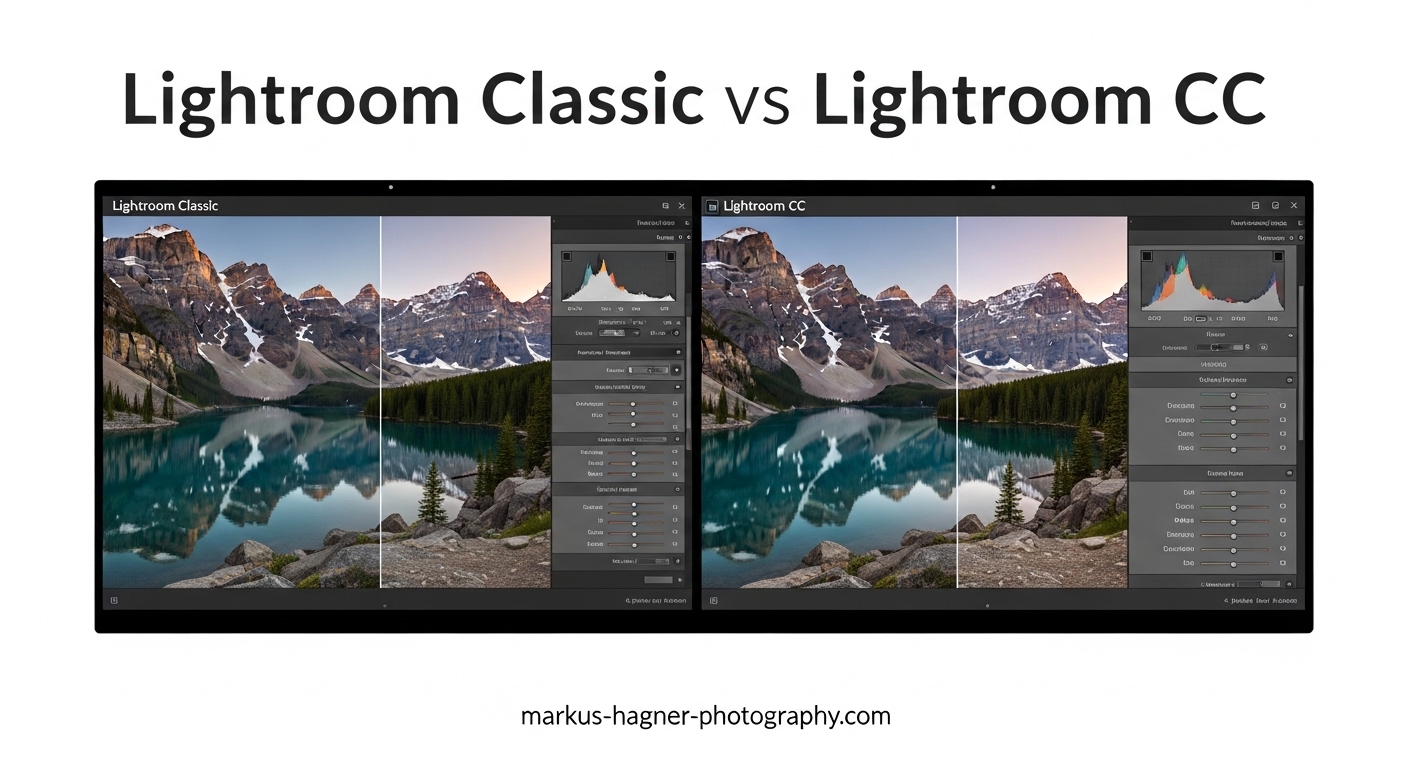
If you have ever opened the Adobe Creative Cloud app and stared at “Lightroom” and “Lightroom Classic” listed side by side, you are not alone. I get this question from photographers almost every week: which one should I actually use?
The confusion is real. Adobe did not help matters when they rebranded the original Lightroom to “Lightroom Classic” back in 2017 and launched what many people call Lightroom CC — now officially just called “Lightroom.” Two products, similar names, completely different philosophies.
In this guide I will walk you through every meaningful difference between Lightroom Classic vs Lightroom CC, covering file management, editing tools, device support, pricing, and real-world scenarios so you can make an informed decision. After years of using both, I can tell you the right answer depends entirely on how you shoot and how you work.
What Is the Difference Between Lightroom Classic and Lightroom CC?
Lightroom Classic is the desktop-based version of Adobe’s photo editing and management software. It stores your original photo files on your local hard drive or external storage, and it manages everything through a catalog — a database file that tracks where your images live, all your edits, and your organizational metadata.
Lightroom CC (officially just “Lightroom”) is the cloud-first version. It automatically uploads your original files to Adobe’s cloud servers and syncs them across every device you own — desktop, laptop, tablet, and phone. The cloud library is the database, not a local catalog file.
Both applications share Adobe’s core Develop tools, but that is where the similarity starts to end. Classic is built for photographers who want maximum control and keep everything on their own hardware. CC is built for photographers who want seamless access across devices and do not want to think about file management.
Lightroom Classic vs Lightroom CC: File Management and Storage
This is the biggest and most fundamental difference between the two versions, and it touches everything else about your workflow.
How Lightroom Classic Manages Files
In Lightroom Classic, you decide exactly where your photos live. You can store them on an internal drive, an external drive, a NAS device — anywhere your operating system can reach. Classic reads those files and builds a catalog (.lrcat file) that records your edits, keywords, collections, and star ratings without ever moving or touching the originals.
This matters enormously for photographers with large libraries. I currently manage over 80,000 RAW files across multiple external drives, all organized through a single Classic catalog. Classic handles this without any cloud storage fees. If your internet goes down, nothing changes. Your workflow keeps running.
Classic also has Smart Previews — compressed DNG versions of your originals that let you edit even when the original drive is disconnected. This is handy for laptop editing on the road while leaving your full library at home.
How Lightroom CC Manages Files
Lightroom CC uploads your original files to Adobe’s cloud servers automatically. This is convenient because every device you own stays in sync. You can start editing a photo on your desktop and finish it on your phone during a flight.
The catch is storage. Adobe gives you 1TB of cloud storage with the Photography Plan upgrade, but standard plans come with much less. Photographers who shoot RAW files fill that storage quickly. The costs can grow fast if you have a large archive.
CC does allow you to store local copies on your device, but the source of truth is always the cloud. If you delete something from the cloud, it is gone from all devices. This feels unsettling to many photographers who are used to owning and controlling their files directly.
One thing worth understanding: CC stores originals in the cloud, while Classic keeps originals wherever you put them. For some photographers that freedom is critical. For others, it is simply more complexity than they want.
Organizing and Searching Your Photos
Both versions let you organize photos, but they approach it differently and Classic runs much deeper here.
Organization in Lightroom Classic
Classic offers the most complete set of organizational tools Adobe has built. You can assign manual keywords, color labels, star ratings (1–5), pick/reject flags, and custom metadata fields. Collections and Collection Sets let you create virtual albums without duplicating files. Smart Collections automatically gather photos matching criteria you define — say, all 5-star RAW files shot in 2024.
Geotagging is available in Classic with a dedicated map module. You can manually tag photos with GPS coordinates or import GPS track logs from your phone or camera. The Filter Bar at the top of the Library module lets you filter your entire catalog by any combination of metadata in seconds.
For anyone managing client shoots, events, or years of personal archives, Classic’s organizational depth is hard to match.
Organization in Lightroom CC
Lightroom CC relies more heavily on Adobe Sensei, Adobe’s AI-powered search. You can search for “sunset” or “dog” and the AI surfaces relevant photos without you having to tag them manually. This is genuinely impressive and speeds up casual browsing.
CC supports albums, which work like Classic’s collections, and it has face detection powered by Adobe Sensei. You can also add manual keywords. What CC lacks is the deep metadata filtering Classic provides — the Filter Bar, Smart Collections, and the extensive manual control professionals depend on when managing thousands of images from multiple shoots.
Photographers from the r/Lightroom community regularly point out that CC’s search is better for quick access, while Classic’s manual tagging system is better for long-term archive management. Both observations are accurate.
Editing Tools: How Do They Compare?
Both versions share Adobe’s core Develop engine, so the fundamental RAW processing quality is identical. The differences show up in the breadth and depth of available tools.
What Lightroom Classic Offers
Classic has the full suite of Develop tools including every masking option Adobe has shipped — subject mask, sky mask, luminance range masks, color range masks, and the radial and gradient filter tools. Batch editing is extremely powerful: you can apply edits from one photo to hundreds in seconds using Sync Settings.
Classic also supports Lightroom plugins, which opens up a massive ecosystem of third-party tools. Popular options like Luminar panels, ON1 Effects, and various print workflow plugins all work through Classic’s Plugin Manager. If your editing workflow depends on any third-party integration, Classic is your only option.
The Soft Proofing module in Classic lets you preview exactly how a print will look on different paper profiles — critical for any photographer who sells prints or submits images for publication.
What Lightroom CC Offers
CC has caught up significantly in editing capability over the past few years. It now includes AI masking tools, healing brush, gradient and radial filters, and a strong preset ecosystem that syncs across all devices. You can edit with full RAW processing capability from your phone — which Classic simply cannot match.
What CC still lacks is the complete plugin ecosystem, Soft Proofing, and some of the more granular batch editing controls that Classic power users rely on. The editing interface in CC is cleaner and less cluttered, which beginners consistently find easier to learn.
In my own testing, I have found the actual output quality of both versions to be identical when applying similar adjustments. The difference is how much control you have and how fast you can move through a large batch of images. Classic wins on speed and depth for professional workflows. CC wins on accessibility and cross-device capability.
Device Compatibility and Mobile Editing
This is where Lightroom CC genuinely outperforms Classic for certain types of photographers.
Lightroom CC Across Devices
Lightroom CC runs on Windows, Mac, iOS, Android, and ChromeOS. Your entire library — edits, albums, presets — syncs automatically across every device you are signed into. You shoot with your camera, import on your desktop, and within minutes those photos are accessible on your phone or tablet.
For travel photographers, street photographers, or anyone who edits on a tablet, this seamless sync is a genuine workflow advantage. You are not juggling files or wondering which device has the latest version of an edit.
Lightroom Classic and Mobile
Classic can sync selected photos to the Lightroom mobile app through Adobe’s cloud sync feature — but only photos you specifically flag for sync, not your entire catalog. This is a meaningful limitation. You cannot browse your full 50,000-photo Classic catalog from your phone the way CC users can browse their full library.
Classic is primarily a desktop application. It runs on Windows and Mac. The mobile experience is a limited extension, not a first-class feature. If mobile editing is central to your workflow, Classic will frustrate you.
On the other hand, if you only edit at a desk — which is true of many professional photographers — Classic’s desktop focus is entirely appropriate. Offline capability is rock solid. Slow internet or no internet has zero effect on your editing workflow.
Plugins, Print Modules, and Advanced Features
This section matters most to professional photographers and advanced hobbyists. Several major workflow features exist only in Lightroom Classic.
Plugin Ecosystem
Lightroom Classic supports third-party plugins through its Plugin Manager. This ecosystem has grown for over a decade and includes tools for tethered shooting enhancements, printing workflows, social media export automation, noise reduction from external apps, and specialized color grading panels.
Lightroom CC has no plugin support whatsoever. If a third-party tool you depend on — or might depend on in the future — only integrates with Lightroom, Classic is your only path.
Output Modules
Classic includes dedicated modules for Print, Book (via Blurb), Web, and Slideshow output. The Print module alone is a professional-grade tool with precise control over paper size, print sharpening, color management, and contact sheet layouts. Wedding and portrait photographers who deliver printed products use it regularly.
CC has no equivalent Print or Book module. If delivering physical prints or designing photo books is part of your business, this absence in CC is a real limitation.
Tethered Shooting
Classic supports tethered shooting — connecting your camera via USB and importing photos directly into the catalog in real time as you shoot. This is a standard feature in studio and portrait photography sessions. CC does not support tethered shooting natively.
Pricing and Subscription Plans
Both Lightroom versions are available through Adobe Creative Cloud subscriptions. Neither can be purchased as a one-time license.
The standard Photography Plan includes both Lightroom Classic and Lightroom CC (plus Photoshop) with 20GB of cloud storage. This is the plan most photographers start with. Adobe also offers a Photography Plan with 1TB of cloud storage at a higher monthly cost — this extra storage primarily benefits Lightroom CC users who upload their originals to the cloud.
A standalone Lightroom-only plan is available at a lower price, which includes CC plus Photoshop is excluded. For photographers who only want Lightroom without Photoshop, this may be appealing.
Cloud storage is the hidden cost equation here. If you shoot RAW files and plan to use Lightroom CC as your primary workflow, you will likely need the 1TB plan to avoid constantly managing which photos stay in the cloud. Lightroom Classic users can stay on the 20GB plan comfortably since their originals live on local storage, not in Adobe’s cloud.
From a community perspective, the r/Lightroom and r/photography forums regularly discuss cloud storage costs as a pain point for CC users. Multiple photographers note that the cost of adequate cloud storage makes CC more expensive long-term than Classic for anyone with a large library.
Lightroom Classic vs Lightroom CC: Which One Fits Your Workflow?
Here is how I think about this decision based on real photographer types and genuine use cases.
Choose Lightroom Classic if:
- You are a working professional photographer (wedding, portrait, commercial, landscape) who shoots high-volume RAW files and needs maximum organizational control
- Your workflow depends on third-party plugins — noise reduction tools, print automation, specialized panels
- You sell prints or deliver printed products and need the Print module
- You use tethered shooting during studio sessions
- You have an existing large catalog and archive you have built over years
- Your internet is unreliable or you regularly edit offline
- You want to keep storage costs low and own your files on hardware you control
- You are a landscape or wildlife photographer shooting thousands of frames per trip who needs efficient culling with full batch-editing capability
Choose Lightroom CC if:
- You are a beginner or hobbyist who wants a clean, simple editing interface that does not overwhelm you on day one
- You frequently edit on multiple devices — phone, tablet, and desktop — and want everything synced automatically
- You travel constantly and want your full photo library accessible from anywhere
- You share photos regularly through web galleries or direct links from within the app
- You do not need plugins, tethering, or print modules
- You primarily shoot JPEG or casual RAW and do not need deep organizational tools
- Ease of setup and maintenance matters more to you than maximum feature depth
The Real-World Scenario Guide
Wedding photographer: Classic is the clear choice. You need to batch edit hundreds of RAW files efficiently, deliver print-ready images, and maintain an organized client archive. Plugin support for culling tools and print workflows is essential.
Travel photographer: Depends on your style. If you edit on your laptop and desktop only, Classic works excellently. If you regularly edit on an iPad or want your library on your phone while on the road, CC’s multi-device sync is genuinely useful. Many travel photographers actually use the hybrid approach.
Hobbyist / family photographer: Lightroom CC is likely the better fit. The interface is friendlier, the AI-assisted organization reduces the manual work, and syncing to your phone means your photos are always with you. The learning curve is significantly lower.
Landscape photographer: Classic. The precision editing tools, batch processing, and plugin ecosystem (including external editors for sky replacement and advanced noise reduction) make Classic the standard in landscape photography communities.
Social media content creator: CC wins here. Quick edits, direct sharing from within the app, seamless phone-to-desktop sync, and clean presets that stay consistent across all your devices match a social-first workflow perfectly.
Can You Use Both Lightroom Classic and CC Together?
Yes — and this hybrid workflow is more common than most people realize.
Many professional photographers use Classic as their primary organizational and editing hub on the desktop, then sync selected galleries to Lightroom CC for mobile access. When shooting a destination wedding, for example, I use Classic on my MacBook for all serious editing and catalog management. Through Classic’s sync feature, I can push selected previews to the cloud, access them from my phone to share client teasers, and pull edits made on the phone back into the Classic catalog.
The hybrid approach gives you the organizational depth of Classic with the convenience of CC’s mobile sync. The limitation is that synced content in Classic shares the same cloud storage allocation as Lightroom CC users — so you still pay attention to how much you sync.
Adobe designed the two versions to coexist, not compete. Using both on a single subscription is perfectly supported. Start with Classic as your primary workflow and add CC for mobile tasks rather than treating it as an either/or decision.
The photographers on r/AskPhotography who describe using both versions consistently report this as the most practical setup: Classic for serious editing, CC for access and sharing. If you are unsure, this hybrid model is worth trying before you fully commit to one version exclusively.
Frequently Asked Questions
Will Lightroom Classic be discontinued?
Adobe has not announced plans to discontinue Lightroom Classic, and as of 2026 continues to release feature updates for it alongside Lightroom CC. Classic remains the preferred choice for professional photographers and Adobe has strong incentive to maintain it. While there is no guarantee any software will be supported indefinitely, Classic shows no signs of being phased out in the near term.
Do professional photographers use Lightroom Classic?
Yes, the majority of professional photographers — particularly wedding, portrait, landscape, and commercial photographers — use Lightroom Classic. Its catalog system, plugin support, offline capabilities, print module, and batch editing tools match professional workflows far better than Lightroom CC. Forums and photography communities consistently show Classic as the standard for working pros.
How do you tell if you have Lightroom Classic or Lightroom?
Open the Creative Cloud desktop app and look at your installed apps. Lightroom Classic will be listed as ‘Lightroom Classic’ and the cloud version will be listed as ‘Lightroom.’ Inside the apps, Classic opens to the Library module with a Folders panel on the left showing your local file structure. Lightroom (CC) opens to an All Photos view and shows a cloud sync icon in the top right corner.
Should I switch from Lightroom Classic to Lightroom?
Switching makes sense if multi-device access and simplicity matter more to you than advanced features. However, if you have an existing Classic catalog with years of organization, keywords, and edit history, switching means rebuilding that structure in CC — which can be a significant undertaking. Many photographers find keeping Classic and adding CC for mobile tasks is more practical than a full switch.
Final Thoughts
The Lightroom Classic vs Lightroom CC decision comes down to a simple question: do you value control and depth or convenience and accessibility?
For most working professionals, Classic remains the standard. Its catalog system, plugin support, offline reliability, and output modules are difficult to replace. For beginners and mobile-first photographers, Lightroom CC delivers a genuinely better experience that feels modern and requires far less setup.
If you are still unsure, try both — your subscription includes both versions. Spend two weeks with each doing your real work with real images from a typical shoot. You will know quickly which one fits your workflow. And if neither feels like a perfect fit on its own, the hybrid approach gives you the best of both worlds without any additional cost.