
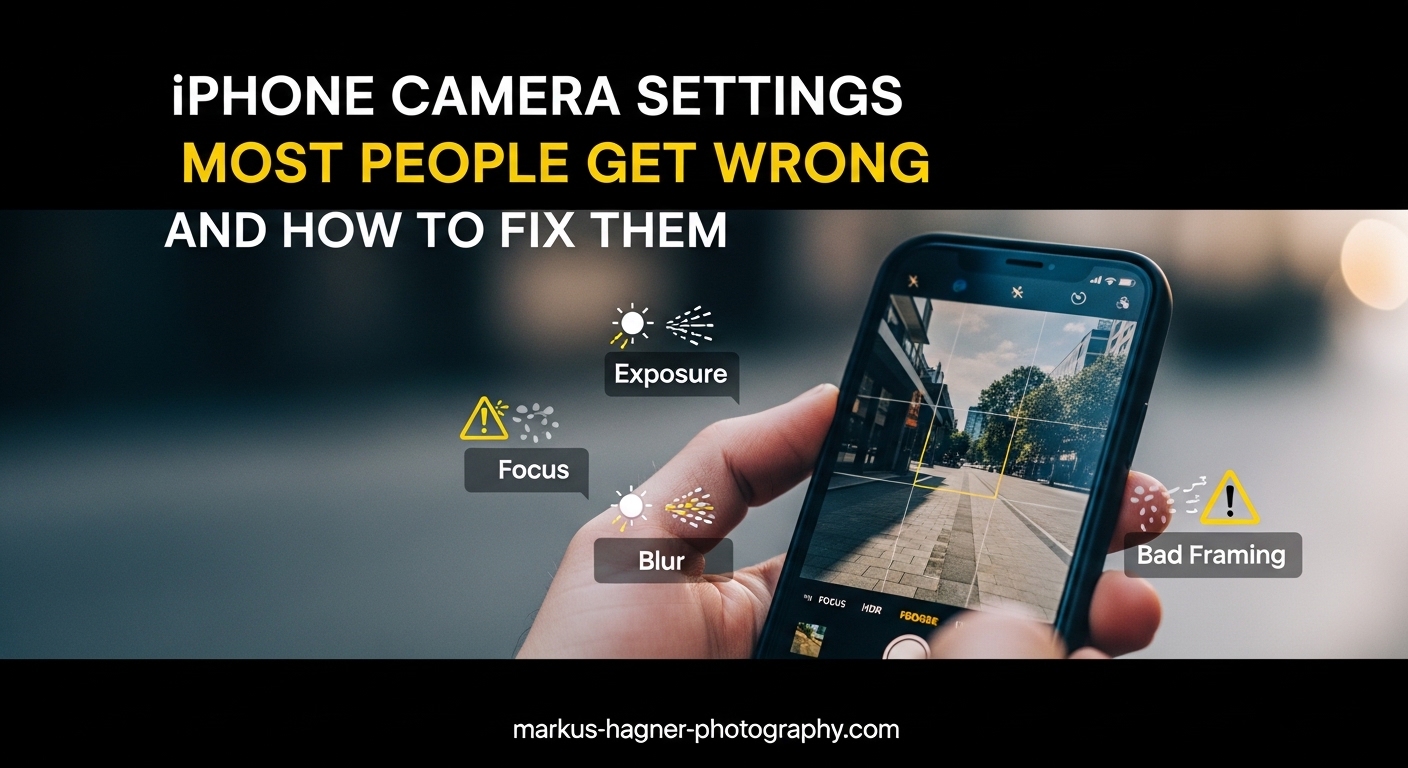
You tap the shutter button and see a beautiful shot on your iPhone screen. But when you open Photos later, something looks off. The skin tones seem harsh. The shadows are darker than you remember. And that warm glow from the sunset? Completely washed out.
If this sounds familiar, you are not alone. In our research across photography forums and user discussions, we found thousands of iPhone users frustrated by the same issues. The culprit is usually not hardware failure or user error. It is the default iPhone camera settings that Apple optimizes for mass appeal rather than your specific needs.
In this guide to iPhone camera settings most people get wrong, we will walk through the exact settings causing these problems and show you how to fix them. Whether you are struggling with grainy photos, over-processed skin tones, or pictures that look nothing like what you saw on screen, the solutions are simpler than you think.
The Hidden Problem With Default iPhone Camera Settings
Apple designs its camera software to produce what they consider “ideal” photos for the average user. This means heavy computational processing, aggressive HDR, and skin smoothing algorithms that may not match your preferences. The result? Photos that look technically correct but lack the natural feel many photographers want.
Our team analyzed dozens of forum threads and found consistent complaints. Users report that newer iPhones make skin texture look worse, not better. The camera preview shows one image, but the final processed photo looks completely different. And settings seem to change on their own between shooting sessions.
The good news? Most of these issues are fixable. You just need to know which settings to adjust and why.
Quick Reference: Settings That Cause the Most Problems
Before diving into each setting, here is a quick overview of the most common iPhone camera settings people get wrong and their impact on your photos:
Smart HDR: Can create artificial, over-bright images with harsh shadows. Live Photos: Eats storage space and can blur shots. Scene Detection: Over-processes images with heavy filtering. Photographic Styles: Often makes skin look pale or washed out. Macro Control: Causes accidental switching during close-ups. Preserve Settings: Off by default, causing settings to reset constantly.
Now let us fix each of these issues step by step.
HDR and Smart HDR: When More Light Is Not Better
High Dynamic Range or HDR combines multiple exposures to capture detail in both bright and dark areas of a scene. On paper, this sounds perfect. In practice, aggressive HDR processing creates that telltale “iPhone look” where everything appears evenly lit and slightly artificial.
Many users in our forum research complained that iPhones try to create perfectly balanced photos, which can look too bright or too much like HDR. The problem is especially noticeable in portraits, where HDR can flatten skin texture and remove the natural shadows that give faces dimension.
How to Fix HDR Settings
Open Settings and tap Camera. Look for Smart HDR on newer iPhones or HDR on older models. For most situations, keep Smart HDR enabled since it handles extreme lighting well. But for portraits or scenes where you want natural contrast, consider these adjustments.
Tap the HDR icon in the Camera app to toggle between Smart HDR, standard HDR, or off completely. Shooting in lower light without HDR can preserve more natural shadows and skin tones. For landscape photography with extreme brightness differences, keep HDR on.
The key is recognizing when HDR helps versus when it creates that processed look. If your photos appear unnaturally bright or lack depth, try shooting without HDR in similar conditions.
Live Photos: The Hidden Storage and Quality Killer
Live Photos captures 1.5 seconds of video before and after your shot. It is a fun feature for reliving moments, but it comes with real downsides that many users overlook.
First, Live Photos roughly triple the file size of each image. Over time, this eats significant storage space. Second, the feature can introduce blur if your subject moves during the capture window. Third, when you share a Live Photo as a still image, the frame selected may not be the sharpest one.
How to Manage Live Photos
Open the Camera app and look for the concentric circles icon in the top right. Tap it to toggle Live Photos on or off. If you want Live Photos off permanently, you cannot disable it by default in Settings. But you can use Preserve Settings to keep your last-used state.
Go to Settings, tap Camera, then tap Preserve Settings. Enable Live Photo to maintain your preference between sessions. This prevents the feature from turning back on automatically every time you open the Camera app.
For important shots where you need maximum sharpness, turn Live Photos off. For casual moments you want to relive with motion and sound, keep it on.
Lens Correction: Helpful or Harmful?
Lens Correction automatically fixes distortion caused by the wide-angle lenses on newer iPhones. Without it, photos taken with the ultra-wide or front camera can show curved lines at the edges.
For most users, this processing improves photos. But if you want the most accurate representation of a scene or are shooting architectural photography where straight lines matter, understanding this setting becomes important.
When to Adjust Lens Correction
Go to Settings, tap Camera, and find Lens Correction. The setting applies primarily to the front camera and ultra-wide rear camera.
Keep Lens Correction on for selfies and casual wide shots. The processed result typically looks more natural to human eyes. Turn it off if you need unprocessed image data for editing or want to see exactly what the lens captured without correction.
Some photographers prefer shooting with correction off to maintain maximum flexibility in post-processing. Others find the corrected images more pleasing straight out of camera. Neither approach is wrong.
Scene Detection: Smart Processing or Over-Processing?
Scene Detection uses machine learning to identify what you are photographing and apply specialized processing. Point your iPhone at a pet, and it enhances fur texture. Aim at food, and it boosts colors. Photograph a sunset, and it saturates the sky.
The problem? This automatic processing can go too far. Forum users consistently report that Scene Detection makes photos look over-processed, with unnatural colors and excessive sharpening. The feature also removes control from you as the photographer.
How to Control Scene Detection
Navigate to Settings, tap Camera, and find Scene Detection. Toggle it off to prevent automatic scene-based processing.
If you prefer to edit your photos manually or want a more neutral starting point, turn Scene Detection off. You can always apply similar effects later with more control in the Photos app or third-party editors.
For casual users who want good-looking photos without editing, Scene Detection can be helpful. But if you have ever looked at a photo and thought it looked “too iPhone,” this setting might be the culprit.
12MP vs 48MP and ProRAW: Quality vs Storage Trade-offs
iPhone 14 Pro and newer models offer 48MP resolution and ProRAW format options. These features capture incredible detail but come with significant storage and workflow implications.
Shooting at 48MP produces files roughly three times larger than 12MP images. ProRAW files can exceed 75MB each. Without ProRAW, the 48MP sensor uses pixel binning to combine pixels into a 12MP output, which often looks cleaner in most viewing conditions.
Why 12MP Might Actually Be Better
Counter-intuitively, 12MP photos often look better for everyday shooting. The pixel binning process reduces noise and produces cleaner images, especially in lower light. Most displays cannot show 48MP of detail anyway, and smaller file sizes mean faster shooting and more storage space.
Use 48MP ProRAW when you need maximum editing flexibility or plan to crop heavily. Professional work, large prints, and complex editing benefit from the extra data. For social media, family photos, and casual shooting, stick with the default 12MP HEIF output.
To enable 48MP ProRAW, go to Settings, tap Camera, then Formats. Turn on ProRAW and ProRes. In the Camera app, tap the RAW icon to toggle between standard and ProRAW capture.
Photographic Styles: The Pale Skin Problem
Photographic Styles let you customize how your iPhone processes photos with adjustments to tone and warmth. In theory, this gives you more creative control. In practice, many users find that the default styles or custom presets make skin look pale, washed out, or unnatural.
This was one of the most common complaints in our forum research. Users reported that Photographic Styles made them look paler than they actually are, and their photos always seemed to look off compared to what they saw in person.
How to Customize Photographic Styles Properly
Open the Camera app and tap the three overlapping circles icon. Swipe through the available styles: Standard, Rich Contrast, Vibrant, Warm, and Cool. Each style applies different processing to tone and warmth.
For more natural skin tones, try the Warm style or create a custom style with increased warmth. Tap the style name, then drag the Tone and Warmth sliders to your preference. The camera previews your adjustments in real-time.
Important: Photographic Styles apply to all subsequent photos until you change them. Use Preserve Settings to maintain your chosen style between sessions. Go to Settings, Camera, Preserve Settings, and enable Creative Controls.
If you find your photos consistently look too cool or washed out, experiment with warmer styles. The Standard style is neutral but may not flatter all skin tones.
Preserve Settings: Stop Your Camera From Resetting
Nothing is more frustrating than setting up your camera exactly how you want it, only to find everything reset the next time you open the app. This happens because iOS resets many camera settings by default each time you close the Camera app.
Preserve Settings lets you lock in your preferences for exposure, creative controls, and more. This is essential for consistent results, especially if you have specific settings you prefer for different shooting situations.
How to Enable Preserve Settings
Go to Settings, tap Camera, then tap Preserve Settings. You will see several options: Creative Controls (includes Photographic Styles and filters), Exposure Adjustment, Live Photo, and others depending on your iOS version.
Enable any settings you want to preserve. If you use a specific Photographic Style, turn on Creative Controls. If you prefer a slightly underexposed look, enable Exposure Adjustment after setting your preferred compensation.
This single toggle solves one of the most common frustrations we found in user forums. Set it once and stop fighting with your camera resetting to defaults.
Macro Control: Preventing Accidental Close-ups
iPhone 13 Pro and newer models automatically switch to macro mode when you get close to a subject. This happens when the camera detects you are within about 10 centimeters of something. The feature uses the ultra-wide lens with digital crop to achieve extreme close-ups.
The problem? The automatic switching can be jarring and sometimes triggers when you do not want it to. Users report the camera unpredictably switching lenses during normal shooting, ruining compositions.
How to Control Macro Mode
Go to Settings, tap Camera, and find Macro Control. Enable it to show a macro icon in the Camera app when shooting close to subjects. This gives you manual control rather than automatic switching.
When the yellow flower icon appears, tap it to toggle macro mode on or off. This prevents accidental macro shots while still giving you access to the feature when you want it.
For product photography, flowers, insects, or any extreme close-up work, macro mode is powerful. For general shooting, the automatic switching can be disruptive. Macro Control puts you back in charge.
Grid Lines: Essential for Better Composition
The rule of thirds is fundamental to good composition. Grid lines overlay two horizontal and two vertical lines on your viewfinder, helping you position subjects at intersection points rather than dead center.
Despite being one of the most basic composition tools, many iPhone users never enable grid lines. This simple toggle can dramatically improve your photos by encouraging better framing.
How to Enable Grid Lines
Go to Settings, tap Camera, and toggle Grid on. The grid will now appear whenever you open the Camera app.
Use the grid to position key elements at the intersection points. Place horizons on the top or bottom horizontal line rather than cutting through the center. Align vertical subjects like buildings or trees with the vertical lines.
The grid also helps keep your camera level. If you want straight horizons, align the horizon with one of the grid lines before shooting.
Exposure and Focus Lock: Taking Manual Control
By default, your iPhone continuously adjusts exposure and focus as you move the camera. This works fine for quick snapshots but causes problems when you want consistent results or when shooting challenging scenes.
The classic example: you tap to focus on a subject, the camera adjusts exposure, but then you recompose and the settings change again. AE/AF Lock solves this by freezing exposure and focus until you unlock them.
How to Use AE/AF Lock
Open the Camera app and tap on your subject to set focus. A yellow box appears around your tap point. Now tap and hold on the same spot for about one second. You will see AE/AF LOCK appear at the top of the screen.
Now you can recompose your shot without the camera changing focus or exposure. The lock persists until you tap elsewhere on the screen or close the Camera app.
For exposure adjustment while locked, swipe up or down after locking. The sun icon slider lets you brighten or darken the image while keeping focus locked on your subject.
Use AE/AF Lock for backlit subjects, macro shots, or any situation where the camera keeps changing settings when you do not want it to.
Skin Texture and Natural Processing: The Forum Complaint Solved
This section addresses the number one complaint we found across forums. Users consistently reported that newer iPhones make skin look worse, not better. The camera highlights every texture, creates harsh shadows, and removes the warm glow that makes people look healthy.
One user described it as their skin looking awful on the new camera, with super dark shadows and every bit of texture highlighted. Another noted there was no warm glow in their photos. This is not your imagination. It is the result of Apple computational photography prioritizing detail over flattery.
Steps for More Natural Skin Tones
First, try a warmer Photographic Style. Open the Camera app, tap the three circles icon, and select Warm or create a custom style with increased warmth. This counteracts the cool processing that can make skin look lifeless.
Second, consider turning off Scene Detection. The automatic processing for portraits can over-sharpen and over-process skin. Without it, you get a more neutral starting point.
Third, avoid shooting in extreme Smart HDR conditions for portraits. The aggressive highlight recovery can flatten skin and remove dimension. In challenging light, tap on the brightest part of the face to slightly underexpose, preserving more shadow detail.
Fourth, use exposure compensation. After tapping to focus, swipe down slightly on the sun icon to underexpose by about a third of a stop. This preserves highlight detail in skin and prevents the over-bright look many users dislike.
Advanced Video Settings: Action Mode and Cinematic Mode
Video recording has its own set of commonly misunderstood settings. Action Mode and Cinematic Mode can produce impressive results but also introduce artifacts if used incorrectly.
Action Mode applies heavy stabilization that can crop your footage and reduce quality in low light. It works best for handheld shooting while moving but should be off for static shots or low-light situations.
Cinematic Mode creates depth-of-field effects that blur backgrounds behind subjects. The AI-driven focus tracking can miss or create jarring transitions if not monitored carefully.
Best Practices for Video Settings
For most video, record at 4K 60fps for maximum quality and smooth motion. Go to Settings, Camera, Record Video to change resolution and frame rate.
Use Action Mode only when shooting while moving. Keep it off for interviews, static scenes, or low light. The stabilization crop reduces image quality noticeably in challenging conditions.
Use Cinematic Mode intentionally for creative shallow depth effects. Monitor the focus tracking and be prepared for occasional mistakes. The effect cannot be fully removed in post, so commit to the look before shooting.
Night Mode: When to Let It Run and When to Stop It?
Night Mode automatically activates in low light and captures long exposures up to 30 seconds on a tripod. The results can be stunning, but Night Mode can also produce unnatural-looking photos or blur from hand movement.
The key is knowing when Night Mode helps versus when it over-processes. Very dark scenes benefit from the extended exposure. Moderately low light might look better with Night Mode disabled or reduced.
Optimizing Night Mode
When Night Mode activates, you will see a yellow icon with a number indicating exposure time. Tap it to manually adjust the duration or turn Night Mode off entirely.
For hand-held shots, keep exposure under 3-5 seconds to avoid blur from hand shake. Use a tripod or prop your phone against something stable for longer exposures.
If Night Mode photos look too bright or artificial, try reducing the exposure time or turning the feature off. Sometimes a slightly darker, more natural-looking photo is preferable to a perfectly exposed but processed-looking image.
Portrait Mode: Depth Effect Mistakes to Avoid
Portrait Mode creates artificial background blur to simulate a shallow depth of field. When used well, it produces professional-looking results. When used poorly, it creates obvious cut-out effects and unnatural blur.
The most common mistakes: using Portrait Mode when there is insufficient distance between subject and background, shooting in poor lighting that confuses the depth map, and applying too much blur for the simulated aperture.
Better Portrait Mode Results
Position your subject at least several feet from the background. Portrait Mode needs distance to create convincing blur. If the subject is against a wall, the effect looks flat and artificial.
Use Portrait Mode in good lighting. The depth map relies on contrast and detail to separate subject from background. Low light produces errors and jagged edges around hair and clothing.
Adjust the f-stop after shooting. In the Photos app, tap Edit on a Portrait Mode photo, then tap the f icon to adjust blur intensity. Lower numbers mean more blur, higher numbers mean less. Many portraits benefit from reducing the default blur slightly.
How to Reset iPhone Camera Settings to Default In 2026?
If you have experimented with settings and want to start fresh, you can reset all camera settings to factory defaults. This clears any customizations and returns everything to Apple recommended values.
Go to Settings, tap General, scroll down and tap Transfer or Reset iPhone, then tap Reset. Select Reset All Settings. This resets all system settings including camera, but does not delete your photos or apps.
Note that this resets all settings across your iPhone, not just camera settings. You will need to reconfigure Wi-Fi passwords, display settings, and other preferences afterward.
Frequently Asked Questions
How to correct iPhone camera settings?
How to fix wrong person in iPhone photos faces?
Why is 12MP better than 48MP?
How to get iPhone camera settings back to normal?
Why do my iPhone photos look grainy?
Should I use HDR on iPhone?
Conclusion: Your iPhone Camera Settings Checklist
We covered a lot of ground in this guide to iPhone camera settings most people get wrong. The key takeaway is that Apple default settings optimize for mass appeal, not necessarily your specific preferences. By understanding what each setting does, you can take control of your results.
Here is your quick reference checklist for better iPhone photos. Enable Preserve Settings to maintain your preferences. Turn on Grid for better composition. Use AE/AF Lock for consistent exposure and focus. Try a warmer Photographic Style if skin tones look pale. Disable Scene Detection for less processed results. Control Macro Mode manually to prevent accidental switching. Match HDR to your shooting situation rather than leaving it on full automatic.
Most importantly, experiment with these settings. The right configuration depends on what you shoot and how you want your photos to look. There is no single correct setup. The best iPhone camera settings are the ones that help you capture images you love.