
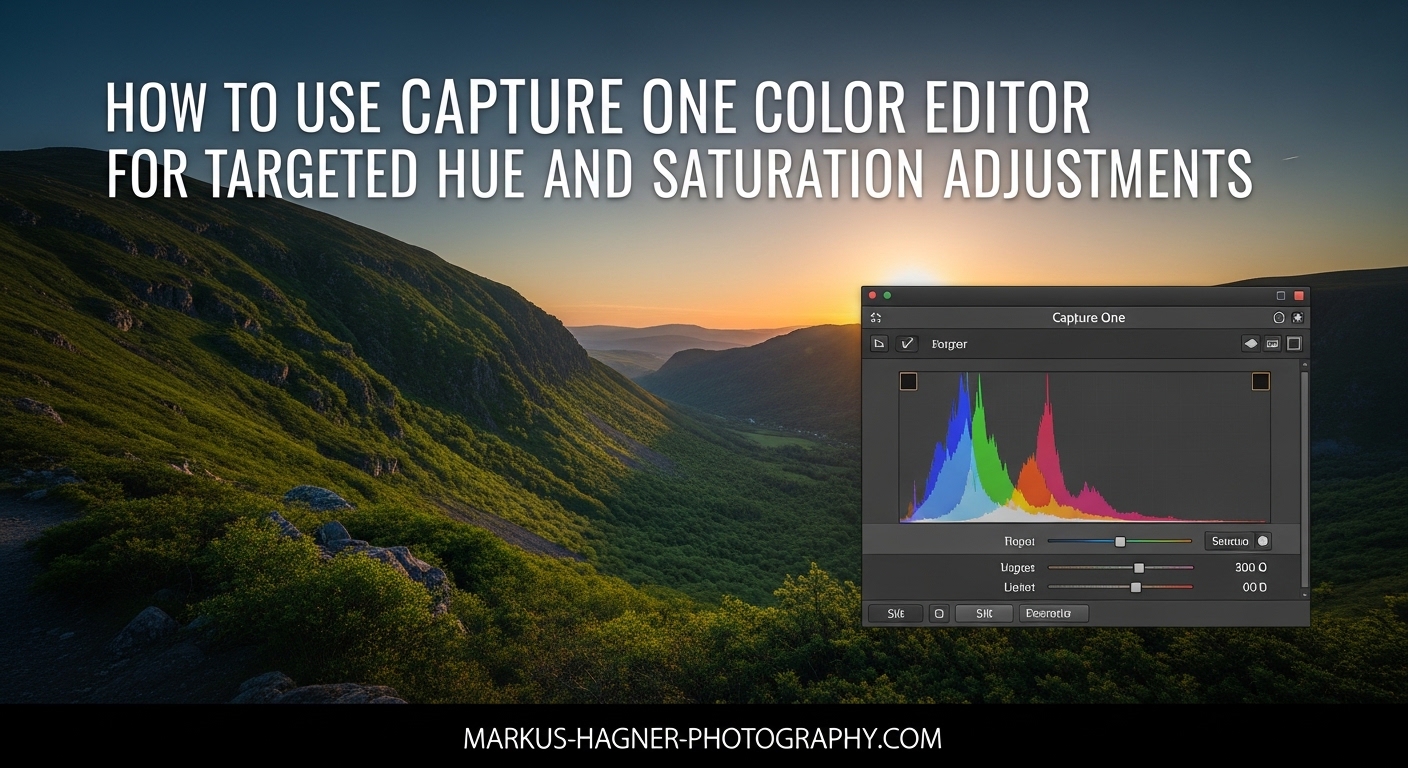
Capture One’s Color Editor is one of the most powerful tools for targeted color adjustments in photo editing. Whether you need to fix a color cast, enhance skin tones, or create dramatic color shifts, this tool gives you precise control over individual colors without affecting the rest of your image. In this guide, I will walk you through everything you need to know about using the Color Editor for targeted hue and saturation adjustments in 2026.
You will learn how to use all three Color Editor modes (Basic, Advanced, and Skin Tone), understand what each slider does, and discover practical workflows for real-world editing scenarios. By the end, you will be able to make professional-grade color adjustments that look natural and polished.
Table of Contents
- What Is the Capture One Color Editor?
- Using the Basic Color Editor Tab
- Mastering the Advanced Color Editor Tab
- The Skin Tone Tool Explained
- Practical Workflows and Use Cases
- Tips and Troubleshooting
- Frequently Asked Questions
- How do I adjust saturation in Capture One?
- What is the difference between Basic and Advanced Color Editor?
- How do I select a specific color range in Capture One?
- How do I remove color casts using Color Editor?
- How do I adjust skin tones in Capture One?
- What is the Color Editor tool used for?
- How does the hue saturation adjustment work?
- Can I save color adjustments as presets?
- Conclusion
What Is the Capture One Color Editor?
The Color Editor in Capture One is a dedicated tool for making selective color adjustments. Unlike global adjustments that affect the entire image, the Color Editor lets you target specific colors or color ranges and adjust them independently. This is essential for professional color grading, correcting mixed lighting issues, and achieving creative color effects.
The tool is located in the Color tool tab and has three distinct modes: Basic, Advanced, and Skin Tone. Each mode serves different purposes and offers varying levels of control over your color adjustments.
Understanding Hue, Saturation, and Lightness
Before diving into the Color Editor, you need to understand the three core adjustments available:
Hue refers to the position of a color on the color wheel. Shifting hue moves a color from one color to another, like changing red to orange or blue to purple. A positive hue shift rotates the color clockwise on the wheel, while a negative shift rotates counterclockwise.
Saturation controls the intensity or purity of a color. Increasing saturation makes colors more vivid, while decreasing it makes them more muted or gray. Saturation adjustments are useful for making colors pop or creating subtle, desaturated looks.
Lightness adjusts the brightness of a color without changing its hue or saturation. Increasing lightness makes a color lighter, while decreasing it makes the color darker. This is different from exposure adjustments, which affect the entire tonal range.
Color Editor Modes Overview
Each Color Editor mode offers different capabilities:
Basic Color Editor: Provides simple adjustments to predefined color ranges. Best for quick, gentle color corrections and when you need broad adjustments across similar colors.
Advanced Color Editor: Offers precise control with a color picker that lets you select exact colors to adjust. Ideal for targeted adjustments on specific objects or areas in your image.
Skin Tone: A specialized mode designed specifically for adjusting skin tones. Uses uniformity sliders to even out variations in skin color while maintaining natural appearance.
Using the Basic Color Editor Tab
The Basic Color Editor tab is the simplest way to make targeted color adjustments in Capture One. It provides access to six predefined color ranges that you can adjust individually. This mode works well when you need to make gentle adjustments to broad color categories without surgical precision.
When to Use Basic Mode
Use the Basic Color Editor when you want to adjust general color families rather than specific shades. It is perfect for warming up skies, cooling down foliage, or making overall color tweaks that affect similar colors throughout your image. The adjustments here are more subtle compared to the Advanced mode, making it harder to create unnatural-looking results.
Step-by-Step Basic Color Editor Instructions
Follow these steps to use the Basic Color Editor:
Step 1: Open the Color tool tab and locate the Color Editor. Click on the Basic tab at the top of the panel.
Step 2: Click on one of the six color range tabs (Red, Orange, Yellow, Green, Cyan, Blue, Magenta, Purple) to select which color family you want to adjust.
Step 3: Use the Hue slider to shift the selected color range. Positive values rotate the color clockwise on the color wheel, while negative values rotate counterclockwise.
Step 4: Adjust the Saturation slider to increase or decrease color intensity. Drag right for more vivid colors, left for more muted colors.
Step 5: Use the Lightness slider to make the selected colors brighter or darker without changing their hue or saturation.
Step 6: Adjust the Smoothness slider to control how gradual the transition is between adjusted and unadjusted colors. Higher values create smoother transitions.
Hue Slider Adjustments in Basic Mode
The Hue slider in Basic mode shifts all colors within the selected range equally. For example, selecting the Yellow tab and moving the Hue slider will shift all yellows in your image toward green (positive values) or orange (negative values). The range of adjustment is limited to prevent unnatural color shifts.
I recommend making small adjustments of 5-10 points at a time and evaluating the results. Large hue shifts can quickly make an image look artificial, especially when affecting skin tones or other memory colors.
Saturation Slider Adjustments
The Saturation slider in Basic mode works similarly to the global saturation control but only affects the selected color range. Dragging the slider to the right increases saturation, making colors more vivid. Dragging left decreases saturation, making colors more muted or gray.
One advantage of Basic mode saturation is that it uses non-linear adjustment, which protects already-saturated colors from becoming oversaturated. This makes it harder to accidentally ruin an image with excessive saturation.
Lightness and Smoothness Parameters
The Lightness slider adjusts the brightness of the selected color range independently of hue and saturation. This is useful for darkening a blue sky without affecting its color, or brightening green foliage without making it more saturated.
The Smoothness parameter controls the transition zone between adjusted and unadjusted colors. A low smoothness value creates a hard boundary, which can result in visible color banding. A high smoothness value creates a gradual transition that looks more natural. I typically keep smoothness at 50 or higher for smooth results.
Mastering the Advanced Color Editor Tab
The Advanced Color Editor is where you gain precise control over specific colors in your image. Unlike Basic mode with its predefined ranges, Advanced mode lets you use a color picker to select exact colors to adjust. This is essential for tasks like changing the color of a specific object, correcting color casts from mixed lighting, or creating dramatic color effects.
When to Use Advanced Mode
Use the Advanced Color Editor when you need surgical precision in your color adjustments. This mode is ideal for changing the color of a specific product, enhancing particular elements in a landscape, or fixing color issues that only affect certain areas of your image.
Advanced mode is also necessary when you want to make dramatic color changes. While Basic mode limits how far you can shift colors, Advanced mode allows you to stack multiple adjustments to achieve extreme hue rotations, like changing green to red or blue to yellow.
Using the Color Picker Tool
The Color Picker is the heart of the Advanced Color Editor. Here is how to use it effectively:
Step 1: Open the Color Editor and click on the Advanced tab.
Step 2: Click the Color Picker icon (eyedropper) in the panel.
Step 3: Click on the color in your image that you want to adjust. The tool will select that color and show a visualization on the color wheel.
Step 4: You will see a wireframe selection on the color wheel showing which colors are being targeted. The center of the selection is the exact color you picked, with the selection expanding to include similar colors.
Step 5: Adjust the sliders to modify the selected color range.
When using the Color Picker, click on the most representative area of the color you want to adjust. If you click on a transitional area or a mixed color, you may not get the selection you expect.
Color Range Selection Techniques
After picking a color, you can refine your selection on the color wheel. The wireframe visualization shows which colors are being targeted. You can adjust the size of the selection to include more or fewer similar colors.
For narrow selections that only affect the exact color you picked, keep the selection small. For broader adjustments that affect a range of similar colors, expand the selection. This flexibility lets you control whether you are adjusting just one shade of blue or the entire blue-green spectrum.
The visual feedback on the color wheel is invaluable for understanding what you are affecting. Colors inside the wireframe will be adjusted, while colors outside will remain unchanged.
Hue Adjustments in Advanced Mode
The Hue slider in Advanced mode works the same way as in Basic mode but only affects your selected color range. The key difference is that each adjustment is limited to a 30-degree rotation on the color wheel per color pick.
This 30-degree limit might seem restrictive, but there is a workaround. If you need to make a dramatic hue shift (like changing green to red), you can stack multiple adjustments. After making your first hue shift, pick the color again and apply another shift. Repeat until you achieve the desired color change.
For example, to change green foliage to autumn orange, you might need two or three stacked adjustments. First shift green toward yellow, then shift the result toward orange, and finally fine-tune toward red-orange if needed.
Saturation Adjustments for Specific Colors
The Saturation slider in Advanced mode uses linear adjustment, which means all colors in the selection are affected equally. This gives you more control but also requires more care to avoid oversaturation.
The saturation range in Advanced mode extends from -100 to +200, compared to -80 to +80 in Basic mode. This wider range allows for more extreme adjustments, including boosting colors far beyond their original saturation.
For fluorescent or neon colors, you often need to boost saturation significantly while also adjusting lightness. Fluorescent colors are both highly saturated and relatively bright, so increasing saturation alone may not achieve the effect you want.
Creating Masks from Color Selections
One powerful feature of the Advanced Color Editor is the ability to create a mask from your color selection. This lets you apply other adjustments only to the colors you have selected.
To create a mask from a color selection, click the “Create Mask from Selection” button in the Advanced Color Editor panel. This creates a new layer with a mask that isolates your selected colors. You can then apply any adjustment to this layer, not just color adjustments.
This technique is useful when you want to adjust brightness or contrast for specific colors without affecting the rest of the image. For example, you could darken a blue sky while leaving clouds and foreground elements untouched.
Stacking Multiple Hue Shifts
As mentioned earlier, each hue adjustment in Advanced mode is limited to approximately 30 degrees. For dramatic color changes, you need to stack multiple adjustments. Here is how I approach this:
Step 1: Pick the original color with the Color Picker.
Step 2: Shift the hue as far as the slider allows (about 30 degrees).
Step 3: Pick the shifted color with the Color Picker again.
Step 4: Apply another hue shift in the same direction.
Step 5: Repeat until you reach your target color.
For a green-to-red transformation, this typically requires 3-4 stacked adjustments. The advantage of this approach is that each step maintains smooth color transitions, resulting in a natural-looking final color.
The Skin Tone Tool Explained
The Skin Tone mode in the Color Editor is specifically designed for adjusting skin tones in portrait photography. It offers unique controls that help even out skin tone variations while maintaining a natural appearance.
When to Use Skin Tone Mode
Use the Skin Tone tool when editing portraits where skin tones need correction. This is particularly useful for fixing uneven skin tones caused by mixed lighting, sunburn, or high-contrast editing. The tool is designed to work specifically with the narrow range of colors found in human skin.
How the Skin Tone Tool Works
Unlike the other Color Editor modes, the Skin Tone tool uses uniformity sliders rather than hue, saturation, and lightness controls. These sliders work to reduce variations within skin tones, creating a more even appearance.
To use the Skin Tone tool:
Step 1: Open the Color Editor and click on the Skin Tone tab.
Step 2: Use the Color Picker to sample a representative skin tone from your subject.
Step 3: Adjust the Hue uniformity slider to even out hue variations in skin tones.
Step 4: Adjust the Saturation uniformity slider to even out saturation variations.
Step 5: Use the Lightness uniformity slider to even out brightness variations.
Uniformity Sliders Explanation
The uniformity sliders work differently from regular hue, saturation, and lightness adjustments. Instead of shifting all selected colors equally, they compress the range of variation within the selected colors.
For example, if skin has both pink and yellow areas, the Hue uniformity slider will bring both toward a middle ground rather than shifting everything in one direction. This is what makes the tool so effective for evening out skin tones without creating unnatural results.
High uniformity values create very even skin tones but can look flat if overdone. I typically use moderate values between 30-50 to maintain some natural variation while reducing obvious unevenness.
Practical Workflows and Use Cases
Understanding the Color Editor is one thing, but knowing when and how to apply it in real editing scenarios is what separates competent editing from professional results. Here are practical workflows for common situations.
Removing Color Casts Workflow
Color casts from mixed lighting or reflections can ruin an otherwise great photo. Here is my workflow for removing them:
Step 1: Always adjust white balance first using the White Balance tool. This addresses the overall color temperature of the image before targeted corrections.
Step 2: Identify any remaining color casts by examining neutral areas of the image. White and gray surfaces should appear neutral.
Step 3: Open the Advanced Color Editor and use the Color Picker to select the problematic color cast.
Step 4: Reduce saturation to neutralize the cast, or shift hue toward a more neutral color.
Step 5: Use smoothness adjustments to blend the correction naturally with surrounding colors.
Portrait Editing Workflow
For portrait editing, I recommend this approach:
Step 1: Start with the Skin Tone tool to even out major skin tone variations.
Step 2: Use the Advanced Color Editor to target specific issues like redness in cheeks or shadows.
Step 3: If needed, create a mask from your color selection to apply additional adjustments like exposure or contrast.
Step 4: Be conservative with skin tone adjustments. Small changes are usually sufficient, and over-editing creates an artificial look.
Landscape Color Enhancement
For landscape photography, the Color Editor excels at enhancing specific elements:
Use Basic mode to shift foliage colors toward warmer or cooler tones. A slight shift toward yellow can create an autumn feel, while a shift toward cyan can make foliage appear more lush and green.
Use Advanced mode to target sky colors specifically. You can enhance blue skies without affecting other elements, or shift sunset colors for more dramatic effect.
For water features, target the blue-green spectrum to enhance the color of oceans, lakes, or rivers without affecting surrounding landscape elements.
Product Photography Color Accuracy
Product photography often requires precise color accuracy. The Advanced Color Editor helps achieve this:
Use the Color Picker to select the product color, then make fine adjustments to match the actual product color. This is essential when color accuracy is critical, such as for e-commerce or catalog photography.
Create a mask from your selection to isolate the product, then apply additional adjustments to exposure or contrast without affecting the background.
Combining Color Editor with Local Adjustments
One of the most powerful techniques is combining the Color Editor with local adjustment layers. Here is how:
Step 1: Use the Color Editor to make your targeted color adjustments.
Step 2: Create a local adjustment layer for additional refinements.
Step 3: Use Luma Range masks in combination with color selections for even more precise targeting.
Step 4: Set the hardness of adjustment layers to 0 for smooth color blending.
This combination gives you maximum control over where and how your adjustments are applied.
Tips and Troubleshooting
Even experienced users encounter issues with the Color Editor. Here are solutions to common problems.
Color Editor Not Affecting Image
If your Color Editor adjustments seem to have no effect, check these issues:
First, verify that you have selected the correct layer. Adjustments only affect the currently selected layer, so if you are on a different layer, you may not see any changes.
Second, check if a mask is blocking your adjustments. If there is a mask on the layer, the adjustments may only be visible in unmasked areas.
Third, ensure your color selection actually includes colors present in the image. If you picked a color that does not exist in your photo, the adjustments will have nothing to affect.
Avoiding Color Banding
Color banding appears as visible steps or stripes in smooth color gradients. To avoid it:
Keep the Smoothness parameter at higher values (50 or above) for gradual transitions. Avoid extreme adjustments that compress color ranges too much. Work with higher bit-depth files when possible, as they support more color information.
Best Practices
Always adjust white balance before making targeted color corrections. If you change white balance after color editing, you may need to redo your work.
Make small, incremental adjustments rather than large changes. It is easier to add more adjustment than to undo excessive changes.
Use the before/after comparison frequently to evaluate your changes objectively.
Frequently Asked Questions
How do I adjust saturation in Capture One?
You can adjust saturation in Capture One using three methods: the Exposure tool’s Saturation slider for global adjustments, the Basic Color Editor for broad color range adjustments, or the Advanced Color Editor for precise saturation control on specific colors. Each method offers different levels of control, with the Advanced Color Editor providing the widest range (-100 to +200).
What is the difference between Basic and Advanced Color Editor?
The Basic Color Editor uses predefined color ranges (Red, Orange, Yellow, Green, Cyan, Blue, Magenta, Purple) with non-linear saturation adjustments and limited hue shifts. The Advanced Color Editor uses a Color Picker to select exact colors, offers linear saturation adjustments with a wider range, allows creating masks from selections, and supports stacking multiple adjustments for dramatic changes.
How do I select a specific color range in Capture One?
In the Advanced Color Editor, click the Color Picker (eyedropper icon), then click on the color in your image you want to adjust. A wireframe selection appears on the color wheel showing which colors are targeted. You can expand or contract this selection to include more or fewer similar colors.
How do I remove color casts using Color Editor?
First adjust white balance using the White Balance tool to address overall color temperature. Then use the Advanced Color Editor to pick the problematic color cast and reduce its saturation or shift its hue toward neutral. Use higher smoothness values for natural blending with surrounding colors.
How do I adjust skin tones in Capture One?
Use the Skin Tone mode in the Color Editor. Pick a representative skin tone with the Color Picker, then adjust the Hue, Saturation, and Lightness uniformity sliders. These compress variations within skin tones rather than shifting them, creating even skin appearance while maintaining natural results.
What is the Color Editor tool used for?
The Color Editor is used for targeted color adjustments in Capture One. It allows you to select and modify specific colors or color ranges without affecting other colors in the image. Common uses include color correction, creative color grading, skin tone enhancement, color cast removal, and product color accuracy.
How does the hue saturation adjustment work?
Hue shifts the position of a color on the color wheel, changing one color to another. Saturation controls the intensity or purity of a color, making it more vivid or muted. Both can be applied globally or to specific color ranges using the Color Editor, with the Advanced mode offering the most precise control.
Can I save color adjustments as presets?
Yes, Capture One allows you to save Color Editor adjustments as presets. You can also create ICC profiles from your color adjustments, which can be applied to other images for consistent color grading across a photo shoot or project.
Conclusion
The Capture One Color Editor is an essential tool for any photographer who needs precise control over color. By understanding the differences between Basic, Advanced, and Skin Tone modes, you can choose the right approach for any editing situation.
Remember that Basic mode is best for gentle adjustments to broad color families, Advanced mode provides surgical precision for targeted changes, and Skin Tone mode offers specialized controls for portrait editing. Combining these tools with masks and local adjustments gives you complete control over the colors in your images.
With practice, the techniques covered in this guide on how to use Capture One Color Editor for targeted hue and saturation adjustments will become second nature, allowing you to achieve professional color grading results efficiently.