
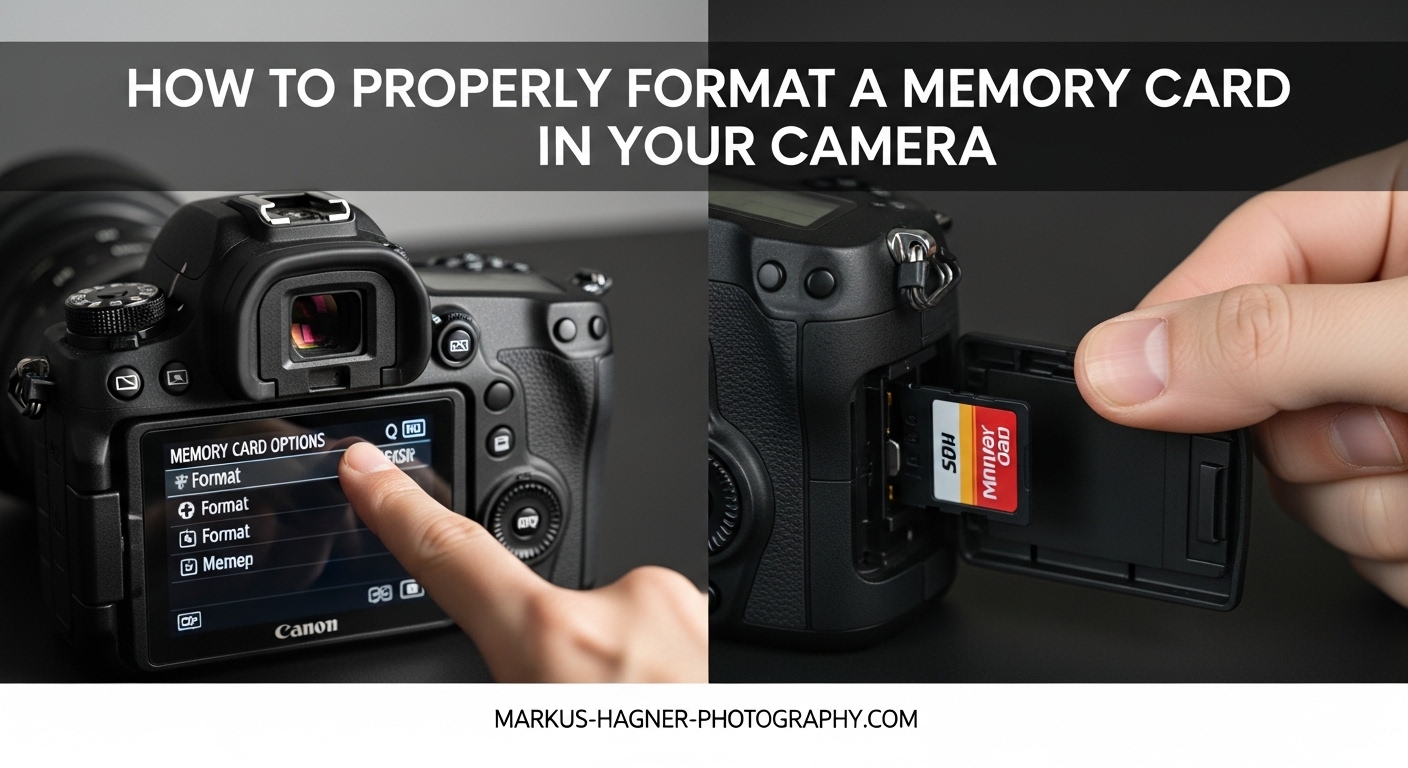
Learning how to properly format a memory card in your camera is one of those small habits that can save you from big headaches. I learned this lesson the hard way years ago when I lost an entire day of wedding photos because I had been simply deleting files instead of formatting the card properly. The file system had become corrupted, and my camera struggled to write new data reliably.
In this guide, I will walk you through exactly what formatting does, why it matters for your photography, and the step-by-step process for all major camera brands. You will also learn when to format, how often, and why most professionals choose in-camera formatting over computer formatting.
What Does Formatting a Memory Card Actually Mean?
Formatting a memory card means preparing the storage medium for use by creating a fresh file system that your camera can read and write to efficiently. Think of it like setting up a clean, organized filing cabinet before you start storing documents. When you format, your camera establishes the structure it needs to save, locate, and retrieve your photos and videos.
Behind the scenes, formatting creates something called a File Allocation Table (FAT). This table acts as an index that tracks where every piece of data is stored on the card. Without this index, your camera would have no way to know where one photo ends and another begins. Most cameras use either FAT32 or exFAT file systems, with exFAT being the modern standard for cards larger than 32GB.
Another critical thing formatting does is set the block size for your specific camera. Block size refers to how data gets organized into chunks on the card. When your camera formats the card itself, it chooses a block size optimized for that camera’s writing patterns. This optimization can improve write speeds during burst shooting and video recording.
The format process also identifies and marks any bad sectors on the card. These are physical areas that can no longer reliably store data. By marking them as unusable, your camera avoids writing to those spots, which prevents file corruption down the road.
Why You Should Format Your Memory Card In-Camera vs Computer
The short answer: always format your memory card in the camera you plan to use it in. This approach gives you the best compatibility, performance, and reliability for your specific equipment. Here is why professional photographers almost universally recommend this practice.
When a camera formats a card, it configures the file system specifically for that camera model. Different cameras have different writing patterns, buffer sizes, and performance requirements. By letting your camera handle the formatting, you ensure the file system matches exactly what that camera expects. Computer formatting uses generic settings that may not align with your camera’s needs.
I have seen photographers run into frustrating issues after formatting cards on their computers. Cards formatted on a Mac sometimes use file systems that cameras cannot read at all. Even when the card works, the block size might be wrong, leading to slower write speeds during burst shooting or video recording. One photographer I know missed capturing a critical moment during a sports event because his camera buffer filled up faster than expected after a computer format.
Cross-camera compatibility creates another set of problems. If you format a card in a Canon and then put it in a Nikon, the Nikon may need to reformat it anyway. Some cameras even refuse to work with cards formatted by other brands until you format them fresh. This is why many professionals keep specific cards dedicated to specific camera bodies.
The exception to the in-camera rule comes from the SD Association. They offer a free SD Card Formatter tool designed specifically for memory cards. Some photographers format with this tool first, then format again in their camera. This double-format approach can help refresh cards that have developed issues, but for regular maintenance, in-camera formatting remains the gold standard.
How to Properly Format a Memory Card in Your Camera In 2026?
Below you will find step-by-step instructions for formatting memory cards in the most popular camera brands. The exact menu names might vary slightly between models, but the general process remains consistent across each manufacturer’s lineup.
Formatting on Canon Cameras
Canon makes the format process straightforward across their DSLR and mirrorless cameras. Follow these steps:
Step 1: Press the Menu button on the back of your camera.
Step 2: Navigate to the Setup menu (usually indicated by a wrench or tools icon).
Step 3: Look for “Format Card” or “Format Memory Card” in the setup options.
Step 4: Select the card slot if your camera has dual slots.
Step 5: Select OK or Execute to confirm. Some Canon models offer a low-level format option, which takes longer but does a more thorough job of refreshing the card.
Step 6: Wait for the process to complete. Most cards format in just a few seconds.
Formatting on Nikon Cameras
Nikon cameras follow a similar pattern with slight variations in menu organization:
Step 1: Press the Menu button.
Step 2: Go to the Setup Menu (wrench icon).
Step 3: Find “Format Memory Card” in the list.
Step 4: Select which card to format if using a dual-slot body.
Step 5: Highlight Yes and press OK to confirm.
Step 6: The camera displays a progress bar and confirms when finished.
Formatting on Sony Cameras
Sony Alpha cameras place the format option in a similar location:
Step 1: Press the Menu button.
Step 2: Navigate to the Setup tab (toolbox or suitcase icon depending on model).
Step 3: Select “Format” from the menu options.
Step 4: Choose the memory card slot if applicable.
Step 5: Enter your confirmation when prompted.
Step 6: Wait for completion before removing the card.
Formatting on Fujifilm Cameras
Fujifilm X-series and GFX cameras use this process:
Step 1: Press the Menu/OK button.
Step 2: Navigate to the User Setting or Setup menu.
Step 3: Find “Format” in the list.
Step 4: Select the card slot for dual-slot bodies.
Step 5: Confirm by selecting OK.
Quick Tip for All Brands
Before formatting any card, always make sure you have backed up your photos. Formatting erases all data on the card. Get in the habit of transferring your images to your computer or external drive first, verifying the transfer was successful, and then formatting the card in-camera.
Format vs Erase: What is the Difference?
This question comes up constantly in photography forums, and understanding the difference can save you from file corruption issues. Both options remove photos from your card, but they work very differently under the hood.
Erasing (or “Delete All”) simply removes the references to your files from the file allocation table. The actual data remains on the card until new photos overwrite it. Think of it like removing entries from a table of contents while leaving the chapters intact. The card looks empty to your camera, but the file system structure has not changed.
Formatting, on the other hand, rebuilds the entire file system from scratch. It creates a fresh file allocation table, resets the block structure, and marks bad sectors. This is like not just clearing the table of contents but reorganizing the entire book with clean, blank pages.
Over time, simply erasing files can lead to file fragmentation and system errors. The file table accumulates orphaned entries, and the card has to work harder to find space for new data. Formatting periodically clears out all that accumulated mess and gives your card a fresh start.
Professional photographers almost always choose format over erase. Many wedding and event photographers I know format their cards before every single shoot. They treat it as a pre-flight check, just like checking their battery levels and lens cleanliness.
When Should You Format Your Memory Card?
Timing matters with formatting. Here are the key situations when you should reach for that format option.
Before important shoots: Format your cards before weddings, sports events, portrait sessions, or any shoot where missing shots would be a problem. This gives you a clean card with a fresh file system and maximum available space.
After backing up photos: Once you have transferred your images to your computer and verified they opened correctly, format the card in-camera. This prepares it for your next session.
When switching cameras: If you move a card between different camera brands or even significantly different models from the same brand, format it in the new camera before shooting.
New cards: Always format a brand new memory card in your camera before first use. Factory formatting may work, but in-camera formatting ensures optimal setup for your specific gear.
Signs of trouble: If your camera shows write errors, takes longer to save photos, or behaves inconsistently with a particular card, formatting might resolve the issue. If problems persist after formatting, the card itself may be failing.
How often should you format? Many professionals format before every shoot as part of their routine. Others format weekly or monthly depending on their shooting volume. The key is consistency and always formatting after you have confirmed your backup is safe.
Common Problems and Solutions
Even with proper formatting habits, you might encounter some issues. Here are solutions to the most common memory card problems.
My card says it needs formatting but has photos on it: Do not format yet. This message often appears when the file system has minor corruption that recovery software can fix. Connect the card to a computer using a card reader and run recovery software like PhotoRec or Recuva. These tools can often retrieve your images even when the file table is damaged.
Card not recognized after computer formatting: This usually means the computer used an incompatible file system. Put the card back in your camera and format it there. If the camera cannot read it at all, try the SD Association’s formatter tool on your computer first, then format again in-camera.
Slow write speeds or buffer filling quickly: A fragmented file system might be the culprit. Format the card in-camera to refresh the file structure. If speeds remain slow, the card may be nearing end of life, especially if it has seen heavy use over several years.
Recurring corruption: If the same card keeps developing issues despite proper formatting, replace it. Memory cards have finite lifespans, and continued problems usually indicate hardware failure rather than software issues.
Frequently Asked Questions
Should you format a SD card in a camera?
Yes, you should always format your SD card in the camera you plan to use it in. In-camera formatting optimizes the file system and block size specifically for that camera model, ensuring maximum compatibility and write performance. Computer formatting uses generic settings that may not match your camera’s requirements.
Do you need to format a new SD card for camera?
Yes, format any new SD card in your camera before first use. While cards come pre-formatted from the factory, formatting in your specific camera ensures the file system is optimized for that camera’s writing patterns and eliminates any potential compatibility issues.
How often should I format my memory card?
Most professional photographers format their memory cards before every important shoot and after each backup. At minimum, format monthly or after every few hundred photos. Regular formatting maintains card health and prevents file system errors from accumulating.
What does format SD card mean on camera?
Formatting an SD card on your camera means the camera creates a fresh file system optimized for its specific needs. It rebuilds the file allocation table, sets appropriate block sizes, and marks any bad sectors. This process prepares the card to store photos efficiently and reliably in that specific camera.
Will formatting erase all my photos?
Yes, formatting erases all photos and data on the memory card. Always transfer your images to your computer and verify the backup is complete before formatting. Recovery software can sometimes retrieve photos after accidental formatting, but success is not guaranteed, so prevention through proper backup habits is essential.
Conclusion
Formatting your memory card in-camera is a simple habit that protects your photos and keeps your gear running smoothly. It takes just seconds but prevents the kind of file corruption that can ruin a shoot. Make formatting part of your pre-shoot routine: transfer your photos, verify the backup, then format the card in the camera you will use next. Your future self will thank you when every photo writes reliably and your cards last longer.