
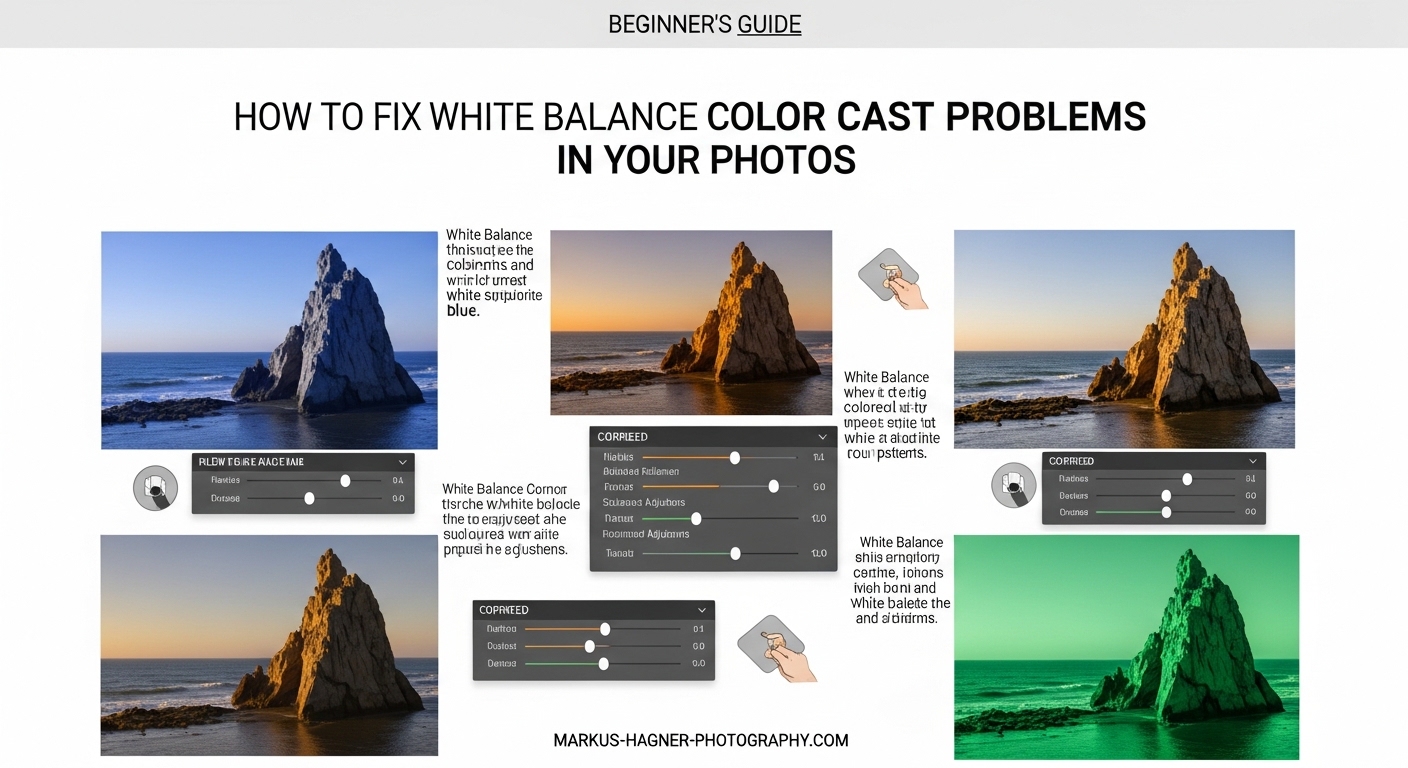
Have you ever looked at a photo and felt something was off? The colors look strange, skin tones appear unnatural, or the entire image has an odd tint that you can’t quite identify. You’re not alone. Color cast problems frustrate photographers at every level, from beginners shooting family gatherings to professionals working on commercial projects.
In this guide, I’ll show you exactly how to fix white balance color cast problems in your photos using multiple methods. You’ll learn to identify different types of color casts, understand why they happen, and master correction techniques in Lightroom, Photoshop, and mobile apps. By the end, you’ll have the confidence to tackle any white balance issue that comes your way.
Getting accurate colors matters more than most photographers realize. A color cast can make a product photo look unprofessional, turn a beautiful portrait into something unflattering, or completely change the mood of a landscape shot. Let’s dive into the solutions.
Table of Contents
- Understanding White Balance and Color Casts
- Prevention: Getting White Balance Right In-Camera
- How to Fix White Balance Color Cast Problems in Your Photos Using Lightroom
- Fixing White Balance in Photoshop
- Mobile Photo Editing Solutions
- Advanced Techniques for Difficult Color Casts
- Frequently Asked Questions
- Conclusion
Understanding White Balance and Color Casts
White balance is the process of adjusting colors in your image so that white objects appear truly white. Our eyes automatically adjust to different lighting conditions, but cameras need help. When the white balance is wrong, your entire photo takes on an unwanted color tint called a color cast.
What Causes Color Casts
Every light source has its own color temperature, measured on the Kelvin scale. Daylight falls around 5500K, appearing neutral to our eyes. Tungsten bulbs sit around 3200K, producing warm orange light. Fluorescent tubes often have a green tint. When your camera’s white balance setting doesn’t match the actual lighting, you get a color cast.
Here are the most common types of color casts you’ll encounter:
Warm (Orange/Yellow) Cast: Usually appears in indoor photos shot under tungsten or incandescent lighting. The entire image takes on an amber tone that makes whites look yellowish.
Cool (Blue) Cast: Often happens when shooting in shade or overcast conditions with daylight white balance settings. The photo looks cold and slightly blue.
Green Cast: Common under fluorescent lights or in areas with lots of green foliage reflecting light. Skin tones look sickly and unnatural.
Magenta Cast: The opposite of green, sometimes appearing with certain LED lights or as a result of over-correction for green casts.
How to Identify Color Cast Problems
The easiest way to spot a color cast is to look at neutral areas in your image. Find something that should be white, gray, or neutral in color. Clouds, white walls, concrete, or gray clothing work well. If these areas show any tint, you have a color cast problem.
Another method is to examine skin tones. Human skin has a relatively narrow range of acceptable color values. If faces look too orange, too pink, or have a greenish tint, your white balance needs adjustment.
You can also use the RGB readout in your editing software. Find a neutral area and check the RGB values. In a perfectly neutral gray, R, G, and B values should be equal. If one channel reads significantly higher, that’s your color cast.
Prevention: Getting White Balance Right In-Camera
The best fix for white balance problems starts before you even press the shutter. A few simple habits can save you hours of editing time.
Shoot in RAW Format
I can’t stress this enough. RAW files capture all the data from your camera’s sensor without compression or in-camera processing. When you shoot RAW, white balance information is saved as metadata rather than baked into the image. This means you can adjust white balance freely during editing without degrading image quality.
JPEG files, on the other hand, have white balance applied permanently. You can make adjustments, but they’re limited and can introduce artifacts. If you’re serious about photography, shoot RAW whenever possible.
Choose the Right White Balance Preset
Most cameras offer several white balance presets beyond auto. These include daylight, cloudy, shade, tungsten, fluorescent, and flash. Match your preset to the lighting conditions for more consistent results.
Here’s a quick reference for common situations:
- Daylight (5200-5600K): Sunny outdoor conditions, midday light
- Cloudy (6000-6500K): Overcast days, soft diffused light
- Shade (7000-8000K): Open shade, north-facing windows
- Tungsten (3200K): Traditional incandescent bulbs
- Fluorescent (4000K): Office lighting, tube lights
Use a Gray Card for Custom White Balance
For critical work, nothing beats a custom white balance measured with a gray card. Place a neutral gray card in your scene under the same lighting as your subject. Fill the frame with the card and take a reference shot. Then use your camera’s custom white balance function to calibrate from that image.
This technique is especially valuable for product photography, weddings, and any situation where color accuracy is essential. A gray card costs around fifteen dollars and pays for itself quickly in saved editing time.
How to Fix White Balance Color Cast Problems in Your Photos Using Lightroom
Lightroom offers powerful white balance tools that work for most situations. I’ll walk you through each method, starting with the basics and moving to advanced techniques.
Using the Temperature and Tint Sliders
The Basic panel in Lightroom’s Develop module contains two essential controls: Temperature and Tint. These work together to neutralize color casts.
Temperature adjusts the warm-cool axis. Drag left (toward blue) to cool down a warm image. Drag right (toward yellow) to warm up a cool image. The values display in Kelvin, so you can think of it like adjusting the color of your light source.
Tint handles the green-magenta axis. Drag left to add green, which counters magenta casts. Drag right to add magenta, which neutralizes green casts. This slider is crucial for fluorescent lighting correction.
Start with temperature first, then fine-tune with tint. Small adjustments of 100-200K often make a significant difference.
The White Balance Selector Tool (Eyedropper)
For quick, accurate corrections, use the White Balance Selector tool. It’s the eyedropper icon in the Basic panel, or press W as a shortcut.
Here’s how to use it effectively:
Step 1: Select the White Balance Selector tool from the Basic panel.
Step 2: Move your cursor over the image. Lightroom displays RGB values as you hover.
Step 3: Click on an area that should be neutral (white, gray, or black). Look for something with roughly equal RGB values.
Step 4: Lightroom automatically adjusts Temperature and Tint to neutralize that point.
Step 5: If the result looks off, try clicking different neutral areas until you find one that works.
The tool samples a small area (you can adjust the sample size in preferences), so aim for mid-tones rather than bright highlights or deep shadows. A light gray often works better than pure white.
Lightroom White Balance Presets
At the top of the Basic panel, you’ll find a dropdown menu with white balance presets. These include As Shot, Auto, Daylight, Cloudy, Shade, Tungsten, Fluorescent, and Flash.
These presets can serve as useful starting points. If you shot indoors under tungsten lighting, try the Tungsten preset as your baseline. From there, make manual adjustments to fine-tune the result.
Batch Processing for Consistency
When you’ve corrected white balance on one image from a shoot, apply those settings to all similar images. Select the corrected photo, then Shift-click to select others shot in the same lighting. Click the Sync button and check White Balance in the dialog. This maintains consistent color across your entire gallery.
Fixing White Balance in Photoshop
Photoshop offers multiple approaches to white balance correction. I’ll cover the three most effective methods.
Adobe Camera Raw Method
When you open a RAW file in Photoshop, it first loads in Adobe Camera Raw (ACR). This interface is nearly identical to Lightroom’s Develop module and offers the same white balance controls.
Use the Temperature and Tint sliders exactly as you would in Lightroom. The White Balance tool works the same way too. Click on a neutral area with the eyedropper to automatically set color values.
For JPEG files, you can still access ACR through Filter > Camera Raw Filter. While you won’t have as much flexibility as with RAW files, the same tools apply.
Curves Adjustment Layer Technique
The Curves adjustment offers precise control over individual color channels. This method works well for difficult color casts that resist standard corrections.
Step 1: Add a Curves adjustment layer above your image.
Step 2: Click the RGB dropdown and select Red.
Step 3: Add a point in the middle of the curve. Move it slightly up to add red or down to subtract red.
Step 4: Repeat for Green and Blue channels as needed.
Step 5: Use the layer mask to limit adjustments to specific areas if needed.
This technique requires practice but gives you surgical precision. Watch your histogram as you adjust to avoid clipping.
Selective Color Adjustments
When only certain colors need correction, try the Selective Color adjustment. Layer > New Adjustment Layer > Selective Color.
Choose a color range from the dropdown (Reds, Yellows, Cyans, etc.) and adjust the CMYK sliders. This works especially well for skin tone corrections where you want to affect only specific hues.
Mobile Photo Editing Solutions
You don’t need a desktop computer to fix white balance. Modern mobile apps offer capable correction tools.
iPhone Photos App
The built-in Photos app on iPhone includes basic white balance controls. Open an image, tap Edit, then tap the adjustment icon (dial). Swipe to find the Warmth and Cast tools.
Warmth adjusts the temperature axis. Cast handles the green-magenta tint. Both work on a simple slider system. The results aren’t as precise as desktop software, but they handle mild corrections well.
Snapseed (Free)
Google’s Snapseed offers more control. In the Tools menu, select White Balance. You get Temperature and Tint sliders plus an Auto option that analyzes the image.
The app also includes a Curves tool under Tools > Curves. This gives you RGB channel control similar to Photoshop, making Snapseed surprisingly powerful for a free mobile app.
Lightroom Mobile
Adobe Lightroom for mobile provides the same white balance tools as the desktop version. Temperature, Tint, and the White Balance Selector all work identically. If you use Lightroom on your computer, the mobile app syncs your edits through the cloud.
This is my top recommendation for mobile editing. The tools are professional-grade, and the integration with desktop Lightroom streamlines your workflow.
Advanced Techniques for Difficult Color Casts
Some situations resist standard correction methods. Here are techniques for challenging scenarios.
HSL Panel for Targeted Corrections
When a color cast affects only certain hues, the HSL panel in Lightroom provides targeted control. Instead of adjusting the entire image, you modify specific color ranges.
For example, if fluorescent lighting made skin tones too green, go to the HSL panel and reduce Saturation in the Green channel. You can also shift Hue slightly toward yellow to warm up affected areas without changing the overall white balance.
The Luminance tab helps when colors are both tinted and too bright or dark. Reduce Green Luminance to tone down overly bright foliage reflecting into your subject.
Mixed Lighting Scenarios
Mixed lighting occurs when different light sources illuminate your scene. Daylight from a window plus tungsten overhead lights creates a nightmare for white balance.
For these situations, pick your priority. Which light source affects your main subject? Correct for that lighting and accept the color difference in other areas. Alternatively, use adjustment brushes in Lightroom or layer masks in Photoshop to apply different corrections to different parts of the image.
In extreme cases, consider converting to black and white. If the color conflicts are too severe, removing color entirely often produces a more pleasing result than fighting an impossible battle.
Monitor Calibration Matters
Your edits are only as accurate as your display. A miscalibrated monitor can introduce color casts that you unknowingly correct for, making your images look wrong on other screens.
Use a hardware calibration device like a Datacolor Spyder or X-Rite i1Display. These tools measure your monitor’s output and create a profile that ensures accurate color. Calibrate every few weeks for consistent results.
Without calibration, you might see color casts that don’t exist or miss ones that do. It’s a worthwhile investment for anyone serious about photo editing.
Frequently Asked Questions
How to fix white balance in photos?
How to correct color cast in Photoshop?
How to correct white balance on iPhone photos?
What causes color cast in photos?
Conclusion
Learning how to fix white balance color cast problems in your photos transforms your editing workflow. Start by shooting in RAW format whenever possible. This single habit gives you maximum flexibility during post-processing. Use the White Balance Selector tool for quick corrections, or adjust Temperature and Tint manually for precise control.
Remember that prevention beats correction. Set your in-camera white balance to match your lighting conditions. Carry a gray card for critical work. And calibrate your monitor regularly so your edits translate accurately across devices.
With practice, identifying and fixing color casts becomes second nature. Your photos will look more natural, your skin tones will appear accurate, and your entire portfolio will have a professional polish that sets your work apart.