
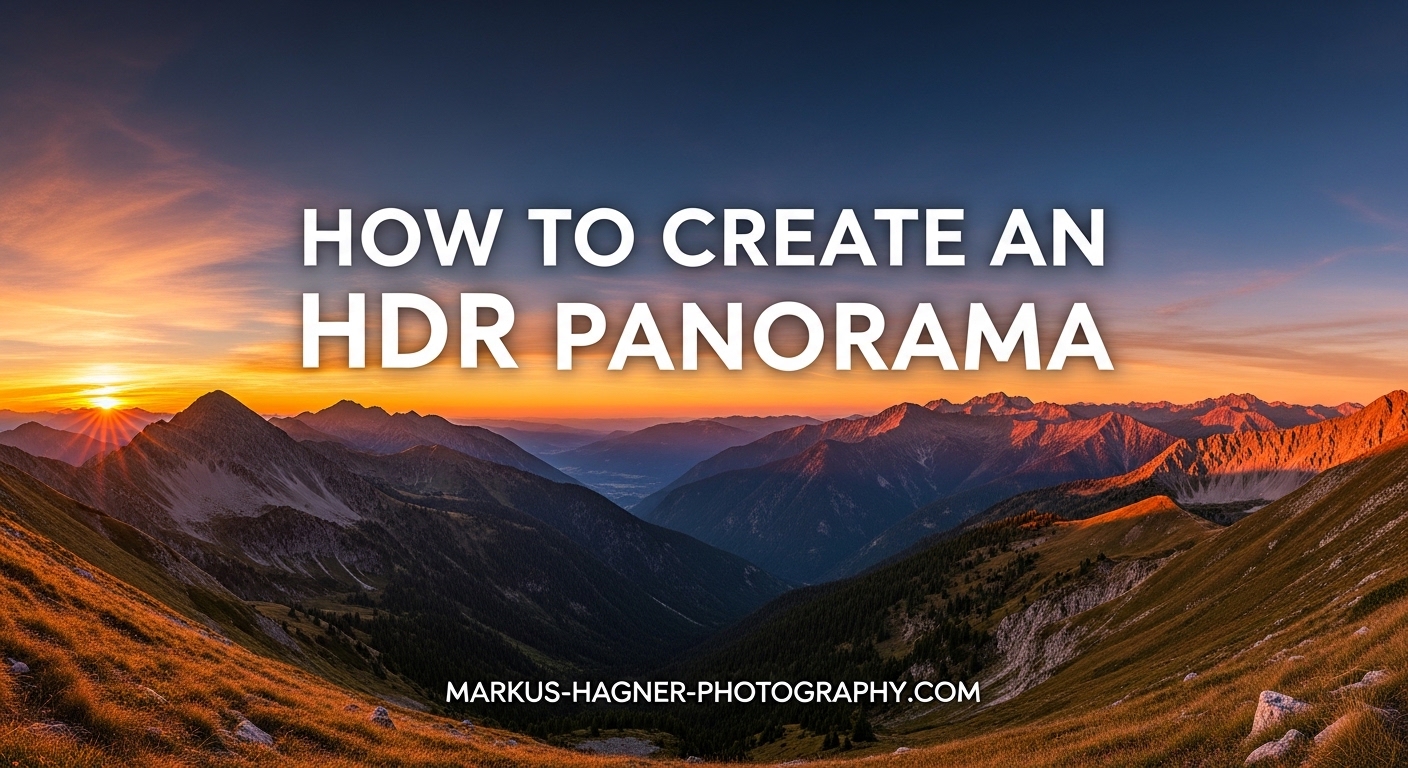
Capturing scenes with extreme contrast and expansive views used to require choosing between two techniques. You could either expose for dynamic range using HDR bracketing or capture a wide perspective with panorama stitching. An HDR panorama combines both approaches, giving you the best of both worlds in a single image. After testing this workflow extensively across landscape and architectural projects, I’ve found it transforms challenging scenes into stunning photographs that capture both the full dynamic range and the complete field of view.
This guide will show you exactly how to create an HDR panorama by combining exposure bracketing and stitching in Lightroom Classic. I’ll cover the complete workflow from camera settings through final processing, including solutions for common errors that frustrate many photographers.
What is HDR Panorama?
An HDR panorama is a panoramic image created by merging multiple exposure-bracketed photos that have been stitched together into a wide composition. The result captures both an expanded field of view and enhanced dynamic range that exceeds what your camera can capture in a single frame.
Think of it as two techniques working together. Exposure bracketing captures the same scene at different brightness levels (usually 3, 5, or 7 shots), preserving details in both highlights and shadows. Panorama stitching combines overlapping images to create a wider perspective than any single lens can capture. When you combine them, you get dramatic images that handle extreme contrast while showing expansive scenes.
HDR panoramas excel in situations with high contrast and wide views. Landscape photographers use them for sunrise and sunset scenes where the sky is much brighter than the foreground. Architectural photographers rely on them for interior spaces with bright windows and dark corners. Real estate photographers use HDR panoramas to showcase entire rooms with balanced exposure throughout.
The key advantage over standard panoramas is detail retention. A regular panorama might blow out the sky or crush shadow details in high-contrast scenes. An HDR panorama preserves information across the entire tonal range, giving you more flexibility in post-processing and more natural-looking final images.
Understanding Exposure Bracketing
Exposure bracketing is the foundation of HDR photography. Your camera captures multiple frames of the same scene at different exposure values. The middle shot is at your base exposure, while additional shots capture brighter and darker versions.
For most HDR panorama work, I recommend 3-shot bracketing at 2 EV spacing. This gives you one normal exposure, one 2 stops darker (for highlight detail), and one 2 stops brighter (for shadow detail). This combination covers most real-world scenes without excessive file sizes or processing time.
Five-shot bracketing at 1-2 EV spacing works better for extreme contrast scenes. Think of a sunrise with bright sun and deep foreground shadows. The extra captures give you more data to work with, but they also increase processing time and file sizes significantly.
Seven-shot bracketing is rarely necessary unless you’re shooting extremely high-contrast scenes or plan to do heavy HDR processing. In my experience, 5 shots cover even the most demanding situations, and the diminishing returns of 7 shots aren’t worth the extra overhead for most photographers.
How to Create an HDR Panorama: Shooting Techniques
Successful HDR panoramas start in the field with proper technique. I’ve learned this the hard way after botching countless shots early in my photography journey. Follow these steps to avoid common mistakes.
Step 1: Use a Sturdy Tripod
A tripod is essential for HDR panorama work. You need rock-solid stability because you’re combining multiple exposures across multiple positions. Any movement between shots creates alignment issues and ghosting artifacts that can ruin the merge.
I recommend a tripod with a panoramic head if you shoot panoramas regularly. The panoramic head lets you rotate the camera around its nodal point, which minimizes parallax errors. Parallax occurs when foreground objects shift position relative to the background as you rotate the camera, creating stitching problems.
If you don’t have a panoramic head, position your camera so the lens entrance pupil (not the front of the lens) is directly over the rotation point. This reduces parallax enough for most landscape work where foreground objects are distant.
Step 2: Set Your Camera to Manual Mode
Manual mode is non-negotiable for HDR panoramas. Auto exposure will adjust settings between shots, creating inconsistent exposures that merge software can’t handle. Set your exposure manually based on the brightest part of your scene (usually the sky).
Choose your aperture first. I typically shoot at f/8 to f/11 for landscapes to ensure sharpness throughout the frame while avoiding diffraction. Keep this aperture constant across all shots.
Set your ISO to the lowest native value (usually ISO 100 or 200) to minimize noise. Higher ISOs compound when merging multiple images, so keeping ISO low is especially important for HDR work.
Step 3: Lock Your White Balance
Auto white balance will create color shifts between frames. Set a custom white balance or choose a fixed preset (daylight, shade, cloudy, etc.) and keep it consistent for the entire panorama sequence.
I learned this lesson after shooting a sunset panorama where every frame had a different color temperature. The merged image looked like a patchwork quilt with weird color transitions. Locking white balance solved the problem completely.
Step 4: Enable Exposure Bracketing
Most modern cameras have built-in auto bracketing. Check your camera menu for “AEB” or “Exposure Bracketing.” Set it to capture 3 shots at 2 EV intervals for most situations, or 5 shots at 1-2 EV intervals for extreme contrast.
Some cameras let you customize the bracketing sequence. I prefer the order: 0 EV, -2 EV, +2 EV. This puts the normal exposure first, making it easier to identify sets when sorting through files later.
Step 5: Shoot with 30-40% Overlap
Overlap between frames is critical for successful stitching. I aim for 30-40% overlap between shots. This gives stitching software enough reference points to align images accurately.
Here’s the pattern for a typical 3-position panorama with 3-shot bracketing: Position 1 (3 shots), rotate, Position 2 (3 shots), rotate, Position 3 (3 shots). You’ll have 9 total frames creating 3 HDR sets that will stitch into one panorama.
Use grid lines in your viewfinder if available, or estimate overlap by noting where distinctive landmarks fall in the frame. Consistent overlap is more important than precise percentages.
Step 6: Use a Remote Release or Timer
Even on a tripod, pressing the shutter can cause slight camera movement. Use a remote release or the camera’s 2-second timer to eliminate this vibration. For long exposures or telephoto lenses, this is especially important.
Some cameras have a bracketing burst mode that captures all exposures automatically with one press. This is ideal because it minimizes the time between shots, reducing the chance of movement or changing light conditions.
Handheld HDR Panorama Technique
Sometimes you can’t use a tripod. Travel photography often demands handheld work. Is it possible to create handheld HDR panoramas? Yes, but success depends on several factors.
Higher shutter speeds (1/500 or faster) help freeze motion between shots. Wider lenses are more forgiving because camera shake is less apparent at wide focal lengths. And fewer positions (2-3 instead of 5-6) increase your success rate.
The key is smooth rotation around your body rather than swinging the camera. Pivot at your waist while keeping your arms tucked close. This maintains more consistent positioning between frames.
Expect lower success rates with handheld work. I typically shoot extra sequences knowing some won’t align properly. When it works, the results can be impressive, but tripod-mounted shots remain the gold standard for quality.
One-Step vs Two-Step HDR Panorama Workflow
When processing HDR panoramas, you have two approaches: one-step or two-step workflow. Understanding the differences helps you choose the right method for each situation.
One-Step Workflow: Lightroom’s HDR Panorama merge handles both bracketing and stitching simultaneously. Select all your bracketed frames and choose Photo > Photo Merge > HDR Panorama. Lightroom detects the bracket sets, merges them into HDR images, and stitches those into a panorama in one operation.
Two-Step Workflow: First merge each bracket set into individual HDR images using Photo > Photo Merge > HDR. Then stitch the resulting HDR DNG files into a panorama using Photo > Photo Merge > Panorama.
The one-step method is faster and more convenient. It uses less memory because Lightroom optimizes the process. For typical 3-position panoramas with 3-shot bracketing (9 frames total), one-step works perfectly.
The two-step approach offers more control. You can tweak each HDR merge before stitching, and you can inspect intermediate results. This is helpful for problematic sequences or when you want different HDR settings for different parts of the scene.
Memory considerations often dictate the choice. Large HDR panoramas can consume enormous amounts of RAM. Forum users frequently report Lightroom using 130-250GB when processing complex sequences. The two-step method sometimes uses less memory for very large panoramas because it breaks the process into smaller operations.
For most photographers, I recommend starting with the one-step method. Switch to two-step only if you encounter memory errors or need more control over the HDR merges.
How to Create an HDR Panorama in Lightroom Classic?
Lightroom Classic makes creating HDR panoramas straightforward once you understand the workflow. Follow these steps for reliable results.
Step 1: Import and Organize Your Images
Import all your panorama frames into Lightroom. I recommend creating a collection for each panorama sequence to keep things organized. This is especially helpful when you’re shooting multiple panoramas in one session.
If you shot many frames, consider using stacking to group bracket sets together. Select the frames for each position, right-click, and choose Stacking > Group into Stack. This keeps your Library panel tidy while you work.
Step 2: Select Your Source Images
Select all the frames for your HDR panorama in Grid view. For a 3-position panorama with 3-shot bracketing, that’s 9 images total. Make sure you select the complete set – missing frames will cause the merge to fail.
Pro tip: Sort by capture time to ensure proper sequence. The bracketing burst for each position should appear consecutively in the grid.
Step 3: Initiate HDR Panorama Merge
With all images selected, go to Photo > Photo Merge > HDR Panorama. The HDR Panorama Preview window will open after Lightroom analyzes your images.
This preview window might take a while to appear depending on your computer speed and image count. Large panoramas can take several minutes just to generate the preview. Be patient during this process.
Step 4: Choose Projection Type
Lightroom offers three projection options, and choosing the right one depends on your scene:
Spherical: Best for very wide panoramas (180 degrees or more). It projects the image onto a sphere, which works well for expansive landscapes but can distort vertical lines near the edges. This is my default choice for most landscape work.
Cylindrical: Good for standard panoramas less than 180 degrees wide. It projects onto a cylinder, preserving vertical lines better than spherical. Works well for cityscapes and scenes where buildings need straight vertical edges.
Perspective: Best for architectural photography where straight lines are critical. It keeps vertical and horizontal lines straight but can’t handle extremely wide angles without severe distortion. Use this for interiors and building exteriors where geometry matters more than width.
Try each projection and see which looks best for your specific scene. The preview updates automatically as you select different options.
Step 5: Adjust Boundary Warp
Boundary Warp recovers image content at the edges of your panorama. When images are stitched, the edges often have irregular shapes with missing content. Boundary Warp warps the image to fill these gaps.
The slider ranges from 0 to 100. Lower values preserve more of the original geometry but leave more blank space. Higher values fill more of the frame but can introduce distortion. I typically start around 50 and adjust based on the scene.
For landscapes, you can often use higher values (70-80) because natural forms tolerate some warping. For architecture, stay lower (30-50) to keep buildings looking correct.
Step 6: Use Fill Edges of the Panorama
Fill Edges is an alternative to Boundary Warp. Instead of warping the image, it uses content-aware fill to reconstruct missing edge areas. This works best when edges contain simple textures like sky or grass.
You can combine Boundary Warp and Fill Edges. Use Boundary Warp at a moderate setting, then enable Fill Edges to handle any remaining gaps. This gives you the best of both approaches.
Fill Edges can create artifacts in complex areas. Watch for repeated patterns or unnatural textures. If Fill Edges creates obvious problems, try adjusting Boundary Warp instead or use Auto Crop.
Step 7: Enable Auto Crop
Auto Crop simply crops the panorama to remove empty edges. This is the safest option but loses some image content. Use it when you want clean edges without any distortion or artifacts.
The tradeoff is reduced width. You might lose 10-20% of your panorama width, depending on how irregular the stitched edges are. For critical shots, try all three approaches and choose the best result.
Step 8: Review Merge Settings
The HDR Panorama preview shows several additional options:
Create Stack: Places the original images in a stack below the merged panorama. This keeps your Library organized by grouping source files with the result. I always enable this option.
Show Deghost Overlay: Highlights areas where movement between frames might cause ghosting. Deghosting minimizes these artifacts by choosing data from the frame with the least movement. Lightroom handles this automatically, but the overlay shows you where problems might occur.
Auto Tone: Applies automatic tone adjustments to the merged panorama. This gives you a reasonable starting point for editing. Disable it if you prefer to start with a flat image for manual adjustments.
Step 9: Click Merge
When you’re satisfied with the preview settings, click Merge. Lightroom will create a new DNG file containing your merged HDR panorama. This process can take anywhere from a few seconds to several minutes, depending on image count and computer speed.
The merged panorama appears in your Library alongside the original source files (which are stacked if you enabled Create Stack). The new DNG is a RAW file with all the editing flexibility of your original captures, now with extended dynamic range and panoramic field of view.
Smart Previews Workflow for Laptop Users
Large HDR panoramas demand significant computing power. If you’re working on a laptop with limited RAM, Lightroom offers a Smart Previews workflow that can help.
Before merging, select your source images and choose Library > Previews > Build Smart Previews. Smart Previews are smaller, lossy DNG files that require less memory to process.
You can then perform the HDR Panorama merge using Smart Previews instead of full RAW files. This dramatically reduces memory usage during the merge process. After creating the panorama, you can reconnect to the original RAW files for final editing.
This workflow is especially valuable when traveling or working on older computers. The quality difference is minimal for most purposes, and the reduced memory usage can make the difference between a successful merge and a crash.
Computer Requirements and Memory Management
HDR panorama processing is resource-intensive. Forum users frequently report Lightroom consuming 130-250GB of RAM when stitching large HDR panoramas. Understanding the requirements helps you work efficiently.
Lightroom Classic has specific technical limits for panorama merges. The maximum output is 512 megapixels total, with a maximum of 65,000 pixels in either width or height. These limits are generous but can be exceeded with extremely large multi-row panoramas from high-resolution cameras.
For typical single-row panoramas with modern cameras (24-45 megapixels), you’ll rarely hit these limits. A 6-frame panorama stitched from 45MP files creates roughly 180MP of data before HDR merging – well within Lightroom’s capabilities.
RAM is the real bottleneck. I recommend at least 16GB for basic HDR panorama work, with 32GB or more being ideal. The more frames you merge, the more memory Lightroom needs. Large HDR panoramas with 5-shot bracketing across 7-10 positions can easily use 100GB+ of RAM during processing.
If you’re experiencing memory errors or crashes, try these solutions: Close other applications while merging, use Smart Previews instead of full RAW files, break very large panoramas into smaller sections and stitch those, or use the two-step workflow instead of one-step merge.
Processing speed also matters. HDR panorama merges are CPU-intensive. Modern multi-core processors handle the work faster, but all systems benefit from patience. Large merges can take 10-30 minutes depending on complexity.
Troubleshooting Common HDR Panorama Errors
Even with proper technique, HDR panorama merges sometimes fail. Here are solutions for the most common problems photographers encounter.
‘Unable to Detect HDR Exposure Bracket Size’ Error
This frustrating error message appears when Lightroom can’t identify the bracket sets in your selection. It’s one of the most common issues photographers face with HDR panorama merges.
The cause is usually inconsistent exposure metadata. This happens when you change exposure settings mid-sequence, when auto exposure was used instead of manual, or when frames are missing from bracket sets.
Check your exposure metadata in Library view. Select all frames and look at the Metadata panel. The exposure time should show consistent patterns (1/250, 1/60, 1/15, then repeat). If the pattern is inconsistent, you’ll need to reshoot or manually group the images.
Sometimes the issue is simply out-of-sequence frames. Reorder your images by capture time and try again. Make sure all frames for each position are selected and that no frames are missing from bracket sets.
Alignment Issues and Ghosting
Misaligned frames appear as doubled edges or ghost artifacts in the merged panorama. This typically happens when camera position changed between shots or when subjects moved during the sequence.
For misalignment issues, check that you shot from a tripod with minimal movement between frames. Handheld sequences are more prone to alignment problems. If you must shoot handheld, use faster shutter speeds and smoother rotation technique.
Moving subjects create ghosting because they appear in different positions across bracketed frames. Lightroom’s deghosting helps, but severe movement can’t be fully corrected. The solution is to shoot when scene elements are relatively still, or accept that some moving elements won’t render perfectly.
Wind blowing trees or water moving in waves are common ghosting sources. There’s no perfect solution, but shorter time between bracket shots helps. Many cameras offer high-speed burst bracketing that captures all exposures in rapid succession.
Memory Errors and Crashes
Lightroom may crash or display ‘out of memory’ errors during large HDR panorama merges. This happens when the operation exceeds available RAM.
The immediate solution is to reduce complexity. Try merging fewer frames or using 3-shot brackets instead of 5 or 7 shots. Close all other applications to free up memory, and restart Lightroom before attempting the merge again.
For persistent memory issues, use the Smart Previews workflow described earlier. Smart Previews require significantly less memory to process. You can also try the two-step workflow instead of one-step merging, as this sometimes uses memory more efficiently.
If you regularly work with very large panoramas, consider upgrading your RAM. 64GB or more provides headroom for even the most demanding HDR panorama projects.
Color Shifts Between Frames
Sometimes merged panoramas show visible color transitions between frames. This occurs when white balance or color profile changed during shooting.
The prevention is shooting with fixed white balance as described earlier. But if you already have images with color shifts, Lightroom’s borderless panorama merge sometimes minimizes the problem. The blending between frames can hide minor color differences.
For more severe shifts, you may need to manually adjust color in the merged panorama using the Graduated Filter or Adjustment Brush tools. This is time-consuming but can salvage problematic images.
Stitching Failures at Preview Stage
Sometimes Lightroom fails to generate even a basic preview. This usually indicates fundamental problems with the image set.
Check that you have sufficient overlap between frames. Less than 20% overlap often causes stitching failures. Also verify that images are all from the same panorama sequence – mixing different sequences will always fail.
Make sure all images are in the same orientation. Mixed portrait and landscape shots in the same panorama won’t stitch properly. All frames should share the same orientation.
Alternative Software Options
While Lightroom Classic handles most HDR panorama needs, sometimes you need specialized tools. Here are alternatives worth considering.
PTGui Pro: Dedicated panorama software with advanced HDR capabilities. PTGui excels at difficult stitching situations and offers precise control over the merge process. It supports true 32-bit HDR output and handles complex multi-row panoramas better than Lightroom. The learning curve is steeper, but professional results justify the investment for serious panorama photographers.
Photomatix Pro: Specialized HDR software with panorama stitching capabilities. Photomatix offers powerful tone mapping tools and handles ghosting well. It’s particularly good for real estate photography where natural-looking HDR results are essential. The workflow is different from Lightroom, focusing more on HDR processing than automated stitching.
Photoshop Photomerge: Built into Adobe Photoshop, Photomerge handles both panoramas and HDR merges. It offers more projection options than Lightroom and sometimes produces better results for architectural subjects. However, the workflow is less streamlined than Lightroom’s all-in-one HDR Panorama merge.
For most photographers, Lightroom Classic provides the best balance of quality and convenience. The alternatives become valuable when you hit Lightroom’s limits or need specialized capabilities for demanding projects.
Tips and Best Practices
After creating hundreds of HDR panoramas, I’ve developed habits that improve results and streamline workflow. Here are my top recommendations.
Shoot vertical orientation for horizontal panoramas. This gives you more vertical pixels to work with, which helps after cropping. You lose less height when using Boundary Warp or Auto Crop, and the final resolution is higher.
Use a consistent rotation pattern. Always pan in the same direction (left to right or right to left) to avoid confusing the stitching algorithm. Overlap consistently – 30-40% between every frame.
Focus manually and use the same focus distance for all frames. Autofocus might hunt between shots, creating slight variations that affect stitching. Set focus once, then switch to manual focus to lock it.
Check your histogram for each bracket set. Ensure the darkest frame captures highlight detail and the brightest frame captures shadow information. Adjust EV spacing if needed before shooting the entire sequence.
Test your workflow on simple scenes before attempting complex projects. Practice with 3-frame panoramas and 3-shot bracketing until you’re comfortable. Build up to larger, more challenging sequences as you gain experience.
Organize files systematically. Use consistent naming conventions for panorama sequences, and consider creating separate folders for each panorama. This makes finding source images much easier when you return to edit later.
Batch process multiple panoramas efficiently. After setting up one merge, you can select additional image sets and use the same settings. Lightroom remembers your recent choices, making subsequent merges faster.
Back up your original frames before merging. HDR panorama DNG files are large, but the source frames are irreplaceable. Keep both until you’re completely satisfied with the final result.
FAQ
Is it possible to merge bracketed images into individual HDR files and then merge those files into a panorama in one step?
How to merge HDR bracketed photos?
How to stitch photos together to make a panorama?
What is HDR panorama merge?
What is the limit of a panorama in Lightroom?
How do you merge panoramas in Lightroom?
Can you do HDR merge in Lightroom?
Conclusion
Creating HDR panoramas by combining exposure bracketing and stitching opens creative possibilities that neither technique offers alone. The wide field of view captures sweeping scenes, while HDR processing preserves details across the entire tonal range. From dramatic landscapes to architectural interiors, this approach transforms challenging lighting conditions into stunning images.
The workflow requires careful shooting technique and patience during processing, but the results justify the effort. Start with basic 3-position panoramas using 3-shot bracketing, then gradually expand to more complex sequences as you gain confidence. The skills you develop will serve you throughout your photography journey, regardless of subject or style.
Remember that quality starts in the field. Proper camera technique and consistent settings make the merging process much smoother. When you encounter problems – and you will – refer to the troubleshooting section to identify and fix issues. Each challenge you overcome improves your understanding and makes future projects more successful.
The most important advice is to practice regularly. HDR panorama creation combines technical precision with artistic vision, and both improve with experience. Your early attempts may have flaws, but persistence pays off. Before long, you’ll be creating dramatic images that capture the world as your eyes see it – with all the detail and dynamic range that makes scenes memorable.