
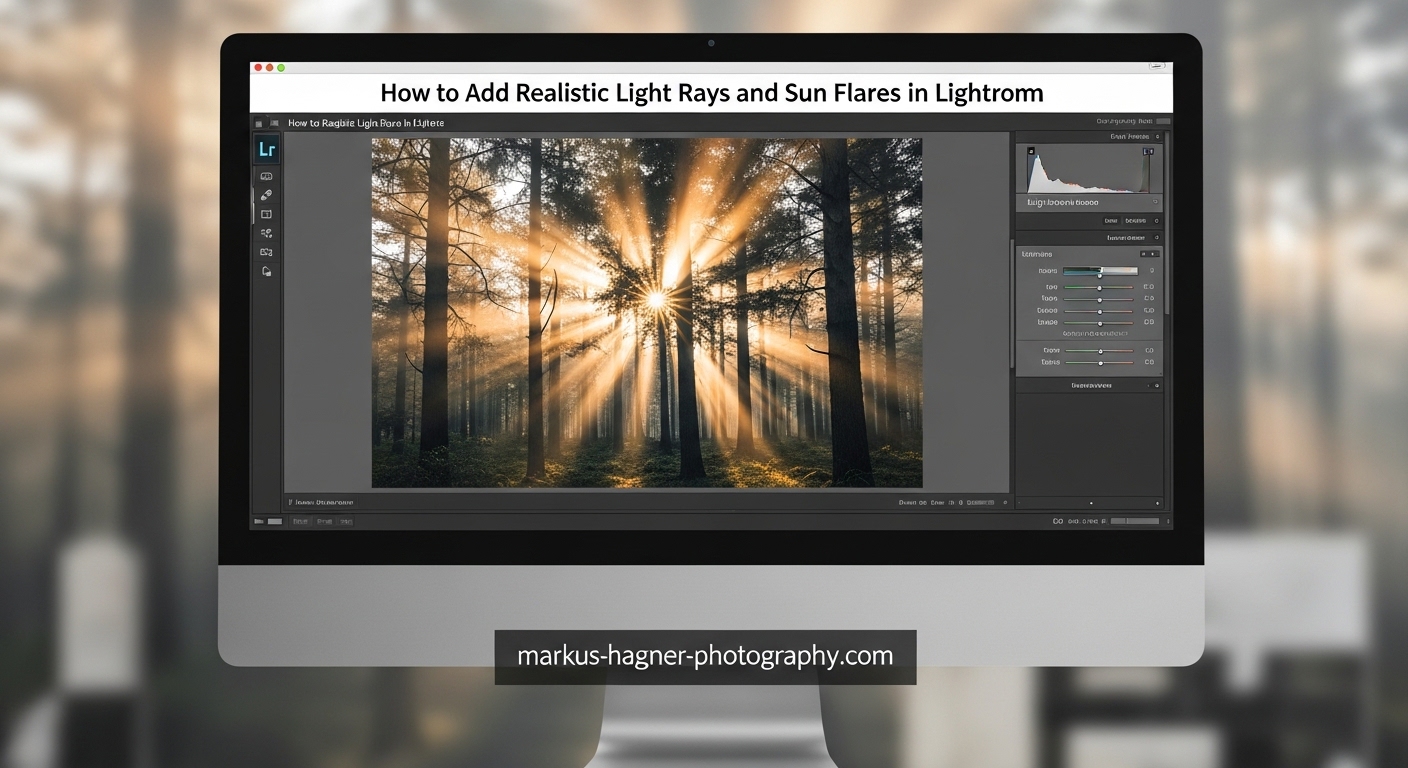
Yes, you absolutely can add realistic sun flares in Lightroom using the Radial Gradient tool or Adjustment Brush. After testing both methods extensively across dozens of forest and landscape images, I’ve found that Lightroom’s masking tools give you everything needed to create natural-looking light effects that enhance your photos without screaming “fake.”
Light rays (those beautiful beams streaming through trees or clouds, also called crepuscular rays or God rays) and sun flares (the scattered light patterns from shooting toward the sun) add atmosphere, depth, and warmth to otherwise flat images. The best part? You don’t need Photoshop or expensive plugins to achieve this look.
In this guide, I’ll walk you through two proven methods for adding realistic light rays and sun flares in Lightroom Classic, complete with specific slider values, common mistakes to avoid, and when to use each technique.
What You Need Before Starting?
Before diving into the techniques, let me set you up for success. These methods work in Lightroom Classic (the desktop version), and I recommend using version 11.0 or later for the best masking experience. The new masking panel introduced in late 2021 makes this entire process significantly easier.
Shooting in RAW format gives you more flexibility when adjusting exposure and color temperature. JPEG files work too, but you’ll have less latitude for dramatic adjustments. The ideal starting image has some natural backlight or a visible light source to build upon.
Forest scenes, woodland shots, backlit portraits, and golden hour landscapes respond best to these techniques. Images with existing atmospheric elements (mist, dust, haze) will look most convincing because light naturally interacts with particles in the air.
Method 1: Using the Radial Gradient for Sun Flares
The Radial Gradient tool creates natural-looking circular sun flares quickly. This method works best when you want to add a warm glow effect near a light source or enhance an existing sun position in your frame.
Step 1: Open the Masking Panel
With your image open in the Develop module, press M on your keyboard or click the Masking icon (the dotted circle) beneath the histogram. Select Create New Mask and choose Radial Gradient from the dropdown menu.
Step 2: Draw Your Radial Gradient
Click and drag from the center of where you want your sun flare to appear. The oval shape creates the flare boundary. Position the center point at your light source (or where you want to simulate one). Don’t worry about perfection yet—you can reposition by clicking and dragging the center pin.
Step 3: Set Your Temperature
Now for the magic. Drag the Temperature slider toward yellow—I typically set it between 60 and 75 depending on the scene. This warms up the masked area to simulate golden sunlight. Warmer scenes need less adjustment; cooler scenes benefit from pushing higher.
Step 4: Boost Exposure
Increase Exposure to +2.0 to +2.5. This creates the bright center glow of your sun flare. The key here is restraint—too much exposure makes the effect look artificial. Start at +2.0 and adjust based on your image’s brightness.
Step 5: Soften with Negative Clarity
This step makes or breaks the realism. Reduce Clarity to -50 or -60. Negative clarity softens the transition between the flare and surrounding areas, creating that diffused, glowing quality of real sunlight scattering through the atmosphere.
Step 6: Add Highlights for Depth
Bump Highlights up by +30 to +50 to enhance the brightest parts of your flare. This creates contrast between the center and edges, mimicking how real light behaves when you shoot toward the sun.
Step 7: Match the Overall Image
After creating your flare, step back and assess the whole image. If the flare looks disconnected from the scene, adjust your global Temperature slightly warmer (usually +5 to +10) to blend everything together. You might also tweak global Contrast and Dehaze to unify the look.
Method 2: Using the Brush Tool for Light Beams
The Brush tool gives you precise control for creating light beams (crepuscular rays) that stream through specific areas like tree branches, windows, or cloud gaps. This method takes more time but produces incredibly realistic results for forest and woodland scenes.
Step 1: Open the Masking Panel and Select Brush
Press M to open Masking, then choose Brush from the mask type options. Before you start painting, configure your brush settings properly.
Step 2: Configure Brush Settings
Set Feather to 100, Flow to 100, and Density to 90. High feather creates soft edges, which is essential for natural light rays. You can use the A and B brush presets to have different brush sizes ready for varying beam widths.
Step 3: Create Your First Brush Stroke
Make a small brush stroke near your light source—this becomes your starting point. Use a brush size that matches the width of beam you want (typically 5-15 pixels for narrow rays, 20-40 for wider beams).
Step 4: Use the Shift-Click Technique for Straight Beams
Here’s the pro tip: to create perfectly straight light beams, click once at your starting point, then hold Shift and click at your endpoint. Lightroom automatically draws a straight line between the two points. This technique is essential for creating realistic rays that stream from a single light source.
Step 5: Adjust Exposure and Highlights
With your beams painted, increase Exposure by +0.5 to +1.5 and Highlights by +20 to +40. The exact values depend on your image, but the goal is to brighten the beams without blowing out detail. Start conservative and build up.
Step 6: Add Warmth
Increase Temperature toward yellow (around +20 to +40) to warm your light beams. You can also adjust the Tint slider slightly toward magenta if the scene has that golden hour quality.
Step 7: Refine and Add More Beams
Create multiple beams radiating from the same general light source point. Vary their lengths and slightly vary their widths. Nature rarely produces uniform light rays, so embrace imperfection. I typically create 3-7 beams per image for forest scenes.
Making Your Effects Look Realistic
The difference between a convincing light effect and an obvious fake comes down to how the light interacts with your scene. Here are the techniques that separate amateur attempts from professional results.
Match the Color Temperature
Your added light must match the scene’s existing color palette. Use the color dropper tool near any natural light source in your image to sample the correct warm tone, then apply that same warmth to your artificial rays. If your scene has cool blue shadows, your light beams should transition from warm near the source to slightly cooler at the edges.
Block Light with Object Masking
Real light doesn’t pass through solid objects. Use the Subtract option in the Masking panel to remove light from areas where it shouldn’t appear—behind tree trunks, rocks, or buildings. Select your existing mask, click Subtract, then paint over objects that should block the light. This step alone transforms artificial-looking effects into something that feels genuinely captured in-camera.
Enhance with Luminance Range Masking
For advanced realism, add a Luminance Range mask to your light effect. This restricts the adjustment to specific brightness ranges, making the light interact naturally with existing highlights and shadows in your scene. Set the range to affect mostly mid-tones and highlights while leaving deep shadows untouched.
Common Mistakes to Avoid
Overdoing exposure is the most common error—your light effect should feel like a gentle enhancement, not a spotlight. Color mismatching comes in second: cold blue scenes with warm yellow beams look jarring. Finally, forgetting to block light behind objects makes the effect look painted on rather than integrated into the scene.
Quick Comparison: Which Method Should You Use?
Use the Radial Gradient when:
- You want a quick, general sun flare effect
- Creating a warm glow around an existing light source
- Working with portraits or images without complex foreground elements
- Time is limited and you need results fast
Use the Brush Tool when:
- Creating specific light beams through trees or windows
- Working with forest or woodland scenes
- You need precise control over beam placement and direction
- The scene has complex objects that need selective light blocking
Many photographers use both methods together: a Radial Gradient for the central glow and Brush tool beams radiating outward. This combination often produces the most convincing results.
Frequently Asked Questions
Can you add sun flares in Lightroom?
Yes, you can add realistic sun flares in Lightroom using the Radial Gradient tool or Adjustment Brush. Lightroom’s masking tools allow you to create natural-looking sun flares by adjusting temperature, exposure, and clarity in selected areas. The Radial Gradient works best for circular flare effects, while the Brush tool gives you more control for specific beam placement.
How to add sunlight rays in Lightroom?
To add sunlight rays in Lightroom, use the Brush tool in the Masking panel. Set Feather to 100, Flow to 100, and Density to 90. Create small brush strokes near your light source, then use Shift-click to draw straight beams extending outward. Increase Exposure (+0.5 to +1.5), boost Highlights (+20 to +40), and warm the Temperature toward yellow (+20 to +40) for realistic light beams.
How to create sunlight effect in Lightroom?
To create a sunlight effect in Lightroom, use the Radial Gradient tool from the Masking panel. Draw an oval from your desired light source position, then increase Temperature toward yellow (60-75), boost Exposure (+2.0 to +2.5), and reduce Clarity (-50 to -60) for a soft, warm glow. Adjust your global image temperature slightly warmer to blend the effect naturally with the rest of your photo.
How to get sun flare in photos?
You can capture sun flares in-camera by shooting directly into the sun with partial obstruction (trees, buildings, or your subject blocking part of the light). Use various aperture settings—smaller apertures like f/16 create more defined flare patterns. Golden hour provides the warmest, most pleasing flares. Alternatively, add flares in post-processing using Lightroom’s Radial Gradient or Brush tools for complete control over placement and intensity.
Conclusion
Learning how to add realistic light rays and sun flares in Lightroom opens up creative possibilities that transform ordinary images into atmospheric, mood-filled photographs. The Radial Gradient method gives you quick, beautiful sun flares with minimal effort, while the Brush tool offers precise control for those perfect light beams streaming through forest canopies or window frames.
The techniques I’ve shared here come from years of experimenting with both methods across landscape, portrait, and woodland photography. The key to convincing results lies not in the tools themselves but in how you integrate the light with your scene: matching color temperature, blocking light behind solid objects, and resisting the urge to overdo the exposure adjustments.
Start with subtle enhancements and build up gradually. Practice on several different image types—forest scenes, backlit portraits, golden hour landscapes—to develop an intuition for which method suits each situation. And remember, if you need complex light interactions or lens flare overlays, Photoshop offers additional options, but for most images, Lightroom’s masking tools are more than capable of producing professional, realistic results.
Grab a backlit image from your archive and give both methods a try. The more you practice these techniques, the more natural the process becomes, and soon you’ll be adding atmospheric light effects that viewers assume you captured in-camera.