
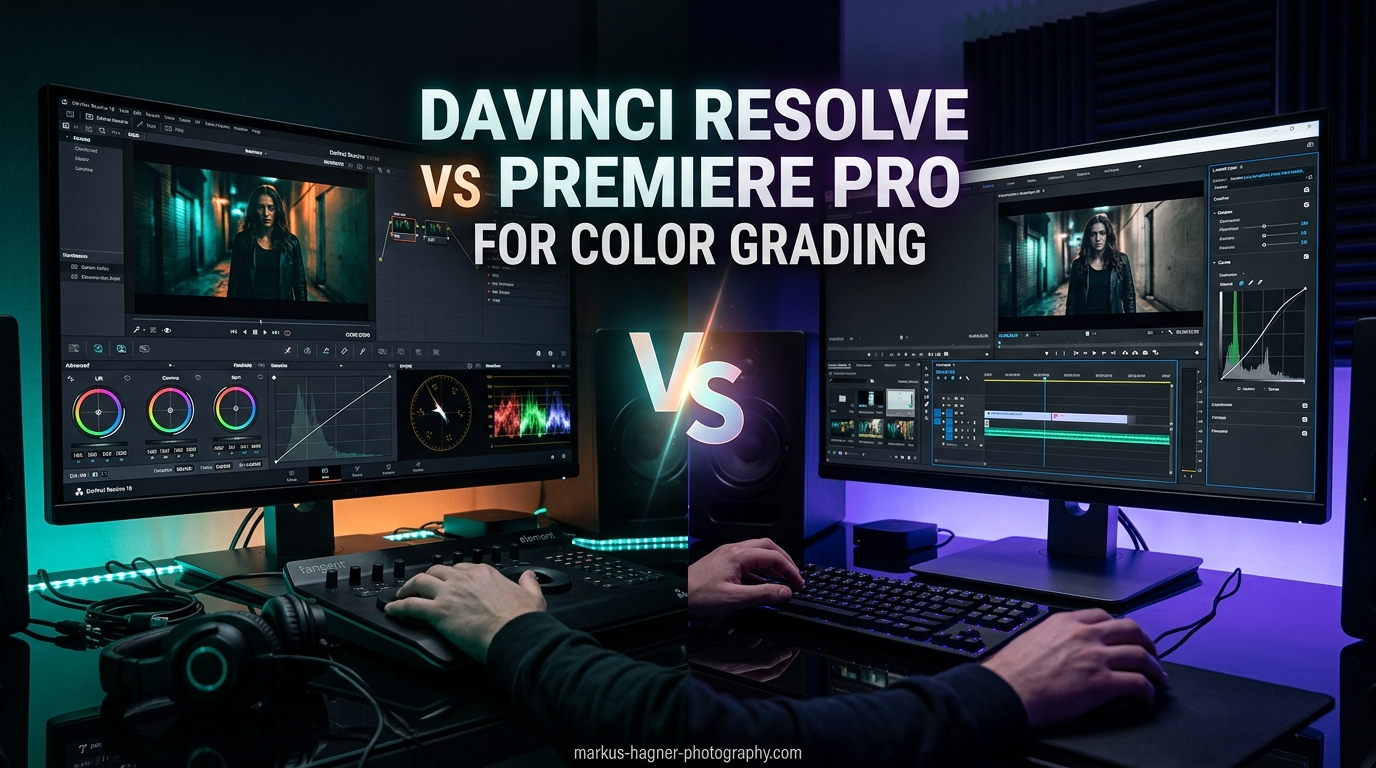
When I first started color grading video footage, I faced the same dilemma most editors encounter: DaVinci Resolve vs Premiere Pro. After spending hundreds of hours with both platforms across documentary projects, commercial work, and YouTube content, I’ve developed strong opinions about where each tool excels.
The short answer? DaVinci Resolve dominates professional color grading workflows. Its node-based system, industry-standard status, and powerful free version make it the clear winner for serious color work. But Premiere Pro holds its own for editors who need tight Adobe ecosystem integration and prefer a shallower learning curve.
This comparison breaks down exactly how these two heavyweights stack up for color grading specifically. I’ll cover everything from workflow differences and tool sets to pricing models and real-world performance. By the end, you’ll know exactly which platform fits your needs.
DaVinci Resolve vs Premiere Pro: Quick Comparison
| Product | Specifications | Action |
|---|---|---|
 Color Correction Handbook Color Correction Handbook |
|
Check Latest Price |
 TourBox NEO Controller TourBox NEO Controller |
|
Check Latest Price |
Before diving deep, here’s the fundamental difference between these platforms for color grading:
DaVinci Resolve uses a node-based color grading system. Each correction lives in its own node, and you chain nodes together to build complex grades. This approach offers incredible precision and flexibility but requires learning a new mental model.
Premiere Pro uses the Lumetri Color panel with a layer-based approach. You stack adjustments on top of each other, similar to Photoshop layers. Most editors find this more intuitive initially, but it limits advanced control.
DaVinci Resolve for Color Grading
Color Correction Handbook: Professional Techniques for Video and Cinema (Digital Video & Audio Editing Courses)
Pros
- Comprehensive coverage of color correction
- Software-agnostic approach works with any software
- Written by industry expert Alexis Van Hurkman
- Easy to understand for beginners
Cons
- Published in 2013
- Some chapters may not apply to all users
- Companion content sold separately
DaVinci Resolve started as a dedicated color grading application before evolving into a full post-production suite. This heritage shows in every aspect of its color tools. Blackmagic Design acquired the software in 2009 and transformed it into the industry standard it is today.
I’ve graded everything from smartphone footage to RED RAW files in Resolve, and the consistency of results still impresses me. The software handles color science correctly at every step, from input transform to final output.
Node-Based Workflow Advantages
The node-based system is Resolve’s killer feature for color grading. Instead of stacking effects blindly, you build a visual tree of corrections. Each node does one thing: primary balance, secondary skin tone isolation, creative look, film grain, and so on.
This approach gives you surgical control. Need to adjust just the shadows in your midtones? Add a node, isolate that tonal range, and tweak away. The original correction stays untouched. Try that in a layer-based system and you’ll quickly hit walls.
Parallel nodes let you apply multiple corrections simultaneously and blend them together. Splitter/Combiner nodes isolate specific color channels for targeted work. These tools simply don’t exist in Premiere Pro’s Lumetri panel.
Professional Color Grading Tools
Resolve includes color wheels, curves, and qualifiers that far exceed what Premiere offers. The qualifier tool isolates specific colors with remarkable precision. Power windows (masks) track objects automatically through your footage. The color warper provides intuitive control over hue and saturation relationships.
The scopes in Resolve are production-grade. Waveform monitors, vectorscopes, and histograms update in real-time with pixel-accurate readings. When a client asks for broadcast-safe output, Resolve delivers reliable results every time.
HDR grading workflows are fully supported with Dolby Vision and HDR10+ certification. Resolve handles the color volume transforms correctly, ensuring your HDR masters look correct on compliant displays.
Who Should Choose DaVinci Resolve
Professional colorists almost exclusively use DaVinci Resolve. If you’re pursuing a career in color grading, this is your platform. The free version includes professional features that would cost thousands in other software.
Independent filmmakers and documentary producers benefit from Resolve’s all-in-one approach. You can edit, grade, mix audio, and create visual effects without leaving the application.
Anyone frustrated by subscription models should consider Resolve seriously. The free version handles most projects, and the Studio version costs a one-time fee with lifetime updates.
Adobe Premiere Pro for Color Grading
Pros
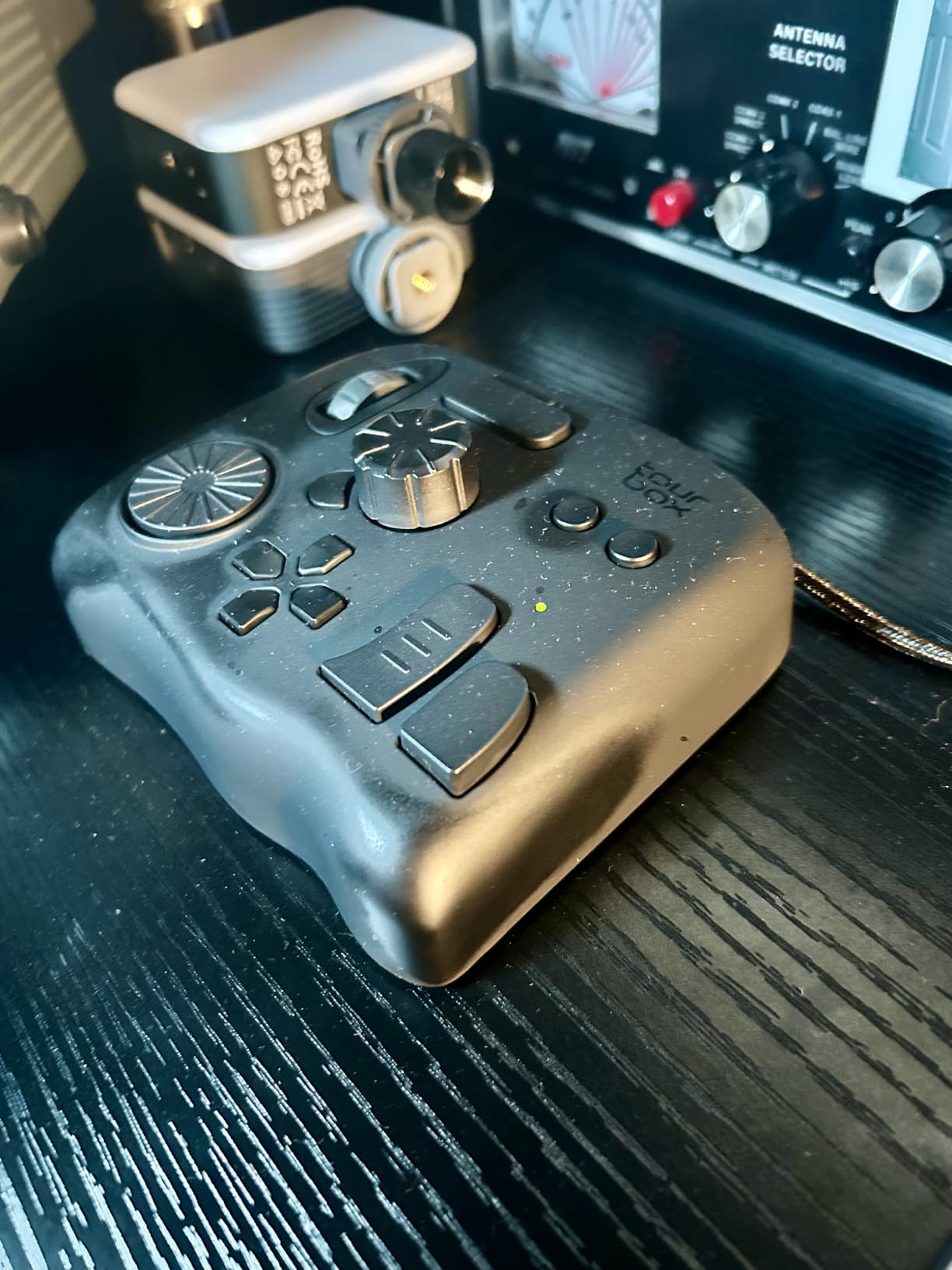
- Revolutionary productivity tool
- Intuitive one-handed control
- Pre-built configurations for Adobe and DaVinci
- Zero-latency wired connection
Cons
- Expensive at $189
- Wired only no Bluetooth
- Learning curve for button combinations
Premiere Pro takes a different approach to color grading. The Lumetri Color panel puts everything in one place: basic corrections, creative looks, curves, color wheels, and HSL secondary adjustments. For editors coming from photography, the interface feels immediately familiar.
I’ve used Premiere Pro for color grading on tight-deadline commercial projects where speed mattered more than perfection. The integrated workflow means no round-tripping between applications. You grade right on your edit timeline.
Lumetri Color Panel Explained
The Lumetri panel organizes color tools into six sections: Basic Correction, Creative, Curves, Color Wheels, HSL Secondary, and Vignette. This organization guides users through a logical grading workflow: fix exposure first, add creative looks second, refine with targeted adjustments third.
Basic Correction handles white balance, tone, and saturation. The Creative section offers built-in LUTs and looks including popular film emulations. Curves provide RGB and luma control. Color wheels offer lift/gamma/gain adjustments familiar to colorists.
HSL Secondary isolates specific colors for targeted adjustments. It works well for skin tone refinement and object color shifts. However, the isolation precision falls short of Resolve’s qualifier tool.
Adobe Ecosystem Integration
Premiere Pro’s biggest advantage is Adobe Creative Cloud integration. Dynamic Link connects Premiere with After Effects without rendering. You can send clips to After Effects for complex compositing, then continue grading in Premiere with the effects live.
Photoshop integration lets you import PSD files with layers intact. After Effects color grades transfer via Direct Link. For teams already invested in Adobe tools, this ecosystem advantage is substantial.
The Essential Sound panel integrates audio adjustments with your color workflow. Team Projects enable collaborative editing across locations. These production features matter for commercial and broadcast workflows.
Who Should Choose Premiere Pro
Content creators producing high volumes of video often prefer Premiere Pro. The familiar interface reduces training time. Quick exports and built-in social media presets accelerate delivery.
Teams using Adobe Creative Cloud benefit from the integrated workflow. If your motion graphics artist uses After Effects and your editor uses Premiere, collaboration happens seamlessly.
Editors who value a shallower learning curve should start with Premiere Pro. You can achieve professional results without mastering node-based workflows. As your skills grow, you might eventually add Resolve for advanced color work.
DaVinci Resolve vs Premiere Pro: Head-to-Head Comparison
Color Grading Tools Comparison
Resolve wins this category decisively. The node-based system provides flexibility impossible with layers. Color management handles ACES, DaVinci Wide Gamut, and custom color spaces correctly. Temporal and spatial noise reduction tools rival dedicated plugins.
Premiere’s Lumetri panel covers basic and intermediate needs competently. Most grading tasks are achievable. But when clients request complex secondary corrections or HDR deliverables, Resolve’s superior toolset becomes essential.
Workflow Comparison
Resolve’s dedicated Color page separates grading from editing completely. You enter a focused environment designed for color work. Multiple timelines, gallery stills, and version comparison tools support professional workflows.
Premiere keeps everything on one timeline. This integration speeds up simple projects but creates clutter on complex ones. Color adjustments compete for screen space with editing tools.
For hybrid workflows, many professionals edit in Premiere and grade in Resolve. XML or AAF transfers preserve edit decisions while enabling Resolve’s superior color tools. This approach combines Premiere’s editing strengths with Resolve’s color power.
Learning Curve Comparison
Premiere Pro offers a gentler learning curve. If you’ve used Photoshop or other Adobe applications, Lumetri feels intuitive. Most users achieve basic competence within days.
Resolve demands more investment. The node concept requires mental adjustment. The Color page contains hundreds of tools and options. However, Blackmagic provides excellent free training materials, and the community offers extensive tutorials.
My experience: Premiere gets you grading quickly. Resolve makes you a better colorist over time. The learning investment pays dividends in quality and efficiency.
Pricing and Value
DaVinci Resolve offers a free version that includes most professional features. HDR grading, noise reduction, and multi-user collaboration work without paying anything. The Studio version costs $295 once with lifetime updates.
Premiere Pro requires a Creative Cloud subscription. The single-app plan runs approximately $22 monthly. Over three years, you’ll spend roughly $792 on Premiere Pro alone. The full Creative Cloud suite costs about $55 monthly.
For budget-conscious creators, Resolve’s free version offers tremendous value. Professional studios might prefer the subscription model for predictable expenses and team licensing.
Performance and Stability
User reports consistently cite Resolve as more stable than Premiere Pro. The software crashes less frequently, especially on older hardware. GPU acceleration works efficiently across NVIDIA, AMD, and Intel graphics cards.
Premiere Pro’s performance varies more widely. Some systems run smoothly; others experience frequent crashes during color work. The software demands substantial RAM and GPU resources for optimal performance.
Both applications support proxy workflows for smooth playback. Resolve’s optimized media and render cache systems often outperform Premiere’s proxy implementation.
Platform Compatibility
DaVinci Resolve runs on macOS, Windows, and Linux. The Linux version appeals to professional facilities running custom workstations. Hardware control surfaces from Blackmagic and third parties integrate seamlessly.
Premiere Pro supports macOS and Windows only. No Linux version exists. Hardware integration focuses on supported GPUs rather than dedicated control surfaces.
Who Should Choose Which Software
Professional Colorists: DaVinci Resolve
If color grading is your primary focus, Resolve is non-negotiable. Hollywood productions, broadcast television, and commercial post houses almost universally use Resolve. Building skills in this platform directly supports career advancement.
The free version lets you learn professional tools without investment. Paid Studio features like neural engine AI tools and stereoscopic 3D become relevant as your career progresses.
Content Creators: Premiere Pro or Hybrid
YouTube creators, social media managers, and marketing teams often prefer Premiere Pro’s speed. Quick turnaround times matter more than pixel-perfect color. The integrated workflow keeps production moving.
Consider a hybrid approach: edit in Premiere, export to Resolve for final color. This workflow adds one step but significantly improves output quality.
Independent Filmmakers: DaVinci Resolve
The all-in-one nature of Resolve suits independent productions perfectly. Edit, color, audio, and effects happen in one application without round-tripping. The free version handles most independent project needs.
Festival submissions and distribution masters benefit from Resolve’s color management. Your film will look its best across different viewing environments.
Adobe Ecosystem Users: Premiere Pro
Teams already using After Effects, Photoshop, and Illustrator gain significant efficiency from Premiere Pro integration. Dynamic Link eliminates rendering between applications. Shared assets and templates streamline production.
Switching from Premiere to Resolve means learning new workflows for everything, not just color. The transition costs time and productivity.
Frequently Asked Questions
Which software is best for color grading?
DaVinci Resolve is widely considered the best software for color grading. Its node-based workflow provides precise control over every aspect of color, and professional colorists almost universally use it. The free version includes professional-grade tools that would cost thousands in other applications.
Is DaVinci Resolve better than Premiere Pro for color grading?
Yes, DaVinci Resolve is significantly better for color grading. The node-based system offers more flexibility and precision than Premiere’s layer-based Lumetri panel. Resolve includes advanced tools like power windows with tracking, superior qualifiers, and production-grade scopes that Premiere lacks.
Is Premiere Pro good enough for color grading?
Premiere Pro is good enough for basic to intermediate color grading tasks. The Lumetri Color panel handles exposure correction, white balance, creative looks, and basic secondary corrections competently. Many content creators achieve satisfactory results without needing Resolve’s advanced tools.
Which is easier to learn: DaVinci Resolve or Premiere Pro?
Premiere Pro is easier to learn initially, especially for users familiar with other Adobe applications. The Lumetri panel uses familiar layer-based adjustments. DaVinci Resolve has a steeper learning curve due to its node-based system, but Blackmagic provides excellent free training materials.
How much does DaVinci Resolve cost compared to Premiere Pro?
DaVinci Resolve offers a free version with most professional features. The Studio version costs $295 once with lifetime updates. Premiere Pro requires a subscription at approximately $22 monthly, totaling about $792 over three years. Resolve offers significantly better long-term value.
Can I edit in Premiere Pro and color grade in DaVinci Resolve?
Yes, many professionals use this hybrid workflow. Export your Premiere timeline as XML or AAF, import into Resolve for color grading, then export the graded footage back. This combines Premiere’s editing strengths with Resolve’s superior color tools.
Final Verdict: DaVinci Resolve vs Premiere Pro for Color Grading
After extensive use of both platforms, my verdict is clear: DaVinci Resolve wins for color grading specifically. The node-based workflow, professional toolset, and free version make it the superior choice for anyone serious about color.
Premiere Pro serves a different purpose. It excels as an integrated editing platform with capable color tools. For editors who grade occasionally or prioritize speed over precision, Premiere Pro gets the job done.
The DaVinci Resolve vs Premiere Pro decision ultimately depends on your priorities. Choose Resolve if color quality matters most. Choose Premiere Pro if editing speed and ecosystem integration matter more. Or choose both: edit in Premiere, grade in Resolve, and get the best of both worlds.
My recommendation for most readers: start with DaVinci Resolve’s free version. Learn the node-based workflow. If you need Premiere Pro for collaborative projects or After Effects integration, add it to your toolkit. But for color grading specifically, Resolve remains the industry standard for good reason.