
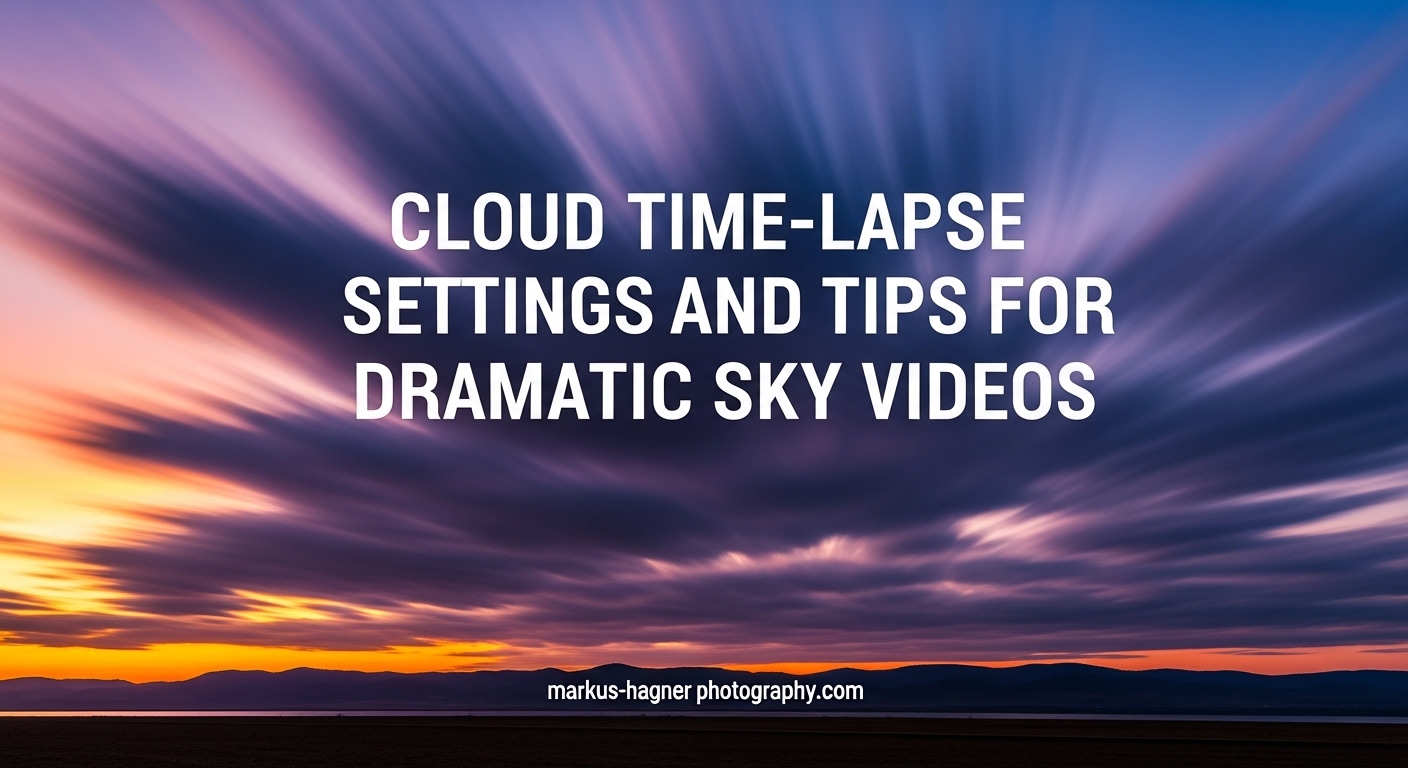
There is something mesmerizing about watching clouds rush across the sky in a time-lapse video. What takes hours in real life unfolds in seconds, revealing patterns and movements our eyes could never catch. I have spent countless mornings and evenings capturing cloud time-lapses, and I can tell you that getting those dramatic, smooth results comes down to understanding your camera settings and planning ahead.
In this guide, I will walk you through everything you need to know about cloud time-lapse settings and tips for dramatic sky videos. We will cover the exact camera settings I use, how to choose the right interval for different cloud types, and the common mistakes that can ruin an otherwise perfect shoot. By the end, you will have a complete workflow for capturing stunning cloud footage that looks professional and cinematic.
Quick Settings Reference for Cloud Time-Lapses
Before we dive deep into the why behind each setting, here is a quick reference table you can bookmark. I use these settings as my starting point for most cloud time-lapse situations.
Essential Cloud Time-Lapse Settings:
| Setting | Recommended Range | Notes |
|---|---|---|
| ISO | 100-400 | Lower is better for noise control |
| Aperture | f/8 – f/16 | Sweet spot for sharpness and depth |
| Shutter Speed | 1/2 sec or longer | Creates smooth motion blur |
| White Balance | Fixed (Cloudy or 5500K-6500K) | Never use Auto |
| Focus Mode | Manual | Lock focus before shooting |
| File Format | RAW | Maximum flexibility in post |
| Interval | 2-20 seconds | Depends on cloud speed (covered below) |
These settings work for most situations, but let me explain each one in detail so you can adjust them intelligently based on your specific conditions.
Complete Camera Settings for Cloud Time-Lapse Photography
Getting your camera settings right is the foundation of a great cloud time-lapse. I learned this the hard way after my first few attempts produced flickering, jittery footage that looked amateurish. Here is exactly how I set up my camera now.
ISO Settings: Keep It Low
For cloud time-lapses, I always start at ISO 100 and only go up to 400 if absolutely necessary. The reason is simple: time-lapse sequences amplify any noise in your images because you are playing back hundreds or thousands of frames in quick succession. What looks like acceptable noise in a single photo becomes a distracting, dancing pattern in video.
If you are shooting at golden hour or during sunrise/sunset when light is limited, you might need to push to ISO 200 or 400. Just know that each increase in ISO will introduce more noise, especially in the shadow areas of your sky. Modern cameras handle higher ISOs better than ever, but the cleanest footage always comes from the base ISO.
Aperture Selection: The Sweet Spot
I typically shoot cloud time-lapses between f/8 and f/16. This range gives me the best balance of sharpness across the frame and sufficient depth of field to keep both foreground elements and distant clouds in focus.
Shooting wide open at f/2.8 or f/4 might seem tempting for gathering more light, but it creates two problems. First, lenses are rarely at their sharpest at maximum aperture. Second, shallow depth of field means some clouds might fall outside your focus plane, creating soft areas in your footage.
The exception is when I am incorporating foreground elements like trees or buildings and want to create separation between them and the sky. In those cases, I might shoot at f/5.6, but I am very careful about my focus point.
Shutter Speed and the 180-Degree Rule
This is where many beginners go wrong. For smooth, cinematic cloud movement, you want motion blur in each frame. The 180-degree shutter rule suggests your shutter speed should be roughly twice your frame rate. Since most time-lapses playback at 24fps, each frame should have about 1/48 second of exposure, or roughly 1/50 second.
However, for cloud time-lapses specifically, I often go even longer. Shutter speeds of 1/2 second to 2 seconds create beautiful, silky cloud motion that looks incredibly smooth when played back. This longer exposure blurs the cloud movement within each frame, and when combined with the right interval, produces that dreamy, flowing effect.
Here is the key insight: longer shutter speeds create smoother motion, but they also require ND filters in bright conditions. Without an ND filter on a sunny day, you simply cannot achieve a 1-second exposure without overexposing your image.
White Balance: Lock It Down
Never, ever use Auto White Balance for time-lapses. I cannot stress this enough. Auto White Balance evaluates each frame independently and will shift slightly between shots as clouds move and lighting conditions change. This creates the dreaded white balance flicker that makes your final video pulse with color shifts.
Instead, set your white balance manually before you start shooting. For daytime cloud shots, I typically use the Cloudy preset (around 6000K) or set a custom Kelvin value between 5500K and 6500K. This ensures consistent color throughout your entire sequence.
If you are shooting during golden hour or at sunset, you might want to adjust your white balance to capture those warm tones accurately. The key is to set it once and leave it alone for the entire shoot.
Shooting Mode: Go Full Manual
Manual mode (M) is the only way to shoot consistent time-lapses. Aperture Priority or Shutter Priority modes will adjust exposure between frames as clouds pass in front of the sun or as the sun moves across the sky. These automatic adjustments create exposure flicker.
In manual mode, you control all three exposure variables: aperture, shutter speed, and ISO. Once you dial in your settings, they stay constant throughout the shoot. If the lighting changes dramatically during your sequence (like during sunset), you will need to adjust, but do it methodically and in small increments.
RAW vs JPEG: Always Shoot RAW
Shooting RAW gives you tremendous flexibility in post-processing. You can adjust exposure, white balance, and color grading after the fact without degrading image quality. This matters because even with careful planning, you might discover your exposure was slightly off or that the color temperature needs tweaking.
JPEG files are baked in at the moment of capture. Any adjustments you make in post will degrade the image. Given that time-lapse sequences involve hundreds or thousands of photos, the extra flexibility of RAW files is worth the larger file sizes.
The only downside is storage space. A 500-photo sequence shot in RAW can easily consume 15-20GB of card space. Plan accordingly and bring extra memory cards.
Cloud Time-Lapse Interval Selection Guide
Choosing the right interval between shots is perhaps the most critical decision you will make for your cloud time-lapse. The interval determines how fast the clouds appear to move in your final video and how smooth the motion looks.
Fast-Moving Clouds: 2-5 Second Intervals
Storm clouds and high-altitude winds create fast-moving cloud formations that need shorter intervals. When I see clouds racing across the sky, I set my intervalometer to fire every 2-5 seconds. This captures enough frames to show smooth progression without making the clouds look like they are teleporting.
Fast intervals are also useful when you want to capture a shorter event, like the passage of a storm front. With a 2-second interval, you can capture 5 minutes of real time with 150 frames, which gives you about 6 seconds of video at 24fps.
Medium-Speed Clouds: 5-10 Second Intervals
Most daytime cumulus clouds fall into this category. They are moving, but not at the breakneck speed of storm clouds. A 5-10 second interval works well here, giving you smooth motion without requiring an excessive number of frames.
This range is my default for most situations. It provides a good balance between capturing smooth motion and not filling up memory cards too quickly.
Slow-Moving Clouds: 10-20 Second Intervals
High cirrus clouds or thick overcast stratus layers move slowly across the sky. For these conditions, longer intervals of 10-20 seconds work better. The clouds need more time between frames to show meaningful movement.
Longer intervals also let you shoot longer sequences without filling your card. A 30-minute shoot at 15-second intervals produces 120 frames, while the same duration at 3-second intervals would give you 600 frames.
Calculating Your Shoot Duration
Here is a simple formula I use to plan my shoots. First, decide how long you want your final video to be. Most viewers only watch 4-8 seconds of time-lapse footage before moving on, so I typically aim for 10 seconds of final video to give myself editing flexibility.
At 24fps, a 10-second video requires 240 frames. If you are shooting at 5-second intervals, that means 240 frames times 5 seconds equals 1,200 seconds, or 20 minutes of shooting time. Add some buffer frames at the beginning and end, and you are looking at a 25-minute commitment.
I always shoot more frames than I think I need. Having extra footage gives you options for trimming the start and end points or creating multiple edits from a single shoot.
Focus and Stability Best Practices
Sharp, stable footage is non-negotiable for professional-looking time-lapses. Even tiny amounts of camera movement or focus shift become obvious when hundreds of frames play in sequence.
Why Manual Focus Is Essential
Autofocus is the enemy of time-lapse photography. Every time your camera fires, autofocus tries to lock onto something. If a bird flies through the frame or the lighting changes slightly, focus might shift between shots. This creates frames that jump in and out of focus, ruining your sequence.
Switch to manual focus before you start shooting. I use focus peaking (if your camera has it) or magnified live view to ensure sharp focus on the clouds or landscape elements. Once focus is set, I take a test shot and zoom in to confirm everything looks sharp.
For scenes with foreground elements, focus about one-third into the scene at f/11 or f/16 to maximize depth of field. For pure sky shots, focus on the clouds themselves or set focus to infinity.
Tripod Selection and Setup
A sturdy tripod is your most important piece of equipment after your camera. I have learned that lightweight travel tripods might be fine for single shots, but they cannot handle the extended duration and potential wind exposure of time-lapse shoots.
Look for a tripod with these features: thick leg sections (not the spindly ones on cheap models), a robust ball head or geared head that will not creep over time, and enough weight to resist wind gusts. Many tripods have a hook under the center column where you can hang your camera bag for extra stability.
Dealing with Wind
Wind is the biggest enemy of outdoor time-lapses. Even a gentle breeze can cause subtle camera movement that becomes obvious in your final video. Here are my strategies for dealing with wind.
First, weigh down your tripod. Hanging your camera bag from the center column adds significant stability. Second, position yourself or a windbreak upwind of the camera if possible. Third, shield the camera with your body during setup to minimize vibrations. Fourth, extend the tripod legs to their minimum necessary height, as shorter legs are more stable than fully extended ones.
If the wind is strong enough to move your tripod even with these precautions, consider rescheduling. No amount of post-processing stabilization can fully fix footage shot on a vibrating tripod.
ND Filters for Dramatic Cloud Time-Lapses
Neutral density filters are essentially sunglasses for your camera. They reduce the amount of light entering the lens without affecting color, allowing you to use longer shutter speeds even in bright conditions.
Why ND Filters Matter for Cloud Time-Lapses
Remember how I mentioned wanting shutter speeds of 1/2 second or longer for smooth cloud motion? On a bright sunny day, achieving that exposure is impossible without an ND filter. Even at ISO 100 and f/16, proper exposure in bright sunlight is around 1/100 second, far too fast for the motion blur we want.
An ND filter lets you slow that shutter speed down to 1/2 second or even 2 seconds, creating that beautiful, silky cloud motion that makes time-lapses look professional.
Choosing the Right ND Filter Strength
ND filters come in different strengths, measured in stops. Each stop halves the amount of light entering the lens. For cloud time-lapses, I typically carry ND filters ranging from 6 stops (ND64) to 10 stops (ND1000).
For bright midday sun, a 10-stop ND filter lets me shoot at 1/2 second at f/11 and ISO 100. For overcast conditions or golden hour, a 6-stop filter is often sufficient. Variable ND filters let you adjust strength by rotating the filter, though they can sometimes introduce color casts at extreme settings.
The Motion Blur Effect
Longer exposures create motion blur within each frame. When clouds are moving, this blur smooths out their edges and creates a flowing, painterly quality. Combined with the right interval, this effect produces footage that looks impossibly smooth and cinematic.
The trade-off is that very long exposures can make clouds lose their definition entirely, turning distinct formations into wispy streaks. Experiment with different shutter speeds to find the look you prefer.
Understanding Cloud Types and Their Movement Patterns
One thing most time-lapse guides skip is teaching you to recognize different cloud types. Understanding what you are looking at helps you predict movement speed and choose the right interval before you even set up your camera.
Cumulus Clouds: Puffy and Variable
Those classic cotton-ball clouds that float across summer skies are cumulus clouds. They form at low to middle altitudes and their movement speed depends heavily on wind conditions at their altitude. In calm conditions, cumulus clouds might drift slowly enough for 10-15 second intervals. On windy days, they can race along and need 3-5 second intervals.
Cumulus clouds are excellent for time-lapses because their defined edges and three-dimensional shapes show motion clearly. They also tend to develop and dissolve as they move, adding visual interest to your footage.
Cirrus Clouds: High and Wispy
Cirrus clouds are those thin, feathery streaks high in the atmosphere. Because they form at high altitudes where winds are stronger, they often move faster than they appear. Their delicate structure means you need sharp focus and consistent exposure to capture them well.
The wispy nature of cirrus clouds makes them perfect for longer exposures that create dramatic streaking effects. Try 1-2 second shutter speeds with 10-15 second intervals for these high-altitude formations.
Stratus Clouds: Layered and Slow
Stratus clouds form uniform gray layers that often cover the entire sky. They move slowly and can appear almost static in short time-lapses. For these conditions, I use longer intervals (15-20 seconds) and shoot for extended periods (45 minutes to an hour) to capture meaningful movement.
While stratus clouds are less dramatic than puffy cumulus formations, they create moody, atmospheric time-lapses that work well for establishing shots or mood pieces.
Storm Clouds and Cumulonimbus: Fast and Dramatic
Nothing beats storm clouds for dramatic time-lapses. Cumulonimbus clouds tower vertically and move horizontally at the same time, creating complex, swirling motion. The dark bases and bright tops offer tremendous contrast and visual interest.
For storm clouds, I use short intervals (2-5 seconds) and fast shutter speeds relative to other time-lapses (maybe 1/30 or 1/60 second) because the clouds move so quickly that longer exposures would blur them into unrecognizable streaks. Safety first though: never position yourself where lightning could be a risk.
Common Cloud Time-Lapse Mistakes and How to Avoid Them
After years of shooting time-lapses, I have made every mistake in the book. Here are the most common problems and how I prevent them now.
White Balance Flicker
Symptoms: Your final video pulses with subtle color shifts, warming and cooling rhythmically as it plays.
Cause: Auto White Balance adjusting slightly between frames as clouds move and lighting conditions shift.
Solution: Always set white balance manually before starting your sequence. Use a preset like Cloudy or set a specific Kelvin value. Never trust Auto White Balance for time-lapses.
Focus Hunting
Symptoms: Some frames in your sequence are sharp while others are soft or completely out of focus.
Cause: Autofocus trying to refocus between shots, especially when something passes through the frame or lighting changes.
Solution: Switch to manual focus and lock it down before shooting. Use focus peaking or magnified live view to confirm sharp focus, then do not touch the focus ring again.
Wrong Interval Selection
Symptoms: Clouds move too fast (jumpy, strobing motion) or too slow (barely perceptible movement) in your final video.
Cause: Choosing an interval that does not match the cloud speed.
Solution: Watch the clouds for a few minutes before setting up. If they are racing across the sky, use 2-5 second intervals. For slow, drifting clouds, 10-20 seconds works better. When in doubt, start with 5-8 seconds.
Camera Shake
Symptoms: Your entire frame jitters or wobbles, especially noticeable in static foreground elements.
Cause: Wind, unstable tripod, or even the mechanical action of the shutter firing.
Solution: Use a sturdy tripod, weigh it down with your camera bag, and enable mirror lock-up or electronic shutter if available. Shoot in protected locations when possible and reschedule if wind is too strong.
Storage and Battery Issues
Symptoms: Your sequence cuts off early because your card filled up or your battery died.
Cause: Underestimating file sizes or shoot duration.
Solution: Calculate your storage needs beforehand. A 500-frame RAW sequence might need 15-20GB. Bring extra cards and a fully charged battery. For longer shoots, consider an external power source.
Overexposed Skies
Symptoms: Bright areas of clouds lose all detail, appearing as white blobs without texture.
Cause: Exposure settings that blow out highlights, often from exposing for darker foreground elements.
Solution: Expose for the brightest part of your scene where you want to retain detail. Use your camera’s histogram and blinkies (highlight warning) to check for overexposure. It is better to have slightly dark foreground than blown-out clouds.
Smartphone Cloud Time-Lapse Tips
Not everyone has a dedicated camera with manual controls. The good news is that smartphones can capture impressive cloud time-lapses if you understand their limitations and work around them.
iPhone Time-Lapse Settings
The iPhone’s native time-lapse mode is surprisingly capable. Apple’s software automatically selects intervals based on recording duration, shortening them for shorter recordings and lengthening them for longer sessions. For clouds, I have found that recording for at least 10-15 minutes produces the best results.
The iPhone also applies built-in stabilization, which helps with handheld shots but cannot compensate for serious camera movement. For best results, prop your phone against something stable or use a small phone tripod.
Android Time-Lapse Options
Android phones vary widely in their time-lapse capabilities. Most recent models include a time-lapse mode in the native camera app, but the level of control differs by manufacturer. Some let you adjust interval speed, while others work like the iPhone with automatic selection.
Third-party apps like Framelapse or Microsoft Hyperlapse offer more manual control on Android. These apps let you set specific intervals, lock focus and exposure, and adjust other parameters that native apps might hide.
Smartphone Stability Solutions
Phone tripods are inexpensive and make a tremendous difference in quality. Look for one with flexible legs that can wrap around objects or a small desktop tripod that fits in your pocket. Even propping your phone against a rock or water bottle works better than handholding.
Working Within Smartphone Limitations
Smartphones cannot capture RAW files or use ND filters (unless you add external lens attachments). Their small sensors struggle with dynamic range, meaning bright skies often blow out while foregrounds remain dark. They also lack true manual focus and fixed white balance controls.
Despite these limitations, smartphone time-lapses can look great for social media and casual use. The key is shooting during golden hour when dynamic range is lower and using the phone’s built-in stabilization and HDR features.
Post-Processing Workflow for Cloud Time-Lapses
Shooting is only half the battle. How you process your images determines the final look of your time-lapse. Here is my workflow from import to export.
Importing and Organizing
First, copy all your images to your computer and organize them in a dedicated folder. I name folders by date and location: something like “2026-03-13_Sunset_Clouds”. Keeping raw files organized makes it easier to find footage later and prevents accidental deletion.
Import your images into your editing software. Lightroom is the industry standard for still photography workflows, and it handles time-lapse sequences well. Other options include LRTimelapse (designed specifically for time-lapses), Adobe Premiere Pro, or DaVinci Resolve.
Deflickering Techniques
Flicker is the enemy of smooth time-lapses. Even with perfect camera settings, slight exposure variations between frames can create a pulsing effect. Deflickering smooths out these variations.
LRTimelapse is the gold standard for deflickering. It analyzes your sequence and applies exposure smoothing across all frames. Lightroom users can achieve similar results by selecting all images and using the Develop module to apply consistent adjustments, though this is less precise than dedicated software.
Color Grading for Dramatic Skies
Color grading is where you create the mood of your time-lapse. For dramatic cloud footage, I often increase contrast slightly, boost saturation in the orange and blue channels for sunrise/sunset shots, and add a subtle vignette to draw attention to the center of the frame.
The key is subtlety. Heavy-handed grading looks artificial. Make your adjustments, then back them off by about 20%. When in doubt, less is more.
Removing Birds and Obstacles
Birds flying through your frame are a common annoyance. If you used longer shutter speeds (1/2 second or more), birds often blur into invisibility. For shorter exposures where birds appear as distinct objects, you will need to remove them manually.
In Lightroom, you can use the spot removal tool on affected frames. This is tedious for many frames but effective. Some video editing software like After Effects offers content-aware fill that can automatically remove objects across multiple frames.
Export Settings
For the final export, I typically render at 24fps or 30fps in 1080p or 4K resolution. Codec choice depends on your intended use. H.264 or H.265 works well for web upload, while ProRes or DNxHR is better for archival or further editing.
Bitrate matters for quality. For 4K footage, I aim for at least 50-100 Mbps for web delivery. Higher bitrates preserve more detail but create larger files.
Best Time of Day for Cloud Time-Lapses In 2026
Timing dramatically affects the look of your footage. Each time of day offers different opportunities.
Golden Hour: Warm and Dramatic
The hour after sunrise and hour before sunset offer the most dramatic lighting for cloud time-lapses. Low-angle sunlight illuminates clouds from below, creating warm orange and pink tones against blue sky. Shadows are soft and colors are rich.
This is my favorite time to shoot, but it requires planning. Golden hour lasts only about 60 minutes, so you need to be set up and ready before it begins. Use apps like Photo Pills to predict exact sunrise and sunset times for your location.
Midday: High Contrast and Fast Motion
Shooting at noon offers bright conditions and often faster cloud movement due to thermal activity. The trade-off is harsh contrast between bright clouds and blue sky, which can be challenging to expose properly.
Midday shoots benefit from ND filters to achieve longer shutter speeds. Watch your histogram carefully to avoid blowing out highlights.
Blue Hour and Twilight: Subtle and Moody
The period after sunset (or before sunrise) when the sky is still illuminated but the sun is below the horizon creates a beautiful blue cast. Clouds take on purple and blue tones that look ethereal in time-lapses.
Low light means longer exposures naturally, which creates smooth motion blur without ND filters. You will need to increase ISO or open your aperture wider to maintain proper exposure.
Equipment Recommendations for Cloud Time-Lapses
While this guide focuses on settings rather than specific products, understanding what equipment helps most will improve your results.
Intervalometer Options
An intervalometer triggers your camera at set intervals. Most cameras do not have this feature built in, so you need an external device. Options range from inexpensive wired remotes to sophisticated smartphone-connected devices that offer advanced programming.
Basic intervalometers cost under $30 and work reliably. More advanced models offer features like bulb ramping for day-to-night transitions and smartphone control via Bluetooth.
Tripod Features That Matter
For time-lapse work, prioritize stability over weight savings. Look for tripods with thick leg sections, minimal flex, and a head that locks solidly without creep. Carbon fiber absorbs vibrations better than aluminum but costs more.
A leveling base makes it easier to get your horizon straight, which matters when shooting panoramas or sequences that might be stitched together.
ND Filter Systems
Screw-on ND filters are simple and work well for most situations. Square filter systems that slide into a holder offer more flexibility, especially if you want to stack multiple filters or use graduated ND filters for landscapes with foreground elements.
Invest in quality filters. Cheap ND filters can introduce color casts that are difficult to correct in post.
Frequently Asked Questions
What are the best settings for cloud time-lapse?
The best settings for cloud time-lapse are ISO 100-400, aperture f/8-f/16, shutter speed 1/2 second or longer, manual focus, and fixed white balance. Shoot in RAW format with intervals of 2-5 seconds for fast clouds or 10-20 seconds for slow clouds. These settings produce smooth motion with minimal noise and consistent exposure across all frames.
What interval should I use for timelapse?
Choose your interval based on cloud speed. Fast-moving storm clouds need 2-5 second intervals. Medium-speed cumulus clouds work well with 5-10 second intervals. Slow cirrus or stratus clouds require 10-20 second intervals. As a general rule, faster cloud movement requires shorter intervals to capture smooth motion in your final video.
How to prevent flicker in timelapse?
To prevent flicker, always use manual exposure mode instead of aperture or shutter priority. Set white balance manually to a fixed value rather than auto. Shoot in RAW format for maximum post-processing flexibility. Use deflickering software like LRTimelapse during editing to smooth any remaining exposure variations between frames.
How long should a cloud timelapse be?
A cloud timelapse should be 6-10 seconds for most viewers, as attention spans are short. At 24fps, this requires 144-240 photos. Plan your shoot duration by multiplying your frame count by your interval. For example, 240 frames at 5-second intervals means 20 minutes of shooting time, plus buffer frames at start and end.
Do I need an ND filter for timelapse?
Yes, an ND filter is essential for cloud timelapses in bright conditions. It allows you to achieve longer shutter speeds (1/2 second or more) that create smooth motion blur in clouds. Without an ND filter on sunny days, you would be limited to fast shutter speeds that produce jumpy, stuttering motion in your final video.
How many photos do I need for a timelapse?
You need 240 photos for 10 seconds of video at 24fps, which is a good target length. For shorter clips, 144 photos gives you 6 seconds. Always shoot more frames than you need to allow flexibility in editing. Calculate your total shoot time by multiplying frame count by your interval setting.
Conclusion
Capturing stunning cloud time-lapse settings and tips for dramatic sky videos comes down to mastering a few key principles. Set your camera to manual mode with low ISO, middle apertures, and longer shutter speeds. Lock your focus and white balance before shooting. Choose your interval based on how fast the clouds are moving. Use an ND filter to achieve motion blur in bright conditions. And always shoot RAW for maximum flexibility in post.
The beauty of cloud time-lapse photography is that no two shoots are ever the same. Weather conditions, cloud types, and lighting all combine to create unique opportunities every time you head out with your camera. Start with the settings I have outlined here, then experiment and develop your own style. The more you shoot, the better you will become at reading the sky and predicting what will look best in your final video.
Remember that patience is just as important as technical skill. Great cloud time-lapses require waiting for the right conditions, shooting for extended periods, and careful post-processing. But when you watch those final seconds of footage showing clouds dancing across the sky, all that effort becomes worthwhile.