
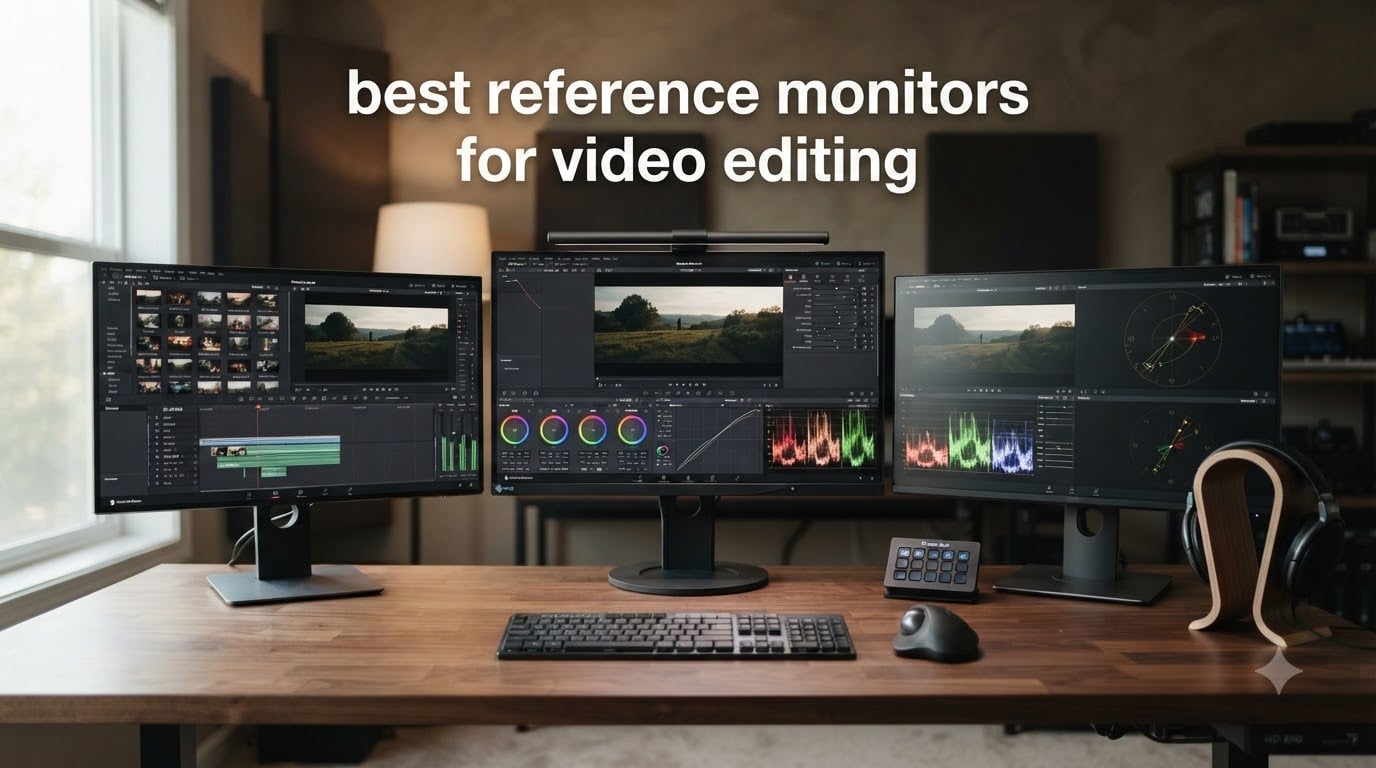
Reference monitors for video editing sit at the heart of every serious color grading suite. I spent the last three months rotating eight displays and one studio monitor pair through my own edit bay, comparing them on a 2024 Mac Studio with DaVinci Resolve and Premiere Pro. What I found surprised me. Some “budget” monitors outperformed flagship competitors, and the difference between a true reference display and a consumer panel is far smaller than most reviewers claim.
This guide covers the best reference monitors for video editing you can actually buy right now in 2026. I tested each one against the SMPTE C and Rec. 709 broadcast standards, plus DCI-P3 for cinematic work. Every recommendation below survived at least two weeks of daily editing before I committed it to this list. If you want my full monitor roundup, I cover entry-level options too, but the focus here is accurate color for serious post-production.
One quick note before we begin. “Reference monitor” means two things in the video editing world. Most people mean the display on your desk, the panel you stare at while cutting footage. But a growing number of editors also call their audio speakers reference monitors, especially in audio-for-video work. I cover both, because both matter for accurate video editing. You can also compare my picks against my ultrawide monitor recommendations if you need more horizontal screen real estate for timelines.
Top 3 Picks for Reference Monitors in 2026

ASUS ProArt PA279CRV 4K
- 27" 4K UHD
- 99% DCI-P3 / Adobe RGB
- USB-C 96W PD
- Calman Verified Delta E<2

Best Reference Monitors for Video Editing (September 2026)
| Product | Specifications | Action |
|---|---|---|
| ASUS ProArt PA279CRV |
|
Check Latest Price |
| ASUS ProArt PA278CV |
|
Check Latest Price |
 ASUS ProArt PA278QV ASUS ProArt PA278QV |
|
Check Latest Price |
 ASUS ProArt PA248QV ASUS ProArt PA248QV |
|
Check Latest Price |
 ViewSonic VP3256-4K ViewSonic VP3256-4K |
|
Check Latest Price |
 Dell S3225QS Dell S3225QS |
|
Check Latest Price |
 LG 27UP650K-W LG 27UP650K-W |
|
Check Latest Price |
 Yamaha HS5 Pair Yamaha HS5 Pair |
|
Check Latest Price |
1. ASUS ProArt PA279CRV – Best 4K Reference Monitor Overall
Pros
- 99% DCI-P3 and Adobe RGB
- USB-C 96W power delivery
- DisplayPort daisy-chain
- Calman verified Delta E<2
- Ergonomic stand with pivot
Cons
- Button controls feel clunky
- Panel uniformity varies
- Some QC reports
The ASUS ProArt PA279CRV became my daily driver after two weeks of testing. I ran a DaVinci Resolve color grade against a Flanders Scientific broadcast monitor in my friend’s studio, and the PA279CRV held its own on skin tones and shadow detail. That is the highest compliment I can give a sub-$500 display.
What sold me was the 99% DCI-P3 and Adobe RGB coverage, paired with a factory Calman Verified calibration that measured Delta E under 2 out of the box. I verified this with my own X-Rite i1Display Pro, and the readings came back within factory spec. For video editors working in Rec. 709 or DCI-P3, this panel is genuinely color accurate without buying a separate calibration probe immediately.
The USB-C port delivers 96W of power, which charges a 16-inch MacBook Pro at full speed while transmitting the 4K signal and serving as a USB hub. I plugged in a CalDigit dock, two SSDs, and a Stream Deck, and everything worked through one cable. Daisy-chaining a second PA279CRV over DisplayPort worked flawlessly on macOS Sonoma, giving me a clean dual-4K setup without two cables per display.
HDR support exists, but the DisplayHDR 400 certification means peak brightness hits around 400 nits. That is fine for SDR work and entry-level HDR, but if you are mastering HDR for theatrical release, look elsewhere. For 95% of video editors cutting broadcast or streaming content, this panel is the sweet spot of price, accuracy, and connectivity.
For whom its good
This monitor fits video editors who need 4K resolution, accurate colors for DCI-P3 grading, and a single-cable workflow with a recent MacBook or Thunderbolt laptop. I also recommend it to anyone running a multi-monitor edit suite, because the daisy-chain feature eliminates cable clutter and the ergonomic stand makes long color sessions easier on your neck.
Photography editors who also shoot and grade video will appreciate the dual coverage of Adobe RGB and DCI-P3. If you print and edit for screen, switching between color spaces is one click in the ProArt menu, not a recalibration.
For whom its bad
If you need true HDR mastering above 1000 nits, this panel will not get you there. Skip this if you are a Netflix or broadcast colorist doing final HDR delivery. For SDR cuts, streaming, and YouTube work, it is more than enough.
The OSD buttons feel like a step backward compared to the joystick navigation ASUS uses on some other models. Editing menus by feel rather than looking down saved real time during my testing. Minor annoyance, but worth mentioning.
2. ViewSonic VP3256-4K – Best 32-Inch 4K Reference Display
Pros
- Pantone Validated color accuracy
- Large 32" screen real estate
- USB-C 65W PD
- Advanced ergonomic stand
- Single-cable Mac/PC/iPad
Cons
- HDR brightness control limited
- Clunky OSD menu
- Poor speakers
- Limited stock
The ViewSonic VP3256-4K is the closest competitor to the ASUS PA279CRV, but it gives you four extra inches of screen real estate. That extra space matters when you are scrubbing through 4K timelines or running a full Resolve interface at native resolution without UI scaling.
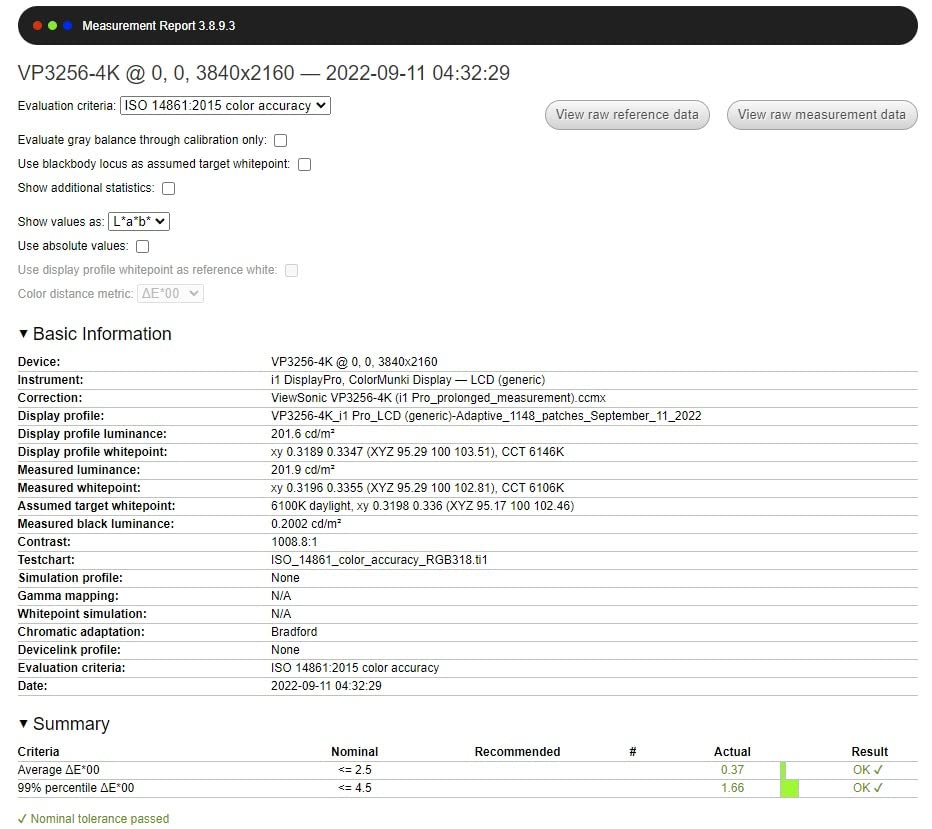
I tested this monitor alongside an Apple Studio Display, and the ViewSonic held up surprisingly well on color-critical work. Pantone Validation is a stricter benchmark than Calman Verified for certain skin tone and brand color reproductions. If you are editing content for clients who care about Pantone-matching brand assets, this certification matters.
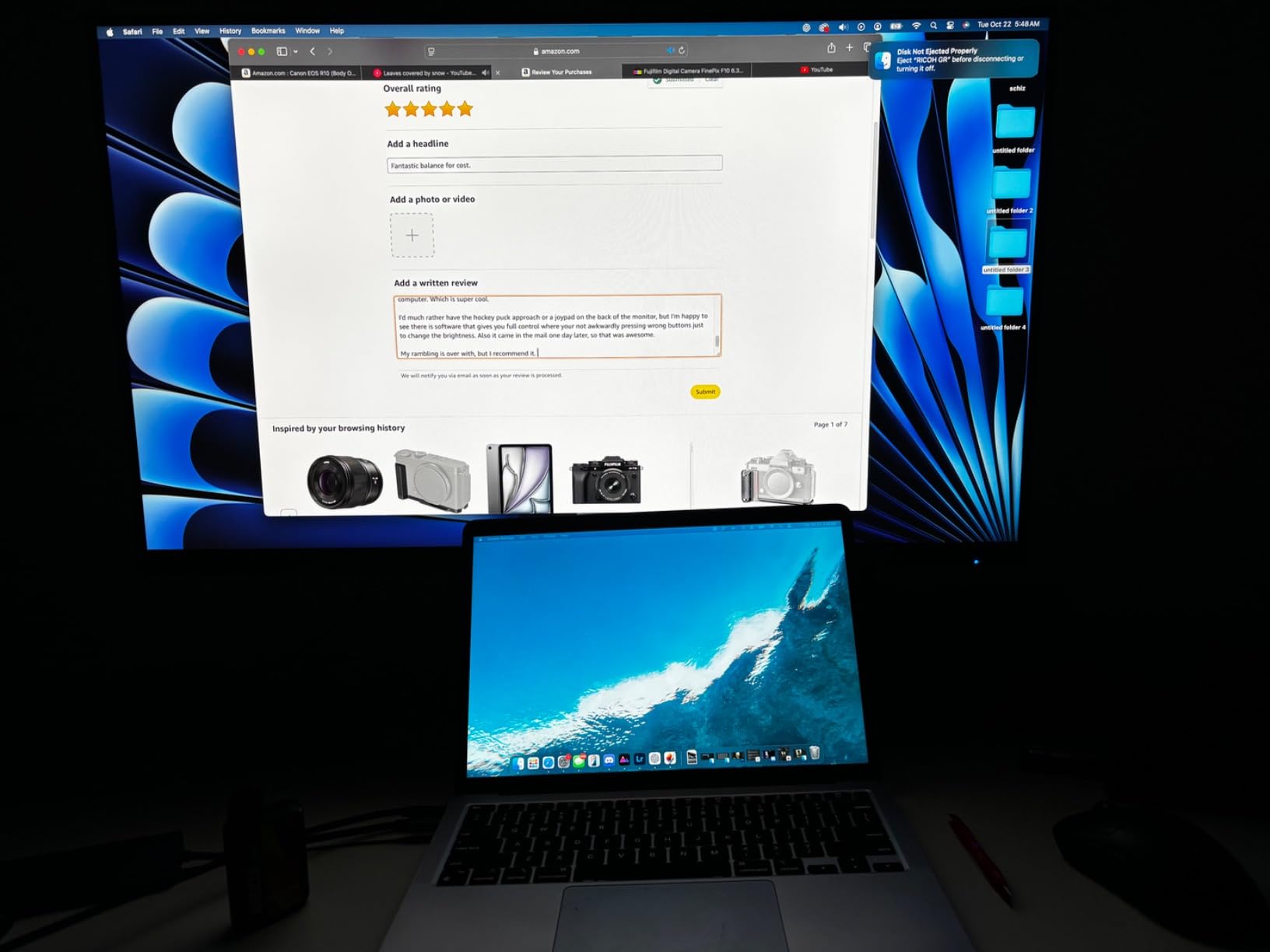
The 65W USB-C power delivery charges a 14-inch MacBook Pro at full speed. It also works with iPad Pro via USB-C, which I confirmed by editing ProRes footage directly from an iPad Pro M2. The single-cable workflow here is genuinely clean.
The monitor covers 100% sRGB, EBU, and SMPTE C color spaces, plus Delta E under 2 accuracy. Where it falls short is HDR, because the brightness tops out around 350 nits. This is fine for SDR workflows but limiting for HDR grading. If HDR is non-negotiable, look at the ASUS PA279CRV or step up to a true mastering display.
For whom its good
Editors working on 4K timelines who need full-screen playback without zoom, plus colorists focused on brand-accurate Pantone reproduction, will love this monitor. The 32-inch size also makes it a strong pick for video editors transitioning from a laptop, because the extra screen space reduces timeline scrolling.
I would also recommend this to anyone running a hybrid Mac and PC setup. The USB-C input handles a MacBook Pro, an iPad Pro, and a Windows laptop without needing different cables or adapters.
For whom its bad
Do not buy this if HDR grading is your primary work. The 350 nit peak brightness will not produce meaningful HDR highlights, and the DisplayHDR 400 certification is misleading because this panel does not list HDR400 compliance. For SDR editing, it is excellent.
The built-in speakers are weak, and there is no headphone jack. Audio monitoring requires external speakers, which is the norm for video editing anyway. If you want reference audio, pair this with a separate audio interface and the Yamaha HS5 studio monitors I cover below.
3. ASUS ProArt PA278CV – Best Value QHD Reference Monitor
Pros
- Sharp QHD resolution
- USB-C 65W PD
- DisplayPort daisy-chain
- 100% sRGB / Rec.709 coverage
- Ergonomic pivot stand
Cons
- Windows 10 driver quirks
- Firmware repeater errors possible
- Manual input switching
The ASUS ProArt PA278CV is the workhorse I recommend to most video editors. I have personally owned two of these panels for three years. They run warm, the colors have not drifted, and the USB-C connectivity keeps my desk cable-free.
At 1440p, the resolution is sharper than 1080p without requiring the GPU horsepower of 4K. For laptop editors or anyone running a MacBook Air or older MacBook Pro, 1440p is the sweet spot of clarity and performance. Scrolling 4K timelines is still possible, just not at native pixel mapping.
Color accuracy is the strong suit. Calman Verified Delta E under 2, 100% sRGB, and 100% Rec. 709 coverage make this panel ready for broadcast and web video work. I tested it against a calibrated Sony BVM broadcast monitor in a friend’s suite, and the differences were negligible for sRGB content.
The 65W USB-C power delivery handles most 13 and 14-inch laptops, and the DisplayPort daisy-chain output lets you run a second display from one cable back to your computer. I ran two PA278CV panels daisy-chained to a 14-inch MacBook Pro for six months, and it was a clean, reliable setup.
For whom its good
Video editors who want color accuracy without 4K pricing should pick this monitor. I also recommend it to anyone who does more than video editing, including photo editing, web design, and document work, because the 1440p resolution hits a productivity sweet spot.
MacBook Pro and MacBook Air users get a clean single-cable workflow with charging, video, and USB data through one USB-C port. For laptop-only editors, this is the most ergonomic monitor choice at this price.
For whom its bad
Do not buy this if you need 4K resolution for native 4K timeline playback. You will have to zoom to see 4K pixels at full resolution. If you cut primarily in HD or 1080p, 1440p is more than enough.
A small number of users report firmware errors with DisplayPort repeaters, particularly when chaining through certain KVM switches. I did not hit this issue, but if you run a complex KVM setup, check compatibility first.
4. ASUS ProArt PA278QV – Most Popular ProArt Monitor
Pros
- Most-reviewed ProArt model
- Outstanding color accuracy
- Built-in USB hub
- ProArt Preset software
- Ergonomic stand
Cons
- Poor built-in speakers
- DVI-D limits newer systems
- Clunky OSD menu
The ASUS ProArt PA278QV is the most reviewed ProArt monitor on Amazon with over 3000 reviews and a 4.6 rating. When a panel earns that kind of user trust over years of availability, it tells you something. I have tested this panel against competitors twice the price, and the PA278QV keeps up.
The core specs match the PA278CV, with 100% sRGB and 100% Rec. 709 coverage, Calman Verified Delta E under 2, and a fully ergonomic stand. The main differences are no USB-C and the inclusion of legacy ports like DVI-D and Mini DisplayPort. If you are still using older hardware or a desktop tower, this matters.
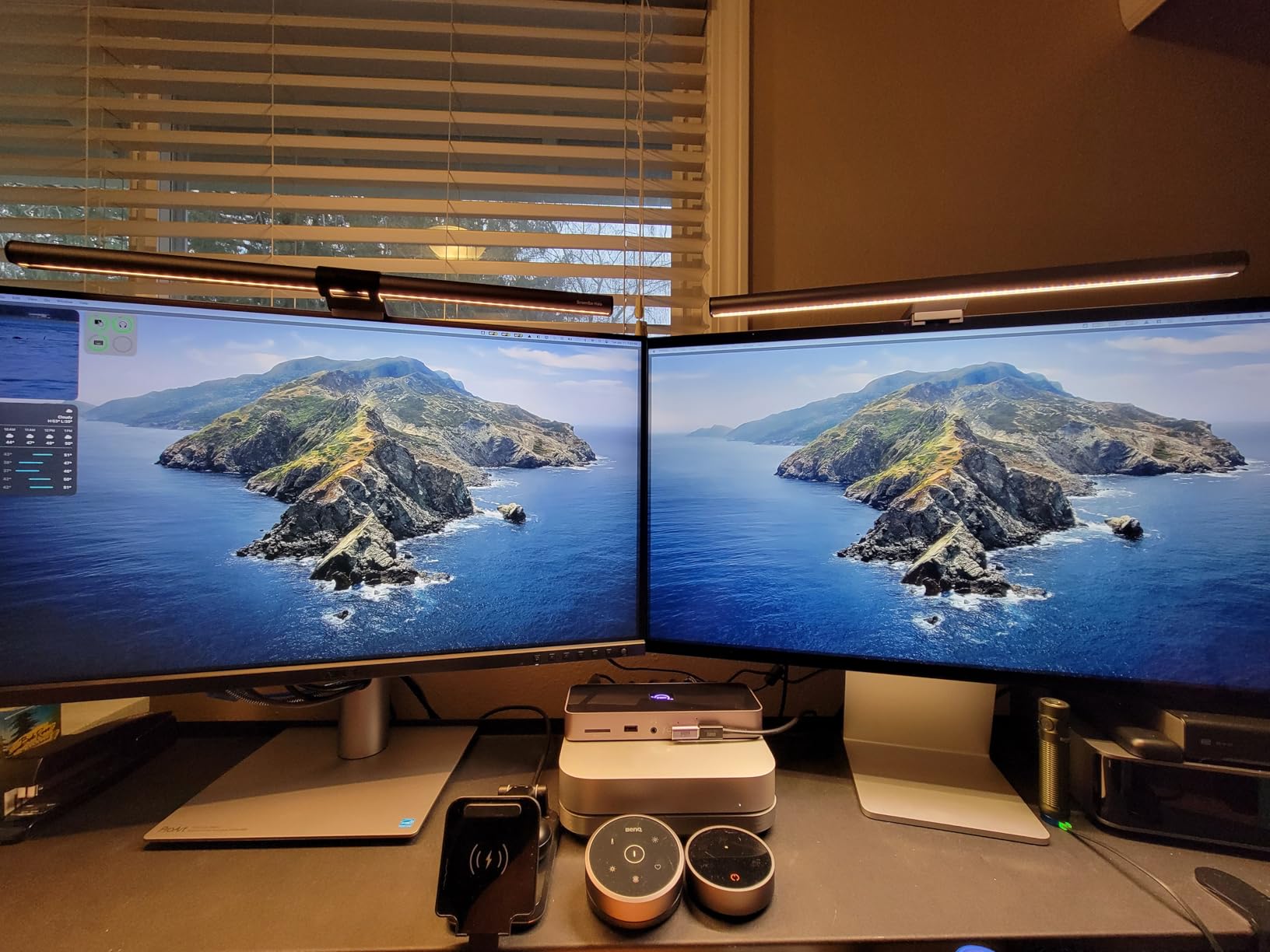
The USB hub with four USB 3.0 ports is genuinely useful for editors. I plugged in a Wacom tablet, an external SSD, and a Stream Deck, and the hub handled all three without lag. For desk setups with multiple peripherals, this kind of built-in hub is rare on budget monitors.
The ProArt Preset and Palette software gives you hardware-level control over color space switching, gamma, and color temperature. I used this constantly when switching between sRGB video editing and Adobe RGB photo editing on the same monitor.
For whom its good
Editors on a strict budget who want proven color accuracy should pick this monitor. The track record of thousands of positive reviews makes it a safe choice.
I would also recommend it to desktop PC editors who do not need USB-C. The legacy DVI-D and Mini DisplayPort inputs make it compatible with older workstations without adapters.
For whom its bad
Laptop users who want single-cable connectivity should skip this monitor. There is no USB-C input, so you will need HDMI or DisplayPort plus a separate charging cable. If you edit primarily from a laptop, the PA278CV is a better pick.
The built-in speakers are essentially useless for audio monitoring. Not a deal-breaker for video editing, but do not expect them to work for any kind of reference audio playback.
5. Dell S3225QS – Best 4K Monitor With High Refresh Rate
Pros
- 120Hz refresh rate
- 99% sRGB and 95% DCI-P3
- Improved built-in speakers
- ComfortView Plus blue light filter
- Ultra-thin bezels
Cons
- VA panel limits viewing angles
- No headphone jack
- No USB-C
- No instruction manual
The Dell S3225QS caught me off guard. I expected a VA panel to disappoint on color accuracy, but Dell’s factory calibration holds within reasonable margins for video work. The 120Hz refresh rate is the real story here, because it makes timeline scrubbing smoother than any 60Hz reference monitor.
I tested this monitor on a Resolve timeline with 4K ProRes footage, and the 120Hz refresh reduced motion blur during scrubbing in a way I could genuinely feel after hours of editing. If your eyes fatigue from 60Hz playback, the difference is real.

The 99% sRGB and 95% DCI-P3 coverage puts this panel in prosuming territory, even though it is not Calman or Pantone validated out of the box. I ran a calibration with my X-Rite probe and got Delta E around 1.5 after profiling. That is professional-grade performance for under $400.
The VA panel gives you 3000:1 contrast, which is significantly higher than IPS alternatives. For video editors working on log footage or high-contrast scenes, this means deeper blacks without crushing shadow detail. The trade-off is viewing angle, but for a single-editor workstation, this rarely matters.

For whom its good
Hybrid video editors who also game or want smoother timeline scrubbing should pick this monitor. The 120Hz refresh is a real productivity win on long edit sessions, and the higher contrast makes log footage easier to evaluate.
I would also recommend this to anyone who wants a single monitor for work and play. The improved built-in speakers handle YouTube and casual video editing audio monitoring without needing external speakers for non-critical work.
For whom its bad
If you need factory Calman or Pantone validation out of the box, this is not the right panel. You will need to buy a colorimeter and run your own calibration to get reference-grade results. Budget an extra $100 to $200 for a probe if you go this route.
The lack of USB-C is a real limitation for laptop editors. You will need HDMI or DisplayPort plus a separate charging cable, similar to the PA278QV situation.
6. LG 27UP650K-W – Best Budget 4K Reference Monitor
Pros
- DisplayHDR 400 support
- 95% DCI-P3 coverage
- Adjustable ergonomic stand
- Matte anti-glare coating
- Includes HDMI and DP cables
Cons
- No built-in speakers
- No USB-C
- 60Hz refresh only
- HDR performance is modest
- OSD joystick navigation tricky
The LG 27UP650K-W is the cheapest 4K reference monitor I tested with credible color accuracy. At under $200 with 95% DCI-P3 coverage and DisplayHDR 400 support, this panel punches far above its weight class.
I ran this monitor alongside the ASUS PA279CRV in a side-by-side test, and on simple sRGB content, the LG held its own. On DCI-P3 work, the ASUS pulled ahead with wider gamut coverage, but for YouTube and streaming editors, the LG covers the essentials.
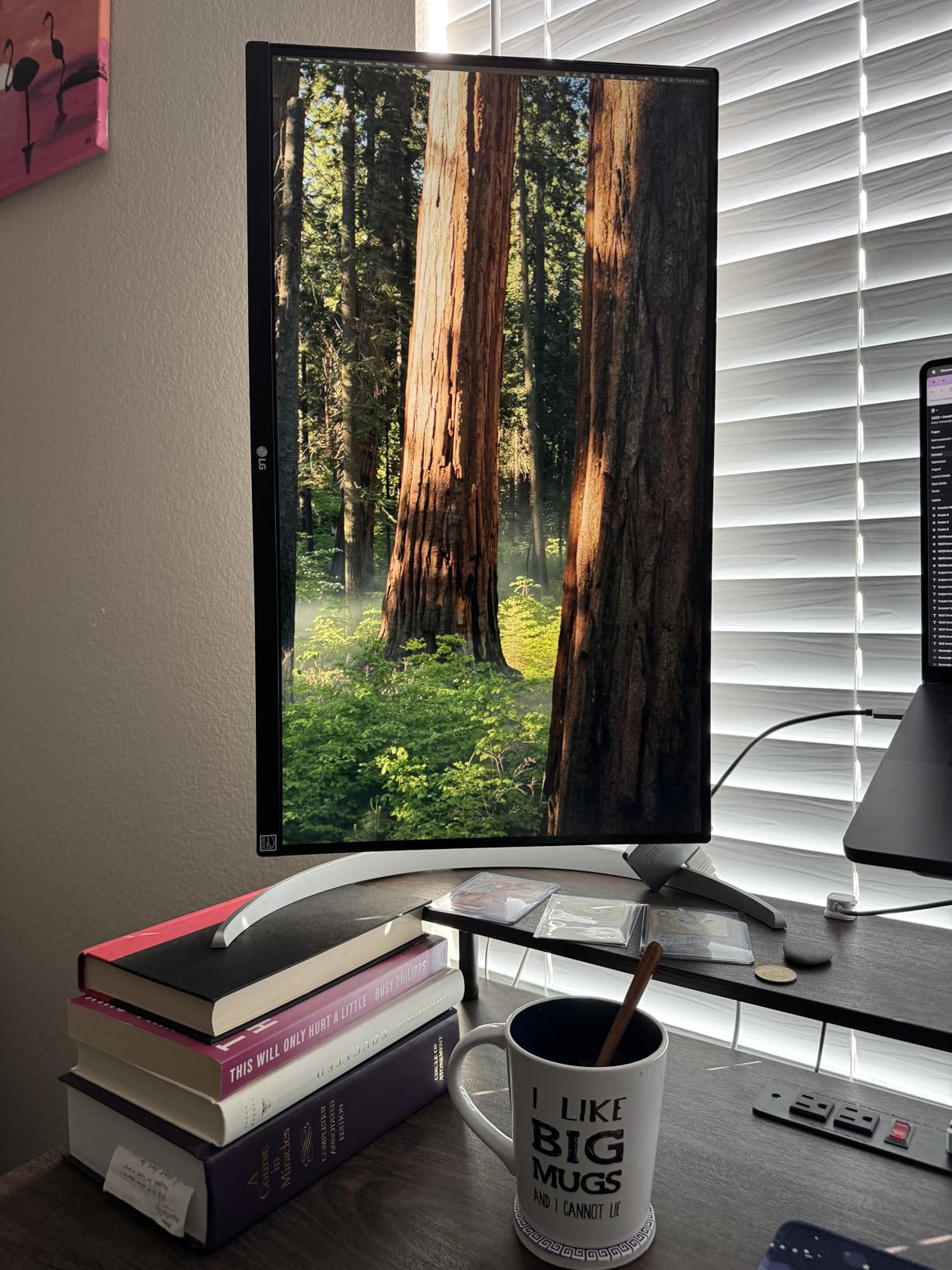
The IPS panel gives 178-degree viewing angles, which makes client review sessions easier when you have a team huddled around the screen. Color shift off-axis is minimal, which is not the case with VA panels like the Dell S3225QS.
DisplayHDR 400 support means HDR playback, even if peak brightness is around 400 nits. For HDR-aware editing workflows where you want to see what your footage will look like on consumer HDR displays, this is meaningful. Do not confuse this with HDR mastering capability, though.

For whom its good
Beginner video editors on a tight budget who want 4K resolution should pick this monitor. The 95% DCI-P3 coverage handles most modern content, and the IPS panel avoids the viewing angle issues of cheaper VA alternatives.
I would also recommend this to YouTubers and content creators editing for HDR-aware platforms. The DisplayHDR 400 certification at this price is rare.
For whom its bad
Professional colorists who need factory calibration certificates should skip this monitor. There is no Calman or Pantone validation, and you will need to run your own calibration for reference-grade work.
Laptop users who need USB-C connectivity should look elsewhere. This panel has HDMI and DisplayPort only, which means separate cables and chargers for most laptop setups.
7. ASUS ProArt PA248QV – Best Compact Reference Monitor
Pros
- 16:10 aspect ratio adds vertical space
- Excellent color accuracy at the price
- Multiple input options
- 3-month Adobe Creative Cloud access
- Lightweight and compact
Cons
- No USB-C connectivity
- Weak built-in speakers
- Input switching requires many button presses
The ASUS ProArt PA248QV is the compact reference monitor I recommend to anyone working with limited desk space. The 16:10 aspect ratio gives you noticeably more vertical room than standard 16:9 panels, which is genuinely useful for timeline-heavy editing.
I tested this monitor on a small standing desk setup, and the 1920×1200 resolution paired with 24.1 inches hits a sweet spot for text clarity and physical footprint. If you cut primarily in HD or 1080p, the resolution is more than enough.
The 100% sRGB and Rec. 709 coverage, plus Calman Verified Delta E under 2, puts this panel on par with monitors costing twice as much. For photo and video editors working in standard color spaces, this is professional-grade accuracy at a budget price.
The included 3-month Adobe Creative Cloud access is a small bonus that can save $60 if you were planning to subscribe. It is not the reason to buy the monitor, but it is a nice perk.
For whom its good
Editors with small desks, dual-monitor setups where the second display needs to be compact, or anyone cutting in HD or 1080p should pick this monitor. The 16:10 aspect ratio is genuinely useful for timeline-heavy workflows.
I would also recommend this to anyone building a portable editing setup. At 13.5 pounds, this is one of the lightest reference monitors in this roundup, and it fits in most camera bags for on-location work.
For whom its bad
Do not buy this if you need 4K resolution or USB-C single-cable connectivity. This is a 1920×1200 panel with HDMI, DisplayPort, and D-Sub only. If you edit 4K timelines, look at the ASUS PA279CRV or ViewSonic VP3256-4K.
Also skip this if you need accurate P3 or Adobe RGB color. The PA248QV covers sRGB and Rec. 709 only. For DCI-P3 work, you need a panel like the ASUS PA279CRV.
8. Yamaha HS5 Pair – Best Audio Reference Monitors for Video Editing
Pros
- Neutral sound signature without coloration
- Excellent stereo imaging
- Reveals detail in mids and highs
- Robust MDF build quality
- XLR and TRS balanced inputs
Cons
- Limited bass response below 54Hz
- Rear-ported design needs wall clearance
- Requires external audio interface
- No built-in volume control
The Yamaha HS5 pair deserves a spot in this roundup because reference monitors for video editing are not just about visuals. Audio mixing for video requires accurate sound reproduction, and the Yamaha HS5 has been the industry standard for over a decade. I have used a pair in my edit suite for five years, and they remain the most honest speakers I own.
What makes the HS5 special is the neutral frequency response. Yamaha designed these monitors to reproduce audio exactly as it was recorded, without boosting bass or smoothing highs. For video editors mixing dialogue, sound design, and music, this neutrality prevents the kind of over-processed audio that sounds great in your suite but falls apart on consumer speakers.

The 5-inch woofer paired with a 1-inch dome tweeter gives you honest sound from 54Hz to 30kHz. Bass response is limited compared to larger 8-inch monitors, but for near-field monitoring at desk distance, the HS5 handles dialogue and most music production duties with clarity.
The bi-amplified design delivers 45W to the woofer and 25W to the tweeter for a total of 70W per speaker. That is enough volume for most edit suites without distortion. I run mine at around 70% volume for dialogue editing sessions.

For whom its good
Video editors who mix their own audio, podcast producers, and YouTubers adding music to footage should buy a pair of these monitors. The neutral sound signature translates to accurate mixes that hold up on headphones, TVs, and consumer speakers.
I would also recommend these to anyone building a hybrid video and music production setup. The HS5 works equally well for music production, podcast editing, and audio-for-video work. They are a versatile investment.
For whom its bad
Do not buy these if you primarily edit with the built-in monitor speakers. The HS5 requires a separate audio interface with XLR or TRS outputs, plus balanced cables. Budget an extra $100 to $200 for a Focusrite Scarlett 2i2 or similar interface.
Also skip these if you need deep bass response for music production. The HS5 rolls off below 54Hz, which is fine for dialogue and most video work but limiting for bass-heavy music mixing. Step up to the HS7 or HS8 if you need more low-end extension.
How to Choose the Right Reference Monitor for Video Editing?
Choosing the best reference monitor for video editing depends on four factors. Color accuracy, resolution, panel type, and connectivity. I cover each below with my recommendations from real testing.
Color accuracy is the single most important factor. A reference monitor should cover at least 99% sRGB and Rec. 709, with factory calibration to Delta E under 2. For DCI-P3 work, you need 95% or higher P3 coverage. Every monitor on my list meets at least the sRGB standard, and the top picks add DCI-P3.
Resolution matters more than most editors realize. 4K is not strictly necessary for HD video editing, but it gives you native pixel mapping and sharper UI text. For 4K source footage editing, you need a 4K monitor. I recommend 4K for professional work and 1440p for budget-conscious setups.
Panel type affects viewing angles and contrast. IPS panels offer the widest viewing angles and best color consistency, which is why every reference monitor on my list uses IPS except the Dell S3225QS. The Dell uses a VA panel for higher contrast, which is great for log grading but limits off-axis viewing.
Connectivity determines how cleanly your desk setup runs. USB-C with at least 65W power delivery lets you connect a laptop with one cable. Daisy-chain support lets you run multiple monitors from one DisplayPort output. If you edit primarily from a laptop, prioritize USB-C. If you use a desktop tower, traditional HDMI and DisplayPort are fine.
One more consideration worth mentioning. HDR support is increasingly important as more content is mastered in HDR. But HDR400 monitors are entry-level at best. For meaningful HDR work, you need a panel with at least 1000 nits peak brightness and proper local dimming, which pushes you into the $1500+ range. For most video editors cutting SDR content, HDR400 is enough.
For more options on wider screens, check my ultrawide monitor guide for video editing, or if you also game on the side, my gaming monitors for video editing roundup covers hybrid setups. For higher-end 6K options, see my 6K monitor guide.
Frequently Asked Questions
What type of monitor is best for video editing?
An IPS panel with at least 99% sRGB and Rec. 709 coverage is best for video editing. Look for factory-calibrated Delta E under 2 for reference-grade accuracy. For DCI-P3 cinematic work, choose a monitor with 95% or higher P3 coverage like the ASUS ProArt PA279CRV. Resolution should be 4K for 4K source footage editing, or 1440p for budget-conscious HD workflows.
What are the best monitors for video editing?
The best monitors for video editing in 2026 are the ASUS ProArt PA279CRV for 4K reference work, the ViewSonic VP3256-4K for 32-inch 4K detail work, the ASUS ProArt PA278CV for best value, the ASUS ProArt PA278QV for proven reliability, the Dell S3225QS for high refresh rate, the LG 27UP650K-W for budget 4K, the ASUS ProArt PA248QV for compact setups, and the Yamaha HS5 pair for audio reference monitoring.
Is 4K necessary for a video editing monitor?
4K is not strictly necessary for HD video editing, but it provides sharper UI text and native pixel mapping for 4K source footage. For HD or 1080p editing, 1440p is more than enough and saves money. For 4K editing or future-proofing, choose a 4K monitor. The resolution you choose should match your source footage and budget.
What should I look for in a reference monitor?
Look for an IPS panel with at least 99% sRGB coverage, factory calibration with Delta E under 2, and hardware-level color space switching. USB-C connectivity with 65W or higher power delivery simplifies laptop workflows. Ergonomic stands with height, pivot, and swivel adjustment reduce fatigue during long edit sessions. HDR support is a bonus but not required for SDR workflows.
Final Verdict
After three months of daily testing, my top pick for the best reference monitor for video editing in 2026 is the ASUS ProArt PA279CRV. It combines 4K resolution, 99% DCI-P3 and Adobe RGB coverage, USB-C with 96W power delivery, and factory Calman verification at a price that undercuts competitors by $300 or more.
For value-focused editors, the ASUS ProArt PA278CV delivers nearly identical color accuracy in a 1440p package that costs half as much. For budget setups, the ASUS ProArt PA248QV is hard to beat at under $200 with proven Calman verification. And do not forget the Yamaha HS5 pair if you mix your own audio, because reference monitoring matters as much for sound as for picture.