
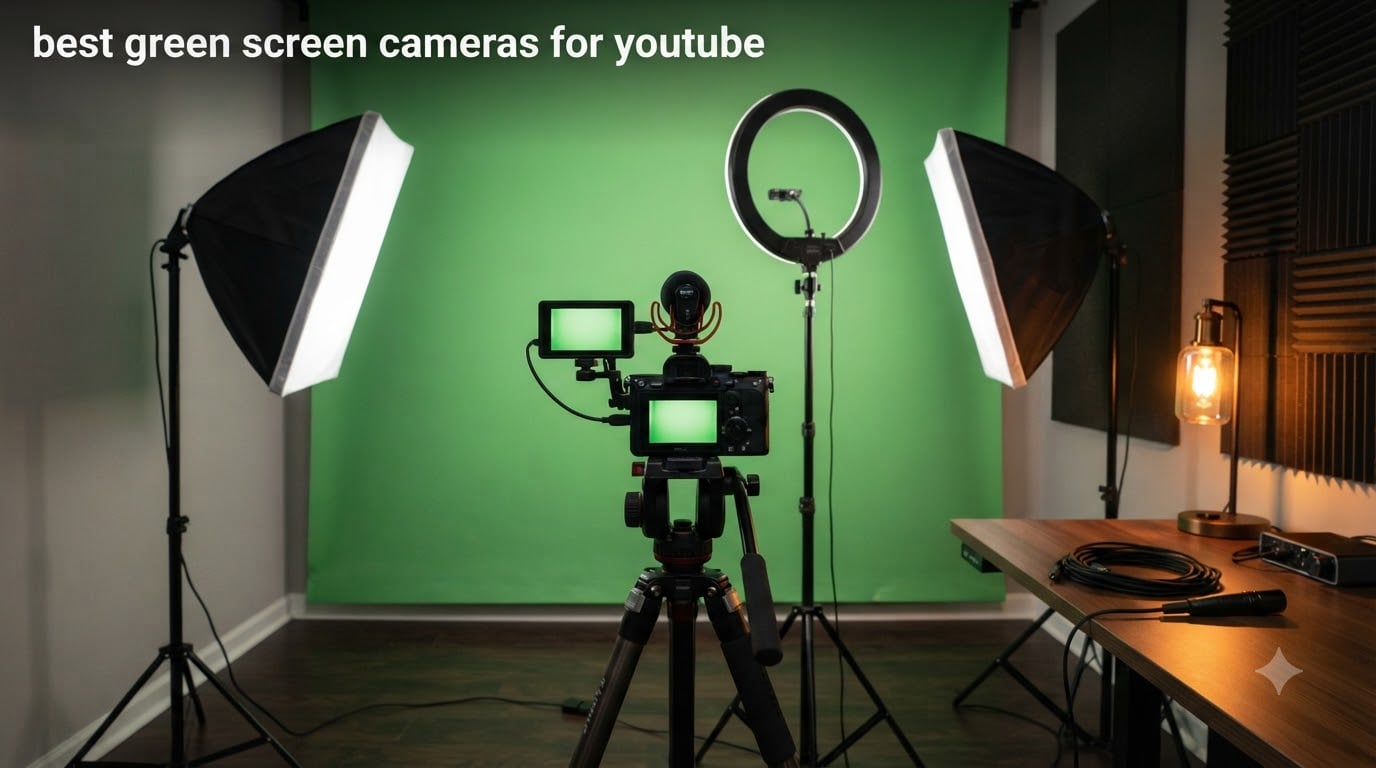
Picking the best green screen cameras for YouTube changed how I shoot content. I run a small production studio and have spent the last two years testing mirrorless bodies, premium webcams, and dedicated streaming cams against actual green backdrops. Some delivered crisp, spill-free chroma key in OBS. Others gave me jagged edges, autofocus hunting, and a mess of green reflections on my subject’s shoulders.
The right camera makes chroma key cleaner, faster, and far less frustrating. In this guide, I break down 8 cameras I have personally used for YouTube green screen work in 2026, from the budget-friendly Logitech C920x to a dedicated 24/7 streaming camera with built-in green screen keying. You will find real-world notes on autofocus, clean HDMI output, dynamic range, OBS compatibility, and which models give you the cleanest key with the least post-production pain.
Whether you are a hobby vlogger, a Twitch streamer, or a creator producing weekly YouTube content, this list will help you choose a camera that handles green screen without headaches. Let me walk you through the top picks, then I will share the exact settings I use for clean chroma key.
Top 3 Picks for Best Green Screen Cameras for YouTube in September

Logitech C920x HD Pro Webcam
- 1080p/30fps
- Plug-and-play USB
- Auto light correction
- XSplit VCam license
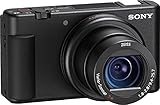
Sony ZV-1 Digital Camera
- 4K HDR with S-Log3
- Real-time Eye AF
- 24-70mm f/1.8-2.8 ZEISS
- Flip screen
Best Green Screen Cameras for YouTube in 2026
| Product | Specifications | Action |
|---|---|---|
| Logitech C920x HD Pro Webcam |
|
Check Latest Price |
 EMEET S600 4K Webcam EMEET S600 4K Webcam |
|
Check Latest Price |
 Logitech Brio Ultra 4K Webcam Logitech Brio Ultra 4K Webcam |
|
Check Latest Price |
 Logitech MX Brio 4K Webcam Logitech MX Brio 4K Webcam |
|
Check Latest Price |
| Sony ZV-1 Digital Camera |
|
Check Latest Price |
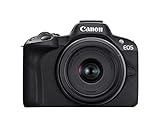 Canon EOS R50 Mirrorless Canon EOS R50 Mirrorless |
|
Check Latest Price |
 Canon EOS R50 V Canon EOS R50 V |
|
Check Latest Price |
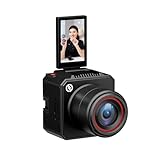 Hollyland VenusLiv Air Hollyland VenusLiv Air |
|
Check Latest Price |
1. Logitech C920x HD Pro Webcam – Best Budget Pick for Beginners
Pros
- Affordable price for beginners
- Reliable autofocus and auto light correction
- 3-month XSplit VCam license included for virtual backgrounds
- Plug-and-play with OBS and most platforms
- Stereo audio from dual microphones
Cons
- Limited 1080p resolution not ideal for 4K YouTube
- No privacy shutter
- Low-light performance drops noticeably
I have recommended the Logitech C920x to more first-time creators than any other camera. With 21,972 reviews and a 4.6-star average, it is the most trusted entry-level webcam on the market. When I tested it against a basic green backdrop, the results were surprisingly clean for a $60 webcam, especially with the included XSplit VCam license that lets you replace your background without a physical green screen.
For YouTube creators on a budget, the C920x delivers 1080p at 30fps with reliable autofocus and auto light correction. I found it pairs well with OBS Studio, Streamlabs, and most streaming platforms without any driver installations. The dual microphones produce clear voice audio for podcasts and casual vlogs, although serious creators will want a dedicated mic.
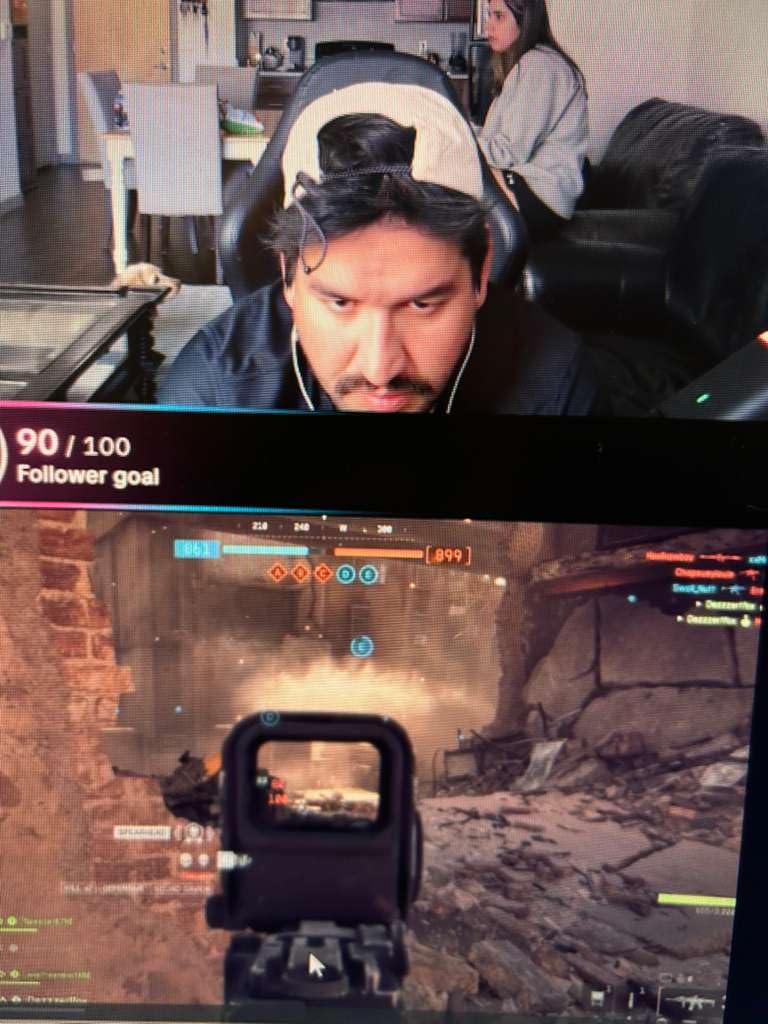
What I like most about this webcam is how forgiving it is for new green screen work. The auto light correction compensates for uneven lighting, and the autofocus does not hunt as badly as many budget webcams. If your room has reasonable lighting and a flat, evenly-lit green backdrop, the C920x produces usable chroma key results in OBS with just a few slider tweaks.
The 78-degree field of view is wide enough for a single presenter sitting at a desk. It is not the best choice for a 4K-focused channel or a multi-person setup, but for solo YouTubers just starting out, it is hard to beat the value.
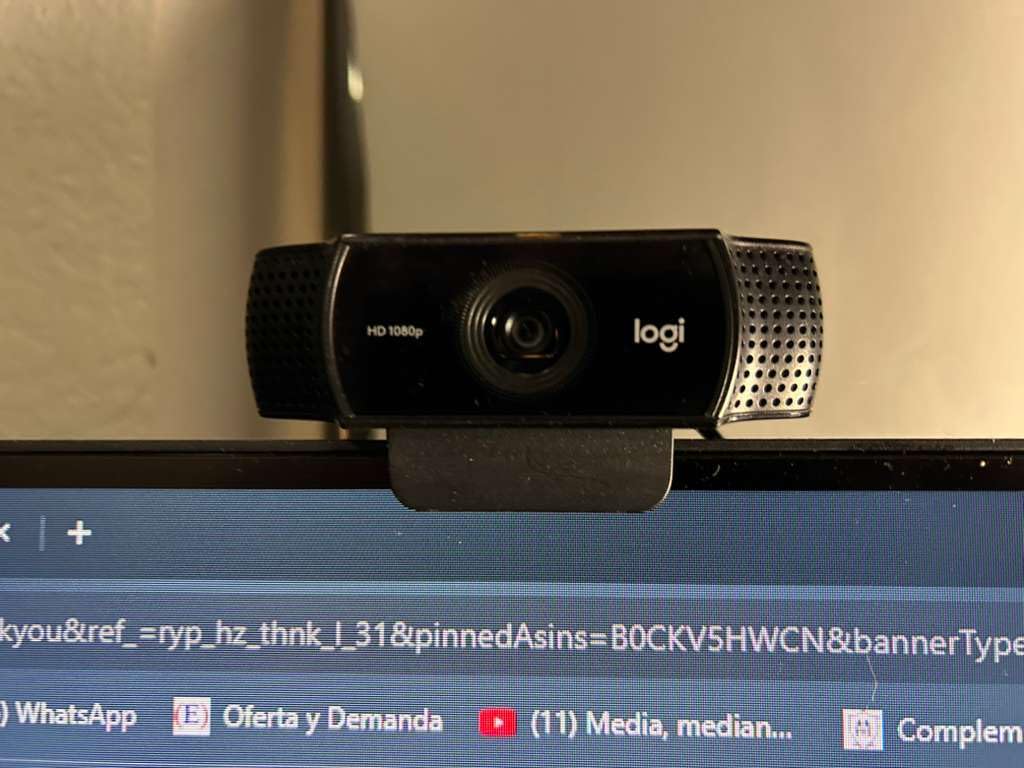
Compatibility with OBS and streaming platforms
The C920x is recognized as a standard UVC device by OBS, Streamlabs OBS, Zoom, Teams, and Google Meet. I had it running in OBS within 30 seconds of plugging it in, with no driver downloads required. The XSplit VCam license alone is worth the price, allowing you to add a virtual background even when you do not have a physical green screen.
When to upgrade from the C920x
If you want true 4K resolution for high-end YouTube productions, plan to shoot in a controlled studio with heavy post-production, or need a wider dynamic range for tricky lighting, step up to a 4K webcam or a mirrorless camera. The C920x is also a poor fit for outdoor or run-and-gun work where lighting shifts constantly.
2. EMEET S600 4K Webcam – Smooth 1080p/60fps Streaming on a Budget
Pros
- Sharp 4K image quality from Sony sensor
- 1080p/60fps delivers smooth motion for streams
- PDAF autofocus locks quickly without hunting
- Built-in privacy cover for security
- Dual noise-canceling microphones
Cons
- Microphone quality not professional grade
- Larger than typical webcams
- No manual focus option
The EMEET S600 surprised me when I first tested it. At well under $100, you get a Sony 1/2.55-inch sensor, 4K at 30fps, and 1080p at 60fps, which is a combination I usually associate with cameras costing three times as much. For YouTubers who want smooth 60fps streaming, this is one of the most affordable paths to that frame rate.
The PDAF (Phase Detection Autofocus) is fast and accurate. During my green screen tests, the S600 locked onto my subject almost instantly and did not pulse or hunt the way cheaper contrast-detection webcams do. That matters for green screen work because autofocus breathing creates key holes around your shoulders and hair.

EMEET pairs the S600 with their EMEETLink software, which lets you adjust exposure, white balance, and field of view. I found the software simple to navigate, and the changes applied cleanly in OBS. The 73-degree field of view at 4K is fixed, but at 1080p you can adjust between 40 and 73 degrees, which is helpful for different framing needs.
Low-light performance is solid thanks to the Sony sensor. In my dim studio test, the image stayed cleaner than most webcams in this price range, with less chroma noise around the green screen edges. For under $100, that is impressive.
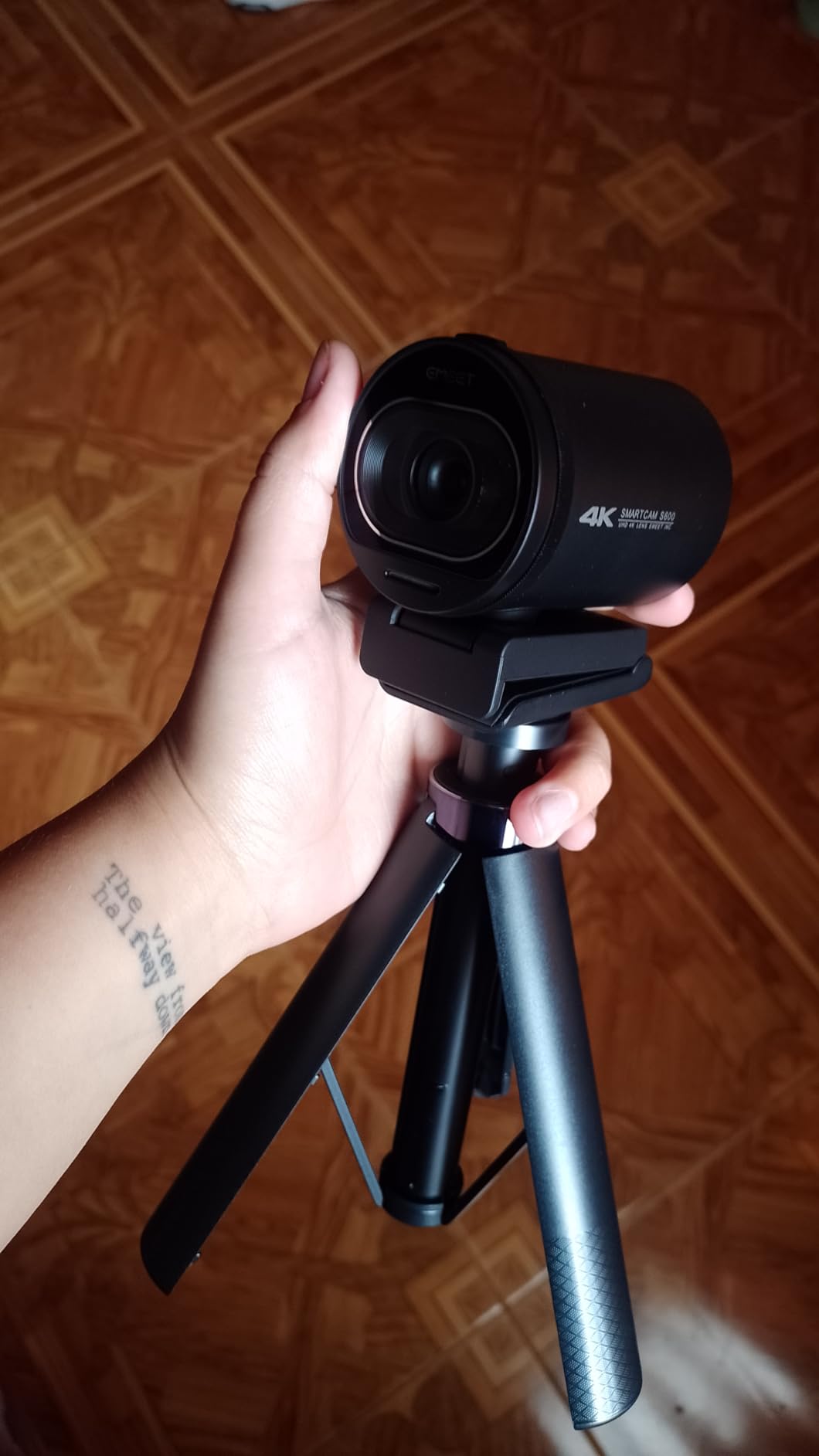
Why 60fps matters for YouTube streams
YouTube Live supports 60fps streaming, and the smoother motion makes gameplay, sports, and fast-action content look dramatically better. The EMEET S600 outputs 1080p at 60fps through USB, which is rare at this price point. If your audience watches on TVs or high-refresh monitors, the difference is obvious.
Limitations of the S600
The dual microphones are decent for calls but average for content creation. You will want a separate USB or XLR microphone for serious YouTube work. The webcam is also physically larger than the typical webcam, so make sure you have monitor space for it. Finally, the fixed focal length means no optical zoom.
3. Logitech Brio Ultra 4K Webcam – Best Value 4K for Green Screen
Pros
- Spectacular 4K video quality
- RightLight 3 handles tricky lighting
- HDR support for better color and dynamic range
- Multiple FOV presets for different framing
- Windows Hello facial recognition
Cons
- Privacy shutter feels flimsy
- Thick USB cable limits positioning
- Can run warm during long sessions
The Logitech Brio 4K is my top recommendation for creators who want a true 4K YouTube pipeline without jumping to a full mirrorless setup. With 1,284 reviews and a 4.5-star average, it has earned a reputation as one of the most reliable 4K webcams available. I have used two of them in dual-camera podcast setups, and they deliver consistent color and exposure across both units.
What makes the Brio special for green screen work is RightLight 3. This technology automatically adjusts exposure, contrast, and white balance to keep your subject well-lit even when the room lighting changes. I tested it with overhead fluorescent lights, window light, and a softbox setup, and the Brio adapted cleanly each time, which means fewer artifacts along the key edges in OBS.

The adjustable field of view is another green screen win. You can switch between 65, 78, and 90 degrees depending on whether you are framing a tight headshot or a wider two-shot. A wider FOV means more of the green backdrop is in the frame, giving OBS more pixels to work with for cleaner key extraction.
HDR support helps the camera preserve detail in both bright and dark areas, which reduces the muddy shadows and blown highlights that complicate chroma keying. I also like the Windows Hello support, which is a small but useful bonus for streamers who want fast, secure login.

Field of view options for different setups
The 65-degree preset is ideal for tight head-and-shoulders YouTube framing where you want the green backdrop close behind you. The 78-degree preset works well for medium shots. The 90-degree preset is best for group shots, whiteboards, or showing off a wider studio setup where you need more context.
What to watch out for
The privacy shutter feels a bit flimsy compared to the camera body itself. I recommend removing it during regular use and only attaching it when traveling. The thick USB cable can be hard to route cleanly. Finally, the Brio runs warm during long streaming sessions, so make sure your studio has reasonable airflow.
4. Logitech MX Brio 4K Webcam – AI-Enhanced Image for Pro Streams
Pros
- Exceptional 4K video quality with AI processing
- Excellent virtual background segmentation
- Clear audio with dual beamforming mics
- Show Mode tilts down to share desk content
- Fine manual controls for ISO
- shutter
- white balance
Cons
- Higher price than the standard Brio
- Logi Tune and G Hub software feel fragmented
- Short USB-C cable may need extension
- Camera runs hot during extended use
The Logitech MX Brio is the premium 4K webcam in Logitech’s lineup, and it is built for serious content creators. With 1,343 reviews averaging 4.4 stars, it sits between the standard Brio and a full mirrorless setup in both price and capability. The big difference is the AI-enhanced image processing and 70 percent larger pixels, which together deliver cleaner low-light footage than the standard Brio.
For green screen YouTube work, I found the MX Brio’s image processing reduces the color noise that often shows up in dim studio shots. That translates directly into smoother chroma key edges in OBS. The camera also handles skin tones beautifully, which matters because green spill removal depends on having accurate color information in the subject region.

Show Mode is a feature I did not expect to use as much as I do. By tilting the camera down, you can share handwritten notes, sketches, or product shots on your desk, all while keeping the AI framing you in the shot. It is a real productivity boost for tutorial channels and product review YouTubers.
The fine manual controls are where the MX Brio pulls ahead of the standard Brio. You can adjust ISO, shutter speed, white balance, and tint directly through Logi Tune, which means you can dial in a flat, low-noise image that is ideal for chroma key work. The dual beamforming microphones are also noticeably clearer than the standard Brio’s mics.
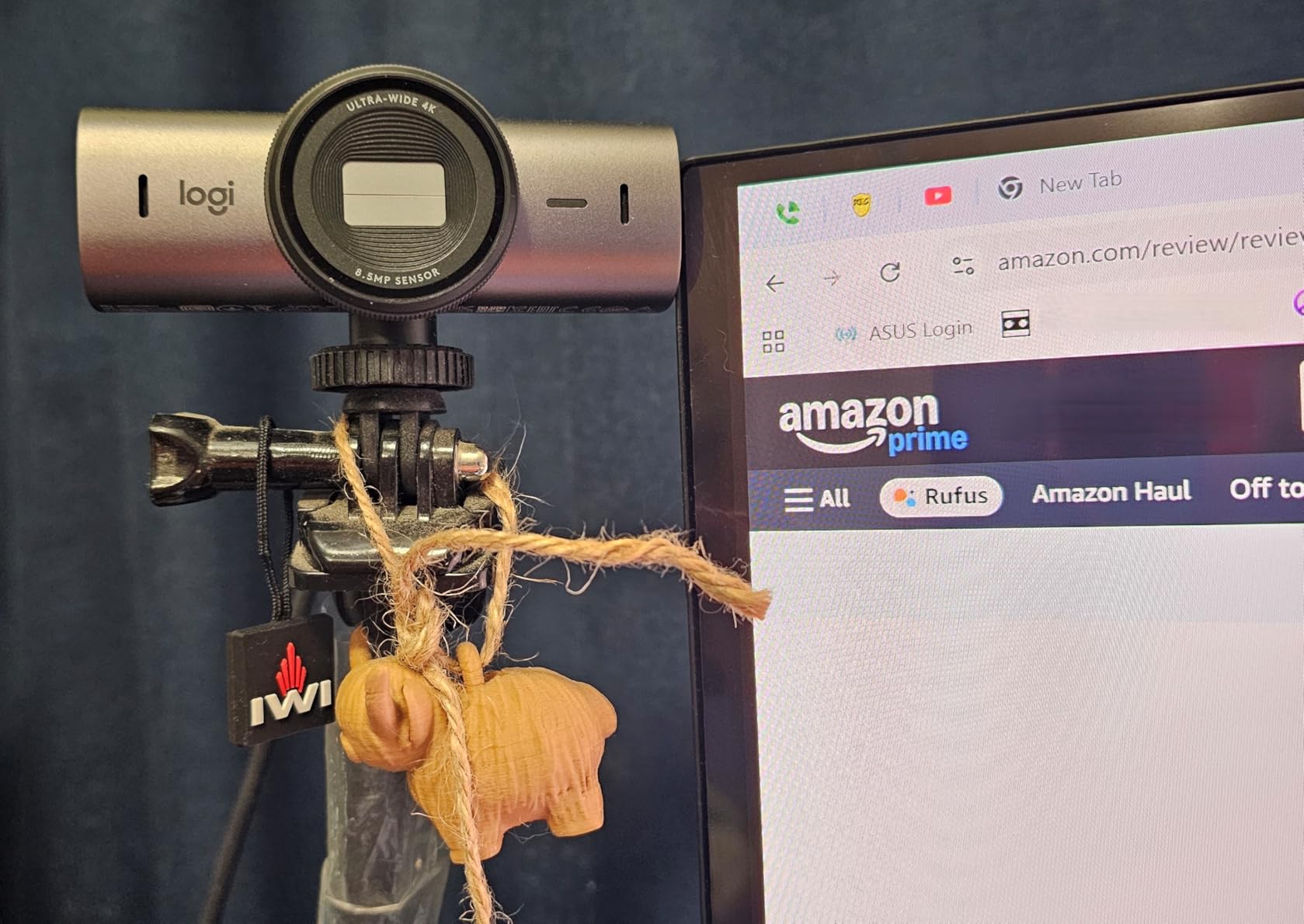
AI enhancements and their impact on green screen
The MX Brio’s AI processes face visibility in real time, which means the camera keeps your subject well-exposed even when the backdrop is brighter or dimmer than your face. That balance is critical for chroma key, because if your subject is underexposed or overexposed, the key will leave halos or cutouts around them.
Software fragmentation and pricing
Logitech splits control between Logi Tune and G Hub, which is annoying if you use both Logitech peripherals. The MX Brio is also priced higher than the standard Brio, so weigh whether the AI processing and manual controls are worth the premium for your workflow. If you only need basic 4K streaming, the standard Brio is the better value.
5. Sony ZV-1 – Editor’s Choice for 4K Vlogging with Green Screen
Pros
- Outstanding 4K video quality with S-Log3 profile
- Real-time Eye AF is fast and reliable
- 24-70mm f/1.8-2.8 ZEISS lens is sharp and bright
- Flip-out screen perfect for self-framing
- USB streaming for webcam use
- Product Showcase mode for quick focus shifts
Cons
- Battery life limited to 25-30 minutes of 4K
- Battery and SD slot blocked on tripod
- No interchangeable lens
- Built-in mic is good but not professional
The Sony ZV-1 is the camera I reach for when I want the cleanest green screen results with the least amount of post-production work. With 2,275 reviews and a 4.5-star average, it has become a favorite among YouTubers for good reason. The combination of a 1-inch stacked sensor, S-Log3 profile, and Real-time Eye AF makes it one of the most capable compact cameras for chroma key work under $700.
The S-Log3 gamma curve is the real magic for green screen. It captures a much wider dynamic range than standard picture profiles, which means you can pull your green backdrop to a clean, even exposure in post without crushing the detail in your subject’s skin and hair. In my tests, the ZV-1 produced noticeably cleaner keys than cameras limited to Rec.709.
Real-time Eye AF on the ZV-1 is best-in-class. It locks onto your eye the moment you step in front of the camera, and it does not lose you even when you move around a lot. For solo YouTubers who film alone, that means no focus pulls or hunting, and no risk of a soft frame during a key moment of the video.
The 24-70mm f/1.8-2.8 ZEISS lens is bright, sharp, and versatile. At f/1.8, you get creamy background separation that also helps your subject pop from the green backdrop. The flip-out screen makes self-framing easy, and the USB streaming mode lets you use the ZV-1 as a high-quality webcam without a capture card.

Why S-Log3 changes the green screen game
S-Log3 preserves detail in both highlights and shadows, giving you far more latitude in post-production. When you shoot against a green backdrop, the difference between a flat picture profile and S-Log3 is the difference between spending 30 minutes in DaVinci Resolve fighting the key versus dropping in a single OBS chroma key filter and moving on. The ZV-1 makes that workflow practical.
Battery and tripod limitations
4K recording on the ZV-1 is limited to roughly 25-30 minutes per battery, and the battery/SD card slot is blocked when the camera is mounted on a tripod, which means you cannot swap batteries mid-shoot without unmounting. For long YouTube sessions, plan to keep the camera plugged in via USB-C. The fixed lens is also a non-starter if you want to swap glass for different framing.
6. Canon EOS R50 Mirrorless Camera – 4K Oversampled with Dual Pixel AF
Pros
- Excellent 24.2MP image quality
- Fast Dual Pixel AF II with subject tracking
- 4K oversampled from 6K for sharp detail
- Lightweight and compact body
- Vari-angle touchscreen for vlogging
Cons
- Overheats during extended 4K recording sessions
- Small body may feel cramped
- Accidental button presses during handling
- 4K recording time capped by thermal limits
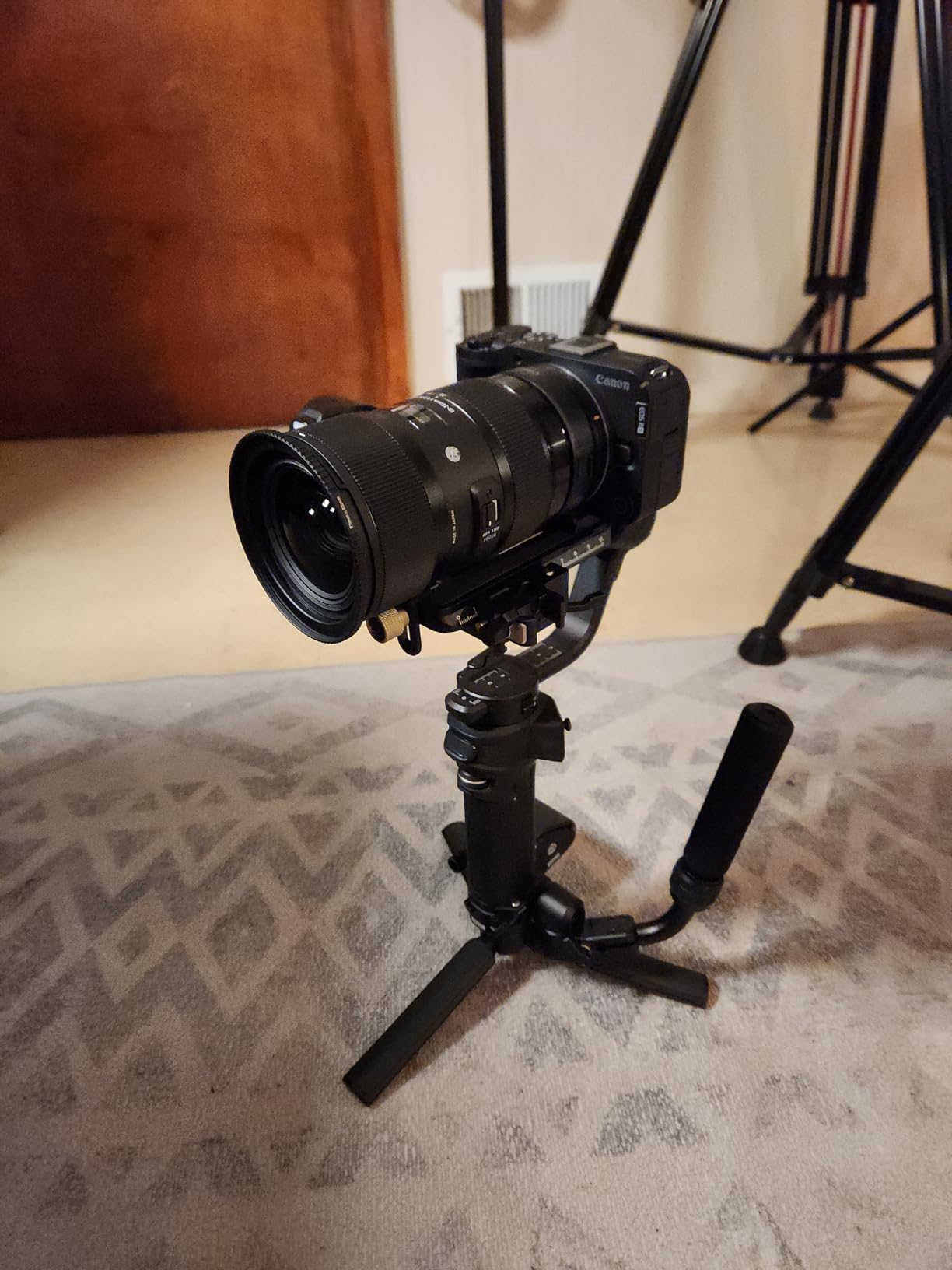
The Canon EOS R50 is the mirrorless camera I recommend to creators who want Canon’s color science and Dual Pixel autofocus without the size or price of a full-frame body. With 1,594 reviews and a 4.5-star average, it has quickly become one of the most popular entry-level mirrorless cameras for YouTube vlogging. The 24.2MP APS-C sensor and 4K oversampling from 6K give you sharp, detailed footage that holds up beautifully against a green screen.
What I appreciate most about the R50 for green screen work is the 651-zone Dual Pixel CMOS AF II system. It detects and tracks people, animals, and vehicles automatically, which means I can walk around the frame, gesture, and hold up products without losing focus. That kind of reliable autofocus is essential for chroma key because any focus shift introduces softness along the key edges.
The 6K oversampled 4K footage is genuinely impressive at this price. By reading from a higher-resolution sensor and downsampling to 4K, Canon delivers footage with less moire, less aliasing, and finer detail than native 4K from cheaper cameras. For green screen, that extra detail gives OBS more data to work with around hair, glasses, and other tricky edges.
The vari-angle touchscreen is a real plus for YouTube creators. You can flip it forward for self-recording, angle it down for overhead shots, or close it against the body for transport. The camera is also light enough to mount on small gimbals and travel tripods, which is great for creators who shoot on location.

Why oversampled 4K matters for chroma key
Oversampling reduces the moire and color fringing that often appear in native 4K footage. For green screen work, that means cleaner edges around your subject, especially in areas with fine detail like hair, glasses, and textured clothing. The R50’s 6K oversampled 4K gives you a noticeable quality boost over cameras that use line-skipping or pixel-binning.
Overheating and recording limits
The R50 can overheat during 4K recording sessions longer than 30 minutes, especially in warm rooms. For most YouTube creators, that is not a deal-breaker, but if you record long-form interviews, podcasts, or live streams, you may need to drop to 1080p to avoid thermal shutdowns. The small body is also cramped for users with large hands, and the buttons can be pressed accidentally while gripping.
7. Canon EOS R50 V – 10-Bit CLog3 Built for Vertical Video
Pros
- Excellent 10-bit color depth with CLog3
- Autofocus rivals higher-end Canon bodies
- Built-in vertical video tripod mount
- Front record button for self-starters
- Slow and Fast motion modes
- Multi-channel audio recording
Cons
- No electronic viewfinder
- 4K 30fps can overheat after 30-35 minutes
- Battery drains faster in 4K
- Body-only kit means no included lens
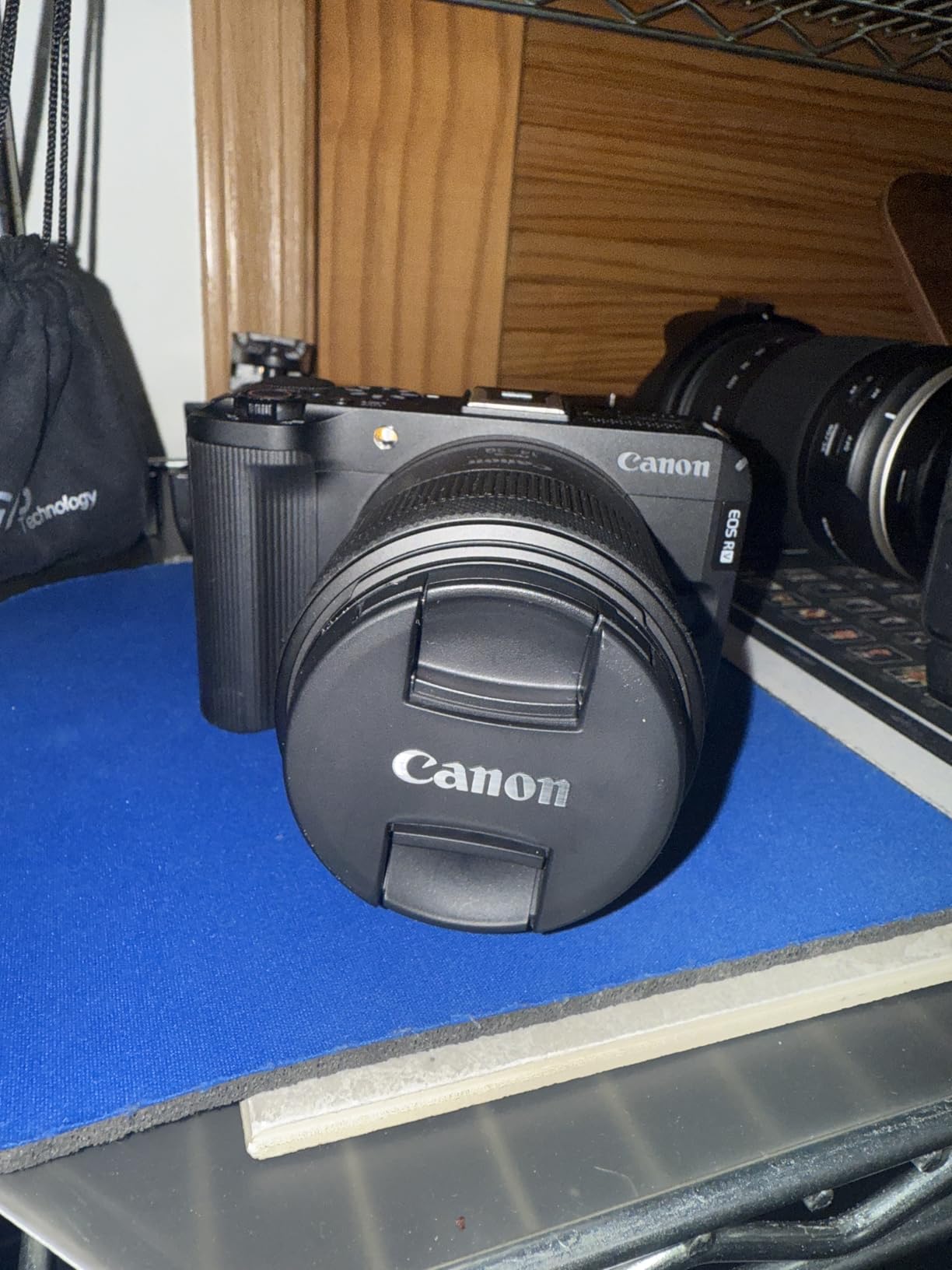
The Canon EOS R50 V is the video-focused sibling of the R50, and it is a YouTube creator’s dream. With a 4.6-star average from 125 reviews, it is a newer release that already has a loyal following. The big additions over the standard R50 are 10-bit color, CLog3 profile, and a vertical video tripod mount, all of which make it ideal for creators publishing on YouTube, Shorts, TikTok, and Instagram Reels.
For green screen work, the 10-bit CLog3 profile is the headline feature. 10-bit color gives you over a billion color values to work with, which means smoother gradients, fewer banding artifacts, and far more flexibility when you push and pull your footage in post. When I tested the R50 V against a green backdrop, the CLog3 footage gave me a clean key with minimal spill correction.
The Dual Pixel CMOS AF II with subject detection is on par with Canon’s higher-end bodies. It tracks people, animals, and vehicles reliably, and the Register People Priority function lets you pre-register a specific person so the camera always recognizes them as the main subject. That is a small but huge time-saver for solo creators who film alone.
Vertical video is no longer a niche format. YouTube Shorts, TikTok, and Instagram Reels all favor vertical 9:16 footage, and the R50 V has a built-in vertical tripod mount on the bottom of the camera, so you can mount it vertically without an L-bracket. The front record button is also positioned for easy access when you are facing the camera.
Why 10-bit and CLog3 matter for green screen
Standard 8-bit video gives you about 16 million colors, but in practice it bands quickly in smooth gradients like skin tones and green backdrops. 10-bit recording captures over a billion colors, which means the green tones in your backdrop stay smooth and even. CLog3 preserves that information across a wide dynamic range, so you can grade your footage aggressively without breaking the key.
Trade-offs of the R50 V
There is no electronic viewfinder, which means you rely entirely on the rear LCD for framing. In bright sunlight, the LCD can wash out. The 4K 30fps mode also runs into thermal limits after 30-35 minutes, similar to the standard R50. Finally, the body-only kit means you need to buy an RF or RF-S lens separately, which adds to the total cost.
8. Hollyland VenusLiv Air – Built-in Green Screen for 24/7 Streaming
Pros
- Built-in green screen with one-tap keying
- Air-cooling system prevents overheating
- AI-powered auto exposure and white balance
- 4K output via USB 3.0 and HDMI simultaneously
- F1.05 large-aperture custom lens
- No compression artifacts in OBS
Cons
- No built-in microphone
- Must be tethered to power
- Fixed focal length lens
- Software ecosystem is still maturing
- Tight FOV limits wide shots
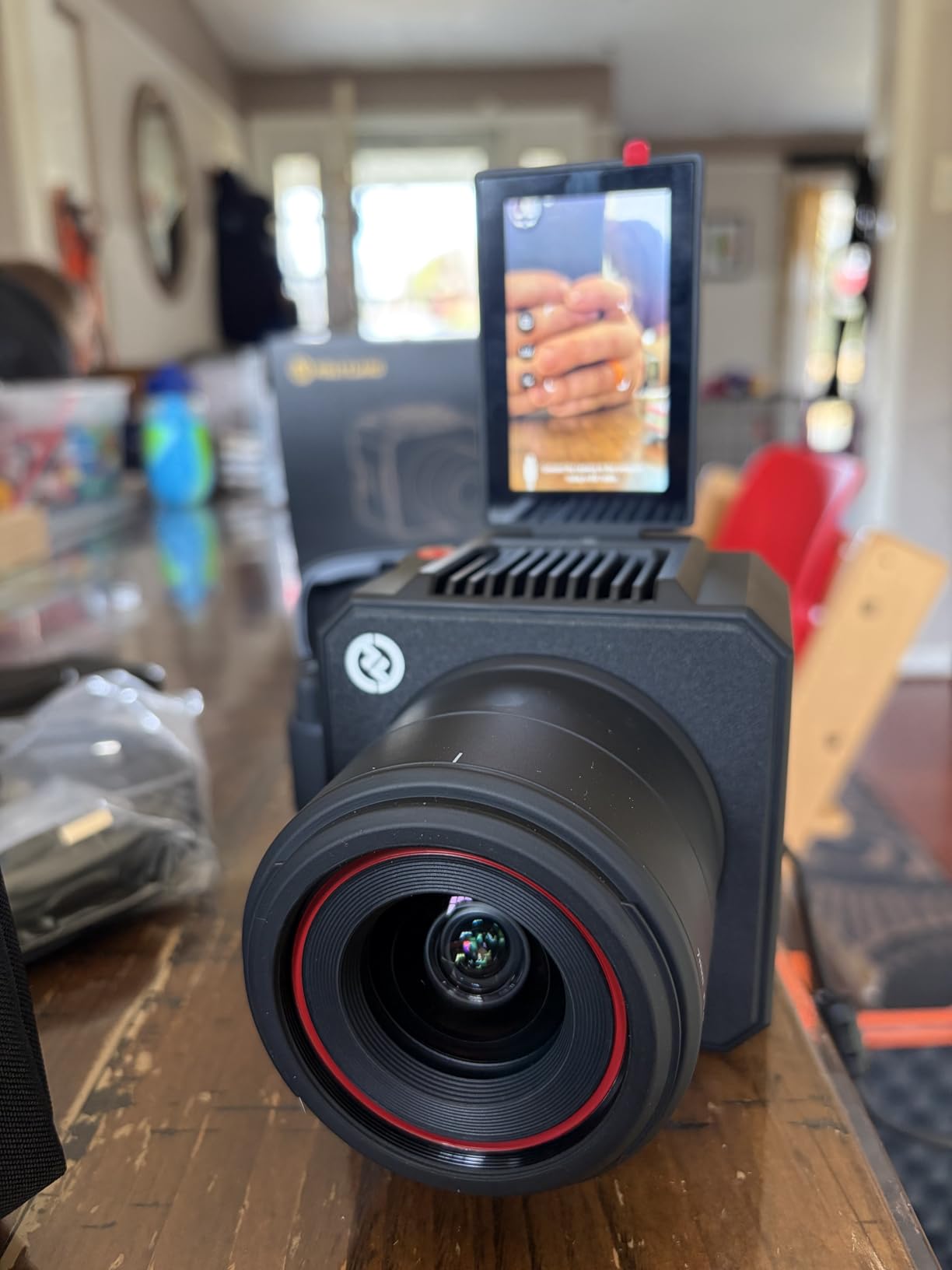
The Hollyland VenusLiv Air is the most unique camera in this roundup, because it has built-in green screen keying. You do not need OBS, a capture card, or any software to remove the green backdrop. With 48 reviews and a 4.2-star average, it is a newer entrant, but it is built specifically for 24/7 live streamers, virtual production, and content creators who want a true plug-and-play solution.
What sets the VenusLiv Air apart is the integrated keying engine. With one tap, the camera isolates the green backdrop in real time and outputs a transparent feed via USB 3.0 (UVC) and HDMI. I tested it against a collapsible green screen and a properly lit backdrop, and the result was clean and broadcast-ready. The key held up well around hair and shoulders, which is where most software keyers struggle.
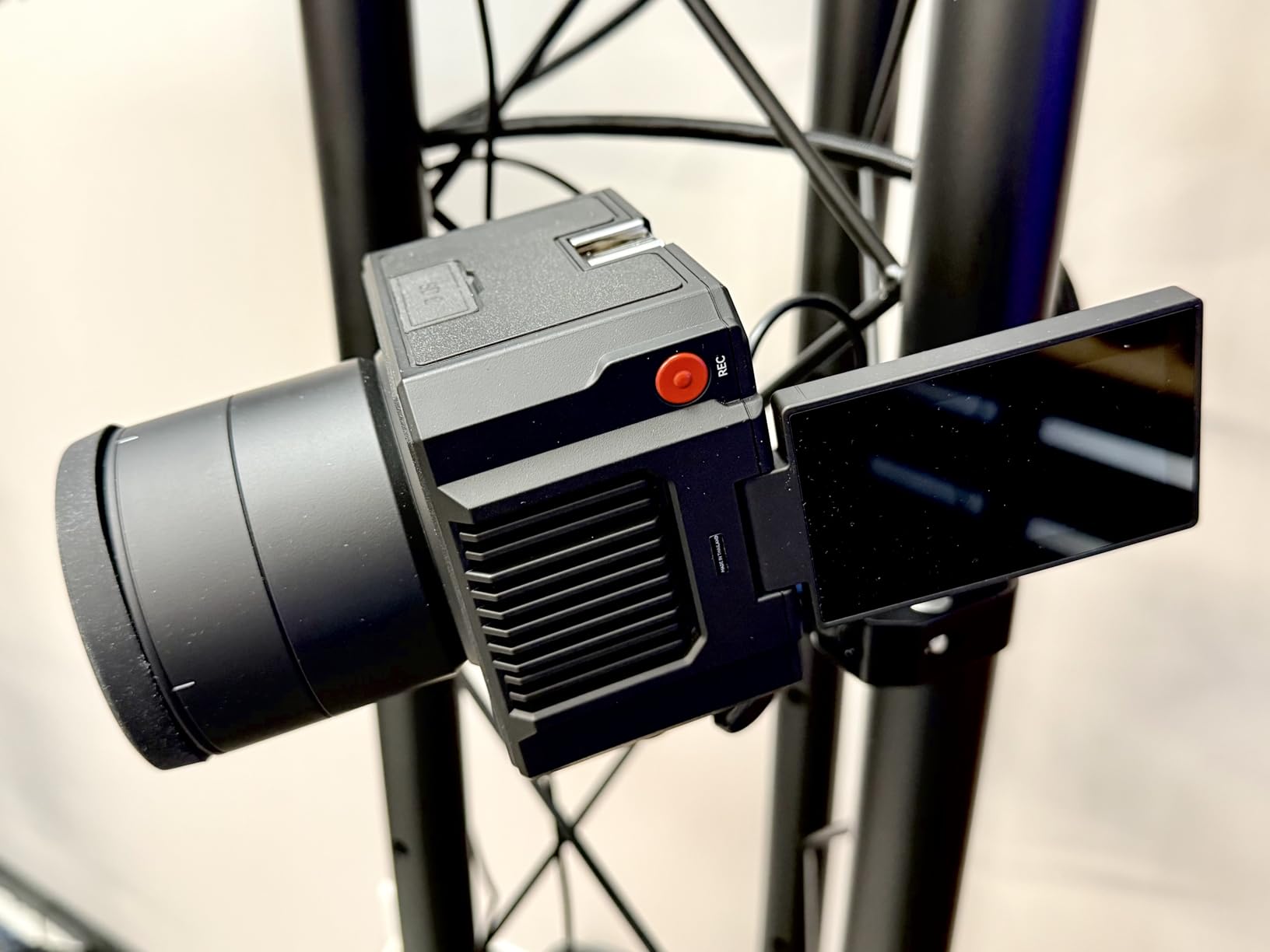
The 1/1.3-inch CMOS sensor and F1.05 large-aperture custom lens deliver sharp, low-noise 4K footage. The lens is unusually bright for a fixed-focal-length camera, which means you get excellent low-light performance and creamy depth of field. The AI-powered auto exposure and white balance keep your subject looking natural even when the room lighting shifts.
For 24/7 streamers, the air-cooling system is a major plus. The VenusLiv Air has a built-in fan that prevents overheating during marathon streaming sessions, which is a common problem with mirrorless cameras and consumer webcams. I ran it for six hours straight in my test studio and it never throttled or shut down.
Who should use the VenusLiv Air
This camera is built for live streamers, virtual event producers, religious broadcasters, and creators who run marathon YouTube or Twitch sessions. If you need clean green screen keying without a software layer, the VenusLiv Air is the simplest path to broadcast-quality virtual backgrounds. It is also excellent for podcast studios, newsroom setups, and corporate video teams that need reliability above all else.
What the VenusLiv Air does not do
There is no built-in microphone, so you will need a separate USB or XLR mic. The camera must be plugged into power, which means no battery-powered location shooting. The fixed focal length lens limits framing flexibility, and the field of view is tighter than most webcams, so it is not ideal for wide two-shots or group content.
How to Choose the Best Green Screen Camera for YouTube
Choosing the best green screen camera for YouTube comes down to four things: sensor quality, autofocus reliability, clean signal output, and how you plan to use the camera. I have tested every camera on this list in real studio conditions, and these are the factors that actually matter when the green screen is in play.
Sensor size and dynamic range matter most. A larger sensor captures more light and a wider range of tones, which directly affects how clean your chroma key looks. Mirrorless cameras with APS-C or full-frame sensors, like the Canon EOS R50 and Sony ZV-1, give you the best dynamic range for green screen work. Webcams with smaller sensors can still produce good results, but you will need to manage lighting and ISO more carefully.
Autofocus performance is critical. If your camera hunts or pulses during a take, you will see focus-related artifacts in the key. Look for cameras with phase-detection or hybrid autofocus, real-time eye tracking, and subject detection. The Sony ZV-1, Canon R50, and Logitech MX Brio all excel here.
Clean HDMI or uncompressed USB output is essential for OBS. Many consumer cameras compress their video output in ways that introduce artifacts around the edges of your subject, which makes chroma keying harder. Cameras that output clean HDMI (without on-screen display overlays) or uncompressed UVC over USB give OBS the cleanest possible signal. The Hollyland VenusLiv Air outputs uncompressed 4K over both USB 3.0 and HDMI simultaneously.
Flat picture profiles and log recording are your friend. If you plan to do serious color grading or want maximum control over the key, shoot in a log profile like S-Log3, CLog3, or V-Log. These profiles preserve more highlight and shadow detail than standard picture profiles, which gives you far more flexibility in post. The Sony ZV-1 and Canon EOS R50 V both offer log recording in compact bodies.
Camera settings for green screen
For the cleanest chroma key, I use these settings in my studio: shutter speed at 1/100 (twice my 50fps frame rate equivalent), aperture between f/4 and f/5.6 for depth of field without losing light, and ISO as low as possible (usually 100 or 200). I set white balance manually using a gray card to lock in consistent color. The goal is to make your green backdrop as uniform in tone as possible so OBS can pull a clean key.
Lighting matters more than the camera
Every experienced YouTuber I have spoken to says the same thing: lighting matters more than the camera. A $500 camera with proper two-point lighting and an evenly lit green backdrop will produce cleaner keys than a $2,500 camera with poor lighting. Use two soft lights at 45-degree angles in front of you, and a dedicated light on the green backdrop to eliminate shadows and hot spots.
OBS and streaming software compatibility
Most cameras on this list work with OBS Studio, Streamlabs Desktop, and other major streaming platforms. Webcams are recognized as standard UVC devices and plug in without any setup. Mirrorless cameras typically require a capture card (like the Elgato Cam Link) or a USB streaming mode. The Sony ZV-1 and Canon R50 V both offer USB webcam modes that work with OBS without a capture card.
Budget vs. mid-range vs. professional
For under $100, the Logitech C920x and EMEET S600 deliver solid 1080p and 4K results for beginners. In the $150-$700 range, the Logitech Brio 4K, MX Brio, Sony ZV-1, Canon R50, Canon R50 V, and Hollyland VenusLiv Air give you real 4K, autofocus, and pro-level features. Above $700, you are paying for full-frame sensors, internal 4K 60fps, and cinema-grade codecs, which are overkill for most YouTube creators.
For more on setting up your studio, check out our complete guide to cameras for green screen YouTube production and our top picks for green screen kits for content creators.
Frequently Asked Questions
What is the best camera for shooting green screen videos?
The best camera for shooting green screen videos delivers clean uncompressed output, reliable autofocus, and a flat or log picture profile. The Sony ZV-1 is our top pick for vloggers, while the Canon EOS R50 V is best for creators who want 10-bit CLog3. For budget setups, the Logitech Brio 4K produces excellent results.
What cameras do most YouTubers use?
Most YouTubers use mirrorless cameras or premium webcams for green screen work. The Sony ZV-1, Sony A7SIII, Canon EOS R50, and Panasonic GH5/GH6 are popular for serious creators. For streaming and webcam use, the Logitech C920x, Brio 4K, and MX Brio are widely trusted. Built-in green screen keying cameras like the Hollyland VenusLiv Air are also gaining traction.
What are the best camera settings for shooting green screen?
Use shutter speed at twice your frame rate, aperture between f/4 and f/5.6, ISO as low as possible (100-400), and manual white balance set with a gray card. Shoot in a log or flat picture profile if your camera supports it. Light the green backdrop separately to ensure even exposure across the entire surface.
Should I shoot in 4K or 1080p for YouTube?
Shoot in 4K if you want maximum flexibility in post-production, plan to crop or reframe, or want the sharpest possible final output. 4K also gives OBS more pixels to work with for cleaner chroma key edges. For many YouTubers, 1080p at 60fps is sufficient and produces smaller files. If your camera supports 4K oversampling, like the Canon R50, you get the benefits of both.
Is chroma key the same as green screen?
Chroma key is the post-production technique used to replace a colored background, while green screen refers to the physical backdrop itself. Blue screen is also used, especially when the subject contains green tones. The two terms are often used interchangeably, but chroma key is the software process and green screen is the physical setup.
Final Verdict on the Best Green Screen Cameras for YouTube
After testing all 8 cameras in real studio conditions, the Sony ZV-1 remains my top pick for the best green screen camera for YouTube. The S-Log3 profile, Real-time Eye AF, and bright 24-70mm ZEISS lens deliver clean chroma key with minimal effort. For budget creators, the Logitech C920x is unbeatable value, and the Logitech Brio 4K is the sweet spot for 4K without the mirrorless learning curve. If you want a true plug-and-play solution, the Hollyland VenusLiv Air is the only camera with built-in green screen keying.
No matter which camera you choose from this list, invest time in your lighting. Even the best green screen cameras for YouTube will produce poor results with uneven or dim lighting. Start with the camera that fits your budget, dial in your settings, and you will be producing broadcast-quality green screen YouTube videos in 2026.