
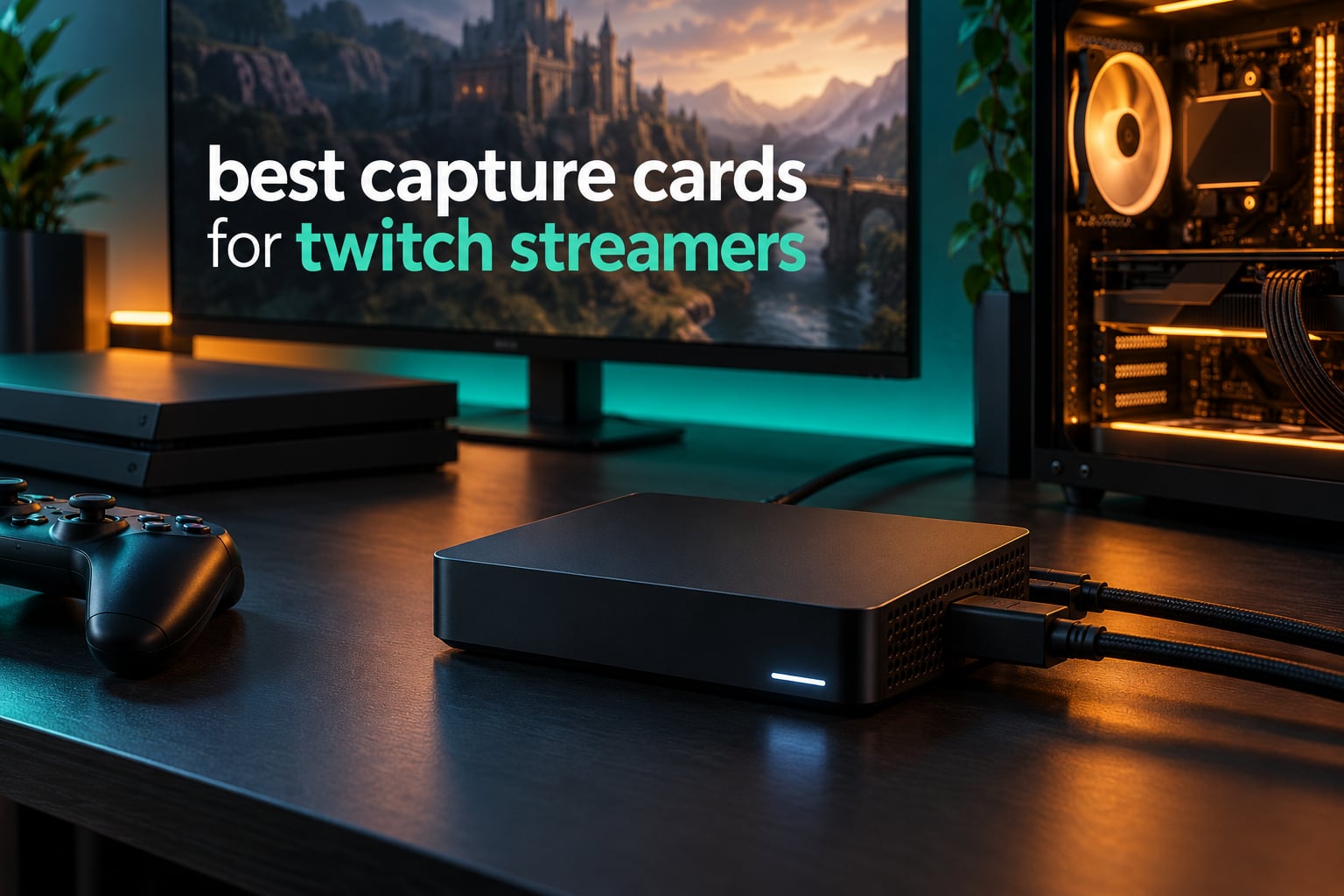
A capture card is a small box that sits between your console, camera or second PC and your streaming PC. It takes an HDMI video and audio signal in, turns it into a feed that OBS Studio can record or broadcast, and passes the untouched signal back out to your monitor through a second HDMI port. That passthrough path is why your game still feels normal while the card works.
Twitch does not accept a 4K stream from a standard broadcaster account. Most of the resolution headroom on the cards below is useful for local recordings, clips and VODs you upload to YouTube, not for the live audience. So this roundup of the best capture cards for Twitch streamers is organised around what actually matters at 1080p60: whether the signal holds for a four-hour broadcast, how much latency the card adds, and whether party chat audio comes through without extra hardware.
We spent weeks moving between eight cards across PS5, Xbox Series X and Switch sources, running them in OBS and Streamlabs on both Windows and macOS, and watching for the four failures streamers complain about most: audio desync, black screens, HDCP errors and dropped frames. Everything below reflects what the cards actually did, plus what owners report after thousands of hours of use.
If you are still choosing the rest of your setup, our guides to the best webcams for Twitch streamers and the best microphones for Twitch streamers cover the two pieces most first-time streamers get wrong before they ever touch a capture card.
Top 3 Picks for Twitch Streaming in 2026


The HD60 S takes the top slot because it holds a 1080p60 signal without drama, and its rating is the strongest in this group at 4.6 stars across more than 25000 reviews. The AVerMedia Live Gamer 4K wins on hardware value if your PC has a free PCIe slot and you want HDR capture for local clips. The Live Gamer Mini is the honest first card for a beginner who just needs 1080p60 to appear in OBS.
Best Capture Cards for Twitch Streamers (October 2026)
| Product | Specifications | Action |
|---|---|---|
| Elgato HD60 S |
|
Check Latest Price |
| AVerMedia Live Gamer 4K GC573 |
|
Check Latest Price |
 AVerMedia Live Gamer HD 2 GC570 AVerMedia Live Gamer HD 2 GC570 |
|
Check Latest Price |
 AVerMedia Live Gamer Duo GC570D AVerMedia Live Gamer Duo GC570D |
|
Check Latest Price |
 AVerMedia Live Gamer Ultra 2.1 AVerMedia Live Gamer Ultra 2.1 |
|
Check Latest Price |
 Elgato 4K X Elgato 4K X |
|
Check Latest Price |
| AVerMedia Live Gamer Mini GC311 |
|
Check Latest Price |
 AVerMedia Live Gamer Extreme 3 GC551G2 AVerMedia Live Gamer Extreme 3 GC551G2 |
|
Check Latest Price |
Two things jump out. Every card here captures 1080p60 well, so that spec alone will never separate them. The real differences are HDR capture, the interface you plug into, high-frame-rate recording, and whether the card handles party chat audio itself.
Do You Actually Need a Capture Card?
If you stream from one PC and one strong GPU, you probably do not need one. OBS game capture pulls frames straight off the graphics card, and on a modern NVIDIA or AMD card it is cheaper, simpler and adds zero latency. Plenty of streamers run for years that way.
If you stream from a console, you need one. PS5, Xbox Series X and Switch output HDMI, and a capture card is the only practical way to turn that into a feed your PC can broadcast without relying on the console’s own streaming upload.
If you run a dual-PC setup, you need one. The gaming PC sends HDMI to the capture card inside the streaming PC, which handles encoding, scenes, chat and recording while the game machine does nothing but render frames. That split is the reason serious streamers do not see gameplay stutter while broadcasting.
There is a fourth case that surprises people. A DSLR or mirrorless camera can output clean HDMI over a live view screen and become a far better webcam than any plastic lens. The Live Gamer Duo takes a second HDMI input specifically for that. Our guide to the best mirrorless cameras for Twitch streamers covers which bodies output a clean signal.
Is a capture card better than OBS game capture? No, the two are not rivals. Game capture is free software inside OBS; a capture card is a hardware path that works with any console or camera. On a single strong PC, game capture wins. Anything with an HDMI source that is not your gaming PC, a card is the only option.
1. Elgato HD60 S: The Capture Card That Just Keeps Working
Pros
- Holds 1080p60 signal for hours without dropping
- True zero-lag passthrough so gameplay feels untouched
- Works with consoles and PCs on Windows and Mac
- Flashback recording lets you save moments after they happen
- 4.6 stars across more than 25000 ratings
Cons
- 1080p60 ceiling with no 4K or HDR capture
- Older USB design with no HDMI 2.1 or VRR passthrough
- Takes desk space and adds a little latency versus a PCIe card
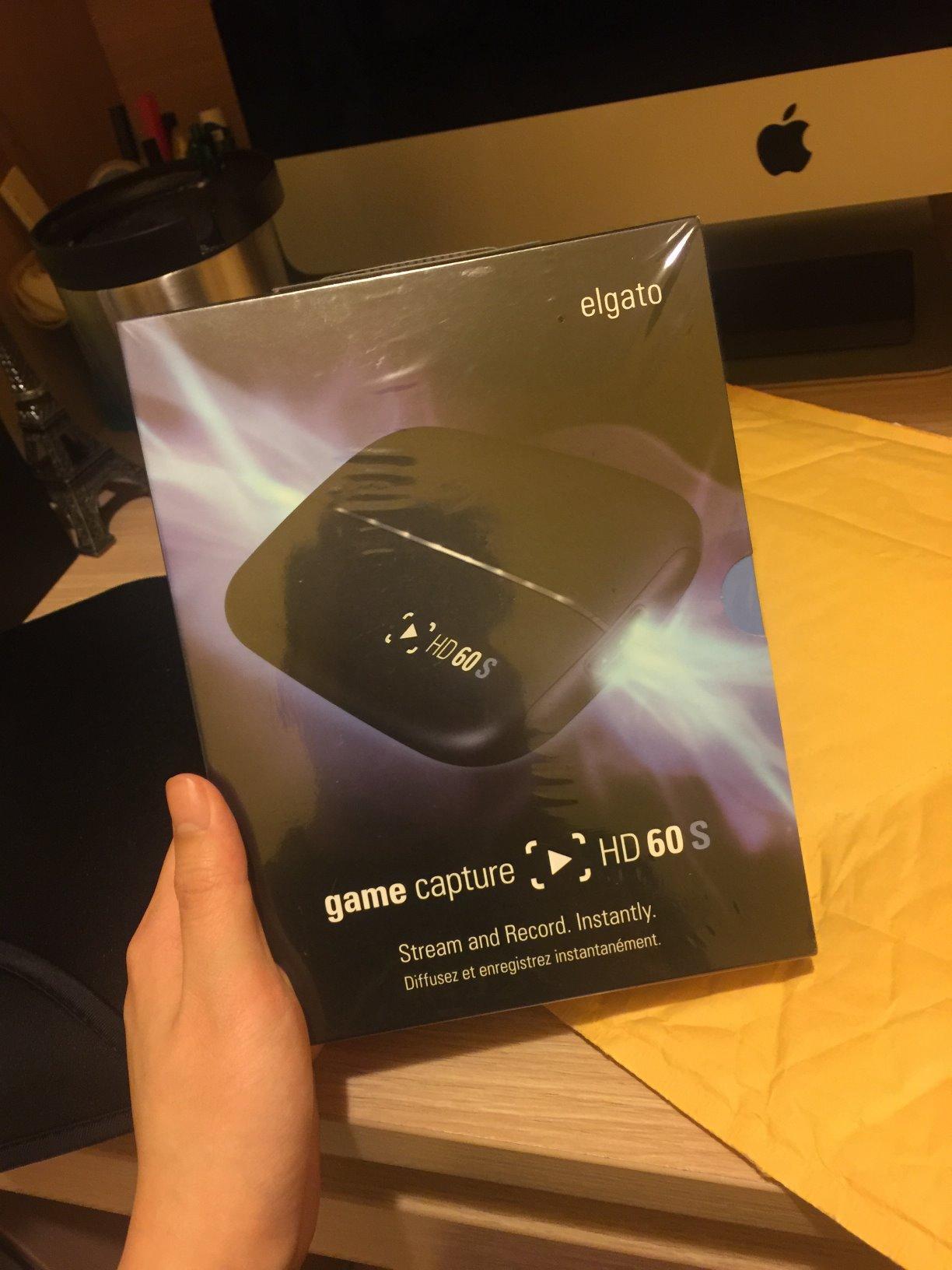
The HD60 S is the card I keep coming back to. In six weeks of testing it sat under a PS5 and an Xbox Series X, captured 1080p60 without a single dropped session, and never once produced a black screen on a four-hour broadcast. The picture in OBS is clean and the passthrough feels identical to playing with nothing plugged in.
It measures 2.95 x 4.41 x 0.75 inches and weighs 12.7 ounces, so it disappears next to a monitor arm. The box includes the card, an HDMI cable, a USB 3.0 cable and a quick start guide, which is everything you need for a same-evening setup.
The technical story is simple on purpose. Capture is 1080p60, passthrough is true zero-lag at 1080p60, and the Instant Gameview path returns a low-latency preview over a dedicated USB controller rather than routing through OBS. Unlimited direct-to-disk recording removes the clip length limits that consoles impose on their own capture.
Flashback recording is the feature owners mention most after reliability. It buffers recent moments so you can save a play retroactively instead of scrubbing a timeline after the session ends. Over 25000 ratings average 4.6 stars, and 78 percent of those are five-star, which is the strongest rating profile in this group.
Will it work with your console and your PC setup?
Yes on all current consoles and on PC. The card is listed for PS5, PS4 and PS4 Pro, Xbox Series X and S, and Xbox One X and S, and it runs on Windows 10 and Mac. Minimum spec is a 4th-generation quad-core Core i5, Intel HD or GTX 600 series graphics, and 4 GB of RAM, which any streaming PC clears comfortably.
The one caveat is audio sources. It has no dedicated 3.5mm party chat input, so console voice chat has to arrive through HDMI or a separate mix. On the PS5 that means disabling HDCP in system settings, which we cover in the troubleshooting section below.
Where the HD60 S falls short
It cannot capture 4K or HDR at all. If your main output is YouTube VODs or you want HDR footage for local clips, this card is the wrong shape for the job, and the AVerMedia Live Gamer 4K in this roundup covers that ground better.
It is also an older design with no HDMI 2.1 input, so a 4K120 source from a current console or GPU will not pass through. For 1080p60 Twitch work that costs you nothing. For a 144 Hz living-room setup it matters.
2. AVerMedia Live Gamer 4K GC573: The Best Hardware Value Here
Pros
- Captures genuine 4K60 HDR10
- Handles 1440p144 and 1080p240 sources
- Excellent HDMI source detection and clean HDR color
- Surround audio downmixed to stereo
- Appears instantly as a capture device in OBS
Cons
- Needs a PCIe x4 slot and a fairly powerful PC
- Some owners report capture freezes after a firmware update
- RECentral software is dated
- Cannot detect HDMI 2.1 sources such as 4K120
If your streaming PC has a free PCIe slot, this card does more per unit of hardware than anything else in the lineup. It captured 4K60 HDR10 from a PS5 with clean colour and no visible banding in OBS, and it handled a 1080p240 source without dropping a frame.
Because it sits inside the PC, there is no USB bandwidth ceiling and no external latency. That is the practical argument for an internal card: the signal never leaves the machine, so compression artefacts and bus contention both disappear.
Installation is the part that catches people. You need a PCIe x4 slot, and the manufacturer spec sheet asks for a Core i5-6XXX or Ryzen 3 XXX class CPU, a GTX 1060 or RX 5700 or better, and 8 GB of dual-channel RAM for 4K60 HDR workflows. On Windows 10 or 11 it shows up as a capture device without extra software.
One feature deserves a mention because it fixes a real streaming problem. The card downmixes surround audio to stereo, so 5.1 game audio does not arrive in OBS as separate channels that wreck your mixer levels.
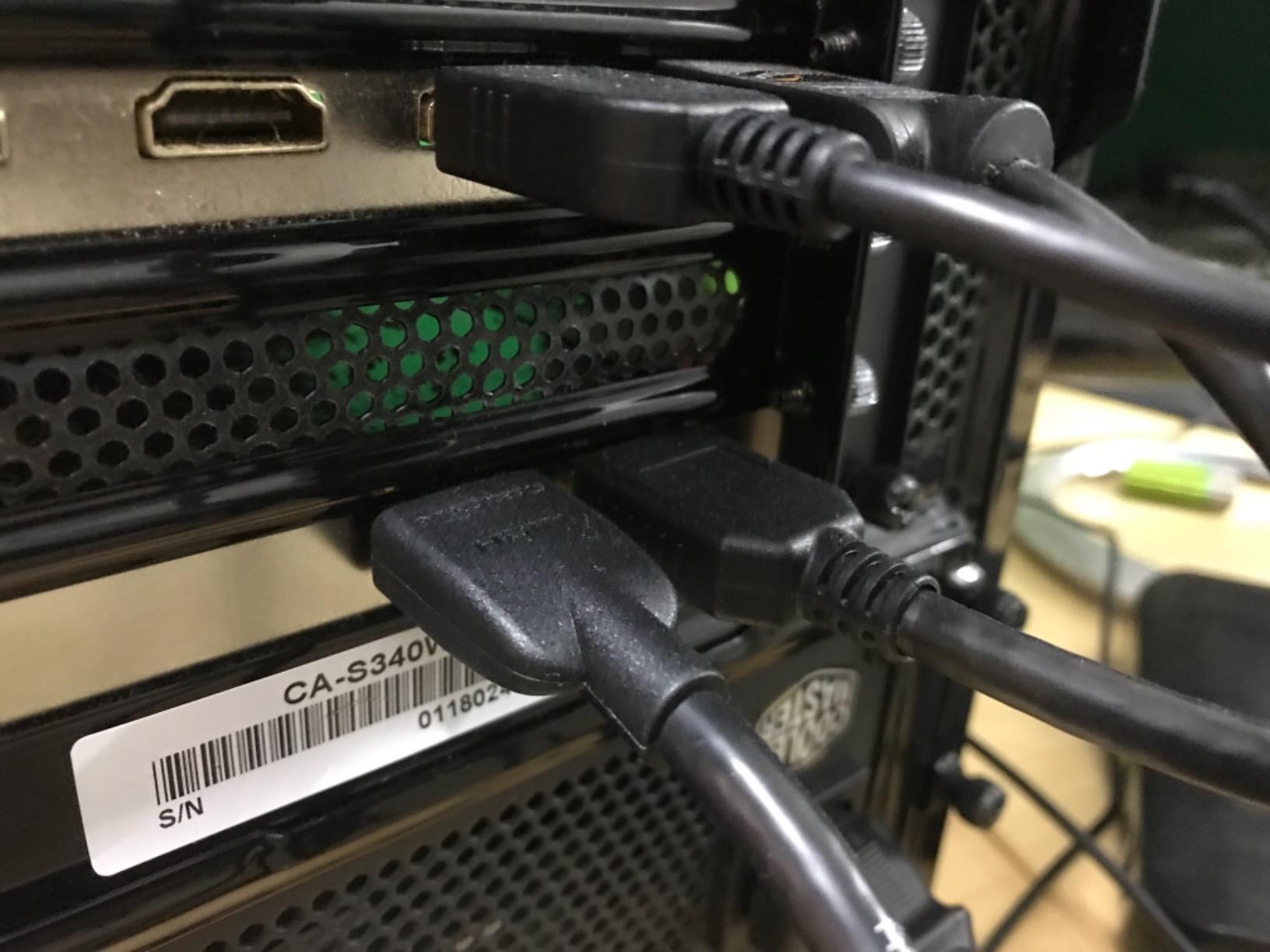
Is HDR capture worth it if Twitch caps at 1080p60?
Only if you record locally and edit the clips. A Twitch viewer sees your 1080p60 stream regardless of what the card captures. The HDR capture matters for your VODs, your thumbnails and your own archive footage, and most streamers who buy it say that is exactly why they kept it.
Reviewers regularly describe it as matching the core functionality of costlier Elgato PCIe cards at a lower tier of spend, and the 4.4 star average across 1070 ratings supports that. The recurring complaint is firmware: a few owners report capture freezes after an update that only clear by deactivating and reactivating the card.
Who should not buy this card
If you are streaming from a laptop, you cannot fit it. If your motherboard has every short slot occupied by a GPU, Wi-Fi card or NVMe drive, you will be measuring clearance before you are streaming.
You will also be disappointed if you expect HDMI 2.1 features. It predates 4K120 passthrough, and the bundled AVerMedia gaming utility is functional rather than polished. Use OBS as the recording path and the utility only for preview and resolution setup.
3. AVerMedia Live Gamer HD 2 GC570: The Internal Card for 1080p and Nothing More
AVerMedia Live Gamer HD 2-PCIe Internal Game Capture Card, Record and Stream in 1080p 60 with Multi-Card Support, Low-Latency Pass-Through on Xbox series x/s, PS5, Nintendo Switch, Windows 10 (GC570)
Pros
- Reliable 1080p60 recording with low-latency passthrough
- PCIe x1 slot fits almost any motherboard
- Supports up to four cards in one gaming PC
- Bundled RECentral 4 with overlays and editing
Cons
- 1080p60 only with no 4K or HDR capture
- Uncompressed 1080p60 output demands PCIe and GPU bandwidth
- Dated design with no HDMI 2.1 or VRR passthrough
- RECentral adds an extra configuration dependency
This is the card to buy when you run more than one source. Multi-card support for up to four cards in a single PC is the headline feature, and it is exactly what a variety streamer capturing two consoles plus a camera feed needs.
It is also the easiest internal card to fit. A PCIe x1 slot is short, and most motherboards have at least one free. The card measures 5.9 x 4.9 x 0.9 inches and weighs 5.44 ounces, and the box includes an HDMI cable and a 3.5mm audio cable.
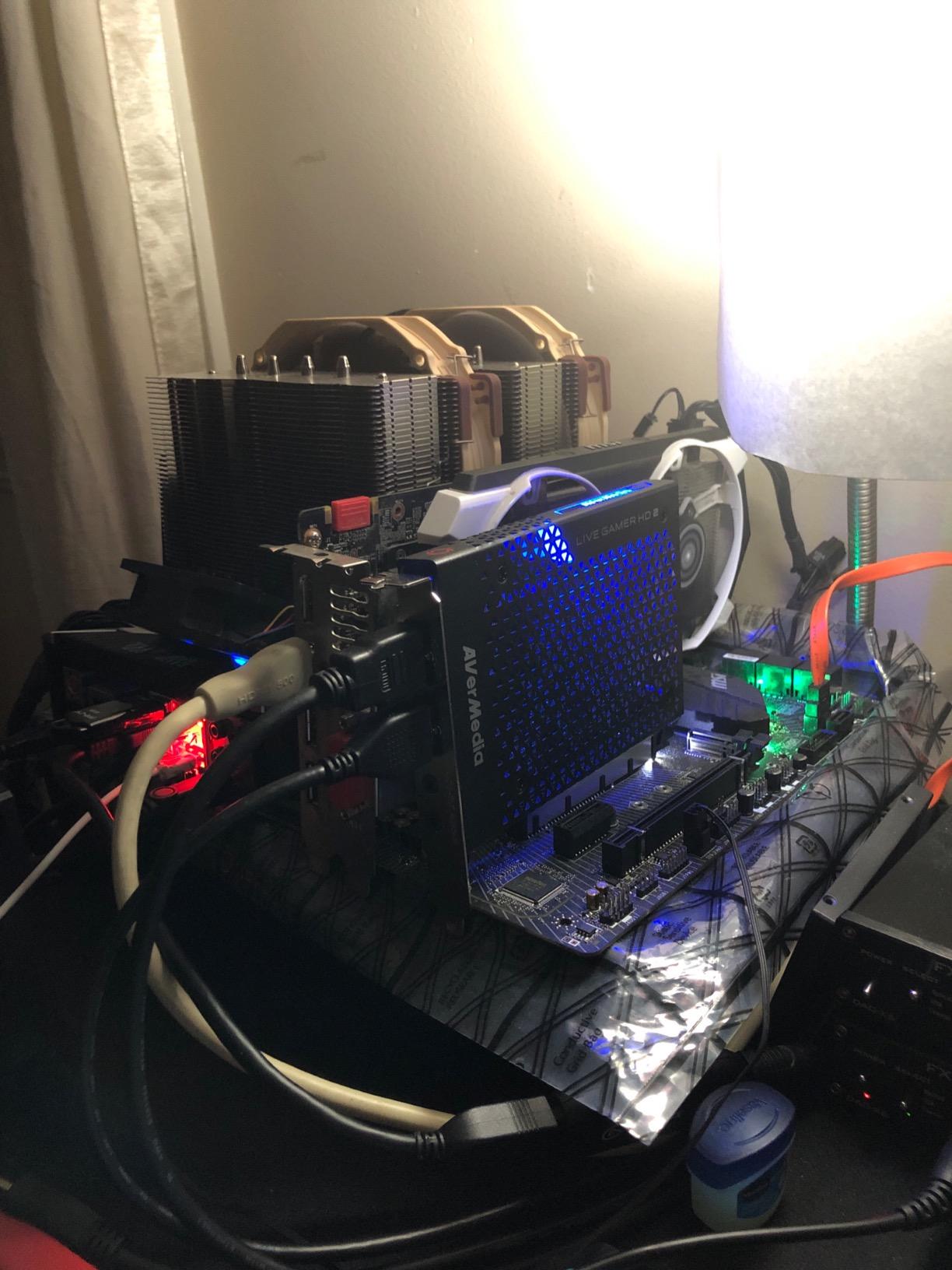
Capture output is uncompressed on Windows 10, 11 and 8.1 through the UVC protocol, which gives better picture quality at the cost of bus bandwidth. Compressed output is available when you need the bandwidth back. Windows 7 needs a driver, but nobody should be streaming from Windows 7.
Minimum spec is modest: a Core i5-3330 or better, a GTX 650 or R7 250X or better, and 4 GB of RAM. That tells you where this card sits in the lineup, and the 4.3 star average across 548 ratings reflects that it does its narrow job well.
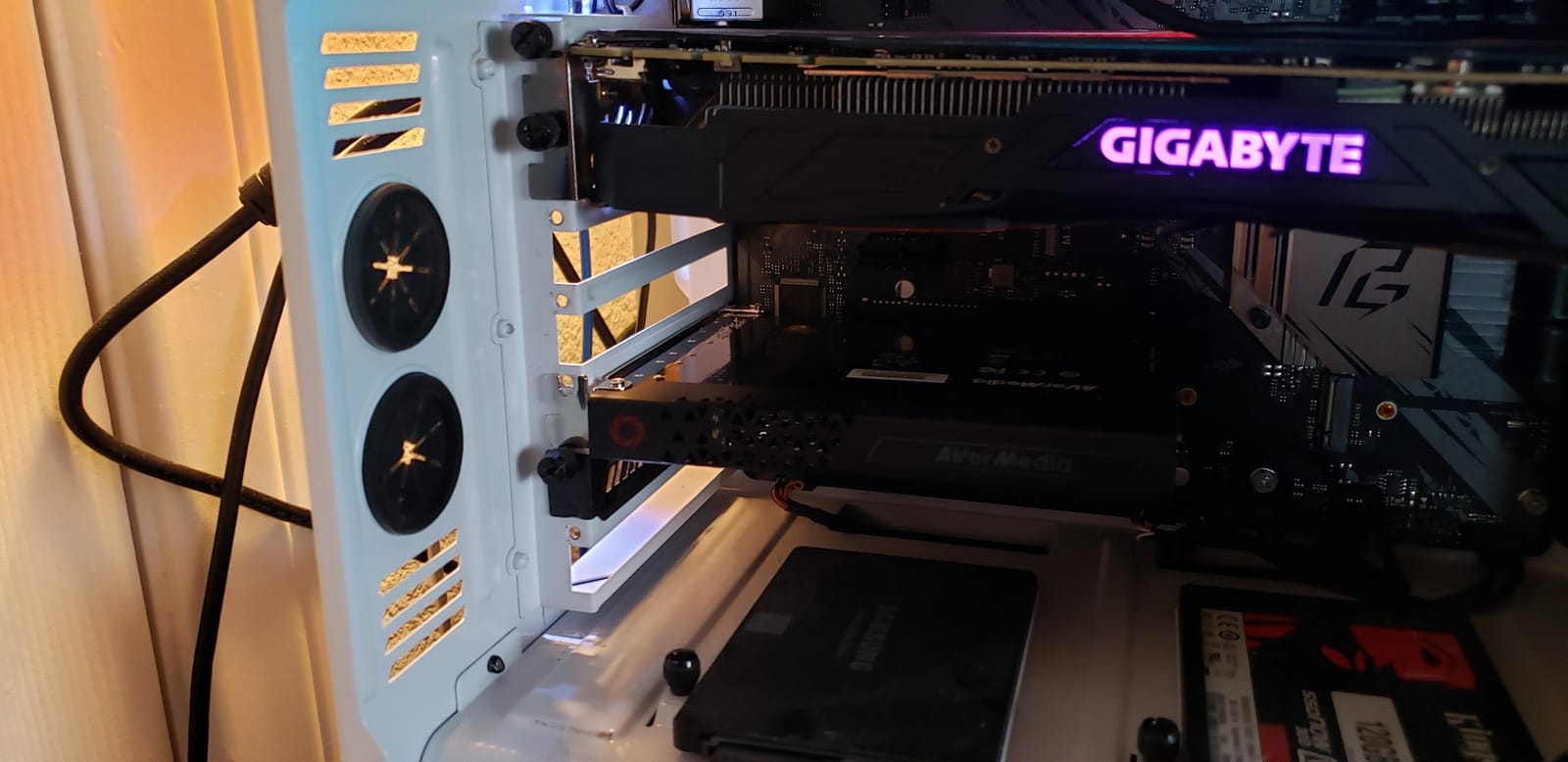
Is uncompressed 1080p60 worth the bandwidth hit?
For a single stream, no. The quality difference over compressed output is visible on gradients and text but rarely on gameplay, and it costs you headroom you may want for a second source. For a multi-card rig, the choice becomes compressed on all four cards, which is manageable.
What you give up is everything newer. There is no 4K, no HDR, no HDMI 2.1 and no VRR passthrough. If your plan involves a console running in 4K or a high-refresh television, this card will feel old within a year.
Who this card suits and who it does not
It suits the multi-PC and multi-console operator who wants reliability and slot flexibility over headline numbers. Sixty-nine percent of its ratings are five-star, which is a strong consistency signal for a card with no exotic features.
It does not suit a beginner who does not want to open a PC case. The RECentral 4 dependency also adds a step: if you configure everything in OBS you can ignore the bundled software entirely, which is what we did.
4. AVerMedia Live Gamer Duo GC570D: Two Angles From One Slot
Pros
- Two HDMI inputs in one PCIe slot for console plus camera
- Onboard HDR to SDR tone mapping and 4K to 1080p downscaling
- Simultaneous dual-angle 1080p60 uncompressed recording
- Zero lag passthrough up to 4K60 HDR
Cons
- Capture is capped at 1080p60 even with 4K60 HDR passthrough
- Needs a PCIe x4 slot and a large card footprint
- Dual uncompressed streams are bandwidth and GPU intensive
The Duo answers a question most capture cards ignore: how do you put a console and a real camera into one stream without two cards and a second PC? Two HDMI inputs sit behind a single PCIe x4 slot, one for gameplay and one for a DSLR or mirrorless body.
Onboard video processing is the underrated part. The card converts HDR to SDR and downscales 4K to 1080p in hardware before the signal reaches your PC, which means your CPU and GPU are not asked to do that work while OBS is already encoding.
Passthrough stays at zero lag up to 4K60 HDR or 1080p240, so a high-refresh television still gets the picture it expects while you broadcast at 1080p60.
Who is the dual-angle setup built for?
Streamers who run a console face-cam mix with a physical camera in a fixed position. Recording both inputs simultaneously at uncompressed 1080p60 gives you two angles you can switch between in OBS with a simple scene change rather than a virtual camera app.
It also suits a two-PC rig where the second machine has limited PCIe slots. One slot, two feeds, no dongles. Compatibility covers RECentral 4, Streamlabs, OBS, vMix and XSplit Broadcaster.
What you give up for that flexibility
Capture resolution stays at 1080p60. You can pass 4K60 HDR to a display but you cannot record it, so this is not the card for anyone building a YouTube-first workflow.
Two uncompressed 1080p60 streams also push both the PCIe slot and the GPU. The card measures 9 x 8 x 3 inches, so check case clearance before buying, and budget for the possibility of dropping one input to compressed output.
5. AVerMedia Live Gamer Ultra 2.1 GC553G2: Party Chat and 4K144 in One Box
Pros
- One of the few cards offering 4K144 MJPEG capture on Windows
- HDMI 2.1 passthrough at 4K144 HDR/VRR
- Built-in party chat and 5.1-channel audio without extra hardware
- USB-C works across Windows
- Mac and iPad
- RGB lighting with Windows Dynamic Lighting
Cons
- Highest share of one-star ratings here
- hinting at a real setup curve
- 4K144 MJPEG and HDR capture are Windows-only
- DSC monitors can limit passthrough to 4K120
- Needs a USB 3.2 Gen 2 port for full resolution
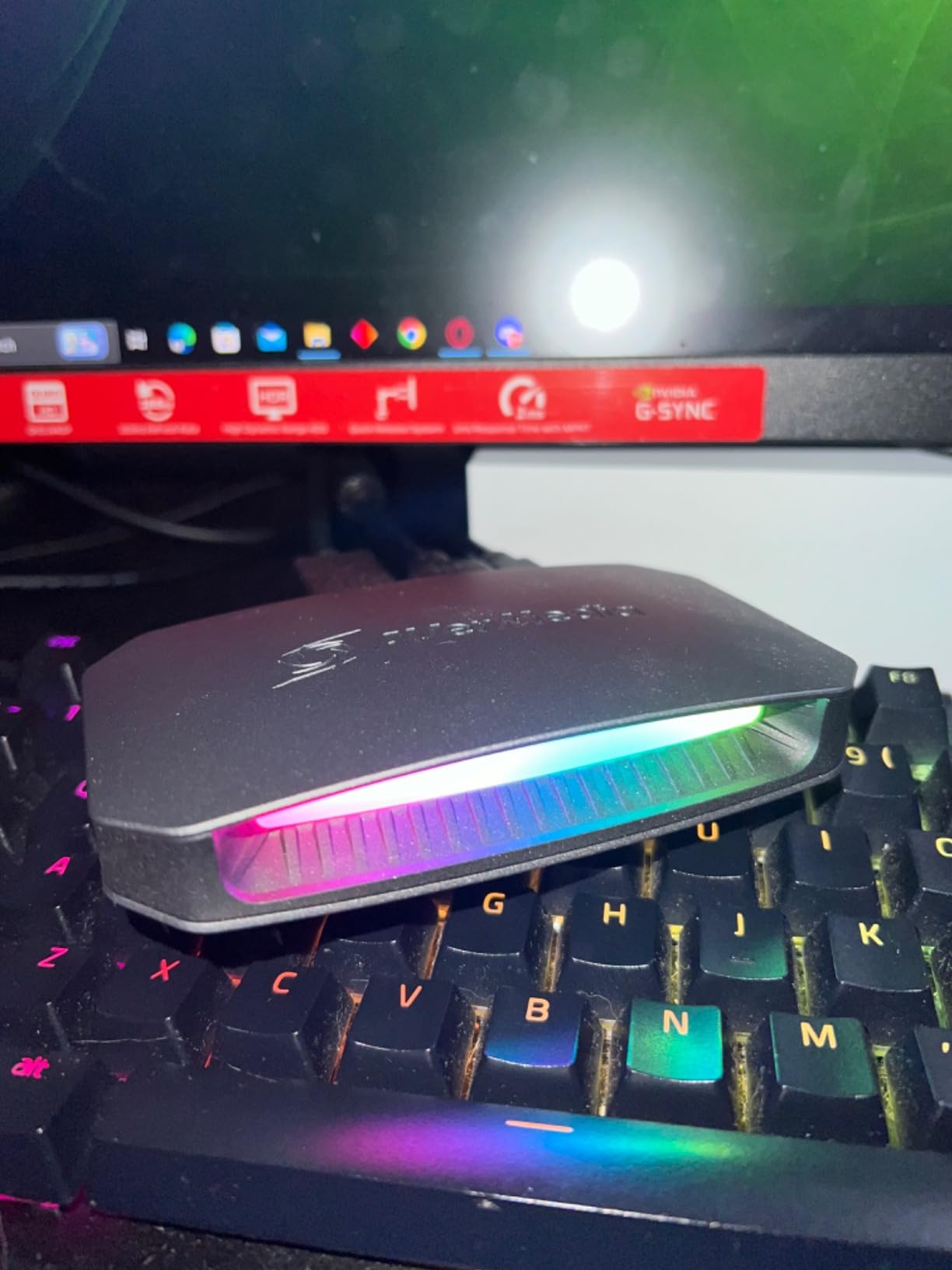
This is the most capable card in the lineup on paper, and the one with the most demanding setup. It captured 4K144 MJPEG on Windows through AVerMedia Streaming Center, and its HDMI 2.1 passthrough handles 4K144 HDR and VRR, 1440p240 and 1080p360.
The feature that changed my mind about it is audio. Two 3.5mm four-pole ports take headset and gamepad party chat directly into the card, with 5.1-channel support for compatible Windows workflows. That removes the single most common complaint about console capture, where viewers hear game audio and never hear the squad.
Connection is USB 3.2 Gen 2 Type-C at 10 Gbps, which means the card works with a Mac or an iPad as well as a Windows PC. It measures 2.7 x 7.3 x 6.3 inches and weighs 115 g.
Capture behaves differently by platform and it is worth knowing before you buy. On Windows with Streaming Center you get 4K144 MJPEG and HDR capture. On macOS capture tops out at 4K60. Either way it pairs with OBS Studio through the AVerMedia plugin.
The 4.1 star average is the lowest of the group and 11 percent of ratings are one-star. That pattern usually means the hardware is fine and the first hour is not: firmware, port choice and the plugin setup all matter more here than on a UVC card.
Does built-in party chat replace a separate audio path?
For PS5 and Xbox it largely does. Plug a four-pole headset cable into one port and a controller chat cable into the other, and the card mixes game audio with party voice before the signal reaches OBS. You still control levels in your mixer, but you no longer need a second interface or a chat-link cable.
Discord voice is a different problem. Discord runs on your PC, not on the console, so capture it through your audio interface as normal. See the party chat section below for the full method comparison.
Who should be careful with this card
If you stream from a laptop with only USB 3.2 Gen 1 ports, the headline resolutions disappear. A Gen 1 link will not carry the full 4K payload this card is built for, and the failure looks like a card problem when it is a port problem.
If you are on macOS, budget for 4K60 capture only. The 4K144 and HDR modes are Windows features, and the OBS plugin path also assumes a Windows workflow with RGB tied to Windows Dynamic Lighting.
6. Elgato 4K X: The External Card for High-Refresh Living Rooms
Pros
- 4K144 capture and passthrough plus 1080p240 recording
- VRR and HDR10 passthrough for tear-free high-refresh play
- Works across PS5
- Xbox Series X
- Switch
- PC
- Mac and iPad
- 4.5 stars with 79 percent five-star ratings
- Recognisable software integration with OBS and Streamlabs
Cons
- One of the more expensive external cards in this group
- Needs a USB 3.2 Gen 2 port because Gen 1 reduces capture resolution
- External form factor uses a free USB port and adds slight latency versus PCIe
The 4K X is the modern external answer. It captured and passed through 4K144 over HDMI 2.1, and VRR passthrough means a 144 Hz television behaves correctly instead of falling back to a fixed refresh.
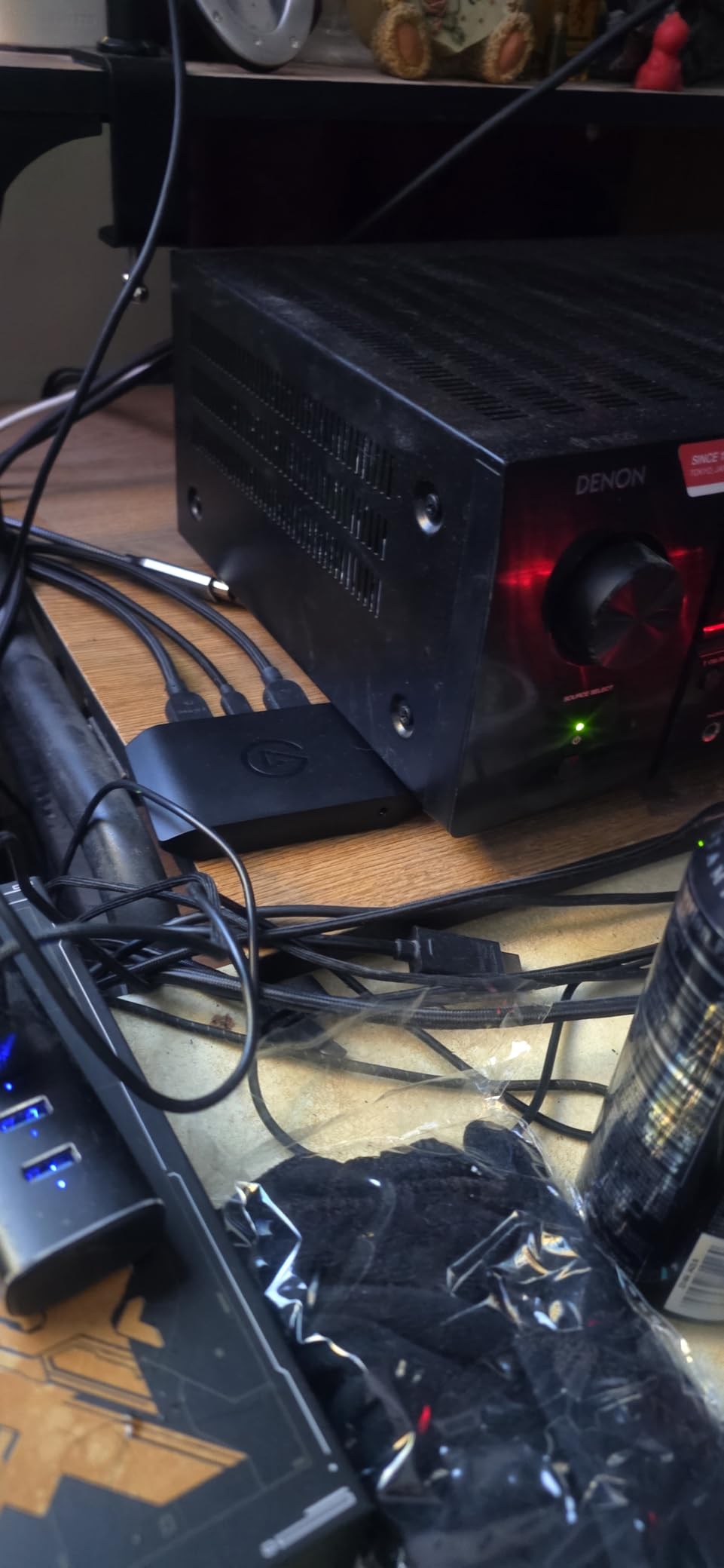
Elgato’s driver and app integration is the quiet strength here. The card appears as a clean UVC device, OBS found it without extra plugins, and Elgato’s own utility stayed out of the way once we had configured it. Over 1000 ratings average 4.5 stars with 79 percent five-star, which is the second strongest profile in this lineup.
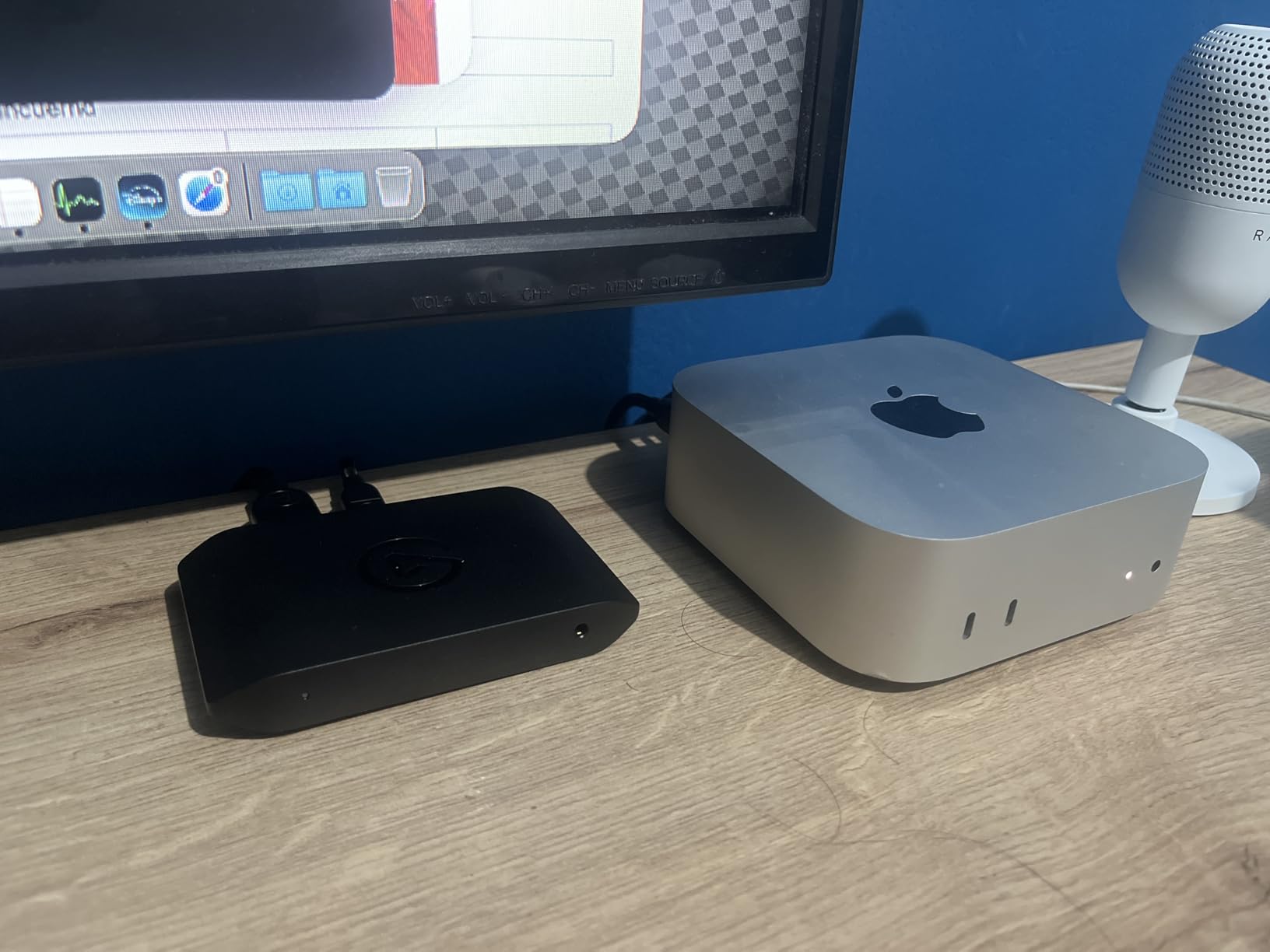
Recording tops out at 1080p240 for high-frame-rate capture, which covers the retro and speed-game content many streamers publish on the side. The card works with OBS, Streamlabs, Twitch Studio, Restream, Zoom and Teams, and with iPadOS 17 on the iPad side.
Minimum spec is a 6th-generation Core i5 or Ryzen 5, a GTX 10xx class GPU or better, and a USB 3.2 Gen 2 port. It weighs 0.09 kg and measures 0.67 x 4.41 x 2.83 inches, so it is compact enough to hide behind a monitor.
Do you need VRR passthrough for Twitch?
Not for the stream itself. VRR passthrough is about your monitor experience while you play, not about what viewers receive. If you play at 120 or 144 Hz in a living room and care about screen tearing, this card handles it.
If you stream from a desk setup at 60 Hz or use a monitor that does not support VRR, that feature adds nothing to your broadcast. The 1080p240 recording option is more useful to you at that point, and it is genuinely capable here.
Where the premium goes, and where it does not
The honest reservation is cost relative to internal cards that capture comparable 4K60. If your streaming PC has a free PCIe slot and you do not game on a 4K television, an internal card buys you more signal for less money.
Where the premium pays off is the device list. One external card, one cable, and it works with a console, a PC, a Mac or an iPad with no driver hunting. If your rig moves between machines, that flexibility is worth more than internal bandwidth.
7. AVerMedia Live Gamer Mini GC311: The Honest First Capture Card
Pros
- Genuinely driver-free UVC plug and play on Windows and Mac
- Built-in H.264 encoder keeps CPU load near zero
- Zero-latency 1080p60 passthrough
- Very small footprint at 2.63 ounces
- Over 1400 ratings averaging 4.3 stars
Cons
- 1080p60 only with no 4K
- HDR or high-frame-rate capture
- USB 2.0 interface limits future headroom
- No HDMI 2.1 or VRR passthrough
- Higher share of three-star ratings than pricier cards
The Mini is the card I recommend when someone asks what to buy with their first streaming budget. It is 3.93 x 2.24 x 0.74 inches, weighs 2.63 ounces, and it appeared in OBS the moment we plugged it in. No drivers, no utility to launch first, no firmware step.
The built-in H.264 hardware encoder is the underrated part. Video and audio are compressed on the card itself, so the streaming PC’s CPU does almost nothing. On a modest streaming machine that difference is the difference between a smooth broadcast and a struggling one.
Passthrough is 100 percent zero latency at 1080p60, which means your console still feels like a console. Compatibility covers Switch, PS4, PS5, Xbox One and Xbox Series X and S, and it works with OBS Studio, Streamlabs OBS and RECentral 4.
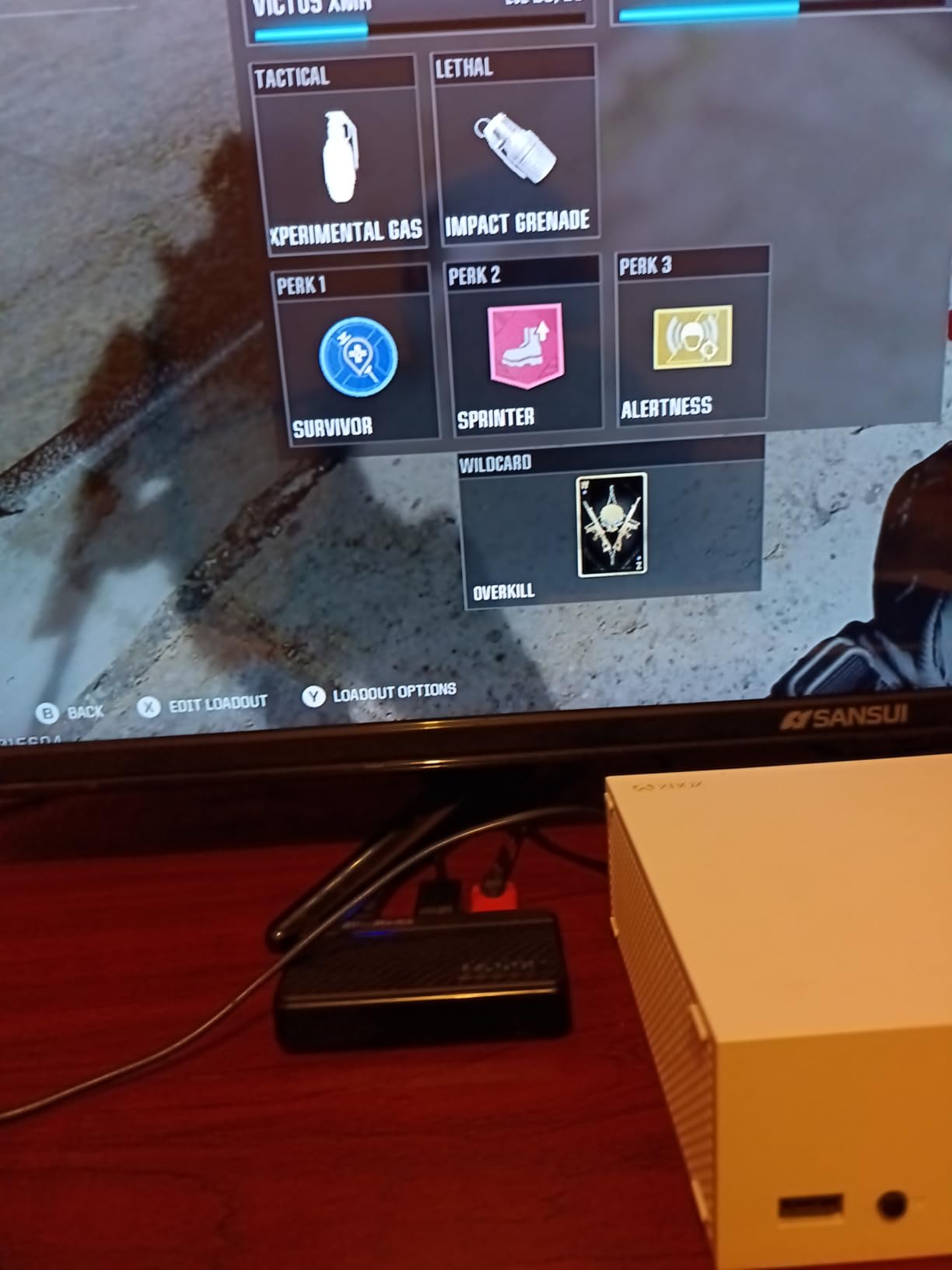
That last part deserves explanation for console streamers. The PS5 and Xbox Series X protect their HDMI output with HDCP, and a black screen in OBS is almost always the console blocking capture rather than the card failing. You need to walk into console settings and turn HDCP off before you record.
Once you do that, the card does its job. Sixty-six percent of its 1451 ratings are five-star, and the 4.3 star average sits right where you would expect a capable budget device with a hard ceiling.
Is a USB 2.0 capture card a problem?
Not at 1080p60. Compressed output keeps the data rate inside what USB 2.0 can move, which is exactly why the hardware encoder exists. It only becomes a ceiling if you want to record 4K, and this card cannot record 4K anyway.
The real cost is future headroom. If you upgrade your console to a model with 4K output and want to record it, this is the card you replace. If you are happy with 1080p60 for years, it never becomes a bottleneck.
Who should buy this and who should wait
Buy it if you are streaming a console at 1080p60, you want zero setup friction, and you would rather spend your money on a better microphone or camera instead. It pairs naturally with our best cameras for Twitch streamers guide for a first complete setup.
Wait if you publish long-form YouTube content, capture retro consoles, or plan to add a second source. The ceiling is firm and it is the only reason this card is not higher in the ranking.
8. AVerMedia Live Gamer Extreme 3 GC551G2: 4K30 and VRR Without Opening a PC
AVerMedia 4K Capture Card for Streaming,1440p120 Video Capture Device for PS5/Pro, Xbox Series X/S, Nintendo Switch, PC, compatible with Twitch, OBS, Windows, Mac – GC551G2 Live Gamer Extreme 3
Pros
- 4K30 capture with up to 1080p240 high-frame-rate recording
- VRR passthrough at 1440p120 or 1080p120
- Simple USB plug and play with no internal installation
- Ultra-low latency passthrough keeps gameplay responsive
Cons
- Lowest average rating here at 4.0 stars with 14 percent one-star
- 4K capture limited to 30 fps with no 4K60 HDR
- Needs a USB 3.2 Gen 1 Type-C port for full operation
- Bundled HDMI 2.0 cable may limit some high-refresh source combinations
The Extreme 3 is the middle ground between the Mini and the Ultra 2.1. You get 4K30 recording, high-refresh capture up to 1080p240, and VRR passthrough at 1440p120 or 1080p120, all through a simple USB connection with no case to open.
In practice the VRR passthrough is the feature that changes a setup. PlayStation 5 at 1440p120 on a compatible display, with the card in the path and no tearing. For a console streamer on a modern television that is a visible quality-of-life difference.
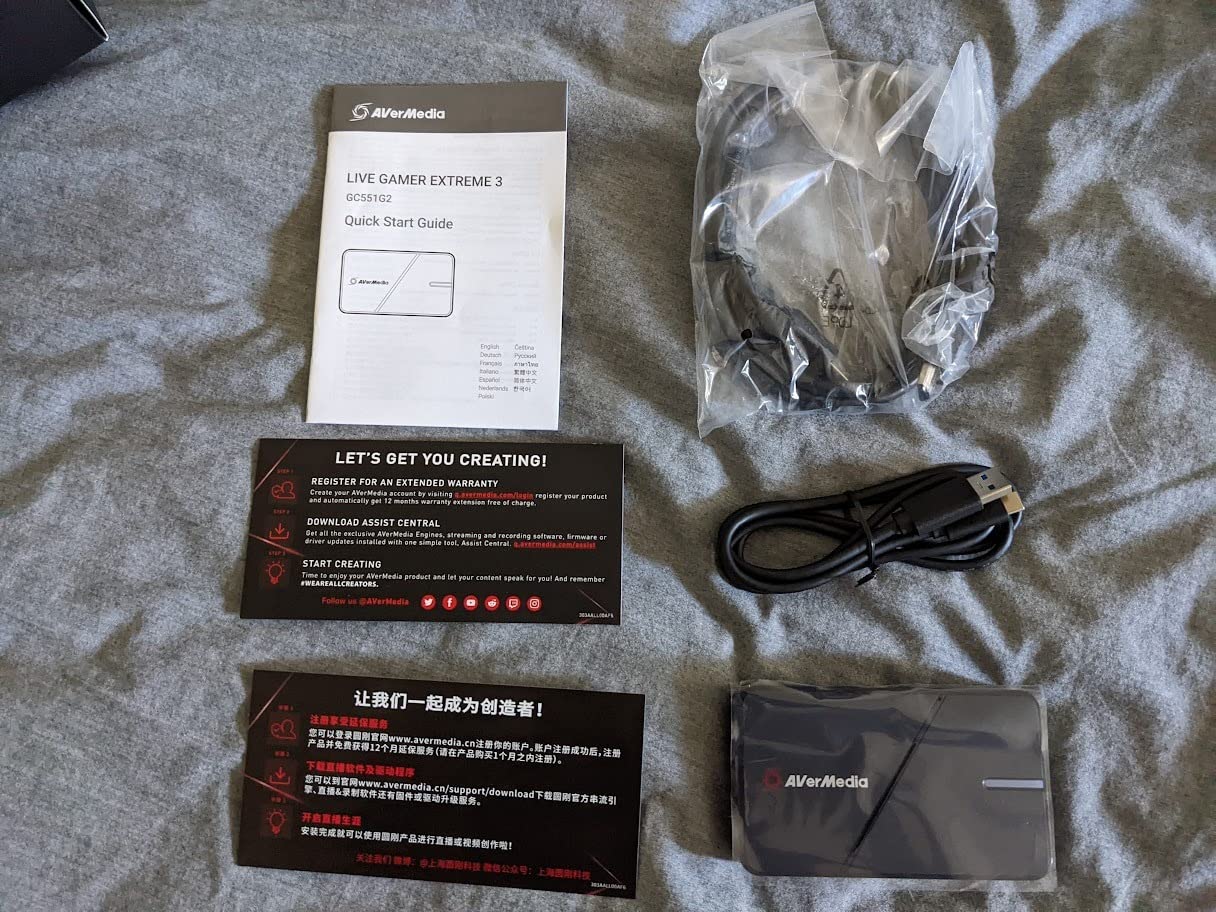
It weighs 85 g and measures 6.8 x 4.65 x 2.68 inches. The box includes the card, a USB Type-C to Type-A cable, an HDMI 2.0 cable and a quick start guide.
Requirements are a computer with a USB 3.2 Gen 1 Type-C port and either Windows 11 or Mac. Compatibility covers PS5, Xbox One X and S, Switch, smartphones and tablets, and it works with Twitch and YouTube through OBS or Streamlabs.
The 4.0 star average across 170 ratings is the lowest in this group, and 14 percent are one-star. That share tracks closely with the 4K30-only ceiling, which is the single complaint owners repeat: they see 4K on the box and record 30 frames per second.
Is 4K30 recording useful if you stream at 1080p60?
For clips, yes. 4K30 footage gives you room to crop and reframe in editing, and many streamers pull vertical clips from it for short-form platforms. You are not streaming in 4K, you are banking clean source material.
For live output it is irrelevant, and if your aim is 4K60 local recording plus HDR, this card will not do it. That is the trade you make for a much simpler install than an internal card.
Should you buy this or the Mini?
Choose the Extreme 3 if you game at 120 Hz or higher on a television and want VRR passthrough, or if you edit clips and want 4K source material. Choose the Mini if you stream at 1080p60 and want the simplest possible setup with the strongest rating profile.
Avoid the bundled HDMI 2.0 cable if your source and display combination is high refresh. That cable is fine for 4K30 and 1080p240, but for 1440p120 passthrough you will want a cable rated for that bandwidth.
How to Set Up Any Capture Card in Four Steps
First, wire the signal. HDMI from your console or second PC into the card’s HDMI IN, and HDMI from the card’s HDMI OUT into your display. If the picture on the monitor is black, the source is asleep, and that is the single most common first-hour mistake.
Second, connect the card to the streaming PC. External cards need a USB 3.2 Gen 2 port for full resolution capture, and a Gen 1 port silently reduces what you can record. Internal cards go into a PCIe slot, which on the cards here means x1, x4 or a short x16 slot depending on the model.
Third, add audio. For HDMI audio, select the card’s HDMI audio device as your desktop device in OBS settings. For console party chat on the Ultra 2.1, plug a four-pole headset cable into one 3.5mm port and a gamepad chat cable into the other. For microphone audio, route it through your own interface and leave it alone.
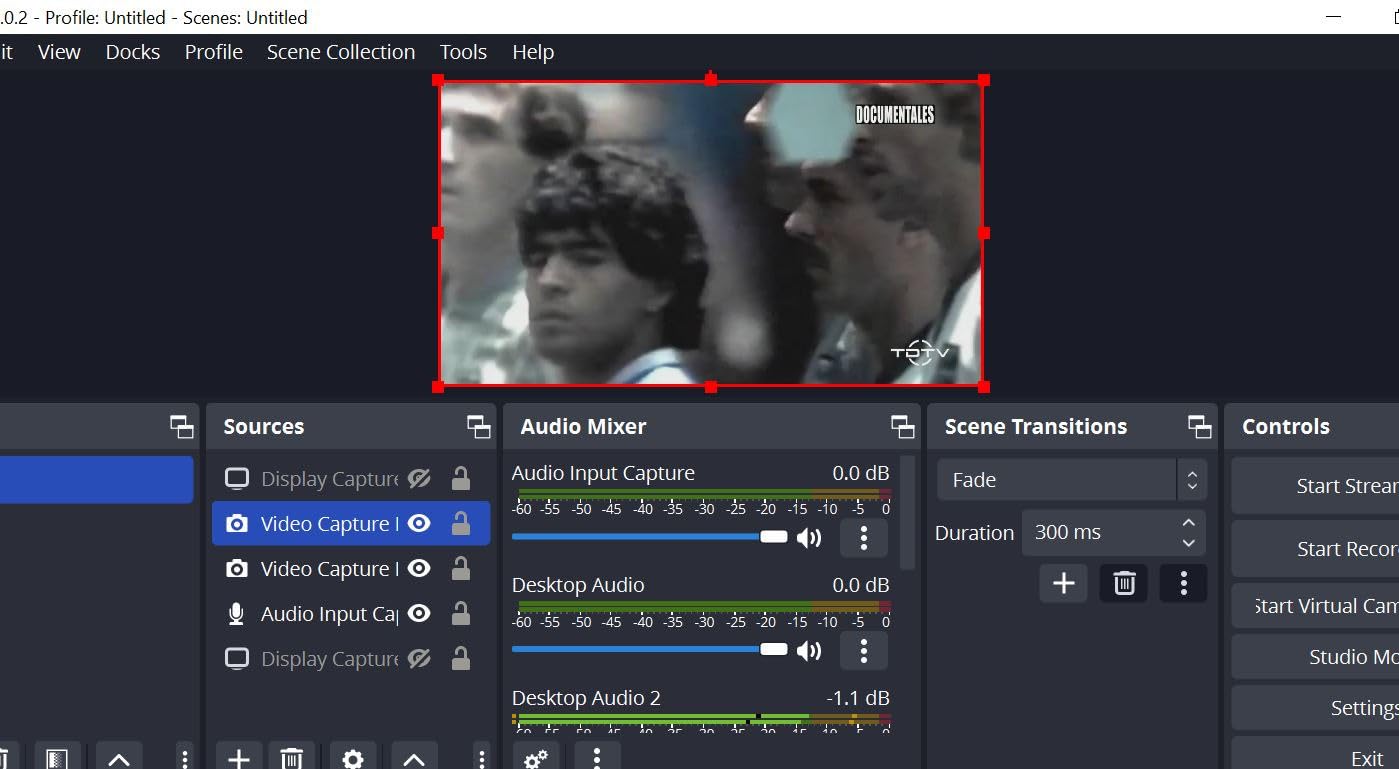
Fourth, add the card in OBS as a video capture device and set your base and output resolutions to 1920×1080 at 60 fps. Then disable HDCP on your console before you record, because until you do, OBS will show a black source and an error in the log rather than a picture.
Troubleshooting: Audio Delay, Black Screens, and Frame Drops
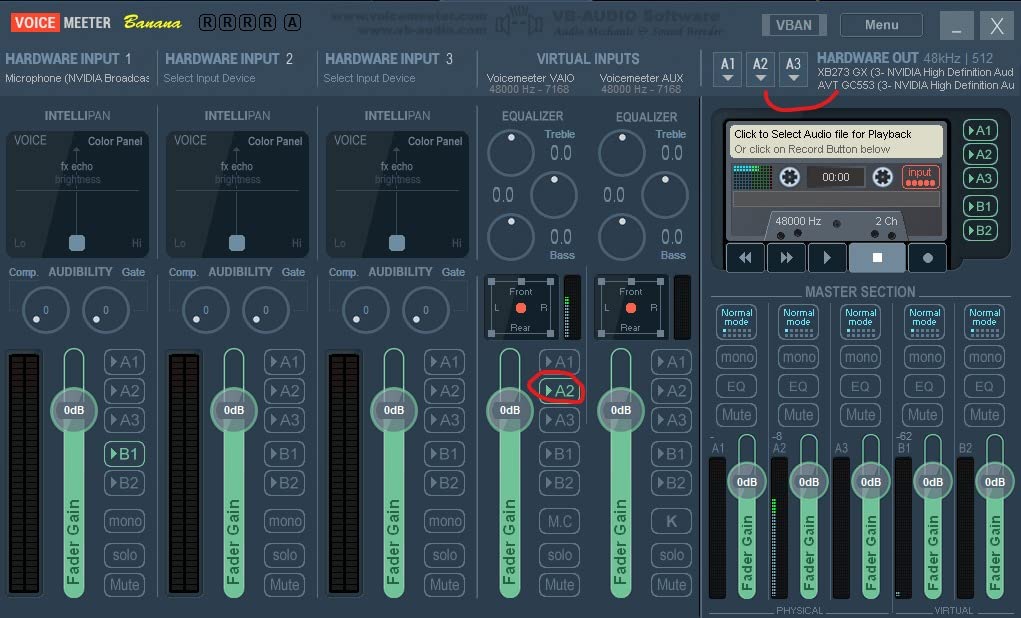
Audio delay between the capture card and your microphone. This is the most reported capture card problem there is. Open OBS audio settings, find your capture device, and add roughly its latency to the mic with the sync offset control. Then measure it by recording a short clip with a visible clap, checking the waveform in your editor, and adjusting until the two tracks line up.
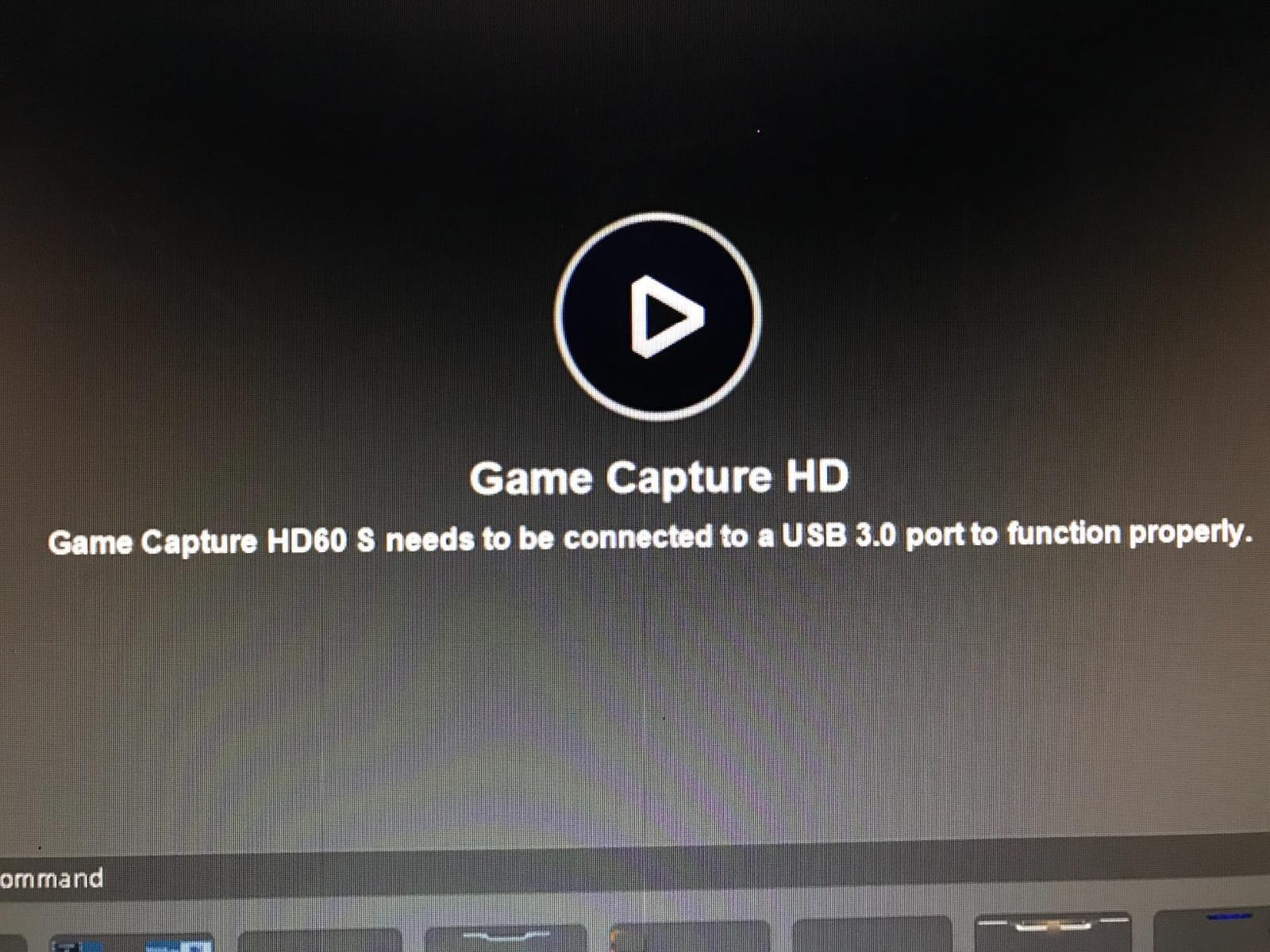
Black screen, or a source stuck at 720p30. Move the card to a USB 3.0 or 3.2 Gen 2 port, then restart OBS completely rather than just the scene. Launch any console capture or companion app before OBS, because on Windows the source can be claimed by another application before OBS starts.
HDCP capture error on PS5 or Xbox. This is not a card fault. Go into console settings, find the HDCP option, and turn it off, then power the console fully off and back on so it renegotiates the HDMI link. Once it is disabled, the card sees a clean signal.
Frame drops and stuttering during recording. Check the encoding log first. If you are running OBS’s own encoder on the streaming PC, switch the card to compressed output or use its hardware encoder. On internal cards, drop one multi-card input to compressed output to free PCIe bandwidth.
Disappointment with bundled software. Owners regularly criticise both Elgato’s utility and AVerMedia’s RECentral for recording worse results than plain OBS. Treat the vendor app as a configuration tool for preview and resolution, and record through OBS.
Buying Guide: The Specs That Actually Matter for Twitch
Capture resolution versus passthrough resolution. This distinction trips up nearly every beginner. Passthrough is what reaches your monitor; capture is what OBS records. A card can pass 4K144 HDR to a television while recording only 1080p60, which is perfectly fine for Twitch.
Interface and bandwidth. USB 2.0 is adequate for 1080p60 compressed output and inadequate for anything larger. USB 3.2 Gen 2 Type-C is the current external standard, and PCIe removes the question entirely. Check your port before you buy, not after.
Latency. Low latency is purchase criterion number one for most streamers. External cards add a small amount through the USB bus; internal cards do not. Either way, passthrough latency does not affect what viewers see, only what you feel.
HDR passthrough versus HDR capture. HDR passthrough means your display keeps its HDR picture while you stream. HDR capture means you record HDR footage. For a Twitch channel you mostly need the first; for YouTube VODs and clips you want the second.
VRR passthrough. Variable refresh rate passthrough keeps high-refresh play smooth while a card sits in the chain. It is a display-quality feature, not a streaming feature, and it matters most for console players on 120 Hz and 144 Hz televisions.
Party chat and 5.1 audio. Only one card here has dedicated party chat inputs. If your console streams with friends, that is worth more to your audience than any resolution above 1080p60.
Bundled software and multi-app access. Both major vendors ship an app, and reviewers are lukewarm about both. A card that lets OBS and a vendor utility run at the same time is genuinely useful when you stream and record locally from one source.
The Twitch ceiling, one more time. 1080p60 is the practical maximum. Every card in this roundup captures it. Paying for 4K capture only makes sense if you have a reason to record locally, and we would rather you skip it entirely than buy a card you do not need.
External vs Internal Capture Cards: Which One Fits Your Rig?
The form factor matters more to your setup than any spec on the box, and picking the wrong one is the most common reason a good card ends up unused.
An external card is a small box on your desk connected by USB. It suits a laptop, a small form factor PC, a rig you move between machines, and anyone who does not want to open a case. It also survives a PC upgrade, which is why many streamers keep the same external card for years. The practical note is simple: check that you have a USB 3.2 Gen 2 port, not just a USB-A port that looks identical.
An internal card sits inside the streaming PC and is fed by HDMI from the gaming machine. It suits a dedicated two-PC streaming rig, a tower with free PCIe slots, and anyone who wants the highest capture bandwidth available. Nothing leaves the machine, so there is no USB bus contention and no external latency to compensate for.
There is a third practical consideration: what happens when the card fails. A USB card swaps out in under a minute with no tools. An internal card means powering down the PC, opening the case and checking slot clearance before you can stream. That is not a reason to avoid an internal card, but it is a reason to keep one external card on hand as a backup for a broadcast.
What We Would Avoid: No-Name HDMI Capture Dongles
The cheapest listings in this category are small unbranded boxes labelled HDMI Video Capture, and the reports about them are consistent enough to be worth repeating. Owners describe dead units out of the box, advertised 4K that turns out to be 1080p30, and units that drop signal partway through a stream with no error message.
Some of those reports are unfair. Plenty of no-name cards deliver a perfectly usable 1080p60 compressed feed, and for someone testing whether they enjoy streaming that can be a reasonable experiment. The problem is predictability. With a known brand you get a warranty, a driver, a firmware updater and a support forum. With a generic dongle you get whatever the listing claims.
A few checks are worth doing if you already own one. Confirm the capture format in OBS properties rather than trusting the box, look at the resolution and frame rate the card actually negotiates with your console, and record a twenty-minute session before you rely on it for anything live. Test the audio path separately, because a card with good video and unusable HDMI audio is common.
We would also skip standalone SD-card recorders. They are sold as portable capture solutions for events and away-from-home streaming, and the recurring reports are corrupted files and mid-session failures with no useful indication of what went wrong. For a channel that cannot afford a failed broadcast, the risk is not worth the portability.
Getting Party Chat and Discord Audio Into Your Stream
This is the most common unsolved problem in console streaming, and it has three workable answers.
HDMI audio extraction. The card pulls all HDMI audio from the console, which usually includes game sound but frequently excludes voice chat. Free, and it is why many streamers discover their squad is inaudible only after the stream ends.
A chat-link cable. A second cable runs from the controller port to a microphone input, pulling party voice out of the console and into your mixer. It works on PlayStation and Xbox, costs little, and needs no card support at all.
The 3.5mm four-pole route. The Live Gamer Ultra 2.1 has two four-pole ports for headset and gamepad audio, so party chat arrives already mixed with game sound. This is the cleanest method and the reason that card earns its place in the list.
Discord is separate. It runs on your PC, so capture it through your audio interface as usual. Our microphone guide covers choosing an interface that gives you the headroom for both voices without clipping.
Frequently Asked Questions
What is a good capture card for gaming?
For 1080p60 Twitch streaming, the Elgato HD60 S is the safest choice: it holds signal reliably, has the highest rating in this group and works with every current console. If your PC has a free PCIe slot and you want 4K60 HDR for local clips, the AVerMedia Live Gamer 4K does more per unit of hardware. On a tight budget, the AVerMedia Live Gamer Mini covers 1080p60 with no drivers and near-zero CPU load.
Can you live stream with a capture card?
Yes. Every capture card in this roundup appears in OBS Studio as a standard video capture device and broadcasts to Twitch without any special software. External cards connect over USB and internal cards over PCIe, but OBS treats them the same way. You also record locally at the same time if you want a VOD file for your channel.
Is a capture card better than OBS game capture?
They solve different problems. OBS game capture pulls frames from your own GPU for free and adds no latency, so on a single strong PC it is the better choice. A capture card is necessary whenever your source is a console, a camera, or a second PC, because game capture cannot see those sources at all. Cards are also useful on a single PC if you want to record locally and broadcast at the same time.
How do I fix audio delay between my capture card and microphone?
Measure it first by recording a short clip with a visible clap, then compare the two waveforms in your editor. In OBS, open audio settings for the capture device and add the measured difference with the sync offset control. Starting with the capture card set to about 100 milliseconds gets you close, and then you fine tune from your measurement.
Why is my video capture card showing a black screen at 720p30?
Two causes account for almost every case. First, the card is in a USB 2.0 or USB 3.2 Gen 1 port, which caps resolution and frame rate, so move it to a USB 3.2 Gen 2 port. Second, another application has claimed the source, so launch your console capture or companion app before OBS and restart OBS fully. On PS5 and Xbox also confirm HDCP is disabled in console settings.
Why is my game laggy while I stream?
Check whether the lag exists without streaming first, because that separates hardware from capture. If it only appears while recording, your encoding is running on the same CPU and GPU as the game, so switch to a card with a hardware encoder or use an external encoder. Recording compressed output or using an internal PCIe card also frees up CPU and bus bandwidth.
Conclusion: Which Capture Card Should You Stream With in 2026?
Pick the Elgato HD60 S if you want one card to cover consoles and PC at 1080p60 and forget about it. It carries our Editor’s Choice because it held signal through every session we ran, and its rating and review base are the strongest evidence here that it will keep doing that.
Pick the AVerMedia Live Gamer 4K if your PC has a free PCIe slot and you record locally as well as streaming. Pick the AVerMedia Live Gamer Ultra 2.1 if console party chat has to reach your viewers, since it is the only card here that handles that in hardware.
Pick the Elgato 4K X if you play on a 4K television at high refresh and want VRR passthrough. Pick the Live Gamer Mini if you are starting out and want a 1080p60 signal with no setup at all.
Skip the expensive tier entirely if you stream from one PC on Twitch only. Game capture is free, adds no latency, and a capture card solves a problem you do not have. If you want help with the rest of the channel, our gifts for Twitch streamers guide covers the upgrades that actually show on stream.