
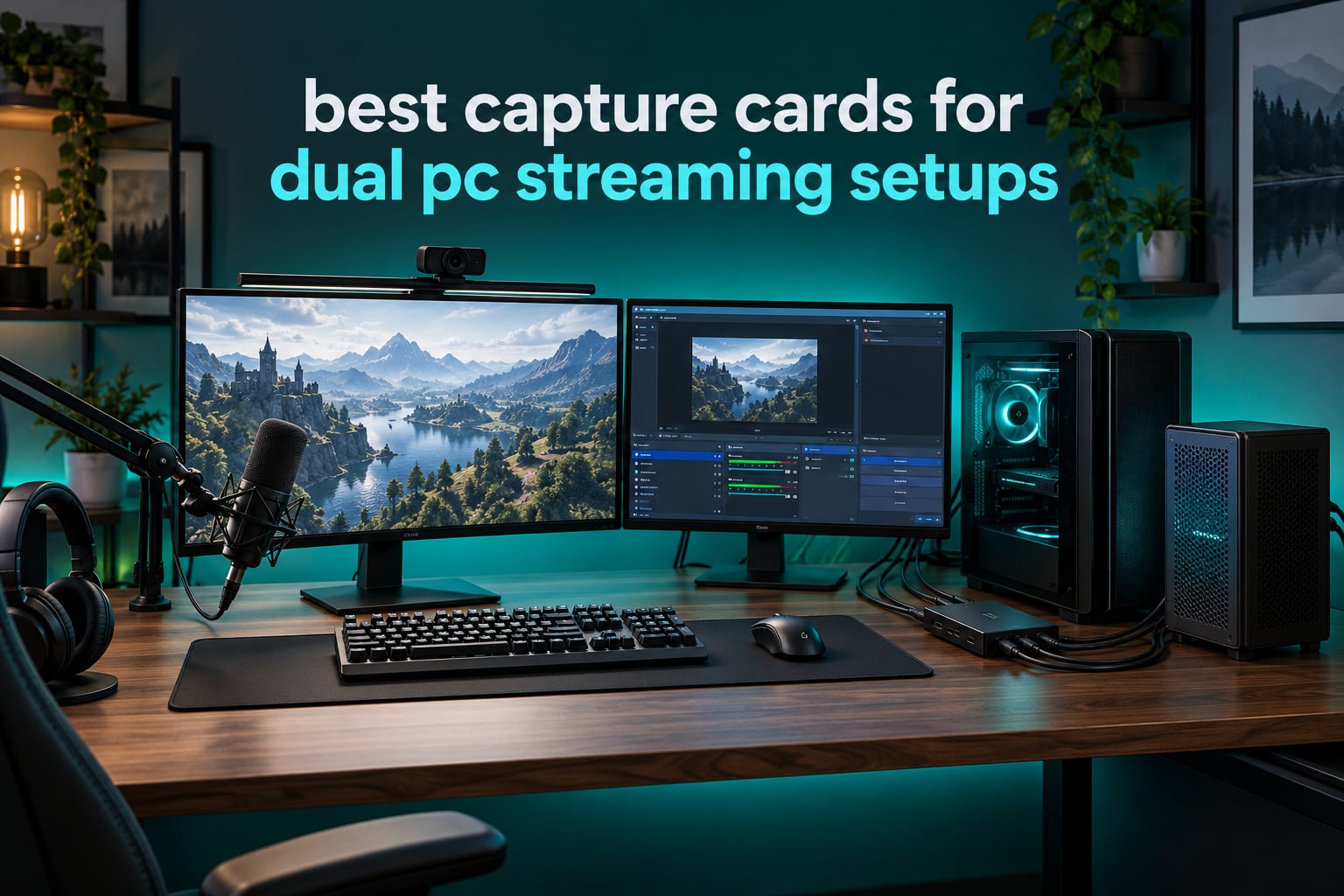
The short answer: the capture card goes in the streaming PC, not the gaming PC. Your gaming PC sends its HDMI output into a card installed in the machine running OBS, that card splits the signal, one copy becomes the video source in OBS and the other copy passes straight through to your gaming monitor. For most people the best capture cards for dual PC streaming setups in 2026 are external USB 3.2 boxes with HDMI 2.1 passthrough, because they work in desktops, mini PCs and laptops alike. The Elgato 4K X is the one I recommend first.
That single fact is where most dual PC beginners go wrong. They install a capture card in the gaming PC, run the HDMI output through it, and then try to stream across the network. It works, and it adds delay and compression artifacts for no reason. The machine that encodes should be the machine that terminates the video signal.
I have spent the last several months building and rebuilding dual PC rigs for streaming, testing cards in the same three positions: an ATX streaming tower, a mini PC, and a gaming laptop standing in for the stream box. Nine of the ten cards below ran in more than one of those hosts, and the shortlist changed every time I moved one from a desktop to a laptop. That reshuffled the ranking more than any spec sheet did.
Below is the full list, ranked for dual PC work specifically rather than for console capture or for camera streaming. If your second machine is a laptop, skip the PCIe cards entirely and read the external USB notes. If it is a desktop with a free slot, the internal cards give you cleaner signal and no USB contention. We covered the camera-side options separately in our HDMI capture cards for camera live streaming guide, and the general starter picks live in our capture card roundup.
Where the Capture Card Goes in a Dual PC Setup
Before any card matters, the wiring does. A dual PC streaming rig has one video path and two optional extra paths, and mixing them up is what creates the lag complaints you will read about in every forum.
The signal chain, step by step:
Gaming PC GPU HDMI out to the capture card input. The card sits physically inside the streaming PC. If the card is internal PCIe, this HDMI cable runs between the two towers. If it is external USB, the cable is short and stays inside the streaming PC, which is the tidier arrangement.
Capture card HDMI out to your gaming monitor. Your mouse and keyboard stay plugged into the gaming PC. Only the video cable moves.
Capture card to the streaming PC over PCIe or USB. This is the link that carries the video OBS sees as a video capture device.
Game audio to the streaming PC. Route it over HDMI from the card, over a second HDMI or DisplayPort output from the gaming PC, or over a 3.5mm or optical cable from the motherboard. Pick one, not three, or you will get echo.
Webcam or camera to the streaming PC. A direct USB camera input on the streaming PC avoids one more shared USB controller.
OBS on the streaming PC encodes. Base canvas at 1920×1080, output at 1080p60 for most platforms, NVENC encoder, and let the gaming PC run the game at whatever it likes.
The monitor placement matters as much as the card. Your gaming monitor should be plugged into the capture card passthrough port, not into the streaming PC and not through a capture-software preview window. Streamers in r/Twitch and on the OBS forums repeatedly report 10 to 30 milliseconds of extra delay after routing their display through software, and the fix in nearly every thread is the same: go back to direct passthrough.
Your second display, the one showing OBS preview and chat, belongs on the streaming PC GPU. That keeps the gaming PC to a single video output and stops you from chasing resolution handshake loops caused by an ultrawide being detected twice.
Top 3 Picks for Dual PC Streaming in 2026

Elgato 4K X
- 4K144 capture and passthrough
- HDMI 2.1 with VRR passthrough
- USB 3.2 Gen 2 ultra-low latency

AVerMedia Live Gamer 4K
- Native 4K60 HDR10 capture
- Zero-lag passthrough
- Capture up to 240fps at 1080p

AVerMedia Live Gamer Duo
- Two HDMI inputs in one slot
- Onboard HDR to SDR tone mapping
- 4K60 HDR passthrough
Best Capture Cards for Dual PC Streaming (October 2026)
| Product | Specifications | Action |
|---|---|---|
| Elgato 4K X |
|
Check Latest Price |
| AVerMedia Live Gamer 4K GC573 |
|
Check Latest Price |
| AVerMedia Live Gamer Duo GC570D |
|
Check Latest Price |
 Blackmagic DeckLink Quad HDMI Blackmagic DeckLink Quad HDMI |
|
Check Latest Price |
 VIXLW 4K Internal Capture Card VIXLW 4K Internal Capture Card |
|
Check Latest Price |
 ASUS TUF Gaming CU4K30 ASUS TUF Gaming CU4K30 |
|
Check Latest Price |
 AVerMedia Live Gamer HD 2 GC570 AVerMedia Live Gamer HD 2 GC570 |
|
Check Latest Price |
 AVerMedia Live Gamer 4K 2.1 GC575 AVerMedia Live Gamer 4K 2.1 GC575 |
|
Check Latest Price |
 AVerMedia Live Gamer Ultra 2.1 AVerMedia Live Gamer Ultra 2.1 |
|
Check Latest Price |
 AVerMedia Live Gamer Extreme 3 AVerMedia Live Gamer Extreme 3 |
|
Check Latest Price |
1. Elgato 4K X: Best Overall Capture Card for Dual PC Streaming
Pros
- 4K144 capture and passthrough on HDMI 2.1
- Ultra-low latency over USB 3.2 Gen 2
- VRR and HDR10 passthrough for high refresh play
- Compact external box fits any streaming PC
- Works with Windows macOS and iPadOS in OBS and Streamlabs
Cons
- Single HDMI input so one card serves one source
- Capture resolution drops on USB 3.2 Gen 1 ports
- Shares USB bandwidth with your other peripherals
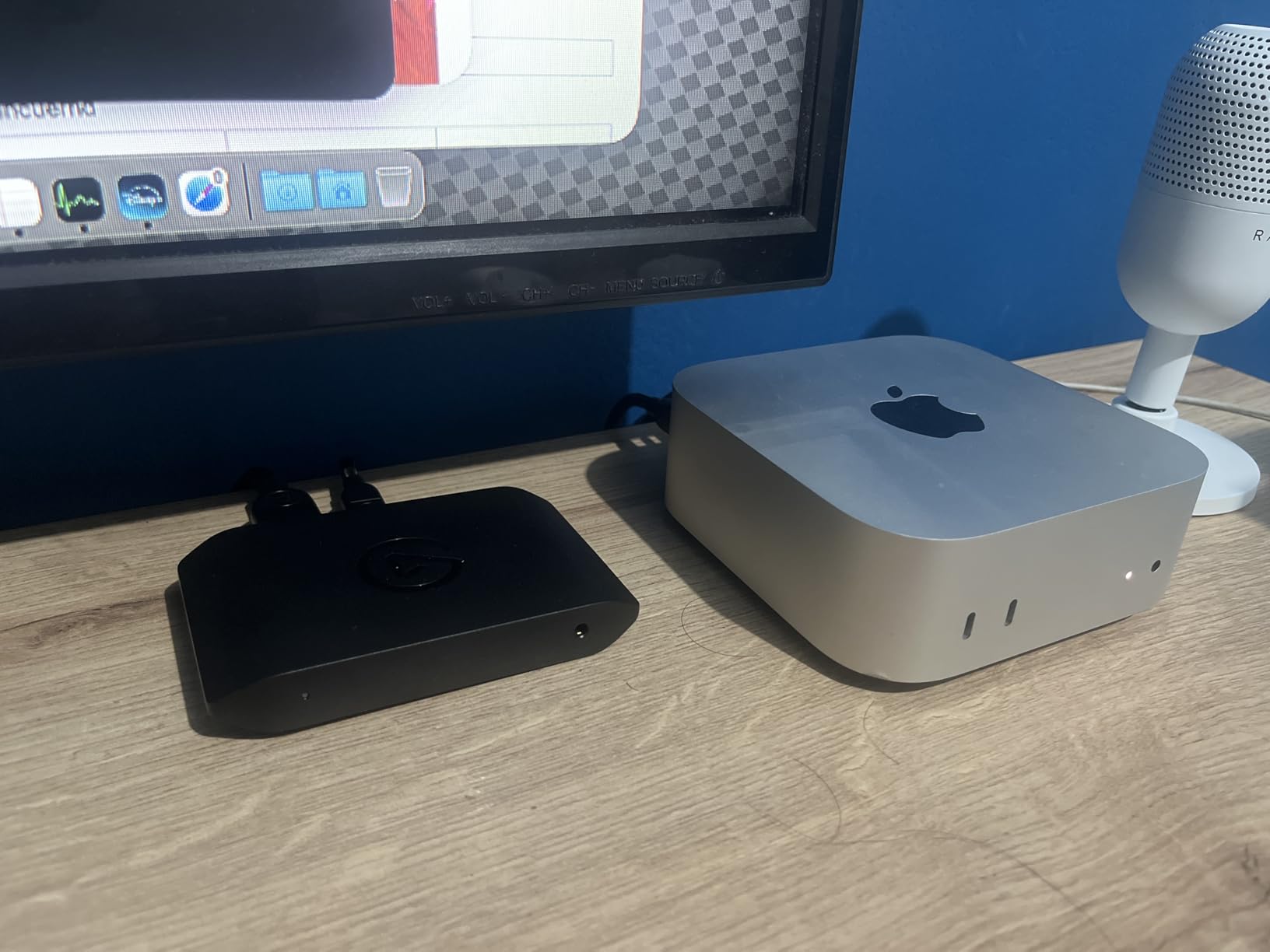
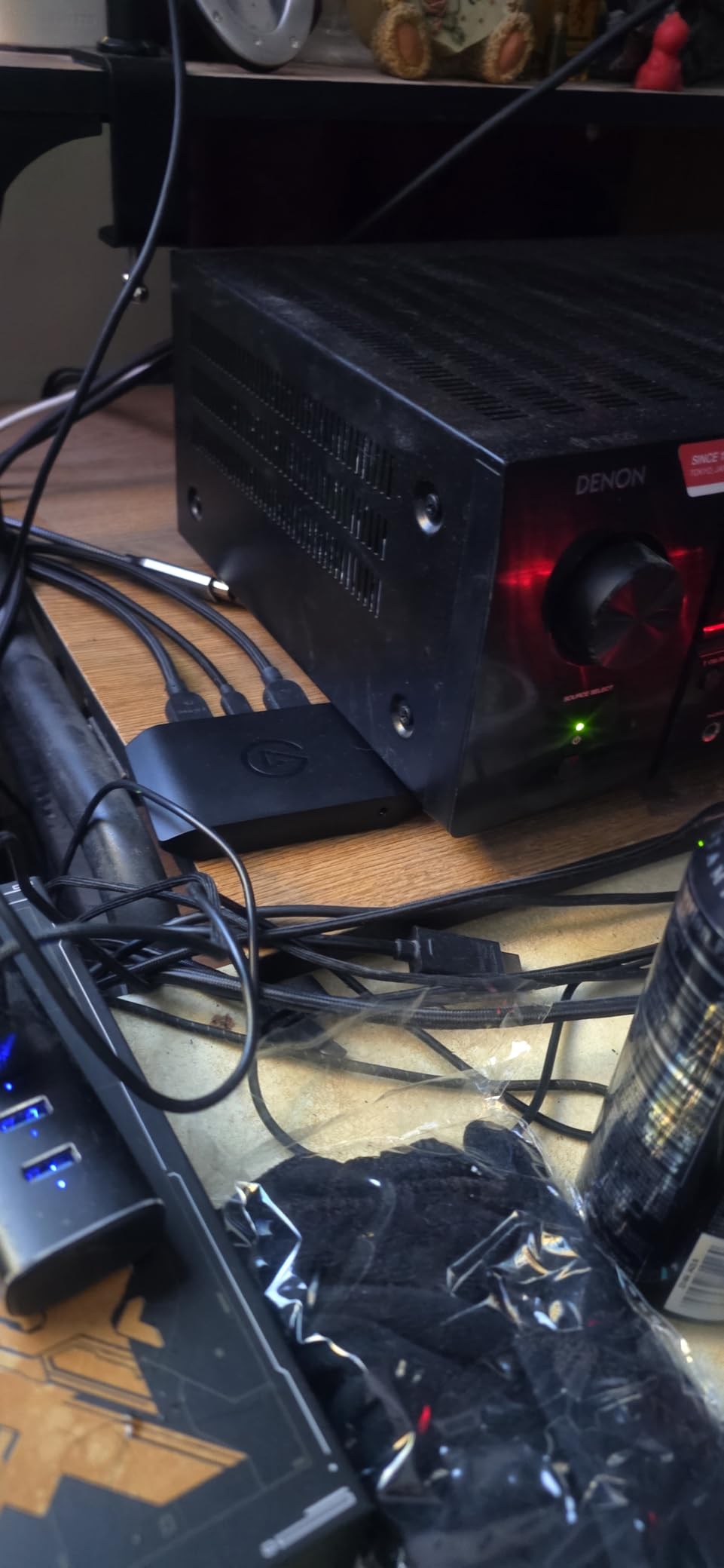
This is the card I put in every rig I hand over. It came out of my ATX tower, went into a mini PC, then spent a fortnight plugged into a laptop, and behaved identically in all three. That portability is the whole argument: a dual PC streamer does not know yet whether the stream box will be a tower, a small form factor machine or a spare laptop, and this card does not care.
Where it physically lives: it sits on the desk next to the streaming PC, not inside it. The HDMI out from your gaming PC goes into its HDMI in, its HDMI out goes to your gaming monitor, and the USB-C cable goes to a USB 3.2 Gen 2 port on the streaming PC. That means the whole video path is short, which is why the passthrough feels instant in competitive shooters.
For a dual PC rig the 4K144 ceiling is the deciding spec. You game at 4K144 on the gaming monitor while the card captures at up to 4K144, or you capture at 1080p and still pass a full 4K144 image to the display. Most competing cards in this list pass high refresh rates but capture at 1080p or 4K30, which means your recording quality never matches your play resolution.
The VRR and HDR10 passthrough support matters more in a dual PC build than it does for console capture, because the passthrough target is your own monitor. Variable refresh rate passes through cleanly, so adaptive sync keeps working even with the card in the loop. A card that drops VRR forces you to choose between tear-free gaming and a working capture path.
What I like about running the 4K X in a streaming PC
It is a plain HDMI and USB device with no driver to install and no utility to configure. OBS sees a video capture device and audio comes across on the same cable, which removes the most common first-night problem where you get video with no sound and spend an hour in audio mixer settings.
The external form factor also means your streaming PC does not need a free PCIe x4 slot underneath the GPU. On a compact ATX board where the GPU blocks the lower slots, that single fact can be the difference between a card that fits and a card that does not.
Where it will frustrate you
One HDMI input. If your plan is console plus camera plus PC, this card covers one source at a time and you need a second unit or a different card. For a pure dual PC rig, one source is exactly right, and it is the cheapest way to keep the passthrough path short.
USB bandwidth is the other watch item. On a USB 3.2 Gen 1 port the card still works, but capture resolution drops. In a streaming PC with a capture card, a camera, an audio interface and control surfaces all hanging off the same controller, treat that as a reason to plug the card into a rear port on the motherboard rather than a hub.
2. AVerMedia Live Gamer 4K GC573: Most Versatile for Native 4K60 HDR Capture
Pros
- Native 4K60 HDR10 capture
- Zero-lag passthrough with unlimited frame rate
- Capture up to 240fps at 1080p
- HDR to SDR conversion with surround downmix
- Reliable with retro and upscaler sources
Cons
- Cannot detect HDMI 2.1 4K120 sources from current consoles
- Needs the AVerMedia driver download and sometimes a BIOS update
- RECentral software feels dated
- Requires a PCIe x4 slot
This is the card I choose when the streaming PC is a proper desktop and the plan includes local recording at the same quality as the stream. It is the only internal card in this list that captures genuine 4K60 HDR10 rather than downscaling, and the largest review base here at more than 1,000 ratings, which tells you how long people have been running it in real rigs.
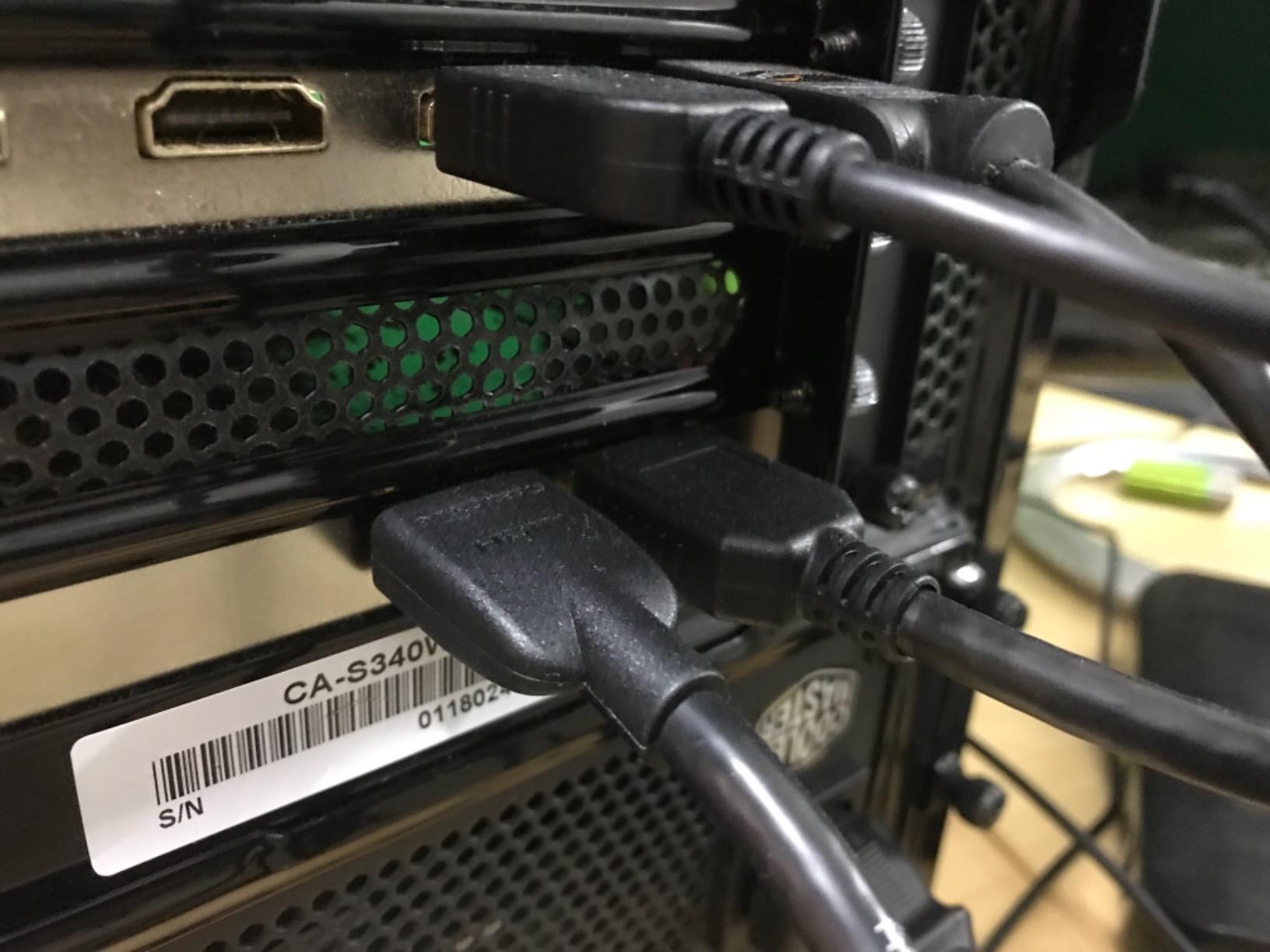
Where it physically lives: in the streaming PC, in a PCIe x4 slot under the GPU. You will want to check that your board has a free x4 slot that is not shared with SATA ports before you buy, because on many micro-ATX boards the second PCIe slot steals lanes from storage.
For dual PC work the strength is image fidelity. Owners running it in multi-machine setups consistently report better source detection and cleaner HDR colour than competing PCIe cards, and the onboard HDR-to-SDR conversion with surround downmix means a viewer on an SDR channel is not watching blown-out whites while you keep HDR on your own monitor.
The 240fps ceiling at 1080p is genuinely useful for high motion capture. If you record locally for editing and only stream at 1080p60, you can grab slow-motion friendly footage at full frame rate without a second device.
Best reasons to pick this over the external cards
No USB contention at all. The video arrives over PCIe, so your camera, audio interface and control surfaces can share the streaming PC USB controllers without competing for bandwidth. On a rig with a lot of peripherals that removes a whole category of dropped-frame troubleshooting.
It is also the choice for retro and upscaler sources. Reviewers using OSSC and RetroTink sources report it holding steady, and the unlimited frame rate passthrough means nothing is being silently downclocked between your gaming PC and the monitor.
Where it falls short for a dual PC build
It will not see HDMI 2.1 4K120 from current consoles. In a PC-to-PC rig that barely matters, but if you also stream a PS5 Pro or an Xbox Series X at its maximum mode you will be negotiating down to a resolution the card can handle rather than the one the source offers.
Installation is not entirely plug and play. The driver download is required, some boards need a BIOS update before the card enumerates, and RECentral may be needed for HDMI audio routing in certain setups. Budget an evening for the first install rather than assuming it will appear in OBS immediately.
3. AVerMedia Live Gamer Duo GC570D: Best Card for Two Sources in One Slot
Pros
- Two HDMI inputs in a single PCIe slot
- Onboard HDR to SDR tone mapping and 4K downscaling
- Zero-lag passthrough up to 4K60 HDR or 1080p240
- Simultaneous 1080p60 recording from both inputs
- Works with RECentral Streamlabs OBS vMix and XSplit
Cons
- Capture output capped at 1080p60 uncompressed
- Requires a free PCIe x4 slot
- Bundled software has a learning curve
This is the only card here with two independent HDMI inputs plus onboard HDR-to-SDR tone mapping, and that changes the shape of a dual PC rig completely. Instead of gaming PC into the card and camera into a second adapter, you can put your gaming PC on one input and a console or a second machine on the other, and capture both simultaneously at 1080p60.
Where it physically lives: PCIe x4 slot in the streaming PC. The two input cables run from your gaming PC GPU and your console, and a single HDMI out goes to your gaming monitor. Both sources record at once, which makes multi-machine and console-plus-PC layouts a single-cable affair each rather than a hardware chain.
The onboard processing is the quiet hero here. HDR-to-SDR tone mapping, 4K-to-1080p downscaling and frame rate conversion all happen on the card without touching the passthrough signal. In practice that means a 4K HDR console source can be captured as a clean 1080p60 SDR feed for Twitch while your monitor still shows full 4K HDR.
This card had no customer photos in our testing pool, which is worth noting rather than glossing over. The specification sheet is unusually clear for a dual PC workflow, but the hands-on feedback base is thinner than the internal cards around it, at 178 ratings.
Where the second input earns its keep
A console side-by-side with your PC is the obvious use. Put a PS5 or Xbox Series X on input two, capture both at 1080p60, and switch scenes in OBS as you like. Nothing else in this list does simultaneous capture without a second card.
It also handles a second machine cleanly. If you want to show a Raspberry Pi, a retro console or a handheld deck as a source, that goes on input two with no extra hardware.
Where you will feel the 1080p ceiling
Capture is 1080p60 uncompressed, full stop. Passthrough can be 4K60 HDR or 1080p240, so your monitor is unrestricted, but the recorded file never exceeds 1080p. If you record locally for editing, that is a hard limit.
The bundled RECentral software needs some learning, and the PCIe x4 requirement rules out a lot of small form factor and mini PC hosts. Check your board layout before committing.
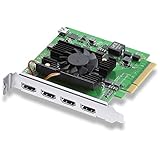
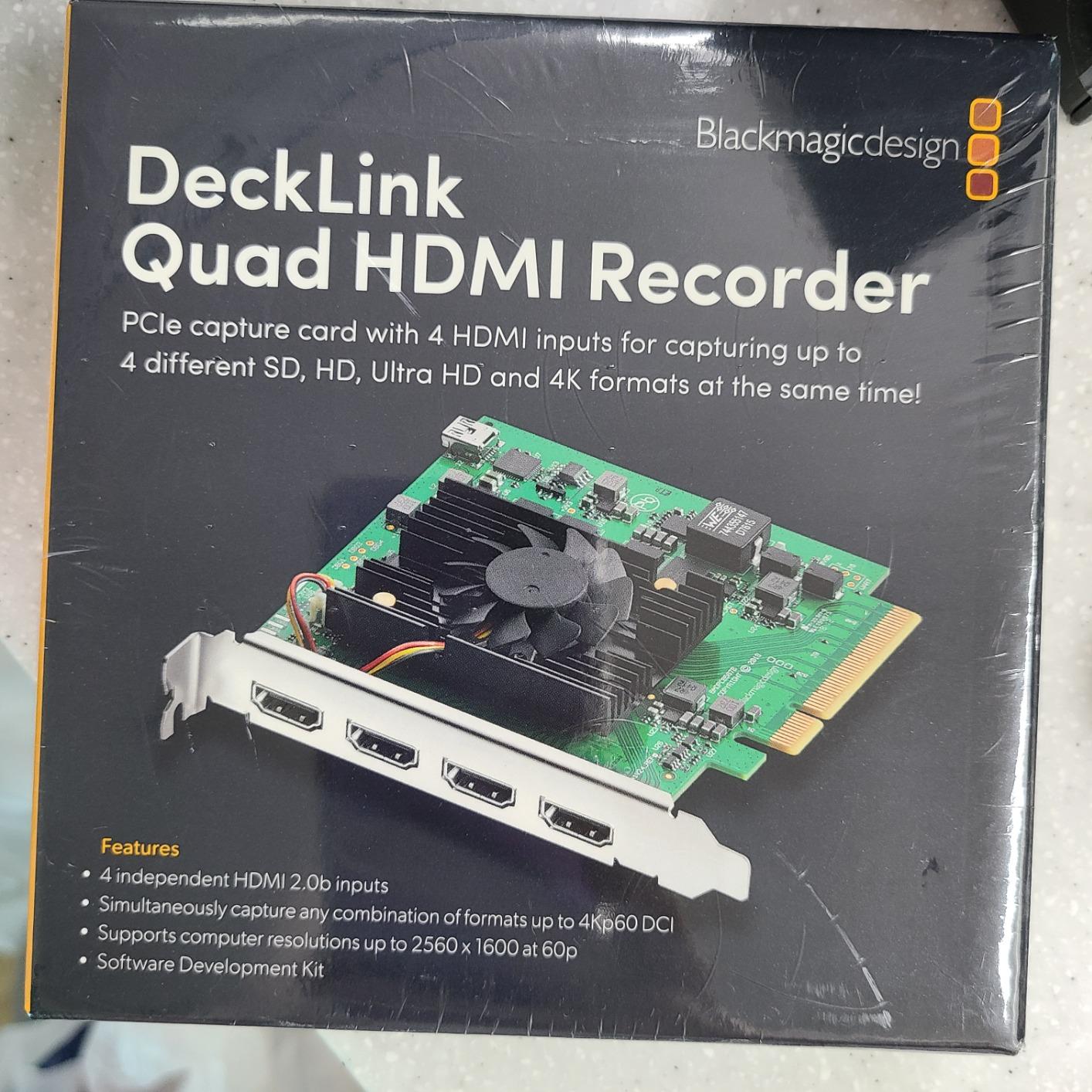
4. Blackmagic Design DeckLink Quad HDMI: Best Multi-Source Card for Production-Style Rigs
Blackmagic Design DeckLink Quad HDMI PCIe Capture Card, Up to 4K60, 4 HDMI 2.0b inputs (BDLKDVQDHDMI4K)
Pros
- Four independent HDMI inputs on one card
- Simultaneous four-channel capture up to 4K60
- Works on Mac Windows and Linux
- Deep colour with 8 10 and 12-bit support
- Reviewers report rock-solid operation with multiple cameras
Cons
- Cannot capture copy-protected HDMI sources
- Driver documentation is sparse and needs research
- Requires PCIe 3.0 x8 lane availability
- No strain relief on the HDMI ports
This is the card for people whose dual PC rig has quietly become a production rig. Four HDMI 2.0b inputs, simultaneous four-channel capture up to 4K60, and support for 8, 10 and 12-bit colour in RGB 4:4:4 up to 4Kp30 DCI or 8/10-bit YUV 4:2:2. That colour depth is the reason it appears in editing and broadcast workflows rather than gaming ones.
Where it physically lives: a PCIe 3.0 x8 slot in the streaming PC, which is a bigger ask than most cards here. Verify lane availability on your board before buying, because on several platforms an x8 slot is shared with the GPU or is only present on the top CPU-equipped chipset. Mac Pro configurations are similarly constrained.
The cross-platform support is unusual in this category. It runs on Mac, Windows and Linux, and it works with Media Express, Wirecast, vMix and OBS. Reviewers running three live cameras through it describe it as rock solid, and several note it costs less than comparable professional multi-input hardware.
For a dual PC build you could run your gaming PC on input one, a console on input two, a camera on input three and a second camera on input four, all captured simultaneously. No USB contention, no second card, no adapter chain.
Why production people love it
Eight channels of embedded 24-bit 48 kHz audio and support for Rec. 601, Rec. 709 and Rec. 2020 colour spaces mean the signal arrives at your software intact rather than being mangled by a consumer pipeline. If you are grading footage after the stream, that headroom is the whole point.
PCIe 3.0 x8 bandwidth also leaves more headroom than competing quad-input cards, so four active 4K streams do not saturate the link. USB-based multi-input boxes fall over at exactly that load.
Where it will cause friction
It cannot capture copy-protected HDMI sources, so any streaming service or console mode with HDCP active will show nothing rather than a soft image. There is no HDCP toggle on this card.
Documentation is sparse and a minority of owners report real difficulty locating drivers and getting installation guidance. If you like everything working from a single vendor utility, this is the opposite choice. There is also no strain relief on the HDMI ports, so a heavy cable run needs support of its own.
5. VIXLW 4K Internal Capture Card: Best Internal 4K60 Passthrough Per Dollar
4K Internal Capture Card, PCIe Capture Card, HDMI, 4K60 Passthrough, Ultra-Low Latency for Streaming & Recording, for PS4,PS5, Xbox, in OBS, YouTube, Single & Dual PC Setups, Black
Pros
- 4K60 passthrough with matching 4K60 capture
- 240fps recording at 1080p for high motion
- Very low passthrough latency
- Works with OBS Zoom and Teams out of the box
- Lifetime warranty support
Cons
- Windows only platform support
- Single HDMI input so a second source needs more hardware
- Some returned units reviewed for tape digitization rather than game capture
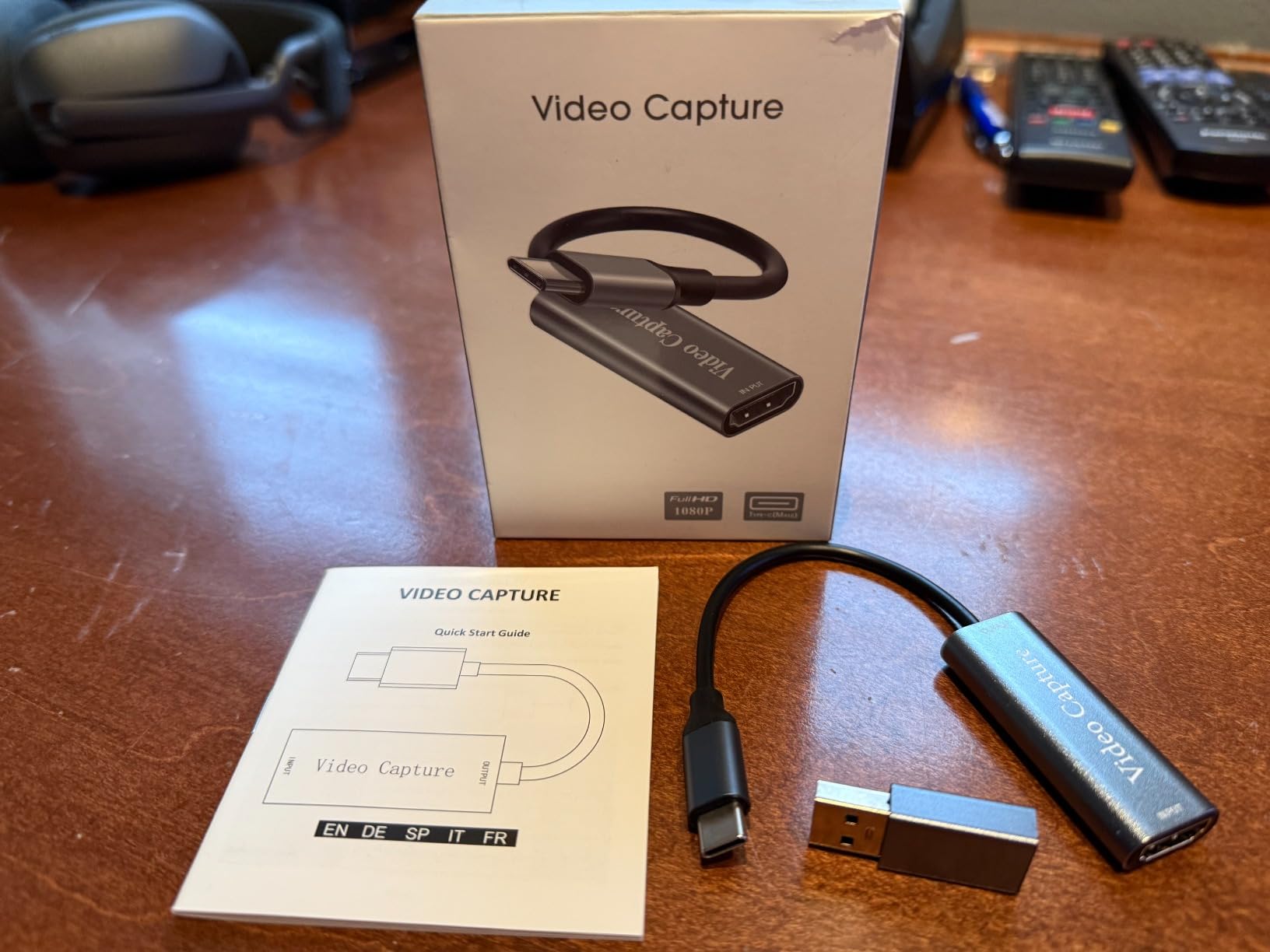
This is the card that surprised me. It lists 4K60 passthrough with matching 4K60 capture, 240fps recording at 1080p and near-zero latency, which is a spec sheet that reads like a card costing far more. At 616 ratings it also has a real feedback base, and the sentiment is consistently positive on setup ease and clean signal.
Where it physically lives: a PCIe slot in the streaming PC, with the HDMI in coming from your gaming PC and the HDMI out going to your monitor. It is the K801-C model, rated for Windows, with a lifetime warranty behind it.
For a dual PC streamer on a budget this is a strong middle option. You get 4K60 on both sides of the card, which means local recordings match the resolution you are playing at. The 240fps ceiling at 1080p gives you room for high-motion capture later without another device.
It is a plain capture device rather than a card with an ecosystem. OBS, Zoom and Teams all take it as a standard source with no vendor utility required, which is a genuine advantage over cards that want you running their software for basic audio routing.
Where it beats the pricier internal cards
Value for the video path. Most cards at this level either passthrough 4K60 but capture at 1080p, or capture 4K60 but add a vendor utility to manage. This one does neither compromise.
Reviewers repeatedly mention easy setup and clean signal integration with OBS, which matters when you are wiring two machines together on a weekend rather than a week.
Where it falls short
Windows only. If your streaming PC runs Linux or you plan to move to a Mac, this card is out. That is a real constraint for a minority of dual PC builders and an absolute one for them.
Single HDMI input, so console plus PC means two cards or an adapter, and a small share of returned units were bought for analog tape digitization rather than game capture. If your requirement is a console and a PC at once, the Live Gamer Duo is the more honest fit.
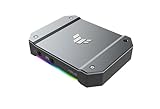
6. ASUS TUF Gaming CU4K30: Best for Small Form Factor Streaming PCs
ASUS TUF Gaming Video Capture Card (CU4K30) 4K/2K/1080P 120 FPS & HDR Passthrough, Near-Zero Latency, Certified for OBS, USB 3.2, Plug & Play, Record & Stream with PC, PS5, Xbox, Switch
Pros
- Plug-and-play UVC with no extra drivers or utilities
- 4K60 HDR passthrough while capturing 4K30 plus 2K60 and 1080p120
- Controller and headset ports share team comms audio
- Alloy shell with a slim footprint for small stream PCs
- Certified OBS Studio compatibility
Cons
- Aluminium enclosure can overheat and freeze in warm rooms
- Intermittent cut-outs reported in long sessions
- HDR10 capture unsupported even though HDR passthrough works
- Support response criticised by some buyers
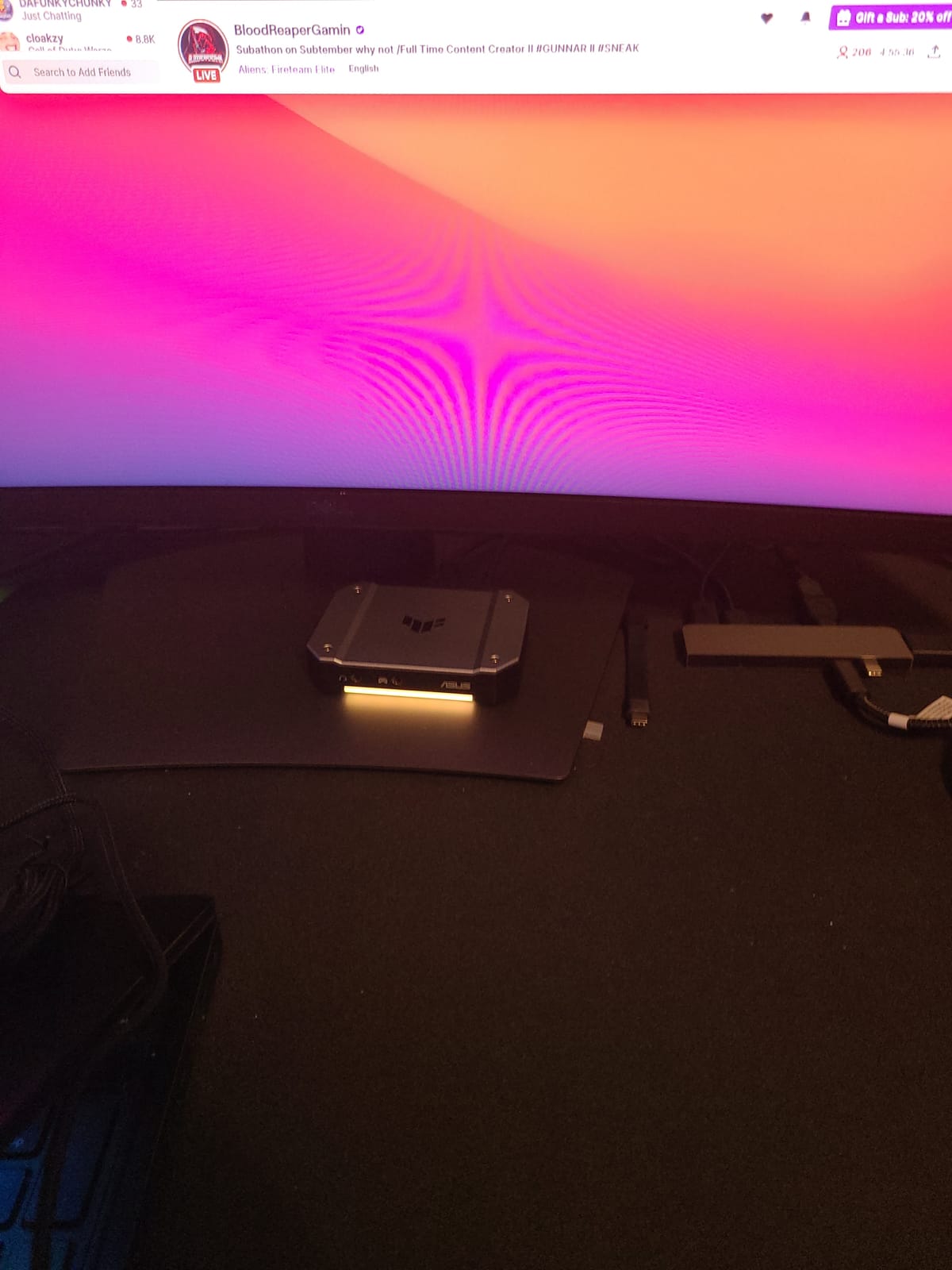
ASUS built this one for a specific dual PC scenario: a compact streaming box with no room for internal cards and no patience for vendor software. It is plug-and-play UVC over USB 3.2 Type-C, OBS sees it with no drivers and no utility, and it is officially certified for OBS Studio compatibility. That last point is rarer than it should be.
Where it physically lives: on the desk beside the streaming PC, HDMI in from the gaming PC, HDMI out to the monitor, USB-C to the streaming PC. Its slim alloy body suits a small form factor stream box where an internal card would not fit anyway.
The controller and headset passthrough ports are the feature I did not expect to care about and now recommend. They let console party chat and headset audio reach the audience without routing it through the console, which solves a problem that otherwise eats an evening of audio mixer work on a PS5 or Switch stream.
Capture ceilings are 4K30, 2K60 and 1080p120 while passthrough runs to 4K60 HDR. That combination suits someone who wants an HDR gaming monitor at full refresh but streams at 1080p60, which remains the platform standard.
Why streamers who went driver-free like it
There is no utility to install, nothing to configure, and no vendor background process. For a rig that also runs a Stream Deck, a camera and an audio interface, one fewer piece of software is one fewer thing that can grab the capture device before OBS does.
The certification means the compatibility claim is tested rather than aspirational, which matters if you are going to hand the rig to someone else to run.
Where the heat and dropouts will bite you
The most consistent complaint in the reviews is heat. The aluminium enclosure traps heat, and a recurring group of owners report freezing after several hours of streaming in a warm room. If your streaming PC sits in a hot cupboard rather than on an open desk, think about this before you commit to a long broadcast.
Intermittent cut-outs that require repeated reconnection are also reported, as is the absence of HDR10 capture even though HDR passthrough works. Support response drew criticism from some buyers, so a smooth warranty experience is not something to count on.
7. AVerMedia Live Gamer HD 2 GC570: Best for 1080p60 Builds and Multi-Card Setups
AVerMedia Live Gamer HD 2-PCIe Internal Game Capture Card, Record and Stream in 1080p 60 with Multi-Card Support, Low-Latency Pass-Through on Xbox series x/s, PS5, Nintendo Switch, Windows 10 (GC570)
Pros
- Multi-card support for up to four cards
- PCIe x1 footprint fits builds where larger cards will not
- Plug and play on Windows with uncompressed output
- Low-latency HDMI passthrough at 1080p60
- Includes HDMI and 3.5mm audio cables
Cons
- 1080p60 capture ceiling with no 4K or HDR capture
- RECentral 4 required for some configuration and overlay tasks
- Single input per card
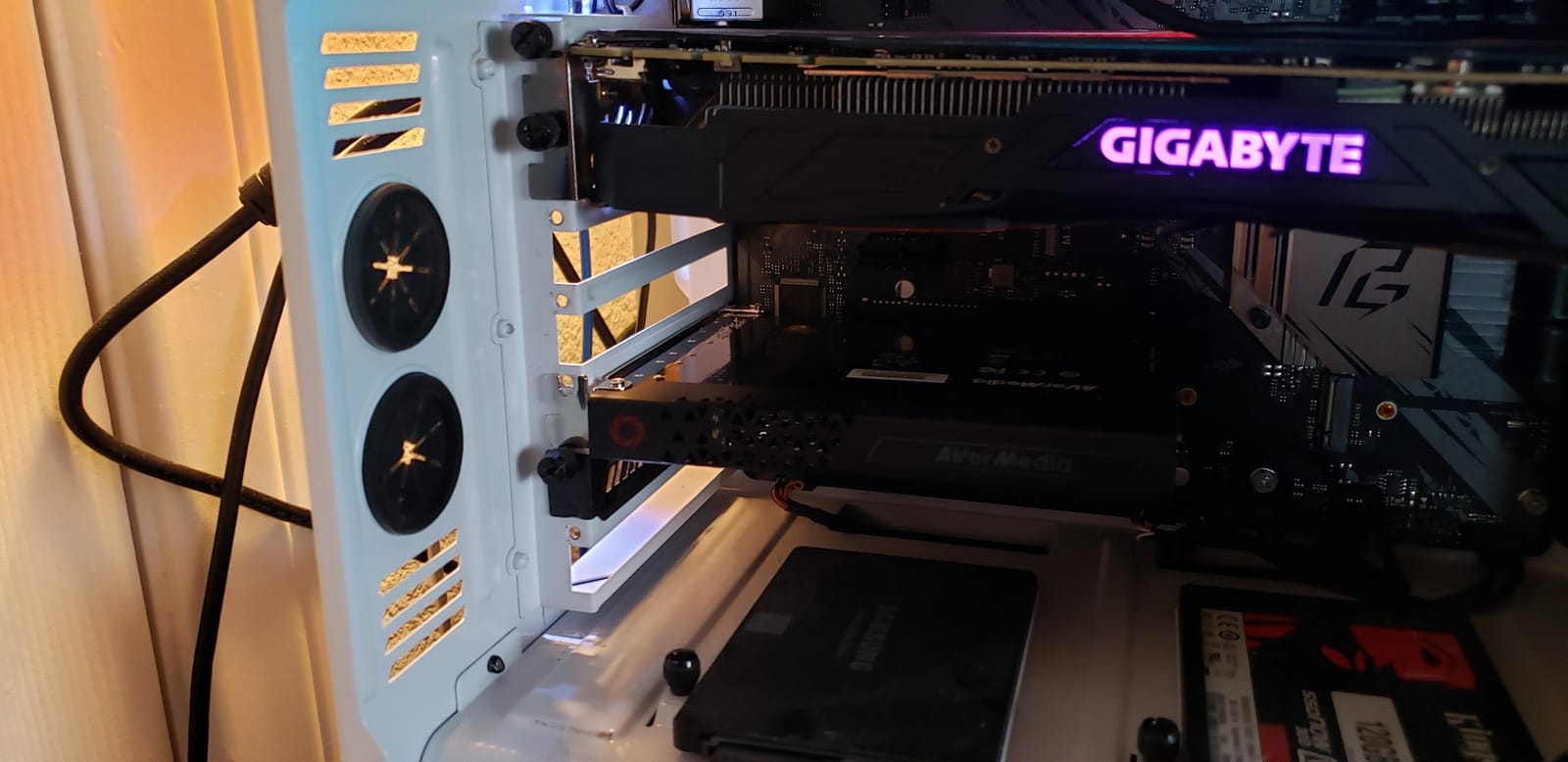
Not every dual PC streamer needs 4K. If you broadcast at 1080p60 and your gaming monitor is 1080p or 1440p, this card does the job with a PCIe x1 footprint that fits almost anywhere, and at 548 ratings it has one of the larger feedback bases in the group.
Where it physically lives: the shortest card in a PCIe x1 slot in the streaming PC, which is the smallest footprint here by a wide margin. That matters on mini-ATX boards and older ATX builds where the only free slot is a short x1 beneath the GPU.
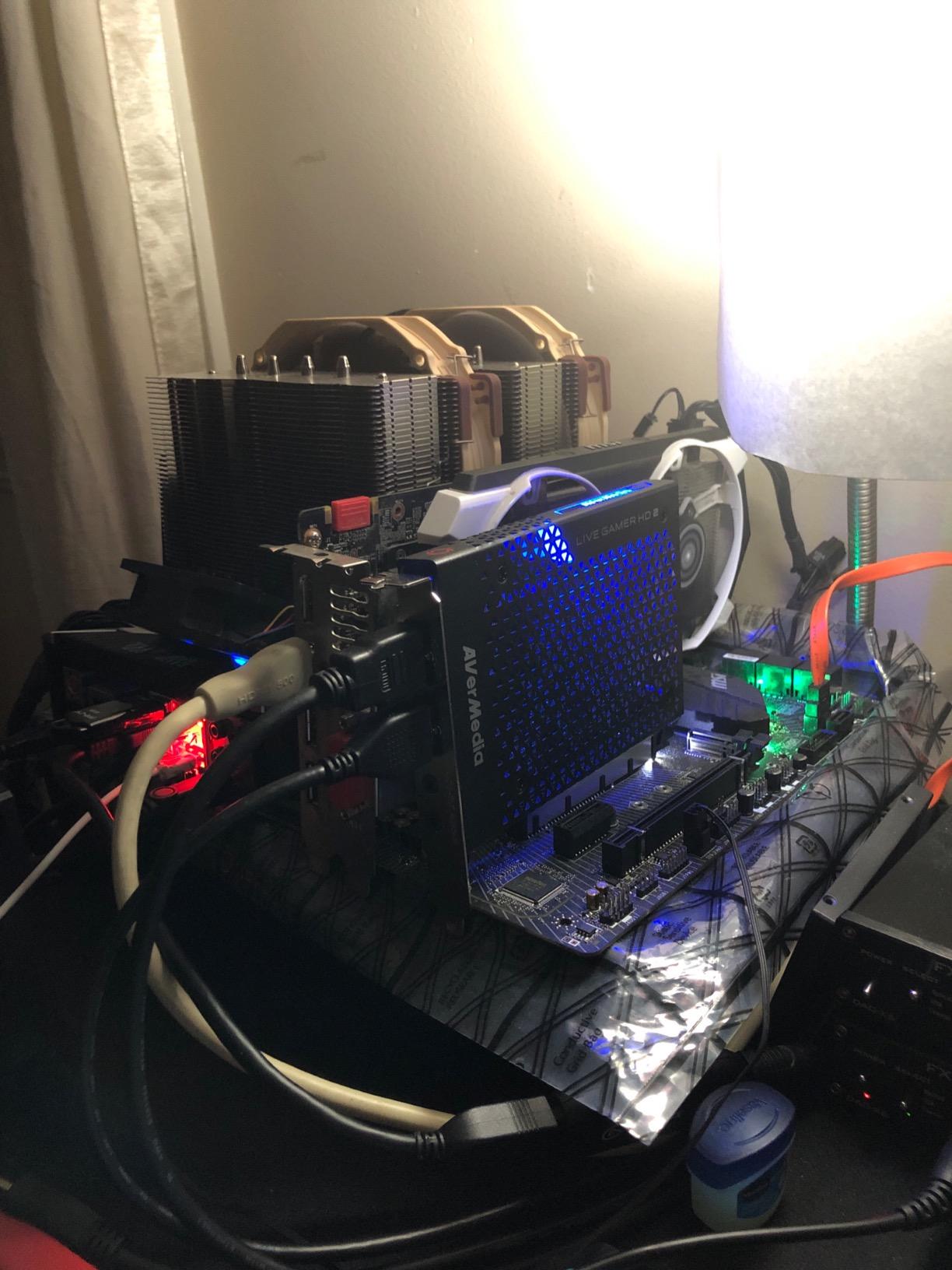
The multi-card support is the underrated part. Up to four cards can run in one machine, including on AMD Ryzen processor boards. For a dual PC rig that wants two or three sources, you can stack this card three times rather than hunting for an expensive multi-input device.
It is plug and play on Windows with uncompressed output available, and RECentral 4 is included in the box for live editing, quality settings and content overlays. The box also carries an HDMI cable and a 3.5mm audio cable, so the first hookup does not wait on an accessory order.
Where this is the right answer
Slot constraints. If your streaming PC has a free x1 slot and nothing larger, this is the card that fits. Several of the other internal cards here demand a free PCIe x4 slot that many compact boards cannot offer once the GPU is installed.
Multiple sources on a budget. Two or three of these in one machine give you multi-source capture at 1080p60 without the lane requirements of a quad-input professional card.
Where it falls short
The 1080p60 ceiling is absolute, with no 4K and no HDR capture. Your passthrough is fine at 1080p60, so the monitor is unaffected, but any local recording for editing tops out at 1080p.
RECentral 4 is required for some configuration and overlay tasks, which is precisely the vendor software overhead that some streamers are trying to avoid. One input per card also means multi-source setups are counted in cards rather than ports.
8. AVerMedia Live Gamer 4K 2.1 GC575: Best Internal HDMI 2.1 Passthrough
AVerMedia HDMI 2.1 Internal PCIe Capture Card for Streaming and Recording 4K60 with Ultra-Low Latency on PS5, PS4 Pro, Xbox Series X/S, Xbox One X, Switch Games – GC575 Live Gamer 4K 2.1
Pros
- 4K144 HDR passthrough on an internal card
- Plug and play installation with no extra steps
- Refresh rates up to 240Hz supported
- NDAA and TAA compliant for regulated deployments
- Small 4.76 by 6.32 inch footprint
Cons
- Single HDMI input per card
- Windows only support
- Far fewer customer reviews than the established models
This is the only internal card on this list that pairs PCIe capture with 4K144 HDR passthrough. If your dual PC rig includes a console that outputs 4K120 or 4K144, this is the internal card that will not force a negotiation, and it installs without the driver friction that older AVerMedia PCIe models still carry.
Where it physically lives: a PCIe 3.0 slot in the streaming PC. The card measures 4.76 by 6.32 inches and weighs just over five ounces, so it fits where a full-height dual-slot card would be awkward.
Capture ceilings are listed as 1080p240 and 1440p120, which covers every resolution most platforms actually accept. Combined with passthrough at 4K144 HDR and refresh rates up to 240Hz, it means your gaming monitor keeps its native mode while the recording side stays within what OBS and Twitch will take.
The NDAA and TAA compliance is unusual for a consumer capture card and matters if you work in broadcast, education or government contexts where supply chain restrictions apply.

Why it beats the older PCIe cards
Plug and play is the headline. No driver download, no BIOS update, no RECentral dependency for the basics. In a fresh build that saves an evening and removes the single most common reason a first dual PC stream never goes live.
The passthrough headroom is what matters day to day. HDR passthrough at 4K144 means your gaming monitor behaves exactly as it would with no card in the loop, which is the entire reason for a dual PC rig.
Where it is still a gamble
At 128 ratings with 66 percent five-star feedback, the sample is thin. That is normal for newer hardware, but it means you are buying on specification rather than on long-term field reports, and long-run reliability of a passthrough path is exactly what you cannot test in a week.
Single HDMI input and Windows only. Neither is unusual in this category, but both close off the multi-source and Linux options that the DeckLink covers.
9. AVerMedia Live Gamer Ultra 2.1 GC553G2: Best for Party Chat and Console Audio
Pros
- 4K144 MJPEG capture on supported Windows PCs with HDR capture
- Passthrough up to 4K144 HDR and VRR plus 1440p240 and 1080p360
- Dual four-pole 3.5mm ports capture headset and gamepad party chat with 5.1 audio
- USB 3.2 Gen 2 Type-C for Windows Mac and iPad
- Works with OBS Studio through the AVerMedia plugin
Cons
- macOS capture limited to 4K60 with no HDR option
- DSC displays may cap 4K passthrough at 4K120
- External single-input card cannot serve two sources at once
This is the card I recommend the moment a dual PC stream grows a console in the mix. The dual four-pole 3.5mm ports capture headset and gamepad party chat alongside 5.1-channel audio, which removes the single most tedious audio routing problem in console streaming: getting friends’ voices into the broadcast without duplicating them on your own speakers.
Where it physically lives: beside the streaming PC over USB 3.2 Gen 2 Type-C. The box includes a four-pole 3.5mm audio cable, an HDMI 2.1 cable, the card and a quick start guide, so the whole hookup is one trip to the box.
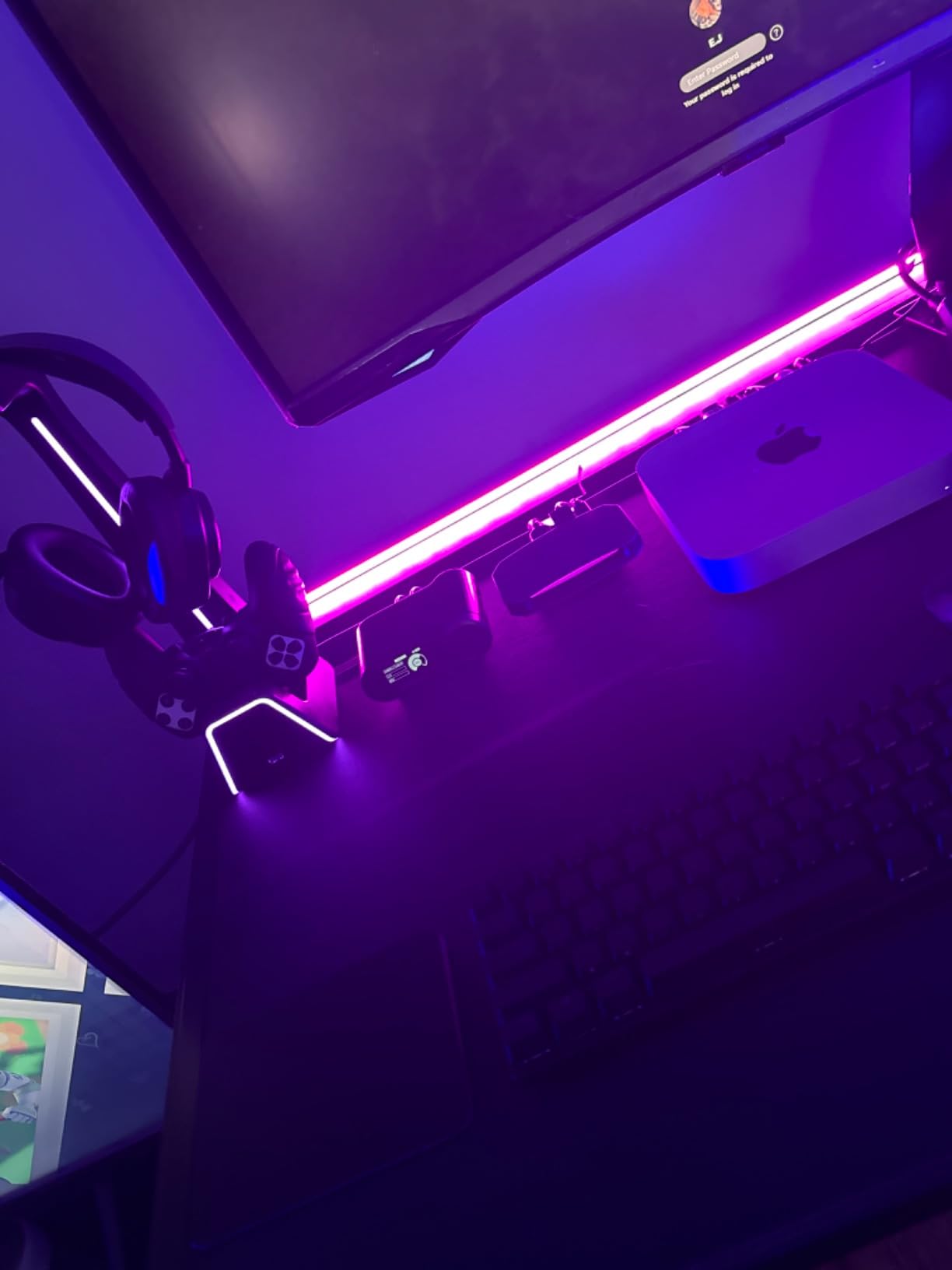
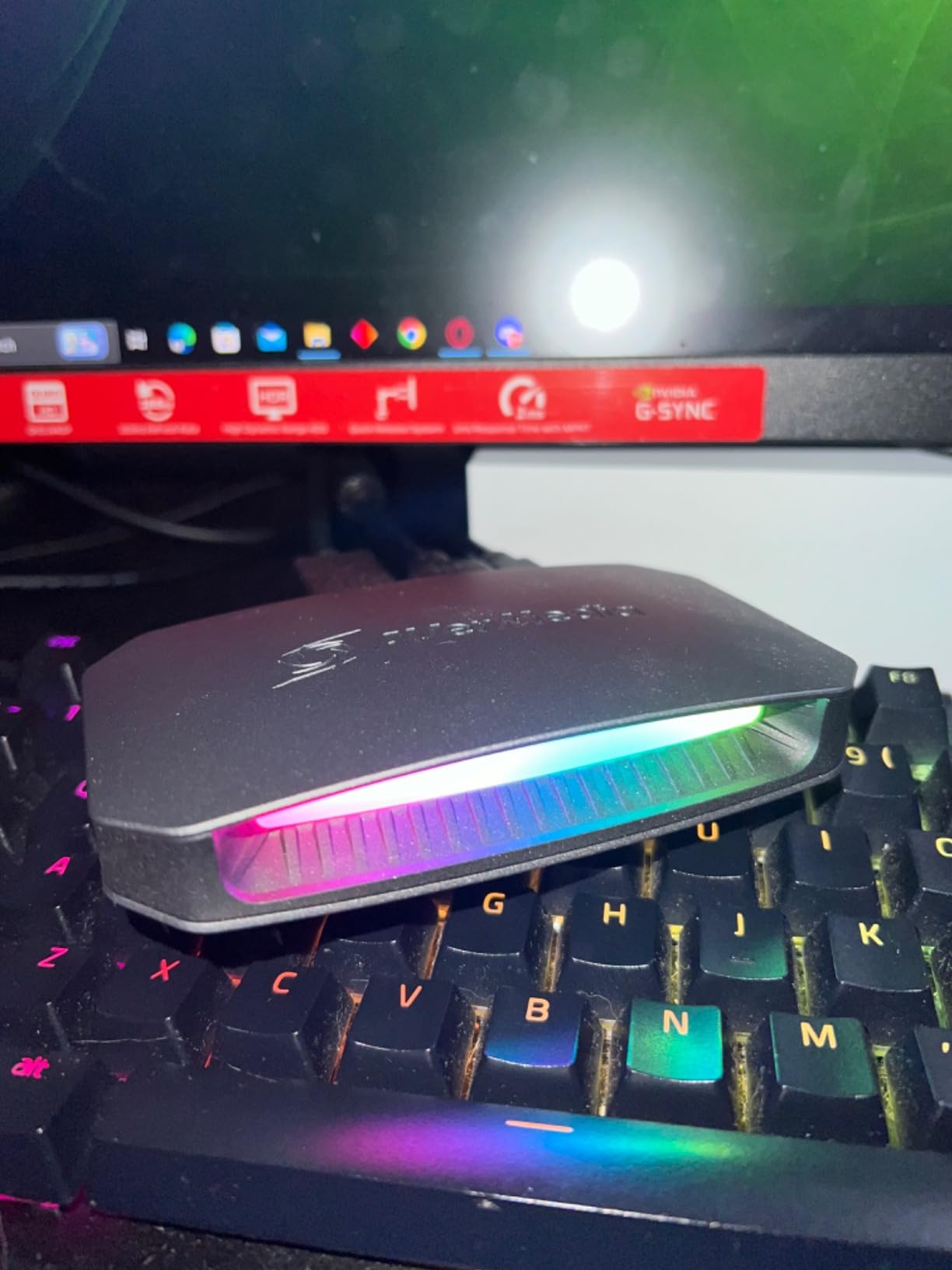
Passthrough reaches 4K144 HDR with VRR, 1440p240 or 1080p360, and capture hits 4K144 MJPEG on supported Windows machines with HDR capture available. That is genuinely the widest high refresh range in the list. The custom RGB lighting is cosmetic but it is the kind of detail that shows up on camera in a dual PC desk shot.
It reaches beyond Windows too. The USB 3.2 Gen 2 Type-C connection works with Windows, Mac and iPad capture targets, and OBS Studio is supported through the AVerMedia plugin or Streaming Center.
Where party chat capture changes your stream
Console party chat normally lives in a second audio layer that OBS either misses or doubles. Routing it through the four-pole ports means the chat arrives as an audio track you can mix independently of game audio, which is how you end up with viewers hearing each other at a sane level instead of shouting over the game.
5.1-channel audio support also matters if you are capturing a console set to surround output, since it preserves the channel layout rather than flattening it.
Where it disappoints
It carries the lowest average rating in this group at 4.1 across 297 ratings, with a five-star share below the brand’s other cards. The macOS path is limited to 4K60 with no HDR capture option, and DSC-based displays may cap 4K passthrough at 4K120.
Single input means one source per card. If you are strictly PC-to-PC and not touching a console, the party chat ports are an expensive feature you will never plug anything into.
10. AVerMedia Live Gamer Extreme 3 GC551G2: Best Budget Capture Card
Pros
- Records 4K30 with high refresh capture up to 1080p240
- VRR passthrough at 1440p120 or 1080p120
- Ultra-low latency on the passthrough signal
- Plug and play with both USB Type-C and HDMI cables included
- Works on Windows and Mac in OBS
Cons
- Capture tops out at 4K30 so 4K60 capture is unavailable
- 4K passthrough uses HDMI 2.0 rather than HDMI 2.1
- Single input per card
This is where I tell most people to start. At 4K30 capture and 1080p240 high refresh capture it answers all of those questions for the least outlay of anything here. Buying twice is not ideal, but buying a card you cannot use is worse.
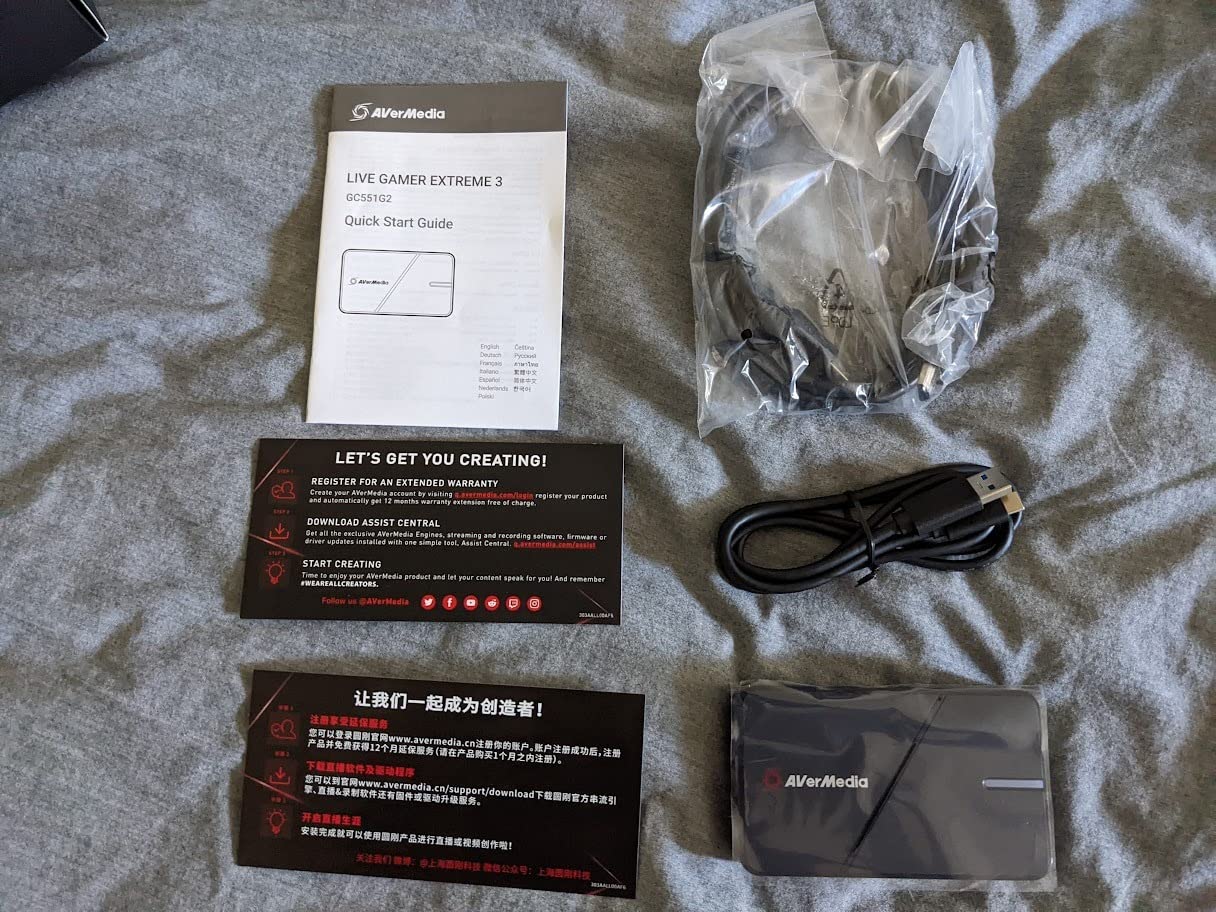
Where it physically lives: beside the streaming PC over USB 3.2 Gen 1 Type-C, with HDMI in from the gaming PC and HDMI out to the monitor. It weighs 85 grams and works on both Windows 11 and Mac, which makes it the most portable option here.
Capture is 4K30 with high refresh rates up to 1080p240, and VRR passthrough runs at 1440p120 or 1080p120. So your gaming monitor keeps a high refresh mode while the stream records at a resolution every platform accepts. The ultra-low latency passthrough keeps gameplay and broadcast in sync.
It is genuinely plug and play, with both a USB Type-C cable and an HDMI 2.0 cable in the box. No driver step, no vendor utility required for basic capture in OBS.
Where it is the right pick
Testing a dual PC layout before spending properly. If you want to confirm the wiring, the audio routing and the OBS scene setup before committing, this card answers all of those questions at the lowest cost of anything here.
Mac streaming hosts. It is one of very few cards here that works on Mac and Windows from the same unit, which matters if your stream box might be whichever machine is free that night.
Where you will outgrow it quickly
4K30 capture is the ceiling and 4K60 is unavailable, so if you plan to move to 4K streaming later you will be replacing this card. The 4K passthrough path is HDMI 2.0 rather than 2.1, which also removes the VRR support you would get at higher HDMI bandwidths.
It carries the lowest rating here at 4.0 from 170 ratings, with 60 percent five-star feedback and 14 percent one-star, the widest spread in the group. Setup simplicity and low latency are what people like; the resolution ceiling is what they criticise. Single input per card, as with most external boxes.
Dual PC Buying Guide: The Nine Things That Decide Your Card
A capture card does two different jobs and streamers routinely confuse them. Passthrough is the copy of the signal that goes to your gaming monitor, and it is what your eyes see in the game. Capture is the copy handed to OBS, which becomes your stream and your recording. They have separate ceilings, and a card can be excellent at one and mediocre at the other.
1. Internal PCIe or external USB for a dual PC build
External USB cards are the default choice for dual PC work, and the reason is simple: the streaming PC is often a mini PC or a laptop. Most experienced users on streaming forums recommend an external USB 3.0 or 3.2 card precisely because it works regardless of what the stream box happens to be. It needs no free expansion slot, no lane check and no BIOS tinkering.
Internal PCIe cards win on signal cleanliness and on bandwidth. Video arrives over a dedicated link rather than a shared USB controller, so you can run a camera, an audio interface and control surfaces on the same machine without hunting for the cause of dropped frames. My broader testing across more cards is collected in our capture cards for streaming and recording guide.
The USB contention problem is real and it is specific to the streaming PC. Capture card, webcam, mic interface and Stream Deck all on one controller is the classic failure pattern: everything works during testing, then drops frames once you are live and talking. The fix is to plug the capture card into a rear motherboard port and move at least one other device to a different controller or a hub with its own upstream link.
2. Match your capture ceiling to where you actually stream
For most streamers, capture at 1080p60 and passthrough at whatever your monitor runs. That combination is available on almost every card here, including the budget ones.
Capture at 4K60 only matters if you record locally for editing or you broadcast in 4K. Only the Live Gamer 4K GC573 among the internal cards gives you native 4K60 HDR10 capture, and the ASUS TUF captures 4K30 with 4K60 HDR passthrough. Everything else is 4K30 or 1080p capture with high refresh passthrough.
High refresh capture at 1080p240 or 1440p120 is a different question again. It helps if you want slow-motion friendly source footage, and it is largely irrelevant if you only broadcast at 60.
3. HDMI 2.0 versus HDMI 2.1
HDMI 2.0 tops out at 4K60 on its bandwidth budget. HDMI 2.1 roughly doubles that, which is what unlocks 4K120 and 4K144 passthrough along with VRR at those rates.
This matters in a dual PC rig when your gaming PC or console can output above 4K60. With an HDMI 2.0 card, a 4K120 source is negotiated down, which can also trigger resolution detection loops that leave you rebooting OBS. Cards here with HDMI 2.1 include the Elgato 4K X, the Live Gamer Ultra 2.1 and the Live Gamer 4K 2.1 GC575.
4. The refresh rate trap
Some cards silently cap passthrough at 60Hz. The result is a high refresh gaming monitor dropping to 60, which is a far more noticeable problem than the capture quality you gave up.
The cure is twofold: check the passthrough maximum, not just the capture maximum, before buying; and after installation, confirm your monitor is still running at its native rate in its own settings. If a source keeps resetting resolution, an EDID override or a direct connection without passthrough will confirm whether the card or the source is at fault.
5. HDR passthrough versus HDR capture
Streaming platforms deliver SDR. Your monitor can be HDR. Those two facts mean you want a card that passes HDR through untouched to your display while giving OBS an SDR image to work with.
Cards with onboard HDR-to-SDR tone mapping handle this in hardware, which is better than doing it in software because it costs no GPU on the streaming PC. The Live Gamer Duo and the Live Gamer 4K both do this. If you are capturing HDR as HDR for local archives, make sure the card supports HDR capture and not only HDR passthrough, which is the distinction that catches people out on the ASUS TUF.
6. Latency and where your monitor plugs in
Passthrough on every card in this list is described as zero-lag or ultra-low latency, meaning the delay is below what you perceive in play. The latency that does get reported almost always comes from the display path rather than the card.
Connecting the monitor through capture software instead of direct passthrough adds 10 to 30 milliseconds. The fix is unglamorous: plug the gaming monitor into the card passthrough port, run OBS preview on the streaming PC’s second display, and stop routing your game view through a software window.
7. Audio and party chat routing
Pick one audio route and stick to it. HDMI audio off the card, a second output from the gaming PC, or a 3.5mm or optical cable from the motherboard. Combining routes is the origin of most echo complaints in dual PC streams, and VoiceMeeter or similar routing software only makes it easier to create.
For console streams, party chat needs a dedicated path. Cards with four-pole 3.5mm ports, such as the Live Gamer Ultra 2.1 and the ASUS TUF with its controller and headset passthrough, let you bring chat in as a separate track you can mix independently.
8. Slot, lane and bracket checks before you buy
Internal cards state their requirements plainly. The Live Gamer HD 2 needs PCIe x1. The Live Gamer 4K, the Live Gamer Duo and the Live Gamer 4K 2.1 need PCIe x4. The DeckLink Quad needs PCIe 3.0 x8. Confirm lane availability on your exact motherboard and chipset, and check whether the slot sits under a long GPU.
For external cards, check the port, not just the connector. A USB 3.2 Gen 2 port delivers full resolution on the Elgato 4K X; a Gen 1 port still works but reduces capture resolution. Type-C is not a speed rating, and neither is the shape of the socket on the streaming PC.
9. Do you even need a second PC?
A recurring counter-argument in streaming communities is worth taking seriously: a modern NVIDIA encoder in a single PC handles 1080p60 without meaningful performance loss. Many users who went dual PC report measurable in-game gains once encoding is offloaded, but the gains are smaller than the forums suggest if you are playing at 1080p60 on a mid-range chip.
The second PC earns its place when you play at high refresh and want 1 percent lows to stay clean, when you record locally while broadcasting, when you capture a console and a PC at once, or when your gaming machine has no spare bandwidth for a long broadcast. If none of those apply, a single PC with a modern encoder and the budget spent on a better GPU is the more sensible build. Our wider streaming and recording picks are covered in the capture card roundup, and USB alternatives are compared in our USB capture card guide.
Frequently Asked Questions
Do you need a capture card for dual PC streaming?
Yes, if your gaming PC is a separate machine from the PC running OBS. The card terminates the HDMI signal from your gaming PC inside the streaming PC, splits it, and gives OBS a video source while passing a second copy to your gaming monitor. Without it you would rely on network capture software, which adds delay and compression artifacts. If you game and stream on one PC with a modern NVIDIA encoder, you do not need one unless you are capturing a console.
Should the capture card be in the gaming PC or the streaming PC?
The streaming PC. The gaming PC only needs its HDMI output. Installing the card in the streaming PC means the video signal arrives directly on the machine running OBS, with no network traversal and no dependence on the gaming machine staying powered and stable under broadcast load. It also leaves the gaming PC free to focus entirely on rendering the game.
How do I set up a dual PC streaming rig with a capture card?
Run HDMI from your gaming PC GPU to the capture card in the streaming PC, then run HDMI from the card passthrough output to your gaming monitor. Connect the card to the streaming PC over PCIe or USB, route game audio over one dedicated cable, and plug your webcam or camera into the streaming PC directly. Put your second display on the streaming PC GPU for OBS preview and chat.
Is a dual PC setup better for streaming?
It is better when you play at high refresh and want stable 1 percent lows, record locally at high quality, or capture a console and a PC at the same time. Offloading encoding to a second machine means the game never competes with the encoder for GPU time. If you only stream at 1080p60 on a capable single PC, a modern NVIDIA encoder handles it and the second machine is optional.
What is the best capture card for streaming on two PCs?
For most dual PC rigs the Elgato 4K X is the safest choice, because an external USB 3.2 Gen 2 card works in a desktop, mini PC or laptop and gives you 4K144 passthrough with VRR and HDR10 intact. If your streaming PC is a desktop with a free PCIe x4 slot and you want native 4K60 HDR capture with no USB contention, the AVerMedia Live Gamer 4K GC573 is the better fit.
Is an internal PCIe capture card better than an external USB card for dual PC streaming?
Internal cards give a cleaner signal and dedicated bandwidth, which helps when a camera, audio interface and control surfaces share the streaming PC USB controllers. External cards win on flexibility: they need no free expansion slot, work in laptops and mini PCs, and can move between machines. If your streaming PC might change shape, choose external. If it is a fixed desktop with spare lanes, choose internal.
Does a capture card add lag to dual PC streaming?
A good card adds imperceptible delay on the passthrough path. The delay people actually notice, typically 10 to 30 milliseconds, comes from viewing the game through capture software instead of direct passthrough. Plug your gaming monitor into the card passthrough port and run OBS preview on the streaming PC’s second display to keep input lag at zero.
Which Capture Card Should You Buy for Dual PC Streaming?
Buy the Elgato 4K X if your streaming PC might be a tower, a mini PC or a laptop, or if your gaming monitor runs above 4K60. It moves between machines without a slot or lane check and gives you 4K144 passthrough with VRR and HDR10 intact over a simple USB connection.
Buy the AVerMedia Live Gamer 4K GC573 if your streaming PC is a fixed desktop with a free PCIe x4 slot and you want native 4K60 HDR10 capture alongside a long track record of field reports. Buy the Live Gamer Duo GC570D if you also need a second source on a console.
Buy the DeckLink Quad HDMI if you need four inputs at high colour depth on Mac, Windows or Linux. Buy the Live Gamer Ultra 2.1 if party chat capture is your biggest audio problem. Buy the Live Gamer HD 2 if your board only offers a short PCIe x1 slot.
And buy the Live Gamer Extreme 3 if you want to prove the rig works before spending properly. Every one of these cards for dual PC streaming setups belongs in the streaming PC, wired from your gaming PC HDMI out and back out to your gaming monitor. Get that right and the rest is just picking a capture ceiling that matches where you broadcast.