
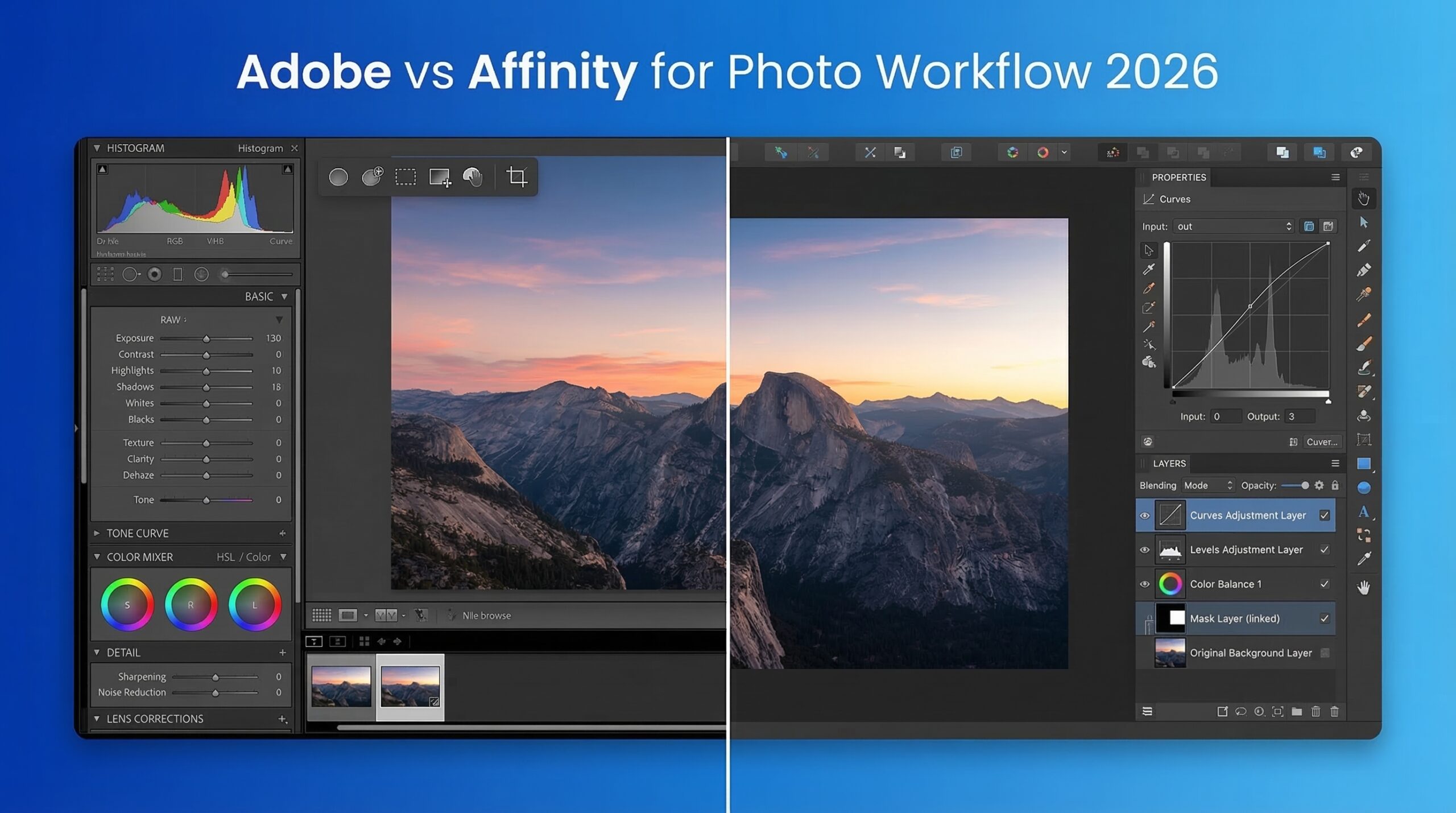
Choosing between Adobe Creative Cloud vs Affinity Suite for photo workflow has never been more relevant. Adobe’s subscription model continues to frustrate photographers with annual costs exceeding $600, while Affinity’s acquisition by Canva and subsequent move to free pricing has disrupted the creative software landscape entirely.
As a photographer who has spent years editing in both ecosystems, I understand the stakes. Your photo editing software choice affects everything from your RAW processing efficiency to your client file compatibility. The wrong decision can cost you thousands in subscription fees or leave you scrambling to recreate critical features.
Here is the quick verdict: Adobe Creative Cloud remains the best choice for professional photographers who need robust Digital Asset Management (DAM) through Lightroom, AI-powered editing with Firefly, and seamless cloud synchronization across devices. Affinity Suite excels for budget-conscious photographers, privacy-focused users, and those who prefer a one-time purchase model without ongoing costs.
In this comparison, I will break down both platforms specifically for photography workflows, covering RAW processing, DAM capabilities, AI features, and real-world performance to help you make the right choice.
Adobe Creative Cloud vs Affinity Suite: Quick Comparison
Before diving deep, let me show you how these two platforms stack up side-by-side for photography workflows.
| Product | Specifications | Action |
|---|---|---|
 Adobe CC Photography Plan 1TB Adobe CC Photography Plan 1TB |
|
Check Latest Price |
The comparison above highlights the fundamental difference: Adobe offers a comprehensive photography ecosystem with DAM and cloud services, while Affinity provides powerful editing tools without the subscription burden but lacks dedicated asset management.
Adobe Creative Cloud Photography Plan: Deep Dive
Adobe Creative Cloud Photography Plan 1TB (Photoshop + Lightroom) | 12-month Subscription with auto-renewal
Pros
- Industry-standard Photoshop and Lightroom
- Full versions across desktop and mobile platforms
- 1TB cloud storage for photo library synchronization
- Generative AI tools powered by Adobe Firefly
- 25 monthly generative AI credits included
- Regular automatic updates included
- Lightroom Classic for desktop-focused editing
Cons
- Subscription model with auto-renewal
- Price increases over time
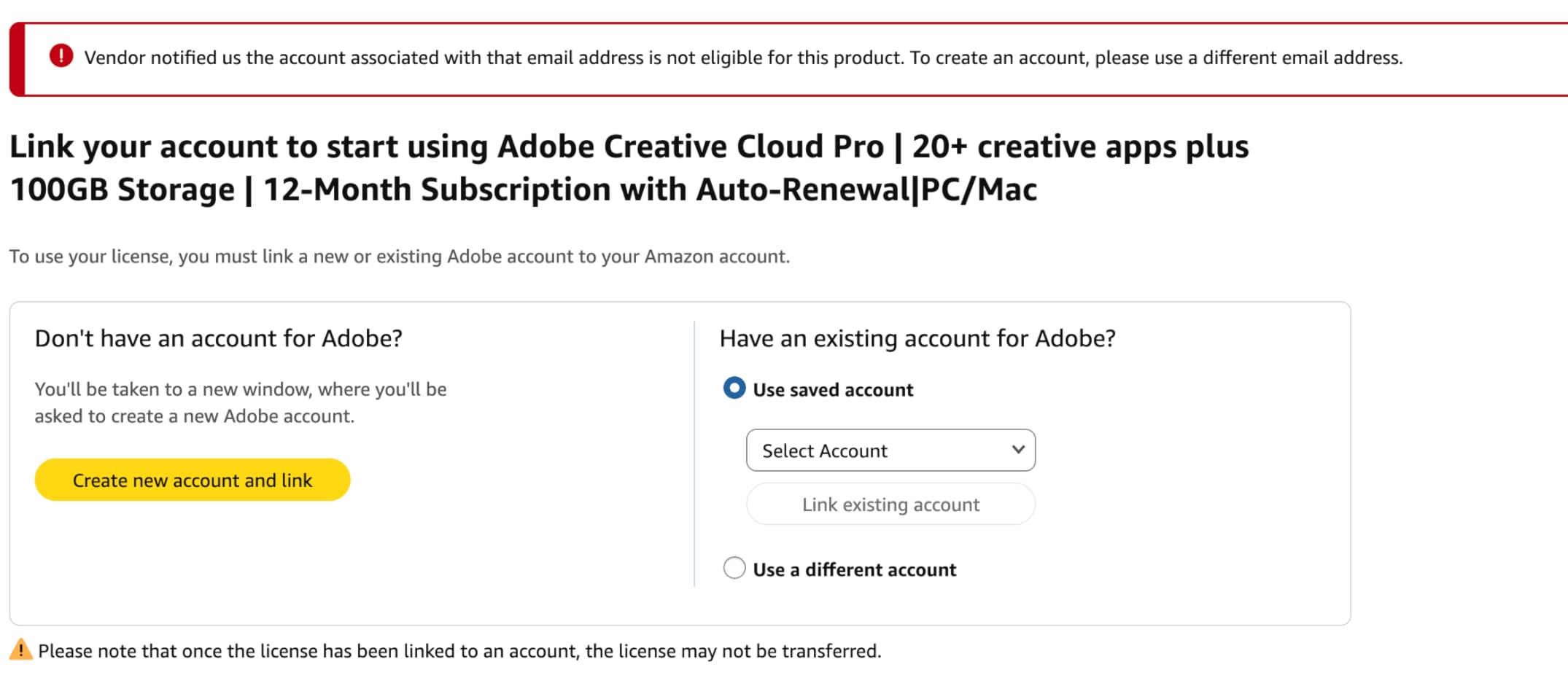
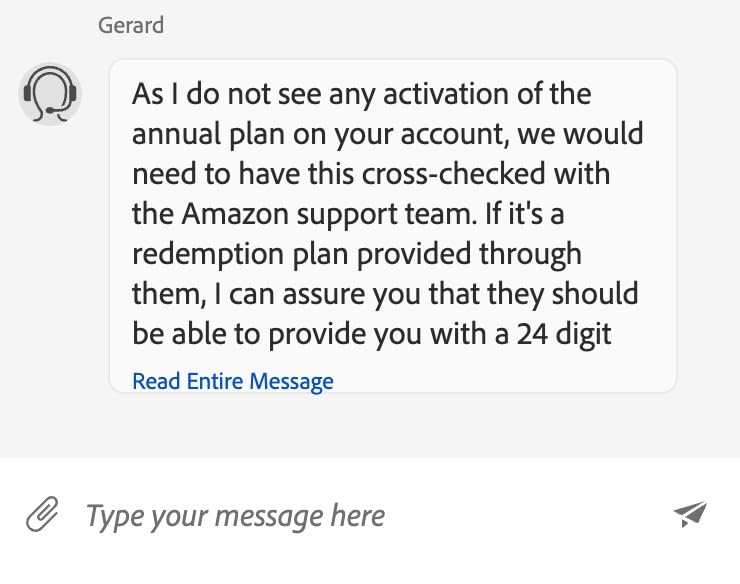
- Activation issues when email addresses do not match
- Customer support coordination issues between Amazon and Adobe
I have used Adobe’s Photography Plan extensively for both personal projects and client work. The combination of Photoshop and Lightroom creates a powerful workflow that handles everything from RAW processing to complex compositing. Lightroom Classic serves as my digital asset manager, organizing tens of thousands of photos with keywords, collections, and smart folders.
The RAW processing engine in Lightroom remains exceptional. I regularly process hundreds of photos from wedding shoots using presets and batch synchronization. The non-destructive editing means I can always revisit original files years later and adjust my processing choices.
Photoshop complements Lightroom perfectly for detailed retouching work. I use it for portrait skin retouching, background removal, and complex compositing tasks that exceed Lightroom’s capabilities. The integration between the two applications feels seamless when you right-click an image in Lightroom and choose “Edit in Photoshop.”
The generative AI features powered by Adobe Firefly have transformed my workflow. Generative Fill and Generative Expand let me add or remove content from images using simple text prompts. The 25 monthly AI credits included with the subscription cover most of my needs, though heavy users might find themselves running low.
Cloud synchronization through the 1TB storage has proven invaluable for location-independent work. I can start editing on my desktop, continue on my iPad during travel, and finalize on my laptop without transferring files manually. The mobile Lightroom app has become surprisingly capable for quick edits.
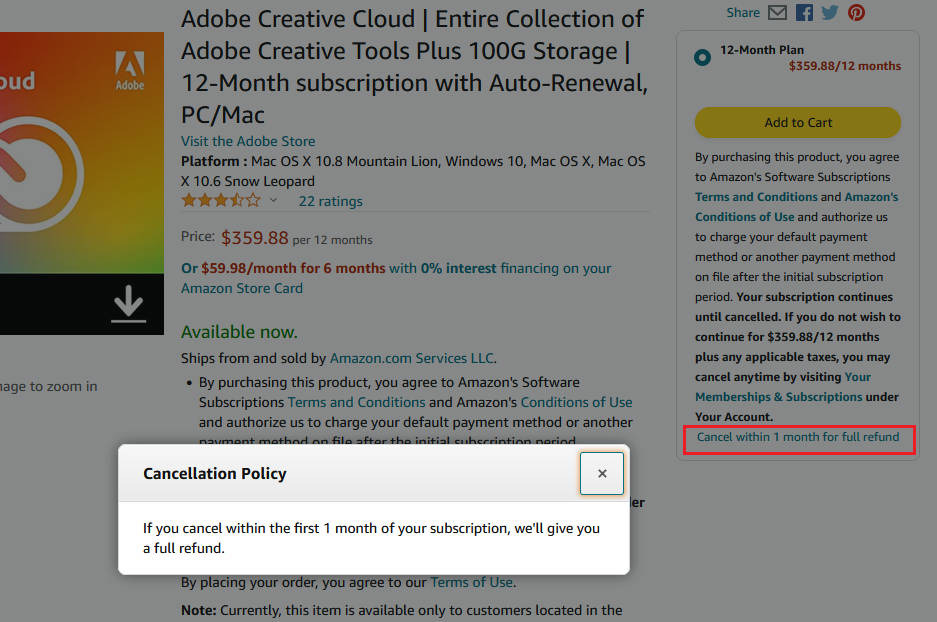
However, the subscription model creates ongoing anxiety. At around $169 per year through Amazon (often discounted from the direct Adobe price of $239), the costs compound over time. A five-year commitment means nearly $850-1,200 invested in software you never truly own.
From my research into user reviews, activation issues represent the biggest frustration. Users report problems when their Amazon account email does not match their Adobe account email, creating linking failures that require refund requests. Customer support coordination between Amazon and Adobe can feel like being passed between departments.
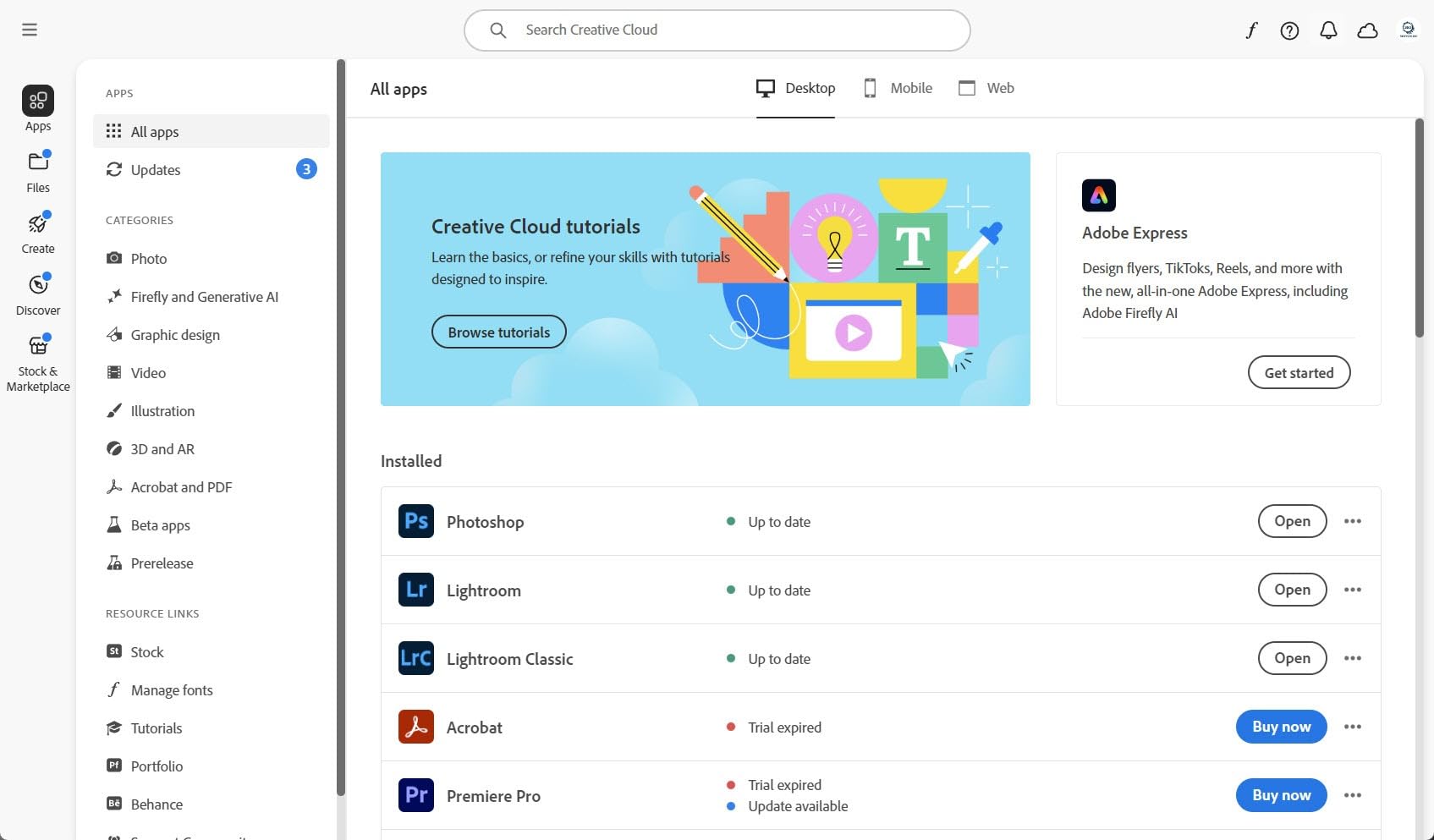
The Photography Plan includes full versions of Lightroom for desktop and mobile, Photoshop for desktop, iPad, and iPhone, plus Lightroom Classic for desktop-focused editing. This cross-platform availability means you can maintain your workflow regardless of which device you are using.
The AI-powered Generative Remove feature in Lightroom deserves special mention. It allows photographers to remove unwanted objects from images with remarkable accuracy, often producing results that would have required hours of manual cloning in earlier versions of Photoshop.
Lens Blur, also powered by AI, creates portrait effects in any photo by simulating shallow depth of field. This feature works surprisingly well for adding bokeh to images shot with narrower apertures, though results vary depending on the original image quality.
Regular automatic updates ensure you always have access to the latest features and camera support. Adobe typically adds support for new camera RAW formats within weeks of release, which matters for photographers using the latest equipment.
Affinity Suite for Photography: Deep Dive
Affinity Suite has undergone a dramatic transformation since Canva acquired Serif in 2024. The software that once cost $69 per app is now completely free, making it an extraordinary value proposition for photographers. Affinity Photo handles the photo editing responsibilities, while the unified Suite approach means seamless switching between Photo, Designer, and Publisher through StudioLink.
I tested Affinity Photo extensively for RAW processing and detailed editing. The RAW persona provides comprehensive controls over exposure, white balance, tone curves, and local adjustments. For photographers coming from Photoshop, the interface feels familiar with layers, masks, adjustment layers, and blend modes all present and functional.
The performance difference is immediately noticeable. Affinity launches faster than Photoshop and feels more responsive during editing sessions. Users consistently report that Affinity lacks the bloat and spinning wheels that plague Adobe applications, especially on older hardware.
However, Affinity Photo is NOT a Lightroom replacement. This distinction matters enormously for photographers. Affinity lacks a dedicated Digital Asset Management system for organizing, keywording, and searching through large photo libraries. You can open and edit RAW files, but you cannot catalog them in the way Lightroom manages your entire photography archive.
Some photographers work around this limitation by pairing Affinity Photo with separate DAM software like DigiKam, darktable, or Adobe Bridge (which remains free). This creates a more fragmented workflow compared to Lightroom’s all-in-one approach.
The Canva integration brings interesting possibilities. Since the acquisition, Affinity users can leverage Canva’s ecosystem for templates, collaboration, and quick design tasks. For photographers who also create marketing materials or social media content, this integration adds genuine value.
Privacy represents another significant advantage. Adobe’s terms allow them to use your content for AI training unless you opt out through convoluted settings. Affinity makes no such claims, appealing to photographers concerned about their work being used to train competing AI models.
StudioLink represents a unique advantage of the Affinity ecosystem. When you have Affinity Photo, Designer, and Publisher installed, you can switch between editing modes within a single interface. For photographers who also design marketing materials or create photo books, this unified workflow eliminates the friction of moving files between separate applications.
The frequency separation tool in Affinity Photo works exceptionally well for portrait retouching. Skin smoothing and blemish removal feel natural and controllable, producing professional results without the complexity of setting up manual frequency separation in Photoshop.
Affinity’s perspective correction tools handle architectural photography needs effectively. The live perspective filter allows real-time adjustments to converging verticals and horizontals, matching capabilities that previously required specialized Photoshop plugins.
Batch processing in Affinity Photo handles common tasks like resizing, format conversion, and watermarking. However, it lacks the sophisticated batch editing capabilities of Lightroom’s sync settings feature, where you can apply complex adjustments across hundreds of images simultaneously.
Adobe Creative Cloud vs Affinity Suite: Head-to-Head Comparison
Pricing and Business Model
The pricing philosophies could not be more different. Adobe operates on a subscription model requiring ongoing payments to maintain access to your work. The Photography Plan costs approximately $169-239 annually depending on where you purchase and current promotions.
Over five years, Adobe costs between $845 and $1,195 cumulatively. You never own the software, and stopping payments means losing access to your edited files stored in proprietary formats.
Affinity Suite is now completely free after Canva’s acquisition. You download it once and own it forever. Updates continue without additional charges. This represents thousands of dollars in savings compared to Adobe’s recurring model.
For photographers on tight budgets or those building their businesses, Affinity’s pricing model removes a significant barrier to professional-grade editing tools.
The subscription fatigue many photographers feel with Adobe is real. Users report feeling trapped by the recurring payments, especially when Adobe raises prices. The FTC lawsuit against Adobe over deceptive cancellation practices highlights how difficult the company makes leaving the ecosystem.
Photo Editing Capabilities
Both applications deliver professional-grade photo editing. Photoshop remains the industry standard with decades of feature development and third-party plugin support. Affinity Photo covers 90-95% of what photographers typically need.
Key differences emerge in advanced features. Photoshop’s Smart Objects allow non-destructive transformations and filter applications that update dynamically. Affinity lacks an equivalent feature, though its live filters and adjustment layers handle similar use cases.
Content-Aware Fill in Photoshop has no direct equivalent in Affinity. While Affinity offers inpainting tools, they lack the sophistication of Adobe’s AI-powered content generation. For photographers who regularly remove objects from images, this difference matters.
Conversely, Affinity excels at certain tasks. The frequency separation tool for portrait retouching works excellently. The perspective correction tools match Photoshop’s capabilities. For most photography editing tasks, both applications perform admirably.
Third-party plugin support favors Adobe significantly. Nik Collection, Topaz Labs, and countless Photoshop plugins extend Adobe’s capabilities in ways Affinity cannot match. For photographers relying on specialized plugins, this ecosystem difference proves decisive.
RAW Processing and Digital Asset Management
This category reveals the biggest differentiator for photography workflows. Adobe Lightroom provides integrated RAW processing AND comprehensive DAM in one application. You import photos, organize them with keywords and collections, apply non-destructive edits, and export finished images without ever leaving the ecosystem.
Affinity Photo handles RAW processing capably through its dedicated RAW persona. You can adjust exposure, recover shadows, correct lens distortions, and apply local adjustments. However, once you develop the RAW file, you are working on a raster image without the organizational context.
Lightroom’s catalog system means I can find any photo from my 50,000+ image library in seconds using keywords, dates, camera metadata, or face recognition. Affinity offers nothing comparable for photographers with large archives.
Professional photographers often keep Lightroom specifically for DAM even when using Affinity for detailed editing. This hybrid approach works but adds complexity.
The non-destructive editing in Lightroom preserves your original RAW files indefinitely. Every adjustment remains editable years later, allowing you to revisit old edits with new techniques or different creative visions. Affinity’s RAW development commits changes when you move to the main editing interface.
Lightroom’s Smart Collections automatically organize photos based on criteria you define. A smart collection showing all five-star photos from 2025 taken with a specific lens requires no manual updating. Affinity has no equivalent organizational intelligence.
AI and Automation Features
Adobe has invested heavily in AI through Firefly integration. Generative Fill, Generative Expand, and Generative Remove let photographers manipulate images using text prompts. Lens Blur powered by AI creates portrait effects from any photo. These features receive regular updates and improvements.
The 25 monthly generative credits included with the Photography Plan cover moderate usage. Heavy AI users might need additional credits or the higher-tier Creative Cloud Pro plan.
Affinity currently lacks equivalent AI features. While the software performs traditional editing tasks excellently, it does not offer generative AI capabilities. For photographers who rely on AI-assisted workflows, this represents a significant gap.
However, some photographers actively prefer avoiding AI features, either due to privacy concerns or artistic principles. For these users, Affinity’s traditional approach might actually appeal.
Adobe’s neural filters offer AI-powered portrait adjustments like skin smoothing, expression changes, and age progression. These one-click adjustments can save significant time for portrait photographers, though results sometimes require manual refinement.
Lightroom’s AI-powered subject masking automatically identifies subjects, skies, and backgrounds with impressive accuracy. What once required manual selection now happens with a single click. Affinity’s selection tools work well but lack this AI-assisted automation.
Performance and Speed
User experiences consistently favor Affinity for raw performance. The application launches faster, feels more responsive during editing, and consumes less memory than Adobe’s offerings. On older hardware or laptops, this difference becomes particularly noticeable.
Adobe applications have developed a reputation for bloat over years of feature accumulation. Photoshop particularly can feel sluggish with large files or complex layer stacks. The Creative Cloud background processes also consume system resources.
For photographers working on modern, powerful workstations, both applications perform adequately. Those on budget hardware or laptops will likely notice Affinity’s efficiency advantages.
Memory usage differs significantly between the platforms. Affinity Photo typically uses 30-50% less RAM than Photoshop for equivalent tasks, making it more suitable for machines with limited memory or for running alongside other demanding applications.
The startup time difference matters for quick editing tasks. Affinity Photo launches in seconds, while Photoshop can take 30-60 seconds to become fully operational, especially with numerous plugins installed.
File Compatibility
Adobe’s PSD format remains the industry standard. Sharing files with clients, print shops, or collaborators typically requires PSD compatibility, which Affinity handles well for import and export.
Affinity reads and writes PSD files, though some advanced Photoshop features like Smart Objects with linked files may not translate perfectly. For most photography workflows, this compatibility proves sufficient.
RAW file support is comprehensive in both applications. Adobe Camera Raw and Affinity’s RAW engine support virtually all camera formats, though Adobe sometimes adds support for new cameras faster than Affinity.
Export options favor Adobe slightly. Lightroom offers more web gallery templates, print layout options, and export presets. Affinity covers essential export needs but with fewer built-in templates and automation options.
Sidecar file handling differs between the platforms. Lightroom stores edits in its catalog or as XMP sidecars, while Affinity’s native format (.afphoto) stores everything in a single file. Each approach has advantages depending on your backup and sharing workflows.
Learning Curve and Resources
Adobe’s decades of dominance mean abundant learning resources exist. Countless YouTube tutorials, courses, and books teach Photoshop and Lightroom techniques. Finding help for specific problems rarely requires more than a quick search.
Affinity’s learning resources have grown substantially, but still trail Adobe’s ecosystem. Official Serif tutorials cover basics well, while community resources fill gaps. Photographers switching from Adobe may need patience during the transition.
The interface differences require adjustment. While both applications share concepts like layers and masks, keyboard shortcuts, panel layouts, and terminology differ. Budget 2-4 weeks of reduced productivity when switching platforms.
Who Should Choose Adobe Creative Cloud?
Adobe Creative Cloud Photography Plan makes sense for photographers who fit these profiles:
Professional photographers with large archives need Lightroom’s DAM capabilities. If you manage tens of thousands of images and require instant searchability, Adobe’s ecosystem provides the organizational tools Affinity lacks.
Photographers collaborating with agencies or studios often must use Adobe for file compatibility. When clients expect PSD files and workflows built around Adobe tools, using Affinity creates friction.
Users excited about AI-assisted editing benefit from Firefly integration. Generative Fill, object removal, and AI-powered adjustments can dramatically accelerate certain editing tasks.
Those requiring cloud synchronization across multiple devices find Adobe’s ecosystem invaluable. The 1TB cloud storage and cross-platform apps enable seamless workflows between desktop, laptop, and mobile devices.
Photographers needing third-party plugins should choose Adobe. The extensive plugin ecosystem extends Photoshop’s capabilities in ways Affinity cannot match, from specialized retouching tools to AI-powered noise reduction.
Who Should Choose Affinity Suite In 2026?
Affinity Suite excels for photographers in these situations:
Budget-conscious photographers save thousands compared to Adobe subscriptions. The free pricing model removes ongoing costs entirely, making professional tools accessible to everyone.
Privacy-focused users appreciate Affinity’s approach to data. Your images are not used for AI training, and the software operates without the data collection concerns some associate with Adobe.
Hobbyists and freelancers building their photography businesses can invest their budget in equipment rather than software subscriptions. The money saved on Adobe fees could fund a new lens or lighting equipment.
Users frustrated by subscription fatigue find relief in Affinity’s ownership model. Once downloaded, the software continues working regardless of future pricing changes or business decisions.
Photographers with older hardware benefit from Affinity’s efficient performance. The lower memory requirements and faster launch times make it ideal for machines that struggle with Adobe’s resource demands.
Frequently Asked Questions
Why are people ditching Adobe?
Photographers are leaving Adobe primarily due to subscription fatigue, with annual costs exceeding $600-800 for many users. Adobe’s data collection practices for AI training, aggressive cancellation policies (subject to FTC lawsuit), and performance issues with bloated applications also drive users toward alternatives like Affinity.
Is Affinity now owned by Canva?
Yes, Canva acquired Serif (Affinity’s parent company) in 2024. Following the acquisition, Canva made the entire Affinity Suite free to download, dramatically increasing its accessibility and appeal to photographers seeking alternatives to Adobe’s subscription model.
Can Affinity do everything Photoshop can do?
Affinity Photo handles approximately 90-95% of typical photography editing tasks. However, it lacks Smart Objects, Content-Aware Fill, and generative AI features. For most photographers, Affinity covers essential needs, but professionals requiring advanced automation or AI tools may find gaps.
Is Affinity good for professional photography?
Affinity Photo is absolutely capable for professional photography work. Its RAW processing, retouching tools, and layer-based editing match professional standards. However, professional photographers who need DAM capabilities must pair Affinity with separate asset management software since it lacks Lightroom’s cataloging features.
Does Affinity have DAM capabilities like Lightroom?
No, Affinity does not include Digital Asset Management features comparable to Lightroom. Affinity Photo is purely an editing application without photo cataloging, keywording, or organizational tools. Photographers needing DAM must use separate software like DigiKam, darktable, or Adobe Bridge alongside Affinity.
Final Verdict: Adobe Creative Cloud vs Affinity Suite for Photo Workflow
After extensive testing and research into the Adobe Creative Cloud vs Affinity Suite for photo workflow comparison, my recommendation depends entirely on your specific needs.
Choose Adobe Creative Cloud Photography Plan if you are a professional photographer who needs robust DAM, AI-powered editing tools, cloud synchronization, and industry-standard file compatibility. The subscription cost buys you a complete photography ecosystem that handles organization, editing, and output in one integrated package.
Choose Affinity Suite if you want professional-grade editing without ongoing costs, have privacy concerns about AI training on your work, or simply resent subscription models. Pair it with a free DAM solution if you need photo organization capabilities.
For many photographers, the ideal approach might be hybrid: using Affinity for detailed editing while maintaining a Lightroom subscription specifically for DAM and RAW processing. This compromise captures the benefits of both platforms while minimizing their respective weaknesses.
The photography software landscape has never offered better options. Whether you prioritize Adobe’s comprehensive ecosystem or Affinity’s cost-effective approach, both platforms deliver professional results for serious photographers.