
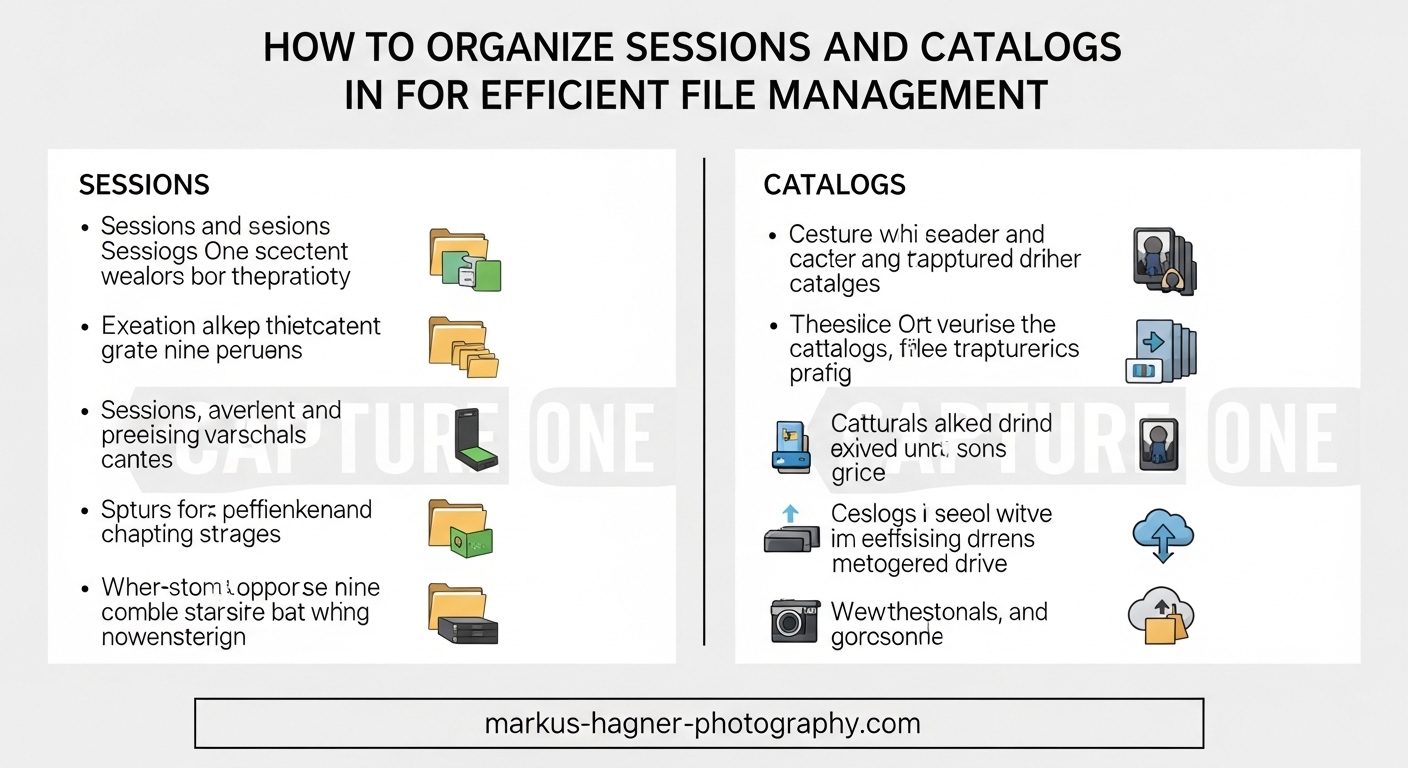
Managing thousands of photos across multiple shoots can quickly become overwhelming without the right organizational system. I learned this the hard way after years of scattered folders and lost edits. Capture One offers two powerful approaches to file management: Sessions and Catalogs. Each serves different workflows, and choosing the right one transforms how efficiently you work with your images.
In this guide, you will learn exactly how to organize Sessions and Catalogs in Capture One for efficient file management. We will cover what each system does, when to use them, step-by-step setup instructions, and real-world workflow examples from professional photographers. By the end, you will have a clear plan for organizing your photo library in 2026.
The choice between Sessions and Catalogs matters because it affects your daily workflow speed, ability to find images later, and how you back up your work. Sessions excel at keeping individual shoots self-contained and portable. Catalogs shine when you need to search across thousands of images from multiple shoots. Many photographers I know use both systems together for maximum flexibility.
Table of Contents
- Understanding Sessions in Capture One
- Understanding Catalogs in Capture One
- Sessions vs Catalogs: Which Should You Choose?
- How to Organize Sessions and Catalogs in Capture One: Step-by-Step Setup
- Real-World Workflow Examples
- Best Practices for File Organization
- Moving Between Sessions and Catalogs
- Backup and Maintenance
- Frequently Asked Questions
- What is the difference between catalog and session in Capture One?
- How do sessions work in Capture One?
- Can I use both Sessions and Catalogs together?
- Where should I store my Capture One Catalog?
- How do I backup my Capture One Catalog?
- Why is my Catalog running slow?
- How many images can a Capture One Catalog hold?
- What happens to my images if I delete a Catalog?
- Conclusion
Understanding Sessions in Capture One
A Session in Capture One is a self-contained folder system designed for individual photo shoots or projects. Everything related to that shoot stays together in one place: your RAW files, adjustment settings, preview images, and exported outputs. The Session creates a small database file (.cosessiondb) that tracks all your edits without modifying the original files.
Sessions work by automatically creating four default subfolders when you set one up. The Capture folder holds images as you import them, perfect for tethered shooting in a studio. The Output folder stores your exported files. The Selects folder lets you mark your best shots for easy access. The Trash folder keeps discarded images until you empty it. This structure means you can move an entire Session to another computer by simply copying one folder.
Photographers who shoot tethered love Sessions because the automatic folder creation keeps everything organized during live shoots. I have seen commercial photographers complete entire campaigns within a single Session, then archive it as a complete package. The portability makes Sessions ideal for location work where you might edit on a laptop and finish on a desktop later.
When to Use Sessions
Sessions work best for individual shoots that stay relatively contained. Use them for studio sessions where you shoot tethered directly into Capture One. They excel at commercial jobs where each client gets their own dedicated folder. Event photographers often prefer Sessions because each wedding or corporate event becomes its own complete package.
The main advantage of Sessions is simplicity. You always know where your files are because everything sits in one folder. There is no confusion about which catalog contains which images. Sessions also avoid the performance issues that can plague large catalogs with tens of thousands of images.
The limitation is that you cannot easily search across multiple Sessions. If you need to find every image you shot with a specific lens or containing a particular keyword, you would need to open each Session individually. This makes Sessions less ideal for photographers who need to search their entire library regularly.
Understanding Catalogs in Capture One
A Catalog in Capture One is a database that can reference images stored anywhere on your computer or external drives. Unlike Sessions, Catalogs let you organize and search across thousands of images from many different shoots. The catalog file (.cocatalog) stores your adjustments, metadata, and organizational structure while your actual image files remain in their original locations.
Catalogs offer powerful organization tools that Sessions lack. Albums let you group images logically without moving files. Smart Albums automatically collect images based on criteria you set, such as all five-star photos shot with a specific camera. Projects help you group related albums together. Groups let you organize projects into broader categories. This hierarchy works like a digital filing cabinet for your entire photo library.
Photographers with large archives benefit most from Catalogs. I have worked with Catalogs containing over 100,000 images, and finding a specific shot takes seconds with proper keywords and ratings. The search function works across your entire library, making Catalogs essential for anyone who licenses stock images or needs to locate older work quickly.
When to Use Catalogs
Catalogs make sense when you need to manage a large, growing photo library over time. Use them for personal archives where you accumulate images across years. They work well for stock photographers who need to find images by keyword, camera, lens, or date. Portrait photographers with repeat clients often prefer Catalogs because they can organize by client name and see all sessions together.
The main advantage of Catalogs is searchability. You can find any image in seconds using filters, keywords, or metadata. Smart Albums update automatically as you add new images that match their criteria. This makes ongoing projects much easier to manage.
The limitation involves portability and performance. Large catalogs require more computer resources to run smoothly. You also need to keep track of where your referenced images are stored, since the catalog database and actual files live in different places.
Sessions vs Catalogs: Which Should You Choose?
Choosing between Sessions and Catalogs depends on how you work. Sessions suit photographers who treat each shoot as a separate project. Catalogs fit those who build long-term archives and need cross-shoot search capabilities. Many photographers end up using both systems in a hybrid approach.
Feature Comparison
Organization: Sessions use a simple folder structure (Capture, Output, Selects, Trash). Catalogs offer Albums, Smart Albums, Projects, and Groups for complex organization.
Search Capability: Sessions search within that shoot only. Catalogs search across your entire image library.
Portability: Sessions move easily between computers by copying one folder. Catalogs require you to manage referenced files separately.
Performance: Sessions stay fast regardless of how many you create. Catalogs can slow down with very large image counts (50,000+ images).
Tethered Capture: Sessions have built-in folder structure ideal for studio work. Catalogs support tethering but require more setup.
Backup: Sessions back up by copying the folder. Catalogs require backing up both the catalog file and referenced images.
Use Case Recommendations
Wedding Photographers: Many use Sessions for each wedding, keeping client files separate. Some import completed Sessions into a master Catalog for long-term archive searching.
Commercial Photographers: Sessions often work best because each job stays contained. The portability helps when working across multiple studios or with collaborators.
Portrait Photographers: Catalogs usually work better because you can organize by client and see all sessions together. Smart Albums help track client preferences over time.
Stock Photographers: Catalogs are essential for keyword-based searching across your entire library. The search capabilities directly support licensing workflows.
Hobbyists: Either system works depending on volume. A single Catalog often suffices for personal photo collections under 20,000 images.
Can You Use Both Sessions and Catalogs?
Yes, many professional photographers use a hybrid approach. You might work in Sessions during active projects for the portability and clean organization. Then import completed Sessions into a master Catalog for long-term archiving and searching. This gives you the best of both systems.
The hybrid workflow works like this: Create a new Session for each shoot. Edit and export your deliverables from the Session. When the project wraps, import the Session into your main Catalog. Delete the Session to free space, knowing all adjustments and metadata now live in the Catalog. This approach keeps active projects lean while building a searchable archive.
How to Organize Sessions and Catalogs in Capture One: Step-by-Step Setup
Setting Up a New Session
Creating a Session takes just a few clicks. Open Capture One and select New Session from the File menu. Choose a name that clearly identifies the shoot, such as “2024-03-15_Smith_Wedding” or “ClientName_ProjectType.” Pick a storage location on a fast drive, preferably an SSD for best performance.
Capture One creates the four default folders automatically. You can customize the folder structure if needed. Many photographers add a “RAW” folder for original files and a “Deliverables” folder for final exports. The key is consistency: use the same structure for every Session so you always know where to find files.
Import images by dragging them into the Capture folder or using the Import button. Adjust your import settings to apply metadata templates, add keywords, or rename files during import. This saves time later by ensuring every image has proper information from the start.
Setting Up a New Catalog
Creating a Catalog starts similarly: select New Catalog from the File menu. Name it something broad like “Photo Archive” or “Professional Work.” Store the catalog file on your fastest local drive, ideally an internal SSD. Do not store catalogs on network drives or cloud-synced folders, as this can cause corruption.
When importing images into a Catalog, you choose between Managed and Referenced workflows. Managed means Capture One copies images into the catalog package, keeping everything together. Referenced means images stay in their original locations, and the catalog just tracks where they are.
Managed Workflow: Easier for beginners because everything stays in one place. Good for smaller libraries. The catalog file grows larger as you add images.
Referenced Workflow: Better for large libraries and external storage. You control exactly where images live. More flexible but requires managing file locations.
Most photographers I know prefer Referenced workflow for Catalogs. It keeps the catalog file small and lets you store images on external drives or network storage while keeping the catalog on a fast local drive.
Organizing with Albums and Smart Albums
Albums in Catalogs work like playlists in music software. Create an album, then drag images into it without moving the actual files. An image can appear in multiple albums simultaneously. Use albums to group images by subject, client, project, or any logical category.
Smart Albums automatically collect images based on rules you define. Create a Smart Album for all five-star images shot in 2026. Make another for images with a specific keyword. As you add new photos that match these criteria, they automatically appear in the Smart Album. This automation saves hours of manual organization.
Real-World Workflow Examples
Wedding Photography Workflow
Wedding photographers often shoot 2,000 to 4,000 images per event. Many use Sessions for each wedding because it keeps client files completely separate. Name your Session with the date and couple names: “2024-06-15_Johnson_Wedding.” Import all images, cull aggressively, edit the selects, and export deliverables all within that Session.
For long-term storage, import completed wedding Sessions into a master Catalog organized by year. This lets you search across all weddings when a client calls three years later asking for additional prints from their day.
Portrait Photography Workflow
Portrait photographers with repeat clients benefit from Catalog organization. Create a Project for each client, then add Albums for each session. You can see all work for the Smith family in one place, making it easy to match their previous portrait style or find images for anniversary cards.
Use Smart Albums to track client preferences. Create one that collects all images they purchased. Another might show their favorite poses. This information helps you deliver better results in future sessions.
Commercial and Studio Workflow
Commercial photographers often work with art directors and need to share work in progress. Sessions excel here because you can copy the entire folder to an external drive and hand it off. The art director can open it on their machine with Capture One and see exactly what you see.
For studio work with tethered capture, Sessions automatically organize incoming shots into the Capture folder. This prevents the chaos of images scattered across your drive during fast-paced shoots.
Event Photography Workflow
Event photographers covering conferences, sports, or concerts often need to deliver images quickly. Sessions let you start editing during the event because everything stays in one folder. Export selects to the Output folder and deliver while still shooting.
After the event, catalog your Sessions for future searches. You never know when a client will need that specific speaker from a 2019 conference.
Best Practices for File Organization
Folder Naming Conventions
Consistent naming saves hours of searching later. Use a format like “YYYY-MM-DD_ClientName_ProjectType” for Sessions. For Catalogs, organize by year, then by client or project type. Avoid spaces at the start of names, and stick to alphanumeric characters and underscores.
Example Session names: “2024-03-15_Smith_Portrait” or “2024-04-01_ABC_Corp_Product.” Example Catalog structure: Year folder containing Client folders containing Project folders.
Date-Based Organization
Dates provide natural organization that works across all photography types. Capture One can automatically create date-based folders during import. Set this up in Import Settings to create folders like “2024/2024-03/2024-03-15.” This creates a chronological structure that makes sense years later.
Keyword and Metadata Strategy
Keywords transform a disorganized library into a searchable asset. Apply keywords during import using metadata templates. Include the client name, location, subject matter, and any relevant descriptors. Be consistent with keyword spelling and format.
Ratings and color tags add another organization layer. Use star ratings for image quality (1 for reject, 5 for portfolio-worthy). Use color tags for workflow status (red for needs editing, green for complete). Smart Albums can then automatically sort by these criteria.
Common Mistakes to Avoid
Storing Catalogs on Cloud Drives: Services like Dropbox, Google Drive, and iCloud can corrupt catalog databases. Keep catalogs on local drives only.
Ignoring Backups: Catalogs track thousands of hours of editing work. Losing a catalog means losing all those adjustments. Back up regularly.
Mixing Organization Systems: Pick a folder structure and stick with it. Changing systems mid-stream creates confusion.
Skipping Metadata: Adding keywords during import takes seconds. Adding them later takes hours. Build the habit early.
Overstuffing Catalogs: Catalogs with over 100,000 images can slow down. Consider splitting into year-based catalogs if your library grows that large.
Performance Optimization Tips
Large catalogs benefit from regular maintenance. Run the Verify and Optimize command periodically (found in the File menu). This rebuilds the database index and removes unused data. Close the catalog before running optimization for best results.
Store preview files on a fast drive. Capture One generates these lower-resolution versions for browsing. If previews build slowly, check your hardware. An SSD for both the catalog and preview cache makes a noticeable difference with large libraries.
Limit the number of open catalogs. Each catalog uses memory and processing power. Close catalogs you are not actively using to free resources for the current project.
Moving Between Sessions and Catalogs
Importing a Session into a Catalog
You can import a completed Session into a Catalog to consolidate your archive. Open your Catalog and select Import Session from the File menu. Navigate to the Session folder and select it. Capture One imports all images, adjustments, and metadata into the Catalog.
The import process preserves your edits. Albums and collections from the Session transfer as albums in the Catalog. Keywords and ratings also migrate. After confirming everything imported correctly, you can archive or delete the original Session folder.
Exporting from Catalog to Session
Sometimes you need to share a subset of cataloged images as a Session. Select the images in your Catalog, then choose Export as Session from the File menu. Capture One creates a new Session folder with those images and their adjustments. This works well for handing off project files to collaborators.
What Transfers Between Systems
Adjustments, metadata, ratings, and keywords transfer fully between Sessions and Catalogs. Albums become albums. However, Smart Albums do not transfer because their criteria reference the Catalog database. You will need to recreate Smart Albums in the destination system.
Backup and Maintenance
What Needs Backing Up
For Sessions, back up the entire Session folder. This includes the .cosessiondb file and all four subfolders. The complete folder contains everything needed to restore your work.
For Catalogs, you need to back up two things: the catalog file (.cocatalog) and your referenced image files. The catalog file contains all your adjustments and organization. The image files are your actual photos. Losing either means losing work.
Backup Strategies for Sessions
Sessions back up easily because everything lives in one folder. Copy the entire Session folder to an external drive after each work session. For extra safety, use backup software that maintains multiple versions. This protects against accidentally overwriting good edits with bad ones.
Many photographers use a 3-2-1 strategy: three copies of data, on two different types of media, with one copy offsite. For Sessions, this might mean the working folder on your computer, a copy on an external drive, and a third copy in cloud storage.
Backup Strategies for Catalogs
Catalogs require more careful backup planning. First, enable Capture One’s automatic catalog backup feature. Find it in Preferences under the General tab. Set it to back up after closing the catalog, keeping several backup versions.
For referenced images, use backup software that syncs your image folders to external drives. Time Machine on Mac or third-party backup tools on Windows can automate this. Schedule backups to run daily or weekly depending on your shooting volume.
Catalog Verification and Optimization
Capture One includes tools to maintain catalog health. The Verify command checks the database for errors. The Optimize command rebuilds indexes and removes unused data. Run these monthly for catalogs you use frequently.
To verify and optimize: Close all catalogs. Open Capture One without a catalog. Select the catalog file and choose Verify from the File menu. If verification passes, run Optimize. This takes a few minutes for small catalogs, longer for large ones.
Cloud Storage Warnings
Never store active catalogs on cloud-synced drives like Dropbox, Google Drive, iCloud, or OneDrive. These services sync file changes in ways that can corrupt the catalog database. The catalog file updates constantly as you work, and sync conflicts cause irreversible damage.
You can store image files on cloud services if you use referenced workflow. But keep the catalog file itself on a local drive. For cloud backup, use services designed for databases, or manually copy the catalog file to cloud storage when Capture One is closed.
Frequently Asked Questions
What is the difference between catalog and session in Capture One?
A Session is a self-contained folder system for individual shoots with automatic subfolders (Capture, Output, Selects, Trash). A Catalog is a database that references images stored anywhere, offering Albums, Smart Albums, and cross-library search. Sessions excel at portability and single-project focus. Catalogs shine for large libraries requiring organization across many shoots.
How do sessions work in Capture One?
Sessions create a dedicated folder containing a small database file (.cosessiondb) and four default subfolders. All images, adjustments, and outputs for that shoot stay together. You can move the entire Session to another computer by copying one folder. Sessions work well for tethered shooting because incoming images automatically organize into the Capture folder.
Can I use both Sessions and Catalogs together?
Yes, many photographers use a hybrid workflow. Work in Sessions during active projects for portability and clean organization. Import completed Sessions into a master Catalog for long-term archiving and searching. This combines Session simplicity for current work with Catalog searchability for your archive.
Where should I store my Capture One Catalog?
Store your catalog file on a fast local drive, ideally an internal SSD. Avoid network drives and cloud-synced folders (Dropbox, Google Drive, iCloud) as these can corrupt the database. If you use referenced workflow, you can store image files on external drives while keeping the catalog on your local drive.
How do I backup my Capture One Catalog?
Enable automatic backup in Capture One preferences to back up when closing the catalog. Keep multiple backup versions. For referenced images, use backup software to sync image folders to external drives. Follow the 3-2-1 rule: three copies, two media types, one offsite. Never rely on cloud sync for live catalog files.
Why is my Catalog running slow?
Large catalogs (over 50,000 images) can slow down. Run Verify and Optimize from the File menu to rebuild the database index. Store the catalog and preview cache on an SSD. Close unused catalogs to free memory. If your library exceeds 100,000 images, consider splitting into year-based catalogs for better performance.
How many images can a Capture One Catalog hold?
Capture One catalogs can technically hold hundreds of thousands of images. However, performance degrades above 50,000 to 100,000 images depending on your hardware. For large libraries, create separate catalogs by year or project type. Regular optimization helps maintain speed with larger catalogs.
What happens to my images if I delete a Catalog?
Deleting a catalog removes the database file containing your adjustments, ratings, keywords, and organization. Your original image files remain untouched if you used referenced workflow. If you used managed workflow, images are stored inside the catalog package and will be deleted with it. Always export managed images before deleting a catalog.
Conclusion
Learning how to organize Sessions and Catalogs in Capture One transforms your photography workflow from chaotic to efficient. Sessions give you portable, self-contained project folders perfect for individual shoots and tethered studio work. Catalogs provide powerful organization and search capabilities for building long-term photo archives. The right choice depends on your shooting style and volume.
For most photographers, I recommend starting with Sessions if you primarily shoot individual projects. Switch to Catalogs when your library grows and you need cross-shoot search. Consider the hybrid approach: work in Sessions for active projects, then import completed work into a master Catalog. This gives you the best of both systems.
The key takeaways are simple. Sessions keep everything in one folder for easy portability. Catalogs reference images anywhere and offer advanced organization tools. Store catalogs on local drives, never cloud-synced folders. Back up both your catalog files and original images. Run optimization regularly on large catalogs. Apply metadata during import to avoid hours of manual tagging later.
Start organizing your Capture One workflow today. Choose your system based on the guidelines above, set up consistent folder naming, and build the metadata habits that will save you countless hours in the future. Your future self will thank you when you can find any image in seconds.