
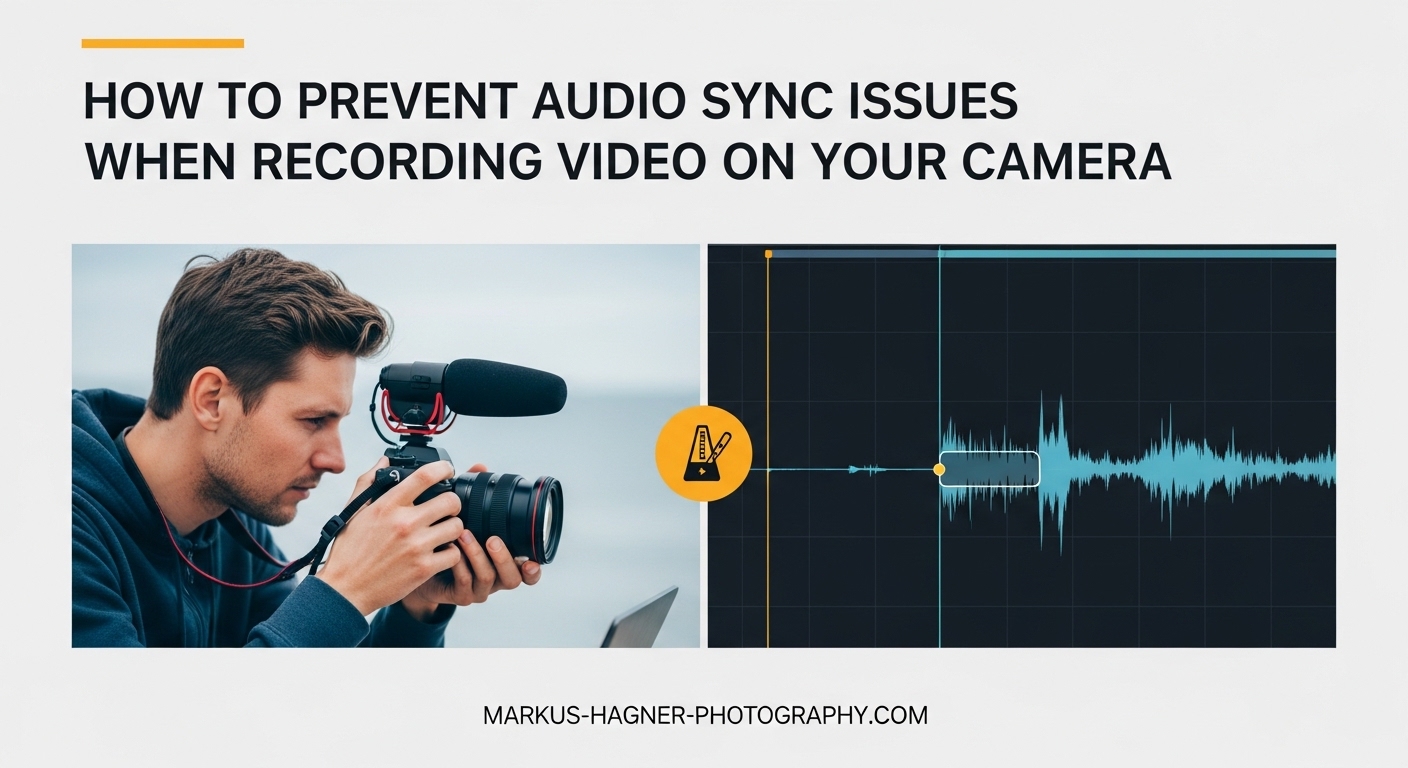
Nothing ruins a video faster than watching someone’s lips move while the audio plays a half-second later. Audio sync issues are one of the most frustrating problems videographers face, and they can happen to anyone using a DSLR, mirrorless camera, smartphone, or external audio recorder. The good news is that most audio-video sync problems are preventable with the right settings and techniques. In this guide, I will show you exactly how to prevent audio sync issues when recording video on your camera, from understanding the root causes to implementing proven prevention methods that professional videographers use every day.
Why Does Audio Go Out of Sync With Video?
Audio-video sync issues occur when the sound track and video track become misaligned during recording or playback. This creates that distracting lip-sync delay where dialogue appears before or after the speaker’s mouth moves. Understanding why this happens is the first step to preventing it.
Frame Rate Mismatches
One of the most common causes of audio sync problems is a mismatch between frame rates. When your camera records at 24fps, 30fps, or 60fps, each frame should have corresponding audio samples. If your recording settings or editing software interpret these frame rates differently, the audio and video tracks will drift apart over time.
Variable frame rate (VFR) recording is a frequent culprit. Many cameras and smartphones use VFR to save storage space, but this causes the video to play back at inconsistent speeds. When you import VFR footage into editing software expecting constant frame rate (CFR), the audio slowly falls out of sync. Always check if your camera offers a constant frame rate option for critical recordings.
Sample Rate Problems
The audio sample rate determines how many times per second your device captures audio. The two most common rates are 44.1kHz and 48kHz, and mixing them creates immediate sync problems. If your camera records at 48kHz but your external audio recorder uses 44.1kHz, the audio tracks will play at different speeds and fall out of alignment.
Industry professionals almost universally recommend recording at 48kHz for video. This sample rate has become the standard because it divides evenly into common frame rates. Never mix sample rates between devices. Always verify every piece of recording equipment in your chain uses the same sample rate before you start shooting.
Hardware Latency Issues
Physical hardware introduces processing delays that can throw off audio sync. USB microphones typically add 100-200 milliseconds of latency as the audio travels through the USB bus and gets converted to digital signals. HDMI cables and capture cards introduce their own delays. Wireless microphone systems are notorious for unpredictable latency that varies based on distance and interference.
Even high-quality equipment has inherent latency. The key is measuring and compensating for it. Professional setups often use direct analog audio inputs to cameras rather than USB or digital connections to minimize these delays.
How to Prevent Audio Sync Issues When Recording Video on Your Camera
Prevention beats correction every time. Follow these steps before and during your recording sessions to keep audio and video perfectly synchronized.
Before Recording: Camera Settings Checklist
Setting up your equipment correctly eliminates most sync problems before they start. Run through this checklist before every important shoot:
Step 1: Set your audio sample rate to 48kHz. Navigate to your camera’s audio settings menu. On most cameras, this is found under Movie Settings or Audio Settings. Ensure all external recorders match this setting exactly.
Step 2: Match frame rates across all devices. If your camera shoots 24fps, your editing timeline should also be 24fps. If you use multiple cameras, set them all to the same frame rate. Check your camera’s menu for Movie Frame Rate or Video Frame Rate settings.
Step 3: Disable variable frame rate recording. Look for an option called VFR, Variable Bitrate Recording, or High Efficiency mode in your camera settings. Turn this off for critical recordings. Use constant frame rate (CFR) instead.
Step 4: Use high-speed SD cards. Slow write speeds cause dropped frames, which immediately creates audio sync drift. Use cards rated V30 or higher for video recording. The card speed matters more than most people realize.
Step 5: Test your setup before the actual recording. Record 30 seconds of test footage with audio. Play it back and check for sync issues. Fix problems now rather than discovering them after an important shoot.
Using External Audio: Best Practices
External microphones and audio recorders provide better sound quality, but they introduce sync challenges. Here is how to keep everything aligned:
Always record scratch audio on your camera. Even if you use an external recorder for your primary audio, keep the camera’s internal microphone recording. This provides a reference track that makes syncing in post-production much easier.
Use a clapboard or hand clap for sync reference. At the start of each take, clap your hands or use a slate marker in front of the camera. This creates a sharp audio spike that lines up perfectly with the visual of the clap. It is the most reliable sync method that professionals have used for decades.
Measure your USB microphone latency. If you use a USB microphone with your camera, test the actual delay. Record a test clip with a sharp sound like a finger snap. Import it into editing software and measure the offset between the visual and audio. Apply this same offset to all recordings made with this setup.
Prefer wired connections over wireless. Wireless microphones add unpredictable latency that can change based on environment. When possible, use wired connections directly to your camera or audio recorder.
Long-Form Recording Tips
Audio drift becomes more noticeable in recordings longer than 30 minutes. The audio track slowly falls behind or ahead of the video track, making the problem worse as time progresses. Here is how to handle extended recordings:
Create sync checkpoints throughout your recording. Every 15-20 minutes, create a visual and audio sync marker. A simple hand clap works. This lets you identify exactly where drift starts and how severe it becomes.
Monitor audio while recording. Use headphones connected to your camera or audio recorder. If you hear sync problems during playback, you can address them immediately rather than discovering them later.
Consider breaking long recordings into segments. Instead of one continuous hour-long take, record in 15-minute segments. This makes sync correction easier in editing and limits the amount of drift in any single clip.
Use timecode sync for professional setups. High-end cameras and audio recorders support timecode synchronization, which keeps multiple devices locked together electronically. This eliminates drift entirely but requires compatible equipment.
Fixing Audio Sync Issues After Recording
Despite your best efforts, sometimes audio sync problems slip through. Here are proven methods for correcting sync issues in post-production.
Quick Fixes in Media Players
If you only need to watch a video with sync issues and do not need to edit it, media players offer built-in audio delay adjustments:
VLC Media Player lets you adjust audio timing on the fly. While the video plays, press the J key to delay audio or the K key to advance it. Each press adjusts by 50 milliseconds. The current delay appears on screen. For permanent fixes, you will need editing software, but this works great for quick viewing.
Other players like MPC-HC and PotPlayer offer similar audio offset features in their settings menus. Look for Audio Sync or Audio Delay options under audio settings.
Syncing in Video Editing Software
For permanent corrections, use video editing software. Most modern editors include powerful sync tools:
Waveform alignment method: If you recorded scratch audio on your camera and high-quality audio on an external recorder, most editing software can automatically sync them. Import both clips, select them, and choose the Sync or Merge Clips option. The software analyzes the audio waveforms and aligns them automatically.
Manual offset adjustment: For simple delays, unlink your audio and video tracks in the timeline. Slide the audio track left or right until the waveforms align with the video. Zoom in on the timeline for precision. A single frame at 24fps equals about 42 milliseconds, so small adjustments matter.
Auto-sync features: Adobe Premiere Pro offers automatic synchronization that matches audio waveforms between clips. DaVinci Resolve includes similar auto-sync functionality. Final Cut Pro can sync clips based on audio analysis. These tools save tremendous time when syncing multiple takes.
OBS and Live Streaming Sync
Live streaming introduces unique audio sync challenges because problems happen in real time. Here is how to address them:
Adjust audio delay in OBS Studio. Right-click your audio source in the Audio Mixer and select Advanced Audio Properties. Enter a sync offset value in milliseconds. Positive values delay the audio, negative values advance it. Test with short recordings to find the correct value.
Monitor CPU usage. High CPU usage causes processing delays that affect audio sync. Close unnecessary applications while streaming. Consider lowering your encoding settings if your computer struggles to keep up.
Use direct audio input to camera. When possible, connect your microphone directly to your camera rather than routing through your computer. This eliminates the USB latency and processing delays that cause most streaming sync problems.
Troubleshooting Checklist
When audio sync problems occur, run through this diagnostic workflow:
1. Check sample rates. Verify all devices use 48kHz. Mismatched sample rates cause gradual drift that gets worse over time.
2. Verify frame rates. Ensure your recording frame rate matches your editing timeline frame rate. Convert VFR footage to CFR if necessary using tools like HandBrake.
3. Test SD card speed. Slow cards cause dropped frames. Try a faster card if you experience sync issues during recording.
4. Measure hardware latency. Test your specific microphone and camera combination to determine inherent delay. Apply consistent offset in editing.
5. Check for corrupted files. Sometimes sync issues indicate file corruption. Try playing the file in different players or re-importing it.
6. When to re-record: If drift exceeds 500 milliseconds or varies unpredictably throughout the recording, fixing it in post becomes extremely difficult. Re-recording with corrected settings often produces better results than extensive correction.
Frequently Asked Questions
How to fix audio delay on video recording?
To fix audio delay in a recorded video, import the file into video editing software like Adobe Premiere Pro, DaVinci Resolve, or Final Cut Pro. Unlink the audio and video tracks, then slide the audio track forward or backward until the waveforms align with the video. For quick viewing without editing, use VLC Media Player and press J to delay audio or K to advance it by 50 milliseconds per press.
How to fix audio sync issues in a video?
Fix audio sync issues by first identifying the cause. For sample rate mismatches, ensure all recordings use 48kHz. For frame rate problems, convert variable frame rate footage to constant frame rate using HandBrake. In editing software, use the waveform alignment feature to automatically sync audio tracks, or manually adjust the audio offset until lip movements match the dialogue.
Does AV Sync delay audio or video?
AV sync can delay either audio or video depending on the cause. Hardware latency from USB microphones typically delays audio, making it play after the corresponding video. Processing delays in capture cards or streaming software can delay video, making audio play first. The key is measuring your specific setup to determine which track needs adjustment.
Why is my audio bad when recording?
Bad audio during recording usually stems from sample rate mismatches between devices, incorrect audio input levels causing distortion, USB microphone latency creating sync problems, or electromagnetic interference from nearby equipment. Always set all devices to 48kHz sample rate, use proper gain staging to avoid clipping, and keep audio cables away from power sources to prevent interference.
Conclusion
Learning how to prevent audio sync issues when recording video on your camera saves hours of frustrating post-production work. The most important steps are setting all devices to 48kHz sample rate, matching frame rates across your entire workflow, and using clapboard sync points for external audio. Test your setup before important recordings, use high-speed memory cards to prevent dropped frames, and consider breaking long recordings into manageable segments. With these techniques in place, your audio and video will stay perfectly synchronized from the first frame to the last.