
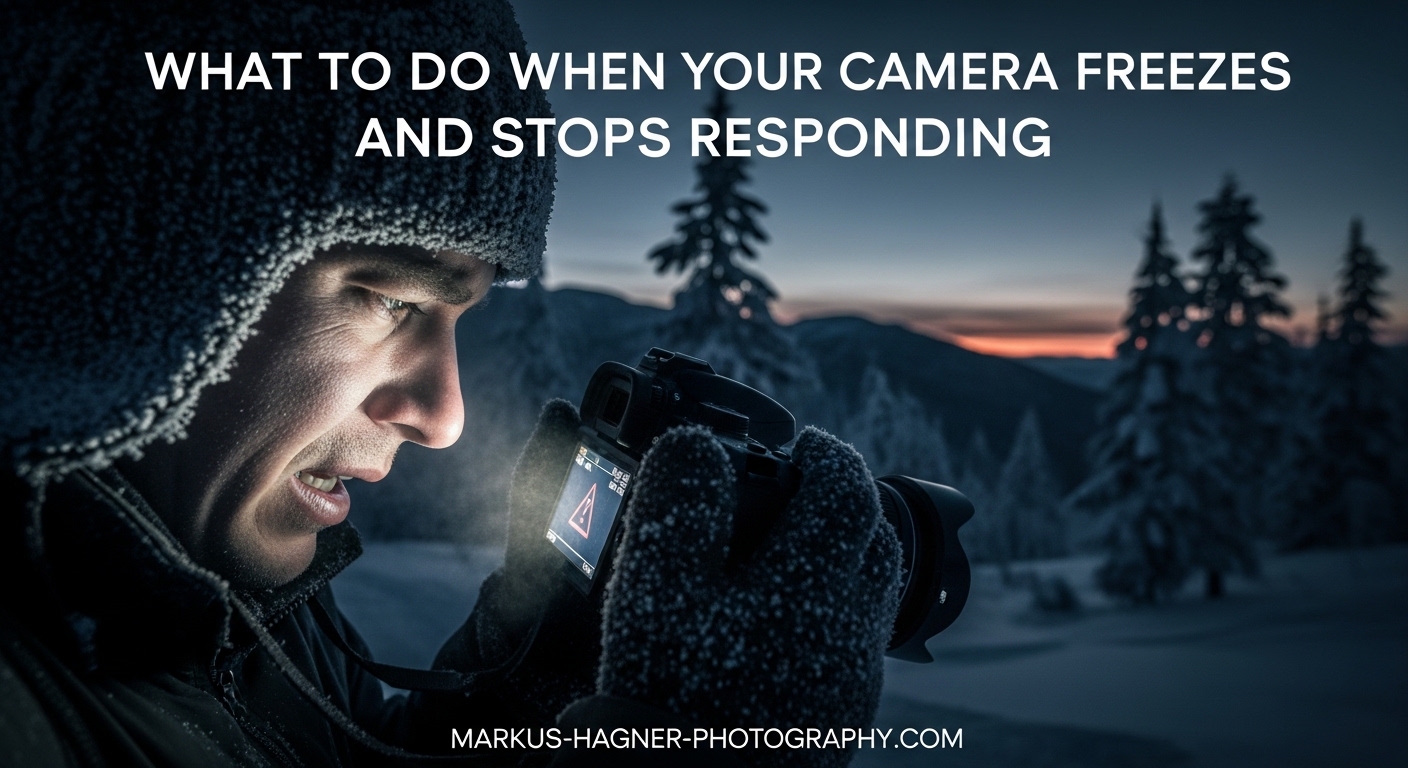
Nothing is more frustrating than pointing your camera at a perfect moment, pressing the shutter, and getting no response. A camera freeze can happen at the worst possible time, whether you are shooting a wedding, capturing wildlife, or just trying to take a quick snapshot with your phone. Over the years, photographers have dealt with frozen DSLRs, unresponsive mirrorless cameras, and smartphone cameras that simply stopped working mid-shoot. This guide covers exactly what to do when your camera freezes and stops responding, from quick fixes that take seconds to advanced troubleshooting for stubborn issues. Whether you use DSLR cameras, mirrorless systems, or smartphones, these solutions will help you get back to shooting.
Quick Diagnosis: Identify the Type of Freeze
Before attempting any fixes, take 30 seconds to identify what type of freeze you are dealing with. This will save you time and help you choose the right solution.
Screen frozen with image displayed: Your camera shows a frozen image on the LCD or viewfinder but buttons do not respond. This is typically a software glitch that responds well to a simple reset.
Black screen with power on: The camera appears powered on but shows nothing. This often points to a deeper firmware issue or, in some cases, sensor failure. This issue is common across various camera systems.
Lens stuck extended or retracted: The lens will not move and the camera displays an error. This is usually a mechanical issue that may require professional repair.
Intermittent freezing: The camera works sometimes but freezes unpredictably. This pattern often indicates overheating, memory card problems, or firmware bugs specific to certain shooting modes.
Common Causes of Camera Freezing
Understanding why your camera freezes helps you prevent future incidents and choose the right fix. These causes appear repeatedly across different camera brands and models.
Software and Firmware Issues
Firmware bugs are the most common cause of camera freezing. When your camera’s internal software encounters an error it cannot handle, the entire system locks up. This happens more frequently after firmware updates that introduce new bugs, something many photographers have experienced firsthand with several Canon and Sony models.
Outdated firmware can also cause compatibility issues with newer memory cards or lenses. Camera manufacturers regularly release firmware updates to address known freezing issues, so checking for updates should be part of your regular maintenance. Many camera reviews mention firmware stability as a key factor in reliability.
Memory Card Problems
Your SD card is a frequent culprit when cameras freeze during shooting or video recording. Slow write speeds cannot keep up with burst shooting or 4K video, causing the camera to lock up while waiting for data to write. Corrupted cards or cards with bad sectors can also trigger freezes when the camera tries to access damaged areas.
Many photographers have learned this lesson during paid shoots when cameras froze repeatedly. After hours of troubleshooting, they discovered supposedly fast SD cards had degraded and were no longer maintaining their rated write speeds. Investing in quality memory cards prevents these issues.
Battery and Power Issues
Low battery voltage can cause unpredictable behavior including freezes. As batteries age, they may show adequate charge but cannot deliver consistent voltage under load. Third-party batteries are particularly prone to this issue.
Dirty or corroded battery contacts can also cause intermittent power delivery that triggers freezes. This is especially common in cameras used outdoors in humid or dusty conditions.
Overheating
Extended shooting sessions, particularly video recording or live view use, generate significant heat inside your camera. Most cameras have thermal protection that shuts them down, but some models freeze before triggering this protection.
Using your camera as a webcam for extended periods is a common cause of heat-related freezing. Forum users report this issue frequently with Sony and Canon models used for streaming.
Lens and Mechanical Issues
Physical obstructions in the lens mechanism can cause your camera to freeze during startup or zooming. Sand, dust, or impact damage can jam internal gears. Some cameras freeze when they detect lens errors to prevent further damage. Issues with camera lenses are common culprits.
Third-Party Accessory Conflicts
Battery grips, external flashes, and third-party lenses can sometimes cause communication errors that freeze your camera. This happens with older third-party lenses on newer camera bodies after firmware updates changed communication protocols.
Step-by-Step Troubleshooting Guide
Follow these steps in order, starting with the simplest solutions. Most frozen cameras can be fixed with the first few steps.
Step 1: Perform a Soft Reset
Turn your camera off completely using the power switch. Wait at least 10 seconds, then turn it back on. This clears temporary memory and often resolves minor software glitches. If your camera has a dedicated reset button (usually recessed and requiring a paperclip), pressing it performs a similar function.
Step 2: Remove and Reinsert the Battery
If a soft reset does not work, remove the battery completely. This is the most effective fix for most camera freezes. Leave the battery out for at least 30 seconds to allow internal capacitors to discharge. While the battery is out, check the contacts for dirt or corrosion and clean them with a dry cloth if needed. Reinsert the battery and power on.
This technique has saved countless shoots. It works because it forces a complete power cycle that clears stuck software states.
Step 3: Check and Reseat Your Memory Card
Remove your memory card and inspect it for physical damage. Try the camera without any memory card inserted. If it works normally, your card may be the problem. Try a different card or format the current card in another device. Always format cards in-camera rather than on your computer to ensure proper file system structure.
Step 4: Remove the Lens and Clean Contacts
For interchangeable lens cameras, remove the lens and check the electronic contacts on both the lens and camera body. Use a clean, dry microfiber cloth to gently wipe the contacts. Reseat the lens firmly. If you have another lens available, try it to rule out lens-specific issues.
Step 5: Update Firmware
Check your camera manufacturer’s website for firmware updates. Many freezing issues are addressed in later firmware versions. Download the update to a formatted memory card and follow your camera’s firmware update procedure exactly. Never turn off your camera during a firmware update, as this can permanently damage it.
Step 6: Factory Reset (Last Resort)
If nothing else works, perform a factory reset through your camera’s menu system. This erases all custom settings but can resolve deep software issues. Note that you will need to reconfigure all your preferences afterward.
DSLR and Mirrorless Camera Solutions
For dedicated cameras, try these additional steps if basic troubleshooting fails:
Remove any battery grips or vertical grips and test with just the internal battery. Grip connections are a common source of communication errors. If you are using an external flash, remove it and test the camera alone. Some flash units cause voltage spikes that freeze certain camera models. Lighting equipment can sometimes cause conflicts.
Try different shooting modes. If your camera freezes in one mode but works in others, you have narrowed down the issue to specific firmware problems. Many users report freezes in continuous shooting mode or when using specific autofocus modes.
Smartphone Camera Solutions
Phone cameras require different troubleshooting approaches. Here is what works for frozen smartphone cameras:
Force close the camera app completely and reopen it. On most phones, you can do this through your recent apps menu. If that fails, restart your phone completely.
Check for iOS or Android system updates, as camera freezing often relates to specific OS versions. iPhone users should check if the issue started after an iOS update, as this is a common pattern.
Clear the camera app cache through your phone’s settings. Corrupted cache data is a frequent cause of smartphone camera freezing. If available, reset camera settings to default without doing a full phone reset.
Check available storage space. Cameras freeze when storage is nearly full because they cannot write temporary files. Free up at least a few gigabytes if you are near capacity.
Advanced Troubleshooting for Persistent Issues
If basic fixes do not resolve your freezing problem, these advanced solutions address less common causes.
Webcam and USB Mode Freezing
Many modern cameras freeze when used as webcams for extended periods. This happens because USB power delivery combined with continuous sensor operation generates excessive heat. If your camera keeps freezing during streaming, try these solutions:
Use an external power source instead of USB power to reduce heat. Add a small fan directed at your camera body. Limit continuous use sessions to under an hour with cool-down breaks. Check if your camera has a dedicated webcam mode that manages thermal limits better.
Cold Weather Shooting Issues
Batteries perform poorly in cold temperatures, causing voltage drops that freeze cameras. Keep spare batteries warm in an inner pocket and swap them frequently. Some photographers use hand warmers near (not on) their cameras during cold shoots.
Video Recording Specific Freezes
If your camera freezes only during video recording, check your memory card speed rating. 4K video requires V30 or faster cards. Slower cards cause buffer overflows that lock up cameras. Also check if your camera has a recording time limit that triggers protective shutdown.
Third-Party Lens Compatibility
Some third-party lenses freeze cameras after firmware updates change communication protocols. Check the lens manufacturer’s website for compatibility updates. Many Sigma, Tamron, and other third-party lenses can be updated with a docking station.
SD Card Write Speed Troubleshooting
Test your SD card’s actual write speed using a computer card reader. Cards often degrade over time and may no longer meet their rated speeds. Replace cards that test significantly below their rated speed, especially for video or burst shooting.
When to Seek Professional Repair
Some camera freezing issues indicate hardware problems that require professional service. Consider repair if you notice these signs:
Physical damage is visible on the body or lens. Moisture indicators show water exposure. The camera makes unusual grinding or clicking sounds. Freezes happen immediately after impact or drops. Error codes appear repeatedly even after resets.
Corrosion on battery contacts or inside card slots indicates moisture damage that will continue causing problems. Professional cleaning may salvage the camera.
If basic and advanced troubleshooting both fail, the issue is likely hardware-related. Check if your camera is still under warranty before paying for repairs. For older cameras, compare repair costs against replacement value.
Prevention Tips to Avoid Future Freezes
Preventing camera freezes is easier than fixing them. These habits keep gear running reliably for years:
Update firmware regularly but wait a few weeks after release to let others discover bugs first. Format memory cards in-camera every few weeks rather than just deleting files. Replace memory cards every 2-3 years of heavy use. Use only high-quality cards from reputable brands.
Keep battery contacts clean and store batteries at partial charge, not fully depleted. Avoid exposing cameras to extreme temperatures, especially heat from car interiors in summer.
Remove and clean lens contacts periodically, especially after outdoor shoots. Avoid changing lenses in dusty or sandy conditions when possible.
Frequently Asked Questions
How do I fix my unresponsive camera?
Start by turning the camera off and back on. If that fails, remove the battery for 30 seconds and reinsert it. This hard reset resolves most unresponsive camera issues. If the problem persists, try removing the memory card and lens to isolate the cause.
What causes a camera to freeze?
Camera freezes are most commonly caused by software glitches, firmware bugs, memory card errors, low or unstable battery power, overheating during extended use, and physical obstructions in the lens mechanism. Third-party accessories can also cause communication errors that freeze cameras.
How do I unfreeze my iPhone camera?
Force close the camera app by swiping up from the bottom of the screen and swiping the camera app away. Then reopen the camera app. If this does not work, restart your iPhone. Check for iOS updates if the problem persists, as camera freezing often relates to specific iOS versions.
How to fix a jammed camera?
Turn off the camera and remove the battery. Inspect the lens barrel for visible debris or obstructions. Use compressed air to gently blow out any dust or particles. Never force a stuck lens. If the lens remains jammed after cleaning, professional repair is usually needed.
What to do if the camera is not responding?
Remove the battery and memory card, wait 30 seconds, then reinsert only the battery. Turn the camera on without the memory card. If it works, the card is likely the problem. If it still does not respond, try a different battery or check for physical damage.
How to reset a Canon mirrorless camera?
Access the menu and navigate to the wrench icon (tools). Select Clear All Camera Settings to perform a factory reset. For a hard reset when the camera is frozen, remove the battery, turn the power switch on for 10 seconds, then turn it off and reinsert the battery.
Why does my camera keep crashing?
Repeated camera crashes usually indicate a persistent issue such as outdated firmware, a failing memory card, an aging battery with unstable voltage, overheating during use, or a hardware problem. Try updating firmware, replacing the memory card and battery, and monitoring camera temperature during use.
Conclusion
When your camera freezes and stops responding, the solution is usually simple: remove the battery, wait, and reinsert it. This basic reset fixes the majority of camera freeze issues across all brands and camera types. For persistent problems, work through the troubleshooting steps systematically, checking your memory card, battery, firmware, and accessories in order.
Prevention matters more than cure. Keep your firmware updated, use quality memory cards, maintain your batteries, and protect your gear from extreme conditions. These habits will keep your camera running reliably when you need it most.
If all troubleshooting fails and your camera continues freezing, professional repair may be necessary. Hardware problems like sensor failures or damaged circuit boards require specialized equipment and expertise. Check warranty coverage before paying for repairs, and consider replacement cost versus repair cost for older cameras.