
Every photographer who shoots high volumes knows the pain of culling through thousands of images after an event. You come home from a wedding with 2,500 shots, or a sports match with 3,000 frames, and dread the hours ahead of sorting through them. The right culling software can turn a four-hour task into a 45-minute session.
Photo Mechanic vs Lightroom is a comparison that comes up constantly in professional photography circles. One is a specialized speed demon built specifically for culling and ingesting. The other is an all-in-one editing powerhouse that also handles organization. They serve different purposes, yet many photographers find themselves choosing between them for their culling workflow.
After testing both extensively across wedding seasons, sports events, and editorial assignments, I can tell you that the answer depends entirely on what you shoot and how much time you spend on post-processing. For this Photo Mechanic vs Lightroom for Culling and Importing comparison, I’ll break down exactly when each tool makes sense.
Quick verdict: If you shoot high volumes and need to cull fast, Photo Mechanic wins hands down for speed. If you want an integrated editing workflow and don’t mind slower culling, Lightroom handles everything in one place. Many professionals actually use both together.
Photo Mechanic vs Lightroom: Quick Comparison
Before diving deep, here’s how these two software packages stack up for culling and importing workflows:
| Product | Specifications | Action |
|---|---|---|
 Adobe Lightroom 1TB (12-Month Subscription) Adobe Lightroom 1TB (12-Month Subscription) |
|
Check Latest Price |
 Adobe Photoshop Lightroom Classic Book Adobe Photoshop Lightroom Classic Book |
|
Check Latest Price |
 Lightroom Classic Missing FAQ (2025) Lightroom Classic Missing FAQ (2025) |
|
Check Latest Price |
Photo Mechanic is built by Camera Bits specifically for fast culling and metadata entry. It reads embedded JPEG previews from RAW files instead of rendering previews, which makes it blazing fast. Lightroom, on the other hand, renders its own previews, which takes time but provides more accurate color representation for editing.
The pricing models differ significantly. Photo Mechanic costs around $139-189 as a one-time purchase (with upgrade pricing for future versions). Lightroom requires a subscription starting at around $9.99/month bundled with Photoshop, or you can get the Photography plan. Over time, Lightroom costs more, but includes ongoing updates and cloud storage.
Photo Mechanic Deep Dive
Adobe Lightroom 1TB | AI-assisted photo editor | 12-Month Subscription with auto-renewal |PC/Mac | Digital Download
Pros
- Instant image preview without rendering
- Blazing fast navigation between frames
- Powerful metadata and IPTC tools
- Built-in FTP upload for deadlines
- One-time purchase (no subscription)
Cons
- No RAW editing capabilities
- Interface feels dated compared to Lightroom
- Higher upfront cost
- Steep learning curve for metadata features
Photo Mechanic has been the secret weapon of sports photographers, photojournalists, and wire service photographers for decades. The reason is simple: it’s crazy fast for culling compared to Lightroom. I’ve tested this with 2,000 RAW files from a soccer tournament, and Photo Mechanic let me flip through frames instantly while Lightroom hesitated between each image.
The secret behind Photo Mechanic’s speed is how it handles image previews. Instead of rendering RAW files into viewable images, it extracts the embedded JPEG preview that cameras include in every RAW file. This means you see your photos instantly, with zero rendering time. The trade-off is you’re not seeing the full RAW data, but for culling purposes, that’s rarely an issue.
Speed That Matters Under Deadline
When you’re covering a sporting event and need to get images to an editor within 30 minutes of the final whistle, every second counts. Photo Mechanic users consistently report cutting their culling time by 50-70% compared to Lightroom. One sports photographer I spoke with said he went from spending two hours culling a game to just 25 minutes.
The keyboard shortcuts in Photo Mechanic are designed specifically for rapid culling. You can tag, rate, color-label, and move between images without ever touching your mouse. T marks an image as a pick. X marks it as a reject. Arrow keys navigate instantly. The workflow becomes almost unconscious after a few sessions.
Beyond culling, Photo Mechanic excels at metadata entry. You can apply IPTC metadata, captions, and keywords to hundreds of images simultaneously. For photojournalists who need to caption images and FTP them directly to their agency, Photo Mechanic handles the entire ingest-to-delivery workflow without opening another application.
The Ingest Process
Photo Mechanic’s ingest function is where it really shines for high-volume photographers. You can copy from multiple memory cards simultaneously, rename files according to custom templates, apply metadata presets, and organize into folder structures automatically. The software verifies file integrity during copy, ensuring you don’t lose any images to corrupted transfers.
What I particularly appreciate is the live ingestion feature. While shooting tethered or with cards, Photo Mechanic can start ingesting as soon as it detects new images. This parallel processing means you can begin culling while the software continues copying additional files in the background.
Who Benefits Most from Photo Mechanic?
Based on my testing and feedback from professionals, Photo Mechanic delivers the most value to:
Sports photographers: The speed advantage is undeniable when you’re dealing with burst mode sequences of 10-20 frames per second and need to select the best shots quickly.
Photojournalists: The metadata tools and built-in FTP make it perfect for newsroom workflows where captions and quick delivery are essential.
Wedding photographers: Culling 2,000-4,000 images from a wedding in under an hour becomes realistic with Photo Mechanic’s speed.
Event photographers: Any situation where you’re shooting high volumes and need to deliver quickly benefits from Photo Mechanic’s efficiency.
Adobe Lightroom Deep Dive
Adobe Lightroom 1TB | AI-assisted photo editor | 12-Month Subscription with auto-renewal |PC/Mac | Digital Download
Pros
- Complete photo editing suite
- Non-destructive RAW editing
- Seamless catalog organization
- AI-assisted culling (2025)
- Mobile and cloud sync
Cons
- Slower preview generation
- Hesitates during rapid culling
- Catalog can become bloated
- Subscription required ongoing
Adobe Lightroom is the Swiss Army knife of photo software. It handles importing, organizing, culling, editing, and exporting all within a single application. For photographers who want everything in one place, Lightroom eliminates the need for multiple tools. But that convenience comes with trade-offs for the culling process specifically.
Lightroom renders its own previews rather than using embedded JPEGs. This provides more accurate color and exposure representation, which matters for editing decisions. However, it means there’s a delay when viewing images, especially if you haven’t pre-built 1:1 previews. During culling sessions, this hesitation between frames adds up to significant time loss.
Lightroom’s Culling Capabilities
Can Lightroom do culling? Absolutely. The software includes flags (pick/reject), star ratings from 1-5, and color labels. You can filter by any combination of these criteria and create smart collections that automatically organize your selects. The Survey view lets you compare multiple images side-by-side to choose the best from similar shots.
The culling interface works well for moderate volumes. If you’re sorting through a few hundred images from a portrait session or landscape shoot, Lightroom handles it fine. The slowdown becomes noticeable when you exceed 500-1,000 images, where the frame-to-frame hesitation becomes frustrating.
Building 1:1 previews before culling helps significantly. This pre-renders full-resolution previews so navigation is smooth during selection. However, building these previews takes time upfront. For a 2,000-image wedding, you might wait 30-60 minutes for previews to generate before you can cull efficiently.
The 2025 AI Culling Update
Adobe added AI-assisted culling to Lightroom Classic in October 2025. The feature analyzes images and suggests which photos might be selects based on focus, composition, and other factors. Is AI Culling coming to Lightroom? It already has, and it’s getting better with each update.
The AI culling works reasonably well for portrait sessions and can identify out-of-focus shots, closed eyes, and similar technical issues. However, it doesn’t understand creative intent. A deliberately blurry motion shot might get rejected by the AI. Most photographers I’ve spoken with use AI culling as a first pass, then manually review the results.
Compared to dedicated AI culling tools like Aftershoot, Lightroom’s implementation is more basic. Aftershoot offers more sophisticated analysis including duplicate detection and scene recognition. But having AI culling built into Lightroom saves the extra step of exporting and importing between applications.
Catalog Management Considerations
One advantage of culling in Lightroom is that your selects are already in your catalog. When you’re done culling, you move straight to editing without any import/export steps. This integrated workflow appeals to photographers who value simplicity over maximum speed.
The downside is catalog bloat. If you import everything and cull later, your catalog grows large with images you’ll eventually delete. Many photographers prefer to cull before importing to keep their catalogs lean. This is where Lightroom’s workflow becomes less efficient, since you need a separate tool or a pre-import culling step.
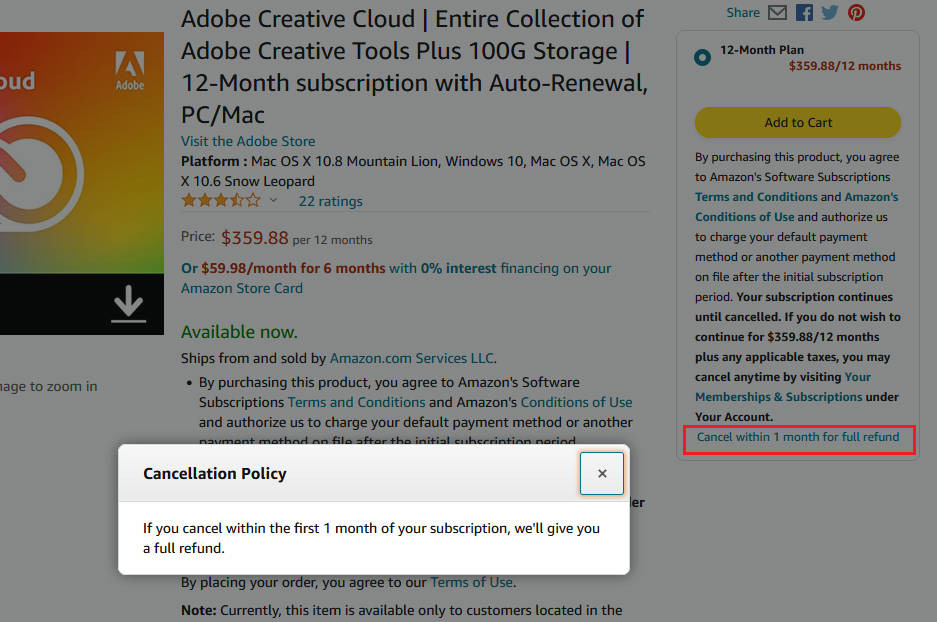
Lightroom’s organization tools are powerful once your images are cataloged. Collections, smart collections, keywords, and face recognition make finding images later straightforward. The search functionality has improved dramatically with AI, allowing you to search for content like “sunset beach” or “red car” without manually tagging every image.
Photo Mechanic vs Lightroom: Head-to-Head Comparison
Let’s break down how these two applications compare across the key factors that matter for culling and importing workflows.
Culling Speed
Winner: Photo Mechanic
This isn’t close. Photo Mechanic’s embedded preview approach means zero delay between frames. Lightroom’s rendered previews create a perceptible hesitation that adds up to significant time over thousands of images. Real-world testing shows Photo Mechanic users cull 50-70% faster than Lightroom users for the same image sets.
The difference is most dramatic for sports and action photography where you’re comparing burst sequences. Photo Mechanic lets you flip through 20 frames per second of continuous shooting as fast as you can press the arrow key. Lightroom stutters between each frame, breaking your rhythm.
Preview Accuracy
Winner: Lightroom
Lightroom’s rendered previews show you what the RAW file actually looks like after processing. Photo Mechanic shows you the camera’s embedded JPEG, which may have different color, contrast, and exposure than your RAW interpretation. For critical color work, Lightroom’s previews are more accurate.
For culling purposes, this matters less than you might think. You’re primarily judging composition, focus, and expression during culling. Exposure and color adjustments happen during editing. Most photographers find embedded previews sufficient for selection decisions.
Pricing Model
Winner: Depends on timeline
Photo Mechanic costs approximately $139-189 as a one-time purchase. Major version upgrades typically cost around $99. If you use it for five years, your total cost might be $288-378 including one upgrade.
Lightroom costs $9.99-19.99 per month depending on your plan. Over five years, that’s $599-1,199. The subscription includes Photoshop and ongoing updates, but you lose access if you stop paying.
For photographers who prefer owning their tools outright, Photo Mechanic’s model is more attractive. For those who want continuous updates and don’t mind ongoing costs, Lightroom’s subscription provides value.
Metadata and Keywording
Winner: Photo Mechanic
Photo Mechanic’s IPTC Stationery Pad is legendary among photojournalists. You can create metadata templates and apply them to thousands of images instantly. Structured keywords, caption templates, and custom fields make bulk metadata entry incredibly efficient.
Lightroom handles metadata well, but the workflow is less streamlined for high-volume entry. The keywording panel works fine for adding tags, but applying complex IPTC data to hundreds of images takes more clicks than Photo Mechanic.
Editing Integration
Winner: Lightroom
Lightroom is a complete editing environment with non-destructive RAW processing, presets, masking, and advanced adjustments. Photo Mechanic doesn’t edit photos at all. If you want to adjust exposure, color, or retouch images, you need separate software with Photo Mechanic.
This is why many photographers use both: Photo Mechanic for fast culling and metadata, then Lightroom for editing the selects. The workflow adds a step but saves time overall.
Use Case Scenarios
Sports photography: Photo Mechanic dominates. The speed advantage is essential when you’re culling thousands of action shots and have tight deadlines.
Wedding photography: Photo Mechanic for high-volume wedding days, though Lightroom works if you don’t mind extra culling time.
Portrait photography: Lightroom is usually sufficient. Lower image counts mean the speed difference matters less.
Photojournalism: Photo Mechanic for its metadata tools and FTP capabilities that newsrooms require.
Landscape photography: Lightroom works well. You’re typically shooting fewer images and spending more time on each edit.
Recommended Workflows for Different Photographers
Based on my experience and feedback from professional photographers, here are the optimal workflows for different situations.
Photo Mechanic Only Workflow
Best for: Sports photographers, photojournalists, wire service photographers
This workflow makes sense when speed is your primary concern and you’re delivering JPEGs with minimal editing. Photo Mechanic handles everything from ingestion through captioning to FTP delivery.
- Ingest from memory cards using Photo Mechanic’s Ingest function
- Apply metadata preset during ingest (copyright, contact info)
- Cull rapidly using keyboard shortcuts (T for pick, X for reject)
- Add captions and keywords to selects
- Export or FTP directly from Photo Mechanic
Lightroom Only Workflow
Best for: Portrait photographers, landscape photographers, those who prefer integrated tools
If you shoot moderate volumes and want everything in one application, Lightroom handles the entire process from import through final export.
- Import photos into Lightroom catalog
- Build 1:1 previews (or let them build during idle time)
- Cull using flags, stars, and color labels
- Edit selects in the Develop module
- Export finished images
Combined Photo Mechanic + Lightroom Workflow
Best for: Wedding photographers, event photographers, high-volume portrait studios
This hybrid approach gives you Photo Mechanic’s speed for culling plus Lightroom’s editing power. It’s what many professionals use.
- Ingest and cull in Photo Mechanic
- Apply metadata during ingest
- Export selects to a folder
- Import that folder into Lightroom
- Edit in Lightroom Develop module
- Export finished images
The extra import step takes about two minutes. The time you save culling makes up for it many times over on high-volume shoots.
AI-Assisted Culling Options
If you’re considering AI tools, Aftershoot and similar applications offer AI-powered culling that integrates with Lightroom. These tools analyze focus, composition, and technical quality, then suggest selects. Most photographers use AI culling as a first pass and manually review the results.
FastRawViewer is another alternative worth mentioning. It costs less than Photo Mechanic (around $25) and uses a similar embedded preview approach for fast culling. Some photographers prefer it as a budget-friendly option, though it lacks Photo Mechanic’s advanced metadata tools.
Learning Resources for Lightroom
If you decide to focus on Lightroom for your workflow, having quality learning resources can dramatically improve your efficiency. Here are some excellent options available:
Pros
- Comprehensive Lightroom Classic coverage
- Scott Kelby's approachable writing style
- Practical workflow advice
- Covers latest Adobe updates
- Excellent for all skill levels
Cons
- Some screenshots may be small
- Heavy book at 2.64 pounds
Scott Kelby’s Lightroom Classic book is widely regarded as one of the best resources for learning the software. His workflow-focused approach teaches you not just what features do, but how to use them efficiently in real photography situations.
Pros
- Comprehensive FAQ format
- Online version kept updated
- Infrastructure setup guidance
- Suitable for all skill levels
- Exceptionally high user ratings
Cons
- Smaller review count (specialized resource)
- Technical focus may overwhelm beginners
Victoria Bampton’s “The Missing FAQ” series is the definitive reference for Lightroom Classic. Updated through October 2025, it covers the latest features and includes online access that stays current. The FAQ format makes it easy to find answers to specific questions.
Frequently Asked Questions
Is Photo Mechanic better than Lightroom?
Photo Mechanic is better than Lightroom specifically for culling speed and metadata entry. It displays images instantly using embedded JPEG previews while Lightroom hesitates between frames. However, Lightroom is better for photo editing and provides an all-in-one workflow. For high-volume photographers, Photo Mechanic wins for culling. For integrated editing workflows, Lightroom wins.
Can Lightroom do culling?
Yes, Lightroom can cull photos using flags (pick/reject), star ratings (1-5), and color labels. You can filter and sort by these criteria and use Survey view to compare similar images. Lightroom works well for moderate volumes but becomes slow with thousands of images due to preview rendering. Building 1:1 previews before culling improves performance significantly.
Is Photo Mechanic worth the money?
Photo Mechanic is worth the money if you shoot high volumes regularly. At approximately $139-189 as a one-time purchase, it pays for itself quickly when you consider the hours saved culling. Sports photographers report cutting culling time by 50-70%. For a wedding photographer processing 3,000 images weekly, the time savings amount to several hours per week. For low-volume photographers, the investment may not justify the speed gains.
Is AI Culling coming to Lightroom?
Yes, AI-assisted culling launched in Lightroom Classic in October 2025. The feature analyzes images for focus, composition, and technical quality to suggest selects. It identifies out-of-focus shots and closed eyes but doesn’t understand creative intent. Most photographers use it as a first pass and manually review results. Dedicated AI culling tools like Aftershoot offer more sophisticated analysis but require an additional step in the workflow.
Verdict: Which Should You Choose?
For the Photo Mechanic vs Lightroom for Culling and Importing decision, your choice depends on what you shoot and how you work.
Choose Photo Mechanic if:
- You shoot high volumes (1,000+ images per session)
- You work under deadline pressure (sports, journalism, events)
- You need powerful metadata and IPTC tools
- You prefer one-time purchase software
- You already have editing software you like
Choose Lightroom if:
- You want an all-in-one solution
- You shoot moderate volumes
- You prefer subscription with ongoing updates
- You want cloud sync and mobile access
- You’re just starting out and want one tool to learn
Use both if:
- You’re a professional wedding or event photographer
- You want maximum culling speed plus complete editing
- You don’t mind a two-step workflow
- Your time savings justify the extra software cost
My recommendation for most professional photographers shooting high volumes: get Photo Mechanic for culling and use Lightroom (or Capture One) for editing. The combined workflow is faster than Lightroom alone, and the time savings pay for Photo Mechanic within a few busy months.
For hobbyists or photographers shooting lower volumes, Lightroom alone is perfectly adequate. The culling speed difference becomes less significant when you’re sorting 200 images instead of 2,000.