
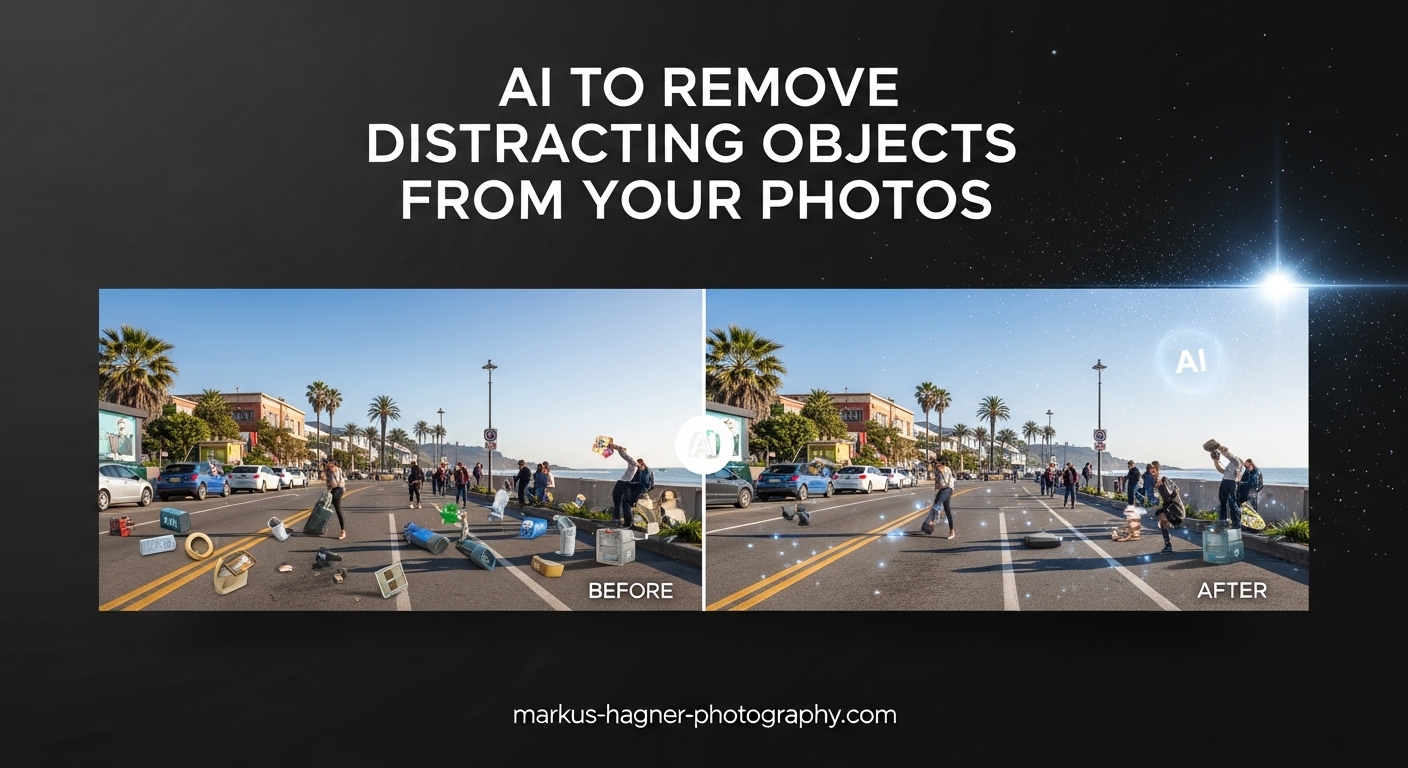
Nothing ruins a great photo faster than an unexpected distraction. A stranger walking through your shot, an exit sign in a wedding venue, or a trash can in an otherwise perfect landscape. I have spent countless hours manually fixing these issues with clone stamps and healing brushes. But in 2026, we have a much better option. Learning how to use AI to remove distracting objects from your photos has completely changed my editing workflow.
AI object removal tools have become incredibly sophisticated. What once took 20 minutes of careful manual work now takes seconds. These tools analyze your image, understand the surrounding context, and intelligently fill in the space where unwanted elements once stood. The results can be remarkably natural.
In this guide, I will walk you through everything you need to know about AI-powered object removal. We will cover how the technology works, which tools deliver the best results, and step-by-step instructions for the most popular options. Whether you are a professional photographer or just want to clean up your vacation photos, this guide will help you get started.
What Is AI Object Removal and How Does It Work?
AI object removal uses a technique called inpainting. When you select an unwanted element in your photo, the AI analyzes the pixels surrounding that area. It then predicts what should be behind the object based on patterns learned from millions of images. The AI generates new pixels that blend seamlessly with the existing content.
This technology differs significantly from traditional editing methods. Tools like the clone stamp and healing brush require you to manually sample and copy pixels from one area to another. AI inpainting, on the other hand, actually creates new content that did not exist in your original photo.
Modern AI object removal tools like Adobe Firefly and similar generative AI systems can handle complex backgrounds that would be nearly impossible to fix manually. A chain-link fence with grass behind it, a person standing in front of architectural details, or a car in a busy street scene. The AI understands texture, lighting, and perspective, then reconstructs the missing area accordingly.
The quality of results varies significantly between tools. Some produce obvious artifacts or unnatural patterns. Others generate results so convincing that you would never know the photo was edited. Understanding which tools to use and when is key to getting professional results.
Popular AI Tools to Remove Objects from Photos
The tool you choose depends entirely on your needs. Professional photographers working with RAW files need different capabilities than someone quickly editing a smartphone snapshot for social media. Here is a breakdown of the main categories.
Desktop Software for Professional Editing
Adobe Lightroom Classic introduced Generative Remove in recent updates, powered by Adobe Firefly. This feature integrates directly into your existing workflow. You can remove distractions without ever leaving Lightroom, and the tool generates multiple variations so you can choose the best result. Lightroom works with RAW files and maintains non-destructive editing throughout the process.
Adobe Photoshop offers even more control with Generative Fill. This tool works similarly but provides additional options for complex edits. You can expand images, replace backgrounds, or remove objects with precise selections. Photoshop also lets you combine AI removal with traditional tools like the healing brush for maximum control.
Capture One has also begun integrating AI-powered object removal features. While not as advanced as Adobe’s offerings yet, the tool works well for basic removals and integrates smoothly with Capture One’s color workflow.
Mobile Apps for On-the-Go Editing
iPhone users have access to built-in AI object removal in the Photos app. The tool works well for simple distractions and requires no additional software. Third-party apps like TouchRetouch and Snapseed offer more advanced capabilities for mobile photographers.
Android users can choose from apps like PhotoDirector, Remove Unwanted Objects, and Magic Eraser. These apps range from free with limited features to paid subscriptions with professional-grade tools. Most offer a free trial so you can test before committing.
Free Online Tools
Cleanup.pictures offers a free tier that works well for social media images. The resolution is limited on the free plan, but the quality is surprisingly good for quick edits. Photoroom, Claid.ai, and similar services provide browser-based object removal without requiring software installation.
Free tools typically have limitations. You may encounter resolution caps, watermarks, or daily usage limits. For occasional use, these restrictions might not matter. Professional photographers will likely need paid tools for client work.
How to Use Lightroom Generative Remove (Step-by-Step)
Lightroom’s Generative Remove has become my go-to tool for most object removal tasks. The integration with my existing catalog system and the ability to work non-destructively makes it ideal for professional workflows. Here is exactly how I use it.
Step 1: Select Your Photo and Open the Develop Module
Start by selecting the photo you want to edit in your Lightroom catalog. Switch to the Develop module by pressing D on your keyboard or clicking Develop in the top right. The Generative Remove tool works best on photos that have already received basic adjustments, though you can apply it at any point in your workflow.
Step 2: Access the Remove Tool
Look for the Remove tool in the toolbar on the right side of the Develop module. It appears as a bandage icon. You can also press Q on your keyboard as a shortcut. Once selected, you will see options for Heal, Clone, and the newer Generative Remove feature.
Step 3: Paint Over the Object You Want to Remove
Choose Generative Remove from the options. Adjust your brush size using the left and right bracket keys. Paint over the distracting object completely. The selection does not need to be perfect, but covering the entire object with a bit of surrounding area helps the AI understand context.
Lightroom also offers a Detect Objects feature that automatically identifies common distractions. This works well for things like dust spots, birds, and people in the background. Simply click Detect Objects and let the AI find candidates for removal.
Step 4: Generate and Review Variations
Click the Apply button to generate your result. Lightroom will process the image using Adobe Firefly and present you with the completed edit. If the result is not perfect, click the Generate More button to see additional variations. The AI typically offers three options, and you can cycle through them to find the most natural result.
Step 5: Refine and Finalize
If none of the generated variations are perfect, you can manually adjust the selection area and try again. Sometimes adding or subtracting a small amount from your brush stroke makes a significant difference. You can also combine Generative Remove with the traditional Heal and Clone tools for stubborn areas.
One important note: Generative Remove requires an internet connection since the processing happens in the cloud. Make sure you have a stable connection before starting, especially when working on client projects with deadlines.
Using Photoshop Generative Fill for Object Removal
Photoshop offers more control than Lightroom when you need precise results. The Generative Fill feature uses the same Adobe Firefly technology but provides additional options for complex edits. Here is how to use it effectively.
Step 1: Make Your Selection
Open your image in Photoshop and select the object you want to remove. You can use any selection tool, but the Lasso tool or Object Selection tool works well for most situations. The selection does not need to be perfect. Adding a small amount of feathering helps blend the results.
Step 2: Access Generative Fill
With your selection active, look for the Generative Fill button in the Contextual Task Bar. If you do not see this bar, enable it through Window > Contextual Task Bar. Leave the text prompt empty if you want the AI to simply remove the object and fill with background content.
Step 3: Generate and Compare Results
Click Generate and wait for Photoshop to process your request. The AI will create three variations that appear in the Properties panel. Click through each option to preview how it looks in your image. The quality can vary significantly between variations, so take time to evaluate each one.
Step 4: Fine-Tune the Results
If you find a variation that is close but not perfect, you can combine it with traditional editing tools. Use the Clone Stamp or Healing Brush to clean up any remaining artifacts. You can also generate additional variations if the first three do not meet your needs.
For complex backgrounds with repeating patterns, you might need to help the AI by providing more specific prompts. Describing what should appear in the selected area can guide the AI toward better results.
How to Remove Objects from Photos on iPhone and Android In 2026?
Mobile editing has improved dramatically in 2026. You no longer need a desktop computer to achieve professional-looking object removal. Here are the best options for each platform.
iPhone Built-In Tools
The iOS Photos app includes basic object removal capabilities. Open your photo, tap Edit, and look for the retouching tool (it looks like a bandage). Tap or draw over the object you want to remove. The built-in tool works well for small distractions like dust spots, power lines, and small background objects.
Best Third-Party Apps for iOS
TouchRetouch remains one of the best mobile object removal apps available. The app costs a one-time fee and works without a subscription. It handles complex removals better than the built-in tools and includes features like line removal for power lines and cables.
Snapseed, owned by Google, offers a free healing tool that works well for basic edits. The app includes additional editing features, making it a good all-in-one solution for mobile photographers.
Android Options
Android users have several solid choices. PhotoDirector offers AI-powered object removal with a user-friendly interface. The free version has limitations, but the premium tier unlocks full resolution and unlimited exports.
Google Photos includes a Magic Eraser feature for Pixel phone users and Google One subscribers. This tool works similarly to Photoshop’s Generative Fill and produces excellent results for casual editing.
Remove Unwanted Objects is a straightforward app that focuses specifically on object removal. The interface is simple, and the results are adequate for social media use, though professionals will want more capable tools.
Tips for Getting the Best Results with AI Object Removal
After using these tools extensively, I have learned several techniques that consistently improve results. Here are my top recommendations.
Work with High-Quality Source Images
AI object removal works best on sharp, well-exposed photos. If your image is blurry or heavily compressed, the AI has less information to work with. The generated content will reflect the quality of your source material.
Consider the Background Complexity
Simple backgrounds like clear skies or solid walls are easy for AI to reconstruct. Complex backgrounds with intricate patterns, text, or architectural details present more challenges. You may need multiple attempts or manual refinement for difficult scenarios.
Use Feathering on Your Selections
Hard-edged selections create visible boundaries between the generated content and your original image. Adding a small amount of feathering (typically 2-5 pixels) helps blend the results naturally. Most tools handle this automatically, but understanding why helps when troubleshooting.
Generate Multiple Variations
Never accept the first result without checking alternatives. AI generation has an element of randomness. The second or third variation is often significantly better than the first. Tools that offer multiple options give you the best chance of finding a natural result.
Combine AI with Manual Tools
Sometimes AI handles 90% of the work but leaves small imperfections. Rather than generating again and hoping for better results, switch to traditional tools for final refinement. The Clone Stamp, Healing Brush, and Spot Healing tools work well for cleaning up artifacts.
Know When to Use Traditional Methods
For simple dust spots or minor blemishes, traditional healing tools are often faster than AI processing. Save AI removal for larger, more complex objects where manual methods would be time-consuming.
Ethics of AI Object Removal in Photography
With great power comes responsibility. AI object removal raises important ethical questions that photographers should consider.
In documentary and news photography, removing elements from a scene fundamentally changes the truthfulness of the image. Most journalistic organizations prohibit any manipulation that alters the factual content of a photo. What you remove could be historically significant.
Street photography exists in a gray area. Some photographers argue that removing distractions enhances the artistic intent without changing the essential truth. Others believe street photography should document reality as it existed. This is a personal decision, but being transparent about your editing practices matters.
Portrait and event photography generally have more flexibility. Clients often expect some retouching, and removing a fire exit sign from a wedding venue photo harms no one. The key is managing expectations and being clear about your editing policies.
Professional photographers should develop a consistent ethical framework and communicate it clearly to clients. Document your editing practices and be prepared to explain your choices if asked.
Frequently Asked Questions
Can AI remove unwanted objects from photos?
Yes, AI can remove unwanted objects from photos with impressive results. Modern AI tools like Adobe Lightroom’s Generative Remove, Photoshop’s Generative Fill, and various mobile apps use inpainting technology to identify and remove distracting elements. The AI analyzes surrounding pixels and generates new content to fill the removed area. Results vary by tool and background complexity, but most users find AI removal effective for common distractions like people, signs, and debris.
Can ChatGPT remove objects from pictures?
ChatGPT itself cannot directly edit or remove objects from images. While ChatGPT can analyze images and provide editing advice, it does not have built-in image editing capabilities. However, you can use ChatGPT to get recommendations for AI object removal tools, learn editing techniques, or troubleshoot issues with other software. For actual object removal, you need dedicated photo editing tools with AI features like Photoshop, Lightroom, or specialized mobile apps.
What is the best AI photo object remover app?
The best AI photo object remover depends on your needs. For professional photographers, Adobe Lightroom Classic with Generative Remove and Photoshop with Generative Fill offer the highest quality results and workflow integration. For mobile users, TouchRetouch provides excellent results for a one-time purchase. Free options like Cleanup.pictures work well for casual editing and social media use. iPhone users can start with the built-in Photos app retouching tool, while Android users might try PhotoDirector or Google Photos Magic Eraser.
Is Eraser AI free?
Eraser AI tools vary in pricing. Some online tools like Cleanup.pictures offer free tiers with resolution limits. Adobe’s Generative Remove in Lightroom and Generative Fill in Photoshop require a Creative Cloud subscription. Mobile apps range from free with limitations to one-time purchases or subscriptions. TouchRetouch costs around $2 as a one-time purchase. Many apps offer free trials so you can test before committing. For completely free options, try browser-based tools or the built-in editing features on your smartphone.
Conclusion
Learning how to use AI to remove distracting objects from your photos opens up new creative possibilities. Whether you are cleaning up product photos for e-commerce, removing tourists from travel shots, or simply fixing small imperfections, AI tools make the process faster and more accessible than ever before.
Start with the tools you already have. If you subscribe to Adobe Creative Cloud, try Lightroom’s Generative Remove on your next editing session. Mobile users can experiment with free apps before investing in paid solutions. The technology continues to improve, and what seems difficult today will likely become easier with each software update.
Remember that AI is a tool, not a replacement for good photography. The best results come from combining solid shooting technique with thoughtful editing. Use AI object removal to enhance your vision, not to rescue poorly planned shots. With practice, you will develop an intuition for when these tools can help and when traditional methods make more sense.