
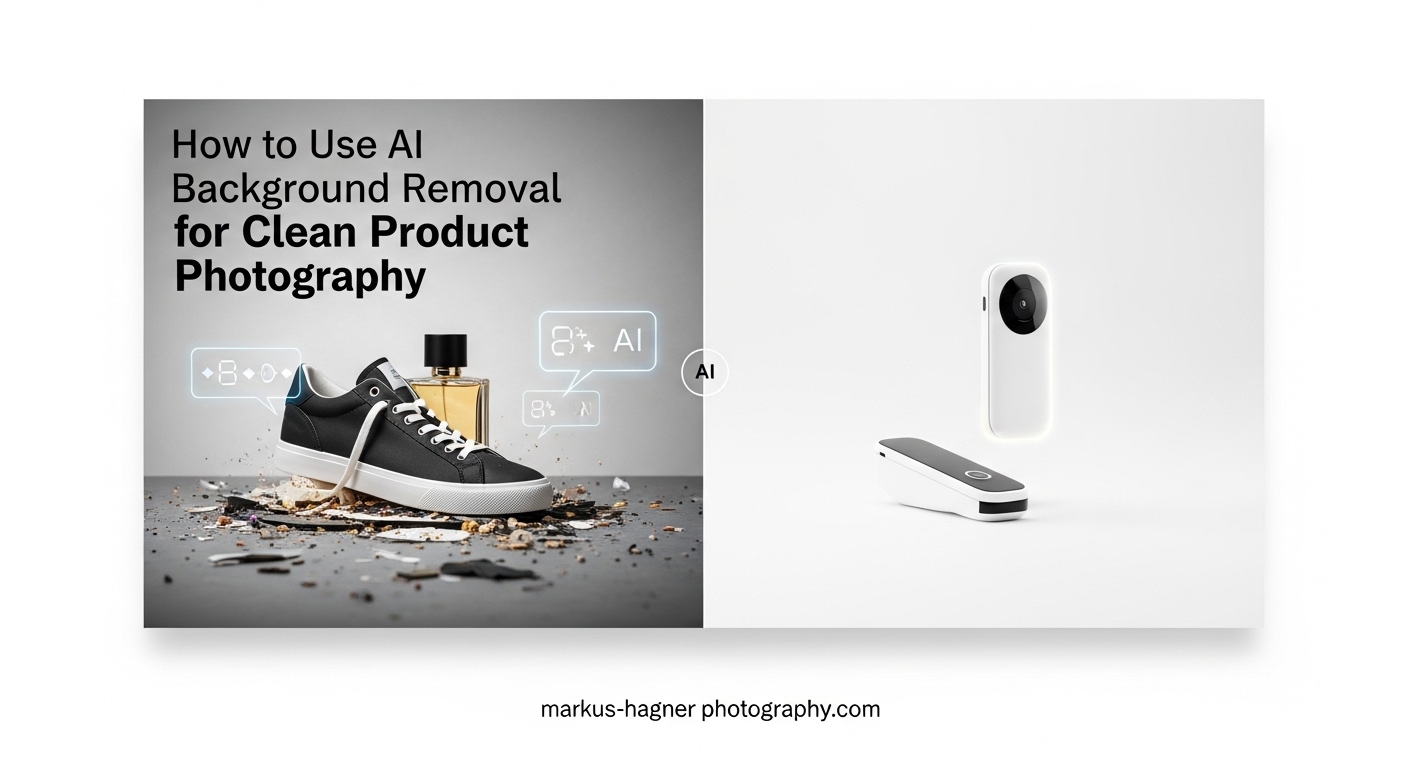
Yes, AI can remove backgrounds from photos automatically using deep learning algorithms that identify your product and separate it from the background. Modern AI background removers process images in seconds, handling complex edges, fine details, and even transparent objects with impressive accuracy.
In this guide, I will show you exactly how to use AI background removal for clean product photography. You will learn which pre-shoot techniques make AI removal easier, which tools work best for different product types, and my complete step-by-step workflow from photo to final cutout.
After photographing products for over 15 years and testing dozens of AI tools, I have developed a workflow that combines good photography fundamentals with smart AI processing. The result is professional product images that meet marketplace requirements without hours of manual editing.
Why AI Background Removal Matters for Product Photography?
Clean product images directly impact your sales. Studies consistently show that professional product photos with clean backgrounds convert significantly better than amateur shots with distracting backgrounds. Every major e-commerce platform demands this level of quality.
Amazon requires pure white backgrounds (#FFFFFF) covering at least 85% of the image area. Shopify stores benefit from consistent, distraction-free product presentations. Social media ads perform better when the product stands out clearly. Meeting these requirements manually would mean hours in Photoshop for each product.
AI background removal has changed this equation entirely. What once took 15-30 minutes per image now happens in seconds. For product photographers and e-commerce store owners managing catalogs of hundreds or thousands of items, this time savings transforms what is possible.
When AI Background Removal Works Best
AI excels at removing backgrounds from well-lit product photos shot against simple, contrasting backgrounds. Products with clean edges, solid colors, and minimal transparency process flawlessly. The technology handles most consumer goods, electronics, apparel, and packaged products with excellent results.
The tools struggle most with extremely reflective surfaces like chrome or mirrors, transparent glass with complex refractions, and products with extremely fine details like hair or fur. Even in these challenging cases, AI gives you a strong starting point that requires minimal manual refinement.
When Manual Editing Still Wins
High-end advertising campaigns, luxury product launches, and artistic product photography still benefit from manual Photoshop work. When every pixel matters and budgets allow for premium post-production, skilled retouchers deliver results that AI cannot yet match.
However, for 90% of e-commerce product photography, AI background removal now produces professional-quality results. The key is knowing how to shoot for AI success and choosing the right tool for your specific needs.
Pre-Shoot Preparation: Setting Up for AI Success
The biggest mistake I see photographers make is treating AI background removal as a fix for poor photography. The best results come from shooting with AI in mind from the start. A few simple preparation steps dramatically improve your AI cutout quality.
Lighting Setup for Clean Background Removal
Consistent, diffused lighting makes AI detection significantly more accurate. I recommend using large softboxes or diffusion panels that wrap light evenly around your product. This eliminates harsh shadows that confuse AI algorithms and creates the clean separation between subject and background that produces perfect cutouts.
Set your lights to 5600K daylight balance for consistency. Mixed color temperatures create subtle color casts on white backgrounds that complicate removal. If shooting on white seamless paper, light the background separately and slightly brighter than your subject for pure white backgrounds right out of camera.
Avoid light spill from your background onto your product. This creates a halo effect that makes clean edge detection difficult. Position your product far enough from the background (at least 3-4 feet) and use flags or barn doors to control your lighting precisely.
Camera Settings That Optimize AI Results
Lock your white balance before shooting. Auto white balance shifts between frames, creating color inconsistencies that complicate batch processing. I shoot at 5600K to match my daylight-balanced LEDs, ensuring color consistency across entire product catalogs.
Shoot at your camera’s native ISO for maximum image quality. Higher ISOs introduce noise that AI tools may interpret as detail, creating rough edges on cutouts. Use a tripod and longer exposures rather than cranking ISO when light is limited.
Capture at the highest resolution your camera supports. I recommend 8K-ready source images whenever possible, even if your final output is much smaller. The extra detail gives AI algorithms more information for accurate edge detection, and you preserve flexibility for cropping and different platform requirements.
Shoot in RAW format for maximum flexibility. RAW files contain more color and detail information than JPEGs, giving you better results when making exposure or color corrections before background removal.
Background Choice Tips
Choose backgrounds that contrast with your product color. A white product on a white background challenges even the best AI. For light products, use gray or colored backgrounds. For dark products, white backgrounds provide excellent contrast.
Keep backgrounds simple and uncluttered. Busy patterns, texture variations, and multiple colors confuse AI detection algorithms. Solid-colored seamless paper or fabric backgrounds work best for consistent results.
For reflective products like jewelry or electronics, gray backgrounds often work better than pure white. The neutral gray reduces reflections and provides better contrast for edge detection. You can always replace the gray with white during processing.
AI Background Removal Tools Compared
I have tested every major AI background removal tool over the past three years. Here is my honest assessment of the options available in 2026, categorized by use case and budget.
Best Free AI Background Removers
Remove.bg remains the most reliable free option for single images. The algorithm handles most product types well, with particularly strong performance on simple products with clean edges. The free tier includes standard resolution output with a small credit system.
PhotoRoom excels on mobile devices, especially iOS. The app produces blur-free background generation and handles complex products surprisingly well. Many photographers I know use PhotoRoom for quick social media content directly from their phones.
PixelCut offers impressive free background removal with particularly strong handling of fine details like hair and fabric edges. The browser-based tool requires no signup and produces watermark-free results at good resolution.
Canva includes background removal in its free tier for basic use cases. If you already use Canva for design work, the integrated tool streamlines your workflow. Results are solid for simple products but lack the refinement of dedicated tools.
Best Professional Options
Adobe Photoshop with Firefly delivers the highest quality results for professional work. The generative AI understands complex products and produces clean edges that rarely need manual touch-up. The tool integrates seamlessly with existing Photoshop workflows, making it the natural choice for photographers already in the Adobe ecosystem.
Adobe Express with Firefly offers similar quality in a more accessible interface. This web-based option works well for photographers who need professional results without opening full Photoshop. The generative capabilities also allow for creative background replacement beyond simple removal.
Best for Product Photography
Flair.ai specializes specifically in product photography backgrounds. Beyond simple removal, the tool generates professional product photography backgrounds with realistic lighting and shadows. This works particularly well for lifestyle product shots and social media content.
Photoroom (paid tier) offers batch processing capabilities essential for larger catalogs. The pro features include higher resolution output, custom background templates, and API access for automation. E-commerce store owners managing hundreds of products find this particularly valuable.
How to Choose the Right Tool
Consider three factors when selecting your AI background removal tool: product complexity, volume, and final use case. Simple products in small quantities work fine with free tools. Large catalogs benefit from paid batch processing. Professional advertising work demands premium tools like Photoshop Firefly.
Test several tools on your specific product types before committing. The tool that works perfectly for electronics might struggle with apparel. Most tools offer free trials or free tiers that let you evaluate quality on your actual products.
How to Remove Backgrounds from Product Photos: Step-by-Step Workflow
Here is my complete workflow for AI background removal. Follow these steps for consistent, professional results every time.
Step 1: Prepare Your Photo
Start with a well-lit product photo shot using the preparation techniques covered earlier. Check that your exposure is correct, white balance is consistent, and the product has clear separation from the background. Open your image in your preferred editing software for any necessary color or exposure corrections.
Crop your image to focus on the product with minimal wasted space. Tighter crops give AI algorithms less background to process and often produce cleaner results. Leave a small margin around the product for natural-looking final compositions.
Save your corrected image in a high-quality format. I recommend PNG or TIFF for maximum quality, though most AI tools accept JPEG as well. Avoid heavy compression that introduces artifacts.
Step 2: Choose the Right AI Tool
Select your tool based on product type and requirements. For simple products heading to Amazon, Remove.bg or PhotoRoom work excellently. For complex products or creative backgrounds, Photoshop Firefly gives you the most control. For large batch jobs, Photoroom or similar batch-capable tools save significant time.
Consider your output needs at this stage. If you need transparent backgrounds, confirm your tool supports PNG-24 output with alpha channels. If you need pure white for Amazon, look for tools that generate clean white backgrounds without gray tones.
Step 3: Upload and Process
Upload your prepared image to your chosen AI tool. Most tools accept drag-and-drop uploads or file browsing. Select your output preferences before processing: transparent background, white background, or custom background replacement.
Choose the highest resolution output available. Even if your final use requires smaller images, starting with maximum resolution preserves detail for future needs. Most tools process in under 10 seconds for standard product photos.
Step 4: Review and Refine Edges
Carefully examine the AI output at 100% magnification or higher. Check edges around the entire product for clean separation. Look for halo effects, rough edges, or areas where the AI clipped parts of the product.
Most tools offer refinement brushes for fixing problem areas. Use soft-edged brushes for natural-looking corrections along curved edges. For fine details like fabric fringe or hair, some tools offer specialized detail preservation that recovers these elements.
If the AI missed any areas or included background elements, use the erase and restore tools available in most platforms. This manual touch-up typically takes 30 seconds to 2 minutes for most product photos.
Step 5: Handle Shadows
Decide whether your product needs a shadow for realistic presentation. Products photographed on surfaces naturally cast shadows, and removing these completely creates a floating appearance that looks unnatural.
Contact shadows (shadows directly beneath the product where it touches the surface) should usually be preserved or recreated. These shadows ground the product visually and add credibility to the image. Many AI tools offer shadow preservation options specifically for this purpose.
Cast shadows (shadows extending away from the product) depend on your use case. Amazon product photos typically use no cast shadows, while lifestyle product shots benefit from subtle shadowing. If your AI tool removed shadows you want to keep, most professional tools allow you to add realistic shadows back.
Step 6: Export in the Right Format
Export your final image in the format appropriate for your use case. For maximum flexibility, export as PNG-24 with transparent background. This format supports full alpha channel transparency and works across all platforms.
For Amazon and marketplaces requiring white backgrounds, export as JPEG with pure white (#FFFFFF) background. Use minimal compression (quality setting 90 or higher) to preserve detail.
Size your export for the target platform. Amazon recommends images at least 1000 pixels on the longest side for zoom functionality. Social media platforms have their own optimal sizes. Save your full-resolution master file separately for future repurposing.
Advanced Techniques for Professional Results
Once you master the basic workflow, these advanced techniques help you handle challenging products and scale your production.
Handling Transparent and Reflective Products
Glass, jewelry, chrome, and other transparent or reflective products challenge most AI tools. The key is shooting these products against contrasting backgrounds that define their edges clearly. For clear glass, gray backgrounds often work better than white, as the AI can detect the subtle tonal differences.
Process these products at the highest resolution available. The additional detail helps AI algorithms distinguish product edges from reflections. Expect to spend more time on manual refinement for these challenging items.
Some photographers find success shooting reflective products with colored gels on background lights, creating a distinct color cast that defines edges. The color is then removed or replaced during processing.
Batch Processing Workflows
For catalogs of 50 or more products, batch processing becomes essential. Tools like Photoroom, Remove.bg API, and Adobe Express support bulk uploads that process dozens of images simultaneously.
Maintain consistency across batches by using identical camera settings, lighting setups, and processing parameters. Create presets in your chosen tool that apply the same background color, shadow settings, and output specifications to every image.
Build quality control into your batch workflow. Review a sample of processed images before running the full batch. After processing, spot-check 10-20% of images at full resolution to catch any systematic issues.
Combining AI with Manual Refinement
The most efficient workflow often combines AI speed with manual precision. Let AI handle 95% of the work, then use Photoshop or similar tools for final refinement. This hybrid approach delivers professional results in a fraction of purely manual editing time.
Focus manual work on problem areas: complex edges, transparent sections, and fine details. Most products require less than 2 minutes of manual work after AI processing when shot correctly.
Quality Optimization and Common Issues
Even with good technique, issues arise. Here is how to identify and fix the most common problems.
Quality Control Checklist
Before finalizing any product image, check these elements: edge cleanliness at 100% magnification, accurate product color without color casts from backgrounds, proper shadow handling (no floating appearance), correct output format for target platform, and appropriate resolution for intended use.
For batch processing, create a formal checklist and review a percentage of images from each batch. Systematic quality control prevents issues from reaching your live product listings.
Common Mistakes to Avoid
The biggest mistake is relying on AI to fix poor photography. Garbage in, garbage out applies strongly to AI background removal. Invest time in proper lighting and camera technique for dramatically better AI results.
Another common error is ignoring platform requirements. Amazon has specific image requirements that differ from Shopify, which differs from Instagram. Understand your target platform specifications before processing.
Saving at too low resolution or high compression ruins otherwise good work. Always export at high quality settings and maintain full-resolution master files.
Platform-Specific Optimization
Amazon requires pure white (#FFFFFF) backgrounds on at least 85% of the image area. Images must be at least 1000 pixels on the longest side for zoom. No additional text, watermarks, or embedded graphics are allowed.
Shopify stores benefit from consistent image sizes across all products. Choose a standard size (typically 2048×2048 pixels) and crop all product images to match. This creates a professional, organized catalog appearance.
Social media platforms prefer square or vertical formats. Consider exporting product images in multiple aspect ratios to optimize for different platforms. Transparent backgrounds work well for social media, allowing flexible placement over various backgrounds.
Frequently Asked Questions
Can AI remove the background of a photo?
Yes, AI can remove backgrounds from photos automatically. Modern AI tools use deep learning algorithms trained on millions of images to identify subjects and separate them from backgrounds. These tools process most product photos in under 10 seconds with accuracy that rivals manual Photoshop work for straightforward products.
Which AI is best for product photography?
The best AI depends on your needs. For free single-image processing, Remove.bg offers reliable results. For professional work, Adobe Photoshop with Firefly delivers the highest quality. For batch processing large catalogs, Photoroom provides excellent automation. Test tools on your specific product types before committing.
How do I remove the background for product photos?
Remove backgrounds by following these steps: 1) Prepare your photo with good lighting and simple background, 2) Choose an AI tool matching your needs, 3) Upload and process the image, 4) Review and refine edges at 100% magnification, 5) Add shadows if needed, 6) Export in the correct format for your platform.
How can I use AI to clean up a photo?
AI offers several photo cleanup options beyond background removal. Generative fill tools can remove unwanted objects, extend backgrounds, and fix blemishes. Enhancement tools can improve sharpness, reduce noise, and correct colors. Most AI photo editors combine multiple cleanup features in one workflow.
Will product photography be replaced by AI?
No, AI will not replace product photography entirely. While AI dramatically speeds up editing and background removal, it cannot replace proper lighting technique, artistic composition, or accurate representation of physical products. AI is a powerful tool that enhances professional photography rather than replacing it.
What is the best AI photo background remover?
The best background remover varies by use case. Remove.bg leads for speed and reliability on simple products. Adobe Photoshop Firefly excels for professional quality and complex products. PhotoRoom dominates mobile workflows. PixelCut handles fine details like hair and fabric exceptionally well.
Should I preserve shadows when removing backgrounds?
Usually yes. Contact shadows (shadows directly beneath products) should be preserved or recreated to avoid the floating appearance that looks unnatural. Cast shadows depend on your platform. Amazon listings typically use no cast shadows, while lifestyle product shots benefit from subtle shadowing for realism.
Conclusion
AI background removal has transformed product photography workflows. What once required hours of manual Photoshop work now happens in seconds with accuracy that meets professional standards. The key to success lies in combining good photography fundamentals with smart AI tool selection.
Start with proper pre-shoot preparation. Consistent lighting, appropriate camera settings, and thoughtful background choices dramatically improve AI results. Choose your AI tool based on product complexity, volume needs, and final use case. Follow the step-by-step workflow consistently for reproducible professional results.
Remember that AI enhances rather than replaces good photography. The best results come from photographers who understand both their craft and their tools. Use AI background removal as part of your complete product photography workflow, and you will produce clean, professional images that meet marketplace requirements and drive conversions.