
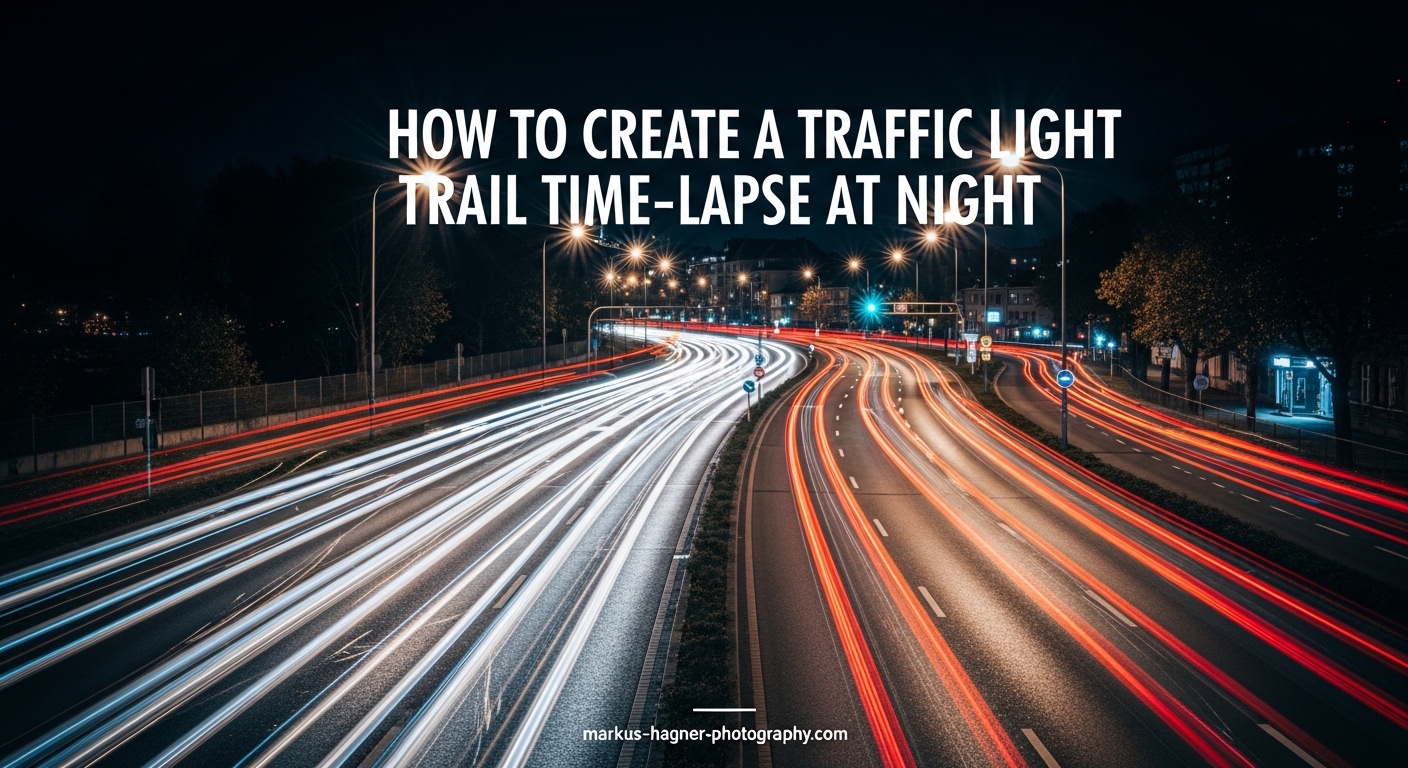
Creating a traffic light trail time-lapse at night transforms ordinary city streets into mesmerizing ribbons of flowing light. This technique combines long exposure photography with time-lapse video to capture the hidden patterns of urban traffic that our eyes never see. In this guide, I will walk you through everything you need to know about how to create a traffic light trail time-lapse at night, from essential equipment to camera settings and post-processing techniques.
The magic of light trail photography lies in its ability to freeze motion into elegant streaks of color. When you combine this with time-lapse, you create a dynamic sequence that shows the rhythm and pulse of city life. Whether you are photographing a busy intersection, a winding highway, or a quiet suburban street, the results can be stunning.
After shooting night time-lapses for years, I have learned that success comes down to three things: solid technique, patience, and understanding how your camera handles long exposures. This guide covers all of that plus the troubleshooting tips I wish I had when starting out.
Essential Equipment for Traffic Light Trail Time-Lapse
Creating professional-looking traffic light trail time-lapses does not require expensive gear, but you do need a few key pieces of equipment. Here is what I consider essential for this type of photography.
Camera with Manual Controls
Any camera that offers full manual control over shutter speed, aperture, and ISO will work for light trail time-lapse photography. DSLRs and mirrorless cameras are ideal because they typically handle long exposures well and offer RAW capture. However, many advanced compact cameras and even some smartphones can produce excellent results.
The key features to look for include manual mode (M), bulb mode for exposures longer than 30 seconds, and the ability to shoot in RAW format. RAW files give you much more flexibility during post-processing, especially when dealing with challenging lighting conditions.
Sturdy Tripod
A rock-solid tripod is non-negotiable for traffic light trail time-lapse photography. Since you will be shooting exposures of 2-10 seconds, any camera movement will ruin your shots. I recommend a tripod that can support at least twice the weight of your camera and lens combination.
When shooting in urban environments, look for tripods with spiked feet or the ability to add weight for extra stability. Carbon fiber tripods are excellent because they dampen vibrations better than aluminum. If you cannot afford a high-end tripod, even a budget model will work as long as you avoid extending the center column and use a remote shutter release.
Intervalometer or Remote Shutter Release
An intervalometer is a device that automatically triggers your camera at set intervals. This is essential for time-lapse photography because it allows you to capture hundreds of frames without manually pressing the shutter each time. Many cameras have built-in intervalometers, but external units offer more control and flexibility.
For beginners without an intervalometer, a simple remote shutter release can work if you are patient enough to trigger each shot manually. Some cameras also allow smartphone control through manufacturer apps, which can function as basic intervalometers.
Lens Recommendations
Wide-angle lenses work best for traffic light trail time-lapse because they capture more of the scene and create more dramatic perspectives. Lenses in the 14-35mm range on full-frame cameras (or 10-24mm on crop sensors) are popular choices.
Fast lenses with maximum apertures of f/2.8 or wider are not necessary for this type of photography since you will typically shoot at smaller apertures. A standard kit lens often works perfectly fine. What matters more is sharpness across the frame and minimal distortion.
Optional but Helpful Gear
ND filters can extend your exposure times during twilight hours or in brightly lit urban areas. A 3-stop or 6-stop ND filter gives you more flexibility when shooting before complete darkness. Motion control equipment like motorized sliders adds cinematic movement to your time-lapses but is not essential for beginners.
Budget alternatives exist for most equipment. A bag of rice or beans can stabilize a camera in a pinch. Smartphone apps can replace dedicated intervalometers. The important thing is to start with what you have and upgrade as your skills develop.
Finding the Perfect Location for Night Time-Lapse
Location selection can make or break your traffic light trail time-lapse. The right spot offers interesting compositions, consistent traffic flow, and a safe shooting position. Here is how I approach finding and scouting locations.
Types of Locations That Work Best
Elevated positions provide the most dramatic perspectives for traffic light trail time-lapse. Overpasses, parking garages, hills, and bridges allow you to capture multiple lanes of traffic and show the patterns of light flowing through the scene. These elevated angles also keep you safely separated from moving vehicles.
Intersections create complex patterns of crossing light trails that can be visually striking. Look for busy four-way intersections with traffic signals that create predictable stopping and starting patterns. The red and green light cycles add natural variety to your light trails.
Curved roads and highway on-ramps produce elegant S-curves of light that look especially cinematic. Long straight roads can work too, but they tend to create less interesting compositions unless you position yourself at an angle.
Safety Considerations for Urban Night Shooting
Safety should be your top priority when shooting traffic light trail time-lapse at night. Never set up your tripod on active roadways or in positions where drivers might not see you. Even on sidewalks, be aware of your surroundings and keep your equipment close.
I always tell photographers to scout locations during daylight first. This lets you identify safe shooting positions, check sight lines, and plan compositions without the pressure of darkness. You will also notice potential hazards like uneven surfaces, construction zones, or areas with poor visibility.
Consider shooting with a companion, especially in unfamiliar areas. Let someone know your planned location and expected return time. Carry a charged phone and basic safety equipment like a flashlight and reflective clothing.
Composition Tips
Strong compositions elevate traffic light trail time-lapse from snapshots to art. Look for foreground elements like buildings, trees, or architectural features that anchor the frame. Leading lines from roads, bridges, or sidewalks naturally draw the eye through the image.
Consider how light trails will interact with stationary elements in your scene. Streetlights, building windows, and neon signs add context and visual interest. The contrast between moving and static lights creates depth and tells a story about the urban environment.
Camera Settings for Light Trail Time-Lapse Photography
Getting your camera settings right is crucial for capturing smooth, streak-free light trails. The settings I recommend are based on years of experimentation and the collective wisdom of the night photography community.
Shoot in Manual Mode
Manual mode (M) gives you complete control over exposure, which is essential for consistent time-lapse results. Automatic modes will change exposure between frames, causing distracting flicker in your final video. In manual mode, every shot has identical settings, producing a smooth, professional-looking time-lapse.
Shutter Speed for Light Trails
Shutter speed is the most critical setting for traffic light trail time-lapse photography. You need exposures long enough to turn moving headlights and taillights into continuous streaks. Through extensive testing, I have found that 2.5 to 5 seconds produces the smoothest light trails in most situations.
Shorter exposures around 1-2 seconds create choppy, broken trails that look less fluid. Longer exposures beyond 10 seconds can cause trails to overlap and lose definition, especially in heavy traffic. The sweet spot depends on traffic speed, distance from the road, and the look you want to achieve.
For highways with faster-moving traffic, try 2-3 second exposures. For slower city streets, 4-6 seconds often work better. Experiment with different shutter speeds to find what works best for your specific location.
Aperture Settings
Aperture controls depth of field and affects exposure time. For traffic light trail time-lapse, apertures between f/8 and f/11 typically produce the best results. These middle apertures offer good depth of field while maintaining lens sharpness.
Shooting at smaller apertures like f/16 or f/22 can create attractive starburst effects from point light sources, but diffraction may soften your images. Larger apertures like f/2.8 reduce depth of field and may require shorter shutter speeds or lower ISO settings.
I usually start at f/8 and adjust based on the scene. If I want starburst effects from streetlights, I will stop down to f/11 or f/16. If I need more light, I might open up to f/5.6 while monitoring edge sharpness.
ISO Settings
Keep your ISO as low as possible to minimize noise in your images. ISO 100 or 200 is ideal for most cameras. Some modern cameras handle ISO 400 or even 800 with acceptable noise levels, but higher ISOs will always introduce more grain.
The long exposure noise reduction feature in your camera can help, but it doubles your shooting time by taking a dark frame after each exposure. For time-lapse work, I prefer to shoot without in-camera noise reduction and handle noise in post-processing instead.
White Balance Settings
White balance significantly affects the mood of your traffic light trail time-lapse. Auto white balance will produce inconsistent results as different colored lights enter and leave the frame. Setting a custom white balance in Kelvin ensures consistency across all frames.
For urban night scenes, I typically use Kelvin values between 3200K and 4500K. Lower values around 3200K produce warmer tones that complement the orange glow of sodium vapor streetlights. Higher values around 4500K create cooler, more neutral colors.
Shooting in RAW gives you the flexibility to adjust white balance in post-processing, but starting with a consistent in-camera setting makes batch processing much easier.
Focus Techniques for Night Photography
Achieving sharp focus at night challenges many photographers. Autofocus systems struggle in low light, often hunting endlessly or focusing on the wrong subject. Manual focus is the reliable solution for traffic light trail time-lapse.
Use live view and zoom in on a distant light source like a streetlight or building window. Adjust focus manually until the light appears as a sharp point. Some photographers prefer to focus during daylight or twilight and tape the focus ring in position.
If your lens has a distance scale, setting focus just short of infinity often produces the sharpest results for night scenes. The hyperfocal distance at f/8 typically falls around 10-15 feet for wide-angle lenses, giving you good depth from foreground to infinity.
File Format: Why RAW Matters
Always shoot in RAW format for traffic light trail time-lapse photography. RAW files contain significantly more information than JPEGs, giving you greater flexibility in post-processing. You can recover details from shadows, adjust white balance, and apply noise reduction without degrading image quality.
RAW files do require more storage space and post-processing time, but the quality benefits are worth it. A typical RAW file from a 24-megapixel camera is 25-35MB compared to 8-12MB for a high-quality JPEG.
Settings Comparison for Different Scenarios
Different shooting conditions call for different settings. Here is a quick reference for common scenarios:
For busy city intersections: ISO 100, f/8, 4-6 second shutter speed, white balance 3800K. For highways with fast traffic: ISO 100, f/8, 2-3 second shutter speed, white balance 4000K. For twilight transitions: ISO 200, f/5.6, 3-5 second shutter speed, adjust white balance as light changes. For extremely dark locations: ISO 400, f/5.6, 6-10 second shutter speed, white balance 3200K.
Step-by-Step Guide: How to Create a Traffic Light Trail Time-Lapse at Night In 2026?
Now that you understand the equipment and settings, let me walk you through the complete process of creating a traffic light trail time-lapse at night. Follow these steps for consistent, professional results.
Step 1: Scout Your Location During Daylight
Visit your planned shooting location during the day to identify the best compositions and safe shooting positions. Look for elevated positions with clear sight lines to traffic. Note where streetlights, buildings, and other static elements fall in the frame. Check for potential obstructions like trees or power lines.
Take test shots with your phone or camera to preview compositions. This saves time when you return at night and helps you plan exactly where to set up your tripod.
Step 2: Arrive Early and Set Up
Arrive at your location at least 30 minutes before you plan to start shooting. This gives you time to set up equipment, refine your composition, and make any necessary adjustments before darkness falls.
Extend your tripod legs fully and position it on stable ground. Avoid extending the center column if possible, as this reduces stability. Attach your camera and level the tripod head so your horizon line is straight.
Step 3: Compose Your Shot
Frame your composition carefully, considering how light trails will flow through the scene. Look for foreground elements that add depth and context. Ensure that moving traffic will create interesting patterns within your frame.
Take a test shot to check your composition and exposure. Review the image on your camera’s LCD and zoom in to check focus and detail. Make any necessary adjustments before proceeding.
Step 4: Configure Your Camera Settings
Set your camera to manual mode and dial in your exposure settings. Start with ISO 100, f/8, and a 4-second shutter speed as a baseline. Adjust based on the brightness of your scene and the speed of traffic.
Set your white balance to a fixed Kelvin value between 3200K and 4500K. Switch to manual focus and carefully focus on a distant light source using live view. Enable RAW capture and disable long exposure noise reduction.
Step 5: Set Up Your Intervalometer
Configure your intervalometer to capture frames at regular intervals. For traffic light trail time-lapse, the interval between shots should be slightly longer than your shutter speed to allow the camera to write each file. If your shutter speed is 4 seconds, set an interval of 5-6 seconds.
Most time-lapse photographers aim for 24-30 frames per second in the final video. To create a 10-second video at 24fps, you need 240 frames. At a 6-second interval, capturing 240 frames takes about 24 minutes.
Step 6: Start Capturing and Monitor
Start your intervalometer and let it run. Avoid touching or bumping the tripod during shooting, as even small vibrations can blur your images. Monitor the first few frames on your camera’s LCD to ensure everything is working correctly.
Check exposure periodically, especially if you are shooting during a day-to-night transition. If the light changes significantly, you may need to adjust settings mid-shoot, though this can cause exposure jumps in your final video.
Step 7: Handle Day-to-Night Transitions
Day-to-night transitions add dramatic impact to traffic light trail time-lapse but require special handling. The challenge is that exposure requirements change dramatically as daylight fades. There are two approaches: fixed exposure or exposure ramping.
Fixed exposure is simpler but produces a jarring transition where the image suddenly goes dark or bright. Set your exposure for the night portion and accept that the beginning of the sequence will be overexposed.
Exposure ramping gradually adjusts settings throughout the shoot for a smooth transition. Some advanced intervalometers handle this automatically. Alternatively, you can manually adjust ISO or shutter speed at regular intervals, though this requires careful timing.
Step 8: Wrap Up and Backup Your Images
Once you have captured enough frames, stop your intervalometer and review your images. Check that focus is sharp, exposure is consistent, and light trails look smooth. Back up your images to a portable hard drive or cloud storage before leaving the location.
I always take a few extra minutes to shoot some static long exposure frames from the same position. These single images often turn out better than individual time-lapse frames and give you more creative options.
Post-Processing Your Traffic Light Trail Time-Lapse
Post-processing transforms your raw sequence of images into a polished time-lapse video. The workflow involves organizing files, applying consistent edits, deflickering, and compiling the final video.
Importing and Organizing Images
Transfer your images to your computer and organize them in a dedicated folder. I recommend keeping the original files untouched and working on copies. Most time-lapse software can work directly from RAW files, which gives you maximum flexibility.
Review your sequence and delete any frames with obvious problems like camera shake, focus errors, or unexpected obstructions. A few bad frames can ruin an otherwise perfect time-lapse.
Basic RAW Adjustments
Apply consistent adjustments across all frames in your sequence. Start with white balance correction if needed, then adjust exposure, highlights, shadows, and contrast. The goal is to enhance the image while maintaining consistency from frame to frame.
In Lightroom or similar software, edit one representative frame to your liking, then sync those settings across all images in the sequence. Avoid aggressive adjustments that might amplify noise or create artifacts.
Deflickering Techniques
Flickering is a common problem in time-lapse videos, caused by slight exposure variations between frames. Even with manual settings, small fluctuations in light levels can produce noticeable flicker in the final video.
Deflickering software analyzes your sequence and smooths out exposure variations. LRTimelapse is the industry standard for this purpose and works seamlessly with Lightroom. Free alternatives include VirtualDub with deflickering plugins and some video editing software with built-in tools.
The deflickering process typically involves analyzing the luminance values across your sequence and applying corrections to normalize exposure. This step can dramatically improve the professional appearance of your final video.
Compiling Your Time-Lapse Video
Once your images are edited and deflickered, compile them into a video file. Most software lets you set the frame rate, with 24fps or 30fps being standard choices. Export your video in a high-quality format like ProRes or H.265.
Popular software options include Adobe Premiere Pro, DaVinci Resolve (free version available), LRTimelapse, and dedicated time-lapse applications. Each offers different features and learning curves, so choose based on your needs and budget.
Adding Finishing Touches
Consider adding subtle color grading, stabilization if needed, and a soundtrack to enhance your time-lapse. Keep edits minimal to preserve the natural beauty of the light trails. Many photographers add a slight vignette to draw attention to the center of the frame.
Common Problems and How to Fix Them In 2026?
Even experienced photographers encounter problems when shooting traffic light trail time-lapse at night. Here are the most common issues and their solutions.
Flickering in Final Video
Flickering usually results from exposure variations between frames. Prevent it by shooting in manual mode with fixed settings. Fix existing flicker using deflickering software like LRTimelapse or built-in tools in your video editor.
Choppy or Broken Light Trails
Broken trails indicate shutter speeds that are too short. Increase your exposure time to 4-6 seconds for smoother, continuous light trails. The exact timing depends on traffic speed and distance from the road.
Camera Shake Despite Using Tripod
Camera shake can occur from wind, passing vehicles, or even pressing the shutter button. Use a remote shutter release or timer delay to avoid touching the camera. Add weight to your tripod for stability, and shoot from positions protected from wind.
Focus Drift During Long Shoots
Some lenses experience focus drift during extended shoots, especially as temperature changes. Use gaffer tape to secure the focus ring after achieving sharp focus. Check focus periodically throughout your shoot.
Overexposed or Underexposed Frames
Incorrect exposure ruins time-lapse sequences. Always review your first few frames and check the histogram. Adjust ISO, aperture, or shutter speed as needed before committing to a long shooting session.
Frequently Asked Questions
What is the best shutter speed for light trails?
The best shutter speed for light trails is typically between 2.5 and 5 seconds. This range creates smooth, continuous streaks from moving vehicle lights without overexposing the scene. Shorter exposures produce choppy, broken trails, while longer exposures can cause trails to overlap and lose definition. For highways with faster traffic, use 2-3 seconds. For slower city streets, try 4-6 seconds.
How do I do a night timelapse?
To do a night timelapse, mount your camera on a sturdy tripod, set manual mode with ISO 100-400, aperture f/8-f/11, and shutter speed 2-6 seconds. Use an intervalometer to capture frames every 5-10 seconds. Shoot in RAW format with fixed white balance. Capture at least 240 frames for a 10-second video at 24fps. Process images consistently and compile using time-lapse software.
How do I capture light trails on camera?
To capture light trails on camera, use a tripod and set your camera to manual mode. Select a slow shutter speed of 2-10 seconds to blur moving lights into continuous streaks. Set aperture to f/8-f/11 and ISO to 100-200. Focus manually on a distant light source using live view. Use a remote shutter or timer to avoid camera shake. Shoot during or after twilight when the sky is dark enough for long exposures.
How do I timelapse day to night?
To timelapse day to night, start shooting before sunset and continue into darkness. The main challenge is changing exposure requirements. Use exposure ramping with an advanced intervalometer that gradually adjusts settings, or manually adjust ISO or shutter speed at regular intervals. Set your final exposure for night conditions and accept some overexposure at the beginning. Use deflickering software in post-production to smooth the transition.
What equipment do I need for light trail photography?
Essential equipment for light trail photography includes a camera with manual controls, a sturdy tripod, and a remote shutter release or intervalometer. A wide-angle lens (14-35mm on full frame) works best for capturing traffic scenes. Optional but helpful gear includes ND filters for extended exposures during twilight and motion control equipment for added cinematic movement. Budget alternatives include smartphone apps for intervalometer functions and improvised stabilization methods.
Conclusion
Creating a traffic light trail time-lapse at night combines technical skill with artistic vision. The process requires patience, practice, and attention to detail, but the results can be truly stunning. From selecting the right location to configuring camera settings and processing your final video, each step contributes to the quality of your time-lapse.
Remember that mastering this technique takes time. Your first attempts may not match your vision, but each shoot teaches you something new. Experiment with different locations, shutter speeds, and compositions to develop your own style. The photographers who create the most compelling light trail time-lapses are those who keep shooting and learning.
Start with the basic settings and techniques covered in this guide, then push your creativity as your confidence grows. Before long, you will be transforming ordinary city nights into extraordinary visual stories through the magic of traffic light trail time-lapse photography.