
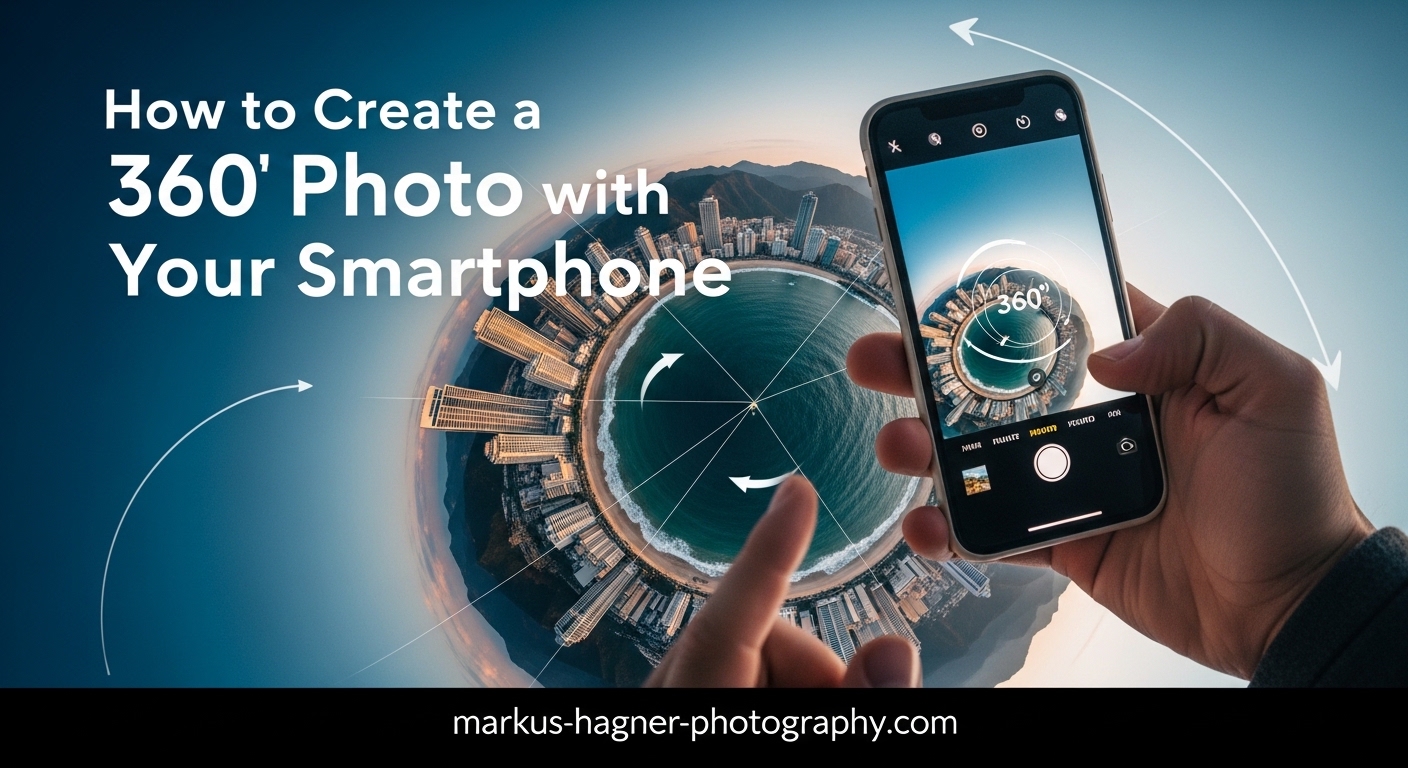
A few months ago, a real estate agent I know was losing listings to competitors who offered virtual tours. She didn’t own a dedicated 360 camera, and she wasn’t about to spend hundreds of dollars on one. So I showed her how to create a 360 photo using just her smartphone — and within a week, she had interactive walkthroughs on three property listings.
That’s the thing about 360 photography: it feels more technical than it actually is. Your smartphone already has everything you need. You just need to know which app to use, how to move, and what to avoid.
In this guide, I’ll walk you through the exact process for both iPhone and Android, cover the free apps that actually work in 2026, explain the common mistakes that ruin stitching quality, and show you how to share your finished 360 photos to Google Maps, social media, and property listing platforms.
What Is a 360 Photo? (And Why Bother)
A 360 photo — also called a photosphere or spherical image — captures everything around the camera at once: front, back, sides, up, and down. The result is a single image that viewers can pan through interactively, as if they’re standing inside the scene.
Under the hood, your phone takes dozens of overlapping photos and stitches them together into an equirectangular image — a flat, stretched representation of a sphere. When you view it through Google Maps, Facebook, or a VR headset, the software wraps that image back into a sphere.
The reasons people search for this technique tend to fall into a few clear categories: real estate agents creating property listings, Airbnb hosts and Booking.com sellers building room tours, photographers adding immersive content to their portfolios, and people who just want something more interesting than a flat panorama. All of them can get solid results with just a smartphone.
Best Apps for Creating 360 Photos on Your Smartphone In 2026
This is where people get stuck first, and honestly, it’s gotten more complicated in 2026. The Google Street View app — which was the go-to free option for years — has been discontinued as a standalone app. I’ll explain your best alternatives below.
For iPhone (iOS)
The built-in Panorama mode in the native Camera app is a starting point, but it only captures a wide panorama, not a full 360-degree sphere. To get a true photosphere on iPhone, you need a third-party app.
Google Street View (via Google Maps): Google folded Street View capture into the Google Maps app. Tap your profile icon, select “Your contributions,” then “Add to Street View.” This still works as of 2026 and is the most reliable free option for iOS.
Panorama 360 Camera: Available on the App Store. Some Reddit users report inconsistent stitching quality, but it’s free and works for basic use cases. For anything client-facing, I’d push for the Google Maps method instead.
Insta360 App (without the camera): The Insta360 app has a “Shotlab” mode that stitches together multiple photos captured with your regular phone camera. Results are decent for indoor spaces.
For Android (Samsung, Pixel, and Others)
Android users have better native options here. Google Pixel phones still include a built-in Photosphere mode in Google Camera, which is one of the easiest paths to a proper 360 photo.
Google Camera (Pixel phones): Open the app, swipe to “More” in the camera mode menu, and select “Photosphere.” This is the cleanest free workflow available on any smartphone.
Samsung Camera (360 Photo mode): Newer Samsung Galaxy devices include a “360 Photo” option in the camera modes. Look under “More” in the camera app. The results stitch automatically and export cleanly.
Google Maps contribution (all Android): Same as iPhone — go to your Google Maps profile, select “Your contributions,” and use the in-app 360 capture tool. Works on any Android device.
How to Create a 360 Photo Using Just Your Smartphone: Step by Step
The fundamental technique is the same regardless of which app or phone you use. These universal setup steps apply to every method below.
Before you start capturing, run through this checklist. It takes two minutes and prevents most of the problems people report.
- Clean your lens. Smudges become massive blurs in a 360 image. Wipe the lens with a microfiber cloth.
- Lock your exposure. In your camera app, tap and hold on a mid-tone area to lock exposure and focus. This prevents your phone from auto-adjusting brightness between shots, which causes visible seams.
- Disable HDR mode. HDR takes multiple exposures and merges them, which can cause ghosting artifacts when stitching. Turn it off.
- Enable grid lines. In camera settings, turn on the grid overlay. This helps you keep your phone at a consistent height and angle.
- Clear the area. Moving subjects (people, pets, cars) create ghosting in the final stitch. Ask people to step back, or wait for a clear moment.
Step-by-Step: Creating a 360 Photo on iPhone
This method uses the Google Maps contribution tool, which is the most reliable free option for iPhone in 2026. You’ll need the Google Maps app installed and a Google account.
Step 1: Open Google Maps and tap your profile photo in the top-right corner of the map view.
Step 2: Select “Your contributions,” then tap the “Add to Street View” option. This opens the 360 capture interface.
Step 3: Point your phone at the orange dot that appears on screen. The app guides you through a grid of capture positions. Hold still for about one second at each dot until it turns blue.
Step 4: Work from the horizon outward. Start by filling in the dots at eye level, then tilt down to capture the floor (the nadir), then tilt up for the ceiling or sky (the zenith). Don’t skip these — missing the top and bottom creates obvious black holes in the final image.
Step 5: Move smoothly and slowly. Fast movements create blur and stitching errors. Think of it as moving a camera on a smooth arc, not snapping it from point to point.
Step 6: Once all dots are filled, tap the checkmark. The app will stitch the image automatically. This takes 15–30 seconds.
Step 7: Review the preview. Pinch and drag in the preview to check for stitching seams. If you see obvious errors along a vertical line, the movement between those shots was too fast. You can delete and reshoot that section if the app allows it.
Step 8: Save or publish. You can publish directly to Google Maps, or save to your camera roll as a JPEG with embedded equirectangular metadata.
For iPhone stitching quality issues — which come up frequently in user forums — the main fix is slowing down your capture speed and making sure your exposure is locked before you start. iPhone cameras are aggressive about auto-adjusting, which causes brightness inconsistencies between shots.
Step-by-Step: Creating a 360 Photo on Android (Including Samsung and Pixel)
This guide covers Google Pixel’s Photosphere mode, which is the cleanest native method. Samsung users should follow the same logic but look for “360 Photo” in the camera modes menu instead.
Step 1: Open Google Camera on your Pixel. Swipe the mode selector at the bottom until you find “More,” then select “Photosphere.”
Step 2: Hold your phone vertically and position yourself where you want the center of the scene. A tripod is ideal here — more on that below — but handholding works for casual shots.
Step 3: Aim at the white dot in the center of the viewfinder. When you’re aligned, the dot turns orange and the app captures a frame.
Step 4: Follow the dot as it moves. The app directs you through a series of capture positions — it’s like a guided dot-to-dot exercise. Keep your body still and only rotate at the waist. Don’t walk between shots.
Step 5: Fill the rows from bottom to top. Most of the capture positions are at eye level. Once those are done, tilt down to capture the floor nadir, then tilt up for the ceiling zenith.
Step 6: Keep the app from timing out. If you pause too long between shots, the app may reset. Work at a steady pace — about one shot every 2–3 seconds is comfortable.
Step 7: Wait for auto-stitch. When all positions are filled, the app stitches automatically. You’ll see a preview in the Photos app tagged as a Photosphere.
Step 8: Review for stitching errors. Pay attention to straight lines (doorframes, table edges, window frames) — they should align cleanly across the seam. If they don’t, a parallax error likely occurred from moving your body between shots instead of just rotating.
For Samsung devices without Photosphere: the “360 Photo” mode works similarly but with a simpler dot grid. Follow the same exposure-lock and slow-rotation principles.
Tips for Getting Better Results
The difference between a usable 360 photo and a great one comes down to a handful of consistent habits. I’ve shot hundreds of these over the years, and these are the details that actually matter.
Use a Tripod — Even a Cheap One
You don’t need to spend much. A small phone tripod with a 360-degree head makes a significant difference in stitching quality because it eliminates the parallax error that happens when you handhold and your body’s center of gravity shifts slightly between shots. The camera needs to rotate around a single fixed point (the nodal point of the lens), not around your body.
If you’re handholding, keep your elbows tight to your sides, plant your feet, and rotate at the hips. Don’t step or shift weight.
Control Your Lighting
Indoor 360 photos are harder than outdoor ones because you have multiple light sources at different temperatures. Turn off overhead fluorescent lighting if you can and use natural light from windows as your primary source. If you can’t control the lights, expose for the brightest area to prevent blowouts — you can recover shadows in editing, but blown highlights are gone.
Outdoors, the golden hour (one hour after sunrise or before sunset) produces the most forgiving light for 360s. Midday sun creates harsh shadows that are difficult to balance across all 360 degrees.
Set Exposure Before Every Shot
This is the step people most often skip. In any camera app, tap and hold on a mid-tone surface — a gray wall, the ground, a neutral piece of furniture — until the exposure lock indicator appears. This freezes the exposure for the duration of your capture session. Without this, your phone will automatically brighten or darken as you pan toward or away from light sources, and the brightness change creates visible seams in the final stitch.
Rotate Slowly and Consistently
Rotation speed matters more than most guides mention. Too fast and you’ll introduce motion blur and parallax errors. A good target is 2–3 seconds per capture position, with smooth movement between them. Think slow, deliberate, practiced turns — not quick snaps.
Overlap Generously
Stitching algorithms need sufficient overlap between adjacent frames to find matching features. Most guided apps handle this for you automatically, but if you’re using a manual method, aim for at least 30% overlap between each shot. More overlap gives the software more to work with and produces cleaner seams.
Common Mistakes to Avoid
These are the issues I see most often in beginner 360 photos — and each one has a simple fix once you know to watch for it.
Forgetting the nadir and zenith. Most beginners fill in the eye-level captures and skip the floor and ceiling. You’ll end up with a black circle at the bottom of your 360 and a black splotch at the top. Always finish with two to three downward shots for the nadir and two to three upward shots for the zenith.
Moving instead of rotating. Walking even half a step between captures creates a parallax error — two objects that should align will be offset, creating a ghost or tear in the image. Stay in one spot. Root your feet to the ground and only rotate your upper body.
Letting subjects move through the frame. People walking through your scene mid-capture will appear as transparent ghosts or chopped-up fragments in the final image. Wait for pedestrians to clear the frame before capturing that section.
Shooting in high-contrast conditions without exposure lock. Shooting a room with a bright window and a dark interior is tricky. Without exposure lock, the phone will constantly adjust as you pan, causing obvious brightness banding. Lock exposure first, or wait for more even light conditions.
Using HDR mode. HDR is great for single photos but terrible for 360 stitching. It takes multiple exposures per shot and the timing between them introduces ghosting artifacts exactly where your stitching seams will be. Turn it off before starting.
Ignoring the preview. Apps show you a preview before you finalize the image. Actually look at it. Zoom into the seam lines and check for misalignment, ghosting, or brightness steps. It’s much easier to reshoot one section now than to try to fix it in post.
How to Share and Publish Your 360 Photos In 2026?
Once you’ve captured and stitched your 360 photo, you have several options depending on where you want to publish it. Each platform handles the equirectangular format slightly differently.
Google Maps (Street View)
If you captured using the Google Maps contribution workflow, publishing is built into the app — just tap publish at the end of the capture session. Your 360 photo will appear on the map at your GPS location. This is the most useful outlet for real estate agents, hotel operators, and anyone who wants their space discoverable on Google Search.
Facebook and Instagram
Facebook has native support for 360 photos. Upload your equirectangular JPEG directly to your feed or a page, and Facebook will automatically detect the format and add the interactive viewer. The image needs to have the proper XMP metadata tags (most 360 apps embed these automatically).
Instagram does not support interactive 360 viewers natively. Your best workaround is to crop a compelling section of the 360 image as a flat photo, or export a short video pan of the scene.
Booking.com and Real Estate Listings
This is one of the most common use cases we see in forums. Booking.com accepts 360 photos through its partner dashboard, and they display interactively on property listings. Export your 360 image from your app as a JPEG, then upload it through the platform’s media manager. Google My Business and Airbnb have similar workflows.
ThingLink and Custom Embeds
ThingLink is a free tool that lets you host 360 photos and embed them on any website. Upload your equirectangular JPEG, and ThingLink wraps it into an interactive viewer you can paste as an embed code. It’s particularly useful for photographers building portfolio pages or clients who need a 360 tour on their own website without paying for dedicated virtual tour software.
Troubleshooting: Fixing Common 360 Photo Problems
Even experienced 360 photographers run into these issues. Here’s how to diagnose and fix the most common ones.
Problem: Blurry sections in the final image. Cause: Motion blur from moving too fast between capture positions, or camera shake from handholding. Fix: Slow down your rotation speed, lock your elbows, and take a breath before each capture. If the problem persists, use a tripod.
Problem: Visible seams or tears along vertical lines. Cause: Parallax error from moving your body position between shots rather than pure rotation. Fix: Identify your nodal point (the plane of your camera lens), and rotate around that point, not around your body’s center. A tripod with a rotation head set directly under the lens eliminates this entirely.
Problem: Brightness banding — one section is noticeably brighter or darker. Cause: Auto-exposure was active during capture and adjusted as you panned toward or away from a light source. Fix: Lock exposure before starting (tap and hold on a neutral surface). If you’ve already captured the image, you can partially correct banding in Adobe Lightroom by adjusting the image in equirectangular format.
Problem: Black circles at the top or bottom of the 360. Cause: Missing nadir or zenith captures. Fix: Reshoot and make sure you tilt the phone fully up and down during the capture session. At minimum, capture two positions pointing directly at the floor and two pointing directly at the ceiling.
Problem: App won’t recognize the image as a 360 photo after export. Cause: The JPEG is missing the XMP photosphere metadata that platforms use to detect the format. Fix: Most 360 apps embed this automatically, but if you’ve edited the image in a photo editor that strips metadata, you’ll need to re-embed it. The ExifTool command-line utility can add photosphere metadata to any JPEG.
Problem: Street View / Google Maps not accepting the upload. Cause: GPS metadata may be missing, or the image resolution is below Google’s minimum requirement (roughly 7.5 megapixels for the full sphere). Fix: Make sure location services were enabled during capture, and export at the highest resolution your app supports.
Frequently Asked Questions
How to make a 360 photo on a phone?
How do I turn a picture into 360?
How to create a 360 rotating image?
How to create a 360 picture on an iPhone?
Conclusion
Creating a 360 photo using just your smartphone is genuinely achievable — the technique takes about 15 minutes to learn and another few sessions to get consistently clean results. The real keys are locking your exposure before you start, rotating around a fixed point rather than walking between shots, and never skipping the floor and ceiling captures.
The Google Maps contribution tool remains the most reliable free path for both iPhone and Android users in 2026. Pixel phones with built-in Photosphere mode are the smoothest native experience, and Samsung’s 360 Photo mode comes close. For anything client-facing — real estate tours, hotel listings, portfolio work — the extra step of using a small tripod makes a measurable difference in quality.
If you want to go further, the next step is understanding how to light interior spaces for 360 photography, which opens up professional-grade results from the same smartphone you’re already carrying.