
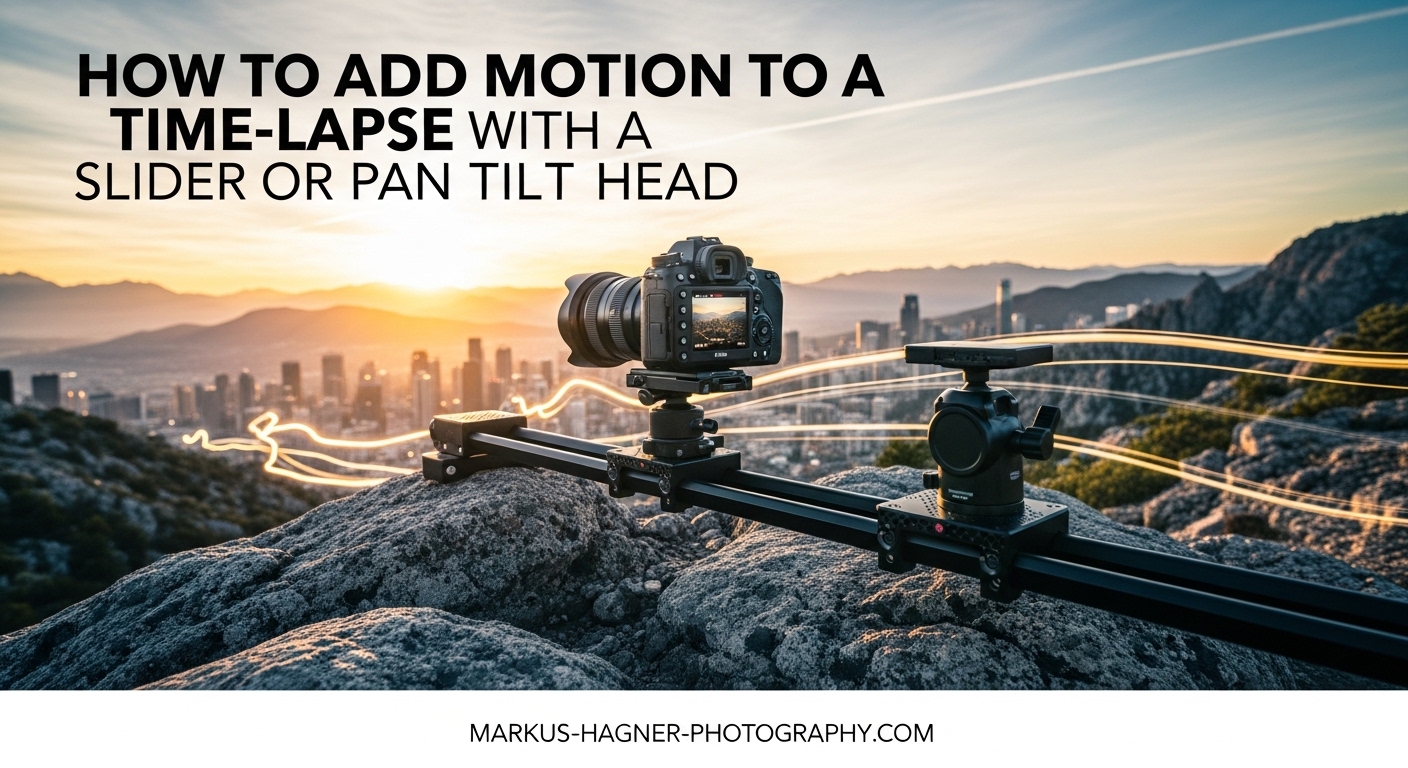
Static time-lapse sequences capture time passing beautifully, but they lack one thing that transforms good footage into cinematic gold: movement. When you add motion to a time-lapse with a slider or pan tilt head, you create dynamic perspectives that guide the viewer’s eye through the scene. The camera doesn’t just watch time pass anymore; it travels through it.
After spending countless hours shooting motion control time-lapses for landscape and commercial projects, I can tell you that the difference is night and day. A sunset that looked beautiful from a stationary tripod becomes an immersive experience when the camera slowly tracks forward while the sky transforms. The technique opens up creative possibilities that simply don’t exist with static shots.
In this guide, I’ll walk you through everything you need to know about adding motion to your time-lapses using motorized sliders and pan-tilt heads. You’ll learn how to set up the equipment, program camera movements, calculate intervals, and troubleshoot common issues. Whether you’re shooting your first motion time-lapse or looking to refine your technique, this guide covers the complete workflow.
What Is Motion Control Time-Lapse?
Motion control time-lapse combines traditional time-lapse photography with programmed camera movement. Instead of capturing frames from a fixed position, the camera moves incrementally between shots using motorized equipment. When you play back the sequence, you see both time passing and the camera smoothly traveling through space.
Motorized systems work by programming keyframes into a controller. A keyframe marks a specific position at a specific time in your sequence. The controller calculates how far to move the camera between each shot to smoothly travel from one keyframe to the next. This precision creates fluid motion that would be impossible to achieve manually.
The result is footage that feels more cinematic and engaging. Motion adds depth to your compositions, reveals details that static shots miss, and creates professional production value that stands out. For photographers shooting landscapes, architecture, events, or commercial work, motion control time-lapse has become an essential skill.
Equipment You Need for Motion Time-Lapse
Before diving into techniques, let’s cover the essential gear. Motion control time-lapse requires specific equipment that coordinates camera movement with your shooting interval. The good news is that options exist at various price points, and you can start simple before investing in more advanced systems.
Motorized Sliders
A motorized slider moves your camera along a straight rail between shots. These range from compact 12-inch travel sliders to professional 4-foot rigs. The motor advances the camera carriage a tiny amount after each exposure, creating smooth tracking or dolly-style movement in your final video.
Key features to look for include rail length (longer rails allow more dramatic movement), weight capacity (important for heavier camera setups), and control options. Most modern sliders offer Bluetooth connectivity and smartphone app control, which makes programming much easier than older button-based interfaces.
Budget considerations matter here. Professional sliders from brands like Zeapon, Cinetics, and Dynamic Perception offer excellent build quality and reliability, but prices often start around $400 and go well beyond $1000. Budget-friendly options under $300 exist, though they typically sacrifice travel length, build quality, or advanced programming features.
Pan-Tilt Heads
Pan-tilt heads rotate your camera horizontally (pan) and vertically (tilt) between shots. These create rotary movement that’s perfect for panoramic time-lapses, sweeping vistas, and following subjects across the frame. Many photographers combine pan-tilt heads with sliders for multi-axis control.
When shopping for a pan-tilt head, pay attention to the rotation range, payload capacity, and programming precision. Some heads offer continuous 360-degree rotation while others have limited ranges. The ability to program complex movements with multiple keyframes separates basic units from more capable systems.
Manual vs Motorized Options
Manual sliders and fluid heads exist at lower price points, but they require you to move the camera by hand between shots. This introduces inconsistency and limits the complexity of movements you can achieve. For serious time-lapse work, motorized systems are worth the investment.
Motorized equipment provides repeatable precision that manual methods simply can’t match. You can program complex multi-keyframe movements, sync the motion with your camera’s shutter, and walk away knowing the system will execute your plan perfectly. The consistency also makes post-processing much easier.
Additional Essentials
Beyond the motion control hardware, you’ll need a sturdy tripod, an intervalometer (either built into your camera or external), and reliable power sources. Battery life becomes critical for long shoots, so consider external battery packs or AC adapters when available. Many motion controllers also include intervalometer functions, which simplifies your setup.
How to Use a Motorized Slider for Time-Lapse In 2026?
Adding linear movement to your time-lapse with a motorized slider creates tracking and dolly effects that add depth to your footage. Here’s my step-by-step process for setting up and programming slider movements.
Step 1: Position Your Slider
Mount your slider on a level tripod or set of legs. A bubble level helps ensure the rail is perfectly horizontal, unless you’re intentionally angling for a specific shot. Lock down all tripod legs securely. Any wobble or shift during shooting will ruin your sequence, so take time to get this right.
Step 2: Mount and Balance Your Camera
Attach your camera to the slider carriage and balance it properly. Heavier setups with battery grips or large lenses may require counterbalancing. The carriage should move smoothly along the rail without binding or resistance. Test the full travel range before proceeding.
Step 3: Connect to the Controller
Most modern sliders connect via Bluetooth to a smartphone app. Open the app and establish connection. If your slider uses a wired controller, connect it now. The interface should show your current slider position and available programming options.
Step 4: Set Your Start and End Keyframes
Move the carriage to your starting position and set the first keyframe. This marks where your time-lapse begins. Then move to your desired end position and set the second keyframe. The controller will calculate the incremental movement needed between each shot.
For more complex movements, you can add intermediate keyframes. This allows you to change speed, add pauses, or create curved movement paths. Keep in mind that too many keyframes can make motion look jerky, so start simple.
Step 5: Configure Interval and Shot Count
Determine your shooting interval based on subject movement and desired final length. Fast-moving clouds might need 2-3 second intervals, while slow shadows could use 10-15 seconds. Enter your total shot count based on how long you want the final clip to play.
The controller needs to know how many shots you’re taking so it can divide the total travel distance appropriately. If you’re moving 24 inches over 360 shots, the controller moves the carriage about 0.067 inches per shot. This precision creates smooth motion in playback.
Step 6: Test and Execute
Run a test cycle without actually shooting to verify your movement path. Watch for any obstructions, cable snags, or balance issues. Once satisfied, sync the slider with your camera’s intervalometer and start the sequence. Walk away and let the system work.
How to Use a Pan-Tilt Head for Time-Lapse In 2026?
Pan-tilt heads create rotary movement that’s perfect for wide landscapes, following sun paths, and creating reveal shots. The setup process is similar to sliders but with different movement programming.
Step 1: Mount and Level the Head
Attach the pan-tilt head to your tripod and ensure it’s level. Unlike sliders, pan-tilt heads are sensitive to horizon level, so use the built-in bubble level or your camera’s electronic level. An unlevel head will create tilted horizons that are difficult to fix in post.
Step 2: Balance Your Camera
Proper balance is even more critical with pan-tilt heads than sliders. The camera should sit neutrally without wanting to tip forward or backward. This reduces strain on the motors and ensures smooth movement throughout the sequence.
Step 3: Program Pan Movement
Set your starting angle and end angle for horizontal panning. A 90-degree pan over 300 shots creates subtle, smooth movement. Larger pans like 180 or 360 degrees work well for panoramic subjects but may appear faster in final playback.
The direction of pan matters for storytelling. Panning left to right feels natural for most viewers (at least in cultures that read left-to-right). Panning right to left can feel more dramatic or even unsettling, which might serve certain creative goals.
Step 4: Program Tilt Movement
Vertical tilting works beautifully for sunsets, astrophotography, and architectural subjects. Start by framing your initial composition, then adjust to your final framing and set the end keyframe. Keep tilts modest at first; large tilts can feel disorienting in time-lapse.
Step 5: Combine Pan and Tilt
For multi-axis movements, program both pan and tilt keyframes simultaneously. The head will move diagonally through space, creating more dynamic footage. This technique works exceptionally well for following the sun as it sets or tracking stars across the night sky.
Test combined movements carefully before committing to long shoots. Complex paths can reveal balance issues or cable interference that weren’t apparent with simpler movements.
Complete Setup: How to Add Motion to a Time-Lapse with a Slider or Pan Tilt Head In 2026?
Now let’s put everything together into a complete workflow from setup to shooting. This process works for both sliders and pan-tilt heads, with minor adjustments for your specific equipment.
Camera Settings
Set your camera to manual mode with fixed ISO, aperture, and shutter speed. Auto settings will cause exposure variations between frames, creating flicker in your final video. For most time-lapses, I shoot at base ISO, f/8 for depth of field, and a shutter speed that provides slight motion blur (typically twice your interval).
Shoot in RAW format whenever possible. RAW files give you more latitude for color correction and exposure adjustments in post, which becomes important when lighting conditions change during long shoots.
Intervalometer Configuration
Your intervalometer controls the timing between shots. Set the interval based on your subject: fast-moving subjects need shorter intervals, slow subjects can use longer intervals. Most motion controllers include intervalometer functions, so you may not need a separate device.
For motion time-lapse, the interval must be long enough for the slider or head to complete its movement between shots. This is called the shoot-move-shoot technique. The camera exposes, then the motor moves to the next position, then the camera exposes again. This cycle repeats for the duration of your shoot.
Syncing Motion with Shutter
The key to smooth motion time-lapse is proper synchronization between your camera and motion controller. Most systems offer a trigger cable that connects the controller to your camera’s remote port. The controller fires the shutter, waits for the exposure to complete, moves to the next position, and repeats.
Without this synchronization, your camera might fire while the motor is still moving, creating blurry frames. Take time to verify the connection and test a few cycles before starting your actual shoot.
Power Management
Long time-lapses drain batteries quickly, especially in cold weather. Both your camera and motion controller need reliable power. I always use external battery packs or AC adapters for shoots longer than two hours. Nothing hurts more than a dead battery ninety minutes into a three-hour sequence.
Monitor battery levels during your shoot if possible. Some controllers display remaining battery percentage and will warn you when power gets low. Keep spare batteries warm and ready to swap if needed.
Testing Your Setup
Before committing to a long shoot, run a short test sequence of 20-30 frames. Review the images for exposure consistency and check that the motion path looks correct. This five-minute test can save you from wasting hours on a flawed setup.
Post-Processing Your Motion Time-Lapse
After capturing your frames, post-processing transforms raw images into smooth video. The workflow differs slightly from static time-lapse because motion adds complexity to the editing process.
Import and Organize
Transfer all frames to your computer and organize them in a single folder. Rename files sequentially if your camera didn’t already do this. Most editing software expects consistent, sequential file names for time-lapse assembly.
Deflicker and Color Grade
Even with careful exposure settings, minor brightness variations between frames can create flicker. Software like LRTimelapse specializes in smoothing these variations and creating consistent exposure across your sequence. It also handles advanced techniques like exposure ramping for day-to-night transitions.
For basic editing, Adobe Premiere Pro, DaVinci Resolve, or Final Cut Pro work well. Import your image sequence as footage, apply color correction, and export at your desired frame rate (24fps or 30fps are common choices).
Stabilization if Needed
Despite your best efforts, some sequences may have minor bumps or wobbles. Video editing software includes stabilization tools that can smooth out these imperfections. Use stabilization sparingly; aggressive correction can introduce artifacts.
Pro Tips and Common Issues
After many motion time-lapse shoots, I’ve learned some lessons the hard way. Here are tips to help you avoid common pitfalls.
Avoid Bumping the Rig
During long shoots, it’s tempting to check on your equipment or adjust something mid-sequence. Don’t. Even a slight bump can ruin hundreds of frames. Set up your shot, start the sequence, and walk away until it’s finished.
Watch Your Cables
Trigger cables and power cords can snag on slider rails or get tangled in pan-tilt mechanisms. Route cables carefully and secure them with tape or cable ties. Leave enough slack for full range of movement without tension.
Plan for Weather
Wind can vibrate your rig and create blurry frames. Use a weighted bag on your tripod legs for stability. Cold temperatures reduce battery life significantly, sometimes by half or more. Plan accordingly with backup power and insulation for batteries.
Start Simple
Complex multi-axis movements with multiple keyframes are tempting, but they’re also harder to execute well. Start with simple linear slider movements or basic pans. Once you’ve mastered these, add complexity to your setups.
Frequently Asked Questions
How to edit time-lapse time?
To adjust the speed of your time-lapse, change the frame rate during export or editing. Higher frame rates (like 60fps) create slower playback, while lower rates (12fps) speed things up. Most editors also allow you to stretch or compress time-lapse clips on the timeline to fine-tune duration.
How to edit time-lapse on iPhone?
Import your frames into the Photos app and use the time-lapse feature, or use an app like LumaFusion for more control. For existing time-lapse videos, open the clip in Photos, tap Edit, and use the speed adjustment slider to change playback speed.
How to slowmo a time-lapse video?
Apply slow motion in your video editor by reducing playback speed to 50% or slower. This works best with higher frame rate time-lapses (30fps or higher). You can also re-interpret footage at a higher frame rate to stretch the footage without adding frames.
How to film a time-lapse?
Mount your camera on a stable tripod, set manual exposure, configure your interval (typically 2-10 seconds depending on subject speed), and use an intervalometer to trigger shots automatically. For motion time-lapse, add a motorized slider or pan-tilt head and program keyframes for movement between shots.
What are the best settings for time lapse?
Use manual mode with fixed ISO, aperture, and shutter speed. Shoot in RAW format. Set shutter speed to roughly twice your interval for natural motion blur. For intervals, use 2-3 seconds for fast clouds, 5-10 seconds for slower subjects, and 15-30 seconds for very slow movement like shadows or stars.
What is the difference between manual and motorized sliders?
Manual sliders require you to move the camera by hand between each shot, which creates inconsistent movement and limits complexity. Motorized sliders use programmed keyframes to move the camera automatically with precise, repeatable increments. Motorized systems sync with your camera’s shutter for smooth, professional results that are impossible to achieve manually.
What is the best software for time lapse?
LRTimelapse is the industry standard for deflickering and advanced techniques like exposure ramping. For assembly and editing, Adobe Premiere Pro and DaVinci Resolve are excellent choices. On mobile, LumaFusion offers professional features. Free alternatives include Shotcut and OpenShot for basic editing needs.
What is the best camera for time lapse?
Any camera with manual controls and intervalometer capability works for time-lapse. Mirrorless cameras from Sony, Canon, Fujifilm, and Nikon are popular for their image quality and features. For extreme durability, consider weather-sealed bodies. What matters most is understanding exposure and having reliable power for long shoots.
Conclusion
Learning how to add motion to a time-lapse with a slider or pan tilt head transforms your photography from static observation into dynamic storytelling. The technique takes practice, but the results speak for themselves. Start with simple movements, master the fundamentals of interval calculation and keyframe programming, and gradually add complexity as your confidence grows.
The equipment investment pays off quickly once you see the difference motion makes. Your time-lapses will engage viewers more effectively, stand out in portfolios, and open creative possibilities that static shooting simply cannot match. Get out there and start moving your camera through time.