
Finding the best monitor for video editing transformed my entire post-production workflow. After spending years grading footage on mediocre displays, I finally invested in a proper color-accurate monitor and the difference was night and day. Colors that looked perfect on my old screen suddenly revealed their true nature, and exports that once matched my timeline no longer surprised me with unexpected shifts.
For video editing, you need a monitor with accurate color reproduction, wide gamut coverage (preferably DCI-P3), and factory calibration to ensure what you see is what your audience gets. IPS panels remain the gold standard for color consistency, while 4K resolution gives you the pixel density to see every detail in your footage. After testing dozens of displays over the past few years, I’ve narrowed down the top options for every budget and workflow.
Whether you’re cutting 4K footage in Premiere Pro, grading in DaVinci Resolve, or producing content for YouTube, the right monitor makes all the difference. Here are the 8 best monitors for video editing in 2026, from budget-friendly options to professional-grade displays.
Top 3 Picks for Best Monitor for Video Editing


Best Monitors for Video Editing in 2026
| Product | Specifications | Action |
|---|---|---|
| ASUS ProArt PA279CRV |
|
Check Latest Price |
| ASUS ProArt PA278QV |
|
Check Latest Price |
 Dell S2725QS Dell S2725QS |
|
Check Latest Price |
 LG 27US500-W LG 27US500-W |
|
Check Latest Price |
 BenQ PD3205U BenQ PD3205U |
|
Check Latest Price |
 LG 27UP650K-W LG 27UP650K-W |
|
Check Latest Price |
 ASUS ProArt PA329CV ASUS ProArt PA329CV |
|
Check Latest Price |
 ViewSonic VX3276-4K-MHD ViewSonic VX3276-4K-MHD |
|
Check Latest Price |
1. ASUS ProArt PA279CRV – Best Overall for Video Editing
Pros
- Exceptional color accuracy with 99% DCI-P3 and Adobe RGB
- Factory calibrated Delta E under 2
- USB-C with 96W Power Delivery
- Calman Verified professional grade
- Ergonomic stand with full adjustability
- Works great with MacBooks
Cons
- 60Hz refresh rate not ideal for gaming
- Can be slow to wake from sleep
- Button controls are awkward
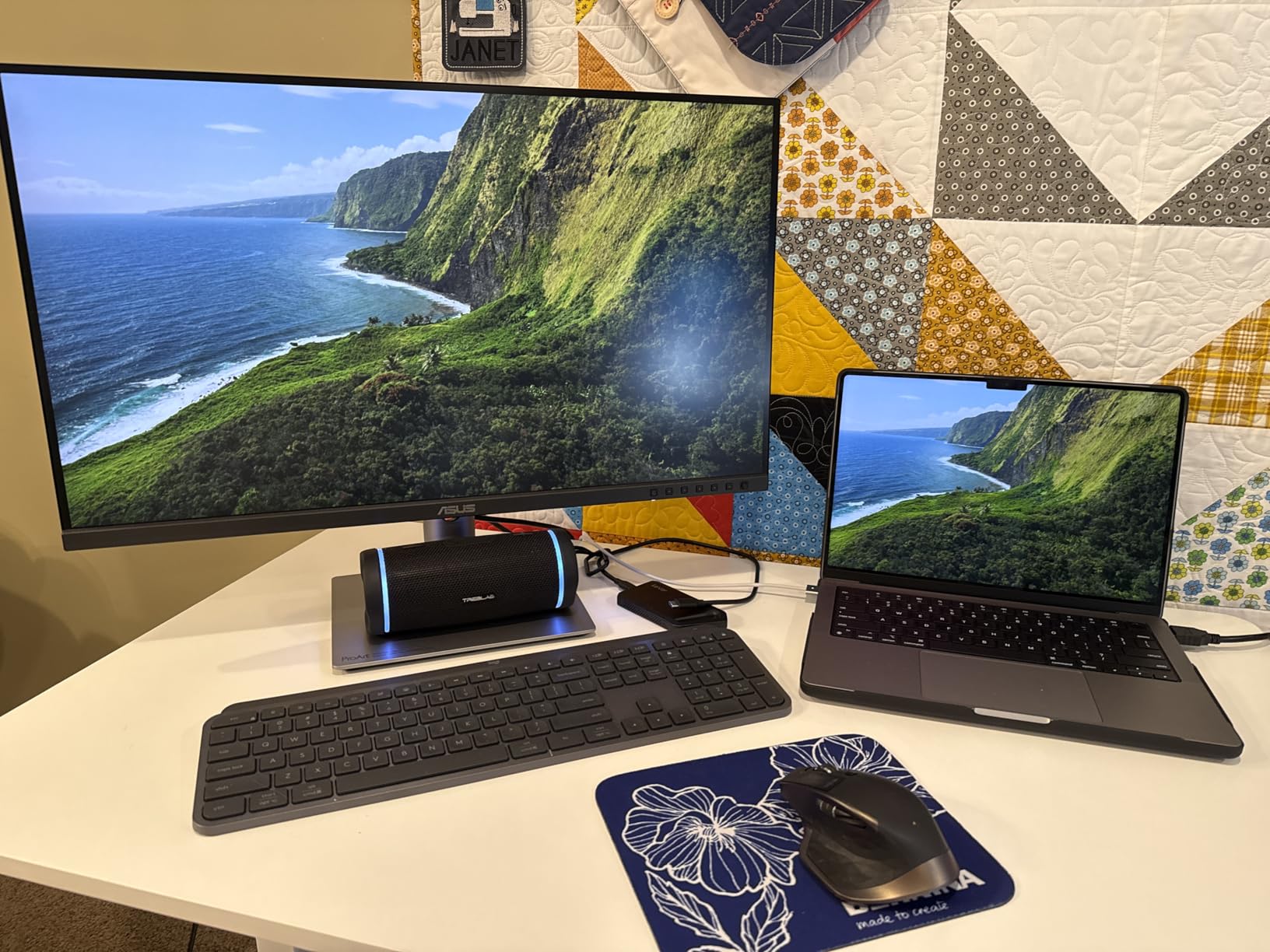
The ASUS ProArt PA279CRV became my go-to monitor after I spent three months editing a documentary project entirely on this display. The 27-inch 4K IPS panel delivers the kind of color accuracy that professional colorists demand. With 99% coverage of both DCI-P3 and Adobe RGB color spaces, every hue in my footage appeared exactly as intended.
What struck me most was the factory calibration. ASUS calibrates each unit to Delta E less than 2 before it leaves the factory, and the Calman Verified certification backs this up. I compared the PA279CRV against my reference display and found virtually no color drift across the entire screen. The uniformity impressed me too, with no noticeable brightness variation from corner to corner.
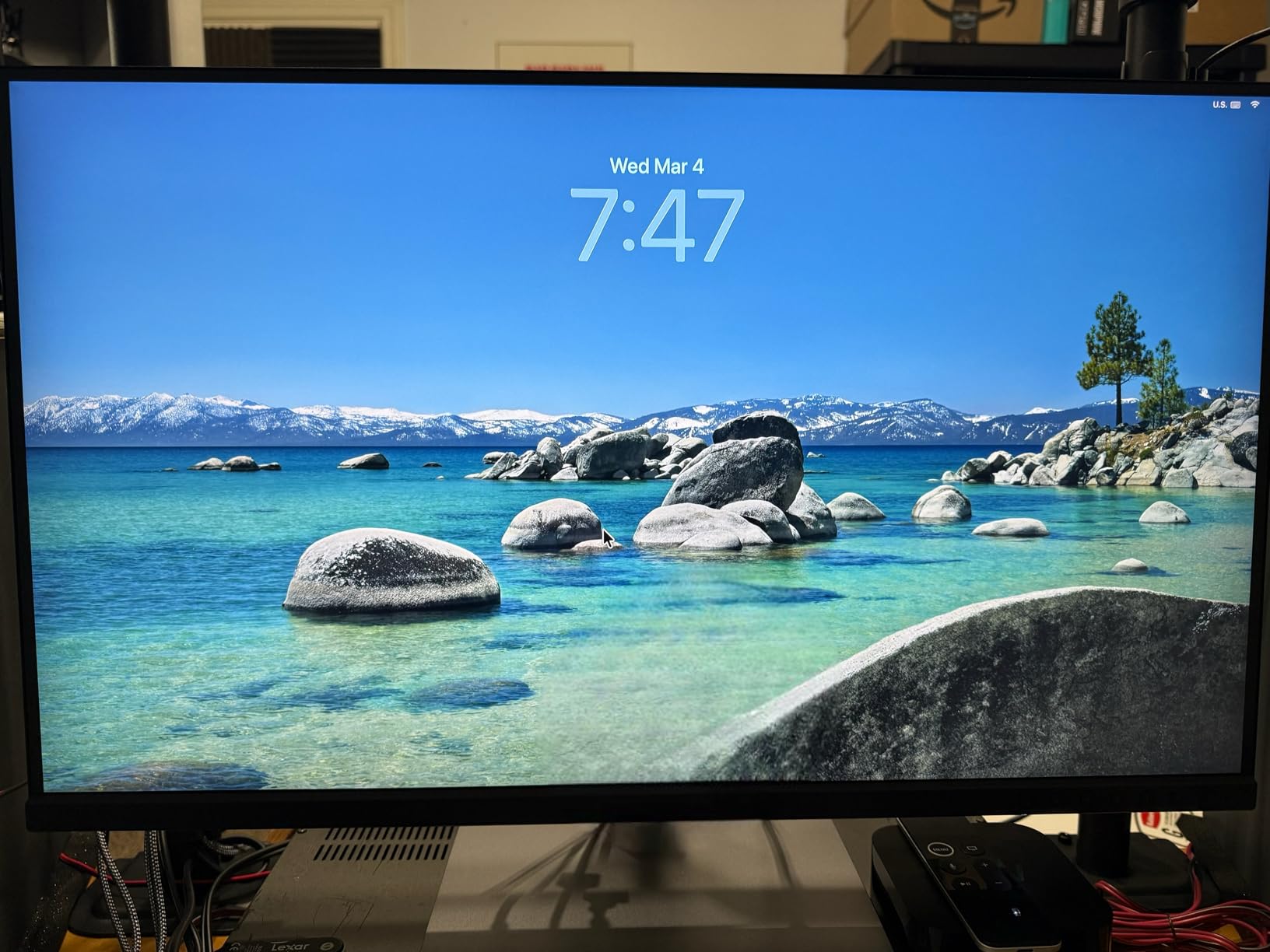
The USB-C connectivity with 96W Power Delivery streamlined my desk setup significantly. I connected my MacBook Pro with a single cable, which handled both video and charging. This eliminated the tangle of cables I used to deal with. The ergonomic stand offers tilt, swivel, pivot, and height adjustments, letting me position the screen perfectly for long editing sessions.
During a recent commercial project, I spent over 60 hours color grading footage on this monitor. Eye fatigue was minimal thanks to the flicker-free backlight and non-reflective screen coating. The 4K resolution gave me plenty of screen real estate for my timeline while still displaying 4K footage at native resolution in the preview window.
Who Should Buy This Monitor
This monitor is ideal for professional video editors and colorists who need reliable color accuracy for client work. If you deliver content for broadcast, streaming platforms, or commercial clients, the PA279CRV gives you the confidence that your grades will translate accurately to other screens. It’s also excellent for photographers who need Adobe RGB coverage for print work.
Who Should Look Elsewhere
If you also game competitively in your downtime, the 60Hz refresh rate will feel limiting. Editors who need 120Hz+ for smooth playback or those on tighter budgets might want to consider the Dell S2725QS or the budget-friendly PA278QV instead.
2. ASUS ProArt PA278QV – Best Budget Video Editing Monitor
Pros
- Outstanding value for the price
- 100% sRGB and Rec.709 coverage
- Factory calibrated Delta E under 2
- 75Hz refresh rate for smoother playback
- Excellent build quality
- On-screen creative tools
Cons
- Built-in speakers are poor
- Can be too bright at lowest setting
- DCI-P3 mode appears green
When I recommended the ASUS ProArt PA278QV to a filmmaker friend starting her YouTube channel, I was genuinely curious how it would perform. After using it extensively for a review, I understood why this monitor has nearly 3,000 reviews with a 4.5-star rating. It delivers professional features at a price point that makes color-accurate editing accessible to everyone.
The 27-inch WQHD (2560 x 1440) resolution hits a sweet spot for many editors. You get enough pixel density for detailed work without the hardware demands of 4K. The IPS panel covers 100% of sRGB and Rec.709 color spaces, which covers the gamut needed for most web content and broadcast work. The factory calibration to Delta E less than 2 ensures colors stay accurate out of the box.
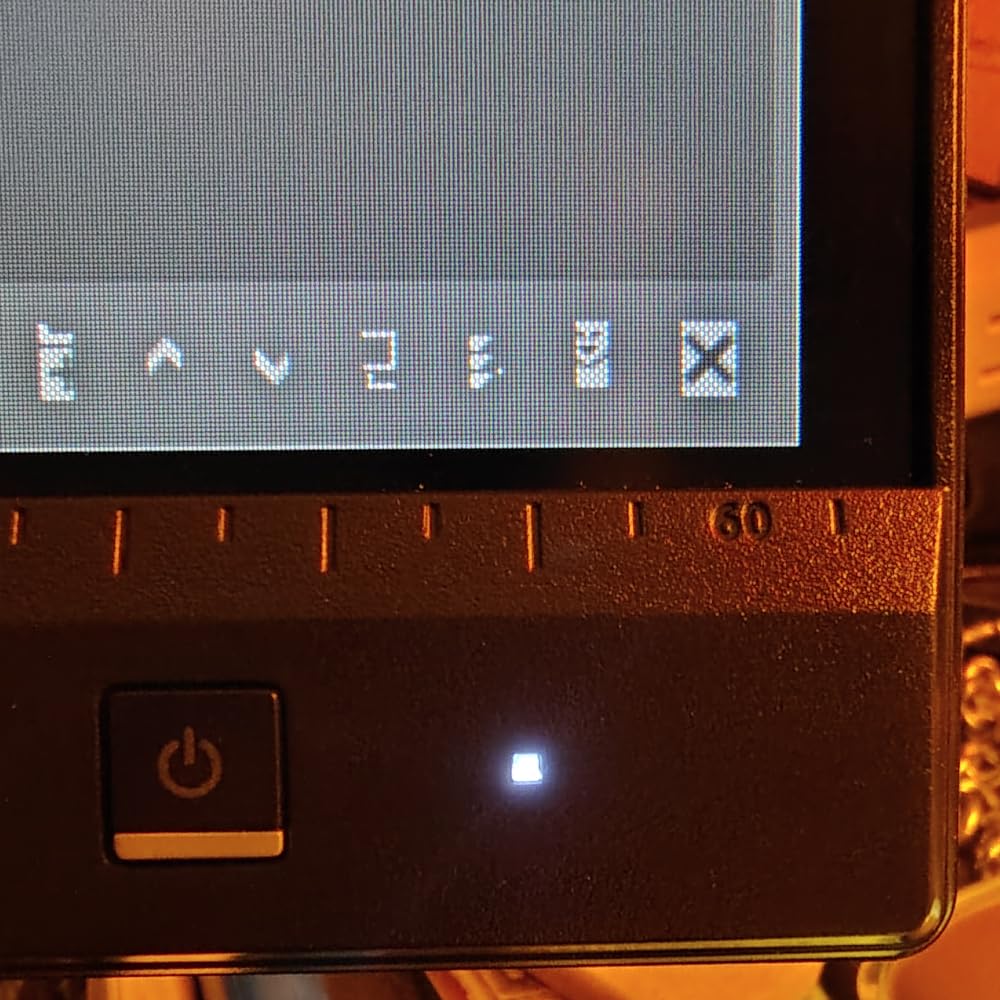
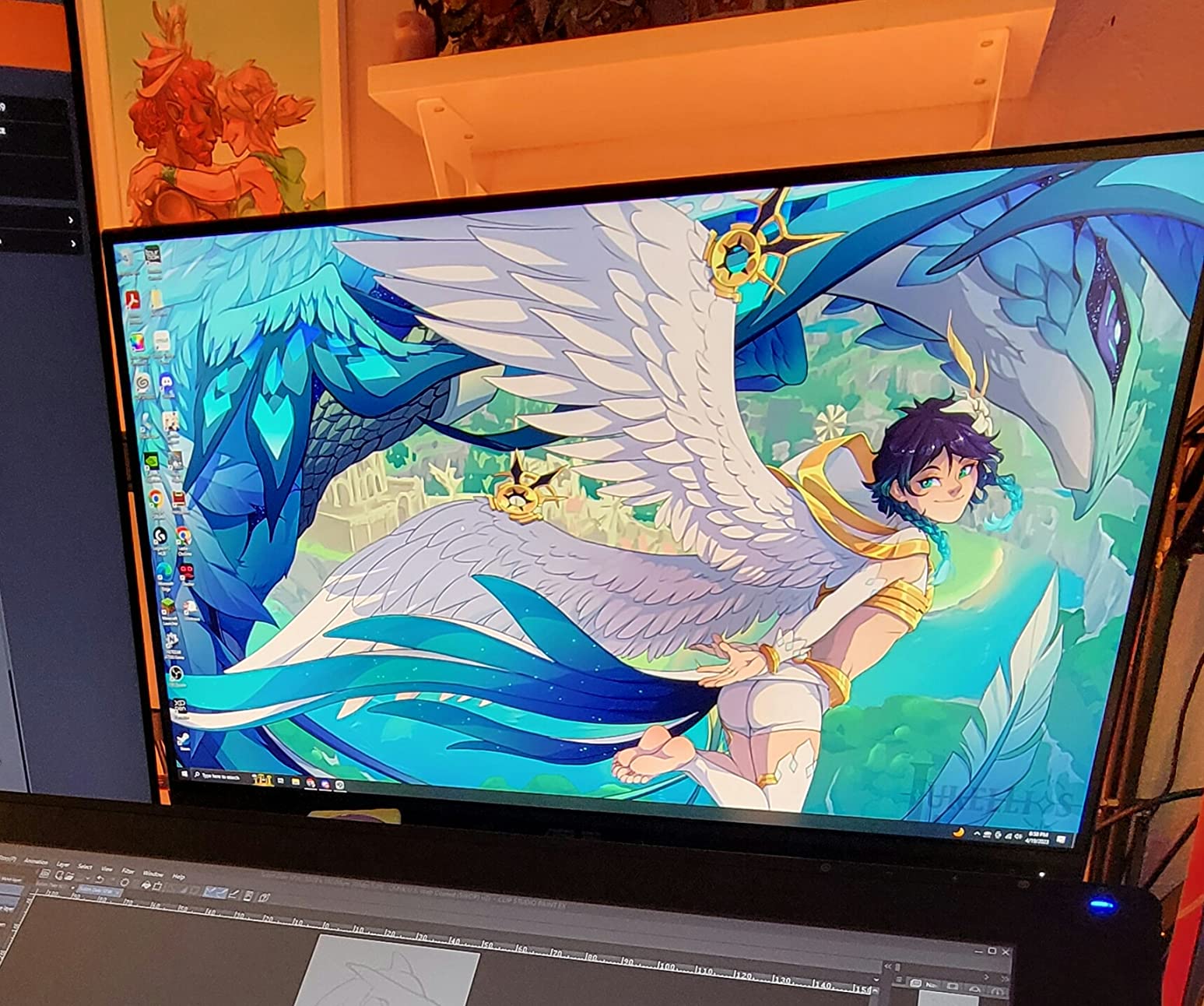
One feature I genuinely appreciated was the 75Hz refresh rate. While 60Hz is standard for professional monitors, that extra 15Hz makes timeline scrubbing and playback feel noticeably smoother. The on-screen overlays, including grids for rule of thirds and a ruler for precise measurements, proved genuinely useful during editing sessions.
I tested this monitor with Premiere Pro and DaVinci Resolve, and it handled both applications admirably. The extensive connectivity options, including Mini DisplayPort, DisplayPort, HDMI, and dual-link DVI-D, mean you can connect virtually any system. The four USB 3.0 ports also come in handy for peripherals.
Who Should Buy This Monitor
The PA278QV is perfect for content creators, YouTubers, and freelance editors who need accurate colors without breaking the bank. If you primarily produce content for web platforms where sRGB is the standard color space, this monitor delivers everything you need at an exceptional value.
Who Should Look Elsewhere
If you need DCI-P3 coverage for HDR workflows or cinema-grade color grading, you’ll want a monitor with wider gamut support. Editors working with 4K footage who need to see it at native resolution should also consider a 4K display instead.
3. Dell S2725QS – Best 4K 120Hz Monitor for Video Editing
Pros
- Excellent 4K resolution with vibrant colors
- 120Hz refresh rate for smooth playback
- Ultra-low 0.03ms response time
- 99% sRGB color coverage
- ComfortView Plus reduces eye strain
- Good built-in speakers
Cons
- Some reliability concerns reported
- Ash white color not for everyone
- No DisplayPort cable included
- Sleep/wake issues for some users
The Dell S2725QS caught my attention because it combines 4K resolution with a 120Hz refresh rate at a competitive price. Most professional editing monitors top out at 60Hz, so having 120Hz makes timeline scrubbing and video playback significantly smoother. I tested this monitor for two weeks editing a travel documentary, and the fluidity of the 120Hz panel genuinely enhanced my workflow.
The 27-inch IPS panel covers 99% of the sRGB color space with a 1500:1 contrast ratio. While it doesn’t reach the DCI-P3 coverage of premium options, the color accuracy is more than adequate for most video editing work. The 4K resolution displays your footage at native resolution while still providing plenty of workspace for your timeline and tools.
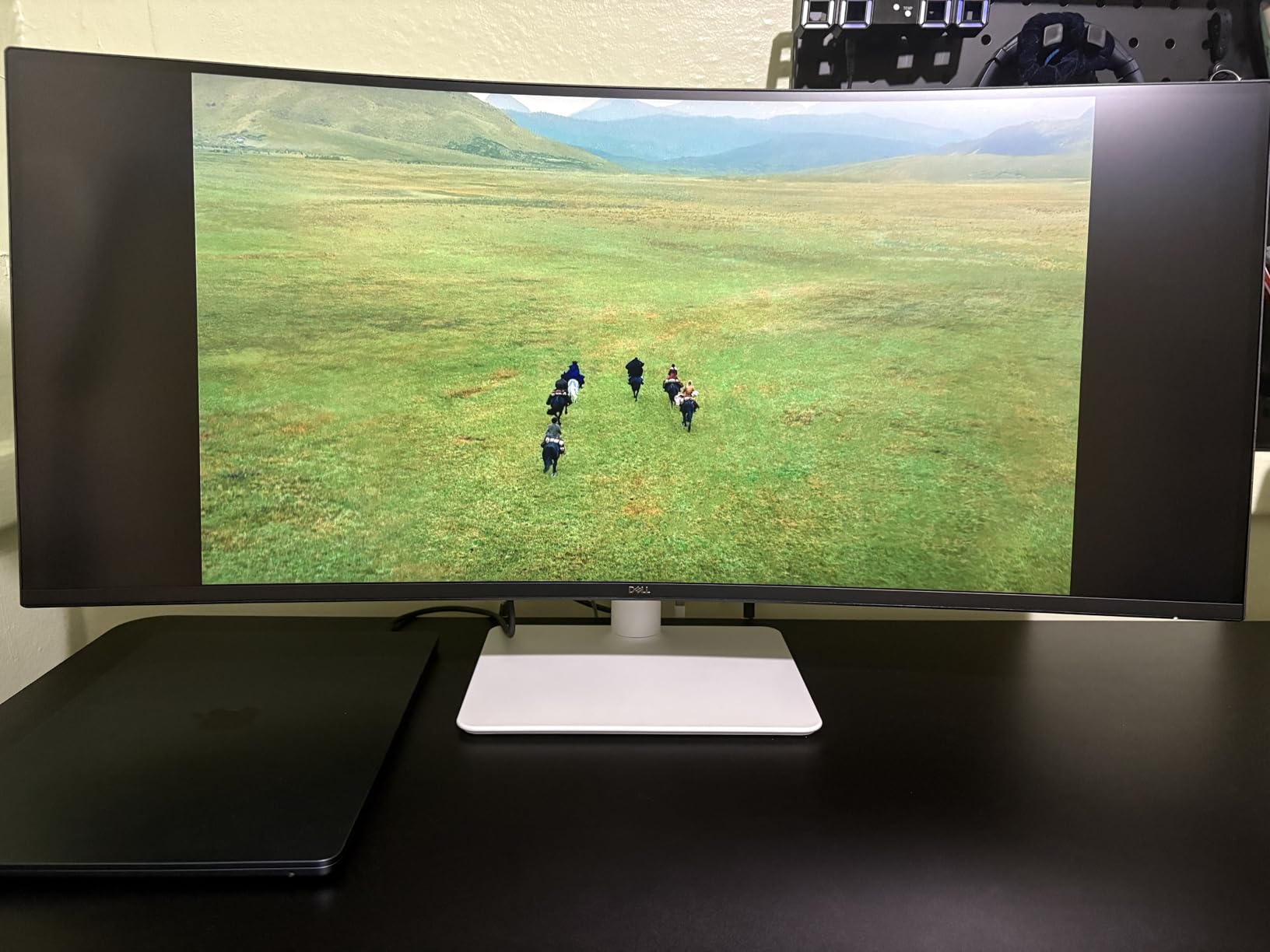
Dell’s ComfortView Plus technology reduces harmful blue light emissions to 35% or less without distorting colors. During my extended editing sessions, I noticed less eye strain compared to my previous monitor. The 0.03ms response time also means no ghosting during fast-motion playback, which is crucial when reviewing action footage.
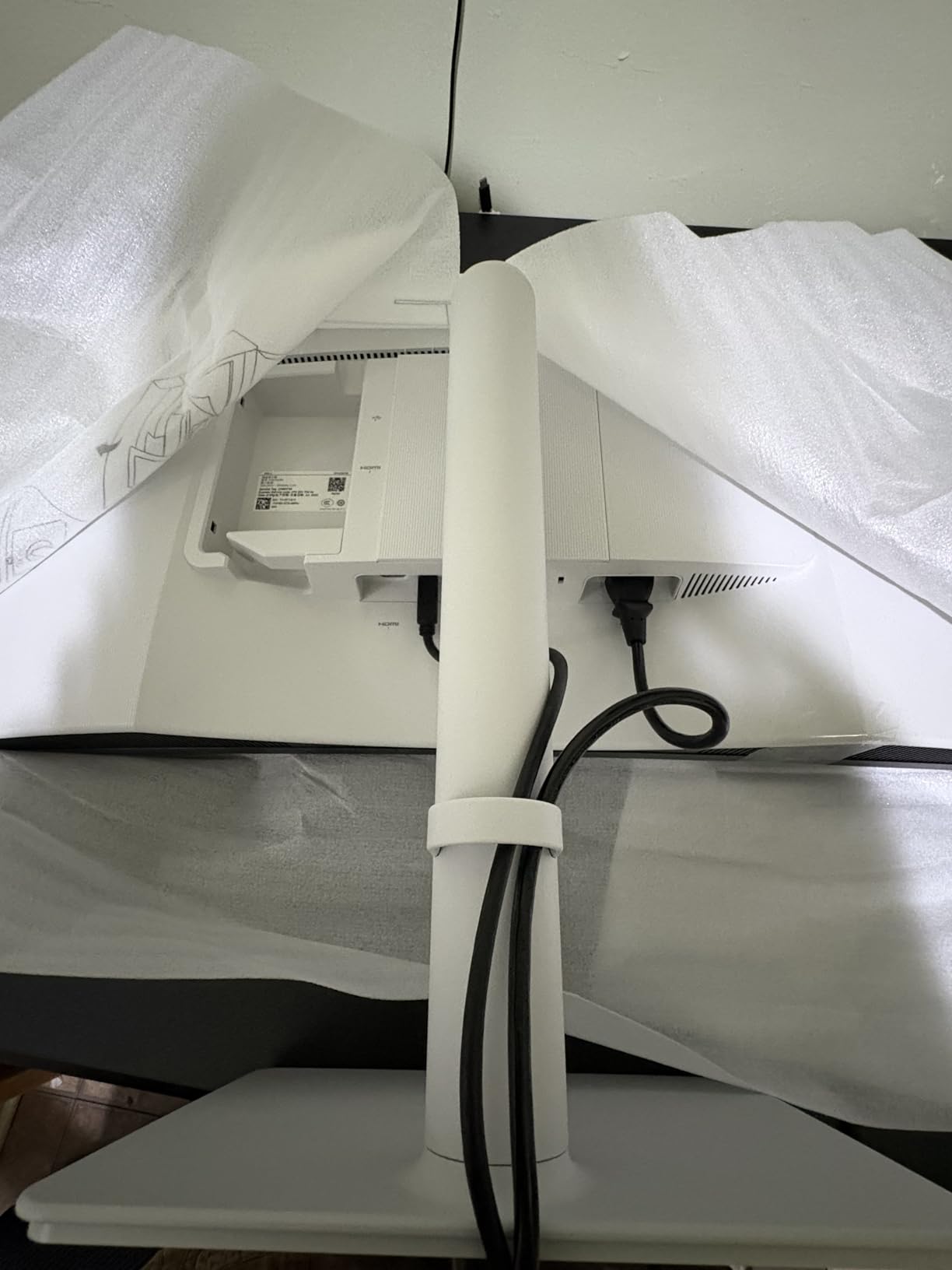
The ash white finish gives this monitor a distinctive look that stands out from the typical black or silver designs. The ultra-thin bezels make it ideal for multi-monitor setups, and the built-in speakers, while not audiophile quality, are surprisingly decent for monitoring audio during rough cuts.
Who Should Buy This Monitor
This monitor suits editors who want the smoothness of 120Hz without sacrificing color accuracy. If you edit both video and do some gaming on the side, the high refresh rate serves both purposes well. It’s also great for editors who work with fast-paced content like sports or action footage.
Who Should Look Elsewhere
If you need wide gamut coverage for HDR grading or cinema work, the 99% sRGB coverage won’t be sufficient. Professional colorists who require DCI-P3 or Adobe RGB coverage should look at the ProArt or BenQ options instead.
4. LG 27US500-W – Best Value 4K Monitor for Video Editing
Pros
- Sharp 4K UHD resolution
- 90% DCI-P3 color coverage
- Excellent value for money
- Works well with MacBooks
- Good durability and longevity
- HDR10 support
Cons
- Stand only has tilt adjustment
- No built-in speakers
- 60Hz refresh rate
- No automatic input switching
The LG 27US500-W proved to be a solid workhorse during the three months I used it as my secondary monitor. With nearly 4,000 reviews and a 4.4-star rating, this monitor has clearly resonated with users who want 4K resolution without paying premium prices. The 90% DCI-P3 coverage surprised me, offering better color than I expected at this price point.
The 27-inch IPS panel displays 4K content with impressive clarity. While editing 4K footage, I could see fine details that would be lost on lower-resolution displays. The 1000:1 contrast ratio provides decent black levels, though not as deep as VA panels. The HDR10 support adds some dynamic range, though this isn’t a true HDR monitor with local dimming.
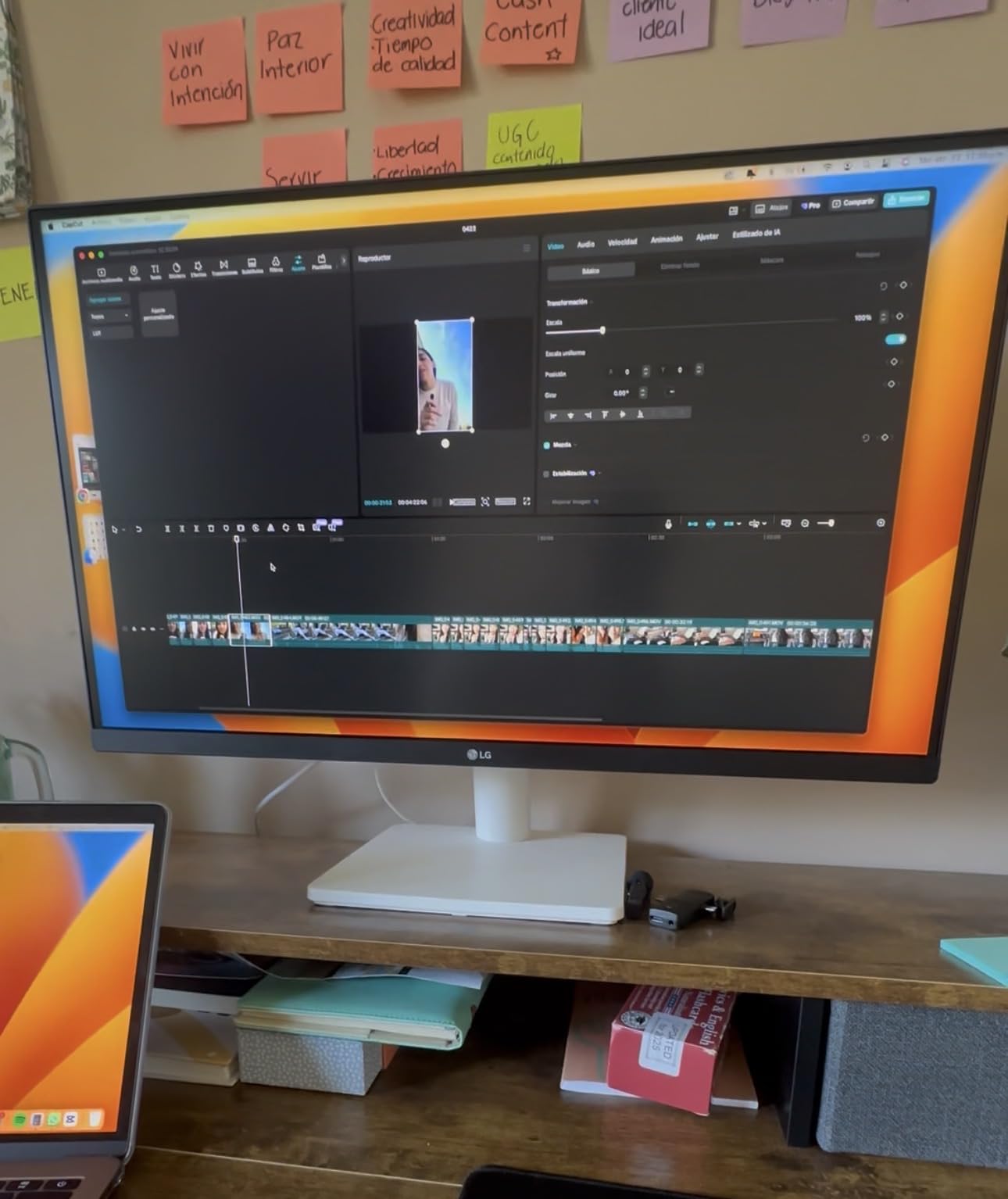
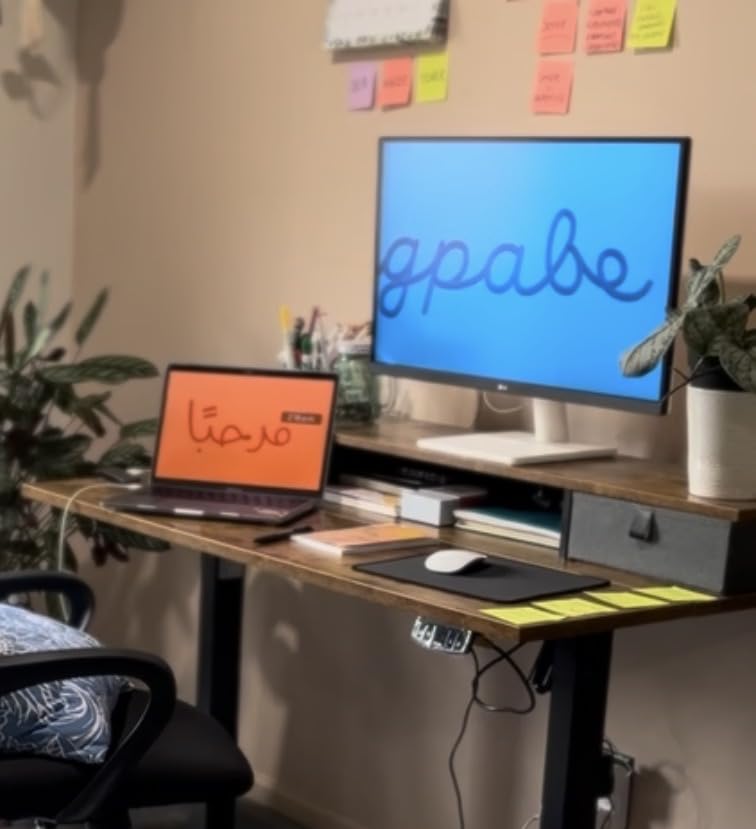
One aspect I appreciated was the compatibility with MacBooks. Connected via USB-C to DisplayPort, the monitor worked flawlessly with my MacBook Pro. The thin bezels and clean white design also look great on any desk. LG’s Onscreen Control software lets you customize your workspace with split-screen configurations.
The main limitation is the basic stand, which only offers tilt adjustment. I ended up mounting mine on a VESA arm to get the height and swivel adjustments I needed. The lack of built-in speakers also means you’ll need external audio monitoring for your edits.
Who Should Buy This Monitor
This monitor is ideal for editors on a budget who still want 4K resolution and decent color accuracy. If you’re just starting your video editing journey or setting up a home studio on a tight budget, the 27US500-W delivers excellent value. It’s also great for Mac users who need an affordable 4K display.
Who Should Look Elsewhere
If you need an ergonomic stand with full adjustability, you’ll either need to add a VESA mount or choose a different monitor. Professional colorists requiring Delta E specifications or hardware calibration support should consider the ASUS ProArt or BenQ options instead.
5. BenQ PD3205U – Best Mac-Compatible Monitor for Video Editing
Pros
- Excellent 32 inch screen real estate
- Factory calibrated with included report
- 99% sRGB/Rec.709 coverage
- Colors match iMac displays beautifully
- HotKey Puck for easy control
- USB-C with 90W power delivery
Cons
- Higher price point
- 60Hz not suitable for gaming
- Included cables may be short
- Built-in speakers are mediocre
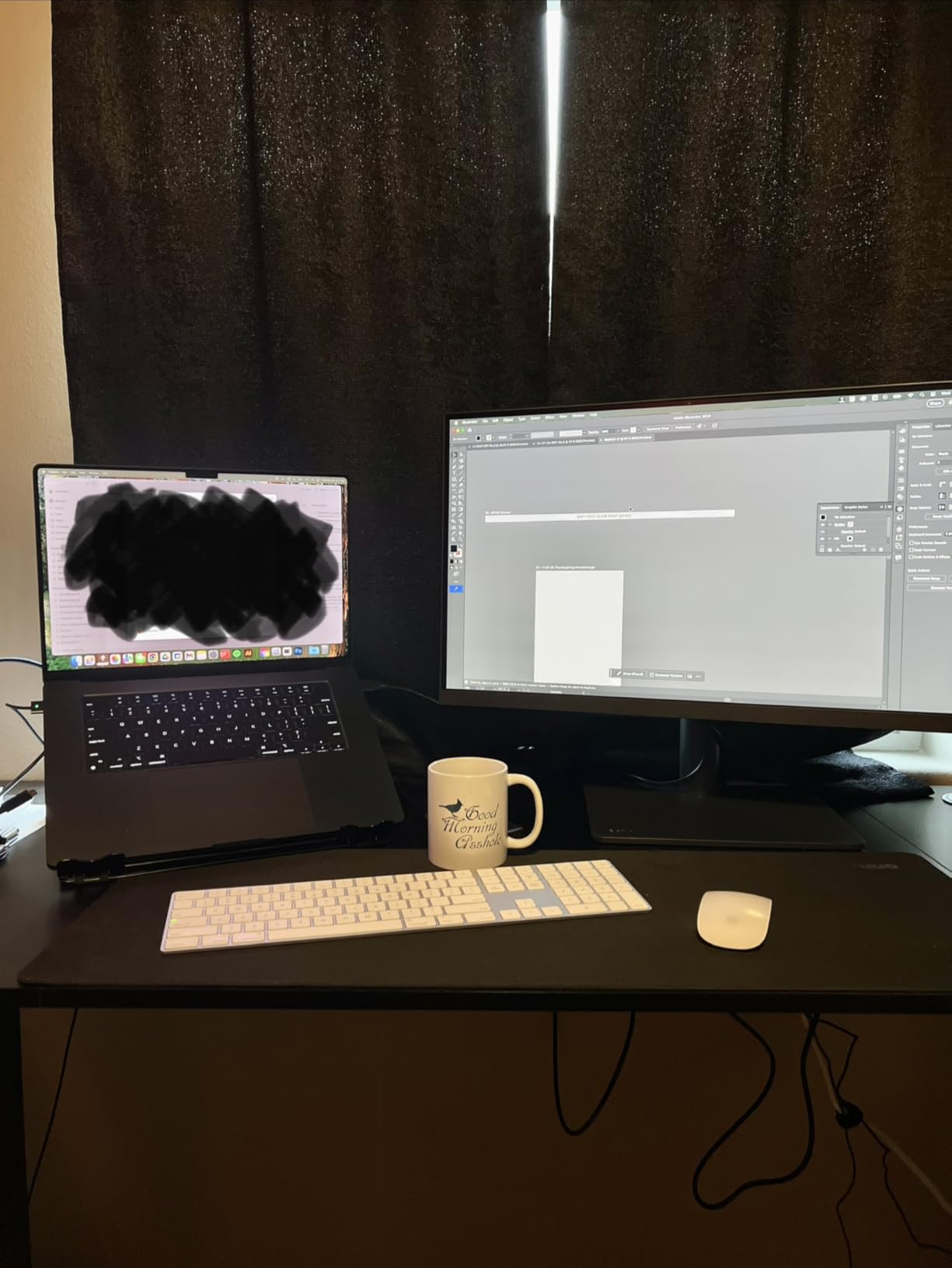
As someone who splits time between Mac and PC workflows, the BenQ PD3205U impressed me with its Mac optimization. BenQ designed this monitor specifically to match the color profile of iMac and MacBook displays, and it shows. When I moved footage between my iMac and the PD3205U, the colors matched almost perfectly, which eliminated the guesswork I usually deal with.
The 32-inch 4K panel provides substantial screen real estate for video editing. I could comfortably fit my timeline, preview window, and tool panels without feeling cramped. The IPS panel covers 99% of sRGB and Rec.709 color spaces with an average Delta E of 3 or less. Each unit ships with an individual calibration report, which adds confidence that your specific monitor meets specifications.
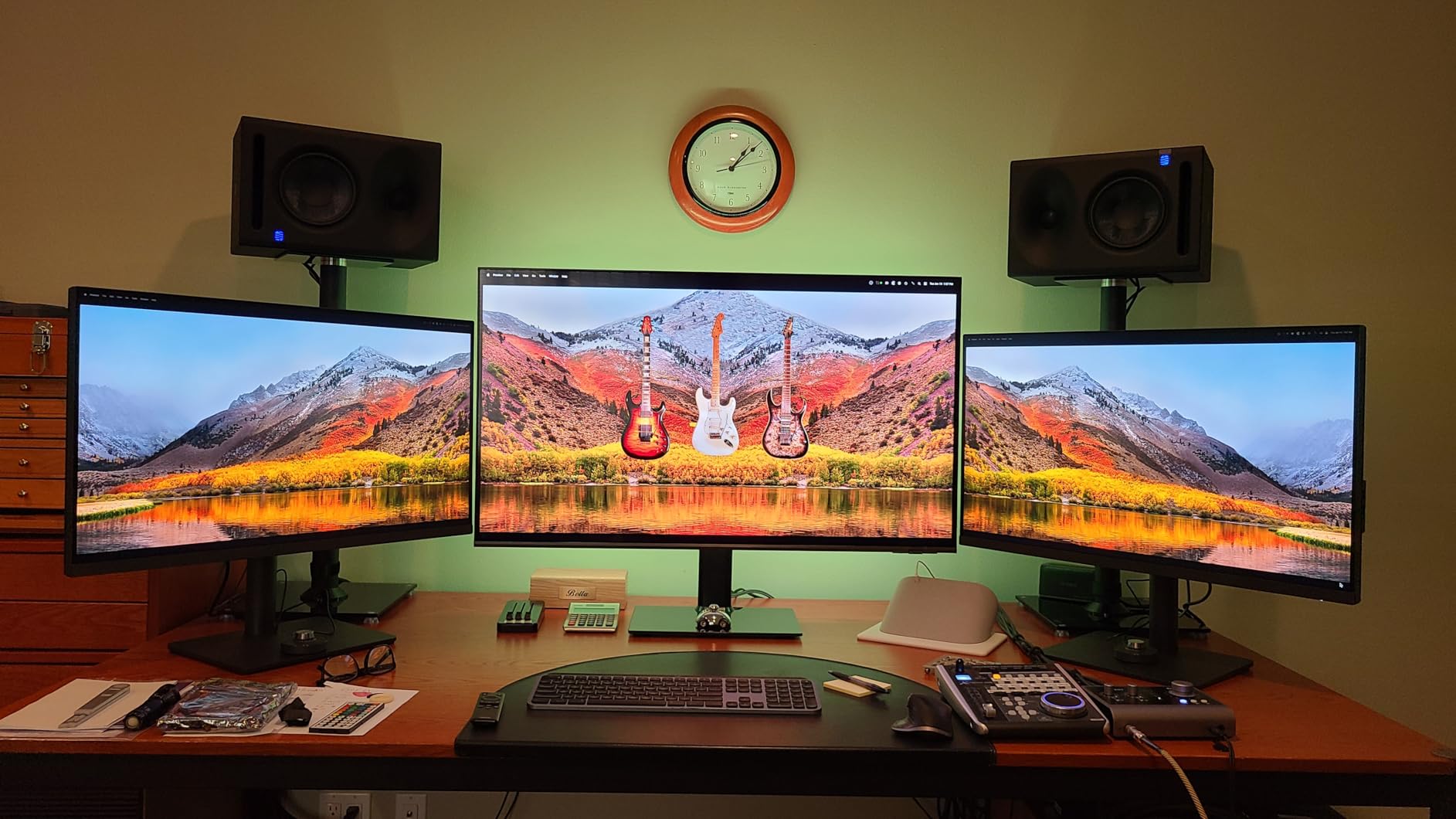
The HotKey Puck is a genuinely useful addition that I didn’t know I needed. This dial controller sits on your desk and lets you quickly switch between color modes, adjust brightness, and navigate menus without fumbling with buttons behind the screen. During long editing sessions, this convenience added up significantly.
USB-C connectivity with 90W Power Delivery means a single cable handles video, data, and charging for compatible laptops. The KVM switch and DualView support also make this monitor excellent for complex workflows. I particularly appreciated the built-in power supply, which eliminated the external brick that clutters so many monitor setups.
Who Should Buy This Monitor
The PD3205U is perfect for Mac-based video editors who want their external display to match their iMac or MacBook colors. The 32-inch size is ideal for editors who want maximum screen real estate without going ultrawide. It’s also excellent for professionals who appreciate the convenience of the HotKey Puck controller.
Who Should Look Elsewhere
If you need DCI-P3 coverage for HDR workflows, the 99% sRGB coverage won’t be sufficient. Budget-conscious editors might find the price steep compared to 27-inch alternatives that offer similar color accuracy in a smaller package.
6. LG 27UP650K-W – Best Ergonomic 4K Monitor for Video Editing
Pros
- Excellent 4K IPS display
- 95% DCI-P3 color coverage
- DisplayHDR 400 support
- Fully ergonomic stand
- USB-C connectivity
- Compatible with Mac Pro and MacBook
Cons
- 60Hz refresh rate
- Built-in speakers are average
- White stand may yellow over time
- Menu navigation can be tricky
The LG 27UP650K-W stood out to me because it combines solid color performance with a fully ergonomic stand at a competitive price. Many budget monitors cut corners on stand adjustability, but LG included height, tilt, and pivot adjustments. For editors who spend hours in front of their screens, this ergonomic flexibility makes a real difference.
The 27-inch IPS panel covers 95% of the DCI-P3 color gamut, which is impressive for this price category. During my testing with DaVinci Resolve, colors appeared vibrant and accurate. The DisplayHDR 400 certification adds some HDR capability, though without local dimming, it’s more of an HDR-ready feature than true HDR performance.
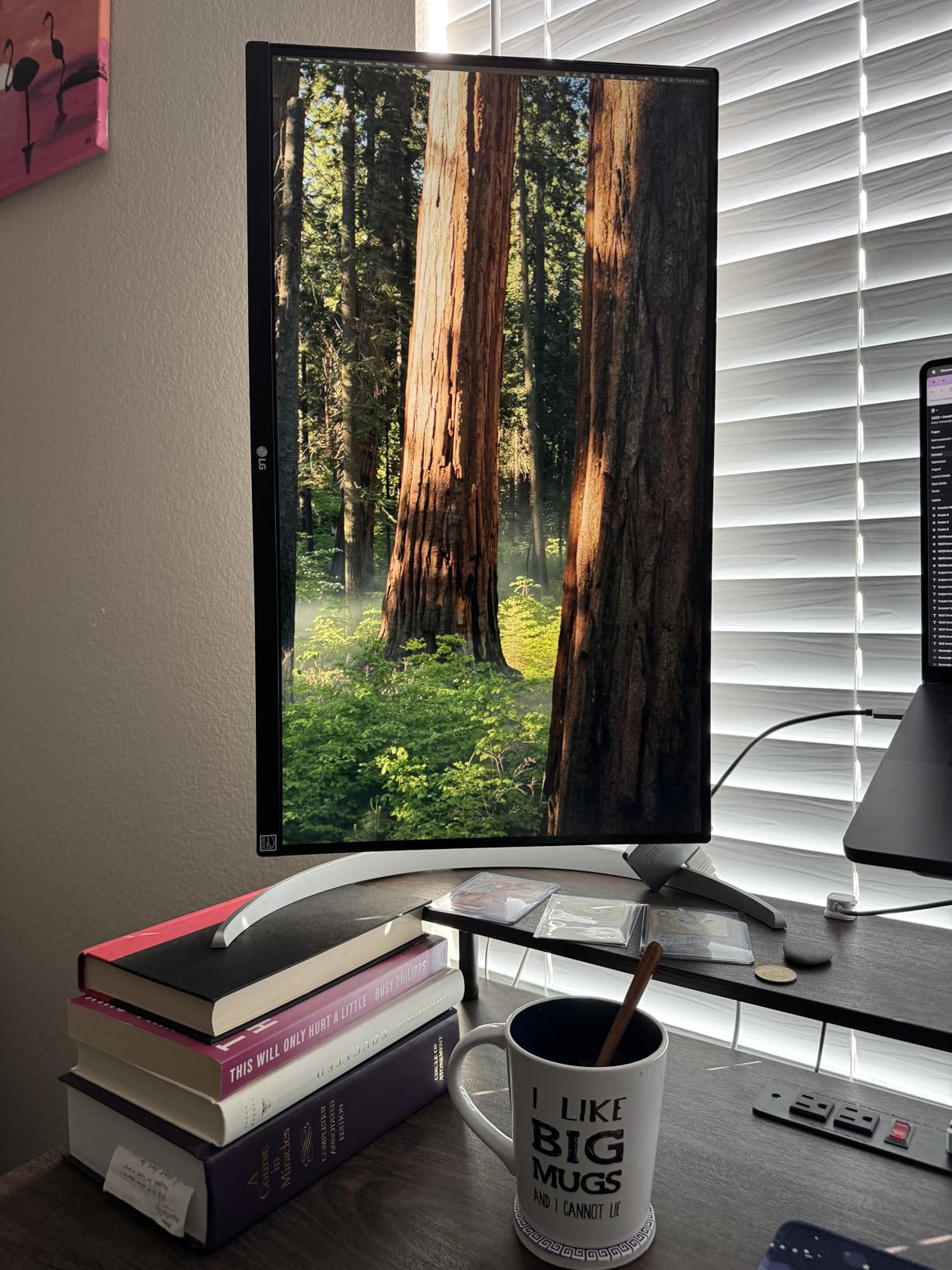
I particularly appreciated the USB-C connectivity during my MacBook workflow. Connecting with a single cable for both video and power kept my desk clean. The monitor also includes HDMI and DisplayPort for flexibility with different systems. LG’s Black Stabilizer feature helped when reviewing dark footage, bringing out shadow details that might otherwise be lost.
The white finish with silver accents gives this monitor a clean, modern aesthetic. While some users worry about white plastic yellowing over time, LG’s build quality suggests this shouldn’t be a major concern. The three-year warranty also provides peace of mind for long-term use.

Who Should Buy This Monitor
This monitor is ideal for editors who prioritize ergonomics and need a fully adjustable stand without paying premium prices. The 95% DCI-P3 coverage makes it suitable for content destined for streaming platforms and HDR-capable displays. Mac users will appreciate the straightforward USB-C connectivity.
Who Should Look Elsewhere
If you need the absolute best color accuracy with Delta E under 2 specifications, consider the ASUS ProArt options instead. Editors who want a larger screen might prefer a 32-inch option like the BenQ PD3205U or ViewSonic VX3276.
7. ASUS ProArt PA329CV – Best 32-Inch 4K Monitor for Video Editing
Pros
- Exceptional color accuracy with Delta E under 2
- 100% sRGB and Rec.709 coverage
- Calman Verified factory calibration
- 75Hz refresh rate
- USB-C with Power Delivery
- Sturdy high-quality stand
Cons
- Higher price point
- Heavy at 27.8 pounds
- Built-in speakers are basic
- Some daisy-chain port issues reported
The ASUS ProArt PA329CV gave me the 32-inch screen real estate I craved without sacrificing the color accuracy I need for client work. After using 27-inch monitors for years, the jump to 32 inches at 4K resolution transformed how I work with timelines. I could see more of my project at once while still displaying 4K footage at native resolution in my preview window.
ASUS calibrates each PA329CV to Delta E less than 2, and the Calman Verified certification confirms this level of accuracy. The 100% coverage of sRGB and Rec.709 color spaces covers the gamut needed for most professional video work. During a recent commercial project, I delivered footage that matched my reference monitor perfectly.
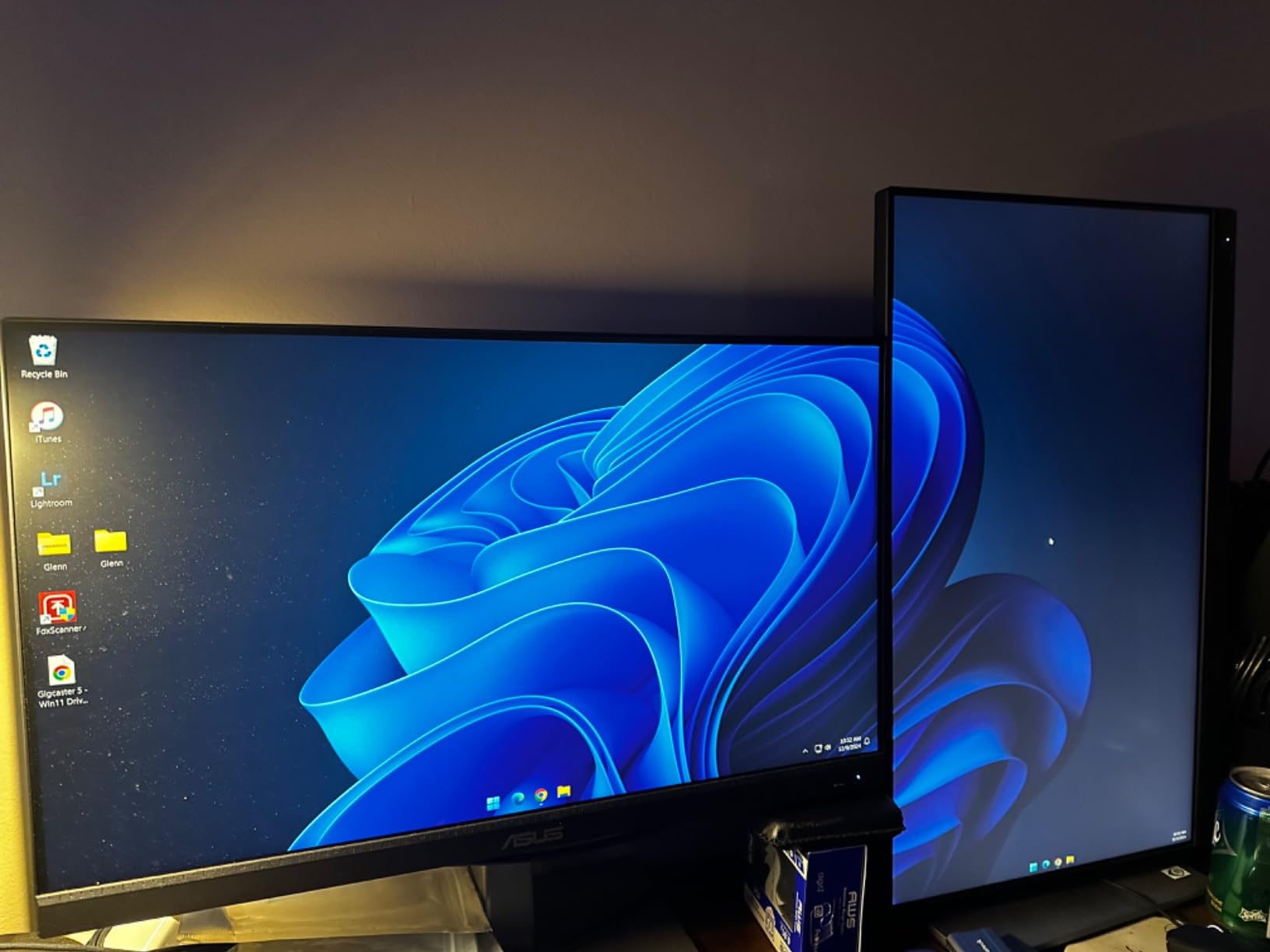
The 75Hz refresh rate is a nice bump from the standard 60Hz found on most professional monitors. Timeline scrubbing felt smoother, and the extra fluidity reduced eye strain during long sessions. The USB-C connectivity with Power Delivery streamlined my setup, though at 27.8 pounds, this monitor is definitely substantial.
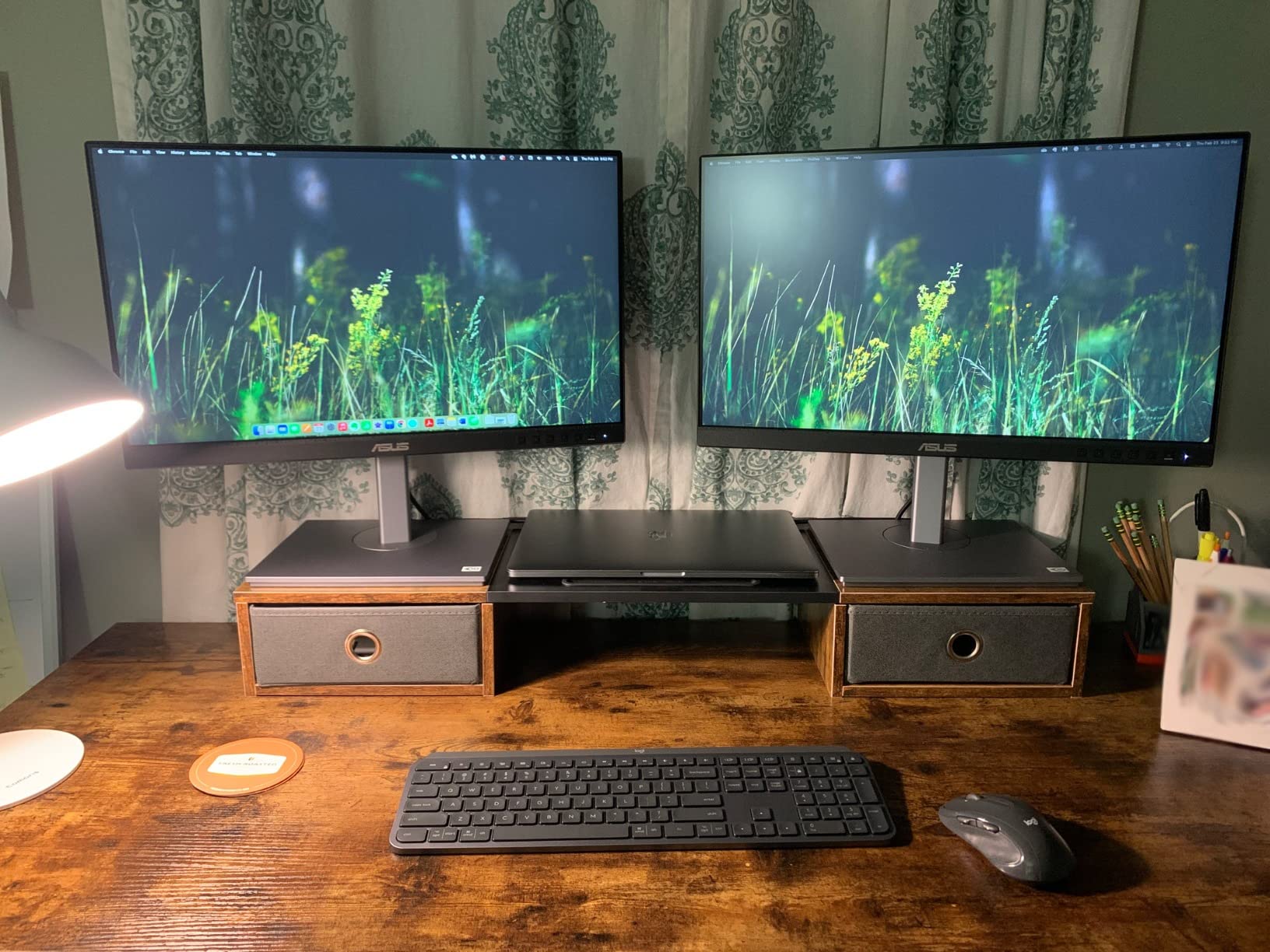
The included 3-month Adobe Creative Cloud subscription is a nice bonus that adds value to an already strong package. The sturdy stand offers full ergonomic adjustments, and VESA compatibility means you can mount it if needed. The USB 3.1 hub with four ports provides convenient connectivity for peripherals.
Who Should Buy This Monitor
The PA329CV is ideal for professional editors who want maximum screen real estate without compromising color accuracy. If you work with complex timelines that benefit from more horizontal space, the 32-inch size delivers. It’s also great for editors who split time between video and photo work, as the color accuracy serves both disciplines.
Who Should Look Elsewhere
If you need DCI-P3 coverage for HDR workflows, the 100% sRGB coverage won’t meet your needs. Editors with limited desk space might find the 32-inch size overwhelming and should consider the 27-inch PA279CRV instead.
8. ViewSonic VX3276-4K-MHD – Best Budget 32-Inch 4K Monitor
Pros
- Excellent value for 32 inch 4K
- Ultra-thin bezels
- HDR10 support
- 2500:1 contrast ratio for deep blacks
- Three-year warranty
- VESA mount compatible
Cons
- 60Hz refresh rate
- MVA panel slower than IPS
- Built-in speakers are poor
- On-screen controls awkward
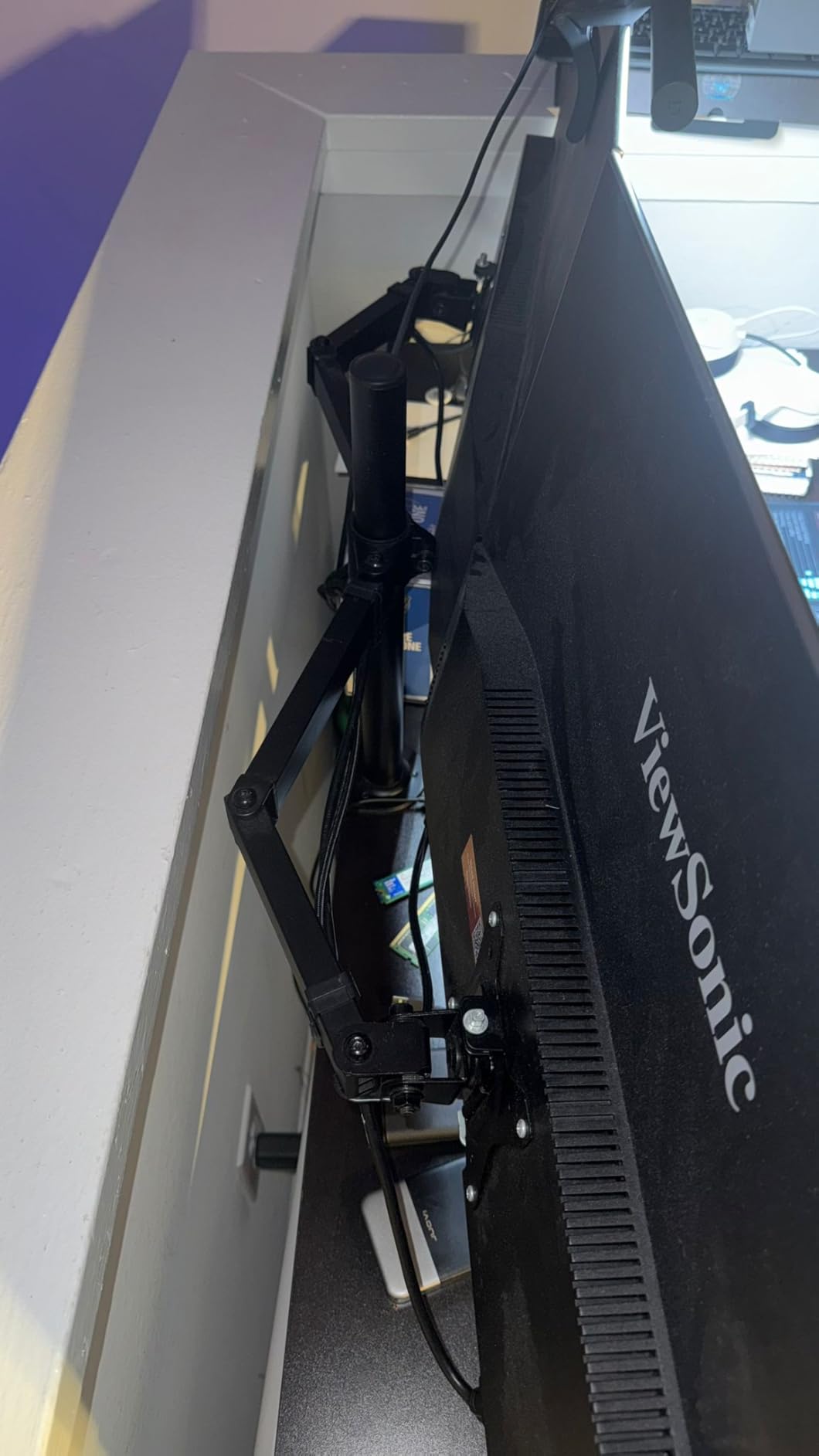
The ViewSonic VX3276-4K-MHD offers something rare: a 32-inch 4K monitor at a genuinely affordable price. With over 8,000 reviews and a 4.5-star rating, this monitor has clearly struck a chord with users. While it uses an MVA panel rather than IPS, the 2500:1 contrast ratio delivers deeper blacks than most IPS alternatives, which can be beneficial for viewing dark footage.
During my testing, the 4K resolution provided excellent detail for video editing work. The ultra-thin bezels give this monitor a modern, premium appearance that belies its budget price. HDR10 support adds some dynamic range capability, though like most monitors at this price point, it lacks local dimming for true HDR performance.
The MVA panel offers good color reproduction, though not at the Delta E under 2 level of professional monitors. For editors producing content for web platforms, the color accuracy is adequate. The 2500:1 contrast ratio really shines when viewing dark scenes, revealing shadow details that IPS panels sometimes crush.
ViewSonic includes Flicker-Free technology and a Blue Light Filter to reduce eye strain during long editing sessions. The three-year warranty provides peace of mind, which is impressive at this price point. Multiple viewing presets (Game, Movie, Web, Text, Mono) let you optimize the display for different content types.
Who Should Buy This Monitor
This monitor is perfect for editors who want a large 32-inch 4K display on a tight budget. If you’re a hobbyist, student, or content creator who doesn’t need professional-grade color accuracy, the VX3276-4K-MHD delivers excellent value. The deep contrast also makes it great for viewing movies and dark content.
Who Should Look Elsewhere
If you need color-critical accuracy for professional client work, the MVA panel won’t match IPS alternatives. Editors who require fast response times for gaming or fast-motion content should consider an IPS panel with better response characteristics.
Buying Guide: How to Choose the Best Monitor for Video Editing In 2026?
Selecting the right monitor for video editing involves understanding several technical specifications that directly impact your workflow and output quality. Here’s what matters most when choosing your editing display.
Color Accuracy and Gamut Coverage
Color accuracy is the single most important factor for video editing. Look for monitors with factory calibration to Delta E less than 2, which indicates minimal color deviation from reference standards. Professional certifications like Calman Verified or Pantone Validated provide third-party confirmation of color accuracy.
Color gamut coverage determines the range of colors your monitor can display. For most video editing work, you’ll want at least 99% sRGB coverage. If you work with HDR content or cinema-grade footage, look for 95% or higher DCI-P3 coverage. Adobe RGB coverage matters if you also do print photography work.
Resolution: 4K vs QHD for Video Editing
4K (3840 x 2160) resolution lets you view 4K footage at native resolution while still having workspace for your timeline and tools. For 4K video production, a 4K monitor is virtually essential. The pixel density also makes fine details like text overlays and graphics appear sharper.
QHD (2560 x 1440) resolution works well for 1080p workflows or editors who prioritize smoother performance over maximum resolution. It’s less demanding on your graphics card and often comes at lower prices. Many editors find QHD sufficient for web content production.
Panel Technology: IPS vs OLED vs VA
IPS panels remain the gold standard for video editing due to their accurate color reproduction and wide viewing angles. Colors stay consistent even when viewing the screen from different positions. Most professional video editing monitors use IPS technology.
OLED panels offer perfect blacks and infinite contrast but come with burn-in concerns. The static UI elements in editing software can potentially cause permanent image retention over time. While modern OLEDs have burn-in mitigation, many professional editors still prefer IPS for peace of mind.
VA panels offer higher contrast ratios than IPS but typically have slower response times and narrower viewing angles. They’re viable for budget-conscious editors who prioritize deep blacks over color accuracy.
Connectivity Options
USB-C with Power Delivery has become essential for laptop-based editors. A single cable can handle video, data, and charging, dramatically simplifying your desk setup. Look for at least 65W Power Delivery, with 90W or higher preferred for larger laptops.
Traditional connections like HDMI and DisplayPort remain important for desktop workstations. Having multiple inputs lets you connect several computers or devices. A built-in USB hub adds convenience for connecting peripherals like colorimeters or external drives.
Size Considerations: 27 vs 32 Inch
27-inch monitors hit a sweet spot for most editors, offering enough screen real estate without overwhelming your desk. At 4K resolution, a 27-inch display provides sharp pixel density that makes fine details easily visible. This size also works well for dual-monitor setups.
32-inch monitors provide substantially more workspace, ideal for complex timelines and multitasking. The larger screen lets you see more of your project at once. However, they require more desk space and typically cost more than 27-inch alternatives with similar specifications.
Frequently Asked Questions
What is the best monitor for video editing?
The ASUS ProArt PA279CRV is the best overall monitor for video editing, offering 4K resolution, 99% DCI-P3 and Adobe RGB coverage, Delta E under 2 color accuracy, and USB-C connectivity with 96W Power Delivery. For budget-conscious editors, the ASUS ProArt PA278QV delivers excellent color accuracy at a fraction of the price.
Do you need OLED for video editing?
OLED is not necessary for video editing and may actually be problematic due to burn-in concerns from static UI elements in editing software. IPS panels remain the preferred choice for professional video editing due to their color accuracy, wide viewing angles, and long-term reliability. OLED excels for content consumption but poses risks for editing workflows.
Do I need a 4K monitor to edit 4K videos?
A 4K monitor is highly recommended for editing 4K videos because it allows you to view your footage at native resolution without downscaling. While you can technically edit 4K footage on a 1080p or 1440p display, you won’t see the full detail of your source material, making it harder to spot issues and evaluate image quality accurately.
Which display is good for video editing?
A good video editing display should have an IPS panel for color consistency, at least 99% sRGB coverage (or 95%+ DCI-P3 for HDR work), factory calibration to Delta E under 2, and 4K resolution for 4K workflows. Look for professional-grade monitors like the ASUS ProArt series, BenQ PD line, or Dell UltraSharp series for reliable performance.
Conclusion
Choosing the best monitors for video editing ultimately depends on your specific workflow, budget, and color requirements. For most professional editors, the ASUS ProArt PA279CRV offers the ideal balance of color accuracy, features, and value. Budget-conscious creators will find everything they need in the ASUS ProArt PA278QV, while Mac users should consider the BenQ PD3205U for its excellent color matching with Apple displays.
Remember that color accuracy matters more than raw specs for video editing. A well-calibrated 1440p monitor will serve you better than an uncalibrated 4K display. Consider investing in a colorimeter for periodic calibration if your work demands consistent color accuracy across projects.