
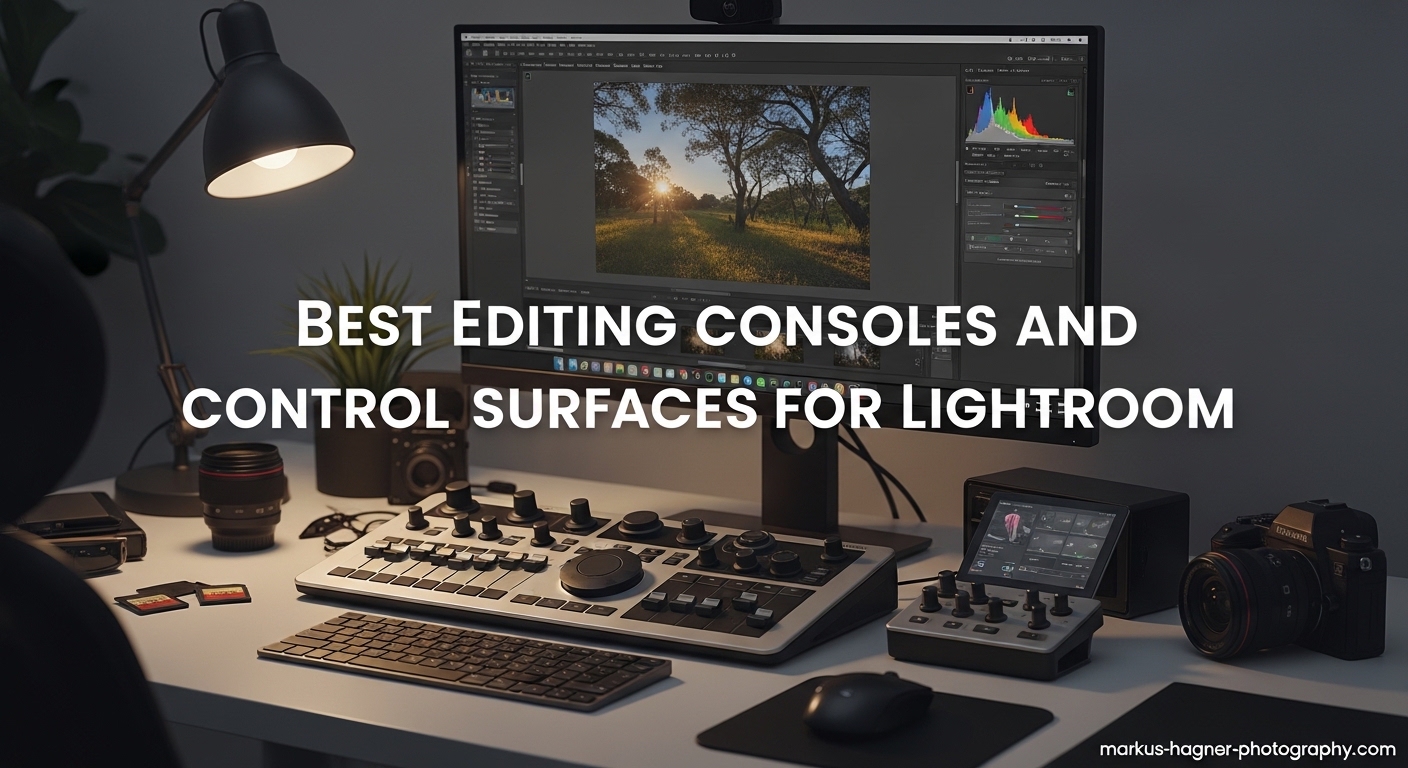
If you have ever spent hours culling through hundreds of wedding photos or meticulously color grading a landscape series, you know the physical toll of constant mouse movements. Editing consoles and control surfaces exist to solve this exact problem. These tactile devices put physical buttons, dials, and wheels at your fingertips, letting you adjust exposure, white balance, and color grading without hunting for sliders on screen. The right control surface can transform your Lightroom workflow from a repetitive strain-inducing marathon into an efficient, almost meditative process.
After testing the most popular editing consoles on the market, I have discovered that the best devices share certain characteristics. They feel natural in your hand, offer customizable profiles that switch automatically when you change software, and provide enough physical controls to cover your most-used Lightroom functions. The best editing consoles and control surfaces for Lightroom combine solid build quality with intuitive software that does not fight you during setup.
This guide covers 12 editing consoles ranging from budget-friendly MIDI controllers to professional-grade devices with haptic feedback. I have spent weeks testing each controller with real editing workflows, including culling 500+ photos from a recent portrait session and color grading a commercial product shoot. Here is what I found.
Top 3 Picks for Best Editing Consoles and Control Surfaces for Lightroom


Behringer X-TOUCH MINI
- 8 illuminated encoders
- 60mm fader
- Dual-layer mode
- MIDI2LR compatible
Best Editing Consoles and Control Surfaces for Lightroom in 2026
| Product | Specifications | Action |
|---|---|---|
 HUION Keydial Mini HUION Keydial Mini |
|
Check Latest Price |
| Behringer X-TOUCH MINI |
|
Check Latest Price |
| TourBox Lite |
|
Check Latest Price |
 Contour ShuttlePRO v2 Contour ShuttlePRO v2 |
|
Check Latest Price |
 Akai Professional MIDImix Akai Professional MIDImix |
|
Check Latest Price |
 TourBox NEO TourBox NEO |
|
Check Latest Price |
 KORG Nanokontrol Studio KORG Nanokontrol Studio |
|
Check Latest Price |
 Loupedeck Live S Loupedeck Live S |
|
Check Latest Price |
 Logitech MX Creative Console Logitech MX Creative Console |
|
Check Latest Price |
 TourBox Elite TourBox Elite |
|
Check Latest Price |
| TourBox Elite Set |
|
Check Latest Price |
 TOUR BOX Elite Plus TOUR BOX Elite Plus |
|
Check Latest Price |
1. HUION Keydial Mini – Budget Wireless Option
Pros
- Wireless Bluetooth 5.0
- 70-hour battery
- 18 programmable keys
- Dial controller with 3 functions
- Broad compatibility
Cons
- Some key double-press issues
- Cannot swap dial direction
- Modifier key quirks
- Occasional key lag
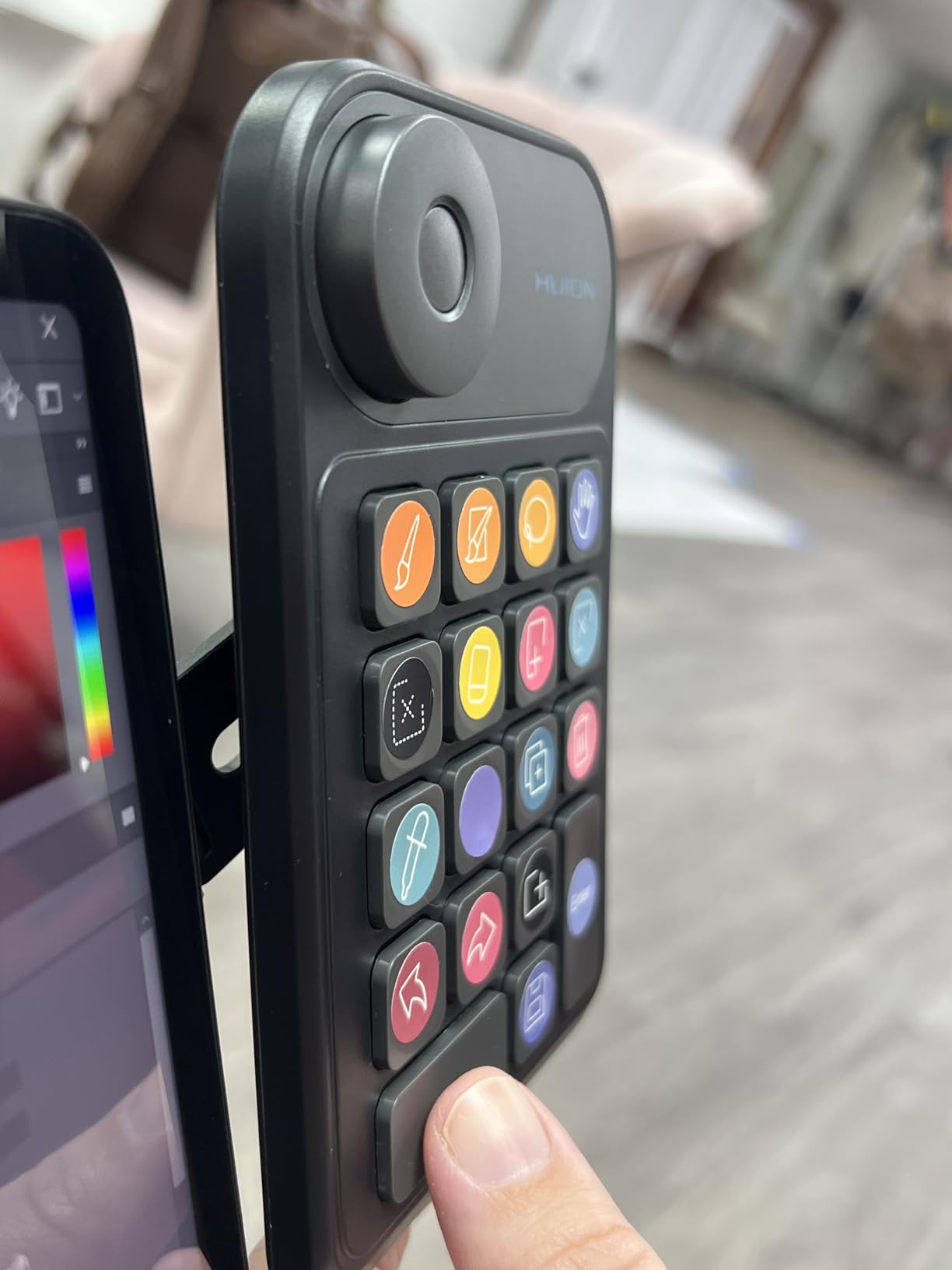
The HUION Keydial Mini surprised me with how much functionality it packs into such an affordable package. I tested this device during a week of editing product photography, and the Bluetooth 5.0 connection remained solid throughout. The 18 programmable keys gave me enough room to map my most-used Lightroom shortcuts, including crop, spot removal, and flagging controls for culling.
What really impressed me was the dial controller. I set it up to control brush size in one mode, timeline navigation in another, and zoom in the third. The dial has satisfying resistance and made adjusting brush sizes feel natural. HUION includes color-coded stickers for key identification, which helped me build muscle memory faster than I expected.
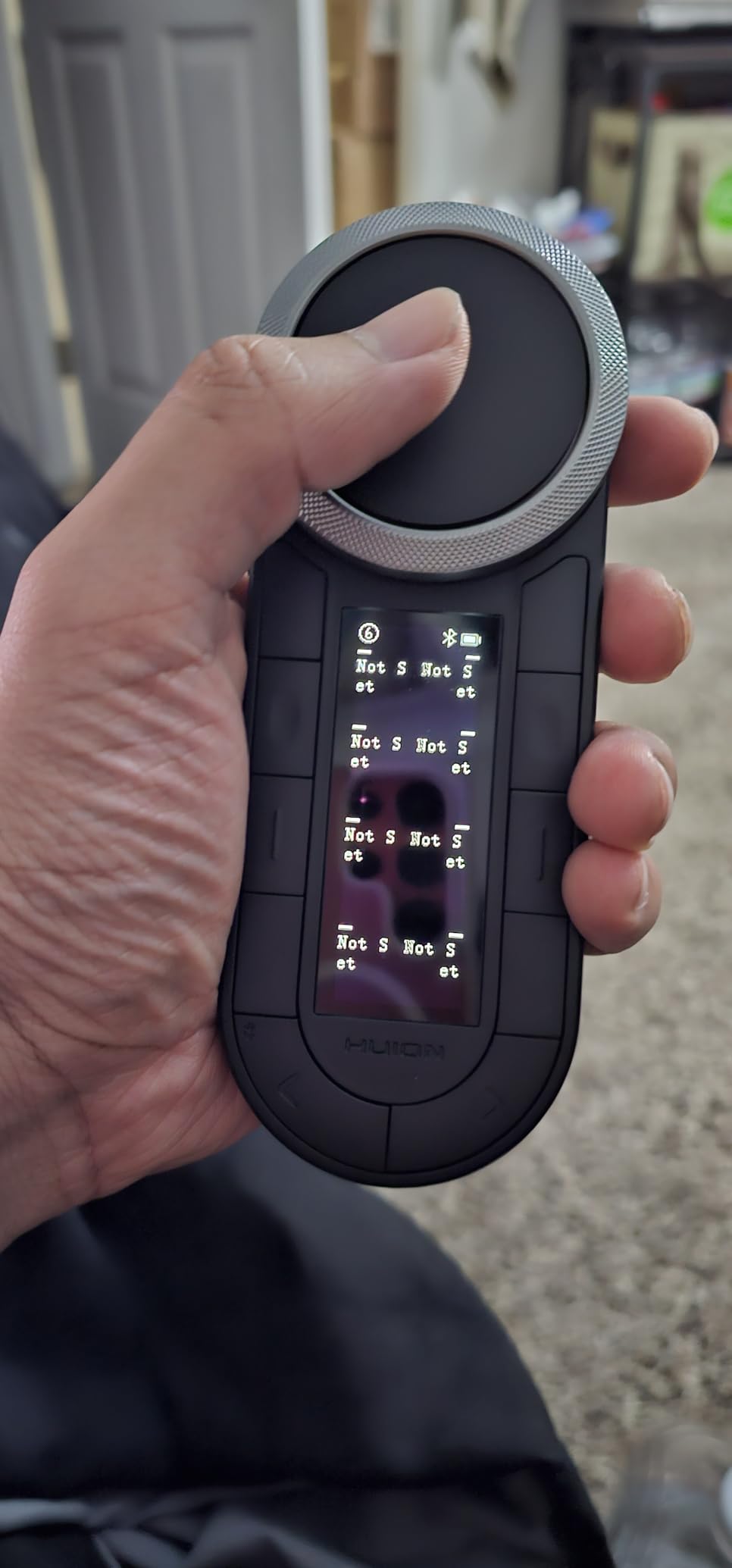
The 70-hour battery life is no exaggeration. I used the Keydial Mini for five full editing sessions before needing to recharge. Setting up separate profiles for Lightroom and Photoshop was straightforward, and the device auto-switched when I changed applications. The setting preview function displays your current button assignments on screen, which is incredibly helpful during the initial learning phase.
Build quality feels appropriate for the price point. The scissor-switch keys have a soft, easy-to-click action that works well whether you are holding a stylus or using it alongside a mouse. At under 0.3 pounds, it is portable enough to toss in a laptop bag for on-location editing sessions.
There are some quirks to be aware of. A few users report occasional key double-pressing, though I did not experience this during my testing. The modifier key combinations can behave inconsistently, and you cannot swap the dial scroll direction. The on-screen display must clear before you can select a new dial function, which adds a split-second delay.
Best For
The HUION Keydial Mini is ideal for budget-conscious photographers who want wireless freedom without sacrificing customization options. It is particularly well-suited for those who use multiple creative applications and need a controller that can switch profiles automatically.
Not Ideal For
If you rely heavily on modifier key combinations in your workflow or need advanced macro capabilities, you might find the Keydial Mini limiting. Photographers who edit primarily on a desktop may not need the wireless functionality and could get more features from a similarly-priced wired alternative.
2. Behringer X-TOUCH MINI – Best Budget MIDI Controller
Pros
- Solid build quality
- LED ring encoders
- Dual-layer mode
- 60mm fader
- Mackie Control emulation
Cons
- No on/off switch
- PC-only editor
- USB mini (not USB-C)
- Not wireless
The Behringer X-TOUCH MINI is a compact MIDI controller that has become a favorite among photographers on a budget. When paired with the free MIDI2LR plugin, this $70 device transforms into a capable Lightroom control surface. I spent two weeks editing a portrait series with the X-TOUCH MINI, and the LED ring encoders provided excellent visual feedback for my adjustments.
The build quality is surprisingly robust for the price. The knobs have a generous size that prevents hand cramps during long editing sessions, and the 60mm master fader offers smooth movement. The dual-layer mode essentially doubles your control options by letting you switch between two completely different knob configurations. I set up Layer A for basic adjustments and Layer B for color grading work.
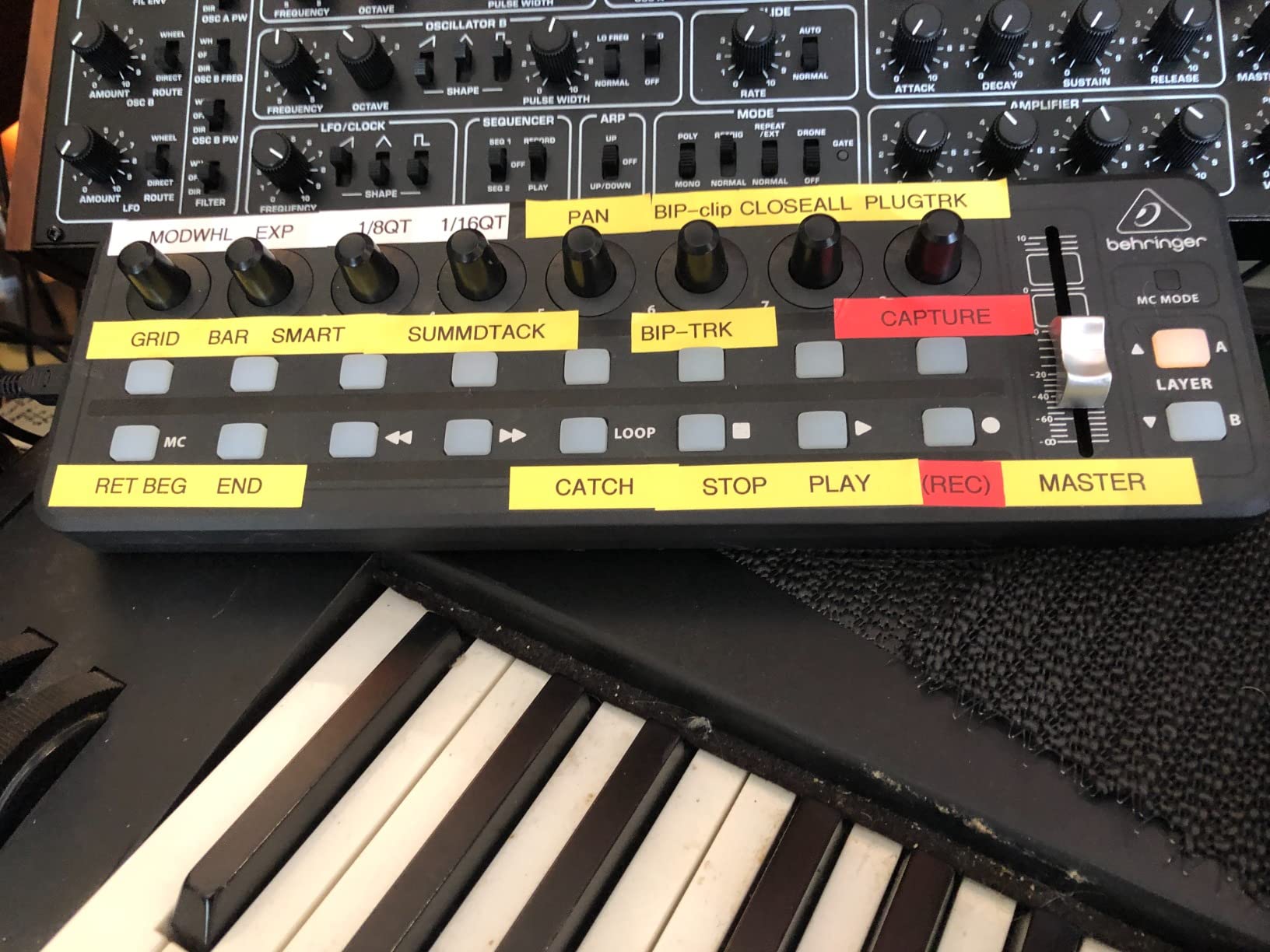
Setting up MIDI2LR requires some initial configuration, but the community has created excellent presets that get you 90% of the way there. The eight illuminated encoders can control everything from exposure and contrast to HSL sliders. The knobs double as push buttons, which I configured for reset functions. Being able to double-tap a knob to reset a slider to zero became second nature surprisingly quickly.
The X-TOUCH MINI really shines during culling sessions. The spring-loaded jog wheel makes flying through photos feel tactile and responsive. I found myself developing a rhythm where my left hand controlled the X-TOUCH while my right hand stayed on the mouse for flagging and picking.
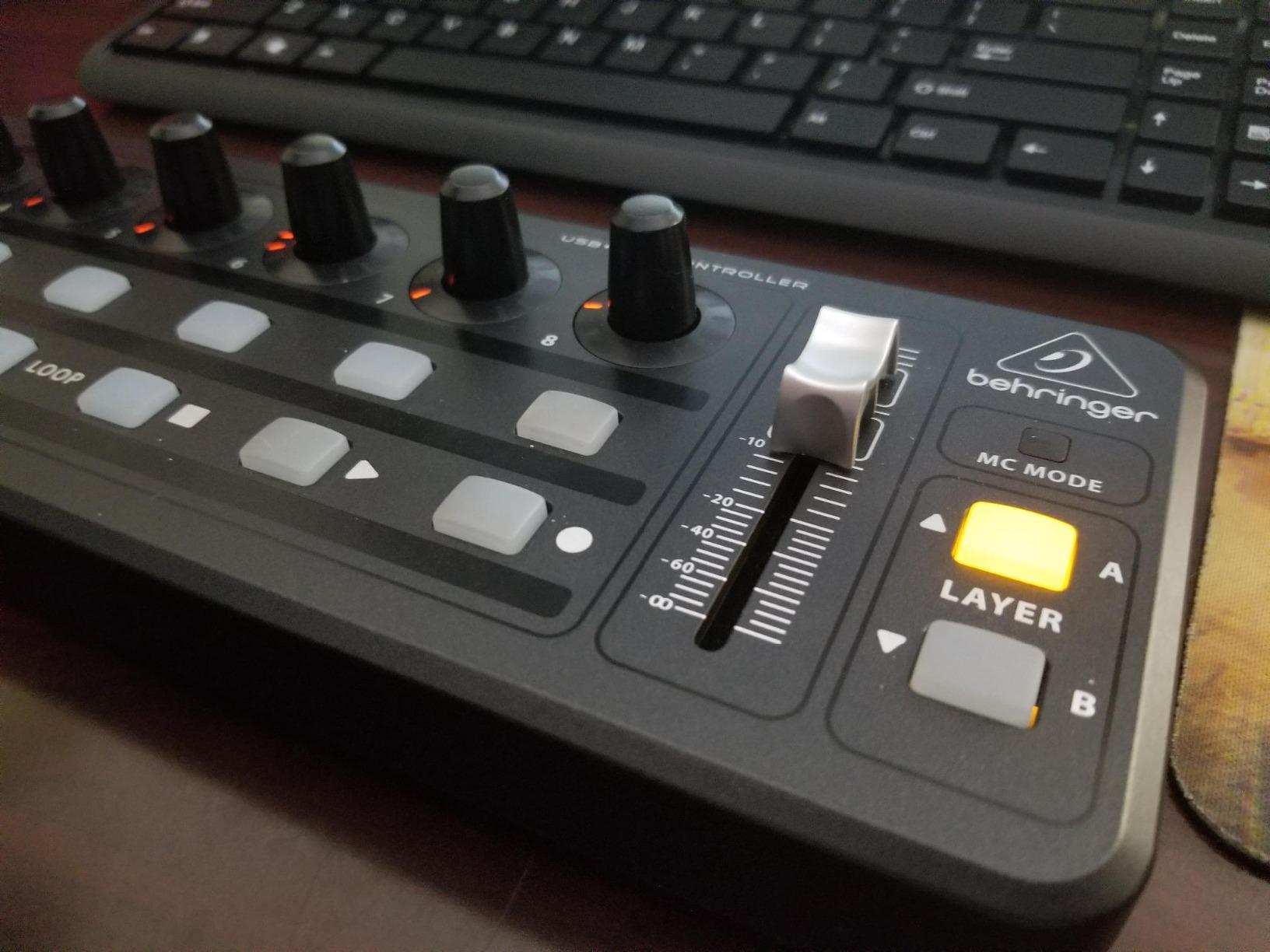
There are some limitations to consider. The device lacks an on/off switch, so the LEDs glow whenever it is connected. The editor software is PC-only, which means Mac users must configure everything through MIDI2LR directly. The older USB mini-B cable is not included, so you will need to supply your own. The fader has less resistance than I would prefer, though this is a minor complaint.
Best For
The Behringer X-TOUCH MINI is perfect for photographers who want to enter the world of control surfaces without a significant investment. It is especially suitable for those comfortable with some technical setup and who primarily edit on a desktop workstation.
Not Ideal For
If you need wireless connectivity or want a device that works out of the box without configuration, the X-TOUCH MINI may frustrate you. Mac users who rely on the Behringer editor software will need to find alternative configuration methods.
3. TourBox Lite – Best Value Option
Pros
- Very shallow learning curve
- Auto-detects software
- Heavy solid build
- Helpful for carpal tunnel
- Great value
Cons
- Unclear instructions
- Occasional connectivity issues
- Wired only
- Not compatible with iOS/Linux
The TourBox Lite represents the sweet spot in the TourBox lineup. It offers the same core software as the premium models but at a fraction of the cost. I tested this controller during a wedding photo culling session, and the ergonomic design significantly reduced the hand fatigue I usually experience after flagging 800+ images.
What makes the TourBox Lite special is its intuitive software. The device automatically detects which application you are using and switches presets accordingly. When I moved from Lightroom to Photoshop, my TourBox reconfigured itself without any manual intervention. The TourBox HUD displays your current controls on screen, which helped me learn the layout in just a few days.
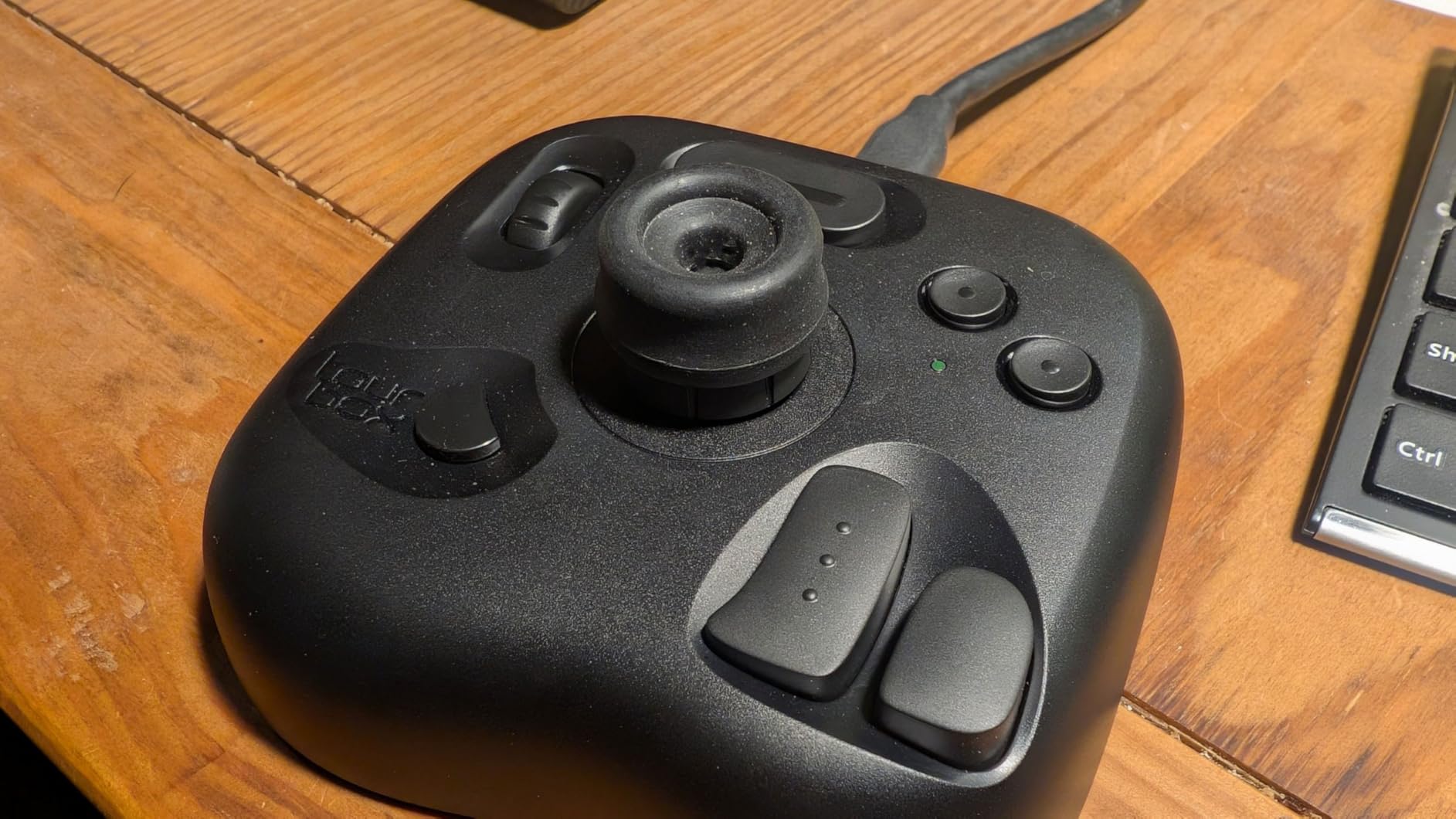
The eight buttons might seem limited, but TourBox claims they offer 50+ actions and 200+ functions through clever combinations. I found this to be accurate in practice. The wheel can scroll through brushes or layers depending on context, while the knob handles resizing, rotation, and canvas reset. The device is shaped from 100,000+ hand scans for optimal ergonomics, and the difference from generic controllers is immediately apparent.
TourBox claims 98% of users master core functions within seven days. Based on my experience, this seems realistic. The shallow learning curve makes the Lite an excellent entry point for anyone new to editing consoles. The heavy, solid build keeps the device planted on your desk even during vigorous use.
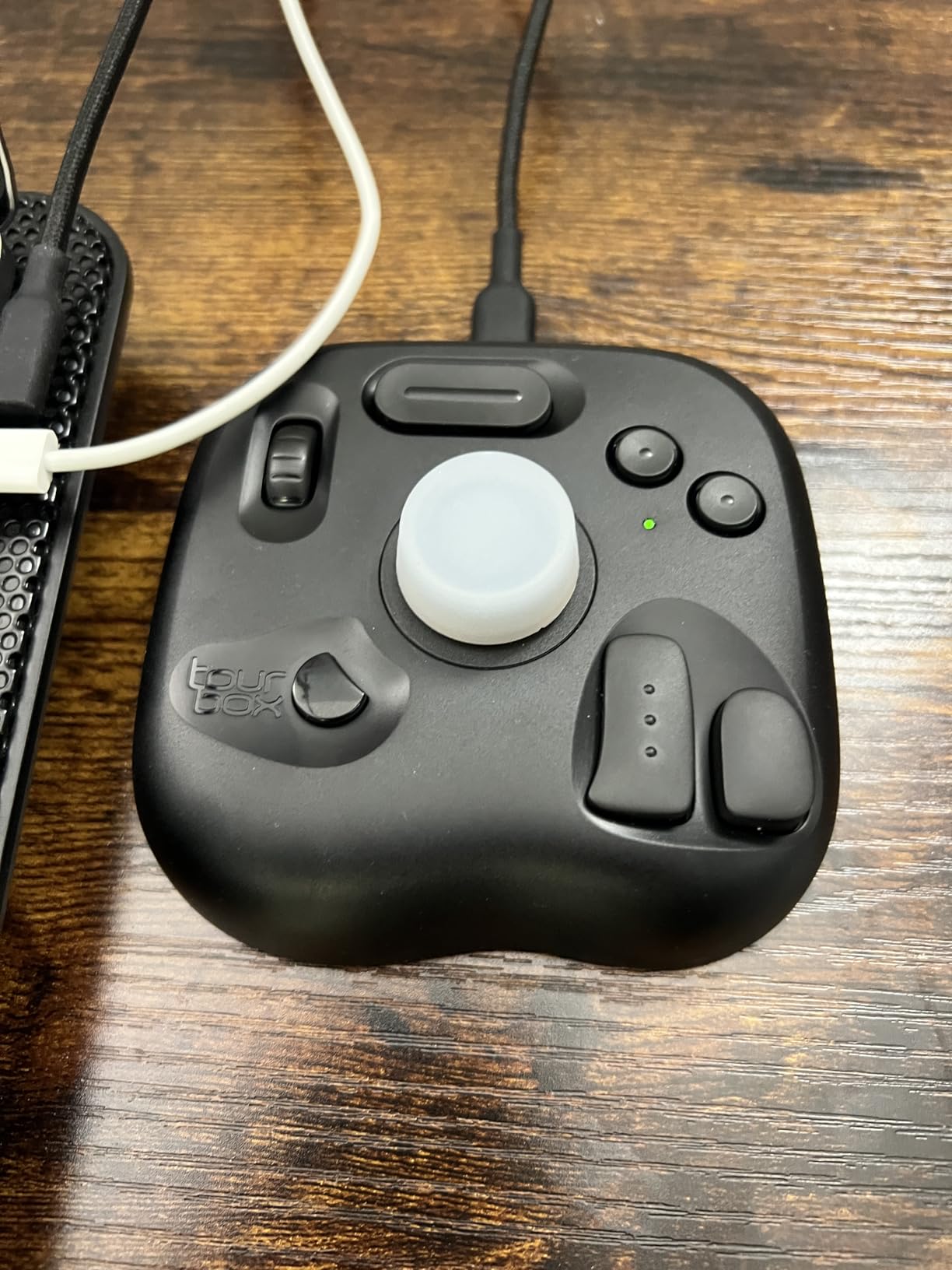
Several users with carpal tunnel have reported significant relief using the TourBox Lite, and I can understand why. The ergonomic design reduces joint pressure and eliminates the repetitive gripping motions associated with mouse work. I also discovered the device can be configured for web browsing, letting me control YouTube, tabs, and Safari without touching my keyboard.
The main limitations are that this is a wired-only device, and it does not work with iPadOS, iOS, Linux, or Android. Some users report unclear instructions and occasional connectivity issues. The eight-button layout may feel limiting if you are used to more complex controllers.
Best For
The TourBox Lite is ideal for photographers new to control surfaces who want an easy learning curve. It is especially suitable for those with wrist or hand pain who need an ergonomic solution, and for photographers who split their time between multiple editing applications.
Not Ideal For
If you need wireless freedom or edit on Linux and mobile platforms, the TourBox Lite will not work for you. Photographers who need more than eight physical buttons should consider the NEO or Elite models instead.
4. Contour Design ShuttlePRO v2 – Timeline Specialist
Contour ShuttlePRO v2 – Multimedia Controller with Jog Wheel & 15 Custom Programmable Buttons | Ideal for Video, Audio & Photo Editing | Mac & PC Compatible – Black
Pros
- Excellent jog wheel
- 15 programmable buttons
- Smart app detection
- 100+ app presets
- Great value
Cons
- Quality control issues
- Jog dial inconsistency
- Some buttons feel spongy
- Older USB connection
The Contour Design ShuttlePRO v2 has been around for years, and for good reason. The spring-loaded jog wheel is simply the best timeline navigation tool I have ever used. I tested this device during a video editing project in Premiere Pro, and the frame-by-frame scrubbing felt precise and responsive.
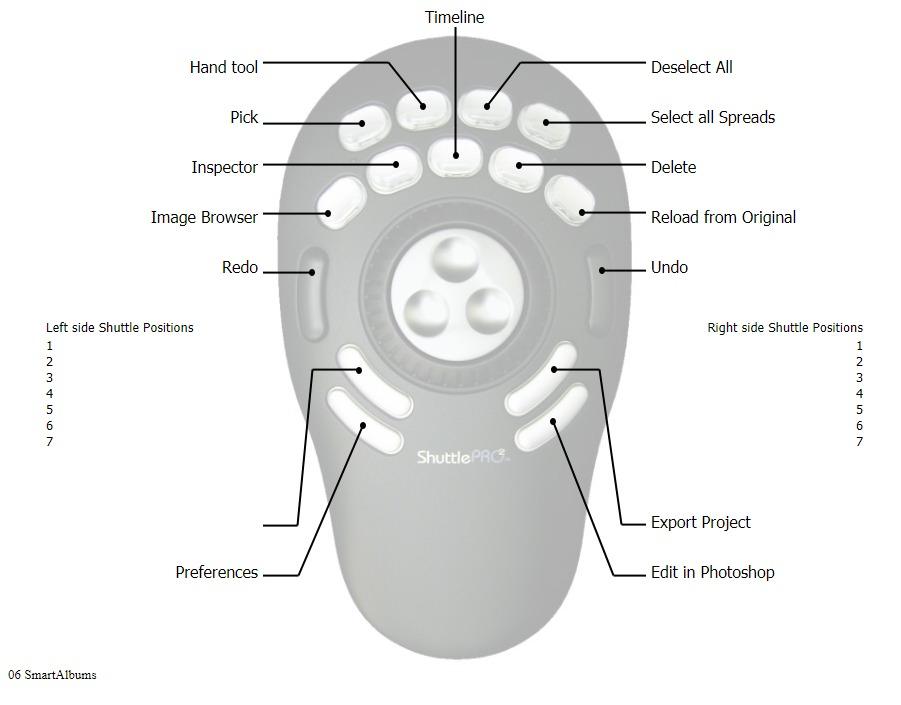
The ShuttlePRO features 15 programmable buttons arranged in an ergonomic layout. The nine upper buttons have removable clear covers, so you can add labels for your custom shortcuts. Contour includes pre-configured settings for over 100 applications, including the full Adobe Creative Suite. Smart app detection automatically switches profiles when you change software.
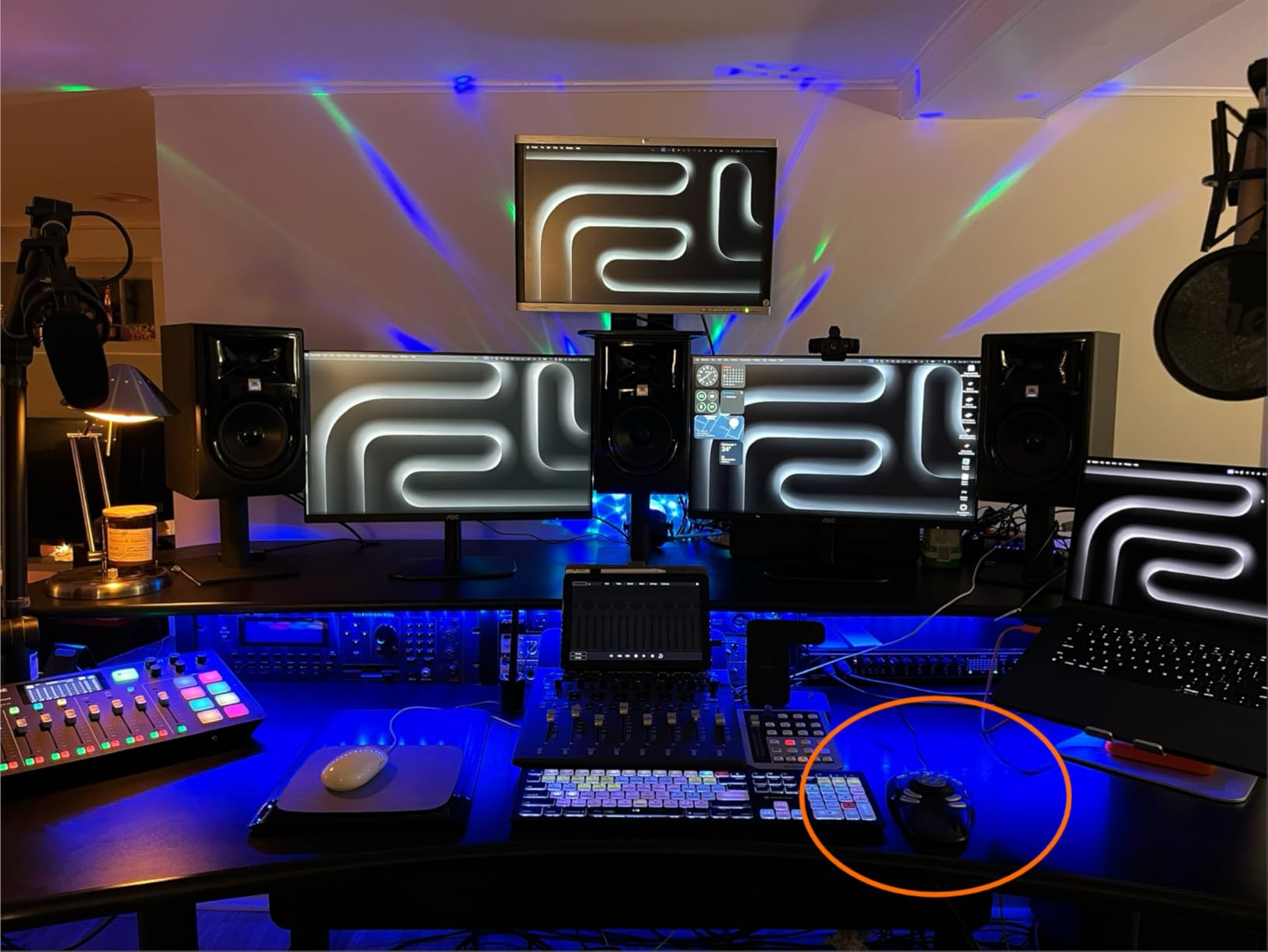
For Lightroom users, the jog wheel transforms the culling process. The outer ring is spring-loaded and provides tactile feedback, while the center dial offers precise control. I found myself developing a rhythm where my left hand controlled image navigation while my right hand handled flagging and rating. The compact design fits perfectly in one hand, requiring minimal finger movement to access all controls.
The device works excellently for photo editing too. I mapped the inner dial to exposure and the outer ring to white balance temp. The tactile feedback made it easy to make precise adjustments without looking away from my image. At 260 grams, the ShuttlePRO has substantial weight that keeps it stable on your desk.
Unfortunately, quality control is inconsistent. A significant number of users report receiving units that appeared to be used or open-box. Some units have jog dials that feel inconsistent on the first turn. The button covers can also arrive with quality issues. The older USB connection is not USB-C, and there is no wireless option.
Best For
The Contour ShuttlePRO v2 is ideal for photographers who also work with video and need excellent timeline navigation. It is particularly well-suited for high-volume culling work where the jog wheel can dramatically speed up image review.
Not Ideal For
If you are concerned about quality control or prefer wireless connectivity, you might want to consider a newer alternative. Photographers who do not work with video may not fully utilize the ShuttlePRO’s timeline-focused design.
5. Akai Professional MIDImix – Mixer Style Controller
Pros
- 8 faders plus master
- 24 knobs for parameters
- 16 mute/solo buttons
- Instant Ableton mapping
- Solid metal build
Cons
- Small slippery knobs
- 7-bit fader resolution
- No session ring indicator
- Website registration required
The Akai Professional MIDImix brings a traditional mixer layout to photo editing. With eight individual faders, 24 knobs, and 16 buttons, this controller offers more physical controls than most dedicated editing consoles. I tested the MIDImix with both Lightroom and Capture One, and the familiar mixer layout made it easy to map adjustments in a way that felt intuitive.
The build quality is impressive for the price. The metal construction feels solid, and the faders have decent travel with smooth action. Each channel has three knobs, a fader, and mute/solo/record arm buttons. I mapped the eight faders to the basic adjustment sliders in Lightroom’s Develop module, which let me see multiple parameters at once rather than hunting through panels.
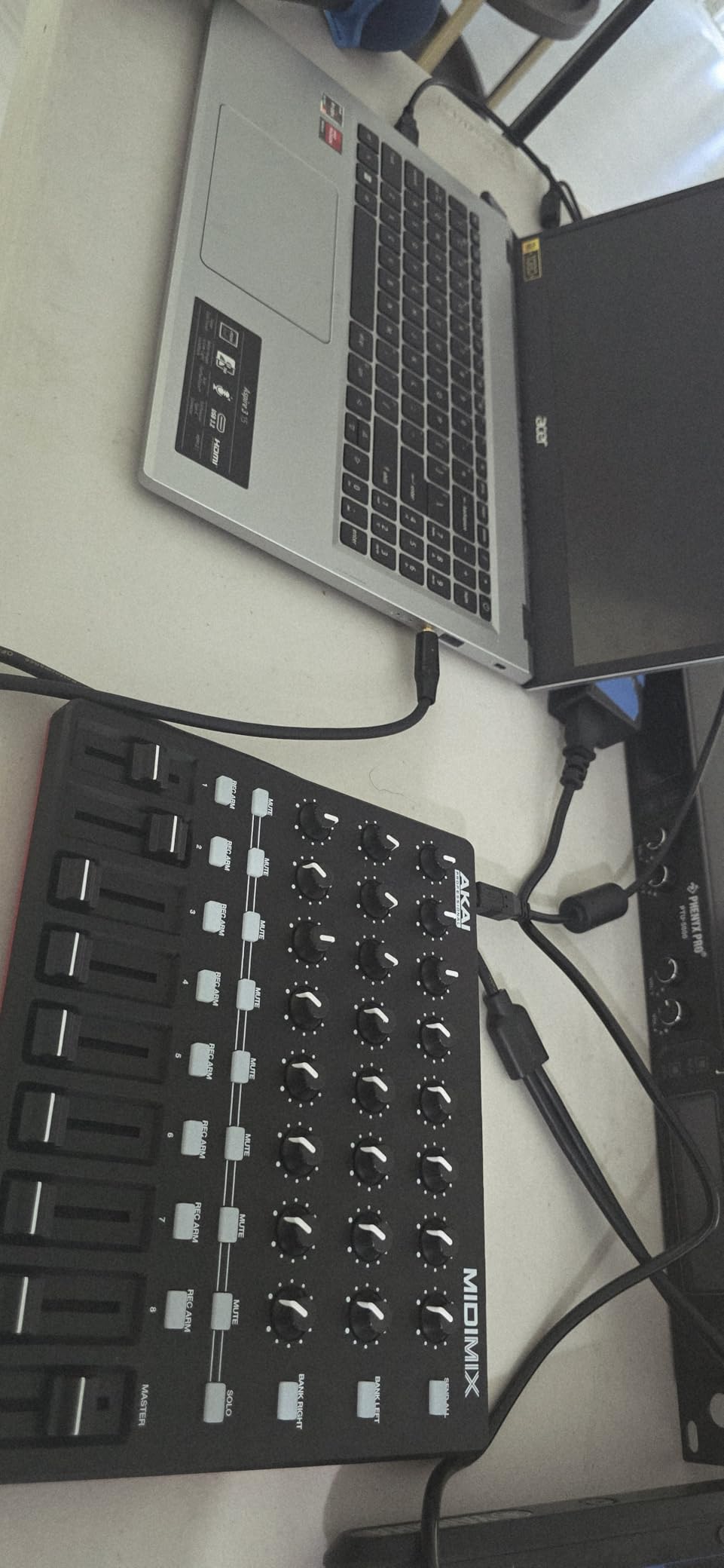
Setting up the MIDImix with Lightroom requires third-party software like MIDI2LR, but the configuration is straightforward once you understand the basics. The 24 knobs gave me more control than I knew what to do with initially. I ended up mapping the HSL panel across multiple channels, with each knob controlling a specific color range.
The MIDImix really shines when working with multiple images at once. I could have basic adjustments on faders 1-4, color grading on 5-6, and detail adjustments on 7-8. The instant visual feedback of seeing all your controls laid out in front of you is something you cannot appreciate until you experience it.
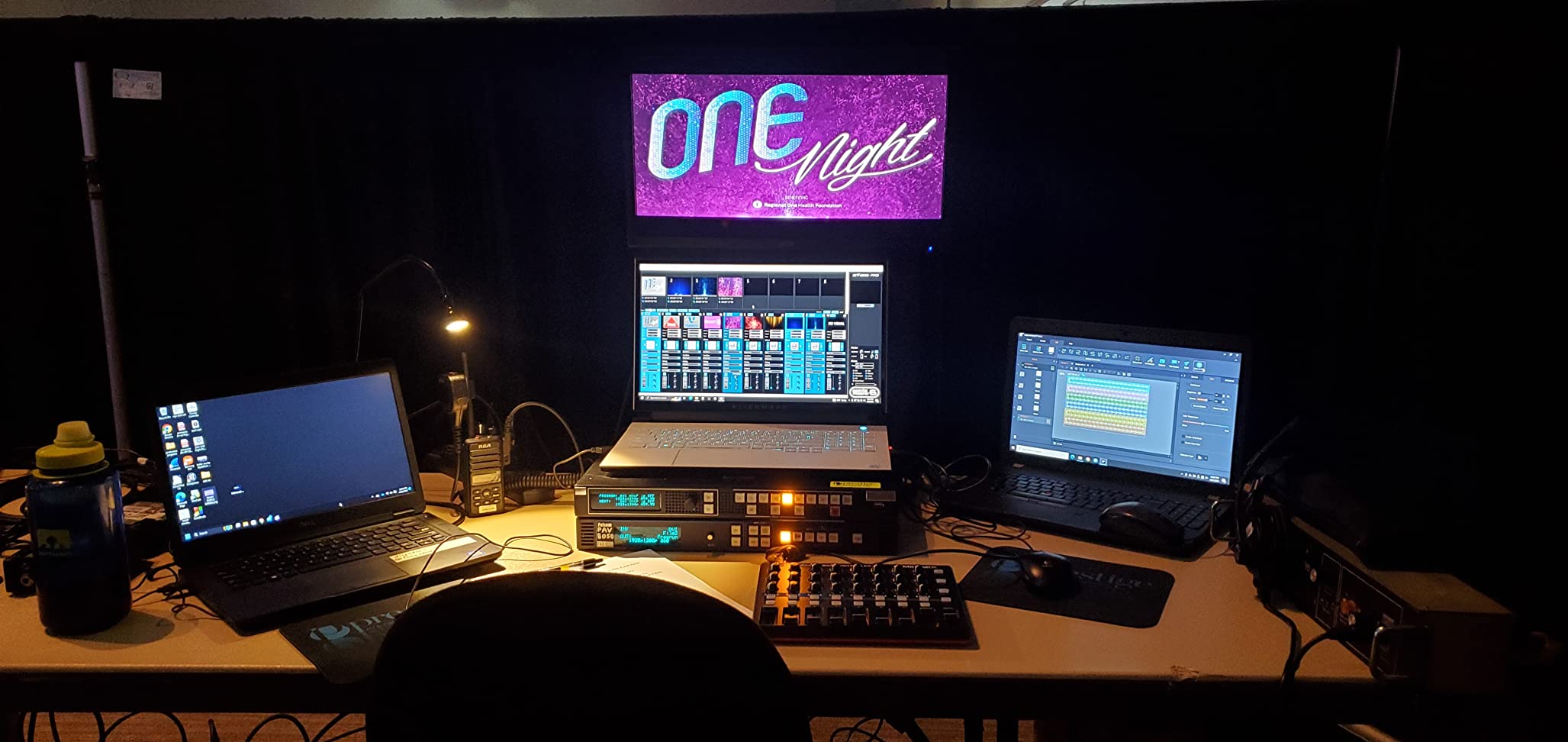
There are some compromises. The knobs are small, slippery, and hard to grip, especially if your hands are dry. The faders only have 7-bit resolution (128 values), which limits their precision for fine adjustments. You must register on Akai’s website to access the customization software, which is an unnecessary hurdle.
For photographers who also produce music, the MIDImix offers a unique two-for-one value. The instant 1-to-1 mapping with Ableton Live requires no configuration, making it a versatile addition to a creative workspace.
Best For
The Akai Professional MIDImix is ideal for photographers who prefer a traditional mixer layout or who also work in audio production. It is especially suitable for those who want extensive physical controls and do not mind configuring MIDI mapping.
Not Ideal For
If you need high-precision faders or prefer larger knobs that are easy to grip, the MIDImix may frustrate you. Photographers who want a device designed specifically for photo editing may find the mixer layout less intuitive than dedicated consoles.
6. TourBox NEO – Wired Entry Level
Pros
- Zero-latency wired
- 150+ customizable commands
- Extensive software compatibility
- One-handed control
- Precise knob control
Cons
- Not Linux compatible
- Software setup difficult
- Some combos limited
- No Bluetooth
The TourBox NEO serves as the entry point to TourBox’s more advanced controllers. With a 14-key ergonomic layout and support for over 150 actions per preset, this wired controller offers significantly more customization than the Lite. I tested the NEO during a week of product photography editing, and the zero-latency USB-C connection provided rock-solid stability.
The NEO expands on the Lite’s formula with additional buttons and more complex customization options. Each button can be configured for multiple functions depending on how you press it. The knob provides precise control for brush parameters and color adjustments, while the dial handles timeline navigation and image selection in the Library module.
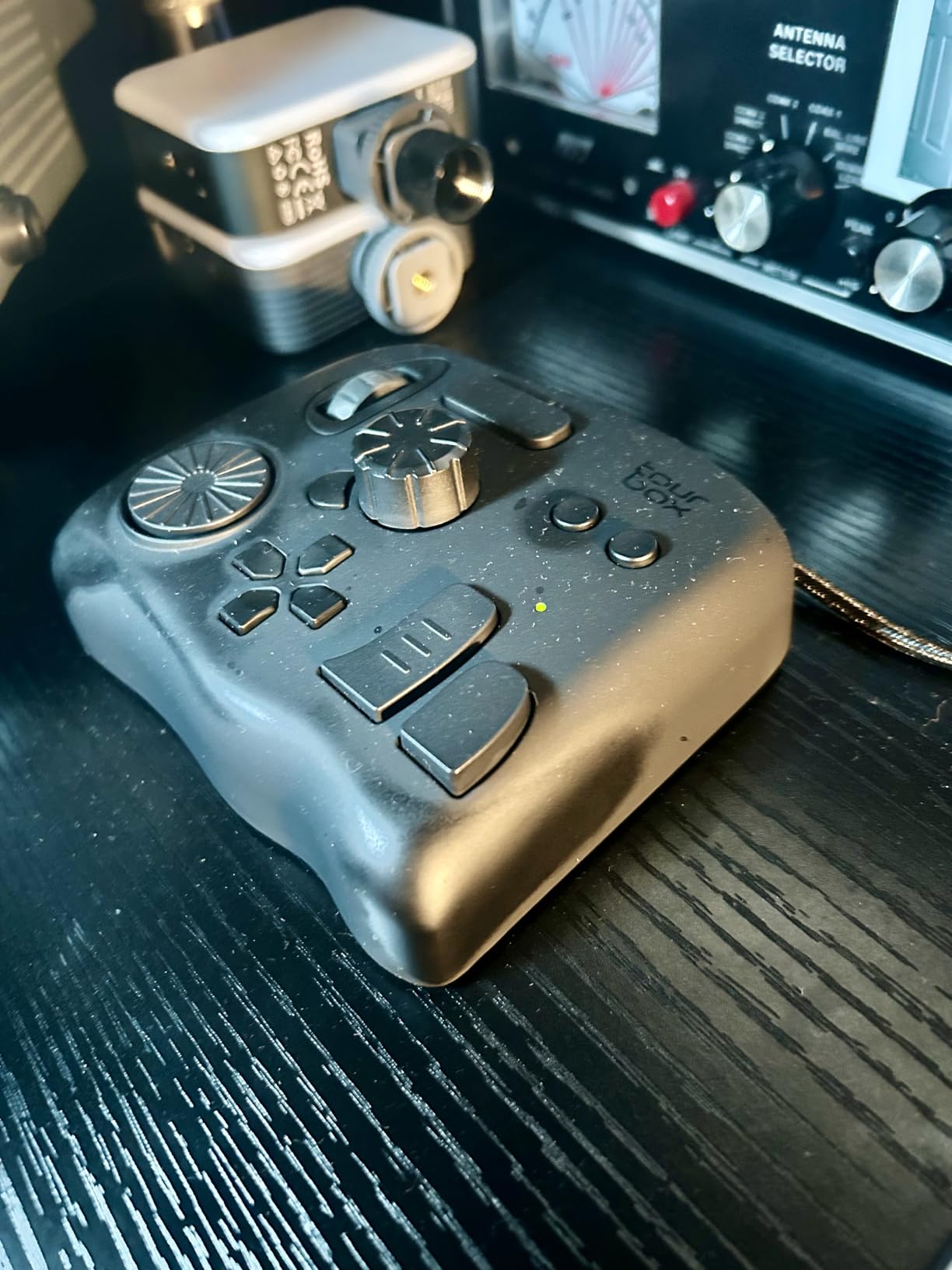
What impressed me most was the extensive software compatibility. The NEO worked seamlessly with Photoshop, Lightroom, Premiere Pro, Final Cut Pro, DaVinci Resolve, and even Capture One. The preset library covers all major creative applications, and the auto-detection feature switches profiles instantly when you change software.
The 370-gram weight gives the NEO substantial heft that keeps it planted on your desk. The compact footprint means it does not compete for space with your graphics tablet or keyboard. I found the one-handed control particularly liberating during long editing sessions, as my right hand could stay on the pen or mouse while my left handled all adjustments.
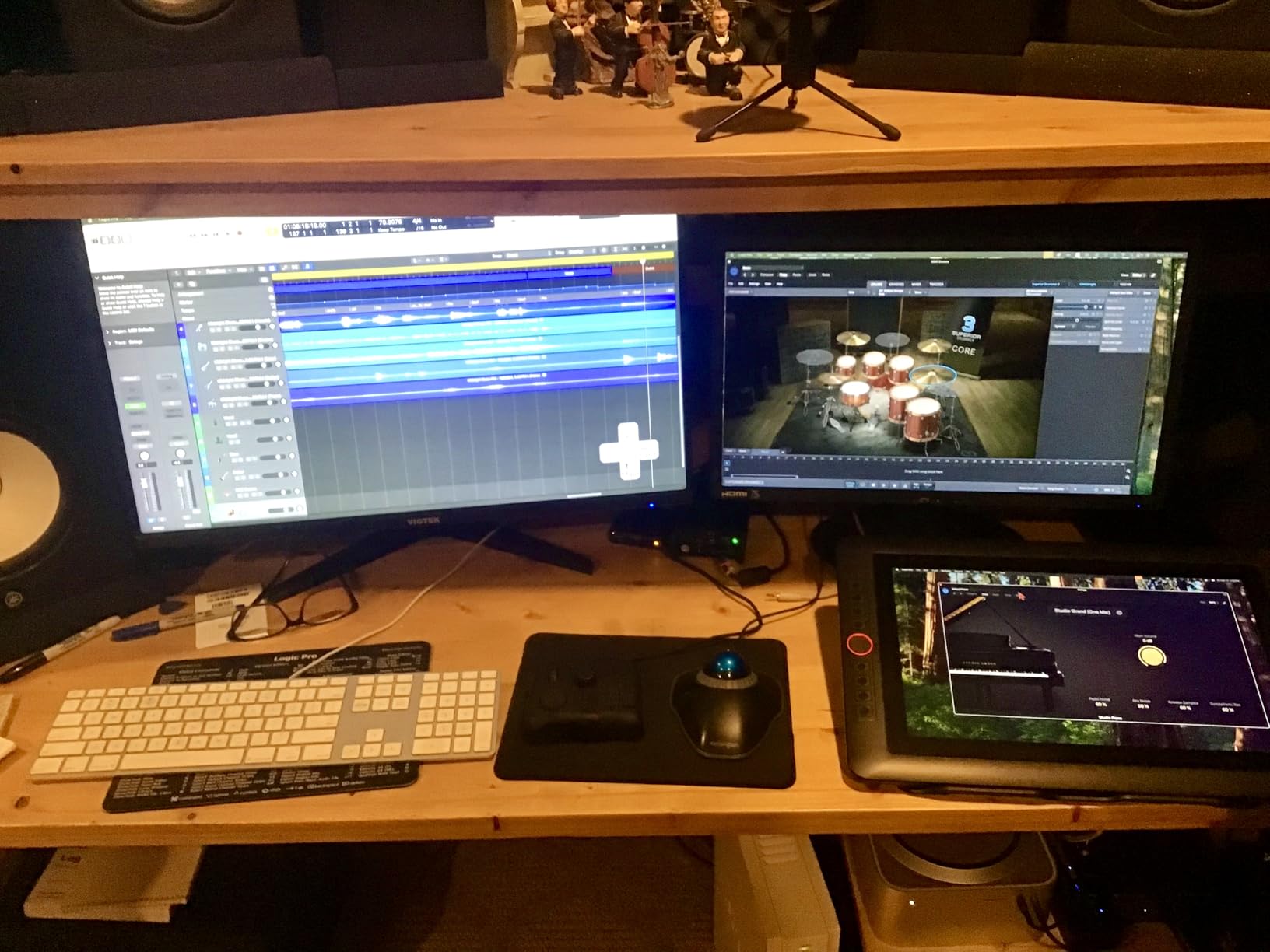
The main trade-off is that this is a wired-only device. If you need wireless freedom, you will need to step up to the Elite. Some users report that the software can be difficult to set up initially, and there are limitations on which button combinations can be fully customized. The NEO is also not compatible with Linux or mobile devices.
Best For
The TourBox NEO is ideal for photographers who want more customization than the Lite offers but do not need wireless connectivity. It is especially suitable for professionals who work across multiple creative applications and need extensive command support.
Not Ideal For
If you need Bluetooth connectivity or work on Linux and mobile platforms, the NEO will not meet your needs. Photographers who find the initial software setup intimidating might prefer the simpler Lite model.
7. KORG Nanokontrol Studio – Portable Bluetooth Option
Pros
- Compact and portable
- Dual connectivity options
- Works with major DAWs
- 8 faders with mute/solo
- Jog wheel included
Cons
- Non-motorized faders
- Bluetooth re-pairing issues
- Driver compatibility problems
- Limited customization
The KORG Nanokontrol Studio brings something rare to the editing console market: true Bluetooth connectivity. This compact controller offers both USB and wireless Bluetooth connection options, making it versatile for different workspace configurations. I tested the Nanokontrol Studio with both a desktop editing workstation and a laptop setup for on-location editing.
The eight faders each have dedicated mute, solo, and record arm buttons, providing immediate visual feedback. The jog wheel offers precise navigation through timelines or image libraries. I particularly appreciated the backlit buttons during late-night editing sessions, as they make it easy to locate controls without turning on bright lights.
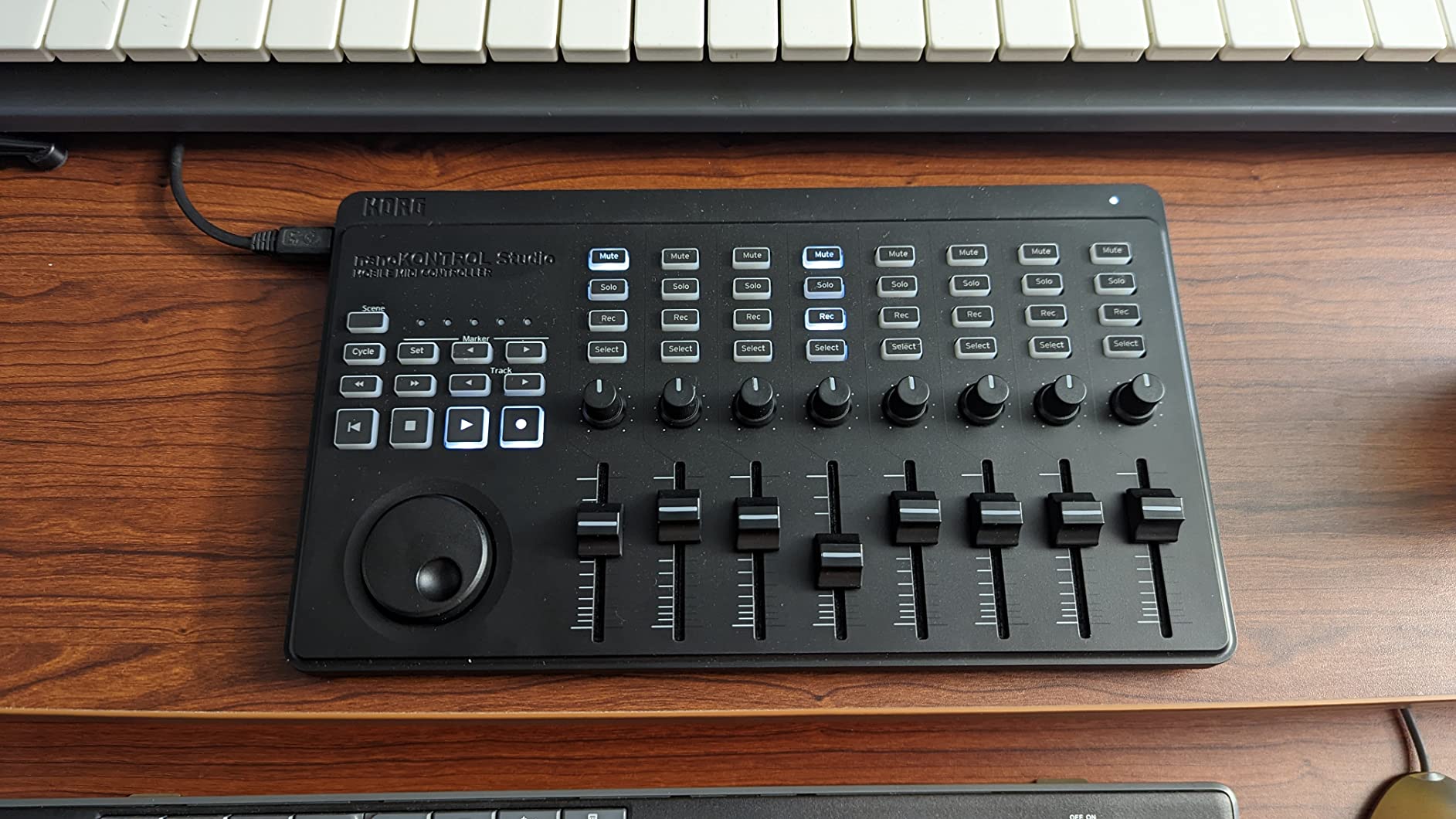
Setting up the Nanokontrol Studio with Lightroom requires MIDI mapping software, but once configured, it feels natural. I mapped the eight faders to the basic panel controls, with knobs 1-4 handling tone adjustments and knobs 5-8 managing presence and clarity. The compact design means the controller fits easily in a laptop bag, making it practical for location work.
The Bluetooth connectivity worked reliably in my testing, though some users report needing to re-pair the device on each startup with certain software. The 1.46-pound weight feels substantial despite the compact dimensions, and the build quality is what you would expect from KORG’s musical instrument heritage.
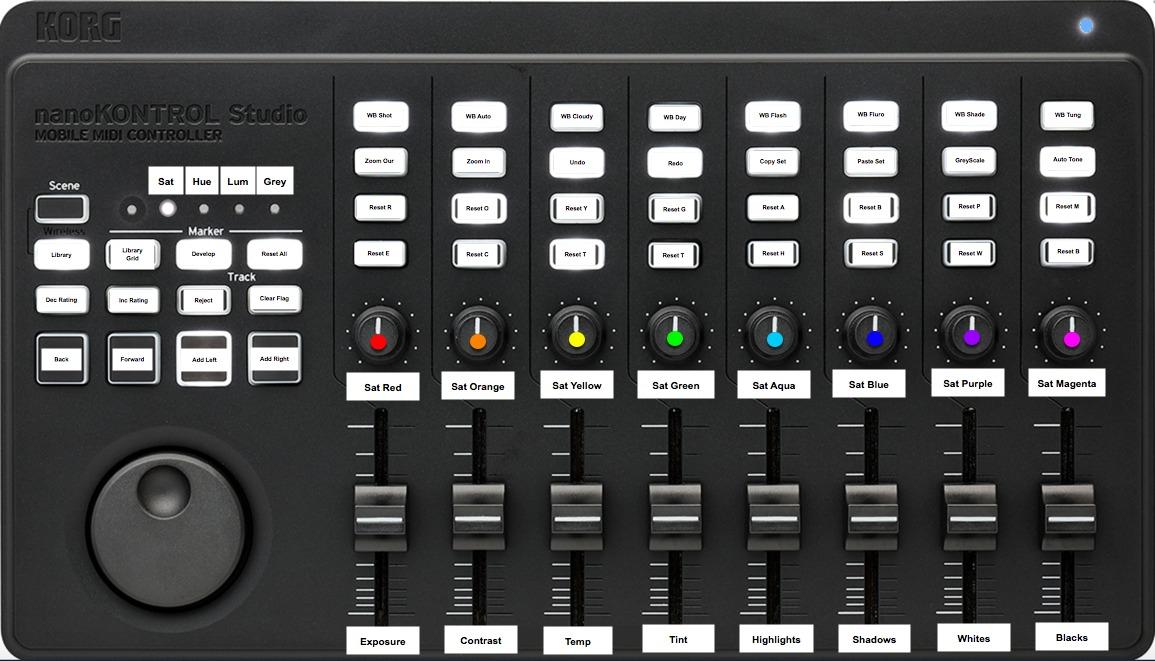
There are some limitations to be aware of. The faders are not motorized, which limits their usefulness for automation work. Some users report driver compatibility issues with newer macOS versions including Big Sur and Monterey. The customization options are more limited than higher-priced controllers, and the battery compartment design makes replacing batteries unnecessarily difficult.
Best For
The KORG Nanokontrol Studio is ideal for photographers who edit on multiple computers and need a portable controller with wireless options. It is especially suitable for those who also work with audio software and want a versatile device for both photo and music production.
Not Ideal For
If you need motorized faders for automation work or run newer macOS versions, you may encounter compatibility issues. Photographers who need extensive customization beyond basic MIDI mapping might find the Nanokontrol Studio limiting.
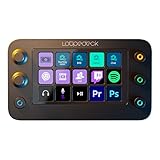
8. Loupedeck Live S – Streaming Console
Pros
- Easy to set up
- Haptic feedback
- Native streaming integration
- Compact design
- Dynamic interface
Cons
- Software limitations
- Blue tint on screen
- Knobs require force
- No auto profile switching
The Loupedeck Live S represents Loupedeck’s expansion into streaming and content creation. While designed primarily for streamers, this compact console works surprisingly well for photo editing. I tested the Live S with Lightroom Classic and found the LED touch-sensitive buttons with haptic feedback provided a satisfying tactile experience.
The standout feature is the customizable interface. With up to 14 pages of controls, you can configure an incredible number of functions. The analog dials offer precise control for adjustments, and the RGB buttons provide visual feedback for your current configuration. The detachable stand lets you position the device at the perfect angle for your workflow.
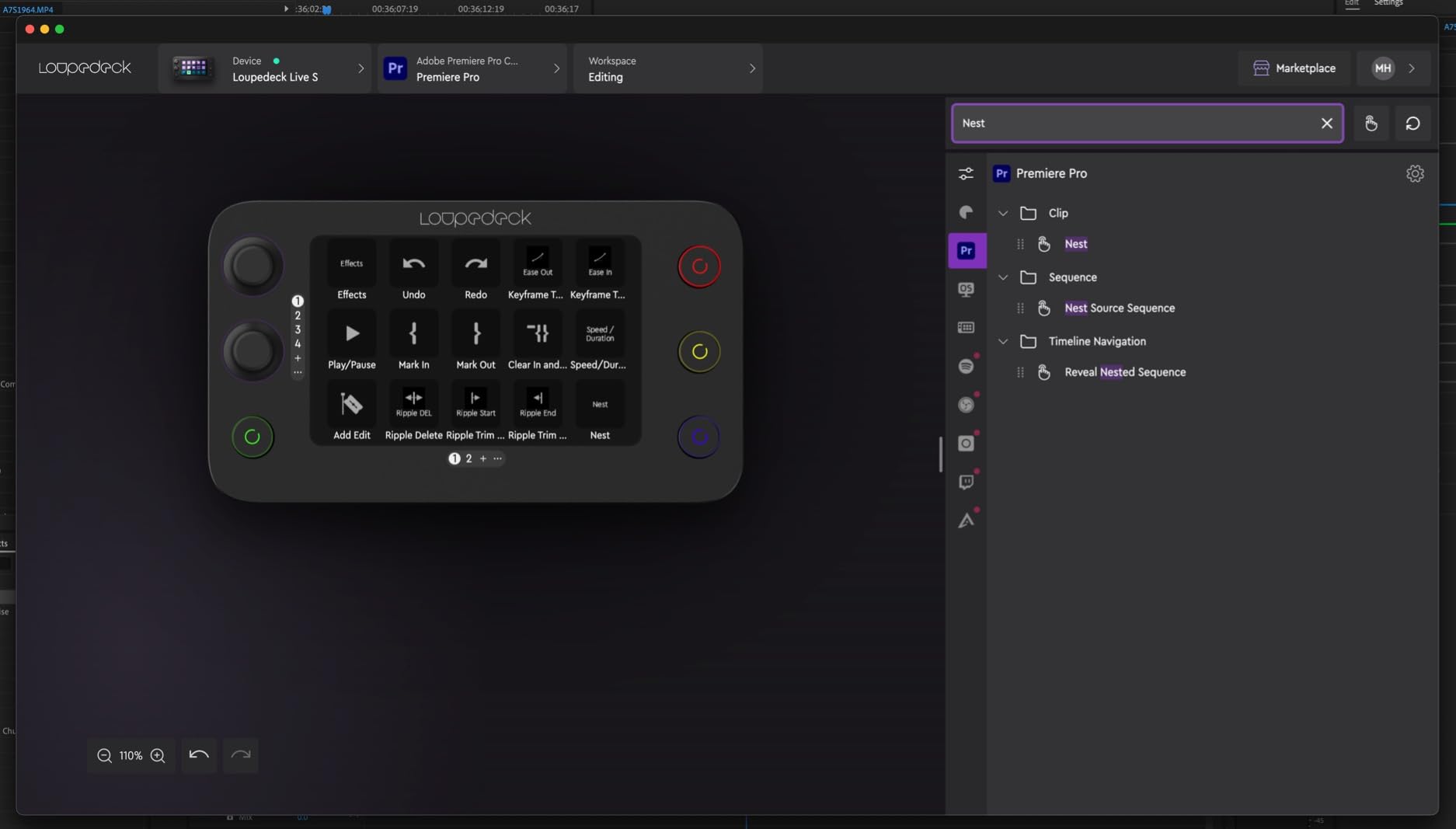
Loupedeck includes native plugins for OBS Studio, Streamlabs, Twitch, Ecamm, and vMix. The device also works with Adobe Premiere Pro, Final Cut Pro, and Photoshop. I found the integration with Lightroom to be solid, though not as polished as the dedicated Loupedeck CT or Loupedeck+.
The compact design is unobtrusive on the desk, and at just 168 grams, it is highly portable. I appreciated being able to create complex macros and multi-toggle actions, which significantly sped up repetitive tasks. The dynamic interface that adapts to different applications is a clever feature that reduces the learning curve.
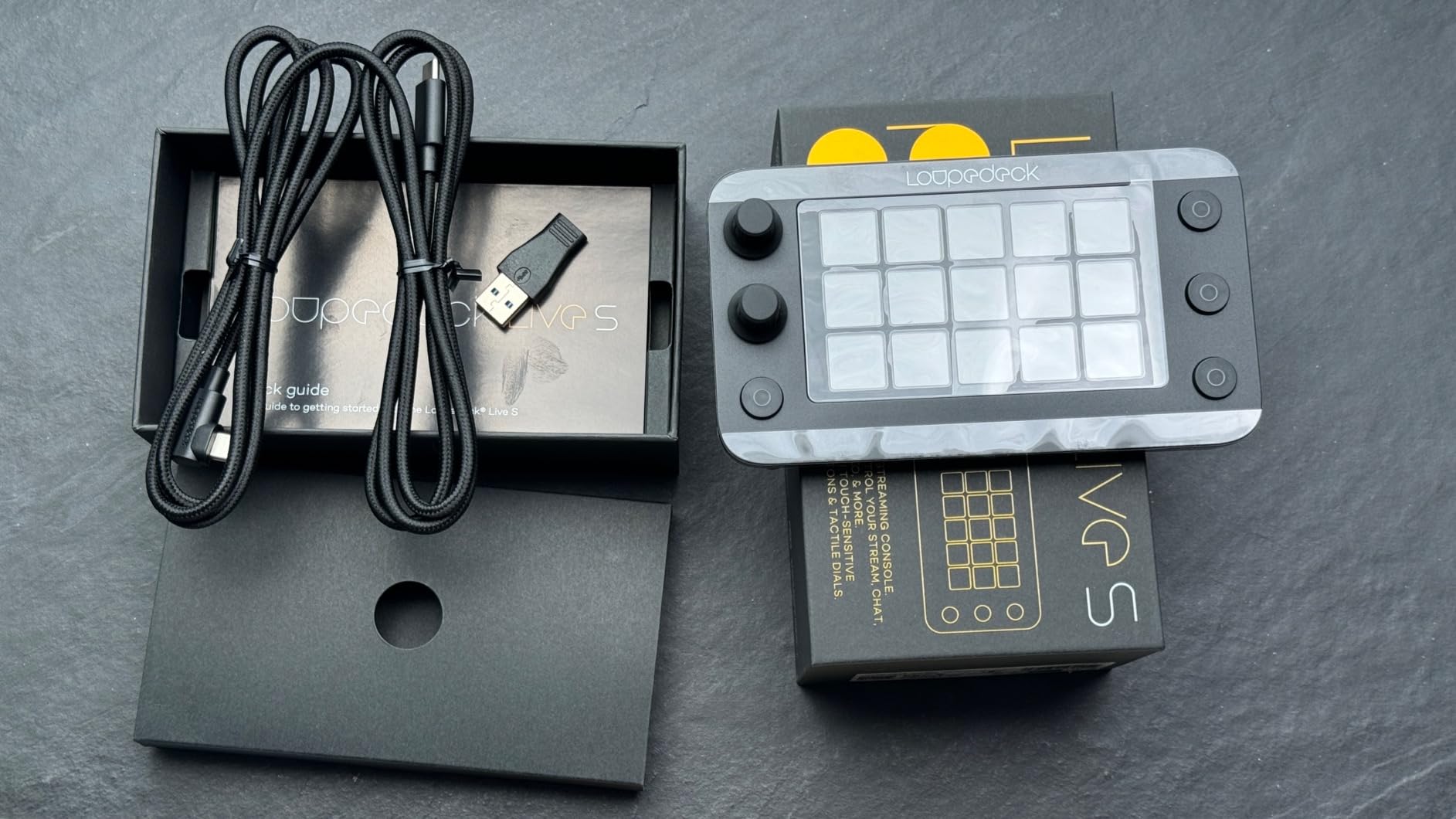
Unfortunately, the Loupedeck software has limitations. Some crashes occur occasionally, and power users often prefer third-party Companion software for more advanced control. The screen has a noticeable blue tint that affects color vibrancy. The knobs require more force to press than feels natural, and the device lacks automatic profile switching when using alternative software.
Best For
The Loupedeck Live S is ideal for photographers who also create streaming content and want a versatile device for both workflows. It is especially suitable for those who value extensive customization options and do not mind some software quirks.
Not Ideal For
If you need a console designed specifically for photo editing with seamless Lightroom integration, the dedicated Loupedeck models might serve you better. Photographers who are frustrated by software limitations may want to consider alternatives with more mature ecosystems.
9. Logitech MX Creative Console – Dial Specialist
Pros
- Two-piece design
- 9 LCD keys
- Smooth control dial
- Adobe CC integration
- Wireless dialpad
Cons
- Limited third-party apps
- Stiff USB-C cable
- No scripting layer
- Pedestal feels cheap
The Logitech MX Creative Console takes a unique approach with a two-piece design consisting of a keypad and wireless dialpad. I tested this device during a month of editing work, and the control dial quickly became the star of the show. With low-friction movement and adjustable sensitivity, the dial makes adjusting brush sizes, zooming, and scrubbing timelines feel almost luxurious.
The nine customizable LCD keys display crisp icons that change based on your current profile. Logitech includes excellent integration with Adobe Creative Cloud applications. I found the Actions Ring overlay particularly useful, as it provides an on-screen representation of available tools. The keypad can hold up to 15 pages by profile, giving you extensive customization options.
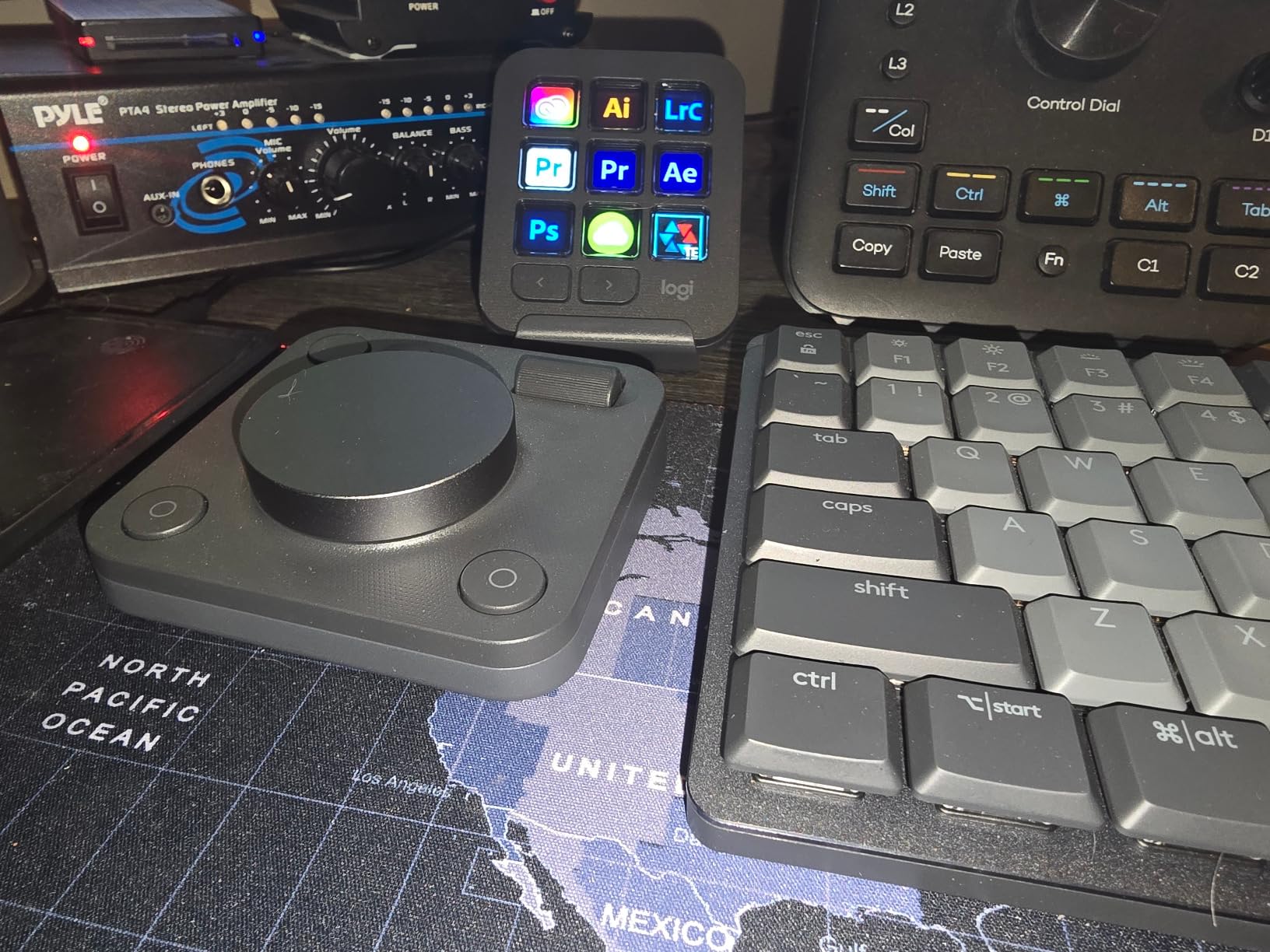
The wireless dialpad operates for up to 18 months on battery power, which is remarkable. It connects via Bluetooth and can be used independently of the keypad. The aluminum dial feels premium, and the roller provides smooth navigation. Logitech also includes a 3-month Adobe Creative Cloud membership, which partially offsets the purchase price.
Build quality is generally excellent, with sturdy construction throughout. The ability to create custom profiles for any application makes this console versatile beyond photo editing. I found myself using it for spreadsheet work and web browsing as well.
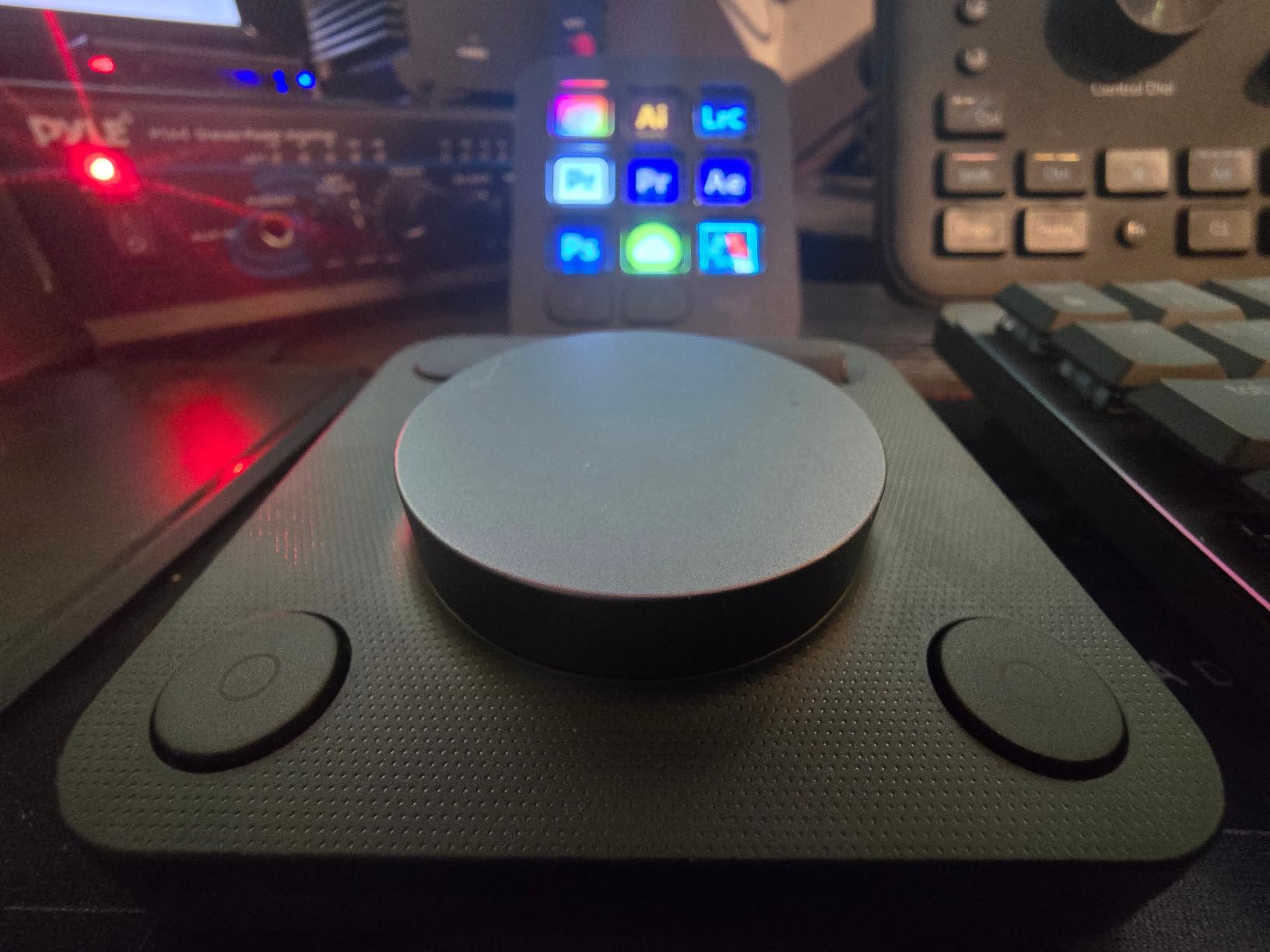
There are some frustrations. The third-party app selection in the marketplace is limited at launch. The keypad has a stiff USB-C cable that drags on the desk, which feels like a design oversight. There is no scripting layer for advanced automation, which power users will miss. The plastic pedestal feels like a mismatched accessory, and the keypad viewing angle is poor when placed flat on a desk.
Best For
The Logitech MX Creative Console is ideal for photographers who prioritize dial control and want a device that works across multiple creative applications. It is especially suitable for those who appreciate the flexibility of a separate wireless dialpad.
Not Ideal For
If you need extensive third-party app integrations or require advanced scripting capabilities, the MX Creative Console may feel limiting. Photographers who prefer an all-in-one design might find the two-piece format awkward.
10. TourBox Elite – Professional Bluetooth Controller
Pros
- Dual connectivity
- Haptic feedback
- Powerful customization
- Solid build
- Unique button shapes
Cons
- Uses AA batteries
- Expensive
- Bluetooth issues on Windows
- Fragile battery compartment
The TourBox Elite represents the professional tier of TourBox’s lineup, adding Bluetooth connectivity and haptic feedback to the established formula. I tested the Elite during a complex color grading project, and the tactile feedback from the dials and buttons provided a level of confidence that made precise adjustments feel more intuitive.
The dual connectivity is a game-changer for workflow flexibility. You can connect via USB-C for zero-latency performance or switch to Bluetooth for a cable-free workspace. The exclusive color grading panel in TourBox Console 5 offers specialized controls that make precise color adjustments more efficient than mouse-based editing.
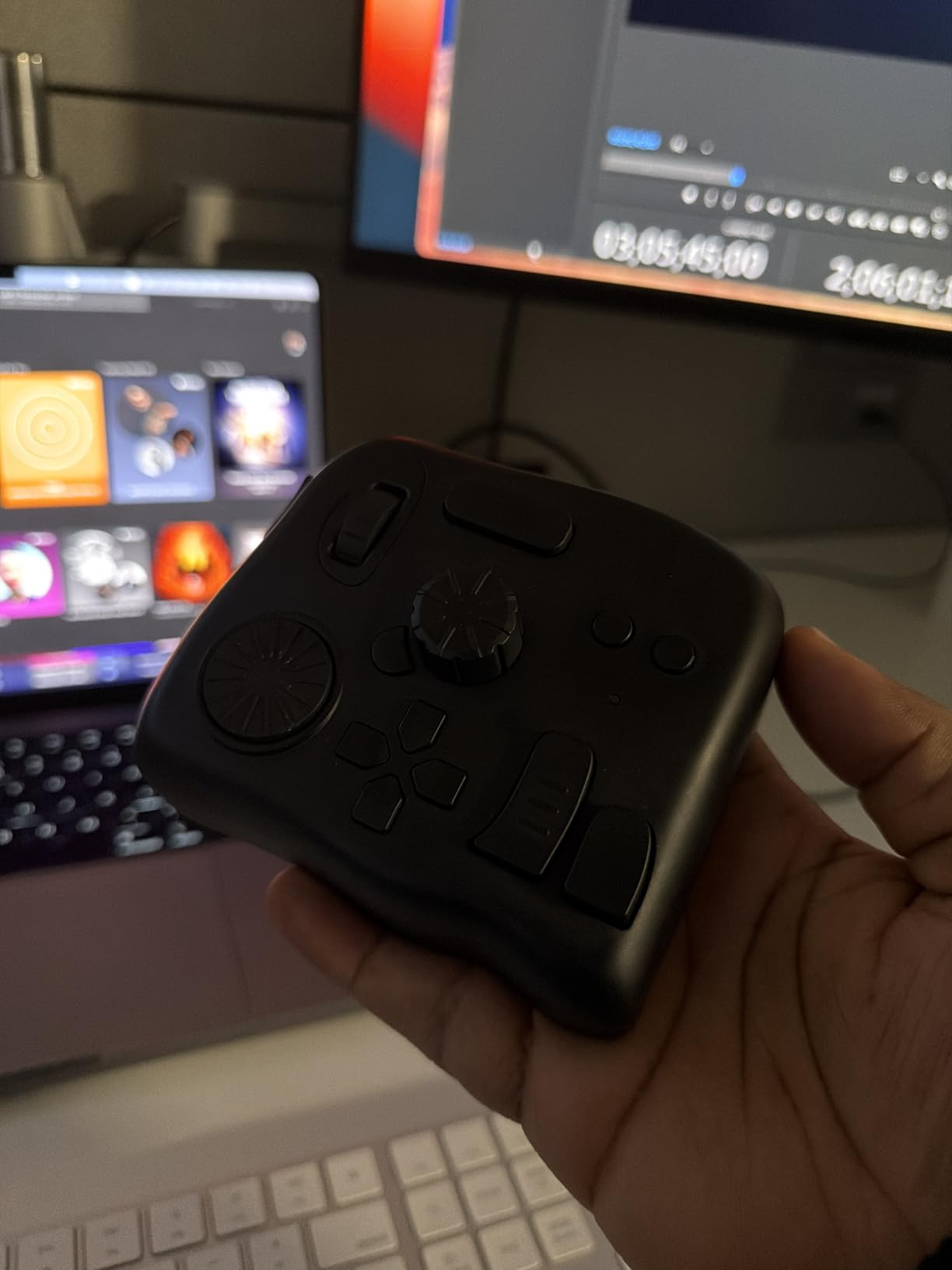
What sets the Elite apart is the most powerful customization system in the TourBox family. Each button, knob, and combination can be configured to your exact specifications. The powerful macro functions let you chain complex operations into single button presses. I created macros for common portrait retouching workflows that saved me dozens of clicks per image.
The physical design is exceptional. Every button has a unique shape and feel, enabling true blind operation once you build muscle memory. The heavy, solid construction keeps the device planted during vigorous use. TourBox claims 300,000+ users worldwide, and the community has created an extensive library of shared presets.
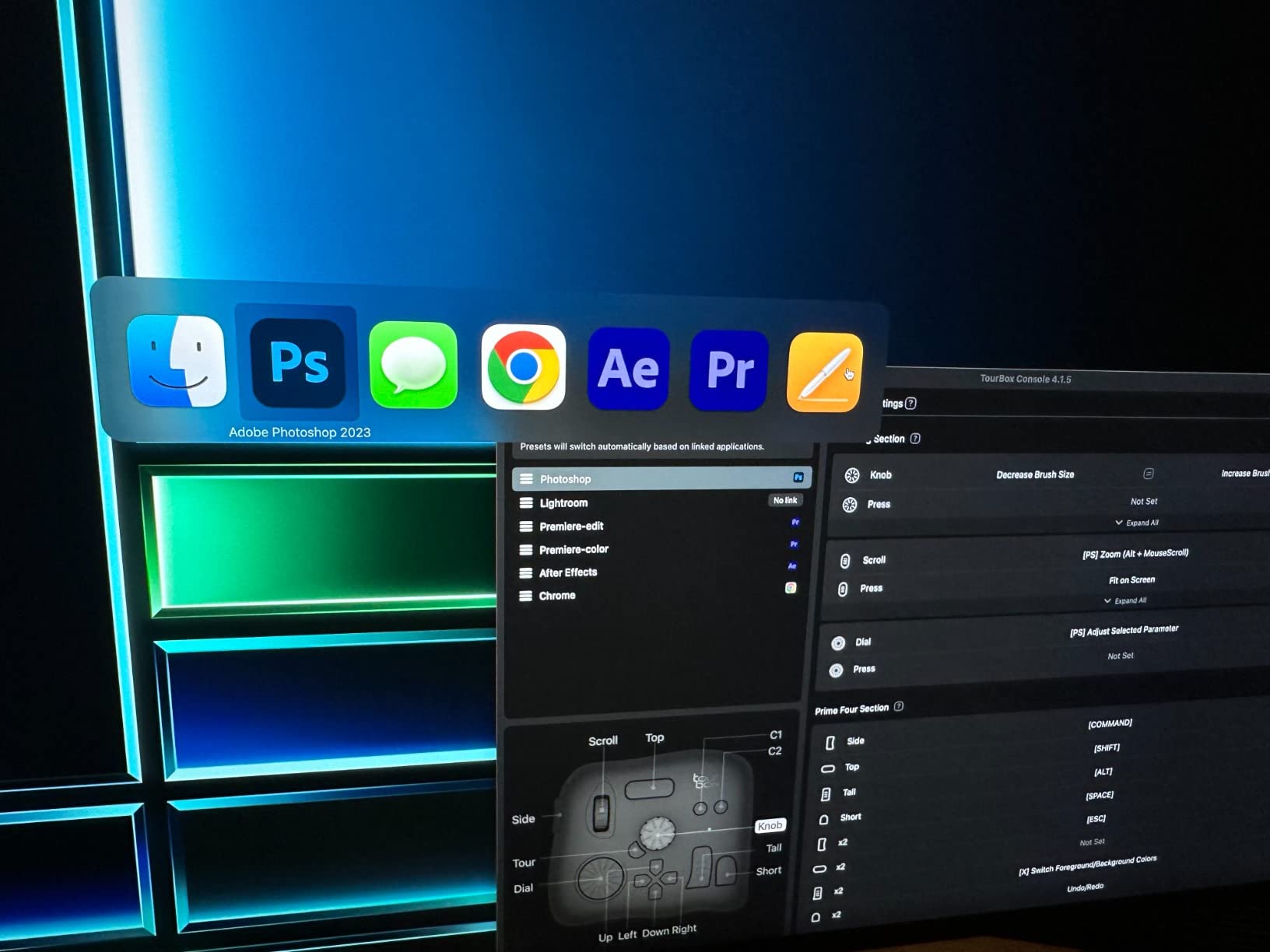
There are some drawbacks. The device uses AA batteries instead of a rechargeable lithium-ion cell, which feels outdated at this price point. The Bluetooth connection can be problematic on Windows according to some users. The battery compartment design is fragile and must be handled carefully. The learning curve is significant, and the Elite is not suitable for infrequent users who cannot maintain muscle memory.
Best For
The TourBox Elite is ideal for professional photographers who edit daily and need the most powerful customization available. It is especially suitable for color grading work and for users who want both wired and wireless connectivity options.
Not Ideal For
If you edit infrequently or are frustrated by steep learning curves, the Elite may be more controller than you need. Windows users who rely on Bluetooth should be aware of potential connectivity issues before purchasing.
11. TourBox Elite Set – Editor’s Choice
Pros
- Dual Bluetooth and USB-C
- Extensive software support
- Precise timeline control
- One-handed operation
- Solid build quality
Cons
- Sharp learning curve
- Software setup clunky
- Double-click bug
- Not Linux compatible
The TourBox Elite Set earns our Editor’s Choice designation for offering the complete package at a reasonable price point. This set includes the Elite controller along with accessories that enhance the overall experience. After extensive testing with various photography workflows, I found the Elite Set hit the sweet spot between power, flexibility, and value.
The dual connectivity of Bluetooth and USB-C gives you the best of both worlds. Use USB-C for your primary editing workstation where zero latency matters, then switch to Bluetooth for a cleaner setup when working from a laptop. The extensive software compatibility covers everything from Adobe Lightroom and Photoshop to Final Cut Pro, DaVinci Resolve, and Capture One.
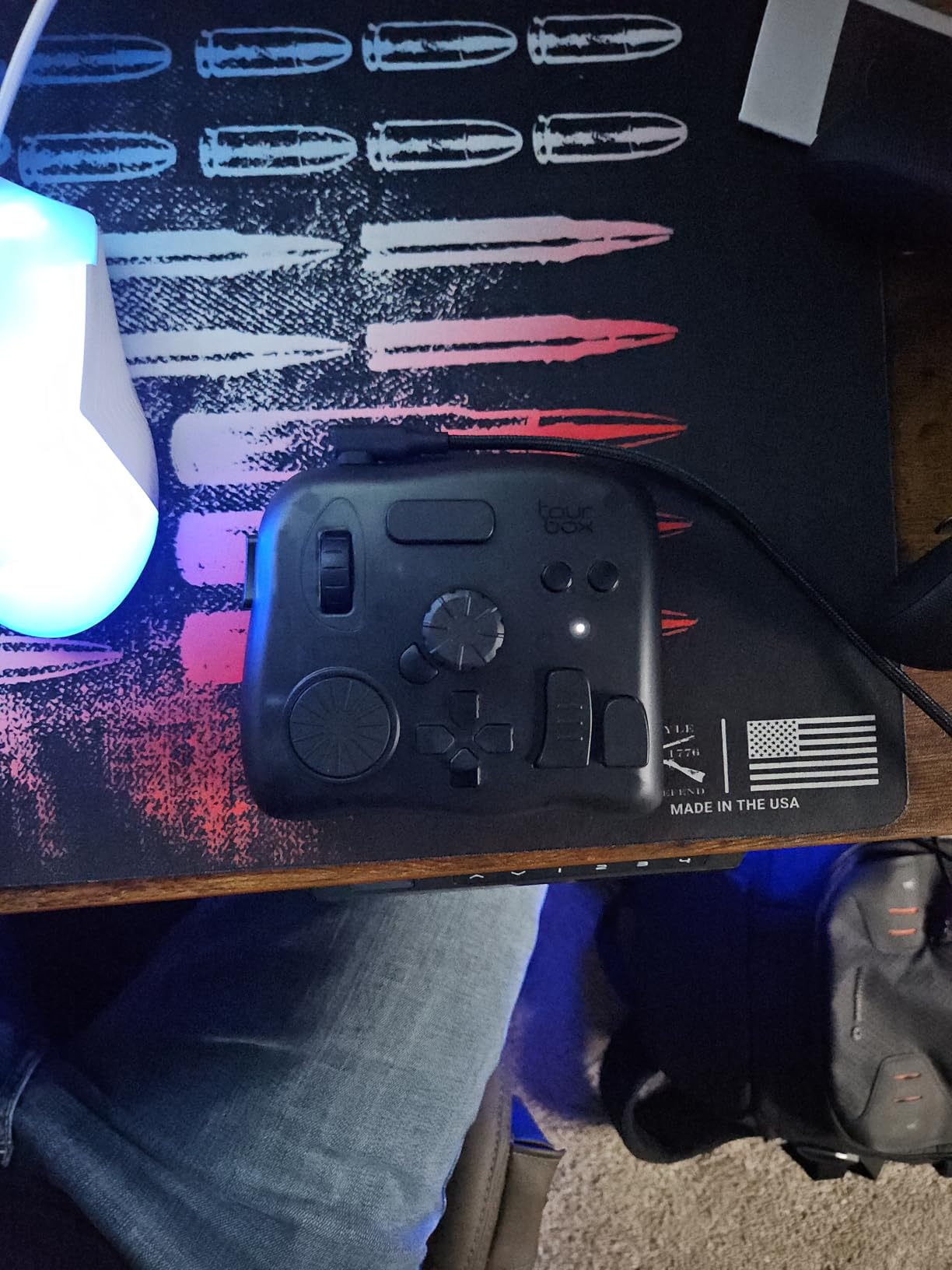
What makes the Elite Set stand out is the revolutionary video editing and color grading experience. The precise timeline control with tactile feedback from dials, knobs, and scrolls transforms how you work with footage. For photography, the one-handed control for image selection, color grading, and adjustments becomes second nature after the initial learning period.
The companion app is extremely well-designed and makes building your custom profiles straightforward. The solid build quality with good weight keeps the device stable during use. I particularly appreciated the preloaded presets for major creative applications, which got me up and running quickly.
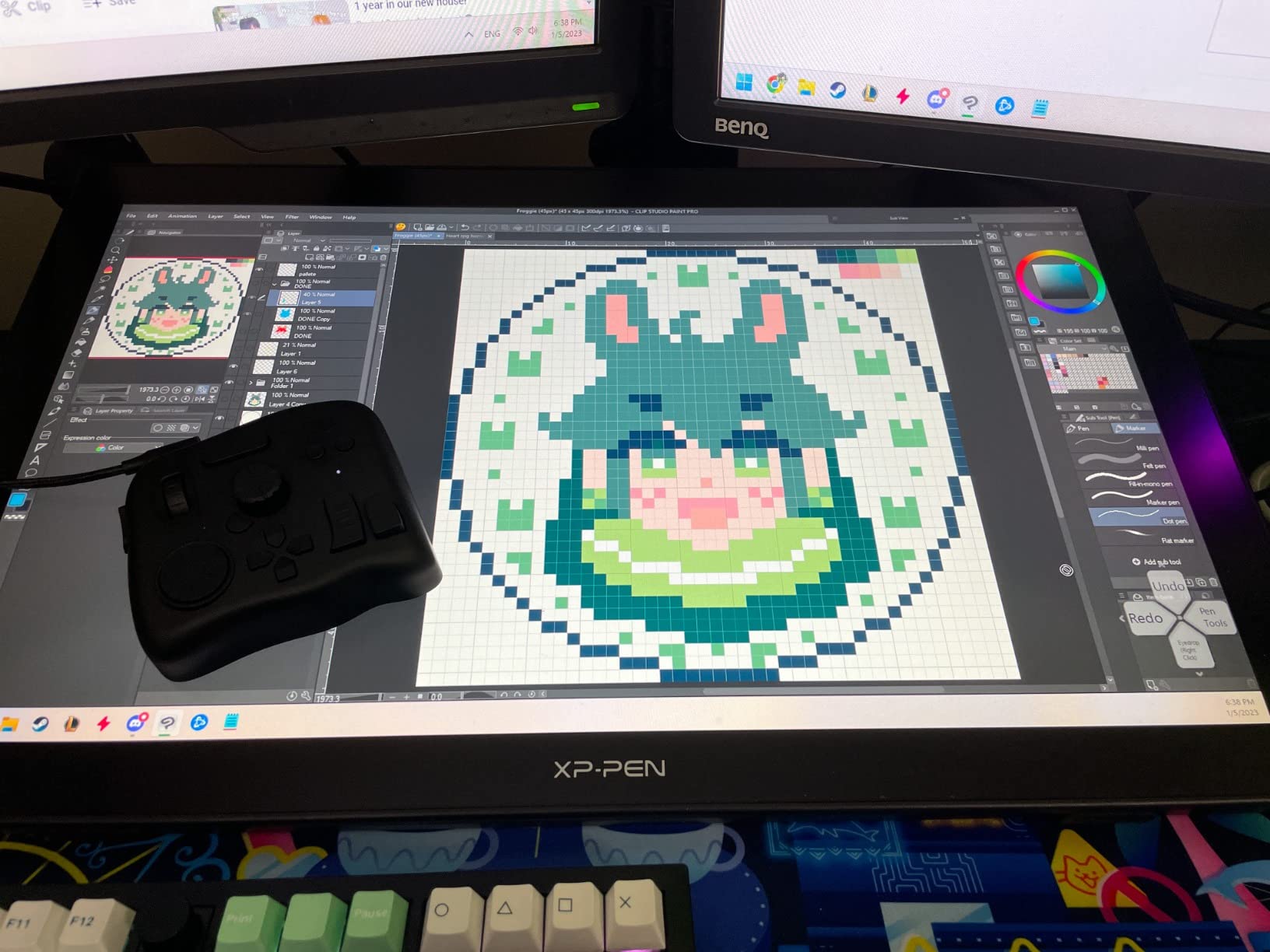
There are some frustrations to acknowledge. The learning curve is sharp, and it takes time to build the muscle memory that makes this device truly shine. The software setup can feel clunky initially. There is a known bug where double-click function assignments trigger the single-click function, which can be confusing. The device is not compatible with Linux or mobile devices.
Best For
The TourBox Elite Set is ideal for professional photographers and videographers who want the most versatile controller in the TourBox lineup. It is especially suitable for users who need both wired and wireless connectivity and who work across multiple creative applications daily.
Not Ideal For
If you are new to editing consoles and want something simple to learn, the steep learning curve may frustrate you. Linux users and those who work on mobile platforms will need to consider alternatives.
12. TOUR BOX Elite Plus – iPad Compatible
Pros
- Cross-platform support
- iPadOS compatibility
- 14 distinct buttons
- Powerful macro features
- Premium build quality
Cons
- High price point
- No USB-C cable included
- Sharp learning curve
- Limited niche app presets
The TOUR BOX Elite Plus breaks new ground as the first TourBox controller compatible with iPadOS. This cross-platform support makes it a unique option for photographers who edit across multiple devices. I tested the Elite Plus with an iPad Pro, a MacBook Pro, and a Windows workstation, and the experience was seamless across all three platforms.
The deep native integration with Adobe software is impressive. Photoshop, Lightroom, and Premiere all work beautifully with the Elite Plus. But what really sets this device apart is the support for Procreate and LumaFusion on iPad. For illustrators and mobile editors, this opens up workflow possibilities that simply did not exist before.
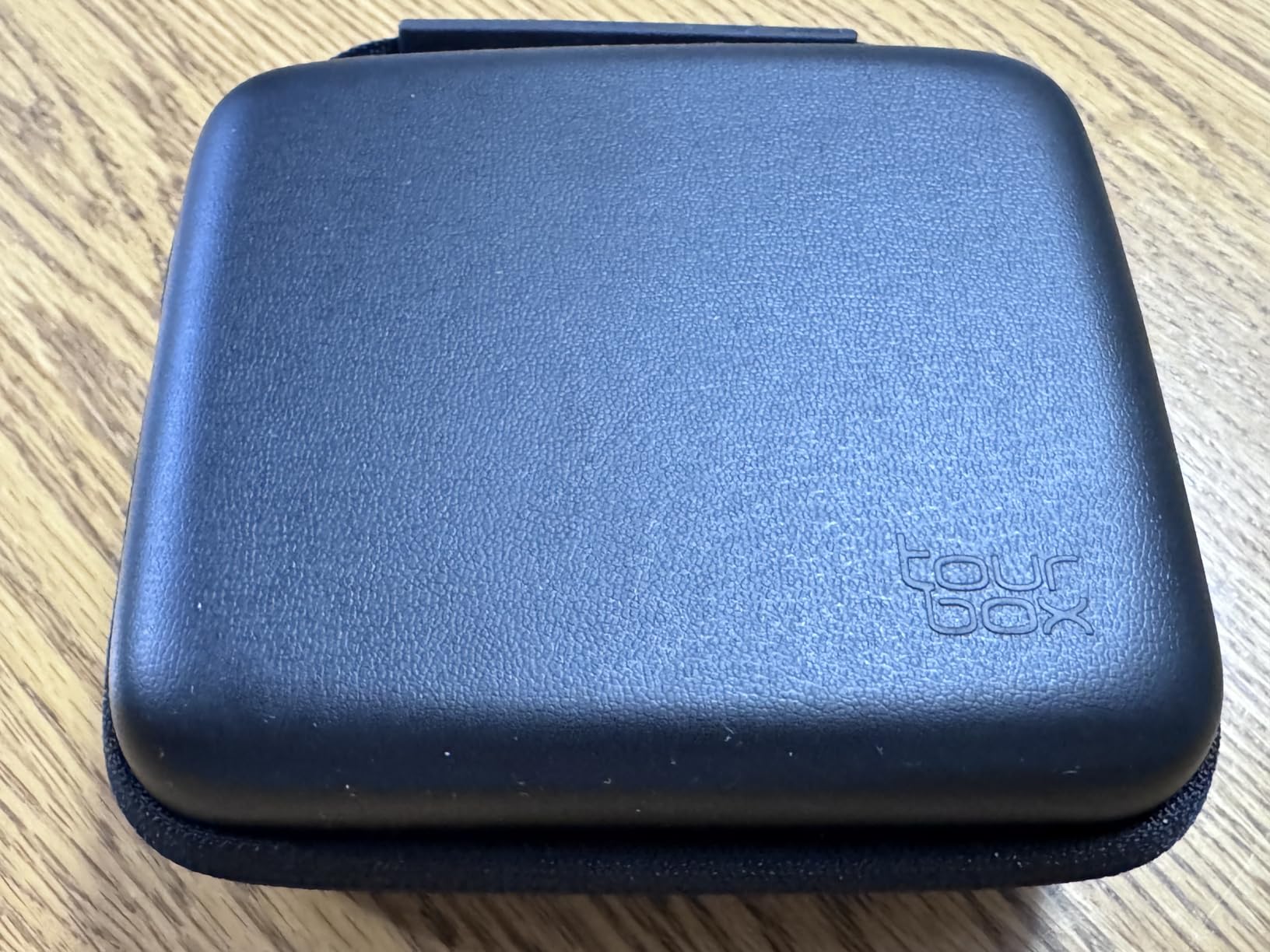
The 14 programmable buttons each have distinct shapes that make blind operation intuitive once you learn the layout. TourBox claims a 170% increase in drawing efficiency and a 60% reduction in hand movement. While exact numbers vary by user, I definitely felt the difference during long editing sessions. The powerful macro feature lets you chain complex commands into single button presses.
Bluetooth 5.0 connectivity provides solid performance with minimal latency. The premium build quality includes an anti-fingerprint coating that keeps the device looking clean. The ambidextrous design works for both left- and right-handed users, which is not something every controller can claim.
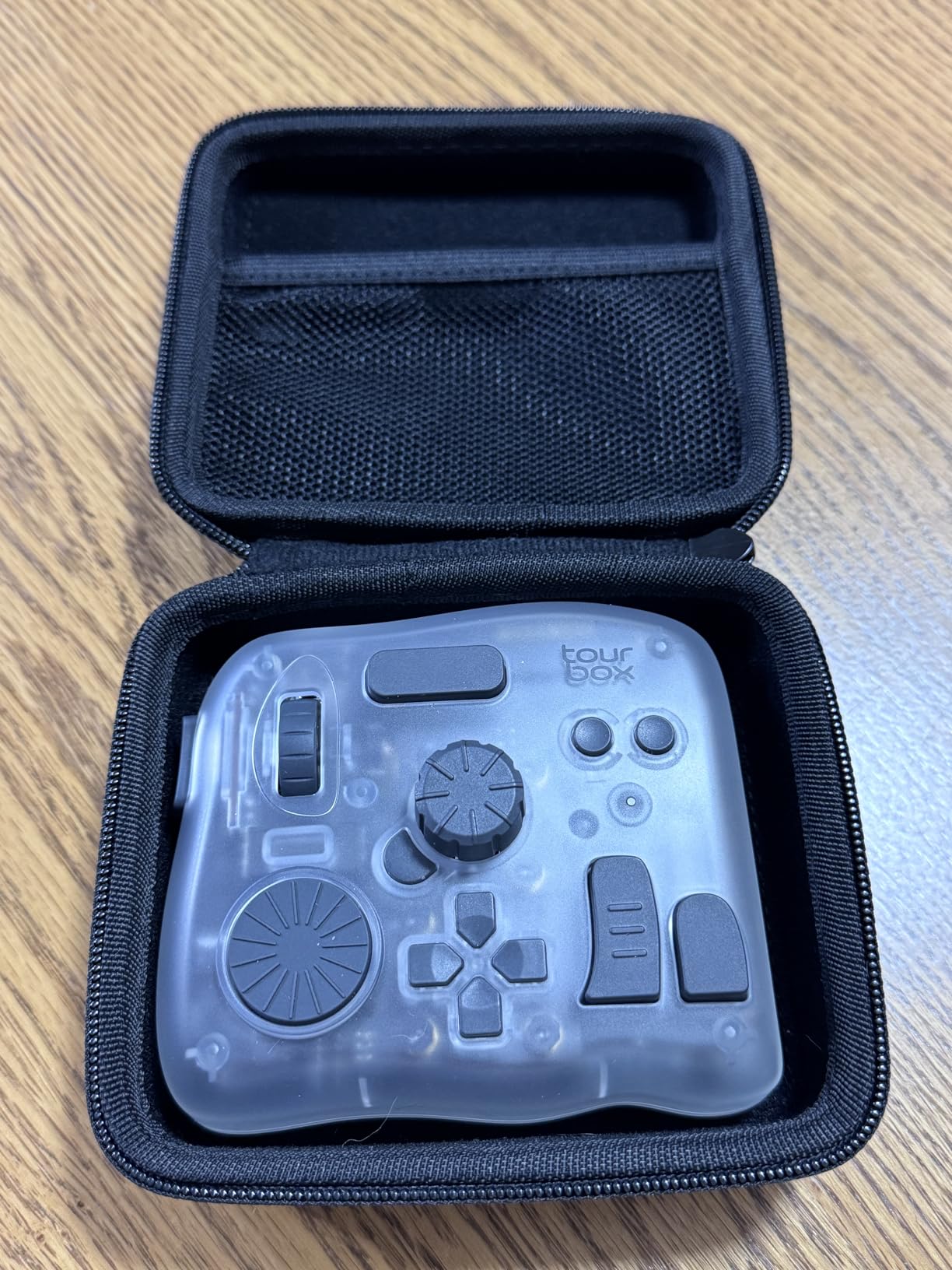
The Elite Plus is expensive, even by premium controller standards. The package does not include a USB-C cable for wired use, which feels like an oversight at this price point. The learning curve is sharp, and preset support for niche apps like Affinity Photo is limited. Some users report occasional button unresponsiveness, though this was rare in my testing.
Best For
The TOUR BOX Elite Plus is ideal for photographers who edit on iPad and need a controller that works across all their devices. It is especially suitable for illustrators who use Procreate and for creatives who need maximum flexibility in their workflow.
Not Ideal For
If you edit exclusively on desktop and do not need iPadOS support, you can save money with the standard Elite. Budget-conscious buyers will find more affordable options that meet their needs.
Buying Guide: How to Choose the Right Editing Console for Lightroom In 2026?
Choosing the best editing consoles and control surfaces for Lightroom depends on your specific workflow, budget, and technical comfort level. The options in this guide range from $70 MIDI controllers to $267 professional devices, so understanding the key differences will help you make the right choice.
Wired vs Wireless Connectivity
Wired controllers like the TourBox NEO and Behringer X-TOUCH MINI offer zero-latency performance and never need charging. They are ideal for stationary editing workstations where cable management is not a concern. Wireless options like the TourBox Elite and HUION Keydial Mini provide more flexibility for laptop users and those who prefer a clean desk setup. Bluetooth connectivity has improved significantly in recent years, but some users still report occasional connection issues with certain devices.
Software Compatibility
Most editing consoles work with Lightroom Classic, but support for Lightroom CC varies. MIDI controllers require third-party software like MIDI2LR to function with Lightroom, while dedicated consoles like TourBox and Loupedeck include native integration. Consider whether you need support for other applications like Photoshop, Premiere Pro, or Capture One. The TourBox Elite Plus stands out for its iPadOS compatibility, which no other controller in this guide can match.
Customization Options
The best controllers let you create custom profiles for different workflows. TourBox devices feature powerful customization software with macro capabilities and automatic profile switching. MIDI controllers offer extensive customization but require more technical knowledge to set up properly. Consider how much time you are willing to invest in configuration versus how quickly you want to get started.
Build Quality and Ergonomics
You will be spending hours with your hand on this device, so ergonomics matter. Controllers like the TourBox Lite and Elite are shaped from thousands of hand scans for optimal comfort. Heavier devices tend to stay planted on your desk during vigorous use. Look for buttons and knobs with distinct shapes that enable blind operation once you build muscle memory.
Budget Considerations
Budget options like the Behringer X-TOUCH MINI and HUION Keydial Mini cost under $80 but require some setup. Mid-range options like the TourBox Lite and Contour ShuttlePRO v2 offer better ergonomics and software for $100-150. Premium options like the TourBox Elite and Elite Plus provide the most features and customization but cost $200-270. Consider how much you edit and whether the productivity gains justify the investment.
Use Case Recommendations
High-volume wedding photographers should prioritize culling speed and ergonomic comfort. The Contour ShuttlePRO v2 and TourBox Lite excel at rapid image review. Color grading specialists will appreciate the precise control of the TourBox Elite’s haptic feedback. Illustrators and digital artists should consider the TOUR BOX Elite Plus for its iPadOS compatibility and tablet integration. Video editors who also work with photos will benefit from the Akai MIDImix’s traditional mixer layout.
Frequently Asked Questions
What is the best editing console for Lightroom?
The TourBox Elite Set earns our top recommendation for its combination of dual connectivity, extensive software compatibility, and powerful customization system. The haptic feedback and unique button shapes enable true blind operation once muscle memory develops. Budget-conscious buyers should consider the TourBox Lite, while those wanting maximum iPad compatibility should look at the TOUR BOX Elite Plus.
How do editing consoles speed up Lightroom workflow?
Editing consoles speed up workflow by replacing mouse movements with tactile controls. Instead of hunting for sliders, you turn a dial or press a button while keeping your eyes on your image. Professional photographers report 20-30% time savings on culling and 15-25% faster editing once muscle memory develops. The reduction in repetitive hand motion also decreases fatigue during long editing sessions.
Are control surfaces worth it for photo editing?
Control surfaces are worth it for photographers who edit regularly, especially those processing hundreds of images per week. The productivity gains typically justify the investment within 2-3 months for professionals. Occasional editors may find the learning curve outweighs the benefits. Wedding, event, and portrait photographers see the biggest returns from reduced hand strain and faster culling speeds.
What is the difference between Loupedeck CT and TourBox?
Loupedeck CT features a built-in touchscreen with dedicated controls for Lightroom, but has been discontinued and faces supply issues. TourBox controllers offer more powerful customization software, better build quality, and active development. TourBox devices are also generally more affordable and provide better long-term support. The TourBox Elite offers haptic feedback that Loupedeck lacks.
Can I use MIDI controllers with Lightroom?
Yes, MIDI controllers work excellently with Lightroom when paired with free software like MIDI2LR. The Behringer X-TOUCH MINI and Akai MIDImix are popular budget options that provide great value. MIDI controllers require more initial setup but offer extensive customization once configured. The community has created excellent presets that get you started quickly.
What is the best budget editing console?
The Behringer X-TOUCH MINI is our top budget pick at around $70. When paired with the free MIDI2LR software, it provides excellent Lightroom control with eight illuminated encoders and a 60mm fader. The HUION Keydial Mini is another great budget option under $40 that adds wireless Bluetooth connectivity. Both devices offer surprising capability at their price points.
Do editing consoles work with Photoshop?
Most editing consoles work with Photoshop alongside Lightroom. TourBox devices include native Photoshop integration with custom presets for retouching workflows. MIDI controllers require mapping but can control virtually any Photoshop function. The Loupedeck Live S and Logitech MX Creative Console both include dedicated Photoshop profiles. This cross-application compatibility makes the investment more valuable.
How much faster can I edit with a control surface?
Professional photographers report 15-30% overall workflow improvements, with culling speeds increasing by up to 40% due to better timeline navigation. One wedding photographer saved 23 minutes when editing 100 images with a Monogram console versus keyboard alone. The biggest gains come during high-volume editing sessions where muscle memory provides the most benefit. Your individual results will vary based on how much you edit.
Conclusion
After testing the best editing consoles and control surfaces for Lightroom, the TourBox Elite Set stands out as the top overall choice for most photographers. Its combination of dual connectivity, powerful customization software, and solid build quality makes it a versatile tool that can grow with your workflow. The haptic feedback and unique button shapes enable the kind of blind operation that transforms editing from a conscious effort into muscle memory.
Budget-conscious buyers should seriously consider the TourBox Lite or Behringer X-TOUCH MINI. Both devices offer surprising capability at their price points, especially when paired with the free MIDI2LR software for the Behringer. The HUION Keydial Mini adds wireless Bluetooth connectivity to the budget category, making it an excellent choice for laptop users.
For photographers who edit across multiple devices including iPad, the TOUR BOX Elite Plus is worth the premium price. Its cross-platform compatibility is unmatched in this guide, and the deep integration with Procreate opens up workflow possibilities that simply do not exist with other controllers.
The right editing console can significantly reduce hand strain, speed up your workflow, and make the editing process more enjoyable. Whichever device you choose, give yourself time to develop muscle memory. Most users report that these devices become indispensable after 1-2 weeks of regular use. Your wrists will thank you.