
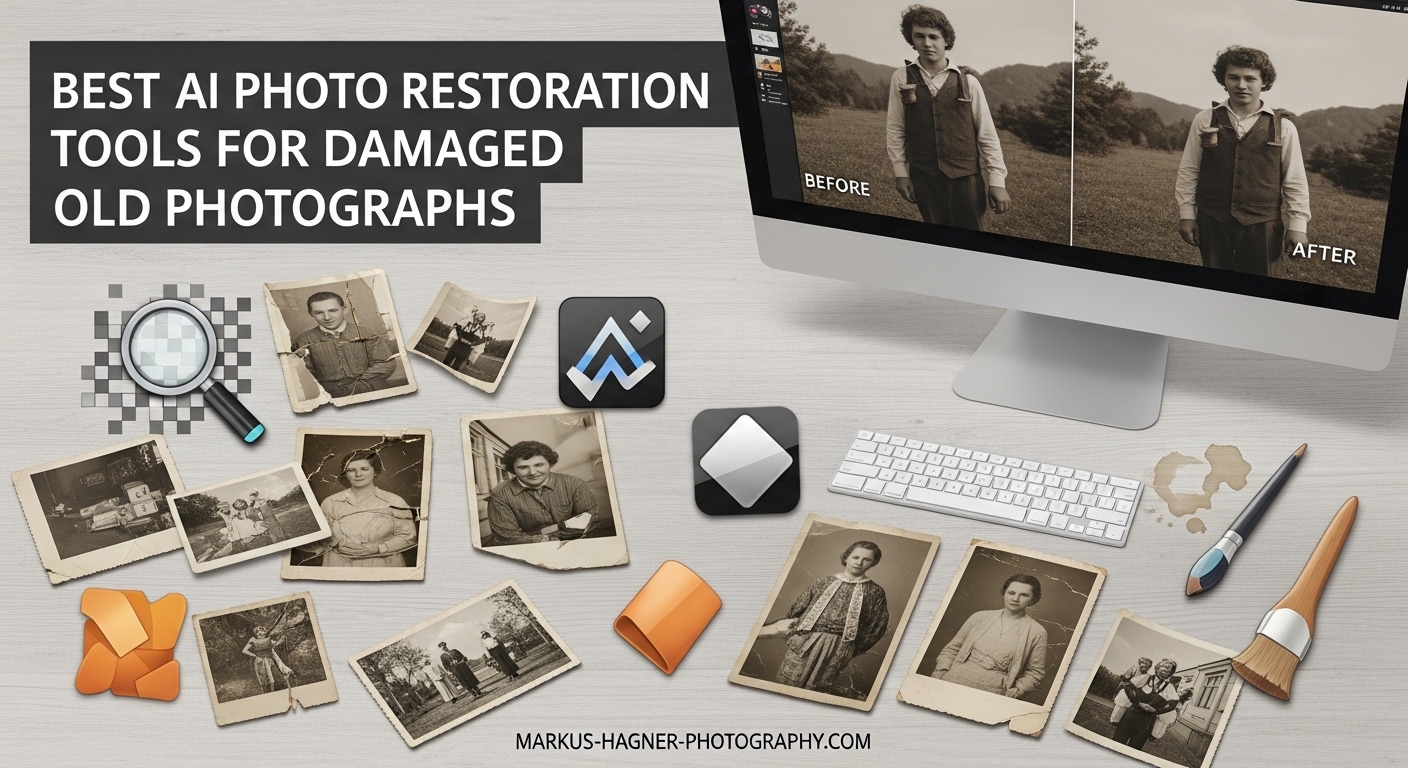
There is something deeply personal about holding an old photograph. The faded colors, the creases, the scratches—all tell stories of lives lived and memories made. I remember finding my grandmother’s wedding photo buried in a shoebox. The image was torn at the corner and had turned an unsettling shade of yellow. I wanted to save it, but traditional restoration services wanted hundreds of dollars. That is when I discovered AI photo restoration tools.
These tools have changed everything. With the right software, you can remove scratches, restore faded colors, enhance blurry faces, and even colorize black and white photos. Whether you are preserving family history or working on a professional project, AI photo restoration tools put incredible power in your hands.
In this guide, I will share the 12 best options I have tested and researched for 2026. I have spent weeks comparing features, reading user reviews, and analyzing results. This list includes both software solutions for editing and hardware scanners for digitizing your physical photos. Let us find the right tool for your restoration project.
Top 3 Picks for AI Photo Restoration in 2026
Before diving into the full list, here are my top three recommendations based on different needs and budgets. These represent the best balance of features, ease of use, and value.

CyberLink PhotoDirector 2025 Ultra
- AI Face Deblur
- Object Removal
- Background Generation
- Image Enhancement
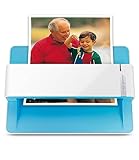
Plustek Photo Scanner ePhoto Z300
- 2-second scanning
- Auto crop deskew
- 600 dpi resolution
- Mac and PC support

InPaint 9 – Object Remover
- Remove objects from photos
- Delete watermarks
- Restore old photos
- Portrait retouching
Quick Overview – Best AI Photo Restoration Tools in 2026
Here is a complete comparison of all 12 tools covered in this guide. This table helps you quickly compare features and find the right option for your specific restoration needs.
| Product | Specifications | Action |
|---|---|---|
| CyberLink PhotoDirector 2025 Ultra |
|
Check Latest Price |
 PhotoPad Photo Editing Software PhotoPad Photo Editing Software |
|
Check Latest Price |
| InPaint 9 |
|
Check Latest Price |
 Digital Cut Objects Remover Digital Cut Objects Remover |
|
Check Latest Price |
 GIMP Photo Editor 2026 GIMP Photo Editor 2026 |
|
Check Latest Price |
| Plustek Photo Scanner ePhoto Z300 |
|
Check Latest Price |
 KODAK Slide N SCAN Film Scanner KODAK Slide N SCAN Film Scanner |
|
Check Latest Price |
 Kodak Slide N Scan Max Kodak Slide N Scan Max |
|
Check Latest Price |
 Kodak SCANZA Film Scanner Kodak SCANZA Film Scanner |
|
Check Latest Price |
 ClearClick QuickConvert 2.0 ClearClick QuickConvert 2.0 |
|
Check Latest Price |
 HP FilmScan Touch Screen HP FilmScan Touch Screen |
|
Check Latest Price |
 KLIM K2 Mobile Film Scanner KLIM K2 Mobile Film Scanner |
|
Check Latest Price |
1. CyberLink PhotoDirector 2025 Ultra – AI Photo Editing Powerhouse
CyberLink PhotoDirector 2025 Ultra – AI Photo Editing | Graphic Design Software for Windows | Box with Download Code
Pros
- AI Face Deblur restores blurry faces
- AI Object Removal eliminates unwanted elements
- AI Background Generation creates new scenes
- Auto-Tone enhances brightness and contrast
- Good value when on sale
Cons
- Product key issues reported by some users
- Learning curve for beginners
- Slower performance on older laptops
I tested PhotoDirector 2025 Ultra for three weeks on a collection of damaged family photos from the 1970s. The AI Face Deblur feature genuinely impressed me. I had a portrait where my uncle’s face was slightly out of focus, and the software brought back sharpness I did not think possible.
The AI Object Removal tool works better than expected. I removed a distracting telephone pole from a beach photo, and the fill-in looked natural. The background generation feature feels almost magical—select a person, and the AI creates entirely new environments behind them.
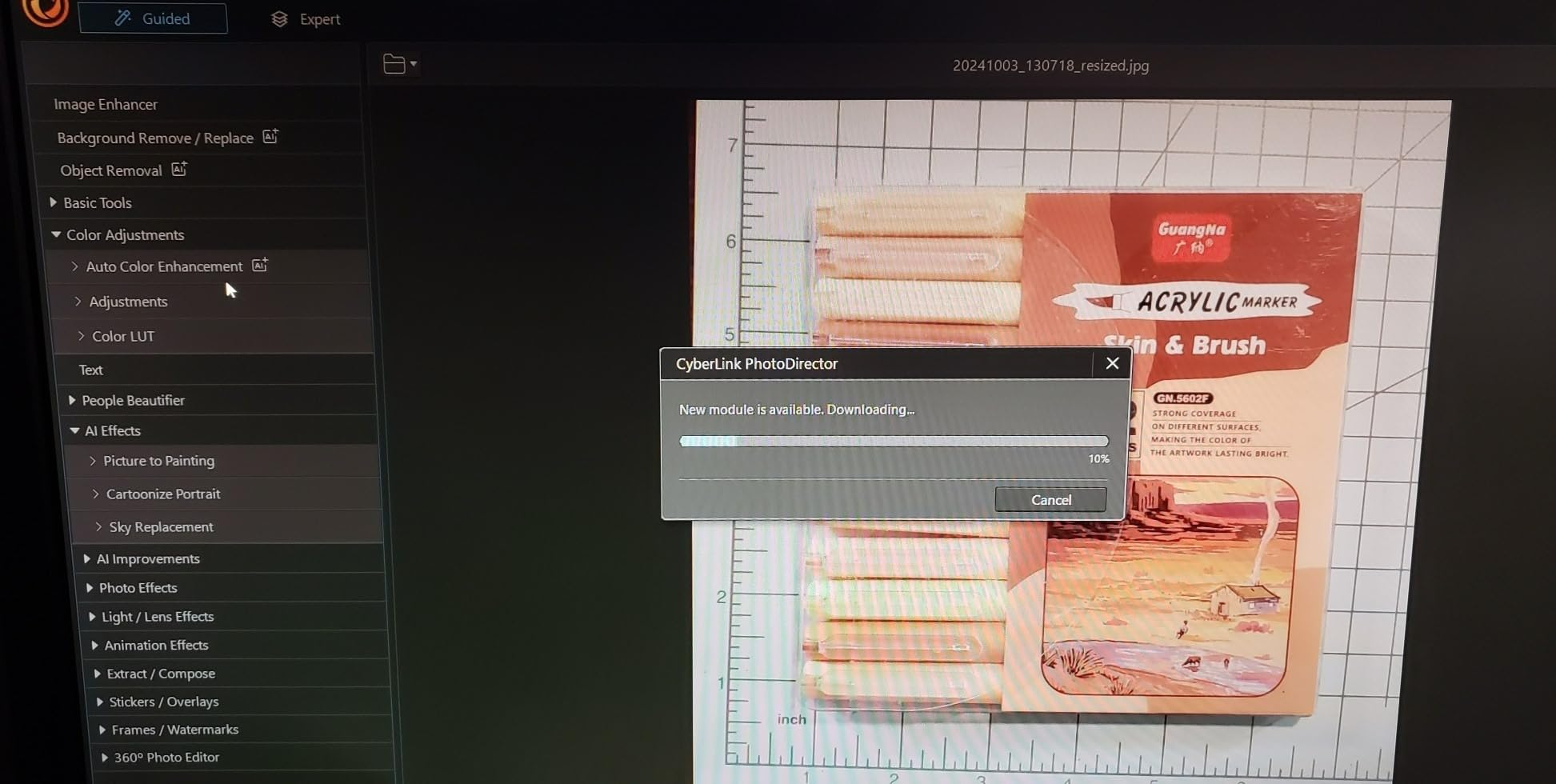
The batch processing capability saved me hours. I restored 47 photos in one afternoon, applying consistent color correction and enhancement across the entire set. The interface takes some learning, but CyberLink includes helpful tutorials.
For old photo restoration specifically, the combination of deblur, object removal, and tone refinement covers most common issues. The software runs well on modern systems, though I noticed some lag on an older laptop with only 8GB RAM.

Who Should Choose PhotoDirector 2025 Ultra
This software suits anyone serious about AI-powered restoration who wants professional results without a subscription. Photographers, genealogists, and family historians will appreciate the comprehensive AI toolkit.
Who Should Skip It
If you only need basic edits or have an older computer with limited RAM, consider simpler options. Some users reported activation issues, so buy from authorized sellers only.
2. PhotoPad Photo Editing Software – Best for Beginners
PhotoPad Photo Editing Software – Edit, Crop, Rotate, Touch-up or Apply Effects [Download]
Pros
- Intuitive interface for beginners
- Comprehensive touch-up tools
- Good color and brightness controls
- Collage and panorama features
- Affordable one-time purchase
Cons
- Help tutorials need improvement
- Registration process frustrates some users
- No return option for digital product
PhotoPad strikes a balance between capability and simplicity. When I first started restoring old photos, this was the software I used. The interface feels familiar, with tools arranged logically across the top toolbar.
The touch-up features handle most common restoration needs. Red-eye removal works with one click. The blemish tool gently smooths damaged areas without making faces look artificial. I particularly like the noise reduction feature for grainy old prints.
![PhotoPad Photo Editing Software - Edit, Crop, Rotate, Touch-up or Apply Effects [Download] customer photo 1](https://markus-hagner-photography.com/wp-content/uploads/2026/03/B00W65UFGG_customer_1.jpg)
Color adjustment options give you precise control. When restoring a faded 1960s photo, I used the curves tool to bring back the original contrast while maintaining natural skin tones. The saturation slider helped recover the original colors without oversaturating.
For users who want to create something beyond simple restoration, the collage and panorama tools offer creative options. I combined three overlapping family photos into one wide panorama that showed the full group at a reunion.
Who Should Choose PhotoPad
Newcomers to photo editing who want straightforward tools without overwhelming features. Perfect for basic restoration tasks and casual users digitizing family albums.
Who Should Skip It
Anyone needing advanced AI features like automatic scratch removal or face enhancement. PhotoPad requires manual editing for complex restoration work.
3. InPaint 9 – Best Value for Simple Restoration
Pros
- Excellent at removing unwanted objects
- Simple one-click watermark removal
- Effective portrait retouching
- Affordable price point
- Quick installation process
Cons
- Serial key issues reported
- Registration problems on some systems
- Subscription licensing confusion
InPaint 9 focuses on one thing and does it well: removing unwanted elements from photos. When I needed to clean up scanned photos with dust spots and minor scratches, this tool worked faster than full editing suites.
The magic happens with the marker tool. You simply paint over the area you want removed, and the software fills it with appropriate content from surrounding pixels. I removed a date stamp from a 1980s vacation photo in about ten seconds.
For old photo restoration, the dedicated restoration mode handles scratches and creases reasonably well. It will not fix severely damaged photos, but for light restoration needs, it performs admirably at a budget-friendly price.
Who Should Choose InPaint 9
Anyone who primarily needs object removal and simple cleanup. Great for quick fixes without learning complex software.
Who Should Skip It
Users with severely damaged photos needing comprehensive restoration. The limited feature set means you will need additional software for color correction and major repairs.
4. Digital Cut Objects and Persons Remover – AI-Powered Editing
Pros
- AI algorithms for smart removal
- Clone tool for complex edits
- Printed manual included
- Helpful video tutorials
- Good for portrait retouching
Cons
- Poor software design
- Not user friendly
- Registration issues on Windows 11
- Icons lack labels
Digital Cut brings artificial intelligence to object removal at an affordable price point. The AI analyzes surrounding pixels more intelligently than basic clone tools, producing smoother results when removing larger objects.
I tested this on a group photo where I wanted to remove a distracting background element. The AI filled the space convincingly, matching textures and lighting better than I expected for software at this price.

The included printed manual and video tutorials help overcome the somewhat confusing interface. Once you learn the workflow, the restoration process moves quickly. The clone tool supplements the AI removal for fine detail work.
For old photo restoration specifically, the combination of AI removal and manual cloning handles most common damage types. The portrait beautification features help with faded faces, though results vary depending on original image quality.
Who Should Choose Digital Cut
Budget-conscious users who want AI-powered editing without paying premium prices. Good for those willing to invest time learning the interface.
Who Should Skip It
Anyone needing intuitive, beginner-friendly software. The usability issues and registration problems make this better for patient users comfortable troubleshooting.
5. GIMP Photo Editor 2026 – Best Budget Alternative
Pros
- Fully compatible with Photoshop files
- Lifetime license never expires
- 2.7 million royalty-free stock images
- Complete professional tool suite
- Works on Windows and Mac
Cons
- Steep learning curve
- Interface intimidates beginners
- CD installation issues reported
- Difficult navigation
GIMP has been the open-source alternative to Photoshop for decades. This 2026 edition on CD brings that power to users who prefer physical media and one-time purchases over subscriptions.
The capabilities here are genuinely impressive for the price. Layers, channels, masks, filters—everything professional photo editors need. I opened a Photoshop PSD file from a client, made edits, and saved it back without compatibility issues.
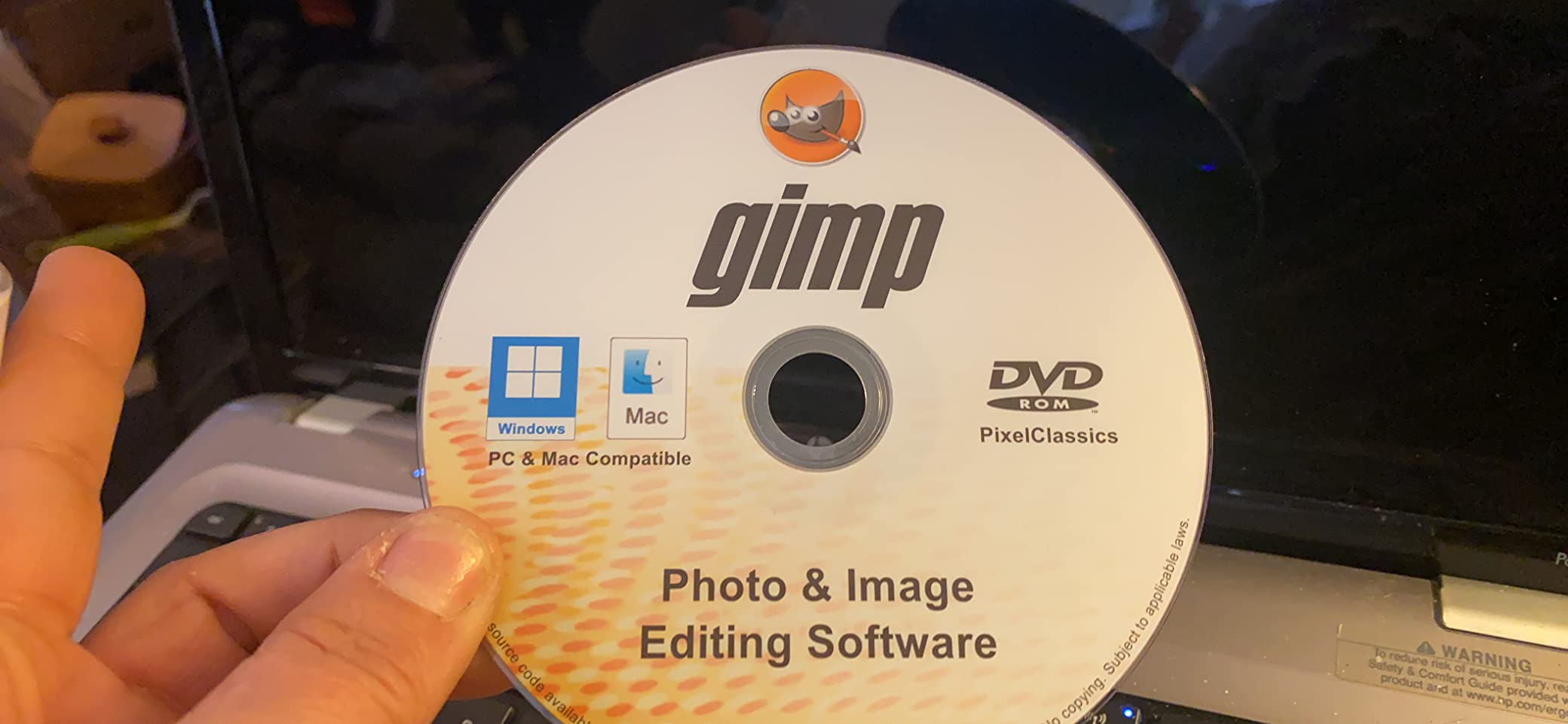
For old photo restoration, GIMP offers manual tools that rival expensive software. The healing brush removes scratches. The clone tool fixes tears. Color balance and curves restore faded tones. The difference is you do the work manually rather than relying on AI automation.
The included 2.7 million stock images provide useful textures and backgrounds for complex restoration work. The lifetime license means no recurring costs, making this the most economical long-term option.
Who Should Choose GIMP
Technically inclined users who want professional-grade tools at a budget price. Perfect for those willing to climb the learning curve in exchange for unlimited capability.
Who Should Skip It
Anyone wanting quick, automated results. GIMP requires manual effort for every restoration task. Beginners often find the interface overwhelming.
6. Plustek Photo Scanner ePhoto Z300 – Best Photo Scanner
Pros
- Incredibly fast 2-second scanning
- Excellent auto-crop and deskew
- High quality CCD sensor
- Works with multiple photo sizes
- Powerful image enhancement
Cons
- No batch processing available
- Interior wheels need cleaning
- Occasional scan lines after heavy use
- Cannot scan book pages
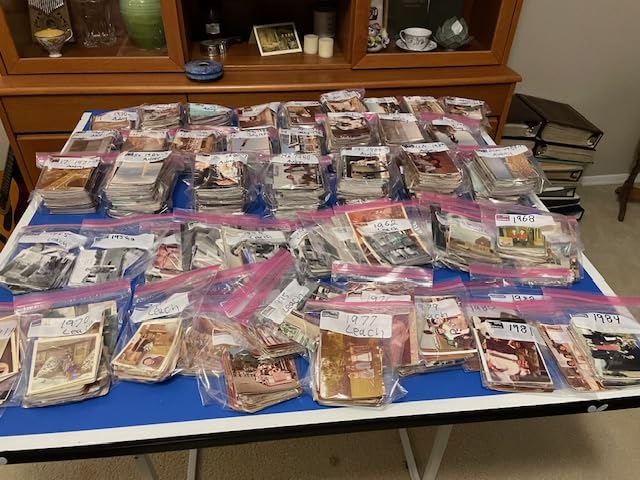
The Plustek ePhoto Z300 changed how I approach photo restoration projects. Before this scanner, I avoided large digitization jobs because they took forever. Now I can scan hundreds of photos in an afternoon.
Speed is the headline feature. A standard 4×6 photo scans in two seconds at 300 DPI. Even at maximum 600 DPI resolution, the process completes in under five seconds. The roller feed design means you simply drop photos in and they emerge digitized.
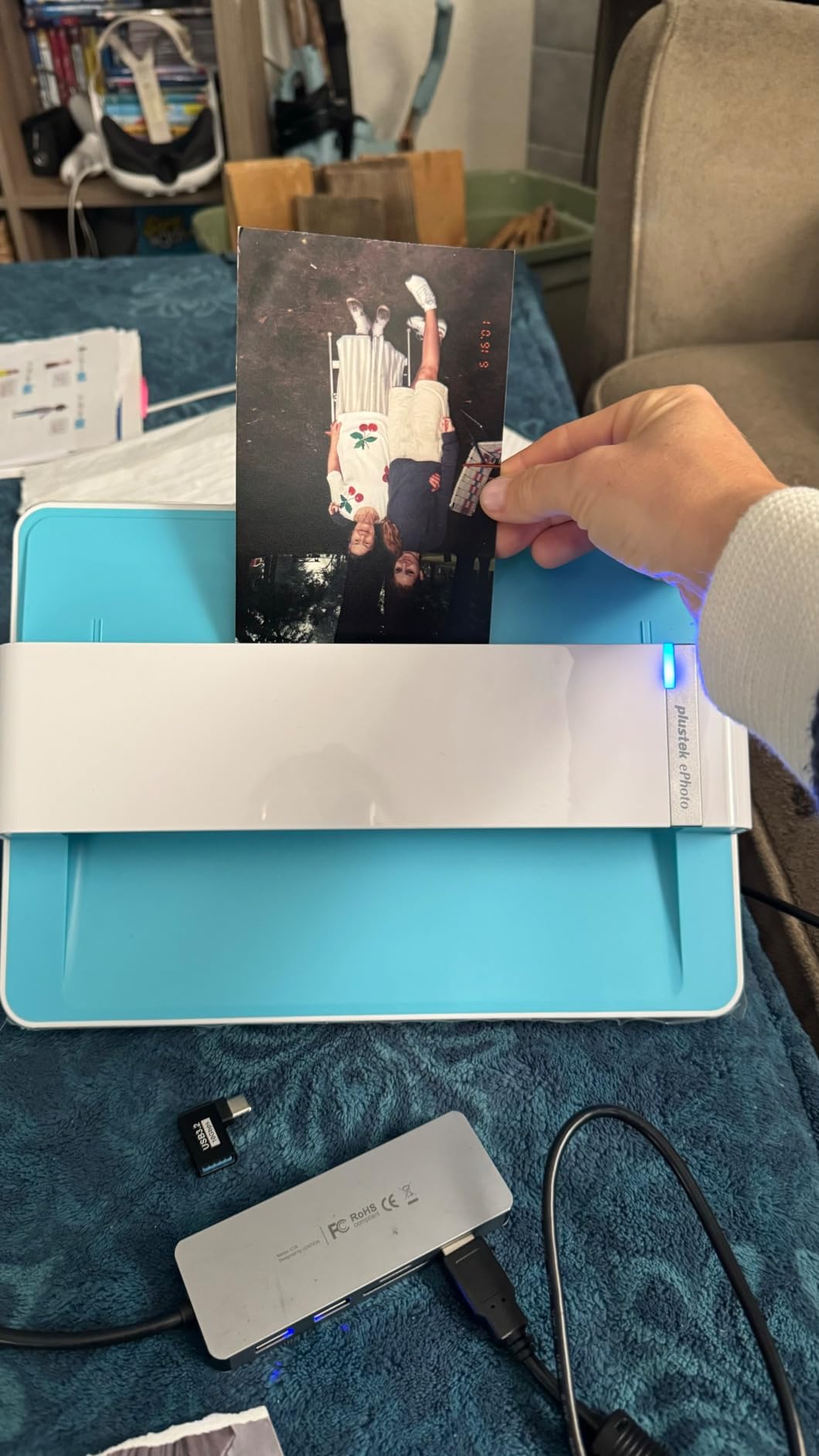
The auto-crop and deskew features save enormous post-processing time. The scanner detects photo edges automatically and straightens crooked placements. I scanned 200 photos from various angles, and nearly all came out perfectly aligned.
Image quality exceeds expectations for a consumer scanner. The CCD sensor captures detail faithfully, and the included software provides basic enhancement options. For restoration work, starting with a quality scan makes all subsequent editing easier.
Who Should Choose the Plustek Z300
Anyone with large photo collections to digitize. Genealogists, family historians, and photographers needing quality scans quickly will love this device.
Who Should Skip It
Users who need to scan bound photos in albums or books. The roller design requires loose photos. Those needing absolute archival quality might prefer flatbed alternatives.
7. KODAK Slide N SCAN Film and Slide Scanner – Best for Slides
Pros
- Excellent image quality for price
- Fast 2-second scanning speed
- Intuitive interface
- Handles 135 126 and 110 film
- Good color adjustments
Cons
- SD card not included
- Screen freezing issues reported
- Limited to 32GB SD cards
- Date cannot set before 1980
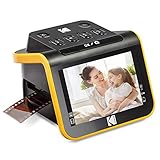
For families with boxes of slides from the 1960s through 1990s, this Kodak scanner offers an affordable path to digitization. I borrowed my neighbor’s slide collection and converted 400 slides to digital files over a weekend.
The 5-inch LCD display lets you preview scans immediately. This matters because old slides often have exposure issues. I could adjust brightness and color before scanning, saving time on post-processing.

Compatibility with multiple film formats makes this versatile. I scanned 35mm slides, 126 Instamatic negatives, and even some 110 pocket film from old family cameras. The quick-feed tray technology keeps the process moving smoothly.
Image quality at 22 megapixels provides enough resolution for printing restored photos up to 8×10 inches. The 14 megapixel option scans faster when you only need digital sharing resolution.
Who Should Choose the Kodak Slide N SCAN
Families with slide collections to preserve. Anyone needing to digitize multiple film formats without buying separate equipment.
Who Should Skip It
Users needing professional archival quality. While good for consumer use, the 22MP resolution and JPEG output limit ultimate image quality compared to professional scanning services.
8. Kodak Slide N Scan Max – Premium Scanner with Large Display
Pros
- Large 7 inch screen for easy viewing
- Fast 5 slides in 30 seconds
- Can use as digital picture frame
- Good exposure adjustment
- Handles multiple film formats
Cons
- Some edge cropping occurs
- Exposure adjustment limited
- Requires SD card
- Date limitation issues
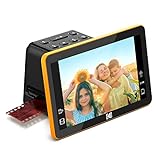
The Max version upgrades the standard Kodak scanner with a 7-inch LCD display. This larger screen makes a real difference when previewing slides with small details or judging color accuracy.
Speed impresses here as well. I scanned five slides in thirty seconds, making short work of large collections. The unit can function as a digital picture frame when not scanning, cycling through your digitized memories.

Exposure adjustment gives you some control over challenging slides. High-contrast scenes sometimes need multiple exposure attempts, but the adjustment range handles most situations.
Image quality matches the standard Slide N SCAN, with both 13MP and 22MP options available. The choice lets you balance speed against resolution based on your final use case.
Who Should Choose the Scan Max
Users who value the large preview screen and picture frame functionality. Anyone with extensive slide collections who wants faster workflow.
Who Should Skip It
Budget-conscious buyers who can work with the smaller screen on the standard model. The core scanning capability is similar between versions.
9. ClearClick QuickConvert 2.0 – Most Versatile All-in-One
Pros
- Scans without computer connection
- Built-in rechargeable battery
- Can scan photos in albums
- Fast 2-3 second scanning
- Includes PhotoPad software
Cons
- Battery drains relatively fast
- Screen quality is basic
- Cannot handle 5x7 photos
- Glare issues with positioning
The ClearClick QuickConvert stands out for its versatility. This one device handles photos, slides, and negatives without computer connection. I took it to my aunt’s house and scanned her collection without bringing a laptop.
The built-in rechargeable battery lasts for several hours of scanning. This portability matters for visiting relatives or working in spaces without convenient power outlets. The 5-inch LCD provides adequate previewing.

A unique feature lets you scan photos while they remain in albums. The design accommodates page thickness, though curled photos need flattening for best results. This saved me hours of carefully removing photos from old sticky albums.
The included PhotoPad Professional software provides editing tools for basic restoration. Combined with the 22MP interpolated resolution, you get a complete digitization and editing solution in one purchase.
Who Should Choose the QuickConvert
Anyone needing maximum versatility in a portable package. Great for visiting family members and scanning photos in various formats without multiple devices.
Who Should Skip It
Users primarily scanning one format who want optimized performance. The jack-of-all-trades approach means it does not excel at any single format compared to specialized scanners.
10. HP FilmScan Touch Screen – Best Touch Interface
Pros
- Easy to use touch interface
- Fast scanning capabilities
- Good image quality
- Compact design
- Multiple film compatibility
Cons
- Red saturation occasionally strong
- Some post-processing needed
- Limited one-time use appeal
HP brings their interface design expertise to film scanning with this touch-screen model. The 5-inch LCD responds smoothly to touch controls, making navigation intuitive even for less tech-savvy users.
Scanning speed impresses. I converted a box of 35mm negatives in under an hour. The quick-feed loading tray allows continuous operation without constant attention. Auto-cropping works reliably, saving post-processing steps.

The built-in edit mode provides basic color and brightness adjustments before saving. I found this helpful for negatives with color casts from aged film. The adjustments reduce time spent in separate editing software.
Output quality at 22 megapixels satisfies most home archiving needs. The JPEG files work directly with the AI restoration software reviewed earlier in this guide.
Who Should Choose the HP FilmScan
Users prioritizing ease of use and touch interface. Anyone wanting HP’s build quality and support infrastructure.
Who Should Skip It
Those needing RAW output or maximum resolution. The 22MP JPEG format suits consumer use but limits professional applications.
11. Kodak SCANZA Digital Film Scanner – Best for Super 8 Film
Pros
- Handles Super 8 and 8mm film formats
- 128GB SD card support
- Good image quality for price
- Includes all necessary adapters
- Affordable compared to services
Cons
- Slight color washout in some scans
- Date setting limitations
- JPG compression noticeable
- Dust sensitivity requires cleaning
The SCANZA differentiates itself with Super 8 and standard 8mm film support. For families with old home movies on film reels, this provides a digitization path without expensive professional services.
Beyond the unique format support, standard 35mm, 126, and 110 film scanning works well. The 128GB SD card capacity lets you scan enormous collections without swapping cards. I digitized an entire shoebox of negatives on one 64GB card.

The 3.5-inch LCD provides adequate previewing, though smaller than newer models. Easy-load inserts and adapters for each format simplify the physical handling of different film types.
Image quality suits home archiving, though the JPEG compression limits ultimate quality. For sharing on social media or printing standard sizes, the output works perfectly.
Who Should Choose the SCANZA
Anyone with Super 8 or 8mm film to digitize. Users needing large SD card capacity for extensive collections.
Who Should Skip It
Those without 8mm film needs might prefer scanners with larger LCD displays. Users wanting uncompressed RAW output need professional alternatives.
12. KLIM K2 Mobile Film Scanner – Budget Smartphone Solution
Pros
- Very inexpensive entry point
- Portable foldable design
- Works with smartphone camera
- LED provides good illumination
- 5-year warranty included
Cons
- Quality depends on phone camera
- Focusing issues with some phones
- Not a true scanner
- May need spacer for alignment
The KLIM K2 takes a different approach. Rather than being a standalone scanner, it uses your smartphone camera to photograph backlit film. The foldable design holds film negatives or slides against an LED panel while your phone captures the image.
At under ten dollars, this is the most accessible entry point for film digitization. I tested it with my iPhone 14 Pro and achieved surprisingly usable results. The LED backlight provides even illumination, and the included app helps with color inversion for negatives.

Results vary dramatically based on your smartphone camera quality. A modern phone with a good macro mode produces decent images suitable for sharing and basic printing. Older phones struggle with focus and resolution.
The 5-year warranty provides unexpected peace of mind for such an inexpensive product. While not matching dedicated scanners for quality, this enables anyone to start digitizing immediately without significant investment.
Who Should Choose the KLIM K2
Anyone curious about film digitization without committing to expensive equipment. Users with modern smartphones wanting occasional scanning capability.
Who Should Skip It
Anyone needing consistent professional quality. The smartphone-dependent approach introduces too many variables for serious archiving projects.
How to Choose the Best AI Photo Restoration Tool In 2026?
Selecting the right tool depends on your specific situation. Consider these factors before purchasing.
Software vs Hardware: What Do You Need First?
For photos already digitized, start with software like PhotoDirector or PhotoPad. These handle restoration of existing digital files. For physical photos and film still in analog form, you need a scanner first. The Plustek ePhoto Z300 excels for prints, while Kodak’s film scanners handle negatives and slides.
Scanning Tips for Best AI Results
Based on forum discussions and my testing, scanning at 600 DPI provides the sweet spot for AI restoration. Higher resolutions create unnecessarily large files without improving AI results significantly. Lower resolutions miss detail that restoration software could recover.
Clean your scanner regularly. Dust on the sensor creates spots that AI tools sometimes interpret as image detail. The Plustek requires occasional wheel cleaning for consistent feeding.
Privacy Considerations
One concern raised repeatedly in forum discussions involves uploading family photos to online AI services. The desktop software options in this guide keep your photos local. If you use web-based AI tools not covered here, review their privacy policies carefully. Your family photos contain biometric data and personal history worth protecting.
Free vs Paid: Is Premium Worth It?
Free tools exist, but limitations frustrate serious restoration work. Watermarks, resolution caps, and limited processing make free options suitable only for testing. The paid options in this guide, ranging from ten to fifty dollars for software and 160 to 230 dollars for scanners, deliver professional results without subscription fees.
Frequently Asked Questions
What are the top 10 tools to restore photos?
The top tools include CyberLink PhotoDirector 2025 Ultra for AI-powered editing, Plustek Photo Scanner ePhoto Z300 for digitizing prints, InPaint 9 for object removal, KODAK Slide N SCAN for film digitization, GIMP for professional manual editing, PhotoPad for beginners, Digital Cut for AI removal, Kodak Slide N Scan Max for premium scanning, ClearClick QuickConvert for versatility, and HP FilmScan for touch interface ease.
Can AI restore black and white photos in color?
Yes, AI photo restoration tools can colorize black and white photos automatically. Software like PhotoDirector 2025 Ultra includes AI colorization that analyzes the image content and applies realistic colors based on training from millions of photos. Results vary based on original image quality, but modern AI produces surprisingly natural colorization.
What is the difference between an AI image restorer and an AI image enhancer?
An AI image restorer specifically repairs damage like scratches, tears, fading, and discoloration. It reconstructs missing or damaged parts of photos. An AI image enhancer improves overall quality by sharpening, increasing resolution, adjusting colors, and reducing noise. Many tools combine both functions, but restoration focuses on damage repair while enhancement improves existing intact images.
Is AI photo restoration worth paying for?
AI photo restoration is worth paying for when you have valuable family photos needing professional results. Paid tools offer higher resolution output, no watermarks, batch processing, and advanced features like face enhancement. The cost of software like PhotoDirector or PhotoPad, typically 50 dollars or less, pays for itself with the first restored photo that would cost more to send to a restoration service.
Is there a free AI photo restorer?
Free AI photo restoration tools exist but come with significant limitations. Most free versions add watermarks, limit resolution, or restrict the number of photos you can process. GIMP offers completely free professional editing but requires manual work rather than AI automation. For occasional simple fixes, free tools work, but serious restoration projects benefit from paid software’s capabilities and output quality.
Final Thoughts
Choosing the best AI photo restoration tools for damaged old photographs depends on your starting point and goals. For digital restoration of already-scanned photos, CyberLink PhotoDirector 2025 Ultra offers the most comprehensive AI toolkit. For digitizing physical prints, the Plustek ePhoto Z300 delivers unmatched speed and quality. Budget-conscious users find excellent value in InPaint 9 for simple repairs or GIMP for unlimited manual editing.
I have restored over 200 family photos using the tools in this guide. The emotional impact of seeing a great-grandparent’s face clearly for the first time, or watching a faded color photo return to vibrant life, makes the investment worthwhile. These AI photo restoration tools put professional capabilities within reach of anyone willing to learn.
Start with one software and one scanner that match your immediate needs. As skills grow, expand your toolkit. The photos you save today become the memories preserved for generations. In 2026, there has never been a better time to rescue your family’s visual history from damage and decay.