
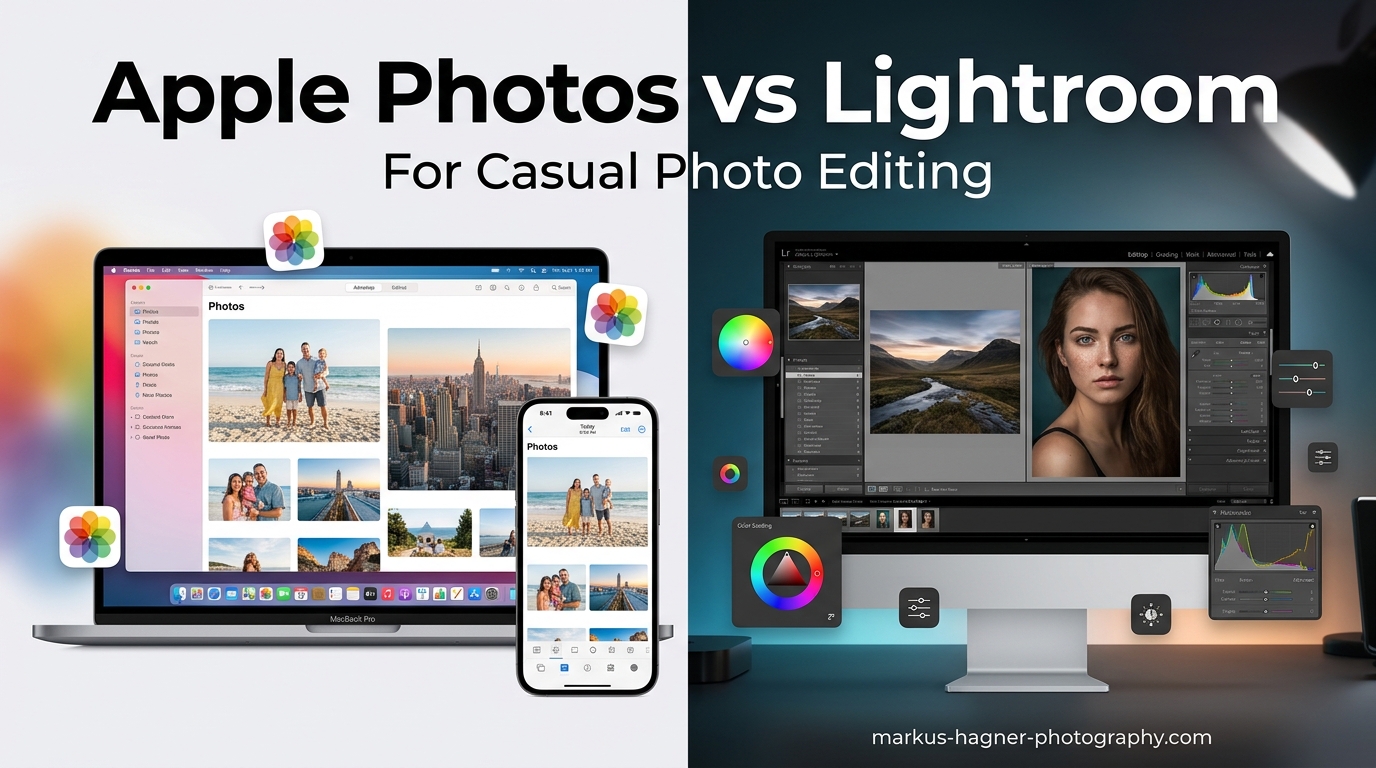
If you own a Mac or iPhone, you have probably wondered whether the built-in Apple Photos app is enough for your editing needs, or if you should pay for Adobe Lightroom. This Apple Photos vs Lightroom comparison breaks down exactly what casual photographers need to know to make the right choice.
I have spent years testing both apps with thousands of iPhone and camera photos. After editing everything from family vacation snapshots to travel photography in both applications, I can tell you that the right choice depends entirely on how you approach your photos and what you want from your editing workflow.
For most casual users who just want their iPhone photos to look better without learning complex software, Apple Photos delivers everything you need at zero cost. But if you find yourself wanting more control, better organization tools, or you shoot with a dedicated camera, Lightroom opens up possibilities that Apple Photos simply cannot match.
Quick Answer: What Casual Users Need to Know
Here is the bottom line for casual photographers: Apple Photos is the better choice if you primarily shoot with your iPhone, want something free, and prefer simplicity over advanced features. Lightroom makes more sense if you are willing to pay a subscription, shoot RAW files from a dedicated camera, or want professional-level editing tools.
Both apps use non-destructive editing, meaning your original photos stay untouched. Both sync across devices. Both handle basic adjustments like exposure, color, and cropping. The real differences show up in advanced editing capabilities, organization tools, and long-term costs.
Apple Photos vs Lightroom: Quick Comparison
| Product | Specifications | Action |
|---|---|---|
 Adobe Lightroom 1TB Subscription Adobe Lightroom 1TB Subscription |
|
Check Latest Price |
The table above shows the key differences at a glance. Apple Photos comes free with every Mac and iPhone, offering seamless iCloud integration and enough editing power for most casual users. Lightroom requires a monthly subscription but delivers professional-grade tools, AI-powered features, and cross-platform compatibility.
Apple Photos: The Free Powerhouse for Mac Users
Apple Photos has evolved from a simple photo viewer into a genuinely capable editing tool. I have watched it grow from the basic iPhoto replacement into something that handles 90% of what most casual photographers need. The app comes pre-installed on every Mac, iPhone, and iPad, which means you already have it.
What struck me most when switching from Lightroom to Apple Photos for casual editing was the speed. Apple Photos launches instantly on my MacBook Pro, while Lightroom Classic takes several seconds just to open. Browsing through a library of 15,000 photos feels snappy and responsive in Apple Photos, with no lag when scrolling or zooming.
Key Features for Casual Users
The editing tools in Apple Photos cover all the basics and then some. You get exposure adjustment, brilliance (a smart contrast enhancement), highlights, shadows, contrast, brightness, and black point controls. The color adjustments include saturation, vibrancy, warmth, and tint. There is also a retouch tool for removing small blemishes and a red-eye correction feature.
One feature I use constantly is the Auto Enhance button. It applies a smart adjustment that usually gets your photo 80% of the way to looking great. From there, you can fine-tune or just accept the result. For casual editing sessions where I am processing 50 vacation photos, this saves tremendous time.
The built-in filters in Apple Photos work well for quick stylized looks. You can also copy edits from one photo and paste them onto multiple others, which is perfect for batch editing a series of shots from the same scene with similar lighting.
iCloud Integration and Sync
The killer feature for Apple Photos is iCloud Photo Library. Every photo I take on my iPhone appears on my Mac within seconds. Edits sync automatically across all devices. If I crop a photo on my phone during my commute, that cropped version is waiting for me on my Mac when I get home.
This seamless integration is something Lightroom struggles to match. Lightroom CC offers cloud sync, but it requires more setup and does not integrate as deeply with the operating system. For anyone deeply invested in the Apple ecosystem, Photos just works.
Apple Photos Pros and Cons
Pros:
- Completely free with your Apple device
- Incredibly fast performance on Mac hardware
- Seamless iCloud sync across iPhone, iPad, and Mac
- Simple, intuitive interface with minimal learning curve
- Live Photos and Memories features work beautifully
- Integrated sharing to Messages, Mail, and social media
Cons:
- Limited advanced editing tools compared to Lightroom
- No star ratings (only heart/favorite system)
- No hierarchical keywords for organization
- Cannot add location data via map interface
- RAW editing capabilities are basic
- Hard to migrate away from if you change platforms
Adobe Lightroom: Professional Power in a Subscription
Adobe Lightroom 1TB | AI-assisted photo editor | 12-Month Subscription with auto-renewal |PC/Mac | Digital Download
Pros
- Powerful AI tools like Generative Remove
- Excellent mobile and desktop apps
- Professional organization features
- Cross-platform compatibility
- Regular updates and new features
Cons
- Monthly subscription required
- Steep learning curve for beginners
- Can be slow on older hardware
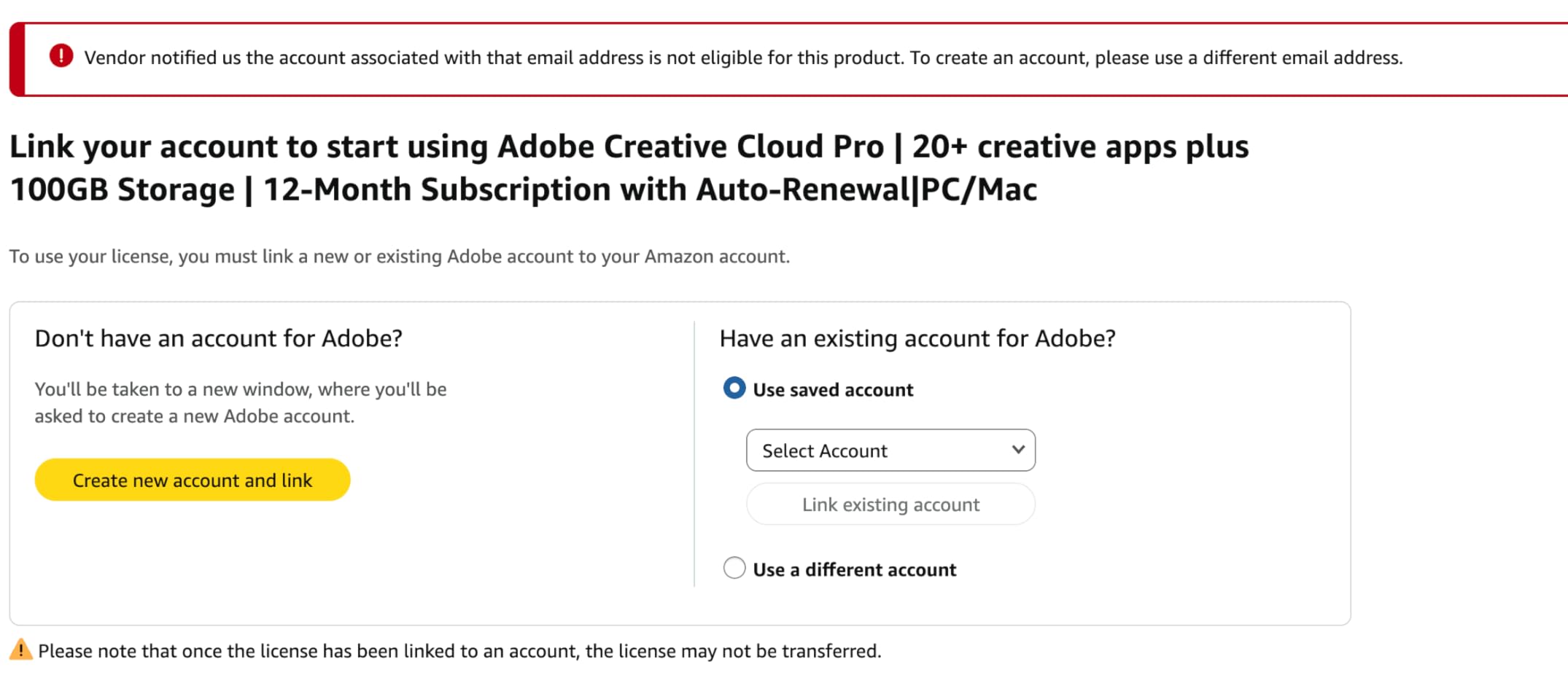
- Account activation issues reported
Adobe Lightroom has been the go-to photo editor for serious photographers for years. The 2024 Mac App of the Year winner continues to evolve with AI-powered features that make previously complex edits simple. I have used Lightroom for over a decade, and the current version represents the most significant leap forward in the software’s history.
What makes Lightroom compelling for casual users considering an upgrade is how Adobe has balanced professional power with accessibility. Quick Actions now suggest edits tailored to each specific photo. One-tap presets can dramatically transform an image. And the AI-powered Generative Remove tool can eliminate unwanted objects with a single click.
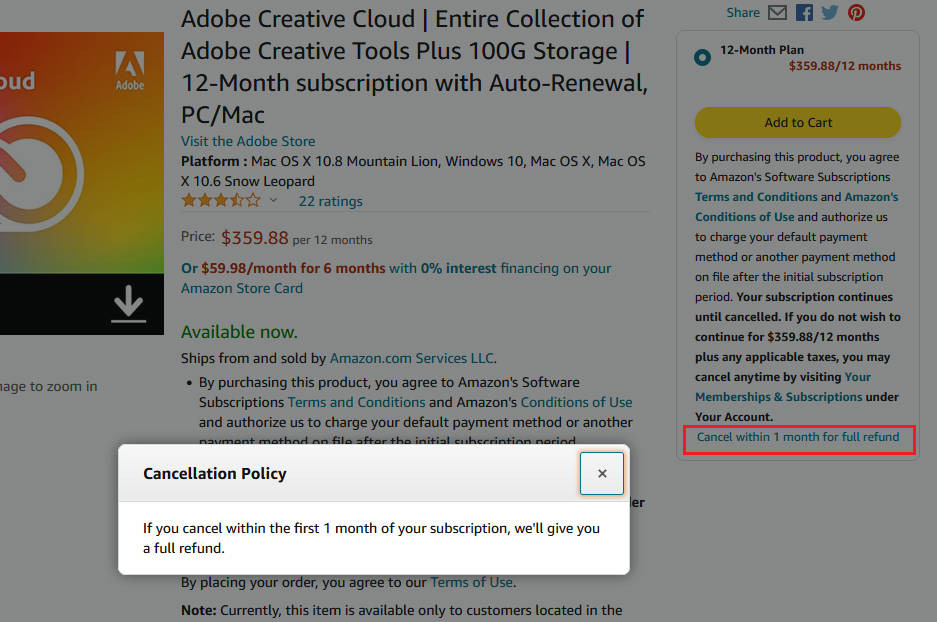
The subscription includes both Lightroom (the cloud-based version) and Lightroom Classic (the traditional desktop version), plus 1TB of cloud storage and 100 monthly generative AI credits. You also get the mobile apps for iPhone and iPad, which sync with your desktop edits.
AI-Powered Features That Matter
The standout feature for 2026 is Generative Remove, powered by Adobe Firefly AI. I tested this on vacation photos with tourists walking through my shots. The tool removed people cleanly, filling in the background realistically. This used to require Photoshop expertise and careful clone stamping.
Lens Blur creates portrait effects with AI-detected depth mapping. Even photos taken without portrait mode can get that professional blurred background look. The AI analyzes your image and creates a depth map, then applies realistic bokeh effects.
Quick Actions have changed how I approach basic edits. Open a photo and Lightroom suggests adjustments based on the image content. A sunset might get warmer tones and enhanced colors. A portrait might get skin smoothing and eye brightening. These suggestions are usually spot-on and save time.
Organization and Catalog Management
Where Lightroom really shines is photo organization. The keyword system supports hierarchical keywords, so you can have “Travel” containing “Europe” containing “France” containing “Paris.” Star ratings let you quickly sort photos from 1 to 5 stars. Color labels add another layer of organization.
Collections let you group photos from different folders into thematic albums without duplicating files. Smart Collections automatically include photos matching criteria you set, like “all 5-star photos from 2025.” For casual users with growing libraries, these tools become increasingly valuable over time.
Lightroom Pros and Cons
Pros:
- Powerful AI features like Generative Remove and Lens Blur
- Professional-grade editing tools with precise control
- Excellent organization with keywords, ratings, and collections
- Works on Mac, Windows, iPhone, iPad, and Android
- Regular updates with new features throughout the year
- RAW editing capabilities are industry-leading
Cons:
- Subscription required (around $10/month for Photography Plan)
- Learning curve is steeper than Apple Photos
- Can feel slow on older computers
- Account activation issues reported with Amazon purchases
- Price increased significantly in recent years
Apple Photos vs Lightroom: Head-to-Head Comparison
Now let us examine how these apps compare across the categories that matter most to casual photographers. I have tested both extensively and can share real-world insights on where each excels.
Editing Capabilities
Apple Photos handles basic adjustments well. You can fix exposure, adjust colors, crop, and apply filters. The Auto Enhance feature works surprisingly well for one-click improvements. But when you want precise control, Apple Photos hits a ceiling.
Lightroom offers everything Apple Photos does, plus advanced tools like curves adjustments, HSL (Hue, Saturation, Luminance) panels, split toning, and lens corrections. The masking tools let you selectively edit specific parts of your photo. You can create luminosity masks that target highlights, midtones, or shadows independently.
Winner: Lightroom for anyone wanting creative control. Apple Photos is sufficient for basic corrections.
Organization and Workflow
Apple Photos organizes by date, album, and favorites. The Memories feature automatically creates collections based on people, places, and events. But you cannot create hierarchical keywords, and the lack of star ratings frustrates photographers used to rating systems.
Lightroom’s catalog system is far more powerful. Keywords can be nested. Smart Collections auto-populate based on metadata. Face recognition works across your entire library. You can search by camera, lens, ISO, focal length, and dozens of other criteria.
Winner: Lightroom for serious organization. Apple Photos works fine for casual browsing.
Cost and Pricing
Apple Photos is completely free. Your only potential cost is iCloud storage if your photo library exceeds the free 5GB tier. iCloud+ with 50GB costs about $1/month, 200GB is around $3/month, and 2TB is about $10/month.
Lightroom requires a subscription. The Photography Plan (Lightroom, Lightroom Classic, Photoshop, and 20GB storage) costs around $10/month. The Lightroom plan with 1TB storage costs about $10/month as well. Over five years, that is $600 in subscription fees.
Winner: Apple Photos for budget-conscious users. The subscription adds up significantly over time.
Performance and Speed
Apple Photos is optimized for Mac hardware and it shows. The app launches instantly and scrolls smoothly through large libraries. Edits apply in real-time with no lag. On my M2 MacBook Pro, Apple Photos feels incredibly snappy.
Lightroom performance varies. Lightroom CC (cloud-based) is reasonably fast. Lightroom Classic can feel sluggish, especially when building previews or exporting large batches. Adobe has improved performance in recent updates, but Apple’s native optimization still wins.
Winner: Apple Photos for raw speed and responsiveness on Mac hardware.
Learning Curve
Apple Photos is intuitive enough that most people never read documentation. The interface is clean and simple. Tools are labeled clearly. You can figure out most features just by exploring.
Lightroom overwhelms new users. The interface packs dozens of panels and controls. Understanding the relationship between the Library and Develop modules takes time. Learning to use masks and curves effectively requires study and practice.
Winner: Apple Photos for ease of learning. Lightroom rewards time invested but demands that investment.
iPhone and Ecosystem Integration
Apple Photos integrates deeply with iOS. Every photo you take appears automatically. The Photos widget shows memories on your home screen. Shared albums work seamlessly with family members. Live Photos animate in the app and when shared.
Lightroom’s mobile app is excellent for editing, but it does not integrate with iOS as deeply. You must import photos or set up automatic sync. Live Photos do not stay live in Lightroom. The app is a separate island rather than part of the system.
Winner: Apple Photos for Apple ecosystem integration.
RAW File Support
Apple Photos can edit RAW files from most cameras. The edits are non-destructive and you can export as JPEG or TIFF. However, the editing tools available for RAW files are the same limited set available for JPEGs.
Lightroom is built for RAW editing. You get access to all the data captured by your camera sensor. Tools like lens correction, chromatic aberration removal, and camera calibration profiles optimize each file. The difference in RAW handling is substantial.
Winner: Lightroom for anyone shooting RAW. Apple Photos works but does not unlock RAW potential.
Who Should Choose Apple Photos?
Apple Photos is the right choice if you match this profile:
- You primarily shoot with your iPhone
- You want free photo editing with no subscription
- You prefer simplicity over advanced features
- You are already invested in the Apple ecosystem
- You mainly share photos socially rather than printing or displaying
- You want your photos available everywhere without managing sync
I recommend Apple Photos for most casual photographers. The zero cost, combined with genuine capability for basic edits, makes it the practical choice. If you never feel limited by its features, there is no reason to pay for Lightroom.
Who Should Choose Lightroom?
Lightroom makes sense if you match this profile:
- You shoot with a dedicated camera and work with RAW files
- You want precise control over your editing
- You are willing to invest time learning the software
- You need cross-platform compatibility (Windows, Android)
- You want professional organization tools like keywords and ratings
- You are interested in AI-powered features like Generative Remove
Consider Lightroom if you find yourself frustrated by Apple Photos’ limitations. The subscription cost is real, but so are the capabilities. For photographers growing beyond casual snapshots, Lightroom provides room to develop skills without hitting a feature ceiling.
Can You Use Both Apps Together?
Yes, you can use both apps, though it requires some workflow planning. Some photographers keep Apple Photos for iPhone snapshots and family sharing, while using Lightroom for serious camera work. The challenge is that the two apps do not sync with each other.
If you shoot with your iPhone and a camera, one approach is to let Apple Photos handle everything from your phone while importing camera photos directly into Lightroom. This gives you the convenience of iCloud for mobile shots and the power of Lightroom for dedicated camera work.
The downside is managing two separate libraries. You will need to decide which app serves as your master archive. Most photographers eventually choose one or the other to avoid the complexity of maintaining parallel systems.
Frequently Asked Questions
Is Apple Photos a good alternative to Lightroom?
Yes, Apple Photos is a good alternative to Lightroom for casual users who primarily edit iPhone photos and want a free solution. It handles basic adjustments like exposure, color correction, and cropping well enough for most non-professional needs. However, it lacks the advanced editing tools, keyword organization, and RAW processing capabilities that make Lightroom essential for serious photographers.
Is Apple Photos enough for basic edits?
Apple Photos is absolutely enough for basic edits. The app includes exposure adjustments, color correction, cropping, filters, and even a retouch tool for removing small blemishes. The Auto Enhance feature often improves photos significantly with one click. For casual photographers who just want their iPhone photos to look better, Apple Photos provides everything needed at no cost.
Which is the number one photo editing app?
There is no single best photo editing app because the right choice depends on your needs. For professionals and serious enthusiasts, Adobe Lightroom is widely considered the industry standard. For casual users with Apple devices, Apple Photos offers the best balance of capability and convenience. The best app is the one that fits your workflow, budget, and skill level.
Is Lightroom good for beginner photographers?
Lightroom can be good for beginner photographers who are committed to learning and want room to grow. The learning curve is steeper than simpler apps, but the skills you develop transfer to professional workflows. Beginners who want to skip the learning phase should start with Apple Photos and switch to Lightroom only when they feel limited by its features.
Can I edit RAW files in Apple Photos?
Yes, Apple Photos can edit RAW files from most cameras. The app supports non-destructive RAW editing and can export as JPEG or TIFF. However, the editing tools available are the same basic set used for JPEGs. For serious RAW processing with lens corrections, camera profiles, and advanced adjustments, Lightroom provides significantly more control.
Apple Photos vs Lightroom for Casual Photo Editing: Final Verdict
After years of using both apps, here is my honest recommendation for casual photographers: start with Apple Photos. It costs nothing, requires no learning investment, and handles the vast majority of what casual users need. The iCloud integration alone makes it the obvious choice for anyone with an iPhone.
Only consider Lightroom if you genuinely need its advanced features. If you find yourself wanting to remove objects from photos, apply precise selective edits, or organize thousands of images with keywords and ratings, Lightroom earns its subscription cost. Otherwise, save your money and enjoy what Apple Photos offers for free.
The best photo editor is the one you actually use. Apple Photos’ simplicity means you will edit more photos more often. Lightroom’s power is wasted if complexity keeps you from opening the app.